


Quick answer: what is the difference between SharePoint Online and SharePoint on-premises? SharePoint Online is the cloud version in Microsoft 365: Microsoft runs it, it is always current, and you pay per user. SharePoint Server on-premises gives you full control of data, code and change schedule, but it needs your own infrastructure and upkeep. In 2026 on-premises means SharePoint Server Subscription Edition, because support for SharePoint Server 2016 and 2019 ended on July 14, 2026.
The question used to be “cloud or not?” and was argued on principle. In 2026 it is a practical one with a deadline behind it. Organizations still running SharePoint Server 2016 or 2019 are on unsupported software and have to move somewhere: up to Subscription Edition, across to SharePoint Online, or into a hybrid of the two. Organizations already in Microsoft 365 meet the same question from the other side when a regulator, a customer or a security team asks whether some content should stay on their own servers.
This guide compares the two on the points that decide the matter, cost, control, security and updates, then covers features, hybrid and the way from one to the other. If you want the user’s view first, our How to use SharePoint guide has a short section on telling the two apart, and What is SharePoint explains the platform itself.
In this article:
- SharePoint Online and SharePoint Server at a glance
- The comparison table
- Cost, control, security and updates in detail
- Features you get in only one of them
- SharePoint hybrid
- How to choose
- Migrating from SharePoint Server to SharePoint Online
- Virto apps for both worlds
- FAQ
SharePoint Online and SharePoint Server at a glance
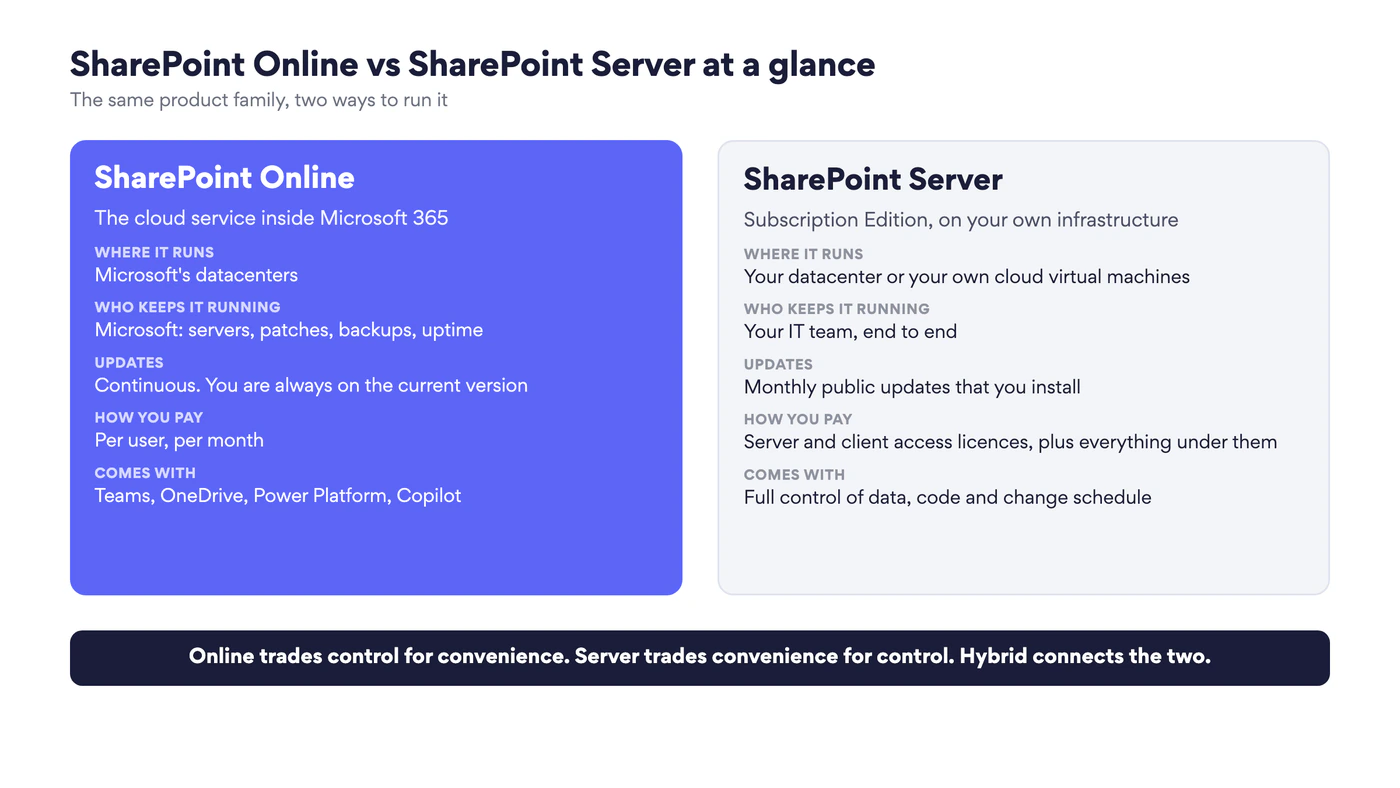
Fig. 1. SharePoint Online vs SharePoint Server at a glance
What is SharePoint Online?
SharePoint Online, which Microsoft now calls SharePoint in Microsoft 365, is SharePoint delivered as a service. It is included in Microsoft 365 business and enterprise plans; the standalone SharePoint Plan 1 and Plan 2 are being retired and have not been sold to new customers since 31 May 2026. There is nothing to install. Microsoft operates the servers, applies updates continuously, keeps the service available and adds features without asking. Administrators work in the SharePoint admin center, where the jobs are about sites, sharing, storage and policies, not about servers.
It is also the storage layer of the rest of Microsoft 365. Files in Teams channels live in SharePoint sites, OneDrive is built on it, and Copilot, Microsoft Lists, Viva and Power Platform all read from it.
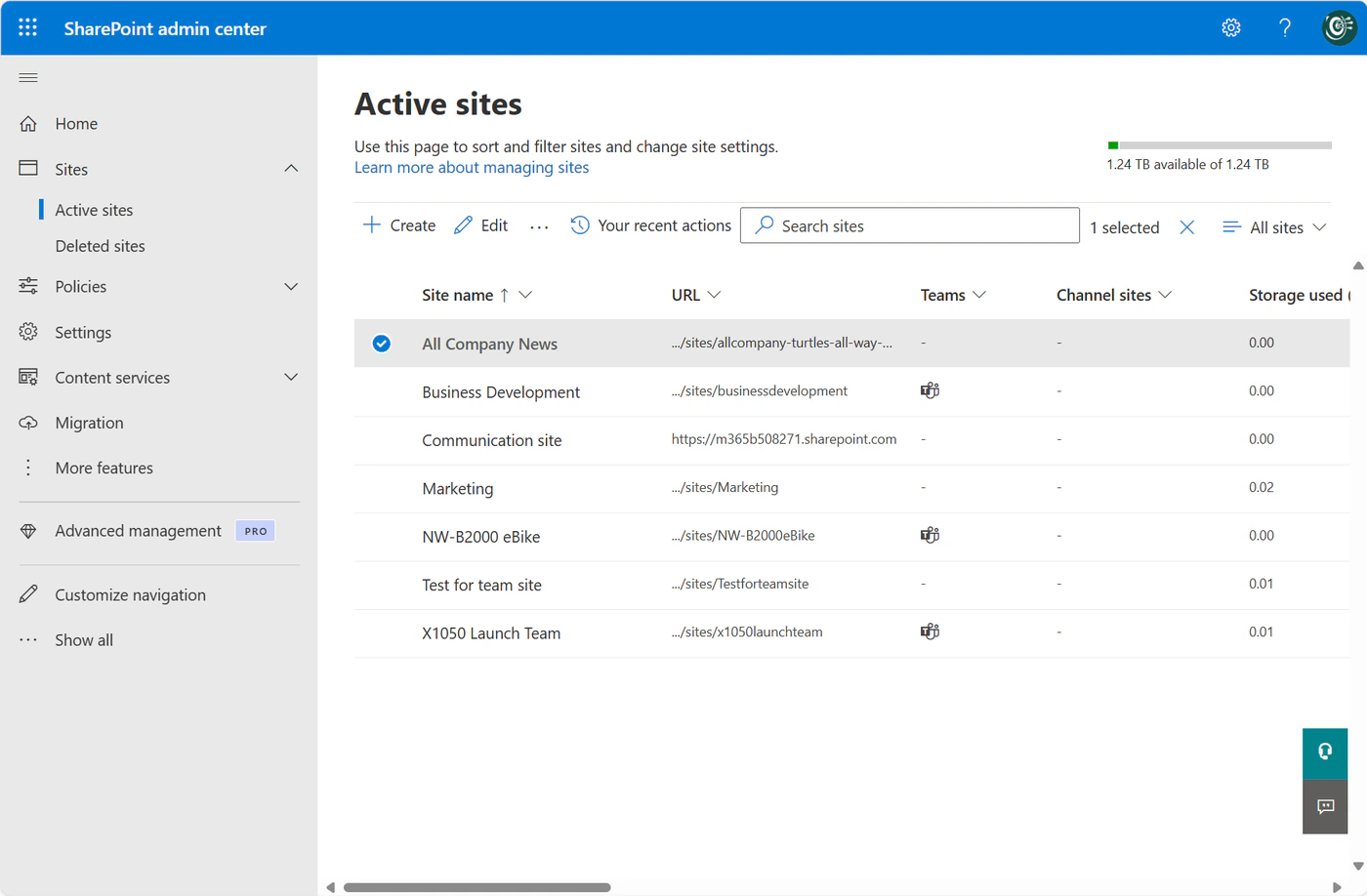
Pic. 1. Administering SharePoint Online: the Active sites page of the SharePoint admin center. Source: Microsoft Learn
What is SharePoint Server (on-premises)?
SharePoint Server is the product you install yourself: on servers in your own datacenter, or on virtual machines you rent, which is still “on-premises” in every sense that matters, because you run the farm. The current version is SharePoint Server Subscription Edition (SE), released in late 2021. It replaced the old cycle of a new version every three years with one version that is updated continuously:
- Microsoft releases a public update every month and a feature update about twice a year, named by half-year, such as Version 25H1 and Version 25H2.
- It follows Microsoft’s Modern Lifecycle Policy. There is no fixed end date, and Microsoft has committed to support until at least December 31, 2035.
- The condition is that you stay current: under the product servicing policy each build is supported for one year after its release.
- It runs on Windows Server 2019, 2022 or 2025 with SQL Server 2019 or 2022, according to the system requirements.
The earlier versions are out of support. SharePoint Server 2013 ended in April 2023, and SharePoint Server 2016 and 2019 both reached end of support on July 14, 2026. They keep running, but they no longer receive security fixes, and a SharePoint farm is exactly the kind of server attackers look for.
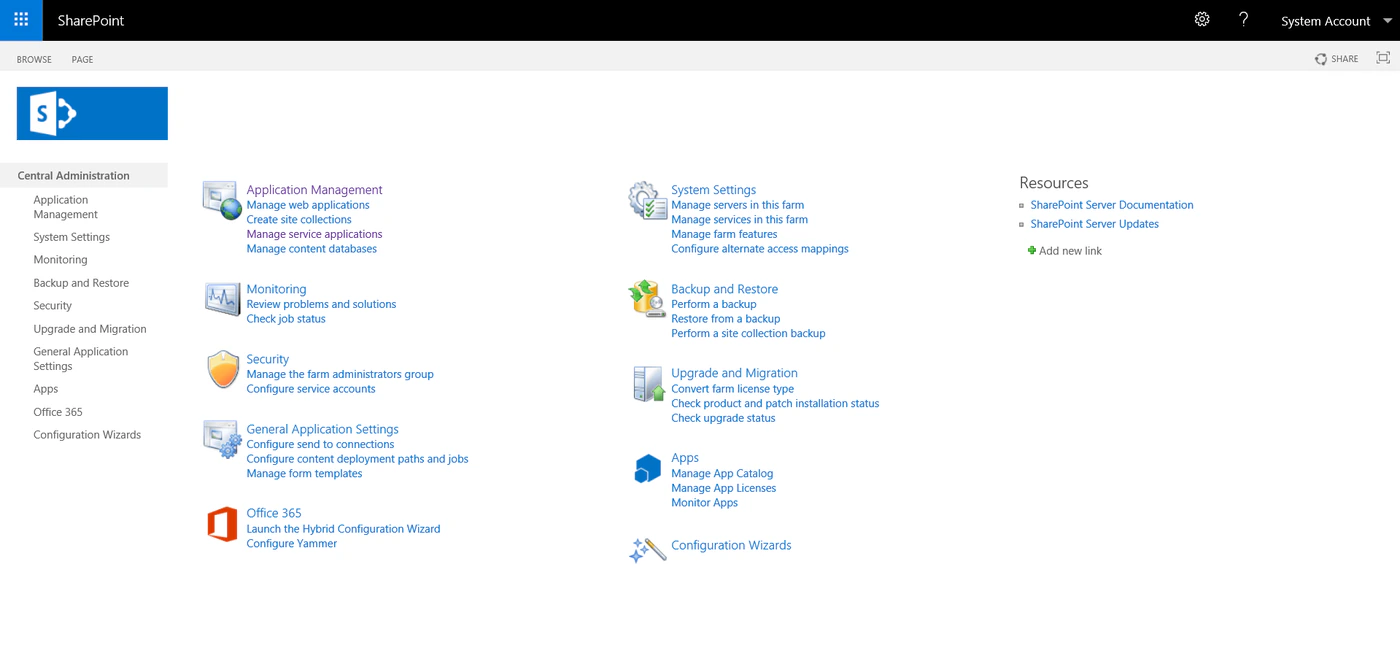
Pic. 2. Administering SharePoint Server: Central Administration, where the farm, its services and its updates are managed
SharePoint on-premises vs online: the comparison
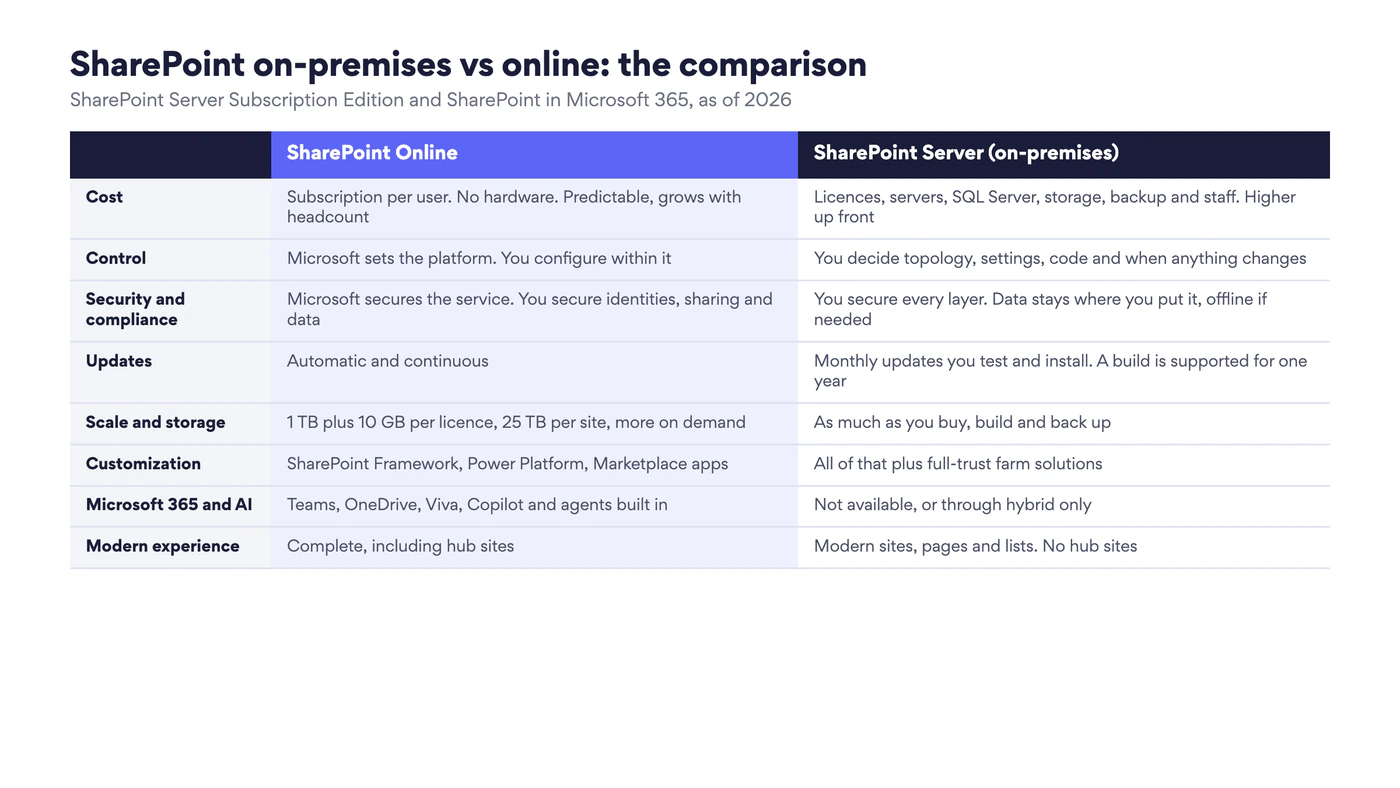
Fig. 2. SharePoint on-premises vs online: the comparison
| SharePoint Online | SharePoint Server (on-premises) | |
|---|---|---|
| Cost | Subscription per user. No hardware. Predictable, grows with headcount | Licences, servers, SQL Server, storage, backup and staff. Higher up front |
| Control | Microsoft sets the platform. You configure within it | You decide topology, settings, code and when anything changes |
| Security and compliance | Microsoft secures the service. You secure identities, sharing and data | You secure every layer. Data stays where you put it, offline if needed |
| Updates | Automatic and continuous | Monthly updates you test and install. A build is supported for one year |
| Scale and storage | 1 TB plus 10 GB per licence, 25 TB per site, more on demand | As much as you buy, build and back up |
| Customization | SharePoint Framework, Power Platform, Marketplace apps | All of that plus full-trust farm solutions |
| Microsoft 365 and AI | Teams, OneDrive, Viva, Copilot and agents built in | Not available, or through hybrid only |
| Modern experience | Complete, including hub sites | Modern sites, pages and lists. No hub sites |
| Access from anywhere | Built in, with external sharing and guest access | Needs VPN, a reverse proxy or a published extranet |
| Support horizon | Evergreen | Subscription Edition: at least until the end of 2035. 2016 and 2019: ended July 14, 2026 |
Cost: subscription against infrastructure
The licence price is the smallest part of the comparison and the one most often compared. What matters is the whole column.
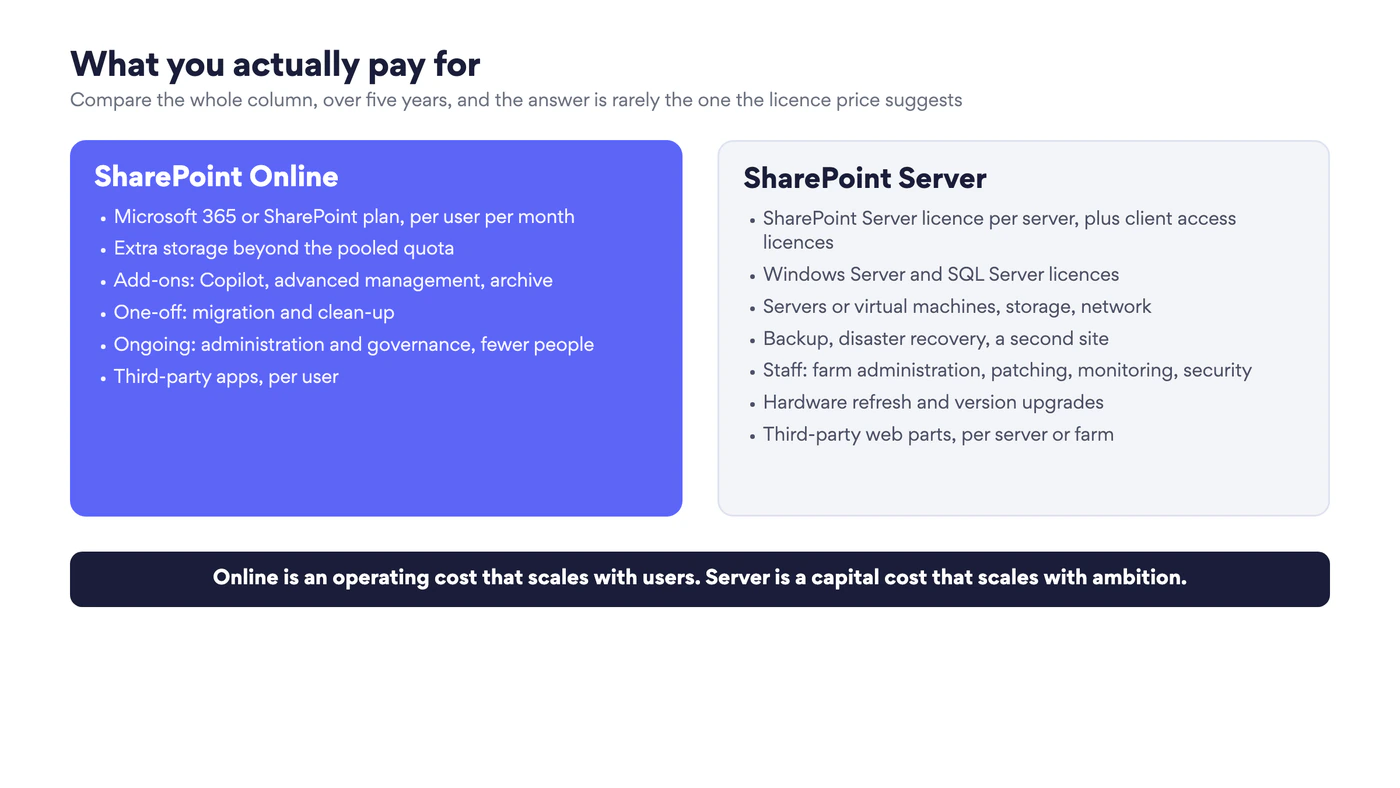
Fig. 3. What you actually pay for in each model
SharePoint Online is an operating cost. You pay per user per month, usually as part of a Microsoft 365 plan you would buy anyway for Office, Exchange and Teams, so the marginal cost of SharePoint is often close to zero. The items that surprise people later are storage beyond the pooled quota, add-ons such as Copilot, and the one-off cost of migrating and cleaning up.
SharePoint Server is mostly a capital and staffing cost. Beyond the SharePoint Server licence per server and a client access licence for every user, you license Windows Server and SQL Server, buy or rent the machines, storage and network, build backup and disaster recovery, and employ people who can run a farm: patching every month, monitoring, security hardening, capacity planning. A small farm with high availability typically needs four to six servers. The cost per user falls as the number of users rises, which is why on-premises still makes financial sense for some very large, stable deployments and almost never for small ones.
A fair comparison covers five years and includes the people. When it does, Online is cheaper for most organizations. On-premises wins where the infrastructure and the team exist already and are shared with other systems.
Control: who decides
On your own farm you decide everything: the topology, the service applications, every setting in Central Administration, which update goes in and on which weekend, what code runs on the servers, and where each database sits. If a critical business process depends on SharePoint behaving exactly as it did last month, you can guarantee that.
Online, Microsoft decides the platform and you configure inside it. Features arrive when Microsoft ships them, sometimes with a targeted release ring for early testing, and features leave when Microsoft retires them. You cannot install server-side code, reach the SQL databases or pause an update. For most organizations this is a relief and not a loss. It becomes a real constraint when you rely on deep customizations or tightly coupled integrations with systems on the local network.
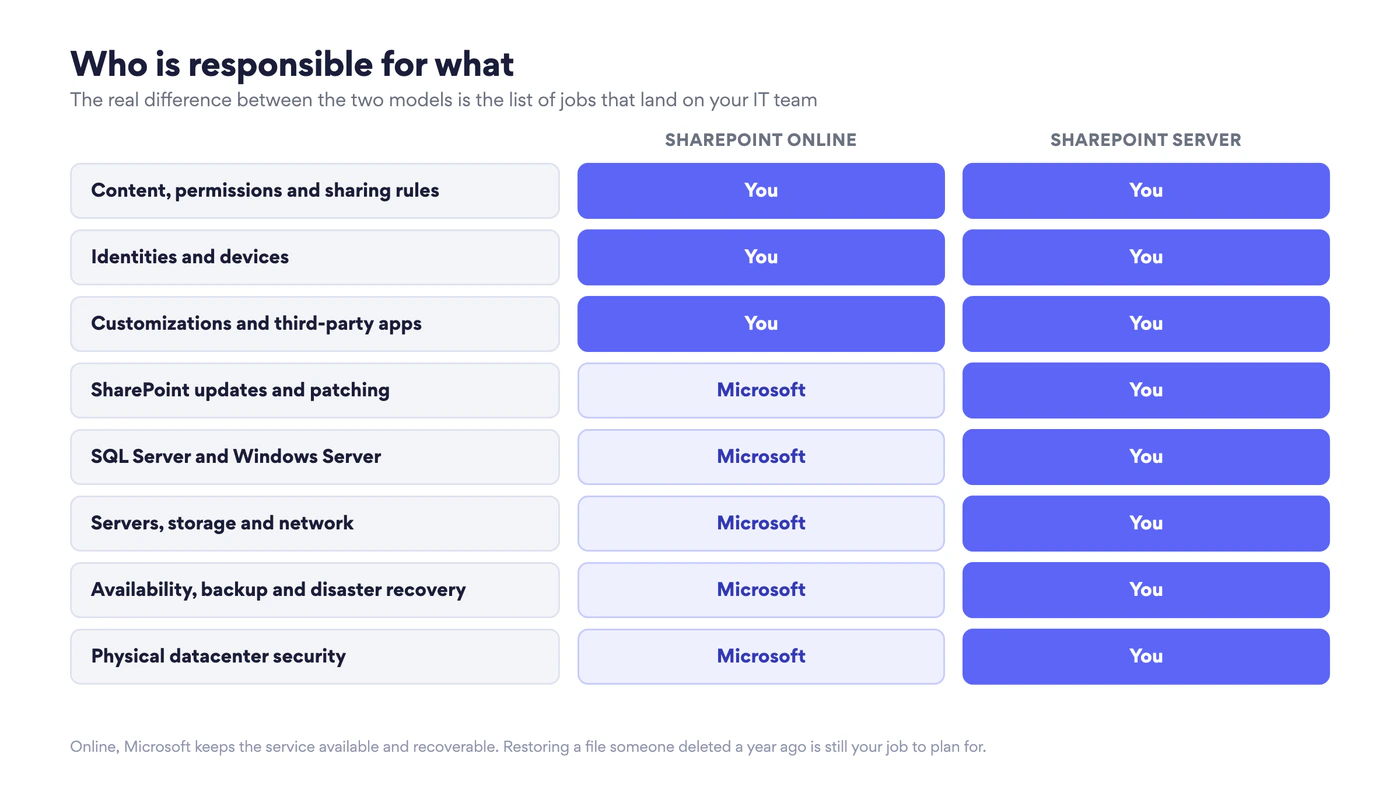
Fig. 4. Who is responsible for what in SharePoint Online and in SharePoint Server
Security and compliance
Neither option is “more secure” in itself. They move the work to different people.
Online, Microsoft secures the datacenters, the network, the servers and the application, with a security operation no single customer could fund. What remains yours is what causes most real incidents: identities, devices, sharing settings and permissions. Multifactor authentication, Conditional Access, sensitivity labels, data loss prevention and retention come with Microsoft 365 and cover SharePoint along with everything else. For location, Microsoft offers regional datacenters, the EU Data Boundary, Multi-Geo and Advanced Data Residency, described in the Microsoft 365 data residency overview, and separate government clouds.
On-premises, every layer is yours: physical security, network segmentation, Windows and SQL Server hardening, monthly SharePoint patching, antivirus, certificate management, backup and its testing. In exchange you get things no cloud contract provides: the data never leaves your network, the farm can run with no internet connection at all, and you can prove both to an auditor. That is why defence, parts of government, critical infrastructure and some financial and healthcare organizations stay on-premises, and why the debate about digital sovereignty has brought new interest in it. We look at that argument in IT sovereignty in 2026: on-premise SharePoint vs cloud.
The weak point of on-premises security is time. A farm that falls months behind on updates is more exposed than any cloud tenant, and a farm on SharePoint Server 2016 or 2019 can no longer be patched at all. For permission design, which works the same way in both, see our SharePoint permissions guide.
Updates and lifecycle
SharePoint Online has no versions. New features appear, sometimes weekly, announced in the Microsoft 365 message center and on the public roadmap. You cannot fall behind, and you cannot stand still either: user interfaces change, and features such as SharePoint 2013 workflows, Add-ins and classic pages are retired on Microsoft’s schedule.
SharePoint Server Subscription Edition brought the same idea on-premises in a milder form. There will be no “SharePoint Server 2028” to migrate to. You install monthly public updates on your own schedule, within the one-year support window of each build, and the farm shows a warning in Central Administration when a build approaches its end of support. Feature updates add capabilities twice a year, and administrators can choose between a standard and an early release ring.
Features you get in only one of them
| Only in SharePoint Online | Only in SharePoint Server |
|---|---|
| Microsoft 365 Copilot and agents in SharePoint | Full-trust farm solutions with server-side code |
| Microsoft Teams, Microsoft 365 groups, Planner, Viva and Loop integration | Direct control of SQL Server databases, backups and restore points |
| Hub sites, home site, Viva Connections | Operation with no internet connection |
| Power Automate, Power Apps and Power BI with native connectors | Your own choice of authentication providers and network boundaries |
| External sharing and guest access without infrastructure | Your own update calendar |
| Microsoft Purview compliance, labels and data loss prevention across all of Microsoft 365 | Classic features that have been retired in the cloud, including the add-in model |
| Storage that grows on demand, files up to 250 GB | Custom service applications and deep integration with local line-of-business systems |
Subscription Edition is not frozen in 2019. It has modern team sites and communication sites, modern pages, lists and libraries, modern authentication with OpenID Connect, and it gains features with each update. What it does not get is anything that depends on the Microsoft 365 cloud, and that list grows every year, with AI at the top of it. The storage numbers for Online come from Microsoft’s SharePoint limits. For everyday constraints in both versions, see our guide to SharePoint limitations. How the modern and classic experiences differ, and what Microsoft is retiring in the cloud, is covered in SharePoint classic vs modern, and the two modern site types in SharePoint team site vs communication site.
SharePoint hybrid: both at once
Hybrid connects a SharePoint Server farm to a Microsoft 365 tenant so that users experience them as one environment. It is a set of features, not a product, and you turn on the ones you need with the Hybrid Configuration Wizard. Microsoft’s overview is Hybrid OneDrive and SharePoint in Microsoft 365. The main features:
- Hybrid OneDrive. The OneDrive link in SharePoint Server takes users to OneDrive in Microsoft 365, which moves personal storage off your farm.
- Hybrid sites. Followed sites from both environments appear in one list, profiles redirect to Microsoft 365, and the app launcher on the server shows Microsoft 365 apps.
- Cloud hybrid search. On-premises content is crawled and indexed in the Microsoft 365 search index, so one search returns results from both. Since mid-2025 this needs SharePoint Server Subscription Edition with a current update, as Microsoft explains in Hybrid search in SharePoint.
- Hybrid taxonomy and content types. One managed metadata term store and one set of content types across both.
- Hybrid self-service site creation. New sites requested on the farm are created in SharePoint Online instead.
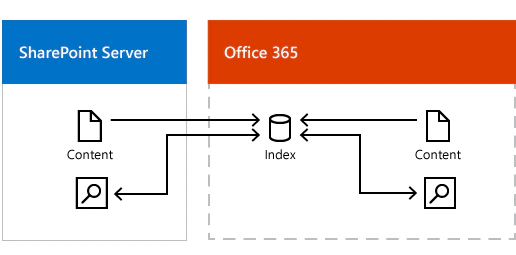
Fig. 5. Cloud hybrid search: content from the farm and from Microsoft 365 in one search index. Source: Microsoft Learn
Hybrid suits two situations. The first is a long migration, where it keeps search, OneDrive and navigation joined while content moves in waves. The second is a permanent split, where regulated workloads stay on the farm and collaboration, Teams and Copilot run in the cloud. The price is that you keep all the duties of a farm and add the configuration that ties it to the tenant.
How to choose
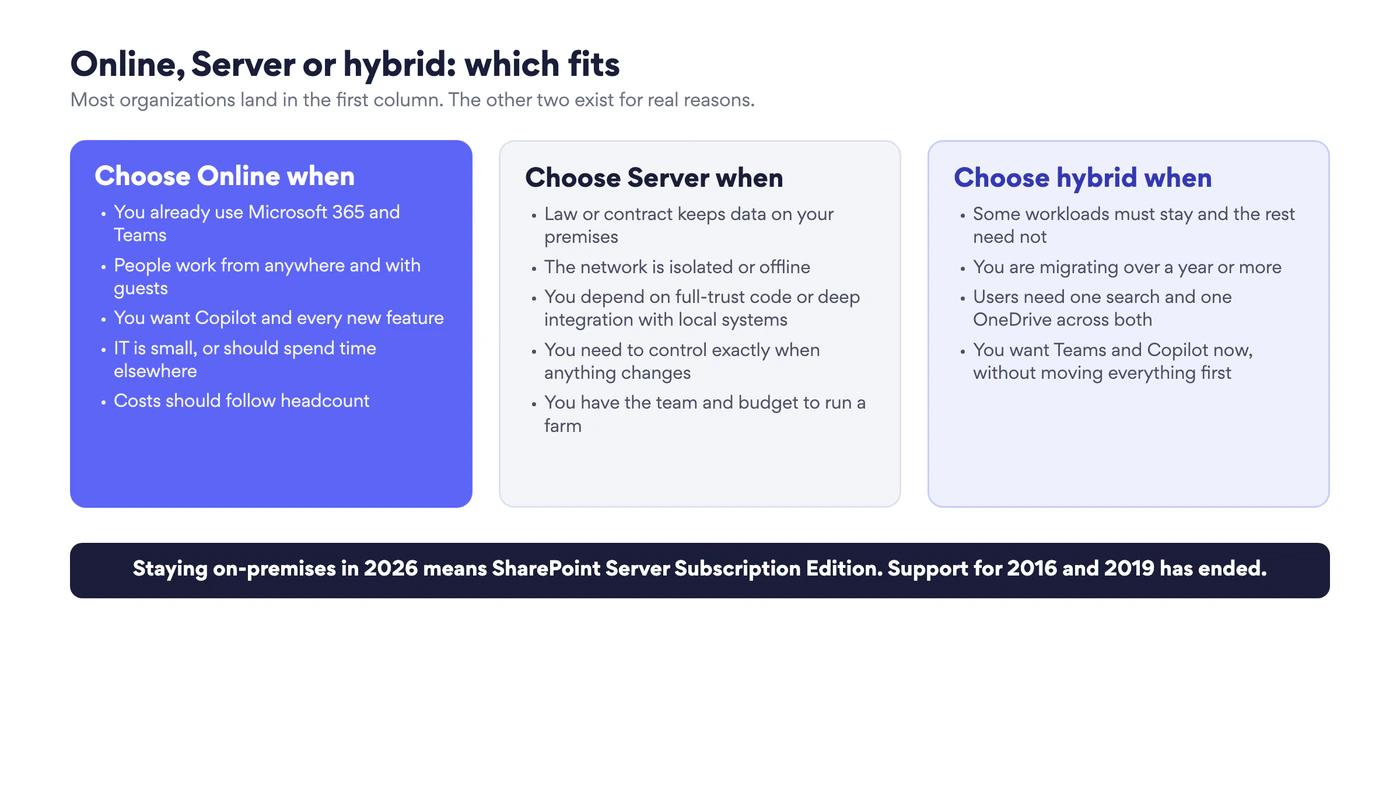
Fig. 6. Online, Server or hybrid: which fits
Choose SharePoint Online if you already use Microsoft 365, if people work remotely or with outside partners, if you want Copilot and whatever comes after it, and if your IT team is better spent on governance and adoption than on servers. This is the right answer for most organizations, and for almost every small and mid-sized one.
Choose SharePoint Server Subscription Edition if law, contract or policy requires data to stay on infrastructure you control, if the network is isolated, if you depend on server-side code or integrations that cannot be rebuilt, or if you must control exactly when anything changes, and if you have the people and the budget to run a farm properly, every month.
Choose hybrid if both descriptions fit different parts of your organization, or if you are on the way from one to the other.
One option is no longer on the list: staying on SharePoint Server 2016 or 2019. If that is where you are, the decision is between an upgrade to Subscription Edition and a migration to Online, and both take longer than expected.
Migrating from SharePoint Server to SharePoint Online
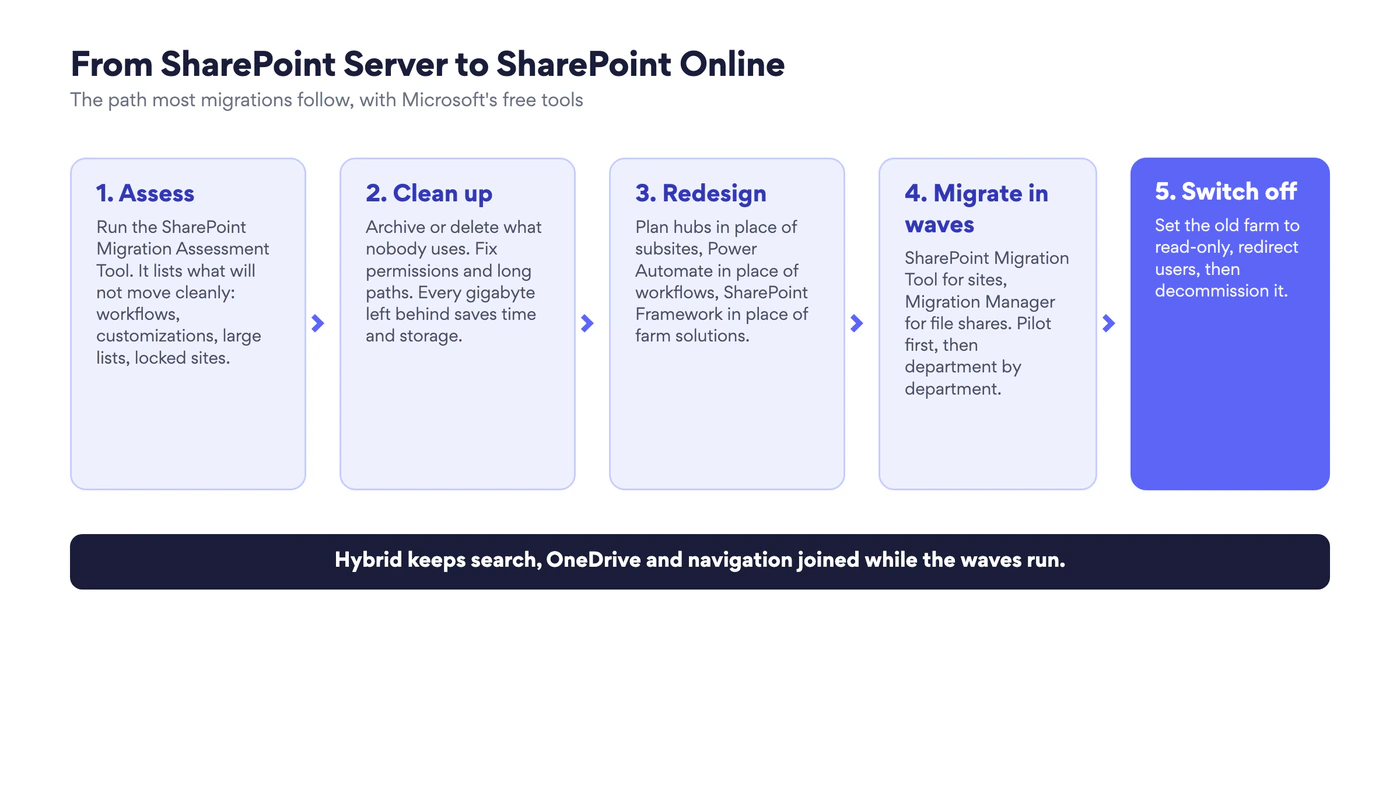
Fig. 7. From SharePoint Server to SharePoint Online in five steps
- Assess. Run the SharePoint Migration Assessment Tool against the farm. It reports what will not move cleanly: workflows, customizations, large lists, checked-out files, locked sites.
- Clean up. Archive or delete what nobody uses, fix broken permissions and paths that are too long. Content you leave behind costs nothing to migrate and nothing to store.
- Redesign. The cloud is not a bigger farm. Plan hub sites in place of subsite trees, Power Automate in place of SharePoint workflows, SharePoint Framework in place of farm solutions, and modern pages in place of classic ones. From March 1, 2027 classic publishing sites can no longer be created in SharePoint Online, so they cannot be migrated as they are.
- Migrate in waves. Microsoft’s free tools cover most cases: the SharePoint Migration Tool for sites, lists and libraries, and Migration Manager in the SharePoint admin center for file shares. Start with a pilot group, then go department by department. The overview is Migrate your content to Microsoft 365.
- Switch off. Set migrated sites to read-only, redirect users, keep the farm for an agreed period, then decommission it.
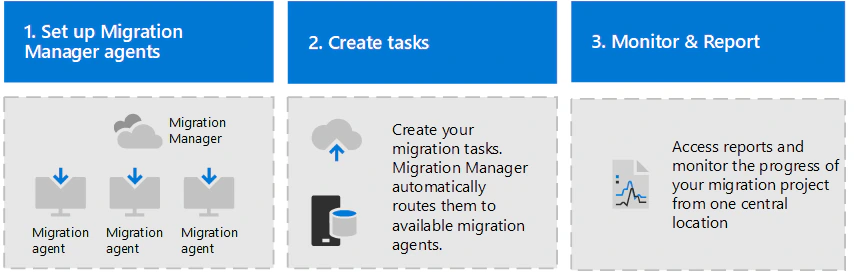
Fig. 8. How Migration Manager works: agents, tasks, monitoring. Source: Microsoft Learn
Two things decide how long it takes: the amount of customization, and the third-party products on the farm. For each of those, ask the vendor whether a Microsoft 365 version exists and how the data moves across. Moving the other way, from Online back to a farm, is possible with third-party tools but rare, and everything that depends on Microsoft 365 services stays behind.
Virto apps for both worlds
VirtoSoftware builds for both platforms, so the portfolio exists twice: as web parts for SharePoint Server and as apps for Microsoft 365. For an organization that is choosing or moving between the two, that matters in a practical way, because the calendar or the board that people use every day does not have to disappear with the platform.
- For SharePoint Online and Teams: Virto Calendar App overlays SharePoint, Exchange, Microsoft 365 group and internet calendars in one view, Virto Kanban Board App turns lists into task boards, and Virto Alerts & Reminder App sends alerts and reminders by email or to Teams. They install from Microsoft Marketplace and come with a 30-day free trial. The full list is on the Virto apps for Microsoft 365 page.
- For SharePoint Server: Virto Calendar Web Part, Virto Kanban Board Web Part, Virto Workflow Automation and the rest of the Virto web parts for SharePoint run on your own farm. Licences are perpetual.
- For hybrid environments: Virto Hybrid Productivity Kit includes the full Microsoft 365 kit and the full on-premises kit, with no double purchase.
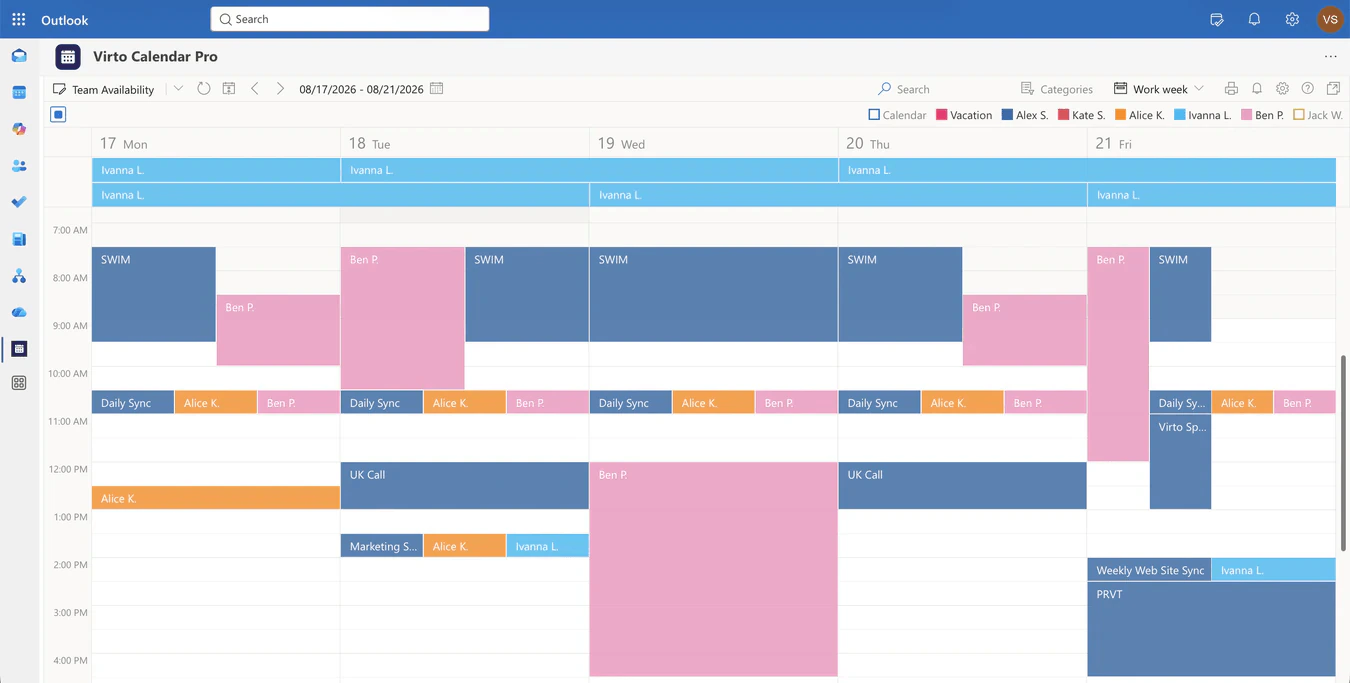
Pic. 3. Virto Calendar App
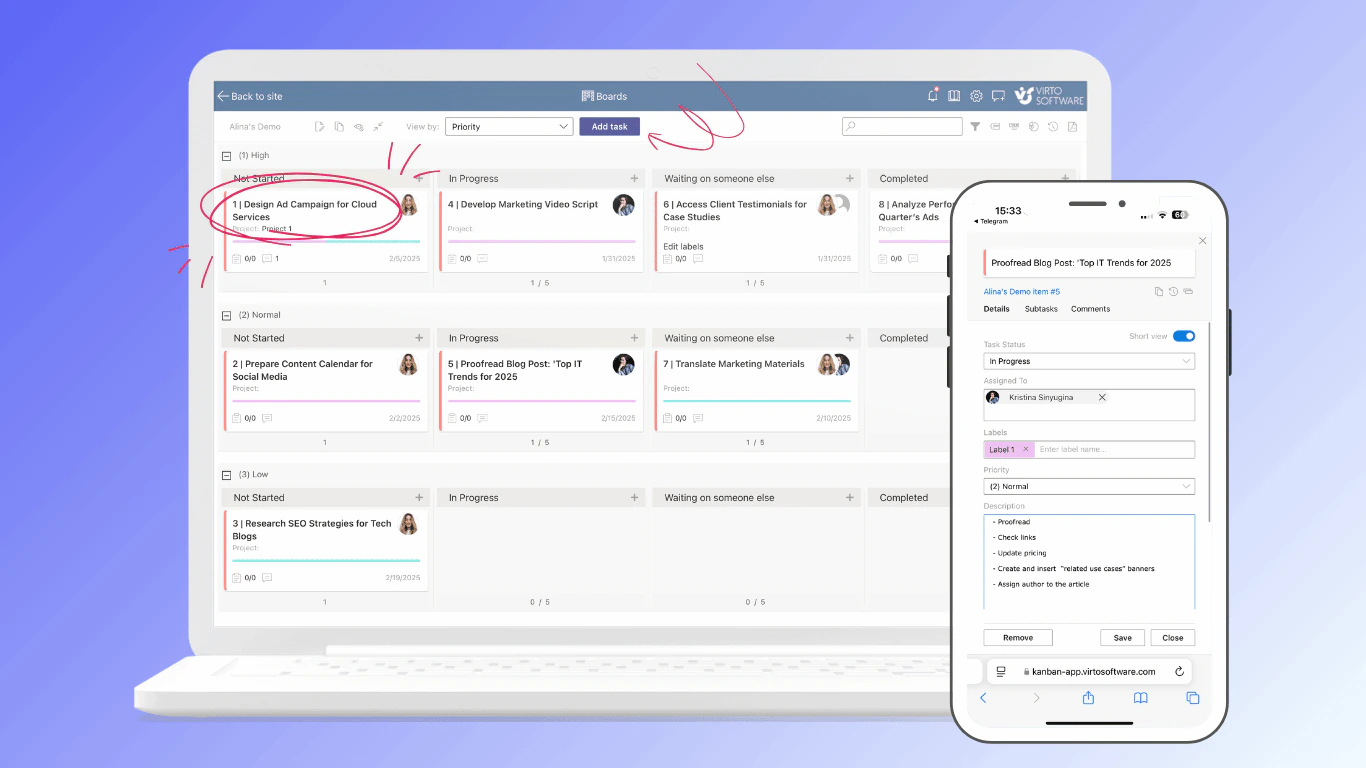
Pic. 4. Virto Kanban Board App: the team’s task list as a board, on the desktop and on a phone
FAQ
What is the difference between SharePoint Online and SharePoint on-premises?
SharePoint Online is the cloud service in Microsoft 365, run and updated by Microsoft and paid per user. SharePoint on-premises is SharePoint Server installed on infrastructure you run yourself, which gives full control of data and changes and makes you responsible for servers, updates, security and backup.
Is SharePoint on-premises being discontinued?
No. SharePoint Server Subscription Edition is supported under the Modern Lifecycle Policy until at least December 31, 2035. What has ended is support for the older versions: SharePoint Server 2013 in 2023, and 2016 and 2019 on July 14, 2026.
Which is cheaper, SharePoint Online or on-premises?
For most organizations Online, once servers, SQL Server, storage, backup, disaster recovery and administrators are counted over several years. On-premises can cost less per user for very large, stable deployments that already have the infrastructure and the team.
Is SharePoint Online secure enough for regulated data?
For most regulated industries, yes, with the right configuration: Microsoft secures the service, and you control identities, sharing, labels, retention and data location options. Where rules require data to stay on infrastructure you operate, or the network is isolated, SharePoint Server remains the answer.
Can I use SharePoint Online and SharePoint Server together?
Yes. SharePoint hybrid connects a farm to a Microsoft 365 tenant with shared search, OneDrive redirection, combined followed sites and shared taxonomy. Cloud hybrid search requires SharePoint Server Subscription Edition with a current update.
How do I migrate from SharePoint on-premises to SharePoint Online?
Assess the farm with the SharePoint Migration Assessment Tool, clean up, redesign what has no cloud equivalent, then migrate in waves with the SharePoint Migration Tool and Migration Manager. Hybrid keeps the two environments joined while you move.
Does SharePoint Server have Copilot?
No. Microsoft 365 Copilot and agents in SharePoint work on content in Microsoft 365. Content that stays on a farm is out of their reach unless you bring it into Microsoft 365.
Conclusion
SharePoint Online and SharePoint Server do the same job in two different ways. Online hands the platform to Microsoft: you gain continuous updates, Teams, Copilot, access from anywhere and costs that follow headcount, and you give up control over the platform and its calendar. Server keeps everything in your hands: data location, code, timing, and with them the monthly work and the full cost of a farm. Hybrid joins the two for as long as you need both.
For most organizations in 2026 the answer is Online, and the real question is how to get there. For those with a genuine reason to stay on their own infrastructure, the answer is Subscription Edition kept current, not an older version left alone. Whichever side you are on, Virto apps for Microsoft 365 and Virto web parts for SharePoint Server give your teams the same calendars, boards and alerts, and the Microsoft 365 apps come with a 30-day free trial.