Quick answer: is there a SharePoint MCP server? Yes. Since 3 November 2026 Microsoft has an official way to connect an AI agent to SharePoint over the Model Context Protocol: SharePoint tools in Work IQ, in public preview. They add more than 60 SharePoint operations, the same ones Copilot in SharePoint uses, to the Work IQ MCP server. Any MCP client can connect; Microsoft names Copilot Studio, GitHub Copilot CLI, VS Code and agents you build yourself. The agent acts as the signed-in user and sees only what that person can see. Usage is paid in Copilot Credits, separately from the Microsoft 365 Copilot licence, and an administrator has to enable Work IQ for the tenant first. Third-party MCP servers for SharePoint exist as well, and they deserve a closer look before you install one.
Search for “SharePoint MCP” and you get directories of MCP servers, forum threads about errors and a GitHub repository for a different product. What is missing is a plain account of the options, so here it is. This guide is for the SharePoint administrator or architect who has been asked to “connect our agent to SharePoint”. It explains what MCP is, which four things go by the name “SharePoint MCP”, what an agent can do in SharePoint through Microsoft’s tools, which permissions and policies control it, what it costs, and how to connect one step by step.
Everything below comes from Microsoft’s documentation and blog posts, checked on 23 November 2026, after Microsoft Ignite. The SharePoint tools are a preview, so expect paths, parameters and admin settings to change. What Copilot in SharePoint itself does, and the agents that live on SharePoint sites, are covered in our SharePoint Copilot guide.
What MCP is, in one paragraph
The Model Context Protocol (MCP) is an open standard for connecting an AI agent to the systems it works with. An MCP server publishes a set of tools, such as “read this list” or “create this folder”, and describes what each one needs. An MCP client, the agent or the app it runs in, discovers those tools, calls them and gets structured results back. For a SharePoint administrator, an MCP server is a door into SharePoint for agents. What matters is who opens it, whose permissions it uses and who can lock it.
Four things called “SharePoint MCP”
Four different things answer to the name, and they are easy to mix up.
| What it is | Who makes it | For whom | How it signs in |
|---|---|---|---|
| SharePoint tools in Work IQ | Microsoft, public preview since 3 November 2026 | Any MCP client: Copilot Studio, GitHub Copilot CLI, VS Code, your own agent | Microsoft Entra ID, as the signed-in user; the app needs WorkIQ.Read or WorkIQ.Act |
| Work IQ in Copilot Studio | Microsoft; Work IQ is generally available in Copilot Studio | Makers of Copilot Studio agents | A Work IQ connection in the agent; SharePoint is one of the workloads you select |
| Third-party MCP servers for SharePoint | Other vendors and open-source projects, listed in MCP directories | Whoever installs them | Whatever the server was built to use: its own app registration, delegated or application permissions |
| SharePoint Embedded MCP Server | Microsoft, preview, on GitHub | Developers of SharePoint Embedded apps | Manages SharePoint Embedded container types and containers, not ordinary SharePoint sites |
Fig. 1. Four things people mean by “SharePoint MCP”
SharePoint tools in Work IQ are the subject of most of this guide. Work IQ is the layer that gives Microsoft 365 Copilot and agents their work context: mail, calendar, files, chats, people and sites. It has a remote MCP server at https://workiq.svc.cloud.microsoft/mcp, and the SharePoint tools are new operations on that server.
Work IQ in Copilot Studio is the same layer seen from the low-code side. Microsoft’s Copilot Studio documentation says Work IQ is added by default to every new agent that uses the Microsoft Copilot harness, and the SharePoint blog says the SharePoint tools are rolling out to Copilot Studio. The catalog also still shows separate tools called SharePoint, OneDrive, Mail and so on. Microsoft calls them a legacy experience, kept for testing and backward compatibility, with a different runtime and billing, and says not to pick them instead of Work IQ.
Third-party MCP servers come from vendors and open-source projects and show up in MCP directories. We don’t list or rate them here; the questions to ask before installing one are in Limits and what to check before you roll out below.
The SharePoint Embedded MCP Server is Microsoft’s own project on GitHub. It provisions and manages SharePoint Embedded resources, the file containers that apps build on, and has nothing to do with the sites, lists and libraries your users open.
What an agent can do in SharePoint through Work IQ
Microsoft’s SharePoint Tools for Work IQ page groups the operations into scenarios. In our words:
| Scenario | What the agent can do |
|---|---|
| Find and understand site content | Search a site, find its lists and libraries, read their settings, columns, content types and views |
| Organize files and folders | Create folders; copy, move, rename and recycle files and folders; create shortcuts; change folder colours; archive or reactivate library content |
| Prepare file transfers | Get download instructions and upload sessions, including resumable ones. The file content itself does not travel through these operations |
| Maintain list data | Create, update and delete list items, one by one or in batches, and turn people, lookup values and managed metadata into the values a column needs |
| Configure lists and libraries | Create, change and delete lists and libraries, manage columns and views, apply column and view formatting |
| Work with forms and templates | Read existing forms, create or update document-collection forms, create document templates with a submission form |
| Manage approvals | Set up built-in approvals and routing, create approval requests, follow their status and history, approve, reject or cancel |
| Track e-signature requests | List sent requests, read agreement details and status, cancel a pending agreement you created |
| Collaborate and manage access | Add and read comments, check who has access, share files by link or email, remove direct access to a file |
| Review history and recover content | Read and restore versions, browse the recycle bin, restore deleted files, folders, lists and libraries |
| Work with personal files | Read OneDrive account and storage details, find recent and shared files, manage favourites across OneDrive and SharePoint |
| Customize sites and lists | Set a site’s home page, configure Quick Steps in lists and libraries |
| Knowledge bases and site skills | Manage knowledge-base sources, pages, navigation and health, run queries, use a site’s skill instructions |
Fig. 2. What an agent can do in SharePoint through Work IQ, by scenario. Source: Microsoft Learn
Which of these a given agent actually gets depends on three things: the permission granted to its app, the signed-in user’s own SharePoint permissions and the tenant policy. The announcement on the SharePoint blog gives the intended result: instead of instructions on how to build a tracker, the user gets a working list with columns, views and formatting.
How it works: a few tools, many paths
The SharePoint tools are not dozens of separate MCP tools loaded into the agent’s context. Work IQ keeps a small fixed set of generic tools, verbs such as fetch, create_entity, update_entity, delete_entity and do_action, plus search_paths and get_schema for discovery. SharePoint operations are resource paths under /sharepoint. At run time the agent looks for a path, reads its schema and makes the call. Microsoft’s Work IQ MCP overview calls this “fewer tools, more paths”: new workloads add paths, not tools.
There is a practical consequence for anyone planning a process on top of it. Microsoft says the exact paths and parameters will keep changing, while existing scenarios stay supported, and advises against hard-coding assumptions about specific tools, parameters or calling patterns. The blog puts the difference this way: an API is a stable contract for code, a tool is tuned for an agent and evolves as agent behaviour improves. Build on scenarios (“add an item to this list”), not on the name of an operation you saw in a test.
Microsoft has published numbers from its own tests, and they come with that label. In Microsoft’s internal evaluations, adding the SharePoint tools raised Work IQ’s task pass rate from 70.1% to 84.6% while using 16% fewer tokens. Compared with an agent calling Microsoft Graph directly, Microsoft reports up to 77% more successful tasks, depending on the task. We have not run those tests ourselves.
What Ignite added. At Microsoft Ignite (17–20 November 2026) the SharePoint team confirmed that the SharePoint tools, in Work IQ and the Copilot app, are still in public preview. It also announced Work IQ context enhancements, rolling out to public preview by the end of November: custom agents get the deep document grounding that Copilot uses, with documents as agent-friendly Markdown, images and thumbnails, file navigation and semantic lookup inside files. Our Ignite 2026 news lists the other SharePoint changes.
Permissions and control
Work IQ checks every request at four levels. The table follows Microsoft’s policy governance page.
| Level | What it decides |
|---|---|
| Microsoft Entra ID sign-in | Who the user is and which app is calling |
| The app’s Work IQ permission | What the app may do at all: WorkIQ.Read to search and read, WorkIQ.Act to create, change and delete, which includes reading |
| The user’s own SharePoint permissions | Which sites, lists and files the request may touch: only what the signed-in user can already open or edit |
| Work IQ tenant policy | Whether the tenant allows the request: on or off for the whole tenant, with changes blocked by default when it is on |
Fig. 3. The four checks every Work IQ request passes through
The details that matter in practice:
- The agent never gets more than the user. Every call runs as the signed-in user with delegated permissions. Microsoft’s ChatGPT setup page states it outright: application-only authentication isn’t supported. A permission granted to the app never widens what the user can reach.
- The permission decides which paths the agent sees. With a read-only token, paths that change data are not shown at all. An app that holds only the older WorkIQAgent.Ask permission sees no
/sharepointpaths: the SharePoint tools are the first part of Work IQ that needs WorkIQ.Read or WorkIQ.Act. All three permissions need admin consent (permissions reference). - Tenant policy is all or nothing for now. In the first release, an administrator turns the Work IQ MCP policy on or off for the whole tenant. There are no rules per user, per app or per agent yet; Microsoft says finer controls might come later. While the policy is on, operations that change data are blocked by default, and the administrator allows the supported ones. A change can take up to 24 hours to apply.
- Copilot Studio has its own defaults. In a Copilot Studio agent, write operations through Work IQ are on by default, still subject to the user’s permissions and the tenant’s policies. The maker chooses whole workloads, such as SharePoint or OneDrive; Copilot Studio cannot limit an agent to one site.
Ignite brought more admin tooling for agents in SharePoint, most of it still to come. The SharePoint content governance post announces an Agent governance page in the SharePoint admin center, with an Agent Access Heatmap of which agents reach which sites and OneDrive accounts (general availability planned for December 2026). A site-level setting that keeps chosen third-party apps and agent blueprints out of specific sites is already generally available. None of this replaces the first step: an agent that acts as the user will find everything that user can reach, overshared content included. Our SharePoint permissions guide shows how to find and fix that before you connect anything.
What it costs
SharePoint tools are billed through Work IQ in Copilot Credits, on a usage basis and independently of the Microsoft 365 Copilot licence. Microsoft’s Work IQ overview spells out who pays:
- For users with a Microsoft 365 Copilot licence, Work IQ is available in every Microsoft 365 Copilot experience and agent, and usage by custom and third-party agents is billed on top.
- Users without a Copilot licence are billed on usage.
- Copilot Credits are shared with other services that use them, such as Copilot Studio, advanced work in SharePoint and Copilot Cowork, so plan the budget across all of them.
An administrator connects a billing method, sets spending policies and watches consumption under Copilot > Cost management in the Microsoft 365 admin center. For a client outside Copilot Studio, such as Claude or ChatGPT, Microsoft’s setup guides ask for an identity-based spending policy that covers the users and the service named Work IQ API for custom apps and agents. Inside Copilot Studio, Microsoft says Work IQ needs no separate spending policy.
We don’t quote credit rates, because they change. The current ones are in Microsoft’s usage-based billing overview and its Copilot Credits guide. What a Microsoft 365 Copilot licence costs and includes is in our Microsoft 365 Copilot guide.
How to connect an agent to SharePoint, step by step
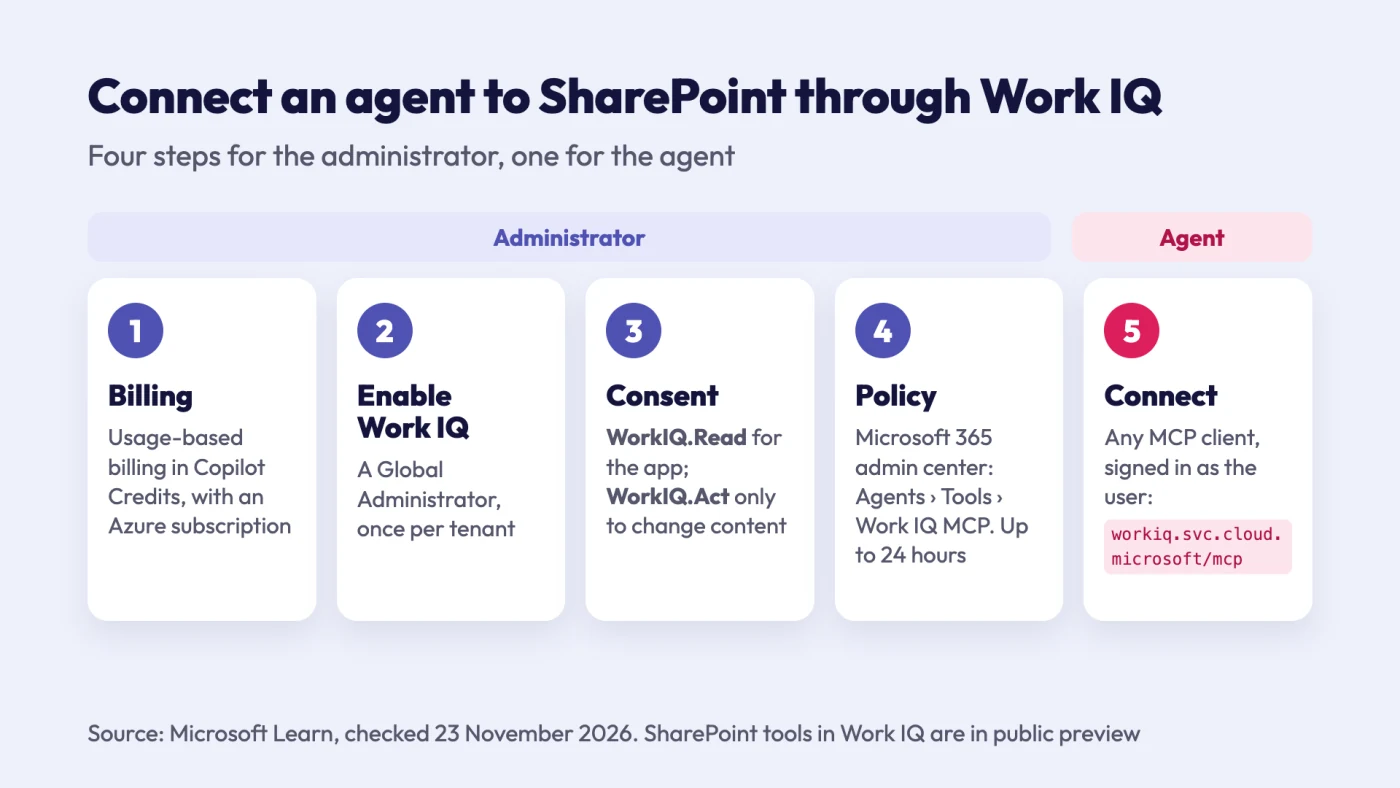
Fig. 4. Connecting an agent to SharePoint through Work IQ: four steps for the administrator, one for the agent
Administrator: prepare the tenant
- Set up usage-based billing. Microsoft’s Enable your tenant for Work IQ page lists a usage-based billing plan in Copilot Studio with an Azure subscription and resource group assigned, and the user assigned to that billing plan.
- Enable Work IQ once. A Global Administrator creates the Work IQ service principal in the tenant, either in Graph Explorer or with the Azure CLI command
az ad sp create --id fdcc1f02-fc51-4226-8753-f668596af7f7. Microsoft estimates about five minutes, once per organization. - Consent to the permission. Grant admin consent to WorkIQ.Read for the agent’s app, and to WorkIQ.Act only if the agent should change content.
- Set the tenant policy. In the Microsoft 365 admin center, go to Agents > Tools, select Work IQ MCP and open the Policy tab. Decide whether to turn the policy on, and which operations that change data to allow. Allow up to 24 hours. Then cover the users with a spending policy as described under What it costs.
Agent: connect the client
- Any MCP client connects to
https://workiq.svc.cloud.microsoft/mcp. It discovers the sign-in configuration from the server, and the user signs in with their work account through Microsoft Entra ID. - GitHub Copilot CLI: install the Work IQ plugin with
/plugin marketplace add microsoft/work-iqand/plugin install workiq@work-iq, then restart, as in Microsoft’s quickstart. - Copilot Studio: open the agent, go to Build > Tools > Work IQ, and under Sources keep only the workloads the agent needs, such as SharePoint. You choose whole workloads, never a single site.
- Claude: Microsoft’s Claude guide, published on 17 November 2026, has your organization register its own app in Microsoft Entra ID and add Work IQ to Claude as a custom connector. The walkthrough grants WorkIQAgent.Ask only. Microsoft’s SharePoint tools page says an app needs WorkIQ.Read or WorkIQ.Act before the SharePoint paths become visible.
- ChatGPT: Microsoft’s ChatGPT guide, from the same day, uses the published Work IQ plugin, available only in ChatGPT Business and Enterprise workspaces, with admin consent in Entra ID and Copilot Credits billing. The guide does not say whether the SharePoint tools are among the plugin’s capabilities; check the consent prompt and test in your tenant.
One loose end: the Work IQ CLI is getting a separate v2 application for the new permissions. Until Microsoft publishes its setup steps, the preview works with consent for the new permissions on the tenant’s existing Work IQ CLI app, or with a new app registration that has them.
Limits and what to check before you roll out
- It is a preview. Microsoft says paths and parameters will change. Keep tests and processes tied to scenarios, not to operation names.
- Policy is tenant-wide. You cannot yet allow one agent to write and keep another read-only through Work IQ policy. Use the app’s permission (WorkIQ.Read or WorkIQ.Act) and the user’s SharePoint permissions to draw that line.
- Admin controls may lag by region. The Copilot Studio documentation warns that allowing or blocking tools and MCP servers in the Microsoft 365 admin center might not be available in your region yet.
- Large files are a separate problem. The tools prepare uploads and downloads but do not carry file content; Microsoft says it is working with the MCP community on a standard way for MCP clients to move large files.
- Column types can trip an agent up. In August 2026 a user on Microsoft Q&A who was testing the SharePoint MCP preview in Copilot Studio reported that writing to a multiple-choice column failed, while text, date and single-choice columns worked, and that no payload format was documented. That is one user’s report, not a statement from Microsoft, but it is the kind of case to include in your tests.
- Data that leaves Microsoft 365 follows the other vendor’s rules. Microsoft’s Claude and ChatGPT guides note that what Work IQ returns to those assistants is subject to your agreement with Anthropic or OpenAI, and that disconnecting does not delete earlier conversations.
- Test before you widen it. Microsoft’s own advice is to measure your scenarios before rollout. Start with WorkIQ.Read and a small pilot group, then add WorkIQ.Act where a team needs it.
Before you install a third-party SharePoint MCP server, ask four questions:
- Which Microsoft Graph or SharePoint permissions does it request, and are they scoped to specific sites or to the whole tenant?
- Does it act on behalf of the signed-in user, or as an application with its own access?
- Where does it keep access tokens, and does it store any of your content?
- Who maintains it, and how quickly does it follow Microsoft’s API changes?
An application that reaches every site is exactly what Microsoft’s new site-level restricted access control and Baseline security mode setting for high-privileged apps are designed to contain. Our Ignite 2026 news has more on that setting.
Agents and apps on the same SharePoint lists
An agent that creates and updates list items works on the same SharePoint lists that apps built on SharePoint read. Nothing extra connects them: the agent writes to the list, and the app shows what is in the list, whoever put it there.
- Virto Kanban Board App shows SharePoint task lists as a board, and each card is a list item with your columns and permissions. An item that an agent adds to a board’s list is therefore a card on that board.
- Virto Calendar App shows SharePoint lists from any site in a day, week, month or year grid, next to Outlook, room and group calendars. An event an agent writes to one of those lists appears with the rest.
The list stays the single source for both, and its permissions still apply: the agent changes only what the user it acts for may change.
FAQ
Is there an official SharePoint MCP server?
Yes. SharePoint tools in Work IQ, in public preview since 3 November 2026, add more than 60 SharePoint operations to Microsoft’s Work IQ MCP server at https://workiq.svc.cloud.microsoft/mcp. They are the same tools that power Copilot in SharePoint. The SharePoint Embedded MCP Server on GitHub is a different product, for SharePoint Embedded containers rather than SharePoint sites.
Is SharePoint MCP free?
No. SharePoint tools are billed through Work IQ in Copilot Credits, on a usage basis and independently of Microsoft 365 Copilot licences. For users with a Microsoft 365 Copilot licence, Work IQ is part of every Copilot experience, but custom and third-party agents are billed on usage. An administrator has to set up usage-based billing before Work IQ can be enabled.
Can Claude or ChatGPT connect to SharePoint through MCP?
Microsoft published setup guides for both on 17 November 2026: Claude connects to the Work IQ MCP server as a custom connector with an app registration your organization owns, and ChatGPT Business and Enterprise workspaces install the published Work IQ plugin. Both are billed in Copilot Credits. Microsoft’s Claude walkthrough grants only WorkIQAgent.Ask, and with that permission alone the SharePoint tools stay hidden; an app needs WorkIQ.Read or WorkIQ.Act to see them. We have not tested either connection.
What is the difference between Copilot in SharePoint and SharePoint tools in Work IQ?
They use the same tools. Copilot in SharePoint is Microsoft’s ready-made assistant inside SharePoint for users with a Microsoft 365 Copilot licence. SharePoint tools in Work IQ make those tools available to other agents over MCP, such as a Copilot Studio agent, GitHub Copilot CLI or an agent your developers build, billed in Copilot Credits.
Can an AI agent see SharePoint files the user cannot open?
Not through Work IQ. Every call runs as the signed-in user with delegated permissions, so the agent sees and changes only what that person can, and Work IQ does not support application-only access. A third-party MCP server can work differently, so check which permissions it asks for before you install it.
Conclusion
SharePoint now has an official MCP server, and it is the one to evaluate first: SharePoint tools in Work IQ give any MCP client the operations Copilot in SharePoint uses, under the signed-in user’s permissions and a tenant policy, for Copilot Credits. It is still a preview. The tenant policy is a single switch for now, the operation names will change, and Microsoft’s own success figures come from its internal tests. Start read-only with a small group, clean up overshared sites before the agent finds them, and allow changes only where a team needs them.
For the ready-made side of the same tools, read SharePoint Copilot: what it is and how to use it. Licences and prices are in Microsoft 365 Copilot: features, uses and setup, and access clean-up is in the SharePoint permissions guide. The rest of our SharePoint articles are in SharePoint guides.
Sources
- Introducing SharePoint tools in Work IQ, SharePoint blog, 3 November 2026
- SharePoint and OneDrive at Microsoft Ignite 2026: Putting AI-powered content to work, SharePoint blog, 17 November 2026
- Microsoft 365 Copilot and AI Agent readiness and resiliency with SharePoint Content Governance, SharePoint blog, 17 November 2026
- SharePoint Tools for Work IQ, Microsoft Learn
- Work IQ MCP overview and Work IQ MCP entity model, Microsoft Learn
- Policy governance for Work IQ MCP, Microsoft Learn
- Work IQ API permissions reference, Microsoft Learn
- Work IQ overview and Enable your tenant for Work IQ, Microsoft Learn
- Work IQ in Copilot Studio, Microsoft Learn
- Connect GitHub Copilot CLI to the Work IQ MCP server, Connect and use Work IQ in Claude and Set up Work IQ in ChatGPT, Microsoft Learn
- Understand usage-based billing and cost management for Copilot Credits, Microsoft Learn
- SharePoint MCP updateListItem fails with MultiChoice field in Copilot Studio, Microsoft Q&A, a user’s question of 31 August 2026
- SharePoint Embedded MCP Server, Microsoft on GitHub