Quick answer: can external users fill in a SharePoint list form? Yes, as guests. You share the list with their email address and choose Can edit items, and they sign in with their own account or a one-time code sent to their email. Microsoft says guests don’t need a license for most collaboration features, and a guest can add and edit list items within the permissions you give. Share every list the form looks values up from as well, or the guest’s drop-downs stay empty. If outsiders must submit without signing in, a list form cannot do that; use Microsoft Forms with Anyone can respond and a Power Automate flow that copies each response into the list.
Sooner or later a SharePoint list needs data from someone outside the company. A supplier has to update their contact details, a contractor files a site report, a partner submits a change request. The list lives in your tenant, and the people who should fill it in do not.
This guide shows the guest route: you invite the outsider into one list, and they fill in the same form your staff uses. We tested it end to end in November 2026 with a Gmail guest who had no Microsoft 365 license, on a list whose forms were built in Virto Forms Designer App. The guide covers what worked, the two settings that tripped us up, and the cases where a guest is the wrong tool and an anonymous form is the better one.
Three ways to get outside data into a SharePoint list
The question usually arrives as “do external users need a SharePoint license?”, but the real choice is how the outsider reaches the list at all. There are three routes, and they differ in who signs in and what you have to manage.
| Route | Who fills it in | Sign-in | Where the answer lands | Fits |
|---|---|---|---|---|
| Guest access to the list | Named people you invite | Their own account, or a one-time code by email | Directly in the list, with the guest as author; they can edit it later | Suppliers, contractors and partners who come back more than once |
| Microsoft Forms plus Power Automate | Anyone with the link | None, with Anyone can respond | In Forms first; a flow copies each response into the list | One-off intake from people you don’t know: registrations, feedback |
| A public web-form service | Anyone with the link or on your website | None | With the service, then copied into the list | Forms embedded in your public website |
Fig. 1. Three routes for outside data into a SharePoint list
The rule of thumb: when the outsider needs to hand you data once and anonymously, use a form outside SharePoint. When a known person needs to submit, check and correct their own records over time, make them a guest.
How guest access works, and what it costs
A guest is a person outside your organization who gets an account in your Microsoft Entra directory through B2B collaboration. If the guest has a work or school account in another organization, or a Microsoft account, they sign in with it. With any other address, such as Gmail, they sign in with a one-time passcode sent to that address (Microsoft 365 external collaboration overview). Microsoft turns email one-time passcodes on by default for new tenants and for existing tenants that haven’t switched them off (What is Microsoft Entra B2B collaboration).
On licenses, Microsoft is direct: guests don’t require a license for most collaboration features. A guest works on a site according to the permission level you give them and can view, add, update and delete list items. They need a license of their own only for more, such as OneDrive storage or creating a Power Automate flow (Overview of external sharing in SharePoint and OneDrive).
Two settings have to allow it. External sharing must be on for the organization, at least at New and existing guests, and the site that holds the list must allow it too; a site can be stricter than the organization but never looser (Plan sharing and collaboration options). Our SharePoint external sharing guide walks through both levels.
Step by step: give a guest a form on a SharePoint list
Step 1. Decide what the guest should see on the form
List the columns the outsider fills in and the ones that belong to your team: status, reviewer, internal notes. A guest who can edit items can edit every column on the item, so keep the internal columns out of the guest’s way on the form and plan, in Step 4, who can see whose items.
Step 2. Share the list with Can edit items
Open the list and select Share in the command bar. Enter the guest’s email address; SharePoint marks it as outside your organization. Open the permission menu next to the address. It offers three levels:
- Can edit list: items plus columns and views. Too much for a guest.
- Can edit items: add, edit and remove items. The level for a guest who submits data.
- Can view: read only.
Choose Can edit items and select Send. The guest gets an invitation email, and the list now has its own permissions instead of inheriting the site’s.
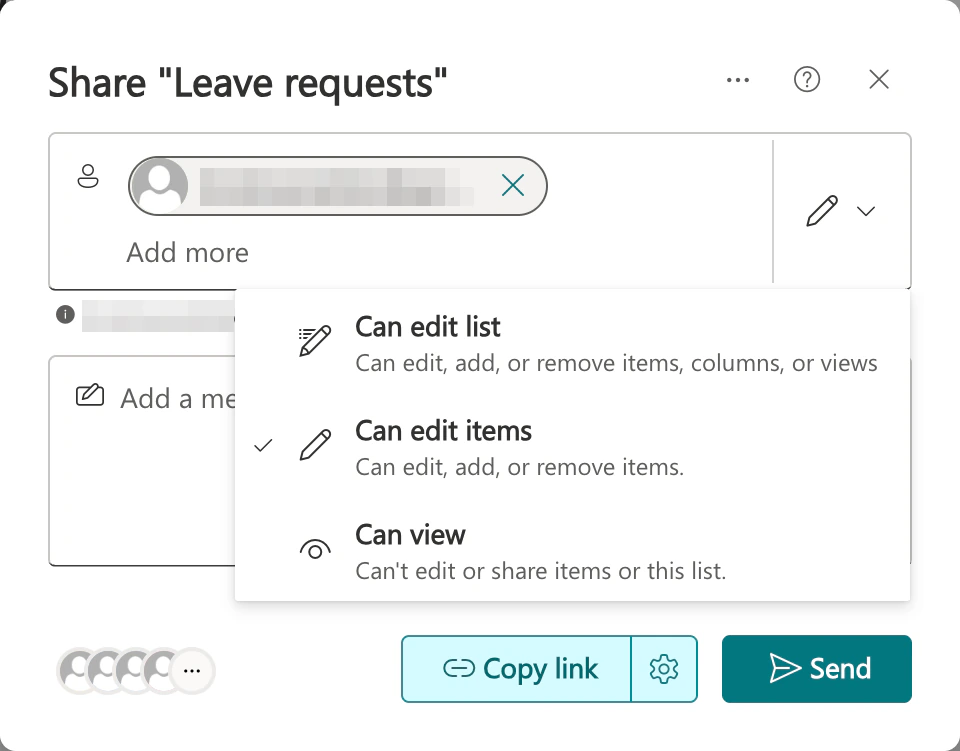
Pic. 1. Sharing a list with a guest who can edit items
Step 3. Share every lookup source list with Can view
This is the step that stopped our test. Our form had two lookup columns, Department (required) and Cost center, which take their values from two other lists. The guest could open the form, but both drop-downs were empty: the guest had no access to the lists behind them. Because Department was required, the form could not be saved.
The fix is to share each source list with the guest at Can view. After that the drop-downs filled in and the guest saved the request. This is SharePoint behavior, not the form designer’s, and the default SharePoint form behaves the same way. Before you invite anyone, open your list settings and note every lookup column and the list it points to.
Step 4. Decide whether guests may see each other’s items
With Can edit items, our guest saw and could open the other request already in the list, not only their own. For a supplier register or a contractor log that is rarely what you want.
SharePoint has a list setting for it: in List settings > Advanced settings, Item-level permissions lets people read only the items they created and edit only the items they created. Your own team needs a permission level that can see all items, as in our leave request form guide. We did not test this setting with a guest, so check it with a test guest before you rely on it.
Step 5. Give the form a layout an outsider can follow
A guest arrives without context, so the form has to explain itself: the questions in the order the person thinks about them, help text where a field is ambiguous, and nothing internal in view. The default SharePoint form shows every column in one long column. A form designer lets you build the layout around the person filling it in.
With Virto Forms Designer App you build the list’s own New, Edit and Display forms in a drag-and-drop designer: tabs, sections, fields side by side, and sections hidden or made read-only for chosen users or SharePoint groups. Because it replaces the list’s own forms, a guest who opens the list gets the same form as your staff, with no separate link to share. The app is licensed per Microsoft 365 tenant, with unlimited users, so guests don’t count as seats.
One limit to keep in mind: hiding or locking a section shapes the form, not the data. SharePoint permissions still decide who can change an item, and a person who may edit the item can also change it outside the form. Use hidden and read-only sections for clarity, and permissions for protection.
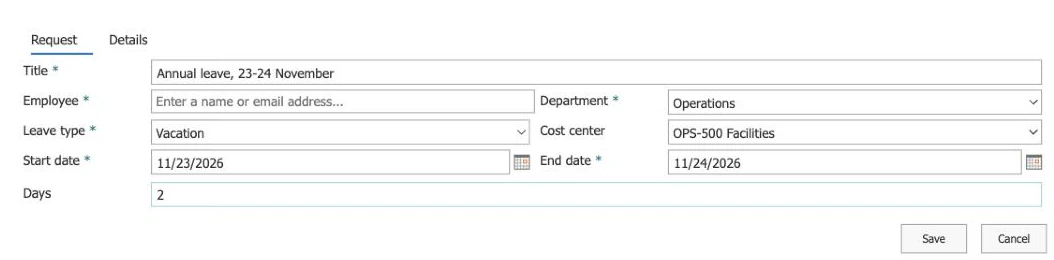
Pic. 2. The list’s New form, built in Virto Forms Designer App, as a guest sees it
Step 6. The guest signs in, submits and comes back
The guest opens the invitation, signs in, and selects New in the list. They fill in the form and save it, and the item appears in the list with the guest as its author. To correct something later, they open the item from the list and edit it in the same form.
One small surprise in the people field: our guest got no name suggestions while typing. A full email address, typed out and followed by Tab, resolved to the right person. If guests need to pick colleagues often, tell them in the invitation to use full addresses.
What we saw when we tested it
On 2 November 2026 we ran the whole route in our own Microsoft 365 tenant. The guest signed in with a Gmail address and a one-time code and held no Microsoft 365 license. The list was a leave-request list on a SharePoint Online communication site, with a New form and an Edit form built in Virto Forms Designer App.
- Selecting New opened the Virto form, with its tabs and two-column layout, not the default SharePoint form.
- The guest saved a request. SharePoint recorded the guest as the item’s author.
- The guest reopened the item in the Edit form, changed a field and saved again; SharePoint recorded the guest as the last editor.
- An approval section set to read-only for everyone outside one SharePoint group was read-only for the guest too.
- The lookup drop-downs were empty until the two source lists were shared with the guest at Can view.
- With Can edit items the guest could see the other item in the list.
After the test we removed the guest’s access to all three lists; the guest could no longer see any items.
Where the guest route stops
- Every guest is an identity. Each one is invited, signs in, and stays in your directory until someone removes them. For ten suppliers that is fine. For a thousand event registrations it is the wrong tool.
- No anonymous submissions. A list form is part of a SharePoint list, and opening a list requires an account with access. SharePoint’s links that work without sign-in, Anyone links, cover files and folders (Plan sharing and collaboration options).
- No form on your public website. The form lives in SharePoint behind sign-in; it is not a widget you paste into a web page.
When you need anonymous intake, build the public part in Microsoft Forms and let the list do the rest:
- In Microsoft Forms, create the form and set Who can fill out this form to Anyone can respond. Microsoft Forms can be shared anonymously and sent outside the organization (Microsoft Forms service description); your admin controls whether external responses are allowed (Administrator settings for Microsoft Forms).
- In Power Automate, create a flow with the Microsoft Forms trigger When a new response is submitted and the action Get response details (Overview of flows with Microsoft Forms).
- Add the SharePoint action Create item and map each answer to a list column.
- Your team then works the items in the list with the list’s own Edit form: triage, assign, approve.
Removing a guest’s access when the work is done
To stop sharing with a guest, remove their permissions from the shared list, or remove them as a guest from your directory (Overview of external sharing). Removing access from the list leaves the guest account in the directory; removing the account is a job for an administrator. If you shared lookup lists in Step 3, remove the guest from those too. Our external sharing guide covers access reviews for guests.
FAQ
Do external users need a license to fill in a SharePoint list form?
Not as guests. Microsoft says guests don’t require a license for most collaboration features, and a guest can add and edit list items within the permission you give. They need their own license for extras such as OneDrive storage or creating Power Automate flows.
Can external users submit a SharePoint list form without signing in?
No. Opening a list requires an account with access, so every guest signs in, with their own account or a one-time code. For submissions without sign-in, use Microsoft Forms with Anyone can respond and a Power Automate flow that creates the list item.
Why are the drop-downs empty for my guest?
They are lookup columns, and the guest can’t read the lists they point to. Share each source list with the guest at Can view.
Can a guest edit their own submission later?
Yes. With Can edit items the guest can open their item and edit it in the same form. The same permission lets them see other people’s items too, so consider item-level permissions on the list.
Does Virto Forms Designer App charge per guest?
No. It is licensed per Microsoft 365 tenant with unlimited users, so guests who use your forms don’t add to the price.
Can I put a SharePoint list form on my company website?
Not a list form: it lives in SharePoint and opens only for signed-in people with access to the list. For a public website form, use a form tool built for anonymous visitors and send the responses to the list with a flow.