Quick answer: does SharePoint have form templates? Not for request forms. Microsoft Lists ships eight list templates, and three of them fit a request process: Issue tracker, Travel requests and Asset manager. For everything else you build a list yourself. The nine templates below give you the columns for leave, onboarding, IT change, purchase, travel, help desk, incident, contract and equipment requests, who fills in which part, and the approval or reminder that goes with each. Create a blank list, add the columns, then choose the form: the default list form, a Microsoft Lists form, Power Apps, or a form designer such as Virto Forms Designer App when each team needs its own tab.
People search for “SharePoint form templates” expecting a gallery: pick one, get a working form. SharePoint does not work that way. A form in SharePoint is the face of a list, so the template that matters is the list behind it: its columns, its choices and their defaults, and who is supposed to fill in what. Get that right and any form tool can sit on top. Get it wrong and no form tool will fix it.
This guide gives you nine such templates for the requests teams most often move from email into SharePoint. Each one lists the columns to create, splits them by the person who fills them in, and names the form layout and the approval or reminder that suits it. We built all nine on our own SharePoint Online site in October 2026; the screenshots come from those lists, and the names in them are invented. Each template links to a page that walks through the same request with more screenshots.
How to use these templates
- Create the list. On a team site, select New → List → Blank list. Where a Microsoft template fits (see the table below), start from it instead and add the missing columns.
- Add the columns. The first column of each template is the list’s Title column, renamed. Give every Choice column with a status a default value, so a new item starts in the right state.
- Choose the form. The columns are the same whichever form people use. Our SharePoint leave request form guide compares the four options in detail; the short version is at the end of this article.
- Add approval and reminders. Approvals in Lists, Power Automate or list rules, as each template suggests.
- Reuse it. Once a list works, New → List → From existing list creates a copy with the same columns, views and formatting on another site, without the items. To offer it to everyone, a SharePoint administrator can publish it as an organization template, which then appears under From your organization (Microsoft Learn). The classic Save list as template needs custom scripts, and person and lookup columns stop working when the template is used on another site (Microsoft Learn).
The nine templates at a glance
| Template | Filled in by | Completed by | Microsoft template to start from |
|---|---|---|---|
| Leave request | Employee | Approver | None |
| Employee onboarding | HR | IT, facilities, hiring manager | Employee onboarding tracks tasks, not one record per new hire |
| IT change request | Requester | Change advisory board | None |
| Purchase request | Employee | Finance | None |
| Travel request | Traveller | Travel desk, approver | Travel requests |
| IT help desk ticket | Employee | Service desk | Issue tracker |
| Incident report | Anyone on site | Safety team | None |
| Contract request | Employee | Legal | None |
| Equipment request | Employee | IT | Asset manager tracks the devices, not the requests |
The pattern is the same in all nine: one list item per request, a first part the requester fills in, and a second part that belongs to the team that acts on it. That second part is where most forms go wrong, so each template marks it.
1. Leave request form
An employee asks for time off, a manager decides, and approved leave shows up in the team calendar.
| Column | Type | Filled in by |
|---|---|---|
| Request (Title) | Single line of text | Employee |
| Employee | Person | Employee |
| Leave type | Choice: Vacation, Sick leave, Personal, Unpaid | Employee |
| Start date, End date | Date only, required | Employee |
| Working days | Calculated (number) | Formula |
| Note | Multiple lines of text, optional | Employee |
| Approver | Person | Employee |
| Status | Choice: Pending, Approved, Rejected; default Pending | Approver |
| Approver comment | Multiple lines of text | Approver |
- Form: one short form for the employee; Status and Approver comment read-only for everyone but the approver.
- Rules: a list validation rule
=[End date]>=[Start date]and a calculated column that counts Monday to Friday. - Approval and calendar: Approvals in Lists or Power Automate; a calendar view filtered to Approved.
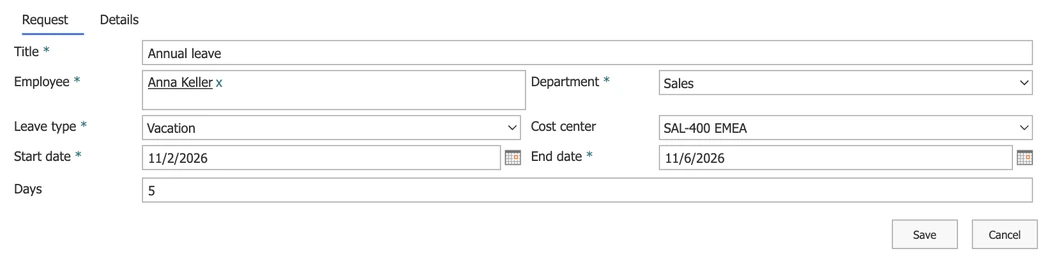
Pic. 1. A leave request form with the main fields in two columns and the details on a second tab
Step by step, including the working-days formula and the approval options: SharePoint leave request form.
2. Employee onboarding form
One record per new hire that HR, IT, facilities and the hiring manager each complete before the first day.
| Column | Type | Filled in by |
|---|---|---|
| Full name (Title) | Single line of text, required | HR |
| Job title | Single line of text | HR |
| Department | Choice | HR |
| Manager | Person | HR |
| Start date | Date only, required | HR |
| Work location | Choice: Office, Hybrid, Remote | HR |
| Contract | Choice: Permanent, Fixed-term, Internship | HR |
| Documents received | Yes/No | HR |
| HR notes | Multiple lines of text | HR |
| Laptop | Choice: Windows laptop, MacBook, No laptop | IT |
| Accounts created | Yes/No | IT |
| System access | Choice, multiple selections: Microsoft 365, CRM, ERP, VPN | IT |
| IT status | Choice: Not started, In progress, Ready | IT |
| IT notes | Multiple lines of text | IT |
| Desk | Single line of text | Facilities |
| Access badge issued, Parking space | Yes/No | Facilities |
| Facilities status | Choice: Not started, In progress, Ready | Facilities |
| Buddy | Person | Hiring manager |
| First-week plan | Multiple lines of text | Hiring manager |
- Form: tabs New hire, HR, IT, Facilities and First week. HR sees and edits everything; IT, facilities and the manager each edit their own tab and read the rest.
- Reminder: a list rule or a reminder app on Start date, for every team whose status is not yet Ready.
- Microsoft’s Employee onboarding template is a checklist of tasks for one person, with a row per task. Use it for the new hire’s own to-do list, not for coordinating teams.
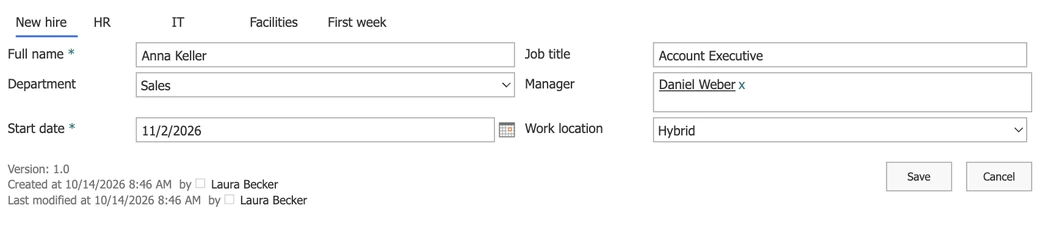
Pic. 2. The HR view of an onboarding record: one list item, a tab for each part
The full setup with each team’s view: Employee onboarding form in SharePoint.
3. IT change request form
A change to a system is described, assessed and then approved or rejected by the change advisory board (CAB).
| Column | Type | Filled in by |
|---|---|---|
| Change (Title) | Single line of text, required | Requester |
| System | Choice | Requester |
| Change type | Choice: Standard, Normal, Emergency | Requester |
| Requested by, Implemented by | Person | Requester |
| Planned start, Planned end | Date and time | Requester |
| What changes | Multiple lines of text | Requester |
| Impact, Risk | Choice: Low, Medium, High | Requester |
| Who is affected | Single line of text | Requester |
| Rollback plan | Multiple lines of text | Requester |
| CAB decision | Choice: Pending, Approved, Approved with conditions, Rejected; default Pending | CAB |
| CAB conditions | Multiple lines of text | CAB |
- Form: three tabs (Change, Impact and risk, CAB decision). The decision tab is editable only for the CAB group.
- Dates with time: keep the time in Planned start and Planned end; a change window is measured in hours.
- Next steps: an approval to the CAB members, a reminder to the implementer before the window, and a calendar that shows changes next to freezes and releases.
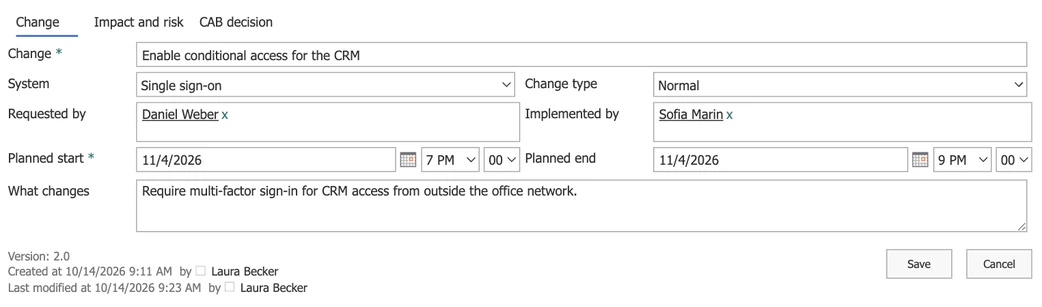
Pic. 3. The Change tab of a change request with the planned window
The full setup with the CAB layout: IT change request form in SharePoint.
4. Purchase request form
An employee asks for an item, an approver agrees, and finance places the order and records it.
| Column | Type | Filled in by |
|---|---|---|
| Item (Title) | Single line of text, required | Employee |
| Quantity | Number | Employee |
| Estimated amount | Currency | Employee |
| Department | Choice | Employee |
| Supplier | Single line of text | Employee |
| Needed by | Date only | Employee |
| Why it is needed | Multiple lines of text | Employee |
| Approver | Person | Employee |
| Status | Choice: Submitted, Approved, Ordered, Received, Rejected; default Submitted | Finance |
| PO number | Single line of text | Finance |
| Ordered on | Date only | Finance |
| Finance notes | Multiple lines of text | Finance |
- Form: a Request tab for the employee and an Order tab that only finance edits; the employee sees the order status and PO number read-only.
- Approval by amount: a Power Automate flow can send requests above a threshold to a second approver.
- Limit: one item per request. Orders with many lines and supplier catalogues belong in a procurement system.
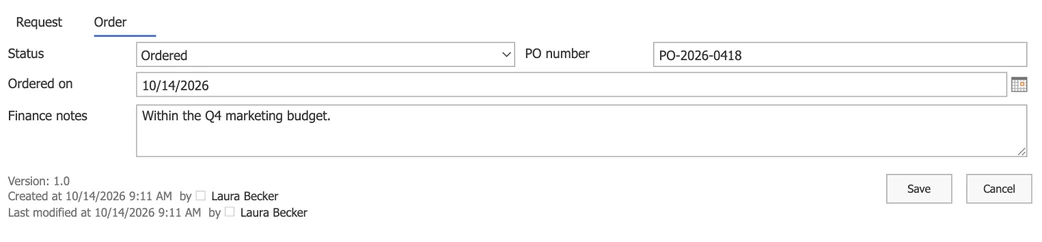
Pic. 4. The Order tab, which only finance edits
The full setup with both views: Purchase request form in SharePoint.
5. Travel request form
A trip is requested, approved, and booked by a travel desk or an assistant.
| Column | Type | Filled in by |
|---|---|---|
| Trip title (Title) | Single line of text, required | Traveller |
| Requester | Person | Traveller |
| Destination | Single line of text (Location in Microsoft’s template) | Traveller |
| Travel start date, Travel end date | Date only | Traveller |
| Reason for travel | Multiple lines of text | Traveller |
| Airline | Single line of text or Choice | Travel desk |
| Estimated airfare | Currency | Travel desk |
| Hotel | Single line of text | Travel desk |
| Estimated hotel cost | Currency | Travel desk |
| Approval | Choice: Pending, Approved, Rejected; default Pending | Approver or flow |
| Approver comment | Multiple lines of text | Approver or flow |
- Start from Microsoft’s Travel requests template: it has most of these columns, a travel duration, and a variant with approvals built in (Microsoft Support). If its default form is enough, it is all you need.
- Form: Trip, Flights and hotel, and Approval tabs; the booking tab belongs to the travel desk, and the approval tab is read-only for everyone because the approval writes it back.
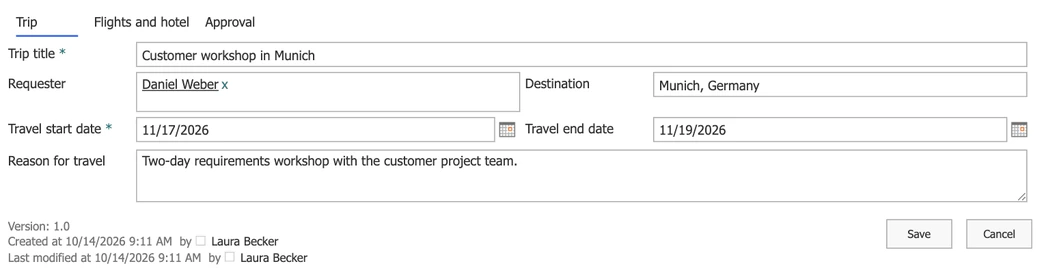
Pic. 5. The Trip tab, with the columns of Microsoft’s Travel requests template
The full setup with the travel desk layout: Travel request form in SharePoint.
6. IT help desk ticket form
An employee reports a problem; the service desk sets priority, owner and status, and the employee follows the ticket.
| Column | Type | Filled in by |
|---|---|---|
| Issue (Title) | Single line of text, required | Employee |
| Category | Choice: Hardware, Software, Account and access, Network, Printing | Employee |
| Device or app | Single line of text | Employee |
| Urgency | Choice: I can’t work, Work is slowed down, It can wait | Employee |
| Reported by | Person | Employee |
| What happened | Multiple lines of text | Employee |
| Status | Choice: New, In progress, Waiting on you, Resolved; default New | Service desk |
| Assigned to | Person | Service desk |
| Priority | Choice: P1 Critical, P2 High, P3 Normal, P4 Low | Service desk |
| Service desk notes | Multiple lines of text | Service desk |
- Urgency in plain words: the employee says how much the problem blocks them; the service desk turns that into a priority.
- Form: a New form with the employee’s fields only, and an Edit form with a Triage tab for the service desk, read-only for the employee.
- Start from Microsoft’s Issue tracker: it brings Priority, Status, Assigned to and two rules that email the assignee (Microsoft Support). Queues, service levels and a portal belong in an IT service management tool.
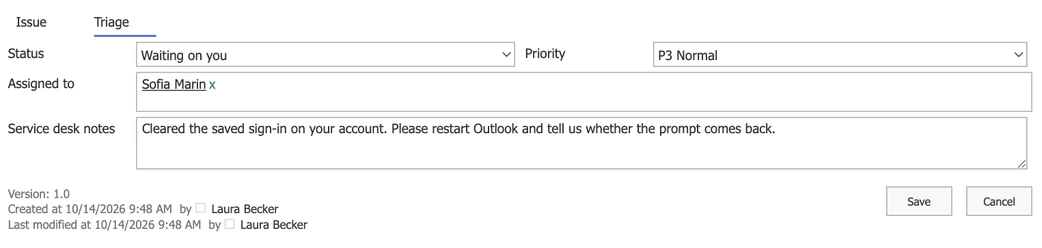
Pic. 6. The Triage tab, where the service desk sets status, priority and owner
The full setup with the employee’s view: IT help desk ticket form in SharePoint.
7. Incident report form
Anyone on site reports an injury, a near miss or an unsafe condition; the safety team investigates and follows up the corrective action.
| Column | Type | Filled in by |
|---|---|---|
| Incident (Title) | Single line of text, required | Reporter |
| Date and time | Date and time, required | Reporter |
| Location | Single line of text | Reporter |
| Type | Choice: Injury, Near miss, Property damage, Unsafe condition | Reporter |
| Reported by | Person | Reporter |
| What happened | Multiple lines of text | Reporter |
| Action taken | Multiple lines of text | Reporter |
| Severity | Choice: Low, Medium, High | Safety team |
| Status | Choice: Reported, Under investigation, Action in progress, Closed; default Reported | Safety team |
| Root cause | Multiple lines of text | Safety team |
| Corrective action | Multiple lines of text | Safety team |
| Action owner | Person | Safety team |
| Action due | Date only | Safety team |
- Photos: keep attachments on in the list settings; a photo is often the most useful part of the report.
- Near misses count: the Type column keeps them apart from injuries, so they are recorded rather than forgotten.
- Follow-up: a reminder to the action owner before Action due. Statutory reports, risk assessments and permits to work belong in an environment, health and safety system.
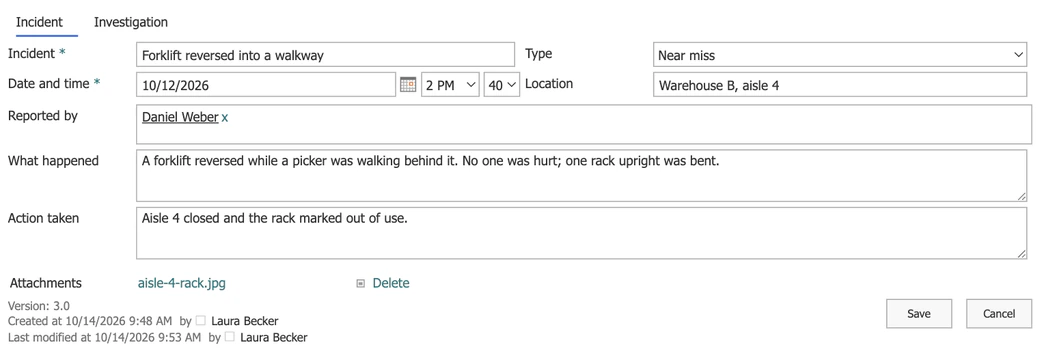
Pic. 7. An incident report with the photo attached to the item
The full setup with the safety team’s layout: Incident report form in SharePoint.
8. Contract request form
An employee asks legal for a contract or an NDA; legal reviews it and records its status and term.
| Column | Type | Filled in by |
|---|---|---|
| Contract (Title) | Single line of text, required | Employee |
| Contract type | Choice: NDA, Supplier agreement, Customer agreement, Amendment | Employee |
| Counterparty | Single line of text | Employee |
| Requested by | Person | Employee |
| Department | Choice | Employee |
| Contract value | Currency | Employee |
| Needed by | Date only | Employee |
| What it covers | Multiple lines of text | Employee |
| Lawyer | Person | Legal |
| Status | Choice: Requested, In review, Sent for signature, Signed, Declined; default Requested | Legal |
| Start date, End date | Date only | Legal |
| Legal notes | Multiple lines of text | Legal |
- Form: a Request tab for the employee and a Legal review tab that only the legal team edits.
- The end date is the reason to keep this list: reminders 90, 60 and 30 days before it stop contracts from renewing or running out unnoticed.
- Limit: signing happens in an e-signature service, and clause libraries and redlining in a contract management system.
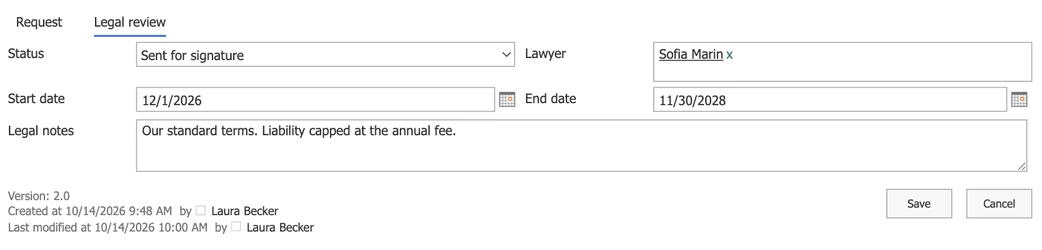
Pic. 8. The Legal review tab with the contract’s term
The full setup with the requester’s view: Contract request form in SharePoint. For the reminders, see Expiration & renewal reminders.
9. Equipment request form
An employee asks for a laptop, a monitor or a phone; IT prepares the device and records what it handed over.
| Column | Type | Filled in by |
|---|---|---|
| Request (Title) | Single line of text, required | Employee |
| Equipment | Choice: Laptop, Monitor, Docking station, Headset, Phone, Other | Employee |
| Requested for | Person | Employee |
| Manager | Person | Employee |
| Needed by | Date only | Employee |
| Why it is needed | Multiple lines of text | Employee |
| Status | Choice: Requested, Approved, Ordered, Ready for pickup, Handed over; default Requested | IT |
| Asset tag, Model, Serial number | Single line of text | IT |
| Handed over on | Date only | IT |
| IT notes | Multiple lines of text | IT |
- Form: a short New form for the employee and a Handover tab for IT; the employee sees when the device is ready.
- Notification: an email to the person in Requested for when Status becomes Ready for pickup.
- Microsoft’s Asset manager template tracks the devices themselves, with owner, condition and purchase data. Keep it as the inventory and this list as the requests.
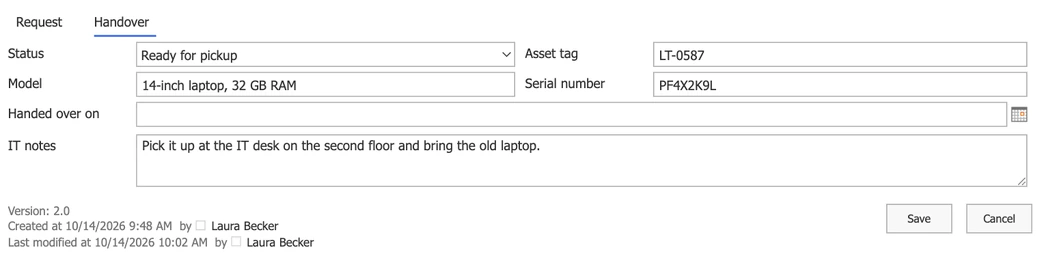
Pic. 9. The Handover tab, where IT records the device
The full setup with the employee’s view: Equipment request form in SharePoint.
Turning a template into a form people use
The list is the template; the form is how people meet it. Four options, from free to tailored:
- The default list form. Hide and reorder columns, and show a column only when another column has a certain value, with a formula (Microsoft Learn). It has one column of fields and the same layout for everyone.
- Microsoft Lists forms. A separate, shareable form for collecting new requests; each submission becomes an item. Editing and the second team’s part still happen in the list’s own form.
- Power Apps. A canvas app in place of the list form; it can do almost anything, and someone has to maintain it.
- Virto Forms Designer App. Virto Forms Designer App redesigns the list’s New, Edit and Display forms with drag and drop: tabs, two or more columns, and a different layout for each person or SharePoint group, without code. Rules such as showing a field by another field’s value are written in JavaScript. It is how the screenshots in this article were made.
Two rules apply whichever tool you choose:
- Make the second team’s columns optional. A required column must be filled in by whoever saves the item first, which is usually the requester.
- A hidden field is not a locked field. Hiding or greying out a column in a form does not stop people from reading or changing it in list views. To keep requests private, use item-level permissions or list permissions.
FAQ
Does SharePoint have form templates?
Not for request forms. Microsoft Lists has eight list templates, such as Issue tracker, Travel requests and Asset manager, and each comes with a default form. For other requests you create a list with your own columns, like the nine templates in this article.
Can I save a SharePoint list as a template?
Yes, in two ways. New, then List, then From existing list copies the columns, views and formatting of a list you can access. A SharePoint administrator can also publish a list as an organization template with SharePoint Online PowerShell, so everyone sees it under From your organization.
Are these templates free to use?
Yes. The columns work in any SharePoint Online list with the default form. Tabs and a different layout per team need a form tool such as Power Apps or Virto Forms Designer App.
Do I need Power Apps for a SharePoint request form?
No. A list, the default form with conditional columns, list validation and Approvals in Lists cover many requests. Power Apps or a form designer help when the form needs tabs, side-by-side columns or a different layout per team.
How do I stop employees from seeing each other’s requests?
Turn on item-level permissions in the list’s advanced settings so people read and edit only the items they created, and give the team that handles requests a permission level that sees all items.