Quick answer: how do I get SharePoint to send a reminder before a date? Keep the date in a Date and Time column of the list, then choose one of four tools. A list rule emails named people, or the person in a column, when a date approaches, but a list or library takes only two rules of that type. Set a reminder creates a Power Automate flow that emails you, the person who set it. A scheduled Power Automate flow of your own can email anyone at any notice period, and you maintain it. An app such as Virto Alerts & Reminder App adds as many notice periods as the plan allows, sends to the owner named in each item, and can collect everything that is coming up into one table.
A contract register, a list of staff certificates, a team task list: the date that matters is already in SharePoint. The trouble is that nobody opens the list on the right day. SharePoint’s classic alerts never solved this, because they reported changes, not approaching dates, and Microsoft has been removing them since July 2026 (our guide to the SharePoint alerts retirement covers what replaced them). This guide goes one level deeper than our overview of SharePoint notifications after the alerts retirement: it covers only reminders before a date, and shows the four ways to email people ahead of a date in a SharePoint list in Microsoft 365, step by step, with what each of them cannot do.
Before you start: three columns that make any reminder work
Whatever tool sends the reminder, it reads the list, so the list decides how good the reminder can be.
- The date in a Date and Time column. A date typed into a text column is not a date to SharePoint: rules, flows and apps cannot count days from it. Set a reminder does not even appear unless the list has a Date and Time column showing in the current view.
- A Person column for whoever is responsible, such as Owner or Assigned to. With it, one reminder can reach a different person on every row instead of one fixed address.
- A Status column, a Choice column with values such as Active, Renewed, Not renewing or Done. It lets the reminder skip items that no longer need anyone’s attention.
If the list may grow past 5,000 items, index the date and status columns as well, so that filtered queries keep working above the list view threshold.
Option 1: a list rule when a date approaches
Rules are built into Microsoft Lists and SharePoint lists and libraries, and they need nothing beyond the list itself.
- Open the list and select Integrate > Rules, then Create a rule.
- Under Take action when, choose A date approaches.
- The rule is written as a sentence with underlined parts. Select each of them to choose the date column and whom to notify.
- Select Create. The rule appears on the Manage rules page, turned on.
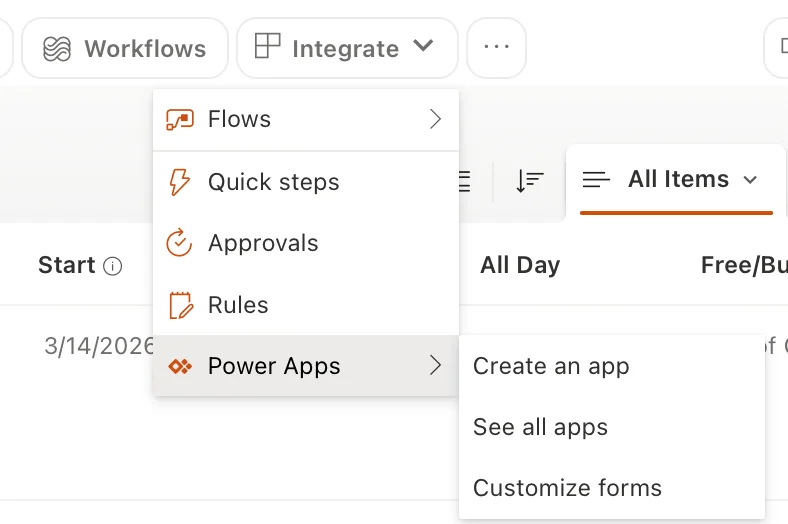
Pic. 1. Rules and Flows both live in the Integrate menu of a SharePoint list
What to know before you rely on it:
- Two date rules per list or library. Microsoft documents a limit of two a date approaches rules on one list or library, so a third reminder on the same list does not fit.
- People, not groups. A rule can notify one person, several people or a Person column such as Created By, but not a group email address.
- One email per item. A rule can carry a short custom message with values from the item, but every item produces its own email: there is no digest.
- A fixed sender. Notification emails come from no-reply@sharepointonline.com, which is worth telling recipients so the message is not filtered as junk.
- Permissions. Managing rules needs at least Contribute permission on the list or library.
A rule is the right tool when one or two reminders per item are enough and the recipients are people, not a distribution list.
Option 2: Set a reminder in Microsoft Lists
Set a reminder is a ready-made Power Automate template that SharePoint offers on any list with a date column.
- Make sure the date column is visible in the current view.
- Select Integrate > Flows > Set a reminder, then the date column.
- Sign in to the services the template uses if asked, and select Continue.
- Give the flow a name, fill in Remind me this many day(s) in advance, and select Create.
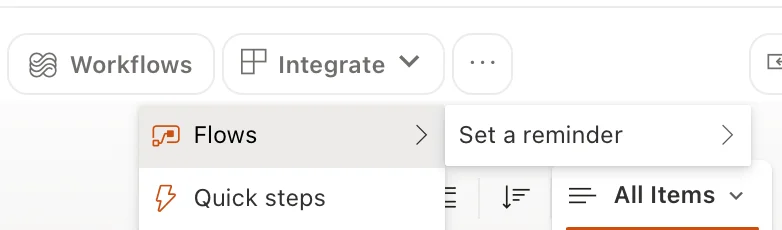
Pic. 2. Set a reminder sits under Integrate, then Flows
The result is a personal reminder: Microsoft describes it as an email alert that you receive a set number of days before the date in each item. That suits a follow-up for yourself, for example a reminder about the contracts you look after. It does not email the owner named in the item or a team, and the only setting is the number of days: no condition, no filter, no digest. The flow can be changed later in Power Automate like any other flow, and the feature is not available in GCC, GCC High, DoD and other sovereign clouds.
Option 3: your own scheduled flow in Power Automate
When the reminder has to go to the person in each row, at several notice periods, a scheduled flow is the standard Microsoft 365 answer. A typical one has four steps:
- Recurrence trigger: run once a day, at an hour that suits the recipients.
- Get items from the list, with a filter query that keeps only the items whose date falls on the target day and whose status still needs action. For a 30-day reminder on a column whose internal name is EndDate, the filter compares the column with
addDays(utcNow(), 30)formatted asyyyy-MM-dd, and addsStatus ne 'Not renewing'. - Apply to each over the items that came back.
- Send an email (V2) to the email address of the item’s Person column, with the item’s fields and a link to it in the body.
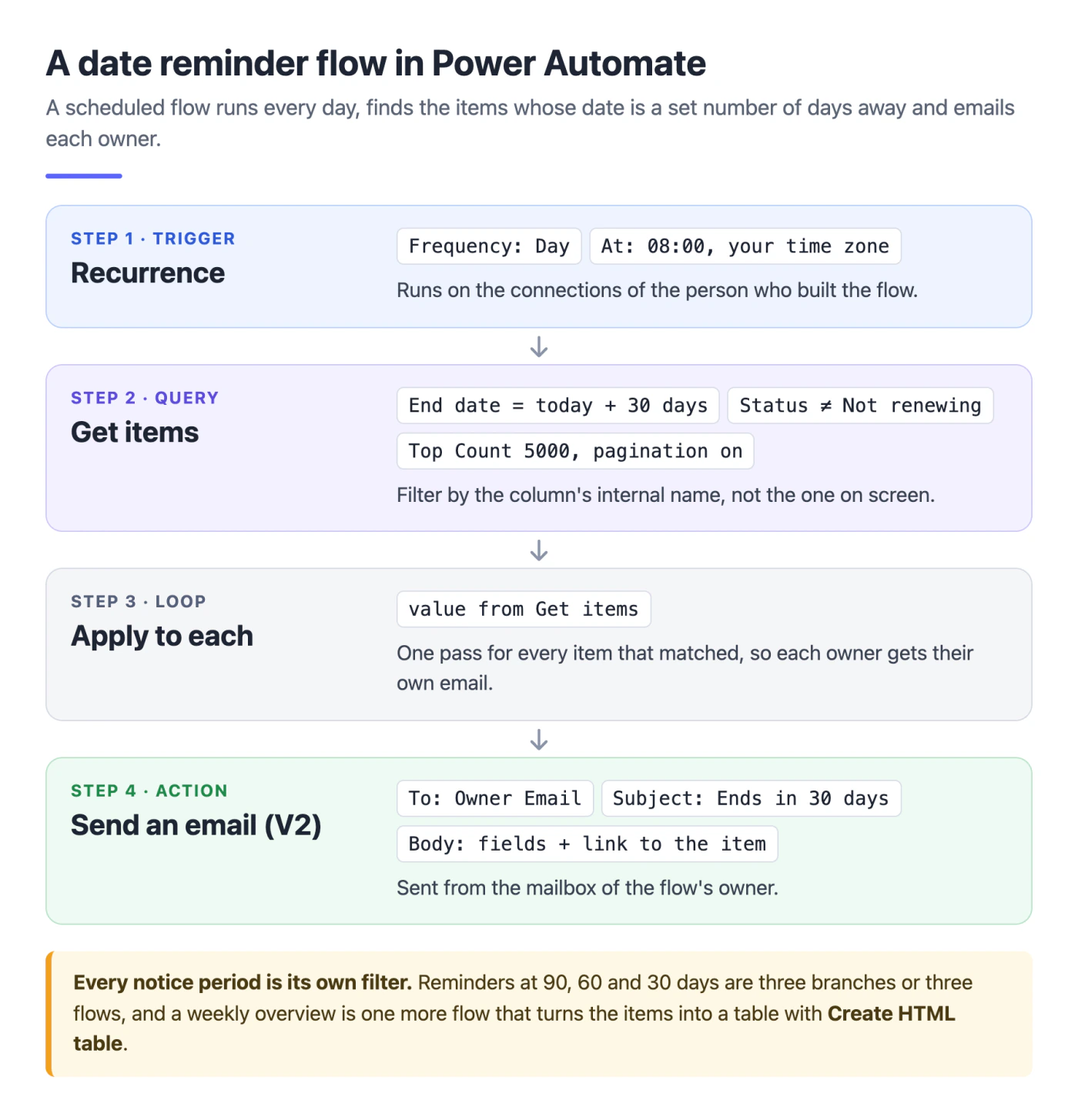
Fig. 1. The four steps of a 30-day reminder flow; every other notice period needs its own filter
Each extra notice period is either another flow or another branch with its own filter, and a weekly overview is a separate flow that builds an HTML table from the items.
The flow is free to build with a Microsoft 365 licence, because SharePoint and Outlook are standard connectors. What it costs is maintenance, and these are the places where reminder flows usually break:
- The column name. Filter queries use the column’s internal name, not the one on screen: a column created as End Date is
End_x0020_Date, and a renamed column keeps its old internal name. A wrong name does not always fail; it can simply return nothing. - The item limit. Get items returns 100 items by default. Raise Top Count (up to 5,000) and, on larger lists, turn on pagination, or reminders quietly stop for everything past the first page.
- Time zones.
utcNow()is UTC. A flow that runs shortly after midnight in Europe or Asia can count the days from yesterday or tomorrow; convert the time withconvertFromUtc()before you add days. - The owner’s account. A scheduled flow runs on its maker’s connections and sends email from the maker’s mailbox. When that person changes roles or leaves, the connections fail, and Power Automate turns off a flow that keeps failing for 14 days.
A flow is the right tool when the organisation has someone who builds and looks after flows, and the reminder logic is unusual enough to justify it.
Option 4: an app built for date reminders
An app does the same job as the flow, configured in a form instead of built. Virto Alerts & Reminder App works on SharePoint Online lists and libraries in your Microsoft 365 tenant. A date reminder in it is one rule:
- General: choose the list or library and give the reminder a title.
- Recipients: add people or groups, or take the recipient from a Person column of each item, with a manager or a group in copy.
- Message view: write the subject and the body, and insert the item’s fields and a link back to the item.
- Options: choose Send on date depending on a field value, pick the date column, and set Before or After and the number of days. Conditions on the list’s columns, for example Status not equal Done, keep finished items out, and each rule sends at its own hour.
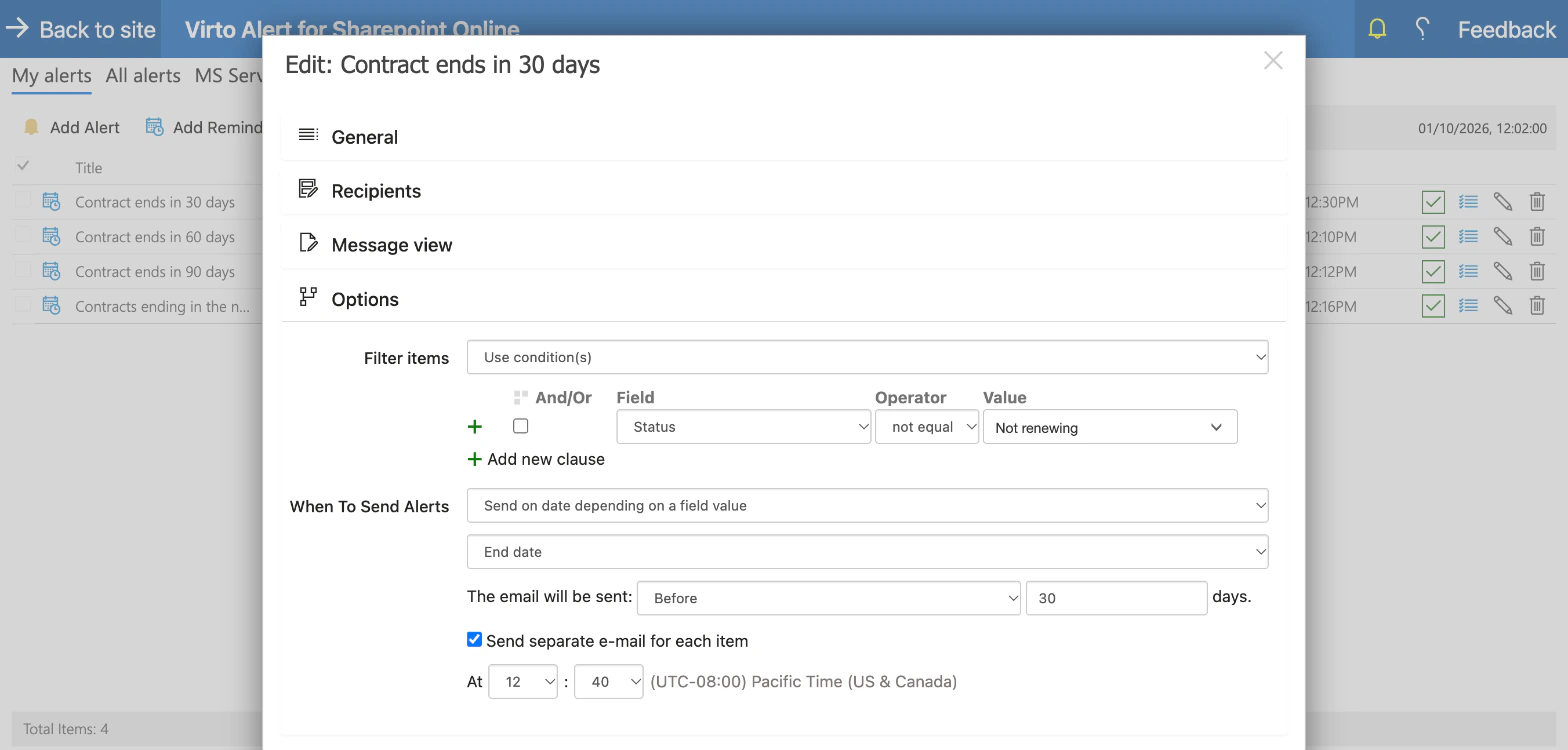
Pic. 3. A 30-day reminder on the End date column that skips contracts marked Not renewing
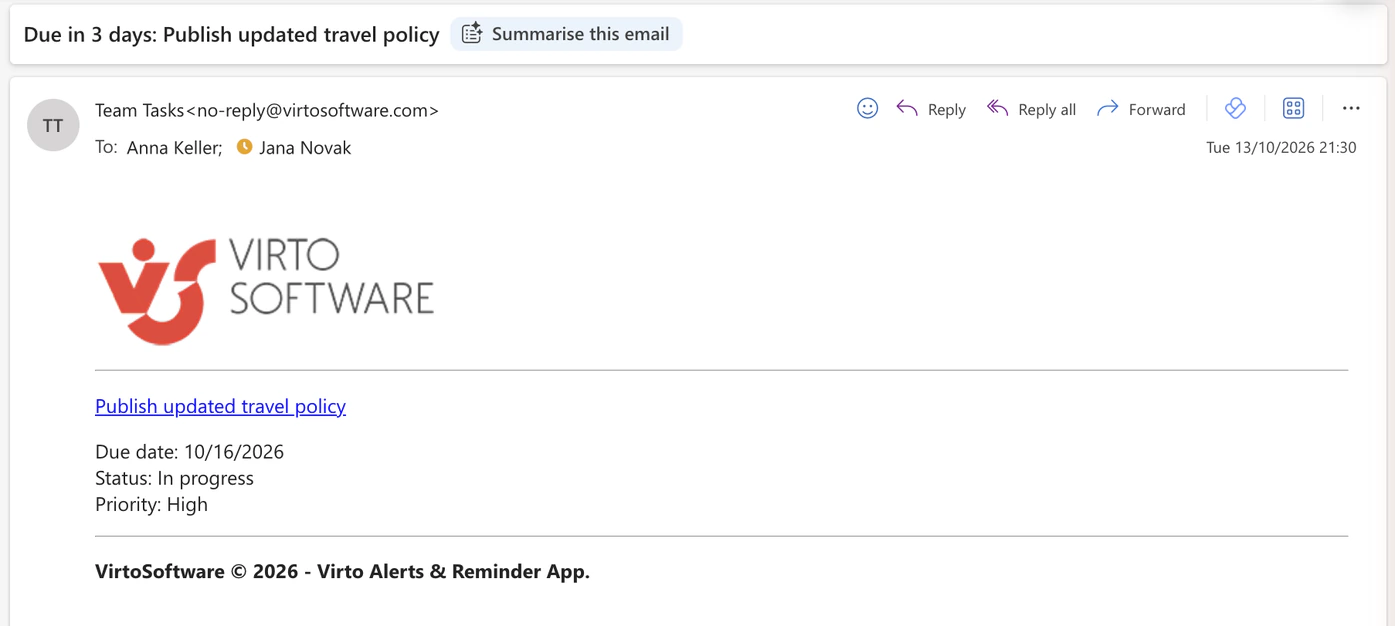
Pic. 4. The reminder as the assignee receives it: the item as a link, with the date and the fields chosen in the rule
What it adds over the built-in tools:
- Any number of notice periods on one list. The 90-, 60- and 30-day reminders are three rules on the same date column; the total number of rules is set by the plan, not by the list.
- The owner of each item as the recipient. One rule reaches a different person on every row.
- A summary instead of a stream of emails. A rule can send a daily or weekly email with one table of every matching item, for example everything ending in the next 90 days, or every task that is past its date and not done. The window is counted from the current date each time the summary goes out.
- Every rule in one place. The My alerts tab lists each rule with its list, recipients and schedule, and the Queue tab shows what has been sent and what is due next.
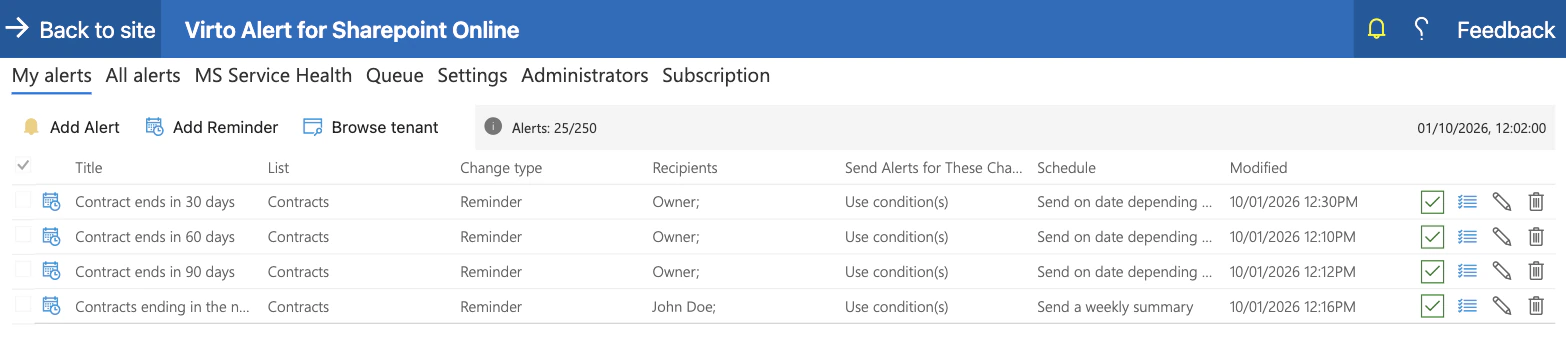
Pic. 5. Four rules on one contract list: three reminders to each contract’s owner and a weekly table for the team lead
It also has limits, and it is better to know them up front. The app offers the lists and libraries of the site where you open it, so a reminder on a list in another site is set up from that site. A new rule does not send on the day it is created, so set it up at least a day before the first date it should catch. The app reminds; it does not escalate, repeat a reminder until someone acts, or confirm that the email was read. Messages go by email, and a rule can also post to a Microsoft Teams channel through a Workflows webhook, but not to a person’s Teams chat.
Which option fits which reminder
| List rule | Set a reminder | Your own flow | Virto Alerts & Reminder App | |
|---|---|---|---|---|
| Who gets the email | Named people or a Person column | Only the person who set it | Anyone the flow addresses | Named people, groups or a Person column |
| Notice periods per list | Two date rules | One per flow | As many as you build | As many as the plan’s rule count allows |
| One summary table | No | No | Yes, as a separate flow | Yes, daily or weekly |
| Setup | Minutes | Minutes | Hours, plus testing | Minutes per rule |
| Who maintains it | Nobody | The person who set it | The flow’s owner | Rules in one place in the app |
| Cost | Included | Included | Included with standard connectors | Paid subscription |
Fig. 2. Four ways to send a reminder before a date in a SharePoint list
Reminder setups for typical lists
The same pattern, a date column, a recipient column and a status, covers most registers. These are the setups we see most often.
Contracts and renewals
Reminders to the contract owner 90, 60 and 30 days before the end date, skipping contracts marked Not renewing, plus a Monday table of everything ending in the next 90 days for the head of legal or procurement. The full setup is in the expiration and renewal reminders use case.
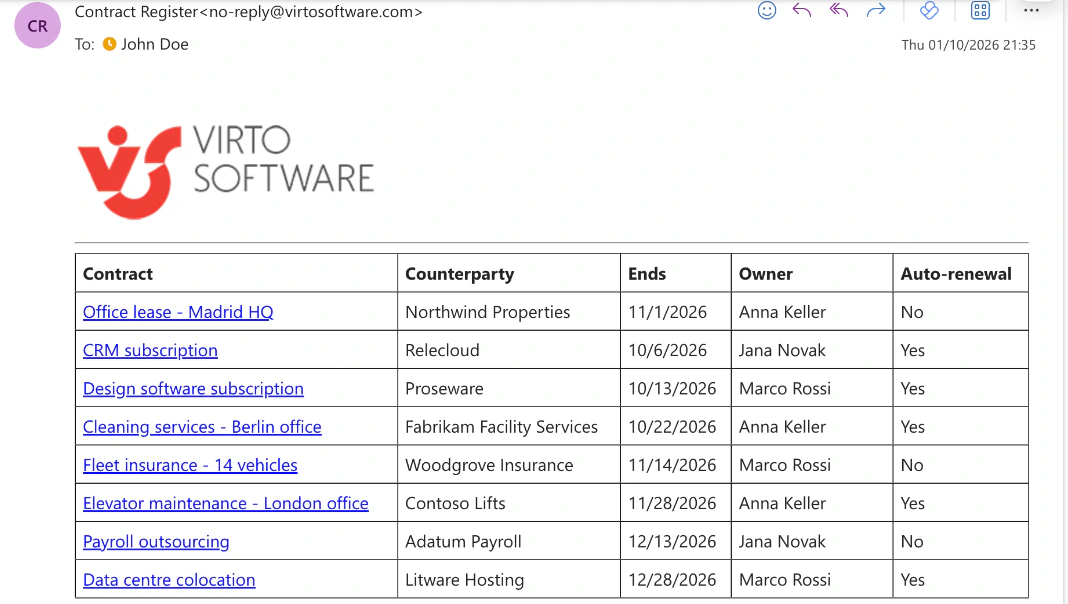
Pic. 6. The weekly overview as it arrives: one table instead of eight separate emails
Certificates, licences and mandatory training
A reminder to the employee named in the item a set number of days before the expiry date, with HR in copy. The rule is the same as for contracts; only the list and the recipient column change.
Task due dates
A reminder to the assignee three days before the due date, and each morning one table for the manager listing the tasks that are past their date and not done. See the task due date and overdue reminders use case.
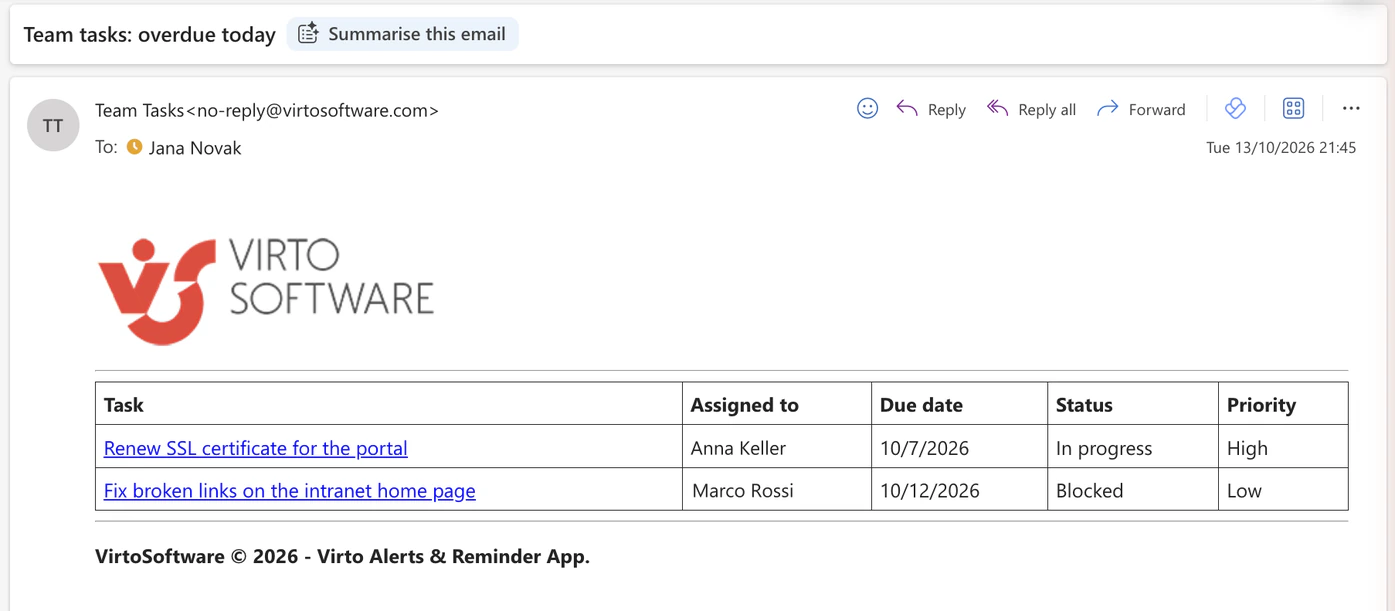
Pic. 7. The morning table for the manager: only the tasks that are past their date and still open
Team calendar events
An email to the team two days before each event in the list behind the calendar, and a weekly table of what is coming up. See event reminders for a team calendar.
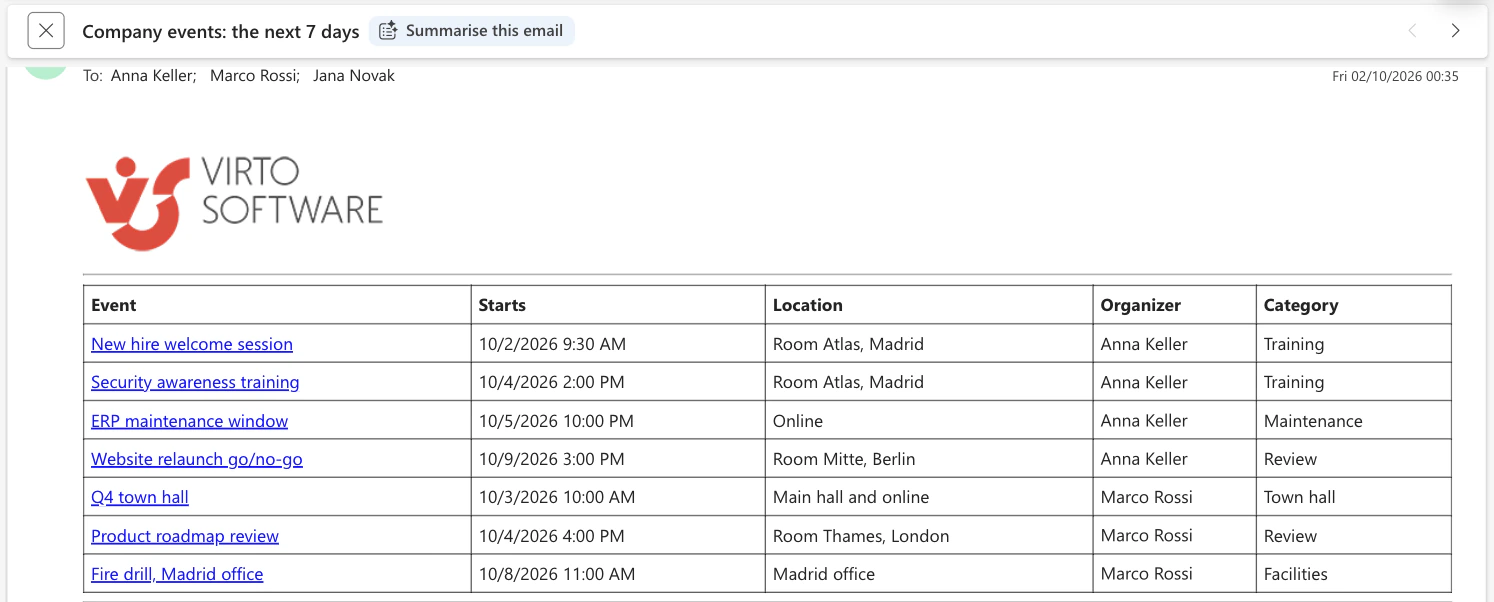
Pic. 8. The weekly table of events for the next seven days, sent to the whole team
FAQ
Can SharePoint send a reminder before a date automatically?
Yes. A list rule can notify people when a date in a column approaches, Set a reminder creates a Power Automate flow that emails you before the date, and a scheduled Power Automate flow or an app can email anyone named in the item. All of them need the date in a Date and Time column.
How do I send a reminder 30 days before an expiration date in SharePoint?
For yourself, Set a reminder on the expiry column with 30 in Remind me this many day(s) in advance does it. To email the owner of each item, build a daily Power Automate flow that gets the items whose expiry date is 30 days from today and emails each owner. In Virto Alerts & Reminder App it is one reminder set to Send on date depending on a field value, Before, 30 days.
Why can’t I add a third date rule to my SharePoint list?
Microsoft limits rules of the a date approaches type to two per list or library. For more notice periods, use a Power Automate flow or an app.
Who receives the email from Set a reminder?
The person who set it up. Microsoft describes it as a personal email alert, so it suits your own follow-ups rather than reminders to a team or to the owner of each item.
Can a SharePoint reminder go to Microsoft Teams?
A Power Automate flow can post to a Teams chat or channel. Virto Alerts & Reminder App can post a reminder to a Teams channel through a Workflows webhook, alongside or instead of the email.
Why did my Power Automate reminder flow stop sending?
The most common reasons are a column renamed or referenced by its display name instead of its internal name, a list that grew past the 100 items Get items returns by default, and a flow owner whose account or connection no longer works. Power Automate turns off a flow that fails continuously for 14 days.
Conclusion
A reminder before a date needs three things in the list: a Date and Time column, a person to send it to and a status to stop it. With those in place, a list rule covers one or two notice periods, Set a reminder covers your own follow-ups, a Power Automate flow covers anything you are prepared to build and maintain, and an app covers several notice periods, the owner of each item and a regular summary without a flow to look after. For the setup on a real contract list, with the rules and the emails as they arrive, see the expiration and renewal reminders use case.