


Quick answer: what is Copilot in SharePoint? Copilot in SharePoint is Microsoft’s AI assistant built into SharePoint. It helps you create and edit pages, sites and document libraries, summarise documents, set up library rules and find content across your sites, using Microsoft Graph so that it only ever answers from content you already have permission to open. It is included in the Microsoft 365 Copilot licence at no extra cost and has been rolling out to all licensed users as an opt-out preview since mid-June 2026.
“SharePoint Copilot” is a phrase that covers three different things, and most of the confusion about what it costs and what it can do comes from mixing them up. There is Copilot in SharePoint, the chat panel that now sits on every site, page and library for licensed users. There are agents in SharePoint, the ready-made and custom question-answering agents that have been generally available since late 2024. And there is Microsoft 365 Copilot reading your SharePoint files from inside Word, Outlook, Teams and Copilot Chat. This guide is about the first two: what Copilot in SharePoint actually does in 2026, how it works and what it costs, how to switch it on and prepare your tenant, the practical uses that pay off first, and how agents fit in. The broad product, with its plans, prices and rollout advice, has its own guide: Microsoft 365 Copilot: features, uses and setup. If you are new to the platform itself, start with what SharePoint is and how it works.
What is Copilot in SharePoint?
Copilot in SharePoint is the AI assistant that lives inside SharePoint itself rather than in an Office app. Microsoft describes it as a way to “ask questions, run workflows, and create SharePoint sites, pages, lists, libraries, interactive reports, and Office files by using natural language”. It opens from a Copilot button on a site page or in the lower-right corner of a document library, from the Build entry on the SharePoint start page, and from the Agent icon in the site header. Whatever you ask, it works from the content in front of you: the site, the page or the library you have open, plus anything else in Microsoft 365 that you are allowed to see.
The product spent most of 2025 and early 2026 in an opt-in preview under the names “Knowledge Agent” and then “AI in SharePoint”. From mid-June 2026 Microsoft renamed it Copilot in SharePoint and turned the preview into an opt-out one: it appears automatically for every user with a Microsoft 365 Copilot licence unless an administrator has excluded the tenant or the site. Microsoft’s Get started with Copilot in SharePoint page is the authoritative reference for that rollout and the admin controls around it.
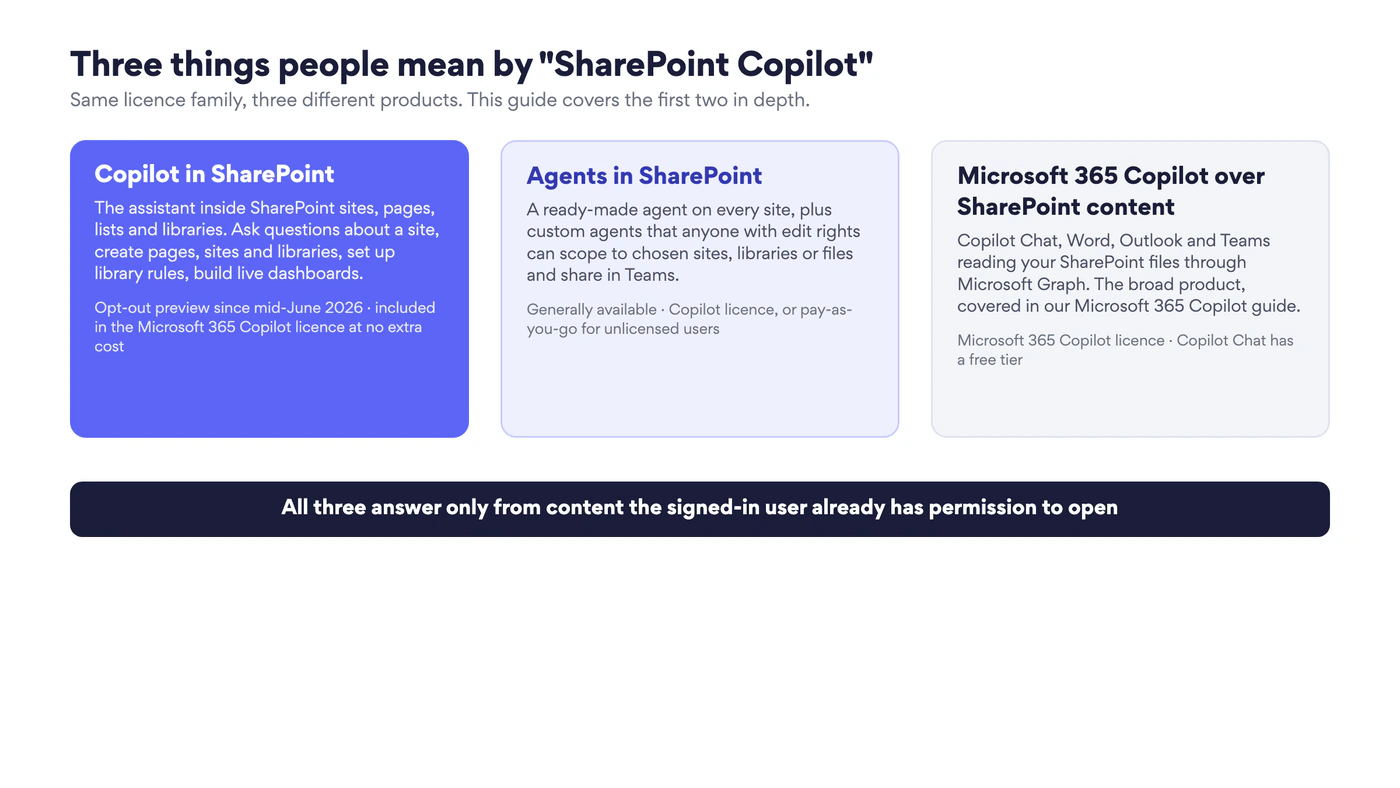
Fig. 1. Three things people mean by “SharePoint Copilot”. This guide covers the first two; the third has its own guide
It helps to keep the three apart because they arrived at different times and are licensed differently. Agents in SharePoint came first: every site has had a ready-made agent since late 2024, and since December 2025 organisations can pay for agent usage per message instead of buying licences. Copilot in SharePoint is the newer, broader assistant that creates and changes things rather than only answering questions, and it needs a full Microsoft 365 Copilot licence. Microsoft 365 Copilot over SharePoint content is what happens when you ask Copilot Chat or Word about a file that lives in SharePoint; it is the same grounding, seen from the other side.
What Copilot in SharePoint can do
The feature list has grown every month since the opt-out preview began. These are the capabilities documented by Microsoft as of September 2026, grouped by the kind of work they do.
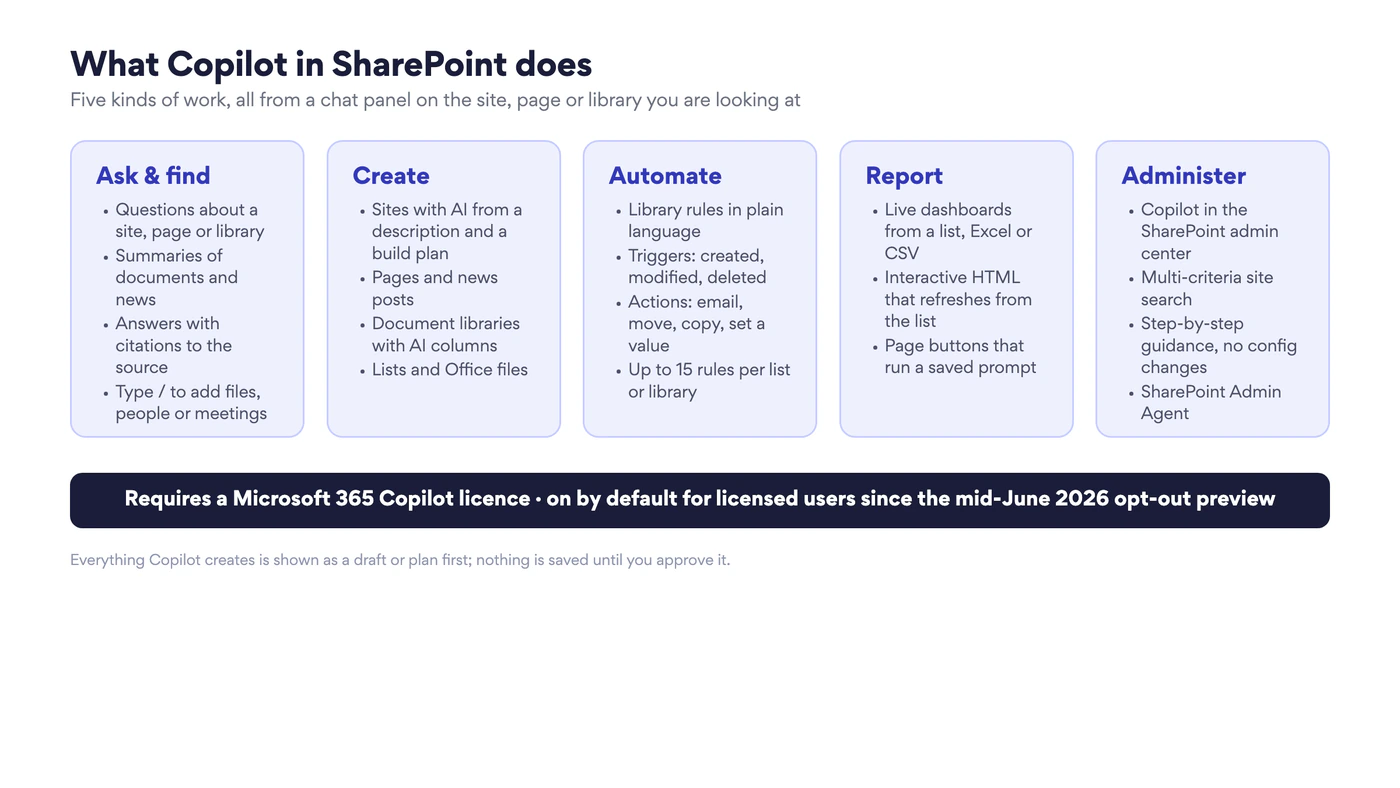
Fig. 2. What Copilot in SharePoint does, in five groups. Everything it creates is shown as a draft or plan first
Ask questions and get answers with citations
The simplest use is the one people reach for first. Open a site, page or library, open the Copilot panel and ask: “What changed in the travel policy this year?”, “Summarise the three newest proposals in this library”, “Which of these contracts expire before December?”. The answer cites the pages and files it came from, so you can check it in one click. Type / in the prompt box to search for and insert a specific file, person or meeting into the conversation, which is the quickest way to ground a question in exactly the content you mean. The scope starts with the site you are on and widens to anything else you can access in Microsoft 365.
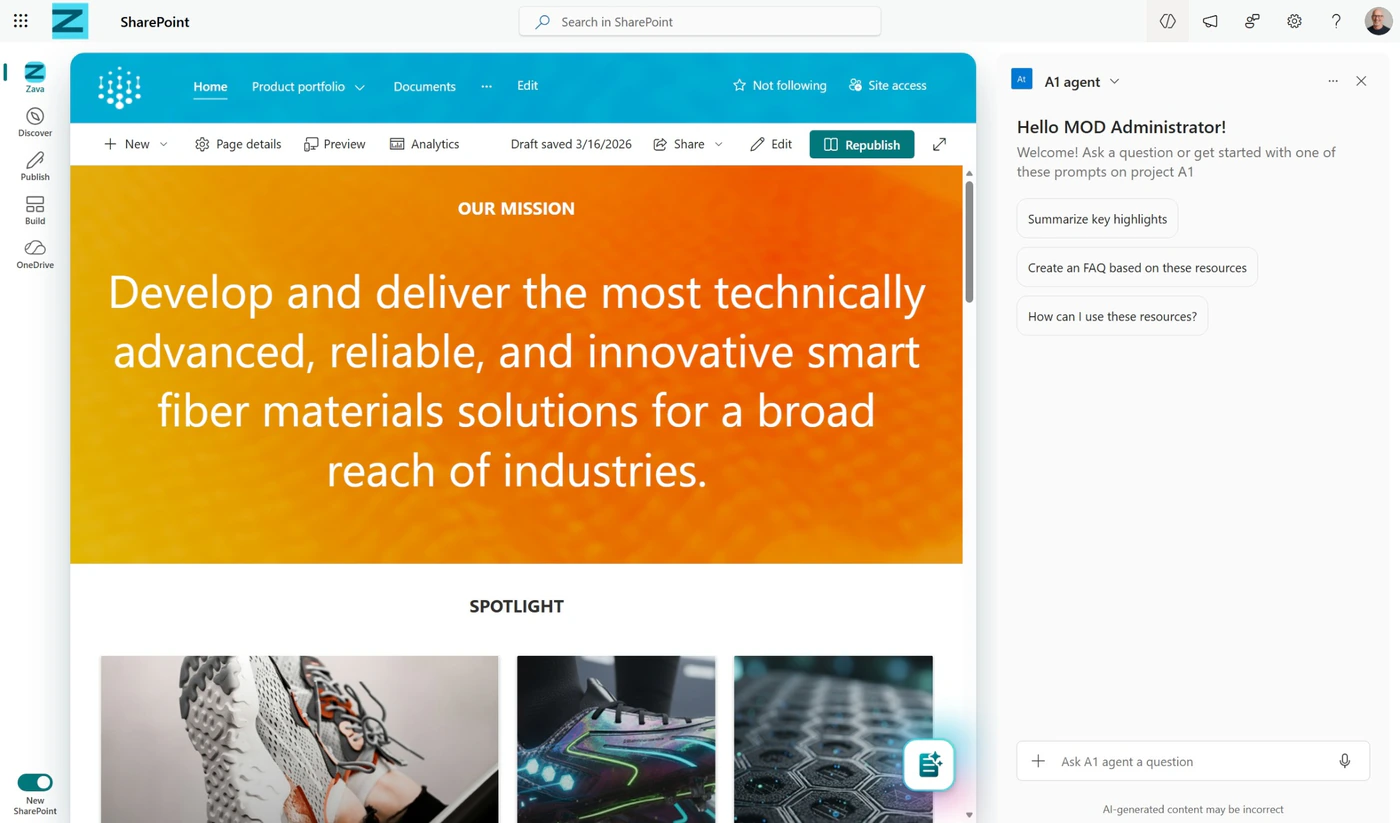
Pic. 1. The Copilot pane opened from a SharePoint site header, with suggested prompts about the site. Source: Microsoft Support
Create pages and news posts
Page creation with AI reached general availability between June and July 2026 and now has two entry points: a prompt box at the top of the Publish landing page, and a prompt box in the site template gallery where you can pick a source file and choose between a page and a news post. Describe what the page is for, optionally point Copilot at a document to draw from, and it produces a laid-out draft with sections, text and images. You then refine it in the normal page editor, with the Copilot panel alongside to rewrite a section, change the tone or add a block. For readers, the Teams app for SharePoint news adds AI-generated audio summaries of news posts, rolling out since August 2026. Our guide to SharePoint pages covers what a good page looks like once Copilot has drafted it.
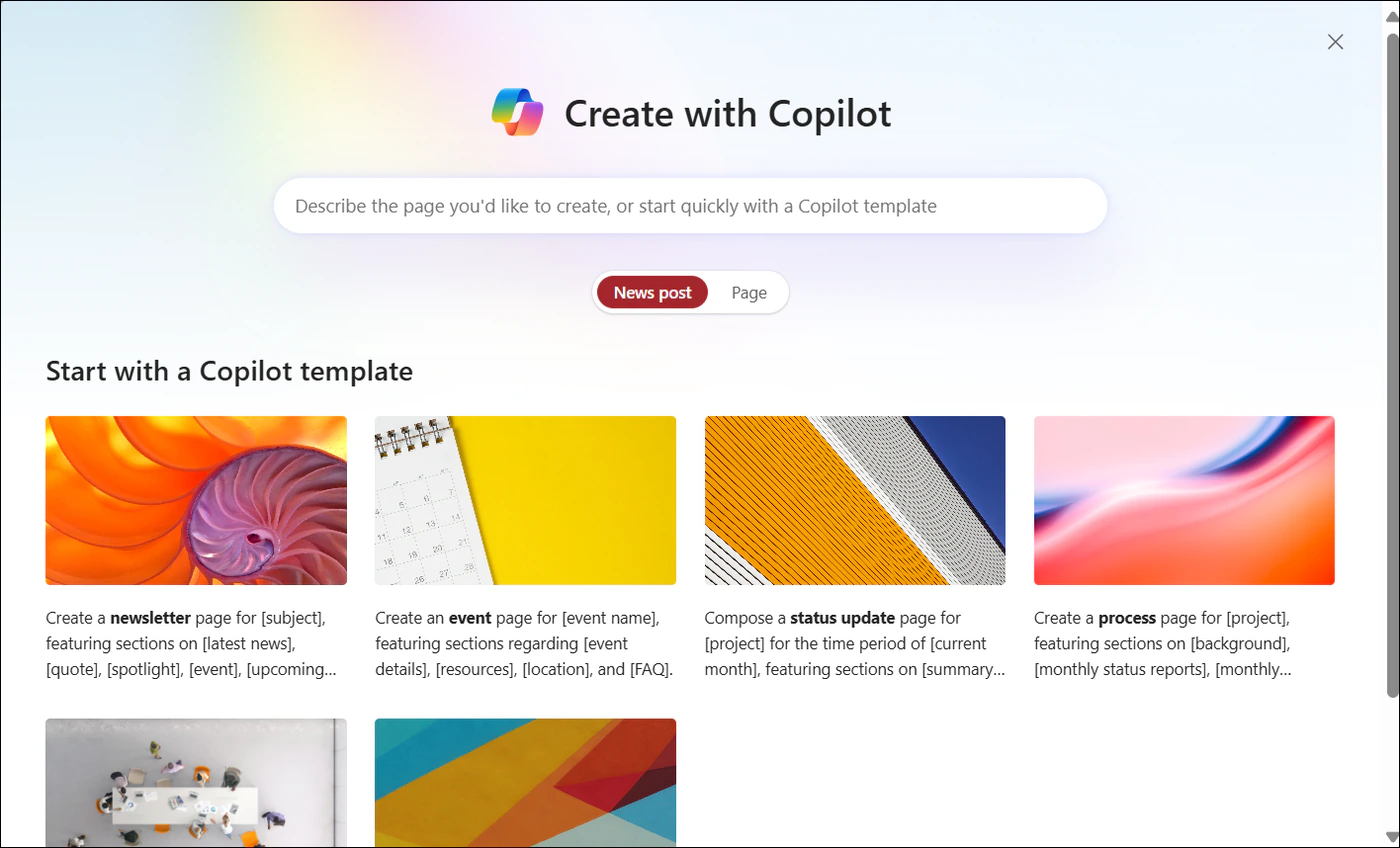
Pic. 2. Creating a news post or page with Copilot: the prompt box, the page type and the Copilot templates. Source: Microsoft Support
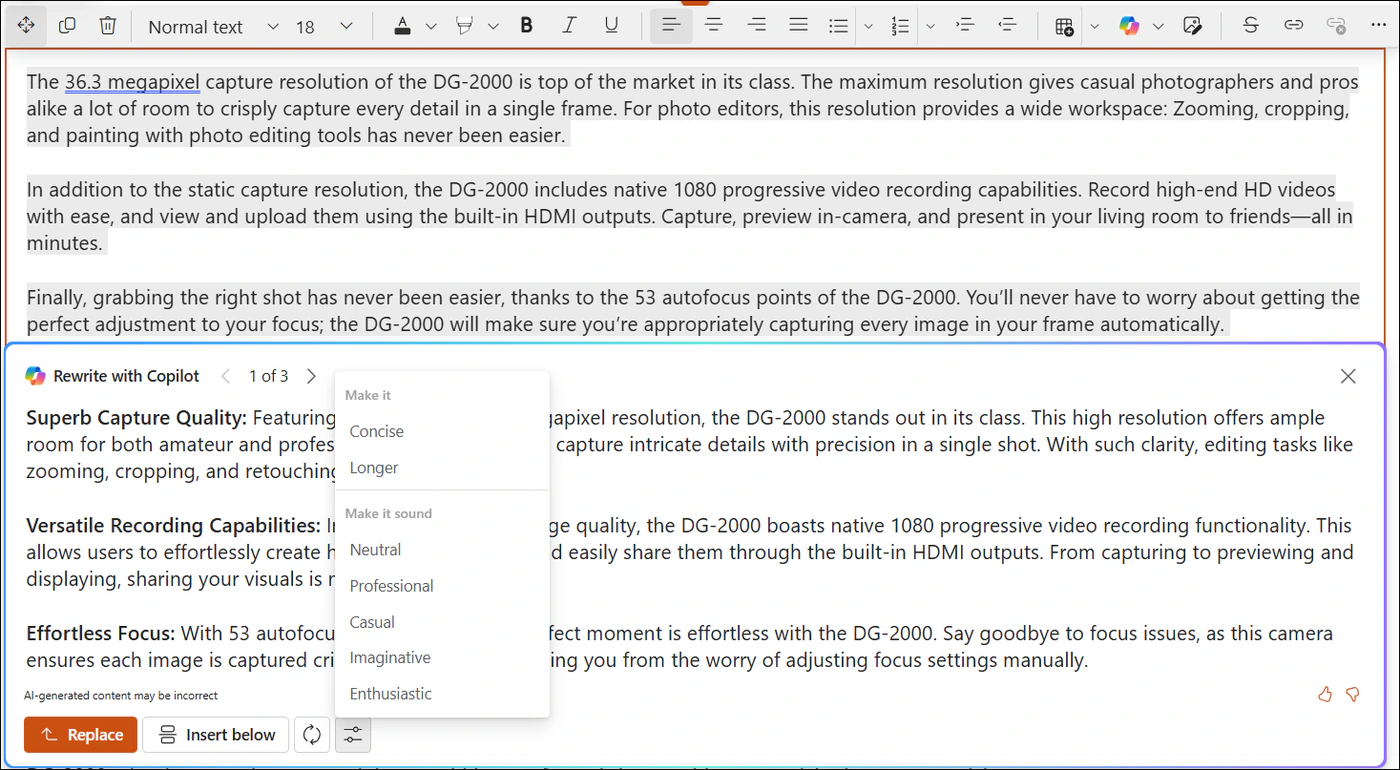
Pic. 3. Rewriting a paragraph with Copilot inside the page editor. Source: Microsoft Support
Create sites with AI
The most ambitious capability, rolling out since April 2026, is Create sites with AI. From the SharePoint start page choose Create site and then Create a site with AI, or select Build in the new SharePoint experience, and describe the site in a sentence: “Create a site to help my team collaborate and track project progress.” Copilot asks a few clarifying questions, then proposes a build plan and a visual outline of pages, navigation, lists, libraries, columns and views. You refine the plan in chat (“add a column for time estimate on the Tasks list”, “remove the Team overview page”), and nothing is created until you select Build it and confirm the site name and sensitivity label. Provisioning takes up to 30 minutes and produces a site with sample pages, documents and list items so the structure is obvious to the people who arrive next. The plan itself is saved as SitePlan.md in the site’s Agent Assets library.
Two prerequisites trip people up: users need a Microsoft 365 Copilot licence, and they must be allowed to create sites in your tenant, or a SharePoint administrator has to create the site with AI on their behalf. During the preview some things are out of scope, including complex Power Automate flows, permission and sharing setup, column and row formatting, advanced web parts and third-party integrations; Copilot says so in the planning phase and suggests doing them by hand afterwards. For the site types themselves, see types of SharePoint sites.
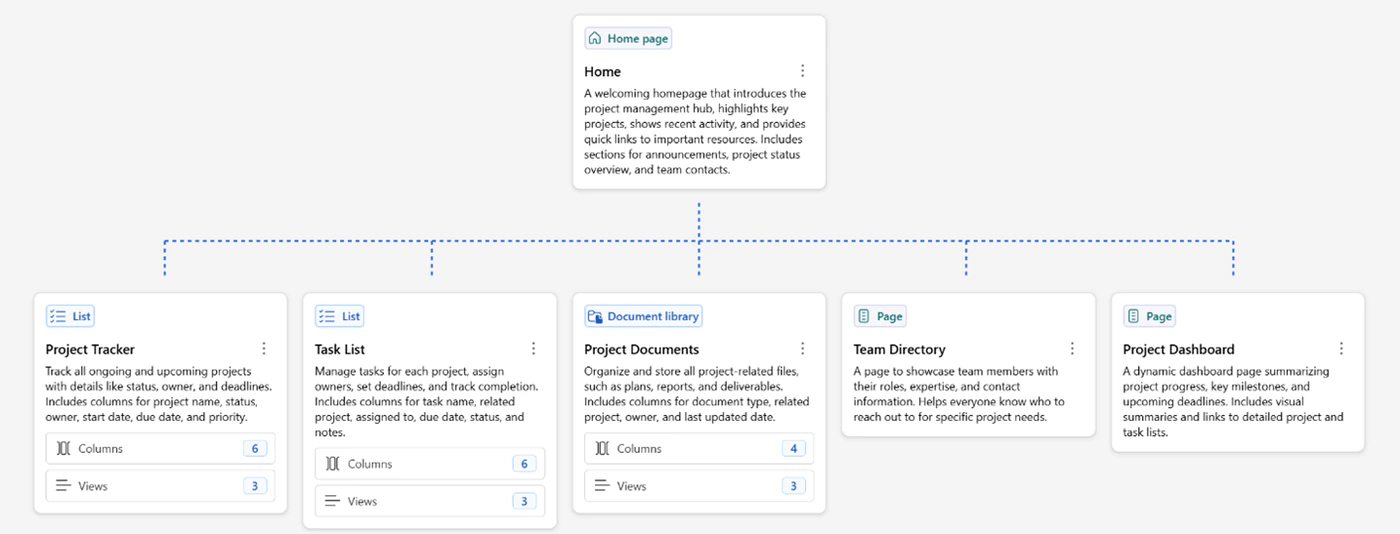
Pic. 4. The visual outline Copilot proposes for a new site before anything is created. Source: Microsoft Learn
Create document libraries with AI columns
From a site’s home page or Site contents, choose + New, Document library, and then the AI-assisted option. Describe the purpose (“a library to store and organise vendor invoices”), upload a sample file if you have one, and Copilot proposes a name, a description and a metadata schema tailored to that kind of document. The columns it creates are autofill columns: each one carries a prompt that reads every file added to the library and writes the value in, so invoices arrive tagged with counterparty, amount and due date without anyone filling in a form. You can review and edit the prompts at creation and at any time afterwards. This is the feature that finally makes metadata schemes survive contact with real users, a theme we cover in depth in SharePoint content management. The Create document library with AI documentation lists the supported file types.
Set up library rules in plain language
In any document library, the Copilot icon in the lower-right corner opens a quick-actions menu that includes Set up rules. Describe what should happen and Copilot configures the rule: “email the finance team when a new invoice is added”, “move files marked Approved to the Published folder”, “set Status to Review when a contract is modified”. Supported triggers are an item being created, modified or deleted; supported actions are email, move, copy and set a value. The first time you use it in a library, Copilot also suggests up to three metadata columns based on the files already there, which gives the rules something to key on. Each list or library can hold up to 15 rules, notifications come from no-reply@sharepointonline.com, and the “date approaches” trigger and the translate and delete actions are not yet available through Copilot. For anything beyond that, Power Automate remains the tool; our SharePoint automation guide shows where the line falls. Details are in Automate workflows in a SharePoint document library.
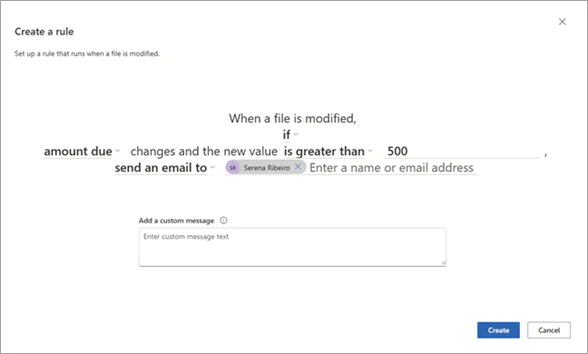
Pic. 5. A library rule generated from a plain-language prompt, ready to create. Source: Microsoft Learn
Live dashboards from lists, and page buttons that run prompts
Since August 2026 Copilot in SharePoint can turn a list, an Excel workbook or a CSV file into an interactive HTML dashboard that stays connected to its source: open it and it refreshes from the list, so a project-status view, an inventory tracker or a request pipeline no longer has to be rebuilt every time the data changes. In the same release Microsoft added the ability to wire a page Button web part to a saved Copilot prompt, so anyone visiting a project hub can press “Draft status update” or “Find operations manuals” and get the result without knowing what to type. Both are described with sample prompts in Microsoft’s What’s new in Copilot in SharePoint, August 2026 post. Copilot can also create Office files from a prompt and, since August, generate an HTML page for a site. If you have been relying on third-party reporting for list data, compare this with the options in our SharePoint reporting tools roundup.
Copilot in the SharePoint admin center
Administrators get their own Copilot, switched on automatically for tenants with SharePoint and Microsoft 365 Copilot licences. In the SharePoint admin center it answers questions such as “find sites created in the last month that are shared externally”, returns details about a named site, and walks you through multi-step tasks like finding over-permissioned sites and starting site access reviews. It never changes configuration on your behalf; it tells you what to do and where. Admins who do not want it can add themselves to a security group named CopilotForM365AdminExclude. The related SharePoint Admin Agent does the same job from the Copilot app and Teams. Both are documented under Copilot skills in the SharePoint admin center.
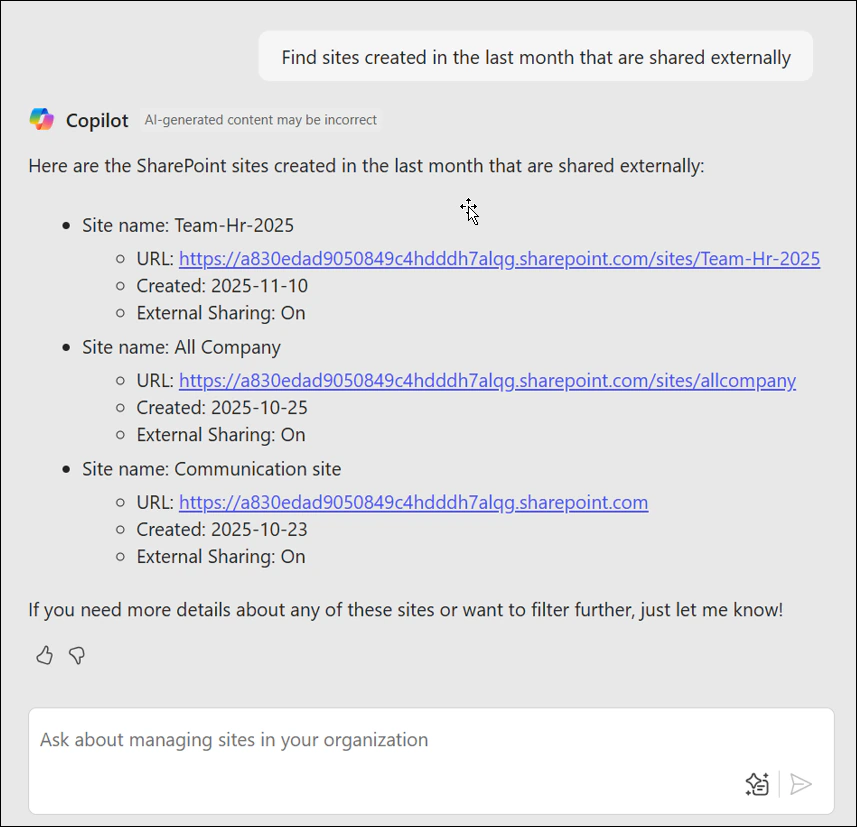
Pic. 6. Copilot in the SharePoint admin center answering a multi-criteria site search. Source: Microsoft Learn
How Copilot in SharePoint works
Every Copilot in SharePoint answer goes through the same four steps as Microsoft 365 Copilot elsewhere, with one difference: the starting scope is the site you are looking at.
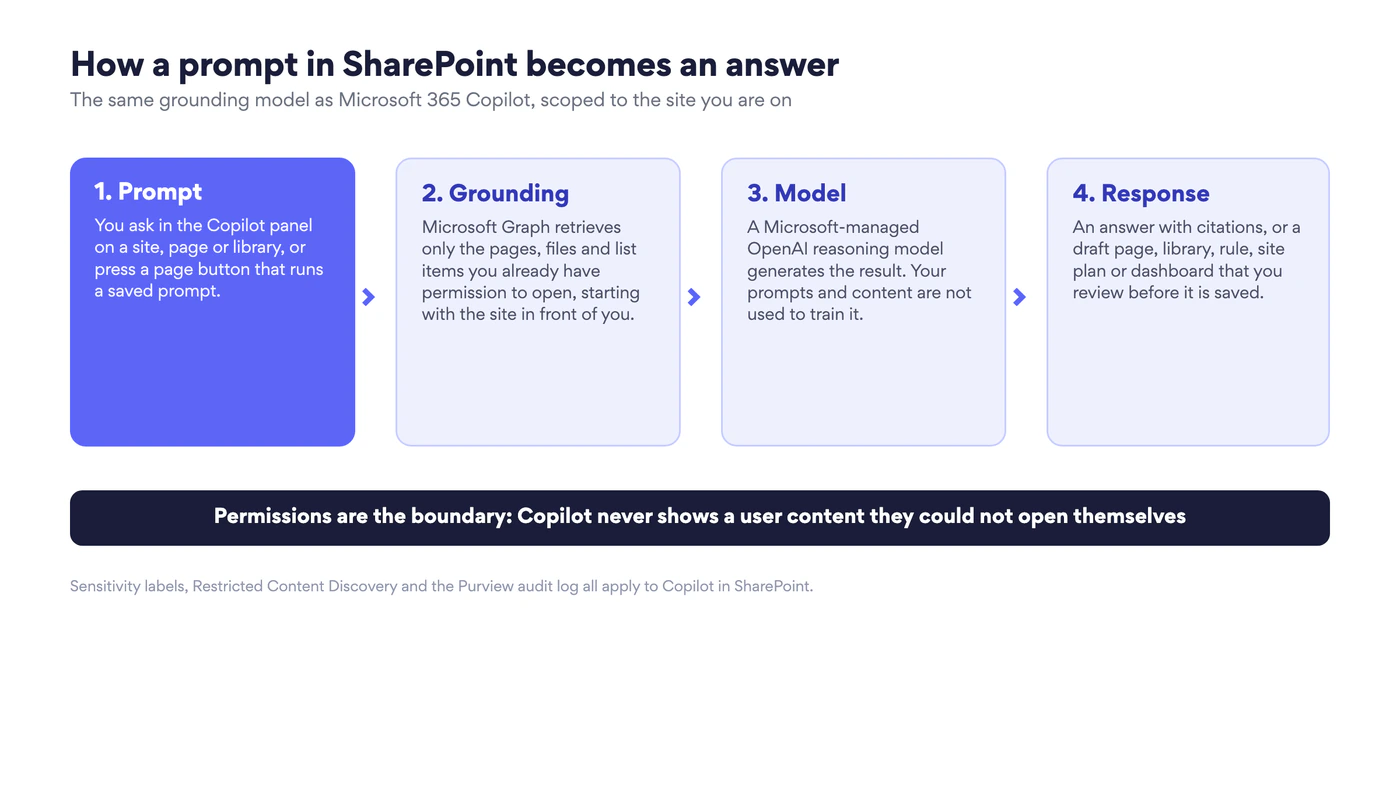
Fig. 3. How a prompt in SharePoint becomes an answer. Permissions are the boundary at step 2
- Prompt. You type a question or instruction in the Copilot panel, or press a page button that carries a saved prompt.
- Grounding. Microsoft Graph retrieves the pages, files and list items relevant to the prompt, limited to what your account can already open. A user who cannot open a library gets no answer from it, whether they ask directly or through an agent.
- Model. The prompt and the retrieved content go to a Microsoft-managed reasoning model from OpenAI (GPT-5.4 at the time of the opt-out rollout). Microsoft chooses and updates the model; there is nothing to configure. Your prompts and content are not used to train it.
- Response. You get an answer with citations, or a draft page, a proposed library schema, a rule, a site plan or a dashboard. Anything that changes SharePoint is shown first and created only when you approve it.
Three consequences follow. First, the quality of an answer is the quality of the content it can find: an outdated policy document produces an outdated answer, with a confident citation. Second, oversharing becomes visible: a file that was technically open to everyone but that nobody knew how to find is now one question away, which is why Microsoft’s readiness guidance puts access clean-up before licence assignment. Third, the compliance stack still applies: sensitivity labels, Restricted Content Discovery and the Microsoft Purview audit log for Copilot interactions all cover Copilot in SharePoint, where it appears as its own app host.
Licensing: what Copilot in SharePoint costs
Copilot in SharePoint has no price of its own. It is included in the Microsoft 365 Copilot licence during the preview and, Microsoft has said, at general availability, at no extra cost. Agents in SharePoint are the exception: an unlicensed user can still use (but not create) agents if the organisation has set up pay-as-you-go billing through an Azure subscription, in which case usage is metered per message. Current meter rates are on Microsoft’s Copilot pay-as-you-go pricing page; the per-user licence prices, the Business add-on and the free Copilot Chat tier are covered in our Microsoft 365 Copilot guide.
| What the user has | Copilot in SharePoint | Agents in SharePoint |
|---|---|---|
| Microsoft 365 Copilot licence | Full: ask, create pages, sites, libraries, rules, dashboards | Create, configure and use agents |
| No licence, tenant has pay-as-you-go for agents | Not available | Use agents; usage billed per message to the Azure subscription |
| No licence, no pay-as-you-go | Not available | Not available |
| Copilot Chat only (free tier) | Not available | Not available in SharePoint; agents built elsewhere may be metered in Copilot Chat |
Fig. 4. Who can use what, by licence. Based on Microsoft’s comparison of Copilot licences and pay-as-you-go billing for agents
Administrators can also fine-tune access inside a licence: on the licence details page in the Microsoft 365 admin center, the Microsoft Copilot for SharePoint service plan can be turned off per user. Be aware that switching it off also removes Copilot in OneDrive and the page-authoring Copilot for that person.
How to get started with Copilot in SharePoint
Because the preview is opt-out, “getting started” for a licensed user often means noticing the button that has already appeared. For the administrator there is still a short sequence worth doing in order.
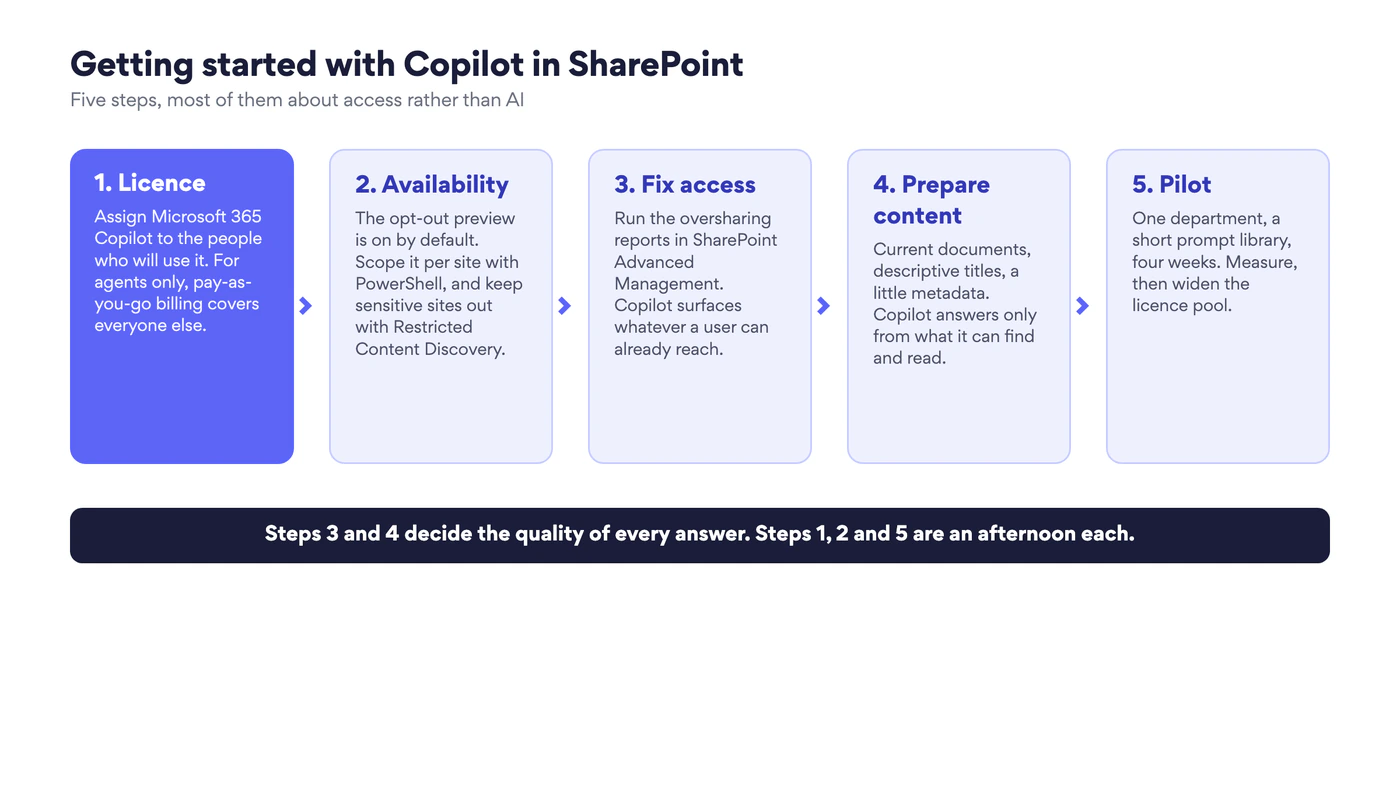
Fig. 5. Getting started with Copilot in SharePoint in five steps. Steps 3 and 4 decide the quality of every answer
1. Assign licences
Assign Microsoft 365 Copilot to the people who will use Copilot in SharePoint. The Microsoft Copilot setup guide in the Microsoft 365 admin center walks through it. If you only want agents for a wider audience, set up pay-as-you-go billing instead of licensing everyone.
2. Decide where it is available
No opt-in step is needed. To scope it, use SharePoint Online Management Shell (version 16.0.26615.12013 or later) and the Set-SPOTenant -KnowledgeAgentScope parameter, which keeps its preview name: AllSites, IncludeSelectedSites, ExcludeSelectedSites or NoSites, with up to 100 sites in the include or exclude list. Multi-geo tenants run it in each geo. Sites flagged with Restricted Content Discovery never show Copilot in SharePoint or AI actions, whatever the scope. Site owners get a Site AI settings panel where they choose which agent opens from the Agent icon and can hide the Copilot button from visitors. Microsoft has said the enablement process changes at general availability, so check the Get started page before scripting anything permanent.
3. Fix access before AI can surface it
Run the data access governance reports in SharePoint Advanced Management (included with the Copilot licence): sites shared with “Everyone except external users”, sensitivity labels for files, sharing links, permission state reports. Delegate the clean-up to site owners with site access reviews. Our SharePoint permissions guide and the external sharing guide cover the model you are tidying.
4. Prepare content
Copilot answers only from what it can find and read. Archive or delete superseded documents, give pages and files descriptive titles, and add the two or three metadata columns that matter to how people search. Where a library is a mess, let Copilot create a new AI-columned library and move the current files into it. The document management guide has the library-level practices.
5. Pilot, then widen
Give one department licences for a quarter, seed a small prompt library (Microsoft’s Copilot in SharePoint adoption hub has ready-made ones), and measure: questions answered without a ticket, pages published, rules created. Then widen the licence pool to the roles that showed the clearest gain. Usage limits apply during the preview: each user has a daily and weekly allowance, and Copilot pauses for that user until the limit resets.
Where to find it as a user
On a site page, look for the Copilot button in the header. In a document library, the Copilot icon sits in the lower-right corner and opens the quick actions (Set up rules, suggest columns, summarise). On the SharePoint start page, Build opens the site-creation chat. The Agent icon in the site header opens the site’s default agent, which may be Copilot in SharePoint or a custom agent the owner has chosen.
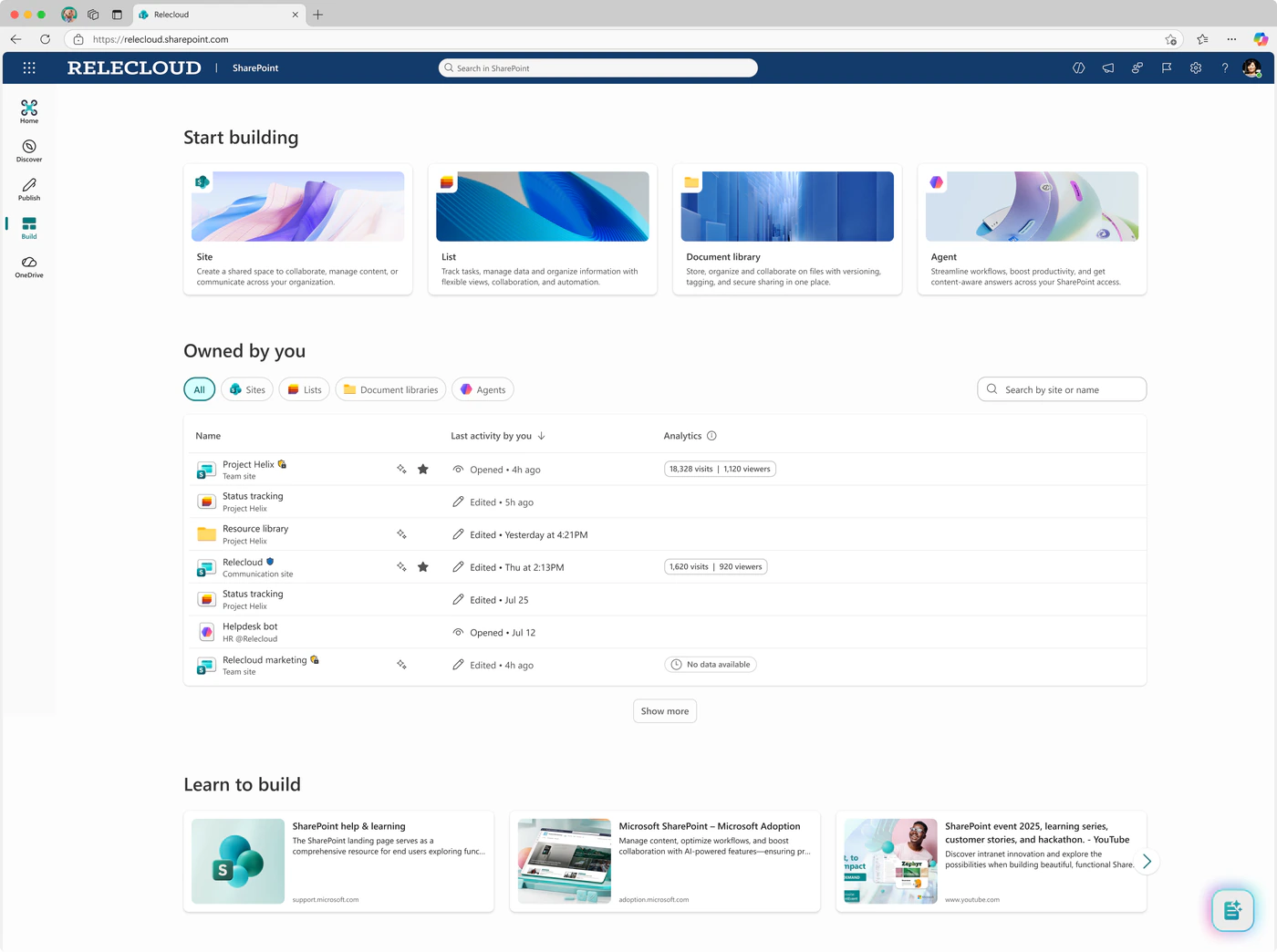
Pic. 7. The Build entry on the SharePoint start page. Source: Microsoft Support
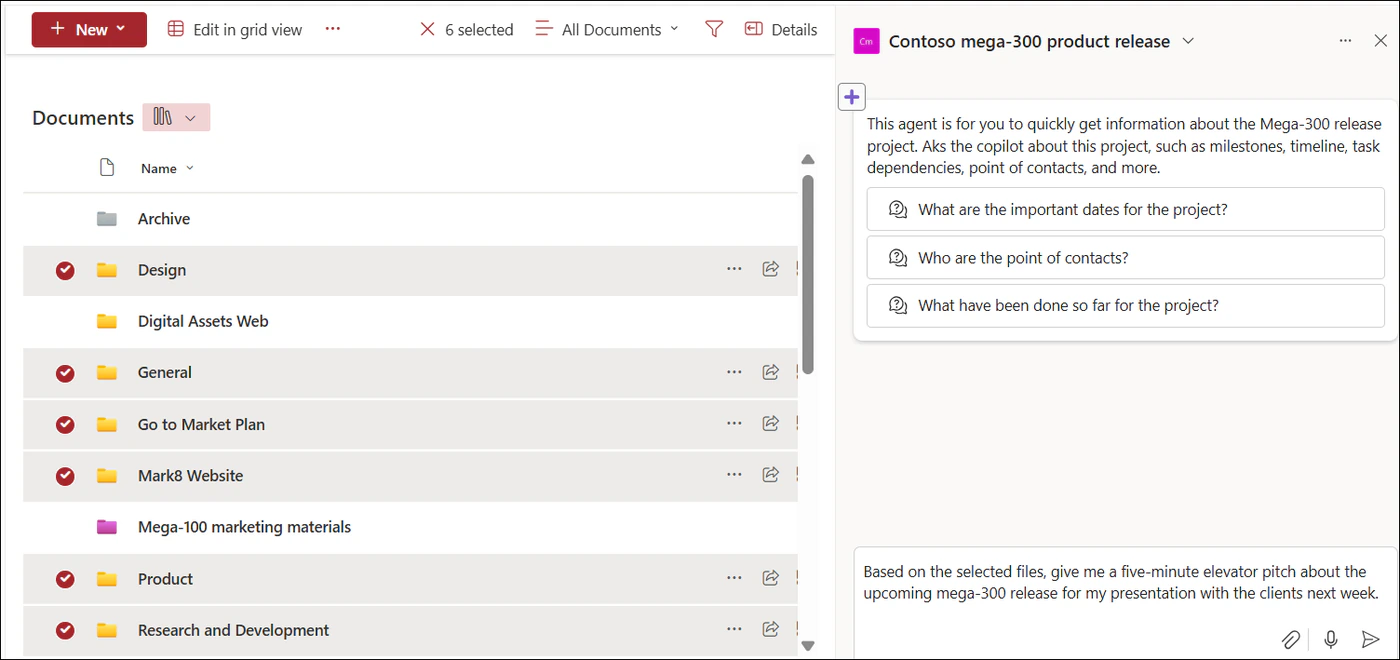
Pic. 8. The Copilot pane in a document library, scoped to the selected files. Source: Microsoft Support
Practical ways to use Copilot in SharePoint
The scenarios below are the ones that produce a visible result in the first week. Each pairs a job with a prompt you can paste in.
| Job | Where | Prompt to try |
|---|---|---|
| Catch up on a site you have been away from | Copilot panel on the site | “Summarise what changed on this site in the last two weeks and list the new documents.” |
| Answer a policy question without reading the policy | Copilot panel on the HR or policy site | “According to the current travel policy, what is the daily limit for meals abroad? Cite the section.” |
| Draft an intranet news post from a document | Template gallery, News post | “Write a news post announcing the Q4 planning workshop based on the attached brief, 250 words, with a call to register.” |
| Stand up a project site | Build on the start page | “Create a site for a product launch: tasks with owners and due dates, a risks list, a deliverables library and a status page.” |
| Tag incoming documents automatically | New document library, AI-assisted | “A library for supplier contracts; tag each file with supplier, contract value, start date and renewal date.” |
| Route or flag files without Power Automate | Library quick actions, Set up rules | “When a file’s Status changes to Approved, copy it to the Published library and email the comms team.” |
| Give leadership a live view of a list | Copilot panel on the list | “Create an executive dashboard from this project list showing health, milestones, risks and owners, with filters that stay synchronised.” |
| Put a repeatable prompt in front of a team | Button web part on a page | “Draft this week’s status update from the Tasks list, grouped by workstream.” |
Fig. 6. Eight first-week uses of Copilot in SharePoint, with a prompt for each
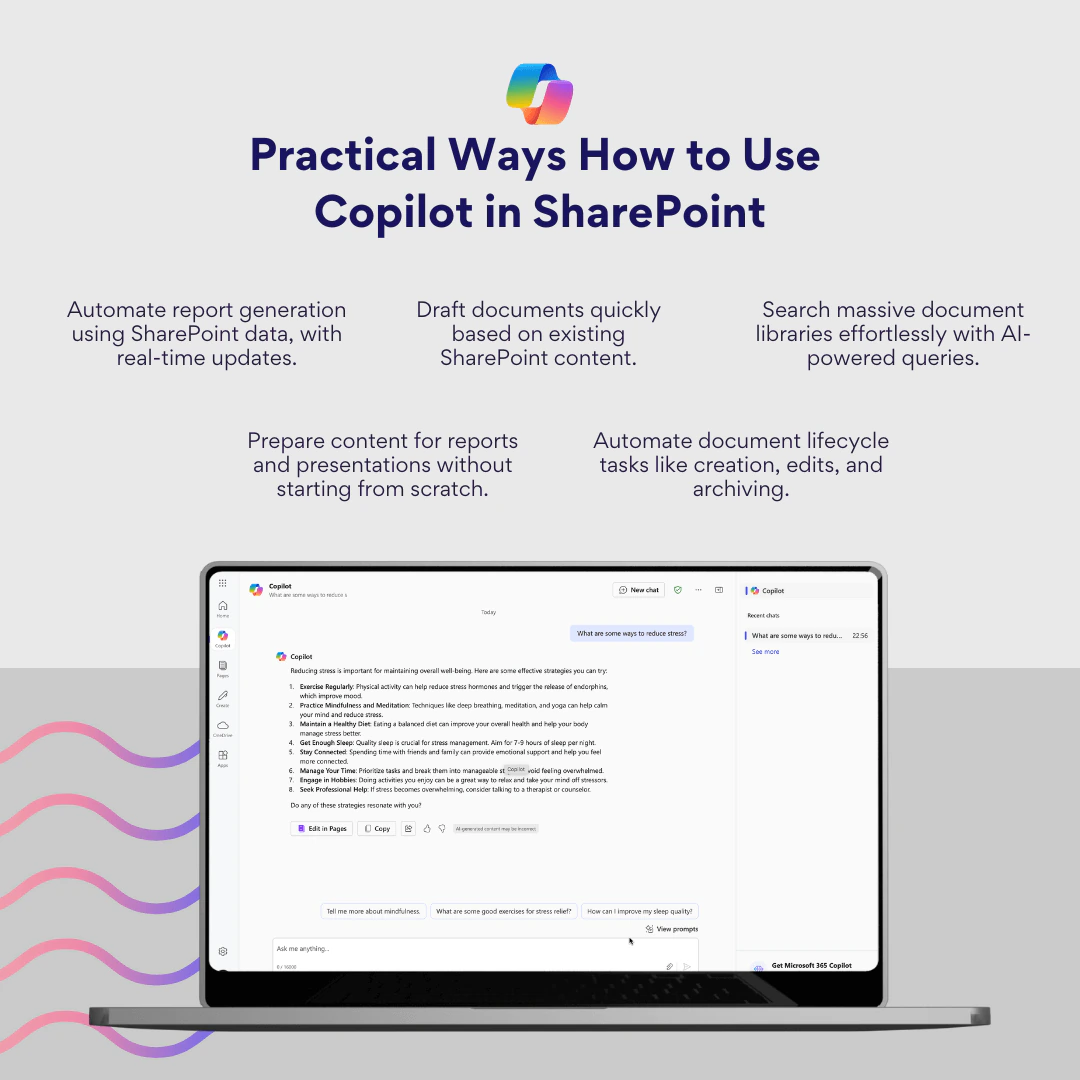
Pic. 9. Practical ways to use Copilot in SharePoint (image kept from the earlier version of this article)
Two habits improve every result. Be specific about scope (“in this library”, “in the 2026 folder”, or use / to attach the exact file) so grounding does not wander. And ask for the form you want (“a table with three columns”, “five bullet points”, “a two-paragraph summary for a manager”), because Copilot formats to instruction far better than it guesses. If an answer is wrong, the fix is usually in the content: an outdated document that should have been archived, or a newer one nobody can open. For working with the underlying lists and libraries, see Microsoft Lists and SharePoint document libraries.
Copilot agents in SharePoint
An agent is a Copilot with a fixed scope and a fixed job: answer questions from these sources, in this tone, starting with these suggested prompts. SharePoint has three kinds, and the difference is mostly how much setup you are willing to do.
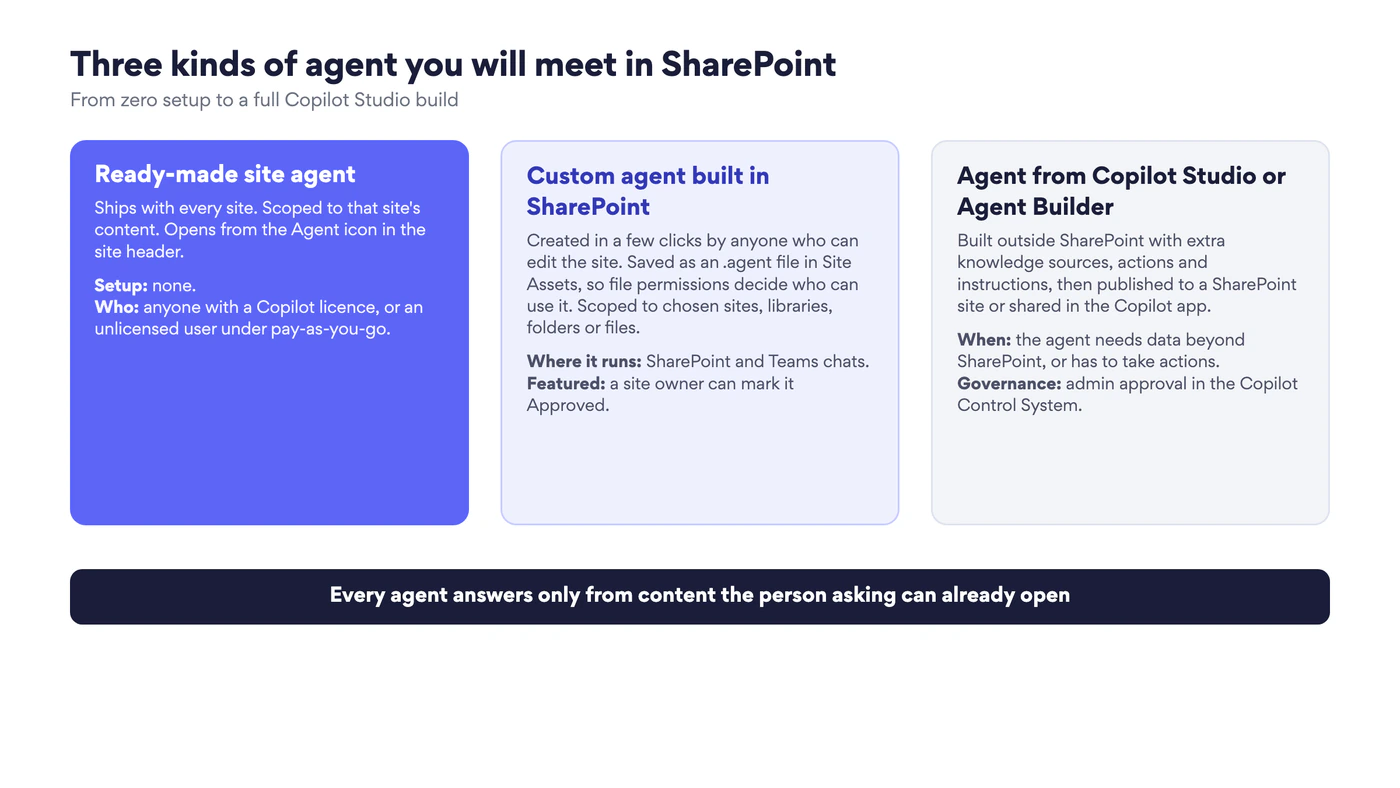
Fig. 7. Three kinds of agent you will meet in SharePoint, from zero setup to a Copilot Studio build
The ready-made site agent exists on every site with no activation. It is scoped to that site’s content and opens from the Agent icon in the header. For a small team site it is often all that is needed.
A custom agent built in SharePoint takes a few minutes. Anyone who can add files to a site can select a set of files or folders in a library and choose Create an agent, or start from the Agent icon. You give it a name and icon, choose its sources (specific sites, libraries, folders or files, up to a small number), write a welcome message and starter prompts, and optionally set behaviour rules. The agent is saved as an .agent file in the site’s Site Assets library, which is why file permissions govern who can find and use it. Site owners can pick one agent as the site’s main agent and mark agents as Approved so they appear in a dedicated section of the agent picker. Agents built in SharePoint can be shared into Teams group chats and meetings and are discoverable in the Teams store under Agents, which is where they get the most use: a project agent added to the project chat answers “what did we decide about the vendor?” without anyone leaving Teams. Microsoft’s Create and edit an agent and Share an agent from SharePoint in Teams cover the clicks.
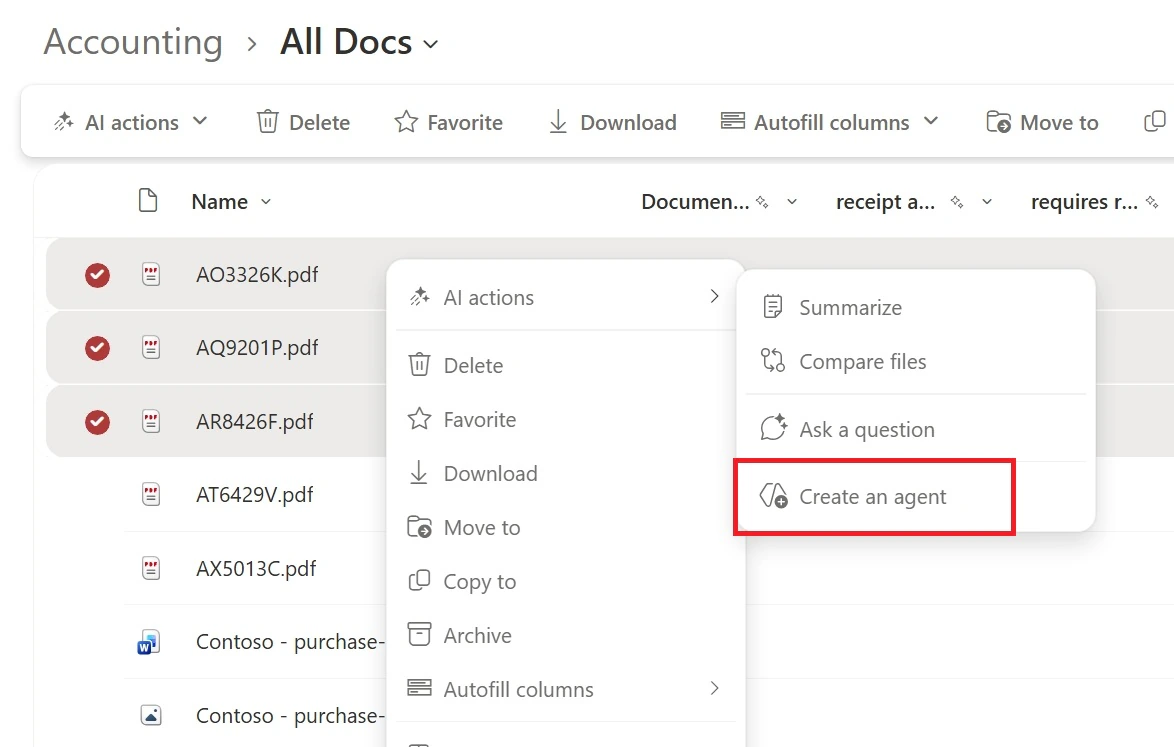
Pic. 10. Starting a custom agent from selected files in a library. Source: Microsoft Support
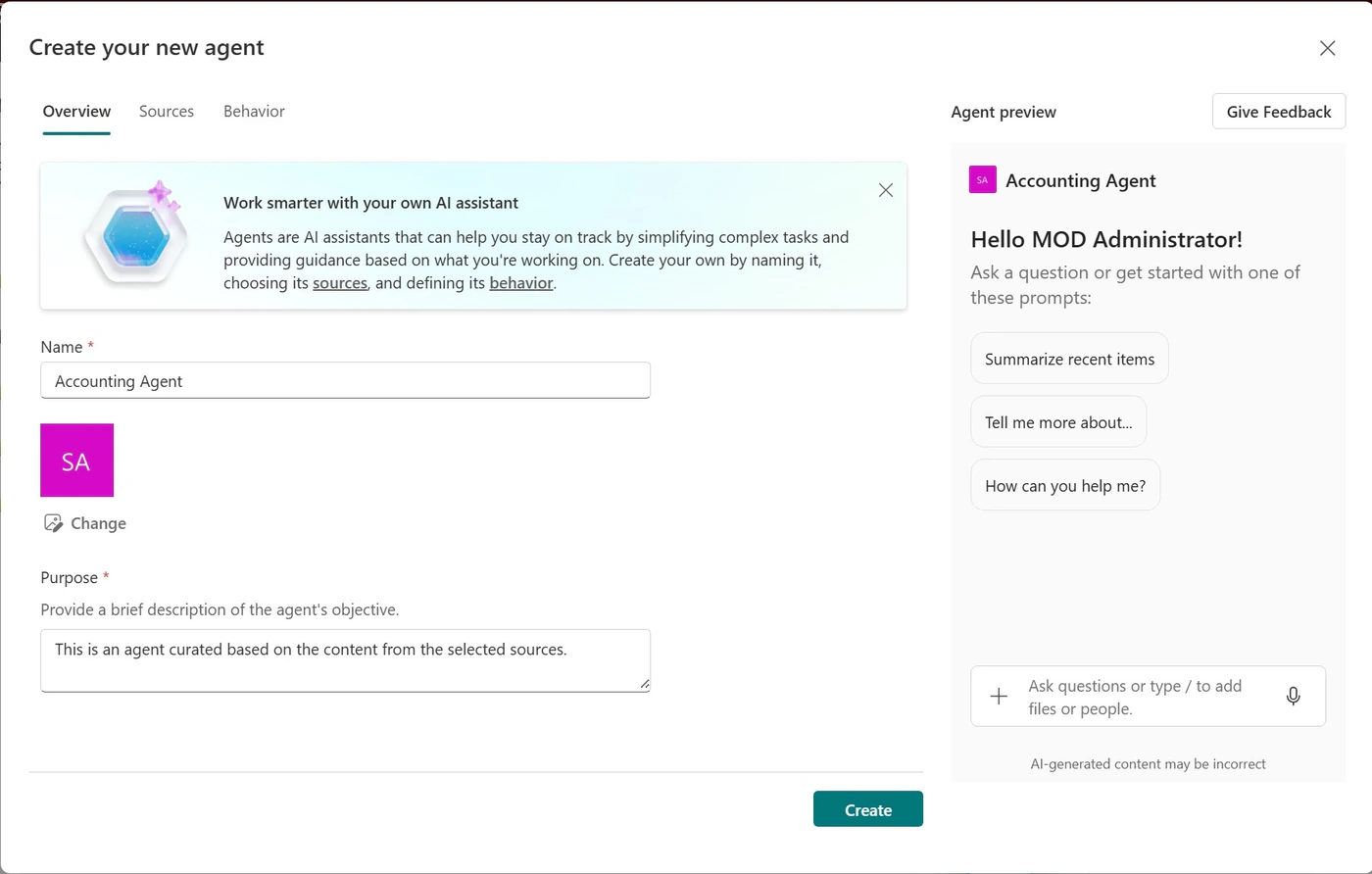
Pic. 11. The agent builder: name, purpose, sources and a preview of the starter prompts. Source: Microsoft Support
An agent built in Copilot Studio or Agent Builder is the route when the agent needs knowledge beyond SharePoint (a website, a line-of-business system through a connector), needs to take actions, or needs instructions longer than a SharePoint agent allows. Such agents can be published to a SharePoint site and marked Approved there, and they go through admin approval in the Copilot Control System of the Microsoft 365 admin center. Microsoft’s agents admin guide compares the three building routes.
Whichever kind, the rule from Fig. 3 holds: an agent answers each user only from sources that user can open. Sharing an agent does not share its files. If a colleague cannot see the library the agent reads, the agent simply has less to say to them. Administrators can monitor agent creation and usage through SharePoint Advanced Management’s agent insights, the audit log, and the Get-SPOCopilotAgentInsightsReport cmdlet, and can block individual agents from Copilot Chat; the controls are gathered in Manage access to agents in SharePoint.
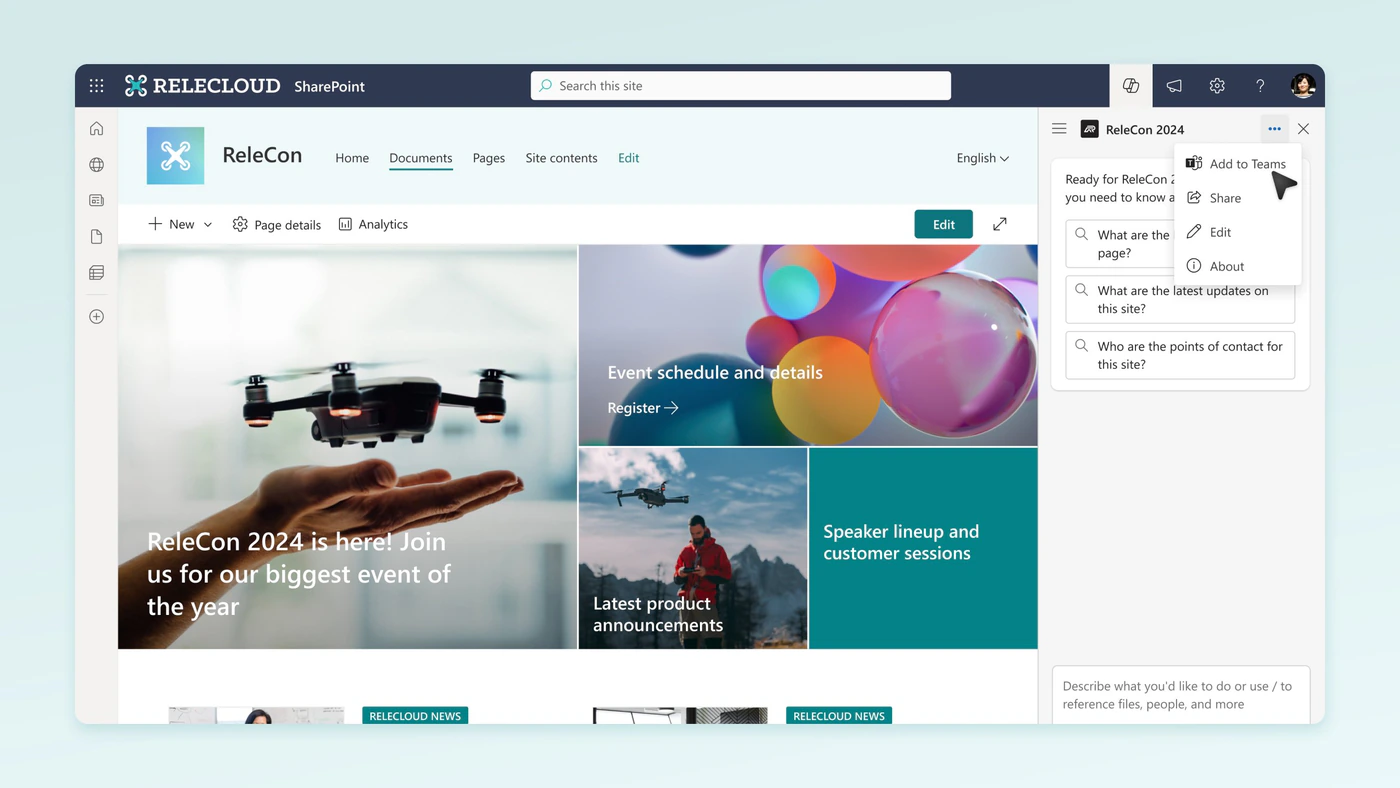
Pic. 12. Sharing a SharePoint agent into Teams from the agent menu. Source: Microsoft Support
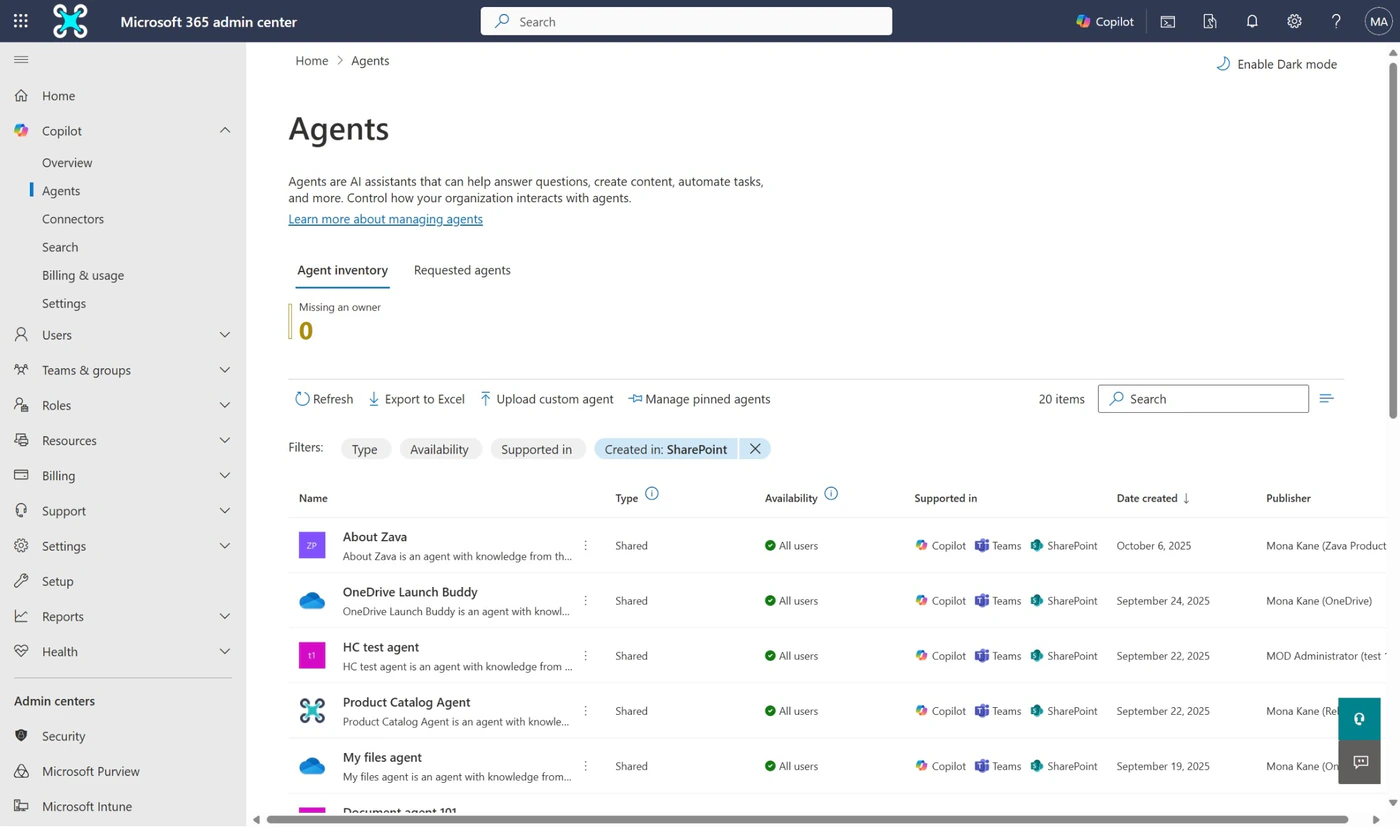
Pic. 13. The agent inventory in the Microsoft 365 admin center. Source: Microsoft Learn
Governance, security and limits
Most of what a governance lead needs to know about Copilot in SharePoint is that it inherits the controls SharePoint already has. The points that are specific to it:
- Permissions are the boundary. There is no separate Copilot permission model. Every answer, agent and draft is limited to what the signed-in user can open, which is why access clean-up comes before rollout.
- Restricted Content Discovery removes a site from Copilot in SharePoint, agents and AI actions without changing who can open it directly. Use it for sites that are legitimately shared widely but should not be summarised on demand.
- Sensitivity labels are respected, and label-encrypted files cannot be analysed by library rules.
- Auditing. Every Copilot interaction is logged in Microsoft Purview with SharePoint as the app host, alongside eDiscovery and retention for the interactions themselves.
- Usage limits during the preview are per user, daily and weekly, and reset automatically; Microsoft has said it may adjust them.
- Availability. Copilot in SharePoint is not available in GCC, GCC High, DoD, air-gapped clouds or Microsoft 365 operated by 21Vianet, and it supports only languages that appear on both the SharePoint and the Microsoft 365 Copilot language lists. Library rules can process files in English only.
- Preview scope. Site creation skips permissions, complex flows and third-party web parts; rules cannot yet fire on an approaching date. Expect the list to shrink month by month.
- SharePoint Server has no Copilot. The assistant, the agents and the AI columns are Microsoft 365 services. On-premises farms keep classic workflow and third-party web parts; see SharePoint limitations for the broader platform boundaries.
Copilot and Virto apps for SharePoint
Copilot in SharePoint is good at answering, drafting and setting things up. It is not the place where a team plans its month, watches a deadline approach or sees fifty tasks at once; those are structural views, and Copilot generates them on request rather than keeping them in front of people. Virto’s apps for Microsoft 365 and SharePoint Online supply that layer and sit alongside Copilot rather than competing with it. Every Virto app comes with a 30-day free trial.
- Virto Alerts & Reminder App covers the notification cases Copilot’s library rules do not yet reach: reminders driven by a date column such as Review date or Contract end, scheduled digests, alerts on Microsoft 365 calendar events, HTML templates that carry the item’s metadata, and delivery into a Teams channel as well as email. A rule Copilot set up says a file changed; a Virto reminder says the review is due on Friday.
- Virto Calendar App overlays SharePoint lists, Exchange Online and Microsoft 365 group calendars, Outlook and internet calendars into one colour-coded view in SharePoint and Teams. Copilot can summarise what a meeting decided; the calendar is where the follow-up gets scheduled next to everything else the team already tracks.
- Virto Kanban Board App turns a SharePoint list into a board with swimlanes, WIP limits and custom stages. Copilot can draft the project plan and the tasks list; the board is where the team moves them.
- Virto Multiple Operations handles the bulk uploads, bulk metadata edits and filtered deletes that a Copilot preparation project generates when content is reorganised into AI-columned libraries.
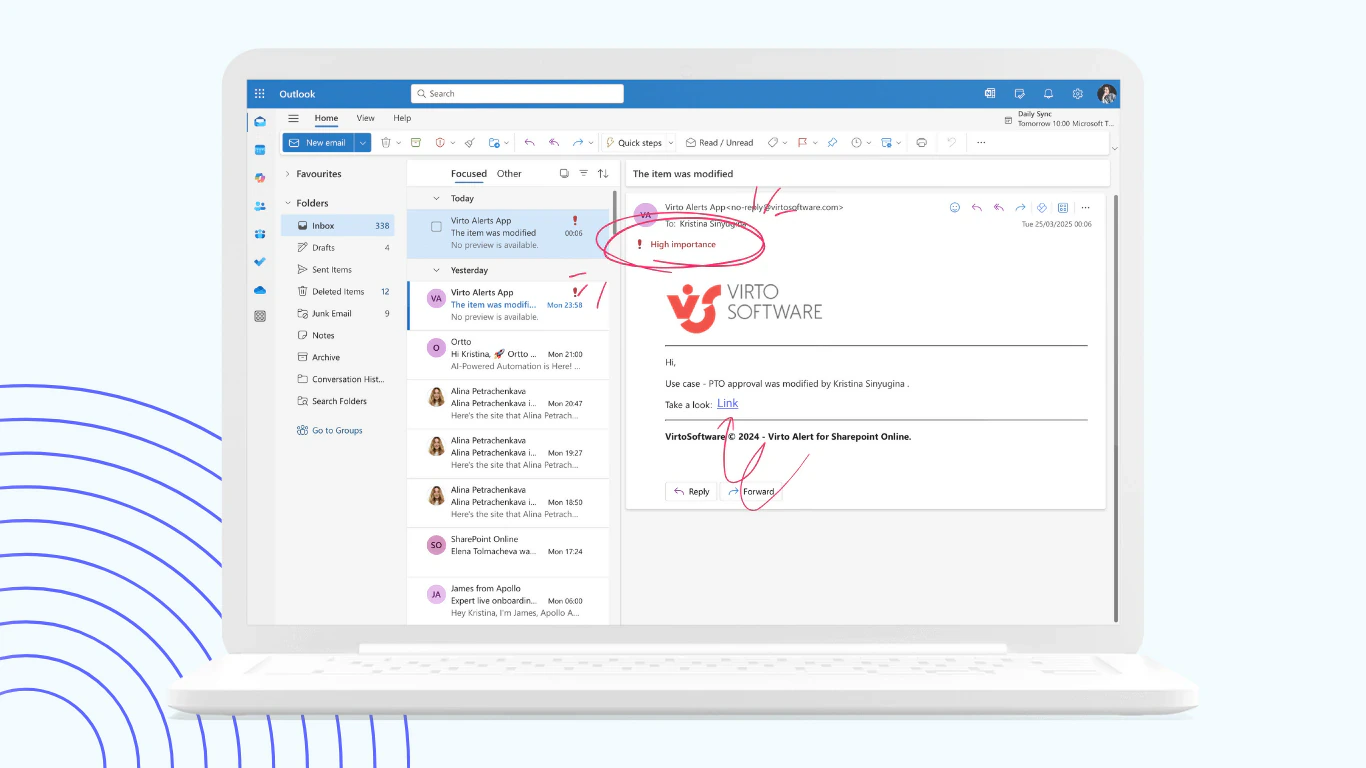
Pic. 14. Virto Alerts & Reminder App: date-based reminders and change alerts on SharePoint lists and libraries
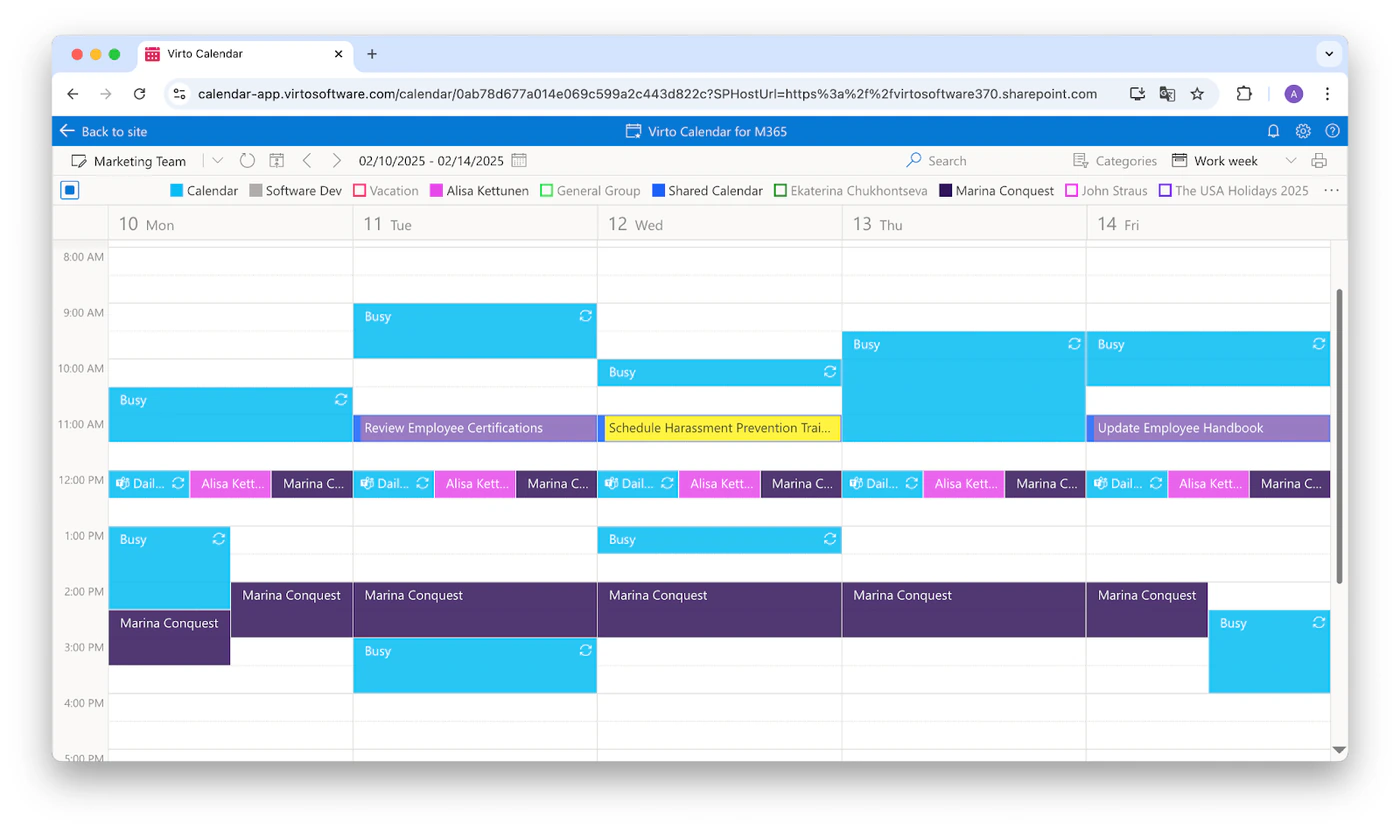
Pic. 15. Virto Calendar App overlaying SharePoint, Exchange and group calendars in one view
Organisations still on SharePoint Server, where none of the Copilot features apply, will find the on-premises equivalents on the SharePoint web parts page, including the Virto Notifications & Alerts Web Part and Virto Workflow Automation.
FAQ
What is Copilot in SharePoint?
Microsoft’s AI assistant built into SharePoint. It helps create and edit pages, sites and libraries, summarise documents, set up library rules, build dashboards and find content across your sites, using Microsoft Graph so that it only answers from content you already have permission to open.
Is Copilot in SharePoint free?
It has no separate price, but it requires a Microsoft 365 Copilot licence, which includes it at no extra cost. Agents in SharePoint can additionally be used by unlicensed people if the organisation sets up pay-as-you-go billing, in which case usage is metered per message. The free Copilot Chat tier does not include Copilot in SharePoint.
How do I enable Copilot in SharePoint?
For licensed users it is on by default since the mid-June 2026 opt-out preview. Administrators control where it appears with the Set-SPOTenant -KnowledgeAgentScope PowerShell parameter (all sites, selected sites, all except selected sites, or none) and can keep individual sites out with Restricted Content Discovery. Site owners can hide the Copilot button from visitors.
Can Copilot read all my SharePoint files?
It can read the files you can read. Copilot in SharePoint and its agents use each user’s own permissions, so nobody gets an answer drawn from content they could not open themselves. That also means files that are overshared become easier to find, which is why access clean-up is the first step of a rollout.
What is the difference between Copilot in SharePoint and a SharePoint agent?
Copilot in SharePoint is the general assistant that both answers questions and creates things: pages, sites, libraries, rules, dashboards. An agent is a scoped question-answerer: a fixed set of sources, a name, starter prompts and behaviour, saved as a file on a site and shareable in Teams. Every site has a ready-made agent, and anyone with edit rights can build custom ones.
Does Copilot work in SharePoint Server on-premises?
No. Copilot in SharePoint, agents and AI columns are Microsoft 365 cloud services. SharePoint Server keeps its classic workflow engine and third-party web parts, and Microsoft 365 Copilot cannot ground on on-premises content unless it is indexed through a Copilot connector.
Conclusion
In 2026 Copilot in SharePoint has moved from a preview you had to ask for to an assistant that is simply there for licensed users, and its job has widened from answering questions to building the site, the library, the rule and the dashboard you would otherwise have configured by hand. The mechanics have not changed: it answers from what people can already open, so the preparation that pays off is the unglamorous kind, permissions and content hygiene, and the licensing question is whether the Microsoft 365 Copilot seat is worth it for a given role. Agents cover the narrower case of a team that wants reliable answers from a known set of documents, and can be bought per message. Where the work needs a structural view rather than an answer, Virto’s apps add it without changing any of the above.
To go deeper, Microsoft’s Get started with Copilot in SharePoint and Get started with agents in SharePoint are the two pages to bookmark. On this site, continue with Microsoft 365 Copilot, how to use SharePoint, SharePoint content management and SharePoint intranet, or browse all of our SharePoint guides.