


Quick answer: what is the difference between classic and modern SharePoint? Modern SharePoint is the current experience: responsive, mobile-friendly pages built from web parts, flat sites connected by hubs, and close ties to Microsoft 365 groups and Teams. Classic is the older layout from the SharePoint 2013 era, with web part zones, subsites, master pages and SharePoint Designer workflows. New sites are modern by default, and Microsoft is steadily retiring classic features: in SharePoint in Microsoft 365, classic pages become read-only for all tenants on October 1, 2028.
For years “classic or modern?” was a question of taste. Classic was familiar and endlessly customizable, modern was cleaner and worked on a phone, and many organizations ran both and postponed the decision. In 2026 the question has an answer with dates on it. SharePoint 2013 workflows and SharePoint Add-ins stopped working in Microsoft 365 on April 2, 2026. From March 1, 2027 nobody can create a classic publishing site, and on October 1, 2028 the classic pages that remain become read-only.
This guide compares the two experiences side by side, lists what Microsoft has retired and what is still to come, shows the modern replacement for each classic feature, and lays out a way to move. It is written for SharePoint in Microsoft 365, with a section on what is different in SharePoint Server. If you are new to the platform, start with What is SharePoint or How to use SharePoint.
In this article:
- Classic and modern at a glance
- Key differences in a comparison table
- Sites, lists and libraries, pages and web parts: what changed
- Is classic SharePoint going away? The retirement timeline
- What replaces each classic feature
- Which one to use in 2026
- How to switch from classic to modern
- SharePoint Server: what is different on-premises
- Filling the gaps in either experience with Virto apps
- FAQ
SharePoint classic vs modern at a glance
Classic and modern are not two products. They are two experiences, two generations of user interface and page technology, living on the same SharePoint platform, often inside the same tenant and sometimes inside the same site. A classic team site can hold modern lists, and a modern site can still open a list in classic view.
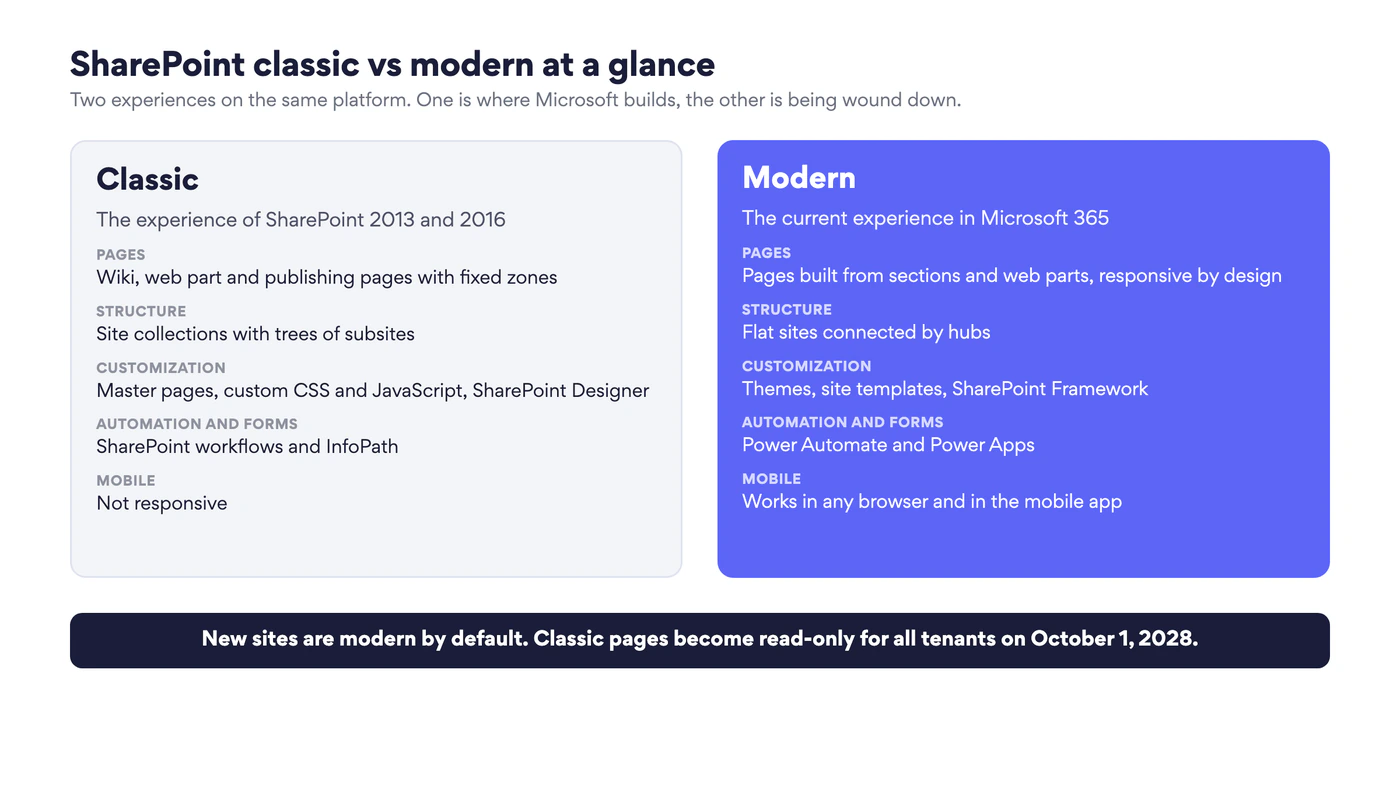
Fig. 1. SharePoint classic vs modern at a glance
What is classic SharePoint?
Classic is the experience that shipped with SharePoint 2013 and 2016 and that SharePoint Online inherited. Pages are wiki pages, web part pages or publishing pages with fixed zones. Commands sit in a ribbon. Sites are organized as site collections with trees of subsites. The look is controlled by master pages, page layouts and custom CSS, behaviour is added with JavaScript in Script Editor web parts, and processes run on SharePoint Designer workflows and InfoPath forms. It can be made to do almost anything, which is both its strength and the reason it is being retired: every one of those techniques is hard to secure, hard to govern and blind to mobile screens.
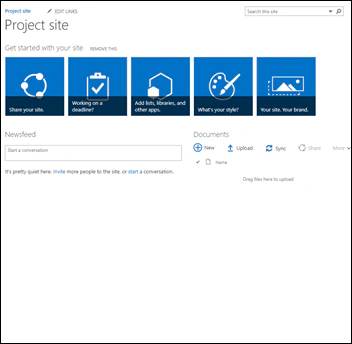
Pic. 1. A classic team site. Source: Microsoft Support
What is modern SharePoint?
Modern is the experience Microsoft has been building since 2016. Pages are made of sections and columns that hold web parts and reflow on any screen. Commands sit in a simple command bar. Sites are flat, each one its own unit, and are joined by hub sites. A team site comes with a Microsoft 365 group and can be connected to Teams, and a communication site replaces the old publishing portal. Branding is done with themes and site templates, extensions are built with the SharePoint Framework, and processes run on Power Automate and Power Apps. Every new capability, Copilot and agents included, is built for modern only.
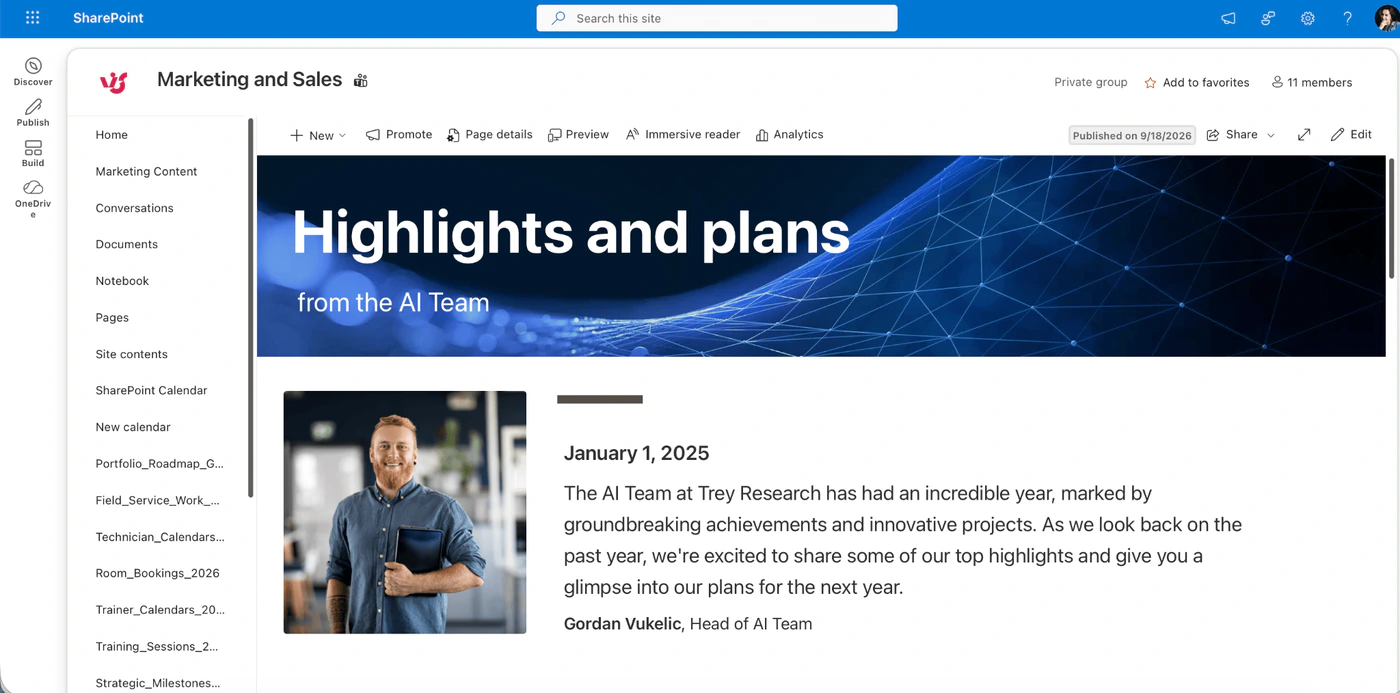
Pic. 2. A modern team site
Key differences between classic and modern SharePoint
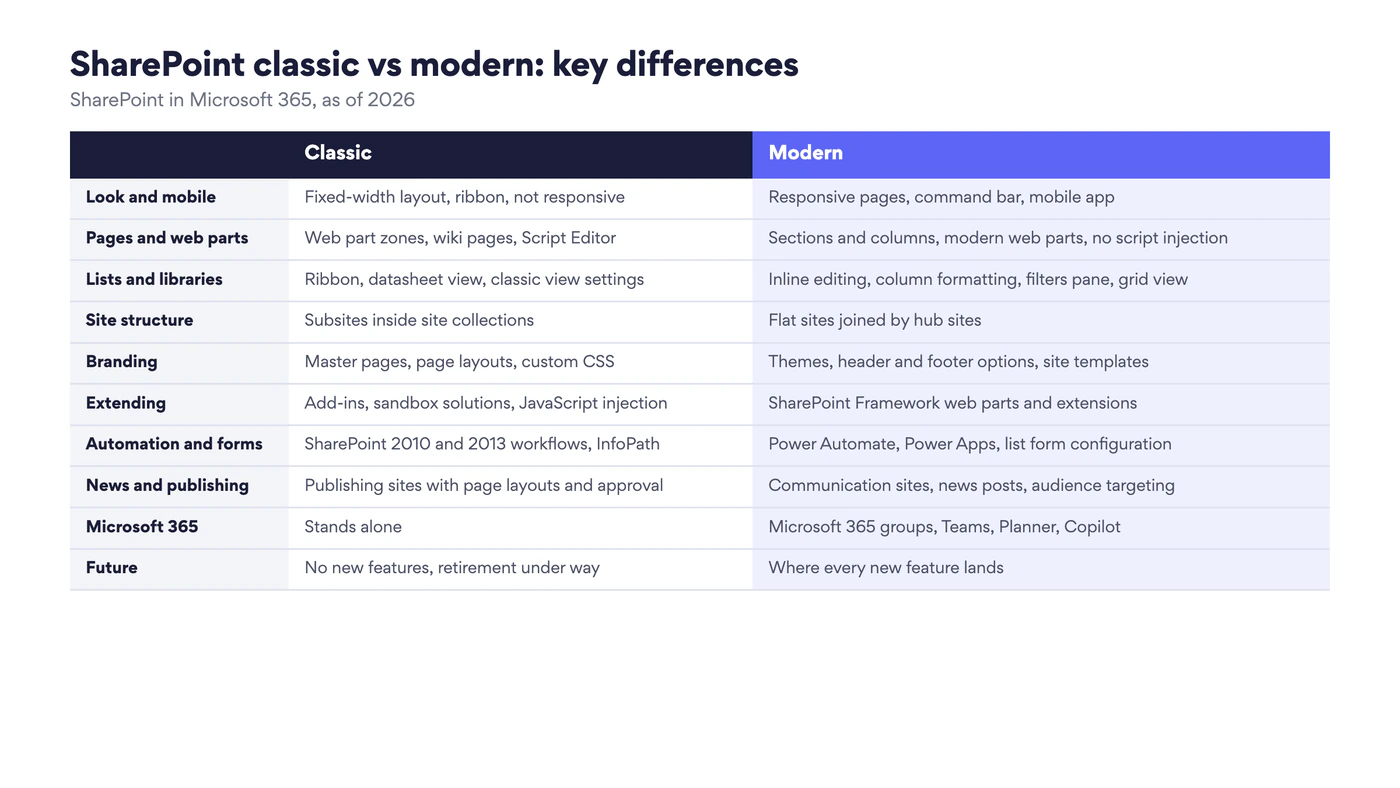
Fig. 2. SharePoint classic vs modern: key differences
| Classic | Modern | |
|---|---|---|
| Look and mobile | Fixed-width layout, ribbon, not responsive | Responsive pages, command bar, mobile app |
| Pages and web parts | Web part zones, wiki pages, Script Editor | Sections and columns, modern web parts, no script injection |
| Lists and libraries | Ribbon, datasheet view, classic view settings | Inline editing, column formatting, filters pane, grid view |
| Site structure | Subsites inside site collections | Flat sites joined by hub sites |
| Branding | Master pages, page layouts, custom CSS | Themes, header and footer options, site templates |
| Extending | Add-ins, sandbox solutions, JavaScript injection | SharePoint Framework web parts and extensions |
| Automation and forms | SharePoint 2010 and 2013 workflows, InfoPath | Power Automate, Power Apps, list form configuration |
| News and publishing | Publishing sites with page layouts and approval | Communication sites, news posts, audience targeting |
| Microsoft 365 | Stands alone | Microsoft 365 groups, Teams, Planner, Copilot |
| Future | No new features, retirement under way | Where every new feature lands |
Microsoft’s own summary of the two is on the support page SharePoint classic and modern experiences, and the administrator’s view is in the Guide to the modern experience in SharePoint.
What changed, element by element
Lists and libraries
This is where most people first meet the difference. A classic library has a ribbon with dozens of buttons and a plain table of files. A modern library has a short command bar, a details pane, a filters pane, pinned files, inline editing in grid view, column formatting with JSON, and direct links to Power Automate and Power Apps. Files open and sync the same way in both, because underneath it is the same library.
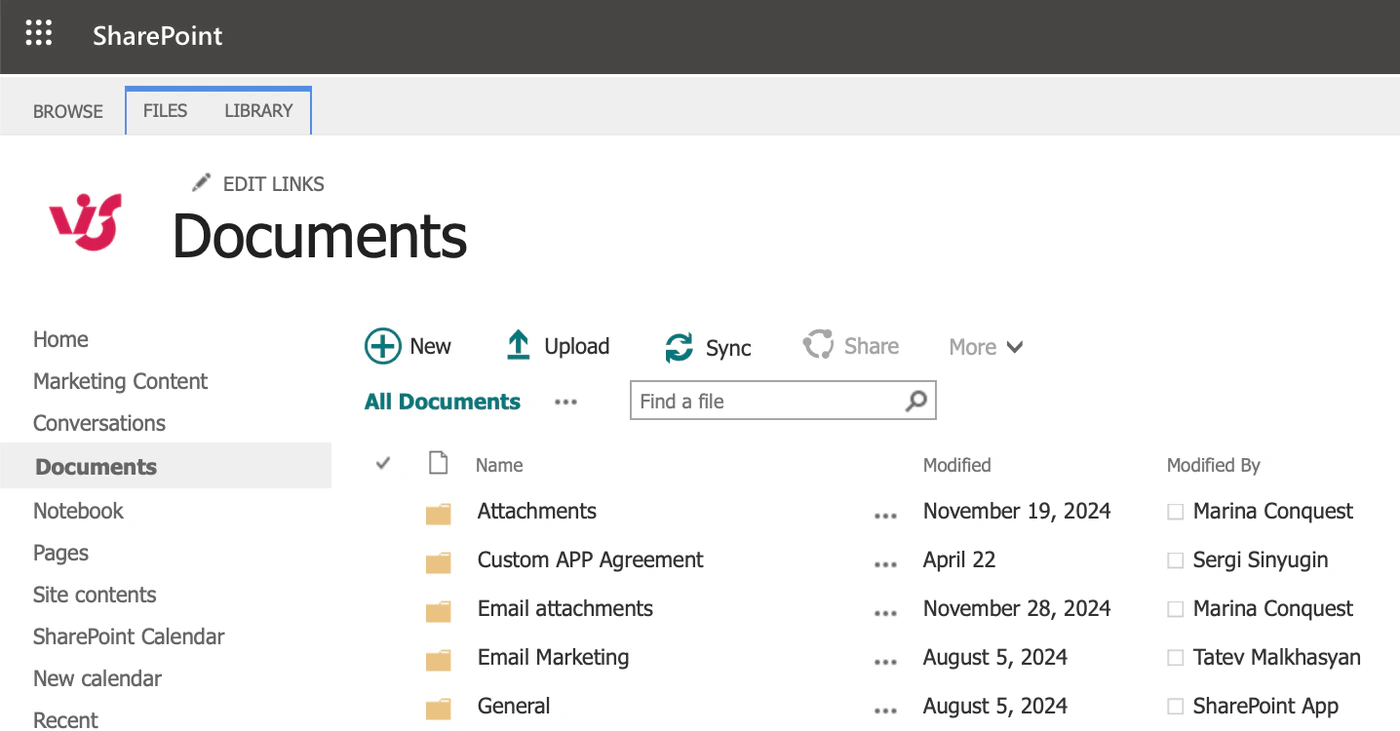
Pic. 3. A classic document library
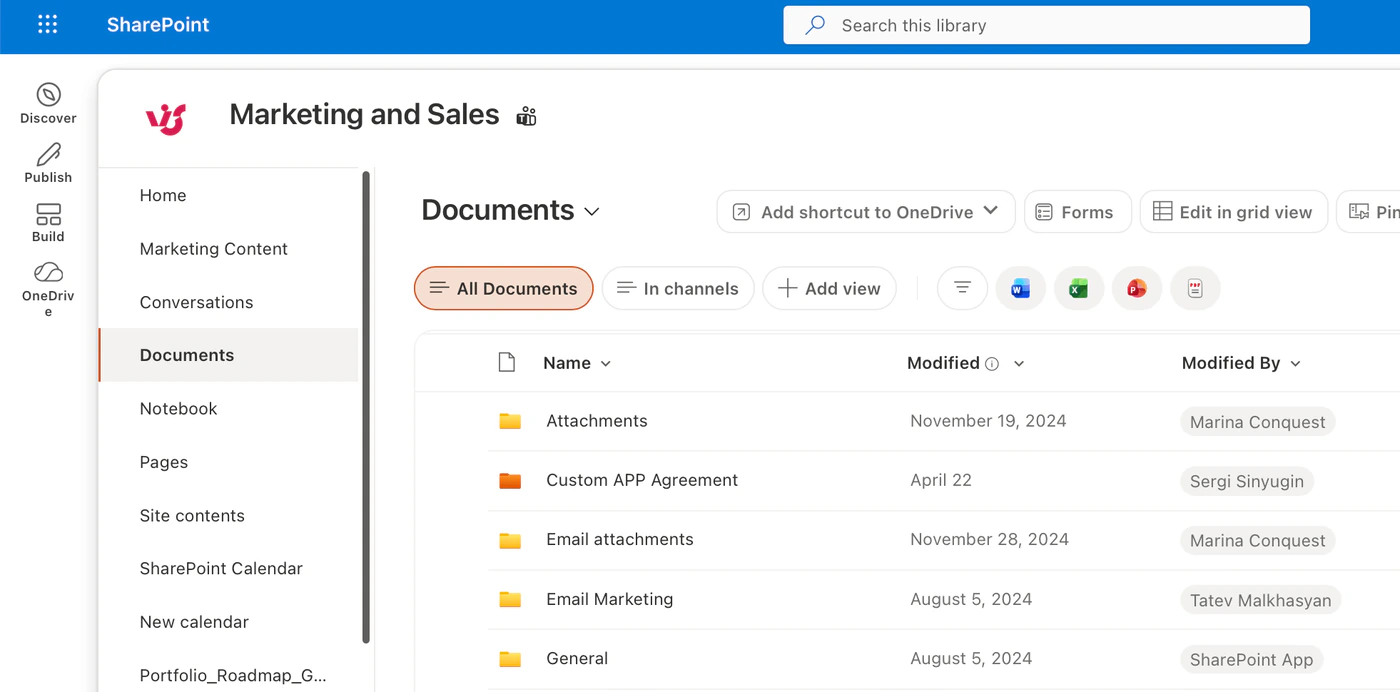
Pic. 4. A modern document library
SharePoint shows a list or library in modern view automatically unless something in it only works in classic, such as certain column types or customizations. Microsoft lists them in Differences between modern and classic experiences for lists and libraries. More on the modern features in our guides to the SharePoint document library and Microsoft Lists.
Pages and web parts
A classic web part page is a grid of fixed zones that you fill through a ribbon and a tool pane. Wiki pages allow free text with embedded web parts. Both accept Script Editor and Content Editor web parts, which is how most classic customization was done. A modern page is a canvas: you add sections, choose a column layout, and drop web parts from a toolbox, and the result is responsive without any work. Modern pages do not run arbitrary script, so anything custom has to be a SharePoint Framework web part.
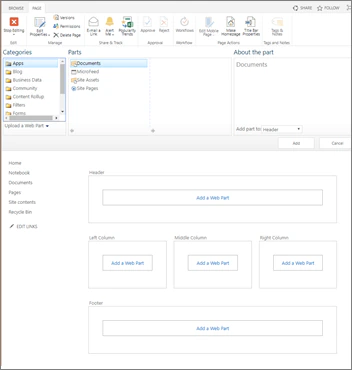
Pic. 5. A classic web part page in edit mode: fixed zones and a ribbon. Source: Microsoft Support
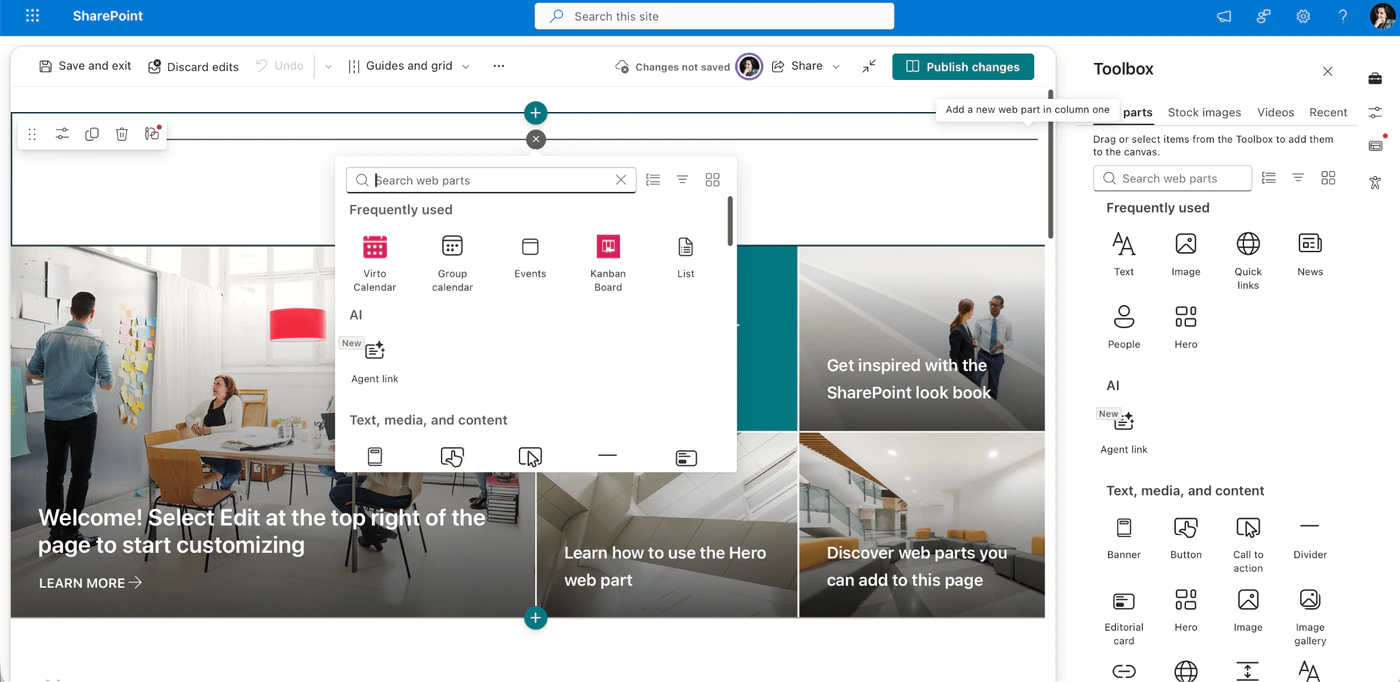
Pic. 6. A modern page in edit mode: sections and a toolbox of web parts
Our guides to SharePoint pages and SharePoint web parts cover the modern components one by one.
Team sites
A classic team site stands alone, with its own permissions groups and nothing else. A modern team site is connected to a Microsoft 365 group by default, which brings a shared mailbox and calendar, Planner, OneNote and, if you want, a team in Microsoft Teams. Its home page shows news, quick links and site activity out of the box. Compare Pic. 1 and Pic. 2.
Publishing sites and communication sites
Classic publishing sites were built for intranets and portals: page layouts, a pages library with approval, structured navigation, variations for languages. They needed a developer to look good. The modern answer is the communication site, which looks finished from the first minute, is edited in the browser by anyone with rights, and spreads news across sites, the SharePoint start page, Teams and the mobile app.
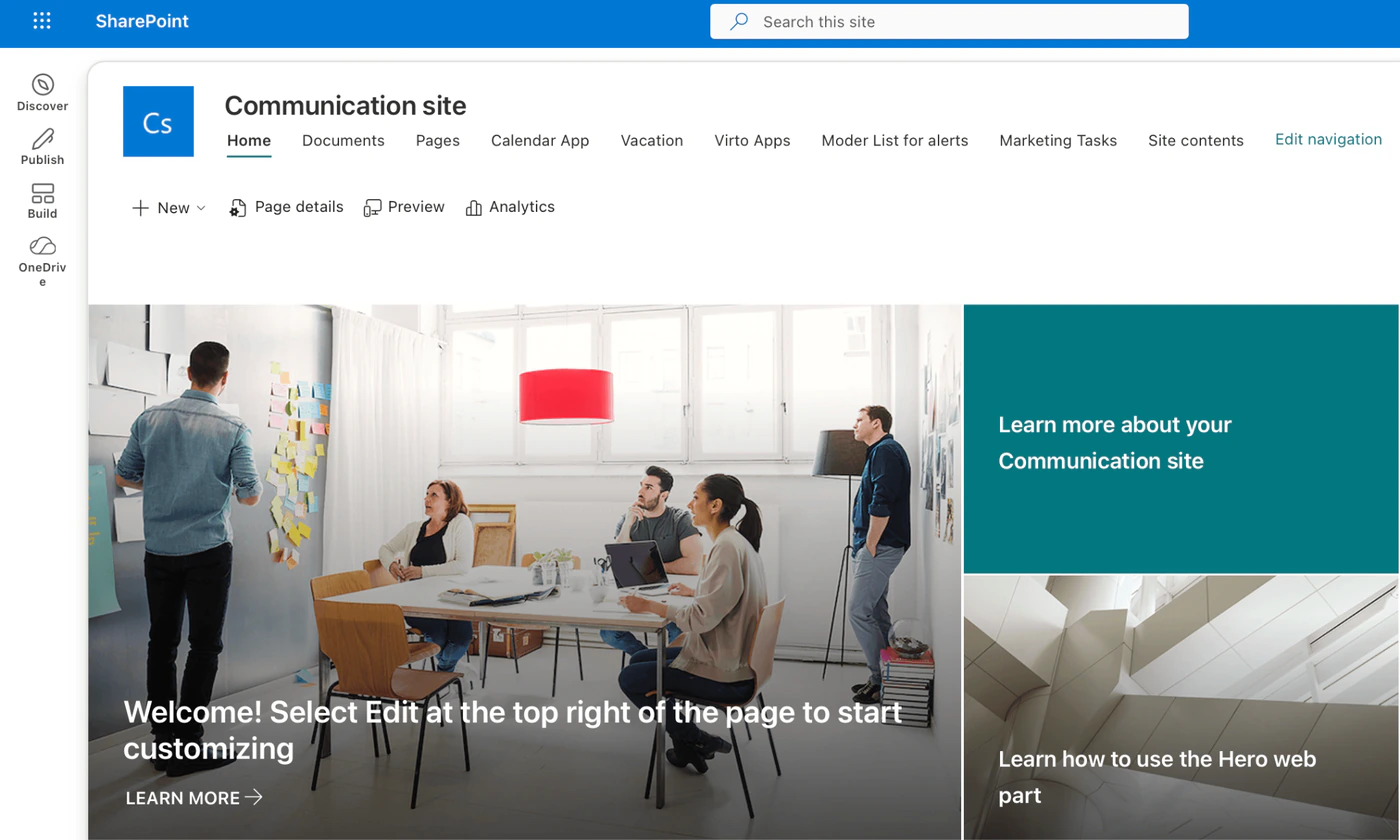
Pic. 7. A modern communication site, the replacement for a classic publishing site
Subsites and hub sites
Classic organizes content as a tree: a site collection with subsites, which inherit navigation and permissions from the parent. A tree is easy to draw and hard to change, because a subsite cannot simply be moved when the organization changes. Modern SharePoint keeps every site at the top level and uses hub sites to group them with shared navigation, a common look, search across the family and news roll-up. Re-organizing becomes a matter of associating a site with a different hub. If you still depend on subsites, see our guide to SharePoint subsites, and for the full set of modern site types, Types of SharePoint sites. The two main ones are compared in SharePoint team site vs communication site.
Start page, search and news
The SharePoint start page is modern for everyone: followed and frequent sites, news from sites, and a search box that finds sites, files and people as you type. Modern search is personal and shows results before you press Enter. Classic search centres still exist and remain the only place for heavily customized result sources and display templates. News is a modern-only feature: a classic site has no equivalent of a news post that travels to the start page, to hubs and to Teams.
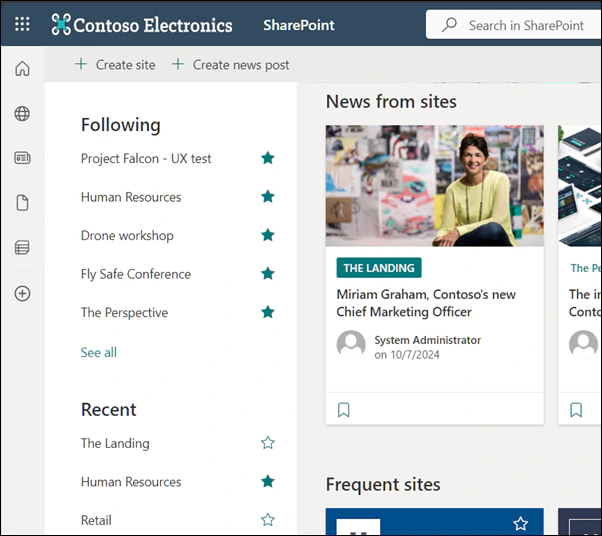
Pic. 8. The SharePoint start page, modern for every user. Source: Microsoft Support
Is classic SharePoint going away?
In SharePoint in Microsoft 365, yes, step by step. Microsoft long avoided the word “deprecated” for the classic experience as a whole and has removed it piece by piece instead. The pieces that carried most classic customization are already gone, and the pages themselves now have dates.
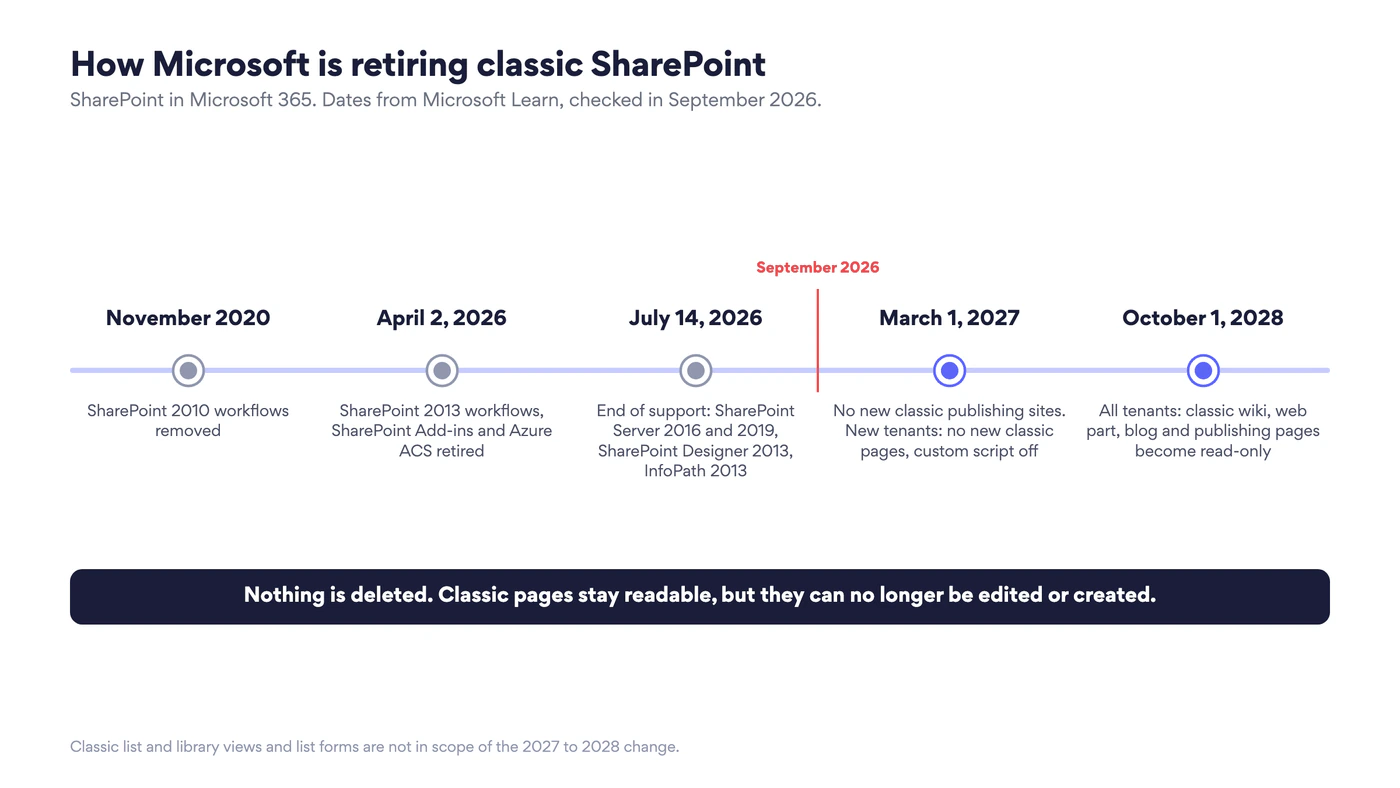
Fig. 3. How Microsoft is retiring classic SharePoint: what has happened and what is scheduled
| Date | What happens |
|---|---|
| November 2020 | SharePoint 2010 workflows removed from existing tenants |
| April 2, 2026 | SharePoint 2013 workflows fully retired. SharePoint Add-ins and Azure ACS authentication retired in SharePoint Online |
| July 14, 2026 | End of support for SharePoint Server 2016 and 2019, SharePoint Designer 2013 and InfoPath 2013 |
| March 1, 2027 | All tenants: no new classic publishing sites, and the publishing feature can no longer be activated. Tenants created from this date: no new classic pages, custom script disabled |
| October 1, 2028 | All tenants: classic wiki, web part, blog and publishing pages and custom ASPX pages become read-only. Custom script can no longer be added or updated |
The last two rows come from Microsoft’s article Upcoming changes to classic publishing sites, classic pages, and custom scripting in SharePoint Online. Three details in it matter for planning:
- Nothing is deleted. Classic pages stay available for viewing. What ends is editing them and creating new ones.
- Lists are not in scope yet. Classic list and library views and list form pages are not part of this change, although custom script embedded in them is.
- Migration from SharePoint Server is affected. From March 1, 2027 a classic publishing site cannot be migrated as it is, because its target can no longer be created. Classic pages can still be migrated, and then become read-only on the same schedule.
Smaller classic-era features follow the same path. SharePoint Alerts is one that many teams relied on: we cover its retirement and the options in our SharePoint Alerts retirement guide.
What replaces each classic feature
Moving to modern is not a matter of pressing a button, because several classic building blocks have no direct equivalent. Each has a counterpart to plan for.
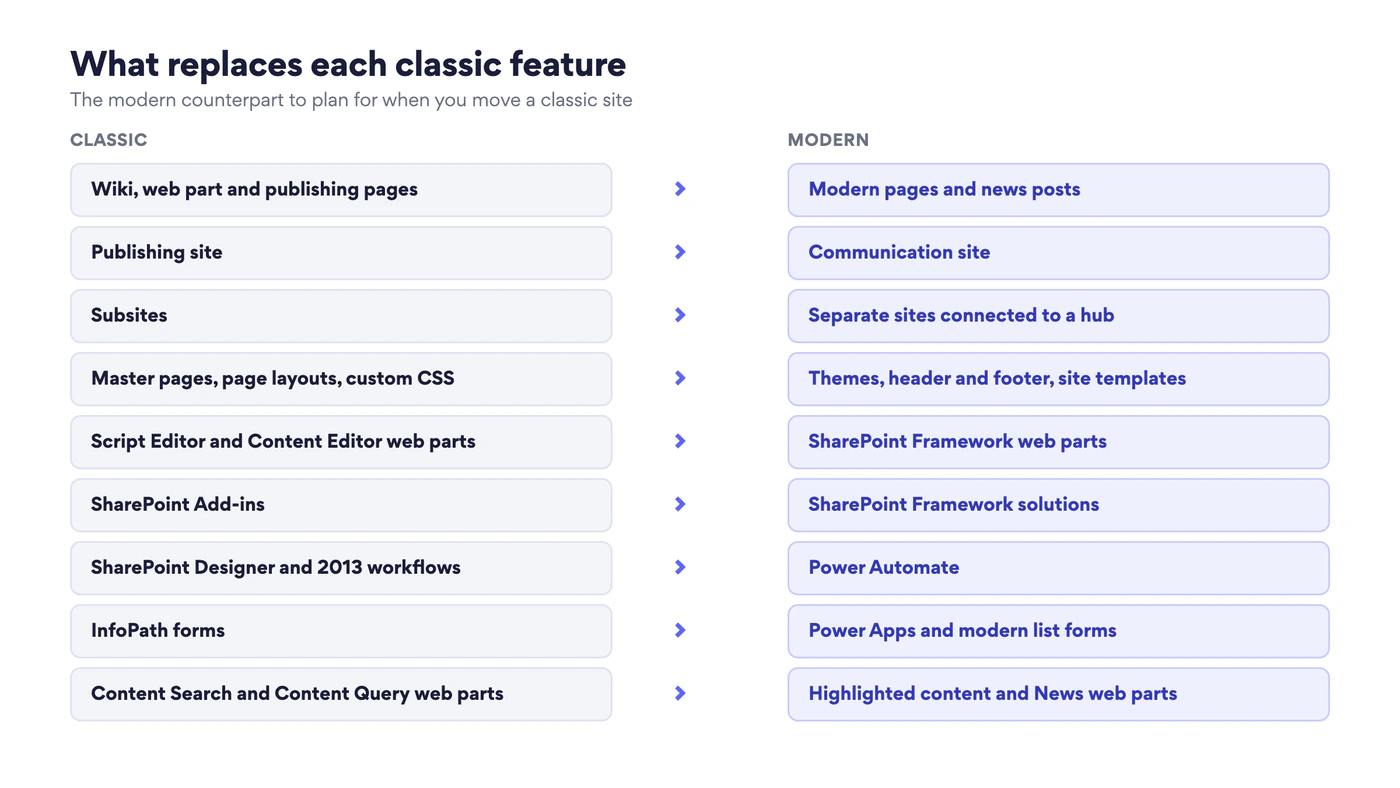
Fig. 4. The modern counterpart of each classic feature
| Classic | Modern counterpart | What to expect |
|---|---|---|
| Wiki, web part and publishing pages | Modern pages and news posts | Standard pages transform well. Pages with script need rebuilding |
| Publishing site | Communication site | No page layouts or variations in the old sense. Multilingual pages and audience targeting cover most needs |
| Subsites | Separate sites connected to a hub | Permissions no longer inherit from a parent, which is usually an improvement |
| Master pages, page layouts, custom CSS | Themes, header and footer, site templates | Less freedom, far less maintenance |
| Script Editor and Content Editor web parts | SharePoint Framework web parts | Custom code has to be packaged and deployed by an administrator |
| SharePoint Add-ins | SharePoint Framework solutions | Already retired in SharePoint Online. Ask the vendor for the current version |
| SharePoint Designer and 2013 workflows | Power Automate | Rebuild the logic. There is no converter |
| InfoPath forms | Power Apps and modern list forms | Simple forms become list form configuration, complex ones become apps |
| Content Search and Content Query web parts | Highlighted content and News web parts | Covers most roll-ups. Custom display templates do not carry over |
Which one should you use in 2026?
Use modern for everything new. There is no case left for starting a classic site in SharePoint in Microsoft 365. It cannot use new features, it is harder to secure, and its pages have an end date.
Keep classic only where something still depends on it, and put a date on it. Typical reasons in 2026:
- a publishing portal with custom page layouts that nobody has had the budget to rebuild,
- pages that rely on Script Editor web parts for business logic,
- a classic search centre with custom result sources and display templates,
- a records or document centre that works and is rarely edited.
The last case is the easy one: a site that is only read will keep working after October 1, 2028. The first three need a plan, because they stop being editable.
Running both for a while is normal. Most tenants are hybrid in this sense. A few rules keep it manageable: create nothing new in classic, keep an inventory of the classic sites with an owner and a target date for each, switch lists and libraries to modern wherever nothing blocks it, and give users one entry point, a modern hub or home site, so they do not have to know which experience a site uses. Our SharePoint best practices and SharePoint limitations guides go further on governance.
How to switch from classic to modern SharePoint
There is no tenant-wide switch. Modernization happens layer by layer, and Microsoft’s guidance in Modernize your classic SharePoint sites comes down to six steps.
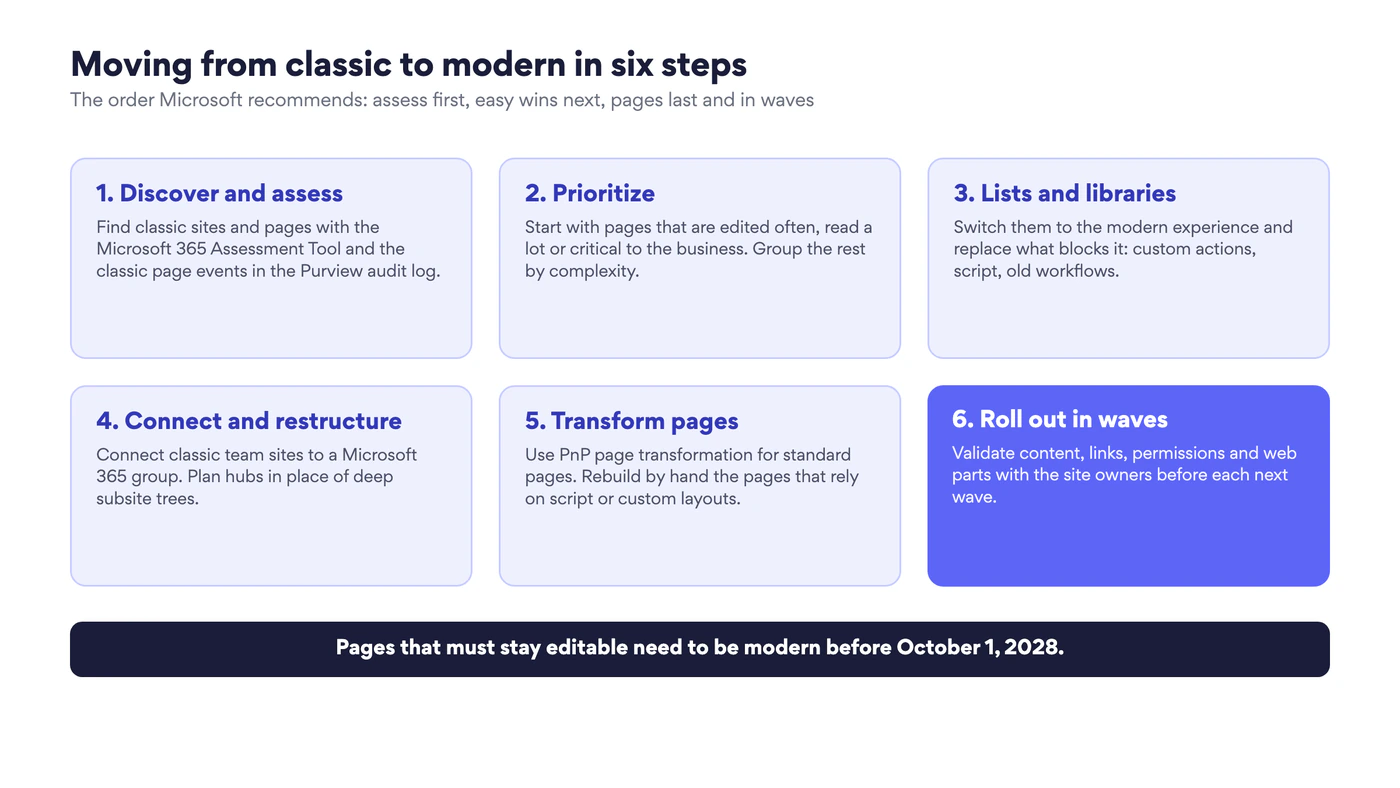
Fig. 5. Moving from classic to modern in six steps
- Discover and assess. Run the Microsoft 365 Assessment Tool to find classic pages, web parts and customization patterns, and use the classic page events in the Microsoft Purview audit log to see which pages are still created, edited and viewed. If the assessment finds nothing, you are done.
- Prioritize. Start with pages that are edited often, read a lot or critical to the business. Group the rest by complexity so that what you learn on one page applies to the next twenty.
- Modernize lists and libraries. This is the cheapest win. Most switch on their own. For the rest, remove what blocks the modern view: custom actions, embedded script, old workflows. The setting is under List settings → Advanced settings → List experience, described in Switch the default experience for lists and libraries.
- Connect and restructure. Connect classic team sites to a Microsoft 365 group, which adds a modern home page and opens the door to Teams and Planner. Decide which subsites become sites of their own and which hub they join.
- Transform pages. Use PnP page transformation for wiki, web part and publishing pages that use standard web parts. Pages built on custom HTML, script or special layouts need a person to redesign them.
- Roll out in waves. Combine central planning with validation by the site owners: content, links, permissions, web parts and layout, one wave at a time.
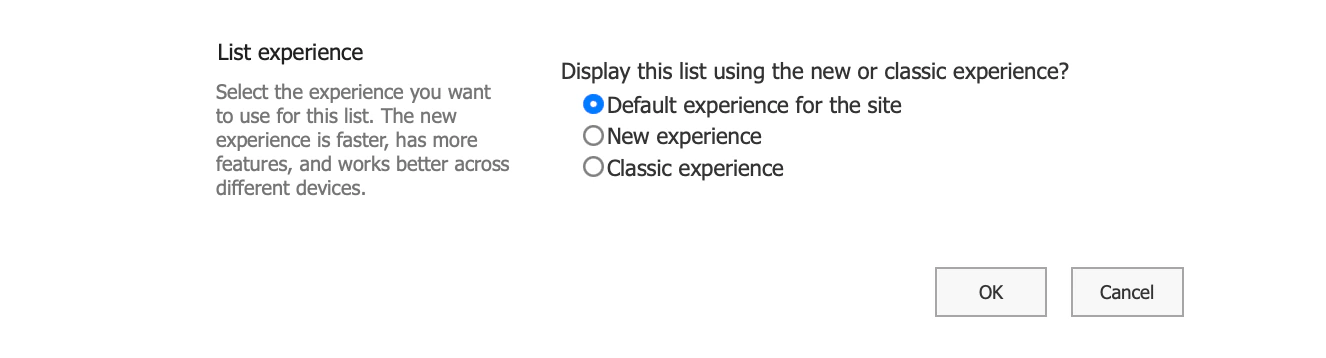
Pic. 9. The List experience setting that switches a list or library between classic and modern
Two expectations are worth setting early. Transformation tools are community-supported and do not carry a Microsoft support agreement, so budget for testing. And a transformed page is a starting point: it has the content in the right place, but the design work of a good modern page, shorter text, a clear hero, fewer web parts, is still to do.
Why some users ask for classic back
Usually for one of three reasons: a view or button they used every day moved, a customization stopped working, or nobody told them. The first is solved with a short guide to the command bar and the details pane. The second has to be found in the assessment, before the switch. The third is a communication plan. Individual users can still select Return to classic SharePoint at the bottom left of a list or library, which lasts for the browser session, so they are never locked out of their work while they learn.
SharePoint Server: what is different on-premises
The dates above apply to SharePoint in Microsoft 365. On your own servers the picture is different:
- Classic is not being switched off. In SharePoint Server the classic experience stays fully available, including publishing sites, and the add-in model is unchanged there.
- Modern is partial. SharePoint Server 2019 and Subscription Edition include modern team sites, communication sites, pages, lists and libraries. Hub sites and most Microsoft 365 integrations are cloud-only.
- The versions have dates of their own. Support for SharePoint Server 2016 and 2019 ended on July 14, 2026, which leaves Subscription Edition as the supported on-premises version.
- Plan migrations with 2027 in mind. If the destination is SharePoint in Microsoft 365, modernize publishing sites and pages as part of the move, not after it.
Filling the gaps in either experience with Virto apps
Both experiences leave the same everyday gaps: a calendar that shows more than one source, a task board, alerts that reach the right people. Modern closes some of them with Microsoft 365 services and leaves others open, and classic sites lost several of their old answers when workflows, add-ins and alerts were retired. VirtoSoftware builds for both worlds.
- Virto Calendar App overlays SharePoint lists, Exchange and Outlook calendars, Microsoft 365 group calendars and internet calendars in one colour-coded view, on a SharePoint page or in a Teams tab.
- Virto Kanban Board App turns a SharePoint list into a board with columns, swimlanes and limits for work in progress.
- Virto Alerts & Reminder App sends alerts and scheduled reminders from SharePoint lists by email or to Teams, which is the gap SharePoint Alerts left behind.
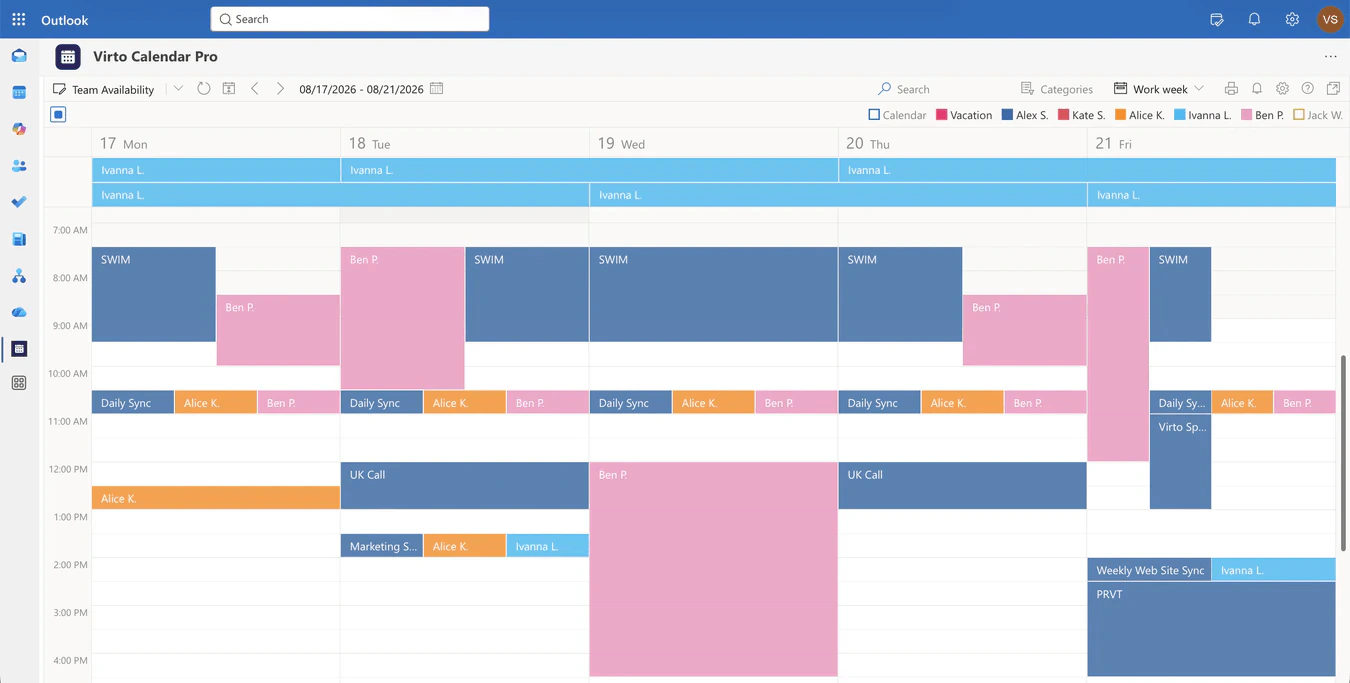
Pic. 10. Virto Calendar App
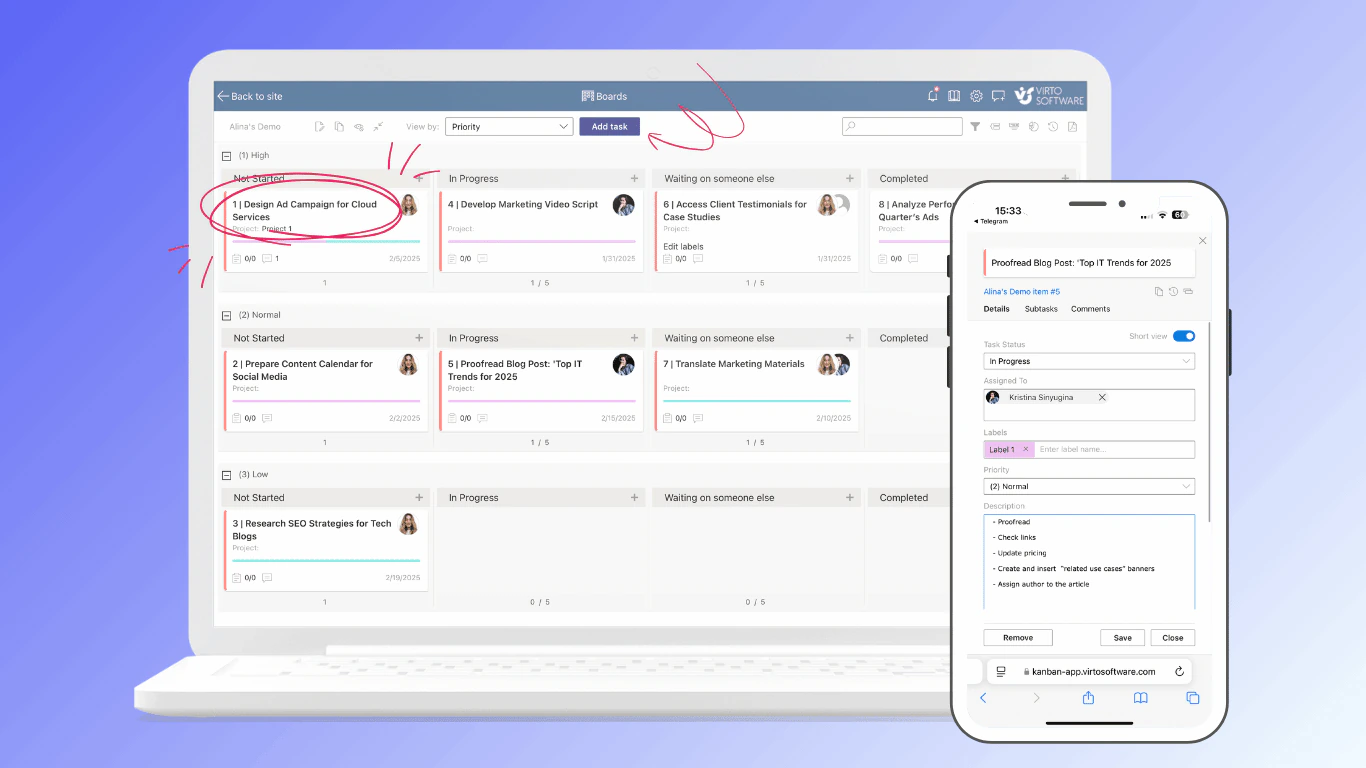
Pic. 11. Virto Kanban Board App: the team’s task list as a board, on the desktop and on a phone
The Microsoft 365 apps install from Microsoft Marketplace and come with a 30-day free trial. The full range is on the Virto apps for Microsoft 365 page. Organizations that stay on SharePoint Server will find calendar, Kanban, alerts and workflow web parts for on-premises farms under Virto web parts for SharePoint.
FAQ
What is the difference between classic and modern SharePoint?
Modern is the current experience: responsive pages built from sections and web parts, flat sites joined by hubs, Microsoft 365 groups and Teams, Power Automate and Power Apps. Classic is the older experience with web part zones, subsites, master pages, SharePoint Designer workflows and InfoPath. Both run on the same platform.
Is classic SharePoint being retired?
In SharePoint in Microsoft 365, piece by piece. SharePoint 2013 workflows and Add-ins were retired on April 2, 2026. From March 1, 2027 no new classic publishing sites can be created, and on October 1, 2028 classic wiki, web part, blog and publishing pages become read-only for all tenants. Existing content is not deleted. SharePoint Server keeps the classic experience.
How do I switch from classic to modern SharePoint?
There is no single switch. Lists and libraries change under List settings → Advanced settings → List experience. Classic team sites can be connected to a Microsoft 365 group to get a modern home page. Classic pages are transformed with PnP page transformation or rebuilt. Start with an assessment of what you have.
Can I use classic and modern in the same site?
Yes. A classic site can hold modern lists, libraries and pages, and a modern site can show a list in classic view. This is how most migrations proceed: the site stays, and its parts are modernized one by one.
Will my classic pages be deleted in 2028?
No. They remain available for viewing. From October 1, 2028 they can no longer be edited, and new classic pages cannot be created. Pages that must stay editable need to be modern before that date.
Are classic lists and libraries affected by the 2028 change?
Not at present. Microsoft states that list and library views and list form pages are outside the current scope and may be addressed on a separate timeline. Custom script embedded in them is covered by the custom script change.
Does modern SharePoint work on-premises?
Partly. SharePoint Server 2019 and Subscription Edition have modern team sites, communication sites, pages, lists and libraries, but no hub sites and few of the Microsoft 365 integrations.
Conclusion
Classic and modern SharePoint are two generations of the same platform, and in 2026 only one of them has a future. Modern is where new sites start, where every new feature lands and where Microsoft 365, Teams and Copilot connect. Classic still runs, but its workflows and add-ins are gone, its publishing sites cannot be created after March 1, 2027, and its pages become read-only on October 1, 2028.
That leaves two years to do calmly what would otherwise be done in a hurry: take stock of what is still classic, modernize lists and libraries first, transform or rebuild the pages that people still edit, and replace workflows, forms and scripts with their modern counterparts. Where SharePoint itself leaves a gap, Virto Calendar App, Virto Kanban Board App and Virto Alerts & Reminder App fill it, each with a 30-day free trial.