


Quick answer: what happened to InfoPath? Microsoft blocked publishing new or updated InfoPath forms in SharePoint Online on May 18, 2026, and removed InfoPath Forms Services from SharePoint Online after July 14, 2026. The same day, the InfoPath 2013 client and SharePoint Server 2016 and 2019 reached the end of extended support. Forms on your own servers still load but get no fixes. Microsoft provides no migration tool.
For many teams the end of InfoPath was not a date in the calendar but a morning when a request form stopped opening. InfoPath forms tend to be old, built by someone who has since moved on, and invisible until they break. The good news: most of them are simpler to rebuild than they look.
Guides to InfoPath migration usually start with tools. This one starts with the forms. “InfoPath form” covers three different things: a customized list form, a form library full of XML files, and a small application with code and data connections. Each needs a different replacement. Below we explain what changed and when, what still works in SharePoint Online and on SharePoint Server, how to find every form you have, and which replacement fits each type. We also say plainly where our own form designers fit and where they do not.
In this article:
- InfoPath retirement timeline
- What happens to your forms now: SharePoint Online vs on-premises
- Step 1: find every InfoPath form you have
- Step 2: pick a replacement per form type
- Step 3: rebuild a list form, step by step
- Still on SharePoint Server 2016 or 2019?
- Common migration mistakes
- Virto form designers for SharePoint Online and SharePoint Server
- FAQ
InfoPath retirement timeline
InfoPath has been on its way out for more than a decade. In 2014 Microsoft said that InfoPath 2013 would be the last version of both the desktop client and InfoPath Forms Services, the SharePoint component that renders InfoPath forms in the browser. What followed was a long tail of support dates, and in 2026 it ran out.
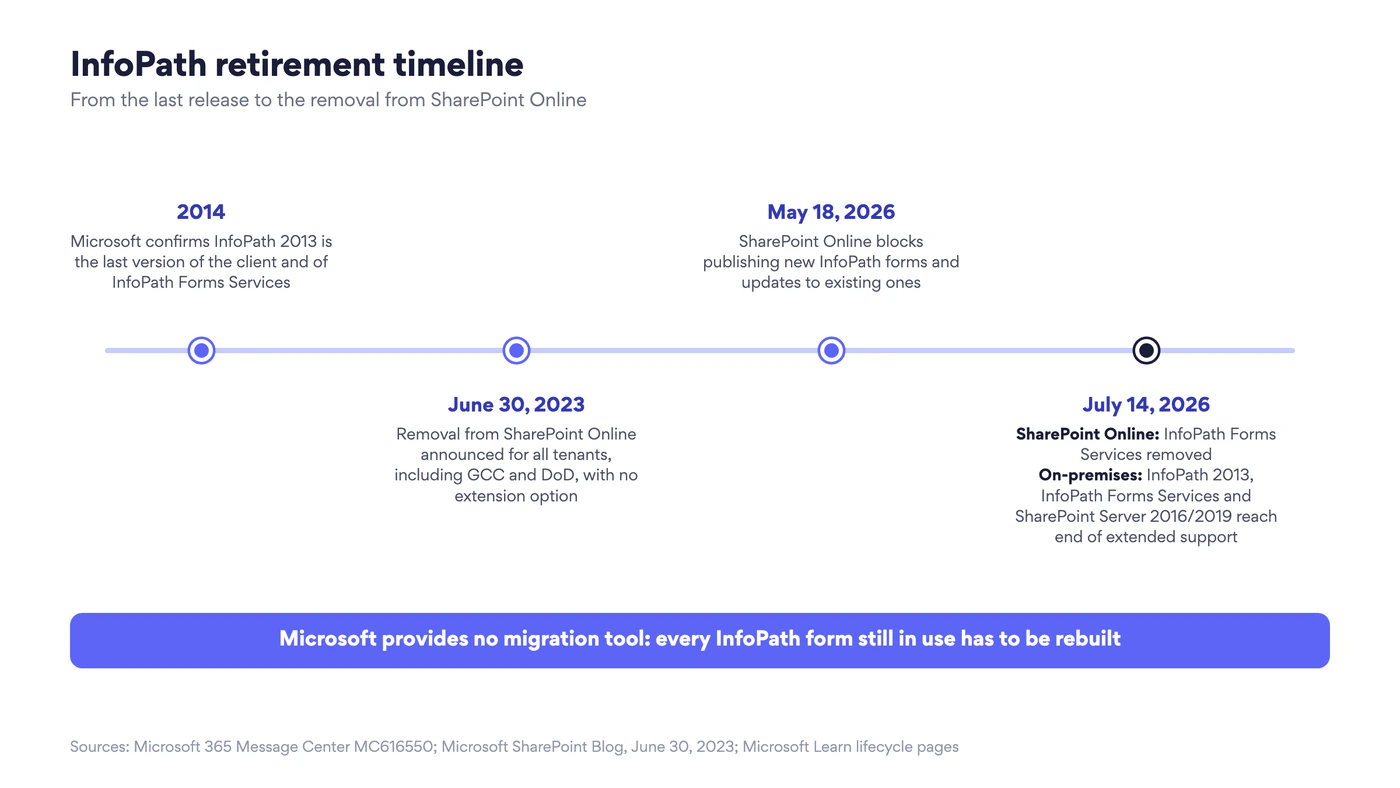
Fig. 1. InfoPath retirement timeline
| Date | What changed | Applies to |
|---|---|---|
| 2014 | Microsoft confirmed InfoPath 2013 as the last release of the client and of InfoPath Forms Services (Microsoft SharePoint Blog) | All versions |
| June 30, 2023 | Microsoft announced that InfoPath Forms Services would be removed from SharePoint Online after July 14, 2026, for all tenants including Government Clouds and Department of Defense, with no option to extend (Microsoft SharePoint Blog) | SharePoint Online |
| May 18, 2026 | Publishing new InfoPath forms, and updates to existing ones, was blocked (Message Center MC616550) | SharePoint Online |
| July 14, 2026 | InfoPath Forms Services removed. Users can no longer fill in InfoPath forms (MC616550) | SharePoint Online |
| July 14, 2026 | End of extended support for the InfoPath 2013 client (Microsoft Learn) | InfoPath Designer and InfoPath Filler 2013 |
| July 14, 2026 | End of extended support for SharePoint Server 2016 and SharePoint Server 2019 (Microsoft Learn) | SharePoint Server 2016 and 2019 |
| July 14, 2026 | End of extended support for InfoPath Forms Services on SharePoint Server, Subscription Edition included. SharePoint Server Subscription Edition itself stays supported (Microsoft SharePoint Blog) | SharePoint Server 2016, 2019 and Subscription Edition |
“Removed” and “end of extended support” are different things, and the difference decides what you do first. In SharePoint Online the service is gone. On SharePoint Server it keeps running, but Microsoft no longer fixes it. The same dates appear in our overview of SharePoint classic vs modern, next to the other classic features Microsoft is retiring.
What happens to your forms now: SharePoint Online vs on-premises
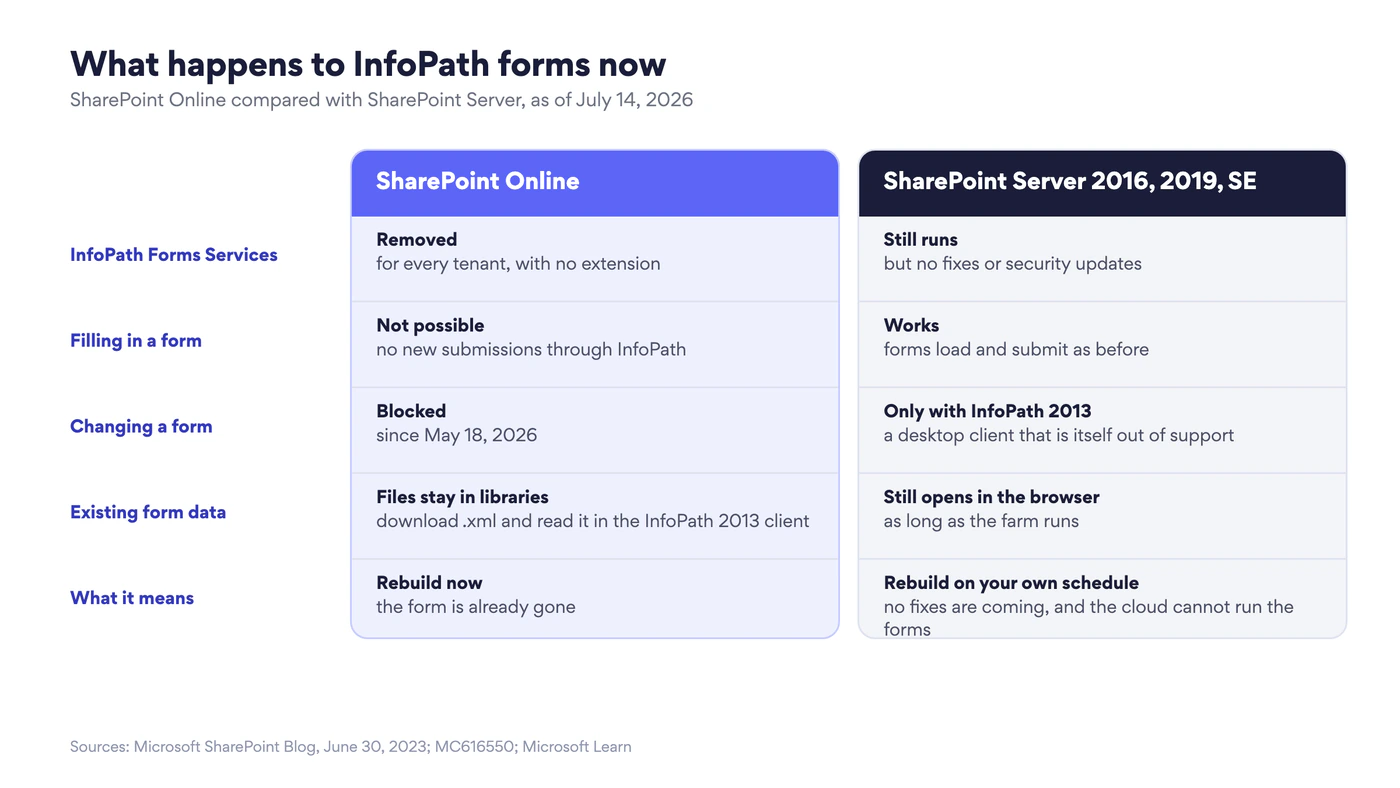
Fig. 2. InfoPath forms in SharePoint Online and on SharePoint Server after July 14, 2026
In SharePoint Online
Microsoft’s announcement describes the change for each kind of user:
- Administrators lost the InfoPath settings in the SharePoint admin center, and the option to customize a form with InfoPath disappeared from the form settings of lists.
- Form designers can no longer create, modify or publish templates.
- People who fill in forms can no longer submit a response through InfoPath. Where the form has already been rebuilt in another tool, they use the new one.
What about the data? According to Microsoft, the templates (.xsn) and the collected forms (.xml) stay in SharePoint. Anyone with permission to the files can download them and open them in the InfoPath 2013 client to view the data. Keep in mind that the client is out of support too, so this is a way to read old records, not a way to keep working.
For a customized list form the picture is simpler. The items are ordinary list items, and their values sit in the list’s columns, so the data is still there. What you lost is the form on top of it.
On SharePoint Server 2016, 2019 and Subscription Edition
Nothing was switched off. Forms load, people fill them in, and submissions arrive as before. What ended is support: no fixes and no security updates for InfoPath Forms Services, and on 2016 and 2019 none for the rest of the server either. Any change to a form still needs InfoPath Designer 2013, a desktop app that is out of support as well.
Microsoft’s documentation on InfoPath Forms Services now notes that the 2013 release is the last one and names Power Apps as the recommended solution for custom SharePoint list forms. Customizing a list’s form with Power Apps, however, is a SharePoint Online feature. On-premises, then, you have time, but not a destination. The forms keep working until the farm changes, and the next change, whether an upgrade, a migration or a security review, is when they become a problem.
Step 1: find every InfoPath form you have
You cannot plan the migration of forms you have not counted, and InfoPath forms hide well: in list settings, in content types, in form libraries on sites nobody has opened for years.
In SharePoint Online, use the Microsoft 365 Assessment tool, the free tool Microsoft points to in MC616550. Its InfoPath module scans the tenant with read-only permissions (Sites.Read.All) and builds a Power BI report of every InfoPath usage per site collection and site: the list or library, the template, the number of items and the date of the last change made by a user. You register an Entra application for the tool, then start the scan and generate the report:
microsoft365-assessment.exe start --mode InfoPath --authmode application --tenant contoso.sharepoint.com --applicationid <app id> --certpath "My|CurrentUser|<certificate thumbprint>"
microsoft365-assessment.exe report --id <assessment id>
The InfoPath assessment page has the full syntax, including a delegated mode that scans only the sites you list.
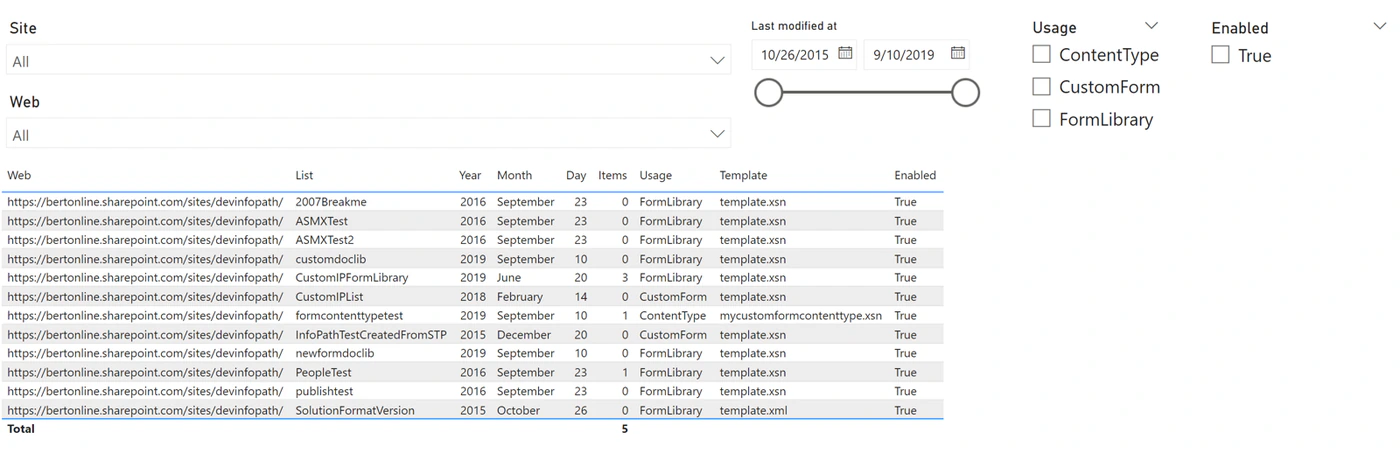
Pic. 1. The InfoPath report of the Microsoft 365 Assessment tool lists every usage with its type, template, item count and last change. Source: Microsoft 365 Assessment tool documentation
On SharePoint Server, the assessment tool does not help: it runs only against SharePoint Online. A PowerShell pass over the farm finds the same things. Form libraries are built on list template 115 (XMLForm). A list whose forms were customized in InfoPath opens them from the pages newifs.aspx, editifs.aspx and displayifs.aspx instead of the standard NewForm.aspx, EditForm.aspx and DispForm.aspx.
Then sort what you found into three types:
- Customized list forms. InfoPath replaced the New, Edit and Display forms of a SharePoint list. The assessment tool reports them as CustomForm. The data lives in list columns, and only the form has to be rebuilt.
- Form-library forms. An .xsn template published to a form library, where every submission is a separate .xml file (FormLibrary in the report). The data sits inside the files, often in repeating tables, so this is a data migration as well as a form rebuild.
- Forms with code or data connections. Forms with code-behind, connections to SQL Server or web services, or forms designed to be filled in only in InfoPath Filler. These are small applications and need an application platform.
A report row marked ContentType means the template is attached to a content type. Open it to see which of the three it is.
Before moving on, add two columns to your inventory: a business owner for each form, and a keep-or-retire decision. The report shows the last change per list, and Microsoft’s own guidance for its older modernization scanner suggests checking whether a form is still relevant when its list has seen no activity for two years. A form nobody has used in years is cheaper to archive than to rebuild.
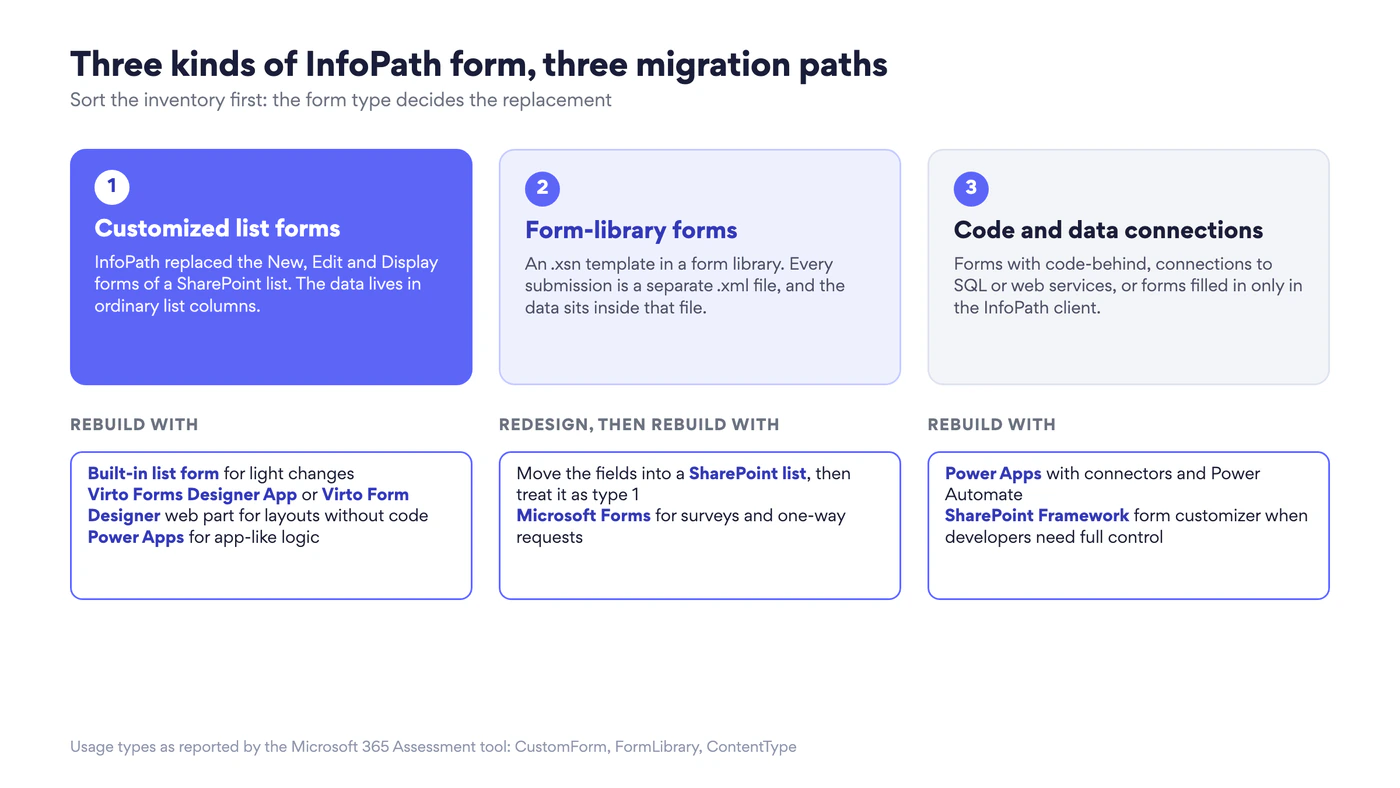
Fig. 3. The three kinds of InfoPath form and where each one goes
Step 2: pick a replacement per form type
There is no single InfoPath replacement, because InfoPath did several jobs. Match the tool to the form type:
| Power Apps (SharePoint Online) | Microsoft Forms | Built-in list form + JSON | Virto Forms Designer App (SharePoint Online) | Virto Form Designer web part (SharePoint Server) | |
|---|---|---|---|---|---|
| 1. Customized list forms | Fits. Microsoft’s recommended path | Does not fit: it does not replace the form of a list item | Fits for light changes | Fits when the logic is simple: rebuilds New, Edit and Display forms with rules, validation and per-group visibility | Fits: the same job on SharePoint Server 2013, 2016, 2019 and Subscription Edition |
| 2. Form-library forms | Fits once the data is redesigned as a list | Fits for surveys and one-way requests | Fits once the data is redesigned as a list | Only after redesign: no .xsn import and no form libraries. Once the data is a list, it is type 1 | Only after redesign, as for the app |
| 3. Code and data connections | Fits: connectors, formulas, Power Automate | Does not fit | Does not fit | Does not fit: no external data connections | Does not fit: no external data connections |
Mind the platform: Power Apps list forms and Microsoft Forms are cloud tools. On SharePoint Server the options for a custom list form are fewer: keep the InfoPath form, write code, or use a form designer that runs on the farm. In practice the calls are these:
Power Apps for complex logic, external data and forms that behave like small apps. It is Microsoft’s recommended replacement and can take over a list’s form directly from the list. Two things to check first. Someone on the team has to be comfortable with its formula language. And the data sources decide the licence: standard connectors such as SharePoint need no special licensing, while premium connectors such as SQL Server need a Power Apps licence. Where developers need full control, Microsoft also points to SharePoint Framework form customizer extensions.
Microsoft Forms for surveys, polls, registrations and one-way requests. It is quick and familiar, but it keeps responses in its own store, and landing them in a SharePoint list takes a Power Automate flow. If the answers should go straight into a list, the forms feature of Microsoft Lists turns each response into a list item without a flow. Neither replaces the form people use to edit an existing item.
The built-in SharePoint list form for light changes. You can show, hide and reorder columns, show a column only when another column has a certain value, and configure a header, footer and body sections with JSON. There is nothing to install and nothing to pay for. For anything beyond that, such as tabs or a different layout for each group of users, you need one of the other tools.
Virto Forms Designer App for list forms whose logic is simple, when the built-in form is not enough and nobody on the team builds in Power Apps. It rebuilds a list’s New, Edit and Display forms with drag-and-drop, groups fields into tabs, accordions and panels, adds images, links and buttons, shows different layouts to different users and groups, and saves a form as a template to reuse on another list. In a document library the New form is the file upload itself, so there the app designs the Edit and Display forms.
Most InfoPath features that list forms rely on have an equivalent: rules and conditional visibility, validation, calculated values, cascading lookups, field-level permissions and a separate form per content type. Repeating sections and tables have no ready-made one. Where the drag-and-drop settings stop, the designer’s JavaScript editor takes over. What the app does not do: it has no connection to InfoPath, so nothing is imported or converted and every form is rebuilt by hand; it does not connect to external data such as SQL Server or web services; and form libraries are outside its scope.
Virto Form Designer web part for farms that stay on SharePoint Server. It does the same job on SharePoint Server 2013, 2016, 2019 and Subscription Edition, adds HTML, CSS and JavaScript editors, and is licensed perpetually. Like the app, it has no connection to InfoPath and does not need InfoPath Forms Services. For a farm that stays on-premises, that means Subscription Edition plus the web part.
Step 3: rebuild a list form, step by step
Our example is an equipment request list whose New, Edit and Display forms were customized in InfoPath. Requesters see a short form, and the IT team sees extra fields for approval and delivery. We rebuild it in Virto Forms Designer App.
Before you start, write the old form down. If you still have InfoPath Designer 2013, open the list’s template and note for each view which fields appear and in what order, which fields belong together, which fields are hidden or read-only and for whom, the default values, and every rule and validation message. If you do not have it, screenshots of the old form and the people who use it are your specification. This list is also how you test the new form.
- Install the app. Add Virto Forms Designer App from Microsoft Marketplace and make it available on the site that holds the list. The 30-day free trial is enough to rebuild and test your first forms.
- Open the designer from the list. Open the list or library and select Virto Forms in the command bar. In SharePoint Online the button appears in the modern view only; the on-premises web part puts it in the ribbon as well. The designer opens in a new window with the list’s fields on the left.

Pic. 2. The Virto Forms button in the command bar of a modern list or library
- Choose the form. Pick the content type and the form type: New, Edit or Display. Each gets its own design, the way InfoPath let you shape each view.
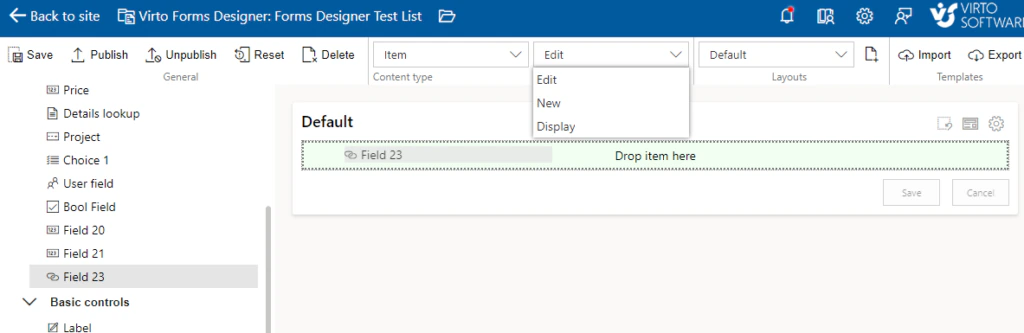
Pic. 3. Choosing the form type: Edit, New or Display
- Lay out the fields. Drag fields from the list onto the form. Group them into tabs, accordions or panels, with up to three controls in a row, and add rich text, images, links or buttons where the old form had instructions. This is the moment to simplify: leave out the fields nobody fills in.
- Set who sees what. Select an element and, under Permission, make it visible to all users or only to chosen users or SharePoint groups. For everyone else it can be hidden or read-only. Required fields always stay visible. Then rebuild the rules from your notes (see below).
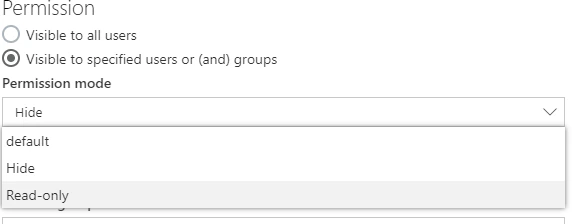
Pic. 4. Showing an element only to chosen users or groups
- Add layouts for different groups. If the IT team needs a different version of the same form, save the default form first, then create a layout, give it a priority and assign the groups that see it. A user who qualifies for several layouts sees the one with the highest priority.
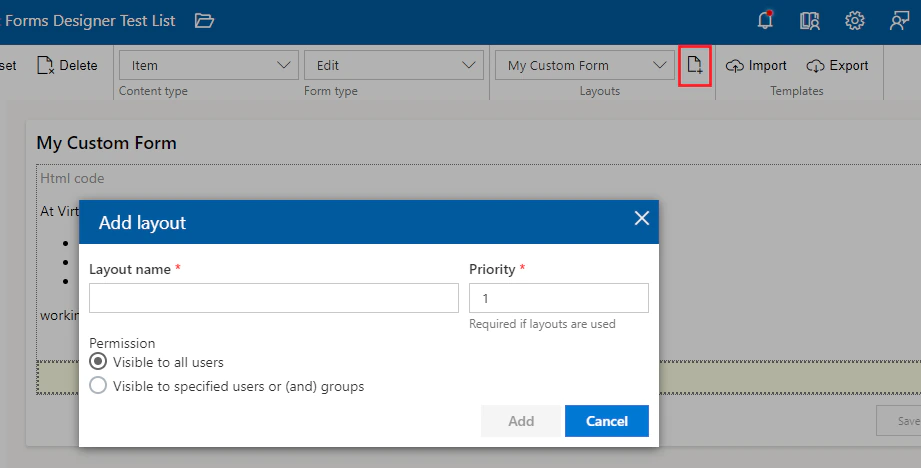
Pic. 5. Adding a layout for a group of users
- Save and publish. Save the design for the selected form type, repeat steps 3 to 6 for the other two, then select Publish.
- Test against your notes, then reuse. Open items as a requester and as a member of the IT team, and check every rule on your list. When the form is right, Export it as a template and Import it on the next list that needs the same form.
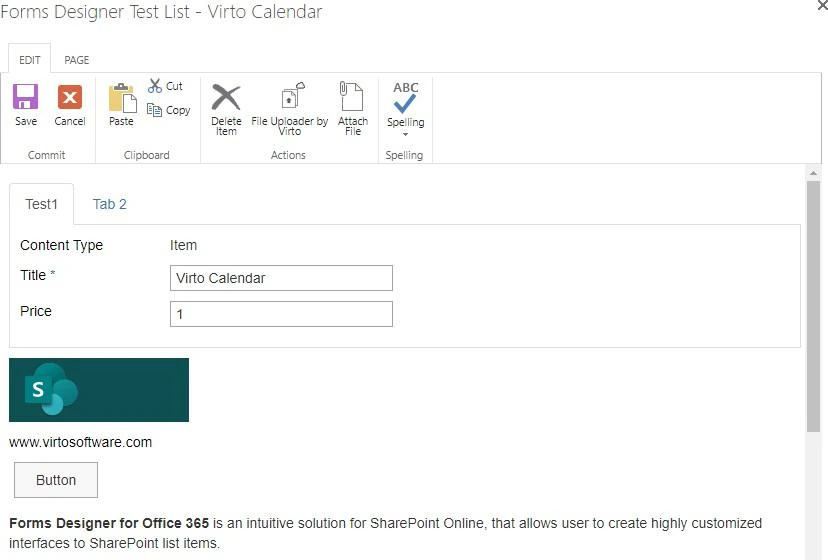
Pic. 6. A finished form with tabs, an image, a link and a button
Nothing carries over on its own, so work through the rules on your list one by one. Conditional visibility, validation, calculated values and cascading lookups have an equivalent in the designer, and where its settings stop, its JavaScript editor takes over. Some rules are better placed in SharePoint itself (column or list validation, a default value, a calculated column), because then they apply however the item is edited. Two cases need a different answer. A repeating section or table has no ready-made equivalent: store the rows in a second list linked by a lookup column, or build the form in Power Apps. A rule that reads external data needs Power Apps. Finally, check the column types: the product documentation lists the types the designer does not place on a form, such as attachment fields.
The Power Apps path. In the list, select Integrate > Power Apps > Customize forms. Power Apps Studio opens with a form generated from the list’s columns, and you rebuild the InfoPath rules as formulas. One generated form serves New, Edit and Display and switches between them by mode. Microsoft walks through it in Customize a form for a SharePoint list.
Still on SharePoint Server 2016 or 2019?
Then InfoPath is one of two unsupported layers in your stack, and the server is the other. There are three ways forward, and each treats InfoPath forms differently:
- Upgrade to SharePoint Server Subscription Edition. InfoPath Forms Services is still part of Subscription Edition, so forms can come along, but without support. This buys time to rebuild them at your own pace, for example with the Virto Form Designer web part. It runs on Subscription Edition and does not depend on InfoPath Forms Services, so the lists you have rebuilt use the new forms while the rest keep their InfoPath forms until their turn comes.
- Move to SharePoint Online. InfoPath forms cannot come with you: Microsoft’s SharePoint Migration Tool does not migrate InfoPath forms, and it does not migrate custom New, Edit and View forms together with list content either. The list data moves, the forms have to be rebuilt, ideally before the move so people have them on day one. Decide separately what happens to the XML files in form libraries.
- Hybrid. Keep the farm for the forms that are not rebuilt yet and move everything else. It works as a bridge, as long as the bridge has an end date.
For the platform decision itself, our comparison of SharePoint on-premises vs SharePoint Online covers cost, control, security and migration.
Common migration mistakes
- Rebuilding one to one. InfoPath forms collected fields, views and rules for years. Rebuild what people use now: fewer fields, sensible defaults, one layout where three views used to be.
- Forgetting the data in form libraries. In a customized list form the data is safe in columns. In a form library it is inside .xml files, and once nothing renders them, it is effectively locked. Decide for each library whether to archive the files as records or to convert the data into a list. InfoPath files are plain XML, so a script can read them and write the values into list items.
- Losing rules and validation. Rules are the part nobody sees until it is missing: a hidden field, a required approval, a date that cannot be in the past. Write them down before you rebuild and test each one afterwards.
- No owner per form. A form without an owner gets rebuilt by IT from guesswork, and nobody signs it off. Give each form a business owner who confirms that the new version works.
Virto form designers for SharePoint Online and SharePoint Server
If most of your inventory is type 1, customized list forms without heavy logic, and your team would rather design than write formulas, VirtoSoftware has a form designer for each platform: Virto Forms Designer App, our InfoPath replacement for SharePoint Online, and the Virto Form Designer web part, an InfoPath alternative for SharePoint Server. Both come with a 30-day free trial.
For a wider view of form options in SharePoint, including Power Apps and Microsoft Forms, see our guide to SharePoint forms. Once the forms work again, the approvals behind them can move to Power Automate, which our SharePoint automation guide covers.
FAQ
Is InfoPath still supported?
No. The InfoPath 2013 client and InfoPath Forms Services on SharePoint Server 2016, 2019 and Subscription Edition reached the end of extended support on July 14, 2026, and InfoPath Forms Services was removed from SharePoint Online. Forms on your own servers still work, but Microsoft no longer fixes them.
Can I still open InfoPath forms in SharePoint Online?
Not in the browser. The templates (.xsn) and submitted forms (.xml) stay in their libraries, and anyone with permission can download them and open them in the InfoPath 2013 client to read the data. New submissions through InfoPath are not possible.
Does Microsoft provide an InfoPath migration tool?
No. Microsoft states in MC616550 that no migration tool is provided and recommends Power Apps, Power Automate or Microsoft Forms instead. Every form has to be rebuilt, in one of those or in a third-party form designer.
Can I keep InfoPath on SharePoint Server Subscription Edition?
It still runs there, so existing forms keep working. But extended support for InfoPath Forms Services ended on July 14, 2026, and the only designer is InfoPath 2013, which is out of support too. Use it as a bridge while you rebuild, not as the destination.
What is the best InfoPath replacement for simple list forms?
It depends on how much the form has to do. The built-in SharePoint list form covers hiding, reordering and conditionally showing columns. For tabs, layouts for different groups, rules and validation, use a form designer such as Virto Forms Designer App in SharePoint Online or the Virto Form Designer web part on SharePoint Server. If the form needs complex logic or external data, or your team already builds in Power Apps, Microsoft’s own tool is the natural choice.
Conclusion
In SharePoint Online the InfoPath forms are gone, the data is not, and nothing converts one into the other for you. On SharePoint Server the forms still work, which is useful time rather than a reason to wait.
The way through is the same everywhere. Count your forms, sort them by type, retire what nobody uses, and rebuild the rest with the tool that fits the type: the built-in form or a form designer for list forms, Power Apps for complex logic and external data, Microsoft Forms for surveys. Start with the forms people used last month, not with the oldest ones.