


Quick answer: how do I use SharePoint? Open or create a site, store files in a document library, track information in lists, build pages, and share with your team, all within Microsoft 365. SharePoint is Microsoft 365’s content and collaboration platform: every Microsoft Teams team, every intranet page and every shared library in your organisation runs on it.
SharePoint has a reputation for being hard to use. It is not, once you know that everything in it lives inside a site, and that a site only has four kinds of things in it: libraries for files, lists for structured information, pages for reading, and permissions for who sees what. This guide walks a beginner through exactly those four, in the order you meet them, with a link to the deeper guide for each area. If you want the definition first, read what SharePoint is and what it is used for; if your question is specifically about running documents through SharePoint, the SharePoint document management guide is the better start.
How SharePoint is organised
Before the first click, it helps to hold one picture in your head.
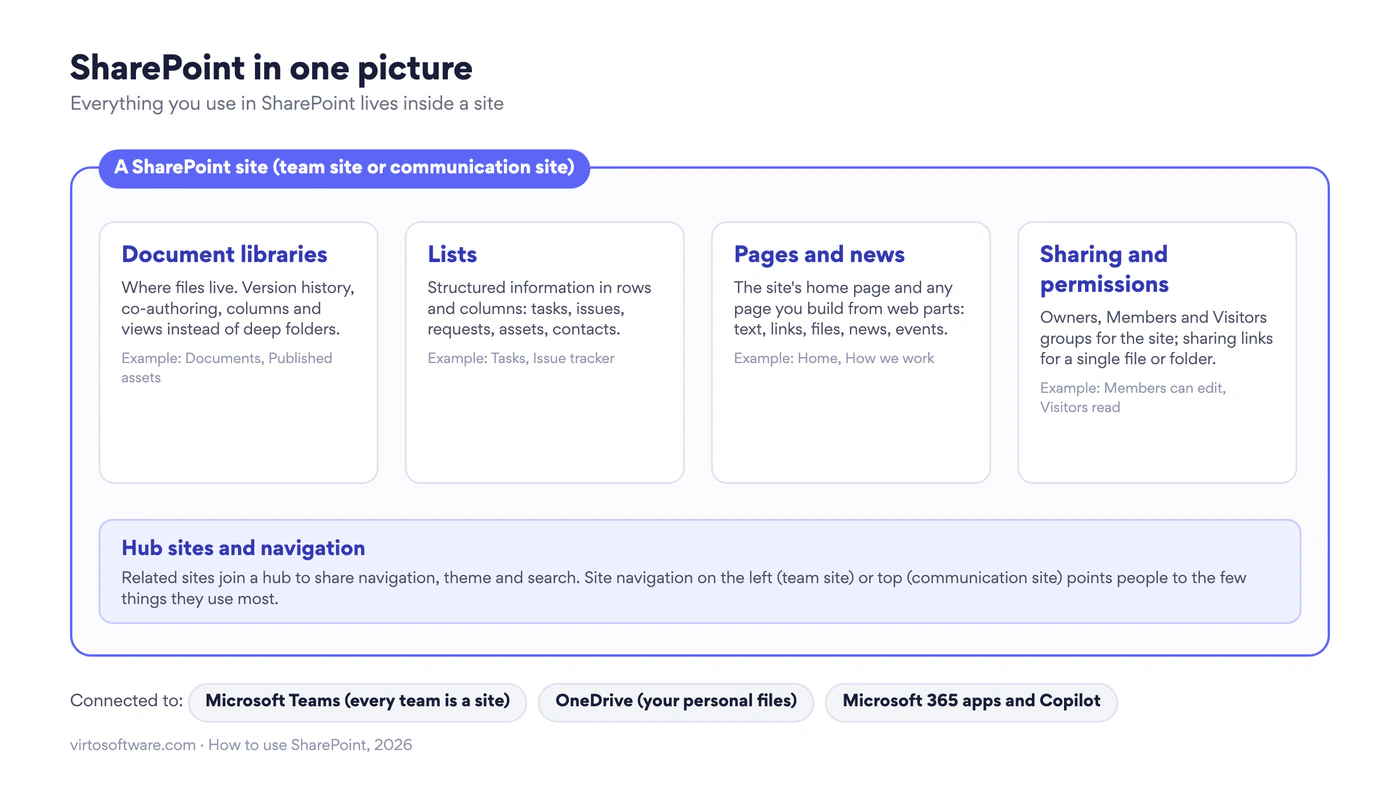
Fig. 1. SharePoint in one picture: libraries, lists, pages and permissions live inside a site; Teams, OneDrive and the rest of Microsoft 365 connect to it
- A site is the container. A team site belongs to a group of people who work together and comes with a Microsoft 365 group and, usually, a Teams team. A communication site is for publishing to a wide audience, such as a department intranet. Our guide to the types of SharePoint sites compares them.
- A document library is where files live: Word, Excel, PDFs, images, video. Every site starts with one called Documents.
- A list is a table of items with columns: tasks, issues, requests, equipment, contacts. Lists are what people used to keep in shared spreadsheets.
- Pages are what you read: the site’s home page, news posts, and any page you build from web parts.
- Permissions decide who can see and edit all of the above, through three groups on every site: Owners, Members and Visitors.
Two neighbours matter as well. OneDrive is your personal library, for files that are yours. Microsoft Teams is the conversation layer: every team you create in Teams is a SharePoint team site underneath, and a channel’s Shared tab is simply a folder in that site’s Documents library.
SharePoint Online or on-premises?
Almost everyone reading this guide uses SharePoint Online, the version that comes with Microsoft 365 Business and Enterprise plans. It is what Teams, OneDrive and Copilot are built on, Microsoft updates it every month, and everything described below applies to it without any setup on your side.
The other option is SharePoint Server Subscription Edition, which your organisation installs and runs on its own servers or in its own cloud. Companies choose it for data residency, regulatory or network reasons, or because they run older custom solutions. Since 14 July 2026, when SharePoint Server 2016 and 2019 reached end of support, it is the only on-premises version Microsoft supports; it receives monthly updates and two feature updates a year, and Microsoft has committed to supporting it until at least the end of 2035.
| What you will notice | SharePoint Online | SharePoint Server Subscription Edition |
|---|---|---|
| How you get it | Included with Microsoft 365 plans; nothing to install | Installed and maintained by your IT team; server and user licences |
| Sites, libraries, lists, pages | The modern experience described in this guide | The same modern experience, with fewer web parts and a slower feature cadence |
| Creating a site | Create site on the start page, unless your admin limits it | Usually requested from IT |
| Sharing outside the organisation | Sharing links, guest access, expiry dates | Typically off; needs extra infrastructure |
| Teams, OneDrive, Copilot | Built in | Not available on the server itself; hybrid setups connect a farm to Microsoft 365 |
| Updates | Monthly, automatic | Monthly public updates, feature updates in spring and autumn, applied by IT |
| Apps and add-ons | Apps from Microsoft AppSource and the SharePoint Framework | Web parts and solutions installed by the farm administrator |
Fig. 2. SharePoint Online and SharePoint Server Subscription Edition from a user’s point of view
If you are not sure which one you have: a URL that contains sharepoint.com is SharePoint Online; anything else is a server your organisation runs. The rest of this guide describes SharePoint Online and notes where the server version differs. For the full comparison of cost, control, security and migration, see SharePoint on-premises vs SharePoint Online.
First steps: open or create a site
Sign in to Microsoft 365, open the app launcher (the nine dots in the top-left corner) and choose SharePoint. The SharePoint start page shows the sites you follow, sites you visited recently and news from all of them. If your organisation already has a site for your team, you will find it here or through the team in Microsoft Teams.
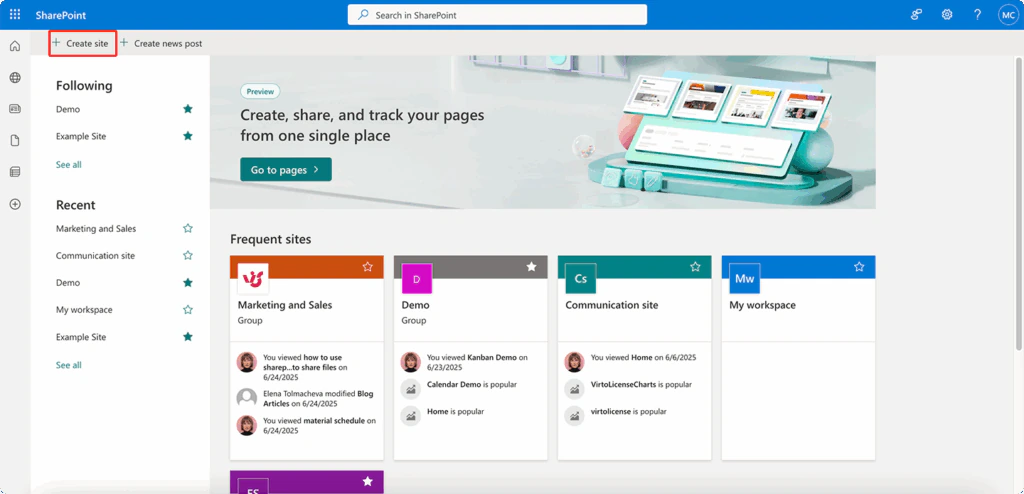
Pic. 1. The SharePoint start page: your sites, recent sites and the Create site button
To create a site of your own, select Create site and choose:
- Team site for a group that works together on files and lists, or Communication site for publishing news and pages to many readers. Most first sites are team sites.
- A template close to your situation (Project management, Team collaboration, Department, Event planning), or a blank site. Templates give you a home page, a library and sample lists you can rename.
- A name and description. Use the name people already use for the team (“Marketing”, not “MKT-2026-A”). The description shows up in search and tells newcomers what belongs here.
- Privacy. Private means only members you add can see the site; public means anyone in your organisation can. Most team sites are private.
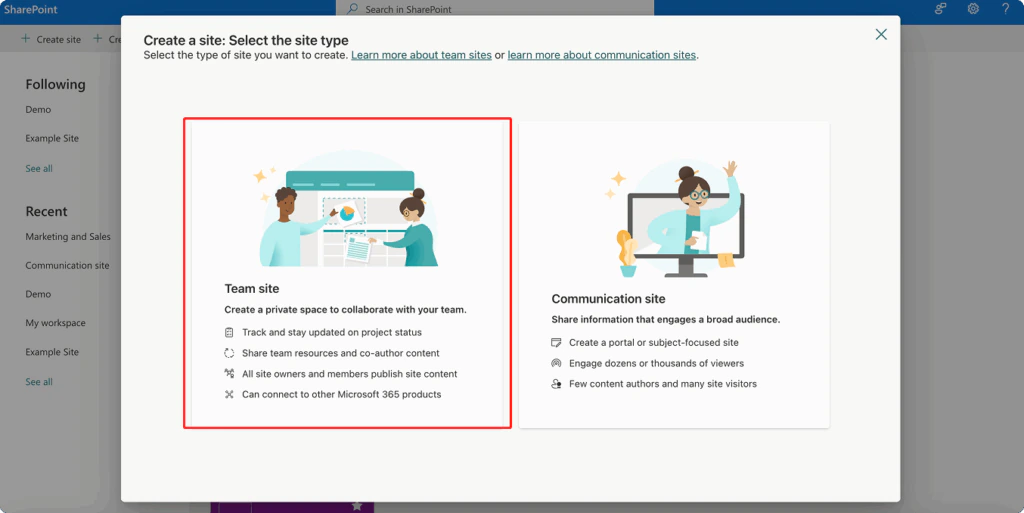
Pic. 2. Creating a team site: choosing the site type and template
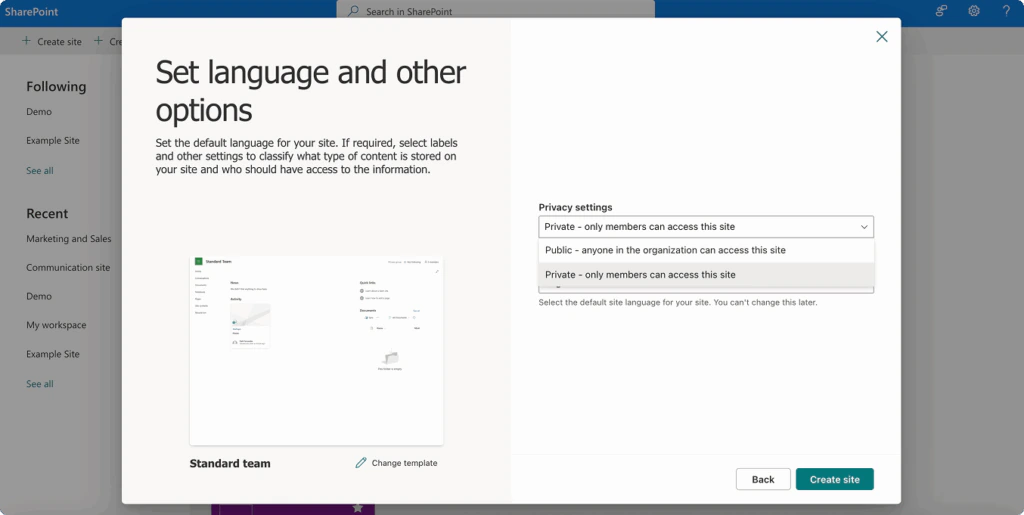
Pic. 3. The last step, Set language and other options: choosing Private or Public under Privacy settings
If you do not see Create site, your admin has limited site creation. Ask for a site through your organisation’s request process; in that case the person who creates it will make you an owner.
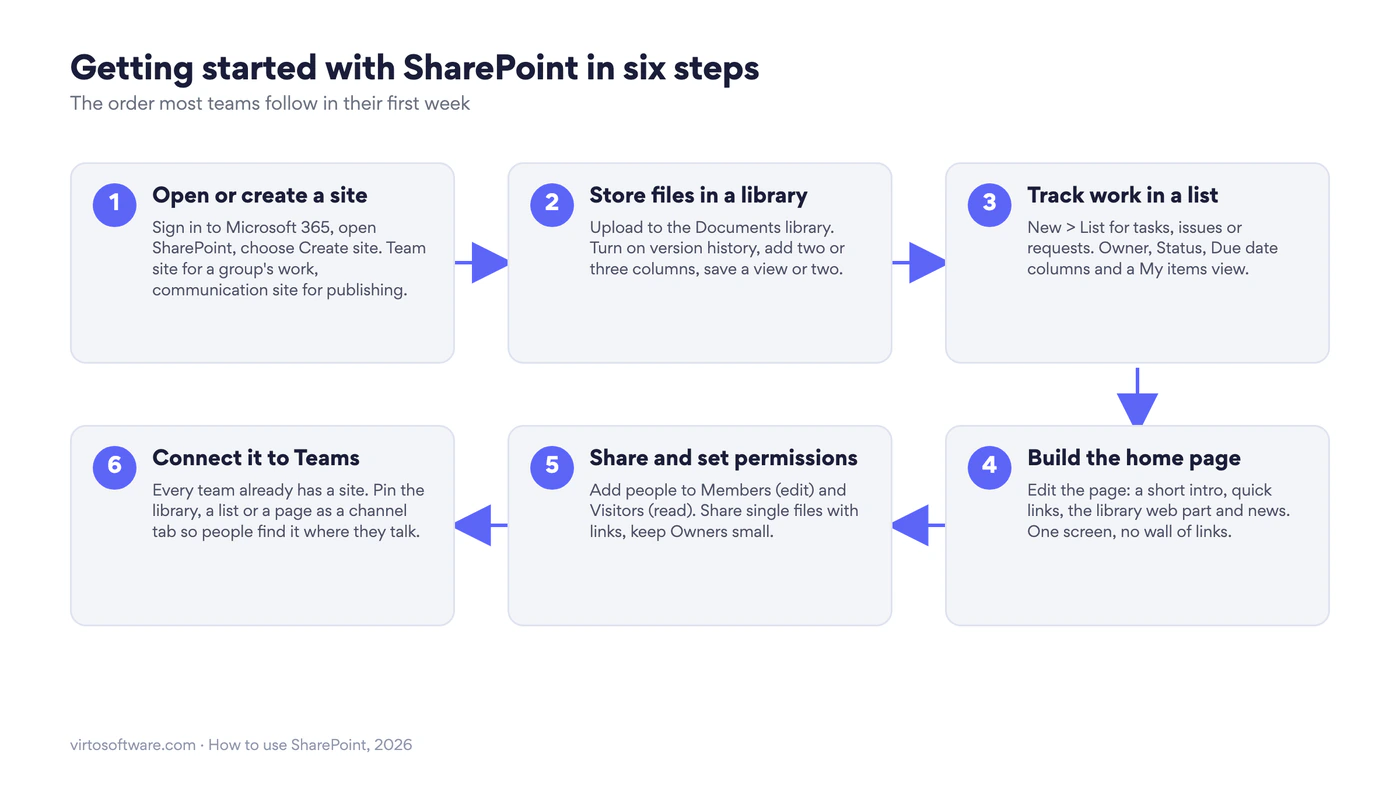
Fig. 3. Getting started with SharePoint in six steps: site, library, list, home page, sharing, Teams
Store files in a document library
Open your site and select Documents in the left navigation. This library is where the team’s files go. Three things make it work well from day one.
Upload and create. Drag files or folders from your computer into the library, or select Upload. New creates a Word, Excel or PowerPoint file directly in the library; several people can edit it at the same time, and everyone always opens the latest version. A file shared this way never needs to be emailed as an attachment again.
Version history. Every edit is saved as a version, so you can see who changed what and restore an earlier copy. New libraries keep up to 500 major versions by default, or manage versions automatically if your admin has chosen that setting. Right-click a file and choose Version history to see them.
Columns and views instead of deep folders. Add two or three columns that describe your files (Client, Status, Owner) with Add column, then save views that filter or group by them (“In review”, “By client”). A file can appear in several views without being copied, and search uses the columns too. Folders are fine one or two levels deep; beyond that, a column does the job better.
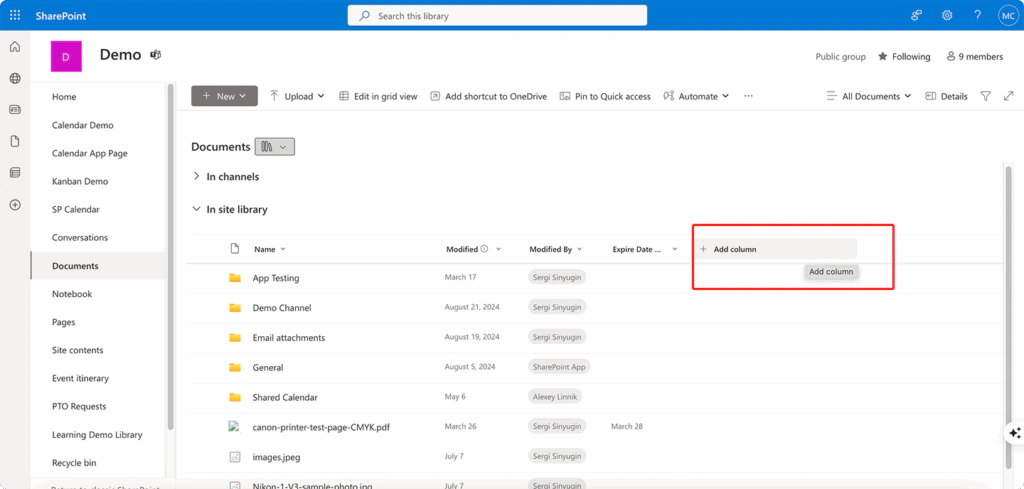
Pic. 4. The Add column button at the end of the column headers in the Documents library
To read the library on your computer like a normal folder, select Sync or Add shortcut to OneDrive; both keep the files in SharePoint and show them in File Explorer or Finder. For creating extra libraries, check-out rules, content types and approval, see our full guide to the SharePoint document library.
Track information with lists
Anything your team tracks in a shared spreadsheet, a tasks list, an issue log, equipment, requests, is a list in SharePoint. A list has columns with types (text, choice, date, person, number), so “Owner” is a real person and “Due date” sorts as a date.
- On your site, select New > List. Start from a template (Issue tracker, Work progress tracker, Asset manager, Recruitment tracker), from an existing Excel file, or from blank.
- Add columns with Add column: Owner (Person), Status (Choice), Priority (Choice), Due date (Date).
- Add items with New, or switch to Edit in grid view to type rows as in a spreadsheet.
- Save two views everyone will use: My items (Owner equals [Me]) and Due soon (Due date within the next 7 days).
- Under Automate > Rules, create a rule such as “when Status changes to Blocked, email the Owner”.
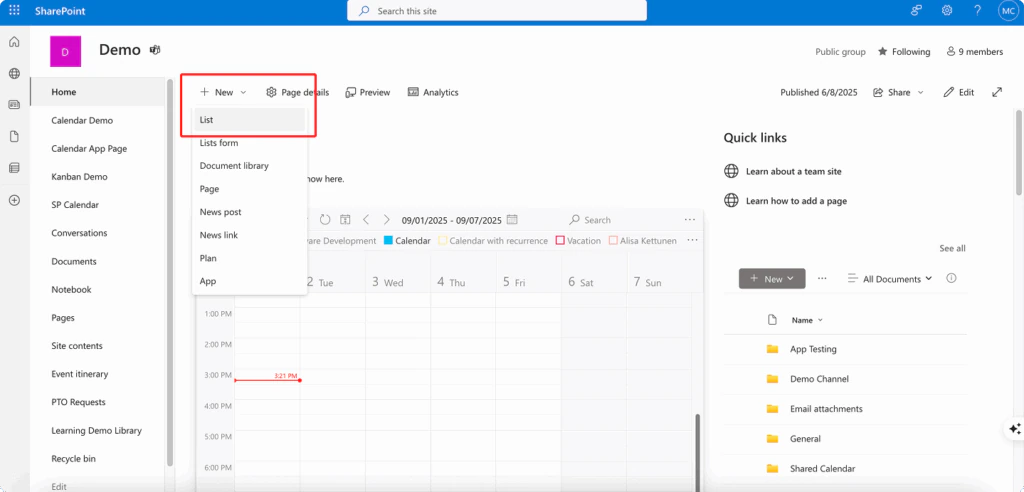
Pic. 5. Creating a Tasks list from the New menu
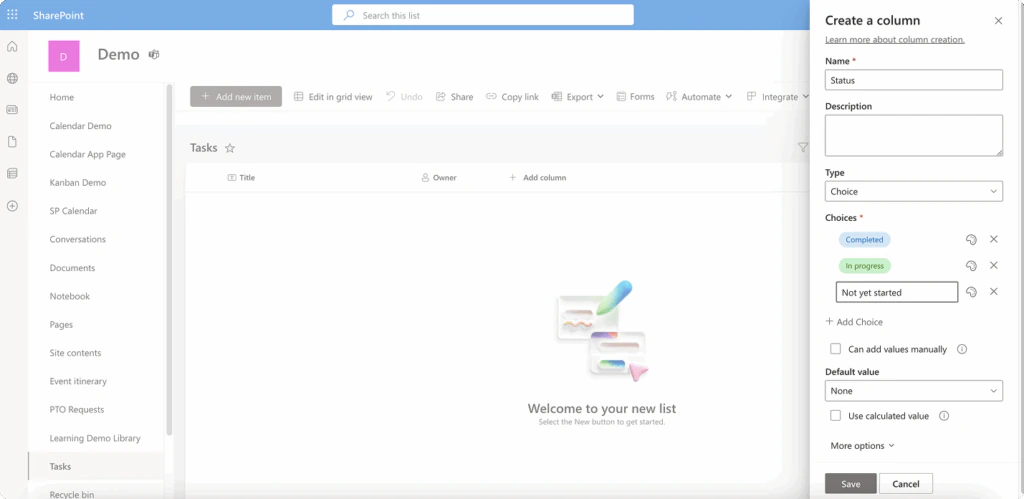
Pic. 6. Creating the Status column as a Choice column in the Tasks list; the Owner column is already in place
Lists are also the Microsoft Lists app, so the same list can be opened from Teams, from the Lists app or from the site. Forms, conditional formatting and connecting lists to Power Automate are covered in our Microsoft Lists guide.
Build pages
Every site has a home page, and you can add as many pages as you need. Pages are built from web parts: blocks for text, images, links, a document library, a list, news, events, people, and dozens more. You do not need any design or code skills.
- On the home page, select Edit in the top right.
- Hover between sections and select the plus sign to add a web part. A good first home page has four: a short Text intro saying what the site is for, Quick links to the five to seven things people use most, the Document library web part showing recent files, and News.
- Select Republish. Changes are invisible to others until you do.
- For a new page, select New > Page, pick a template (or a page from your organisation’s template gallery) and repeat. For an announcement, select New > News post instead; it appears in the news feed on the site, the start page and in Teams.
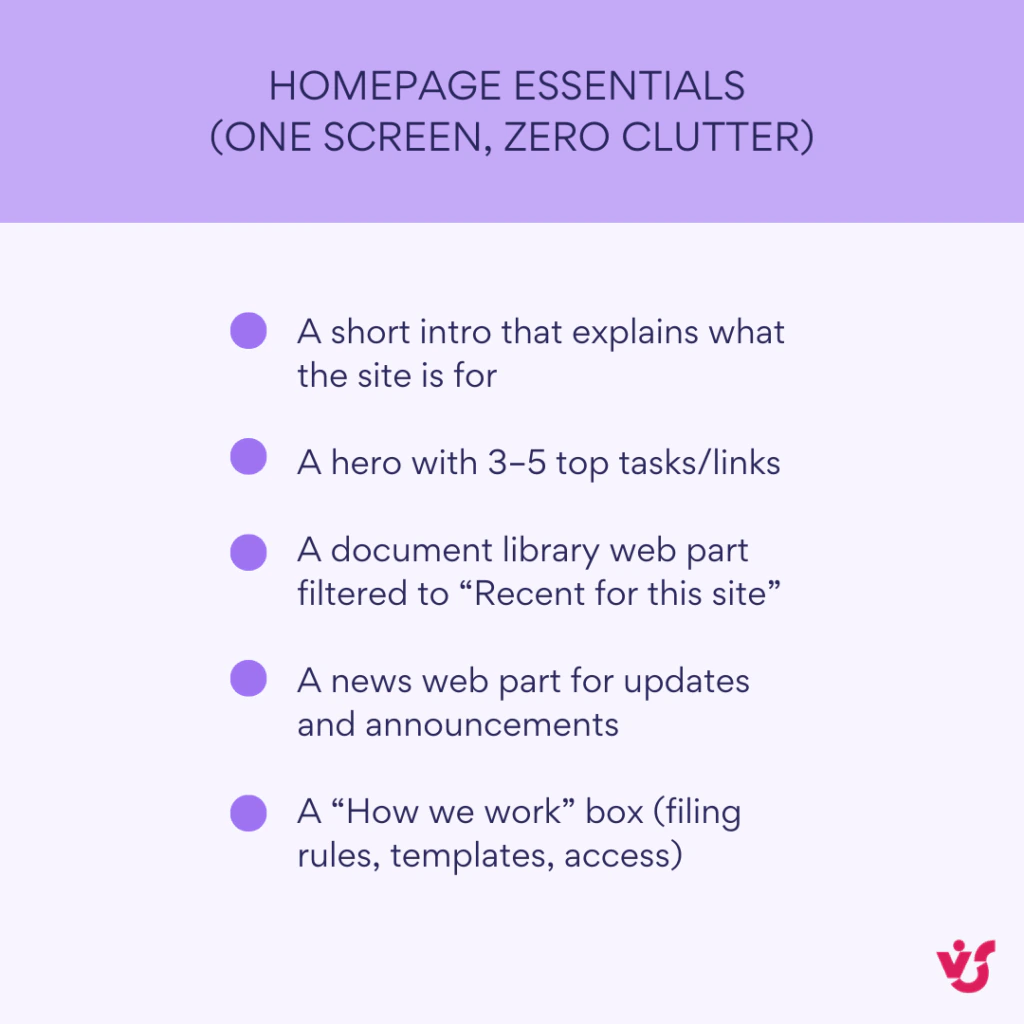
Pic. 7. Home page essentials: intro, top links, recent files, news and, as an optional fifth block, a “How we work” box. The drawing puts the top links in a Hero web part, which holds up to five tiles; Quick links from step 2 take more
If your organisation has Microsoft 365 Copilot, Create with Copilot can draft a page from a prompt or from a document, which you then edit. Page layouts, sections, news and the differences between pages and sites are in our guide to SharePoint pages.
Share and set permissions
Sharing in SharePoint works at two levels, and beginners mix them up.
Site membership is for people who work here regularly. Select Settings > Site permissions (or the member count in the top right of a team site) and add people to one of three groups: Owners can change settings and permissions, so keep this to two or three people; Members can add and edit content; Visitors can only read. On a team site, adding someone to the Microsoft 365 group adds them to Members and to the Teams team at the same time.
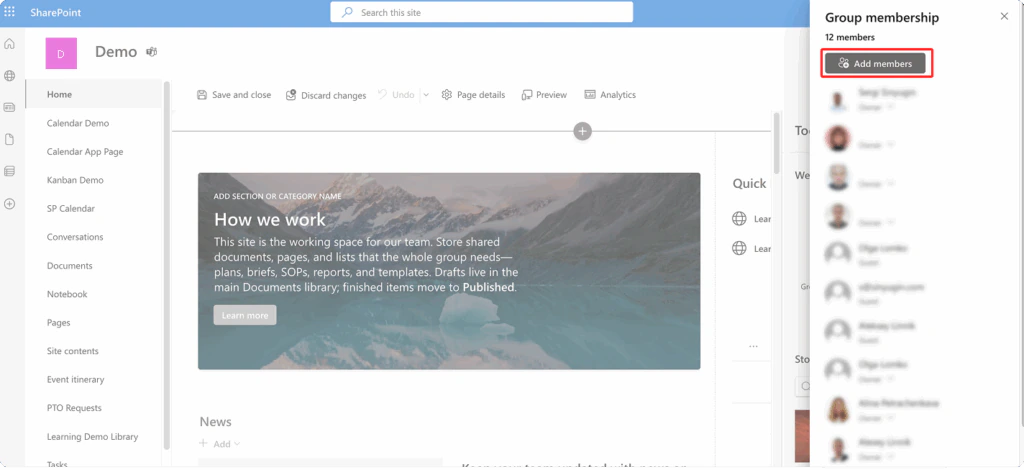
Pic. 8. Site members: adding people to the site’s groups
Sharing a single file or folder is for one-off access. Select the file, choose Share, and pick who the link works for:
- People with existing access: nobody new gets access; the link just points colleagues to the file. The safest default for internal work.
- People in your organisation: anyone inside the company who receives the link can open it.
- Specific people: only the names you enter, inside or outside the organisation.
- Anyone: a link that works without signing in. Admins often switch this off or give it an expiry date.
Each link can allow viewing or editing. Two habits keep this manageable: share the site with people who need everything, share links only for exceptions, and do not break permissions on individual folders unless you have a clear reason, because those exceptions are what make SharePoint feel unpredictable later. The full picture, including permission levels, inheritance and auditing, is in our SharePoint permissions guide; the step-by-step for links is in how to share files in SharePoint, and sharing with partners and customers in the external sharing guide.
Use SharePoint with Microsoft Teams
Most people use SharePoint every day without opening it, because Teams is built on it.
- Every team is a site. When you create a team in Teams, SharePoint creates a team site with the same members. The Shared tab (called Files in older versions) in each channel is a folder in that site’s Documents library. Select Open in SharePoint from the tab to get the full library with columns, views and version history.
- Pin what matters as tabs. In a channel, select the plus sign on the tab bar and add a document library, a list or a SharePoint page. The team then works with the site’s content next to the conversation.
- Chat files are different. A file attached in a private chat is stored in the sender’s OneDrive, not in a team site. If it becomes team work, move it to the site.
- Private and shared channels get their own separate site each, with their own permissions.
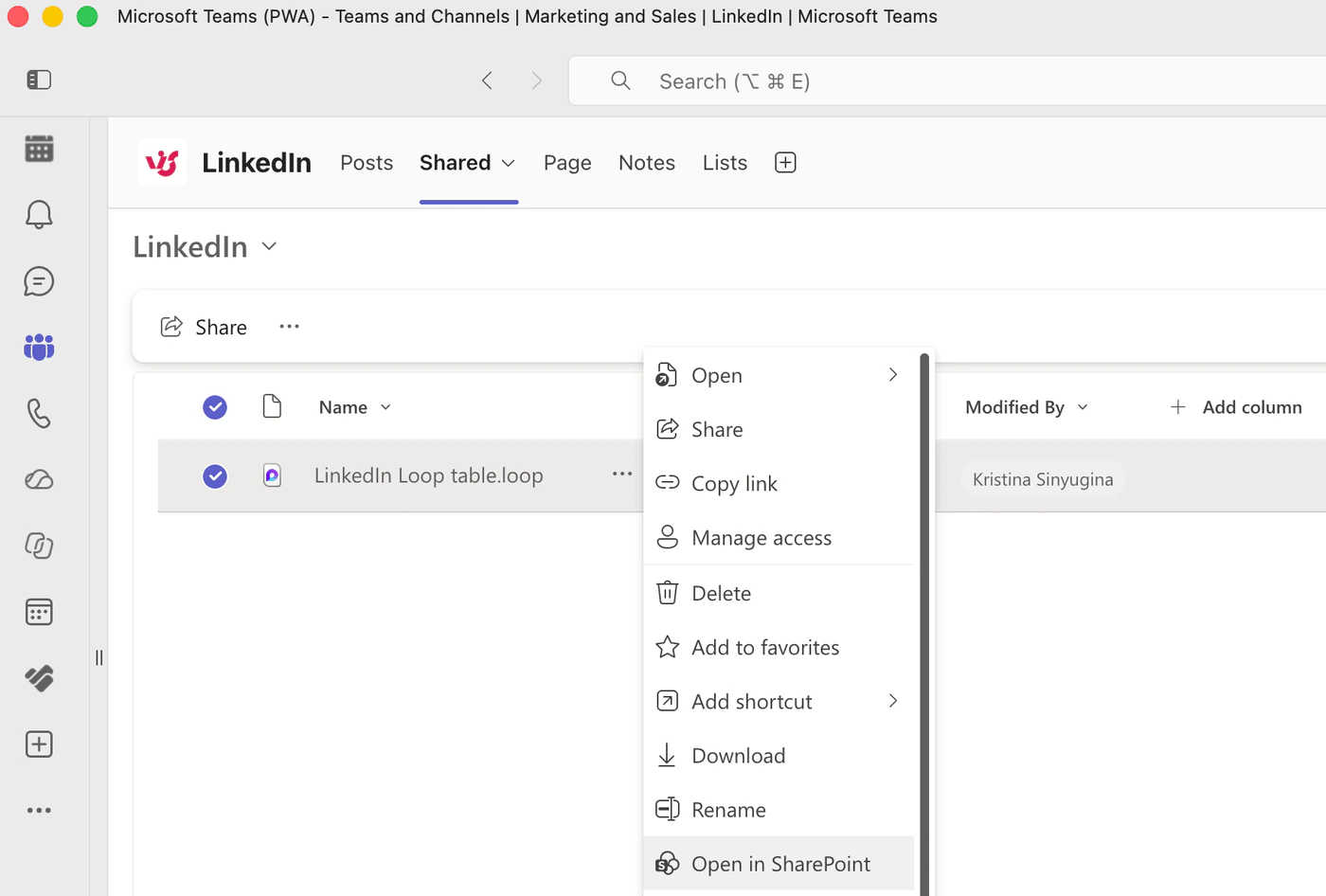
Pic. 9. The Shared tab of a Teams channel is a folder in the team site’s Documents library; Open in SharePoint shows the full library
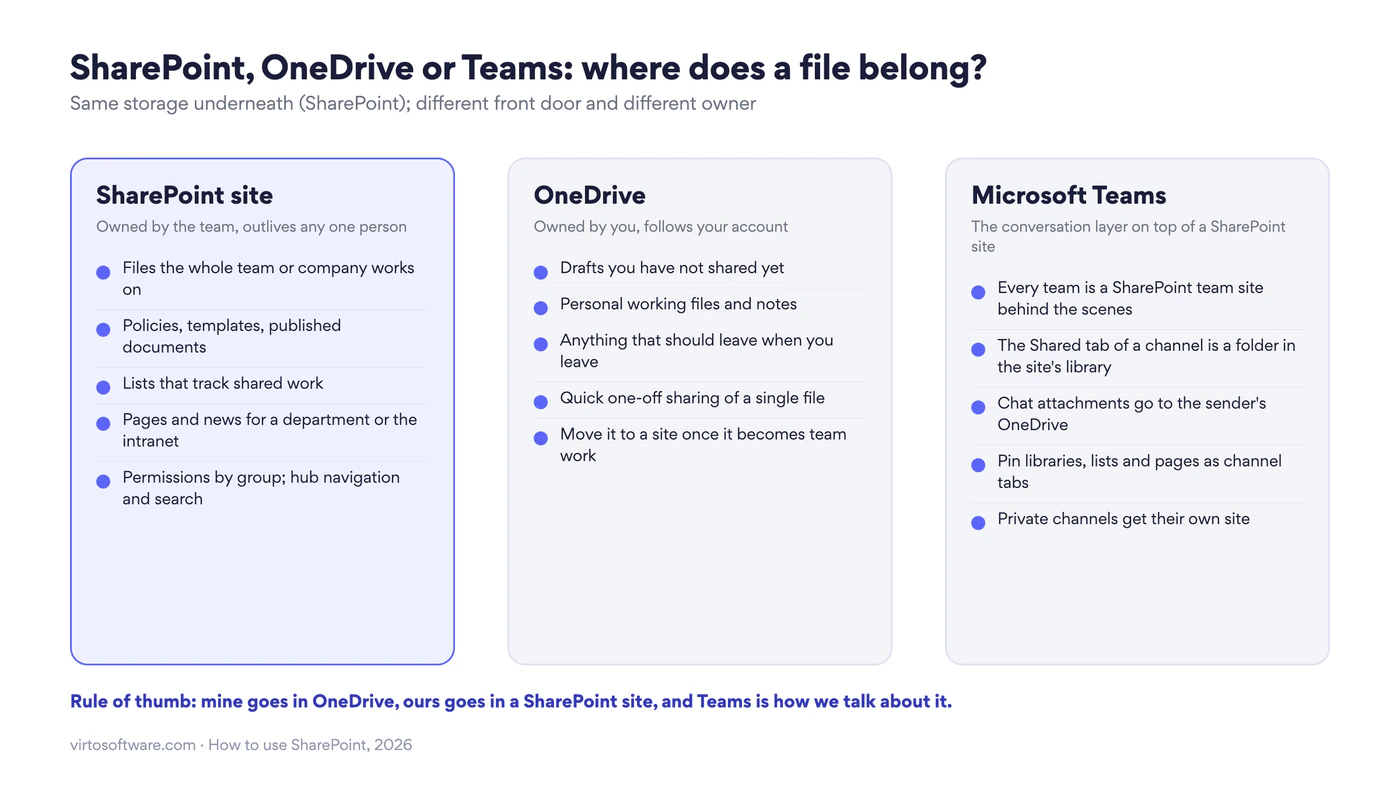
Fig. 4. SharePoint, OneDrive or Teams: where a file belongs
Our guide to what Microsoft Teams is and how to use it covers the Teams side; SharePoint vs OneDrive settles the storage question in detail.
What’s new in SharePoint in 2026
2026 is the year SharePoint Online finished retiring its classic layer and put Copilot at the front door. For a beginner, four changes matter.
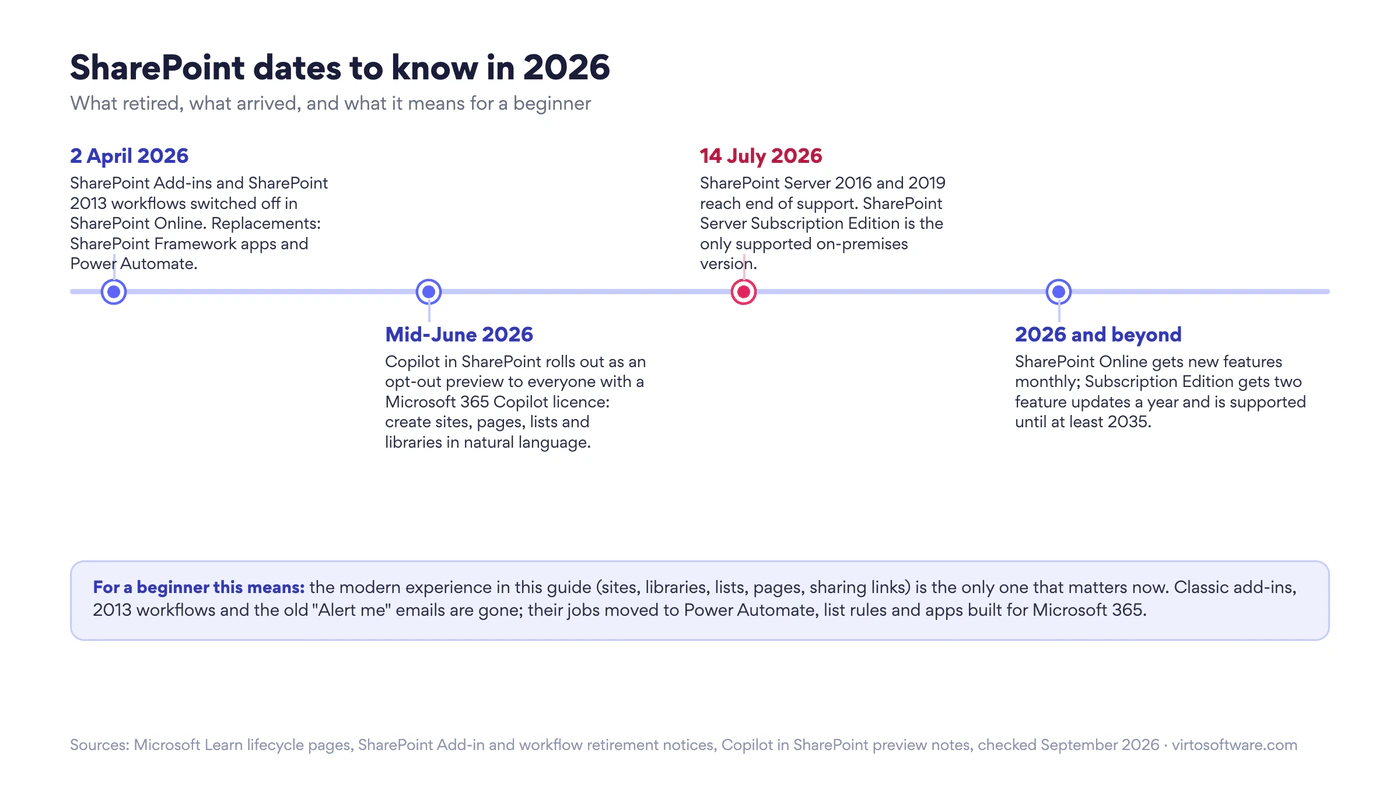
Fig. 5. SharePoint dates to know in 2026: what retired, what arrived, and what it means for a beginner
Copilot in SharePoint. From mid-June 2026, everyone with a Microsoft 365 Copilot licence gets Copilot in SharePoint as an opt-out preview, at no extra cost. On the SharePoint start page a new Build tab asks what you would like to build today; describe a site, a page, a list or a library in plain language and Copilot creates it for you to review and adjust. Site owners can also create agents: assistants grounded in a site’s pages and libraries that answer questions for the team, and since July 2026 an agent can use a SharePoint list as its knowledge source as well. Copilot respects the site’s permissions, so tidy group-based access matters more than ever.
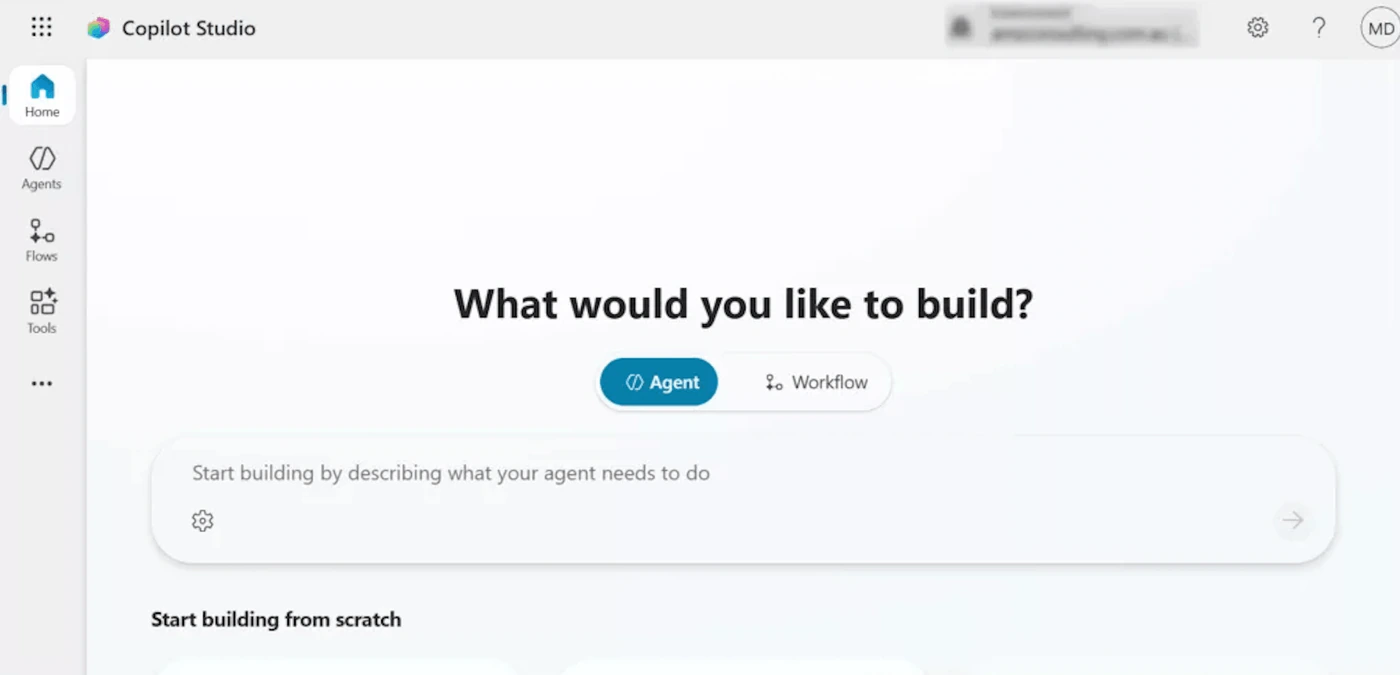
Pic. 10. Describing an agent in plain language in Copilot Studio. The frame shows Copilot Studio, not the Build tab on the SharePoint start page
Classic extensions are gone. On 2 April 2026 Microsoft switched off SharePoint Add-ins and SharePoint 2013 workflows in SharePoint Online. Apps are now built on the SharePoint Framework and installed from AppSource, and any process that ran on an old workflow needs Power Automate, list rules or the built-in library approval. On 1 July 2026 the classic Alert me email alerts followed; our guide to SharePoint alerts and notifications covers the replacements, and SharePoint automation the wider picture.
Only one supported server. SharePoint Server 2016 and 2019 reached end of support on 14 July 2026. Organisations still on them have no security updates; SharePoint Server Subscription Edition is the upgrade path, or a move to SharePoint Online.
Pages and branding keep improving. Modern page templates, co-authoring on pages and news, video pages, and the Brand center for organisation-wide fonts, colours and logos mean a communication site can look like a designed intranet without a developer. On the file side, Microsoft 365 Backup and Microsoft 365 Archive add fast restores and cold storage for sites you no longer use daily.
Tips to use SharePoint effectively
The teams that get on well with SharePoint share a few habits. None of them takes more than an hour to adopt.
One site per purpose, one primary library per site. Create a new site when the audience or purpose is different (a new project, client or department), a new library when content has its own lifecycle (published documents, contracts), and a column when you only want to group files. Related sites join a hub site to share navigation and search.
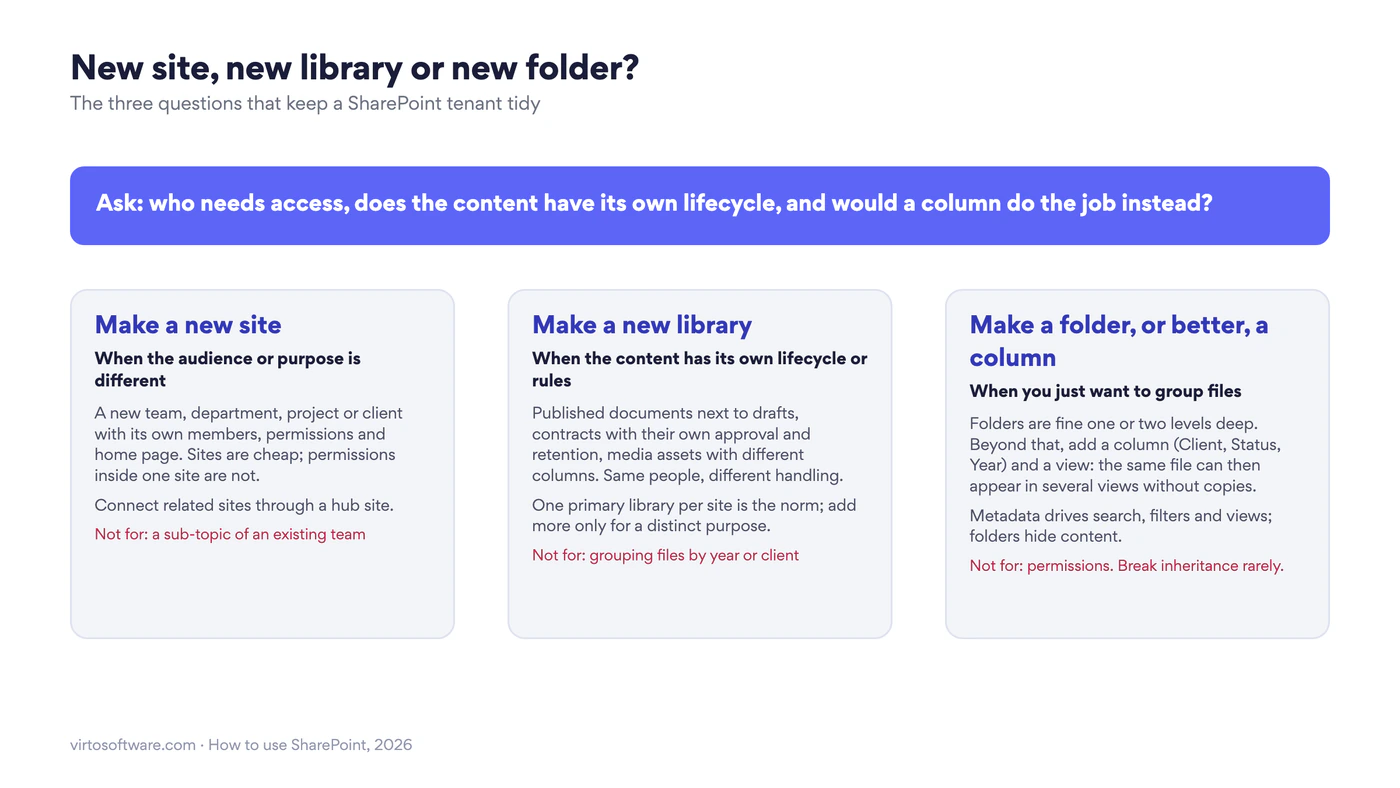
Fig. 6. New site, new library or new folder: the three questions that keep a tenant tidy
Metadata over folders. Two to five columns and a few saved views beat a folder tree four levels deep. Fill the columns you create; search and filters depend on them.
Group-based permissions, few exceptions. Owners small, Members for contributors, Visitors for readers. Review guest access when a project ends.
Name things for the reader. “2026 Q3 marketing plan” beats “plan_final_v7”. Short site names, short navigation (six to eight links), one home page that fits on a screen.
Automate the routine, not everything. List rules for notifications, the built-in approval on a library for sign-offs, Power Automate for multi-step processes. Keep the flows documented on the site’s “How we work” page so someone else can support them.
Publish news, not emails. A news post on the site reaches the start page, the Teams channel and mobile, and stays findable. A short “How we work” page on each site (what goes where, how to ask for access) answers the questions newcomers ask most.
Keep the intranet on communication sites. Company-wide pages belong on a communication site, not on a team’s site; our SharePoint intranet guide shows how the pieces fit, and SharePoint best practices goes deeper on structure and governance.
Do more with Virto apps for SharePoint
SharePoint’s built-in calendar, task and file tools stop early: a list calendar cannot overlay several sources, a library has no board view, and bulk file operations mean scripts. The Virto apps for Microsoft 365 and SharePoint Online fill exactly those gaps.
- Virto Calendar App overlays SharePoint lists, Exchange, Microsoft 365 group and Planner calendars in one colour-coded view on a page or in Teams.
- Virto Kanban Board App turns any SharePoint list into a Kanban board with swimlanes, WIP limits and colour rules.
- Virto Multiple Operations uploads many files at once, updates their metadata in bulk and deletes them by filter, without PowerShell.
- Virto Alerts & Reminder App sends conditional, scheduled notifications from lists and libraries, the job the retired “Alert me” used to do.
- Virto Forms Designer App replaces the standard list form with a designed, conditional one.
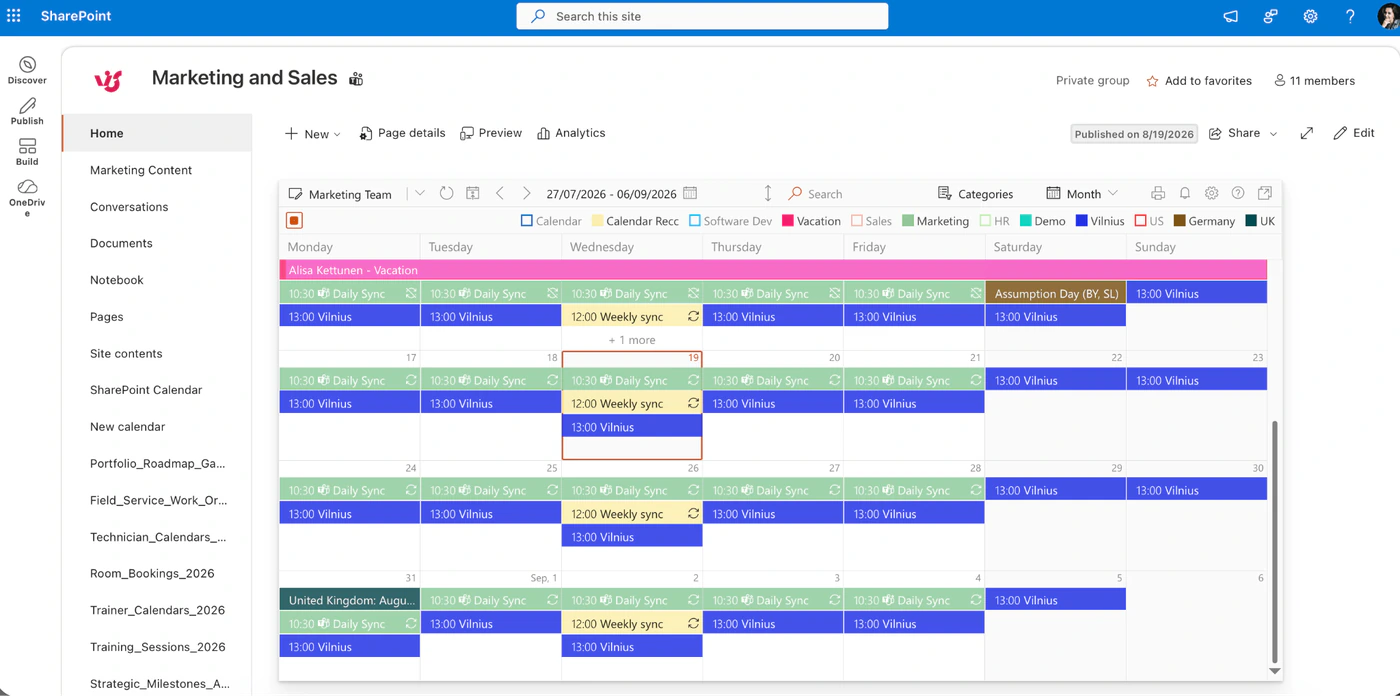
Pic. 11. Virto Calendar App overlaying several calendars on a SharePoint page
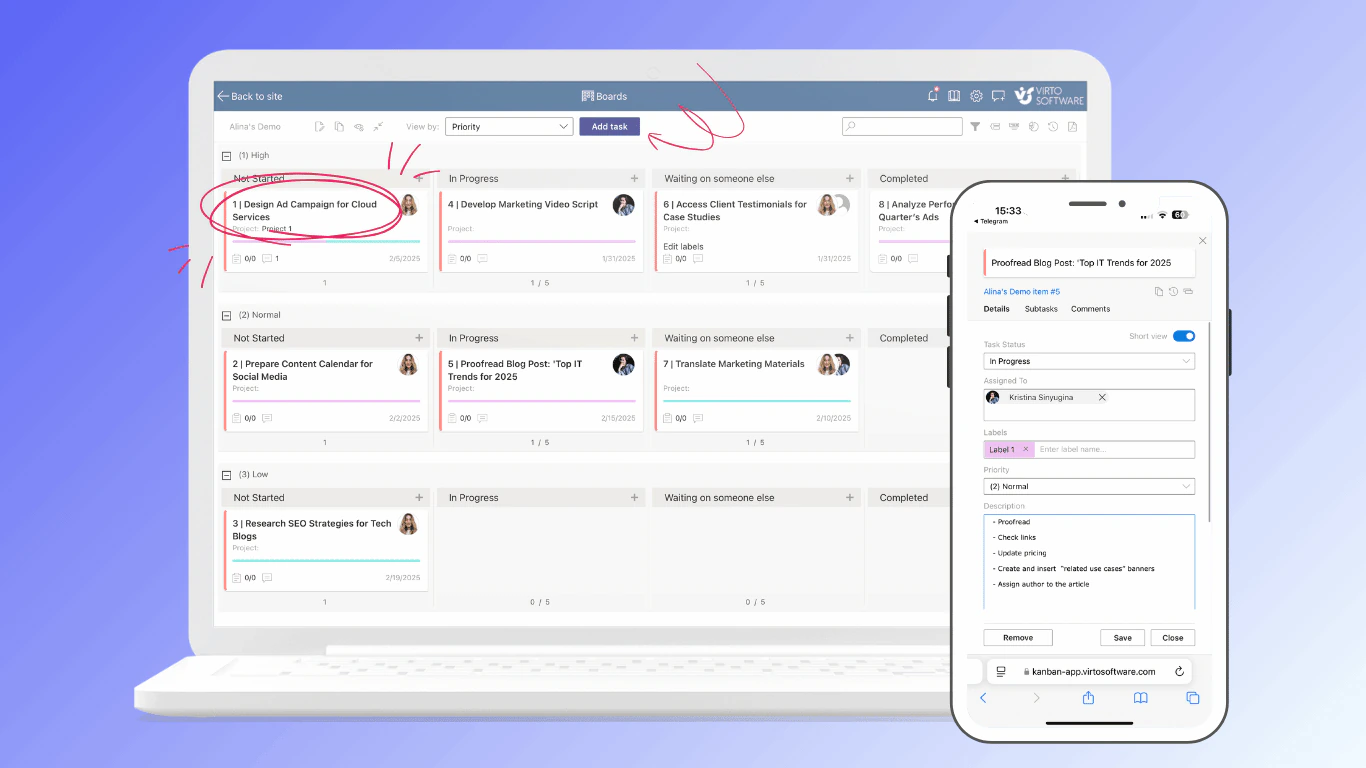
Pic. 12. Virto Kanban Board App on a SharePoint task list
Each app lists its pricing on its product page (Virto Kanban Board App, for example, starts at $2 per user per month for up to 30 users), and every app comes with a 30-day free trial, no credit card required. If you run SharePoint Server on your own infrastructure, the same jobs are covered by the Virto web parts for SharePoint on-premises: the Virto Calendar Web Part, the Virto Kanban Board Web Part, Virto Multiple File Operations and Virto Workflow Automation.
FAQ
How do I use SharePoint?
Open or create a site, store files in a document library, track information in lists, build pages, and share with your team, all within Microsoft 365. Start with the team site that already exists for your Teams team; most of what you need is there.
Is SharePoint hard to learn?
Not for everyday use. Uploading, editing and sharing files works like OneDrive, and most people already use SharePoint through Teams without noticing. The parts that take practice are structure and permissions, which is why this guide recommends group-based access and columns instead of deep folders from the start.
What is the difference between SharePoint and OneDrive?
OneDrive is your personal library: files that belong to you and follow your account. SharePoint sites are shared spaces owned by a team or the organisation, with lists, pages and group permissions. Both use the same storage and the same sharing links. Rule of thumb: mine goes in OneDrive, ours goes in a SharePoint site.
Do I need SharePoint if I already use Microsoft Teams?
You are already using it. Every team is a SharePoint site, and every channel’s Shared tab is a folder in that site’s library. Opening the site gives you the features Teams hides: columns, views, version history, pages and news.
SharePoint Online or SharePoint Server: which one do I have?
If your site address contains sharepoint.com, you use SharePoint Online, which comes with Microsoft 365 and is what this guide describes. Any other address is SharePoint Server, run by your own IT team; since July 2026 the supported version is SharePoint Server Subscription Edition.
Can I use SharePoint for document management?
Yes, and for many organisations it is the main document management system: version history, metadata, approval, retention labels and search are all built in. Our SharePoint document management guide covers that use in depth.
What is a SharePoint site vs a page?
A site is the container with its own libraries, lists and permissions. A page is a single screen inside a site, built from web parts. One site typically has one home page and a handful of other pages.
Conclusion
Using SharePoint well comes down to four habits: keep team files in a site’s library rather than in email or personal drives, track shared work in lists rather than spreadsheets, give each site a home page that explains itself, and manage access through groups rather than one-off links. Start with the site your team already has in Teams, add columns and views before folders, and reach for the deeper guides linked above as each area grows. When the built-in calendar, board or file tools run out, the Virto apps for Microsoft 365 and SharePoint add what is missing, and the 30-day trial is the quickest way to see whether they fit.