


A practical guide to Microsoft Loop — its components, pages, and workspaces, how it compares to other Microsoft 365 tools, and how to get started.
Microsoft Loop is a real-time collaboration platform included in Microsoft 365. It is built around Loop components — portable, editable elements like task lists, tables, and checklists — that can be embedded in Teams chats, Outlook emails, and other M365 applications and stay synchronized across all of them. Loop also includes Loop Pages (flexible canvases for combining components) and Loop Workspaces (shared project spaces for organizing pages and files). It is available at loop.microsoft.com and as a tab in Teams.
This article explains what the platform does, where it fits in a Microsoft 365 environment, how it compares to SharePoint, OneNote, and Teams, and how to start using it. It also answers common questions about Loop’s calendar and Gantt chart capabilities.
What Microsoft Loop Is and How It Works
Microsoft Loop is a collaboration platform designed to help teams create, share, and edit content together in real time, across the Microsoft 365 applications they already use. Rather than functioning as a single standalone app, Loop distributes its content across Teams, Outlook, Word for the web, and a dedicated Loop app, keeping everything synchronized through a shared underlying structure.
The platform gives a team one connected place to plan, draft, and track work, whether members are in Teams, Outlook, or moving between them. The technology that keeps content consistent across those surfaces is the Loop component.
Loop components
Loop is built around Loop components — dynamic, interactive elements such as task lists, tables, checklists, and notes. A component can be placed directly into a Teams chat, an Outlook email, or a Word document, and it remains live wherever it appears. When someone edits a component in one location, the change is reflected everywhere it has been shared. This removes the need for attachments and eliminates version conflicts.
The three building blocks of Loop
Loop is organized into three layers:
- Loop components — editable blocks of content, such as checklists, tables, and notes, that synchronize across Microsoft 365 apps in real time.
- Loop pages — flexible canvases that bring components together. They function as collaborative documents or lightweight dashboards that evolve with a project.
- Loop workspaces — shared spaces where a team organizes everything related to a project: pages, components, files, and goals.
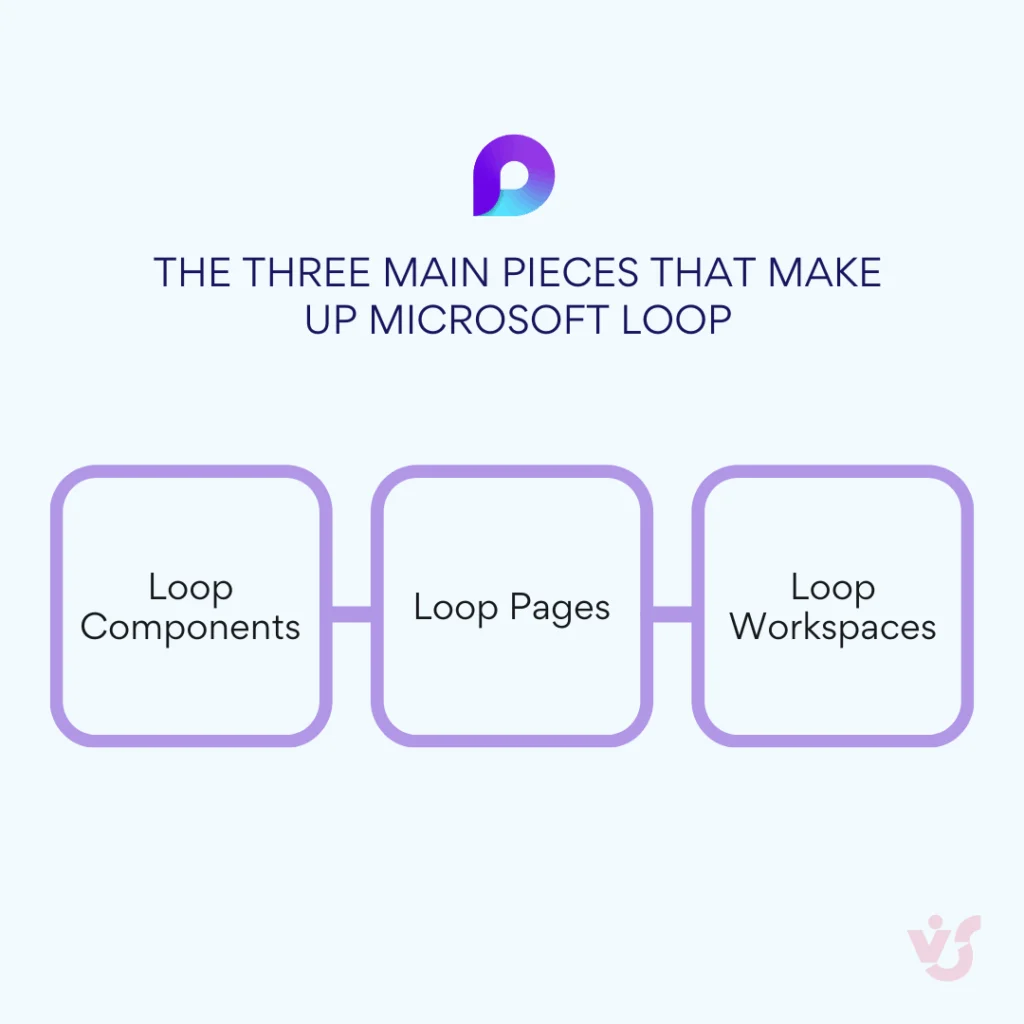
Pic. 1. The three main building blocks of Microsoft Loop.
Core features
- Modularity — share a single checklist, note, or poll without sending an entire document. Only the relevant piece is distributed.
- Real-time synchronization — all participants see updates as they happen, comparable to co-editing in a shared online document.
- Flexibility — move between projects, create a workspace quickly, or share a single component with a defined set of people.
What Microsoft Loop Is Used For: Real-World Use Cases
Loop is most useful in hybrid and remote environments and in cross-functional work, where contributors are distributed across locations or time zones. It provides one shared space where a team can align and stay synchronized. The scenarios below illustrate where the platform fits naturally into a workflow.
Brainstorming and task collaboration
Organizing ideas in a group chat is difficult to manage over time. Loop components — editable tables, to-do lists, brainstorming blocks, and polls — let team members contribute ideas and edit together in real time, with changes appearing instantly. Because components live inside the tools a team already uses, such as Teams or Outlook, ideas are captured and developed in context.
Project and meeting planning
A Loop page can hold a meeting agenda, tasks, deadlines, and follow-ups in one place. Through integration with Microsoft 365 calendars, a team can assign tasks, track progress, and make updates without switching between applications.
A single workspace for a project
Managing one project across several tools is inefficient. A Loop workspace consolidates documents, notes, timelines, goals, and decisions in one organized location, reducing time spent searching through chat threads and scattered files.
Real-time progress tracking
Loop components keep project statuses, action items, and roadmaps current automatically. A task list placed in an Outlook email or a Teams chat updates everywhere it appears, reducing the need for status meetings and manual check-ins.
In short, Loop suits teams that want to reduce tab-switching and manual status updates while keeping planning and collaboration in one connected space.
Key Benefits of Microsoft Loop for Teams
Loop is designed to make collaboration across departments and time zones faster and more transparent. The table below summarizes its main benefits for team collaboration.
| Feature | What it does | Why it matters |
|---|---|---|
| Real-time co-editing | Multiple team members can edit the same task list, table, or note at once, directly inside Teams, Outlook, and other Microsoft 365 apps. | No attachments and no version conflicts. Everything updates live. |
| Modular structure | Start with a small Loop component such as a checklist, expand to a Loop page, and scale to a full Loop workspace. | Work scales naturally without requiring extensive planning up front. |
| Microsoft 365 integration | Embed components in Teams chats and Outlook threads, or use them with Planner, To Do, OneNote, Excel, and SharePoint. | A unified workflow; components can move between apps without losing functionality. |
| Transparency | Everyone sees the same up-to-date information regardless of where or when they work. | Better-informed decisions and less manual oversight. |
| Async-friendly workflows | Team members can contribute on their own schedule without losing context. | Well suited to remote teams across multiple time zones. |
| Support for Agile and Scrum | Create sprint-specific workspaces, log standups, and embed boards or visual tools through extensions. | Helps Agile teams prioritize and stay aligned through each sprint. |
| Cross-functional collaboration | Bring marketing, sales, product, development, and support together in one shared workspace. | Keeps distributed groups aligned with adaptive pages and real-time updates. |
Fig. 1. The benefits of Microsoft Loop for team collaboration.
Some users on a Reddit discussion about Microsoft Loop have noted the value of live components shared across the Microsoft 365 suite:
Loop’s standout feature is that each component can be shared as a live component across the entire 365 suite — update a checklist in Teams or Outlook and it stays in sync everywhere. For organizations weighing a move, compliance, licensing, training, and data security tend to matter more than ease of use, but for teams without a prior collaborative notebook, Loop noticeably changed how they worked together.
Microsoft Loop vs SharePoint, OneNote, and Teams
Loop is often compared with other Microsoft 365 tools, but it serves a distinct purpose: live collaboration, modular content, and flexibility. The comparisons below clarify how it differs from SharePoint, OneNote, and Teams, and how it works alongside them.
Microsoft Loop vs SharePoint
Loop is a real-time, modular collaboration space rather than a document repository. SharePoint remains the system of record for structured storage and governance.
| Microsoft Loop | SharePoint | |
|---|---|---|
| Main role | A real-time, modular co-creation tool for teamwork across apps | A structured platform for storing and managing corporate content |
| Ideal for | Fast-moving teams sharing ideas, updates, and decisions in real time | Organizations managing internal sites, permissions, and business workflows |
| Key features | Loop components, real-time editing, flexible workspaces across Microsoft 365 | Document storage, content versioning, automation, and internal portals |
| Style | Agile, flexible, team-focused | Structured, formal, process-oriented |
Fig. 2. Microsoft Loop vs SharePoint.
Loop is suited to agile collaboration, while SharePoint is suited to content storage and management. The two are complementary and can be used together.
Microsoft Loop vs OneNote
OneNote is a notebook for capturing information; Loop is a shared space for building content together.
| Microsoft Loop | OneNote | |
|---|---|---|
| Use case | Live collaboration via shareable, editable components | Note-taking for individuals and teams |
| Editing | Real-time co-editing inside Teams, Outlook, and more | Largely individual editing with limited team interaction |
| Flexibility | Modular and embeddable across apps | Limited cross-app interaction |
| Best for | Keeping a team synchronized on shared, dynamic content | Capturing ideas and reference notes |
Fig. 3. Microsoft Loop vs OneNote.
Microsoft Loop vs Microsoft Teams
Teams is a communication platform; Loop turns discussion into structured, editable content. The two are designed to work together.
| Microsoft Loop | Microsoft Teams | |
|---|---|---|
| Primary function | Content co-creation and management | Communication: chat, video, and meetings |
| How they work together | Embed Loop components in Teams chats to collaborate directly | Use Teams for discussion, with Loop as the content layer |
| Best use case | Shared goals, tasks, and updates in one place | Keeping teams connected across channels |
Fig. 4. Microsoft Loop vs Microsoft Teams.
To use Loop with Teams, add a Loop component to a chat or channel and begin editing together. For more on Teams, see the Microsoft Teams blog.
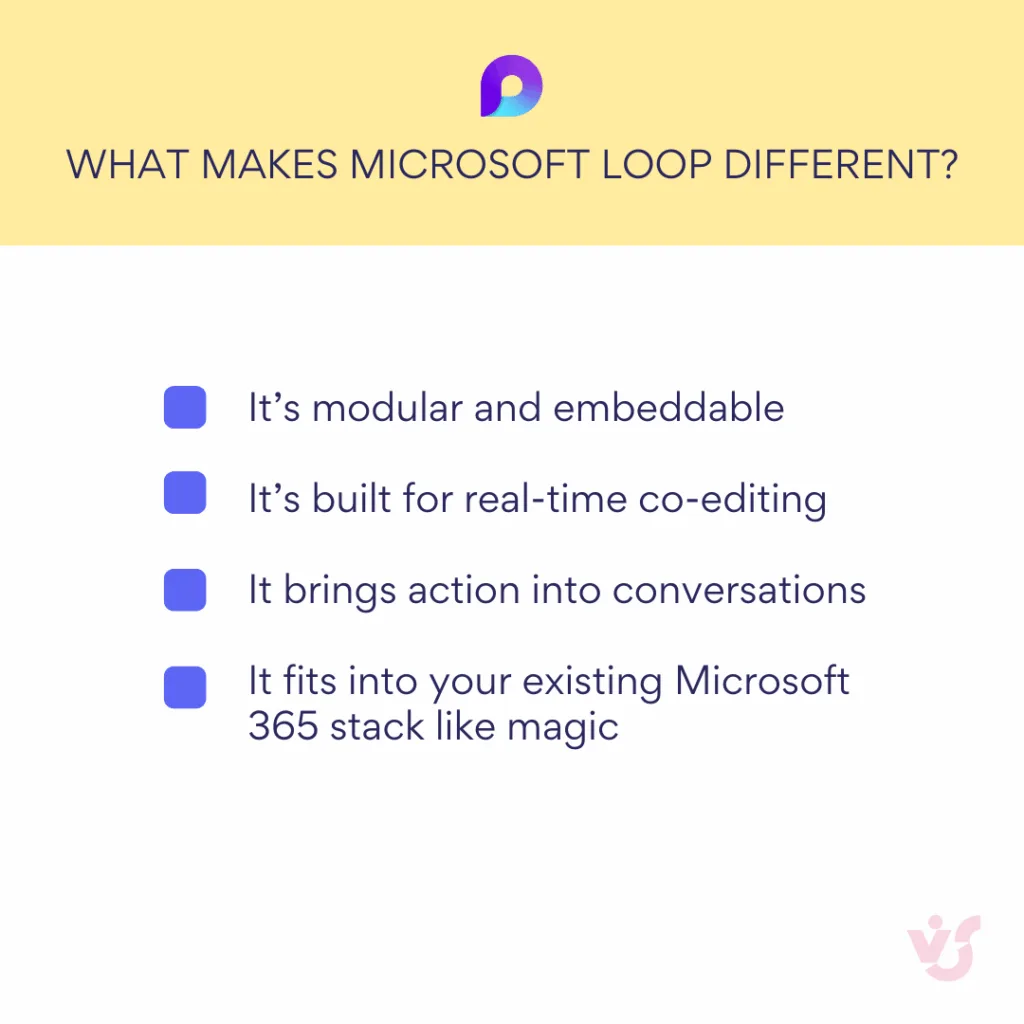
Pic. 2. What makes Microsoft Loop different.
How to Use Microsoft Loop: Getting Started in Five Steps
To use Loop you need a Microsoft 365 account. You can work from Teams, Outlook, or the standalone Loop app. The following steps cover the basic workflow.
1. Create a Loop component
- ✓ Open Teams, Outlook, or the Microsoft Loop app (browser or desktop).
- ✓ Choose a component type: table, task list, text paragraph, or checklist.
- ✓ Insert it directly into a message or email.
Everyone in the conversation can then edit that component in the chat or email thread — with no links or attachments to manage.
2. Create a Loop page
- ✓ Go to loop.microsoft.com.
- ✓ Select New Page and give it a name.
- ✓ Add components, tables, images, and links.
- ✓ Organize pages by project or theme for easier navigation.
Loop pages are where components are combined and a project takes shape.
3. Set up a Loop workspace
- ✓ For a larger project, create a Loop workspace.
- ✓ Group related pages together.
- ✓ Adapt the workspace for different teams, departments, or goals.
A workspace keeps everything related to a project in one organized place.
4. Invite your team
- ✓ Select Share on any page or workspace.
- ✓ Set permissions for who can view and who can edit.
- ✓ Send the link to give the team access.
Once invited, team members are synchronized regardless of location.
5. Edit together in real time
- ✓ All participants can edit components live.
- ✓ Activity is visible as it happens.
- ✓ Comments, edits, and changes are tracked in context.
- ✓ Built-in chat keeps discussion on the page.
Microsoft Loop: Limitations You Should Know About
Loop is a capable tool for dynamic collaboration, but it is still maturing in several areas. The table below outlines the main limitations to consider before adopting it broadly.
| Limitation | What it means for you |
|---|---|
| Not a SharePoint replacement | SharePoint handles structured storage, internal sites, access control, and automation. Loop focuses on real-time co-creation and is best for teams that move quickly and need shared, editable components. |
| Limited content types | Loop works well for text, tables, checklists, tasks, and tags, but offers limited multimedia, no complex diagrams, and minimal formatting. It is not intended for richly formatted documents or embedded analytics. |
| Navigation at scale | There is no full navigation tree as in SharePoint, and you cannot search across workspaces. Without a naming convention, components can be duplicated or lost. Loop is best for agile teams and smaller projects. |
| Microsoft 365 account required | A Microsoft 365 account is required, so external clients and freelancers cannot access content directly. Internal IT setup may be needed for access, security, and compliance. |
| Integration is not always seamless | Despite close ties to Outlook and Teams, integration may require training and process changes, and relatively few templates or established best practices are available so far. |
Fig. 5. The limitations of Microsoft Loop.
Some of these limitations are discussed by users on Reddit, who have reported difficulty formatting text, sharing Loops added from email, persisting sharing settings, and removing components from view.
Microsoft Loop with Virto Calendar and Kanban Apps
Once a team is comfortable with Loop, VirtoSoftware Apps for Microsoft 365 can add visualization and scheduling capabilities that complement Loop workflows.
Virto Kanban Board App: visualize Loop tasks
For teams that need a visual overview of work, the Virto Kanban Board App adds a drag-and-drop board alongside Loop.
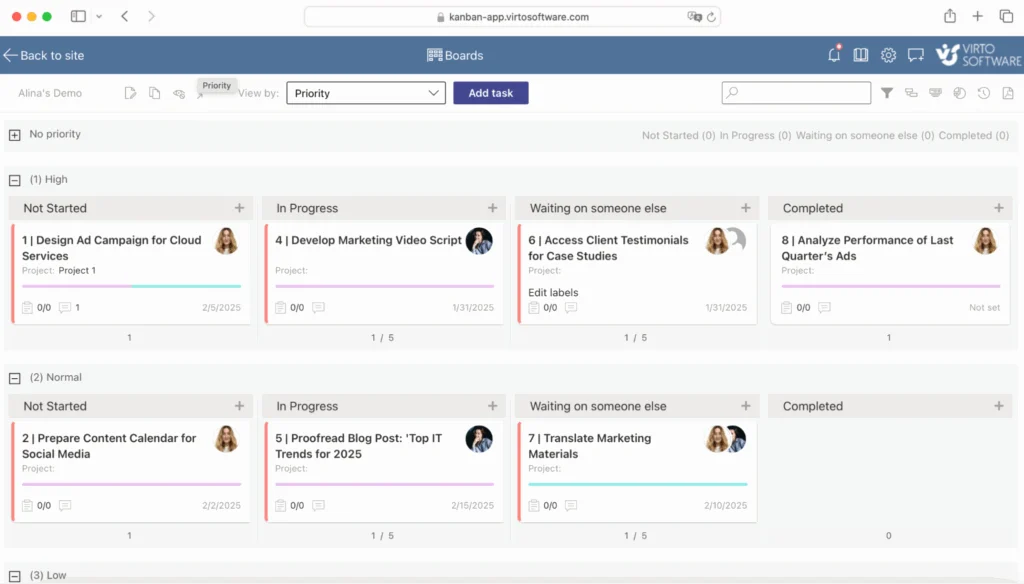
Pic. 3. Virto Kanban Board App.
- Turns tasks into a visual, drag-and-drop Kanban board.
- Integrates with Microsoft Teams, so tasks can be tracked without leaving the chat.
- Combined with Loop components such as task lists, it pairs real-time editing with visual progress tracking.
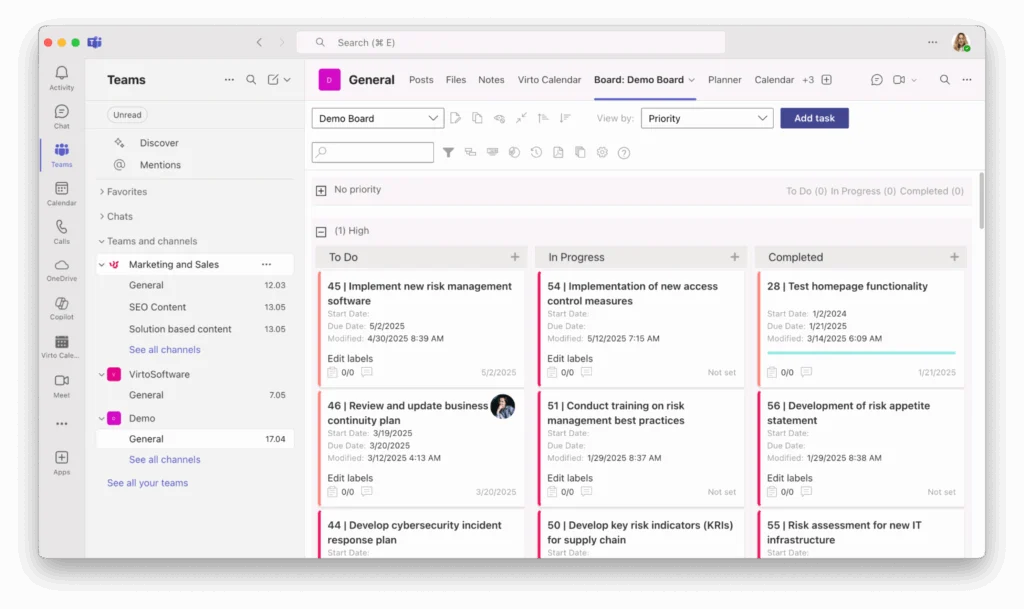
Pic. 4. Virto Kanban Board App in Microsoft Teams.
This makes task status clear at a glance, supports Scrum and Agile teams managing sprints, and improves visibility across departments.
Virto Calendar App: scheduling inside Loop workspaces
To manage meetings, sync-ups, and deadlines, the Virto Calendar App provides a shared calendar layer.
- A centralized team calendar inside Microsoft Teams.
- Scheduling of meetings and events without switching applications.
- Full synchronization with Outlook and other calendars to avoid conflicts.
- Connects with Microsoft Loop workspaces to align events, check-ins, and milestones.
- Synchronizes with teams, groups, and shared workspaces.
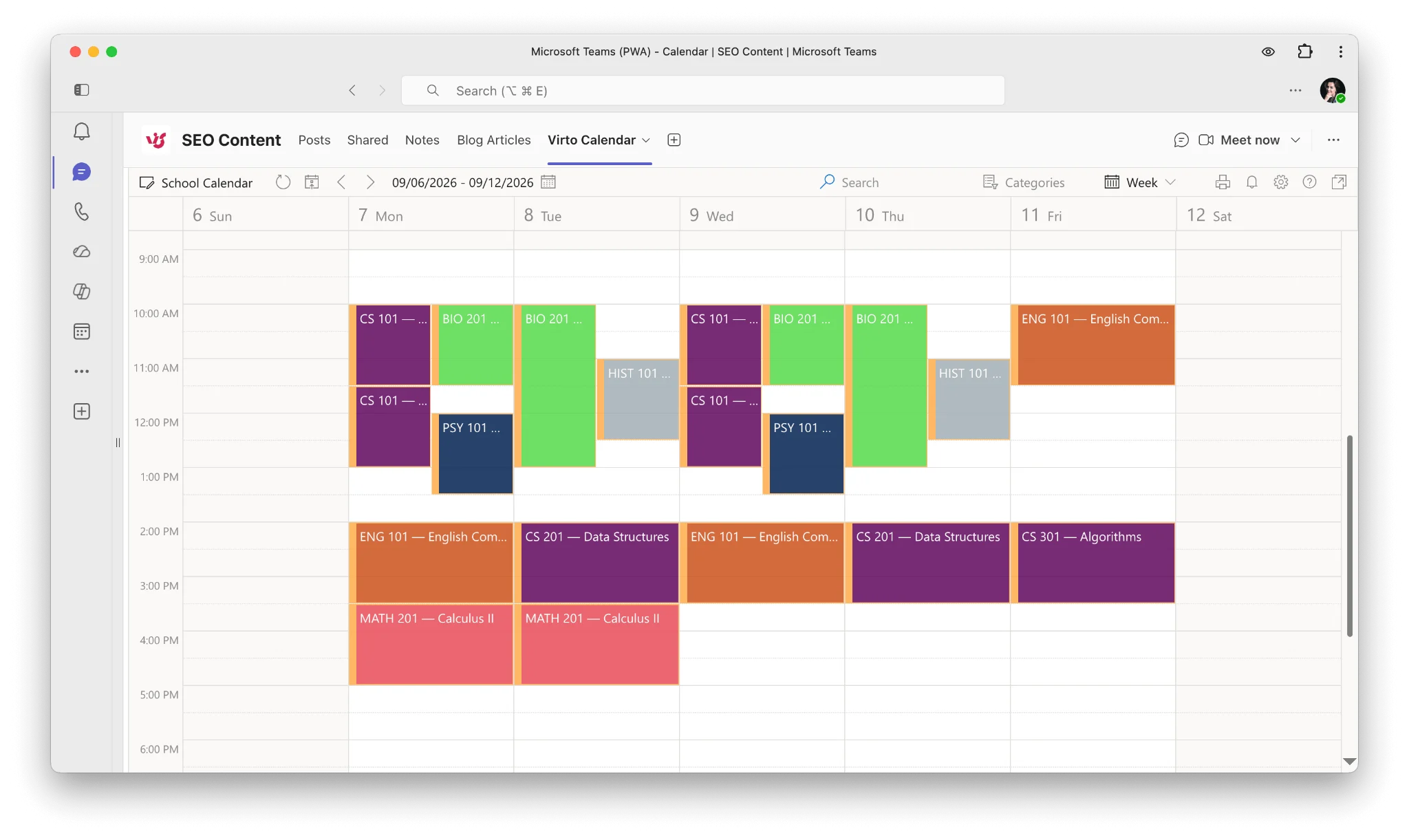
Pic. 5. Virto Calendar App in Microsoft Teams.
For teams using Loop for collaborative work, these apps help organize, visualize, and schedule projects, extending Loop components into more structured project management.
Frequently Asked Questions
What is a Loop component in Microsoft 365?
A Loop component is a portable, editable piece of content — such as a task list, table, checklist, or note — that can be inserted into Teams chats, Outlook emails, and Word documents. The component stays live wherever it is placed, so editing it in one location updates it everywhere it has been shared. Components are the foundation that keeps Loop content synchronized across Microsoft 365.
Does Microsoft Loop have a calendar?
Loop integrates with the Microsoft 365 calendar and supports Planner tasks and dates, but it does not include a standalone calendar view of its own. Teams that want a full calendar overlay inside their workspace can use the Virto Calendar App, which integrates with Loop workspaces and Microsoft Teams to display events, deadlines, and milestones in one place.
Does Microsoft Loop support Gantt charts?
Loop does not provide Gantt charts natively. Its task views can show deadlines, but there is no built-in timeline or Gantt visualization. Teams that need Gantt-style planning alongside Loop can add it through the Virto Calendar and Virto Kanban apps for Microsoft Teams, which bring visual scheduling and progress tracking next to Loop content.
What is the difference between Microsoft Loop and OneNote?
OneNote is primarily a notebook for capturing and storing notes, with editing that is largely individual. Loop is a real-time collaboration platform built around shareable components that synchronize across apps. See the Microsoft Loop vs OneNote comparison above (Fig. 3) for a side-by-side summary.
Is Microsoft Loop free?
Loop is included with Microsoft 365 commercial subscriptions and is not offered as a standalone free product. A Microsoft 365 account is required to use it, which means access is limited to licensed users within an organization.
Conclusion
Microsoft Loop is a flexible, real-time collaboration platform within Microsoft 365. It helps remote, hybrid, and co-located teams stay organized and aligned by keeping content synchronized across the apps they already use. Its main strength is how closely it integrates with the Microsoft 365 ecosystem: Loop components dropped into Outlook emails or used inside Teams chats keep information dynamic and consistent.
To extend Loop further, teams can pair it with the Virto Kanban Board App for visual progress tracking or the Virto Calendar App for scheduling — without leaving Teams or the Loop workspace.
Loop works best as a connective layer for a team’s ideas and workflows. For organizations already invested in Microsoft 365, it is a practical addition for keeping collaborative work in sync.
Further reading: