QUICK ANSWER
Time blocking is a time-management method where you divide your day into blocks and assign a specific task — or a specific type of work — to each one, scheduled on your calendar. Instead of working from an open-ended to-do list, you decide in advance when each piece of work happens. The result is a calendar where every hour has a job, and a much shorter list of decisions to make during the day.
Time blocking has been around for as long as calendars have, but it went mainstream after Cal Newport made it the backbone of Deep Work. In 2026 it is having another moment, this time because calendars finally got smart: Google Calendar and Microsoft Viva Insights can book focus time for you, and a small industry of AI schedulers will rearrange your blocks automatically when a meeting lands on top of them.
This guide covers what time blocking is, how to time-block your day step by step, examples for different roles, how it differs from time boxing, the best time blocking apps right now, and what to do when the method stops working.
What is time blocking?
Time blocking means giving every task a home on your calendar. You look at what needs doing, estimate how long each item takes, and then place it into a specific slot: “9:00–11:00 — draft Q4 report”, “11:00–11:30 — email”, “14:00–15:00 — 1:1s”.
The difference from a to-do list is subtle but decisive. A to-do list tells you what to do. A time-blocked calendar tells you what to do right now — and, just as importantly, what not to do. Every block is a small commitment you made to yourself at a moment when you could think clearly about priorities, rather than a decision you have to make at 3pm when you are tired and three Teams notifications are blinking.
Two properties make it work:
- It is visible. Work that only exists in a task app is invisible to colleagues. Work that sits on your calendar as a block is visible to anyone checking your availability, and it stops the meeting invitations before they arrive.
- It is finite. A day has a fixed number of hours. Once you start placing tasks into real slots, you find out very quickly that your to-do list was a fantasy. That is uncomfortable, and it is the single most useful thing time blocking does.
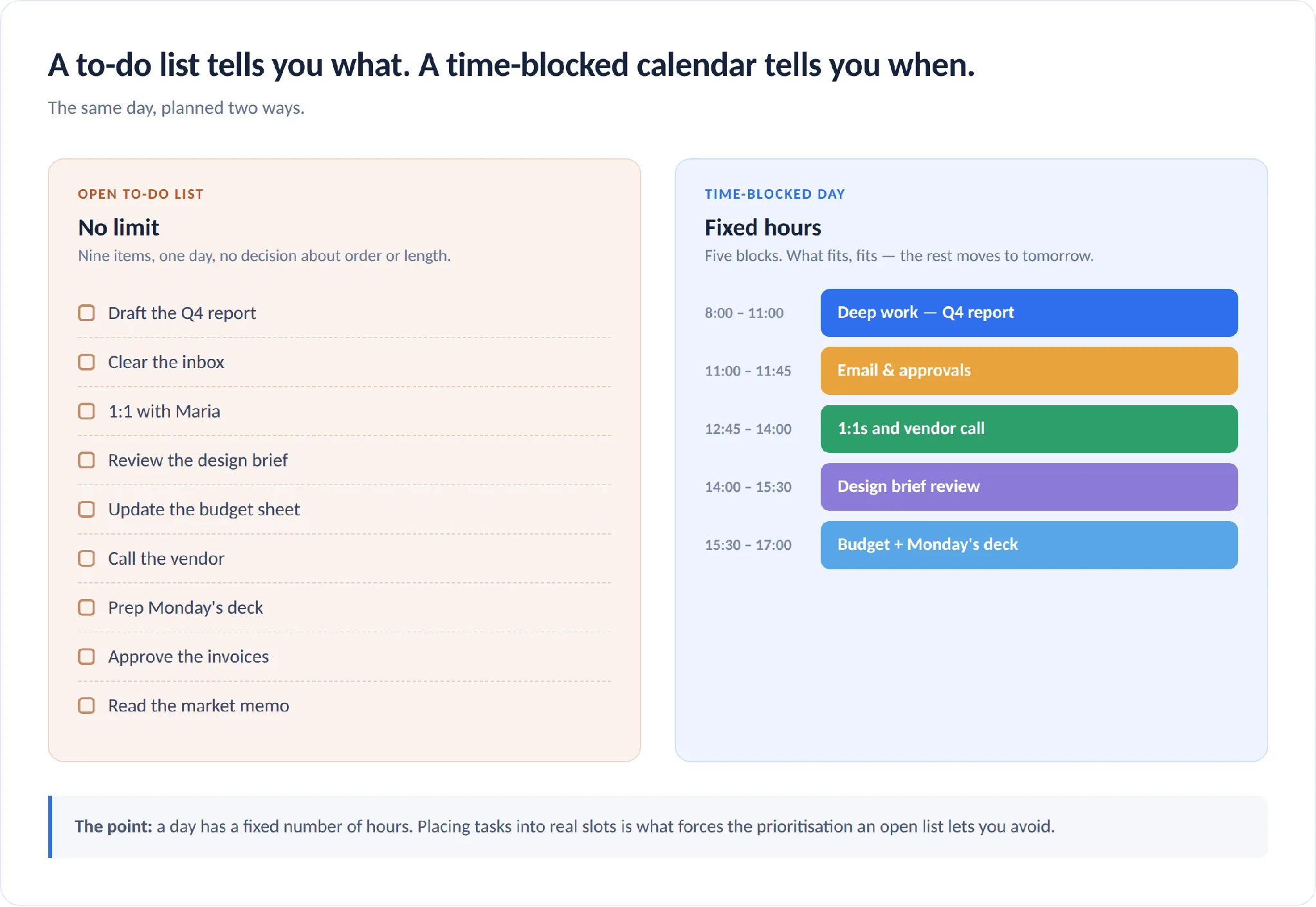
Pic.1. A to-do list versus the same day laid out as time blocks
Benefits of time blocking
Deeper concentration. Dedicating a specific period to one task channels your mental energy in a single direction and makes a state of flow, or deep work, possible. Focused single-tasking is a skill, and blocks are the reps.
Fewer interruptions. Blocks create clear boundaries around your availability. Colleagues can see when you are heads-down; you can see when you agreed to be reachable. A block on a shared calendar does more to protect your morning than any status message.
Fewer context switches. Grouping similar work — all email in one block, all planning in another — cuts the start-stop-start pattern that quietly eats a working day. Every switch costs re-orientation time you never see on a timesheet.
Better planning. Time blocking forces you to think ahead, usually in a weekly planning session. That habit alone builds self-awareness about what your real priorities are, and it makes saying no to new commitments much easier: you can point at a full calendar instead of arguing about it.
Less stress. The anxiety of an endless to-do list comes largely from not knowing when any of it will get done. Once each item has a slot, the open loops close. You gain a sense of control, and the end of a block becomes a genuine stopping point rather than a guilty pause.
How to time-block your day: 6 steps
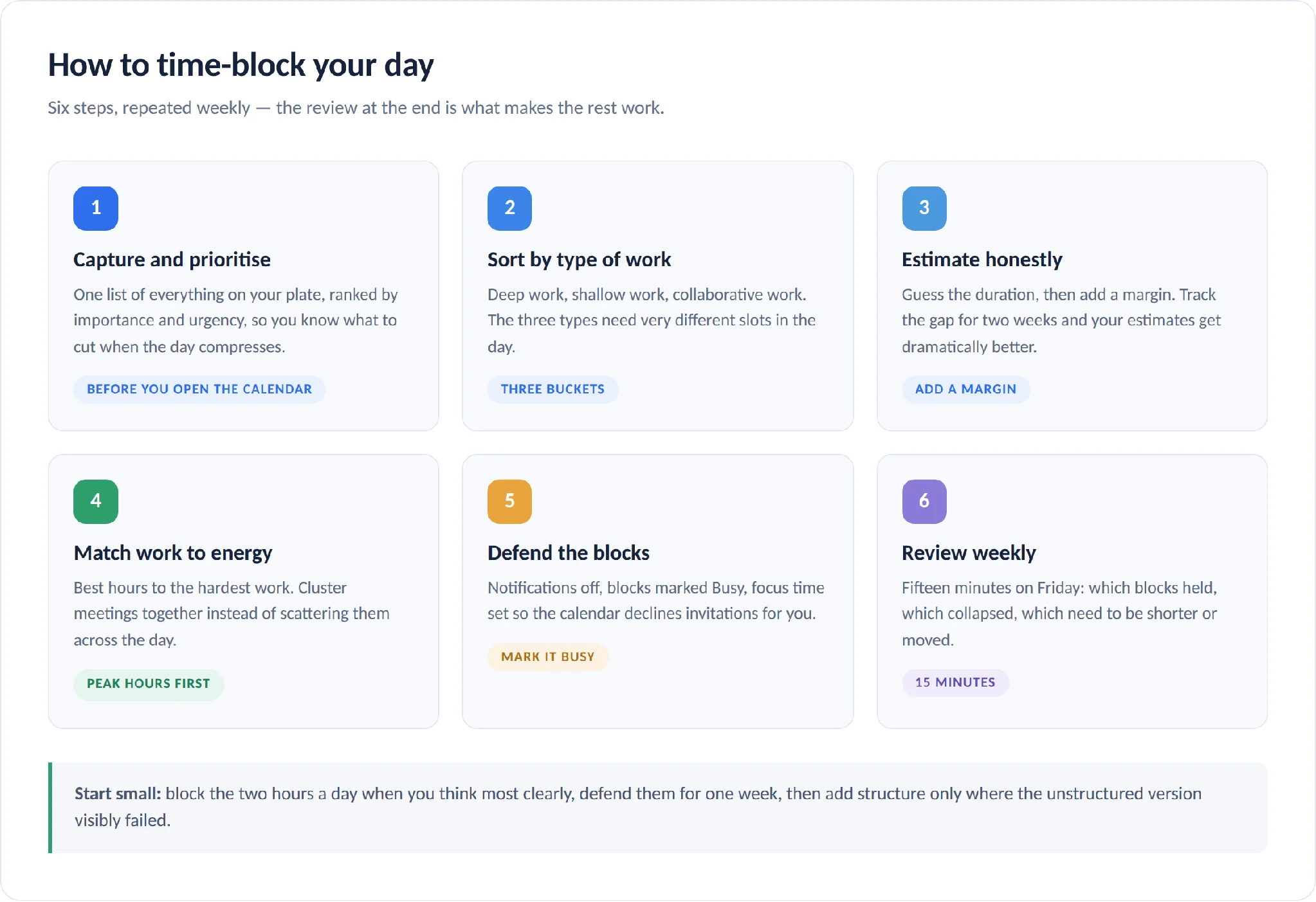
Pic.2. The six steps of building a time-blocked day
1. Capture and prioritise your tasks. Start from one comprehensive list of everything on your plate. Rank each item by importance and urgency. If your tool supports priority flags, attachments and assignees, use them — context makes the later steps faster. The point of this step is to know what to cut when the day compresses, so that it is never the important work that falls off.
2. Sort tasks by type. Split the list into three groups: deep work that needs uninterrupted focus (strategy, writing, design, code), shallow work that can be done in short bursts (inbox, approvals, filing), and collaborative work that needs other people (meetings, reviews, calls). These three types want very different slots.
3. Estimate how long each block needs. Be honest, then add a margin. Almost everyone underestimates at first, which is why week one of time blocking feels like a failure. Track how long things actually take for a fortnight and your estimates will be dramatically better.
4. Match the work to your energy. Give your best hours to your hardest work. If you are sharpest before 11am, that window belongs to deep work, not email. Use the post-lunch dip for administrative tasks that need little cognitive effort. And cluster meetings together instead of scattering them — three meetings back to back cost you one afternoon; three meetings spread across the day cost you the whole day.
5. Defend the blocks. Turn off notifications during deep work, tell your team what your focus hours are, and mark the blocks as busy so the calendar declines invitations for you. Google Calendar’s focus time and Microsoft Viva Insights’ focus plan both do this automatically — more on both below.
6. Review and adjust weekly. Time blocking is a skill that improves with practice, not a system you install once. At the end of each week, look at where the blocks held and where they collapsed. Move the ones that never worked. Shorten the ones that always overran. The goal is a rhythm that matches how you actually work.
Time blocking examples for different roles
The shape of a time-blocked day depends heavily on what you do. Here are five realistic patterns.
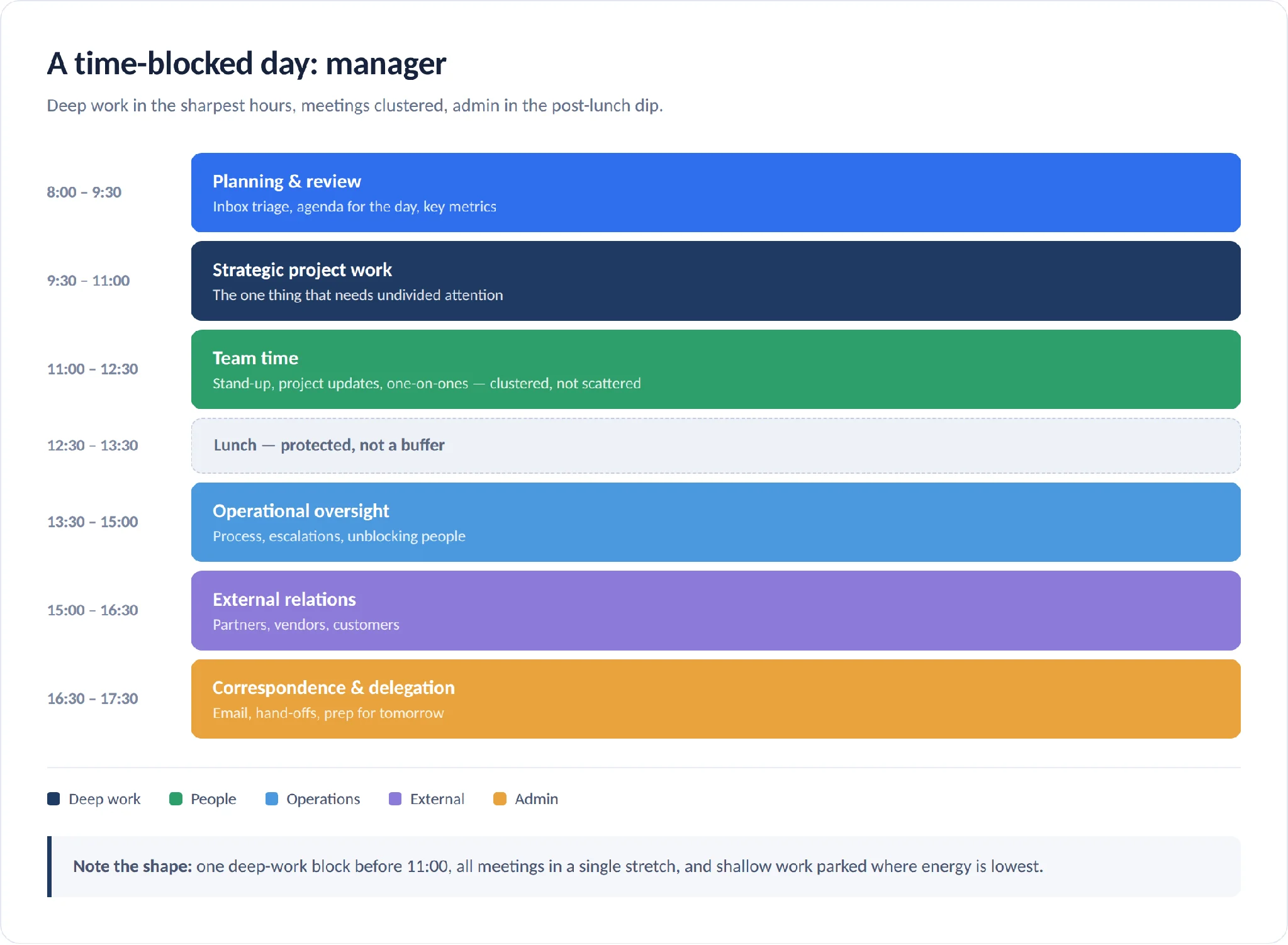
Pic.3. A sample time-blocked day for a manager
Creative work (designers, copywriters, writers)
- 8:00–11:00 — Deep creative work. New designs, original writing, first drafts, while the mind is freshest.
- 11:00–12:00 — Admin. Email, scheduling, invoices.
- 13:00–15:00 — Collaboration and feedback. Client and team reviews.
- 15:00–17:00 — Second creative block. Acting on the morning’s feedback, finishing work.
Managers and team leads
- 8:00–9:30 — Planning and review. Inbox triage, agenda for the day, key metrics.
- 9:30–11:00 — Strategic project work. The one thing that needs undivided attention.
- 11:00–12:30 — Team time. Stand-ups, project updates, one-on-ones.
- 13:30–15:00 — Operational oversight. Process, escalations, unblocking people.
- 15:00–16:30 — External relations. Partners, vendors, customers.
- 16:30–17:30 — Correspondence and delegation. Email, hand-offs, prep for tomorrow.
Sales
- 8:00–10:00 — Prospecting. Protected outbound time, before the day fills up.
- 10:00–12:00 — Client calls and demos, when prospects are most available.
- 13:00–14:00 — Team check-in and pipeline review.
- 14:00–16:00 — Strategy and admin. CRM hygiene, sales analysis, proposals.
- 16:00–17:00 — Follow-ups. Closing the communication loops from the day.
Developers
- 8:00–11:00 — Uninterrupted coding. The hardest problem goes here.
- 11:00–12:00 — Code review and pairing.
- 13:00–16:00 — Second coding block, plus new tickets.
- 16:00–17:30 — Testing, debugging, deployment checks.
Students
- 8:00–10:00 — High-intensity study. The subject that needs the most effort.
- 10:00–12:00 — Lectures and seminars.
- 13:00–15:00 — Research and reading for assignments.
- 19:00–21:00 — Review and organisation. Notes, materials, tomorrow’s plan.
In every one of these, the pattern is the same: the hardest work gets the best hours, meetings are clustered rather than scattered, and lighter tasks fill the low-energy stretches.
Time blocking vs time boxing (and other techniques)
These two get confused constantly, and the difference matters:
- Time blocking reserves a slot for a task. “Report writing, 9:00–11:00.” If it takes 90 minutes, you finish early. If it takes longer, you decide whether to continue.
- Time boxing sets a fixed maximum for a task and stops when the time is up. “Report writing, 90 minutes, then I stop regardless.” The limit is the point — it fights perfectionism and Parkinson’s law.
Blocking answers when; boxing answers how long, maximum. Most people who are good at this use both: they block the slot on the calendar and box the task inside it. If you want the full method, see our separate guide to time boxing.
Two more techniques sit nearby:
- Task batching groups similar tasks and does them consecutively — all invoices, all email, all reference checks. It targets context switching specifically, and it slots neatly inside a time block.
- Day theming assigns a whole day to one kind of work: Monday for admin, Tuesday for writing, Wednesday for clients. It is the low-resolution version of time blocking, and it works far better for people with volatile schedules.
| Time blocking | Time boxing | Task batching | Day theming | |
|---|---|---|---|---|
| What it fixes | Scattered, reactive days | Tasks that expand forever | Constant context switching | Fragmented weeks |
| Unit | A calendar slot | A hard time limit | A group of similar tasks | A whole day |
| Structure | High | Medium | Medium | Low |
| Best for | Mixed responsibilities | Perfectionism, open-ended work | Many small, similar tasks | Freelancers, creatives, volatile weeks |
| Main risk | Too rigid; guilt when it slips | Stopping mid-flow | Neglecting non-batchable work | Too coarse for meeting-heavy roles |
You do not have to pick one. The most common working combination is: theme the week, block the day, box the task.
The best time blocking apps in 2026
Two things changed in this category recently. First, native calendars caught up: both Google and Microsoft now book and defend focus time without a third-party tool. Second, the AI scheduling market consolidated — Clockwise, for years the default recommendation for automatic focus time, shut down on 27 March 2026, with its founders pointing users to Reclaim.ai. If you are following an older guide, that recommendation is dead.
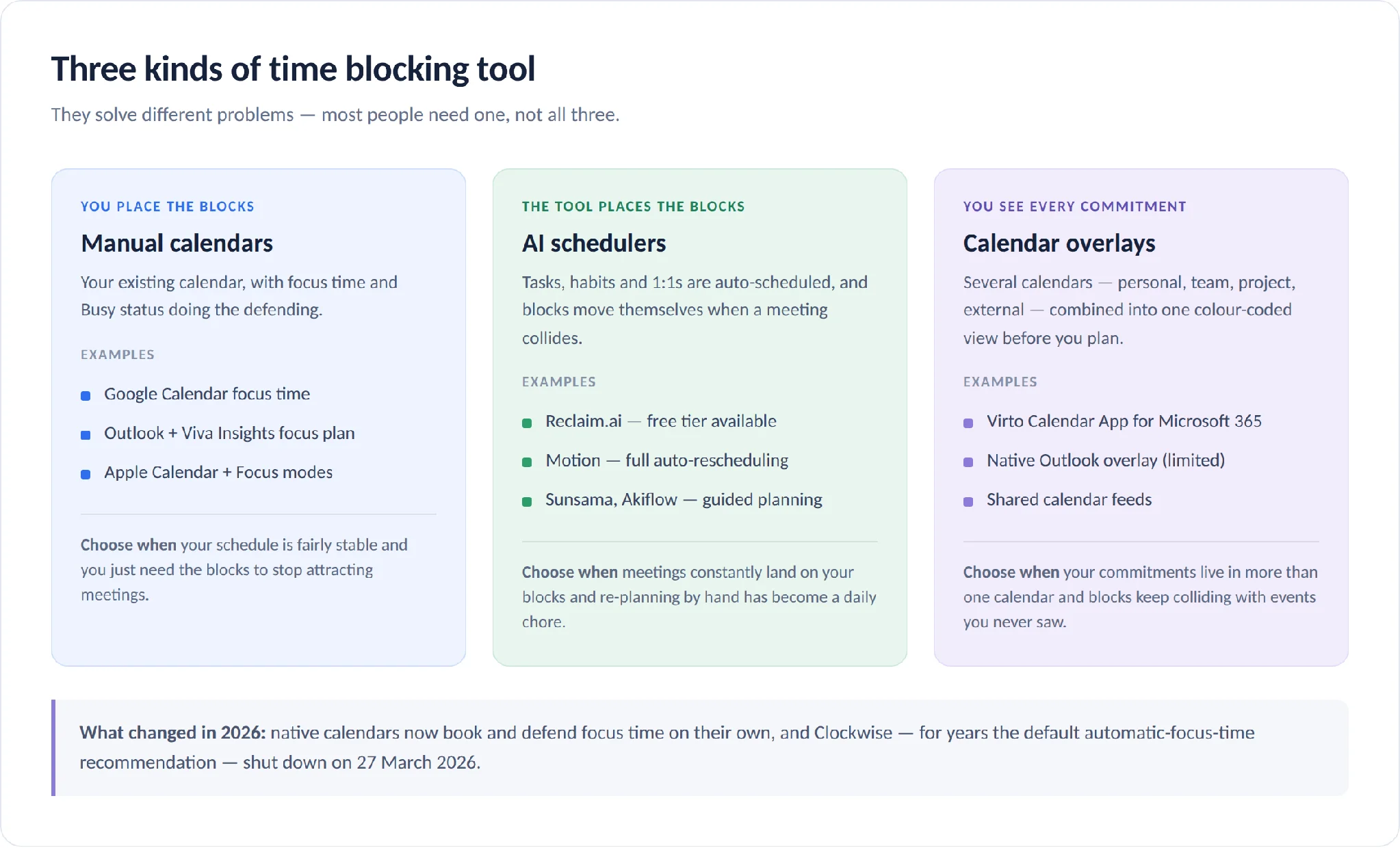
Pic.4. How time blocking apps differ: manual calendars, AI schedulers and calendar overlays
The native options (start here)
- Google Calendar focus time. A dedicated event type that mutes Chat notifications and automatically declines meetings that land on it. It requires a work or school account on Business Standard or Plus, Enterprise Standard or Plus, Education, or Nonprofits editions — it is not available on personal Gmail accounts. Google’s documentation covers the decline settings.
- Microsoft Outlook + Viva Insights focus plan. Viva Insights will book up to four hours of focus time a day automatically, in the morning or afternoon as you prefer, and silence Teams notifications during it. You enable it in the Viva Insights app under Wellbeing → “Set daily focus plan”. For everyone else, a plain recurring Outlook appointment marked Busy does most of the same work.
- Apple Calendar. Fine for straightforward personal blocking and syncs cleanly across devices, but it has no focus-time automation of its own — pair it with the system Focus modes.
Dedicated time blocking and daily planning apps
| App | What it does best | Price (August 2026) | Trial |
|---|---|---|---|
| Sunsama | Guided daily planning ritual; pulls tasks from other tools into a day plan | $22/mo, or $17/mo billed yearly | 14 days |
| Motion | AI that rebuilds your whole schedule automatically as things change | Pro AI $19/seat/mo; Business AI $29/seat/mo (33% off yearly) | Free trial |
| Reclaim.ai | Auto-scheduling for tasks, habits and 1:1s; defends blocks when meetings collide | Free Lite tier; Starter from $10/seat/mo, Business from $15/seat/mo | Free tier |
| Akiflow | Fast keyboard-driven capture and drag-to-calendar blocking | $34/mo, or $19/mo billed yearly | 7 days |
| Notion Calendar | Free, clean calendar layer for people already living in Notion | Free | — |
| Todoist / TickTick | To-do lists with calendar views; one list plus light blocking | Free tiers; paid from a few dollars a month | Free tiers |
Trackers, for finding out where the time actually went
- Toggl Track — manual timers you start and stop, good for comparing planned blocks against reality.
- RescueTime — runs in the background and categorises app and website time automatically.
- Forest — gamified focus timer; useful if your problem is picking up the phone rather than planning.
A word of caution: researching productivity apps is itself a highly effective form of procrastination. If your calendar already exists, start by blocking one week in it. Buy a tool only when you know precisely which part hurts.
Overcoming the common problems
Tasks take longer than you planned. This is universal in week one and it is not a reason to quit. Your estimates are a skill that improves with data. Track the gap for two weeks, then re-plan with the real numbers.
Something urgent always breaks the schedule. Treat the plan as a living guide, not a contract. Cal Newport himself re-blocks his day mid-afternoon when it falls apart. Two practical fixes: leave one or two unallocated buffer blocks a day, and make re-planning a two-minute habit rather than a defeat.
The structure feels suffocating. If you are used to a spontaneous day, do not block all of it. Start by protecting the two most important hours and leave the rest open. Add structure only where the open version is visibly failing.
You keep abandoning it after a fortnight. Consistency is where the value is, and the weekly review is what produces consistency. Fifteen minutes on Friday to look at what held and what did not is the whole maintenance cost.
Your calendar becomes joyless. Block time for things that recharge you and be specific about what they are — “read for an hour”, not “personal time”. Schedule them during your weekly planning rather than leaving them for whatever gaps remain, because there will be no gaps.
When time blocking is the wrong tool
Time blocking is not universal, and pretending otherwise is why so many people conclude they are bad at productivity. It genuinely struggles when:
- Your day is driven by other people’s availability — support, clinical work, on-call rotations, agency account management. When the work arrives unpredictably, a detailed plan is just something to feel bad about.
- You have caretaking responsibilities that make any fixed schedule provisional.
- Your work is deeply creative and forcing it into a slot flattens it.
- Your energy varies sharply through the day in ways you cannot predict a week ahead.
- You find external structure counterproductive — though for some people it is exactly the scaffolding that helps. It is worth testing rather than assuming either way.
If several of these describe you, try day theming or task batching instead, or block only the two hours that matter most and leave the rest of the day genuinely open. As one much-quoted comment on the subject puts it: your job is not to be productive all day; it is to be productive for part of the day, so you can be done and enjoy the rest guilt-free.
Time-blocking across all your Microsoft 365 calendars
Time blocking assumes you can see your commitments in one place. In a Microsoft 365 organisation, that assumption usually breaks: your personal Outlook calendar, a team calendar, a project calendar in SharePoint, a group calendar and a couple of external feeds all hold pieces of the same week. Blocking Tuesday morning for deep work is meaningless if the project calendar you never open has a workshop scheduled on it.
The Virto Calendar App solves the visibility half of the problem. It overlays your Microsoft 365, Outlook, SharePoint, Exchange and external calendars — including Google and iCal feeds — into a single colour-coded view, so you can see every commitment before you place a block. It runs inside your Microsoft 365 tenant, and there is a 30-day free trial. The same app is available as a Teams app and can be pinned as a personal app in Teams, Outlook and the Microsoft 365 app.
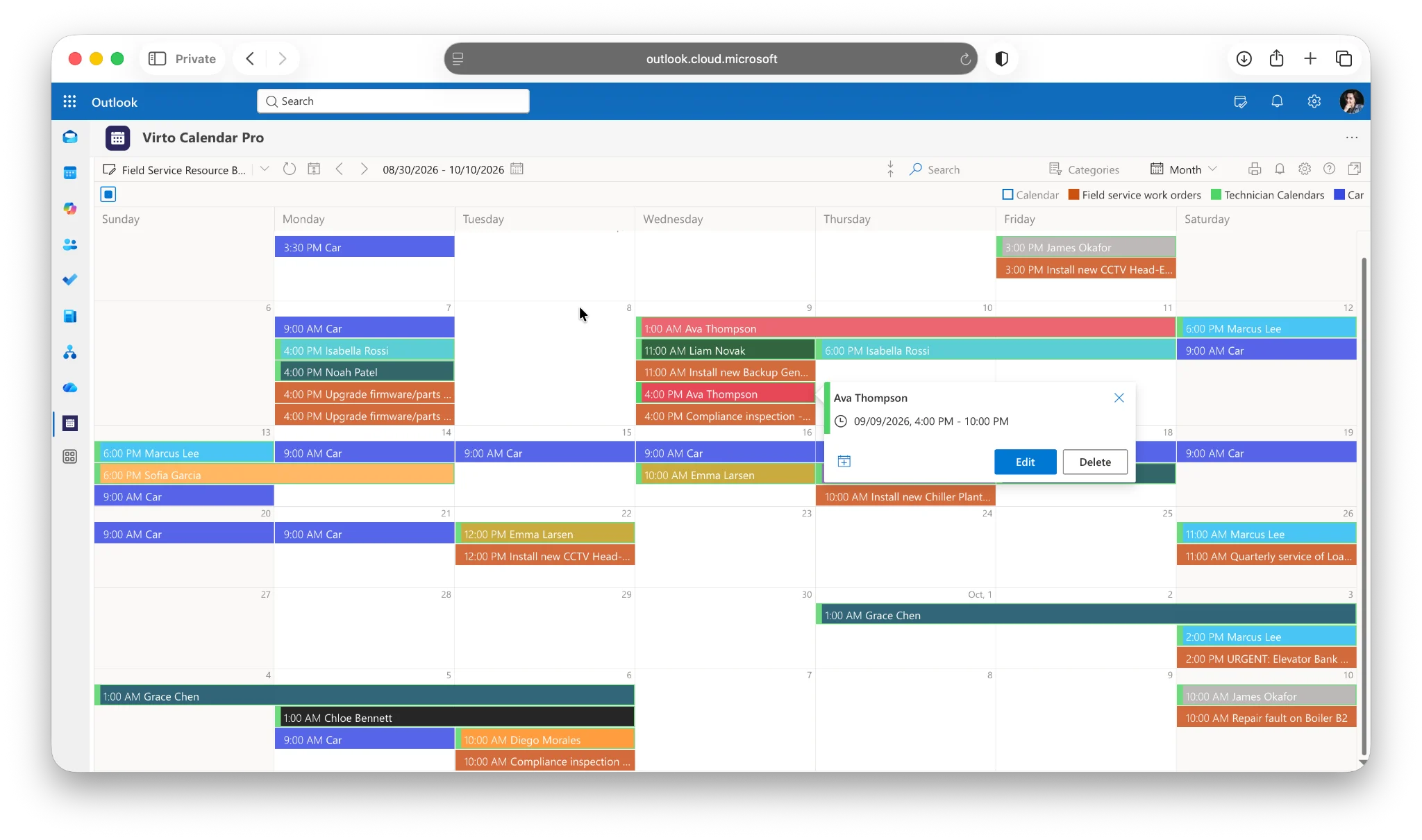
Pic.5. Multiple Microsoft 365 calendars overlaid in a single colour-coded Virto Calendar view
For the defence half of the problem, the free Virto Time Blocking App for Microsoft Teams analyses your Teams calendar and automatically inserts breaks between meetings, trimming meeting durations where it can, so back-to-back days stop eating the gaps your blocks need. It uses smart exclusions so it does not touch the work periods you have already protected.
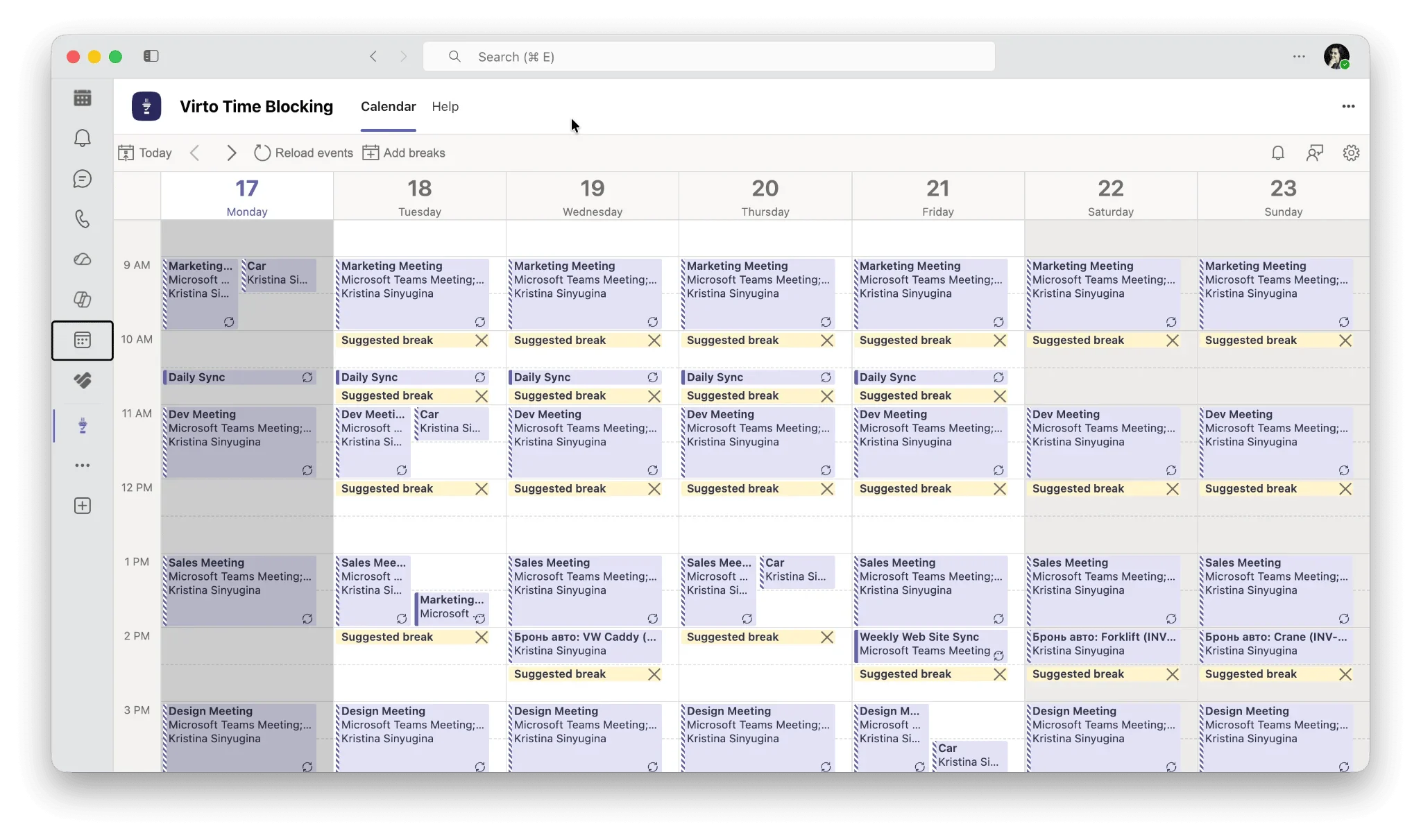
Pic.6. The Virto Time Blocking App scheduling breaks between Microsoft Teams meetings
A practical setup that works well: overlay everything in Virto Calendar so nothing is hidden, colour-code the categories so block types are readable at a glance, and let the Time Blocking App keep the space between meetings breathable. If you are still deciding how to organise the categories themselves, our calendar category ideas guide is a good starting point, and managing multiple Microsoft 365 calendars covers the native options first. If your blocks are driven by task lists rather than meetings, Microsoft Planner is the usual companion on the task side.
Frequently asked questions
What is time blocking?
A time-management method where you split your day into blocks and assign a specific task or type of work to each, scheduled on your calendar. Instead of deciding what to do next throughout the day, you decide once, in advance.
How do I start time blocking?
Block one week, not one month. Pick the two hours a day when you think most clearly and give them to your most important work. Mark them Busy so meetings bounce off. At the end of the week, look at which blocks survived and adjust. Add more structure only where the unstructured version failed.
What is the difference between time blocking and time boxing?
Time blocking reserves a slot for a task; time boxing sets a fixed maximum time for it and stops when the limit is reached. Blocking is about when, boxing is about how long. They combine well — block the slot, box the task inside it.
What is the best time blocking app?
For most people, the calendar they already use. Google Calendar’s focus time and Microsoft’s Viva Insights focus plan both book and defend blocks natively. If you want automatic rescheduling when meetings collide, Reclaim.ai and Motion are the leading options in 2026. If your problem is seeing all your Microsoft 365 calendars in one view before you plan, use the Virto Calendar App.
Is there a free time blocking app?
Yes. Reclaim.ai has a free Lite tier, Notion Calendar is free, and Google Calendar and Outlook both support blocking at no extra cost. The Virto Time Blocking App for Microsoft Teams is free as well.
How long should a time block be?
For deep work, 90 minutes to three hours — long enough to reach flow, short enough to sustain. For shallow work, 20 to 45 minutes is usually plenty. Leave at least a short gap between blocks; a day with no slack collapses the first time something runs over.
What happened to Clockwise?
Clockwise shut down on 27 March 2026. Its founders directed users to Reclaim.ai, which offered a one-year price match to migrating customers. Any guide still recommending Clockwise is out of date.
Does time blocking work if my schedule is unpredictable?
Partly. Full-day blocking does not survive an interrupt-driven job. What does work is blocking one or two protected periods a day and leaving the rest reactive, or moving up a level to day theming — assigning each day a dominant type of work rather than each hour a task.
How is time blocking different from a to-do list?
A to-do list tells you what to do; a time-blocked calendar tells you when. The list has no natural limit, so it grows indefinitely; the calendar has exactly as many hours as a day does, which forces the prioritisation the list lets you avoid.
Conclusion
Time blocking is not a productivity hack, it is a planning discipline: decide in advance when your work happens, put it on the calendar where you and your colleagues can see it, and protect it. The technique is simple enough to try this week and deep enough to keep refining for years.
Start small. Block your two best hours tomorrow, defend them, and see what happens. Then read your calendar honestly at the end of the week — that feedback loop, more than any app, is what makes the method work.
If your commitments are scattered across several Microsoft 365 calendars, bring them into one view first: try the Virto Calendar App free for 30 days, or book a demo and we will show you how teams use it to plan a week that survives contact with reality.
Further reading: Cal Newport’s The Time-Block Planner remains the most practical paper-based introduction; The Time Blocking Course by Carl Pullein and Time Blocking on Udemy are solid video walkthroughs; and Laura Vanderkam’s blog is consistently good on where the hours actually go.