


If Microsoft Teams keeps showing the “Teams is unable to access your calendar” error, you can’t view your schedule, create meetings, or join calls from the Teams interface. This guide gives you seven proven fixes for Windows, Mac, and New Teams — starting with a 30-second diagnostic so you can jump straight to the one that matches your situation.
Related issues worth a look: Teams calendar not showing and Outlook shared calendar not showing.
30-second diagnostic: find your fix
Match your symptom to the most likely cause, then jump to the fix.
| Symptom / context | Most likely cause | Go to |
|---|---|---|
| Error on the Windows desktop app | Cache corruption or account sync | Fix 1 — Clear cache |
| Error appeared after a Teams update | New Teams compatibility / WebView2 | Fix 2 — WebView2 / Fix 3 — Update |
| Error on Mac only | Mac permissions or Outlook sync | Fix 4 — Mac steps |
| Calendar was working, now missing | Exchange license removed or expired | Fix 5 — Exchange license |
| IT-managed device, error persists | Microsoft Entra ID join issue | Fix 6 — Entra ID |
| Works in web app but not desktop | Desktop app problem — reinstall | Fix 7 — Reinstall / web |
Quick answer
Most “Teams is unable to access your calendar” errors come down to one of three things: a corrupted local cache, a missing Exchange Online license, or an out-of-date WebView2 component that New Teams depends on. Clearing the cache (Fix 1) resolves the majority of cases. If the calendar loads fine at teams.microsoft.com but not in the desktop app, the problem is local — reinstall (Fix 7). If it fails everywhere, check the Exchange Online license (Fix 5).
Why Teams can’t access your calendar
Teams pulls calendar data from Exchange Online through your Microsoft 365 identity. The error usually traces back to one of these:
- Permissions or licensing — Teams needs an active Exchange Online plan and the right calendar-sharing permissions.
- Account sync / cache — a stale or corrupted local cache breaks the link between Teams and your mailbox.
- Component or identity issues — an outdated WebView2 runtime or a broken Microsoft Entra ID device join can block calendar rendering and sign-in.
Fix 1 — Clear the Teams cache and reconnect
TL;DR: Sign out, delete the Teams cache folder, restart, and sign back in. This resolves most calendar-access errors.
A corrupted cache is the single most common cause. Clearing it forces Teams to rebuild its connection to your mailbox.
- Sign out of Microsoft Teams completely.
- Close Teams, then delete the contents of the cache folder:
- Windows (New Teams):
%localappdata%\Packages\MSTeams_8wekyb3d8bbwe\LocalCache - Windows (legacy path):
%appdata%\Microsoft\Teams - Mac:
~/Library/Group Containers/UBF8T346G9.com.microsoft.teamsand~/Library/Containers/com.microsoft.teams2
- Windows (New Teams):
- Restart your computer.
- Sign back into Teams and wait a few minutes for a full sync.
Still stuck? See how to sync Teams and Outlook calendars for related sync troubleshooting.
Fix 2 — Check and install WebView2
TL;DR: New Teams renders the calendar through Microsoft Edge WebView2. If it’s missing or outdated, the calendar won’t load — install the latest Evergreen runtime.
New Teams depends on WebView2 far more heavily than Classic Teams did. A missing or stale runtime is a common, often-overlooked cause.
- Check if WebView2 is installed: Control Panel > Programs > Programs and Features, and look for “Microsoft Edge WebView2 Runtime.”
- If it’s missing or outdated, download it from the official page: Microsoft Edge WebView2 download. Under “Evergreen Standalone Installer,” pick your architecture (x86, x64, or ARM64).
- Run the installer, follow the prompts, and restart your computer.
- Reopen Teams, sign out and back in, then check the calendar.
Managed device? In a corporate environment, WebView2 may be deployed centrally — check with IT before installing manually.
Fix 3 — Update Microsoft Teams to the latest version
TL;DR: Run a manual update check; calendar bugs are frequently patched in newer New Teams builds.
New Teams auto-updates, but a stalled update can leave you on a buggy build. Force a check:
- Click the “…” (settings and more) menu next to your profile picture in Teams.
- Select “Check for updates.” Teams updates in the background and prompts you to refresh.
- Restart Teams and confirm calendar access.
Make sure your other Microsoft 365 apps are current too. For hardware and OS baselines, see Microsoft’s Teams hardware requirements.
Fix 4 — Mac-specific steps
TL;DR: On Mac, re-sync the Outlook calendar, confirm sharing permissions, and make sure macOS and Teams are up to date.
Mac calendar access depends on Outlook for Mac syncing correctly with Exchange. Work through these in order.
Re-sync your Mac Outlook calendar
- Open Microsoft Outlook for Mac.
- Right-click your Microsoft 365 or Exchange calendar in the sidebar.
- Click “Sync.”
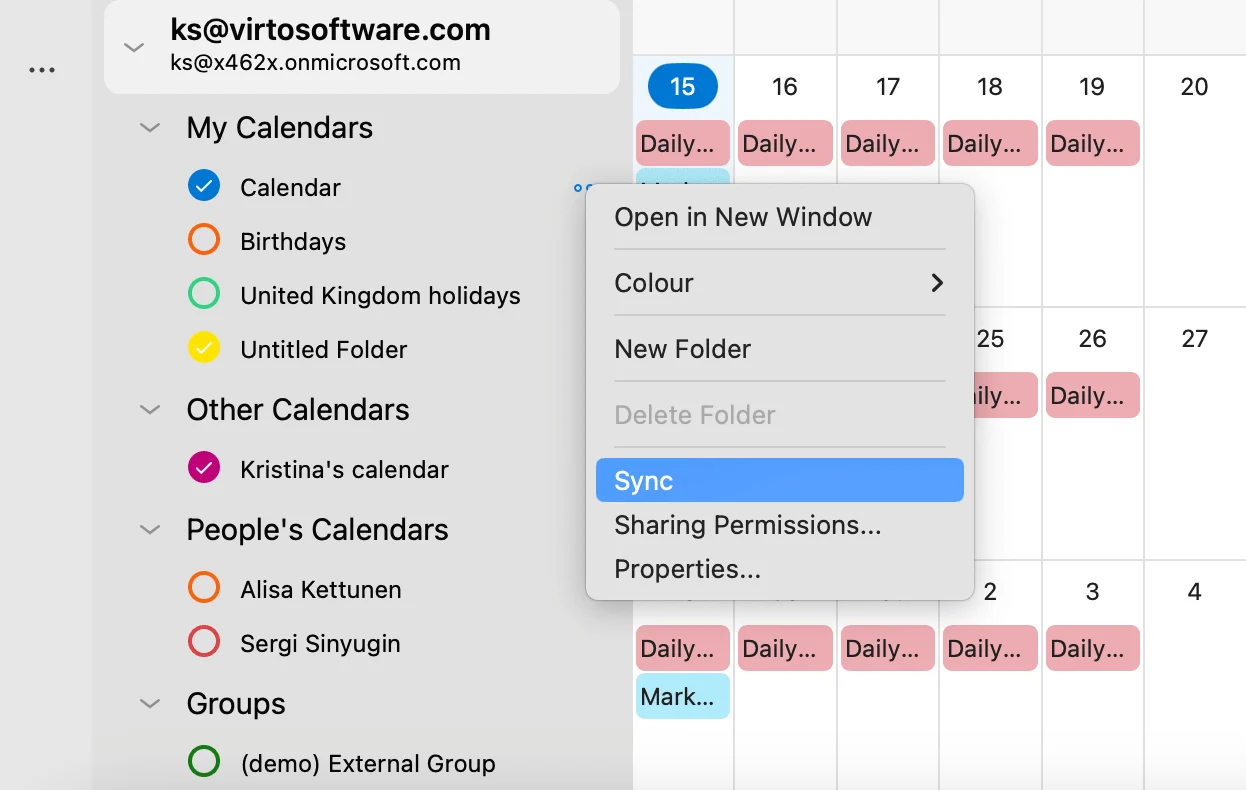
Pic. 1. Syncing your Mac Outlook calendar.
Set calendar sharing permissions
- In Outlook for Mac, switch to Calendar view.
- Right-click the calendar you want to share and choose “Sharing Permissions.”
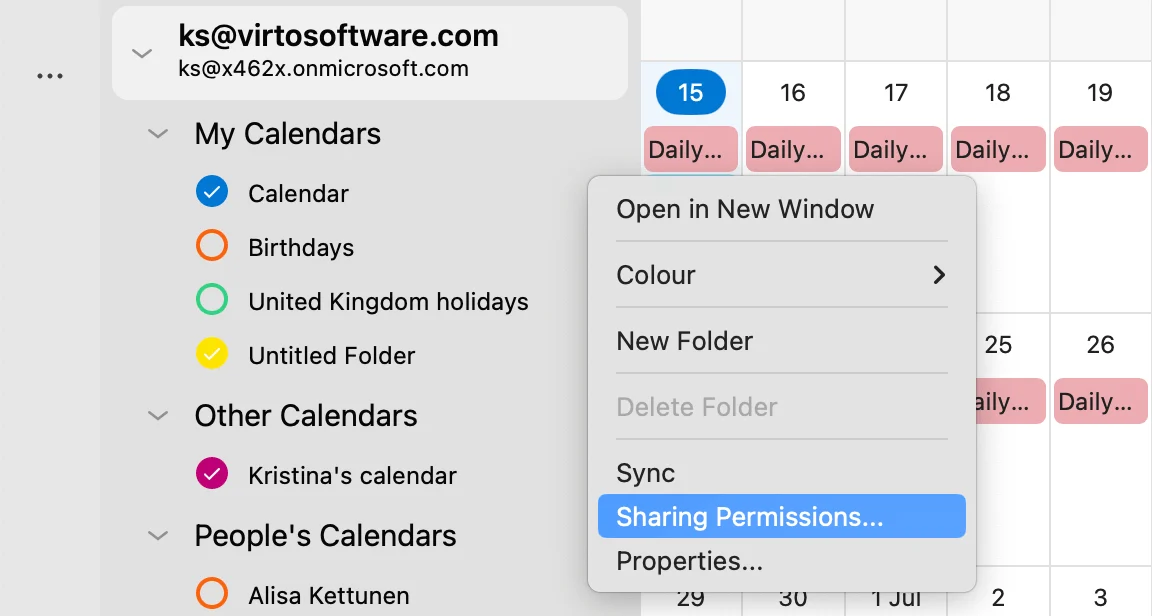
Pic. 2. Navigating to “Sharing Permissions…” in Outlook for Mac.
- In Calendar Properties, click “Add,” enter your organization or a specific person, and set the level (typically “Can view all details” for Teams).
- Click “Done.”
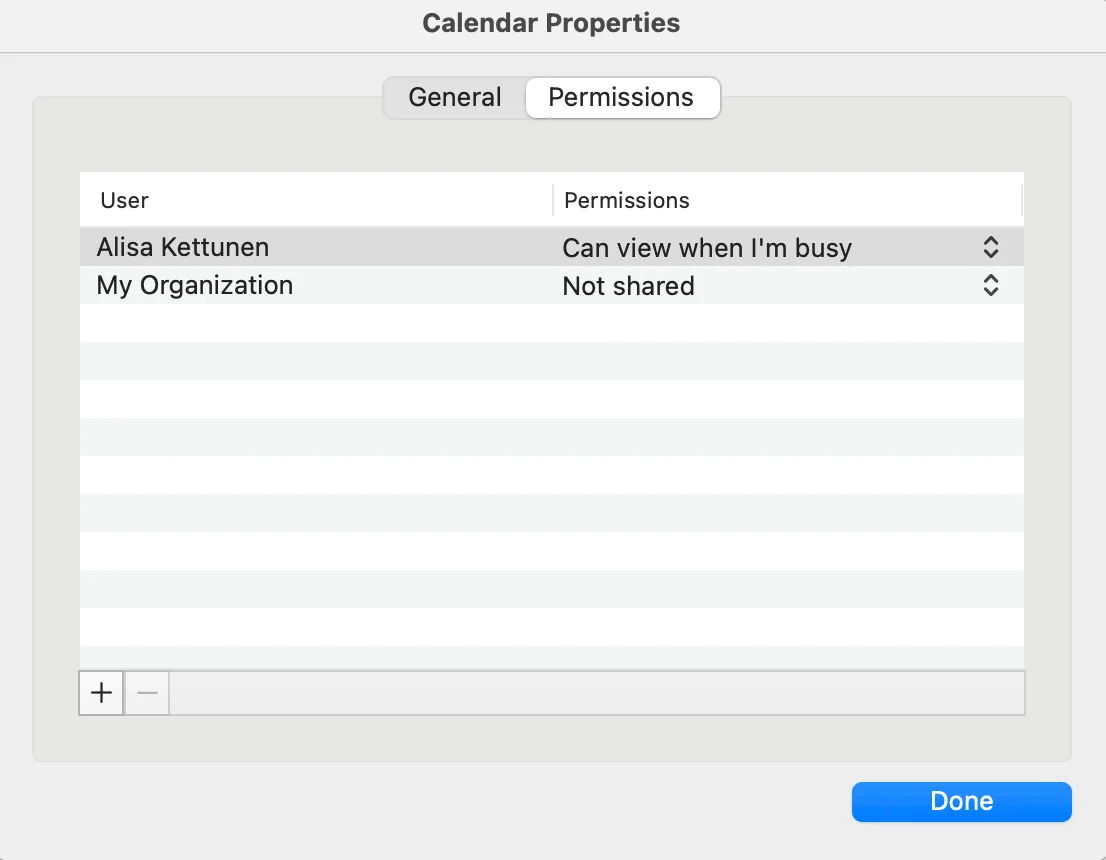
Pic. 3. Ensuring your Mac calendar is shared with the right people.
Confirm system requirements and updates
- macOS: one of the most recent supported macOS versions, with the latest updates (Apple menu > System Settings > General > Software Update).
- Update Teams via the App Store or the in-app “Check for updates.”
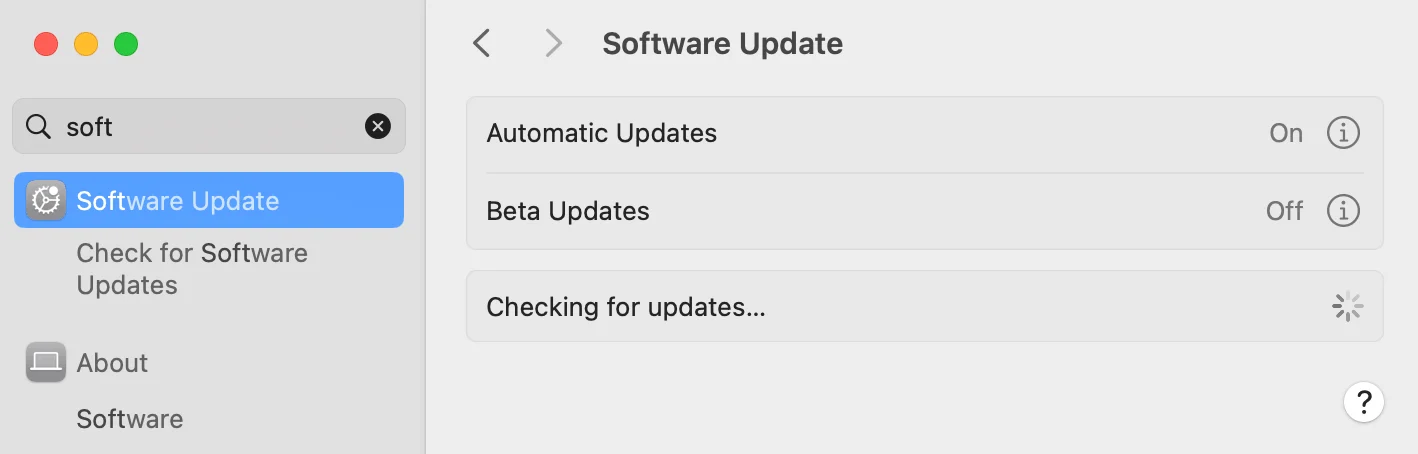
Pic. 4. Checking for updates on Mac.
- If the error persists, uninstall Teams (drag to Trash, empty Trash), reinstall the latest version, and sign in again.
Fix 5 — Enable the Exchange Online license (admin)
TL;DR: Teams calendar requires an active Exchange Online plan. An admin should confirm the license is assigned and calendar sharing is set.
If the calendar suddenly stopped working, a removed or expired Exchange Online license is a frequent culprit. This requires admin access — contact IT if you’re not an admin.
Confirm the Exchange Online license
- Go to admin.microsoft.com and sign in as an admin.
Pic. 5. Example Microsoft Admin Center page.
- Navigate to Users > Active users and select the affected account.
- Open the “Licenses and apps” tab and confirm an Exchange Online plan (Plan 1 or 2) is checked. If not, enable it and save.
- Wait ~15 minutes for changes to propagate, then sign out and back into Teams.
Review calendar sharing permissions in Exchange
- In the admin center, open Exchange under “Admin centers.”
- Go to Recipients > Mailboxes and open the affected mailbox.
- On the “Calendar and sharing” tab, set Default sharing to at least “Limited details,” and add Microsoft Teams under individual sharing if needed.
- Save and allow 15–30 minutes to propagate.
Related: Outlook shared calendar not showing covers permission issues that overlap with this fix.
Fix 6 — Fix the Microsoft Entra ID connection (formerly Azure AD)
TL;DR: On managed devices, a broken Microsoft Entra ID join can block calendar access. Check status with dsregcmd, then rejoin if needed.
This applies mainly to corporate and educational devices managed through Microsoft Entra ID (formerly Azure AD). For personal Microsoft accounts it usually isn’t relevant.
- Open Command Prompt as administrator and run:
dsregcmd /status - Check “AzureAdJoined” and “DomainJoined.” If either reads “NO” when it should be “YES,” continue.
- To rejoin: run
dsregcmd /leave, restart, then rundsregcmd /join(as administrator). - Sign out of Teams and back in, then check the calendar.
Caution: These commands affect device identity. In a corporate environment, consult IT before running them.
Helpful references: Microsoft Entra synchronization errors and custom Microsoft Entra Connect installation.
Fix 7 — Reinstall Teams or use the web version as a workaround
TL;DR: If the calendar works at teams.microsoft.com but not the desktop app, the issue is local — reinstall the desktop app.
Use this to isolate and resolve a desktop-only problem.
- Open teams.microsoft.com in a browser and check the calendar. If it works there, the desktop app is the problem.
- Uninstall Teams, download the latest version from the official Microsoft site, reinstall, and sign in.
- As a temporary measure, the mobile Teams app or the web version keeps you working while you troubleshoot.
If problems continue, run the troubleshooters in the Get Help app — Microsoft retired the standalone Support and Recovery Assistant and moved its diagnostics into Get Help on Windows. You can also contact Microsoft support for account-specific problems.
A note on New Teams
Microsoft ended support for Classic Teams on July 1, 2024 and its availability on July 1, 2025, so “reverting to Classic Teams” is no longer an option. If the calendar fails specifically in New Teams, the most effective steps are: confirm you’re on the latest build (Fix 3), clear the New Teams cache (Fix 1 — the path differs from Classic), and make sure WebView2 is current (Fix 2), since New Teams relies on it heavily. If the calendar loads in Teams on the web but not the desktop, reinstall (Fix 7).
If the error keeps coming back: Virto Calendar
If the error persists after every fix, the root cause may be a structural limitation of the native Teams calendar. The Virto Calendar App for Microsoft Teams uses its own sync engine, independent of the native client cache, so it bypasses the issues above.
- Overlays multiple sources — Exchange, SharePoint lists, Planner, meeting rooms, and external (iCal) calendars — in one view.
- Independent sync that doesn’t depend on the native Teams calendar cache.
- Color-coding and day/week/month/year views for clearer scheduling.
How to add Virto Calendar to Teams
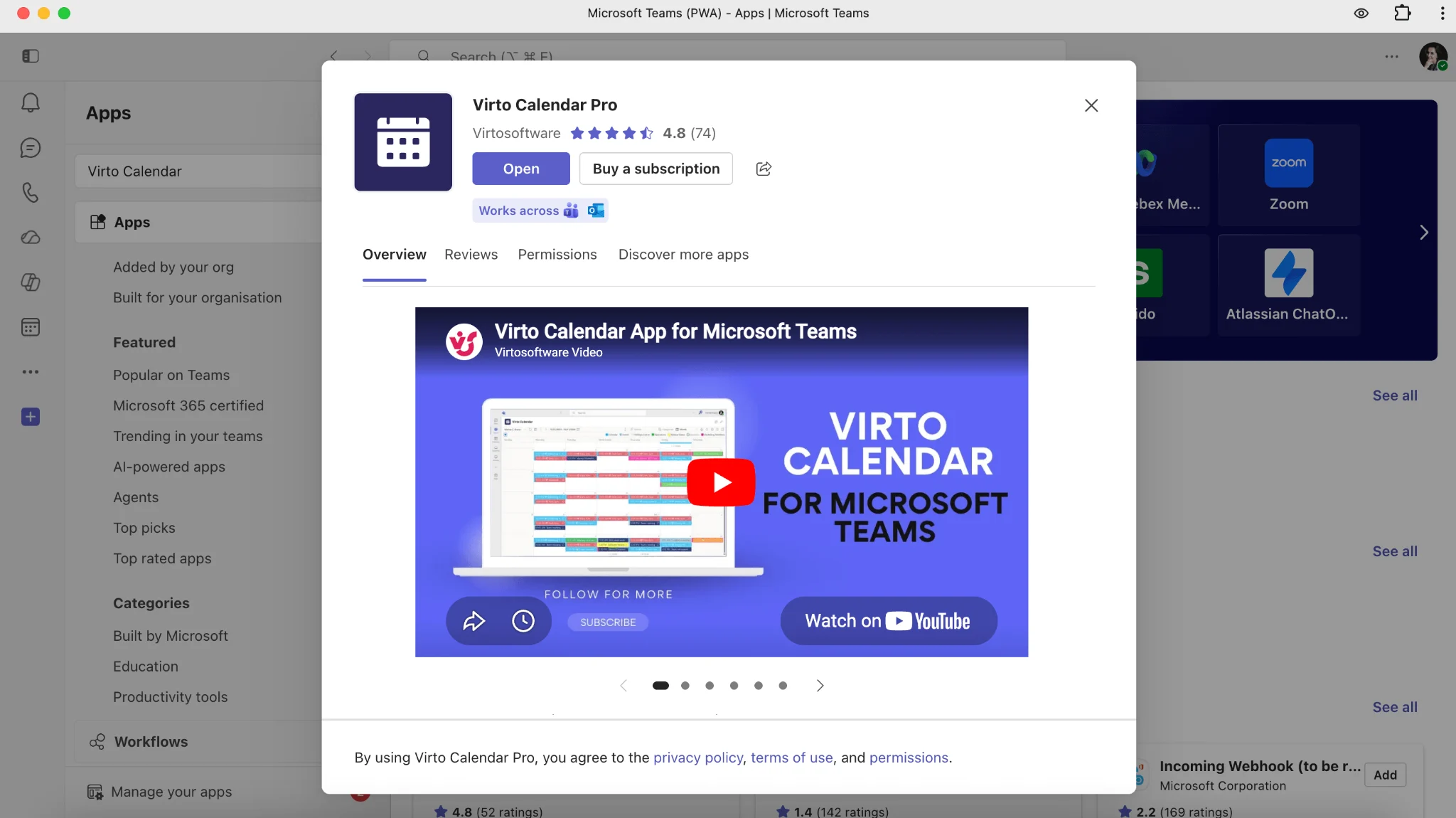
- Install the Virto Calendar app in your Microsoft 365 environment.
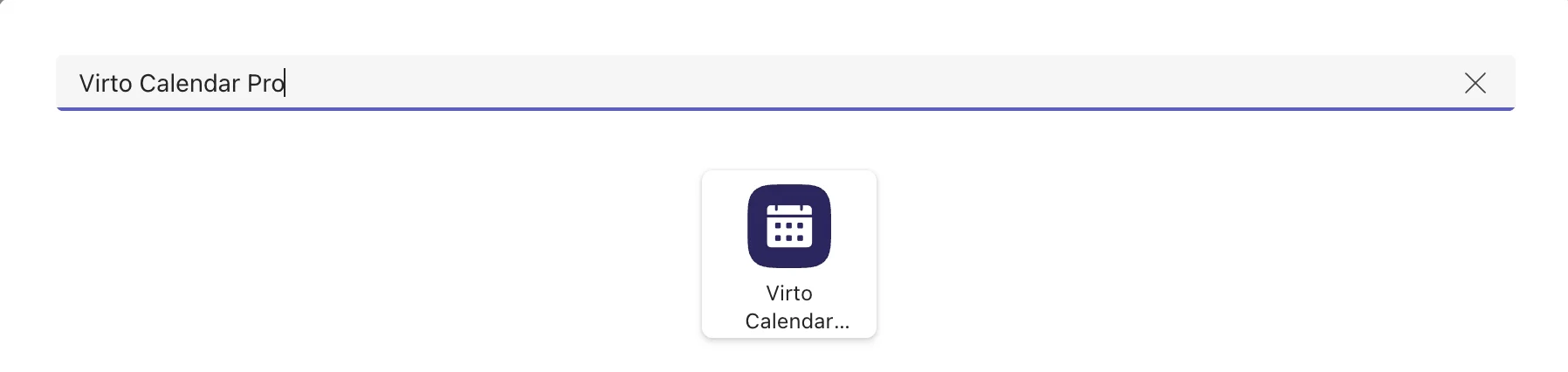
Pic. 6. Searching for the Virto Calendar app in Microsoft Teams.
- In the target Teams channel, click “+” to add a tab and select “Virto Calendar.”
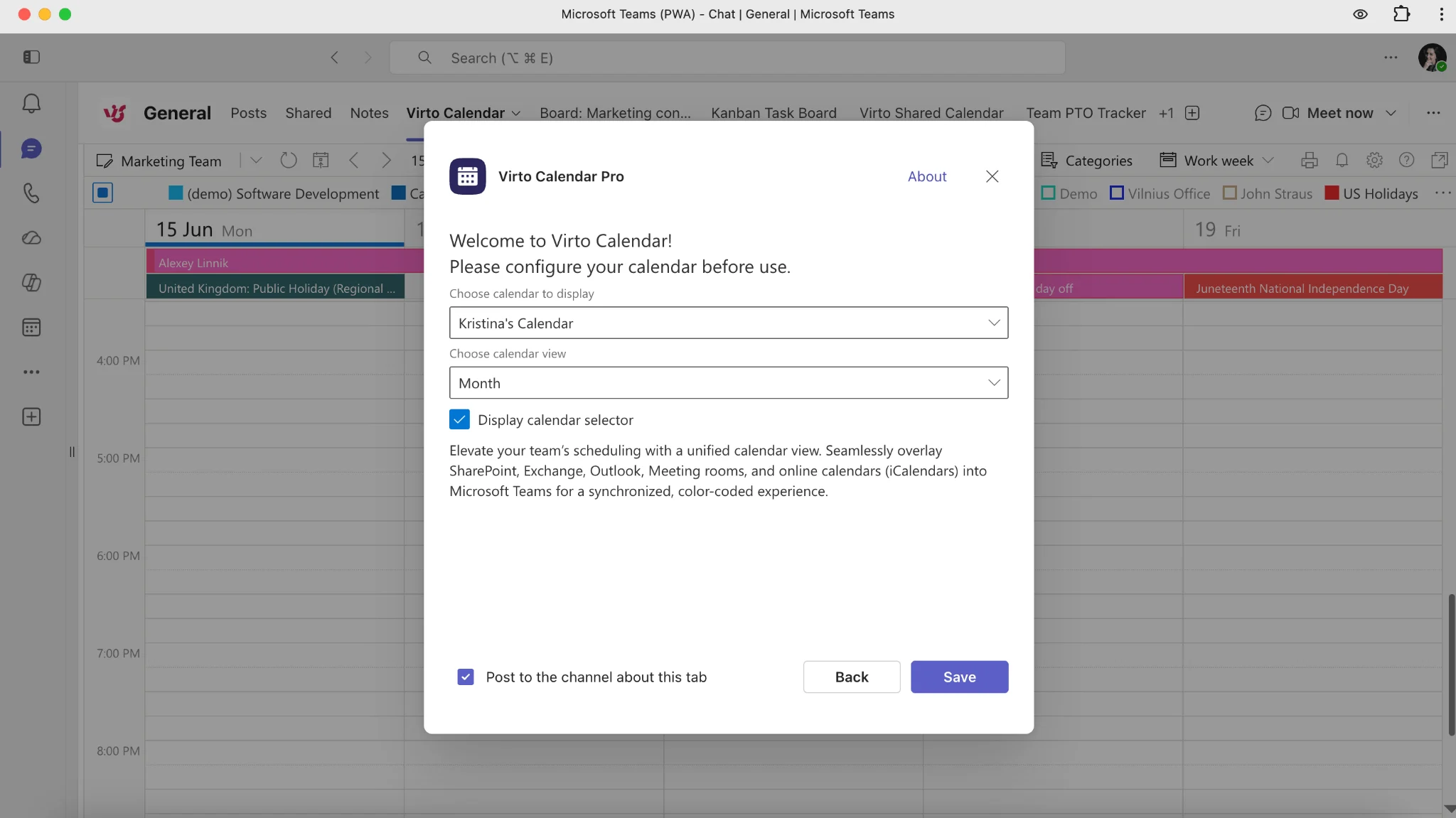
Pic. 7. Adding for the Virto Calendar app in Microsoft Teams.
- Configure the tab settings and choose the calendar to display.
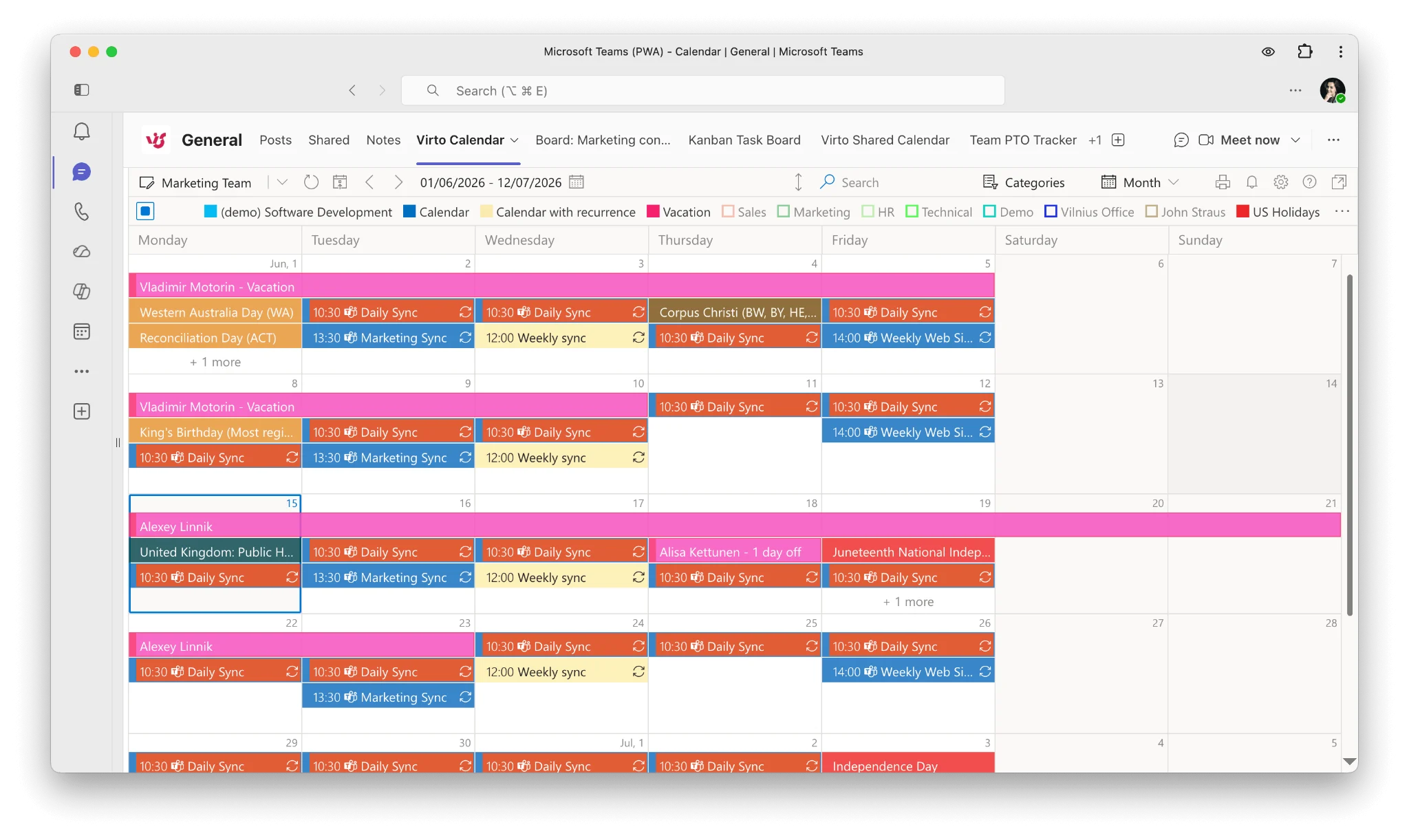
Pic. 8. Choosing a calendar to display in Virto Calendar for Teams.
- Save to add the calendar to your channel.
Full setup instructions: Virto Calendar Knowledge Base. You can also install a free trial or request a demo.
Frequently asked questions
How do I allow Teams to access my calendar?
Set calendar permissions in Outlook on the web (Settings > Calendar > Shared calendars, share with at least “Can view all details”) and make sure your account has an active Exchange Online license (Fix 5).
Why does Teams say it’s unable to access my calendar on Mac?
On Mac it’s usually an Outlook sync or sharing-permission issue. Re-sync the calendar in Outlook for Mac, confirm sharing permissions, and update macOS and Teams — see Fix 4.
Teams calendar not working after an update?
Updates can leave a stale cache or an outdated WebView2 runtime. Clear the Teams cache (Fix 1) and install the latest WebView2 (Fix 2).
How do I fix Microsoft Teams calendar permissions?
An admin should confirm the Exchange Online license and set calendar sharing in the Exchange admin center — full steps are in Fix 5.
Teams calendar error with Microsoft Entra ID?
On a managed device, check the device’s Entra ID join with dsregcmd /status and rejoin if needed (Fix 6). Consult IT before running these commands in a corporate environment.
Conclusion
The “Teams is unable to access your calendar” error almost always traces back to cache, licensing, WebView2, or device identity. Work through the seven fixes in order — most users are back in business after Fix 1. Keep Teams and WebView2 updated and confirm Exchange Online licensing to prevent the error from recurring.
If the native calendar keeps failing despite everything, the Virto Calendar App for Microsoft Teams is a stable, independent alternative worth trying.