Channels are how work gets organized inside Microsoft Teams. This guide covers the three channel types, how to create and manage them, what changed in 2026, and the governance habits that keep a busy workspace usable.
A channel in Microsoft Teams is a dedicated space within a team for a topic or project. Channels can be standard (open to everyone in the team), private (limited to selected team members), or shared with people outside the team.
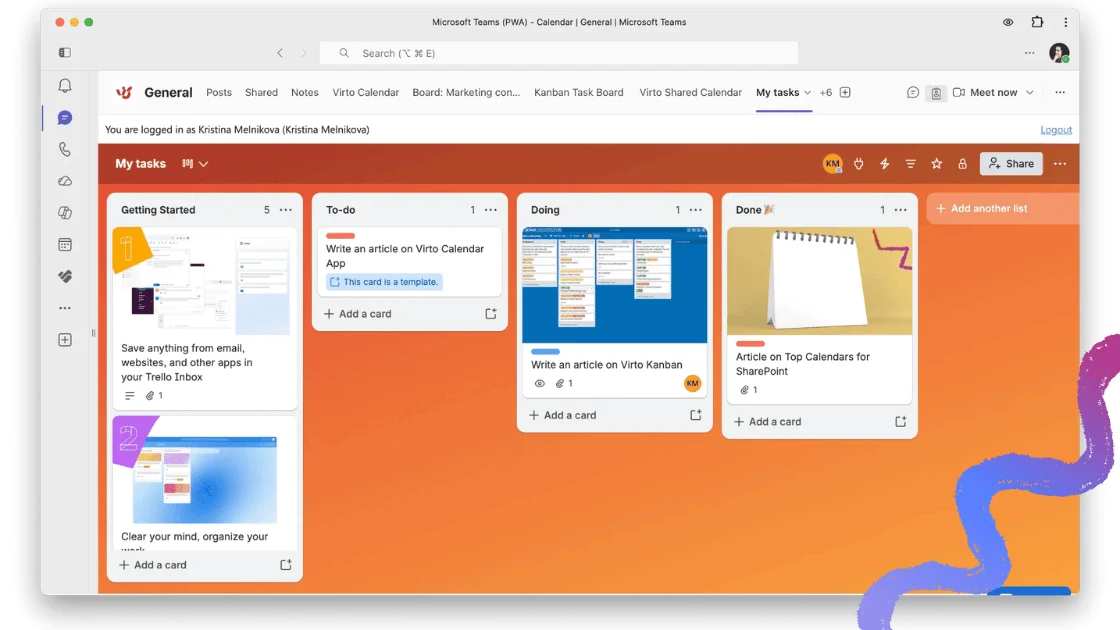
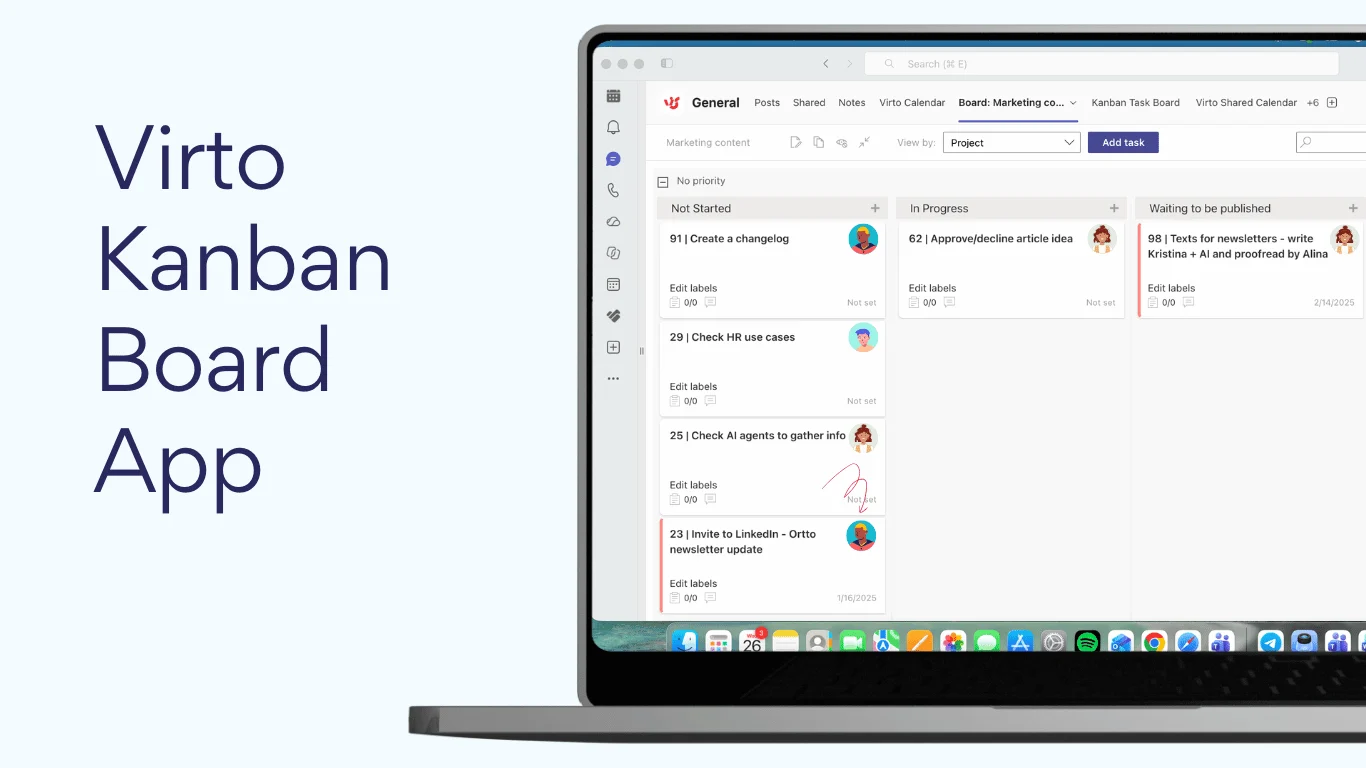
Next question: where does the channel’s work get tracked? A channel keeps the conversation and the files in one place; the tasks that come out of them still need a board. To plan and move tasks on a Kanban board in a channel tab, next to the conversation, add Virto Kanban Board App.
Most Teams problems that get blamed on the app are really channel problems: one overloaded General channel, a private channel nobody can find, or forty dormant channels from projects that ended two years ago. Getting the structure right up front costs an afternoon and saves months of hunting for files.
Below you’ll find what channels actually are, how the three types differ in practice, step-by-step creation and settings, the changes Microsoft shipped through 2026, and a set of rules for keeping channels tidy as a team grows.
What Is a Channel in Microsoft Teams?
A channel in Microsoft Teams is a dedicated workspace inside a team that keeps conversations, files, and apps grouped around one topic, project, or department. If a team is the filing cabinet, channels are the drawers.
Every channel comes with its own conversation feed, file storage in SharePoint, meeting space, and customizable tabs for apps and resources.
It’s worth knowing what sits underneath, because it explains most channel behaviour that otherwise looks arbitrary:
- Posts — the conversation feed, displayed either as classic Posts or as the newer threaded layout.
- Files — a folder inside the team’s SharePoint site for standard channels, or a separate SharePoint site of its own for private and shared channels. This is why permissions differ so sharply between types.
- Meetings — channel meetings are visible to channel members, and the recording, chat, and files land back in the channel rather than in someone’s personal calendar.
- Tabs — pinned apps such as Planner, OneNote, Power BI, or third-party tools, which turn a conversation space into a working one.
Because files live in SharePoint, everything your organization already configures there — retention, sensitivity labels, external sharing rules, versioning — applies to channel files automatically. Nothing needs to be set up twice.
Team vs. channel: what’s the difference?
The distinction trips people up constantly, so it’s worth stating plainly:
- A team is a group of people plus the resources they share — a department, a project group, a business unit. It has a membership list, a Microsoft 365 group behind it, and a SharePoint site.
- A channel is a space inside that team. It has no membership list of its own unless it is private or shared; otherwise everyone in the team is in it automatically.
You create a team when you need a new group of people. You create a channel when the same group of people needs a new place to put a distinct stream of work. Teams are expensive to spin up and hard to retire; channels are cheap. When in doubt, add a channel.
→ So, what is a Teams channel? A Microsoft Teams channel is a dedicated space within a team where members collaborate on a specific topic, project, or department. It acts as a hub for conversations, file sharing, meetings, and app integrations, keeping work organized and easy to find.
What Are the Three Types of Teams Channels?
Microsoft Teams offers three channel types: standard, private, and shared. They differ in two ways that matter — who can see the channel, and which apps and features work inside it.
Standard channels
Standard channels are open to everyone in the parent team. New members get access automatically, and the channel appears in their channel list. This is the default and, for most work, the right choice.
Standard channels are also the only type with no feature gaps: bots, connectors, moderation, channel email addresses, and the channel calendar all work here and nowhere else.
- A “General” channel for company-wide announcements
- A “Marketing” channel where the whole marketing team plans campaigns
- A “Project Atlas” channel holding one project’s discussions and files
Private channels
Private channels are visible only to the members the channel owner adds. Other people in the team can’t see the channel, its files, or even that it exists. Each private channel gets its own SharePoint site rather than a folder in the team’s site, which is what keeps its files genuinely separate.
Two things to know before you create one. First, private channels don’t support connectors, bots, message extensions, Forms, or the channel calendar — though Planner tabs arrived in private channels in August 2026, and channel meetings are now supported. Second, private channels can’t be converted into standard channels later, or vice versa. Choose deliberately.
- A “Leadership” channel for managers to discuss internal strategy
- A “Budget Planning” channel for finance staff handling confidential figures
- An “HR & Recruitment” channel where hiring conversations stay contained
Shared channels
Shared channels let you collaborate with people who are not in the team at all — colleagues in other teams, or partners in an entirely different organization. Nobody has to join your team, and nobody has to switch tenants.
Shared channels use Microsoft Entra B2B direct connect rather than guest accounts, which is a meaningful difference: guests cannot be added to a shared channel. External sharing also requires cross-tenant access settings to be configured in Microsoft Entra ID by administrators on both sides, and only team owners can create shared channels. If you need external collaborators inside your team rather than alongside it, guest access is the mechanism you want instead.
- A “Client Feedback” channel where an agency works directly with a client
- A “Vendor Coordination” channel for supply-chain contacts
- A “Cross-Department Projects” channel joining several internal teams
Shared channels come with their own constraints. Bots, connectors, and message extensions don’t work in them; analytics and moderation aren’t available; and they aren’t supported in class teams. They also can’t be moved to a different team, and if you create a new team from an existing one, shared channels aren’t copied across. Plan the ownership of a shared channel carefully, because relocating it later is not an option.
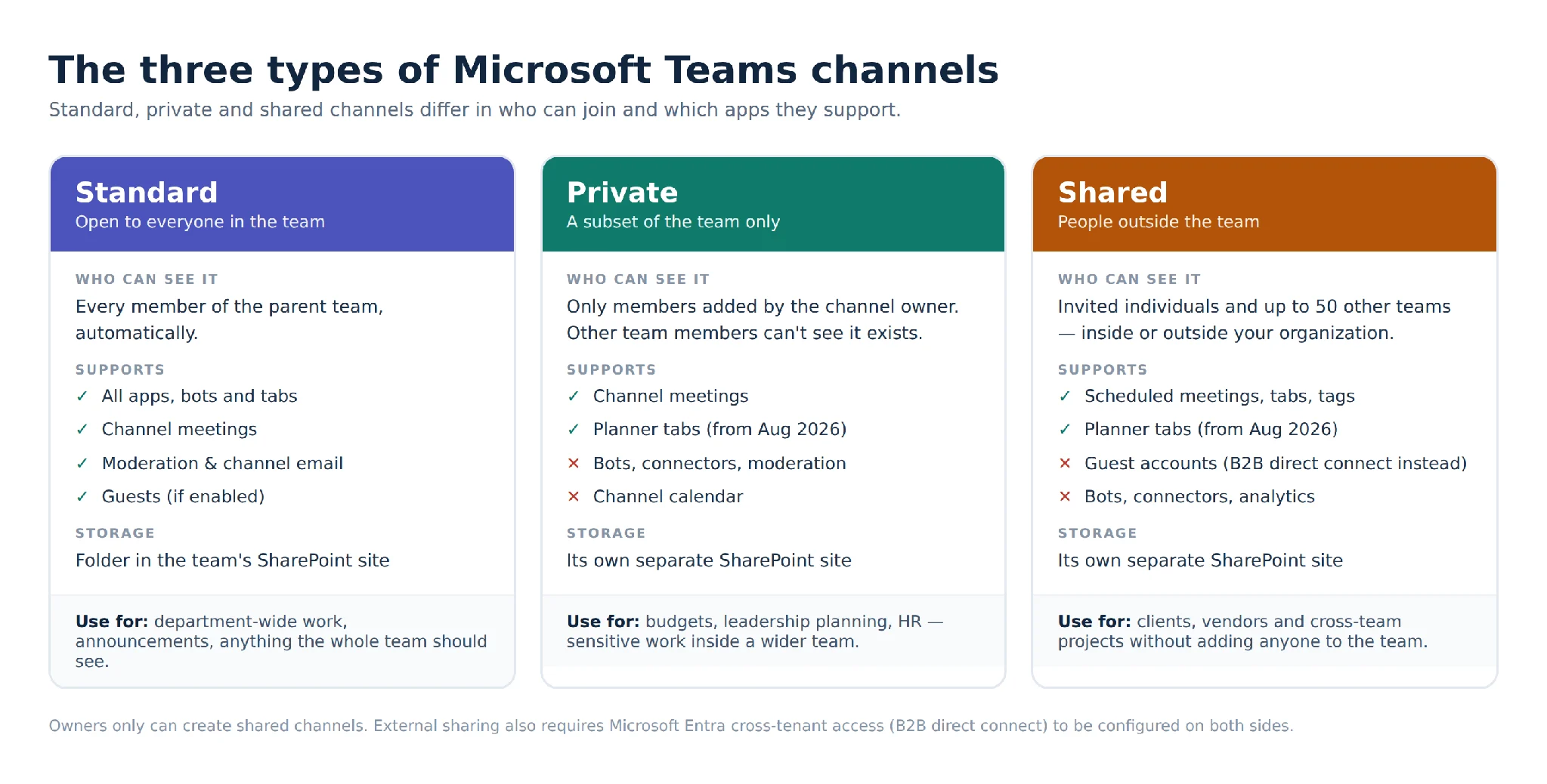
Fig. 1. Standard, private, and shared channels compared: access, supported features, and storage.
→ What are Microsoft Teams channels examples? Common examples include a “Marketing Campaigns” channel for tracking promotions, a “Product Development” channel for engineers working on a release, a “Customer Support” channel for client issues, a “General Announcements” channel for company-wide updates, and an “HR & Employee Resources” channel for policies and training materials.
How Do I Create a Teams Channel?
Creating a channel takes under a minute. Choosing the right type and settings is the part worth slowing down for.
Creating a standard, private, or shared channel
- Open Microsoft Teams and go to the team where the channel belongs.
- Select the More options (…) button next to the team name.
- Choose Add channel.
- Enter a channel name and, optionally, a description. Write the description — it is the only context a new joiner gets.
- Under channel type, pick Standard, Private, or Shared.
- Select Create.
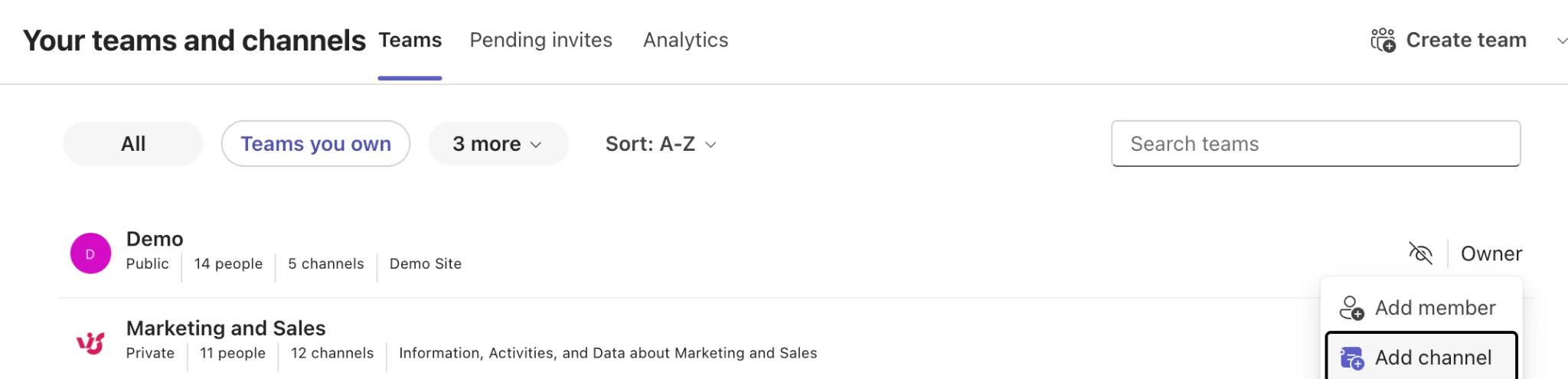
Pic. 1. Adding a channel to your team from the More options menu.
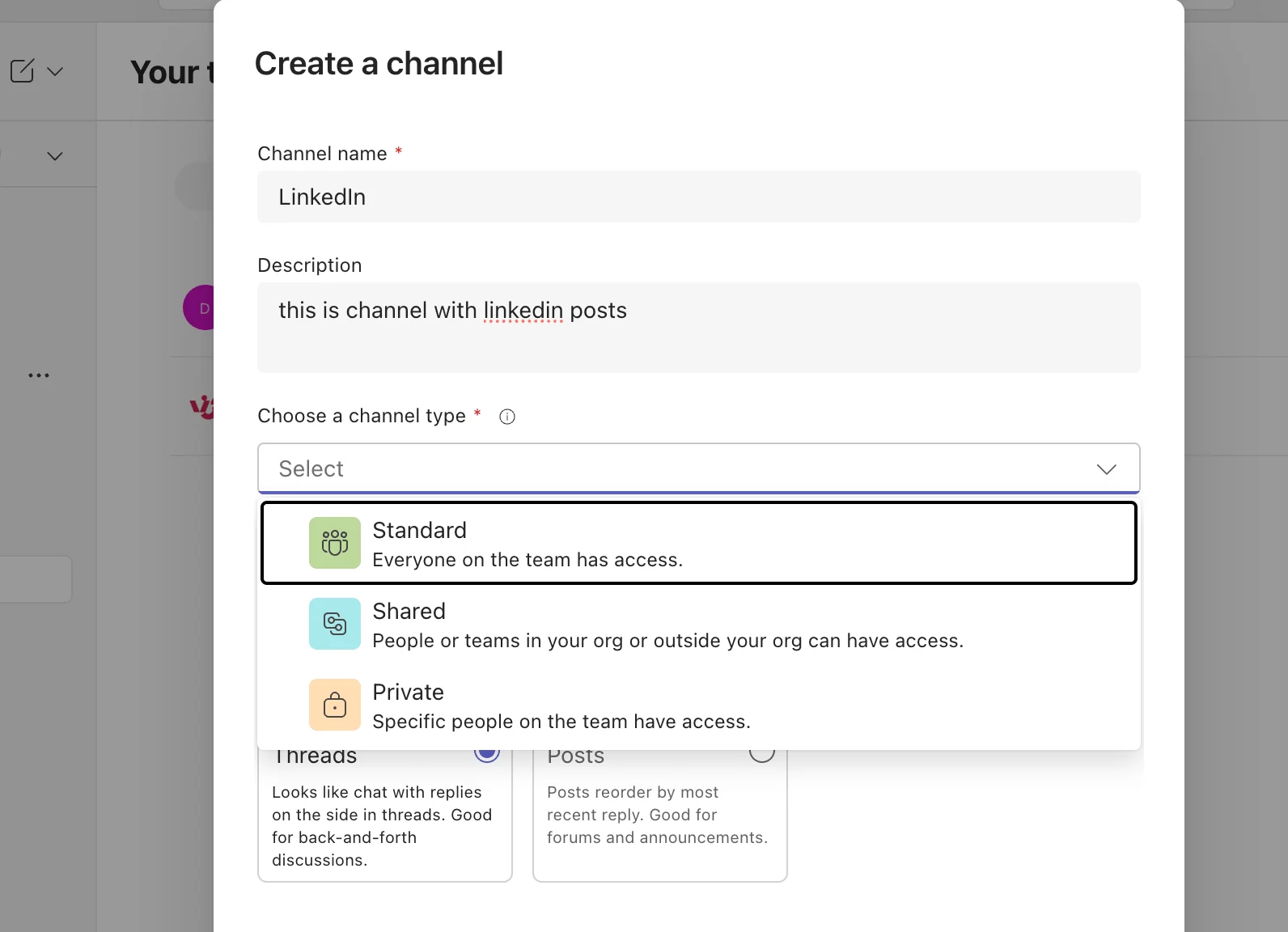
Pic. 2. Choosing the channel type: standard, private, or shared.
A few notes on permissions. Team owners and members can both create standard and private channels by default, though admins can restrict this. Only owners can create shared channels. Guests cannot create channels of any kind.
- Standard channels are best for general discussion, department-wide work, and anything the whole team should see.
- Private channels are best for confidential conversations inside a wider team — budgets, leadership planning, sensitive HR work.
- Shared channels are best for clients, vendors, and cross-team projects where nobody should be added to the team itself.
→ How do I get to a Teams channel? Open Teams on desktop, web, or mobile, select Teams (or Chat, in the combined view) in the left navigation, then pick the team that holds the channel and select the channel name. If you can’t see it, check the hidden channels list at the bottom of the team, or ask an owner for access if it’s a private channel.
Adding people to private and shared channels
Standard channels need no membership management — everyone in the team is already in. The other two types do.
For a private channel, open the channel’s More options menu, choose Manage channel, and add members from the team. You can only add people who are already in the parent team, and only the private channel owner can add or remove them. If the owner leaves the organization, Teams automatically promotes an existing member to owner so the channel doesn’t become orphaned.
For a shared channel, you have two options: share the channel with individual people, or share it with an entire team. Sharing with a team gives everyone in that team access, and each team you share with counts as one member against the channel’s limit. To include people from another organization, your administrators and theirs both need to configure cross-tenant access in Microsoft Entra ID first — without that, external invitations simply fail.
How to customize channel settings
Once a channel exists, open its settings to shape how it behaves:
- Select the More options (…) button next to the channel name.
- Choose Manage channel.
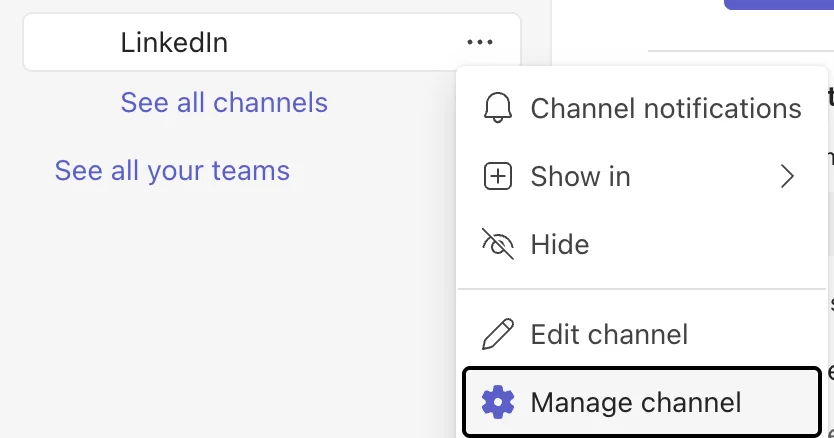
Pic. 3. Opening the Manage channel settings.
From there you can rename the channel and edit its description, switch between the Posts and Threaded conversation layouts, set member permissions for who can post and reply, turn on moderation in standard channels, and manage the apps and tabs pinned to the channel.
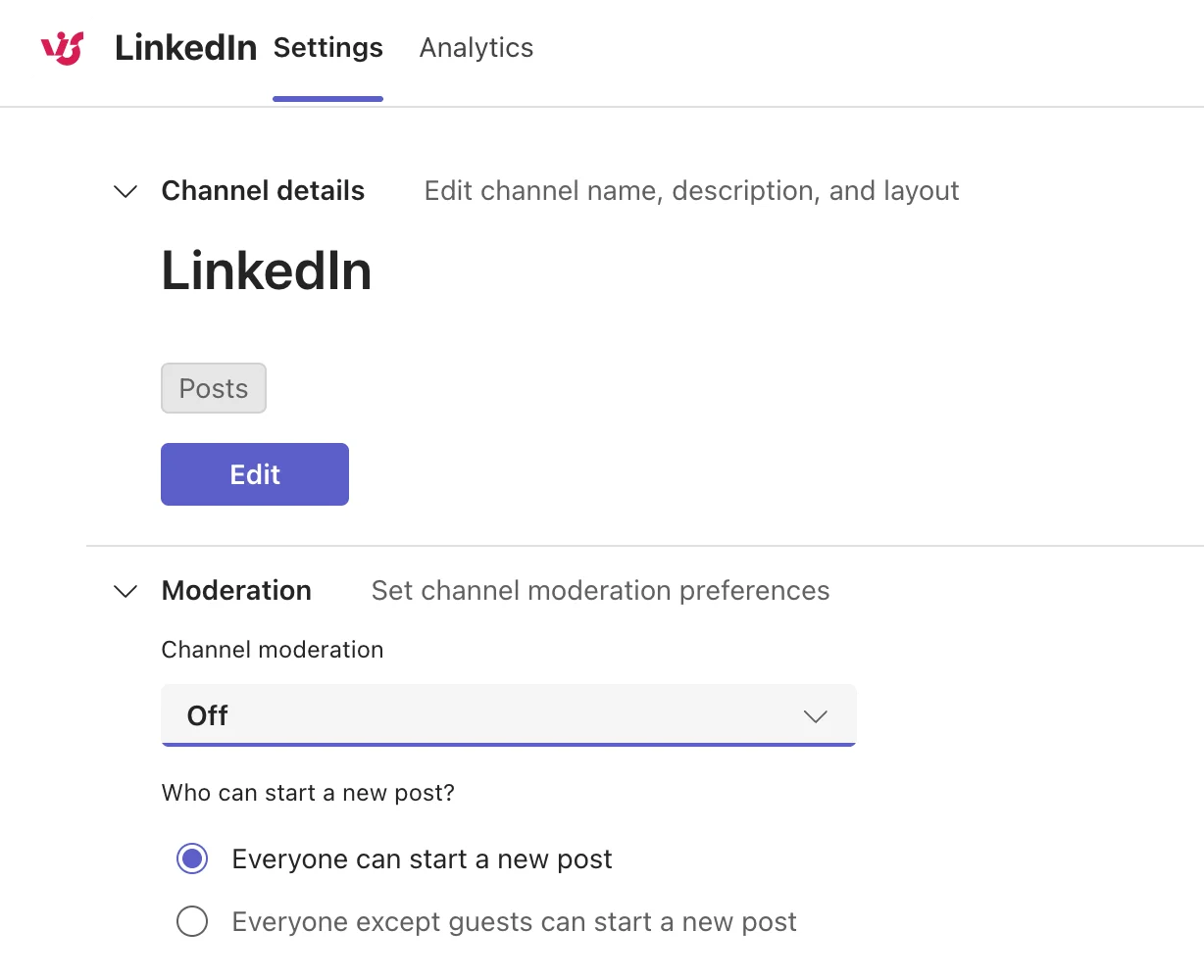
Pic. 4. Channel settings: permissions, layout, and moderation.
One setting deserves particular attention: moderation. In a busy standard channel, restricting who can start new conversations — while letting everyone reply — cuts noise dramatically without shutting anyone out. It is the single most effective setting most teams never touch.
How do I see all channels in a team?
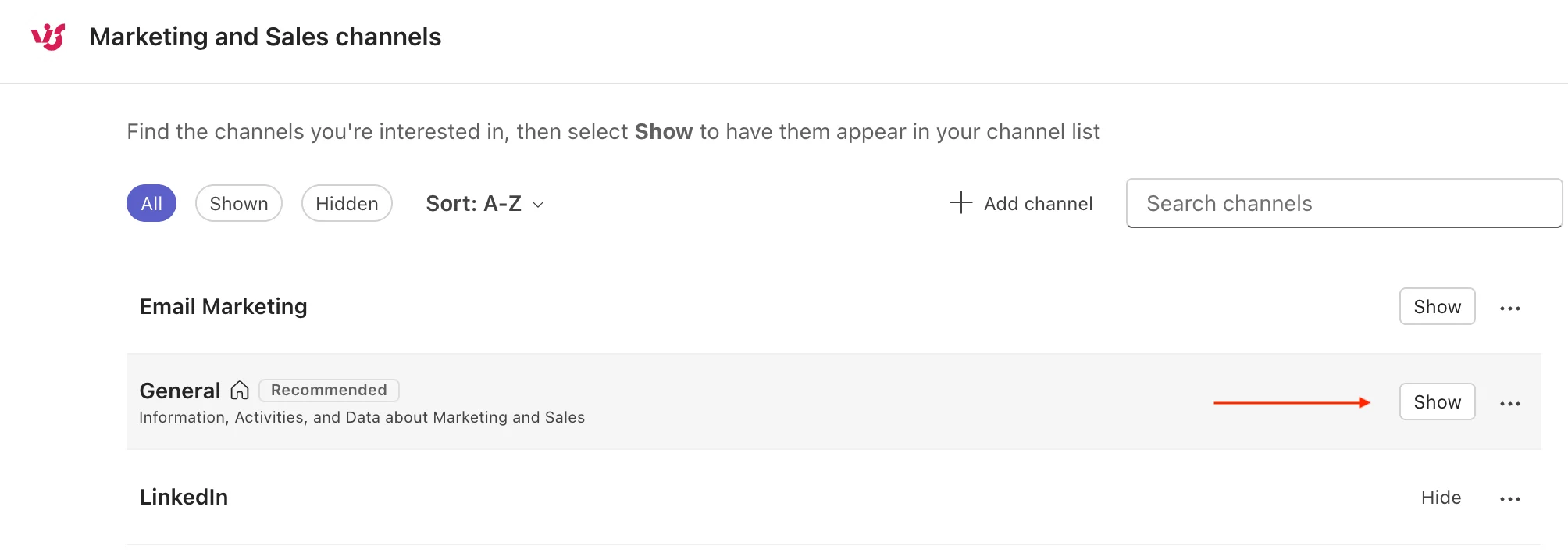
Channels you have joined appear under the team name in the left navigation. Channels you haven’t joined, and channels you’ve hidden, sit behind the hidden channels entry at the bottom of that list — select it to browse and unhide them. Private channels you are not a member of never appear at all.
Pic. 5. Viewing and unhiding channels.
What’s New in Teams Channels in 2026
Channels changed more between 2025 and 2026 than in the previous three years combined. Here is what actually shipped.
Threaded conversations are now the default
The threaded layout — where replies attach to individual messages, much like a group chat — reached general availability in 2025 and became the default layout for the first channel in newly created teams in May 2026. Existing teams and existing channels were left alone.
The layout is a per-channel setting, so owners can switch a channel between the classic Posts view and the Threaded view at any time from channel settings. Neither is universally better: Posts suits announcement-style channels where each thread is a distinct topic, while Threaded suits fast-moving project channels where conversation is continuous.
Pic. 6. The threaded conversation layout in a Teams channel.
The combined chat and channels experience
Microsoft’s redesigned chat and channels experience is now the standard interface. Chats and channels sit in one list by default, though you can switch back to separate Chat and Teams views if you prefer. The practical additions are worth learning:
- Favorites, which pull your most important chats and channels to the top regardless of activity
- Custom sections, so you can group conversations by project or client rather than by type
- Filters for unread messages, chats, channels, and meeting chats
- A dedicated view for @mentions and followed threads
If your team has been struggling with channel overload, sections and favorites do more for daily usability than any amount of restructuring.
Scheduled channel messages
You can now schedule a channel message the same way you schedule a chat message: compose it, open the actions menu, choose Schedule message, and pick a date and time. Scheduled messages can be edited or deleted before they send. This is genuinely useful for distributed teams — announcements land during working hours instead of at 2 a.m. local time.
Planner tabs in private and shared channels
Planner became available as a tab in private and shared channels in August 2026, closing one of the longest-standing gaps between channel types. Plans inherit channel permissions and store data in the channel’s SharePoint site, so membership stays limited to channel members. Basic plans are supported first, with premium features following. If you are weighing Planner against other options, our guide to setting up Planner in Teams and our comparison of Planner alternatives cover where each tool fits.
Office 365 connectors have been retired
After several deferrals, Office 365 connectors stopped functioning in Teams in May 2026. Any channel that relied on an incoming webhook connector — RSS feeds, build notifications, alerts from external systems — needs to be rebuilt with the Workflows app and Power Automate. If a channel of yours has gone quiet since spring, this is very likely why.
Channel Limits Worth Knowing
Most teams never approach these numbers, but a few of them shape architecture decisions — particularly the shared-channel limits.
| Limit | Value |
|---|---|
| Channels per team (any combination of types) | 1,000, including deleted channels |
| Members in a private channel | 5,000 |
| Members in a shared channel | 5,000 direct members, including up to 50 teams |
| Teams a shared channel can be shared with | 50, excluding the parent team |
| Members in a team | 25,000, including shared-channel members from outside the team |
| Recovery window for a deleted channel | 30 days, during which it still counts toward the per-team limit |
Note the last row: deleting channels does not immediately free capacity, and restored channels come back with their content intact. The 30-day window is a safety net, not a delay to plan around.
Advantages and Trade-offs of Teams Channels
Channels solve real problems, but they introduce their own. Knowing both sides is what separates a workspace that stays usable from one that quietly rots.
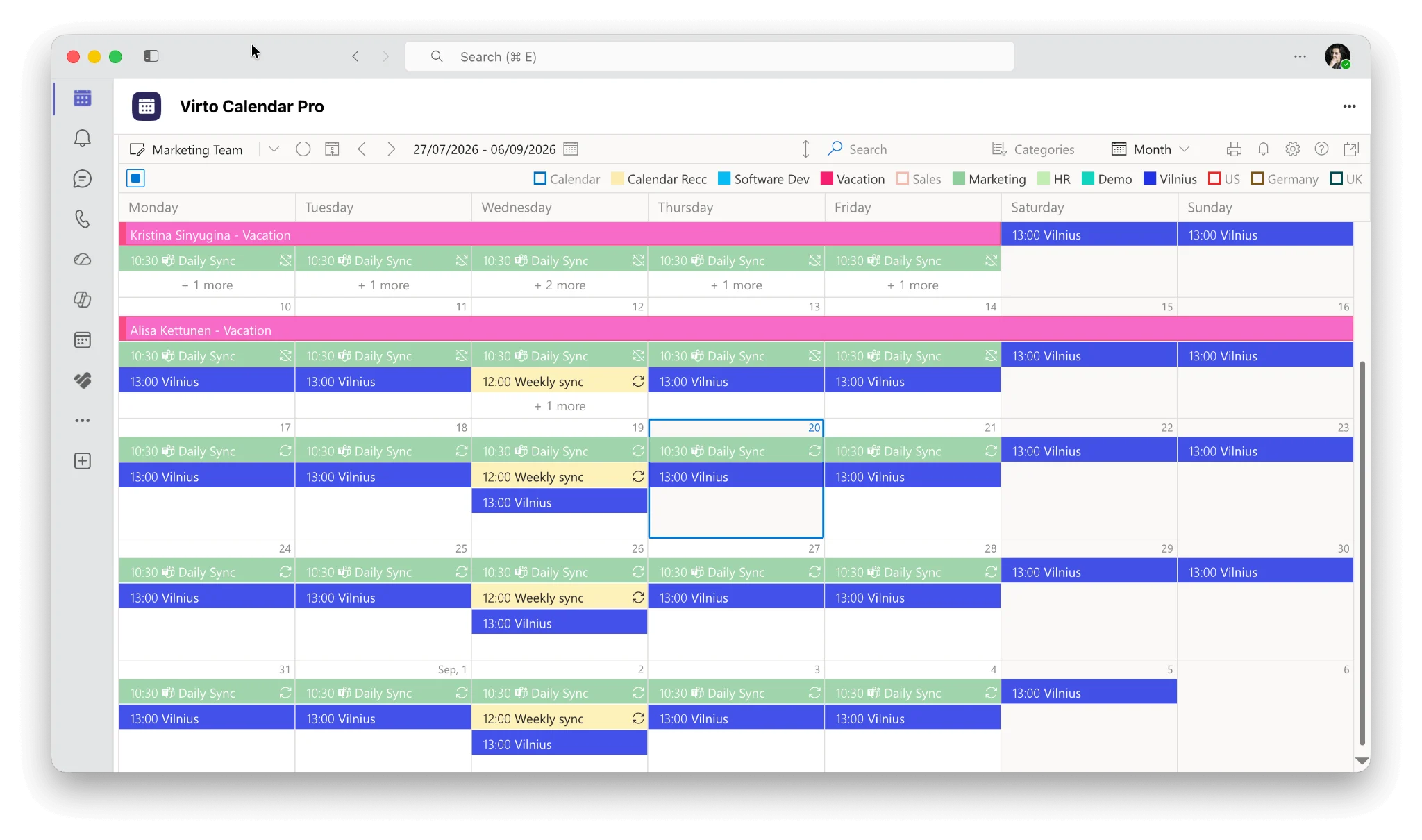
Fig. 2. What Teams channels do well, and what still requires governance.
The pattern across the trade-offs column is consistent: none of these problems are technical. Channel sprawl, dormant channels, and content stranded in the wrong place are all governance failures, and all of them are cheaper to prevent than to fix. The best practices section below covers the habits that prevent them.
Examples of Using Channels in Teams
The same three channel types cover very different working patterns. A few of the most common:
Project management
A dedicated channel per project keeps discussion, files, and deadlines together instead of scattered across chats and inboxes. A marketing team might run separate channels for “Paid Advertising,” “SEO Content,” and “Product Launches,” each with its own task board and file library.
Adding a visual task board as a tab is what turns a discussion channel into a working project space. The Virto Kanban Board App does this inside Teams, so the board sits alongside the conversation rather than in another browser tab.
Client and partner collaboration
Shared channels are purpose-built for this. A consultancy can run one shared channel per client, posting weekly progress, scheduling check-ins, and storing deliverables — while every internal conversation stays in the team’s standard and private channels, invisible to the client.
Set channel permissions deliberately here, and review membership when engagements end. External participants persist until someone removes them.
Education and training
Universities and internal L&D teams use channels per course, cohort, or training track: lecture materials and assignments in the files tab, Q&A in the conversation, and OneNote pinned as a structured knowledge base. Note that shared channels aren’t supported in class teams, so cross-institution collaboration needs a standard team instead.
Product development
Software teams typically split by workflow stage rather than by project: “UI/UX Design” for wireframes and feedback, “Bug Tracking” for defect reports, “Feature Roadmap” for prioritization. Because connectors are gone, build and deployment notifications now come in through Workflows rather than webhook connectors.
Events and campaigns
Event teams work to fixed dates, which makes channels with a strong calendar component valuable. A “Annual Summit” channel can hold vendor communications, the run of show, marketing assets, and task assignments for venue, catering, and speakers — with every deadline visible in a calendar tab rather than buried in a spreadsheet.
Onboarding and internal training
Channels make a good home for material that is consulted repeatedly rather than discussed once. A “Sales Onboarding” channel might hold product guides and recorded sessions in Files, a OneNote tab as the structured handbook, and an open conversation where new hires ask questions that later hires can read back through. The searchable history is the point: the same question gets answered once.
Departments and recurring functions
Larger organizations run permanent channels for functions rather than projects — “HR & Recruitment,” “Finance & Budgeting,” “IT Support.” These benefit most from moderation and pinned posts, since they attract questions from across the company and the same five questions recur endlessly.
Channel vs. Chat: When to Use Which
Teams gives you two places to say something, and the wrong choice is the most common cause of lost information in a workspace.
Chats are private to their participants, invisible to everyone else, and lose their history for anyone added later. They don’t support tabs, they store files in a way that is hard to find again, and they can’t be automated. That makes them excellent for quick, disposable exchanges and poor for anything a colleague may need to find later.
Channels are the opposite: permanent, searchable, open to everyone who should see them, and able to host apps, meetings, and automated workflows. The cost is that they require a decision about where the conversation belongs.
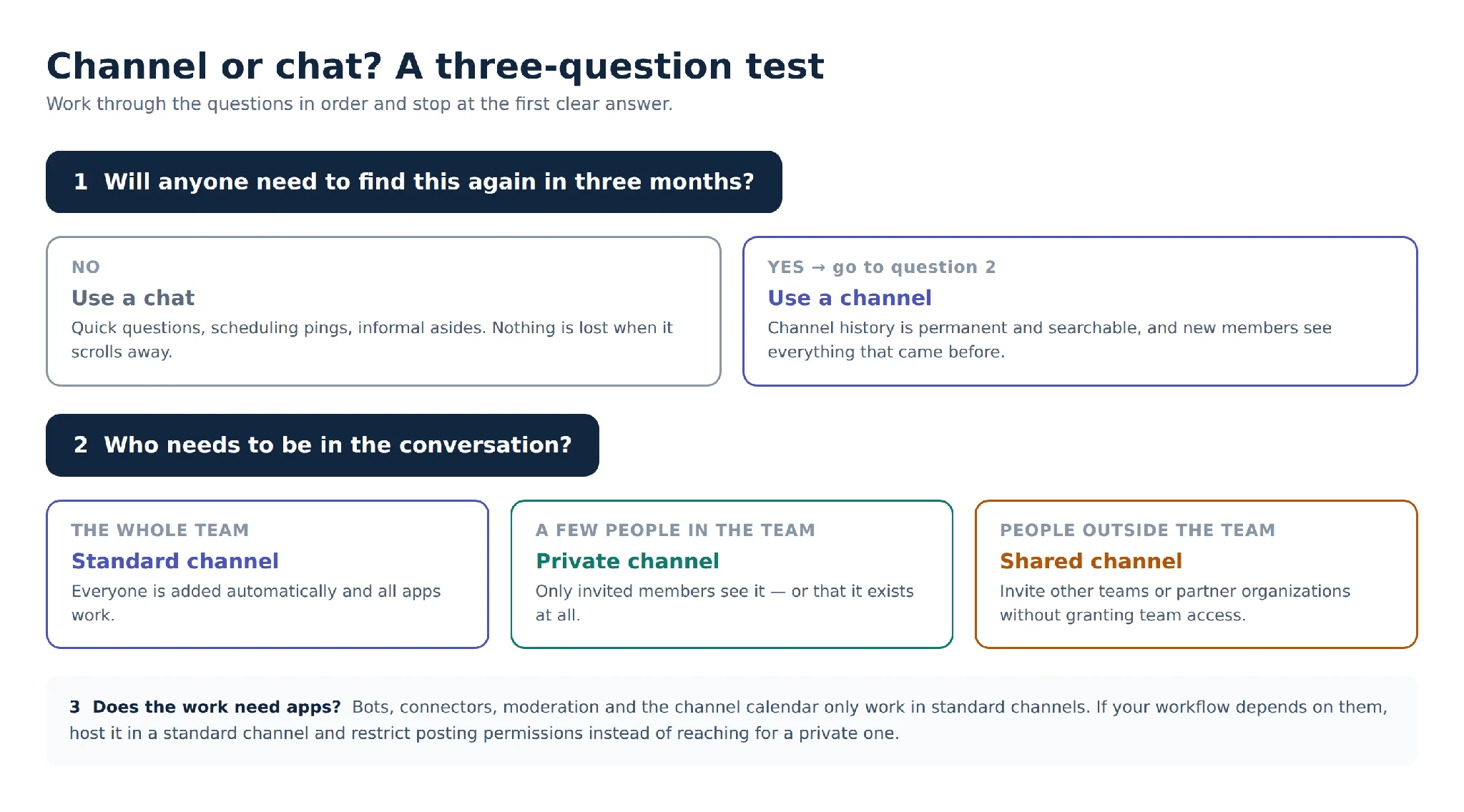
Fig. 3. A three-question test for choosing between a channel and a chat.
One rule covers most cases: if the answer would be useful to someone who isn’t in the conversation, it belongs in a channel.
In practice, the failure mode is rarely someone choosing a chat for a genuinely important decision. It’s a chat that starts as a quick question and quietly becomes the place a project is run — three people, four months, no history for anyone who joins later. When you notice that happening, move it: create the channel, post a summary of where things stand, and link to it from the chat. The cost of moving grows every week you leave it.
The combined chat and channels view has narrowed the gap somewhat, since both now sit in one list and can be favorited or grouped into the same section. But the underlying difference in permanence, permissions, and app support hasn’t changed at all.
Calendars in Teams Channels — and Their Limits
Scheduling is where channels most often fall short. The built-in channel calendar is a filtered view of the team’s Microsoft 365 group calendar, added as a tab, and it is deliberately minimal.
What the native channel calendar can’t do
- Day, work week, and week views only — there is no month view in the channel calendar tab
- No overlay of multiple calendars, so other channels, Outlook, Google Calendar, and SharePoint calendars stay separate
- No color-coding or categorization, so events can’t be distinguished at a glance
- One calendar per channel, which is limiting for channels running several workstreams
- No support in private or shared channels at all
- A significantly reduced mobile experience
- No direct integration with task tools, so deadlines and events live in different places
For a full walkthrough of what the native option can and can’t do, see our guides to the Teams channel calendar and the Microsoft Teams calendar.
Extending channel scheduling with Virto Calendar
Virto Calendar is a Microsoft-vetted app that addresses those gaps directly inside the channel. It overlays Microsoft 365, Google Calendar, iCal, and SharePoint calendars in one view; adds month, year, and task-based views; supports color-coding and categories; and works consistently on desktop and mobile. It follows Microsoft Entra authorization and Microsoft’s compliance standards, and it is a licensed third-party app rather than a native Teams feature.
It also isn’t limited to a single channel tab. The same app can be pinned to a Teams chat, and a Microsoft 365 and SharePoint Online version puts the same overlaid calendars on intranet pages, pulling in Outlook, Exchange Online, and Microsoft 365 group events. That means one calendar setup can follow your team across Teams channels, chats, and SharePoint rather than being rebuilt in each place.
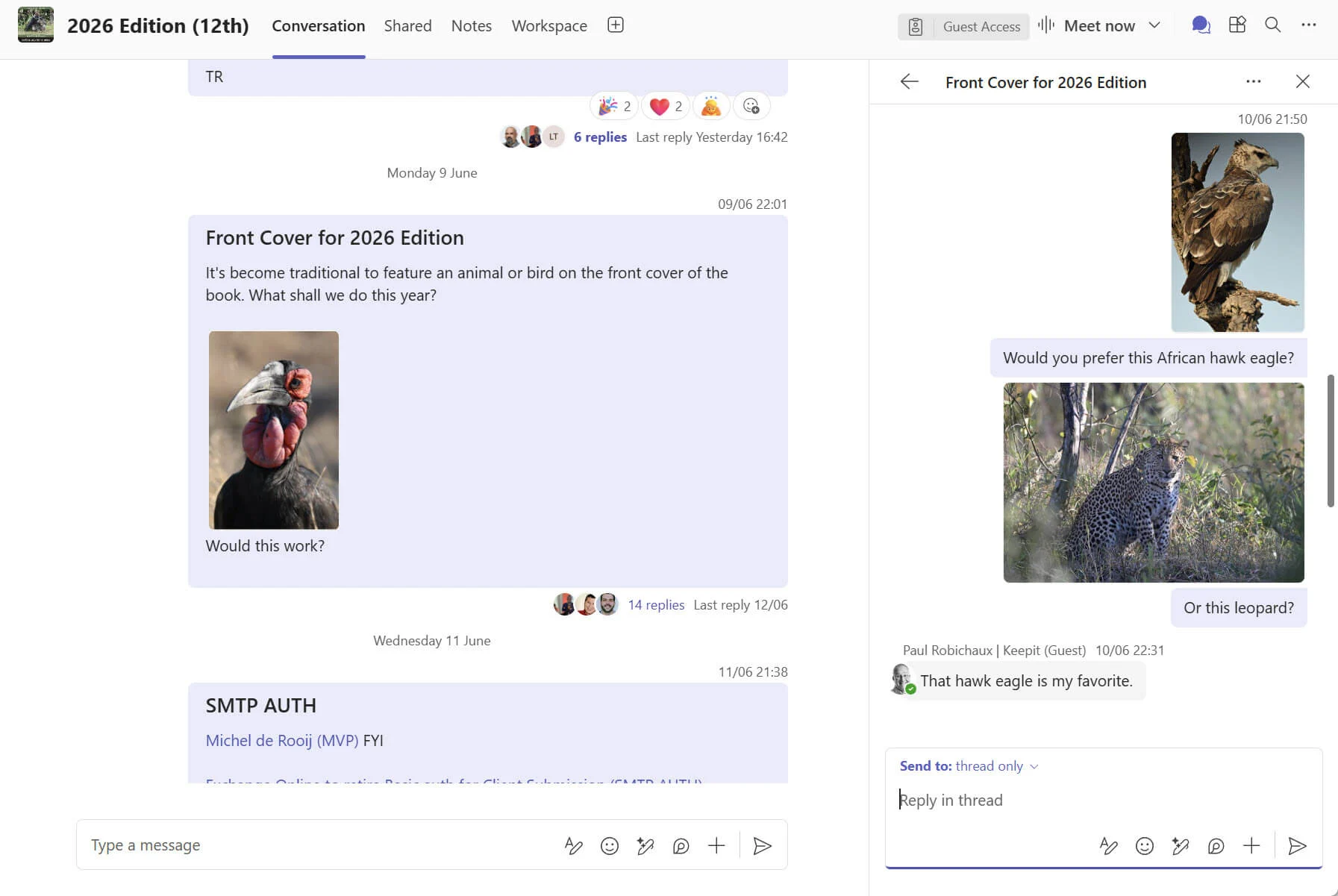
Pic. 7. Viewing Virto Calendar inside Microsoft Teams.
Pairing calendars with a task board
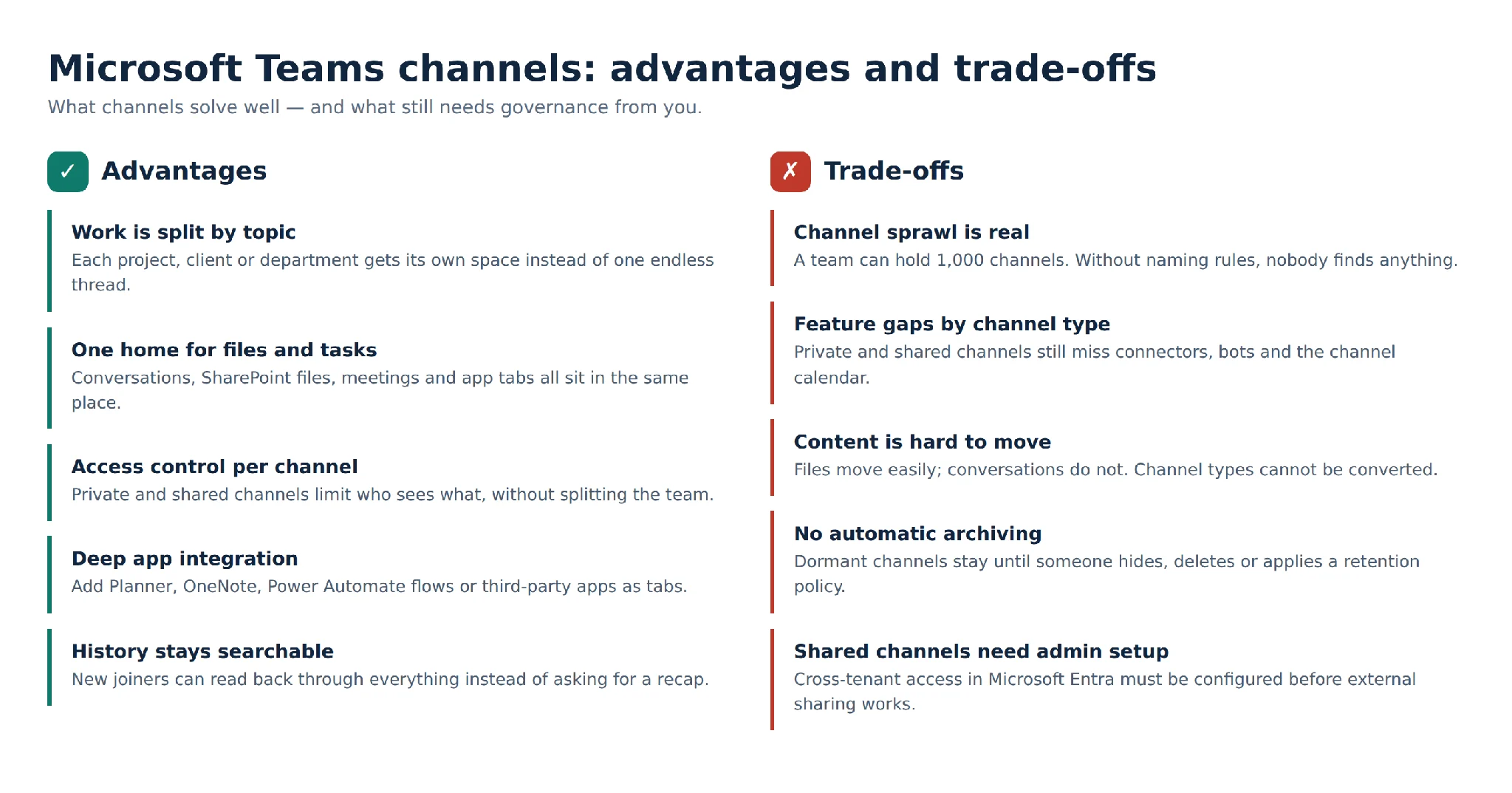
Calendars answer “when.” Boards answer “who and what next.” Adding the Virto Kanban Board App as a channel tab brings both into the same space: visual workflow status, task cards with assignees and deadlines, backlog and capacity views, reporting, and a SharePoint connection that turns existing lists into boards. It works on Teams web, desktop, and mobile.
Pic. 8. A Virto Kanban Board added as a tab in a Teams channel.
Both apps, along with the rest of the Virto apps for Microsoft 365, come with a 30-day free trial, so you can test them in a real channel before committing.
Best Practices for Managing Teams Channels
Almost every channel problem in the trade-offs list is preventable, and none of the prevention is technical. Six habits cover it.
- Agree a naming convention before the first channel is created. A prefix for type or stage — “01 Planning,” “Client — Acme,” “Ops — Weekly” — makes an alphabetical list navigable. Retrofitting names later is painful.
- Default to standard channels. Reach for private only when the information genuinely must be invisible to the team, and remember the feature gaps and the fact that the type can’t be changed later.
- Write channel descriptions. One sentence explaining what belongs in the channel prevents most misfiled conversations.
- Use moderation and posting permissions in high-traffic channels rather than creating new channels to escape the noise.
- Review channels quarterly. Hide or delete dormant ones, and set retention policies in the Microsoft 365 admin center so cleanup isn’t purely manual.
- Pin what matters. Pinned posts and pinned tabs are the closest thing a channel has to a homepage, and they save the same questions being asked repeatedly.
If you’re setting up a new workspace from scratch, it’s also worth reviewing which Teams apps you actually need before pinning tabs everywhere — a channel with nine tabs is as unusable as a team with ninety channels.
Microsoft Teams Channels FAQ
Can I convert a standard channel into a private channel?
No. Channel types are fixed at creation, in both directions. To change type you have to create a new channel and move the content across manually — files can be copied through SharePoint, but conversations cannot be transferred. This is the strongest argument for thinking about type before you create.
How many channels can one team have?
Up to 1,000, counting standard, private, and shared channels together, and counting deleted channels for 30 days after deletion. The practical limit is far lower — most teams become hard to navigate somewhere past twenty.
Can guests join a shared channel?
No. Shared channels use Microsoft Entra B2B direct connect, not guest accounts, so guests cannot be added. If you need someone with a guest account to participate, add them to the team and use a standard channel instead.
Why can’t I add a calendar to my private channel?
The native channel calendar app isn’t supported in private or shared channels — only standard ones. A third-party calendar app such as Virto Calendar can be added as a tab in any channel type, which is the usual workaround.
What happened to my channel’s connector notifications?
Office 365 connectors were retired in May 2026 and no longer function. Incoming webhook integrations need to be rebuilt using the Workflows app and Power Automate.
Can I recover a deleted channel?
Yes, within 30 days. A team owner can restore it from the team’s channel list, and the content comes back with it. After 30 days both the channel and its content are permanently deleted.
Conclusion
Microsoft Teams channels are the structural layer that makes a busy workspace navigable. Standard channels cover most work, private channels handle sensitive threads inside a wider team, and shared channels bring in clients and partners without adding them to the team. The 2026 updates — threaded conversations by default, the combined chat and channels view, scheduled messages, and Planner in private and shared channels — close several long-standing gaps.
What Microsoft has not closed is the scheduling gap. The native channel calendar remains basic, and it still doesn’t exist in private or shared channels at all. If your team plans work inside channels, that gap is worth filling.
Start a free 30-day trial of Virto Calendar in your own Teams channels, or book a short demo and we’ll walk through your setup with you.
Further Reading
Microsoft documentation:
- Overview of teams and channels in Microsoft Teams
- Create a standard, private, or shared channel in Microsoft Teams
- Private channels in Microsoft Teams
- Shared channels in Microsoft Teams
- Limits and specifications for Microsoft Teams
- Explore the new chat and channels experience
- Schedule channel messages in Microsoft Teams
- Retirement of Office 365 connectors within Microsoft Teams
From the Virto blog: