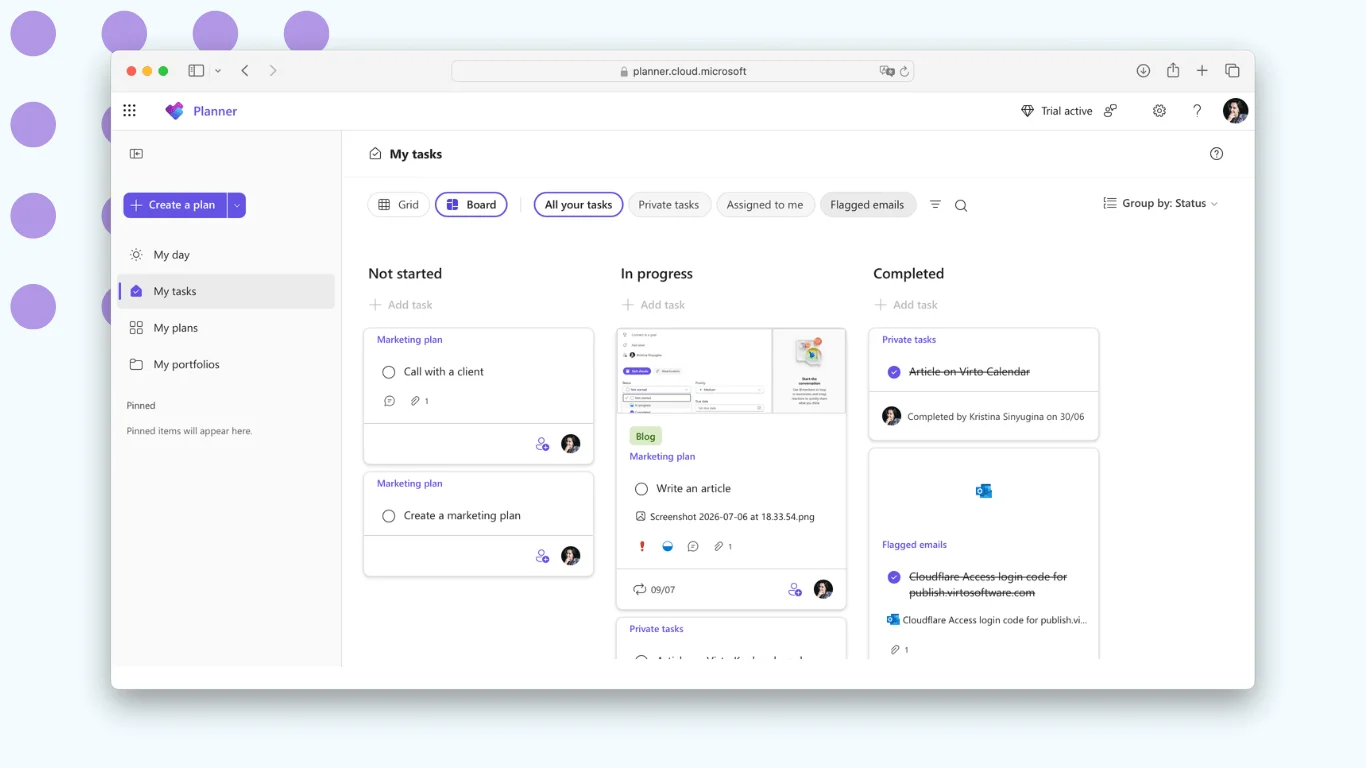
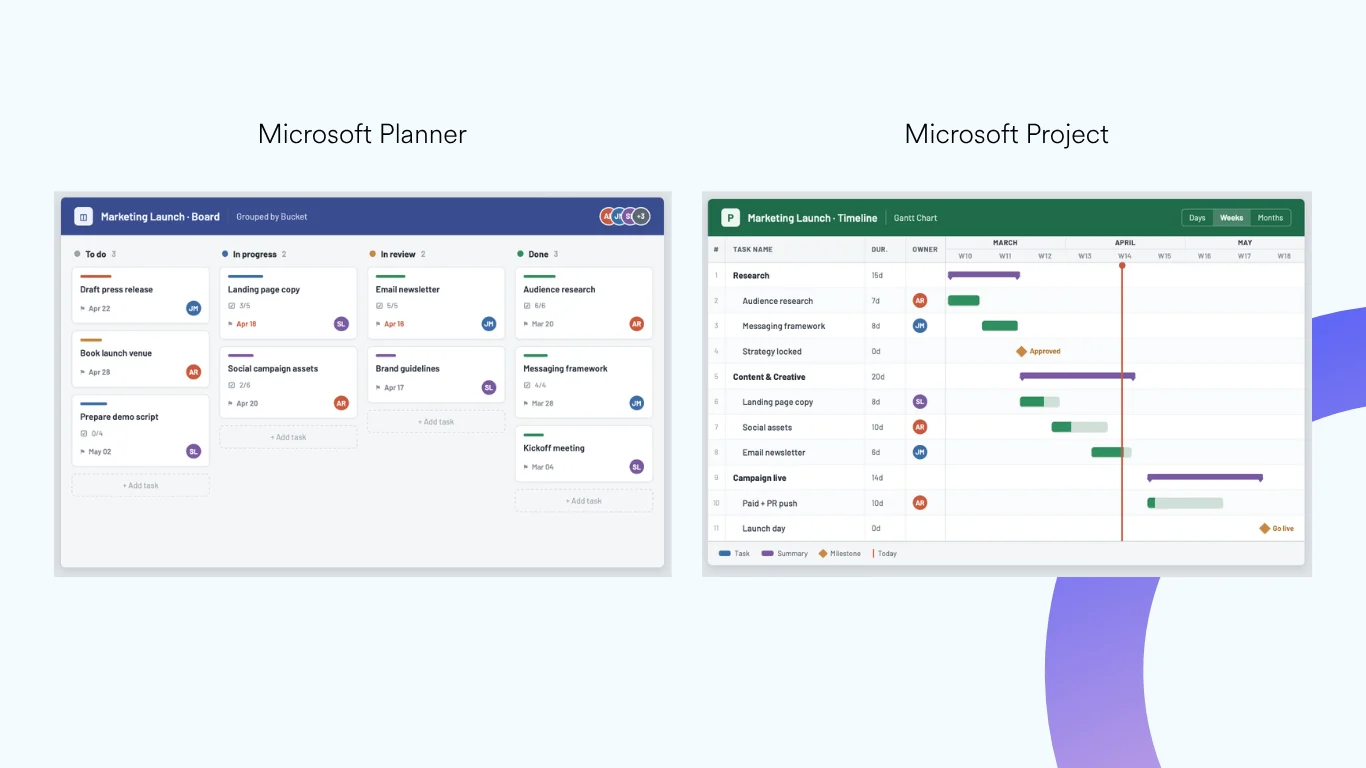
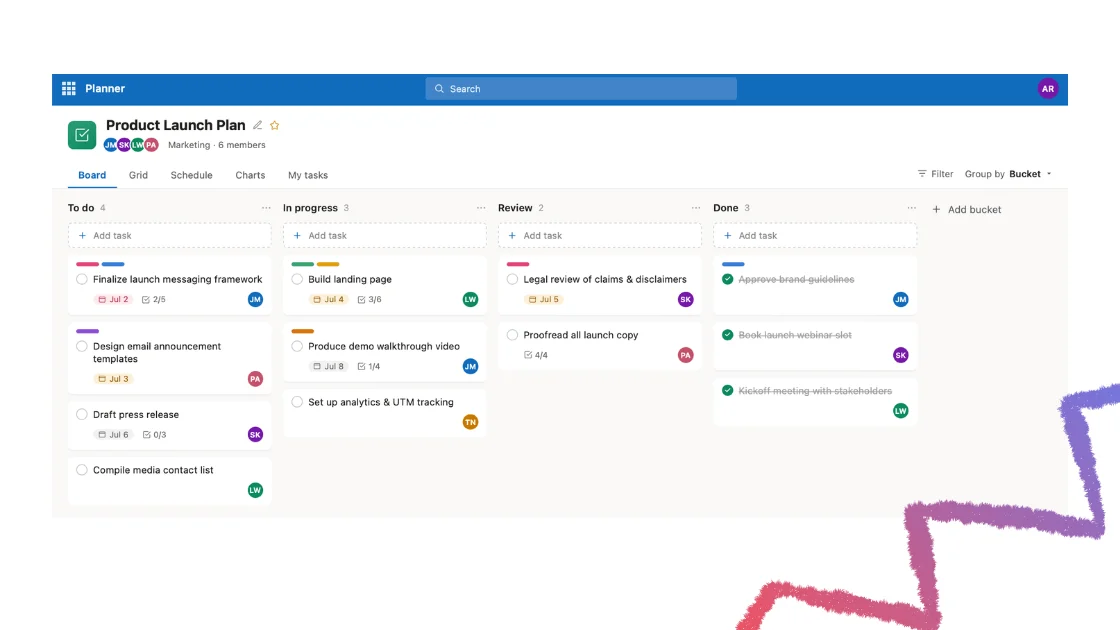
Can you run real projects on SharePoint? Short answer: yes — SharePoint Online gives you task lists, project sites, and document management, and pairs with Microsoft Planner (including its premium plans, the former Project for the web) and apps like Virto Kanban Board and the Virto Charts & Data Visualization App to cover boards and reporting. This guide focuses on the modern, cloud-first way to do it, with a short note for teams still on-premises at the end.
Quick answer: can you use SharePoint for project management?
Yes. SharePoint provides task lists, project sites, and document libraries out of the box, and integrates with Microsoft Planner, whose premium plans (the former Project for the web) handle scheduling. For visual boards and project reporting, teams add an app such as Virto Kanban Board or the Virto Charts & Data Visualization App. SharePoint is strong for document-centric, collaborative projects; for advanced scheduling you add Microsoft Project.
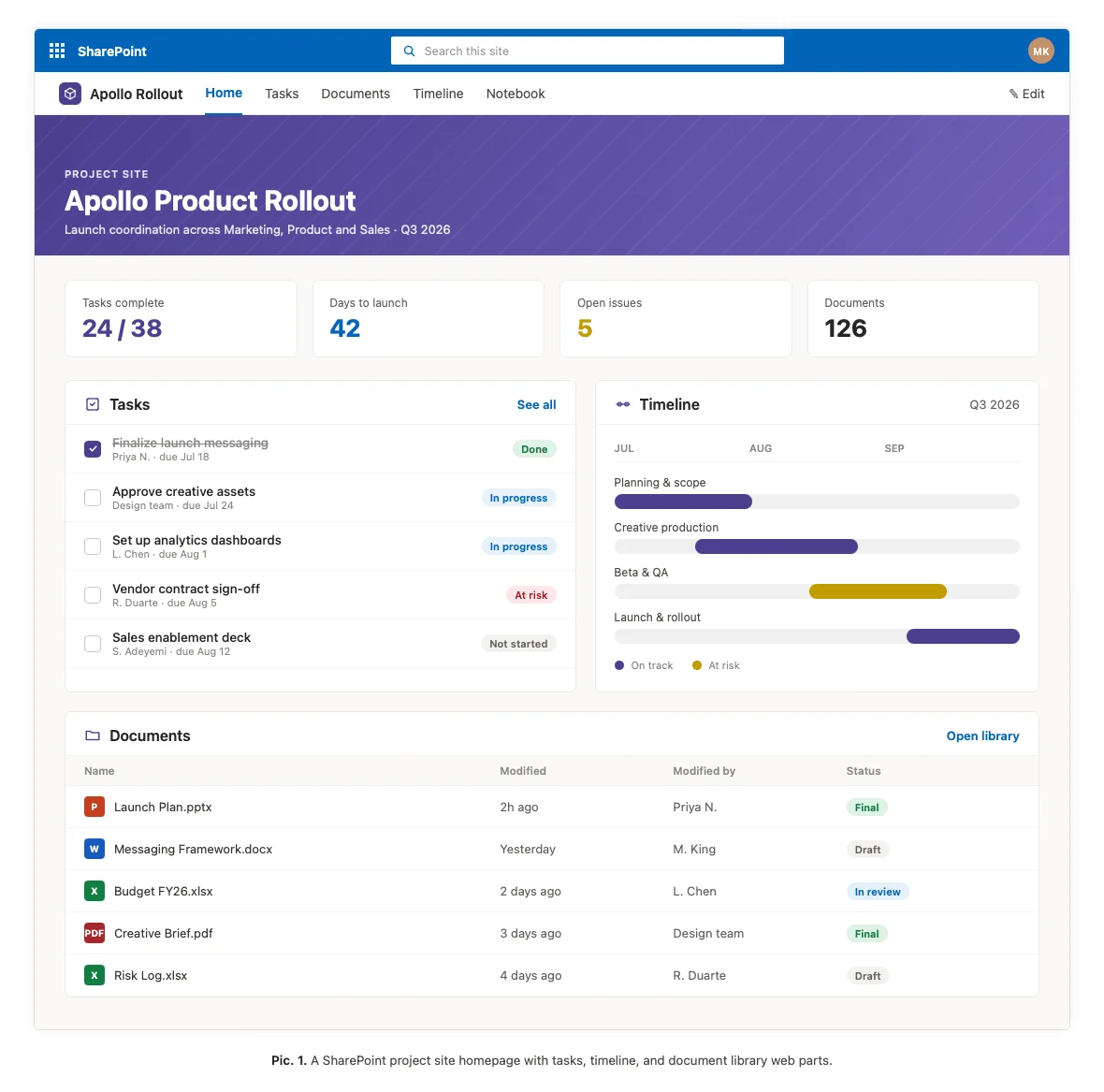
Pic. 1. Screenshot — a SharePoint project site homepage with tasks, timeline, and document library web parts.
SharePoint as a project management tool: what you can & can’t do
SharePoint isn’t a dedicated project management suite, but for teams already in Microsoft 365 it covers a surprising amount of the work — and it does so where your files, permissions, and people already live.
What SharePoint does well
- Centralized project sites — one hub per project holding documents, tasks, links, news, and a homepage the whole team can navigate.
- Task tracking with lists — modern SharePoint lists let you track status, owner, due date, and priority, then filter with saved views (board, calendar, grid).
- Document management — versioning, co-authoring, check-in/out, and metadata make SharePoint genuinely best-in-class for project documentation.
- Permissions & governance — group-based access control tied to your Microsoft 365 tenant, so security follows your existing org structure.
- Deep M365 integration — surfaces natively in Microsoft Teams, connects to Planner, Power Automate, and Power BI.
Where it needs help
- Limited visual boards — the built-in board view is basic compared with a purpose-built Kanban tool.
- Reporting & analytics — task lists don’t produce completion, burndown, or workload charts on their own.
- Advanced scheduling — predecessors, critical path, and baselines aren’t something SharePoint handles alone; you add Microsoft Project.
The practical takeaway: use SharePoint as the collaboration and document backbone, and layer Planner (basic or premium plans) or apps like Virto Kanban and Virto Charts & Data Visualization App on top for the visual and reporting layers.
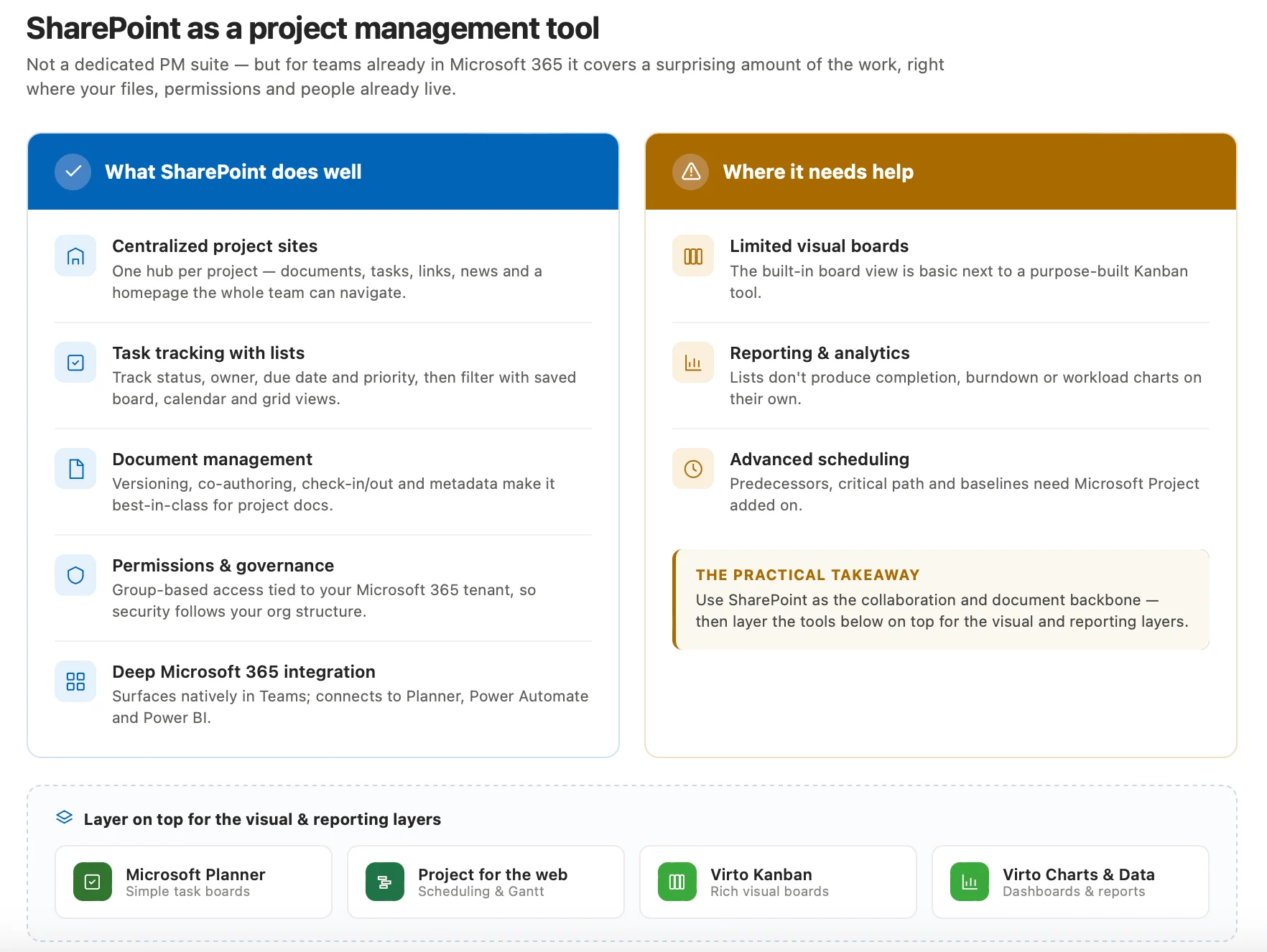
Pic. 2. Comparison graphic — SharePoint built-in capabilities vs. what you add with Planner / Project / apps.
How to set up project management in SharePoint Online
Here’s a realistic setup you can complete in an afternoon.
- Create a project site. Start from the Project Management team-site template, give it a clear, stable name, and assign at least two owners.
- Build a task list. Add a list with columns for Task, Assigned To, Status, Start, Due, and Priority. Use content types or a template if you’ll reuse the structure across projects.
- Create views. Set up a Board view grouped by Status for a lightweight Kanban, a Calendar view for deadlines, and a filtered “My tasks” view.
- Organize document libraries. Separate libraries or metadata for proposals, deliverables, and reports; turn on versioning.
- Connect Planner. Use a basic plan for simple task boards inside Teams, or a premium plan (the former Project for the web) when you need scheduling and dependencies.
- Automate with Power Automate. Add flows for deadline reminders, approval routing, and status notifications so updates don’t rely on manual chasing.
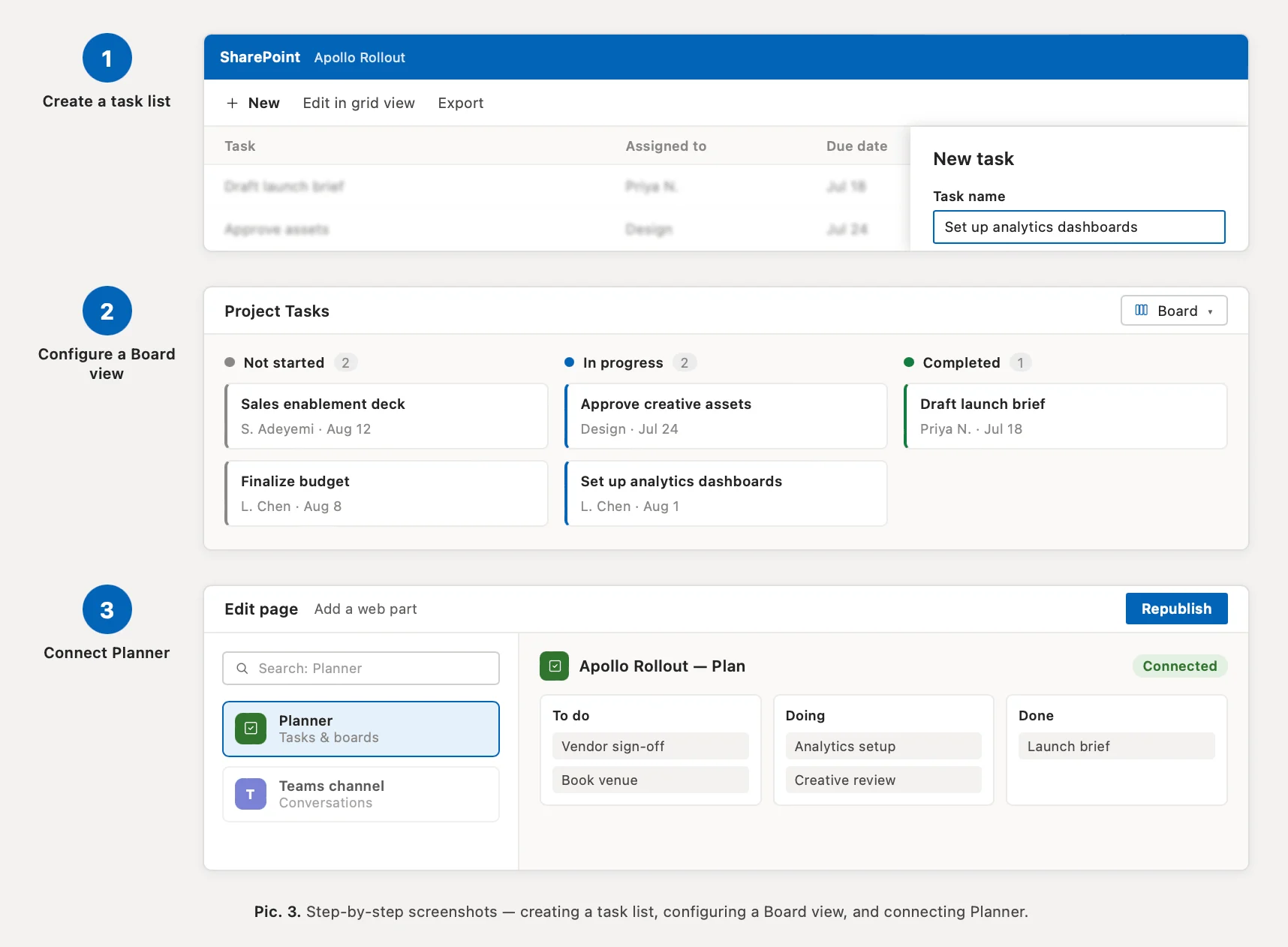
Pic. 3. Step-by-step: creating a task list, configuring a Board view, and connecting Planner.
Boards & reporting for SharePoint (apps)
When the built-in views hit their limits, two additions cover most teams’ needs. Both run inside your existing Microsoft 365 environment — no external servers, no data leaving your tenant.
Virto Kanban Board App
Virto Kanban Board turns SharePoint and Teams task lists into color-coded, drag-and-drop boards with swimlanes, WIP limits, and workflow analytics — the visual layer SharePoint lacks natively. It reads directly from your existing lists, so there’s no duplicate source of truth.
Pricing: Virto Kanban starts from $2/user/mo (Starter, up to 30 users) and $3/user/mo (Pro, 31–200); Enterprise pricing is available on request, with a 30-day trial.
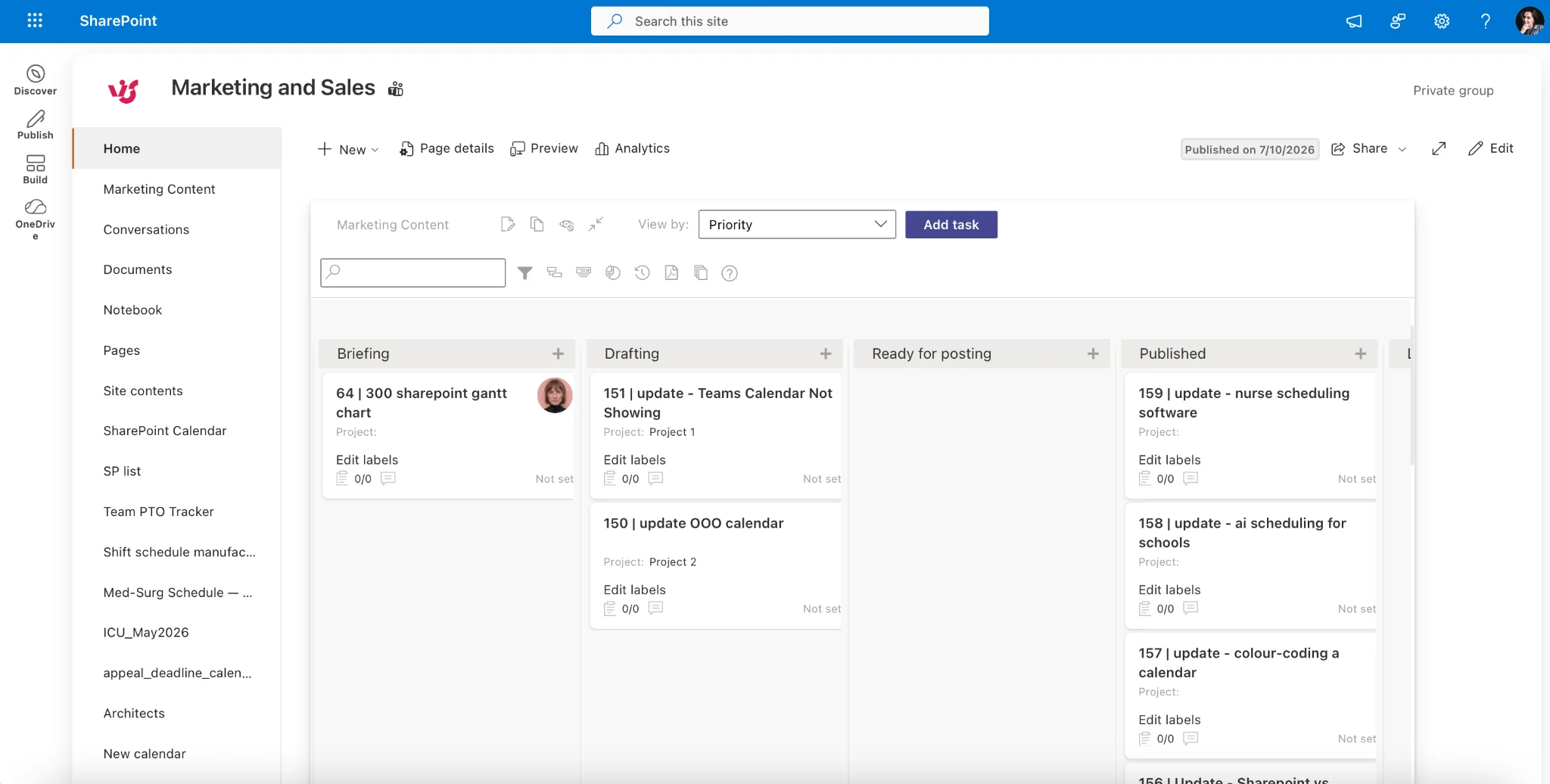
Pic. 4. Virto Kanban Board App
Virto Charts & Data Visualization App (free)
Virto Charts & Data Visualization App is a free tool that turns SharePoint list data into visual reports and dashboards inside Microsoft Teams and SharePoint. Build completion and burndown charts, track workload distribution and task-completion dynamics, and give stakeholders up-to-the-minute project insight — without exporting data or building reports by hand.
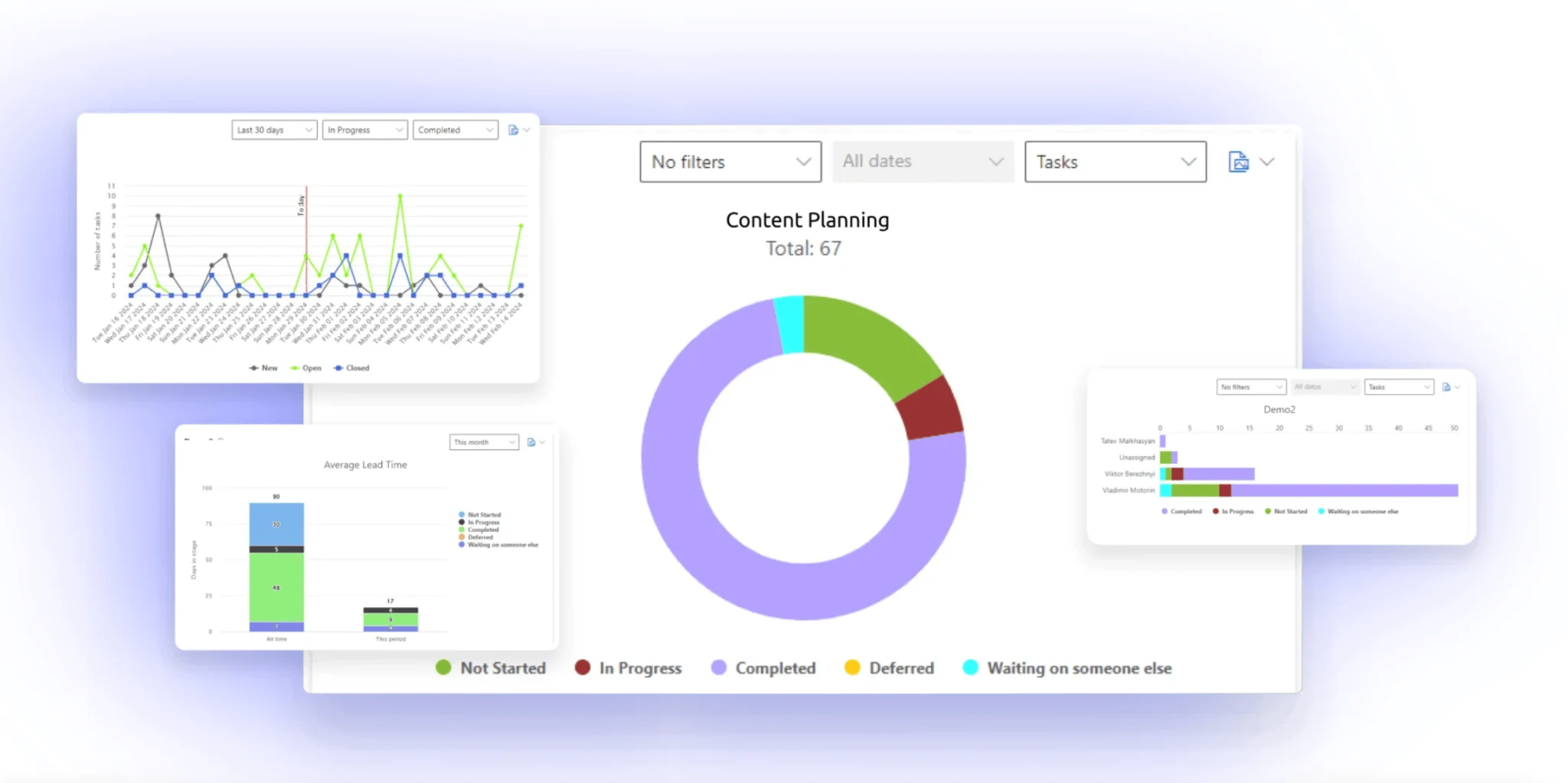
Pic. 5. Virto Charts & Data Visualization App.
Dashboards & multiple projects
For a real-time roll-up of status, workload, and progress, build a reporting layer with Power BI, the free Virto Charts & Data Visualization App, or a dedicated dashboard. See our focused guide on the SharePoint project dashboard for setup patterns.
Coordinating several projects at once — shared resources, cross-project views, portfolio reporting — is its own discipline. Rather than repeat it here, see how to manage multiple projects. And if your organization uses the wider Microsoft 365 toolset (Planner, To Do, Teams, Project) beyond SharePoint alone, start with Office 365 project management.
Legacy: on-premises SharePoint project management
Classic SharePoint on-premises (2013/2016/2019) can still host project sites, task lists, and document libraries, but it lacks the modern lists experience, Planner integration, and cloud automation. If you’re on-premises, the core concepts in this guide still apply, but expect more administrative overhead and fewer built-in options — third-party web parts such as the Virto apps remain the practical way to add boards and reporting views. Most new demand and Microsoft’s own investment is in SharePoint Online, so treat on-premises as a maintenance path rather than a starting point.
FAQ
Can you use SharePoint for project management?
Yes. SharePoint provides task lists, project sites, and document management, and pairs with Planner/Project and apps (such as Kanban and Charts) for boards and reporting. It’s strong for collaboration but needs add-ons for full project management.
Is SharePoint good for project management?
For document-centric, collaborative projects in Microsoft 365, yes. For advanced scheduling, add Microsoft Project; for visual boards and reporting, add apps like Virto Kanban Board and the Virto Charts & Data Visualization App.
How do I create project charts and reports in SharePoint?
SharePoint lists hold the data, but they don’t visualize it on their own. You can build reports with Power BI, or add a free app such as Virto Charts & Data Visualization App, which turns list data into completion, burndown, and workload charts inside Teams and SharePoint.
Bringing it together
SharePoint Online gives most Microsoft 365 teams a solid, collaborative foundation for running projects — sites, lists, documents, and permissions in one place. To turn that foundation into a full workflow, add visual boards with Virto Kanban Board and project reporting with the free Virto Charts & Data Visualization App. Explore the apps to see how they fit your SharePoint project workflow.