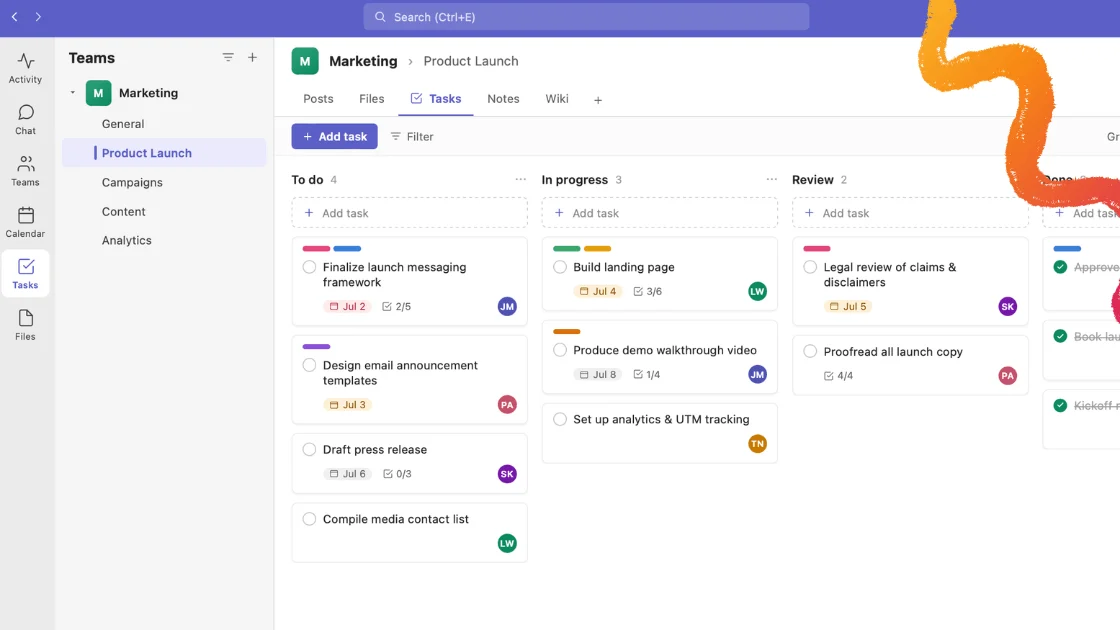
A project calendar maps a project’s tasks, milestones and deadlines onto a shared timeline, so the whole team can see what is due, when, and who owns it. It is the difference between a plan that lives in someone’s head and a plan the team can actually work from.
This guide covers what a project calendar is, how it differs from a resource calendar and a Kanban board, how to build and maintain one step by step, and which tools do the job best — with a verified comparison of six leading options. Written by the team at VirtoSoftware, an ISV that has been building scheduling and project tools for the Microsoft ecosystem for 15 years.
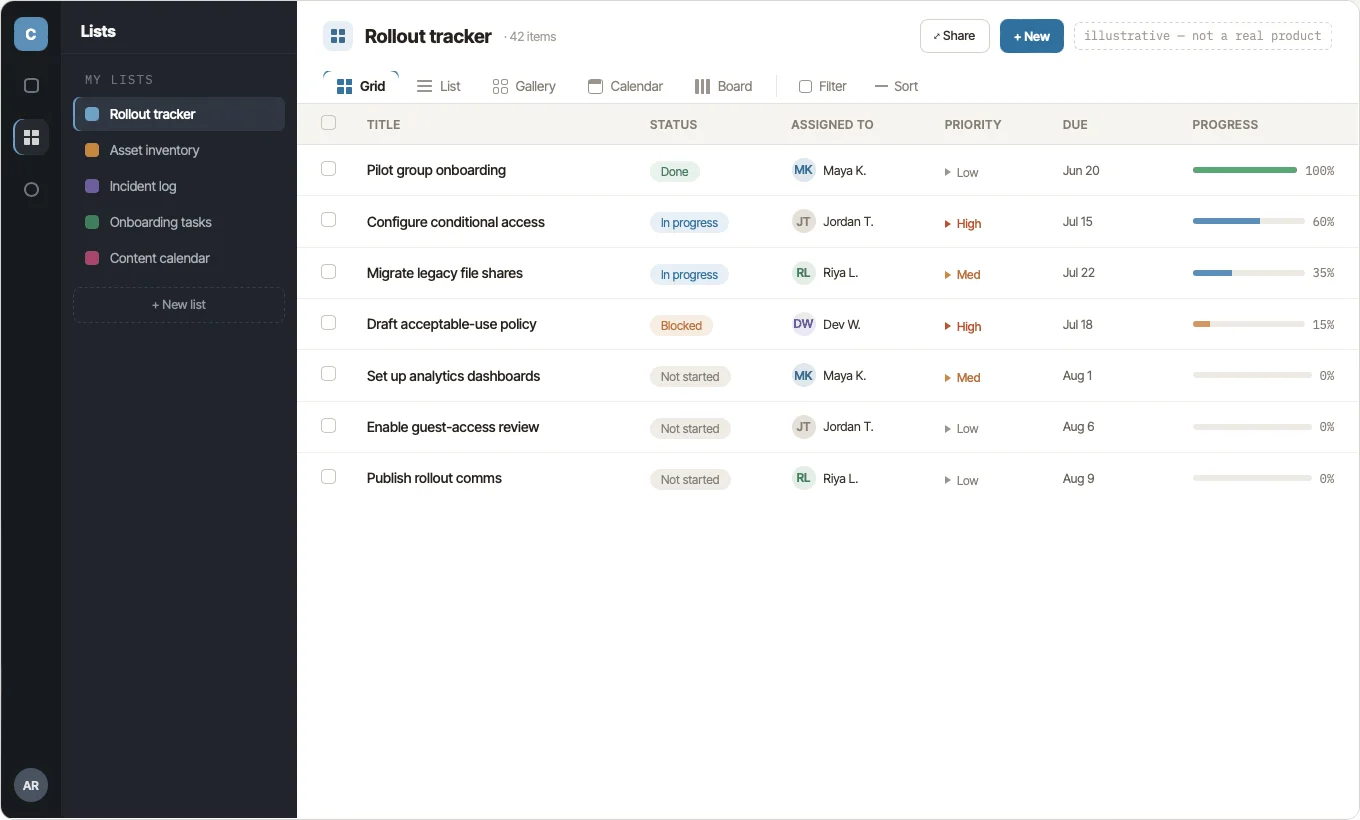
Pic. 1. Project calendar view showing tasks, milestones, and deadlines on a shared timeline.
Quick answer: what is a project calendar?
👉 A project calendar is a shared calendar that maps a project’s tasks, milestones and deadlines onto a timeline so the whole team can see what is due and when. It answers three questions at a glance: what happens next, by when, and who is responsible.
Unlike a personal calendar, which is organised around a single person’s meetings, a project calendar is organised around deliverables. Unlike a Gantt chart, which foregrounds dependencies and critical path, a calendar foregrounds dates — which makes it the most readable artefact you can put in front of stakeholders who are not project managers.
Understanding Project Calendars
A project calendar is the chronological backbone of project management: a blueprint of the sequence of tasks and milestones that carry a project from kickoff to completion. It is the map the team follows, and it sets the pace and trajectory of the work.
Its real value shows up in planning, coordination and oversight. A project calendar gives a visual narrative of the project life cycle, letting managers and team members synchronise their efforts, anticipate roadblocks early, and steer the project toward on-time delivery.
👉 What is a project management calendar schedule? It is a calendar used to plan, coordinate and track the moving parts of a project — tasks, assignments, deadlines and meetings — tied back to milestones, deliverables and resource availability. It is an integrated way to manage the when, the who and the what of a project.
Goals and benefits of using project calendars
Using a project calendar goes beyond scheduling. It is the deliberate use of time as a project resource, and the benefits compound:
- Structured scheduling. Every task gets a specific time slot, which surfaces conflicts before they become delays.
- Optimised resource allocation. Managers can see where and when resources are needed, avoiding both overcommitment and idle capacity.
- Deadline control. Progress is visible in real time, so adjustments happen while they still matter.
- Transparency and communication. Stakeholders stay informed about progression and key milestones without chasing status updates.
But can a calendar alone carry the whole of project management? It depends on the project.
For small teams and individual entrepreneurs, a straightforward calendar app is often enough. Where complexity is minimal, a basic calendar meets the need without the overhead of a specialised system. The same holds for short-duration projects: a calendar-centric approach removes the learning curve of heavier tools and gives a fast, readable view of timelines and deliverables.
For larger, more interdependent projects, the calendar becomes one view among several — valuable, but paired with task management, dependencies and reporting. The efficacy of a calendar as a standalone tool scales inversely with project complexity.
The role of project calendars in project management software
Most project management platforms — Microsoft Project, SharePoint, Microsoft Teams, Asana, Trello, Jira, Basecamp, Smartsheet — now ship a calendar view alongside boards, lists and timelines. A calendar embedded inside the tool where the work already lives simplifies planning, reduces scheduling conflicts, and improves resource allocation, because the dates on the calendar are the same dates on the tasks.
Alongside these, standalone calendar tools excel at focused scheduling and integrate with the broader stack. Software with built-in project calendars includes:
- Microsoft Project: a full project management tool with calendar views that reflect work schedules and holidays, customisable per project.
- Asana: list, board, calendar, timeline and Gantt views run on the same underlying data, switchable in a click.
- Trello: native Calendar view on paid plans, plus the Calendar Power-Up for boards on the free plan.
- Jira: agile planning with calendar views for sprints and releases.
- Basecamp: integrated schedules that surface on project calendars.
- Smartsheet: a spreadsheet-style interface with calendar views for planning.
Standalone calendars that integrate well with other tools include:
- Microsoft Outlook Calendar: widely deployed, integrates with a broad range of PM tools and email systems.
- Google Calendar: simple, ubiquitous, and integrates across Google Workspace and beyond.
- TeamGantt: Gantt-first, with calendar functions for planning and tracking.
- Wrike: Calendar view and multi-layer Calendars inside a full work management platform.
- Virto Calendar App: built for SharePoint Online, Microsoft 365 and Microsoft Teams, overlaying multiple calendar sources in one colour-coded view.
Resource calendar vs project calendar: what is the difference?
These two scheduling artefacts look similar and do different jobs.
A resource calendar details the availability, schedules and constraints of the individual resources a project needs — people, equipment, materials. Its purpose is to manage those assets efficiently, so the right resource is free at the right time, without conflicts or bottlenecks.
A project calendar gives an overview of the whole project timeline: when tasks and milestones are due, in what sequence, over what duration. It aligns stakeholders on the macro delivery cadence. Put simply: the project calendar defines the destination; the resource calendar plots the journey given the terrain.
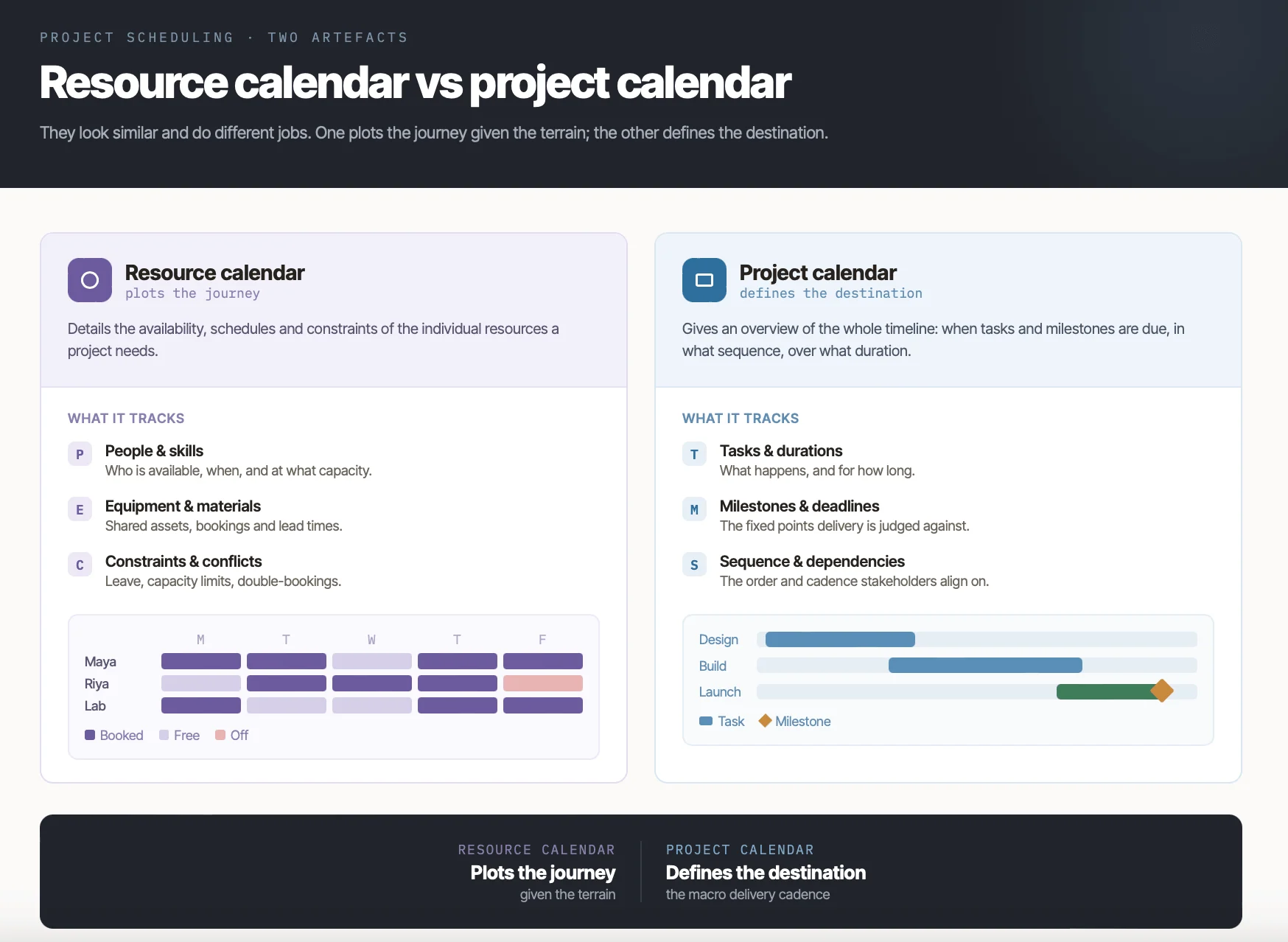
Pic. 2. Resource calendars vs project calendars — what each one tracks.
Misalignment between the two causes delays, inefficiency and cost. Integrating them is not optional on any project with shared resources. Three strategies for doing it well:
- Synchronise schedules. Read resource availability into the project calendar so deadlines are set against real capacity, not wishful thinking.
- Protect critical resources. Identify the resources the project cannot proceed without, and schedule their time first.
- Optimise utilisation. An integrated view exposes both overallocation and underuse, which is where burnout and waste live respectively.
Dual calendaring earns its keep in multi-team work:
- In construction project management, the resource calendar manages contractor, machinery and material availability, while the project calendar tracks construction phases.
- In a product launch, the PR calendar is aligned against the communications team’s personnel calendars when scheduling announcements.
- In software development, the project calendar sets feature and release dates, while resource calendars track developer and QA availability and access to test environments.
Project calendar vs Kanban board
Calendars and Kanban boards solve adjacent problems. Kanban is an agile method that excels at showing real-time task progress and enabling flow; calendars take a temporal view, fixing milestones and driving the long-range roadmap. Which you reach for depends on the project:
- Deadlines and time constraints. For deadline-driven work, the calendar wins: clear start and end dates per task, and an honest view of resource availability against them.
- Workflow visibility. If the question is “where is this task right now”, a Kanban board answers it faster — To Do through Done, at a glance.
- Flexibility. Dynamic projects that reprioritise often suit Kanban, where cards move between columns as priorities shift.
- Collaboration. Both support it. Kanban tends to give a shared space where progress is updated in the flow of work.
Many teams end up running both: a calendar for the roadmap and stakeholder view, a board for day-to-day execution. Within Microsoft 365, Virto Calendar and Virto Kanban Board cover exactly this pairing — the structure of a calendar plus the adaptability of a board, in the same environment.
How to Create a Project Calendar: Step-by-Step
So how do you actually build one? Five steps take you from a blank calendar to a working schedule.
- Define the project goals and scope. Nail down the objectives and the overall timeline. Everything downstream depends on this being right.
- Break the project into stages and tasks. Build a work breakdown structure: the activities required, and how they depend on one another.
- Allocate time frames to each task. Estimate durations and set deadlines, accounting for dependencies and real resource availability — not best-case availability.
- Assign owners. Every task gets a named person or team accountable for it. Unowned tasks slip.
- Assemble the work schedule. Combine durations, dependencies and assignments into one calendar, correctly sequenced. Publish it where the team already works.
A calendar that is built once and never touched is a historical document, not a plan. Keeping it accurate takes three habits:
- Review and update as the project moves. Fold in changes to scope, timelines and resourcing as they happen, not at the next status meeting.
- Prioritise and build in slack. Identify critical path activities and hold time reserves against the unforeseen. A schedule with zero float is a schedule that will break.
- Track progress systematically. Status updates or PM software — whatever the mechanism, progress must be visible before the deadline, not at it.
Running several projects at once raises the coordination bar. Three practices help:
- Coordinate calendars across projects to spot resource conflicts before they collide.
- Prioritise and allocate based on organisational strategy, not on whichever project shouts loudest.
- Use calendar synchronisation to prevent double-booking across initiatives.
None of this works without open communication. Make the calendar accessible to every relevant stakeholder, hold regular check-ins so everyone is aligned on timeline and responsibility, and create the conditions for people to flag problems with the schedule rather than quietly miss it.
👉 How do I create a calendar work plan? Balance big-picture goals with task-level scheduling. Define priorities for the week or month, break them into manageable objectives, and map those into time blocks for focused work. Schedule the fixed items — meetings, calls, admin — and leave buffer for interruptions. Assign deadlines to action items, check them off by due date, and adapt the plan as circumstances change.
Project schedule: milestones, deadlines and dependencies
A project schedule is the detailed timeline underneath the calendar: the sequence of tasks, milestones, deadlines and dependencies required to deliver. Three elements do most of the work.
| Milestones | Deadlines | Dependencies |
|---|---|---|
| Progress tracking: checkpoints that show whether the project is on track. | Time management: create urgency and force prioritisation. | Task sequencing: define the order work must happen in. |
| Goal achievement: mark completion of key phases and keep the team oriented. | Accountability: tie deliverables to named owners and dates. | Resource allocation: expose where resources must be free, and when. |
| Communication: give stakeholders clear progress markers to anchor on. | Project progress: steady completion against a schedule rather than an end-loaded scramble. | Risk management: surface bottlenecks that threaten the timeline. |
Fig. 1. Milestones, deadlines and dependencies in a project schedule.
Time management strategies that hold up in practice:
- Prioritise by impact. Rank tasks against their effect on milestones, not their urgency.
- Set deadlines you can hit. Achievable deadlines maintain momentum; fictional ones destroy trust in the schedule.
- Allocate resources against dependencies. Criticality and sequence, not availability alone, should drive assignment.
- Track against milestones regularly. Deviations caught early are cheap; deviations caught late are not.
- Keep communication open. Everyone should know their own responsibilities and deadlines without asking.
- Leave room to adjust. Absorb change without compromising the overall timeline.
Best Project Calendar Software: Verified Comparison
Before comparing individual tools, it is worth being clear about what to look for. When evaluating project calendar software, the features that matter most are:
- Interface. Intuitive, customisable, and navigable without training.
- Task management. Create, organise and track tasks: deadlines, priorities, owners, progress.
- Planning and timelines. Schedules, task dependencies, start and completion dates.
- Resource management. Allocate people, equipment and materials to tasks and track their availability.
- Reporting and analytics. Reports on progress, utilisation and completion rates — the basis for identifying bottlenecks.
- Integrations. Email, calendars, content management and the rest of the stack, so work does not fragment.
- Security and data protection. Secure storage and transmission, with access controls that hold up to enterprise scrutiny.
- Mobile support. Access and update on the go.
1. Google Calendar
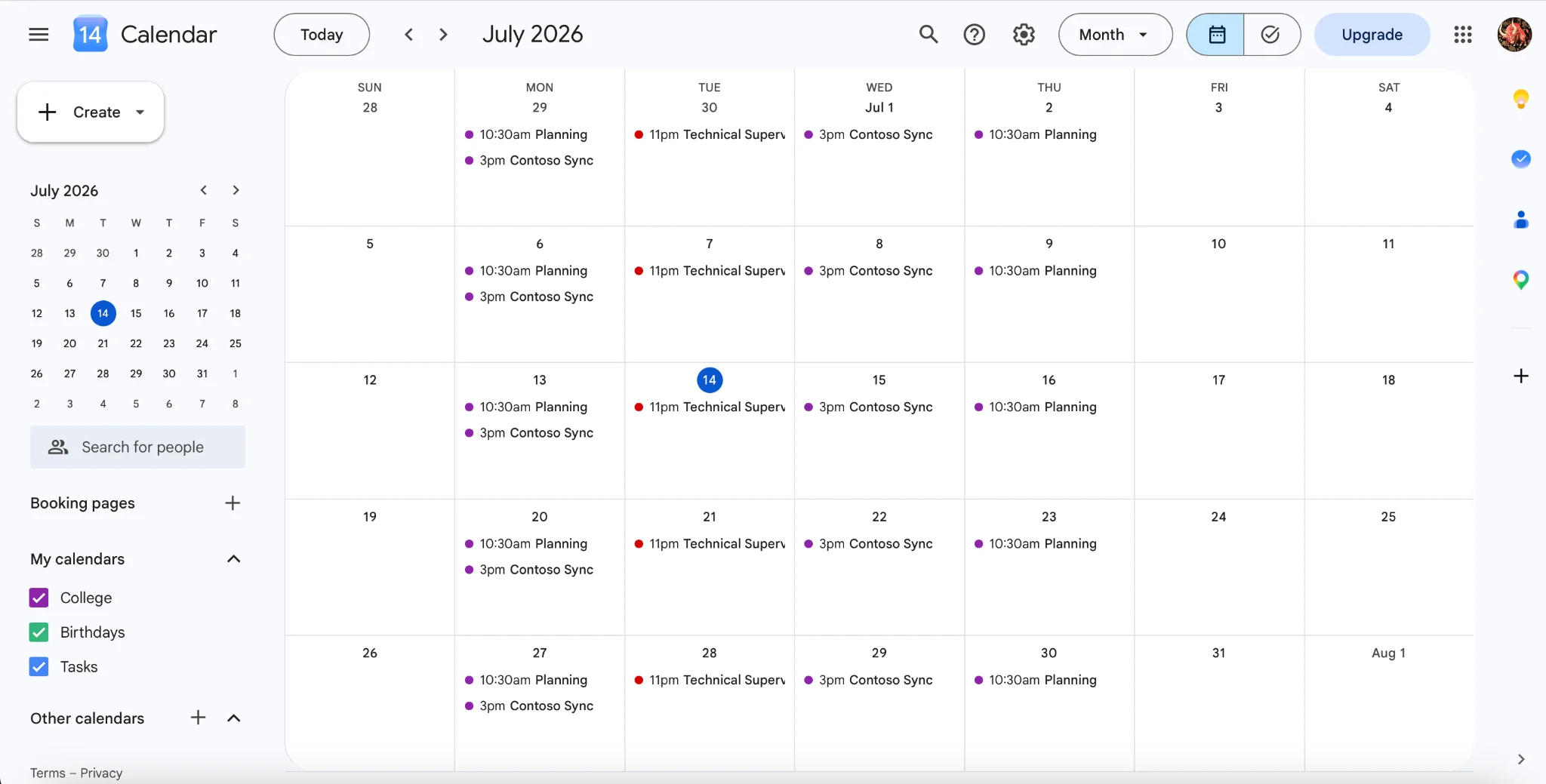
Pic. 3. Google Calendar used as a project scheduling calendar.
Google Calendar is not project management software, but it is a capable project calendar for small teams — particularly those already inside Google Workspace. It handles the scheduling layer well and stops there.
- Event creation and scheduling: meetings, deadlines and milestones as calendar events.
- Reminders and notifications: configurable alerts ahead of events.
- Shared calendars: a centralised view of project schedules the whole team can subscribe to.
- Event details and attachments: descriptions, files and links to project resources attached to the event.
- Recurring events: standing meetings and repeating tasks set once.
- Time zone support: automatic adjustment for distributed teams.
- Access control: view-only or edit permissions per person.
- Google ecosystem integration: Gmail, Google Drive and Google Meet.
- Third-party integrations: connects to PM tools, time trackers and productivity apps.
👉 Is Google Calendar good for project management? For scheduling, yes. For project management, only if the project is small. Calendar systems were built to display events, not tasks and deliverables — pile enough task “events” into a single day and the view becomes noise. It is a strong choice for teams already in Google Workspace who need timelines, not task tracking.
2. Asana
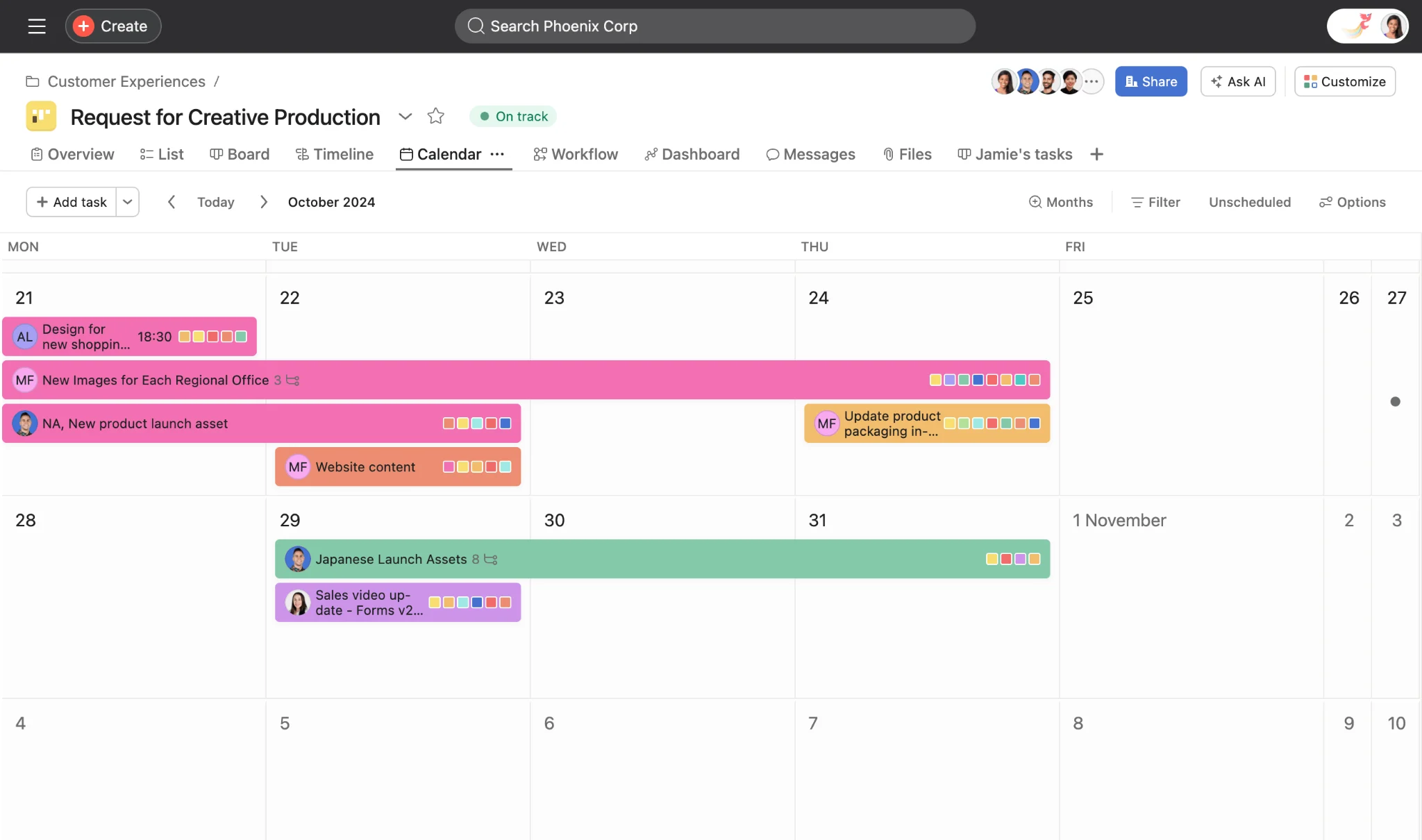
Pic. 4. Asana calendar view.
Asana is a full project management platform whose calendar is one of several views over the same data — list, board, calendar, timeline and Gantt all run on the same tasks and switch with a single click.
- Multiple views on one data set: no duplication between the calendar and the board; changing a date in one changes it everywhere.
- Drag-and-drop scheduling: move a task to a new date and its due date updates automatically.
- Task detail in context: click a task in the calendar to see description, assignee, due date and comments without leaving the view.
- Week and month modes: week view narrows the focus to five to seven days, with the option to show weekends.
- Colour-coding by custom field: set colour logic on a custom field and save it as the team-wide view.
- Filtering: filter by assignee, project or tag, in both month and week view.
- Third-party sync: integrates with Google Calendar and Outlook.
Worth knowing before you commit: only tasks and subtasks with due dates that belong to the project appear on its calendar, and subtasks must be added to the project manually to show up. Asana’s free plan is aimed at individuals and very small teams — check the current user cap on Asana’s pricing page before planning around it, as the terms have changed recently.
3. Trello
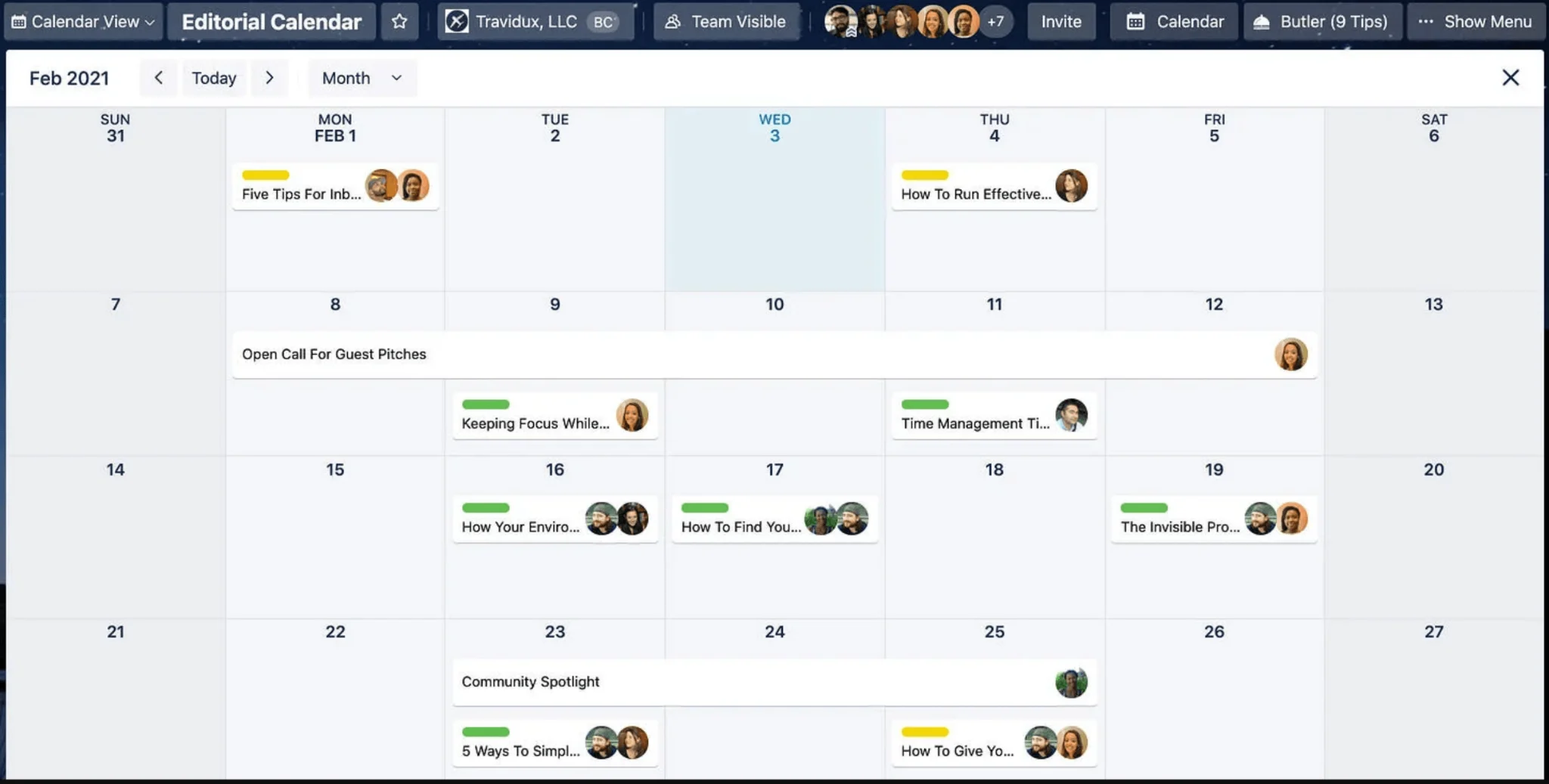
Pic. 5. Trello Calendar view with cards arranged by due date.
Trello has changed since most guides were written, so this is worth stating plainly: Trello now has a native Calendar view on paid plans, not just a Power-Up. There are, confusingly, three calendar surfaces:
- Calendar view (paid plans): arranges cards by due date, showing labels, members and checklists, with a day-level zoom and mobile access. It can be added to other calendars — Google, Outlook, Apple — via iCal.
- Calendar Power-Up (free plans): broadly the same functionality, but scoped to a single board rather than across a workspace. Cards with due dates appear in a calendar; drag between days to change the due date; switch between week and month modes.
- Planner: a newer surface (g+p, or the calendar icon in the bottom panel) that connects to Google or Outlook calendars so you can see meetings alongside work. Important caveat: cards do not appear in Planner automatically — you drag them in, and it has nothing to do with due dates.
Beyond the calendar surfaces, Trello supports card due dates and reminders, list-based organisation by phase, labels and filters, and attachments and comments for context. It remains the lightest of the tools here, which is both its strength and its ceiling.
4. Wrike
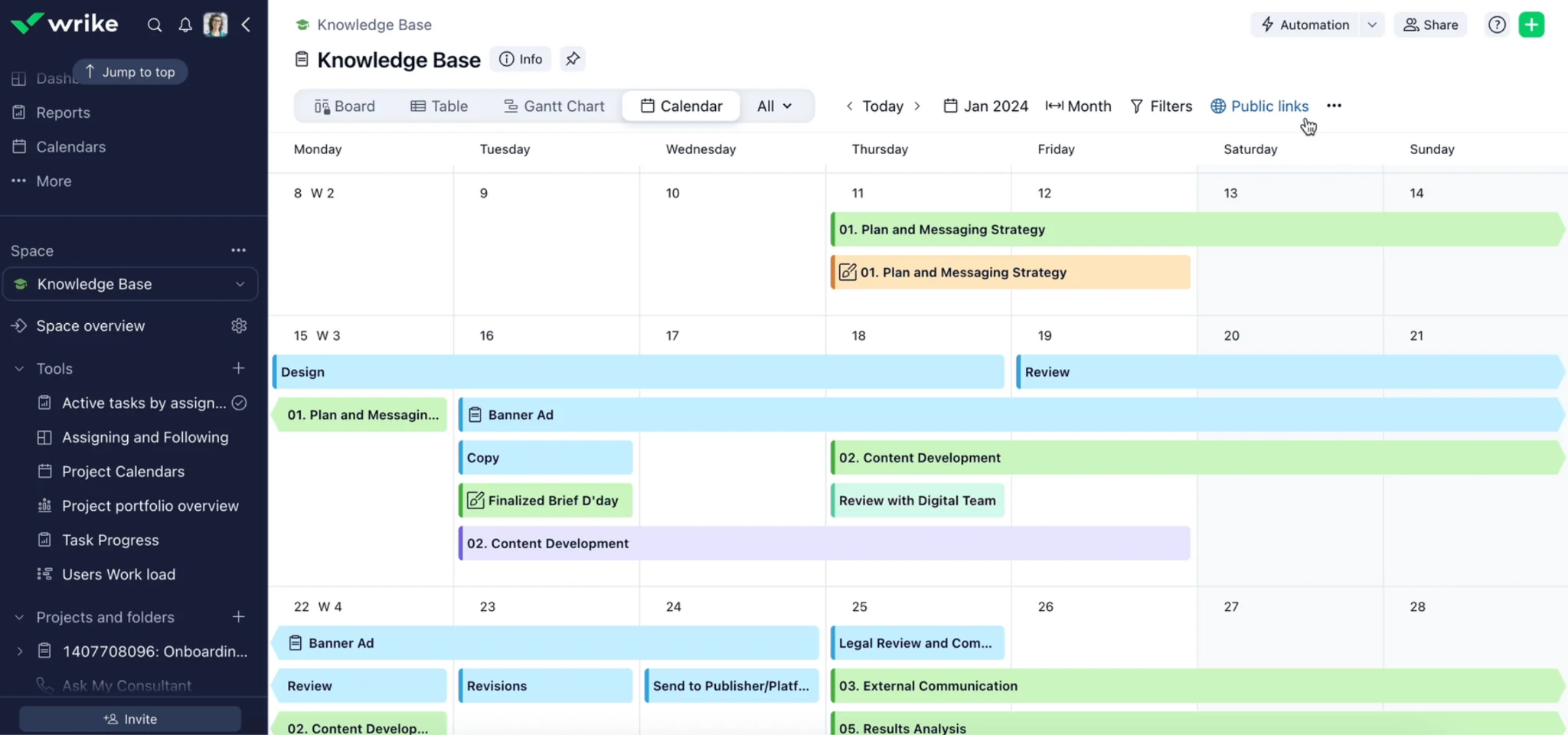
Pic. 6. Wrike Calendar view showing tasks and milestones across a project timeline.
Wrike distinguishes between two things with similar names, and the distinction matters when you are choosing:
- Calendar view: a timeline of work items within a single project, folder or space. Use it if you coordinate one project or campaign at a time.
- Calendars: multi-layer, multi-source calendars for high-level, program-level planning across several projects or spaces. Use these if you are a program lead tracking a portfolio.
Across both, Wrike supports:
- Multiple time ranges: week, month, quarter, year and multi-year zooms.
- Milestones: due-date-only entities that appear in every calendar mode, shown as a diamond icon in the longer-range views.
- Smart and classic layers: smart layers pull tasks automatically by filter; classic layers are curated by hand.
- Drag-and-drop rescheduling: move an item on the grid and the underlying task updates.
- Custom fields on the calendar: add and edit system and custom fields directly from the calendar preview card.
- Public share links: share a live view with people outside Wrike.
- Filtering with AND/OR logic: including relative-date filters such as “next 14 days”.
Availability varies by plan and role — Collaborators, Contributors and Viewers can see calendars shared with them but cannot create or edit them. Check the plan matrix before rolling Wrike out to a mixed-permission team.
5. Calendly
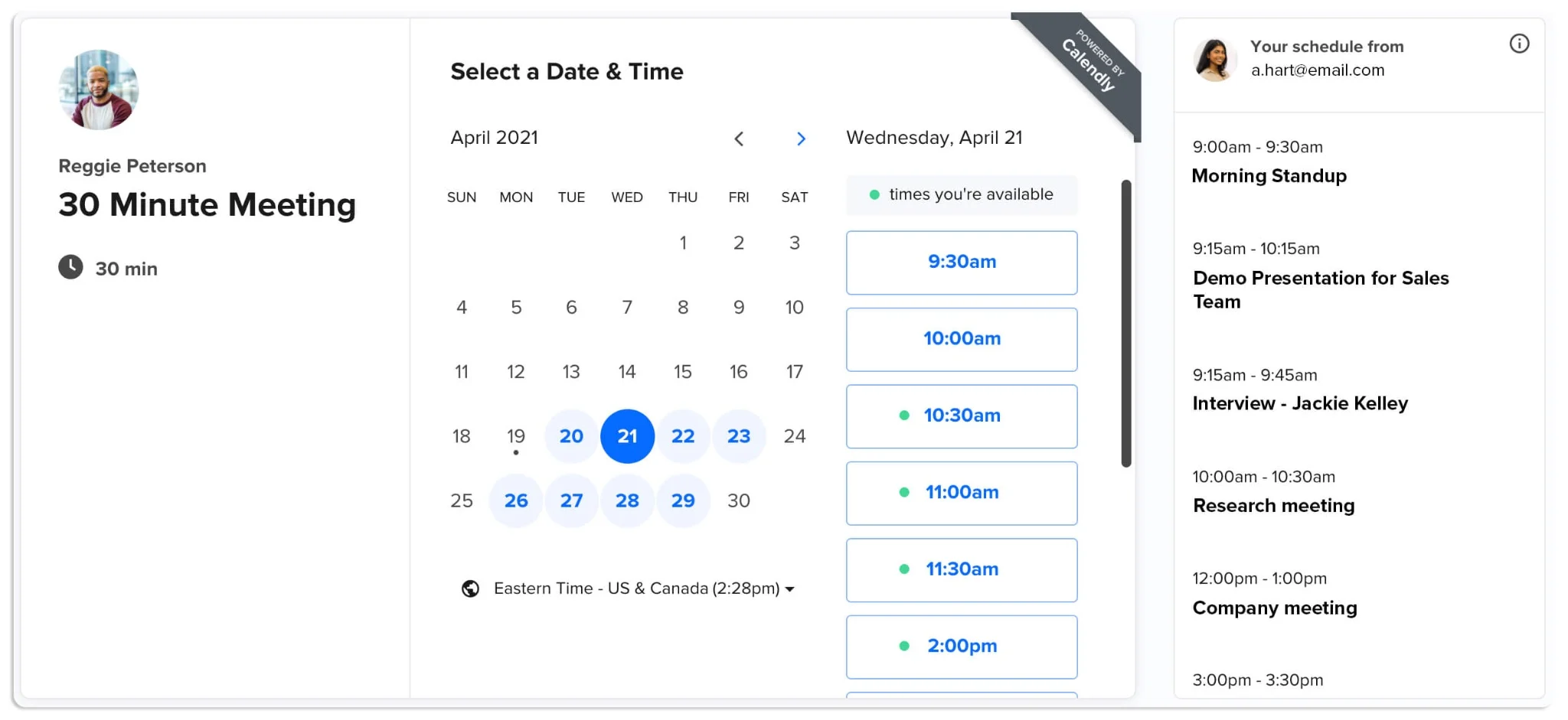
Pic. 7. Calendly showing available slots.
Calendly is a scheduling tool, not a project management tool. It earns a place here because meeting coordination is a real and time-consuming part of running a project, and Calendly removes most of the friction from it.
- Meeting scheduling: publish availability; invitees pick a slot. No scheduling email threads.
- Team scheduling: multiple team members share availability on a single booking page — useful for meetings that need several people present.
- Calendar integration: connects to Google Calendar, Microsoft 365 and iCloud, so bookings land in the right calendar and double-bookings are avoided.
- Branding: customise the booking page for client-facing use.
- Reminders: automatic emails to organiser and invitee, which cuts no-shows.
- Time zone detection: automatic for the invitee.
- Basic reporting: meeting volume and popular meeting types.
Use it alongside a project calendar, not instead of one.
6. Virto Calendar App (Microsoft 365, SharePoint & Teams)
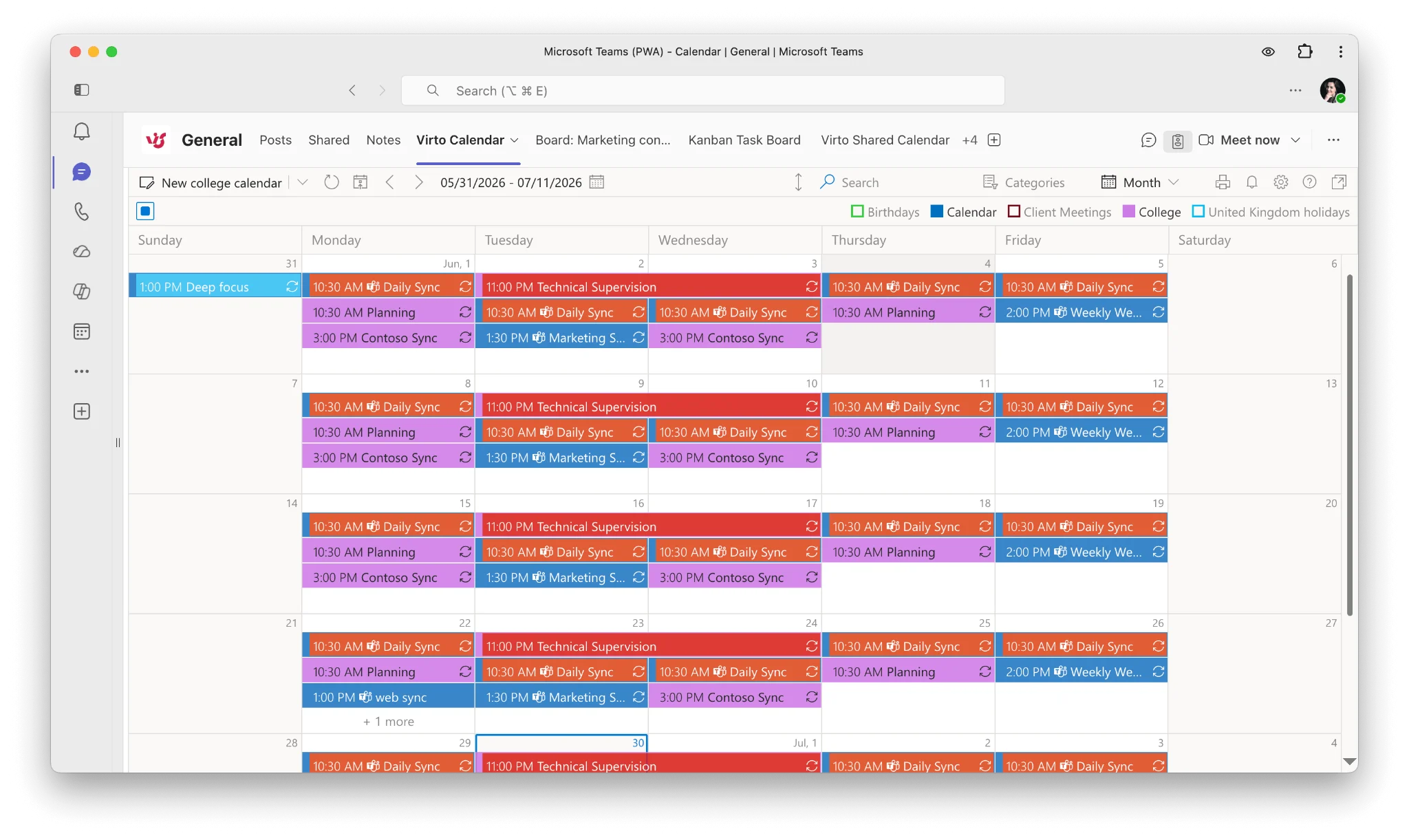
Pic. 8. Virto Calendar App overlaying multiple calendar sources in a single colour-coded project view.
Virto Calendar App is a calendar overlay solution built for Microsoft 365, SharePoint Online and Microsoft Teams. Where the other tools on this list ask you to move your project into their platform, Virto Calendar works inside the platform your organisation already runs.
- Multi-source overlay: merge SharePoint lists and calendars across sites and subsites, Exchange Online and Microsoft 365 group events, and internet calendars such as Google and iCloud, into one colour-coded view. No page-switching.
- Native Microsoft 365 integration: consistent with M365 on both security and UX — no parallel identity, no separate permissions model.
- Shared team and project calendars: centralised views of schedules, milestones and deadlines by project, department or event type.
- Event and task management: create events with start and end dates, durations, locations and attendees, including recurring events.
- Colour coding and categorisation: differentiate by project, task type or priority.
- Outlook integration: sync events between the app and Outlook so project and personal schedules sit together.
- Mobile access: view and manage schedules on the go.
- Permissions and access control: aligned with Microsoft 365 governance and identity, so sensitive project information stays scoped.
- Flexible deployment: run in your own Azure subscription linked to Microsoft 365 for full data ownership — relevant for regulated industries and any organisation with data residency requirements.
Virto Calendar App works on modern and classic SharePoint pages and in Microsoft Teams channels, with one license covering SharePoint, Teams and Azure. It is used by over 8,000 businesses.
Comparison table
| Tool | Delivery | Part of a PM suite | Usable as a standalone calendar | Team size | Best suited to |
|---|---|---|---|---|---|
| Google Calendar | Cloud | No | Yes | Small to medium | Teams already in Google Workspace; scheduling, not task tracking |
| Asana | Cloud | Yes | No | All sizes | Cross-functional teams wanting one data set across five views |
| Trello | Cloud | No | Partial (native Calendar view on paid plans) | Small to medium | Lightweight, visual, Kanban-first workflows |
| Wrike | Cloud | Yes | No | All sizes | Marketing and creative teams; program-level portfolio planning |
| Calendly | Cloud | No | Yes (scheduling only) | All sizes | Meeting coordination alongside a real project calendar |
| Virto Calendar App | Cloud & self-hosted in your Azure | Integrates with M365 stack | Yes | All sizes | Organisations running on Microsoft 365, SharePoint and Teams |
Fig. 2. Project calendar tools compared. Feature availability and plan tiers change frequently — verify against each vendor’s current pricing page before purchase.
A few notes on how to read the table:
- Delivery. Google Calendar, Asana, Trello, Wrike and Calendly are cloud subscriptions. Virto Calendar App can also be deployed inside your own Azure subscription, which matters where data must stay in your infrastructure.
- Suite vs standalone. Asana and Wrike are calendars inside larger platforms; you adopt the platform. Google Calendar, Calendly and Virto Calendar App are calendar-first and integrate with whatever else you run.
- Fit. Google Calendar and Calendly suit individuals and small teams. Asana, Trello and Wrike span small teams to enterprises. Virto Calendar App is aimed at teams, departments and enterprises inside Microsoft 365.
👉 Using SharePoint for project management? See our related guides on project management in Microsoft 365 and SharePoint project management dashboards for tooling that pairs with a project calendar.
Project Calendar Templates
You may not need a full PM platform. For smaller projects, an Excel project calendar template is a legitimate starting point — provided it captures the essentials: milestones, task ownership and a timeline visual. Here is a workable structure.
1. Project task list
| Task ID | Task name | Start date | Due date | Owner | Status | % complete |
|---|---|---|---|---|---|---|
| 1 | Market research | mm/dd/yyyy | mm/dd/yyyy | Owner A | Not started | 0% |
| 2 | Product concept draft | mm/dd/yyyy | mm/dd/yyyy | Owner B | In progress | 20% |
| 3 | Development kickoff | mm/dd/yyyy | mm/dd/yyyy | Owner C | On hold | 0% |
| 4 | Social media plan | mm/dd/yyyy | mm/dd/yyyy | Owner D | Completed | 100% |
Fig. 3. Project calendar task list.
2. Weekly view
Set dates as columns and tasks as rows. Mark or colour-code the cell for each day a task is active.
| Week starting | Mon | Tue | Wed | Thu | Fri | Sat |
|---|---|---|---|---|---|---|
| Task 1 | X | X | ||||
| Task 2 | X | X | X | |||
| Task 3 | X | |||||
| Task 4 | X | X |
Fig. 4. Weekly view of an Excel project calendar template.
To make the template actually usable in Excel:
- Create two sheets: Task List and Weekly View.
- Add data validation on the Status column so it becomes a dropdown (Not started, In progress, On hold, Completed).
- Use conditional formatting to colour cells by status, and to colour the % Complete column by value.
- Protect formula and reference cells to prevent accidental edits.
Excel’s pivot tables and charts extend this further. It will not scale to a large, dependency-heavy project — but as a starting point, it is honest work.
Common project calendar template types:
- Weekly. Granular view of tasks and milestones week by week.
- Monthly. Higher-level view focused on key deliverables per month.
- Yearly. Bird’s-eye view for long-term projects and strategic initiatives.
- Content creation. Plans writing, editing and publishing tasks for a steady content flow.
- Publishing. Manages the stages of a publishing project from creation to distribution.
- Single project. All tasks, milestones and deadlines for one project.
- Multi-project. A consolidated view across several projects, for balancing resources and priorities.
A content calendar worksheet, for example, might look like this:
| Publication date | Content ID | Title / topic | Type | Owner | Status |
|---|---|---|---|---|---|
| 01/04 | CT001 | Five tips for a healthy diet | Blog post | Owner A | Ready to publish |
| 03/04 | CT002 | Spring fashion trends | Video | Owner B | Editing |
| 08/04 | CT003 | Tech gadgets review | Podcast | Owner C | Writing |
Fig. 5. Content calendar for project planning.
In a live version, Content ID links to the working document, Status is a dropdown, conditional formatting highlights approaching deadlines, and the title links straight to the draft.
Project Management with Virto Calendar for Microsoft 365, SharePoint & Teams
If your organisation runs on Microsoft 365, the fastest path to a working project calendar is usually not adopting a new platform — it is making the calendars you already have legible. That is the problem Virto Calendar App solves.
It provides a centralised, colour-coded view of events drawn from multiple sources: SharePoint lists and calendars across sites and subsites, Exchange Online and Microsoft 365 group events, Microsoft Planner, Microsoft Lists, and internet calendars such as Google and iCloud. Everything appears in one view, inside SharePoint or Teams, where the team already works.
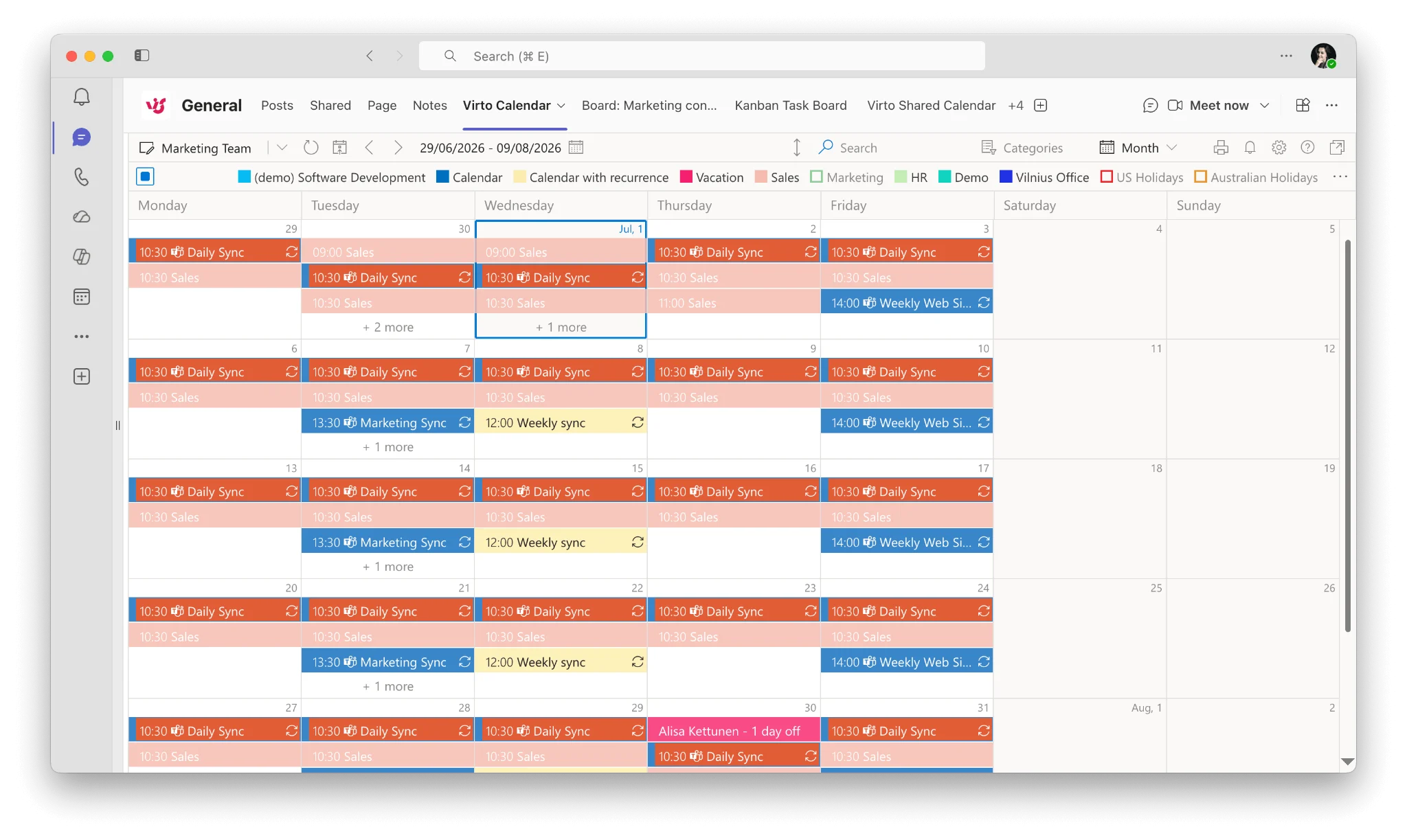
Pic. 9. Virto Calendar App for Microsoft 365 — unified project view.
Key capabilities for project management:
- Calendar overlay: connect personal, team and project calendars in one place, so deadlines and events can be coordinated without switching pages.
- Event management: create, edit and manage recurring events, with changes synced back to the original source.
- Teams and Microsoft 365: set up Teams meetings directly from the app.
- Flexible integration: works on modern and classic SharePoint pages and in Microsoft Teams channels.
- Colour coding and filtering: analyse events from multiple sources at a glance; filter to focus on what matters this week.
- Security: aligned with Microsoft 365 governance, identity and permission frameworks. Deploy in your own Azure subscription and your data never leaves your infrastructure.
One companion tool completes the picture for Microsoft-based project management:
- Virto Kanban Board App for Microsoft 365 — visualise and manage work with customisable boards, swimlanes and real-time updates, integrated with SharePoint and Teams.
For SharePoint On-Premise, server versions of both are available:
FAQ
What is a project calendar?
A shared calendar that maps a project’s tasks, milestones and deadlines onto a timeline so the whole team can see what is due and when.
What is the difference between a project calendar and a resource calendar?
A project calendar shows the project timeline — what is due, when, in what sequence. A resource calendar shows the availability of the people, equipment and materials needed to do it. The project calendar defines the destination; the resource calendar plots the journey.
How do I create a project calendar?
Define goals and scope; break the project into stages and tasks; allocate time frames accounting for dependencies and real availability; assign an owner to every task; assemble it into one sequenced schedule and publish it where the team works. Then keep it current — an out-of-date calendar is worse than none.
What is the best calendar for project management?
It depends on where your work already lives. Inside Microsoft 365, SharePoint or Teams, Virto Calendar App overlays your existing calendar sources without moving the project anywhere. For cross-functional teams wanting boards, timelines and calendars over one data set, Asana. For program-level portfolio planning, Wrike. For lightweight Kanban-first teams, Trello. For scheduling meetings rather than managing projects, Calendly.
Can I use Google Calendar for project management?
For small projects, yes. But calendar systems were built to display events, not tasks and deliverables — as task volume grows, the view becomes crowded and hard to read. It suits teams who need visible timelines rather than task tracking.
Does Trello have a calendar view?
Yes. Trello now offers a native Calendar view on paid plans, alongside the Calendar Power-Up for boards on the free plan, and a separate Planner surface that syncs with Google and Outlook calendars. Note that cards do not appear in Planner automatically — you drag them in.
What is the difference between a project calendar and a Gantt chart?
A calendar foregrounds dates and is the most readable artefact for non-PM stakeholders. A Gantt chart foregrounds dependencies, durations and critical path, and is the better tool for managing sequencing. Most teams benefit from both.
Conclusion
A project calendar is the least glamorous and most load-bearing artefact in project management. Built well and kept current, it turns a plan into something the team can act on: what is due, when, and who owns it, visible to everyone at once.
The tool matters less than the discipline — but the right tool makes the discipline sustainable. If your organisation runs on Microsoft 365, SharePoint and Teams, Virto Calendar App and Virto Kanban Board give you the calendar and the board inside the environment your team already uses, with your data staying in your own infrastructure.
Need help with setup? Our support team can walk you through it. Book a demo »>
Further Reading
- Interactive Calendar Guide
- Project Management in Microsoft 365
- Best Gantt Chart for Teams
- SharePoint Calendar Guide
- SharePoint Project Management
- Project Milestones Guide
- Kanban Board Examples
References
(1) Project management statistics — Kissflow
(2) Pulse of the Profession — PMI