


A shared Outlook calendar that won’t show up is almost always one of nine concrete issues. The three most common: the sharing invitation was never accepted, the calendar’s checkbox is unticked in the navigation pane, or your permission level is below Reviewer. This guide gives the exact fix for Classic Outlook, New Outlook (2024+), and Outlook on the web. Two of the nine fixes are new for 2025/2026 — the Shared Calendar Improvements toggle and the Classic vs New Outlook split.
Quick answer — the top 3 causes: (1) an unaccepted sharing invitation, (2) an unticked calendar checkbox, or (3) a permission level below Reviewer. If the calendar disappeared after an Outlook update in 2025 or 2026, jump to Fix 4 (Shared Calendar Improvements toggle). On New Outlook, see Fix 6.
What’s new in 2025/2026
- Microsoft enabled the Shared Calendar Improvements sync model by default in Classic Outlook for Windows — the leading new cause of disappearing shared calendars (Fix 4).
- The Classic → New Outlook migration continues through 2026; the two apps need different steps (Fix 6).
- The Classic Outlook fallback toggle remains available through 2026 for users who need legacy UI.
30-second diagnostic
Match the symptom to the most likely cause and jump straight to the right fix.
| Symptom | Likely cause | Go to |
|---|---|---|
| Calendar doesn’t show at all | Invitation not accepted or checkbox unticked | Fix 1–2 |
| Visible but empty | Insufficient permissions (Reviewer minimum) | Fix 3 |
| Was visible — disappeared after update | Shared Calendar Improvements toggle [NEW] | Fix 4 |
| Problem only in New Outlook | Different steps in Classic vs New [NEW] | Fix 6 |
| Calendar shows but not all events | Permissions or sync | Fix 3 / Fix 5 |
| Error when adding the calendar | Cache / sync issue | Fix 5 |
| Problem only in OWA | Browser cache | Fix 9 |
What you’ll fix in this guide
- Sharing invitation not accepted
- Calendar checkbox unticked in the navigation pane
- Insufficient permissions — Reviewer is the minimum
- Disable “Shared Calendar Improvements” toggle [NEW 2025/2026]
- Sync and cache issues across Classic, New, and OWA
- Classic Outlook vs New Outlook — different steps [NEW 2025/2026]
- Organization policies — Exchange Online and EWS
- Delegation vs Sharing — different mechanisms
- Clear the browser cache (OWA only)
Fix 1 — Sharing invitation not accepted
TL;DR: Find the “I’d like to share my calendar with you” email (check Spam/Junk) and click Accept. If there’s no Accept button in New Outlook, click “Add to my calendars.”
Most “calendar not showing” cases come down to a pending invitation that was never accepted. Check your inbox — including Spam/Junk — for an email from the calendar owner. The subject usually reads “I’d like to share my calendar with you.”
In Classic Outlook (Windows / Mac)
- Open the invitation email.
- Click “Accept and view calendar” (Windows) or “Accept” (Mac).
- The calendar is added under “Other Calendars” or “Shared Calendars.”
In New Outlook (2024+)
- Open the invitation in your inbox.
- Click “Accept.” If no Accept button appears, click “Add to my calendars” instead.
- New Outlook adds the calendar under “Other people’s calendars” automatically.
In Outlook on the web (OWA)
- Open the invitation email.
- Click “Accept” — OWA prompts you to choose a category color and group.
- Confirm — the calendar appears in your left sidebar.
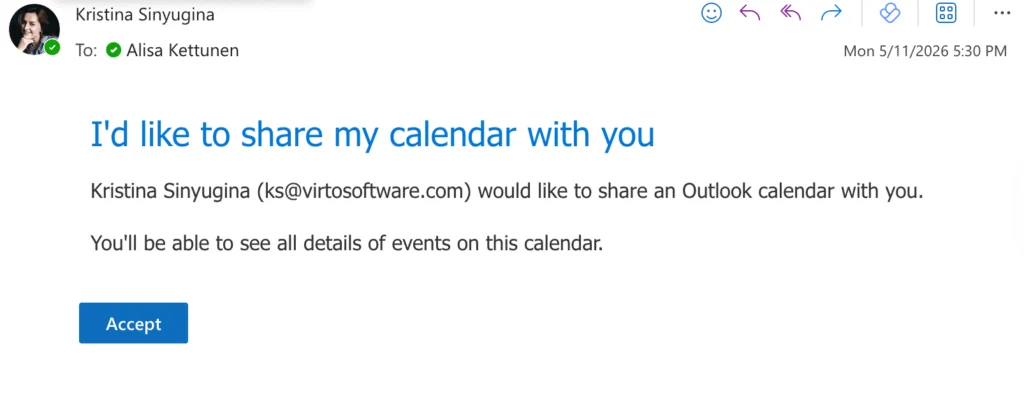
Pic. 1. Accepting a shared calendar invitation in New Outlook (2024+)
If you can’t find the invitation, ask the calendar owner to resend it. Old invitations can expire and may need to be reissued. New to sharing? See our guide on how to share a calendar in Outlook.
Pre-flight check: Before resending, confirm the owner used your primary SMTP address. Aliases and guest-user identities (UPN ≠ primary SMTP) are the most common reason an accepted invitation still doesn’t materialize as a visible calendar.
Fix 2 — Calendar checkbox unticked in the navigation pane
TL;DR: Accepting an invitation isn’t enough — you must tick the checkbox next to the calendar’s name in the navigation pane for it to appear.
This is the single most common cause for “I accepted it but still can’t see it.”
- Classic Outlook (Windows): In Calendar view, under “People’s Calendars” (or “Shared Calendars”), tick the box next to the calendar name.
- Classic Outlook (Mac): Under “Shared Calendars” in the left sidebar, tick the checkbox.
- New Outlook (2024+): The group is renamed — look under “Other people’s calendars,” not “People’s Calendars.” Tick the checkbox; the calendar overlays your own.
- OWA: Find the calendar under “People’s calendars” in the left pane and click the circle next to it.
If the calendar is missing from the list entirely, jump to Fix 1.
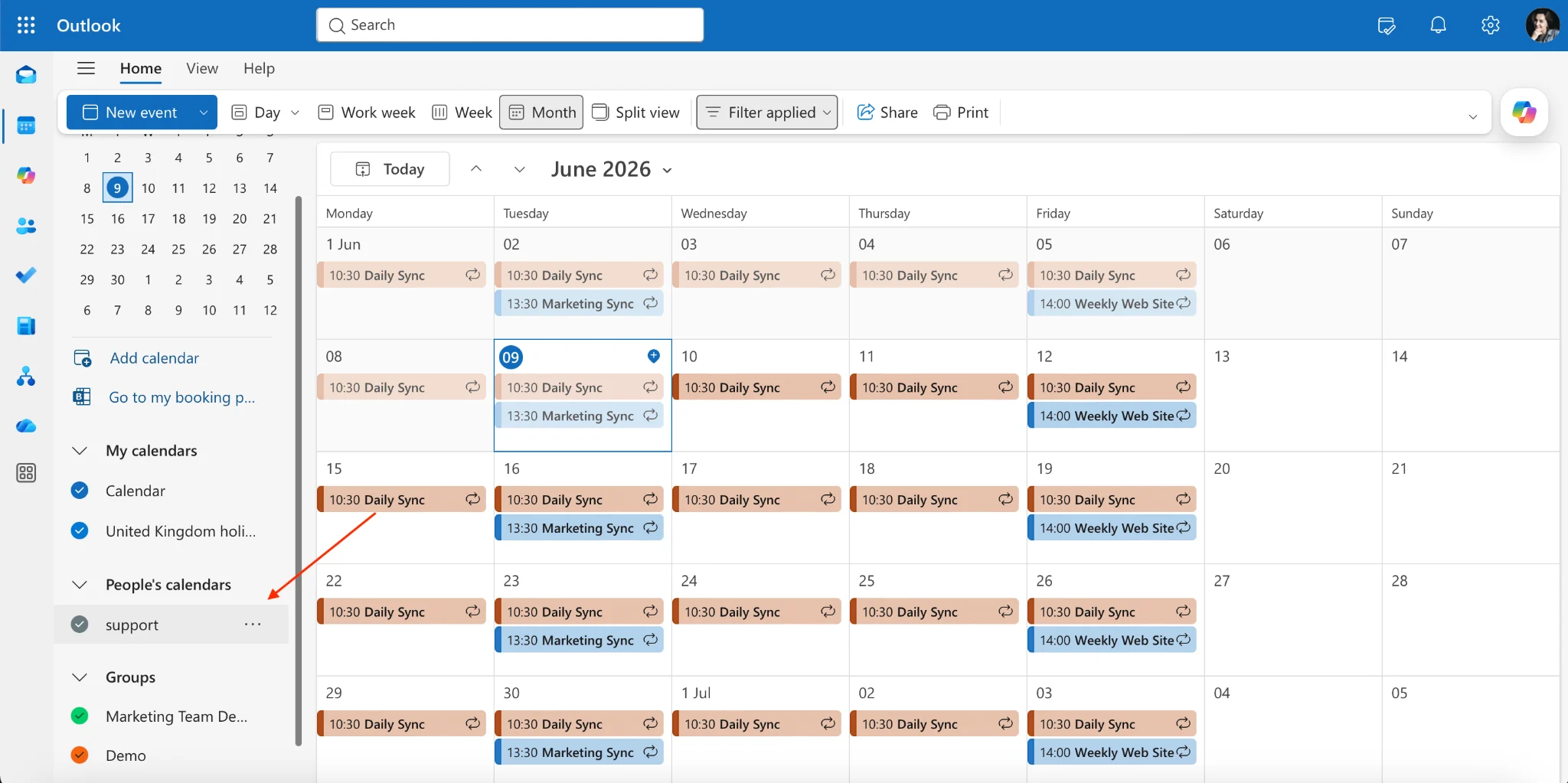
Pic. 2. Ticking the shared-calendar checkbox under “Other people’s calendars” in New Outlook
Fix 3 — Insufficient permissions: Reviewer is the minimum
TL;DR: If you see the calendar but no event details, your permission is below Reviewer. Ask the owner to grant at least Reviewer.
The owner may have shared only “Free/Busy” or “Limited details,” in which case you’ll see an outline but no event details. To view full event details — and all events — you need at least Reviewer permission.
| Permission level | What you can see |
|---|---|
| None | Nothing — calendar will not appear |
| Free/Busy time | Only blocks of busy time |
| Limited details | Subjects but not body |
| Reviewer ← minimum for full visibility | Full event details (read-only) |
| Author | View + create events |
| Editor | View + create + edit + delete |
| Delegate | Editor + respond to meetings on the owner’s behalf |
Ask the calendar owner to verify your permission level:
- Classic Outlook (Windows): right-click the calendar → Properties → Permissions tab.
- Classic Outlook (Mac): right-click the calendar → Sharing Permissions.
- New Outlook / OWA: Calendar settings → Shared calendars.
If your level is below Reviewer, ask the owner to upgrade it. Permission changes can take 15–60 minutes to propagate. If the issue is the reverse — a calendar that’s too visible — see how to make an Outlook calendar private.
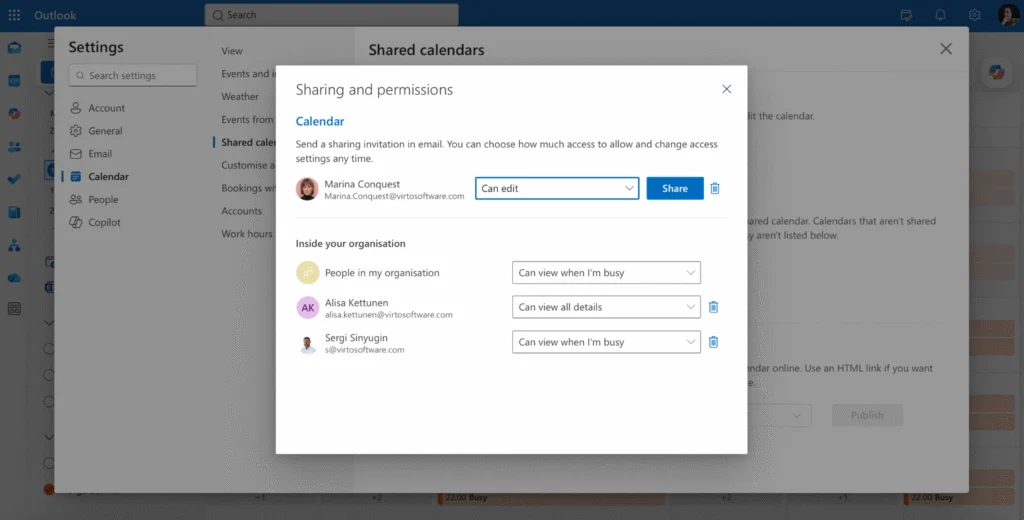
Pic. 3. Setting at least Reviewer permission in Calendar Properties → Permissions
Fix 4 — Disable the “Shared Calendar Improvements” toggle [NEW 2025/2026]
TL;DR: If a shared calendar disappeared after a 2025 or 2026 Outlook update, turn off Shared Calendar Improvements: File → Account Settings → select account → Change → More Settings → Advanced → uncheck “Turn on shared calendar improvements” → restart Outlook.
Exact path to disable (Classic Outlook for Windows only)
- File → Account Settings → Account Settings.
- Select your account and click “Change.”
- Click “More Settings.”
- Open the Advanced tab.
- Uncheck “Turn on shared calendar improvements.”
- Click OK → Next → Finish.
- Close Outlook completely and reopen.
Outlook rebuilds the shared calendar connection on the next sync; the calendar typically reappears within a few minutes.
Why this fix matters in 2026: Microsoft enabled “Shared Calendar Improvements” by default in 2024–2026 builds of Classic Outlook for Windows. For many users — especially in tenants with delegation or large shared mailboxes — the new sync model causes shared calendars to stop rendering even when permissions and acceptance are correct. Reverting to the legacy sync path is the official Microsoft workaround.
Why it happens
The new sync mechanism uses REST APIs rather than legacy MAPI calls. In edge cases — cross-tenant sharing, very large calendars, delegate access, certain group policies — the REST path can fail silently and the calendar simply doesn’t render. Reverting to the legacy path bypasses the failure.
Where the toggle is available
- Classic Outlook for Windows: available (path above).
- New Outlook for Windows: not available — different sync architecture (see Fix 6).
- Outlook for Mac: not available.
- OWA: not applicable.
If the toggle isn’t visible, your build is too old or your tenant administrator has hidden it.
If the toggle is greyed out (Group Policy)
Some IT admins enforce the new sync model via Group Policy. If the checkbox is greyed out, ask your admin to verify the policy “Turn on shared calendar improvements” under User Configuration → Administrative Templates → Microsoft Outlook → Account Settings → Exchange. The admin can disable enforcement or set it to Not Configured so individual users can opt out.
Fix 5 — Sync and cache issues
TL;DR: If the calendar flickers in and out or stays empty, force a resync — F9 in Classic, “Clear local storage” in New Outlook, Ctrl+F5 in OWA.
Classic Outlook (Windows)
- Send/Receive tab → “Send/Receive All Folders” (or F9).
- If that doesn’t help: File → Account Settings → select account → Change → uncheck “Use Cached Exchange Mode” → Next → Finish → restart.
- Still broken? Rebuild the OST: close Outlook, go to
%localappdata%\Microsoft\Outlook, renameoutlook.osttooutlook_old.ost, then restart. A fresh OST is created.
Classic Outlook (Mac)
- Right-click the shared calendar → Sync.
- Still broken? Outlook → Settings → Accounts → select account → Manage → Reset Account.
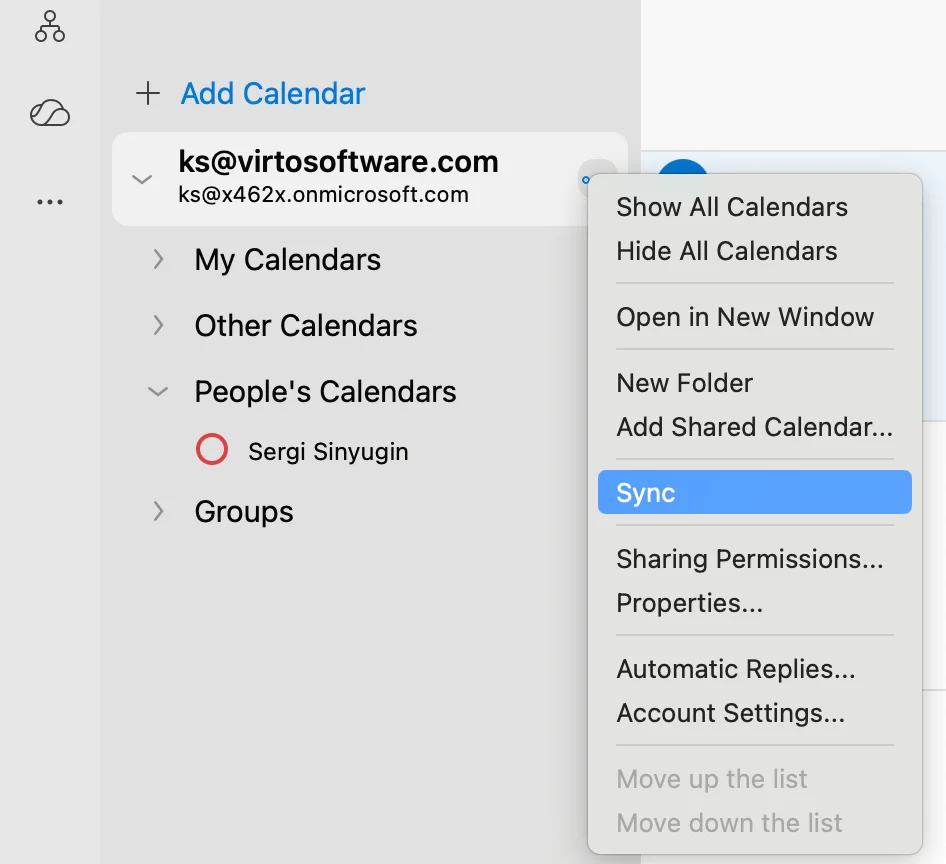
Pic. 4. Syncing shared calendar in Outlook for Mac
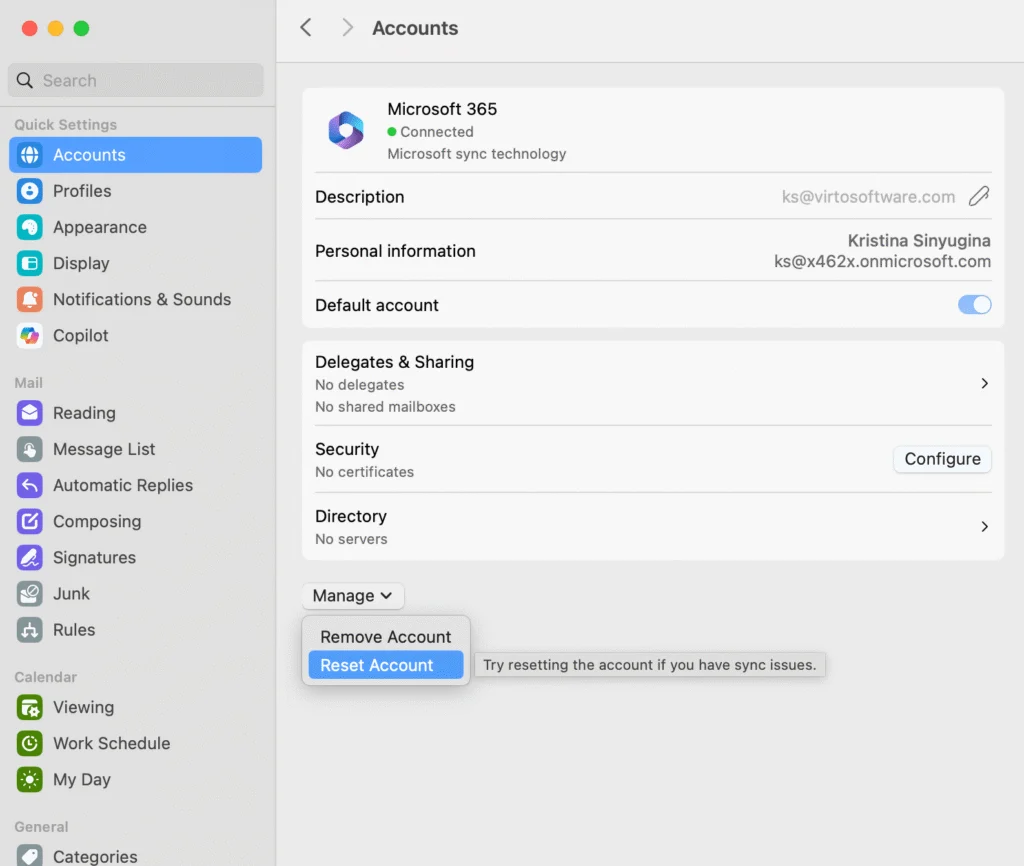
Pic. 5. Resetting the account in Outlook for Mac
New Outlook (2024+)
- Settings → General → Storage → “Clear local storage” to force a full resync.
- Restart New Outlook.
- Still missing? Remove and re-add your account: Settings → Accounts.
Tip: New Outlook keeps only a small local cache — most sync state lives server-side, so re-adding the account almost always clears stale data when “Clear local storage” doesn’t.
Outlook on the web (OWA)
- Refresh the page (Ctrl+F5).
- Sign out, then back in.
- Still failing? Jump to Fix 9 — clear the browser cache.
Fix 6 — Classic Outlook vs New Outlook: different steps [NEW 2025/2026]
TL;DR: Classic and New Outlook use different engines and different menus. Confirm which you’re running before troubleshooting — using the wrong steps is a top reason the feature seems “broken.”
How to tell which version you’re running
- Classic Outlook: File menu in the top-left, ribbon with tabs (Home, Send/Receive, etc.).
- New Outlook: no File menu, simplified ribbon, and a “New Outlook” toggle in the upper-right.
If you’re on New Outlook but your documentation refers to Classic UI elements, switch back temporarily: toggle “New Outlook” off in the top-right. Microsoft preserves this fallback through 2026.
Microsoft is rolling all users from Classic to New Outlook between 2024 and 2026. The two apps look similar but the underlying engine is completely different — and the shared-calendar workflow is not the same.
Side-by-side comparison
| Task | Classic Outlook (Windows) | New Outlook (2024+) |
|---|---|---|
| Add a shared calendar | File → Account Settings → Add Calendar | Calendar → Add calendar → Add from directory |
| Where the calendar lives | “People’s Calendars” group | “Other people’s calendars” group |
| Toggle visibility | Tick checkbox next to name | Tick checkbox next to name (different location) |
| Shared Calendar Improvements | File → Account Settings → Advanced → toggle | Not available — different sync mechanism |
| Force resync | Send/Receive All Folders (F9) | Settings → General → Storage → Clear local storage |
| Manage permissions | Right-click calendar → Properties → Permissions | Calendar → Sharing and permissions |
Fix 7 — Organization policies (IT Admin / Exchange Online)
TL;DR: If every user-side setting is correct, an Exchange Online sharing policy or disabled EWS may be blocking visibility. Ask IT to verify the four checks below.
- Sharing policy enabled:
Get-SharingPolicy | Format-List Name,Domains,Enabled— confirm your domain (or “*”) is listed and Enabled. - Calendar permission level:
Get-MailboxFolderPermission -Identity "owner@domain.com:\Calendar"— confirm the recipient has at least Reviewer. - EWS access:
Get-CASMailbox -Identity recipient@domain.com | Format-List EwsEnabled— if False, shared calendars in Classic Outlook won’t sync. - Cross-tenant Free/Busy:
Get-OrganizationRelationship | Format-List Name,Enabled,FreeBusyAccessEnabled.
If a policy was recently changed, allow 1–4 hours for propagation.
Cross-tenant sharing checklist: When the owner is in a different Microsoft 365 tenant, three conditions must hold: (1) both tenants have an Organization Relationship with Free/Busy enabled, (2) the recipient tenant allows inbound sharing in its Sharing Policy, and (3) modern authentication is enabled on both sides. A single missing piece makes the calendar invisible. This applies to Microsoft 365 shared calendar scenarios across tenants.
Fix 8 — Delegation vs Sharing: different mechanisms
TL;DR: Delegation and Sharing are different. A delegate doesn’t automatically see the calendar in their list — explicit Sharing permission may still be needed.
| Mechanism | What it does | When to use |
|---|---|---|
| Sharing | Recipient sees the calendar in their list, read or read/write | Coworkers, team visibility |
| Delegation | Recipient acts on the owner’s behalf — accepts meetings, sends mail | Executive assistants, deputies |
Key practical differences
- Sharing supports many recipients; Delegation usually a handful.
- Delegates can send meeting responses on behalf of the owner; shared users cannot.
- Delegation requires the owner to enable “Send meeting requests and responses only to my delegates” for routing to work.
- Removing a Delegate does not automatically remove calendar visibility — Sharing permissions may need separate removal.
If a recipient was set up as a Delegate but the calendar isn’t showing, ask the owner to add explicit Sharing permission (Properties → Permissions → Add). For team-wide setups, see our Outlook Group Calendar guide.
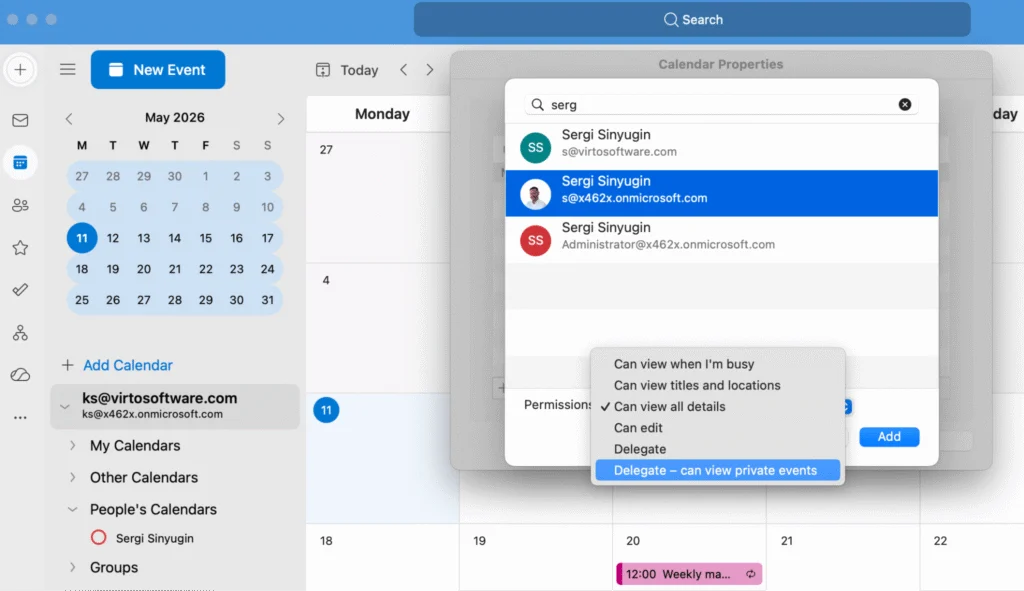
Pic. 6. Delegate Permissions in Outlook (different mechanism from standard Sharing)
Fix 9 — Clear the browser cache (OWA only)
TL;DR: For OWA-only problems, clear cache and cookies for outlook.office.com, then sign back in. Test in incognito to rule out extensions.
| Browser | Shortcut | Path |
|---|---|---|
| Chrome / Edge | Ctrl+Shift+Delete | Settings → Privacy → Clear browsing data |
| Firefox | Ctrl+Shift+Delete | Settings → Privacy → Cookies and Site Data → Clear Data |
| Safari (Mac) | Cmd+Option+E (cache only) | Safari → Settings → Privacy → Manage Website Data |
Steps
- Press Ctrl+Shift+Delete (Cmd+Shift+Delete on Mac).
- Select “Cookies and other site data” and “Cached images and files.”
- Time range: All time.
- Click “Clear data.”
- Close all browser windows and reopen.
- Sign back into outlook.office.com.
If clearing the cache doesn’t help, try a private/incognito window. If the calendar shows up there, a browser extension is interfering.
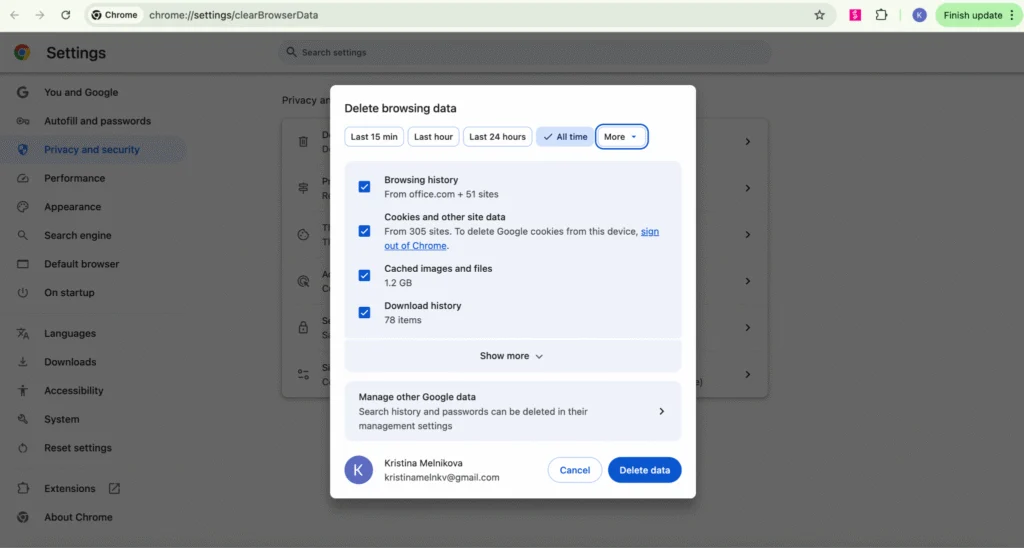
Pic. 7. Clearing cookies and cached data for outlook.office.com (Chrome / Edge)
Quick checklist — all 9 fixes
Use this as a fast pass before escalating to IT.
- Accept the sharing invitation.
- Tick the checkbox in the navigation pane.
- Verify permission level — Reviewer minimum.
- Disable the “Shared Calendar Improvements” toggle (Classic Outlook for Windows).
- Clear Outlook cache, rebuild the OST, or re-add the account.
- Confirm Classic vs New Outlook and use the matching steps.
- Ask IT to check Exchange sharing policy and EWS access.
- Confirm whether access was granted via Sharing or Delegation.
- Clear the browser cache (OWA).
When standard fixes aren’t enough → Virto Calendar
If you manage shared calendars across departments or tenants, the native Outlook model breaks down in predictable ways — and no amount of toggling fixes a structural limitation. This is common in cross-tenant sharing, very large team calendars, and environments where users need to overlay calendars from sources outside Exchange (SharePoint, Planner, iCal, Google).
Virto Calendar App for Microsoft 365 runs alongside Outlook and Teams, not as a replacement. Existing Exchange calendars stay where they are; Virto adds an overlay engine that connects to multiple data sources in a single unified view, with its own sync that sidesteps the Classic-vs-New split entirely.
Why this matters for “calendar not showing” cases
- Independent sync — pulls data via a dedicated connector, not the Outlook client cache, so OST and Shared Calendar Improvements problems don’t affect it.
- All sources in one view — Exchange, SharePoint, meeting rooms, Planner, and external iCal/Google feeds, color-coded.
- Cross-platform consistency — same view in Teams, SharePoint, and web; no version split.
- Granular permissions — manage overlays from one admin pane, separate from Exchange.
- Stays in your cloud — runs in your own Azure tenant; data never leaves your Microsoft 365 environment.
Schedule a Virto Calendar demo • Start a free trial on AppSource
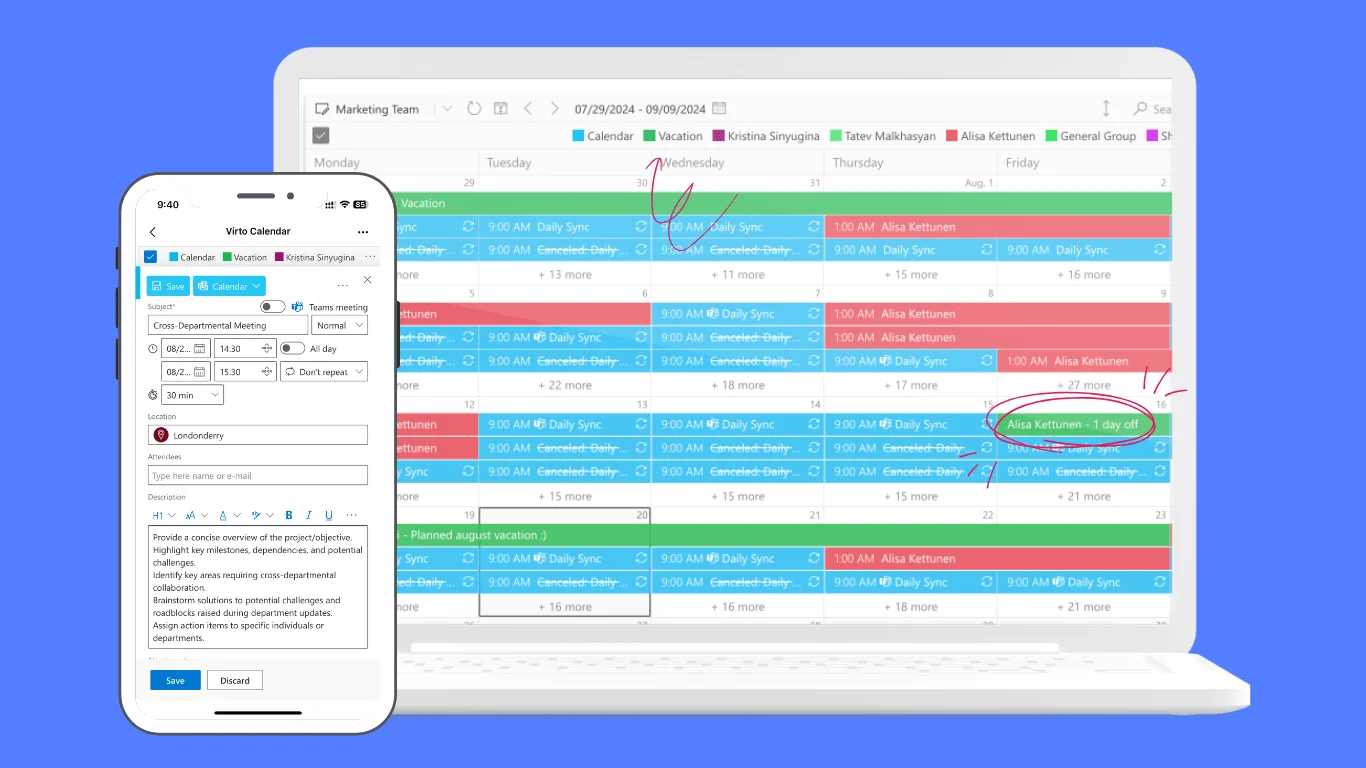
Pic. 8. Virto Calendar — multiple shared calendars overlaid in a single unified view
FAQ
Why is my shared Outlook calendar not showing up?
The three most common causes are a pending sharing invitation, an unticked calendar checkbox, and insufficient permissions (below Reviewer). In 2025/2026 Classic Outlook builds, the “Shared Calendar Improvements” toggle is also a frequent culprit. Work through Fixes 1–4 in order.
Why did my shared Outlook calendar disappear after an update?
A 2025/2026 update likely enabled Microsoft’s “Shared Calendar Improvements” sync model by default, which can stop shared calendars rendering in some configurations. Disable it in Classic Outlook for Windows: File → Account Settings → Change → More Settings → Advanced → uncheck the toggle, then restart. See Fix 4.
Why is my shared calendar not showing events in Outlook?
If the calendar appears but events don’t, it’s usually permissions (below Reviewer hides event details — see Fix 3) or a sync lag (force a resync — see Fix 5). This is a different problem from the calendar not appearing at all.
What is the Shared Calendar Improvements toggle in Outlook?
A setting Microsoft introduced in 2024–2025 that changes how Classic Outlook for Windows syncs shared calendars (MAPI to REST). It’s on by default but causes calendars to disappear in some setups. Disable via File → Account Settings → Change → More Settings → Advanced.
Why can’t I see someone’s calendar in Outlook even after they shared it?
Either the invitation wasn’t accepted (check Spam/Junk), the checkbox is unticked, or your permission is below Reviewer. Less commonly, an Exchange Online sharing policy is blocking visibility — escalate to IT if user-side fixes don’t resolve it.
How do I add a shared calendar in New Outlook?
In Calendar view, click “Add calendar” in the left pane, choose “Add from directory,” search by the owner’s name or email, select them, and click “Add.” It appears under “Other people’s calendars.” This differs from Classic Outlook’s File → Account Settings route.
What permissions do I need to view a shared Outlook calendar?
At minimum “Reviewer” — read-only access to all event details. Lower levels (“Free/Busy time,” “Limited details”) show the calendar exists but hide titles and bodies. For editing, ask for “Author” or “Editor.”