Quick answer
Yes — you can manage projects in Office 365 (now Microsoft 365). The suite is not a dedicated project management tool, but it ships with everything a team needs to run one: Planner for boards and task assignment, premium plans in Planner (the former Project for the web) for schedules and dependencies, To Do for personal task lists, Teams for communication, and SharePoint for documents. For visual boards and reporting that go beyond the native limits, add apps such as Virto Kanban Board and the free Virto Charts & Data Visualization App.
Distributed and hybrid teams are now the default, and the tooling has had to keep up. Surveys of project professionals consistently find that a majority struggle with collaboration technology, and that most organisations still report significant project management challenges (1). The result is predictable: missed handoffs, duplicated work, and deadlines that slip quietly.
Microsoft 365 — the suite most of these teams already pay for — is designed to close exactly that gap. The catch is breadth. With Planner, Project, To Do, Teams, SharePoint, Outlook, Power Automate and Power BI all in the box, the hard part is not access but choosing what to use for what. VirtoSoftware has spent more than fifteen years building apps on top of Microsoft 365, and this guide distils what we see working in real deployments.
By the end you will know which Microsoft 365 apps map to which project management jobs, where the native tools stop, and which add-ons close the remaining gaps.
What Is Microsoft Office 365?
Microsoft 365 (M365) — the product most people still search for as “Office 365” — is an integrated productivity suite that bundles Microsoft’s core applications and cloud services into one subscription. It gives teams a single hub for email, documents, chat, meetings, and file storage, all connected through a shared identity and permission model. That connective tissue is precisely what makes it usable for project work: a task in Planner, the file it references in SharePoint, and the meeting where it was agreed in Teams all live in the same ecosystem.
Office 365 vs. Microsoft 365: what changed
In April 2020, Microsoft renamed most of its Office 365 subscription plans to Microsoft 365. The naming is more than cosmetic. Office 365 referred to the cloud productivity apps — Exchange, the Office suite, SharePoint, OneDrive. Microsoft 365 wraps those same apps together with Windows licensing and Enterprise Mobility + Security, adding device management and advanced security on top.
For project management purposes, the practical answer is simple: everything described in this guide as an “Office 365 project management tool” is now delivered under the Microsoft 365 brand. We use the current name throughout, and keep the legacy term where it helps you find what you are looking for.
| Office 365 (legacy name) | Microsoft 365 (current) |
|---|---|
| A subset of the broader Microsoft 365 offering. | Includes everything in Office 365, plus more. |
| Cloud productivity apps: Word, Excel, PowerPoint, Outlook, Teams, OneDrive, SharePoint. | Adds Windows licensing, Enterprise Mobility + Security (EMS), and device management. |
| Plans such as Office 365 E1, E3, E5. | Plans such as Business Basic, Business Standard, Business Premium, E3, E5, F1, F3. |
| Focused on collaboration and online productivity. | A fuller package: productivity, OS licensing, and security in one subscription. |
Fig. 1. How Office 365 and Microsoft 365 differ.
What is inside Microsoft 365
- Classic Office applications: Word, Excel, PowerPoint, Outlook, and OneNote — the reporting and documentation backbone of most projects.
- Collaboration: Microsoft Teams brings chat, meetings, calls, and app integration into a single hub.
- Task and project apps: Planner (boards and assignments), To Do (personal lists), and Planner premium plans, which replaced Project for the web in August 2025 (schedules, dependencies, resourcing).
- Content and storage: SharePoint Online for project sites and document libraries, OneDrive for individual working files.
- Automation and analytics: Power Automate for workflows and reminders, Power BI for project dashboards and reporting.
- Security and management: Microsoft Defender, Purview, and Intune for data protection, compliance, and device management.
Is Office 365 a project management tool? Not on its own. Microsoft 365 is a productivity suite that contains project management tools — chiefly Planner (with its premium plans), To Do, and Teams. Used together they cover planning, assignment, collaboration, and reporting for most small and mid-sized projects.
See every M365 calendar in one view — Overlay SharePoint, Exchange, Google and Teams calendars with Virto Calendar. Try Virto Calendar free →
Microsoft 365 Project Management Features
Microsoft 365 does not hand you a project management product; it hands you components. Assembled well, they cover the standard project lifecycle. Here is what the suite gives you, grouped by the job you are trying to do.
Planning
- Create tasks and subtasks: Planner breaks work into cards with checklists; To Do handles personal steps.
- Assign ownership: Planner tasks can carry one or more assignees, so responsibility is never ambiguous.
- Set deadlines and reminders: Planner sets start and due dates; Outlook surfaces them and sends reminders.
- Prioritise: Labels, priority levels, and buckets let you sort by urgency or phase.
- Reuse templates: Teams and Planner ship ready-made templates for common project types.
Does Office 365 include a project plan? There is no standalone “Project Plan” app inside a Microsoft 365 subscription. Planner covers plan creation, task organisation, assignment, and progress tracking. Premium plans in Planner — the former Project for the web, available through Planner Plan 1 and Planner and Project Plan 3 and 5 — add true scheduling with dependencies. See our comparison of Microsoft Planner vs Project to decide which you need.
Collaboration
- Chat and channels: Teams keeps project conversation threaded and searchable.
- File sharing and co-authoring: Word, Excel, and PowerPoint documents stored in SharePoint or Teams can be edited by several people at once.
- Meetings: Teams handles video calls, screen sharing, and recordings for stand-ups and reviews.
- Version history: SharePoint and OneDrive track every change and let you roll back.
Resource management
- Assign resources: Planner and Teams map people to work; Planner premium plans add capacity views.
- Budget tracking: Excel remains the practical tool for project budgets and cost tracking.
- Utilisation analysis: Power BI can pull from Planner and Project to show allocation and overload.
- Time tracking: Not native — most teams add a third-party app from AppSource or log hours in a SharePoint list.
Reporting
- Status reports: Word and PowerPoint for narrative reporting; Excel for the numbers.
- Dashboards: Power BI builds live project dashboards from Planner, Project, and SharePoint data.
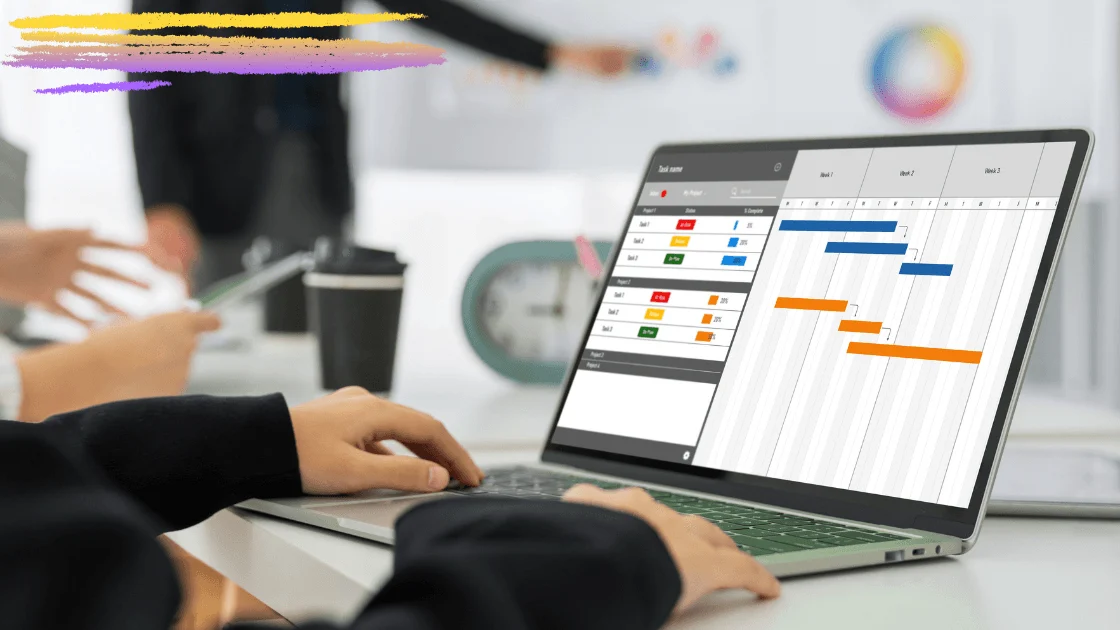
- Gantt charts: Microsoft 365 has no native Gantt view outside Project and Planner premium plans. Teams either build one manually in Excel or license a Planner premium plan.
- Burndown and workload charts: Not native to Planner. The free Virto Charts & Data Visualization App turns SharePoint list data into completion, burndown, and workload charts inside Teams and SharePoint.
Does Office 365 have a Gantt chart? Not in the base suite. Gantt views come with Microsoft Project, which is licensed separately. If you need a true timeline, that is the native route. For the reporting layer around it — completion, burndown, and workload charts — the free Virto Charts & Data Visualization App builds them directly from your SharePoint lists. We review the timeline options in the best Gantt chart apps for Teams.
Which Microsoft 365 Apps Are Useful for Project Management?
Four native apps carry most of the load — Planner, To Do, Teams, and Microsoft Project — with SharePoint underneath as the document and site layer. Below is what each one does well, and where it runs out.
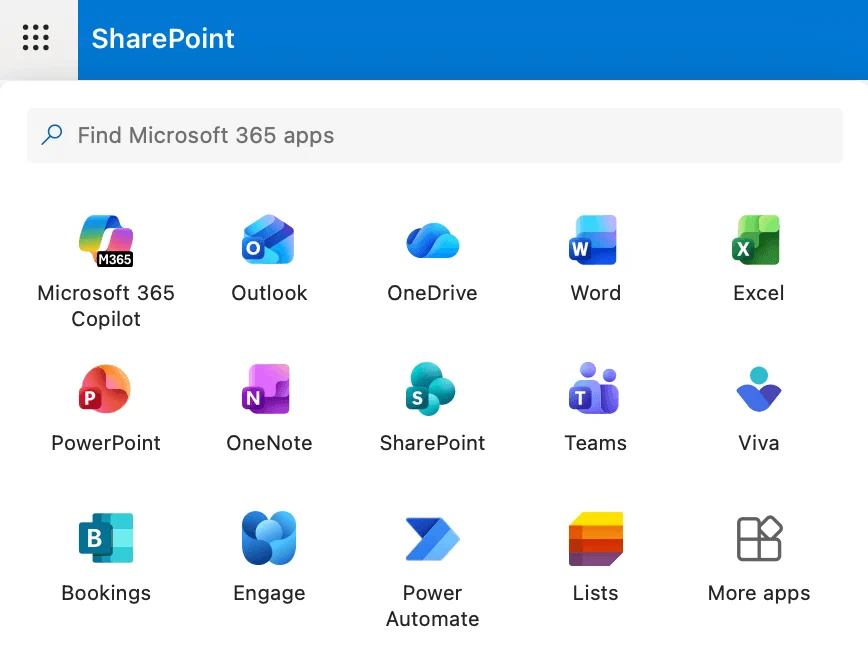
Pic. 1. The core project management apps within Microsoft 365 and how they fit together.
Microsoft Planner
Planner is the default task board for Microsoft 365. It is a Kanban-style tool built for teams that want visible work without a project management learning curve.
Strengths:
- Create tasks with descriptions, due dates, checklists, and attachments.
- Organise work into buckets that map to phases or workstreams.
- Assign one or more owners per task, with labels and priority levels.
- Comment directly on tasks so decisions stay attached to the work.
- Surface boards inside Teams channels and attach files from SharePoint or OneDrive.
Limits:
- No task dependencies — you cannot express “B starts after A finishes.”
- Reporting is basic; anything analytical means Power BI, Excel, or a dedicated charts app.
- Custom fields are limited, so tailoring cards to your process is constrained.
- Swimlanes, WIP limits, and cycle-time metrics are not available.
For a deeper look at what Planner can and cannot do, see our dedicated guide to Microsoft Planner, or our roundup of Microsoft Planner alternatives.
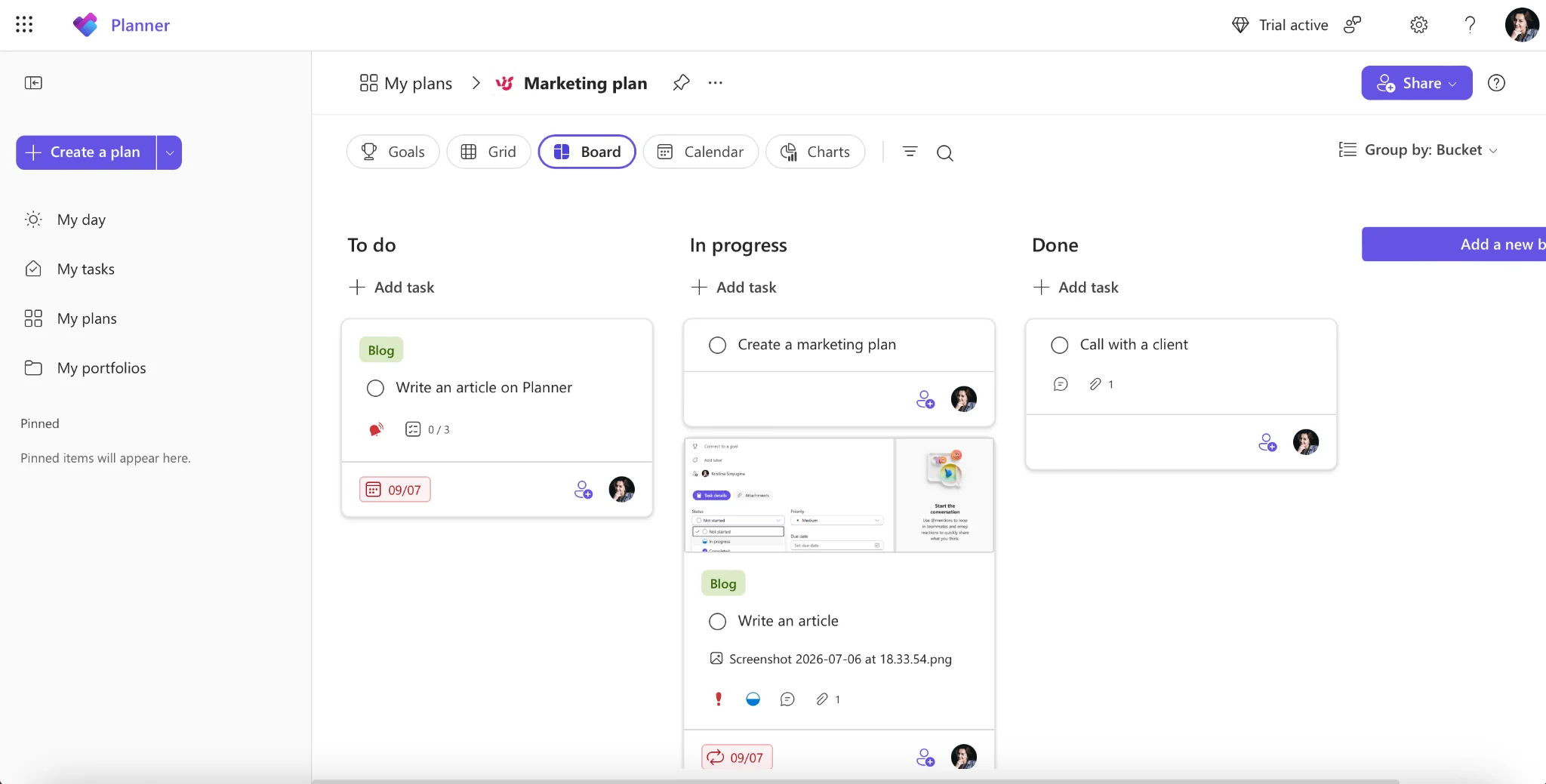
Pic. 2. A Microsoft Planner board organised into buckets by project phase.
Microsoft To Do
To Do is the personal layer. It is where an individual contributor keeps their own list, including tasks pulled in from Planner and flagged emails from Outlook.
Strengths:
- Multiple lists, steps within tasks, due dates, and recurring reminders.
- “My Day” view for daily focus.
- Two-way sync with Outlook tasks and flagged email; assigned Planner tasks appear automatically.
Limits:
- No reporting, no resource management, no dependencies.
- Sharing a list is possible, but real collaboration on a task is not.
- Unsuitable as a project’s system of record — it is a personal companion to one.
Microsoft Teams
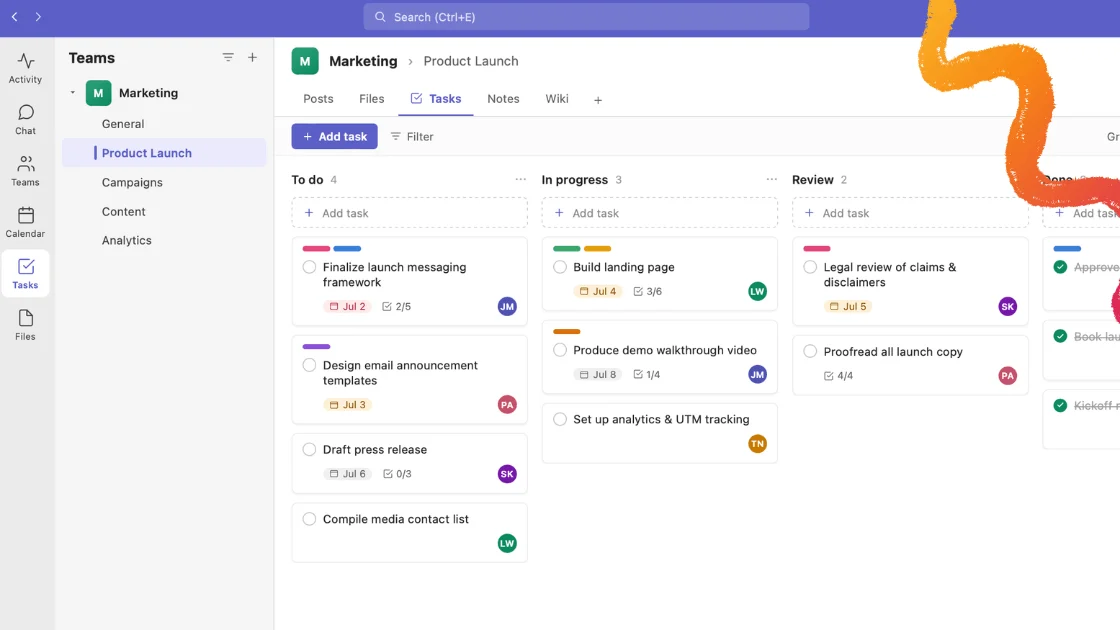
Teams is where the project actually gets discussed. Structurally, it is also the container: a team per project, channels per workstream, and tabs that surface Planner boards, SharePoint libraries, and third-party apps in the same place people are already talking.
Strengths:
- One team per project, with channels for phases, workstreams, or topics.
- Threaded chat, calls, and meetings with recordings and transcripts.
- Real-time co-authoring on Office documents without leaving the interface.
- Tabs let you pin Planner, SharePoint, Power BI, or an add-in directly into a channel.
Limits:
- Notification volume becomes a distraction if channels are not disciplined.
- Teams has no project management logic of its own — it surfaces other tools rather than replacing them.
For the full picture, see our guide to project management in Microsoft Teams.
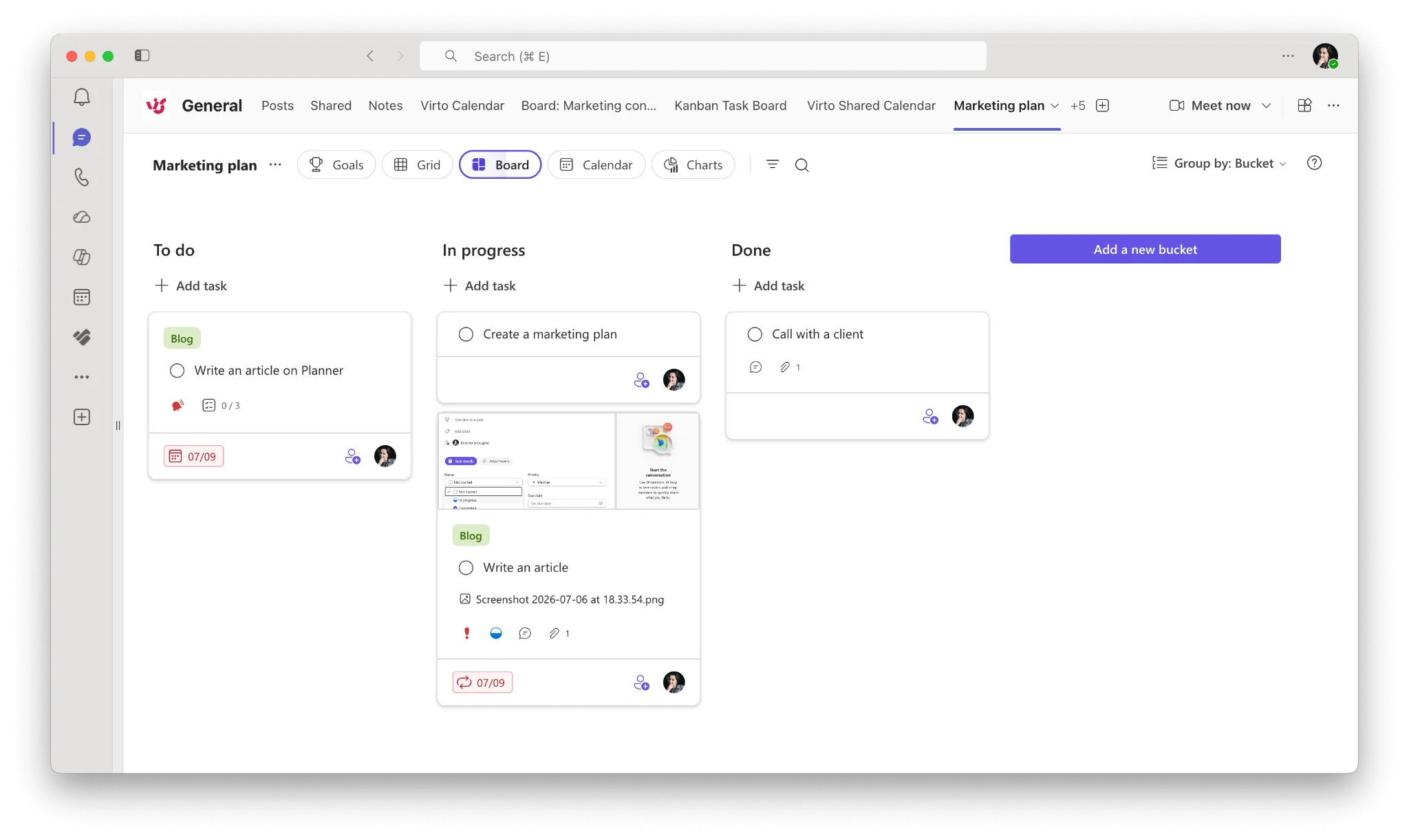
Pic. 3. A Microsoft Teams channel with a pinned Planner board.
Microsoft Project and Planner premium plans
Microsoft Project is the suite’s serious scheduling tool. It is not included in a standard Microsoft 365 subscription — it is licensed separately via Planner Plan 1 or Planner and Project Plan 3 or 5 — but it integrates tightly with the rest of the ecosystem. Project for the web retired on 1 August 2025 and its projects became premium plans in Planner; Project Online retired on 30 September 2026.
Strengths:
- Detailed schedules with tasks, durations, dependencies, and milestones.
- Resource assignment, capacity balancing, and over-allocation warnings.
- Budget tracking against plan, with reporting through Power BI.
- Grid, board, and timeline views for the same underlying plan.
Limits:
- A real learning curve — it assumes project management fundamentals.
- Additional licence cost on top of Microsoft 365.
- Overkill for small, straightforward projects.
- More at home with waterfall than with agile delivery.
SharePoint Online as the project’s foundation
SharePoint is the layer beneath everything else: the site, the document library, the lists, and the permissions. Every Teams team is backed by a SharePoint site whether the team knows it or not.
- Project sites: a single hub for documents, lists, calendars, and dashboards.
- Document management: version history, check-in/check-out, granular permissions, and retention.
- Lists as data: task lists, risk registers, and issue logs that other apps can read from.
SharePoint-specific project management — site templates, list structures, dashboards, and permissions design — is a subject in its own right. We cover it end to end in SharePoint project management.
Not sure how to wire this up? — Our team will walk you through the setup for your environment. Book a consultation →
Connecting it all through Outlook
Outlook is the glue most teams forget. A few connections turn a scattered toolset into one workflow:
- Planner → Outlook calendar: publish a plan’s schedule to your calendar so deadlines sit alongside meetings.
- To Do ↔ Outlook: flagged emails become tasks automatically; tasks sync both ways.
- Teams ↔ Outlook: schedule Teams meetings straight from the Outlook calendar.
- SharePoint ↔ Outlook: overlay project calendars and sync document libraries for offline access.
- Power Automate: send a reminder when a due date approaches, or notify a channel when a task moves to Done.
How do you use Office 365 for project management? Create a Team for the project, add a Planner board for the work, keep documents in the backing SharePoint site, let each person track their own share in To Do, and push deadlines to Outlook. Add a Gantt or Kanban app when the native boards stop being enough.
Case Study: A Five-Person Team Running a Product Launch in Microsoft 365
Consider a five-person agile team shipping a new software product: a project manager, two developers, a designer, and a QA engineer. Here is how they would use Microsoft 365 end to end.
Apps used: Teams, Planner, To Do, SharePoint and OneDrive, Outlook.
Step 1 — Structure the team in Microsoft Teams
- General channel for announcements and decisions.
- Tasks channel for stand-ups and progress.
- Documentation channel for specs and release notes.
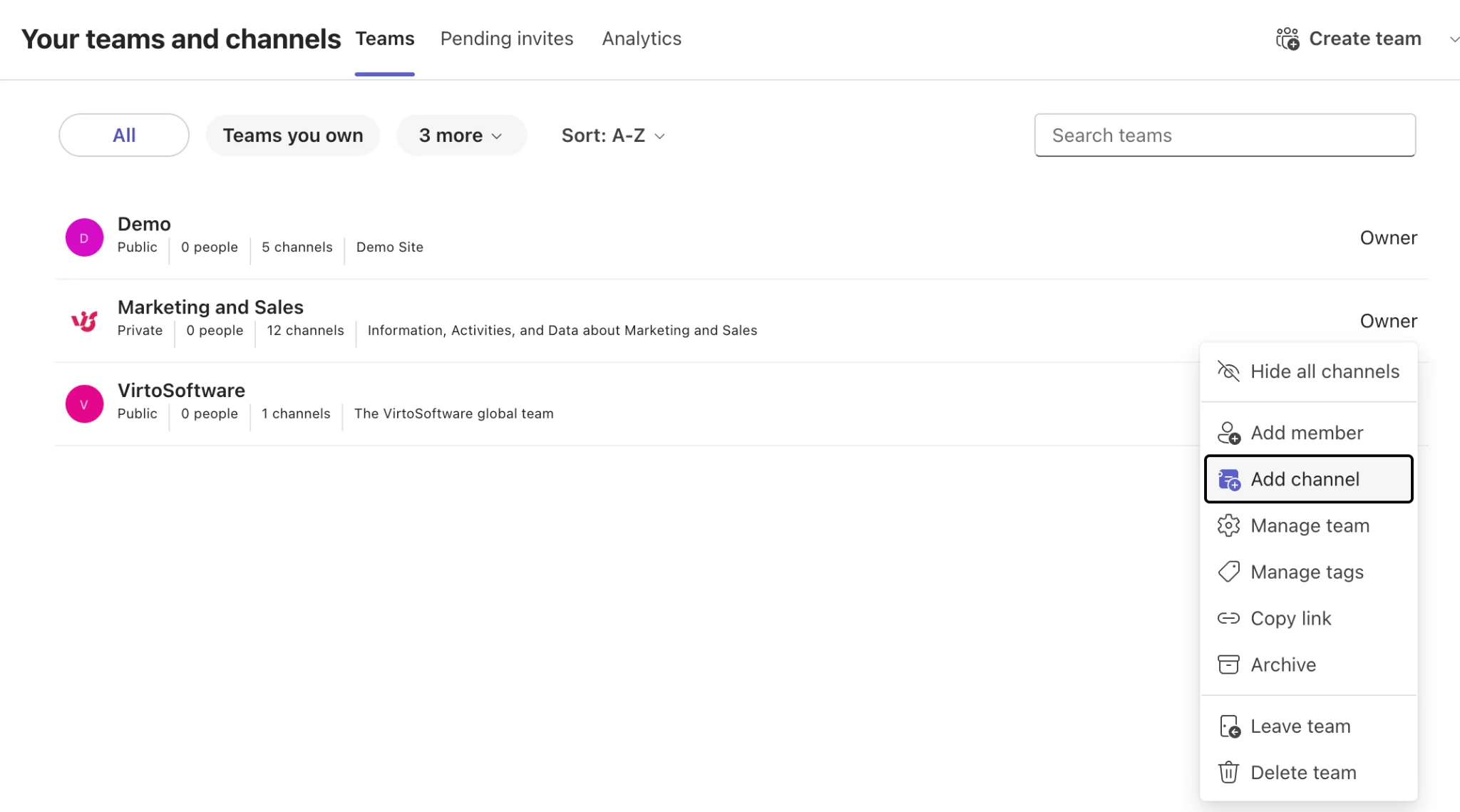
Pic. 4. Setting up project channels in Microsoft Teams.
Step 2 — Plan the work in Planner
- A board named “Software Launch”, with buckets for Design, Development, Testing, and Deployment.
- Every task carries an owner, a due date, a priority, and a label.
- The board is pinned as a tab in the Tasks channel so nobody has to go looking for it.
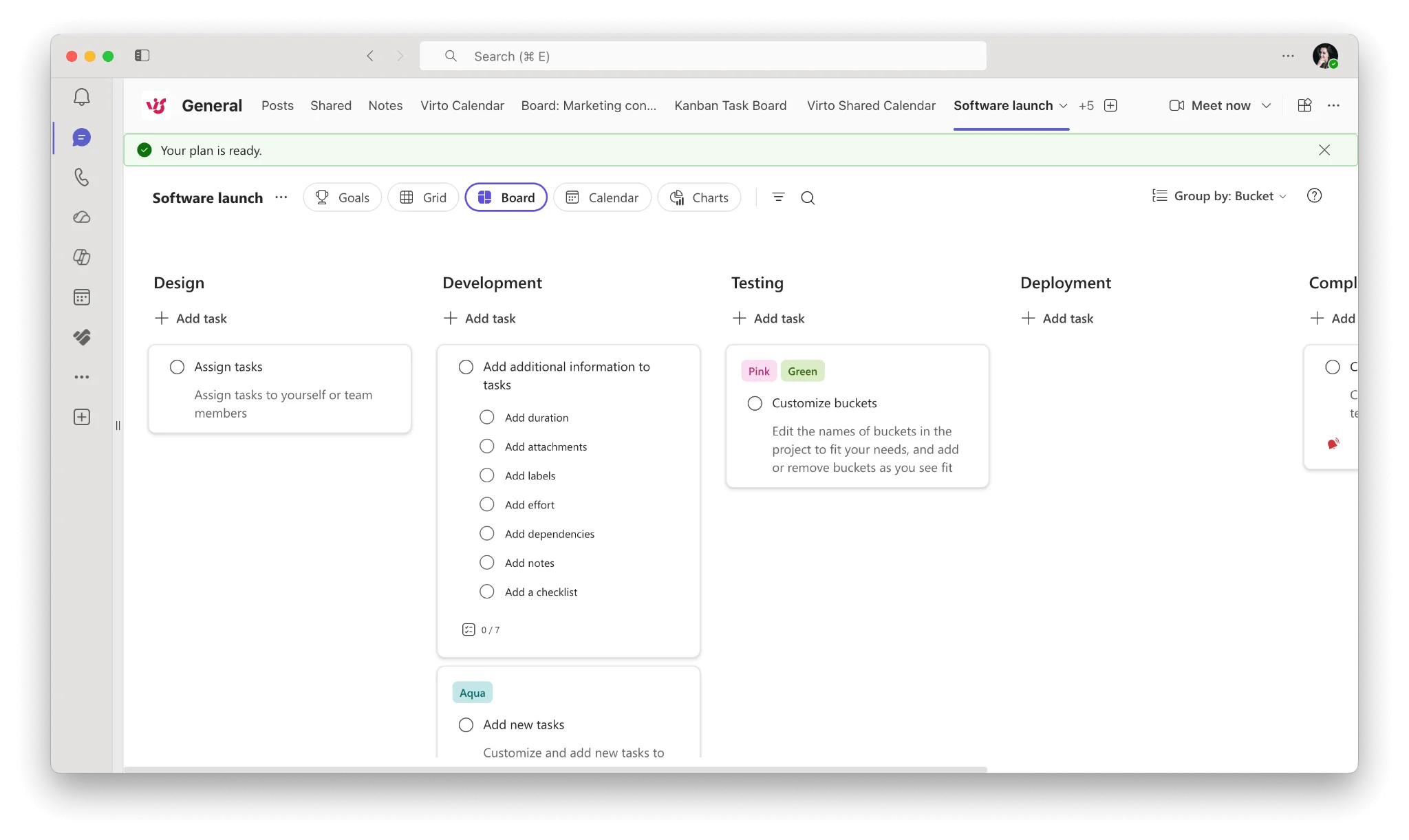
Pic. 5. A Planner board with buckets mapped to project phases.
Step 3 — Centralise documents in SharePoint and OneDrive
- The project’s SharePoint site holds the approved specs, designs, and test plans.
- Drafts live in OneDrive until they are ready to be published to the library.
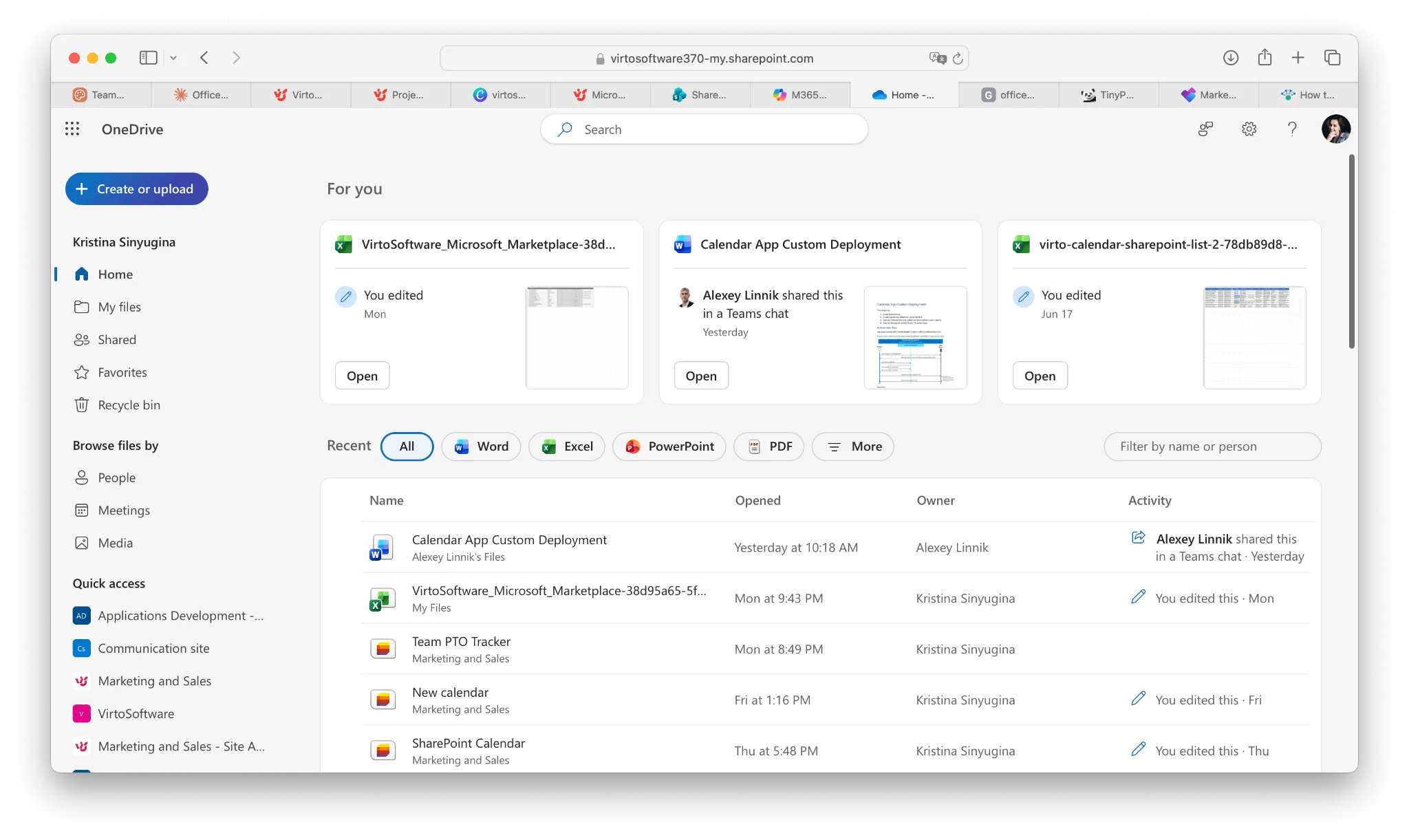
Pic. 6. OneDrive.
Step 4 — Track progress in stand-ups
- A recurring Teams meeting each morning, scheduled through Outlook.
- Task statuses are updated live on the Planner board during the call.
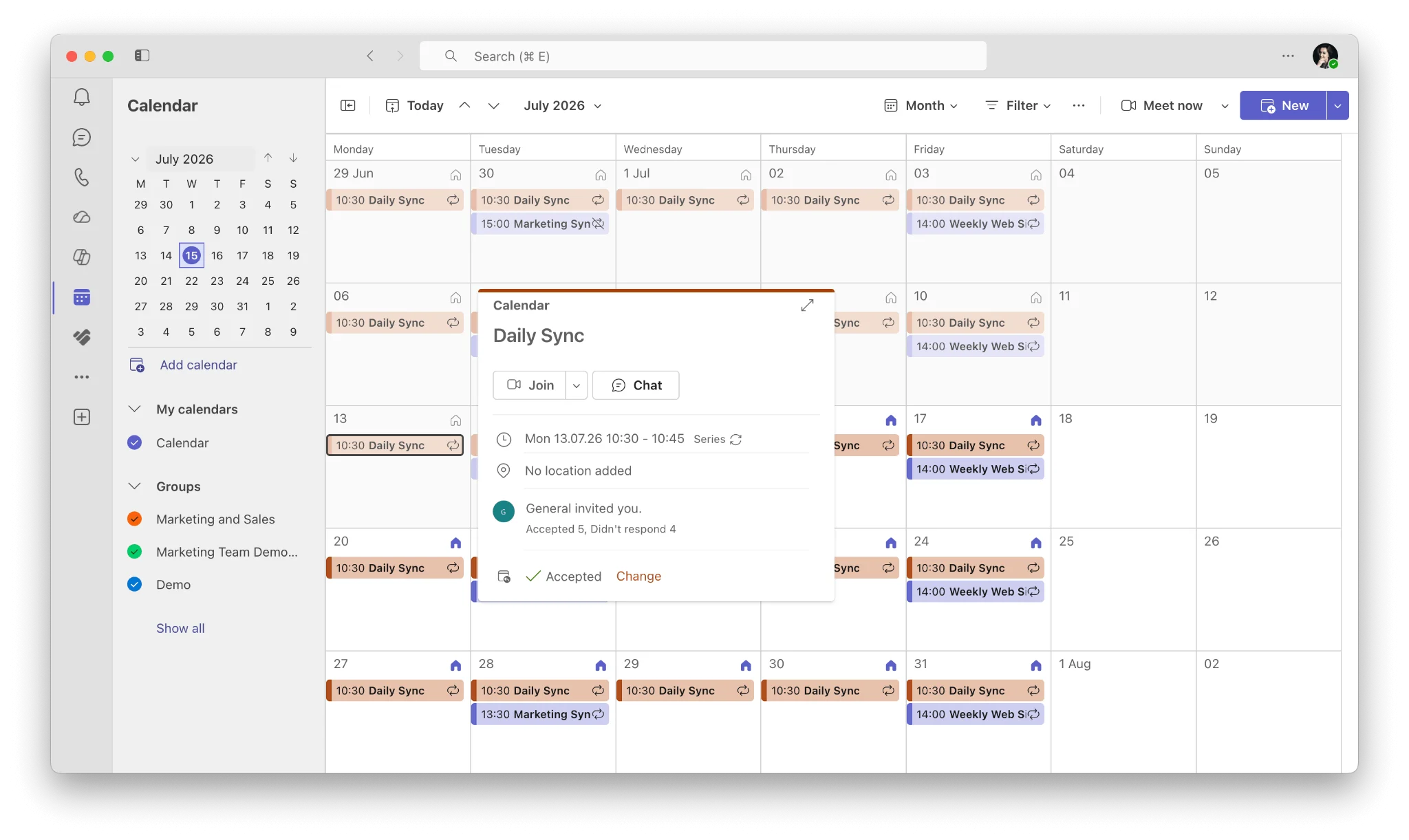
Pic. 7. A recurring Teams stand-up scheduled from Outlook.
Step 5 — Individual follow-through in To Do
- Each member sees their Planner assignments in To Do alongside their own tasks.
- “My Day” keeps the daily list short and honest.
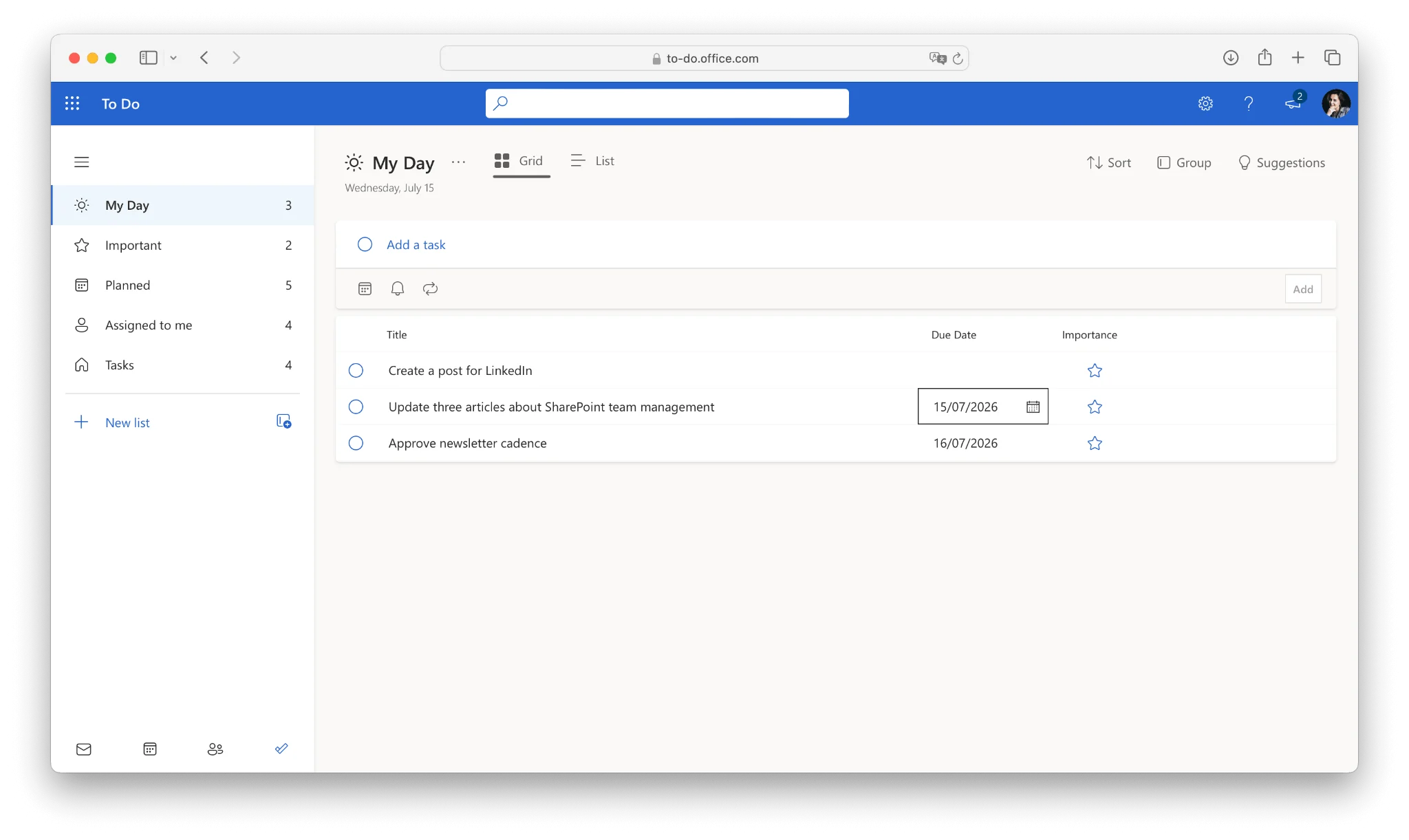
Pic. 8. Assigned Planner tasks appearing in a QA engineer’s To Do list.
What this delivers: one place to talk, one board to look at, one library of truth, and no extra subscriptions. What it does not deliver is WIP limits, swimlanes, burndown charts, or cycle-time data — which is where most teams reach for an add-on.
Extending Microsoft 365 with Add-Ins and Integrations
The native suite covers the fundamentals. Once a project has multiple parallel workstreams, a team that needs WIP limits, or a stakeholder who wants a progress chart, the gaps become obvious. Microsoft AppSource hosts thousands of business apps that plug directly into SharePoint and Teams, and the good ones behave like native features rather than bolt-ons.
Native Microsoft extensions
- Power Automate: automate reminders, approvals, and status notifications between Planner, Teams, Outlook, and SharePoint.
- Power BI: build live project dashboards from Planner, Project, and SharePoint list data.
Virto apps for Microsoft 365
VirtoSoftware builds project management apps that run inside SharePoint Online and Microsoft Teams, under a single licence and inside your own tenant:
- Virto Kanban Board App — a full Kanban board over your SharePoint lists, with swimlanes, WIP limits, subtasks, colour coding, filters, and workflow analytics. It is what Planner would be if Planner had grown up with an agile team. See Kanban board examples for how teams configure it.
- Virto Charts & Data Visualization App — a free app that turns SharePoint list data into visual reports and dashboards inside Microsoft Teams and SharePoint. Build completion and burndown charts, track workload distribution and task-completion dynamics, and give stakeholders up-to-the-minute project insight without exporting anything.
- Virto Calendar Overlay App — overlays SharePoint, Exchange, Outlook, Google and Teams calendars into a single colour-coded view, so deadlines, sprints, and absences are visible together.
- Virto Alerts & Reminders App — rules-based email and Teams notifications for approaching deadlines, status changes, and overdue tasks.
All Virto apps for Microsoft 365 share one licence across SharePoint, Teams, and Azure, and can be deployed inside your own Azure subscription if data residency matters. See pricing for current plans, and our guide to the SharePoint project dashboard for reporting setup patterns.
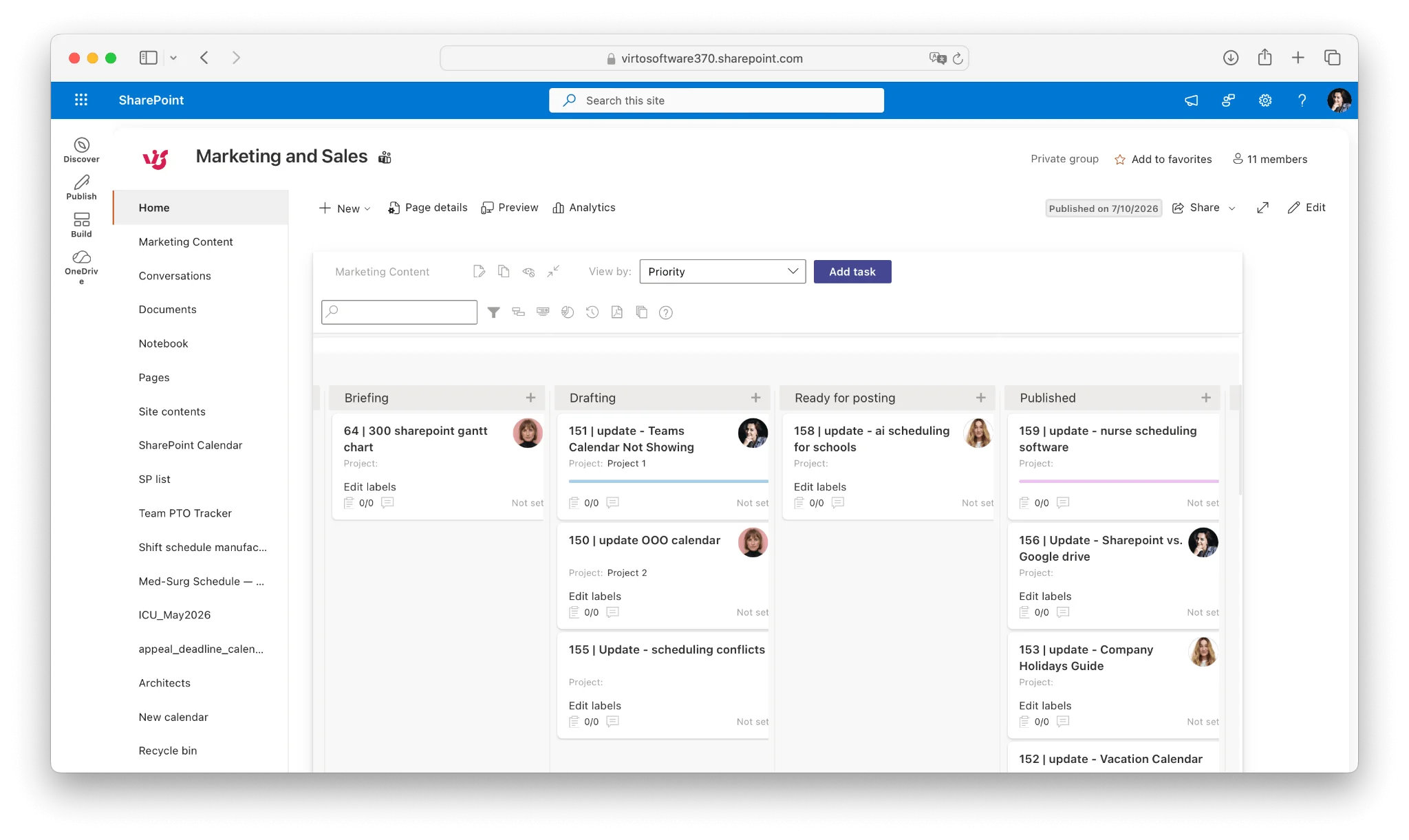
Pic. 9. Virto Kanban Board running inside SharePoint Online.
Best Practices for Project Management in Microsoft 365
- One project, one Team. Resist spinning up a Team per department. Channels handle the subdivision.
- Pin the board. A Planner or Kanban board that is not a tab in the channel will be ignored.
- Decide where the truth lives. Either the board or the spreadsheet is authoritative. Never both.
- Use buckets for phases, labels for type. Mixing the two axes is the fastest way to an unreadable board.
- Automate the nagging. Power Automate or an alerts app should chase deadlines, not the project manager.
- Make progress visible. A burndown or completion chart shows a project slipping weeks before a status meeting does. See our guide to project milestones.
- Review the board weekly. A stale board is worse than no board — it lies with confidence.
- Running several projects at once? That is its own discipline — see how to manage multiple projects.
FAQ
Can you manage projects in Office 365?
Yes. Microsoft 365 includes Planner for planning (its premium plans, the former Project for the web, are licensed separately), To Do for personal tasks, Teams for collaboration, and SharePoint for documents. Apps such as Virto Kanban Board and the free Virto Charts & Data Visualization App add agile boards and project reporting where the native tools stop.
Is Office 365 the same as Microsoft 365?
Not exactly. Office 365 was renamed Microsoft 365 in 2020, and the current product adds Windows licensing and Enterprise Mobility + Security on top of the original cloud productivity apps. In everyday use, people search for “Office 365” and mean Microsoft 365.
Does Microsoft 365 include a Gantt chart?
Not in the base suite. Gantt views come with Microsoft Project, which is licensed separately. For project reporting without Project — completion, burndown, and workload charts built straight from your SharePoint lists — the free Virto Charts & Data Visualization App covers much of what teams want a timeline for.
Planner or Project — which should I use?
Planner if your work is a list of tasks with owners and dates. Project if you need dependencies, critical paths, and resource capacity. Our Planner vs Project comparison walks through the decision in detail.
Is Microsoft 365 project management free?
Planner, To Do, Teams, and SharePoint are included in most business and enterprise Microsoft 365 plans at no additional cost. Microsoft Project requires a separate Project Plan licence. Third-party apps are licensed separately, typically per user per month.
Can Microsoft 365 handle agile projects?
Partly. Planner gives you a board, but no WIP limits, swimlanes, or burndown charts. Teams running Scrum or Kanban seriously usually add a dedicated board app plus a reporting app — see our agile project management use case.
Conclusion
Microsoft 365 is not a project management tool, and it does not need to be. It is a set of well-integrated components that, arranged deliberately, will run most projects: Teams for communication, Planner for the work, SharePoint for the documents, To Do for the individual, and Outlook holding the schedule together.
Where it falls short is at the edges — dependencies, WIP limits, burndown reporting, and portfolio views. Microsoft Project fills some of that at extra cost and extra complexity. For teams who want agile boards and real project reporting without leaving SharePoint and Teams, purpose-built apps are the lighter path.
If you want to see what that looks like in your environment, book a demo or get in touch. Documentation for every Virto app is available in the Learning Center.