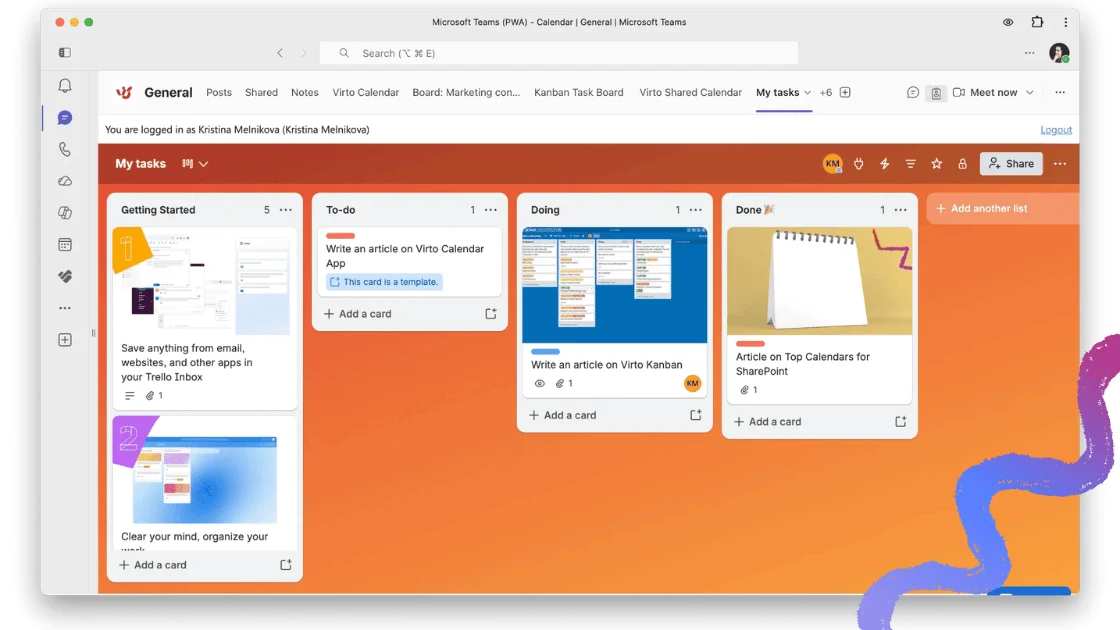
Microsoft Teams is where most Microsoft 365 teams already chat, meet and share files, so it is the obvious place to keep track of work as well. The catch: Teams has no single built-in “tasks” feature. It hosts several Microsoft 365 task apps, and good Microsoft Teams task management comes down to picking the right one, wiring it into the channel that owns the work, and adding a stronger board when the built-in options run out of room.
This guide covers the task apps inside Teams, the exact steps to create, assign and track a task, and the best task trackers for Teams in 2026.
Quick answer: how to manage tasks in Microsoft Teams
How do I manage tasks in Microsoft Teams? Add the Planner app (formerly Tasks by Planner and To Do) to a team or channel, then create, assign and track tasks in a board or list; Microsoft Lists and the To Do app are alternatives.
One naming note before you start. In April 2024 Microsoft renamed the Tasks by Planner and To Do app in Teams to simply Planner. It is the same task app, now merging To Do lists, Planner boards and Project plans into one place. If you still see the old name, update your Teams client — see Microsoft’s guide to managing the Planner app in Teams.
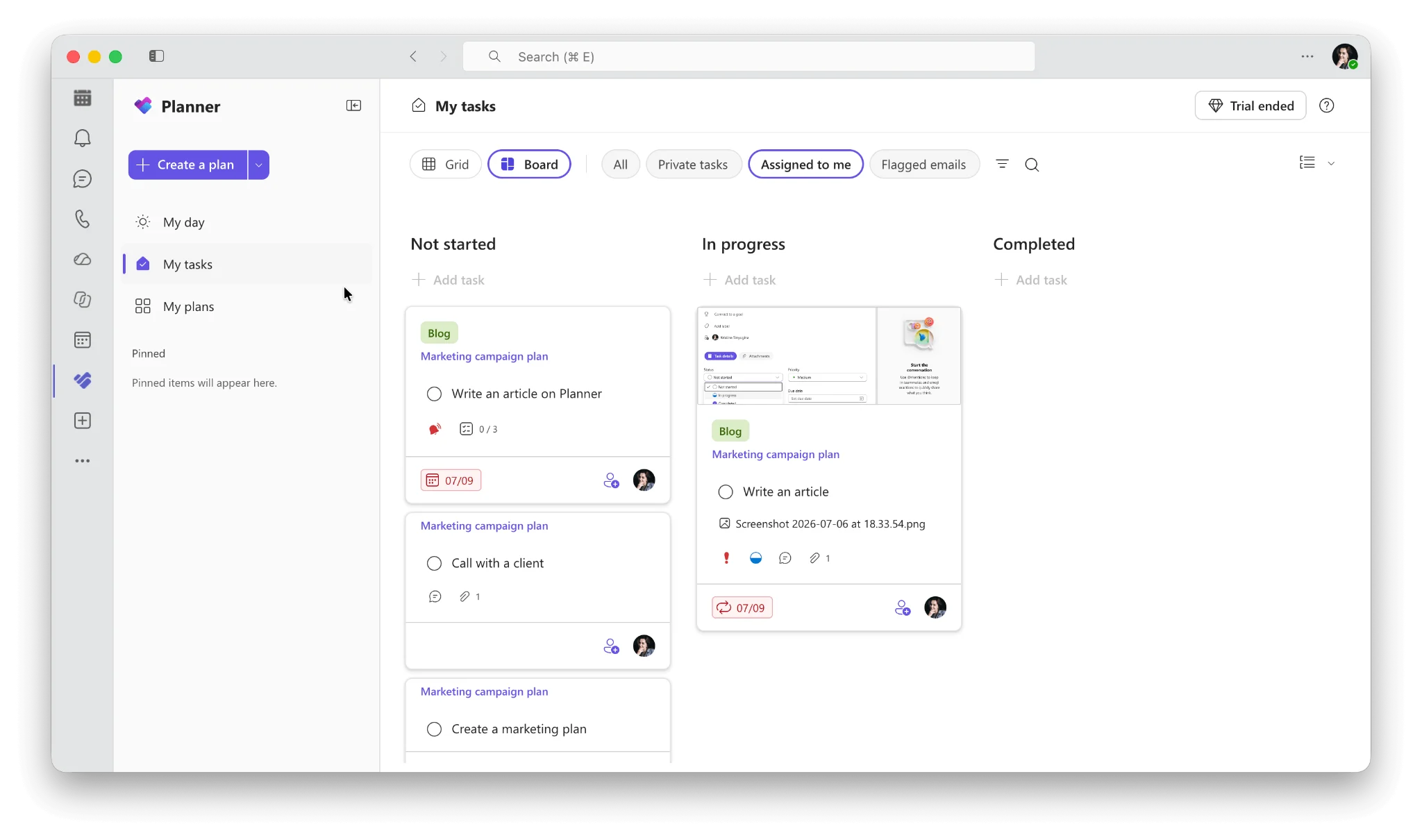
Pic. 1. The Planner app in Microsoft Teams
Task apps in Microsoft Teams: Planner, To Do and Lists
Three Microsoft 365 apps handle tasks inside Teams. They overlap, but each one has a job it does best.
Planner (formerly Tasks by Planner and To Do)
Planner is the default answer for team tasks in Teams. Open it from the left rail and you get four views: My Day for what is due today, My Tasks for private tasks, everything assigned to you and emails you flagged in Outlook, My Plans for every list and plan you belong to, and New plan to start one.
Inside a plan, tasks sit on a Kanban-style board split into buckets. Each task card carries an assignee, a due date, a priority, labels, a checklist, notes and attachments. Four views let you read the same plan differently: Board for flow, Grid for bulk edits, Schedule for a calendar layout, and Charts for a quick status and workload read.
Planner comes with Microsoft 365 Business Basic and Standard, Office 365 E1, E3 and E5, and Microsoft 365 A1. Premium plans (dependencies, timelines, resource management) need a Planner Plan 1 or higher licence — Microsoft lists the details in its Planner for admins documentation. For a deeper walkthrough, see our guides to Microsoft Planner and using Planner in Teams.
Microsoft To Do
To Do is the personal half of the same system. Anything you put in a To Do list is yours alone unless you deliberately share it, and it syncs across Teams, Outlook, web and mobile. It is the right home for a personal daily plan, for flagged emails you have turned into follow-ups, and for the small items that would only clutter a shared board. Because To Do lists surface inside the Planner app’s My Tasks view, most people never open To Do as a separate app at all.
Microsoft Lists
Lists is what you reach for when a task is really a record. It gives you custom columns — a client name, a request type, a cost centre, a status of your own design — plus views, filters, conditional formatting and rules that fire when a value changes. Add a list as a tab in a channel and the team edits it in place. It suits intake queues, approval trackers and anything auditable that has to outlive the project. Our full guide to Microsoft Lists walks through templates, views and the Rules-based alerts that replaced the retired “Alert me” feature.
Which task app should you use?
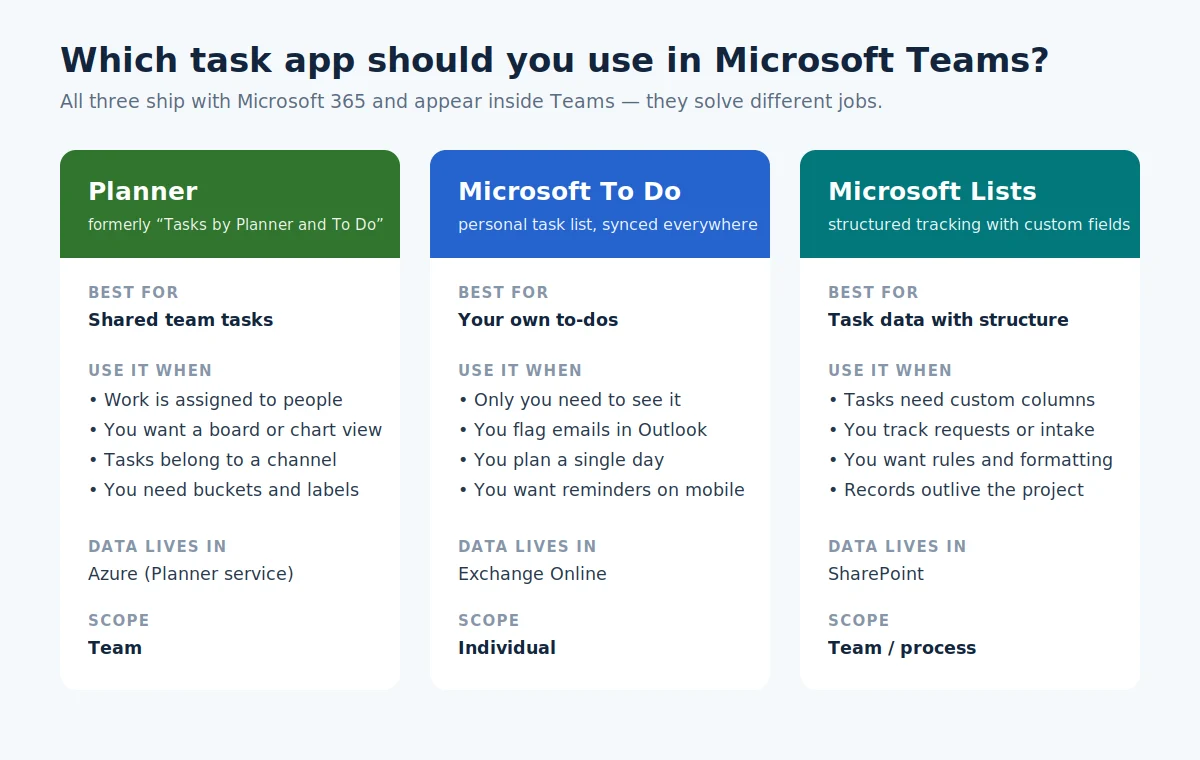
Pic. 2. Which task app to use in Microsoft Teams
| Planner | Microsoft To Do | Microsoft Lists | |
|---|---|---|---|
| Best for | Shared team tasks | Your own to-dos | Structured task records |
| View style | Board, Grid, Schedule, Charts | Simple lists | Grid, gallery, calendar, board |
| Custom fields | Labels and buckets only | No | Yes — any column type |
| Assignment | Yes, to team members | Self only (lists can be shared) | Yes, via a person column |
| Data stored in | Azure (Planner service) | Exchange Online | SharePoint |
| Weak spot | Little customisation, thin reporting | Not built for teamwork | No native board automation |
How to create, assign and track tasks in Microsoft Teams
The workflow below takes about ten minutes to set up for a channel and covers most day-to-day task management.
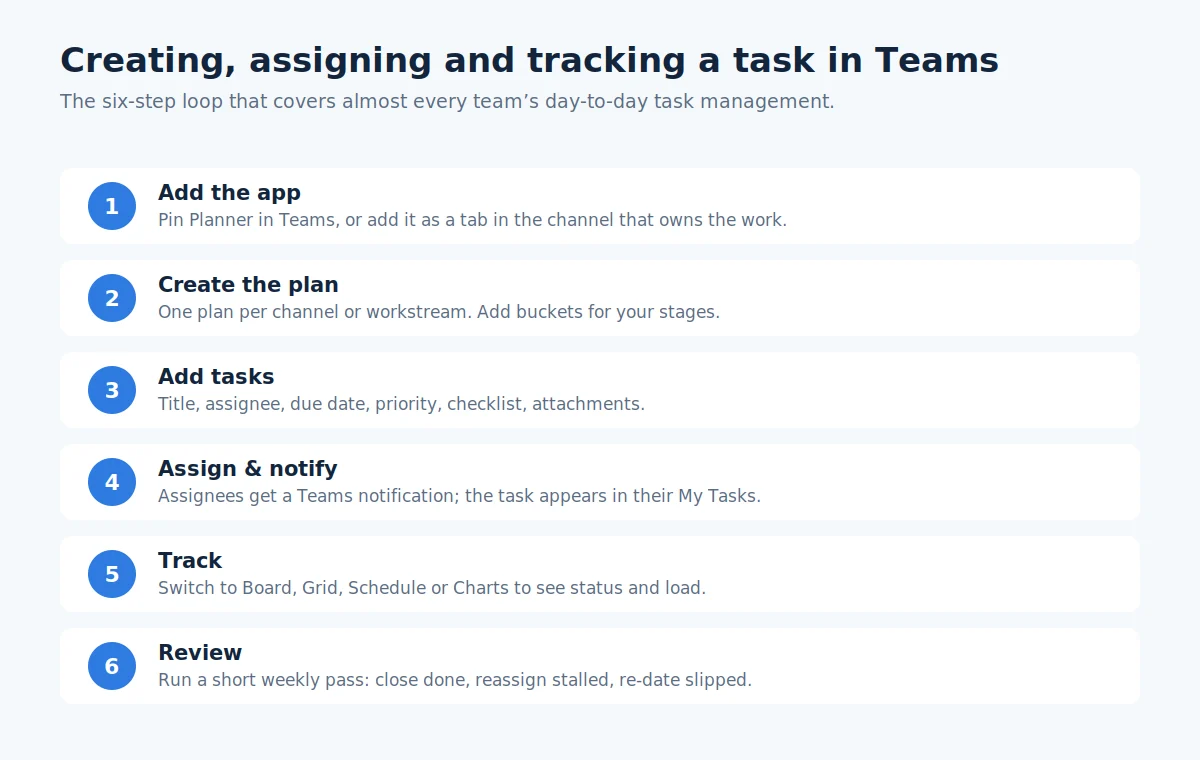
Pic. 3. Creating, assigning and tracking a task in Microsoft Teams
Add the task app to a team or channel
- Open the Teams channel that owns the work and select + at the top of the channel to add a tab.
- Search for Planner (or Tasks by Planner and To Do, if your tenant still shows the old name) and select it.
- Choose Create a new plan, name it after the workstream — not the team — and select Save.
- Pin the plan as a tab so anyone in the channel can open the board in one click.
If Planner does not appear in the app list, it may be blocked at tenant level; an admin can allow it under Teams apps > Manage apps in the Teams admin centre.
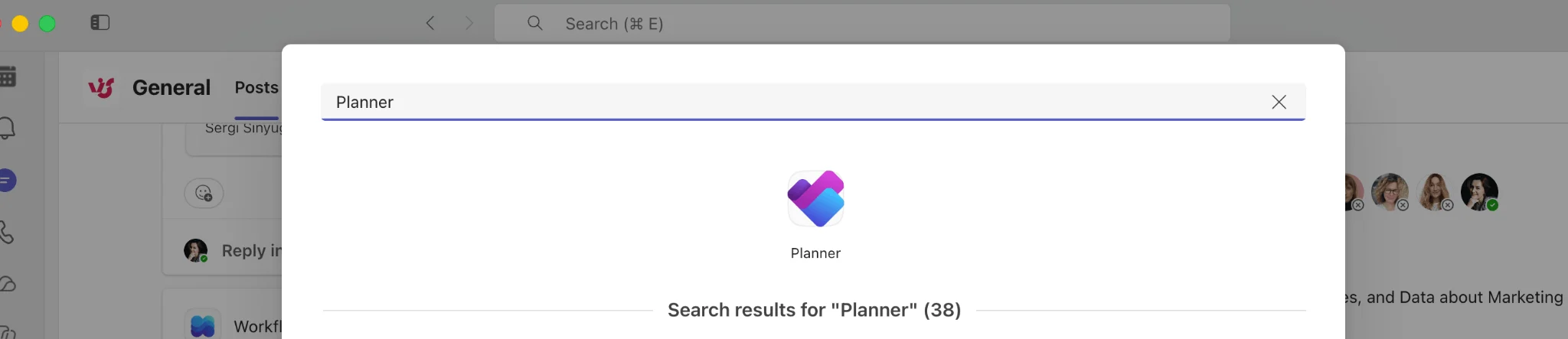
Pic. 4. Adding Planner as a tab in a Teams channel
Create and assign a task
- On the board, select Add task under the bucket that matches the stage of work.
- Give the task a verb-first title — “Draft Q4 pricing page” beats “Pricing page”.
- Set the due date and assign one owner. Two owners on a card usually means nobody owns it.
- Open the card and add priority, labels, a checklist for sub-steps, and any files the assignee needs.
- Post the task link in the channel if the work needs discussion — the conversation stays where the team already is.
The assignee gets a Teams notification straight away, and the task appears in their My Tasks view and in the Planner mobile app.
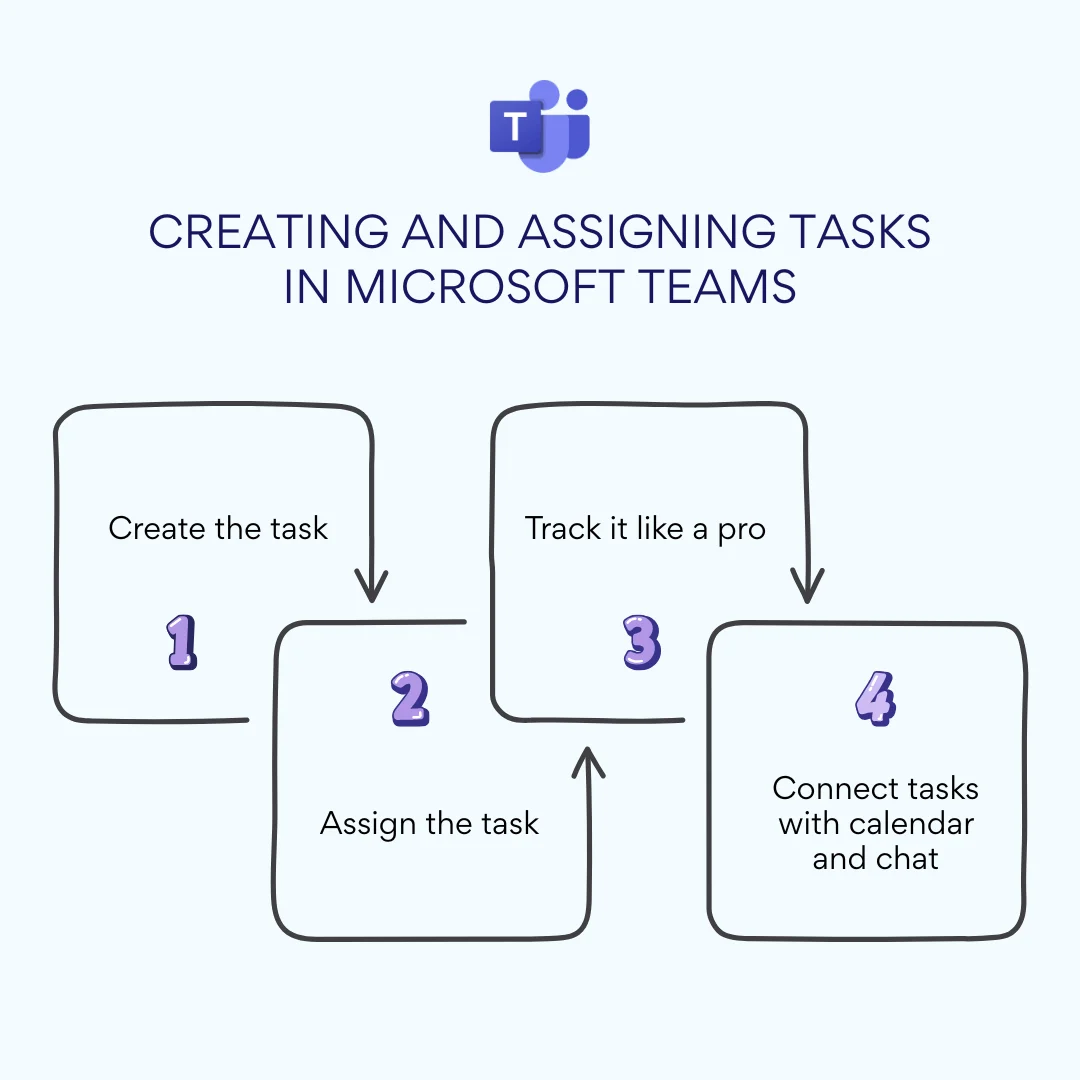
Pic. 5. Creating and assigning tasks in Microsoft Teams
Track progress
Tracking is where most teams lose the thread, so keep it to three habits:
- Read the board weekly. Group by Assigned to in Board view to spot overloaded people, or by Due date to see what is slipping.
- Use Charts view for the status read. It shows not started, in progress, late and completed at a glance, plus tasks per member.
- Close or re-date every stale task. A board full of last month’s overdue cards stops being trusted within a fortnight.
For reporting beyond what Charts gives you, teams usually pull Planner data into Power BI, or move to a board app with built-in analytics. Our guide to notifications and reminders in Microsoft Teams covers how to keep people nudged without drowning the channel.
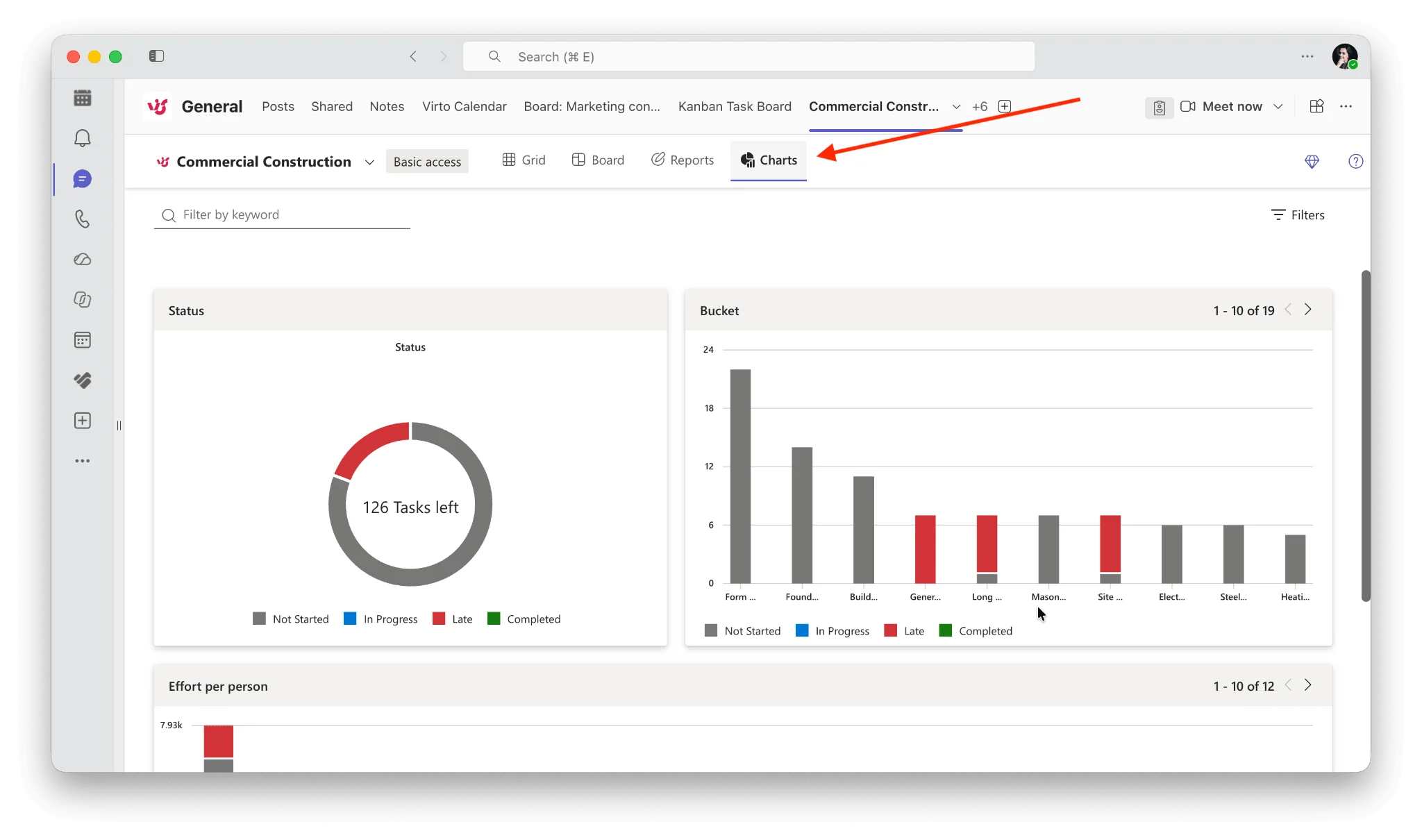
Pic. 6. Board, Grid, Reports and Charts views in a plan
Best task tracker for Teams: your options in 2026
The built-in apps are free with your licence and good enough for a small team running a handful of plans. Teams that hit their limits — no swimlanes, no work-in-progress limits, thin analytics, no automation beyond Power Automate — usually add a dedicated task tracker. These are the realistic options.
| Task tracker | Best for | Trade-off |
|---|---|---|
| Planner (built in) | Teams already on Microsoft 365 with simple boards | No swimlanes or WIP limits; reporting is basic |
| Microsoft Lists (built in) | Structured task records with custom fields | Not a workflow board; no native card automation |
| Virto Kanban Board | Advanced boards that stay inside Microsoft 365 | Paid app; from $2/user/month with a 30-day trial |
| Trello | Small teams wanting the simplest possible board | Data leaves Microsoft 365; separate admin and billing |
| Asana | Cross-functional work with heavier process | Overkill for pure task tracking; separate licence |
| Jira | Software teams tracking issues and sprints | Steep setup; a poor fit for non-engineering teams |
The practical filter is data residency. If your governance policy says work data stays in Microsoft 365, a Teams-native app that stores its data in SharePoint is a much easier sell than a third-party SaaS board. We compare the field in detail in the best Kanban board apps for Microsoft Teams, the best task management software tools and Microsoft Planner alternatives.
Do more with Virto Kanban Board for Microsoft Teams
Virto Kanban Board App for Microsoft Teams is the upgrade path when Planner’s board stops keeping up. It installs as a tab inside Teams, reads and writes your existing Microsoft 365 data, and keeps everything in your tenant.
- Boards that match your process. Custom columns, colours, labels and card layouts, plus swimlanes so you can split a board by priority, client or squad without creating six separate plans.
- Automation on the board itself. Triggers and actions move cards, set fields and notify owners when something changes, with Power Automate available for anything more custom.
- Real analytics. Built-in reports on completed work, cycle times and workload balance — the reporting layer Planner’s Charts view only hints at.
- Native to your stack. Works with Microsoft Lists, SharePoint and Planner data, syncs deadlines to Outlook, and sends change and deadline notifications into Teams.
- Predictable pricing. From $2/user/month on Starter (up to 30 users) and $3/user/month on Pro (31–200 users), with Enterprise on request. Every plan starts with a free 30-day trial — no card needed.
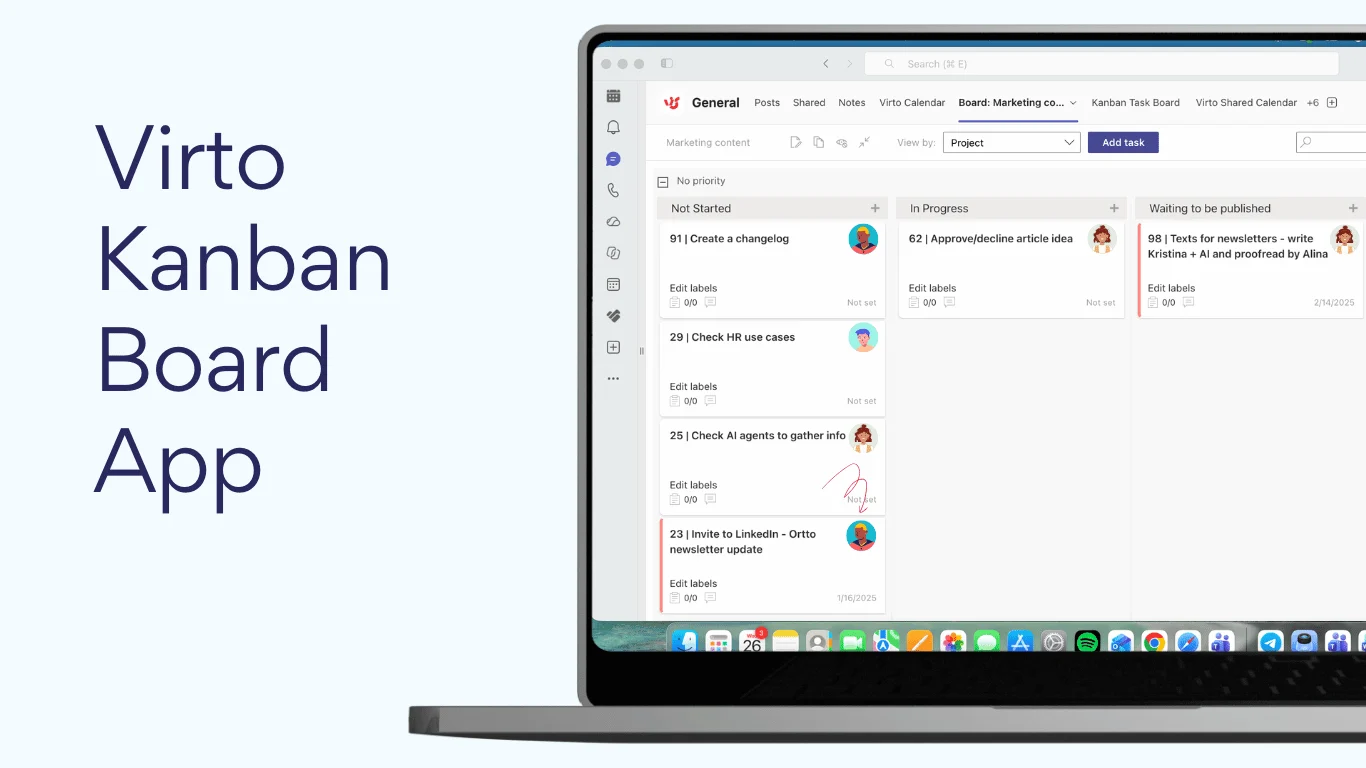
Pic. 7. Virto Kanban Board in Microsoft Teams
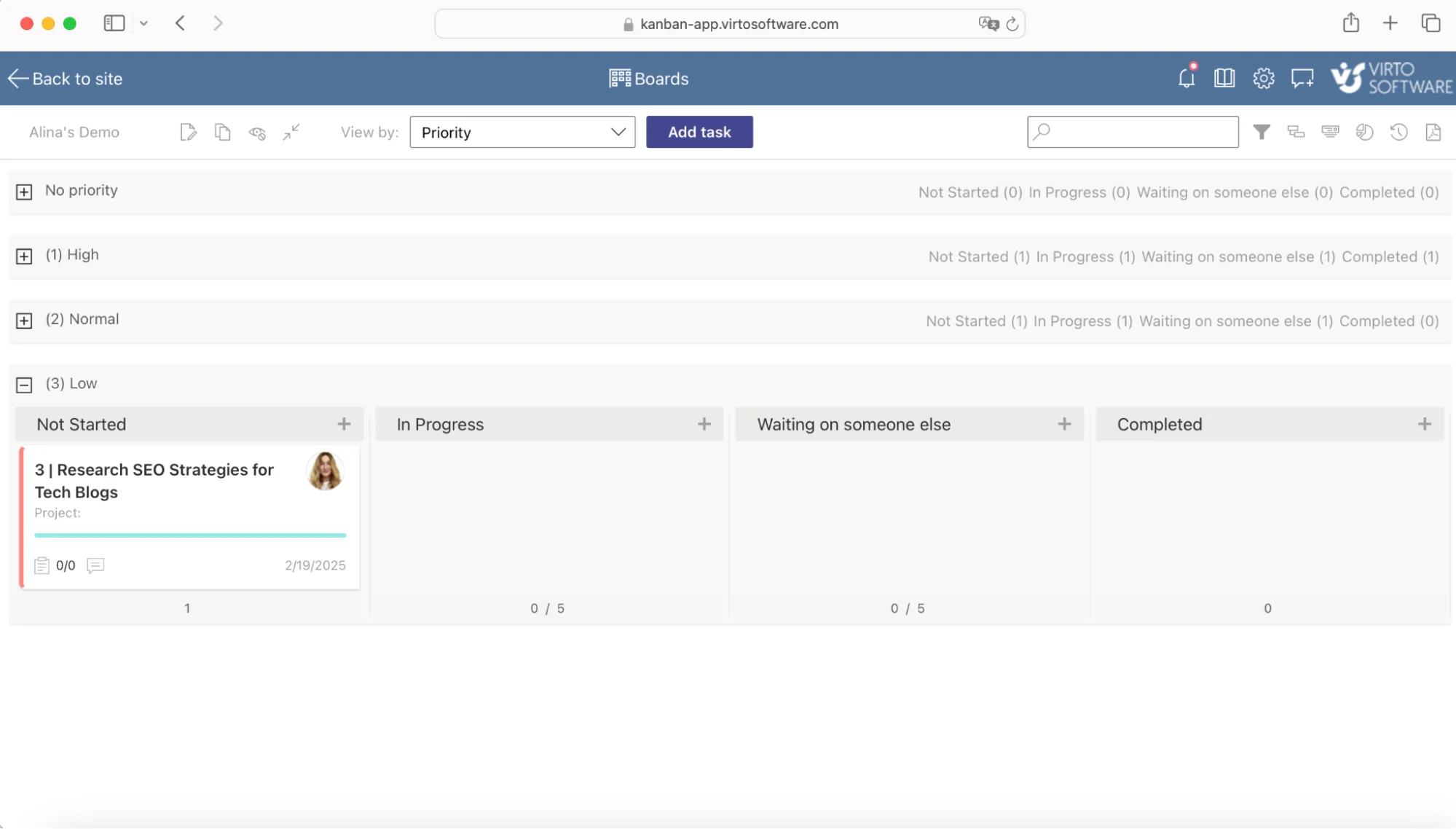
Pic. 8. Example swimlanes in the Virto Kanban Board App organizing work by priority
New to the method itself? Start with our explainers on Kanban boards in Microsoft Teams and online Kanban boards.
Task management vs project management in Teams
These two get mixed up constantly, and the confusion is what leaves teams with a board nobody trusts and a project plan nobody updates.
Task management vs project management in Teams? Task management tracks individual to-dos; project management coordinates whole projects with schedules, dependencies and reporting.
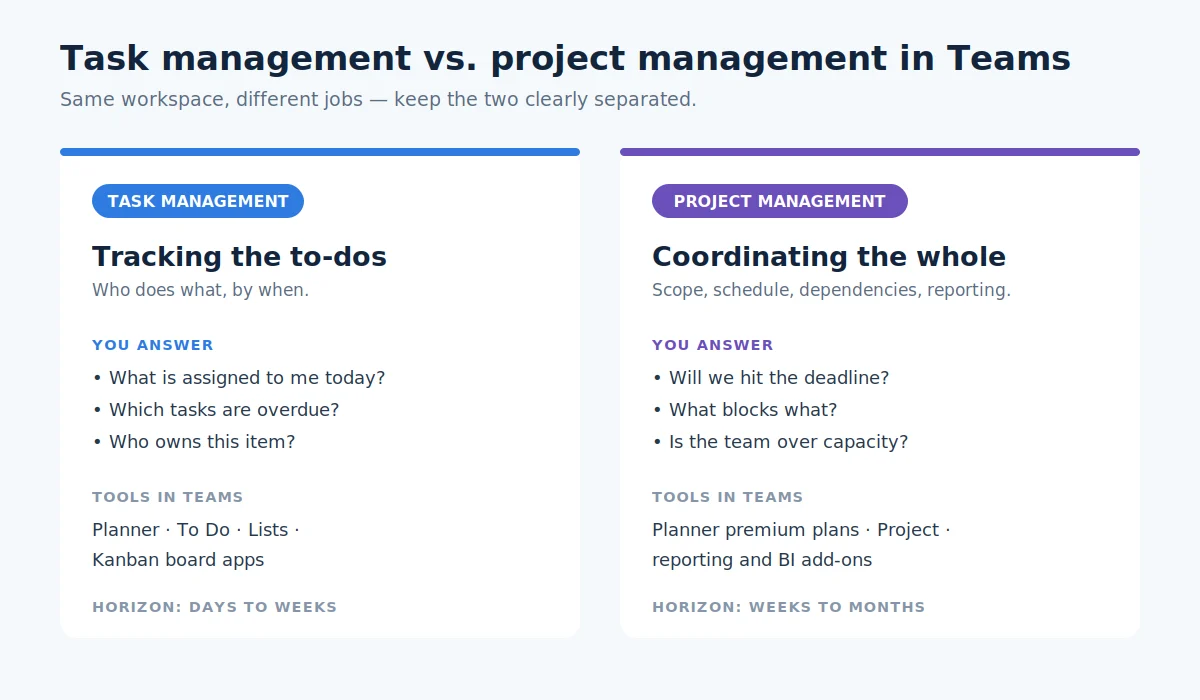
Pic. 9. Task management vs project management in Microsoft Teams
In practice: if the question you need answered is “what is on my plate this week?”, that is task management and Planner or a Kanban board covers it. If the question is “will this launch land on the 14th, and what happens to everything downstream if it slips?”, you have moved into project territory, which needs schedules, dependencies and capacity planning. For that side of the picture, see our full guide to Microsoft Teams project management.
Tips, limitations and common issues
Tips that actually stick
- One plan per workstream, not per team. A plan covering everything a department does becomes unreadable by about eighty cards.
- Name buckets after stages, not people. Stages survive reorganisations; a bucket called “Marta” does not.
- Every task gets one owner and one due date. No exceptions — unassigned or undated cards are the ones that rot.
- Turn recurring work into a template. Copy a plan for onboarding, campaign launches or monthly close instead of rebuilding it each time.
- Automate the nagging. Power Automate can post an overdue-task digest into the channel every Monday so nobody has to chase.
Limitations worth knowing before you commit
- Teams mobile shows only the plans that have been added as a tab in a channel — plans you opened from the app on desktop will not all appear.
- Planner has no swimlanes and no work-in-progress limits, which rules out proper Kanban flow control on the built-in board.
- Reporting stops at the Charts view; anything comparative needs Power BI or a third-party app.
- Task data lives in different services depending on type — private tasks in Exchange, plan tasks in Azure, attachments in the group’s SharePoint site — which matters for eDiscovery and retention policy.
Common issues and quick fixes
- Tasks are not showing up. Check the user’s Microsoft 365 licence first — Planner ships with business subscriptions, not every plan. Then confirm they have permission on the plan, and have them sign out and back in to force a resync.
- Notifications are not arriving. Planner emails only reach users with an Exchange Online licence; hybrid and on-premises Exchange setups often drop them.
- You need to share tasks externally. Add the person as a guest to the team behind the plan, or share a Microsoft List with view-only or edit permissions instead.
- The board is out of date. This is a process problem, not a tool one. Put a five-minute board pass on the standing weekly agenda.
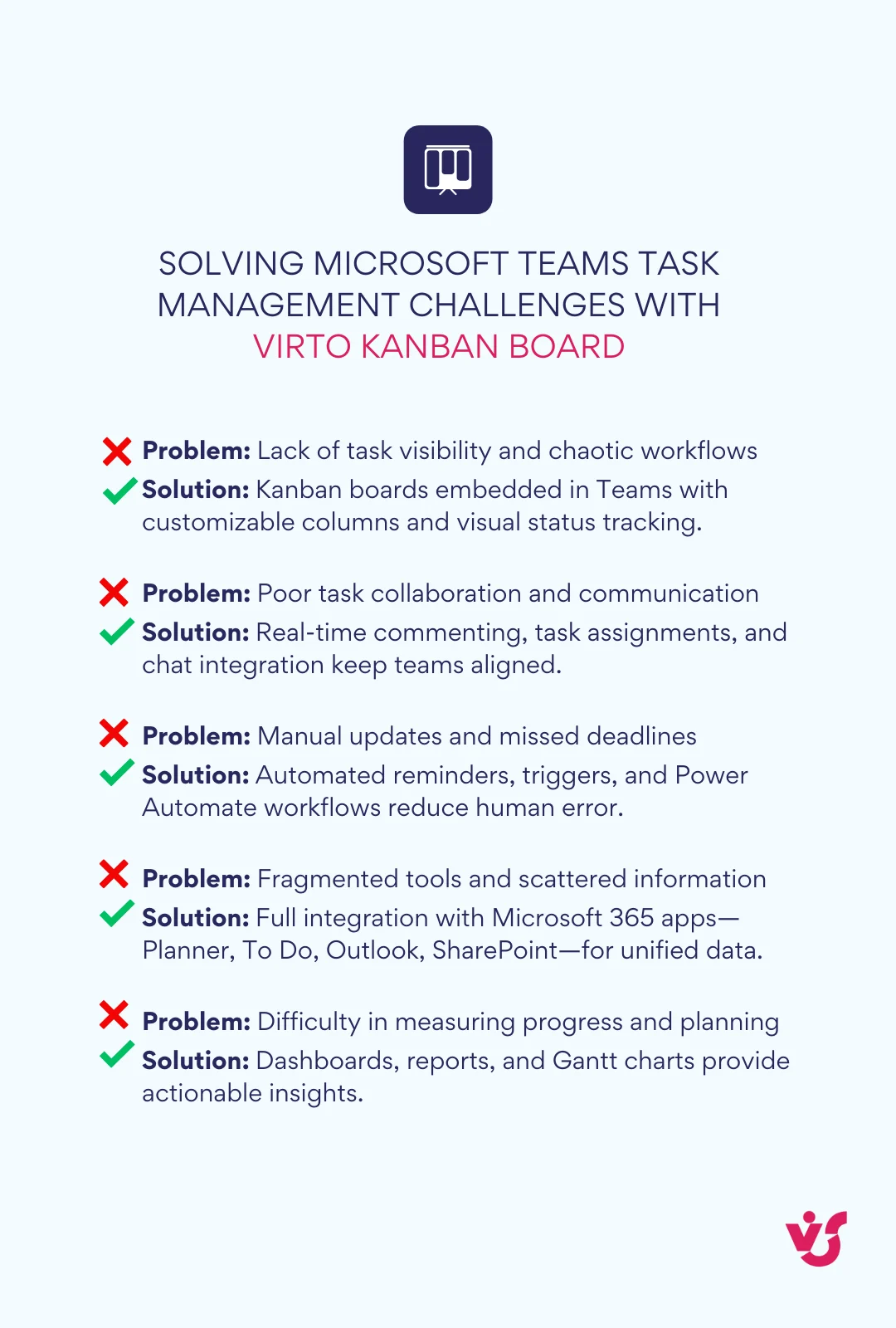
Pic. 10. Solving Microsoft Teams task management challenges with Virto Kanban Board
FAQ
How do I manage tasks in Microsoft Teams?
Add the Tasks by Planner and To Do app — now called Planner — to a team or channel, then create, assign and track tasks in a board or list. Microsoft Lists and the To Do app are alternatives for structured records and personal to-dos.
What is the best task app for Microsoft Teams?
For most Microsoft 365 teams, Planner is the best starting point because it is included in the licence and lives inside Teams. Teams that need swimlanes, work-in-progress limits, board automation or real analytics typically move to a dedicated Teams app such as Virto Kanban Board, which keeps the data in Microsoft 365.
What is the difference between task management and project management in Teams?
Task management tracks individual to-dos — who does what, by when. Project management coordinates whole projects with schedules, dependencies and reporting. Planner and Kanban boards cover the first; premium plans and Project cover the second.
Is there a free task tracker for Microsoft Teams?
Yes. Planner, Microsoft To Do and Microsoft Lists are all included with Microsoft 365 business and enterprise subscriptions at no extra cost. Paid apps add board features and reporting on top.
What happened to Tasks by Planner and To Do?
Microsoft renamed the app to Planner in April 2024 and merged the To Do, Planner and Project experiences into it. Existing plans and tasks were not affected — only the name and the interface changed.
Can I use Microsoft Teams task management with external users?
Yes. Add external people as guests to the team that owns the plan, or share a Microsoft List with them directly using view-only or edit permissions.
Conclusion
Microsoft Teams task management works well when you stop looking for one magic feature and instead match the app to the job: Planner for shared team tasks, To Do for personal ones, Lists when tasks are really records. Set it up in the channel that owns the work, give every task one owner and one date, and review the board weekly. When the built-in board runs out of road — swimlanes, WIP limits, automation, reporting — Virto Kanban Board for Microsoft Teams adds those without moving your data out of Microsoft 365. It is free to try for 30 days.
Next, browse the best apps for Microsoft Teams to round out your stack.