


Quick answer: Microsoft Teams statuses — Available, Busy, Do not disturb, Away, Be right back, Appear away, Appear offline, Out of office, Offline, In a meeting and Focusing — tell colleagues whether you can be reached. Teams sets most of them automatically from your device activity and your Outlook calendar, and you can override that at any time from your profile picture. Set a duration if you want the override to expire on its own.
The coloured dot next to your name carries more weight than it looks like it should. It decides whether a colleague messages you now or waits until tomorrow, and it quietly shapes how available you appear to your manager. It is also the single most misunderstood control in Teams: most people do not know why it flips to Away while they are clearly working, or that the most commonly recommended fix for that does not actually work.
This guide covers every Teams status and what it means, how to set and reset yours, what Microsoft changed in 2026, and what genuinely stops your status drifting to Away.
Every Microsoft Teams status and what it means
Teams has ten presence states. Some you choose, some Teams sets for you, and a couple can be either.
| Status | How it is set | What it means | Notifications |
|---|---|---|---|
| Available | Automatic or manual | You are active in Teams with nothing on your calendar | Delivered |
| Busy | Automatic or manual | You are working or in a meeting but still want to be reachable | Delivered |
| Do not disturb | Manual | Focused work or screen sharing; only priority contacts get through | Suppressed |
| Be right back | Manual only | You have stepped away briefly. Teams never sets this automatically | Delivered |
| Away | Automatic | Your device is locked, idle or asleep, or you are using Teams on mobile rather than desktop | Delivered |
| Appear away | Manual | You want to look away while you keep working | Delivered |
| Appear offline | Manual | You want to look signed out. You still receive messages and notifications | Delivered |
| Out of office | Automatic or scheduled | An extended planned absence, synced with Outlook automatic replies | Auto-reply sent |
| Offline | Automatic | You are signed out or have no connection | Held until you return |
| In a meeting / In a call | Automatic | Set from a calendar event or an active call | Delivered |
| Focusing | Automatic | Focus time booked through Viva Insights (formerly MyAnalytics) | Silenced until focus time ends |
Fig. 1. Microsoft Teams statuses, how each one is set, and what happens to notifications.
Worth correcting: Appear offline does not block messages. Microsoft is explicit that you still receive notifications when someone messages you — it only changes what other people see. If you want notifications suppressed, use Do not disturb.
Away versus Appear away
They look identical to everyone else, but they behave differently. Away is applied by Teams when your machine goes idle, and it clears the moment you become active again. Appear away is a choice you make, and it holds until you change it or its duration runs out. If you want to be left alone but stay reachable in an emergency, Appear away is the honest option — colleagues can still message you and you will still see it.
What changed in Teams presence in 2026
Two shifts are worth knowing about, because both change what your colleagues can infer about you.
Work location is now a separate signal — and it can update itself
Teams now carries a work location alongside presence: it answers where you are working (office, remote, a specific building) rather than whether you are reachable. Through 2026 Microsoft has been rolling out Workplace Check-in, which infers your work location from the corporate Wi-Fi network your device connects to and updates it automatically, propagating to Outlook and the Teams directory.
The feature is off by default and controlled by administrators, but it has attracted a fair amount of criticism as a return-to-office compliance signal. Two practical points for readers: you can set and clear your work location yourself, and it is worth knowing whether your organisation has enabled automatic updates before you assume nobody is watching. See Set your work location in Microsoft Teams for the manual controls.
Teams on the web now contributes activity signals
The desktop app reads operating-system-level activity — mouse and keyboard anywhere on the machine. Teams in a browser can only see browser activity, so a Teams tab sitting behind other windows will go idle far sooner than the desktop app would. If your status keeps dropping to Away and you live in the web client, that is usually the reason.
How Teams decides your status
Teams combines four inputs: what you set manually, your Outlook calendar, your call state, and your device activity. They resolve in roughly this order.
| Priority | Input | Example |
|---|---|---|
| 1 | A status you set manually | Do not disturb for one hour while you write |
| 2 | Calendar events and call state | In a meeting during a scheduled call; Out of office during booked leave |
| 3 | Device and app activity | Available while you are typing |
| 4 | Device state | Away after the screen locks or the machine sleeps |
Fig. 2. The order in which Teams resolves competing status signals.
The exception that catches everyone: A more available status will not override a less available one, even with a duration set. Microsoft states this directly: you cannot force Busy to beat Away. This is why the “set yourself to Available for the day” trick does not work.
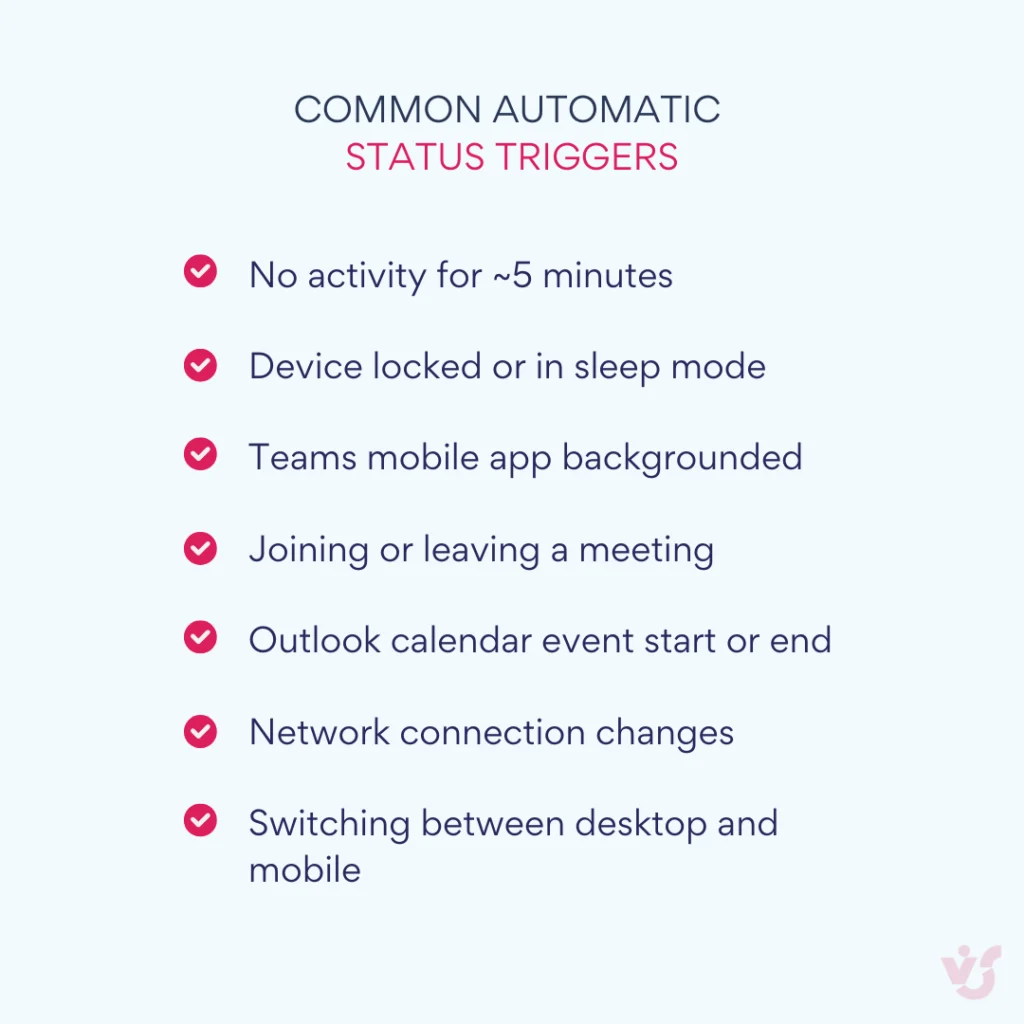
Pic. 1. Common automatic status triggers.
How to change or set a status in Microsoft Teams
- Select your profile picture at the top right of Teams.
- Select your current status to open the list.
- Pick the status you want — Available, Busy, Do not disturb, Be right back, Appear away or Appear offline.
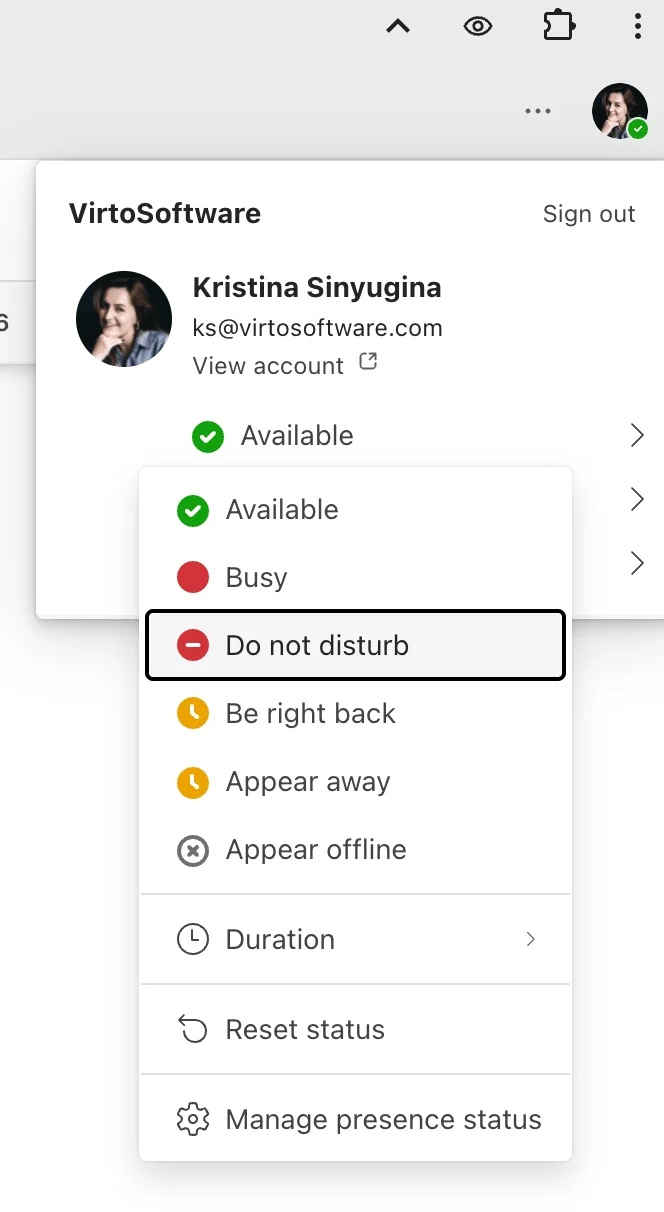
Pic. 2. Navigating to your Teams status.
There is a faster route. Type a slash command into the Teams search box and press Enter:
| Command | Sets your status to |
|---|---|
| /available | Available |
| /busy | Busy |
| /dnd | Do not disturb |
| /brb | Be right back |
| /away | Away |
| /offline | Offline |
Fig. 3. Slash commands for changing your Teams status without leaving the keyboard.
Set a duration — and the one status it will not work for
A duration makes Teams reset your status automatically when the time is up. Select your profile picture, then your current status, then Duration. Choose the status, choose how long it should last under Reset status after — or pick Custom and enter a date and time — then select Done.
You can set a duration for every status except Available. That is a deliberate design decision, not a bug: Teams will not let you assert that you are at your desk when your machine says otherwise. If you want to signal “working, do not interrupt” for a defined block, use Busy or Do not disturb with a duration instead.
Reset your status
Select your profile picture, then your current status, then Reset status. Teams hands control back to automatic detection. Selecting any new status also cancels a running duration.
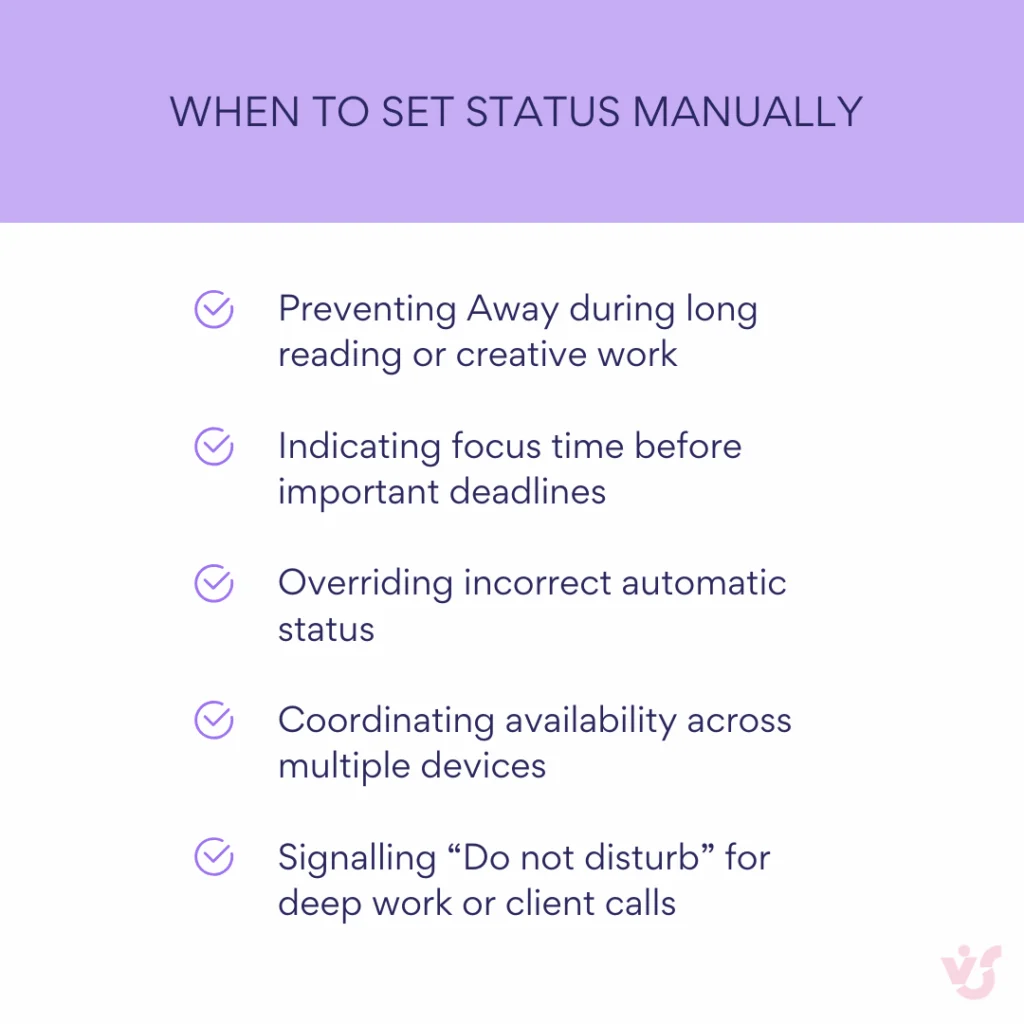
Pic. 3. Best uses for manual control.
How to set a Teams status message
A status message does the work the dot cannot: it explains why you are unavailable and when you will be back. It appears when colleagues hover over your name, and optionally before they send you a message.
- Select your profile picture, then Set status message.
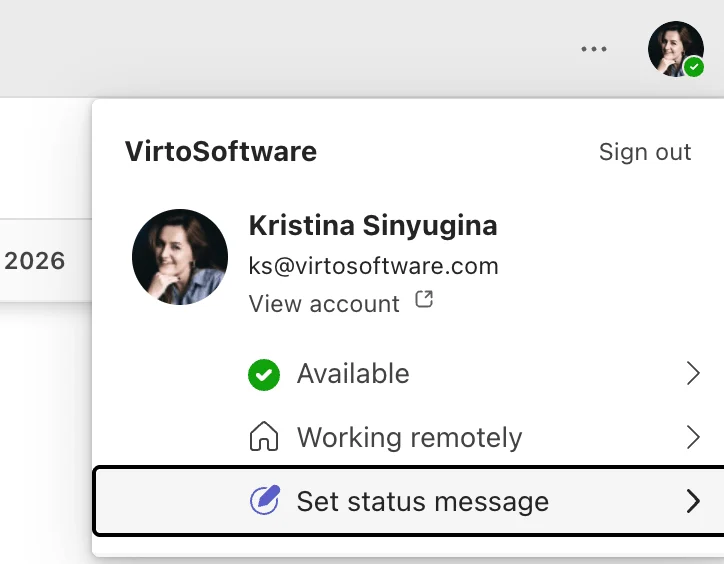
Pic. 4. Navigating to status message.
- Type your message. You can @mention people and include links.
- Choose when it should clear under Clear status message after.
- Optionally tick Show when people message me so it appears before they type.
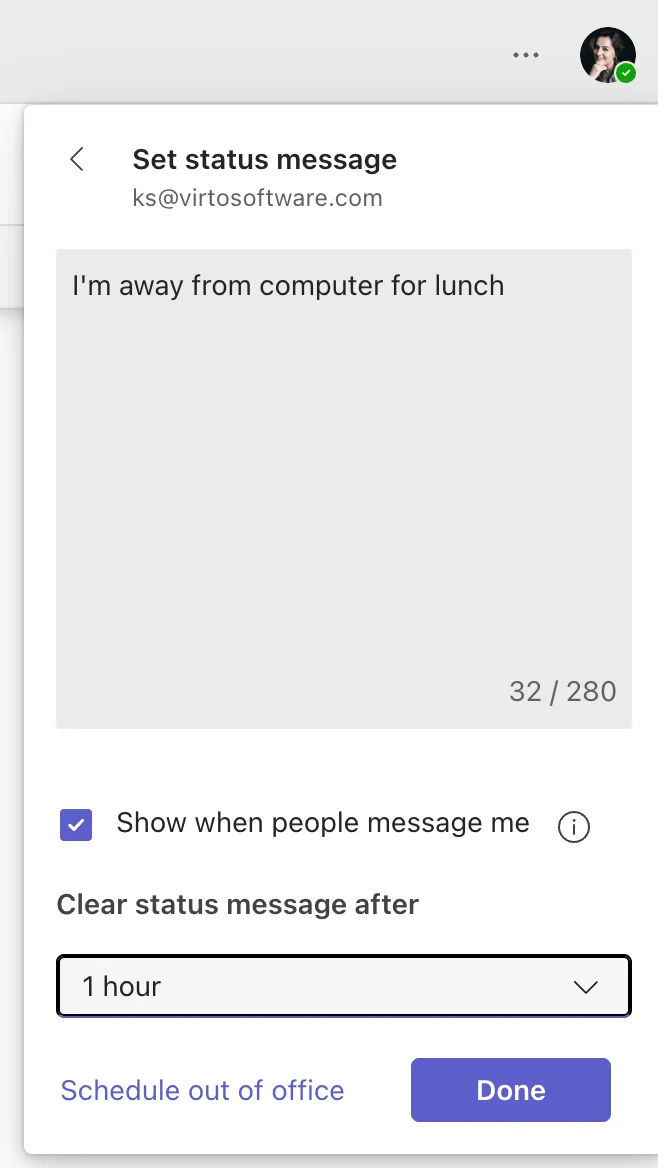
Pic. 5. Setting up your status message.
The messages that work share a structure: what you are doing, when you are back, and what to do if it cannot wait. “In client workshops until Thursday — email for anything urgent” beats “busy” every time.
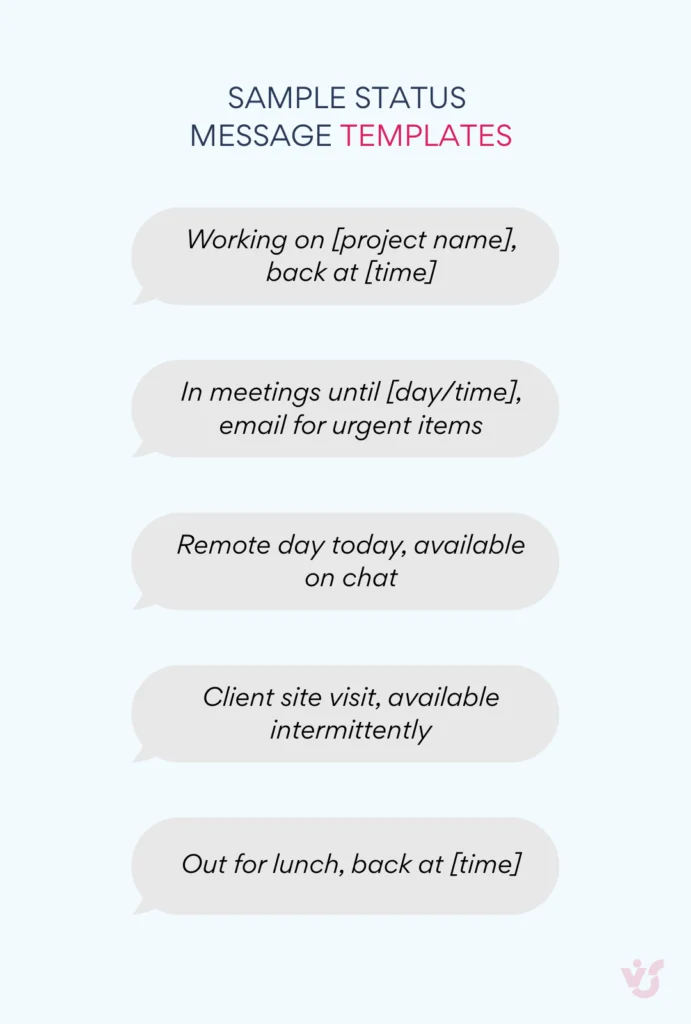
Pic. 6. Ready-to-use templates for status messages.
How to set Out of office in Teams
Out of office is the one status designed for absences measured in days rather than hours. It syncs with Outlook automatic replies in both directions.
- Select your profile picture, then Set status message.
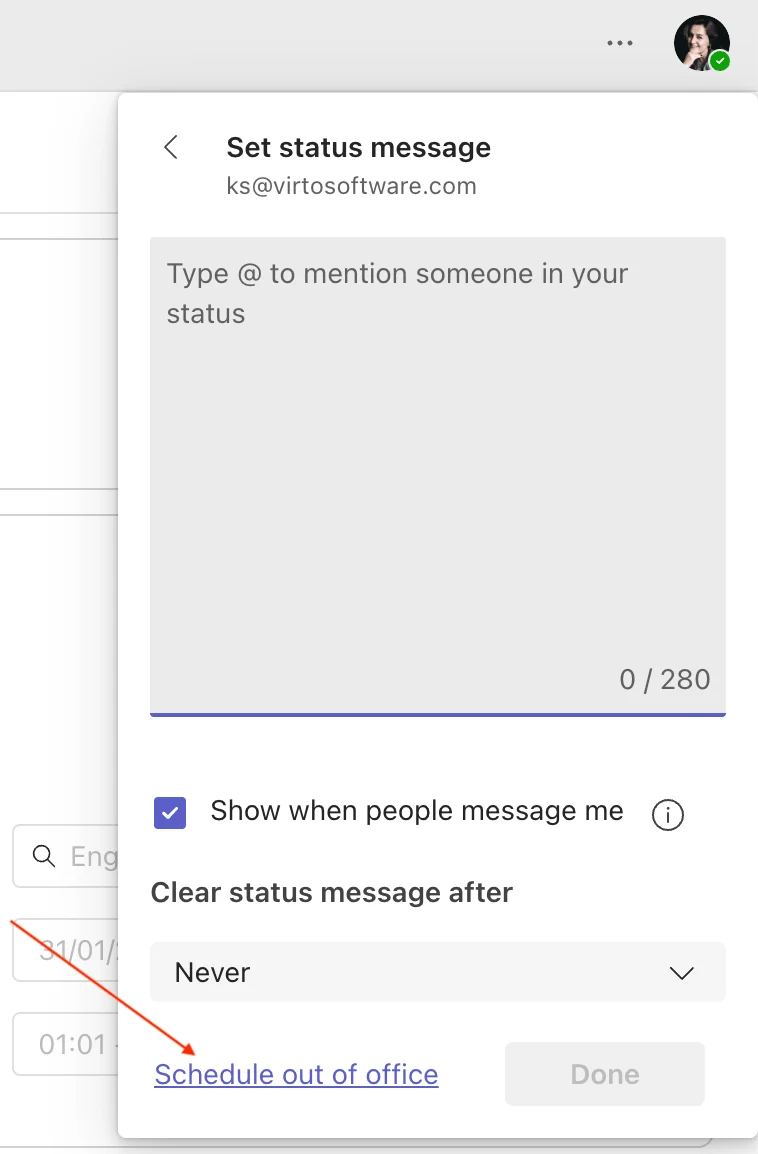
Pic. 7. Navigating to the out-of-office settings.
- Select Schedule out of office at the bottom of the panel.
- Turn on automatic replies and write your message.
- Tick Send replies only during a time period and set your start and end dates.
- Optionally add a separate message for people outside your organisation, then save.
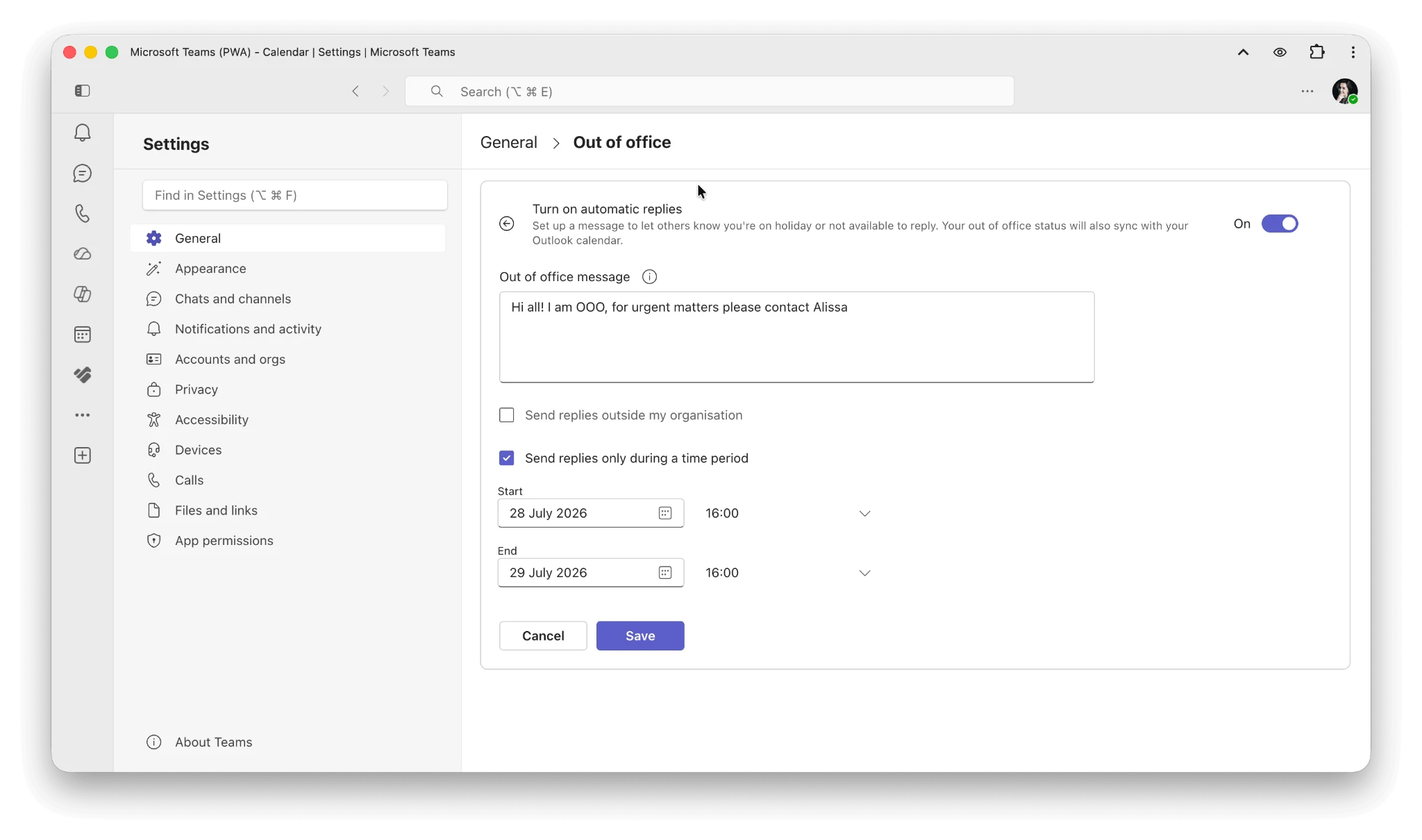
Pic. 8. Customizing your out-of-office message.
Setting automatic replies in Outlook produces exactly the same result — the two are the same setting behind different front doors. If you want the absence blocked on your calendar without triggering auto-replies, create a calendar event and set Show as to Out of office instead.
Go deeper: How to Set Out of Office in Microsoft Teams · How to Set and Show Out of Office in Outlook Calendar · Vacation and Time Off Calendars in Teams and Outlook
Why your Teams status keeps changing to Away — and how to stop it
Teams switches you to Away after roughly five minutes of inactivity. Microsoft defines “inactive” narrowly: you locked your computer, it entered idle or sleep mode, or you are using Teams on mobile instead of the desktop. Note what is missing from that list — working hard in another application does not count, because Teams reads operating-system activity, not effort.
So the honest framing is that Away is usually correct about your device and wrong about you. Here is what actually helps.
| Method | Does it work? | Risk |
|---|---|---|
| Busy or Do not disturb with a duration | Yes — reliable and supported | None |
| Available with a duration | No — Available cannot take a duration | Not available |
| Book focus or busy time in Outlook | Yes — shows Busy or Focusing | None |
| Adjust screen lock and sleep timers | Yes — fixes the actual cause | Check your IT policy |
| Stay signed in on a second device | Partly — presence follows the active device | Mobile can override desktop |
| Mouse jigglers and activity simulators | Technically yes | Usually breaches IT policy and misrepresents you |
Fig. 4. What works — and what does not — for keeping your Teams status from going to Away.
When the status will not switch back to Available
Microsoft documents a known issue where presence stays on Away after activity resumes. Work through it in this order:
- Reset your status (profile picture → current status → Reset status).
- Check your calendar for an event marked Busy or Out of office covering the current time.
- Sign out of Teams on your phone — the most active device wins, and mobile often does.
- Sign out of the desktop app, clear the Teams cache, and sign back in.
- Run the Teams Presence Based on Calendar Events test in the Microsoft Remote Connectivity Analyzer, or ask an admin to run the Teams Presence diagnostic in the Microsoft 365 admin center. See the Microsoft troubleshooting guide.
One more setting worth knowing
Teams sets you to Do not disturb automatically while you share your screen. If you would rather keep receiving notifications while presenting, go to Settings and more → Settings → Privacy and untick “Set my status to Do not disturb when I’m sharing my screen”.
Microsoft Teams service status: when the problem is not you
Presence depends on Exchange Online, Microsoft Entra ID authentication and Microsoft’s cloud APIs. When any of those has a bad day, status stops updating for everyone at once. Before you troubleshoot a single laptop, check the Microsoft 365 service health page. Administrators get more detail — incident reports, root cause analysis and estimated resolution times — in the Microsoft 365 admin center.
Signs it is a service issue rather than a local one: several people report the same symptom at the same time, calendar-driven status changes stop firing across the organisation, or presence goes to Status unknown for many contacts at once.
Setting a sensible status policy for your team
Status works best when a team agrees on what it means. A short, six-line convention beats a policy document nobody reads.
- Anything longer than one working day gets Out of office with an automatic reply and a named contact for urgent items.
- Do not disturb is respected, not worked around. Agree in advance what counts as urgent enough to break through.
- Response expectations are attached to statuses, not to people: Available means within the hour, Busy means the same day, Do not disturb means tomorrow.
- Status messages carry a return time. “Back at 15:00” is useful; “busy” is not.
- Set your status before an important call rather than trusting automatic detection to catch up in time.
- Presence is a coordination signal, not an attendance record. Agree explicitly that it will not be used for performance monitoring — particularly now that work location can update itself.
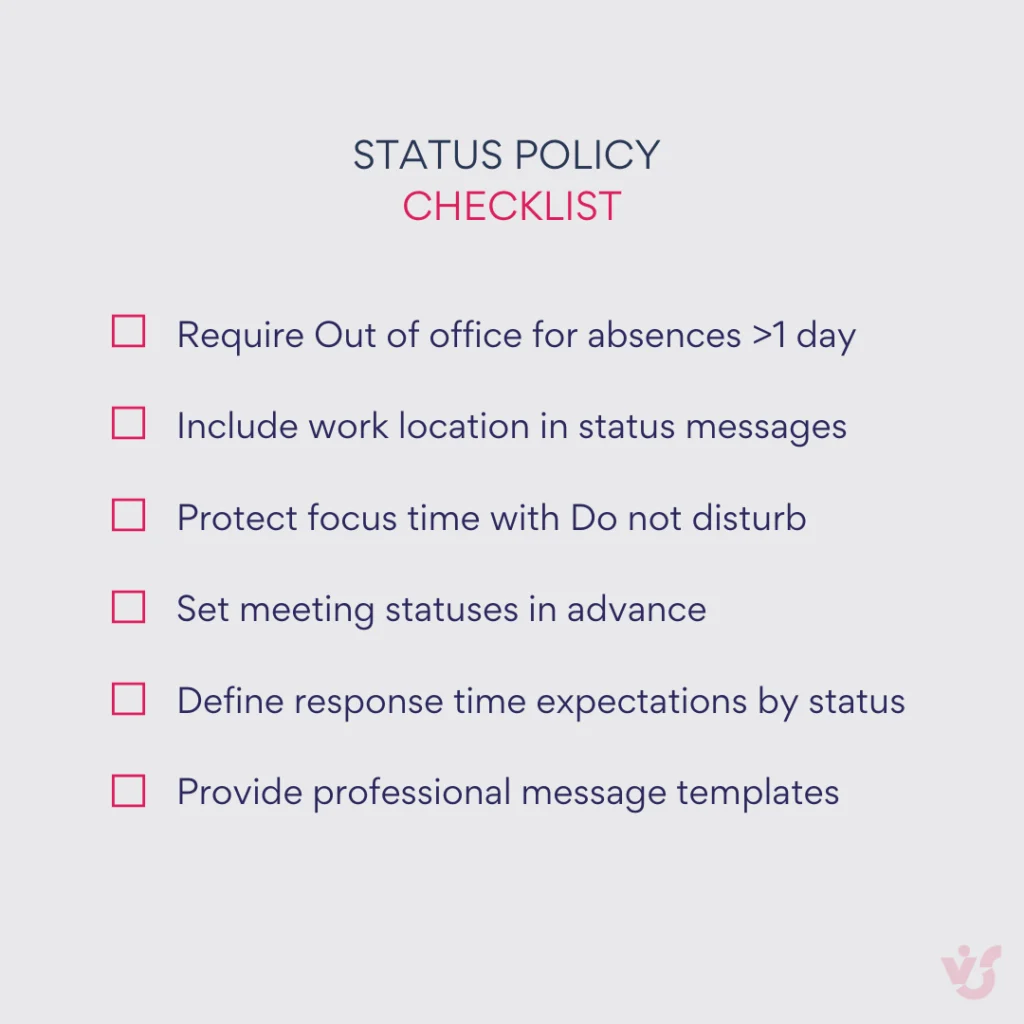
Pic. 9. Status policy checklist.
Beyond the dot: making team availability visible
Presence answers one question well — can I message this person right now? It is no help at all with the questions that actually derail planning: who is on leave next month, who covers the Friday deployment, whether three people booked the same week off. Those are calendar problems, and no status dot will solve them.
Virto Calendar App
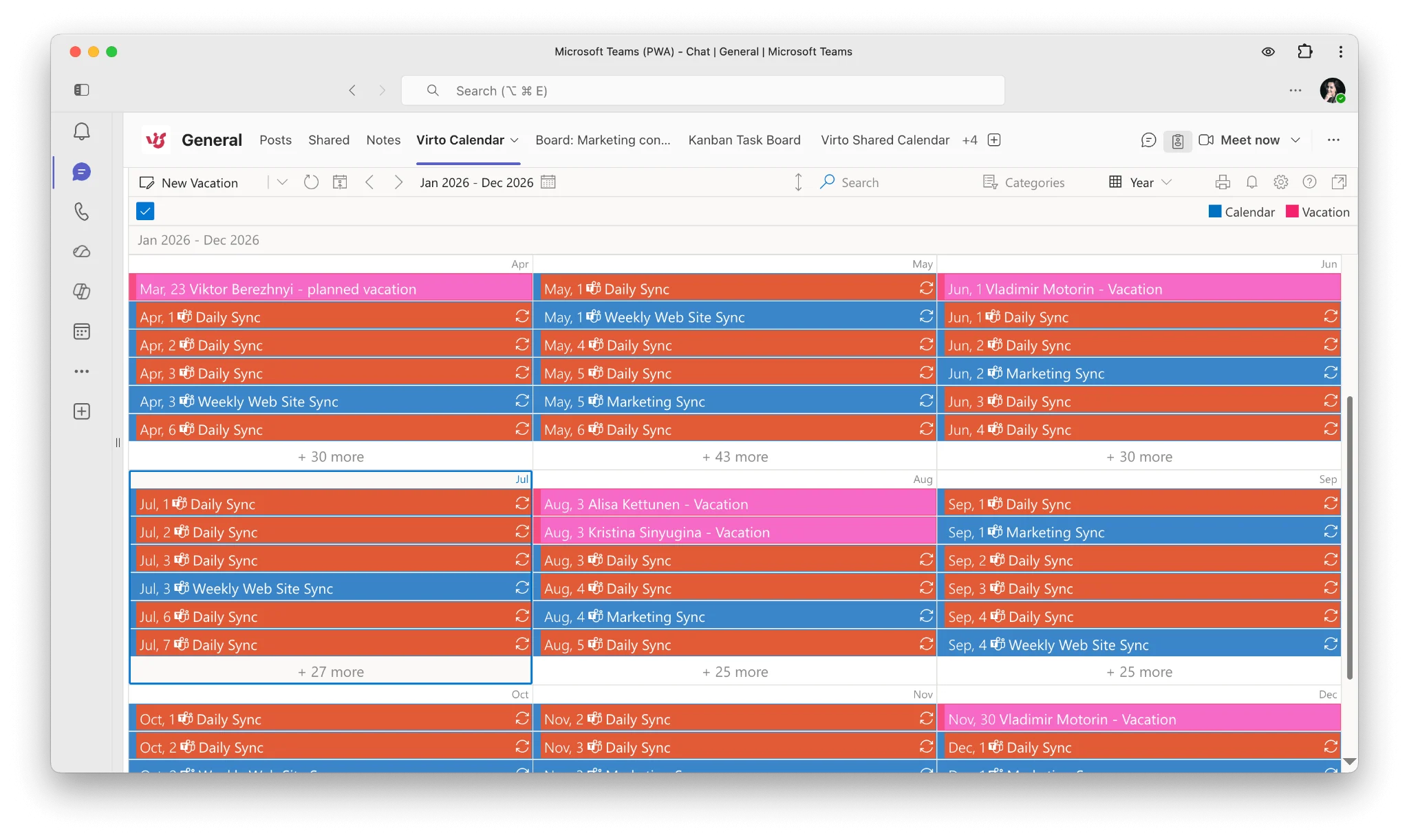
Pic. 12. Example Virto Calendar App in Teams.
The Virto Calendar App overlays Microsoft 365, Exchange, SharePoint, Google and any iCalendar feed into a single colour-coded view, inside Teams, SharePoint or Outlook. Pointed at your absence and vacation lists, it turns “who is around next Tuesday” into something you can see at a glance instead of something you ask in a channel. There is a free 30-day trial.
Virto Shared Calendar
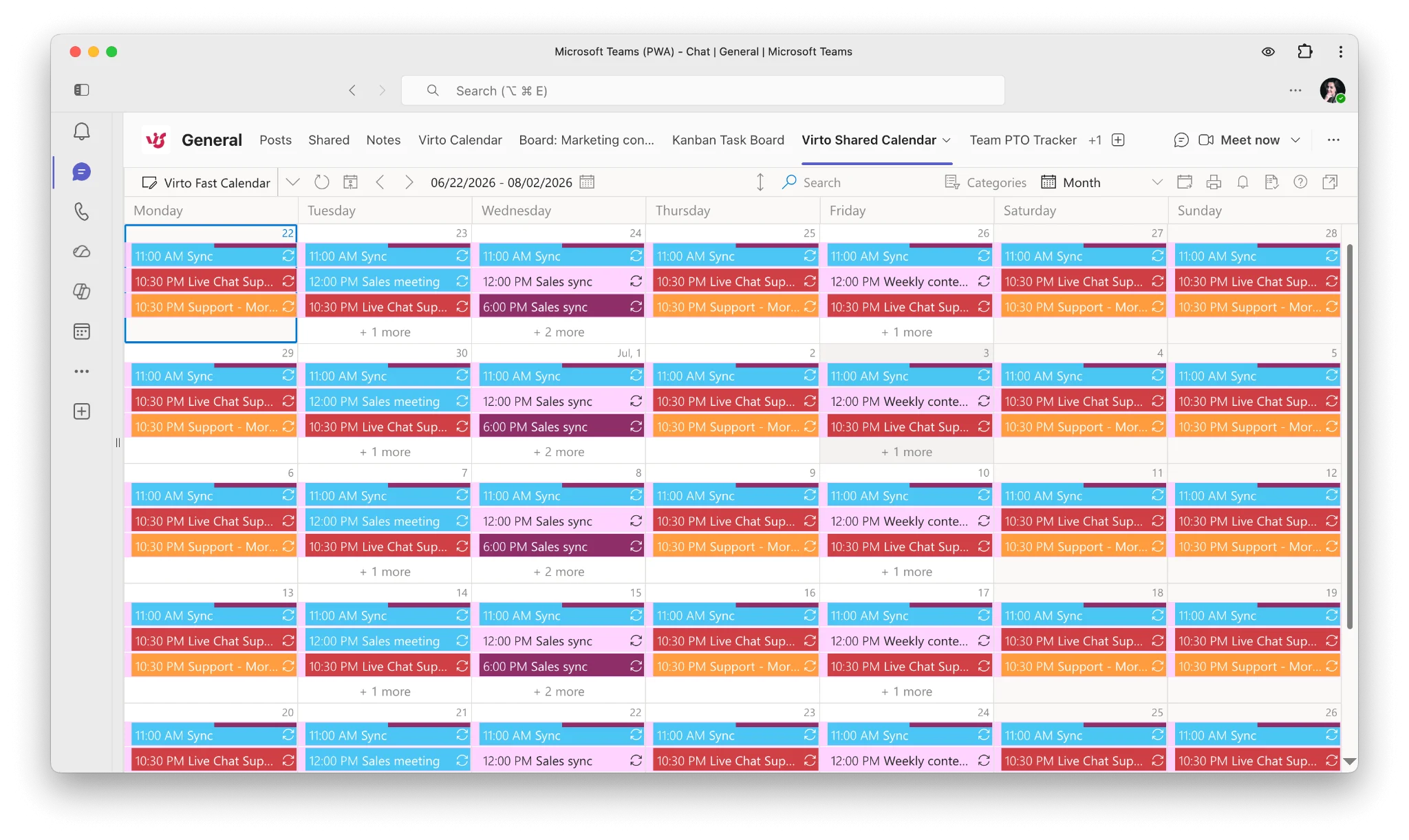
Pic. 10. Sample Virto Shared Calendar in Teams.
If you want something lighter, Virto Shared Calendar is a simple team calendar that lives in a Teams tab or a browser, with colour tags and anonymous share links so clients and contractors can view it without a Microsoft account. It has a free tier for small calendars.
Virto Notifications & Reminders
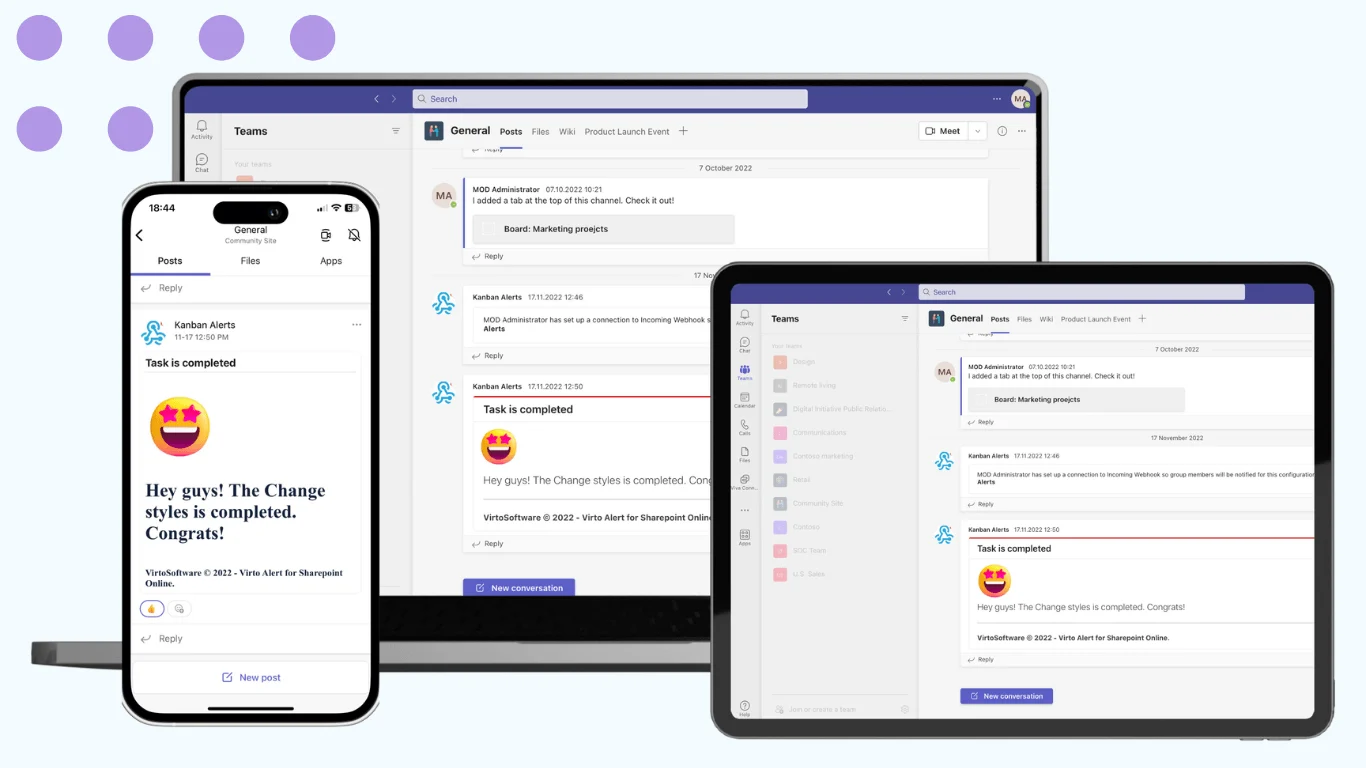
Pic. 11. Virto Notifications & Reminders.
Virto Notifications & Reminders pushes deadline, absence and hand-over reminders into Teams channels and email on a schedule you control — useful when the person who needs to know is exactly the person whose status says Do not disturb.
Try it: Book a product demo or start a free 30-day trial of the Virto Calendar App from Microsoft AppSource.
Frequently asked questions
What does the Away status mean in Microsoft Teams?
Away means Teams has detected that your device is inactive — you locked it, it went idle or to sleep, or you are using Teams on mobile rather than desktop. It is set automatically after roughly five minutes and clears as soon as you are active again. It says nothing about whether you are working.
How do I stop my Teams status from showing Away?
Set Busy or Do not disturb with a duration, or block the time in your Outlook calendar so Teams reads Busy or Focusing. Adjusting your screen lock and sleep timers addresses the underlying cause. Activity-simulator tools work technically but usually breach IT policy.
Can I set my Teams status to Available for a fixed duration?
No. Microsoft allows durations on every status except Available, and a more available status will never override a less available one. Use Busy or Do not disturb with a duration instead.
Where do I find Teams status settings?
Select your profile picture at the top right of Teams. Your current status, Duration, Reset status, Set status message and Schedule out of office all live in that menu. Notification behaviour sits under Settings and more → Settings.
How long does it take for Teams to show me as Away?
About five minutes of inactivity on desktop. Locking your computer or letting it sleep switches you immediately. Mobile and web clients go idle faster because they can only see app or browser activity.
What is the difference between Away and Appear away?
Away is applied by Teams and clears the moment you are active again. Appear away is a manual choice that holds until you change it or the duration expires. Both look identical to colleagues.
Does Appear offline stop people messaging me?
No. It changes what others see, but messages still arrive and you still get notifications. Do not disturb is the status that suppresses notifications.
What is the Microsoft Teams status page?
Microsoft publishes live service health at status.cloud.microsoft, covering outages, regional issues and planned maintenance. Check it before troubleshooting locally when several colleagues report the same presence problem at once.
Can Teams show where I am working from?
Yes. Work location is separate from presence and shows whether you are in the office or remote. Through 2026 Microsoft has been rolling out automatic updates based on corporate Wi-Fi. It is off by default and controlled by your administrators, and you can set or clear it yourself.
Sources and further reading
- Change your status in Microsoft Teams — Microsoft Support
- Set your status message in Microsoft Teams — Microsoft Support
- Schedule an out of office status in Microsoft Teams — Microsoft Support
- Set your work location in Microsoft Teams — Microsoft Support
- Presence in Teams (for administrators) — Microsoft Learn
- The correct presence status isn’t reflected in Teams — Microsoft Learn
- Microsoft 365 service health