


Microsoft Teams is where a huge share of the working world now talks, meets, and shares files. With more than 320 million users across a million organizations — and the vast majority of Fortune 100 companies relying on it daily — Teams has grown far beyond a chat app. The question most project managers ask is simple: can it actually run a project, not just the conversation around one?
The short answer is yes, if you set it up deliberately and know where its limits are. This guide walks through how to organize projects in Teams, the templates and apps that fill the gaps, the limitations to plan around, and practical tips you can apply today. VirtoSoftware has spent 25 years turning Microsoft Teams and SharePoint into unified project management systems, so wherever native Teams falls short, we’ll point to what closes the gap.
Quick answer: Can you use Microsoft Teams for project management?
Yes. Microsoft Teams runs projects by organizing work into channels, using the built-in Planner (Tasks) app for task boards, and keeping documents in the linked SharePoint site. For capabilities Teams doesn’t have natively — Kanban boards, Gantt timelines, and dashboards — you add apps as tabs inside a channel. In practice: one Team per project, channels per workstream, Planner for tasks, SharePoint for files, and purpose-built apps for boards and timelines.
Classic and modern project management, briefly
Before mapping project management onto Teams, it helps to know which style of project you’re running, because that decides which tools you’ll lean on inside the platform.
Traditional project management is built on predictability: careful upfront planning, sequential execution, and a fixed set of objectives. Two frameworks dominate here. PMBoK (the Project Management Body of Knowledge) is the standard collection of processes, best practices, and terminology used to standardize how organizations run projects. PRINCE2 (Projects IN Controlled Environments) divides projects into controlled stages with clearly defined roles and is widely used across the UK, Europe, and Australia.
The traditional approach is best expressed through the Waterfall model — a linear, phase-by-phase flow where each stage finishes before the next begins — and Gantt charts, which lay tasks out as horizontal bars on a timeline so you can see sequence, duration, overlap, and progress at a glance.
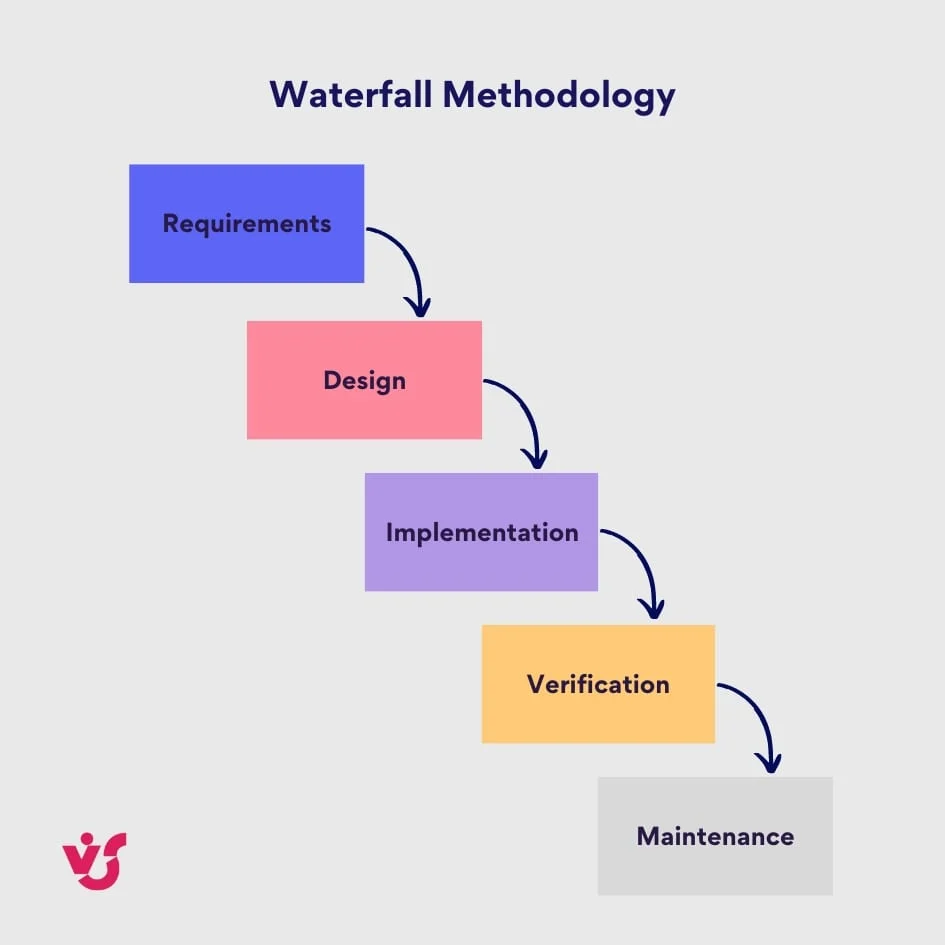 Pic.1. The Waterfall model — sequential phases from requirements to maintenance
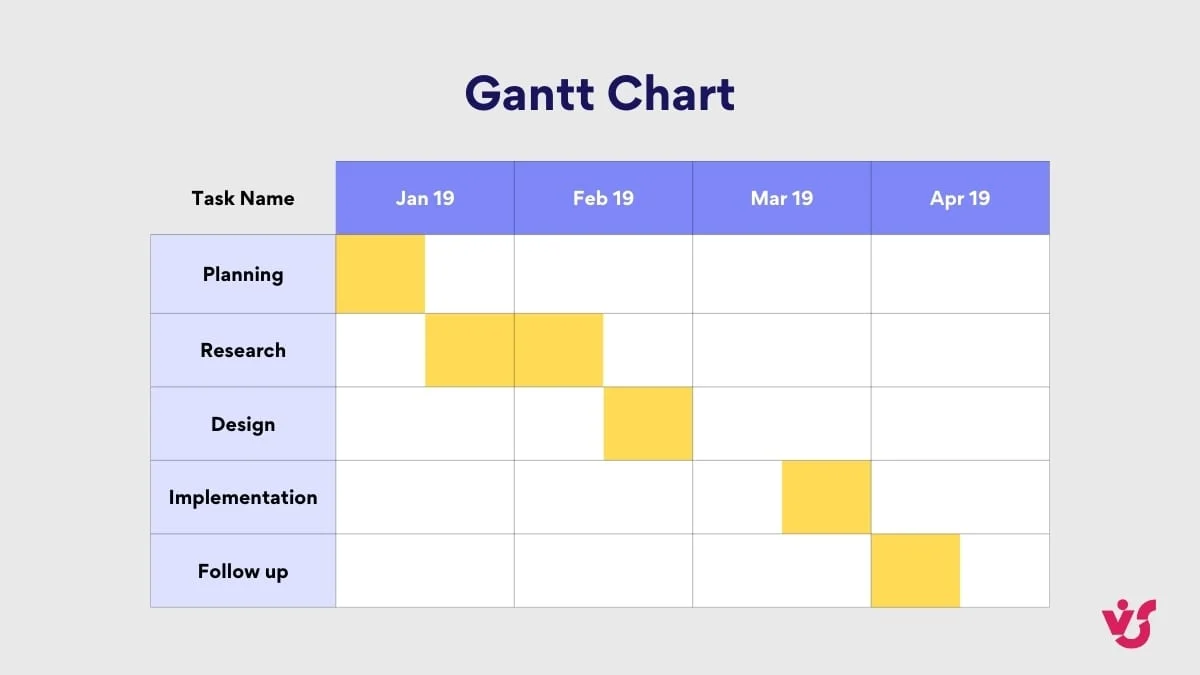 Pic.2. A Gantt chart mapping tasks and durations across a project timeline
Modern project management moves the other way — toward flexibility and rapid iteration. Agile is the umbrella philosophy: work is split into small increments so teams can reassess and adapt constantly. Scrum is an Agile framework that organizes work into time-boxed sprints (typically 2–4 weeks) with defined roles and ceremonies. Kanban visualizes work on a board, limits work-in-progress, and optimizes continuous flow rather than fixed sprints.
If you want a deeper comparison of these formats — and when a Gantt timeline beats a Kanban board — see our guide on Gantt Chart vs Kanban.
| Agile | Scrum | Kanban |
|---|---|---|
| A mindset of iterative development, collaboration, and flexibility. | An Agile framework with set roles, events, and artifacts, working in time-boxed sprints. | A visual, pull-based flow method that limits work-in-progress. Not time-boxed. |
| Roles are collaborative and loosely defined. | Defined roles: Scrum Master, Product Owner, Development Team. | No predefined roles; members share tasks. |
| Iterative cycles, not strictly time-boxed. | Time-boxed sprints, typically 2–4 weeks. | Continuous flow; work pulled as capacity allows. |
| Welcomes changing requirements at any point. | Incorporates change at the start of each sprint. | Change can be introduced anytime, if capacity allows. |
Fig. 1. An overview of the differences between Agile, Scrum, and Kanban.
How to set up project management in Microsoft Teams
Teams gives you the building blocks; the value comes from arranging them deliberately. Here’s a practical setup that works for most projects.
1. Create one Team per project
Start by giving the project its own home. A dedicated Team gathers everyone involved in one place and gets the whole crew aligned from day one. Behind the scenes, every Team is backed by a SharePoint site, which is where your files actually live — more on that below.
2. Divide work into channels
Inside the Team, create channels to separate conversations, files, and meetings by workstream, phase, or function — for example Design, Development, and Testing. Each channel keeps its own related discussions, documents, and tabs together, which makes activity easy to monitor and blockers easier to spot. Use private channels for sensitive discussions that shouldn’t be visible to the whole Team.
3. Add the Planner (Tasks) app for task boards
Teams’ built-in task management comes from the Planner app (formerly “Tasks by Planner and To Do”). Add it as a tab in a channel to create a board, assign tasks to team members, set due dates, and track status. At-a-glance boards give the whole team real-time visibility into who owns what and where the bottlenecks are.
For a full walkthrough of running task boards this way, see our dedicated guide to Microsoft Teams Planner.
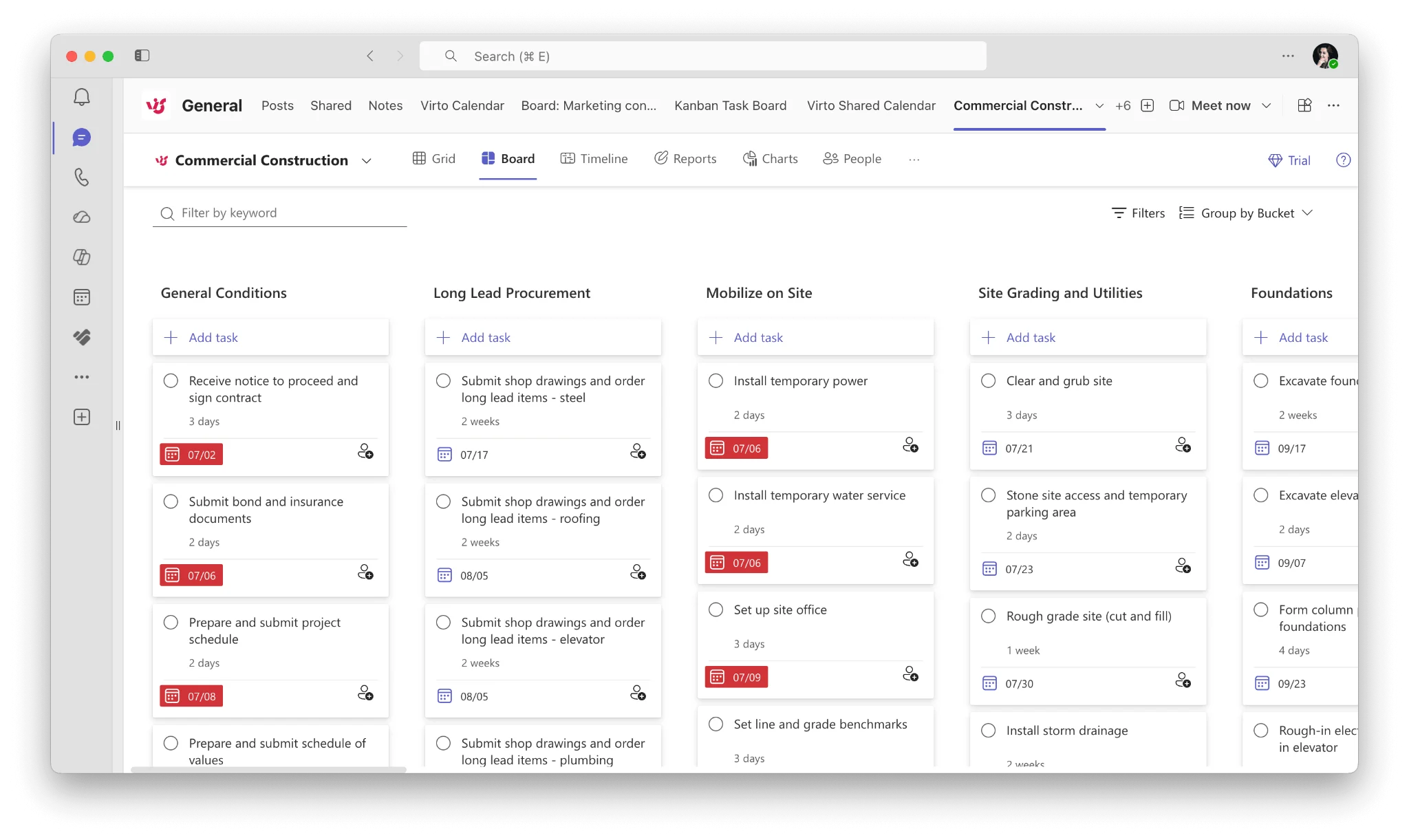 Pic.3. Adding the Planner / Tasks app as a tab inside a Teams channel
4. Keep files in the linked SharePoint site
Every channel’s Files tab is really a folder in the Team’s SharePoint site, so document collaboration is built in. Co-author Word, Excel, and PowerPoint files in real time, and rely on SharePoint for versioning and permissions. If your project needs structured project-site features — timelines, task-list indentation, workflow automation — build them in SharePoint and surface them in Teams as tabs.
5. Add apps as tabs for boards, Gantt charts, and dashboards
This is where Teams stretches beyond its native limits. Any of the workstream views Teams lacks — a proper Kanban board, a Gantt timeline, an executive dashboard — can be pinned into a channel as a tab so the team never leaves the project hub. We cover the best options in the next section.
Prefer to see the broader Microsoft 365 picture of this setup? Our overview of Office 365 project management shows how Teams, SharePoint, and Planner fit together across the suite.
Microsoft Teams project management templates
A common question is whether Microsoft Teams offers project management templates. The honest answer: Teams itself doesn’t ship templates the way an app like Excel does. What you can template is everything you plug into Teams — and that’s usually enough to standardize how your projects start.
- Team templates: When creating a new Team, Microsoft offers prebuilt team templates (for example “Manage a Project”) that come with a ready-made channel structure and tabs you can adapt.
- Planner templates: Save a well-structured plan and reuse its bucket and task layout as a starting point for the next project, so recurring work doesn’t start from a blank board.
- SharePoint site templates: Apply a project-site template to the Team’s underlying site to get consistent libraries, lists, and pages every time.
- Power Automate templates: Start from ready-made flow templates for common project workflows — overdue-task alerts, approval routing, or automated status reports.
- App templates: Purpose-built apps bring their own reusable templates. Virto Kanban Board, for instance, ships ready-to-use board templates so you can spin up a new project board in under a minute rather than configuring columns by hand.
Standardizing these building blocks is the real “Teams template” strategy: define your channel structure, task board, file library, and automations once, then reuse them so every new project launches the same way.
Best apps for project management in Microsoft Teams
Teams is a collaboration platform first, so most teams add a purpose-built app to handle boards, timelines, and reporting. AppSource offers a wide range; the ones below cover the most common needs. Two considerations matter when choosing: does it integrate natively into a Teams tab, and where does your data live?
Native Microsoft options
- Microsoft Planner / Tasks — the free, built-in board for lightweight task management. The natural first stop for smaller projects.
- Microsoft Project — heavyweight scheduling with grid, board, and timeline (Gantt) views. Microsoft retired Project for the web and the Project app for Teams on 1 August 2025 and moved their projects into Planner premium plans, so in Teams these capabilities now come through the Planner app.
- Power BI — for data-driven projects, pin interactive dashboards and reports directly into a channel.
The data-residency question: native vs. third-party
External tools like Asana, Trello, and Jira integrate with Teams and are worth connecting if your team already lives in them. The key difference from native apps is where your data is stored. With third-party apps, your data sits on both that vendor’s servers and Microsoft’s. Native apps — including VirtoSoftware’s — keep everything inside Microsoft’s environment. If security or compliance is a concern, staying within the Microsoft ecosystem is usually preferable.
VirtoSoftware apps: the boards and timelines Teams lacks natively
VirtoSoftware builds project management apps that install directly into Teams as tabs while keeping data inside your Microsoft 365 tenant. Three are especially relevant for project work:
Virto Kanban Board for Teams turns any SharePoint list into a live, drag-and-drop Kanban board pinned to a channel tab. Because it reads and writes to the underlying SharePoint list, nothing lives in a separate silo — your data stays in Microsoft 365. Highlights:
- Customizable boards with columns, swimlanes, and WIP limits.
- Subtasks, priorities, color-coding, comments, and file attachments on cards.
- Ready-to-use templates to launch a new board in seconds.
- Integrations with Microsoft Planner, Jira, and more; board export for analysis.
With a strong AppSource rating and a 30-day free trial, you can test it risk-free. For a wider comparison, see our roundup of the best Kanban board for Teams.
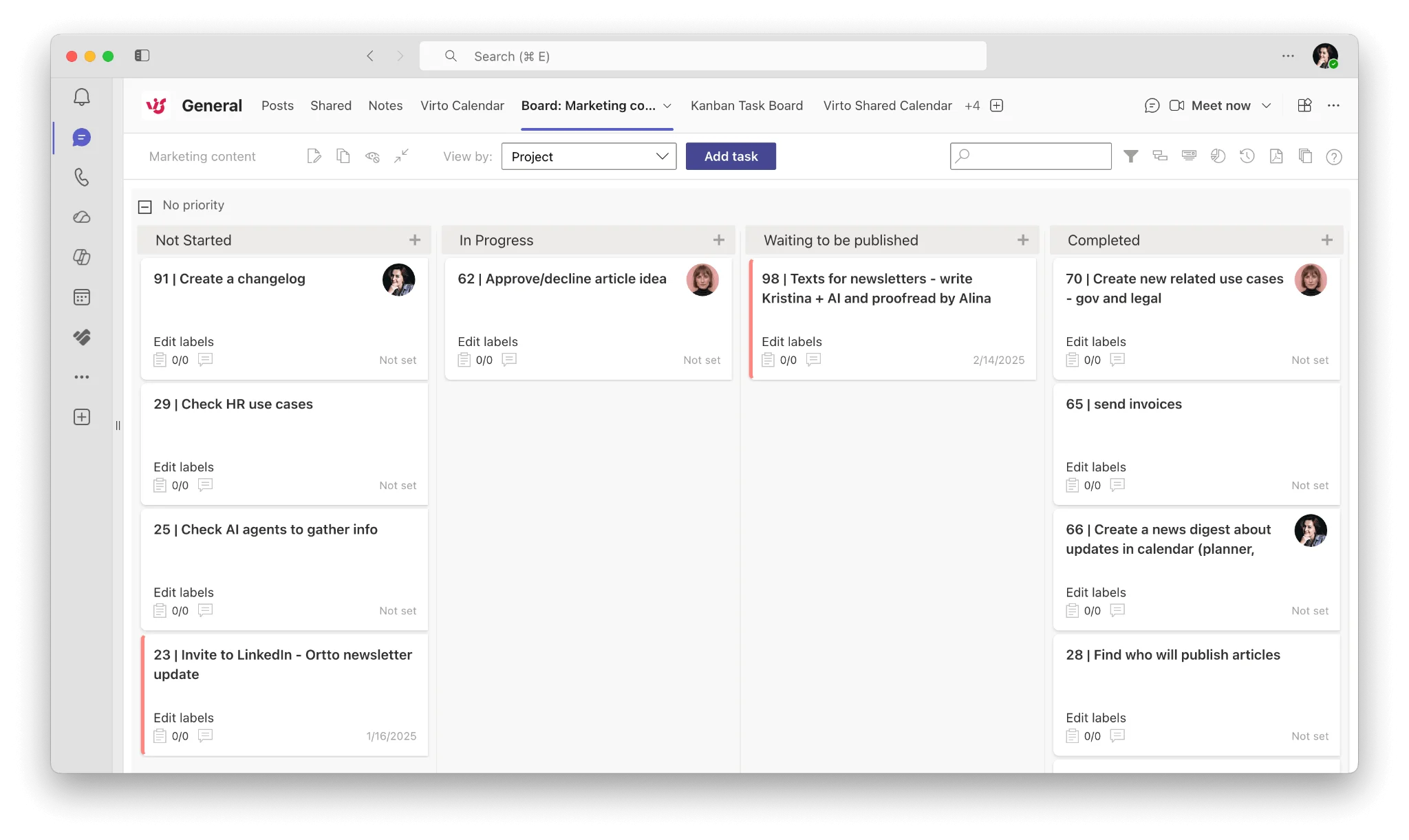 Pic.4. Virto Kanban Board running as a tab inside a Teams channel
Virto Charts & Data Visualization App turns SharePoint list data into dynamic visual reports and dashboards inside Teams — the reporting layer Teams lacks natively. It’s a free app, so you can give stakeholders up-to-the-minute project insight without exporting data or building reports by hand. Highlights:
- Build charts directly from any SharePoint list — no manual data prep.
- Completion and burndown charts to track progress at a glance.
- Workload distribution and task-completion dynamics across the team.
- Customizable dashboards by status, assignee, lead time, and more.
- Live reports pinned as a channel tab so insight stays current.
Because it reads straight from your existing lists, the charts update as work moves — pair it with Virto Kanban Board and your board and its reporting stay in sync. For more on surfacing project metrics for stakeholders, see our guide to building a SharePoint project management dashboard.
Virto Calendar App overlays multiple calendar sources — SharePoint lists, Exchange and Outlook calendars, Google Calendar, and Teams channel events — into one color-coded view pinned as a channel tab. It centralizes scheduling, makes it easy to find common free time across a team, and supports recurring events, time-zone auto-adjustment, and export to CSV or iCal. It also carries a 30-day free trial.
Limitations of Microsoft Teams for project management
Teams wasn’t built as a project management tool, and it shows in a few places. Knowing these limits upfront lets you plan around them rather than fight them.
- Limited native PM features: No built-in Gantt charts, critical-path analysis, or detailed reporting the way dedicated tools like Jira or Asana provide.
- Time tracking and billing: Minimal native support, which matters for budgeting, cost control, and client billing.
- Complex and large projects: Many dependencies, portfolio-level oversight, and large multi-participant projects strain a platform designed primarily for communication.
- User and channel limits: Teams enforces caps on users and channels that can constrain large organizations.
- Granular access and compliance: Access control and audit trails are less fine-grained than some dedicated PM or compliance tools require.
- Learning curve and offline mode: The breadth of features can overwhelm new users, and offline functionality is limited.
For the full breakdown — including the exact caps and how to work within them — see our article on Microsoft Teams limitations. In short: Teams is a powerful collaboration hub, but complex projects usually need it supplemented with the right apps.
Practical tips for using Microsoft Teams for project management
Teams isn’t a dedicated PM platform, but a handful of habits let you run projects on it efficiently.
- Consolidate the team: gather everyone in one dedicated project Team so nobody’s working from a different source of truth.
- Organize by channels: carve out a channel per workstream, phase, or function to keep conversations, files, and tasks together.
- Use Planner for tasks: build a board, assign owners, set deadlines, and track status for at-a-glance visibility into bottlenecks.
- Centralize files: store all project documents in Teams (backed by SharePoint) so everyone works from the latest version.
- Automate the repetitive: use Power Automate for reminders, approvals, status collection, and alerts so the team focuses on high-impact work.
- Train and share: point people to Microsoft and community resources (the Teams Community, Stack Overflow, Reddit) so adoption sticks.
Above all, stay flexible. Assess where standard Teams capabilities fall short — time tracking, custom reporting, timelines — and browse AppSource for apps that fill those gaps through tabs, bots, or connectors. Teams gives you the framework; purpose-built apps make it fit your project.
Need a reporting layer on top? Our walkthrough of building a SharePoint project management dashboard shows how to surface project metrics for stakeholders.
Turn Teams into a project command center
Teams handles the collaboration; VirtoSoftware fills the project gaps. Add Virto Kanban Board for visual task management, Virto Charts & Data Visualization for project reporting and dashboards, and Virto Calendar for unified scheduling — all installed as Teams tabs, all keeping your data inside Microsoft 365. Virto Kanban and Virto Calendar come with a 30-day free trial, and Virto Charts is free — so you can build an enterprise-grade project hub inside Teams before committing.
Book a demo to see how Virto apps close the gap between lightweight chat and enterprise-grade project delivery.
FAQ
Can you use Microsoft Teams for project management?
Yes. Organize work by channel, use the built-in Planner/Tasks app for boards, keep files in the linked SharePoint site, and add apps as tabs for Gantt charts and dashboards. Teams handles collaboration natively and stretches to full project management once you plug in the right apps.
Does Microsoft Teams have project management templates?
Not in the way Excel does. Instead, you template the pieces you plug into Teams: team templates (like “Manage a Project”), reusable Planner plans, SharePoint site templates, Power Automate flow templates, and app templates such as Virto Kanban’s ready-to-use boards.
What is the best app for project management in Teams?
It depends on where your data needs to live and what view you need. Microsoft Planner is the free, native baseline for task boards. For richer boards with swimlanes, WIP limits, and subtasks that keep data in your tenant, Virto Kanban Board is the strongest Microsoft-native pick; for project reporting on top, the free Virto Charts & Data Visualization App builds completion, burndown, and workload charts straight from your SharePoint lists.
Is Microsoft Teams free for project management?
Teams and Planner are included with most Microsoft 365 plans at no extra cost, so basic project coordination is effectively free for existing subscribers. Some add-on apps are paid — Virto Kanban Board, for example, offers a 30-day free trial before you buy — while others, like the Virto Charts & Data Visualization App, are fully free.
How is Teams different from Microsoft Project?
Teams is a collaboration hub; Microsoft Project is dedicated scheduling software with grid, board, and Gantt views for complex, dependency-heavy plans. Note that Microsoft retired Project for the web and its Teams app on 1 August 2025 and merged them into Planner, so in Teams project scheduling now runs through Planner premium plans.