Microsoft Teams is easy to roll out and surprisingly easy to lose control of. A team gets created for a two-week project, three people are made owners because it seemed polite, a contractor is added as a guest and never removed, and an app nobody vetted quietly gains access to channel messages. None of that is a bug. It is what happens when permissions are left at their defaults.
This guide explains how Microsoft Teams permissions actually work in 2026: the roles, the team-level toggles, the differences between standard, private and shared channels, and the app governance model that replaced app permission policies. It is written for the person who has to make the decisions, not just click the buttons.
What are Microsoft Teams permissions?
Quick answer
Microsoft Teams permissions are the roles and settings that control what people can do in a team: owners manage it, members participate, and guests get limited access, with additional channel and app permissions layered on top.
In practice, permissions in Teams are not one setting in one place. They are four separate layers, and a person’s real-world ability to do something is whatever the narrowest layer allows. A member may be allowed to add apps at the team level, but if an administrator has restricted that app in the Teams admin center, they still cannot add it.
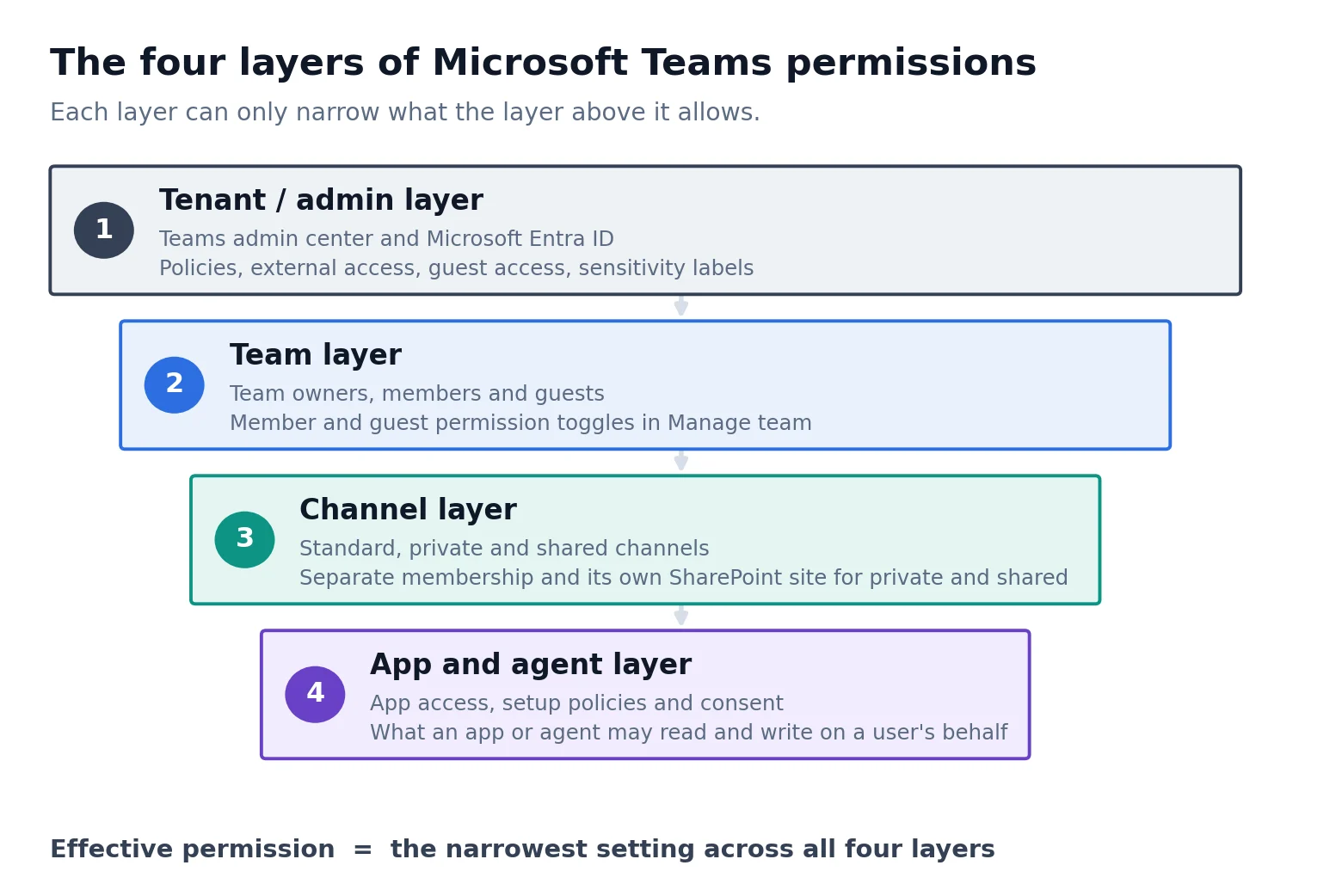
Pic. 1. The four layers of Microsoft Teams permissions.
- Tenant and admin layer. Set in the Teams admin center and Microsoft Entra ID. This is where external access, guest access, app governance and sensitivity labels live. Nothing below can exceed it.
- Team layer. Roles (owner, member, guest) plus the member and guest permission toggles a team owner controls in Manage team.
- Channel layer. Standard channels inherit team membership. Private and shared channels have their own membership and their own SharePoint site.
- App and agent layer. Which apps and agents are available to whom, and what data those apps may read and write on a user’s behalf.
Getting these right protects sensitive information, reduces accidental deletions, and makes responsibility legible: everyone knows who can change what. For the wider picture of how permissions sit inside a broader control framework, see our Microsoft Teams security and privacy guide and our overview of Microsoft Teams governance.
Teams roles compared: owner vs member vs guest
Every person in a team holds exactly one of three roles. The role decides the baseline; the team owner’s toggles decide how much of that baseline is switched on.
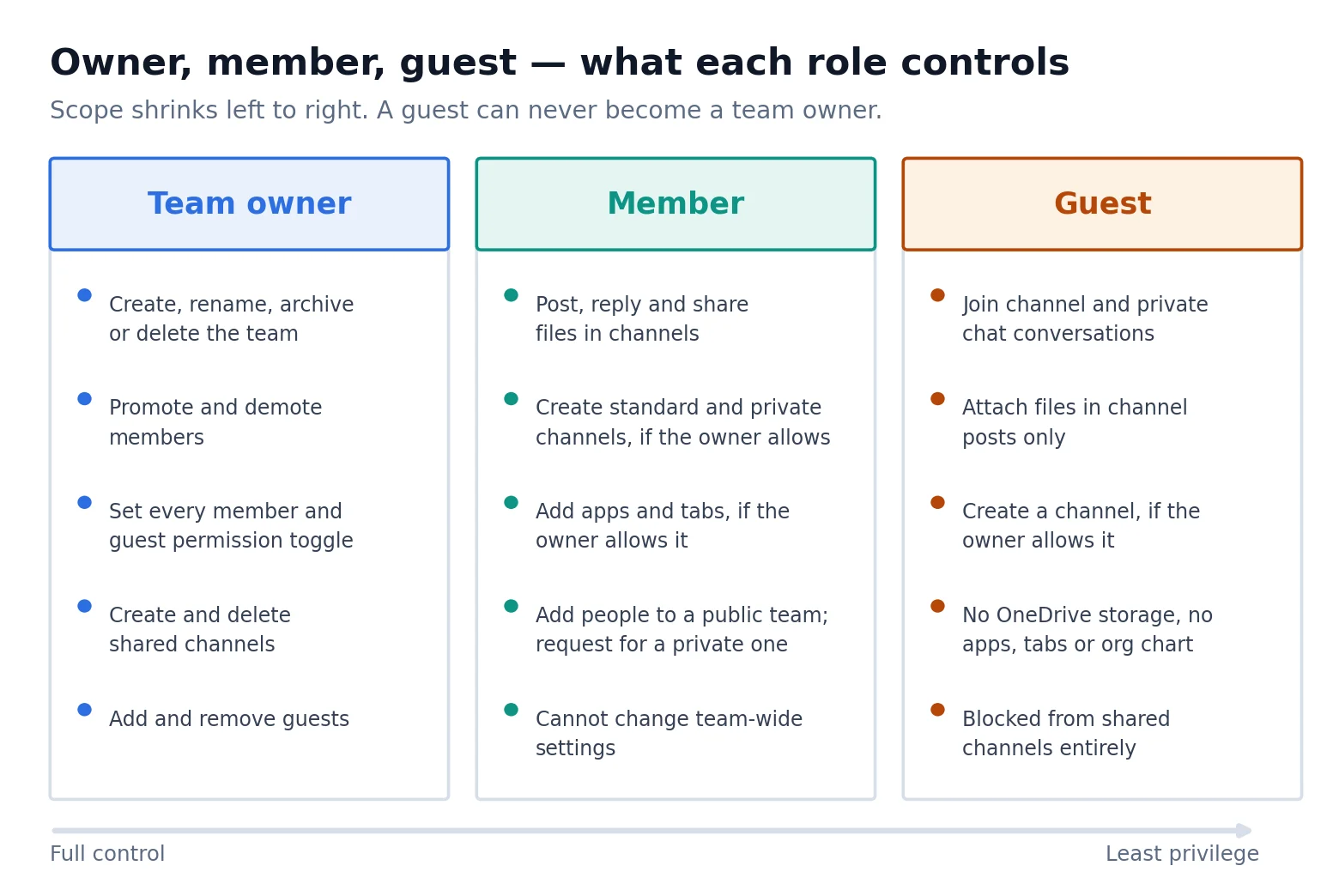
Pic. 2. Owner, member and guest capabilities at a glance.
The table below is the practical version. “If allowed” means the capability exists for that role but is governed by a switch the team owner controls, described in the next section.
| Capability | Team owner | Member | Guest |
|---|---|---|---|
| Create a team | Yes | No | No |
| Rename, archive or delete the team | Yes | No | No |
| Edit the team description and picture | Yes | No | No |
| Add people to a public team | Yes | Yes | No |
| Add people to a private team | Yes | Request only | No |
| Add or remove guests | Yes | No | No |
| Promote a member to owner | Yes | No | No |
| Create a standard channel | Yes | If the owner allows it | If the owner allows it |
| Delete or restore a standard channel | Yes | If the owner allows it | No |
| Create a private channel | Yes | If the owner allows it | No |
| Delete a private channel | Yes | No | No |
| Create or delete a shared channel | Yes | No | No |
| Take part in a shared channel | Yes | Yes | No |
| Add apps, tabs and bots | Yes | If the owner allows it | No |
| Edit or delete their own messages | Yes | If the owner allows it | If the owner allows it |
| Moderate a standard channel | Yes | Only if made a moderator | No |
| Change team-wide permission settings | Yes | No | No |
| Attach files in a channel post | Yes | Yes | Yes |
| Share a file in a private chat | Yes | Yes | No |
| OneDrive for Business storage | Yes | Yes | No |
Sources: Microsoft, “Assign team owners and members in Microsoft Teams admin center” and “Team owner, member, and guest capabilities in Microsoft Teams”.
Team owner
Owners hold the highest authority inside a team. They manage membership, promote and demote people, set every permission toggle, add and remove guests, create and delete shared channels, and archive or delete the team outright. Microsoft’s admin-side reference for this is Assign team owners and members in Microsoft Teams admin center.
Two rules matter more than any setting. First, always assign at least two owners per team. A single owner who leaves the company or goes on extended leave leaves an orphaned team that only a Teams administrator can rescue. Second, do not hand out ownership as a courtesy. Owners can delete channels and change security settings; that is not a title, it is a responsibility.
Member
Members are the internal majority. They post, reply, share files, join meetings and use whatever apps the owner has permitted. What they cannot do is change the team’s shape: they cannot rename or delete the team, promote anyone, or alter team-wide settings. Channel creation, app installation, tab management and message deletion are all member capabilities that an owner can switch on or off.
One asymmetry catches people out: members can create private channels if allowed, but they can never create a shared channel. That is owner-only, with no toggle to change it.
Guest
Guests are people from outside your organisation who are added to a specific team with a guest account. They can join channel conversations and private chats, attach files to channel posts, and — if the owner permits it — create a channel. They cannot add apps, tabs or bots, cannot share files in a private chat, have no OneDrive for Business storage, cannot view the org chart, and cannot be promoted to owner.
Guest access is also gated above the team: it must be enabled at tenant level, and Microsoft Entra guest user access restrictions can narrow what a guest sees across the directory. Microsoft documents the full comparison in Guest access in Microsoft Teams. Because guest access is a distinct subject with its own settings and pitfalls, we cover it separately in our Microsoft Teams guest access guide.
Permissions or guest access?
If the question is “what can the people already in my organisation do?”, you are dealing with permissions — this article. If it is “how do I safely let someone outside my organisation in?”, that is guest access and external collaboration, and the guest access guide is the better starting point.
General Microsoft Teams permission settings
Team-level permissions are the ones team owners control themselves, without involving an administrator. They are the fastest lever you have and the one most often left untouched.
Where to find member permissions
- In Teams, find the team in the left rail.
- Select the More options (…) menu next to the team name, then Manage team.
- Open the Settings tab.
- Expand Member permissions, Guest permissions or @mentions as needed.
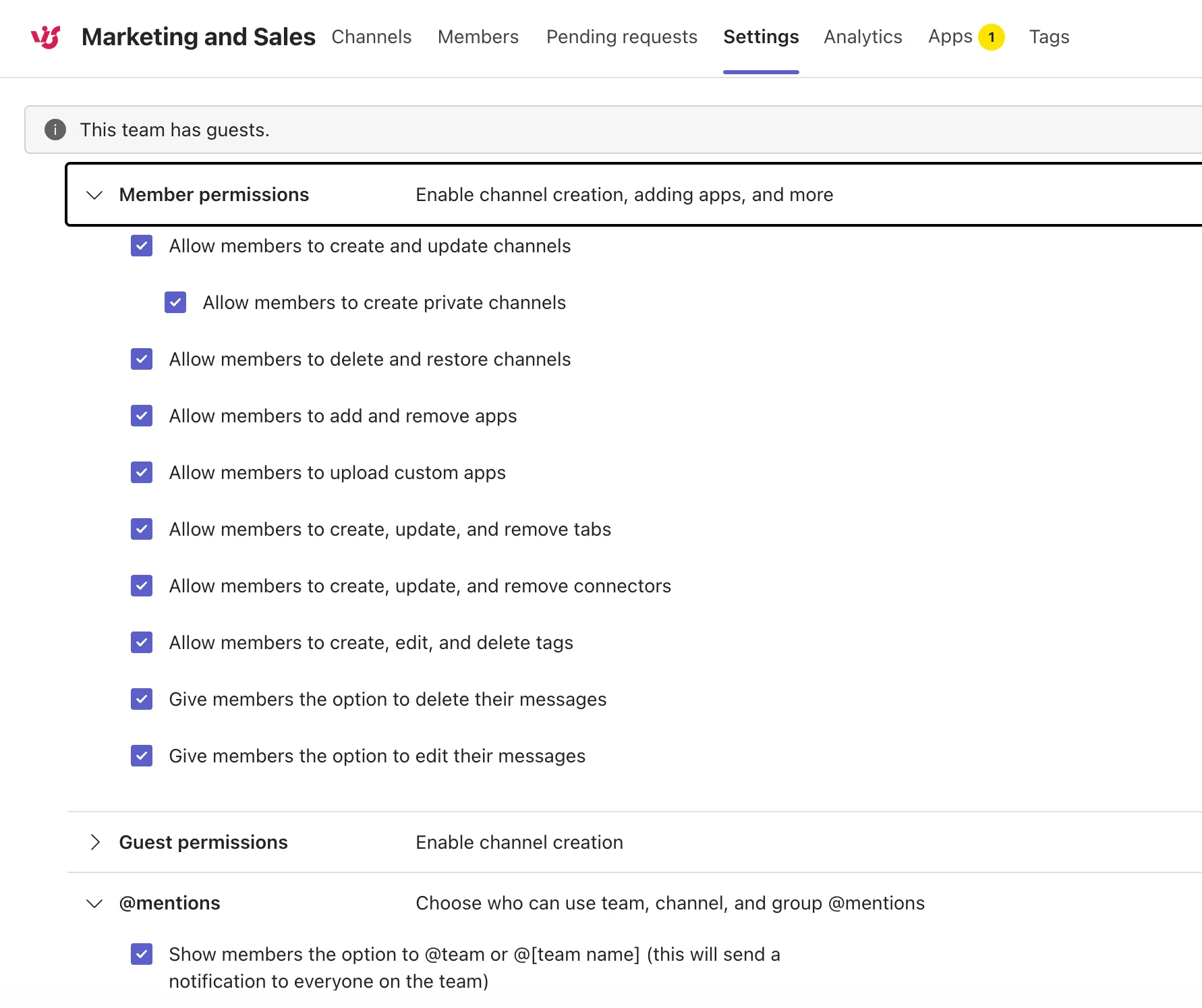
Pic. 3. The Member permissions section of the team Settings tab.
What each member permission toggle does
These switches apply to every member of that team. They do not affect owners, and guests have their own shorter list.
| Setting | What it means when switched on |
|---|---|
| Allow members to create and update channels | Members can add standard channels and rename or re-describe existing ones. Useful for active project teams, noisy for large ones. |
| Allow members to create private channels | Members can create channels the rest of the team cannot see. Powerful and worth thinking about before enabling. |
| Allow members to delete and restore channels | Members can remove channels. Deleted channels are recoverable for 30 days; the disruption is not. |
| Allow members to add and remove apps | Members can install apps that an administrator has already made available to them. |
| Allow members to upload custom apps | Members can side-load custom-built apps. Leave this off unless you have a reason. |
| Allow members to create, update and remove tabs | Members can pin documents, sites and apps to channel tabs. |
| Allow members to create, update and remove connectors | Legacy setting. Microsoft 365 connectors were retired in May 2026 and replaced by the Workflows app and its webhook trigger. |
| Give members the option to delete their messages | Members can remove their own posts. |
| Give members the option to edit their messages | Members can revise their own posts after sending. |
Team owners set these in Manage team → Settings → Member permissions.
The @mentions section is separate and easy to forget. Switching off “@team” and “@channel” stops one person notifying several hundred people with two keystrokes — a small permission with an outsized effect on how usable a large team feels.
Guest permission settings
Guest permissions inside a team are deliberately short: whether guests may create and update channels, and whether they may delete channels. Both default to a conservative position and both should stay that way unless a guest is genuinely co-running the workspace. Microsoft’s step-by-step is Set guest permissions for channels in Microsoft Teams.
Everything else about guests — whether they can make private calls, use meeting features, delete their own messages, or use inline images — is set org-wide by an administrator, not by the team owner.
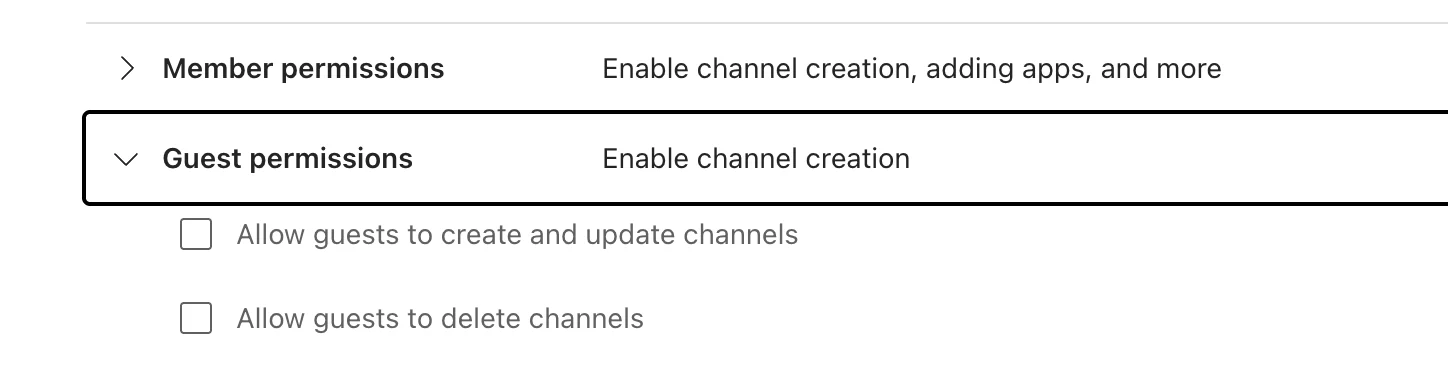
Pic. 4. Guest permissions in the team Settings tab.
How to change someone’s role
Only a team owner (or a Teams administrator working in the admin center) can change a role.
- Open the team, select More options (…) → Manage team.
- Go to the Members tab and find the person.
- Use the dropdown in the Role column to switch between Owner and Member.
- The change applies immediately. There is no approval step and no notification to the person, so tell them.
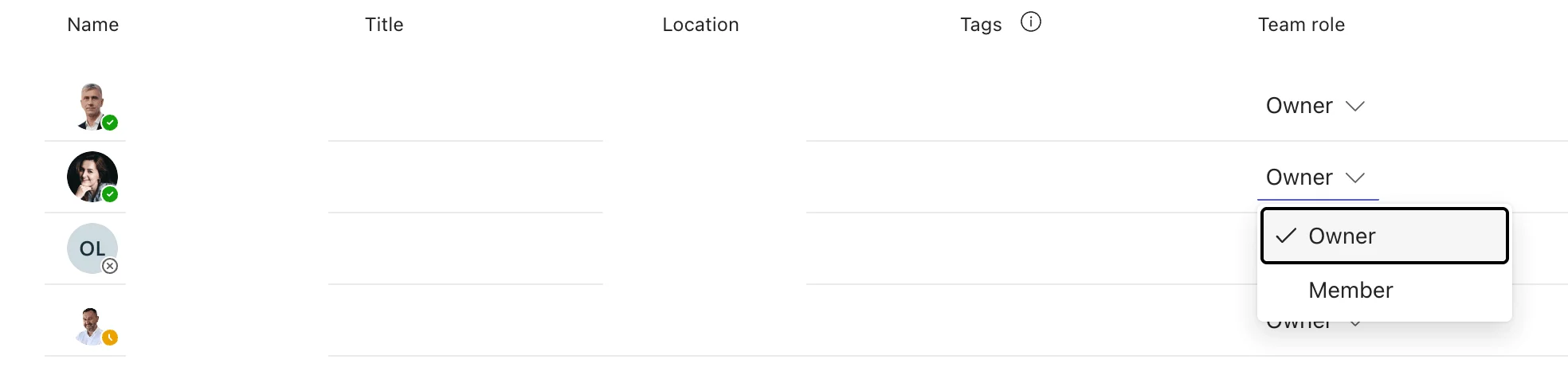
Pic. 5. Changing a member’s role to Owner in Manage team → Members.
Guests cannot be promoted. If an external collaborator genuinely needs owner-level control, they need an account in your tenant — which is a licensing and identity decision, not a Teams one.
Microsoft Teams channel permissions
Channels are where most permission mistakes actually surface, because the three channel types have genuinely different access models rather than three settings on one model.
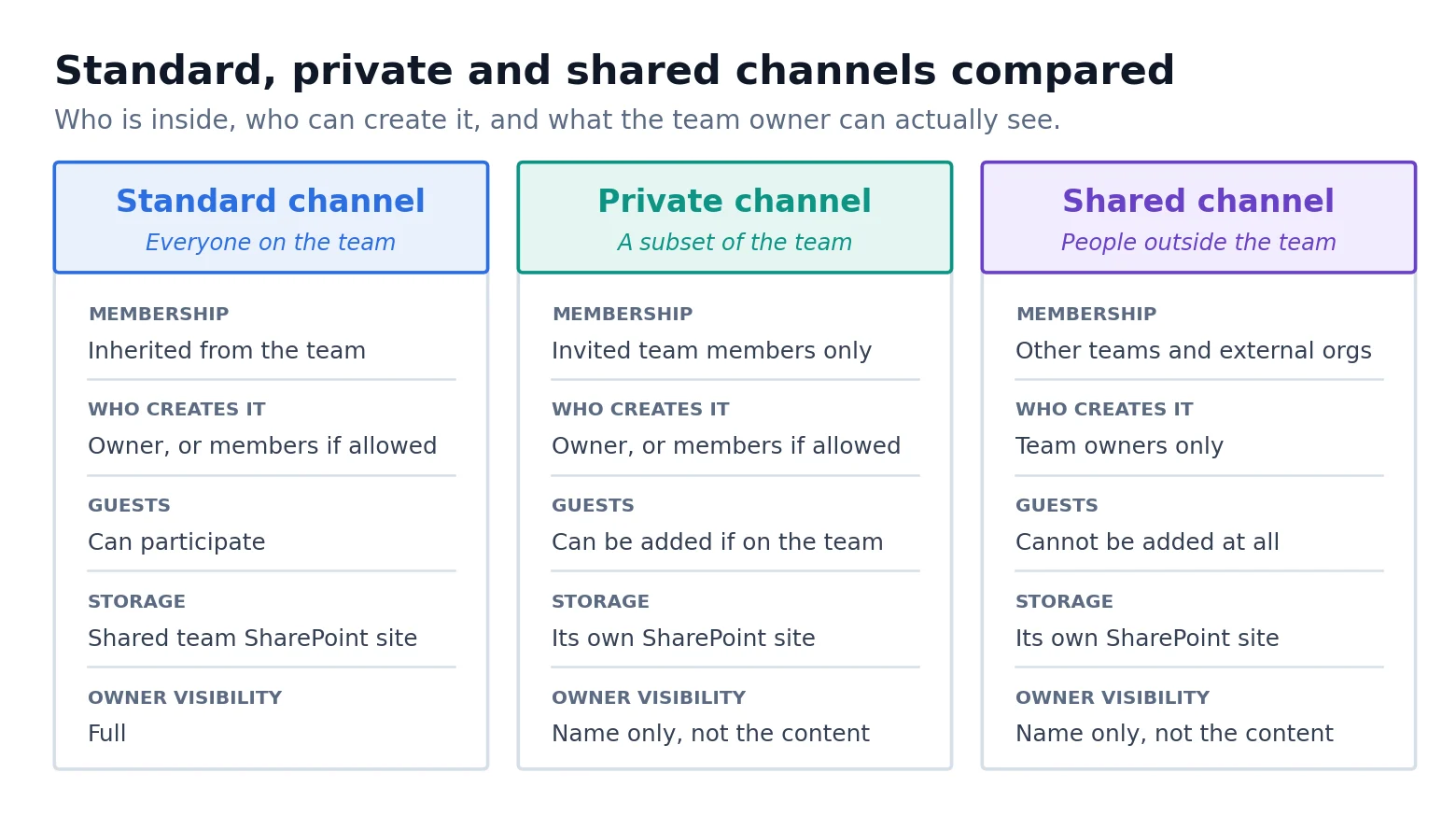
Pic. 6. Standard, private and shared channels compared.
| Standard | Private | Shared | |
|---|---|---|---|
| Who can create it | Owner, or members if allowed | Owner, or members if allowed | Team owners only |
| Who is inside | Everyone on the team | Invited team members only | Team members, other teams and external organisations |
| Guests | Can take part | Can be added if already on the team | Not supported at all |
| External people | Guest accounts | Guest accounts | Microsoft Entra B2B direct connect |
| File storage | Folder in the team SharePoint site | Its own SharePoint site | Its own SharePoint site |
| Team owner can read the content | Yes | Only if a member of the channel | Only if a member of the channel |
| Bots, connectors, message extensions | Yes | No | No |
| Moderation | Yes | No | No |
| Members | Up to the team limit | Up to 5,000 per channel | Up to 5,000 direct members |
Sources: Microsoft, “Private channels in Microsoft Teams”, “Shared channels in Microsoft Teams” and “Teams channels overview”.
Standard channel permissions
A standard channel inherits the team’s membership: if you are on the team, you are in the channel. There is no separate membership list to manage, which is exactly why standard channels are the right default. What you can do inside one is governed by the member permission toggles above, plus channel moderation.
Moderation is the one genuinely channel-scoped control for standard channels. Turn it on and you decide who can start new posts, whether members can reply, and whether bots and connectors may post. It is the cleanest way to make an announcements channel behave like an announcements channel.
Private channel permissions
A private channel has its own owner, its own members and its own SharePoint site. The creator becomes the private channel owner, and only channel owners add or remove members, manage tabs and apps, and change channel settings. Membership is drawn from the team — you cannot add someone to a private channel who is not already on the team — and roles there are independent of the team’s roles.
The point people most often miss: a team owner who is not a member of a private channel cannot read it. They see the channel’s name in Manage team and can delete or restore it within the 30-day window, but they have no access to the conversations or the channel’s SharePoint site. That is a feature, not an oversight — and it is also a governance problem if you assumed team owners had full visibility.
What changed in November 2025
Microsoft removed the long-standing limit of 30 private channels per team. Private channels now count toward the 1,000-channels-per-team limit like any other channel, membership rose to 5,000 per private channel, and private channels finally support scheduled channel meetings. Compliance copies of private-channel messages now go to the group mailbox rather than to each member’s mailbox. Any guide still quoting “maximum 30 private channels” is out of date — see Private channels in Microsoft Teams.
Private channels still have real limitations. They do not support connectors, and several first-party tabs — Stream, Planner, Tasks, To Do and Forms — are unavailable. You cannot convert a private channel into a standard one, or the reverse. If those constraints bite, the answer is usually a separate team rather than a private channel. Our guide to Microsoft Teams limits and limitations covers the full set of ceilings you are working within.
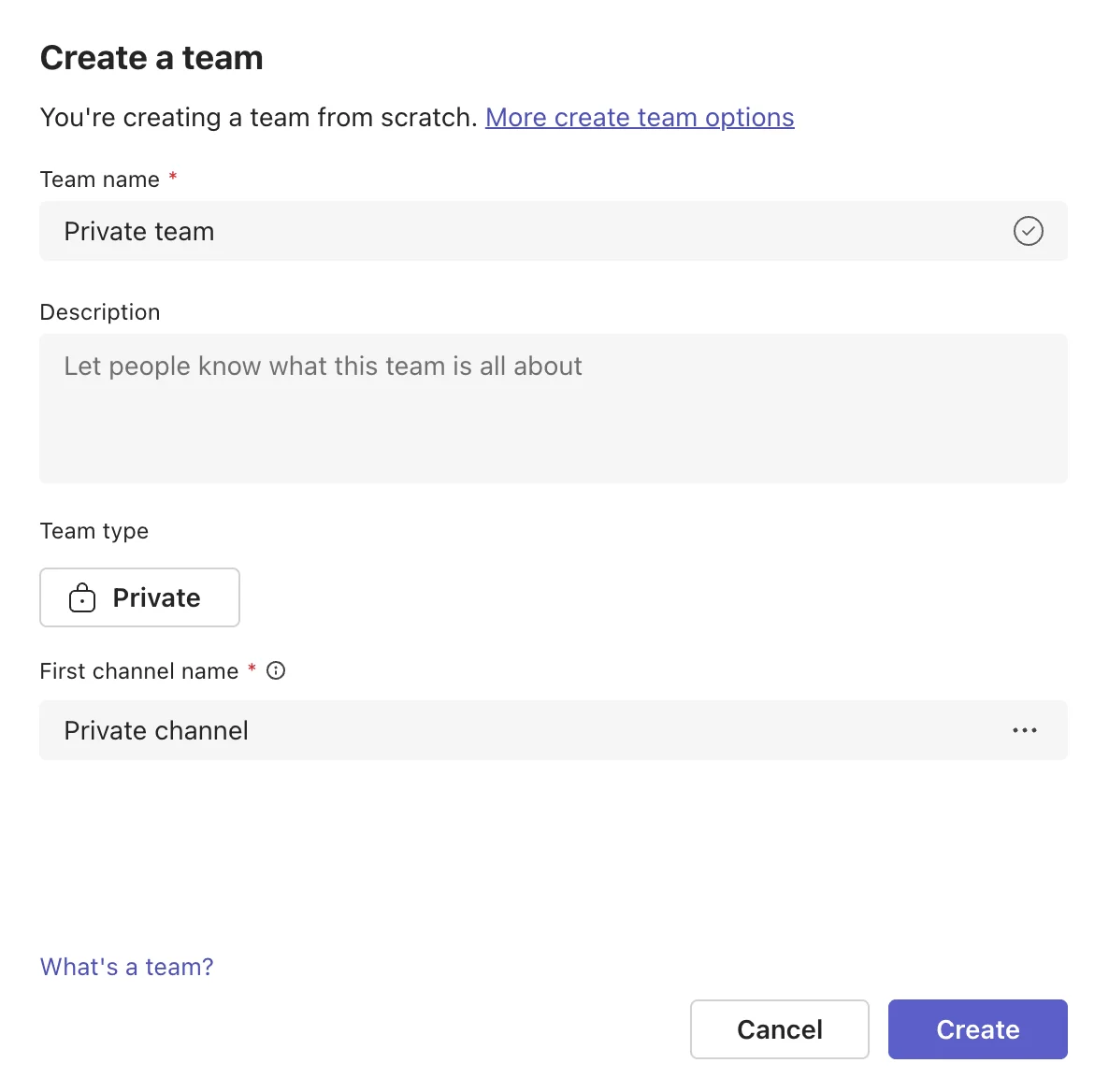
Pic. 7. Creating a private channel and setting its membership.
Shared channel permissions
Shared channels — Microsoft Teams Connect — let a channel be shared with other teams and with people in other organisations, without adding anyone to your team and without guest accounts. External participants join through Microsoft Entra B2B direct connect, which requires cross-tenant access settings to be configured in both tenants.
Three rules define their permission model:
- Only team owners can create them. There is no toggle that lets members create a shared channel.
- Guests cannot be added at all. Even a guest already on the team, and even a guest converted to a member, cannot join a shared channel.
- Team owners get names, not contents. As with private channels, an owner who is not a channel member can see and delete the channel but cannot read its files, conversations or member list.
A shared channel can be shared with up to 50 teams and hold up to 5,000 direct members. Your organisation’s DLP policies, sensitivity labels, communication compliance and conditional access apply to external B2B direct connect participants; the other organisation’s policies do not. One compliance gap worth knowing before you commit: administrators cannot place external participants on legal hold.
Choosing the right channel type
Most permission requests that arrive as “can you give them access?” are really channel-type questions. Answering them in this order settles nearly all of them.
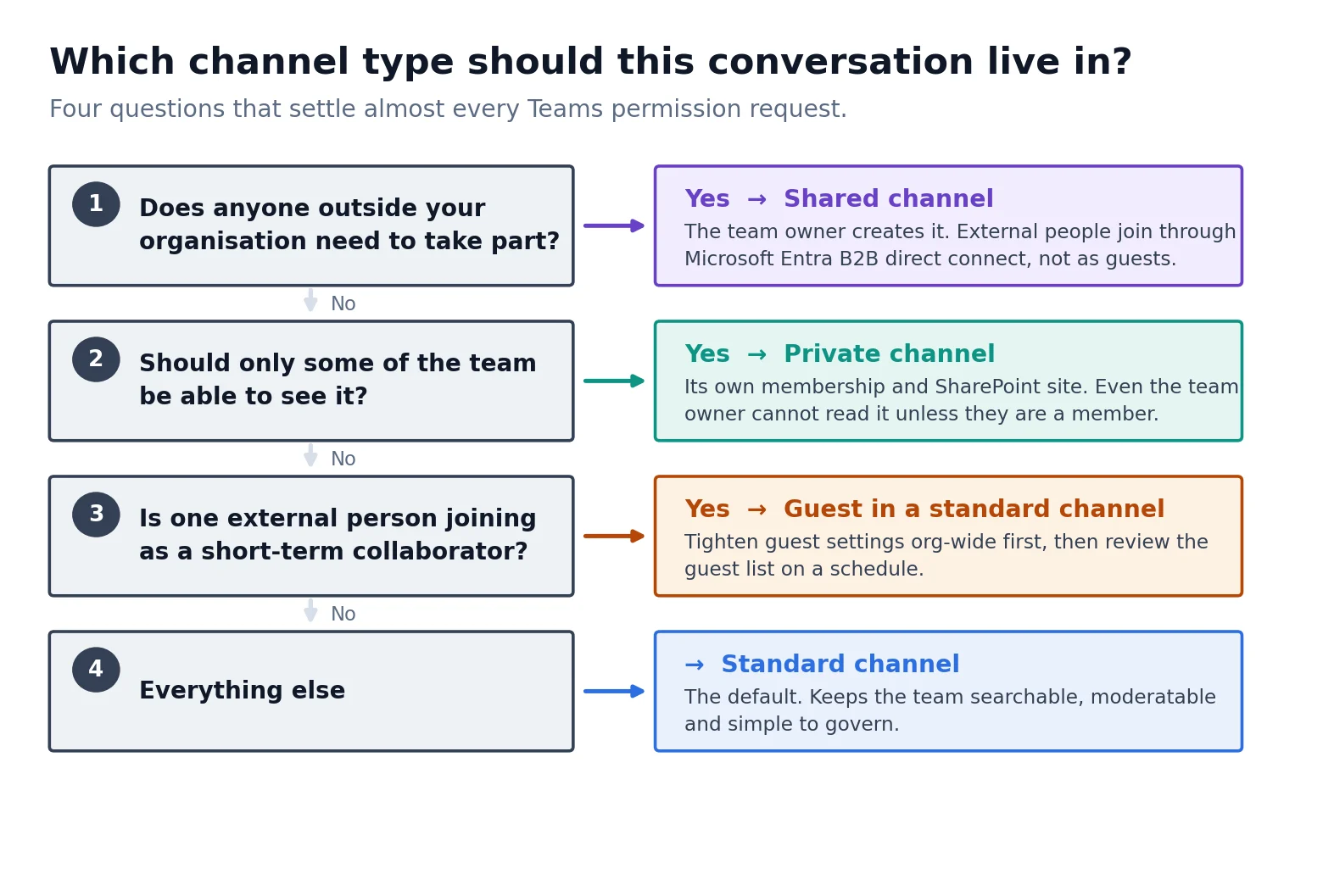
Pic. 8. A decision path for choosing the right channel type.
App permission settings in Microsoft Teams
App permissions are the layer most organisations govern least well, and the one with the largest blast radius. An app that has been granted access to channel messages has access to every message in every channel it is added to.
App permission policies have been replaced
This is the single biggest change to Teams governance in recent years, and most older guides get it wrong. App permission policies — the old model of building a policy and assigning it to users — have been replaced by app centric management, which sets availability per app instead of per policy. Tenants have been migrated automatically since April 2025, the migration is irreversible, and once migrated you cannot access or edit permission policies at all.
Under app centric management, each app has one of three availability settings: Everyone, Specific users or groups, or No one. One detail is easy to trip over: under “Specific users or groups”, guests can never use the app, even if you assign them explicitly. Microsoft’s reference is App centric management.
App setup policies still exist and still do what they always did — control which apps are installed and pinned for a user. They sit on top of availability: pinning an app a user is not allowed to access does not grant them access.
How to set app availability
- Sign in to the Teams admin center.
- Go to Teams apps → Manage apps.
- Search for the app and open it. Review the Permissions tab — this lists what the app can read and write — along with its certification and trust details.
- On the Users and groups tab, set availability to Everyone, Specific users or groups, or No one.
- Use Actions → Org-wide app settings to control third-party apps and custom apps in bulk, including the option to allow only Microsoft 365 certified apps.
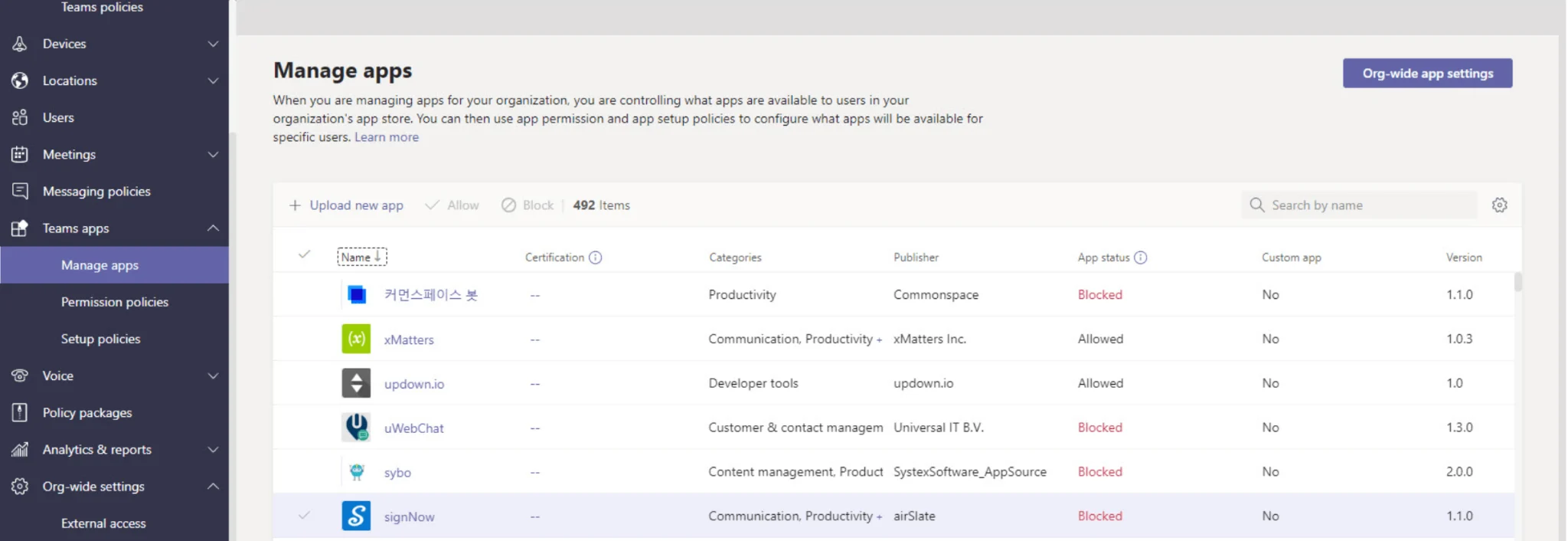
Pic. 9. The Manage apps page in the Teams admin center.
Consent, least privilege and trust signals
Availability decides whether an app can be used. Consent decides what data it may touch. Some Teams apps request Microsoft Graph permissions that need administrator consent; granting it applies across the tenant, so it deserves the same scrutiny as any other privileged grant. Microsoft explains the model in Microsoft Teams apps permissions and consent.
The principle of least privilege should decide every one of these calls: grant only the permissions an app genuinely requires, for only the people who genuinely need it. Since March 2026 the admin center also surfaces an Organization Trust Score for apps and agents, evaluated against trust requirements you define, alongside per-permission risk ratings and filters for SOC 2, ISO 27001, HIPAA and GDPR. Use them — they turn a judgement call into a documented one.
If you are assembling a wider app stack, our guide to Microsoft Teams integrations covers what to look for before an app reaches the approval stage.
Managing permissions from the Teams admin center
Team owners handle one team at a time. Anything that has to be consistent across the organisation belongs in the Teams admin center, where changes are policy-driven, apply in bulk, and leave an audit trail.
| Where | What you control there |
|---|---|
| Teams → Manage teams | Membership, owners, channel counts and team-level settings for any team in the tenant, without being a member of it. |
| Teams apps → Manage apps | App availability, org-wide app settings, permissions, certification and trust scores. |
| Teams apps → Setup policies | Which apps are installed and pinned for which users. |
| External Collaboration | External access, B2B guest access and B2B member access, unified into one section since March 2026. |
| Messaging policies | Whether users can delete or edit sent messages, use chat, and other messaging behaviours. |
| Meetings → Meeting policies | Lobby behaviour, who can present, recording and other meeting-level permissions. |
| Templates and policy packages | Pre-configured bundles you apply to a role or department so new teams start correctly. |
Microsoft documents the full surface in “Manage teams in the Microsoft Teams admin center”.
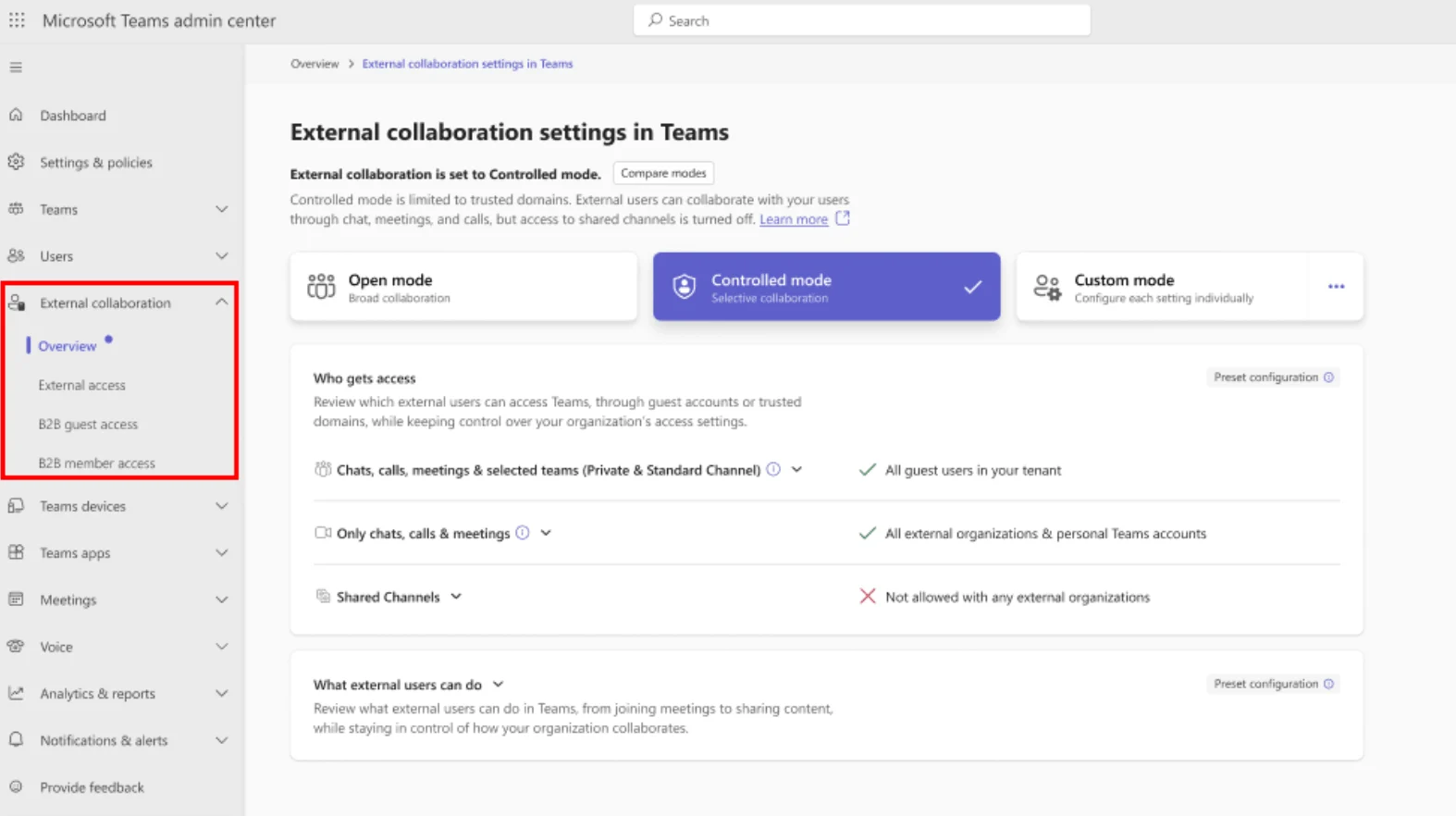
Pic. 10. The External Collaboration section in the Teams admin center.
Team templates deserve a specific mention. A template captures channels, apps and settings so that every team created from it starts with the permission posture you intended, rather than whatever the creator happened to click. It is the cheapest governance win available, and it works precisely because it removes a decision rather than adding a rule. Because teams are backed by Microsoft 365 Groups, group-level policies such as naming conventions and expiration reinforce the same structure from underneath.
What changed in Teams permissions in 2025 and 2026
If your internal documentation was written before 2025, several sections of it are now wrong. These are the changes that alter how permissions are set rather than just where the buttons are.
| When | What changed |
|---|---|
| April 2025 | Tenants began automatic, irreversible migration from app permission policies to app centric management. Availability is now set per app. |
| July 2025 | End of availability for the classic Teams client, including VDI and government clouds. Only the new Teams client remains. |
| November 2025 | The 30-private-channels-per-team limit was removed; private channel membership rose to 5,000; private channels gained scheduled channel meetings and a group-based compliance model. |
| November 2025 | External access by domain can be scoped to specific users and groups instead of the whole tenant. |
| March 2026 | External access, B2B guest access and B2B member access were unified into a single External Collaboration section with preset modes. Older guest-access walkthroughs no longer match the interface. |
| March 2026 | Organization Trust Score introduced for apps and agents, building on the trust filters and per-permission risk ratings added in October 2025. |
| May 2026 | Microsoft 365 connectors were retired. The Workflows app and its webhook trigger replace them, which changes what the “connectors” member permission toggle actually governs. |
| May 2026 | Org-wide third-party app settings gained the option to allow only Microsoft 365 certified apps. |
| July 2026 | Teams Core agents, such as Facilitator, moved to a dedicated admin experience and are no longer governed by org-wide Microsoft app settings. The app and agent access request flow was improved. |
Source: Microsoft, “Release notes for Microsoft Teams admin features”, updated continuously.
Common mistakes with Microsoft Teams permissions
Making everyone an owner
The most common mistake, and the most expensive. Owners can remove members, change roles, delete channels and alter security settings. A team where everyone is an owner has no permission model at all — it has a naming convention. Assign ownership to the people genuinely accountable for the team, and keep the number small but never at one.
Leaving guests in place after the work ends
Guest accounts do not expire on their own. A contractor added for a six-week engagement keeps reading channel history and files until someone removes them. Set a review cadence, and use Microsoft 365 Groups expiration and access reviews so the removal is scheduled rather than remembered.
Approving apps without reading the permissions
Third-party apps routinely request broader access than they need. An app that asks to read all channel messages in order to post a daily summary has been granted the ability to read all channel messages, full stop. Read the Permissions tab before approving, prefer certified apps, and use the trust signals now built into the admin center.
Assuming team owners can see everything
They cannot. Private and shared channels are invisible in content terms to owners who are not members. Plan for it: if a team needs auditable oversight, that oversight has to come from compliance tooling and eDiscovery, not from the owner role.
Managing everything team by team
Per-team clicking does not scale and leaves no record. Anything that should be true across the organisation — app availability, guest behaviour, messaging permissions — belongs in a policy in the admin center, where it can be applied in bulk and reviewed later.
Never auditing
Permissions drift. People change roles, projects end, apps get installed. A permission model that is never reviewed is accurate on the day it is created and progressively wrong from then on.
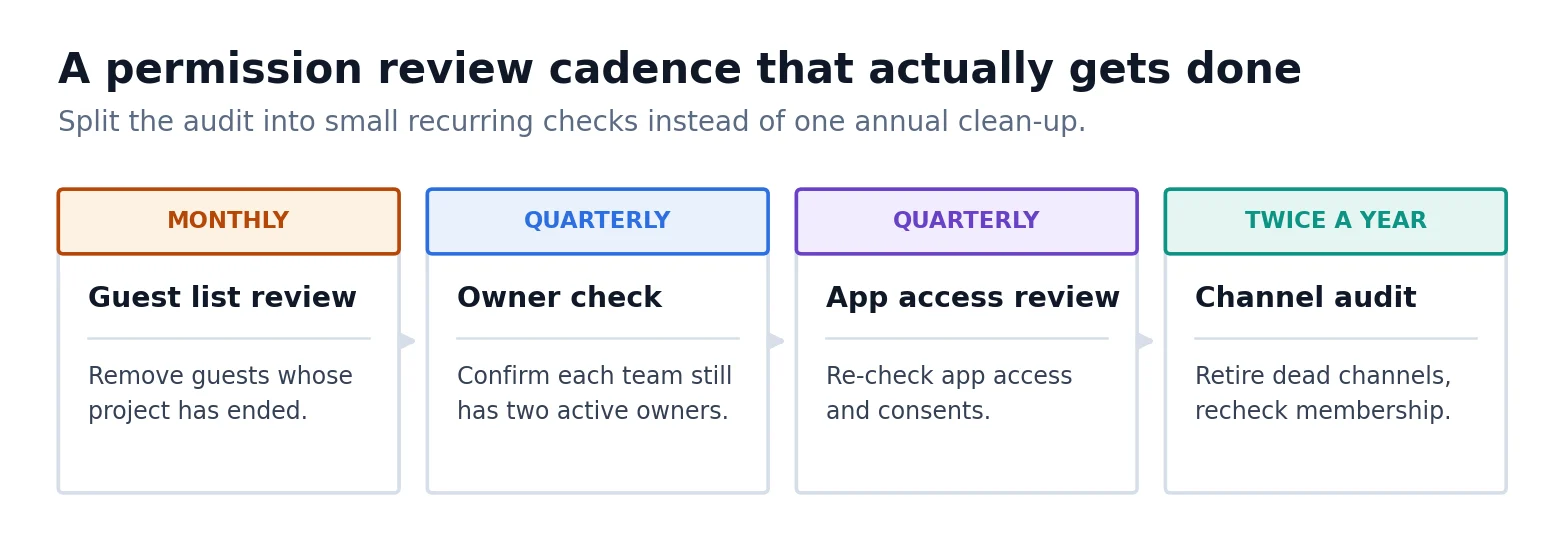
Pic. 11. A permission review cadence that is small enough to actually happen.
Governance and permission management with Virto apps
Microsoft gives you the controls. What it does not give you is a way to notice when something changes, or a workspace where role boundaries are visible in day-to-day work rather than buried in a settings tab. That is the gap Virto apps for Microsoft 365 and Microsoft Teams fill. Each app below is summarised with what it does for permission management, and the section closes with current pricing for all four.
Virto Notifications & Reminders App
Permission problems are rarely discovered in real time — they are discovered later, by accident. The Virto Notifications & Reminders App closes that gap by turning changes across Microsoft 365 and SharePoint into alerts in the Teams channels where the people responsible actually work.
- Alert an owner or compliance lead the moment a sensitive list, library or site changes.
- Escalate automatically when an alert goes unacknowledged, so nothing quietly stalls.
- Build condition-based rules — a specific document library, a specific field, a specific value — rather than blanket notifications people learn to ignore.
- Combine real-time and scheduled digests so routine reviews arrive on a cadence and genuine exceptions arrive immediately.
Best for: administrators and compliance teams who need to know about access-affecting changes while they still matter.
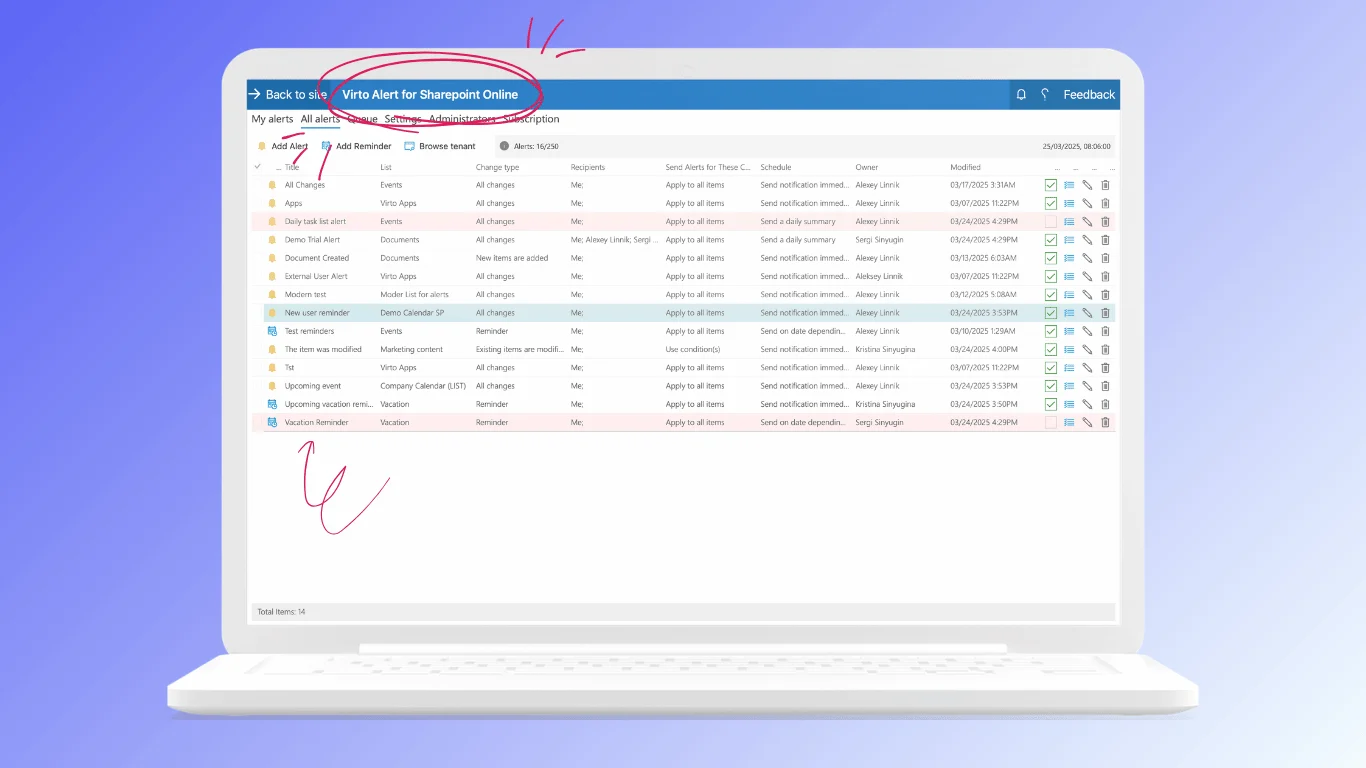
Pic. 12. Virto Notifications & Reminders App.
Virto Kanban Board App
Roles only mean something if work is visibly attached to people. The Virto Kanban Board App gives a team a shared board inside Teams where ownership of each task is explicit and change history is recoverable.
- Assign every card to a named person, so “who is responsible” is answered on the board rather than in a thread.
- Keep a transparent backlog that matches how the team is actually structured.
- Use built-in reporting and change history when you need to reconstruct who moved what and when.
- Work from desktop, web or mobile without a separate tool to govern.
Best for: project managers who want task-level accountability to line up with team-level roles.
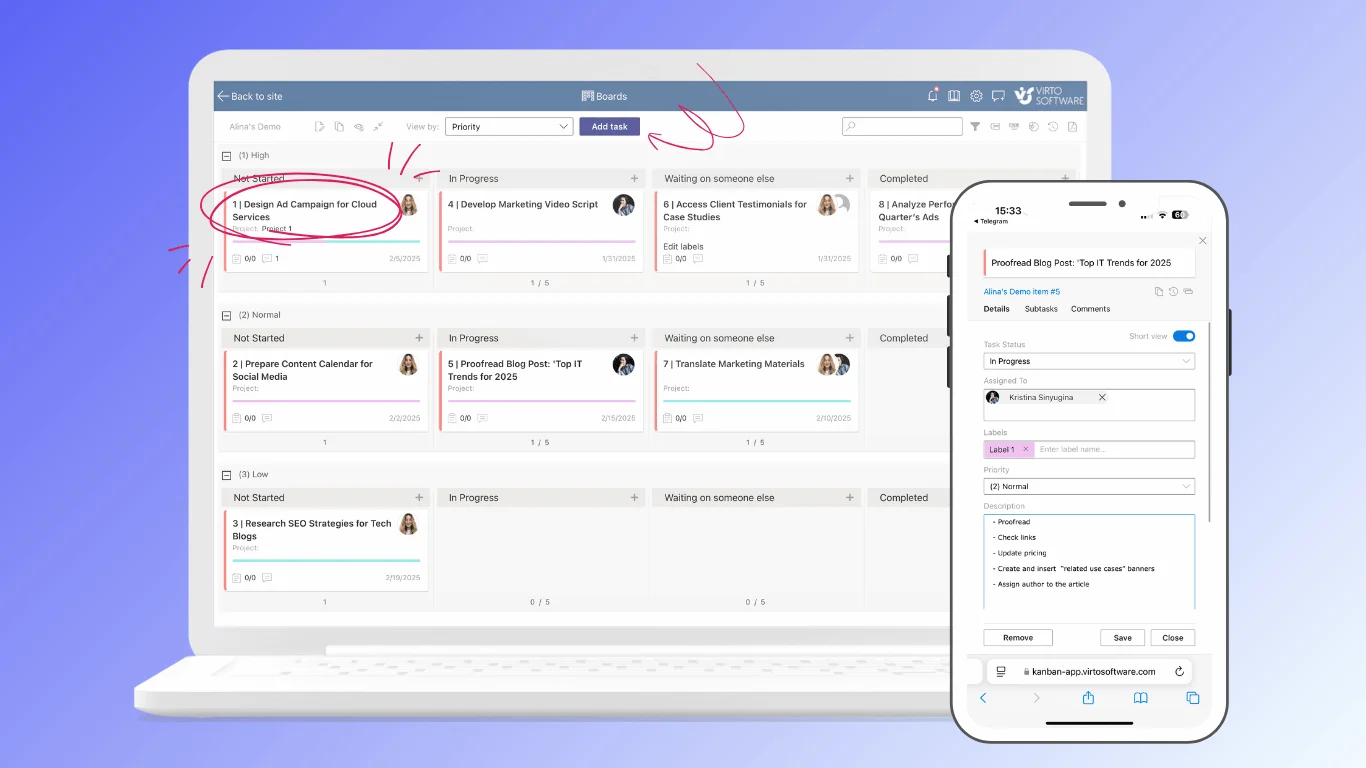
Pic. 13. Virto Kanban Board App.
Virto Calendar App
Calendars are a permission surface people forget. The Virto Calendar App overlays multiple Microsoft 365, SharePoint and Exchange sources into one view while keeping control over who may see, create or edit each one.
- Grant view-only or edit rights per calendar source rather than all-or-nothing.
- Overlay an unlimited number of calendars and colour-code them so visibility is obvious at a glance.
- Keep sensitive events and resource bookings under explicit access control.
Best for: organisations where scheduling touches confidential events or shared resources. Our Microsoft Teams calendar guide covers the wider setup.
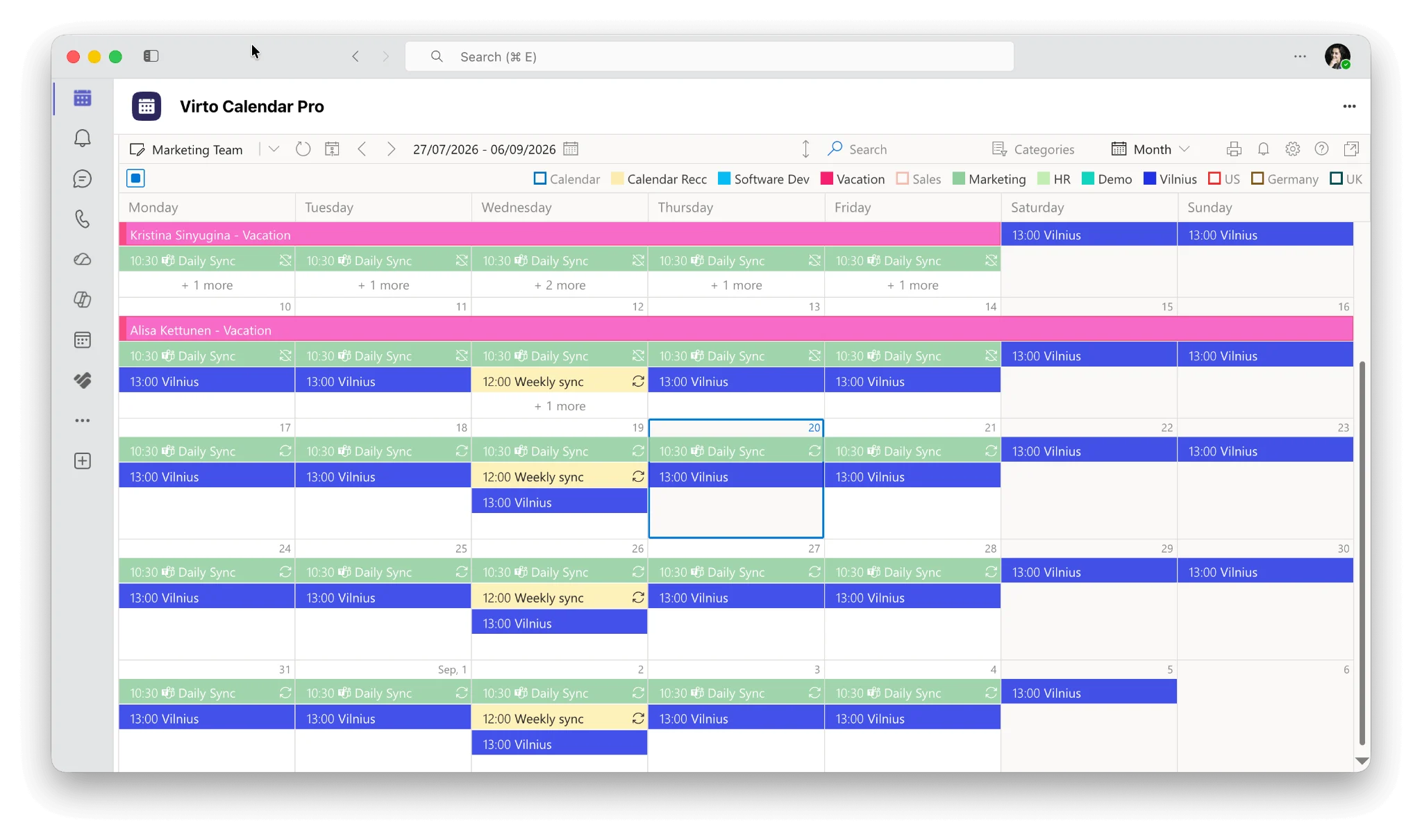
Pic. 14. Virto Calendar App.
Virto Shared Calendar App
When you need to share a schedule with people who will never have an account in your tenant, guest access is the wrong instrument. The Virto Shared Calendar App shares a calendar through a secure link with view-only or edit rights, no Microsoft account required.
- Share externally without creating guest accounts or touching tenant-level external settings.
- Set granular permissions per link, and tag and colour-code events for clarity.
- Deploy across desktop, web and mobile with no training overhead.
Best for: teams that need lightweight external calendar sharing. See also our guide to creating a shared calendar in Microsoft Teams.
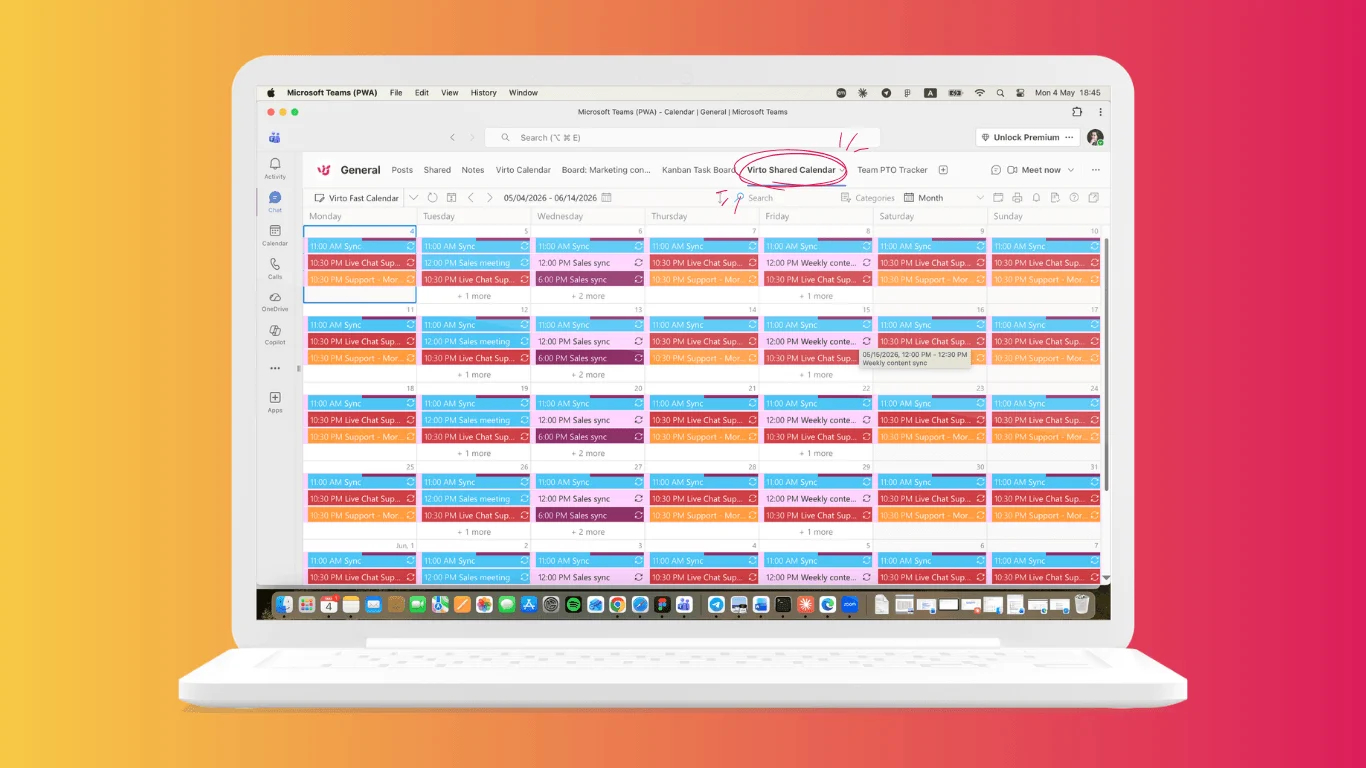
Pic. 15. Virto Shared Calendar App.
Virto pricing at a glance
Billing units differ by app — per user, per tenant or per creator — but all four are billed yearly and all four start with the same 30-day free trial. The figures below are the prices published on each product page at the time of writing; two of them are limited-time offers, so check the product page before quoting them.
| App | Plans | Trial |
|---|---|---|
| Virto Notifications & Reminders | Alerts 30 ($1,170/year), Alerts 100 ($2,990/year) and Enterprise (up to 250 alerts, individual pricing). | 30 days |
| Virto Kanban Board | Starter at $2 per user/month for up to 30 users; Pro at $3 per user/month for 31–200 users; Enterprise on request above 200 users. Billed yearly. | 30 days |
| Virto Calendar | Enterprise at $2,412 per 100 users on a three-year agreement — a limited-time offer against a list price of $3,599. | 30 days |
| Virto Shared Calendar | Free forever for up to 15 entries per user; $99 per year for unlimited entries and users as a limited-time offer against $399; or $19 per year for each creator and editor. Viewers never need a licence. | 30 days |
Source: individual Virto product pages. Schools, universities, hospitals and charities qualify for a 15% discount, and each licence includes a one-year update period.
Try it against your own tenant
Every Virto app for Microsoft Teams and Microsoft 365 starts with a 30-day free trial, so a governance workflow can be tested against real data before anyone commits. Review data handling and certifications in the Virto Trust & Security Center, check current offers on the pricing page, browse the full Microsoft Teams app range, or book a product demo if you would rather be walked through it.
A practical permissions checklist
If you do nothing else, do these.
- Give every team at least two owners, and no more than you can name.
- Decide deliberately whether members may create channels and install apps, rather than accepting the default.
- Switch off @team and @channel in any team above roughly fifty people.
- Use a private channel for a subset of the team, a shared channel for people outside it, and a standard channel for everything else.
- Review app availability and permissions in the admin center; prefer certified apps and read the Permissions tab before approving.
- Audit guests monthly and remove anyone whose work has finished.
- Create teams from templates so the permission posture is inherited, not improvised.
- Write down who owns access decisions. A model without a named owner is a model that decays.
Permission management in Teams is not a technical detail bolted on to collaboration — it is what makes collaboration safe enough to be useful. Set the layers deliberately, review them on a schedule, and let tooling tell you when something changes. For related reading, see our guides to Microsoft Teams tags, Microsoft Teams status, creating polls in Teams and scheduling a Teams meeting.
Frequently asked questions
What are Microsoft Teams permissions?
The roles and settings that control what people can do in a team: owners manage it, members participate, and guests get limited access, with additional channel and app permissions layered on top.
What is the difference between an owner and a member in Teams?
Owners can manage settings, members and channels; members can participate and, if allowed, create channels — but cannot change team-wide settings. Only an owner can rename, archive or delete a team, promote someone to owner, add or remove guests, or create a shared channel.
Can I limit what members can do in a Microsoft Teams team?
Yes. A team owner opens Manage team → Settings → Member permissions and switches individual capabilities on or off: creating and deleting channels, creating private channels, adding apps and tabs, and editing or deleting their own messages. Anything that needs to apply across several teams should be set as a policy in the Teams admin center instead.
Who can change permissions in Microsoft Teams?
Team owners change permissions for their own team. Teams administrators change them for any team, and set the org-wide policies that constrain what team owners can do in the first place. Members and guests cannot change permissions.
Can a team owner see a private channel they are not a member of?
No. A team owner sees the private channel’s name in Manage team and can delete or restore it, but cannot read its conversations or access its SharePoint site unless they are a member of the channel. The same applies to shared channels.
What is the difference between a private channel and a shared channel?
A private channel restricts a conversation to a subset of the existing team. A shared channel opens a channel to people outside the team, including other organisations, through Microsoft Entra B2B direct connect. Members can create private channels if the owner allows it; only owners can create shared channels, and guests cannot join a shared channel at all.
How many private channels can a team have?
The old limit of 30 private channels per team was removed in November 2025. Private channels now count toward the 1,000-channels-per-team limit, and each private channel supports up to 5,000 members.
Do app permission policies still exist in Microsoft Teams?
No. App permission policies have been replaced by app centric management, which sets availability per app — Everyone, Specific users or groups, or No one. Migration has been automatic since April 2025 and cannot be reversed. App setup policies, which control installing and pinning, still exist.
Can guests be promoted to team owner?
No. Guest is a fixed role. If an external collaborator needs owner-level control, they need a licensed account in your tenant, which is an identity and licensing decision rather than a Teams setting.
How often should Teams permissions be audited?
Split it up so it actually happens: review guest lists monthly, confirm owner coverage and app access quarterly, and audit channels and private channel membership twice a year.