


Quick answer: Teams notifications alert you to messages, mentions and activity; you control them globally in Settings > Notifications and per channel/chat via the ••• menu.
Microsoft Teams has become the default hub for workplace collaboration, bringing chat, meetings, calls, file sharing, and hundreds of app integrations together in one place. It is now central to how businesses and remote teams communicate every day.
But the feature that quietly makes or breaks your workday is notifications. Get them right and Teams keeps you informed at exactly the right moments. Get them wrong and you are either drowning in pings or missing the messages that matter.
Teams also supports a wide range of third-party apps that extend what the platform can do. If you want to get more out of these integrations, see our guide to the Top 25 Teams Apps and Integrations.
This guide walks you through every notification setting in Microsoft Teams, so you can tune alerts to your workflow, silence the noise, and fix notifications that are missing or delayed.
Why notifications matter
When you are deep in a project, the right alert at the right time keeps you moving. Notifications in Microsoft Teams are your built-in alert system, and they do two jobs:
- Drive engagement: from direct messages to team-wide announcements, they keep you connected and make collaboration feel instant.
- Sharpen focus: tuned correctly, they surface only what is important, so you spend less time reacting and more time working.
The goal is balance. You do not want to be bombarded with alerts, and you do not want an important mention to slip past because of the wrong setting. This guide helps you strike that balance, and the Virto Alerts and Reminders app takes it further by consolidating alerts from across Microsoft 365 into Teams.
Stay notified no matter what
Explore Alerts and Reminders by Virto for Microsoft Teams and Microsoft 365
Types of Notifications in Microsoft Teams
Teams offers several notification types, each covering a different kind of activity. Knowing what each one does makes it far easier to decide what to keep, what to mute, and what to escalate.
Chat alerts
You get a heads-up whenever you receive a direct message. These are ideal for one-on-one and small group conversations, keeping you on top of personal interactions.
Channel notifications
These keep you in the loop on broader team discussions. When new content is posted in a channel you belong to, you will know about it.
Mentions
- Personal mentions (@You): signal that someone is trying to reach you directly in a chat or channel.
- Team shoutouts (@Team): alert everyone in the team when there is something the whole group needs to see.
- Channel callouts (@Channel): notify members who have marked that channel as a favorite.
Activity alerts
These flag lighter interactions, such as a reaction to your comment or an edit to a shared file.
Meeting updates
Meeting alerts keep you ready for what is next, whether it is a schedule change or a fresh invite.
Categorizing your notifications
When you manage Microsoft Teams notifications, it helps to weigh each one by urgency and relevance:
- Urgency: a message from your manager or a tag in an urgent project thread deserves an immediate response, far more than a reaction to an old comment.
- Relevance: make sure the channels alerting you actually match your role. A design lead rarely needs live updates from the finance channel. Trimming these keeps you focused and cuts the noise.
Sorting alerts this way reduces distraction, speeds up your response time, and keeps your attention on what counts.
Customizing Notification Settings
Microsoft Teams gives you granular control over notifications. Here is how to tailor them to the way you work.
Accessing notification settings
To open your Teams notification settings:
- Launch Microsoft Teams on your desktop or in the browser.
- Click the three dots next to your profile picture (or initials) in the top-right corner.
- Select Settings from the drop-down menu.
- Click Notifications on the left to open the customization options.
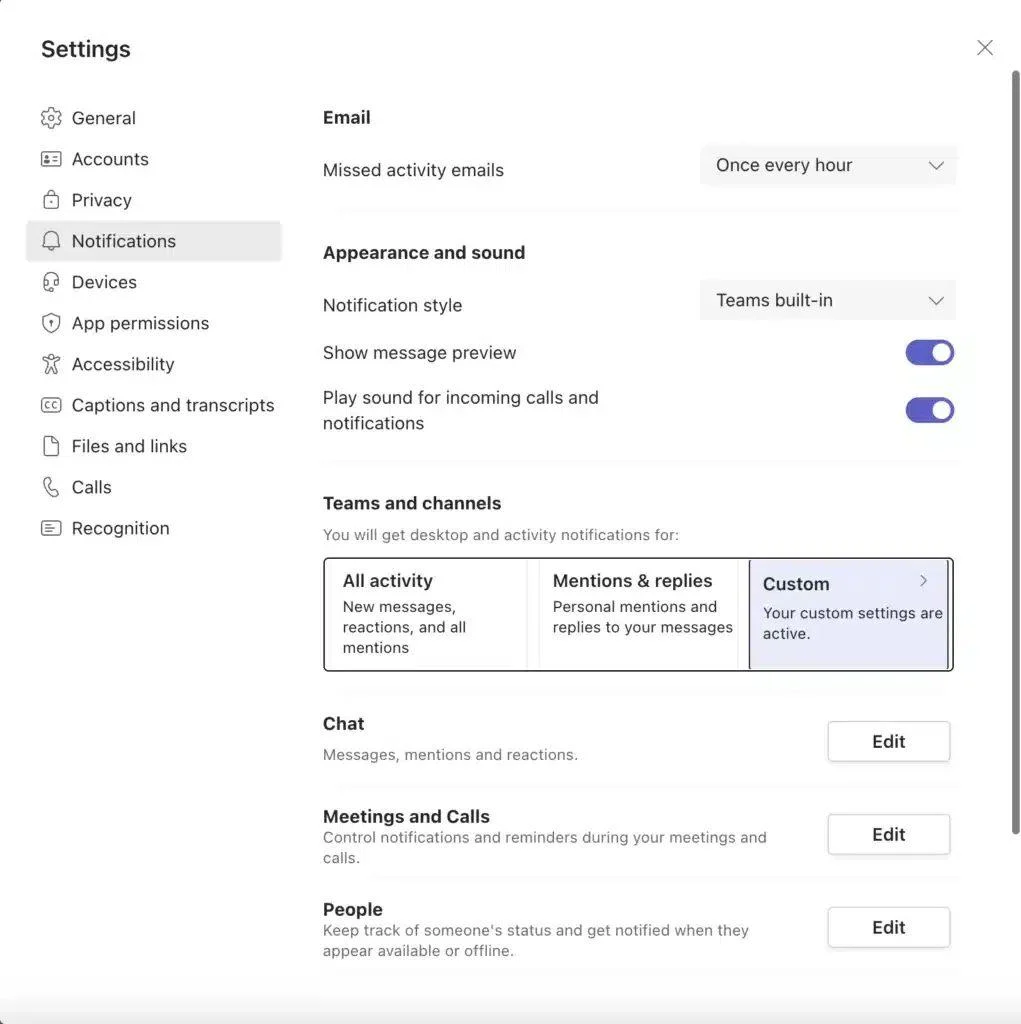
Customizing notifications in Microsoft Teams
Channel notifications
In the notification settings, open Teams and channels to review the defaults for every channel, or choose Custom to fine-tune individual alerts.
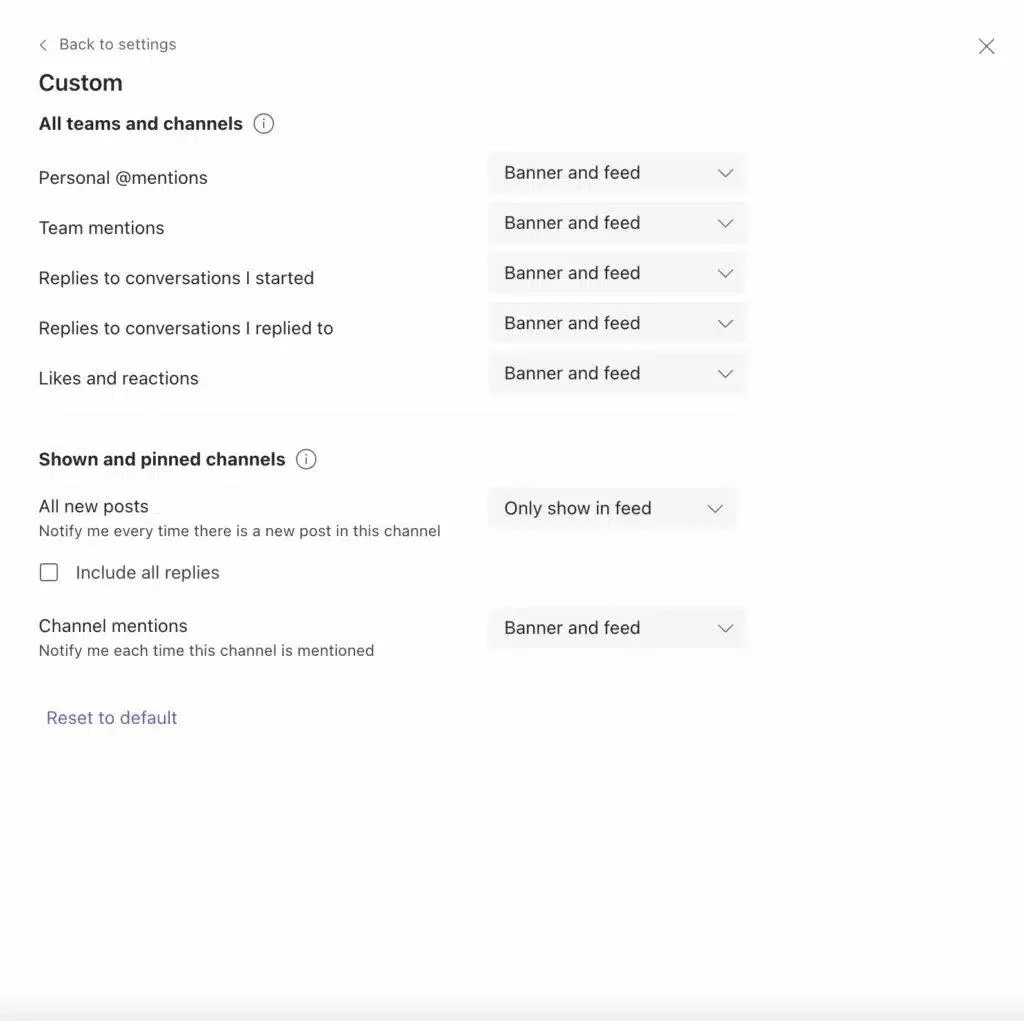
Custom settings for alerts in Microsoft Teams
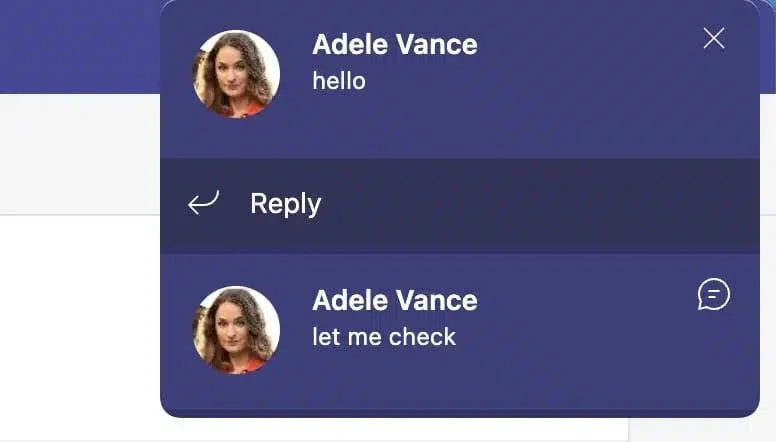
Banner notifications in Microsoft Teams
To adjust a single channel, go to the channel, click the three dots next to its name, and select Channel notifications to set your preferences.
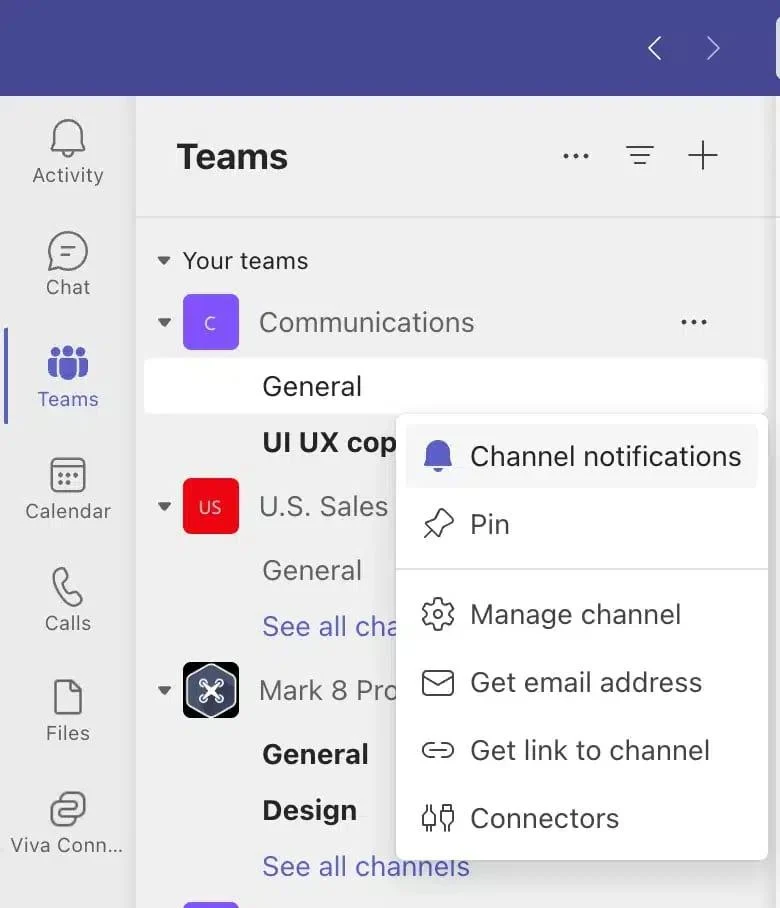
“Channel notifications” settings in Microsoft Teams
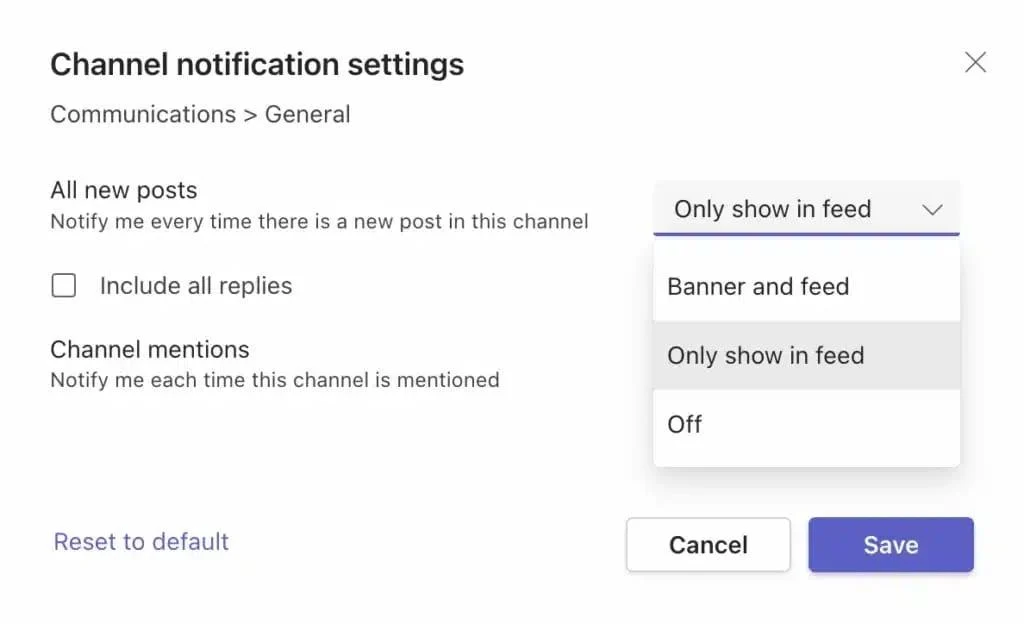
Channel notification settings in Teams
Chat alerts
Back in the notification settings, use the Chat and Meetings and Calls sections to control alerts for individual chats, group chats, and meetings.
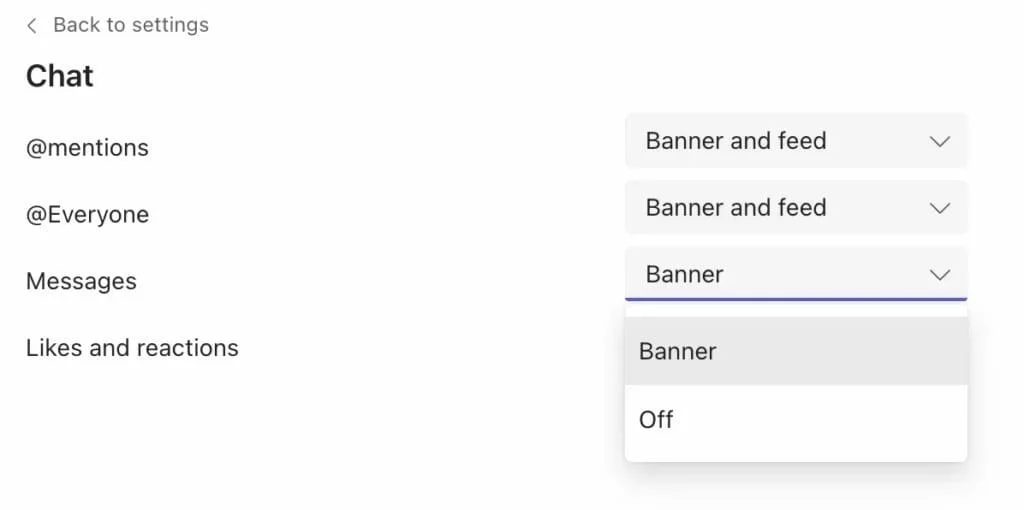
Chat alerts in Microsoft Teams
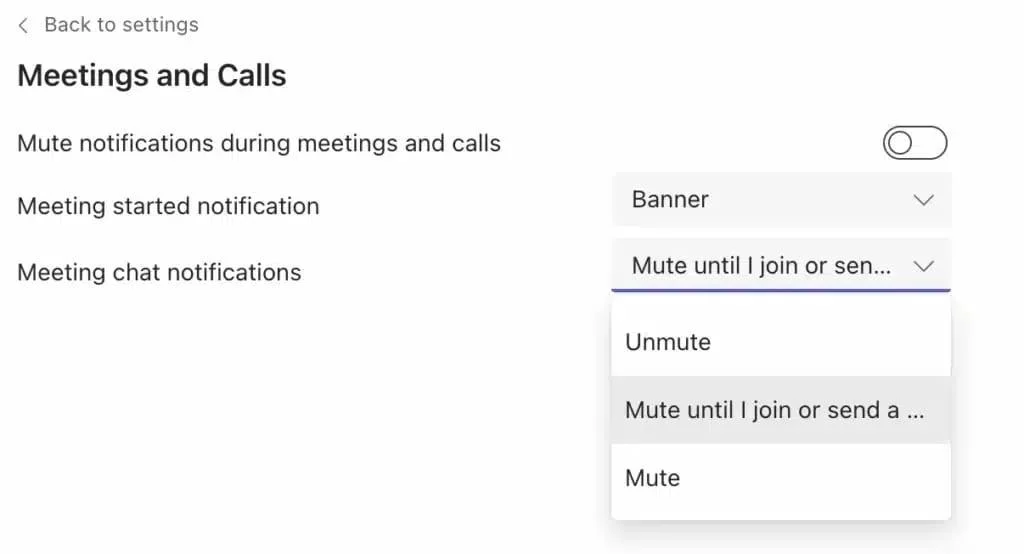
Meetings and calls alerts in Microsoft Teams
Do Not Disturb (DND) and quiet time
To switch on Do Not Disturb, click your profile picture and choose Do not disturb from the status menu. This silences notifications so you can concentrate.
Need it for a set period? Click Duration near the bottom of the status menu to set a custom time window.
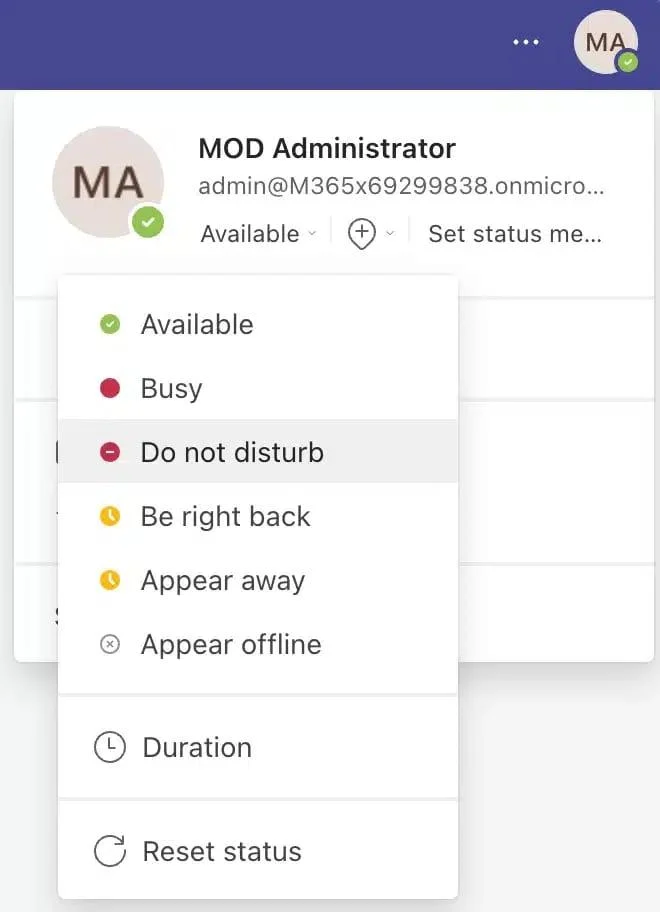
Setting Do Not Disturb in Microsoft Teams
To schedule quiet time in the Teams mobile app:
- Open Teams on your phone and tap your profile picture.
- Go to Notifications > Block notifications > During quiet time.
- Set the days and times you want notifications muted.
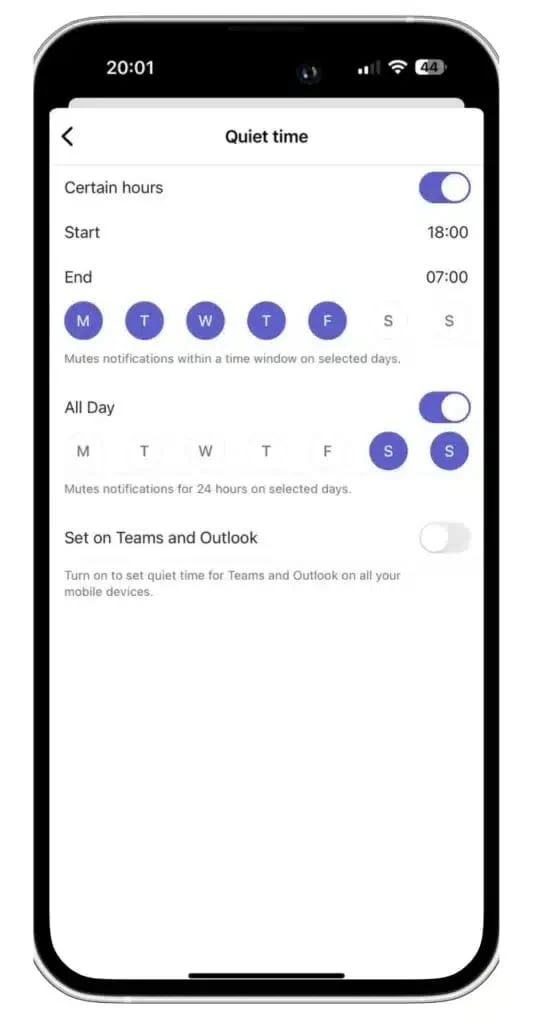
Setting quiet time for Teams on mobile
- Optionally, turn on Set on Teams and Outlook to sync the schedule (available on enterprise licenses). Muted messages are still waiting for you in the app.
Why quiet time and DND are worth it
In an always-on workday, protected focus time is a genuine productivity boost. Quiet time and DND let you decide when Teams can interrupt you, and when it cannot.
Getting the most from DND
- During meetings: turn on DND to stay present and free of pop-ups while you contribute.
- Deep-work sessions: writing, coding, or designing all demand focus. DND protects that block of time.
- Mental breaks: a few minutes without pings helps you reset and come back sharper.
Teams is as much about knowing when to disconnect as staying connected. Stepping away from constant alerts refreshes your focus, so you return ready to work.
Troubleshooting Teams Notifications
Notification problems are among the most common Teams frustrations, especially when an important message arrives late or not at all. Here is how to diagnose and fix them.
Notifications not working or delayed
If notifications are missing or slow to arrive, work through these steps:
- Check your internet connection: a weak or dropping connection delays alerts. Confirm you are online or switch networks.
- Update the app: run the latest version of Teams, since updates regularly fix notification bugs.
- Review your notification settings: make sure alerts are not turned off for the channel or chat in question, and that your status is not set to Do Not Disturb.
- Sign out and back in: a quick restart of the session clears most temporary glitches.
Making sure you never miss an alert
- Prioritize what matters: configure settings so critical messages and mentions stand out from routine noise.
- Enable banner notifications: turn them on for priority channels and chats so alerts appear front and center.
- Use sound alerts: add sound for your most important chats so you notice even when you are looking away.
- Use DND deliberately: switch it on only when you need it, and remember to switch it off afterward.
Platform-specific fixes
On desktop, try the following:
- Allow background activity: make sure your system is not restricting Teams in the background to save power.
- Check Focus Assist: on Windows, confirm Focus Assist is not suppressing Teams notifications.
- Reinstall Teams: if nothing else works, a clean reinstall clears lingering issues.
On mobile, try the following:
- Check app permissions: in your device settings, confirm Teams is allowed to send notifications.
- Review battery optimization: make sure Teams is not being put to sleep by aggressive battery-saving features.
- Clear the cache: on Android, clearing the Teams app cache in device settings often resolves glitches.
- Reinstall the app: as on desktop, a fresh install is sometimes the simplest fix.
Reviewing your notification settings from time to time helps keep Teams running smoothly.
Managing Teams Email Notifications
In-app alerts keep you connected in the moment, while email notifications act as a safety net when you are away from Teams. Here is how to align them with your rhythm.
To turn Teams email notifications on or off:
- Open Teams on desktop or in the browser.
- Click the three dots next to your profile picture in the top-right corner.
- Select Settings.
- Click Notifications in the sidebar.
- In the Email section, choose how often you want email updates.
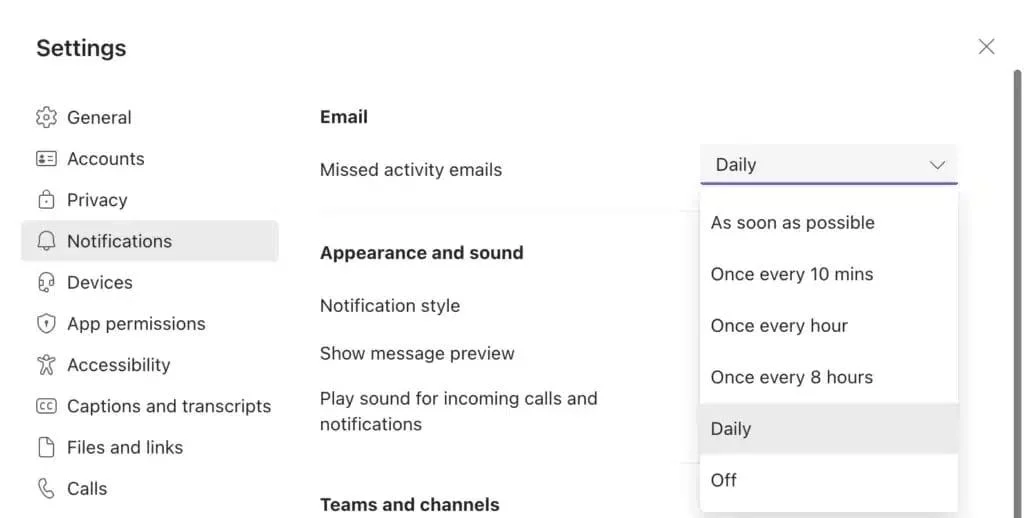
Email notification settings in Microsoft Teams
A few pointers for setting the right email cadence:
- If you are active in Teams most of the day, limit email to a daily summary or turn it off.
- If you switch between devices often, email alerts make a handy backup.
- Use email summaries for lower-priority channels and real-time alerts for the ones that matter, so nothing critical slips by.
Changing the Teams Notification Sound
The desktop app uses a single default notification sound, but the mobile app lets you choose. To change it:
- Open Microsoft Teams on your phone.
- Tap your profile picture and select Notifications.
- Tap Sound at the bottom and pick from the available tones.
- Turn on vibration too, if you want it.
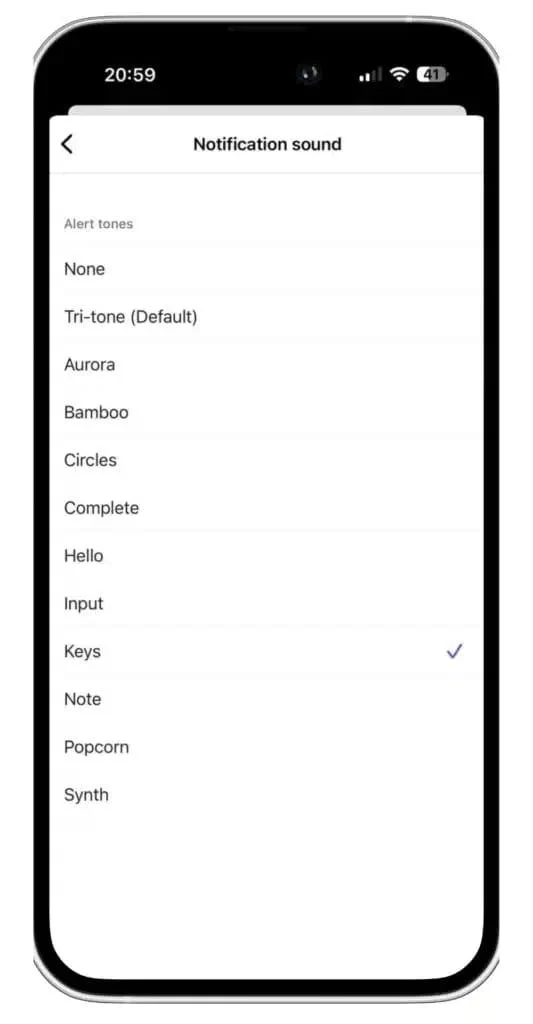
Changing the Teams notification sound on mobile
Tip: if the default sound has started to grate, switch to a subtler tone. A less intrusive sound keeps you informed without breaking your focus.
Mastering Teams Chat Notifications
Chat is where real-time collaboration happens, so it pays to tune those alerts to your day.
Muting individual and group chats
Muting a chat silences its notifications while still letting you read the messages whenever you like:
- Open the chat you want to mute.
- Click the three dots next to the chat name.
- Select Mute.
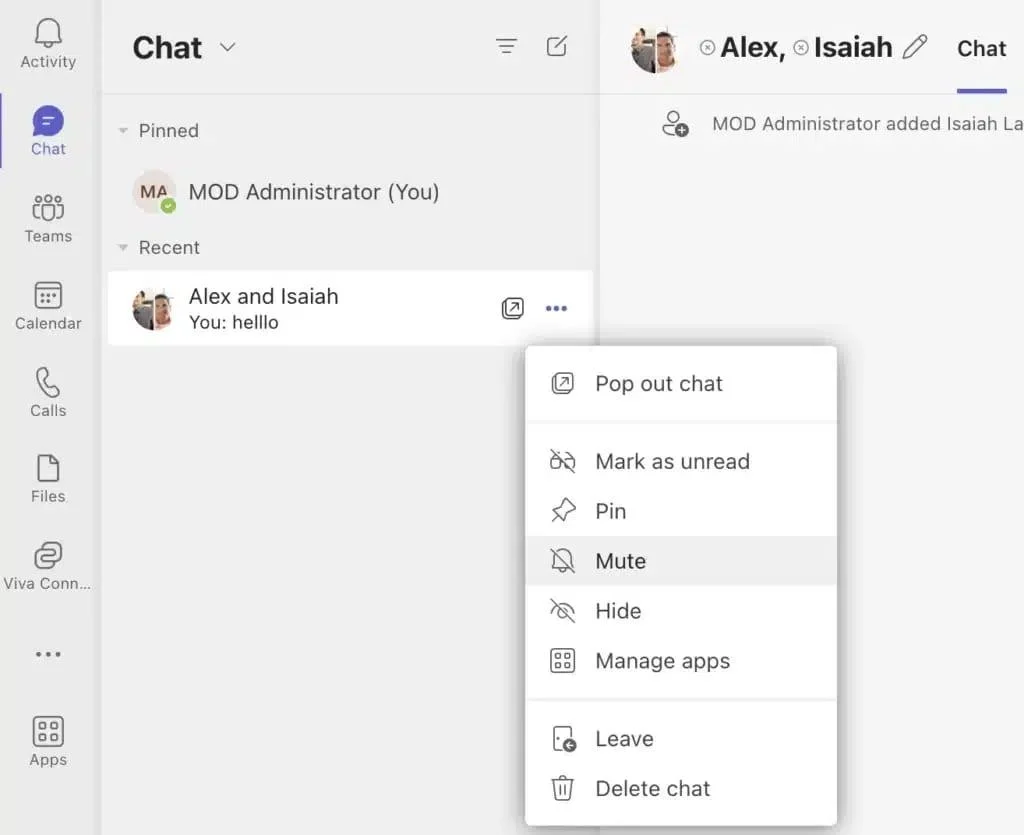
Muting a chat in Microsoft Teams
Customizing chat notification preferences
For finer control over chat alerts:
- Click the three dots next to your profile picture in the top-right corner.
- Choose Settings and then Notifications.
- Use the Chat and Meetings and Calls sections to adjust alerts for individual chats, group chats, and meeting chats.
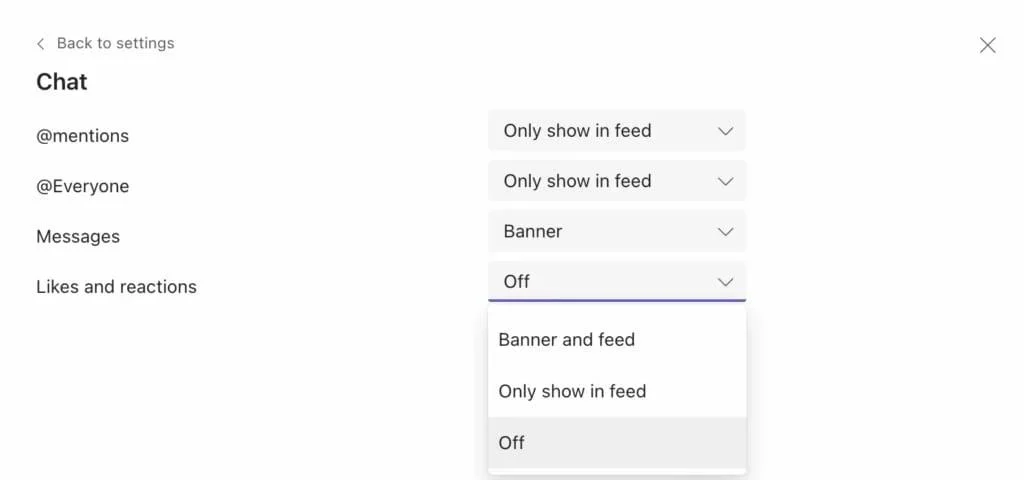
Chat notification settings in Teams
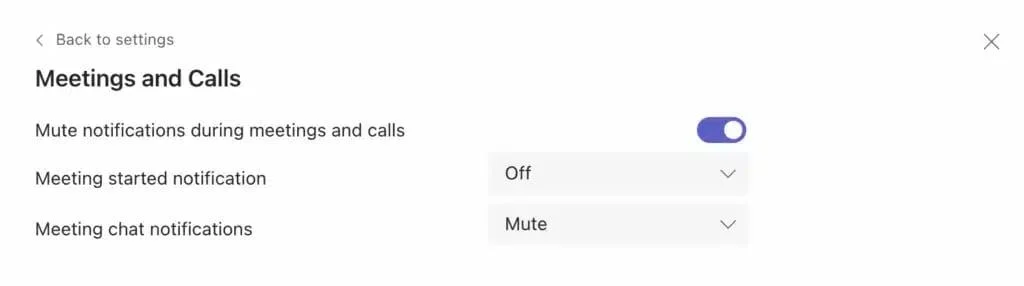
Meetings preferences in Teams
Pro tip: you can be notified about every message in a chat, or only the ones that mention you. Filter out the noise and keep what matters.
Mastering Teams Channel Notifications
Setting notifications per channel
Not every channel deserves the same attention. Teams lets you tune each one individually:
- Open the channel you want to adjust.
- Click the three dots next to the channel name.
- Select Channel notifications, then choose all new posts, only posts that mention you, or nothing at all.
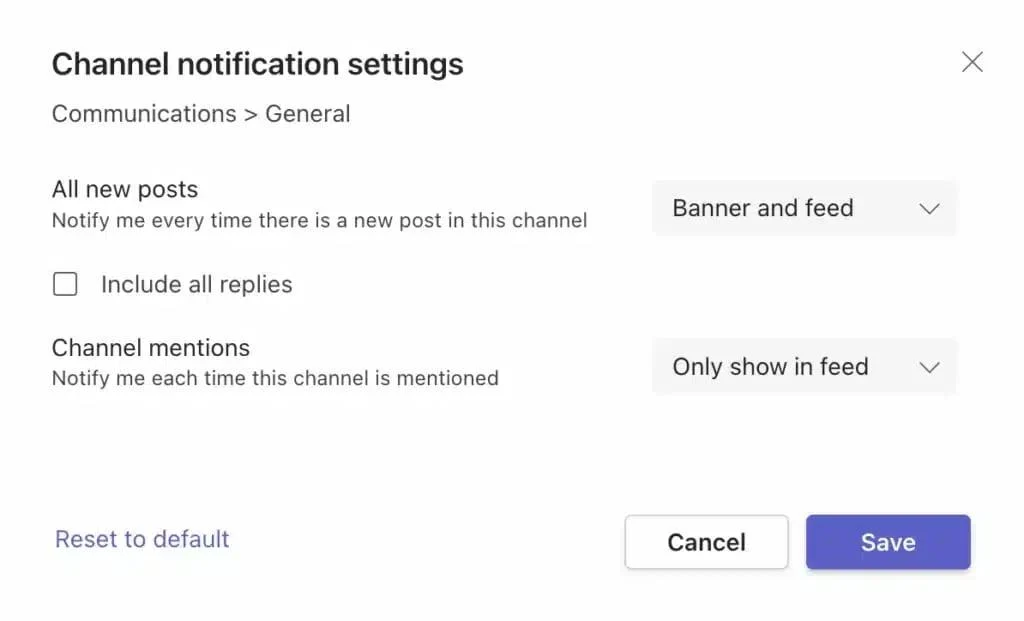
Channel notification settings in Teams
Avoiding notification overload
Too many alerts overwhelm rather than help. To keep them under control:
- Stay selective: favorite or follow only your most important channels, so key updates are not lost in a sea of pings.
- Lean on @mentions: in channels where you are a passive participant, ask teammates to @mention you for anything critical.
- Reassess regularly: as your role and projects shift, revisit which channels deserve your attention.
Silencing Teams Pop-up Notifications
To switch off Teams pop-up banners:
- Click the three dots next to your profile picture in Microsoft Teams.
- Choose Settings and then Notifications.
- Under Chat, set the notification types you do not want as pop-ups to Off or Only show in feed.
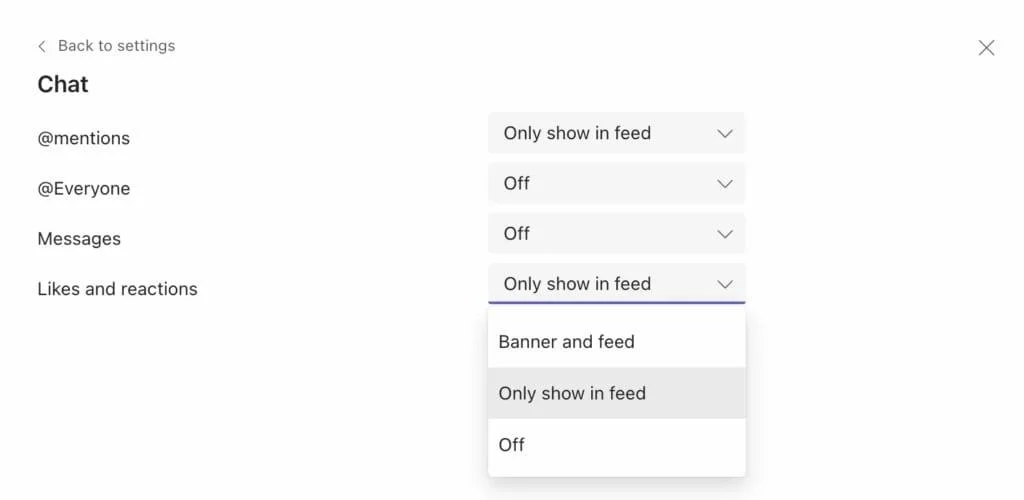
Silencing Teams pop-up notifications
Using banner notifications well
Banners are a visible but restrained alert, striking a balance between keeping you informed and cluttering your screen. To use them well:
- Reserve banners for essentials: rather than turning everything off, keep banners for the updates you cannot miss.
- Glance and decide: get in the habit of scanning a banner and deciding in a moment whether to act now or revisit later, so you stay in control of your attention.
Introducing the Virto Alerts and Reminders App
What if every notification from your SharePoint lists and document libraries landed in one place, right inside Microsoft Teams? And what if a weekly digest of all document changes arrived in a single tidy email?
That is exactly what the Virto Alerts and Reminders app does. Here is a closer look at what it offers.
Key features
- SharePoint alert management: manage all your alerts from one streamlined interface, with permission controls to balance security and access.
- Condition-based alerts: use field-value conditions to watch for changes to list items, and choose the schedule, from instant alerts to summary emails.
- Microsoft Teams integration: receive alerts and reminders directly in your Teams channels, keeping Microsoft 365 and SharePoint activity in one view.
- Easy setup with templates: build alerts from conditions and templates to notify your team about events such as column changes or task updates.
- Personalized email templates: customize email alerts with field values, tables, and links.
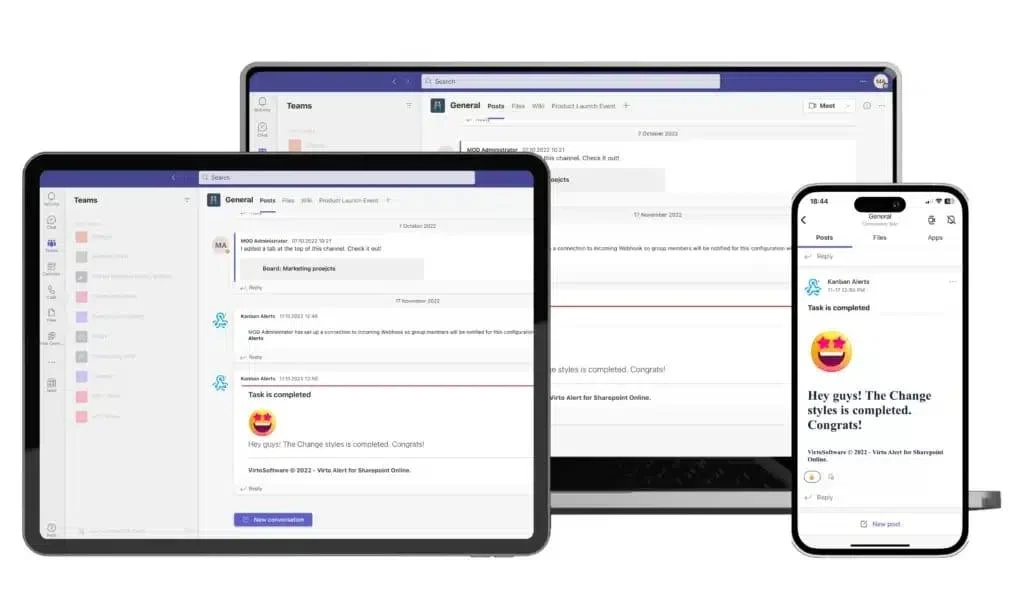
The Virto Alerts and Reminders app across devices
Powered by Microsoft Teams, the Virto Alerts and Reminders app delivers organized, relevant notifications to any device, whether tablet, phone, or laptop. No more sifting through endless updates, just alerts that are precise, timely, and worth your attention.
Best Practices for Teams Notifications
Used well, notifications keep you on track; left unchecked, they derail your focus. Since Teams sits at the center of so many workdays, getting its alerts right pays off. Here is how to make them work for you.
- Set clear boundaries: mute unrelated teams and channels, and prioritize alerts tied to your current work.
- Beat notification fatigue: use DND during breaks and focus blocks to recharge without constant pings.
- Treat alerts as tools: let them surface key updates, reminders, and high-priority tasks, not everything at once.
- Add Virto Alerts and Reminders: funnel only the most relevant SharePoint notifications into Teams, on your terms.
- Review routinely: revisit your settings as responsibilities and projects change.
By setting boundaries, managing fatigue, and adding tools like the Virto notifications app for Microsoft Teams, you get the full value of Teams and Microsoft 365 without feeling overwhelmed. To go further, take a look at the Virto Calendar app for Microsoft Teams, which brings the same streamlined approach to scheduling and shared calendars.
Stuck with Virto setup?
Our support team is ready to guide you.
FAQs about Microsoft Teams Notifications
Why are my Teams notifications not showing up on mobile?
Notification settings can differ between devices, so first confirm the mobile app is set the way you want. Then check your device settings:
- Android: Settings > Apps (or Apps & notifications) > Microsoft Teams > Notifications, and make sure they are enabled.
- iOS: Settings > Notifications > Microsoft Teams, and turn on Allow Notifications.
What if I am not receiving Teams email notifications?
Check your email notification settings in Teams under the three-dot menu > Settings > Notifications. If they look correct, check your spam or junk folder. For more reliable alerts, consider switching off email notifications and relying on in-app alerts instead.
How do I mute Teams notifications during work hours?
Use Do Not Disturb mode, which mutes Teams notifications for whatever period you choose so you can focus without interruption.
Are there keyboard shortcuts for managing notifications?
There is no dedicated shortcut for notifications, but these help you move around quickly:
- Ctrl + E: jump to the search bar.
- Ctrl + 1–5: switch tabs (1 for Activity, 2 for Chat, 3 for Teams, and so on).
- Ctrl + Shift + M: mute or unmute your microphone in a meeting.
On a Mac, use ⌘ Command wherever these shortcuts show Ctrl.
Why do pop-up notifications keep appearing after I turn them off?
First, make sure your changes were saved. If pop-ups persist, check for a software update, sign out and back in, or contact Teams support.
How does the Virto Alerts and Reminders app improve Teams notifications?
It delivers tailored, organized alerts, from daily updates in your Teams channels to recurring reminders, so you get timely, relevant notifications across every device without the overload.