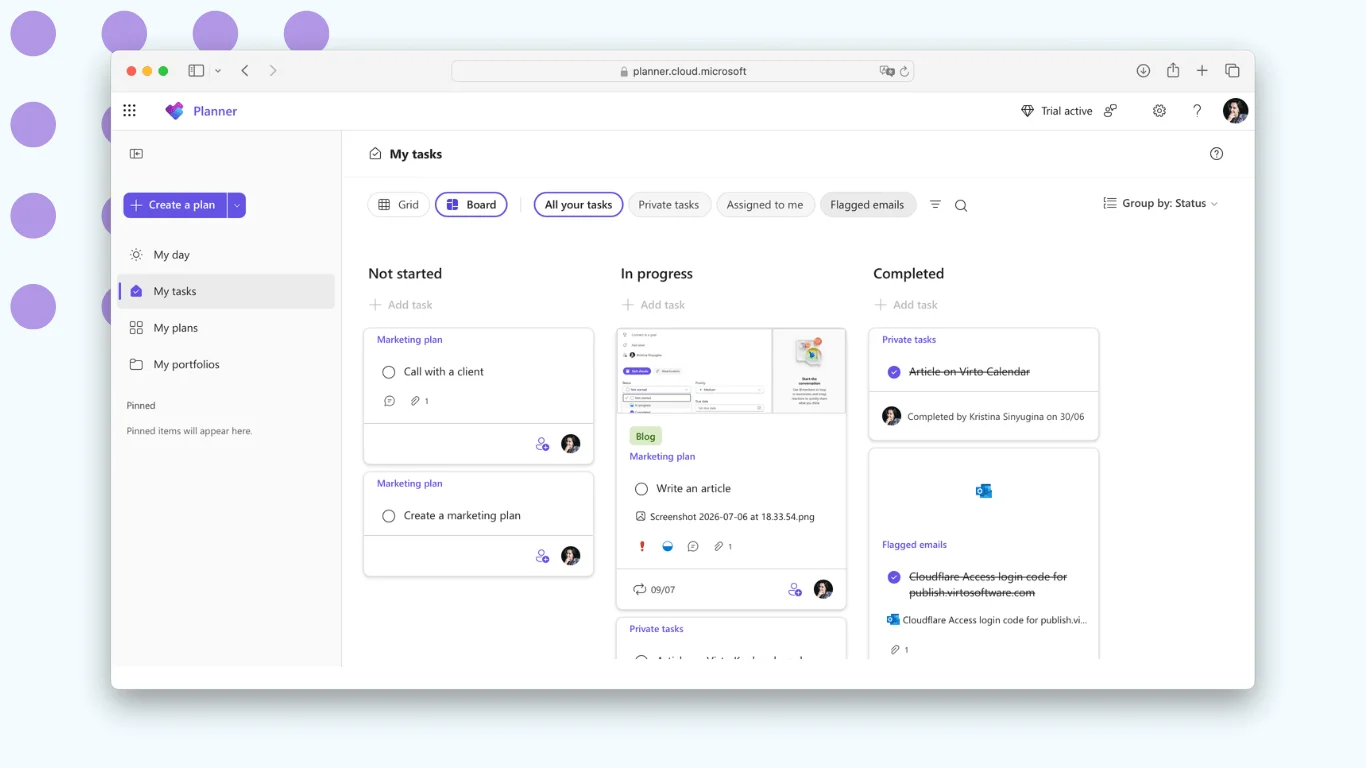
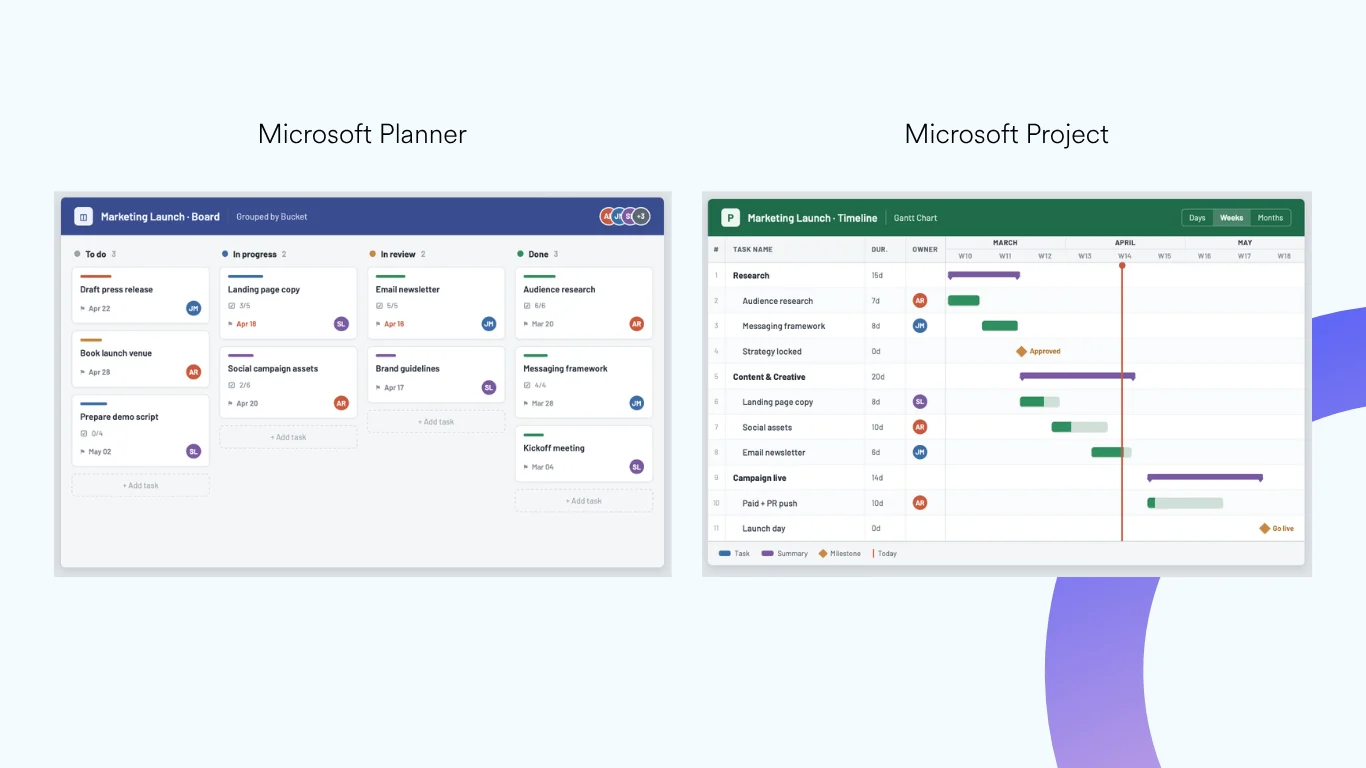
Tabs, apps, connectors, bots, message extensions and Power Automate — the five mechanisms that let you pull the rest of your stack into Teams, and how to pick between them.
Quick answer: what are Microsoft Teams integrations?
Microsoft Teams integrations are ways to bring other tools and services into Teams — added as tabs, apps, connectors, bots, message extensions or Power Automate flows — so work happens without leaving Teams.
To add one: in a channel, open the + (Add a tab) button and pick the integration, or install an app from the Teams store and connect it. Power Automate handles the automated, event-driven flows.
Teams is where most Microsoft 365 organisations now spend their working day. But out of the box it is a chat, meeting and file app. Integrations are what turn it into a workspace: they let your CRM, your ticketing system, your task board and your calendar appear inside Teams instead of in a browser tab you keep forgetting to check.
This guide covers the integration mechanisms themselves — what each one is, when to use it, how to add it, and what usually goes wrong. If you are instead looking for a shortlist of the best apps to install, see our roundup of the best Microsoft Teams apps.
Types of Microsoft Teams integrations
Every Teams integration is built on one of a handful of mechanisms. Knowing which one you are dealing with tells you how it will behave, who can set it up, and what it can and cannot do.
| Type | What it does | Typical use | Who sets it up |
|---|---|---|---|
| Tabs | Embeds a web app or page as a persistent tab in a channel, chat or personal view. | A Kanban board, a SharePoint library, a dashboard. | Any channel member with permission — a few clicks. |
| Apps | A packaged integration from the Teams store or AppSource; can bundle tabs, bots and extensions together. | Asana, Salesforce, Virto Kanban Board, Virto Calendar. | User, or the Teams admin if the app is admin-gated. |
| Workflows & webhooks | Pushes one-way notifications from an external service into a channel feed. Replaced Office 365 connectors, which Microsoft retired in May 2026. | Build alerts, RSS, monitoring, list-change notices. | Channel member with the Workflows app; a webhook workflow generates the URL the source system posts to. |
| Bots | A conversational agent that responds to messages and commands in chat. | Helpdesk triage, approvals, Q&A, status lookups. | Install from the store; custom bots need a developer. |
| Message extensions | Lets users pull data from, or push data to, an external system from the compose box. | Paste a ticket, search a record, file a bug from a chat. | Comes bundled with an app; custom ones need a developer. |
| Power Automate flows | Event-driven automation between Teams and anything else with a connector. | “New message with keyword → create a Planner task.” | Power user; no code, but needs a licence and some care. |
A rough rule of thumb: if you want to see something, use a tab. If you want to be told something, use a connector or bot. If you want something to happen automatically, use Power Automate. Full apps often combine all three.
Where the APIs come in
Everything above is built on the Microsoft Graph and the Teams platform APIs. If no existing integration fits, developers can build one: custom tabs, bots via the Bot Framework, message extensions, meeting extensions and webhooks are all documented in the Microsoft Teams developer documentation and the Microsoft Graph Teams API overview.
The trade-off is the familiar one:
- Store apps — fast, cheap, maintained by someone else, limited to what the vendor built.
- Custom builds — exactly what you need, and yours to maintain, secure, version and support forever.
Most organisations should exhaust the store first and build only what is genuinely specific to them.
Benefits and practical scenarios
The value of a Teams integration is almost always the same thing said three ways: less context switching, fewer information silos, faster decisions. What that looks like in practice depends on the function:
| Function | Integration | What it changes |
|---|---|---|
| Project management | A task board added as a channel tab, with change alerts posted to the channel. | Status is visible where the conversation already happens — no separate tool to log into. |
| Sales | CRM app + message extension to pull records into a chat. | Deal context in the thread; no copy-paste between the CRM and Teams. |
| Development | Source-control connector feeding commits, PRs and build results into a channel. | Failures surface immediately instead of in someone’s email digest. |
| HR / operations | Calendar overlay + reminder alerts on a SharePoint list. | Absences, deadlines and renewals get seen before they bite. |
| IT support | A bot that triages requests and files tickets from chat. | First-line questions never leave Teams. |
For a fuller treatment of the project-management side specifically, see our guide to project management in Microsoft Teams, and the setup walkthrough for Microsoft Planner in Teams.
Example: apps as Teams tabs
The tab mechanism is the most common integration pattern in practice, and it is how our own apps work. Virto Kanban Board for Microsoft Teams adds a full task board — swimlanes, WIP limits, subtasks, charts — as a channel tab, so the board lives next to the conversation about it. Virto Calendar App for Microsoft Teams does the same for scheduling, overlaying Exchange, SharePoint, Google and Planner sources into a single view inside Teams. Neither requires users to leave the client or learn a second tool.
Alongside them, Virto Notifications & Reminders covers the connector side of the picture: rule-based alerts on Microsoft 365 and SharePoint list changes, posted straight into the channel that cares about them.
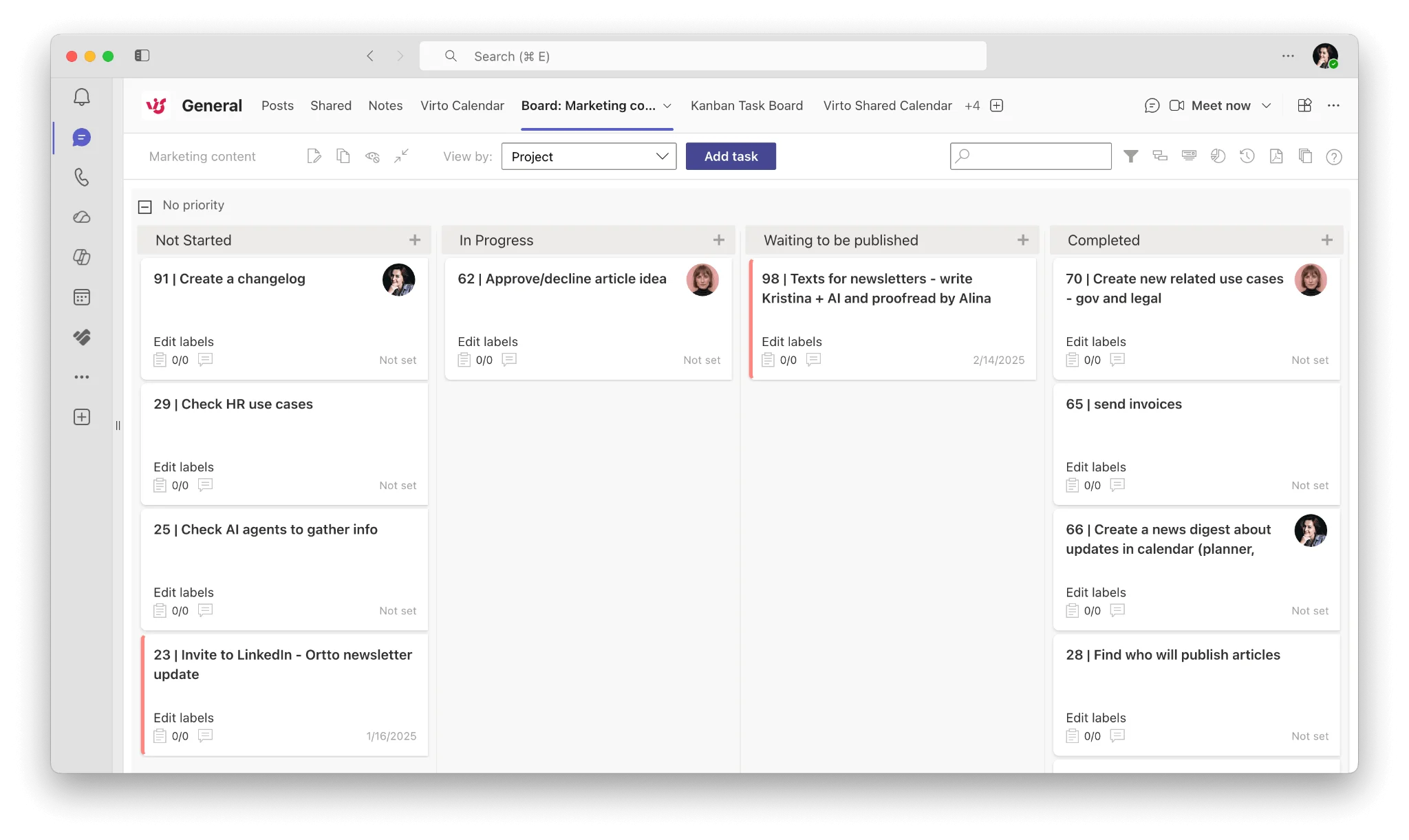
Pic. 1. Virto Kanban Board added as a tab in a Microsoft Teams channel.
Pricing, for reference: Virto Kanban Board App starts at $2/user/month (Starter, up to 30 users) and $3/user/month (Pro, 31–200 users), with Enterprise quoted on request and a 30-day free trial. Current details are on the pricing page.
Integrating Teams with SharePoint (and Microsoft 365)
SharePoint is the one integration you get whether you ask for it or not: creating a team provisions a SharePoint site behind it, and every channel maps to a folder in that site’s document library. Understanding this relationship is the difference between Teams files “just working” and a permissions mess six months in.
What is connected to what
- Each team has one SharePoint site. The Files tab in a channel is a view onto a folder in that site’s document library.
- New standard channel → new folder in the same library.
- New private or shared channel → a separate SharePoint site collection with its own permissions.
- Permissions sync at the team level, not the folder level. Item-level SharePoint permissions do not propagate into Teams; you manage channel and tab access separately.
- External sharing depends on settings in both the SharePoint and Teams admin centres — they have to agree.
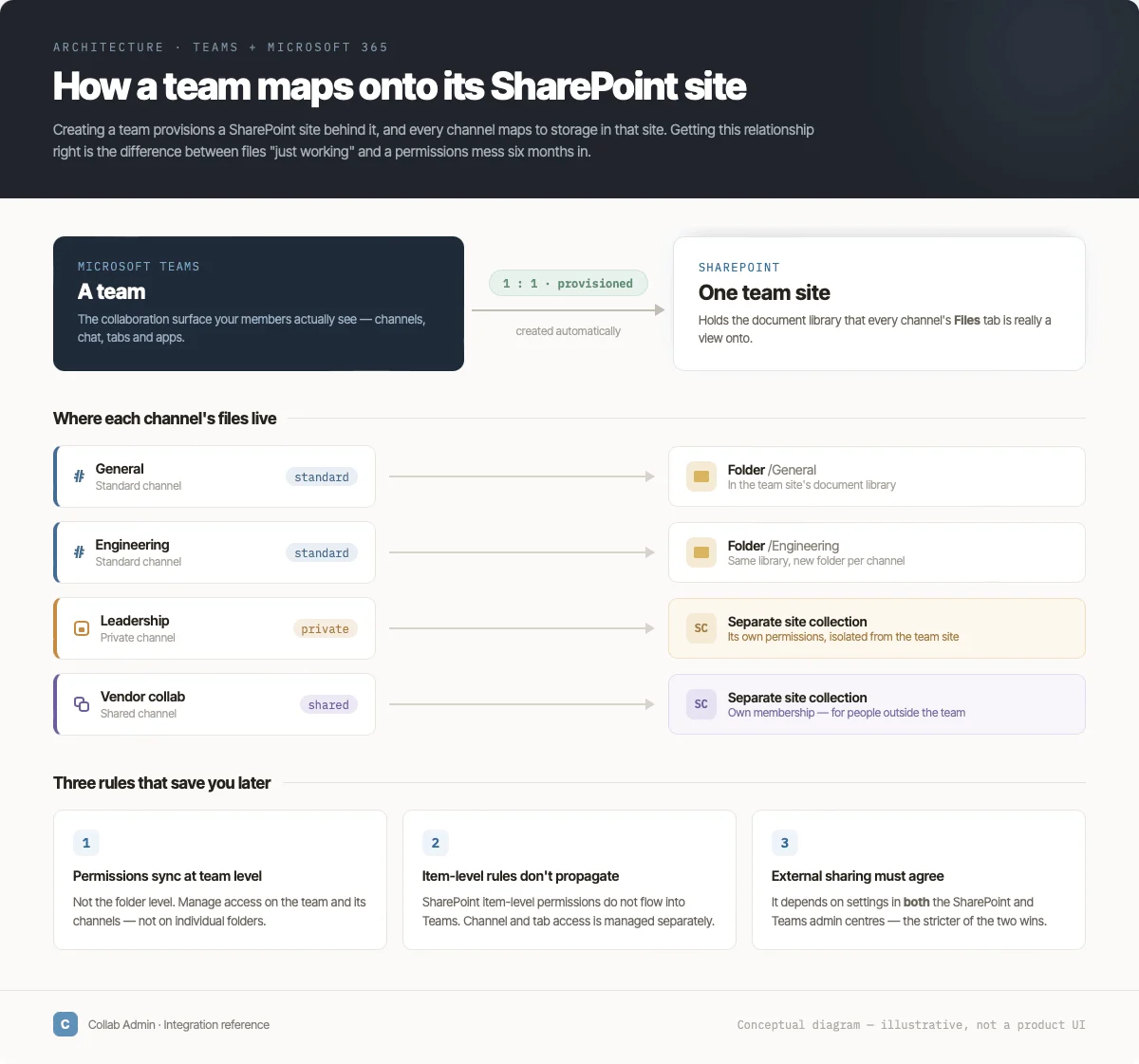
Pic. 2. How a Microsoft Teams team maps onto its underlying SharePoint site and document library.
Adding a SharePoint page, list or library as a tab
- Open the channel where you want it and click + to add a tab.
- Choose SharePoint (or SharePoint Pages / Document Library, depending on what you are surfacing).
- Pick the page, list or library from the connected site — or paste a link to a library on another site you have access to.
- Name the tab and save.
The SharePoint tab option only appears if you have the necessary permissions on the target site. Microsoft’s reference docs cover the details: Teams-connected SharePoint sites, managing collaborative experiences, creating a team from SharePoint and adding a SharePoint tab in Teams.
For practical patterns on running the two together, see our notes on using SharePoint and Teams together and on SharePoint project management.
How to add an integration to Microsoft Teams
The exact route depends on the mechanism, but all four common paths are short.
Add an app or tab
- Open the channel, chat or meeting where you want the integration.
- Click + (Add a tab) at the top of the channel, or use Apps in the left rail to browse the store.
- Search for the app, select it, and click Add.
- Sign in and grant the permissions it asks for, then configure it — for a board or calendar app, this usually means pointing it at the list or source it should display.
- Save. The tab is now visible to everyone in the channel.
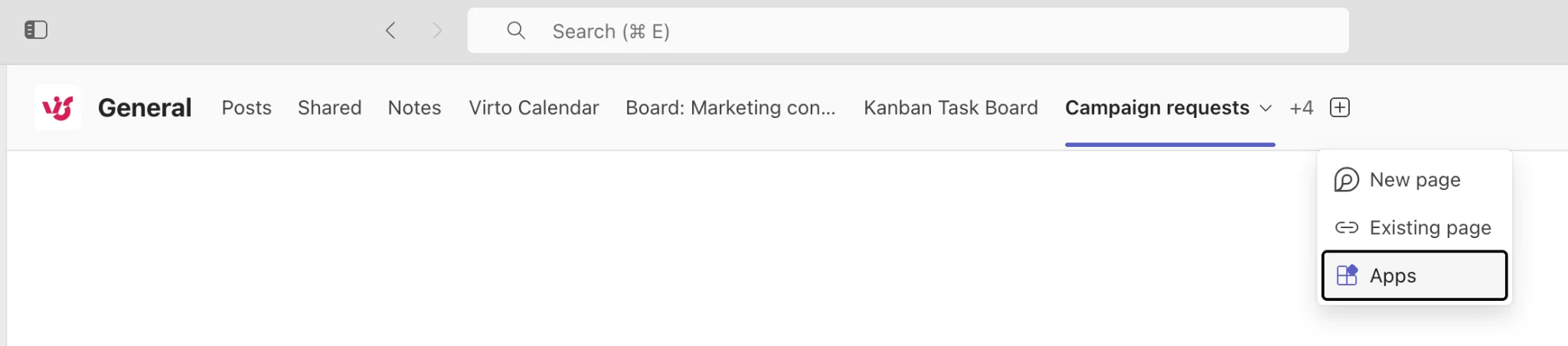
Add an incoming webhook with Workflows
- In the channel, open the ellipsis (…) menu and choose Workflows. The Connectors menu and the Incoming Webhook connector were retired in May 2026.
- Pick a template for the service, or the “Post to a channel when a webhook request is received” template, and copy the generated URL.
- Paste that URL into the source system so it can POST messages to the channel.
Add a Power Automate flow
Build the flow in Power Automate with a Teams trigger or action — “when a new channel message is added”, “post a message as the Flow bot”, and so on. Microsoft’s Power Automate and Teams overview lists the available triggers. Flows can also be created from a message directly in Teams via the Workflows app.
Build your own
If nothing off the shelf fits, the Teams Toolkit for Visual Studio / VS Code scaffolds custom tabs, bots and message extensions. Before you commit to building, be honest about what you are signing up for: authentication (use OAuth and Microsoft Entra ID), rate limits, error handling, a UI that matches the Teams theme, documentation, and someone to maintain it after the person who wrote it leaves. Development partners — including VirtoSoftware — can take this on if it falls outside your team’s skill set.
Common Microsoft Teams integration problems
The integration will not install
Most often admin app governance: in the Teams admin centre, app centric management sets per app who it is available to (Teams apps > Manage apps), and many tenants make third-party or specific apps available to no one by default. Check with your admin before assuming the app is broken.
Permissions do not behave as expected
SharePoint permissions sync at team level only. Folder- and item-level permissions in SharePoint will not appear in Teams. Design your channel structure around the permission boundaries you actually need.
A connector stopped posting
Webhook URLs can be rotated or revoked, and classic Office 365 connectors stopped working altogether when Microsoft retired them in May 2026. If a feed goes quiet, re-check the webhook; if it ran through a connector, rebuild it in the Workflows app (Power Automate) or move it to a dedicated app.
Users cannot see the tab
Usually a permissions problem on the underlying resource, not on Teams. If the tab shows a board, list or library, the user needs access to that source — the tab does not grant it.
Teams feels slow after adding apps
Every tab that loads a heavy web app costs memory. Prune tabs nobody opens, and prefer integrations that load a focused view over ones that embed an entire product.
Security review stalls the rollout
Ask the vendor, up front, where data is stored and processed. Apps that keep data inside your own Microsoft 365 or Azure tenant clear review far faster than those that copy it to a third-party cloud.
Two habits prevent most of the above: pilot with one team before a tenant-wide rollout, and check the vendor’s support and update commitments before you standardise on them. More Teams material is collected in our Microsoft Teams blog section.
Conclusion
Microsoft Teams integration is not one thing — it is six mechanisms with different costs, different owners and different failure modes. Pick the lightest one that solves the problem: a tab where a view will do, a connector where a notification will do, a flow where automation will do, and a custom build only when nothing else fits.
Start by finding the tool your team leaves Teams to open most often, and bring that one in first. If it is a task board or a calendar, that is exactly what Virto’s Teams apps are for — installable from Microsoft Marketplace with a 30-day trial, or talk to us at virtosoftware.com.
FAQ
👉 What are Microsoft Teams integrations?
Ways to bring other tools and services into Teams — added as tabs, apps, connectors, bots, message extensions or Power Automate flows — so work happens without leaving Teams.
👉 How do I add an integration to Microsoft Teams?
In a channel, click + to add a tab/app and pick the integration, or install an app from the Teams store and connect it; Power Automate handles automated flows.
👉 What is the difference between a Teams app and a Teams integration?
An app is one kind of integration — a packaged one from the store. “Integration” is the broader term, also covering connectors, webhooks, bots, message extensions and Power Automate flows, several of which need no app installed at all.
👉 Which are the best apps to install in Teams?
That is a different question from “how do integrations work”, and it has its own guide — see our roundup of the best Microsoft Teams apps, plus focused comparisons of Kanban boards for Teams and syncing a Teams calendar with Google Calendar.
👉 Do I need admin rights to add an integration?
For tabs and most store apps, no — channel members can usually add them. But many tenants restrict third-party apps by policy, and webhooks and custom apps often do require an admin. If an app will not install, that is the first thing to check.
👉 Can Teams integrate with non-Microsoft tools?
Yes. Google Drive, Salesforce, Asana, ServiceNow, Zoom and hundreds of others publish Teams apps, and anything with an HTTP endpoint can post to a channel via an incoming webhook or a Power Automate connector.
👉 Does integrating Teams with SharePoint require setup?
No — it happens automatically. Every team gets a SharePoint site when it is created, and channel files live in that site’s document library. Setup is only needed if you want to surface an existing site, list or library as a tab.