Almost every project now involves at least one person who does not have an account in your tenant — an agency designer, a client-side product owner, an auditor, a contractor booked for six weeks. Microsoft Teams guest access is the feature that lets those people work inside your team instead of around it, with an inbox full of attachments as the only alternative.
This guide covers what guest access is, how it differs from external access and shared channels, how to switch it on or off, how to add a guest step by step, what guests can and cannot do, and how to keep the whole thing under control once you have a few dozen guests in the directory. Everything below reflects the Microsoft 365 admin experience as of 2026, including the new unified external collaboration settings in the Teams admin center.
What is Microsoft Teams guest access?
Quick answer
Microsoft Teams guest access is a feature that lets you add people from outside your organisation to a team as guests, giving them controlled access to that team’s channels, chats and files. A guest is invited by email address, appears with a (Guest) tag next to their name, and can only reach the teams they have been added to.
A guest account is a real identity object in your directory, created through Microsoft Entra External ID (the B2B collaboration capability formerly known as Azure AD B2B). That matters for two reasons. First, the guest signs in with their own credentials — a work account, a Microsoft account, or a one-time passcode sent to their email — so you never create or manage a password for them. Second, everything you already use to govern internal identities (conditional access, multifactor authentication, access reviews, audit logs) applies to guests too.
Guest access is switched on at the organisation level, and then applied team by team. The org-wide toggle decides whether guests are possible at all; individual team owners decide who actually gets added to which team. If you need to prevent guests in a specific team while allowing them elsewhere, that is a job for sensitivity labels rather than the main toggle.
Who can invite a guest?
By default, any member of your organisation can invite a guest, and any team owner can add one to their team. Most organisations tighten this. In Microsoft Entra you can restrict invitations to admins and users in specific roles, or block them entirely; in Teams, the org-wide switch overrides everything below it. A team owner cannot add a guest if guest access is off at the tenant level, no matter what the team settings say.
Guest access vs external access in Microsoft Teams
This is the single most common source of confusion, and it is worth getting right before you change any settings. The two features solve different problems, and a third option — shared channels — sits between them.
Quick answer
Guest access adds an external person INTO your team, so they can use its channels, files and meetings. External access (federation) lets you chat, call and meet with people in other Microsoft 365 domains without adding them to a team at all.
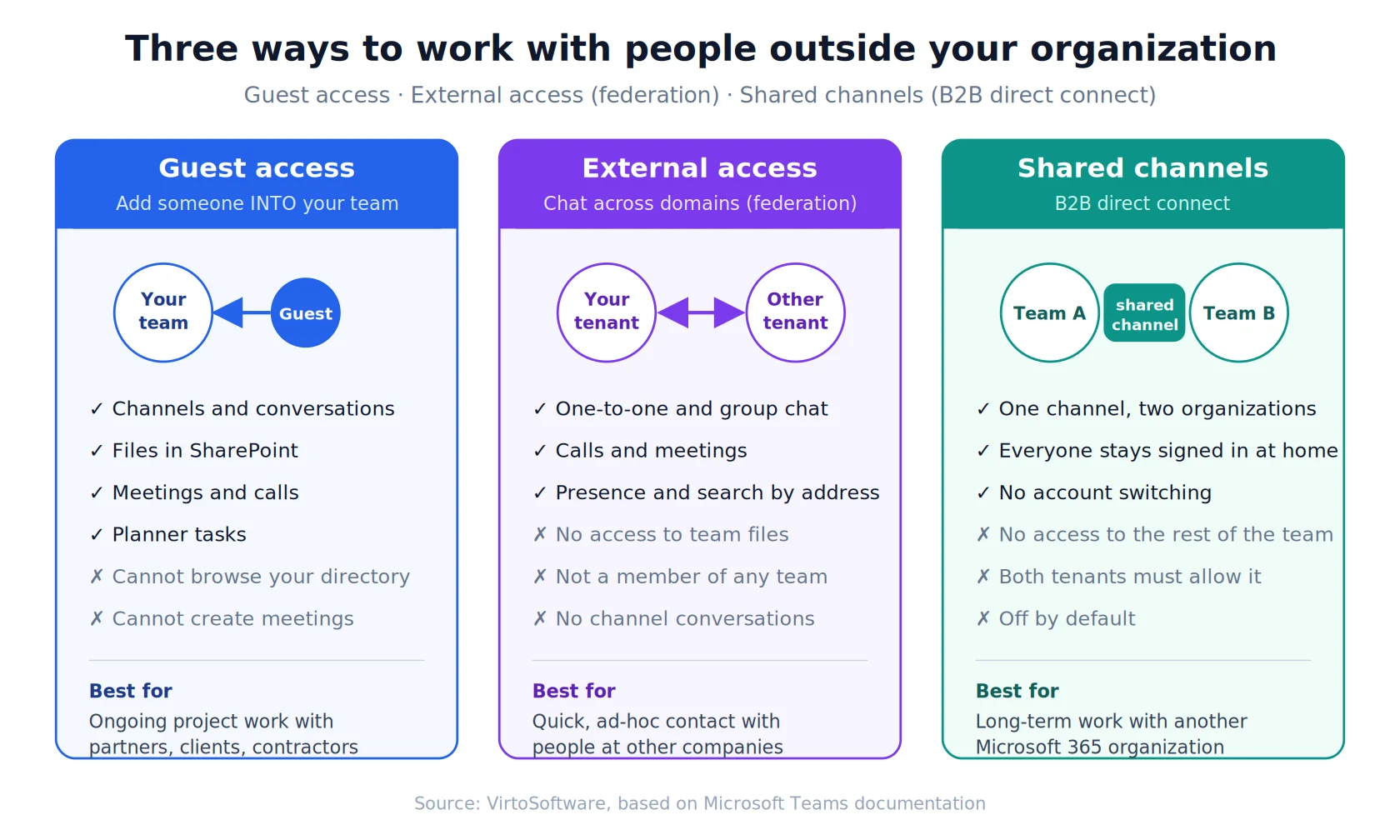
Pic.1. Guest access, external access and shared channels compared at a glance
External access, also called federation, is the older of the two. It lets a Teams user in your tenant find someone by their full email address and start a chat, call or meeting with them. Nothing is shared beyond the conversation itself: the external person is not a member of anything, cannot open your files, and never appears in your team rosters. It is enabled by default and is the right tool for quick, ad-hoc contact. Our guide to Microsoft Teams external users goes deeper on that side of the picture.
Shared channels, built on B2B direct connect, are the newest option. A shared channel lives in your team but can be shared with a whole team in another Microsoft 365 organisation. The people on the other side stay signed in to their own tenant — no account switching, no guest account in your directory — and they see only that one channel. Microsoft now recommends shared channels as the first thing to consider when the partner organisation is also on Microsoft 365. They are disabled by default in most tenants and need both organisations to enable the connection.
Feature-by-feature comparison
| What you are comparing | Guest access | External access (federation) |
|---|---|---|
| What it does | Adds a specific external person to a team as a guest | Lets your users chat, call and meet with people in other domains |
| Identity created | Yes — a guest account in your directory | No — the person stays entirely in their own tenant |
| Access to files | Yes, files in the channels of the team they joined | No |
| Channel conversations | Yes | No |
| Chat and calls | Yes | Yes |
| Who controls it | Org-wide switch plus per-team decisions by team owners | Domain-level allow or block lists set by admins |
| Default state | On for most Microsoft 365 tenants | On |
| Best for | Ongoing project work with partners, clients and contractors | Quick, ad-hoc contact with people at other companies |
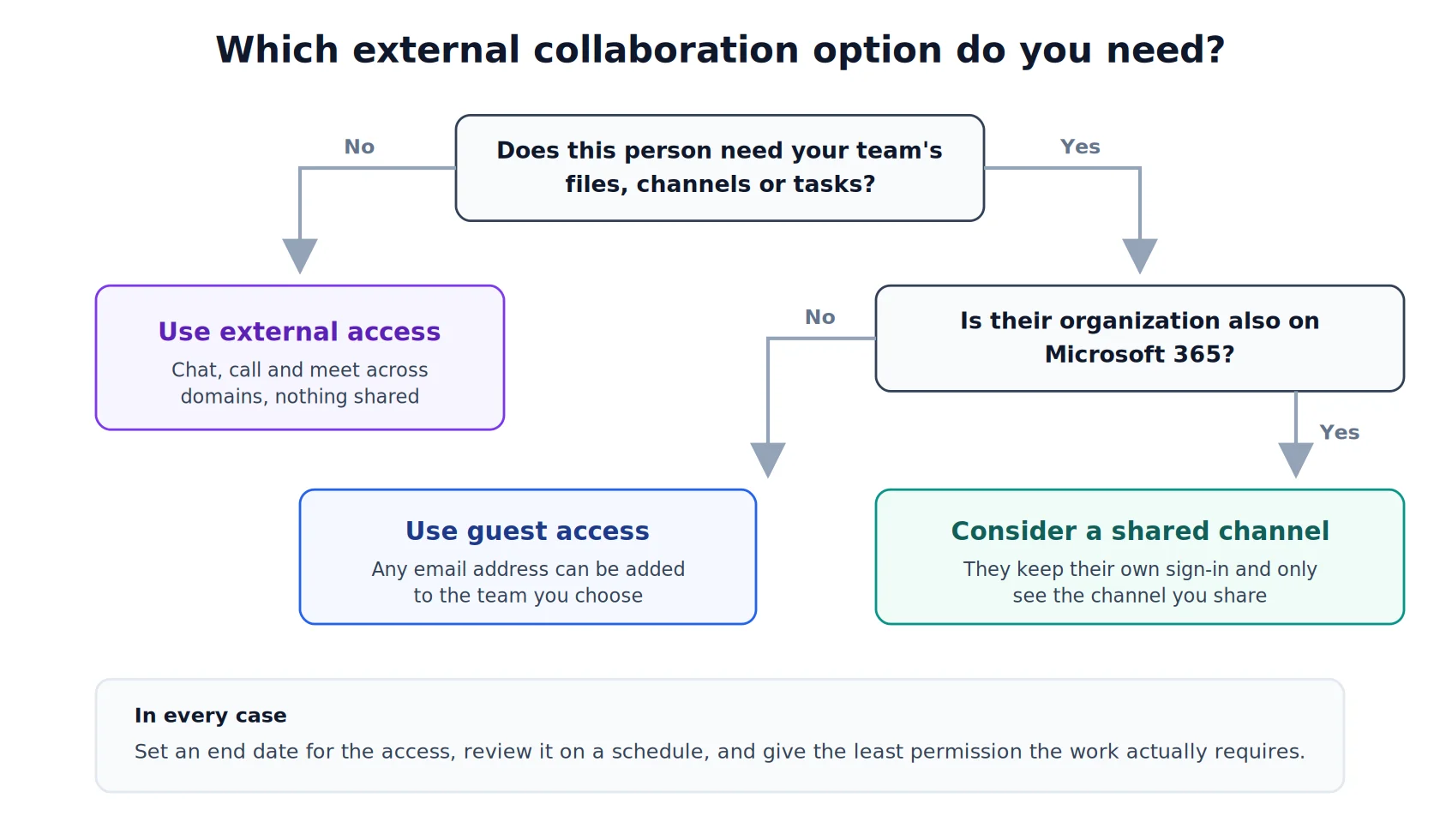
Pic.2. A short decision path for choosing between guest access, external access and shared channels
When to use each type of access
- Choose external access when the relationship is conversational — a sales contact, a supplier you call once a month, a peer at another company. No files, no shared workspace, no directory object to clean up later.
- Choose guest access when the person needs to work inside your material — reviewing documents, following a channel, joining recurring stand-ups, updating tasks.
- Choose a shared channel when both organisations are on Microsoft 365 and the collaboration is long-running, so neither side wants to switch tenants every morning.
How to enable or disable guest access in Microsoft Teams
Guest access is on by default in most Microsoft 365 enterprise and education tenants, but it is worth confirming rather than assuming — and if you are troubleshooting an invitation that never arrived, this is where to start. Note that the Teams admin center navigation changed in late 2025 with the rollout of unified external collaboration settings, so you may see either of the two layouts below. Both are current. If you are new to the console, our Microsoft Teams admin center guide walks through the rest of it.
Turn guest access on or off (new External Collaboration experience)
- Sign in to the Microsoft Teams admin center at admin.teams.microsoft.com with Teams Administrator or Global Administrator rights.
- In the left-hand menu, open External Collaboration.
- Select B2B Guest Access. You can also use Overview > Change mode to apply a preset — Open, Controlled or Custom.
- Set guest access to On (both the Open and Controlled presets leave guest access on; Controlled additionally blocks B2B direct connect).
- Review the individual guest permissions below the toggle — private calls, video, screen sharing, message editing and deletion — and set them to match your policy.
- Select Save.
Turn guest access on or off (classic navigation)
- Sign in to the Microsoft Teams admin center.
- Select Users > Guest access.
- Set Allow guest access in Teams to On — or Off to disable it.
- Adjust the calling, meeting and messaging switches underneath.
- Select Save.
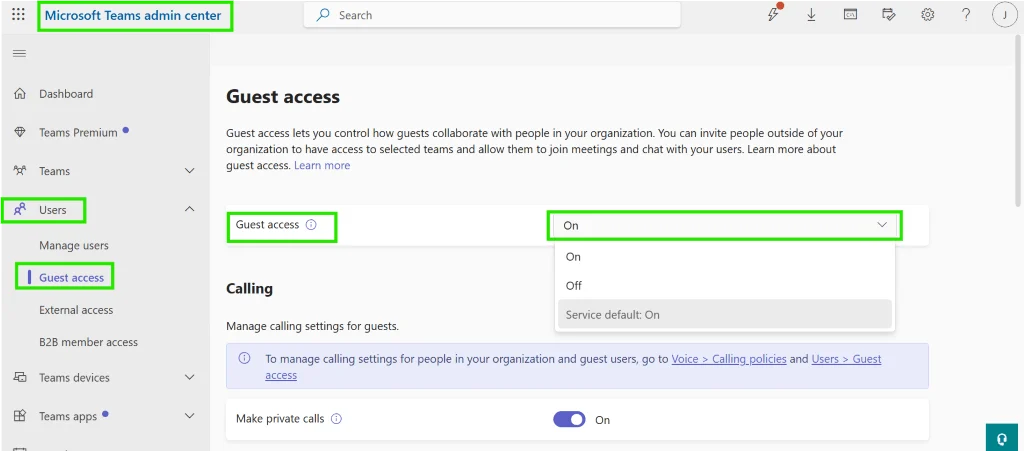
Pic.3. Turning guest access on in the Microsoft Teams admin center
Give it time
Changes to the org-wide guest setting are not instant. Microsoft advises allowing several hours — in some cases up to 24 — before a newly enabled setting is reflected everywhere, and up to a few hours before a newly added guest can actually open everything in a team. If a guest reports a missing team the same afternoon they were added, wait before troubleshooting.
Disabling guest access without breaking everything
Switching the toggle to Off does not delete existing guest accounts; it stops guests from being added to teams and cuts off their Teams access. The guest objects remain in your directory, and any SharePoint sites they were separately granted access to may still be reachable. If your goal is a genuine clean-up rather than a pause, turn the setting off and then remove the guest accounts from the directory, or use access reviews to do it on a schedule.
You can also leave guest access on organisation-wide and block it for specific teams. Sensitivity labels are the supported way to do this: create a label with guest access blocked, apply it to the team, and the label overrides the org setting for that team and its SharePoint site.
The four settings that all have to agree
This is the part that catches people out. The Teams toggle is only one of four independent settings, spread across four admin centers, and a guest invitation has to clear all of them. Most “the guest joined but cannot see any files” tickets come down to the SharePoint layer, because Teams stores every file in SharePoint.
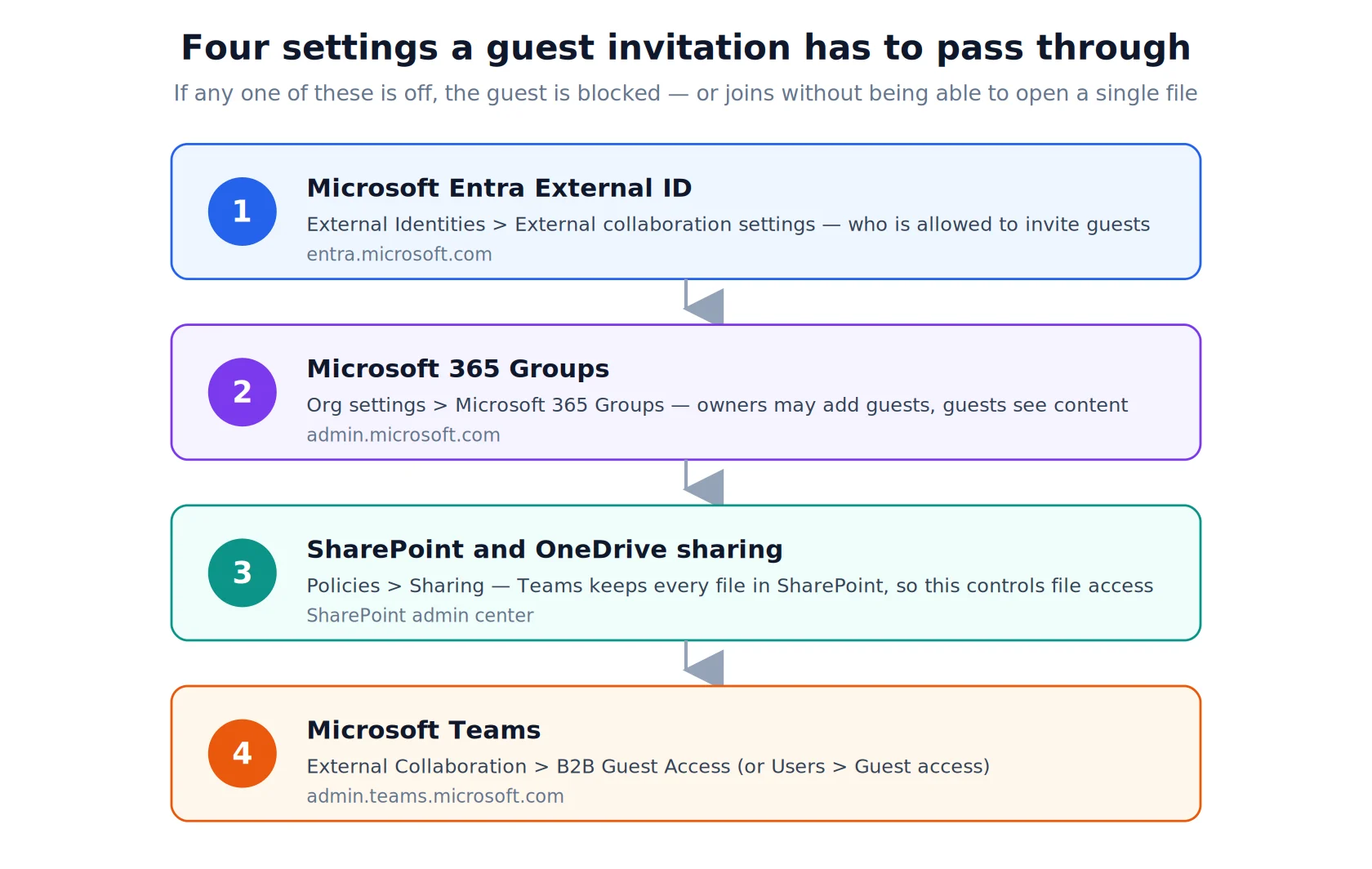
Pic.4. Four settings a guest invitation has to pass through before it works end to end
- Microsoft Entra External ID — at entra.microsoft.com, go to External Identities > External collaboration settings and confirm who is allowed to invite guests, and what guests can see in the directory. Microsoft’s external collaboration settings documentation covers each option.
- Microsoft 365 Groups — in the Microsoft 365 admin center, open Settings > Org settings > Microsoft 365 Groups and allow group owners to add guests and guests to access group content. Every team is backed by a group, so this one is mandatory. See our Microsoft 365 Groups guide for the wider picture.
- SharePoint and OneDrive sharing — in the SharePoint admin center, open Policies > Sharing and set external sharing to at least New and existing guests. Our SharePoint external sharing guide explains each level and the site-level overrides.
- Microsoft Teams — the toggle described above. This is the switch most people check first and the one least likely to be the actual problem.
How to add a guest to a team in Microsoft Teams
Once the four settings are in place, adding a guest takes under a minute and does not require an administrator. Any team owner can do it.
- Open Microsoft Teams and go to Teams in the left rail.
- Find the team you want to add the guest to, select More options (…) next to its name, then Manage team.
- Open the Members tab and select Add member.
- Type the guest’s full email address. Any address works — a work account, a Microsoft account, or a personal address such as Gmail.
- Teams shows the address with the word Guest next to it. Select Add [address] as a guest.
- Select the pencil icon to give the guest a display name. Do this now — without it, colleagues see a raw email address in every conversation, and changing it later means asking an administrator.
- Select Add, then Close. The guest receives an invitation by email.
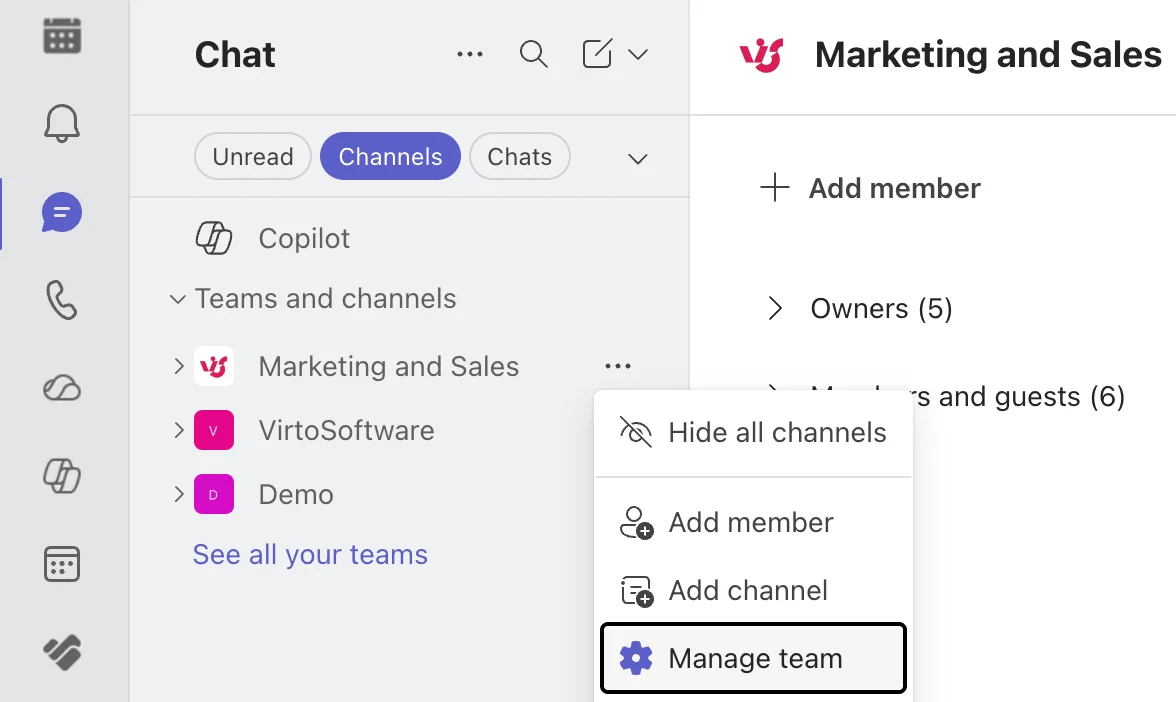
Pic.5. Opening Manage team to reach the member list
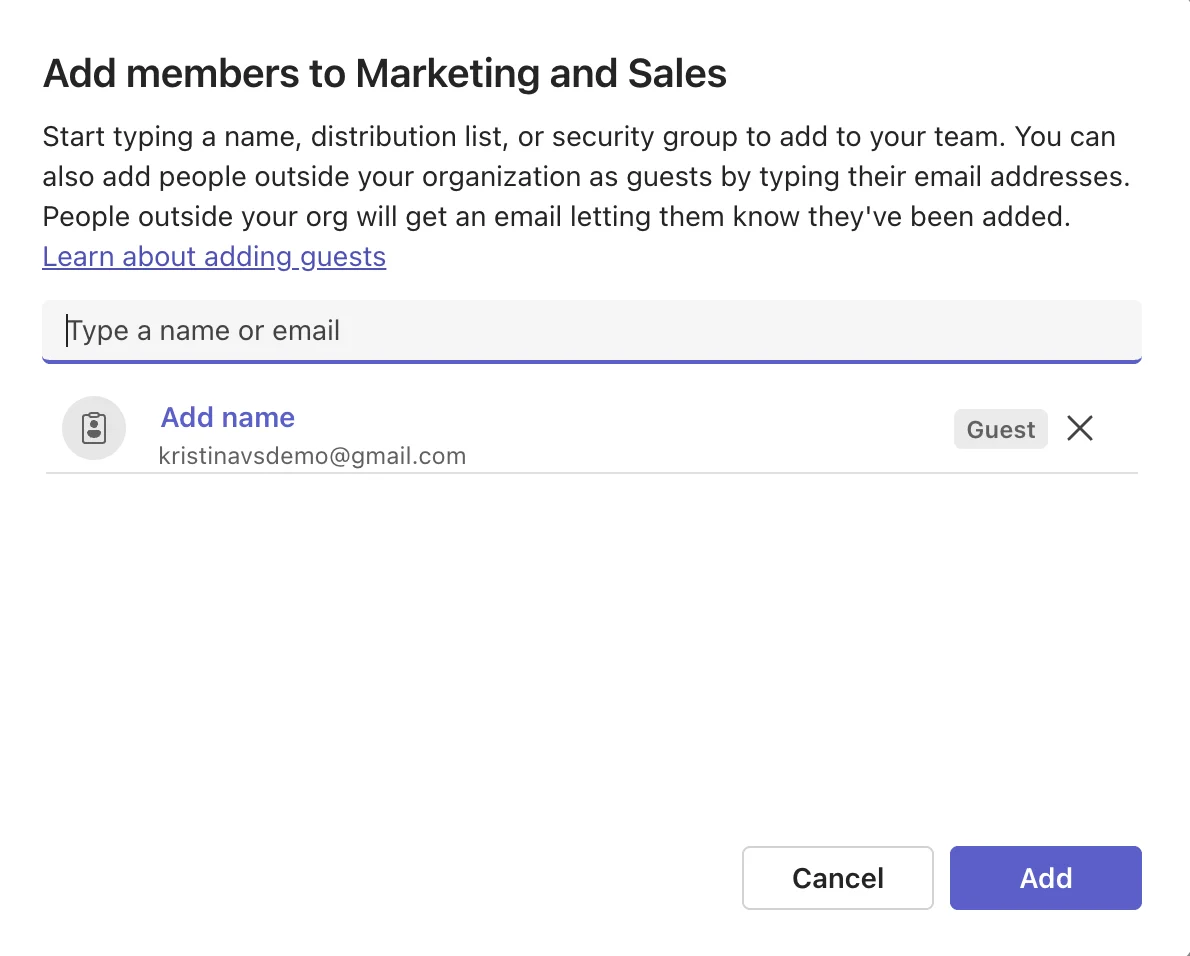
Pic.6. Inviting a guest with their email address
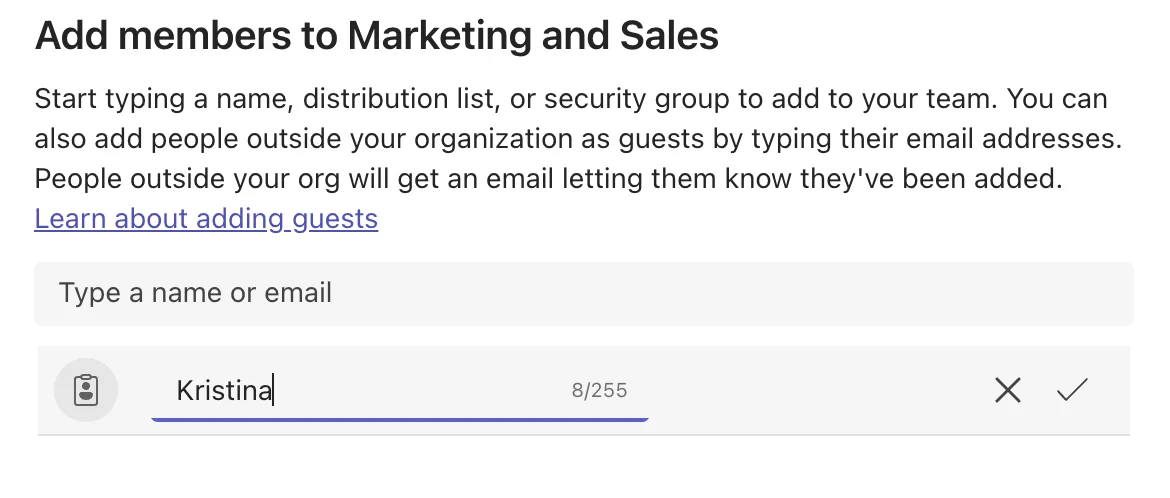
Pic.7. Adding a display name at this step saves a support request later
How to remove a guest
Open Manage team > Members, find the guest in the list and select the X next to their name. That removes them from the team but leaves the guest account in your directory, which is usually what you want if they might return. To remove the identity entirely, delete the guest user in Microsoft Entra — or let an access review do it, as described further down.
Adding several guests at once
There is no bulk import in the Teams client, but you can paste multiple addresses one after another in the same Add member dialog. For larger onboarding — say, a partner organisation sending twenty people — script it with the Microsoft Graph API or PowerShell, or reconsider whether a shared channel would be the better shape.
How guests join, and what they see
It helps to know what happens on the other side of the invitation, because guests will ask. Here is the whole flow from their point of view.
- The guest receives an email with the team name and an Open Microsoft Teams button.
- They sign in. If they already have a work or Microsoft account on that address, they use it; if not, they are prompted to create one or to receive a one-time passcode by email.
- Since mid-2025, guests are redirected to their own organisation’s sign-in page, with their own branding, before returning to your tenant. This is expected behaviour, not a phishing attempt — worth mentioning in your invitation email.
- They review and accept the permissions request.
- Teams opens in the browser. They can install the desktop app, and switch between their own organisation and yours using the account switcher at the top right.
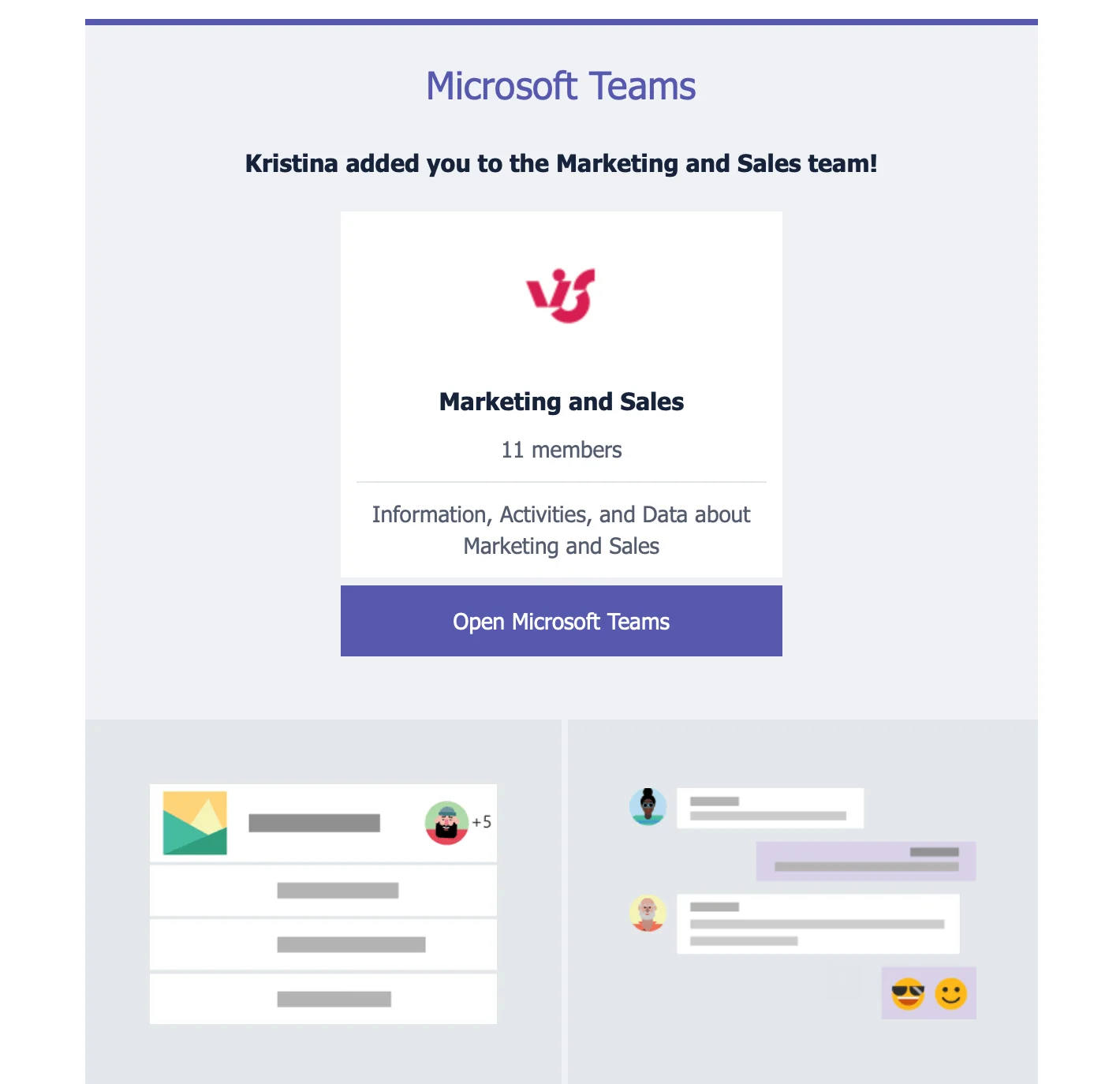
Pic.8. The guest receives an invitation by email
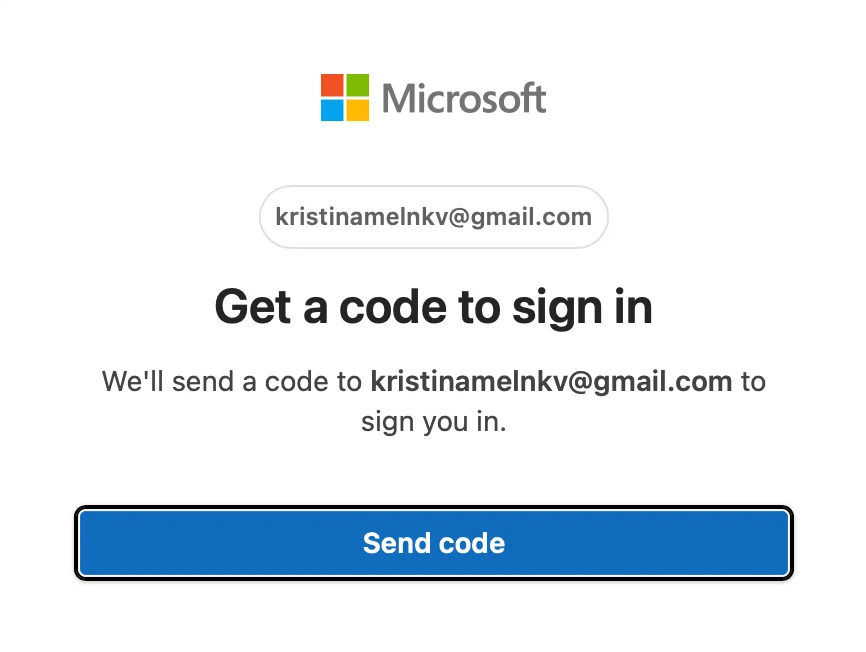
Pic.9. Signing in to the account associated with the invited address
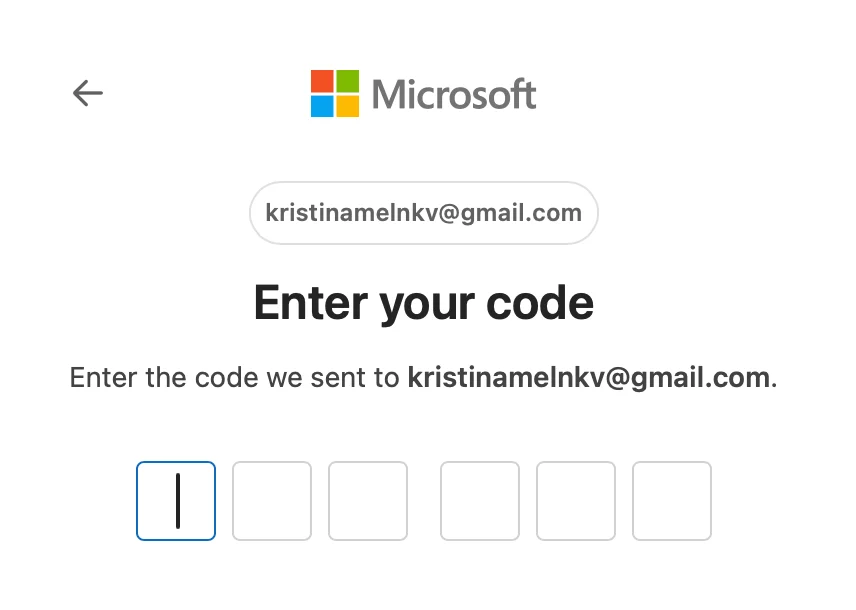
Pic.10. Entering a one-time code from email, if prompted
Inside the team, the guest sees a (Guest) tag next to their own name and next to any other guest, and so does everyone else. Microsoft also shows a banner in chats and channels that contain external participants. That visibility is deliberate — it keeps people from posting internal-only information without noticing who is in the room.
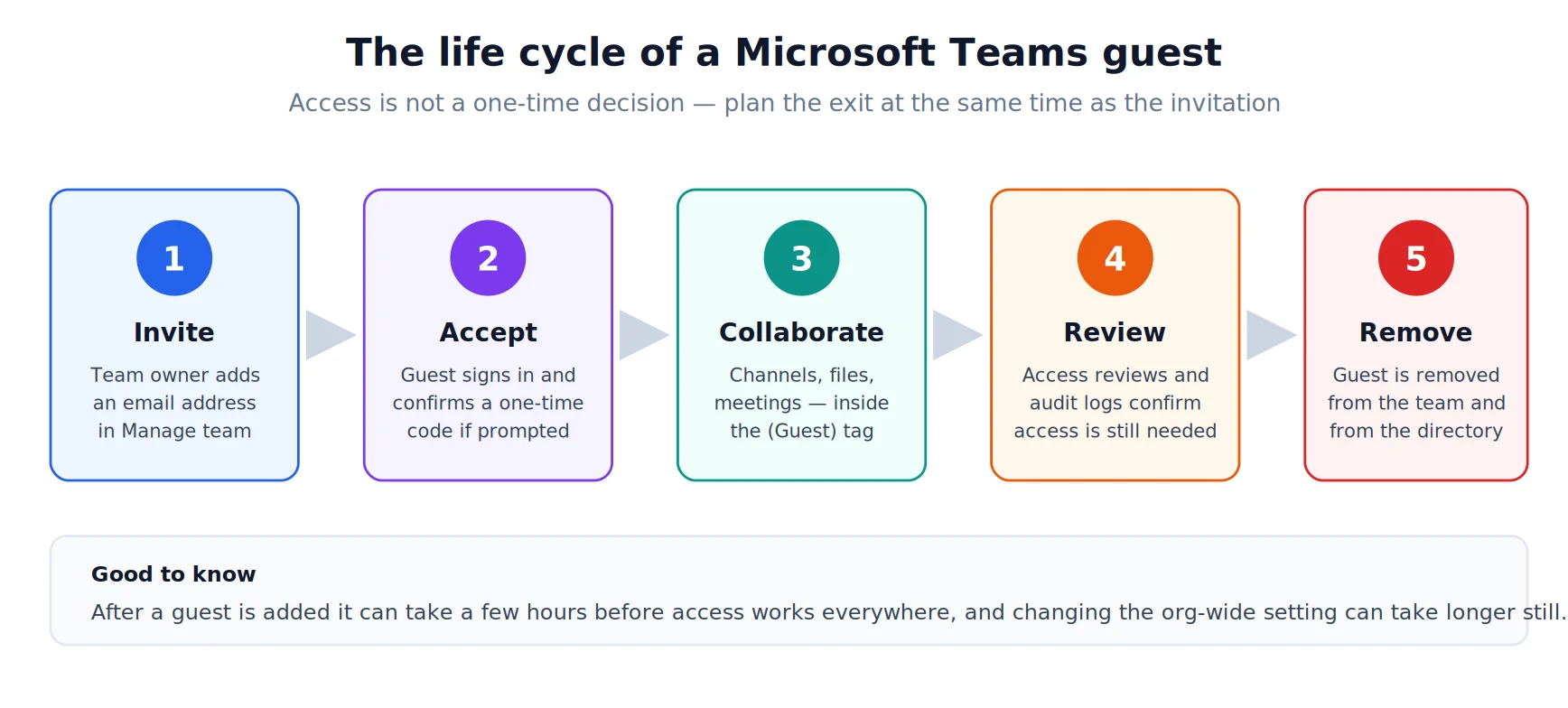
Pic.11. The life cycle of a guest, from invitation through review to removal
Manage guest permissions and security
Guests are deliberately limited. They can do the work, but they cannot explore your organisation, and several capabilities that internal members take for granted are simply absent. The list below reflects the default guest experience; an admin can restrict it further from the Teams admin center.
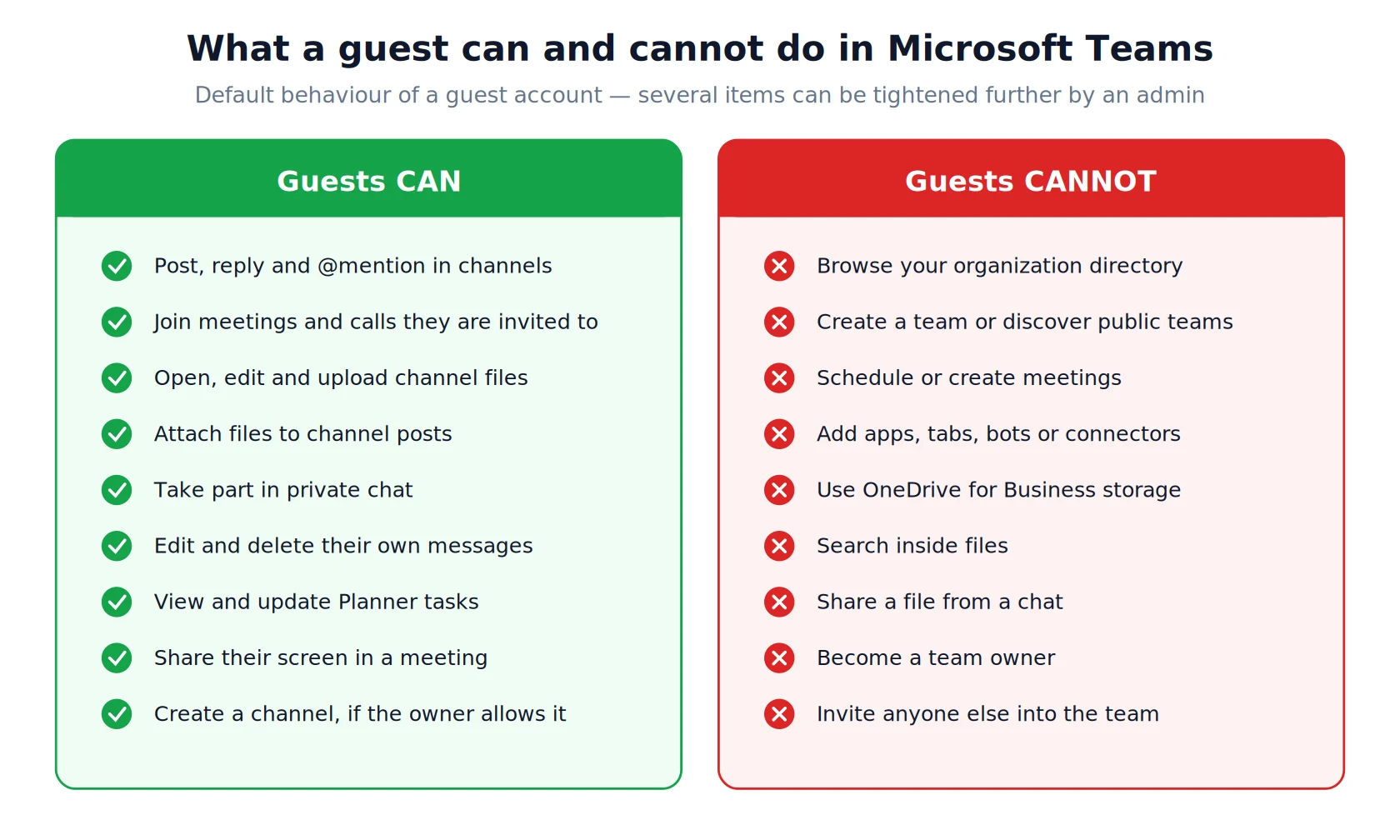
Pic.12. Default guest capabilities and restrictions in Microsoft Teams
Where guest permissions are set
- Org-wide — the Teams admin center controls whether guests can make private calls, use video and screen sharing, and edit or delete their own messages. These apply to every guest in the tenant.
- Per team — in Manage team > Settings > Guest permissions, the team owner decides whether guests may create, update and delete channels in that team.
- Per file and site — SharePoint permissions govern what a guest can open, edit or download. Our SharePoint permissions guide covers the inheritance model, and the Microsoft Teams permissions guide compares owner, member and guest roles side by side.
- Per label — sensitivity labels can block guests from a specific team regardless of the org setting, and can enforce encryption on the documents they touch.
Security practices worth the effort
Guest access does not create new categories of risk so much as it widens the surface of existing ones: data leaving with a departing contractor, an account that outlives the project, a partner tenant with weaker sign-in requirements than yours. The following controls address most of it, and none of them take long to set up. For the wider context, see our Microsoft Teams security and privacy guide.
- Apply least privilege. Add the guest to one team, not five, and revisit whether they need channel creation rights at all.
- Require multifactor authentication for guests. Conditional access policies can target guest and external users specifically, so you are not depending on the security posture of the other organisation.
- Run access reviews. Microsoft Entra ID Governance can review guest access on a schedule and, if you configure it, block a guest from signing in for 30 days and then delete the account automatically. This is the single highest-leverage control, because stale guests accumulate silently. See Microsoft’s guidance on access reviews for guests.
- Use sensitivity labels. Label the teams that must never contain guests, and label the documents that must never leave.
- Set expiry expectations up front. Agree an end date with the guest when you invite them, and put it in the team description. Access that has no end date never gets one.
- Apply DLP policies. Data loss prevention rules work on Teams messages and files, and can warn or block when sensitive content is shared with an external participant.
- Monitor and audit. The Microsoft Purview audit log records guest sign-ins, file access and membership changes. Review it periodically rather than only after an incident.
- Tell guests the rules. A three-line note in the invitation about what may and may not be shared outside the team does more than most technical controls.
When Teams guest access earns its keep
Guest access fits any relationship where the outside person needs to be part of the work rather than adjacent to it.
- Agency and partner projects. A joint venture, a co-developed product or a campaign with an external creative team all involve the same files being touched by both sides for months. A shared team beats a shared mailbox.
- Client collaboration. Clients who can see the plan, comment on deliverables and follow progress ask for fewer status updates. It also makes scope changes visible as they happen.
- Contractors and freelancers. Time-boxed access to exactly one team, removed the week the contract ends.
- Events, training and workshops. Guest speakers and facilitators get the materials, the schedule and the channel, without a licence.
- Advisors, auditors and specialists. People who need to read a lot and write a little, for a defined period, under a documented review.
The common thread is a defined scope and a defined end. If you cannot answer “which team, and until when”, the invitation is premature. For the wider question of running several of these at once, see our guide on how to manage multiple projects.
Do more with guests: Virto apps for Microsoft 365
Guest access solves identity and permissions. It does not solve the practical friction that follows — a guest who cannot see the project schedule because it lives in three different calendars, or a contractor who has no view of the task board. That gap is where Virto apps for Microsoft 365 come in. They run inside Teams and SharePoint, respect the permissions you have already set, and work for guests as well as members.
Virto Calendar App: one schedule everyone can see
The Virto Calendar App for Microsoft Teams overlays multiple calendar sources — SharePoint lists, Exchange and Outlook calendars, Google Calendar, SQL data, Planner tasks — into a single colour-coded view pinned to a channel. For guest collaboration specifically it means a partner sees the project timeline, the delivery dates and the meetings that concern them, and nothing else.
- Multiple data sources combined in one view, so a guest does not need access to five separate calendars.
- Day, week, month, year and task views, plus filters that let each person see the slice that matters to them.
- Colour coding and categories that make an external deadline visually distinct from an internal one.
- Granular view and edit permissions, inherited from the SharePoint site — guests see exactly what the site lets them see.
Sharing a Virto calendar with a guest follows the SharePoint model: add the person as a site member, they verify their identity with a one-time code, and they open the calendar with whatever view or edit rights you granted. The full walkthrough is in our documentation on granting Virto Calendar access to external users.
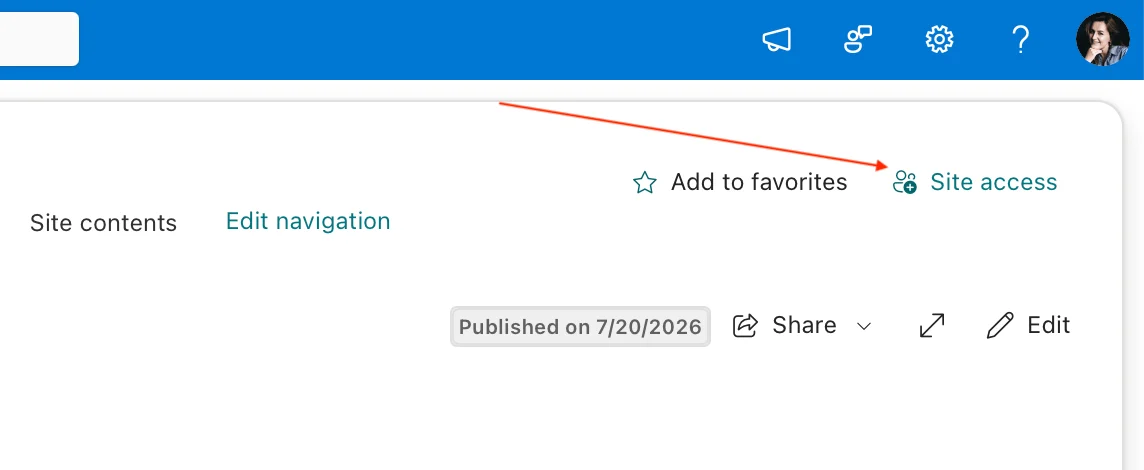
Pic.13. Adding a guest to the SharePoint site that hosts the calendar
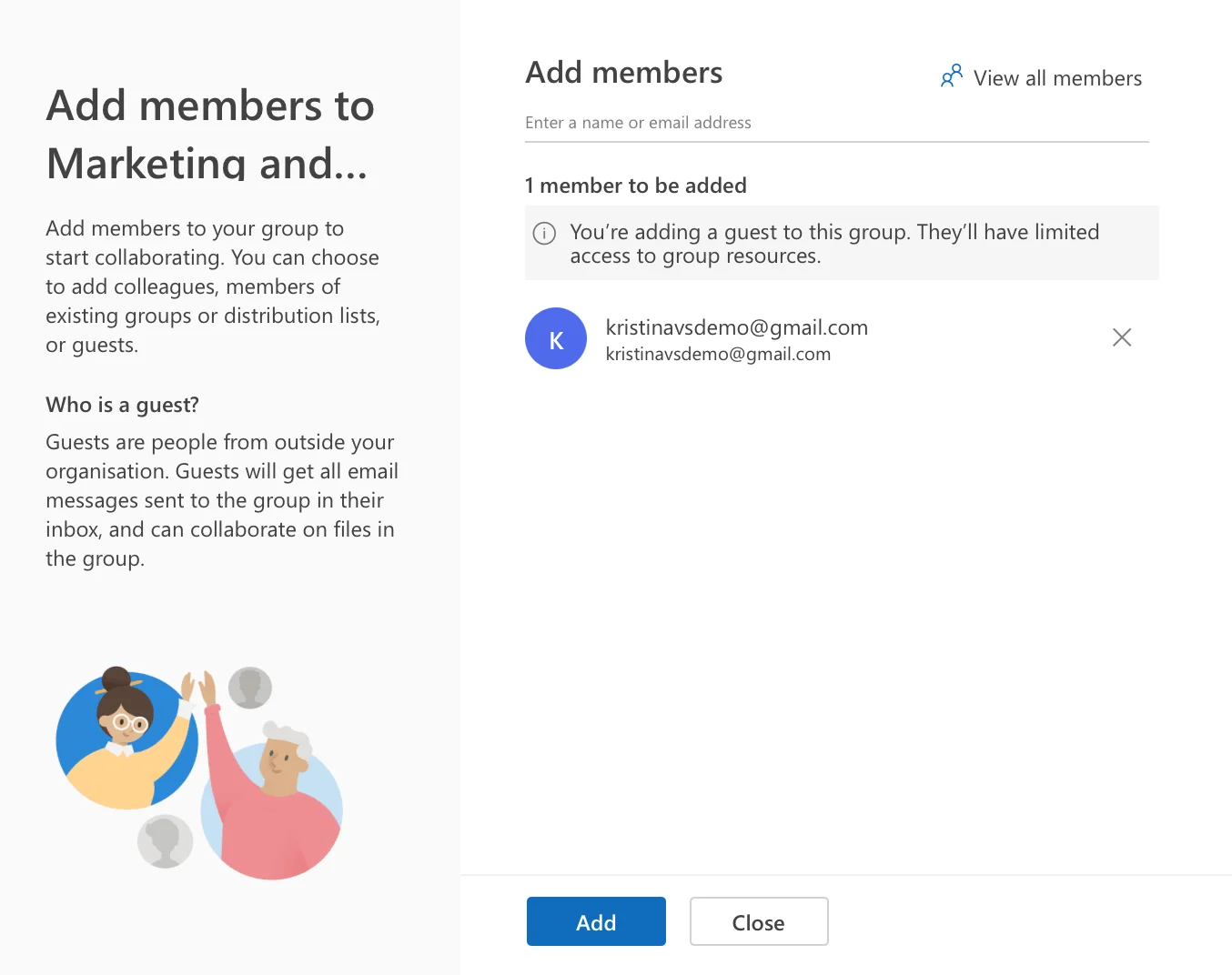
Pic.14. Inviting the guest by email address from Outlook
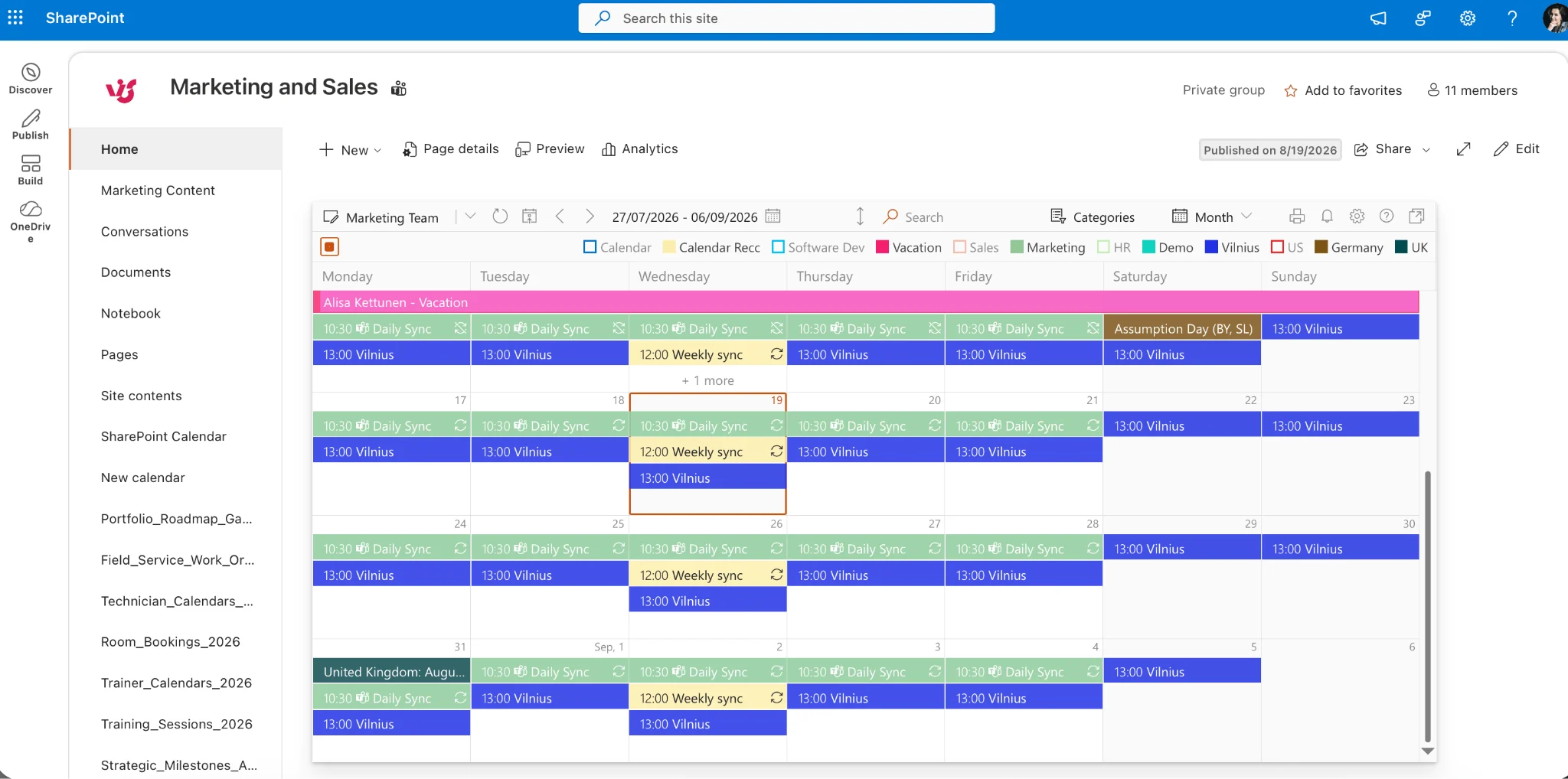
Pic.15. Virto Calendar App
The rest of the toolkit
- Virto Shared Calendar — a lightweight team calendar for a single channel. See the product page or our guide to creating a shared calendar in Teams.
- Virto Kanban Board App — a visual board over SharePoint lists and Planner, so guests can update their own cards without touching anything else. Pairs well with our practical guide to Kanban metrics.
- Virto Alerts and Reminders — rule-based notifications so an external reviewer is told when a document is waiting, instead of being chased by email.
- Virto Calendar App for Microsoft 365 — the same overlay engine outside Teams, for organisations juggling multiple Microsoft 365 calendars.
Try it with your own guests
Every Virto app comes with a full-featured 30-day free trial — no credit card, and guests can be added during the trial. Plans start from $2 per user per month for small teams, with volume tiers above that and custom pricing for enterprise deployments.
See virtosoftware.com/microsoft-365 for the full app list, or virtosoftware.com/pricing for licensing details.
Frequently asked questions
What is Microsoft Teams guest access?
A feature that lets you add people from outside your organisation to a team as guests, giving them controlled access to its channels, chats and files. Guests sign in with their own email address, appear with a (Guest) tag, and can only reach the teams they have been added to.
What is the difference between guest access and external access in Teams?
Guest access adds an external person INTO your team; external access (federation) lets you chat and meet with people in other Microsoft 365 domains without adding them to a team. Guest access gives access to files and channels, external access does not.
How do I add a guest to a Microsoft Teams team?
Open the team, select More options (…) > Manage team > Members > Add member, enter the guest’s email address, choose Add as a guest, set a display name with the pencil icon, and select Add. The guest receives an email invitation.
Do guests need a Microsoft 365 licence?
No. Guest access is included with Microsoft 365 subscriptions and guests do not consume a licence in your tenant. They sign in with their own work account, Microsoft account, or a one-time passcode.
Can I use any email address to invite a guest?
Yes. Work, school and personal addresses all work, including Gmail and Outlook.com, unless your administrator has restricted invitations to specific domains in Microsoft Entra.
Why can’t my guest see the files in the team?
Almost always a SharePoint sharing setting rather than a Teams setting. Check that external sharing in the SharePoint admin center is set to at least “New and existing guests”, both organisation-wide and for that specific site. Also allow a few hours after adding a guest before troubleshooting.
Can guests create or schedule meetings?
No. Guests can join meetings they are invited to, but they cannot create meetings or view team schedules. If a guest needs to book time with your team, an internal member has to send the invitation.
How do I stop guests from being added to one specific team?
Use a sensitivity label that blocks guest access, and apply it to that team. Turning off the org-wide toggle would affect every team in the tenant.
How do I remove a guest from Microsoft Teams?
Manage team > Members > select the X next to the guest’s name. That removes them from the team; to remove the account from your directory entirely, delete the guest user in Microsoft Entra or configure an access review to do it automatically.
How long does it take for guest access to start working?
Adding a guest to a team can take a few hours to propagate fully, and changing the org-wide guest access setting can take longer — Microsoft’s guidance mentions up to 24 hours in some cases.
Wrapping up
Microsoft Teams guest access is not complicated once the mental model is right: one org-wide switch, four settings that must agree, per-team decisions by owners, and a review cycle that removes people when the work ends. Get the four settings aligned once and adding a guest becomes a one-minute job for whoever owns the team.
The part that needs discipline is the other end — the removal. Guest accounts are quiet. They do not send messages, do not appear in headcount, and do not remind anyone that a project finished eight months ago. Schedule an access review before you need one.
And once the guests are in, give them something worth logging in for: a schedule they can actually read, a board they can update, and notifications that reach them. That is what Virto apps for Microsoft 365 are for — free to try for 30 days, in your own tenant, with your own guests.
Further reading
- Guest access in Microsoft Teams — Microsoft Learn
- Turn guest access in Microsoft Teams on or off — Microsoft Learn
- Guest experience in Teams — Microsoft Learn
- Use guest access and external access to collaborate with people outside your organization — Microsoft Learn
- Unified external collaboration settings management in the Teams admin center — Microsoft Learn
- Overview of external collaboration options in Microsoft 365 — Microsoft Learn
- Manage sharing settings for SharePoint and OneDrive — Microsoft Learn
- Microsoft Teams Calendar: setup, sharing and channel view — VirtoSoftware