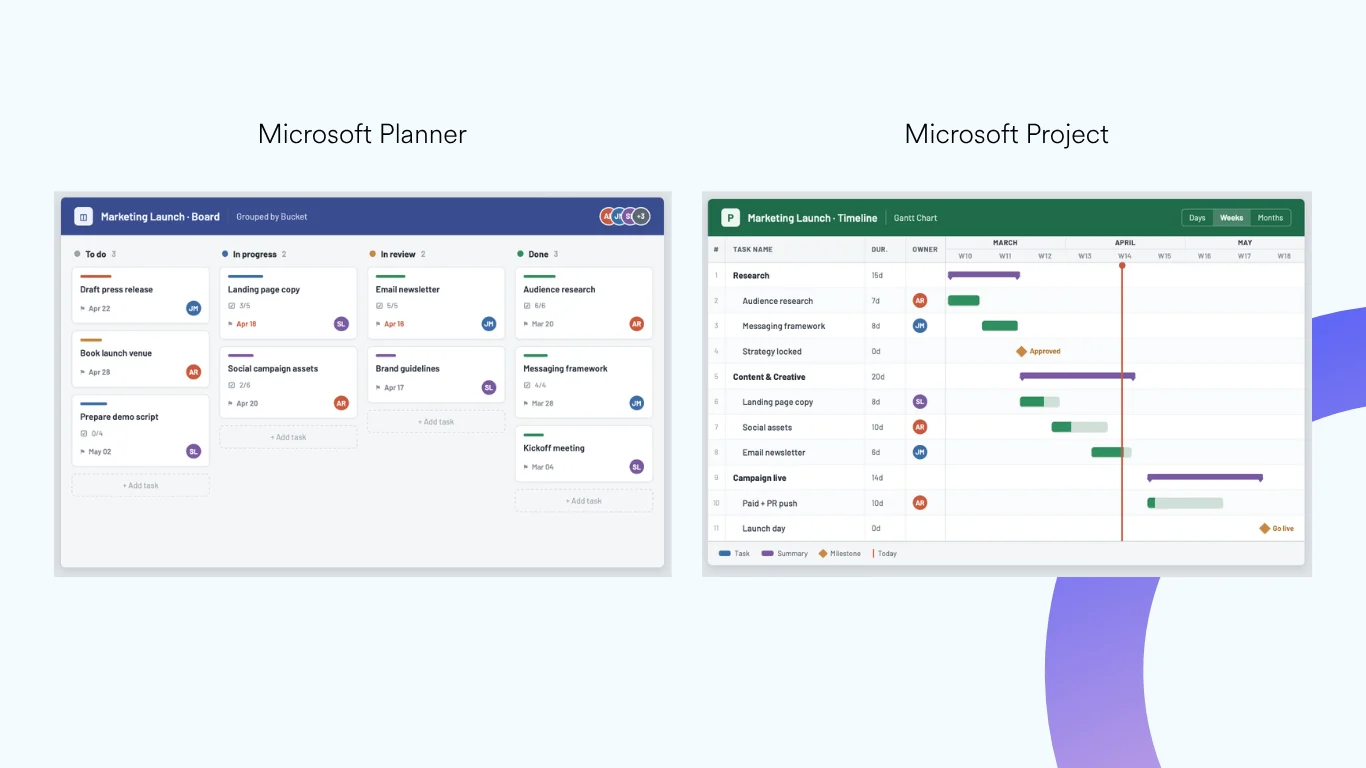
Microsoft Planner is the task and work management app built into Microsoft 365. It gives teams a single, visual place to organize projects, break work into tasks, assign owners, and track progress in real time — all without leaving the Microsoft ecosystem they already use every day.
Since 2024–2025, Microsoft has unified the classic Planner, Microsoft To Do, and Project for the web into one experience now simply called Microsoft Planner (the “new Planner”). This 2026 guide explains what Planner is, its key features, how to use it step by step in the new interface, its pros and cons, and — when Planner runs out of room — where a more advanced Kanban alternative like the Virto Kanban Board App for Microsoft 365 & Teams fits.
💡 Quick answer — what is Microsoft Planner? Microsoft Planner is a task-management app included in Microsoft 365 that organizes work into boards, buckets, and task cards. It’s now the unified home for personal and team tasks (merging the former “Tasks by Planner and To Do” with Project for the web) and integrates tightly with Microsoft Teams, To Do, and Microsoft Project.
What Is Microsoft Planner & Its Key Features
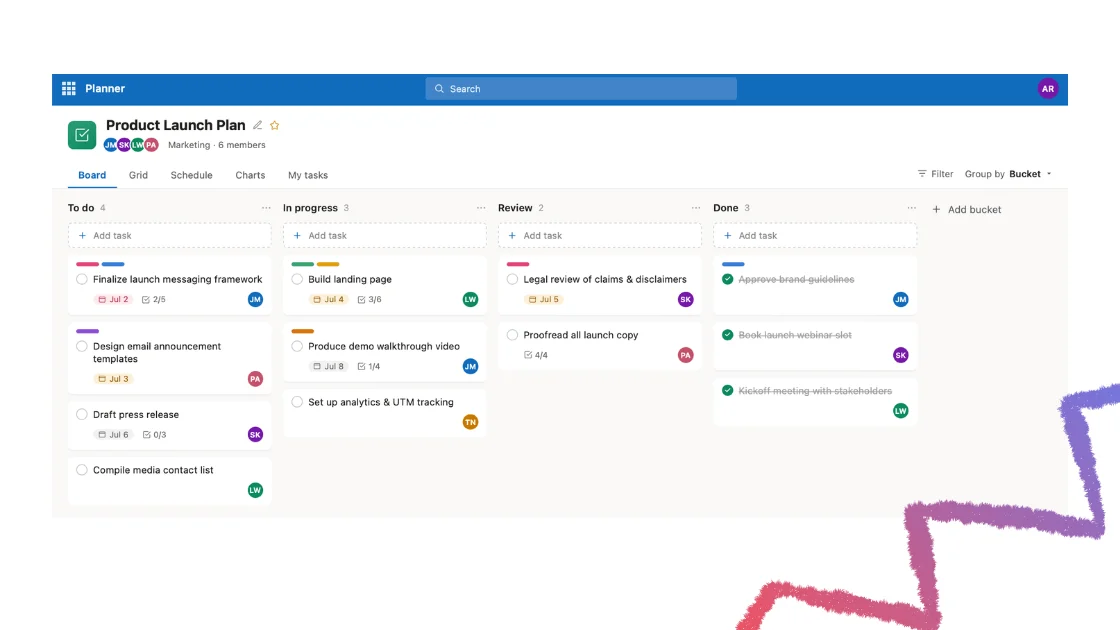
Microsoft Planner is a task and work management tool inside the Microsoft 365 ecosystem. It’s designed to help both individuals and teams organize workloads using an intuitive, visually driven approach — Kanban-style boards with task cards that make it easy to break big projects into small, trackable pieces.
At its core, Planner helps with three things:
- Personal task management — stay on top of your own to-dos and deadlines (this is where the former Microsoft To Do lives now).
- Team project management — create plans, assign tasks, and keep everyone aligned on a shared board.
- Deadline and progress tracking — monitor due dates and see status at a glance across multiple views.
The “new Microsoft Planner”, briefly
The classic Planner, Microsoft To Do, and Project for the web have been consolidated into a single app now called Microsoft Planner. In practice this means you manage individual tasks, collaborative plans, and larger projects in one interface — accessed primarily through Microsoft Teams and the Planner web app — with optional AI help from Microsoft 365 Copilot on premium plans.
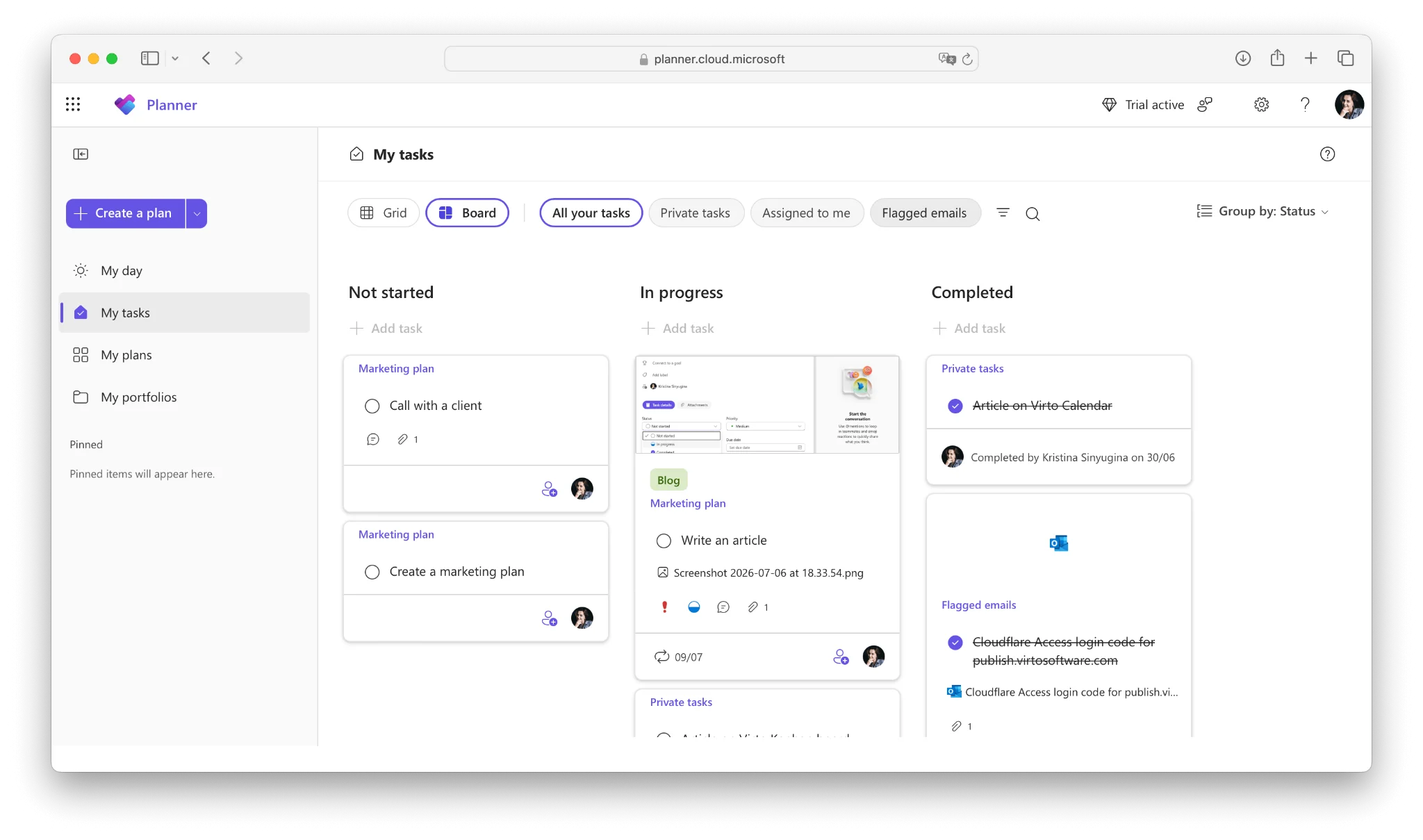
Pic. 1. The new Microsoft Planner home in Microsoft 365 / Teams.
Key features
- Unified work management — personal tasks (To Do), team plans (classic Planner), and project management (Project for the web) in one place, so you stop switching tools.
- Task creation & assignment — create tasks, assign owners, set due dates, add descriptions, attach files, and build checklists.
- Visual progress tracking — Kanban boards where task cards move across buckets (e.g. To Do → In Progress → Done).
- Multiple views — Grid, Board, Schedule, and Charts on every plan; Timeline (Gantt), People, and Goals views unlock on premium plans.
- My Tasks & My Day — consolidated views of everything assigned to you across plans, Teams meeting notes, and Loop components.
- Deep Microsoft 365 integration — Teams, To Do, SharePoint, Loop, and Project, plus workflow automation through Power Automate.
- Microsoft 365 Copilot (premium) — generate plans, tasks, buckets, and goals from natural-language prompts, and ask questions about your plan.
How to Use Microsoft Planner (Step-by-Step)
Here’s how to get started in the new Planner interface — creating a plan, adding and detailing tasks, assigning owners, and setting due dates and priorities.
1. Create a new plan
- Open Microsoft Planner from the Microsoft 365 app launcher or the Planner app in Teams.
- Select + Create a plan from the left navigation pane (or My Plans → + Create a plan).
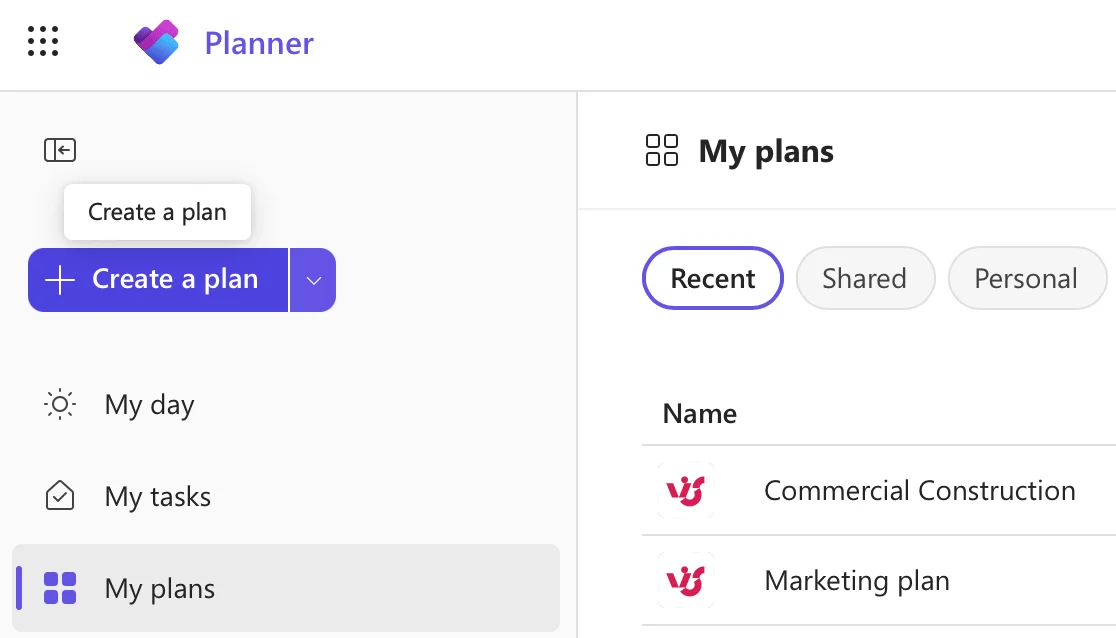
Pic. 2. Selecting ‘Create a plan’ in the Planner web app.
- Choose a Basic or Premium plan, or start from a template. Premium adds Gantt/Timeline, dependencies, and custom fields; Basic covers boards, buckets, and the standard views.
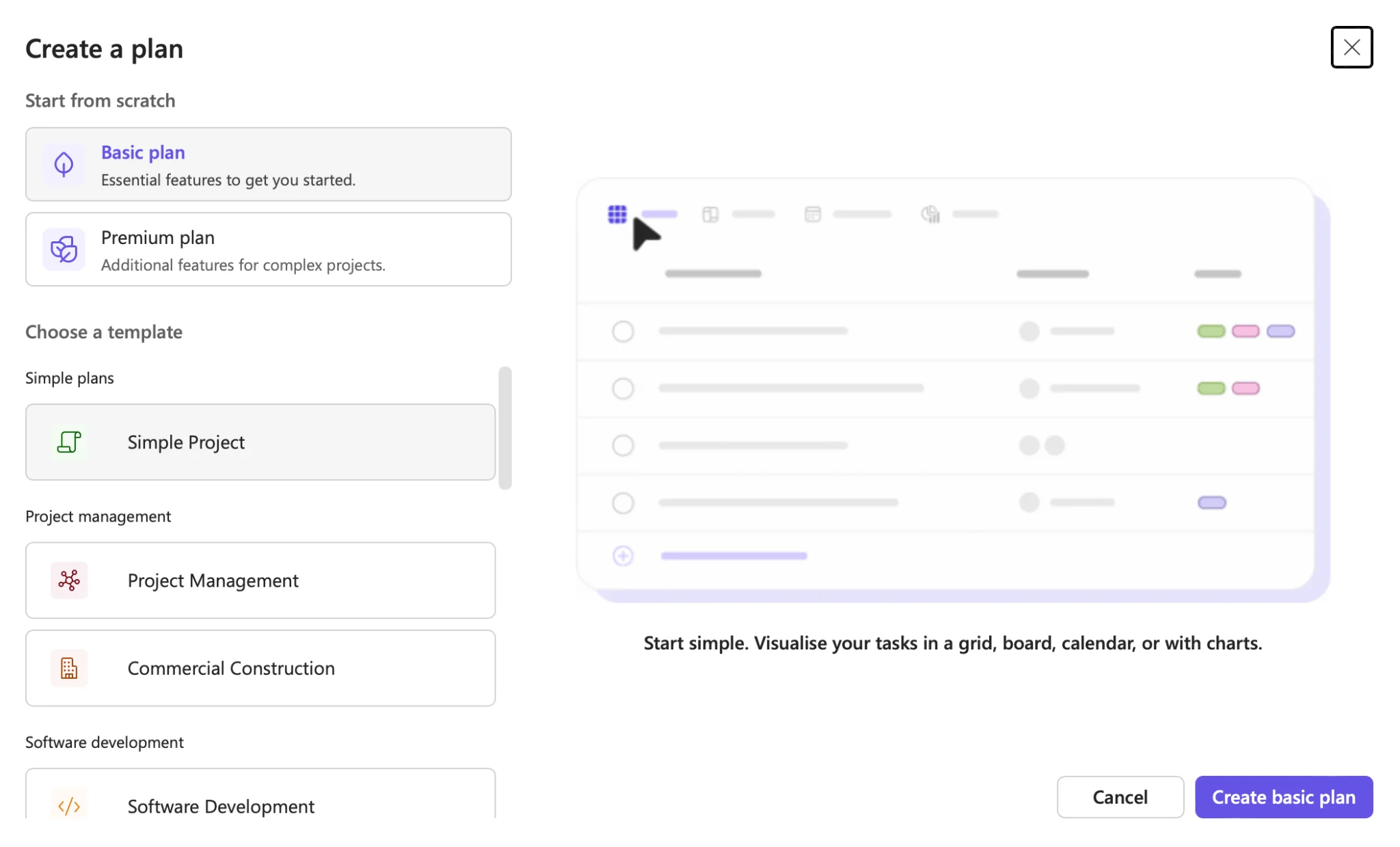
Pic. 3. Creating a plan from scratch or from a template.
- Name the plan, optionally pin it, and add it to an existing Microsoft 365 Group (or a new group is created automatically).
- Click Create to finalize. Your board is ready.
2. Add tasks to your plan
- Pick a bucket (a board column such as “To Do”) or create a new one.
- Click + Add task under the bucket.
- Enter the task name, set a due date, and optionally assign it.
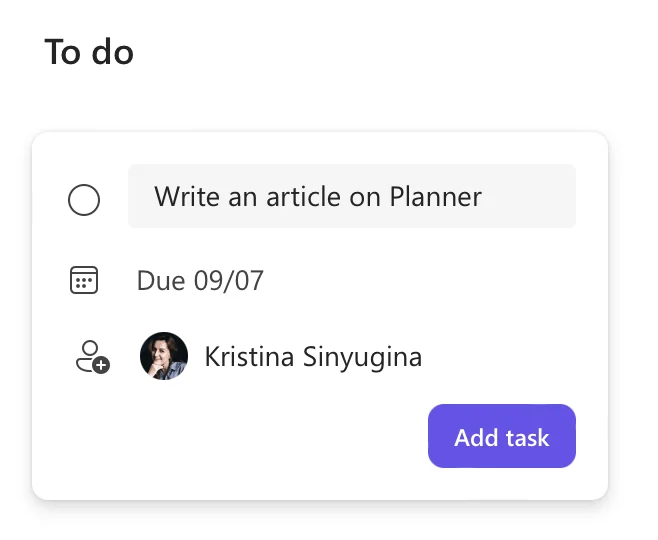
Pic. 4. Adding a task to a bucket on the board.
Open any task to enrich it — add checklists to break it into steps, attach files or links, and write a description for context.
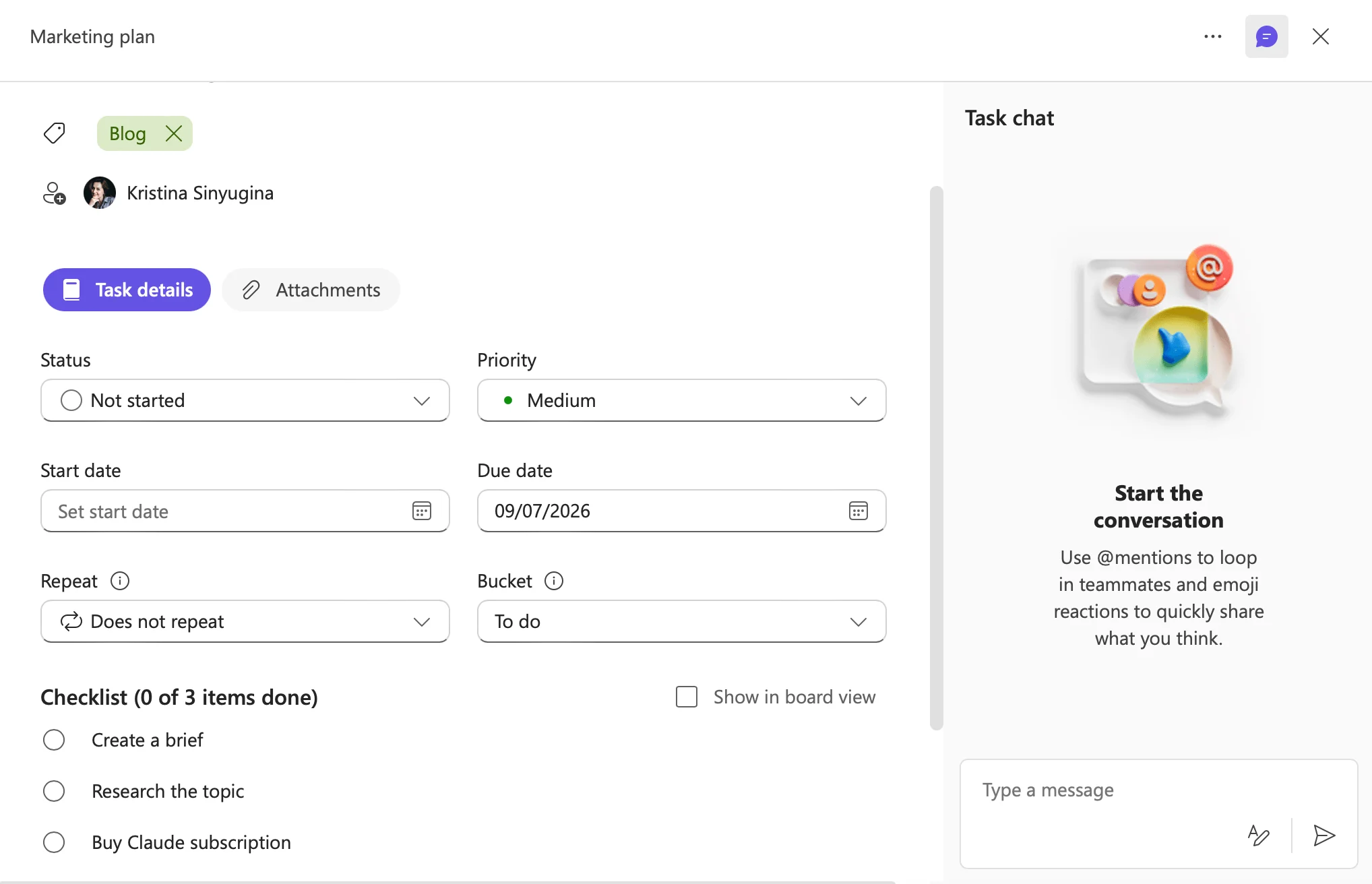
Pic. 5. Adding checklists, attachments, and details to a task.
3. Assign tasks to team members
- Open the task and select the Assign field.
- Choose a member from the dropdown, or type a name/email to add someone.
Assigned tasks show up in each person’s My Tasks view so nothing gets lost.
4. Set due dates and priorities
- Open a task and set the Due date field.
- In the Priority dropdown, choose Urgent, Important, Medium, or Low.
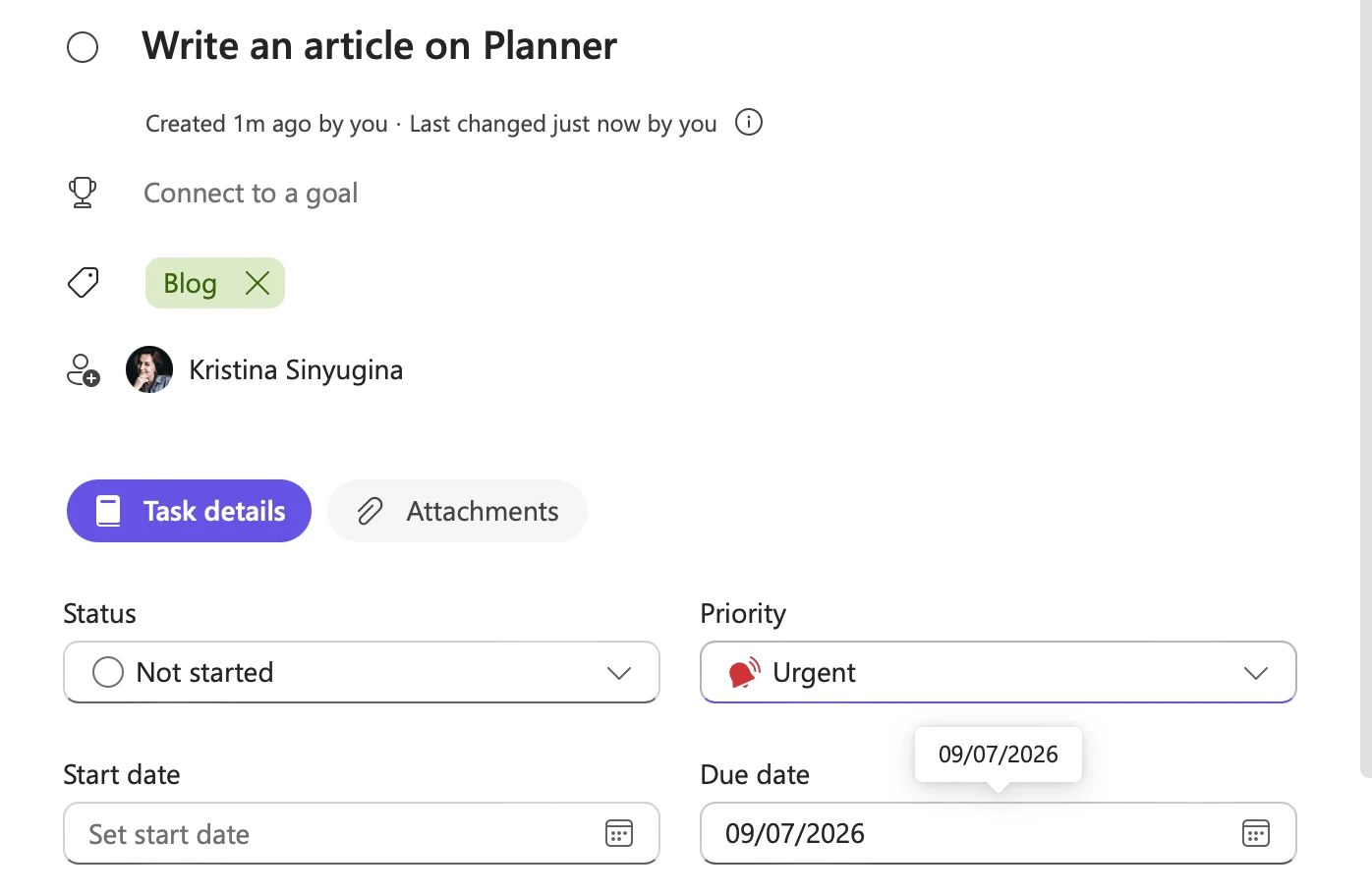
Pic. 6. Setting a due date and priority on a task.
Tasks with approaching deadlines are surfaced in the Schedule and Charts views so timelines stay visible.
💡 Tip: Use buckets to group work by phase or category, colored labels to tag priority or workstream, and filters to slice large boards by owner, due date, or priority. Premium users can also save a plan directly as a reusable template.
Microsoft Planner: Pros & Cons
Advantages
- Easy to use — an intuitive, drag-and-drop Kanban interface that beginners pick up fast.
- Native Microsoft 365 integration — works inside Teams, To Do, and SharePoint with no extra setup.
- Real-time collaboration — changes and notifications sync instantly across the team.
- Cost-effective — basic Planner is included with most Microsoft 365 business and enterprise plans.
- Cross-platform — web, desktop, and iOS/Android apps.
Limitations
Planner is excellent for straightforward task management, but a few limits show up on larger or more specialized work:
- Limited customization — no swimlanes or fully custom fields/layouts on Basic; advanced options like conditional coloring and milestones are Premium-only.
- Basic analytics — no deep performance metrics or custom reporting without Power BI or premium features.
- Limited native automation — most automation depends on Power Automate rather than built-in rules.
If those gaps matter for your workflow, that’s exactly the point where a dedicated Kanban tool such as the Virto Kanban Board App is worth a look — more on that below. For a fuller side-by-side, see our Microsoft Planner alternatives guide.
Microsoft Planner Use Cases by Team & Industry
Planner adapts to almost any team that needs to organize work visually. A few representative examples:
- Marketing — campaign boards with buckets for Ideation, Content, Approval, and Launch; editorial and email calendars.
- IT & software — sprint and bug-tracking boards; support-ticket queues by status (New, In Progress, Resolved).
- HR — recruitment pipelines (Job Posting → Interviews → Offers) and event planning.
- Education — lesson planning, group projects, and teaching-schedule coordination.
- Finance, retail, manufacturing & healthcare — reporting and audit stages, delivery/inventory coordination, maintenance schedules, and staff-shift planning.
Microsoft’s own adoption guides walk through a full premium-plan product launch using Timeline, People view, dependencies, and Copilot — a good reference for professional project management scenarios.
Planner vs Project, vs Trello, Alternatives & in Teams
Comparisons and specialized questions each have a dedicated guide — start here and follow the one you need:
- Microsoft Planner vs Project — when to use Planner and when a full Project plan (Plan 3/5) makes sense.
- Microsoft Planner vs Trello — Kanban head-to-head for teams choosing between the two.
- Microsoft Planner alternatives — options when Planner’s limits get in the way.
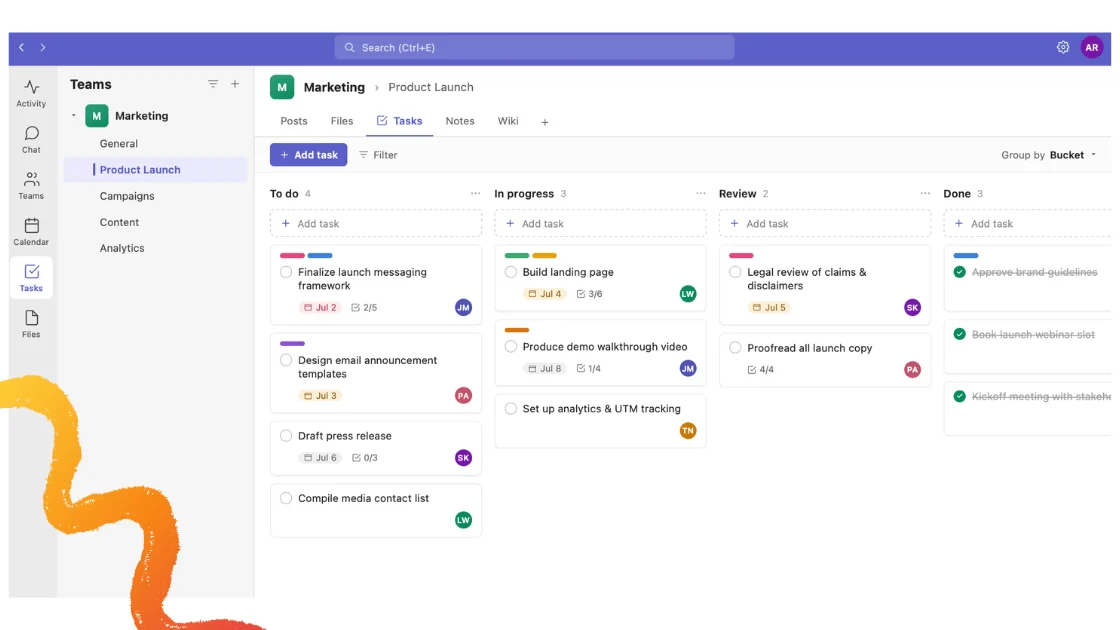
- Microsoft Planner in Teams — using Planner as a tab, plus the Planner app (formerly Tasks by Planner and To Do).
- The new Microsoft Planner — what changed in the 2024 app, its key features, and where the paid premium tier begins.
- Microsoft Planner Premium — the paid tier: features vs basic plans, Plan 1 vs Plan 3 pricing, the 30-day trial, and the Project Online move.
When You Need More Than Planner: Virto Kanban Board
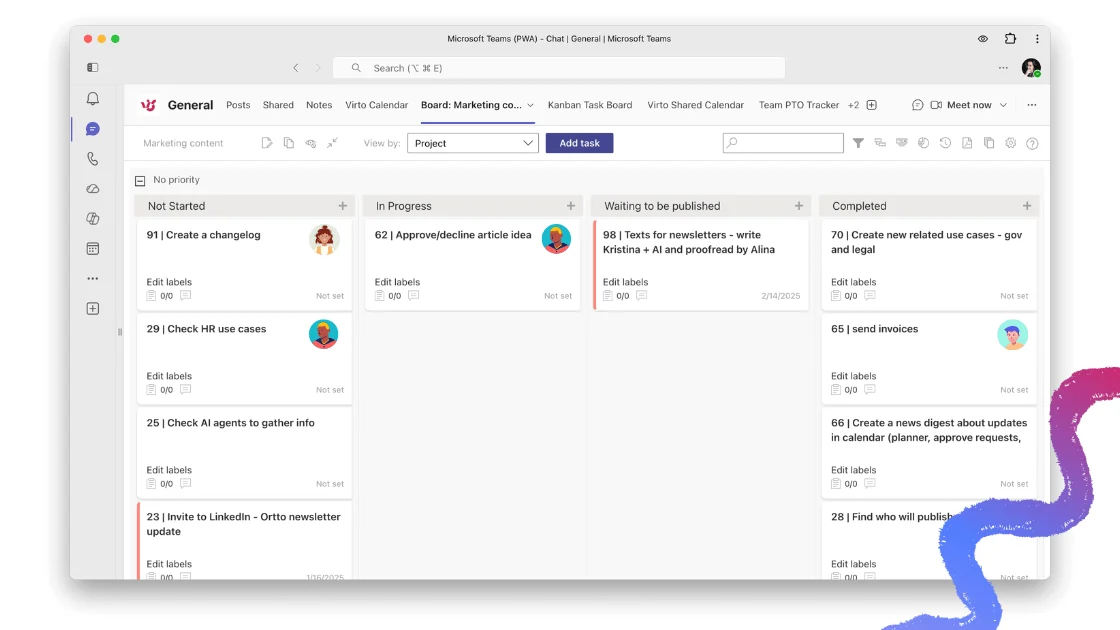
Pic. 7. Example Virto Kanban Board with swimlanes and color-coding.
The Virto Kanban Board App for SharePoint Online, Microsoft 365, and Microsoft Teams is a natural step up from Planner when boards get complex. It keeps the familiar Kanban feel but adds the customization and analytics Planner lacks:
- Advanced customization — swimlanes, color-coding, subtasks, and detailed categorization tailored to your workflow.
- Workflow automation — auto-assign tasks or update statuses via Power Automate.
- Detailed analytics — visual graphs and charts to spot bottlenecks and track team performance.
- Powerful filtering & search — find cards fast even on large boards.
- Full Microsoft 365 fit — works across SharePoint and Teams for a consistent experience.
| Feature | Microsoft Planner (Basic) | Virto Kanban Board App |
|---|---|---|
| Customization | Limited | Advanced (swimlanes, subtasks) |
| Analytics | Basic | Detailed |
| Scalability | Better for small teams | Suitable for large teams |
| Workflow automation | Not native | Power Automate |
| Task dependencies | Premium plans only | Fully supported |
| Filtering / search | Basic | Advanced |
Fig. 1. Microsoft Planner (Basic) vs Virto Kanban Board App.
💡 Pricing (Virto Kanban Board App): from $2/user/mo (Starter, up to 30 users), $3/user/mo (Pro, 31–200 users), and Enterprise pricing on request — with a 30-day free trial. See plans & start a trial.
FAQ
What is Microsoft Planner?
A task-management app in Microsoft 365 that organizes work into boards, buckets, and task cards. It’s now the unified “Microsoft Planner” (formerly Tasks by Planner and To Do) and integrates with Teams, To Do, and Microsoft Project.
Is Microsoft Planner free?
Basic Planner is included with most Microsoft 365 business and enterprise plans at no extra cost. Advanced features — “Planner Premium” (formerly Project for the web), Timeline/Gantt view, dependencies, and Copilot — require a paid Planner and Project license (Plan 1, 3, or 5).
How is Planner different from To Do and Project?
They’re no longer separate apps for most users: the new Microsoft Planner folds Microsoft To Do (personal tasks) and Project for the web (advanced project management) into one experience. To Do–style tasks live in My Tasks/My Day, while Project-grade capabilities like Gantt timelines and dependencies unlock on premium plans.
Conclusion
Microsoft Planner is a simple, well-integrated way to manage tasks and projects for teams already inside Microsoft 365. The new unified Planner brings To Do, classic Planner, and Project for the web together, with Copilot layered on top of the premium plans — a strong fit for small to medium teams and for professional project management when licensed.
For highly customized boards, deeper analytics, or automation-heavy workflows, the Virto Kanban Board App is a capable alternative that stays native to Microsoft 365 and Teams. The right choice depends on your team’s complexity — and trying both is the fastest way to decide.