


A digital Kanban board turns your team’s work into cards that move across columns — so anyone can see what’s in progress, what’s stuck, and what’s done at a glance. This guide explains what a digital Kanban board is, how it differs from a physical one, the elements and metrics that matter, and how to build one inside Microsoft 365, SharePoint, and Teams.
Kanban is a flexible project management framework built around one simple idea: visualize your workflow as cards on a board. By making work visible, limiting work-in-progress, and managing flow, teams spot bottlenecks early and keep tasks moving.
Digital Kanban boards have moved from a niche software-team practice to a mainstream way of coordinating work. Adoption has climbed sharply — Kanban use grew from just 7% of teams to 56% over three State of Agile surveys — and around 90% of practitioners say Kanban is more effective than the other approaches they’ve tried (with 76% rating it “effective” or “much more effective”).
(Sources: State of Agile Report via Businessmap; State of Kanban via Parabol.)
For Microsoft-aligned teams, we’ll also show how Virto Kanban Board turns a SharePoint list into a drag-and-drop Kanban board for unified work coordination across Microsoft 365.
Related guides:
- Online Kanban Boards: Guide and Best Tools — for the best online Kanban tools and apps
- Kanban Metrics: Velocity, Cycle Time & Reports — for the full metrics deep-dive
- Kanban Board Examples · SharePoint Kanban Board · Kanban Swimlanes Guide
Quick answer: what is a digital Kanban board?
A digital Kanban board is a software version of a Kanban board where work items are cards that move across columns (for example, To Do → In Progress → Done). It adds WIP limits, swimlanes, color-coding, and automatic metrics — so a distributed team gets a single, always-current view of its workflow from any device.
What is a digital Kanban board?
A digital Kanban board is an online tool that visualizes work, limits work-in-progress, and maximizes flow for a team or organization. Rooted in the Kanban methodology, it gives teams a clear, intuitive interface for tracking progress without status meetings or spreadsheets.
The board displays columns that represent the stages of a workflow, left to right. Column headers might read Backlog, In Progress, Testing, and Complete — or any stages you customize to your own process.
Inside each column are cards, one per work item, feature, or task. Cards carry summaries and key details; click into a card for descriptions, subtasks, comments, due dates, and assignees.
As work progresses, cards move horizontally across the columns, giving an at-a-glance view of what’s being worked on. Limiting the number of cards in a column keeps the team focused and makes bottlenecks visible. Color-coding and labels — by priority, project, or release — add another layer of visual meaning.
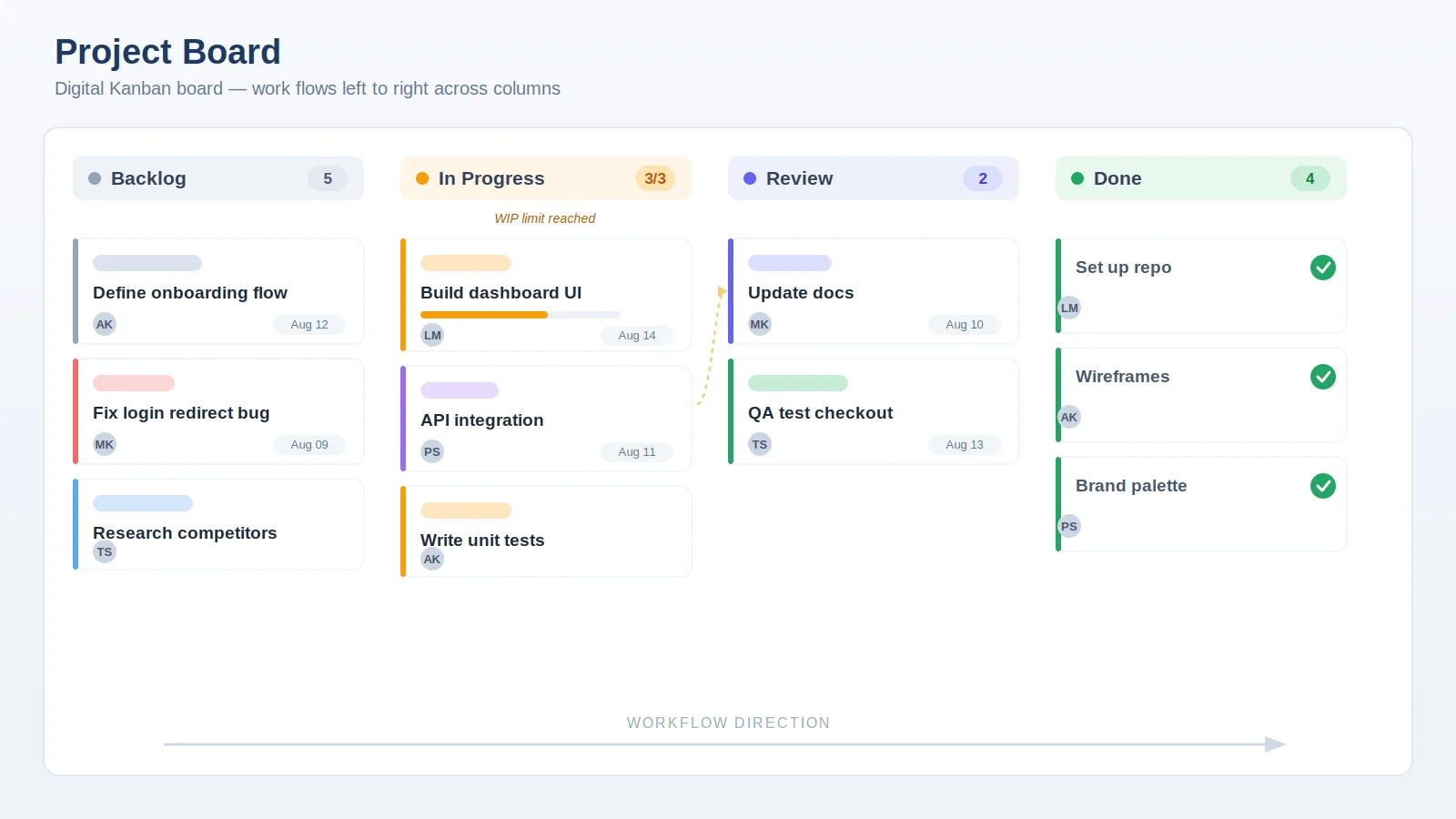
Pic. 1. Example of a typical digital Kanban board (columns, cards, flow).
Basic principles of Kanban
The Kanban methodology originated in Toyota’s manufacturing system and has since been adapted across industries. Its core principles are:
- Visualize work: represent tasks on a board for a clear view of the workflow.
- Limit work-in-progress (WIP): cap how many tasks are in progress to protect focus and quality.
- Manage flow: track and optimize how tasks move through each stage.
- Make process policies explicit: clearly define how work is handled and moved.
- Implement feedback loops: review regularly and adjust to improve efficiency.
- Improve collaboratively, evolve experimentally: use data and shared insight to refine the process over time.
Digital vs physical Kanban boards
A physical board — sticky notes on a wall — works well for a co-located team in one room. The moment work goes remote, hybrid, or simply needs a history, a digital board pulls ahead. Here’s why teams move online:
- Accessibility: reach the board from anywhere, on any device, enabling remote and cross-location collaboration.
- Real-time updates: changes are instantly visible to everyone, so the board is always the single source of truth.
- Search & history: find any card and see how work evolved — impossible with sticky notes.
- Integration: connect to project management systems, calendars, and communication platforms like Microsoft Teams.
- Automation: automated notifications, rules, and card movement reduce manual upkeep.
- Data & analytics: track metrics and surface insight into productivity, bottlenecks, and flow.
- Scalability & customization: grow with the team and tailor the board with WIP limits, color-coded tags, and filters.
A quick note on the trade-offs
Digital boards aren’t a cure-all. Expect a short learning curve when adopting new software, a dependence on connectivity, possible subscription costs, and the risk of clutter if a board isn’t maintained. The fixes are practical: start simple, set WIP limits, and revisit the board regularly.
What practitioners say
“What’s remarkable about digital Kanban boards is their visibility and flexibility … they provide a highly visual and transparent view of work in progress.” — Albena Georgieva, Head of Partnerships, Businessmap. Her advice: start small, then expand the board as the team grows comfortable, and revisit it regularly so it keeps reflecting real processes.
“Start with simple columns such as To Do, In Progress, and Done. As your team becomes more comfortable, you might include Review or Testing.” — Shawn Plummer, CEO, The Annuity Expert. He stresses clear card detail, regular prioritization, and WIP limits to prevent burnout.
“We set up a Kanban board to manage the marketing content pipeline … columns for Ideas, In Progress, Review, and Published.” — Logan Mallory, VP of Marketing, Motivosity, who credits the board with a measurable lift in engagement and tighter accountability to deadlines.
“We use Trello to organize our content calendar … the drag-and-drop interface and customization are excellent.” — Phil Strazzulla, Founder, SelectSoftwareReviews, who pairs a lightweight board for marketing with a heavier tool for detailed development reporting.
“CPM offers a thorough, time-sensitive strategy suited for projects with tight deadlines and many interdependent tasks.” — Sergey Taver, Marketing Manager, Precision Watches — a reminder that Kanban’s flow focus suits some teams better than strict dependency mapping.
Key elements of a digital Kanban board
Most digital Kanban boards share the same building blocks. Master these and you can model almost any workflow:
- Columns: the stages of your workflow (e.g., To Do, In Progress, Done), customizable to your process.
- Cards: individual work items carrying title, description, due date, assignee, attachments, and comments.
- WIP limits: caps per column that keep focus and expose bottlenecks the moment they form.
- Swimlanes: horizontal lanes that separate work by team, priority, or category. See the Kanban swimlanes guide for setup patterns.
- Color-coding & labels: instant visual meaning by priority, project, or release.
- Drag-and-drop: move a card and the workflow updates for everyone in real time.
Metrics a digital board unlocks
Because every card movement is recorded, a digital board turns daily work into useful data. The metrics worth knowing are velocity (how much work the team completes per period), cycle time and lead time (how long items take to finish), and the cumulative flow diagram (a visual of work entering and leaving each stage, which makes bottlenecks obvious). Used together, they tell you whether your process is getting faster, slower, or stuck — without manual reporting. For formulas, examples, and how to read each chart, see our dedicated guide: Kanban Metrics: Velocity, Cycle Time & Reports.
How to build a digital Kanban board in Microsoft 365 / SharePoint / Teams
If your team already lives in Microsoft 365, you don’t need a separate tool — you can turn a SharePoint list into a drag-and-drop Kanban board with the Virto Kanban Board App, or run the same board as a digital Kanban board inside Teams. On-premises teams can use the Virto Kanban Board Web Part for SharePoint On-Prem.
General steps for any digital Kanban board
- Choose a tool that fits your workflow, integrations, and budget.
- Create a board and name it for the project or team it serves.
- Define columns that mirror your workflow stages.
- Add cards with titles, descriptions, due dates, and assignees.
- Invite team members and set permissions.
- Set WIP limits per column to balance the load.
- Integrate with your other tools (calendars, chat, project systems).
- Review and adjust regularly using team feedback.
Install Virto Kanban Board in SharePoint
- Open the SharePoint site where you want the board, then choose New → App.
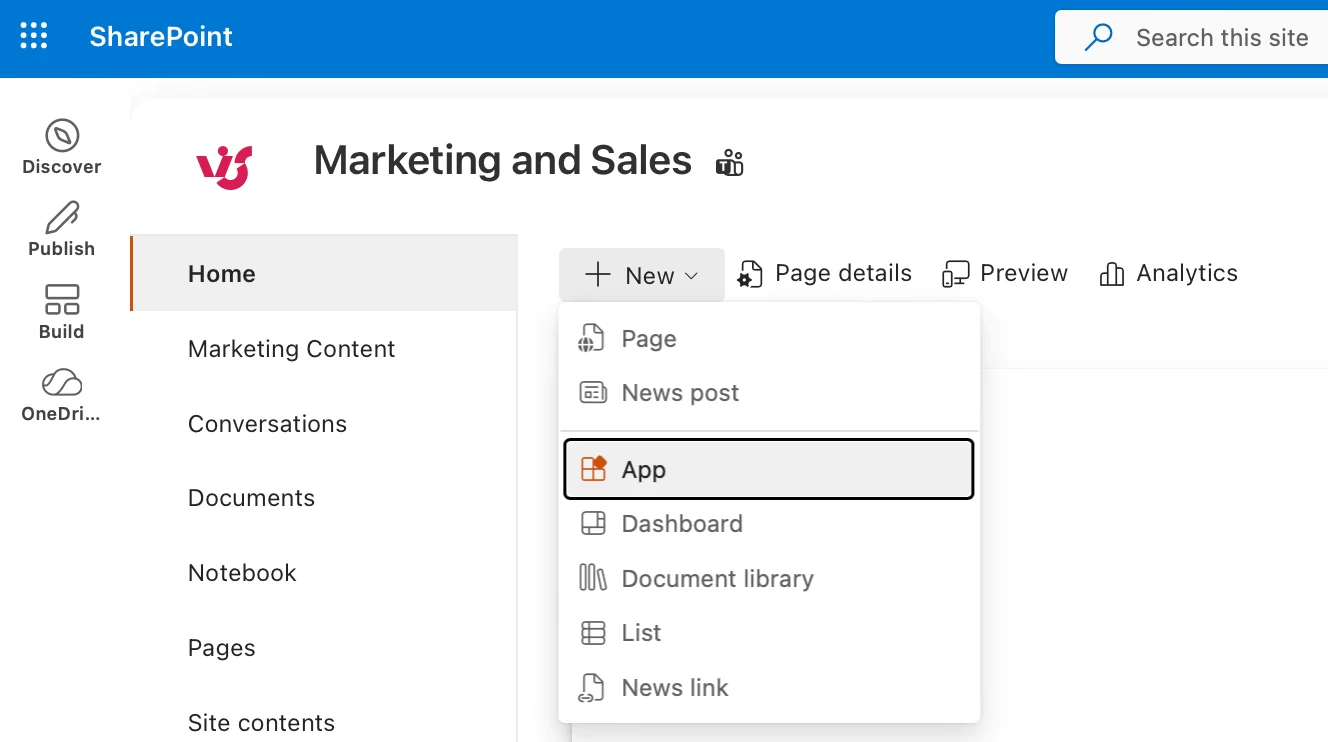
Pic. 2. Selecting “+ New” and “App”.
- Search for “kanban”, then select Kanban Board Pro by Virto.
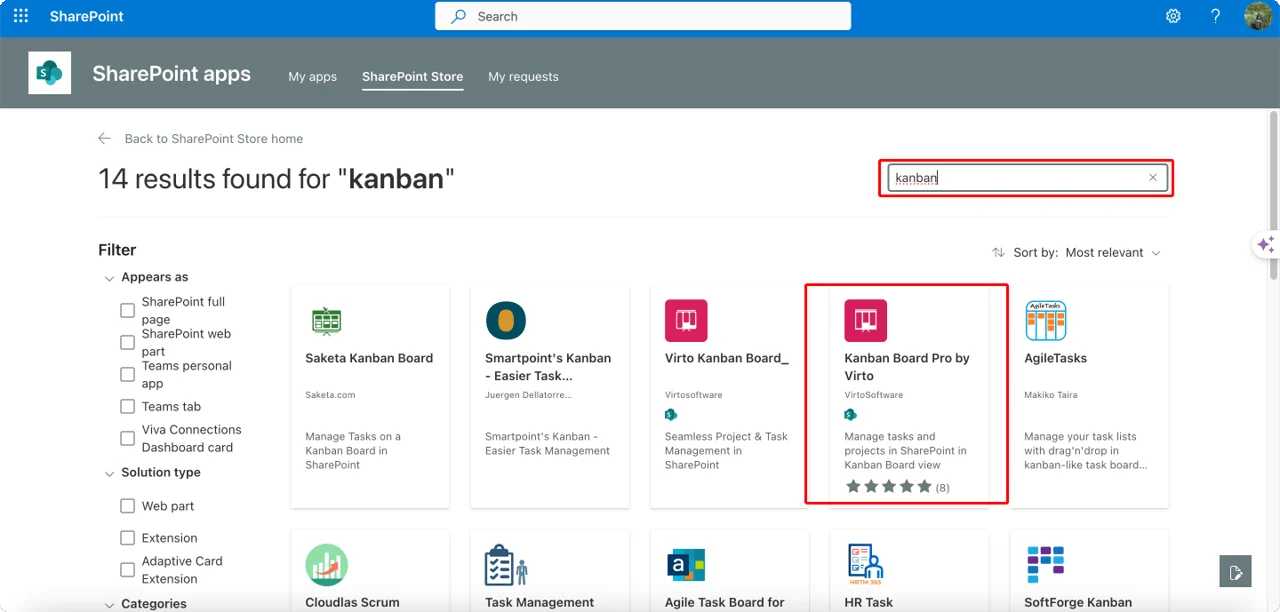
Pic. 3. Locating Virto Kanban Board.
- Click Add to apps site (or Request it if you lack admin permissions).
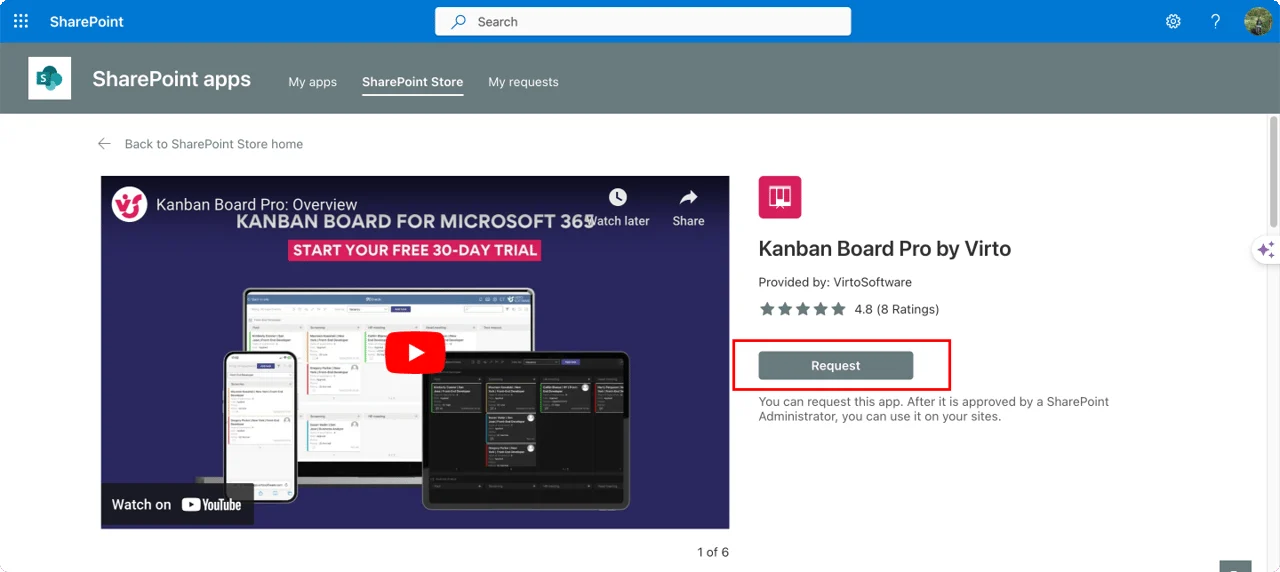
Pic. 4. Installing or requesting the Virto Kanban Board.
- In Confirm data access, choose to enable the app for this site or all tenant sites, then Continue.
- Edit the target page, add a web part, and select Kanban Board Pro by Virto; configure and publish.
Create and configure your board
You can build a board from an existing SharePoint list, generate a Quick Board (which creates a list with all required fields automatically), or apply a saved template. Here’s the Quick Board path:
- Open the Boards list at the top of any Kanban board and click Create new board.
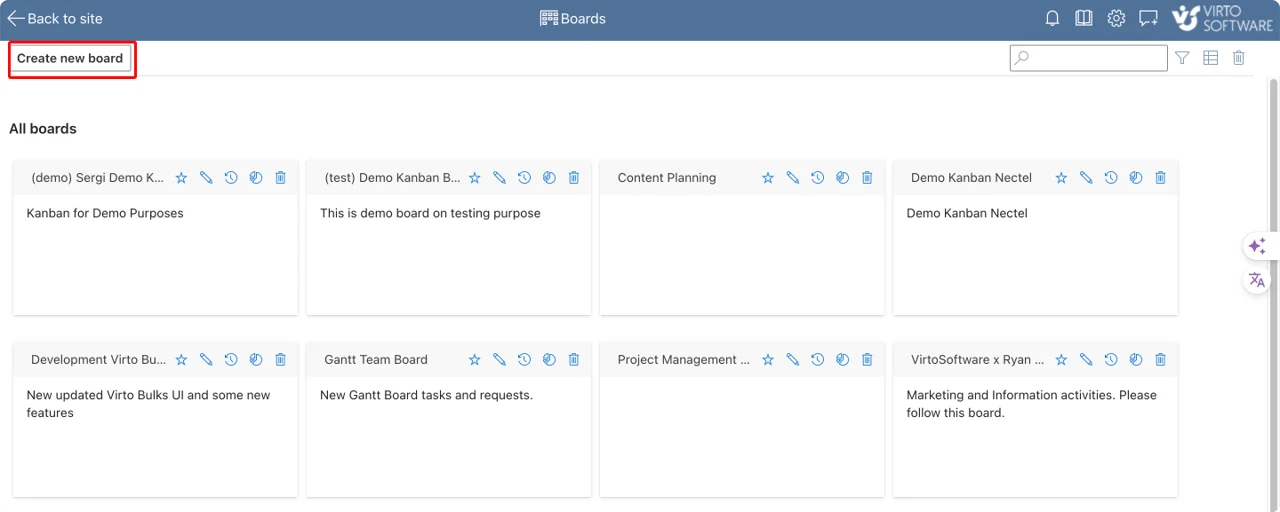
Pic. 5. Creating a new board.
- Choose the Quick Board option.
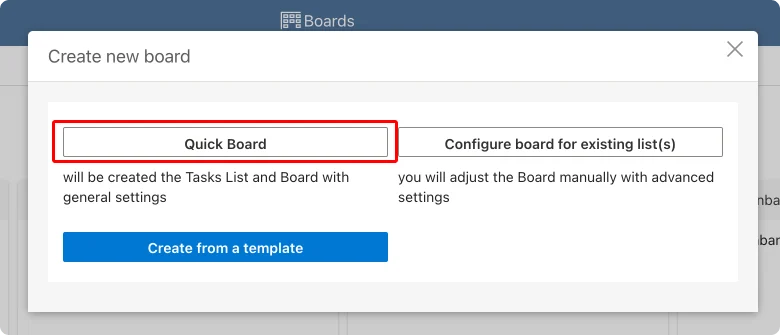
Pic. 6. Choosing the Quick Board option.
- Name the board and click Create new board.
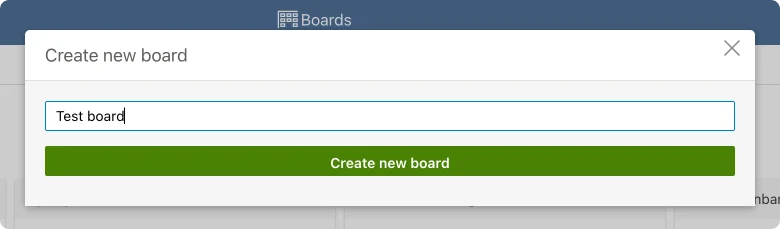
Pic. 7. Naming your board.
To customize, click the Edit board icon next to the board name. The settings menu has four areas:
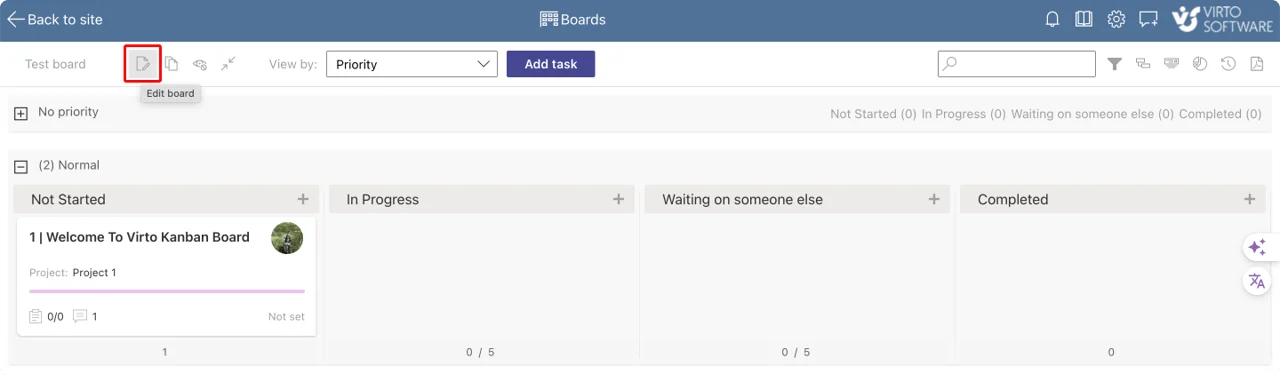
Pic. 8. Opening board settings (Edit board).
- List Setup: name and describe the board and pick the SharePoint list(s) that feed it.
- Board Setup: manage columns, set WIP limits, and create swimlanes.
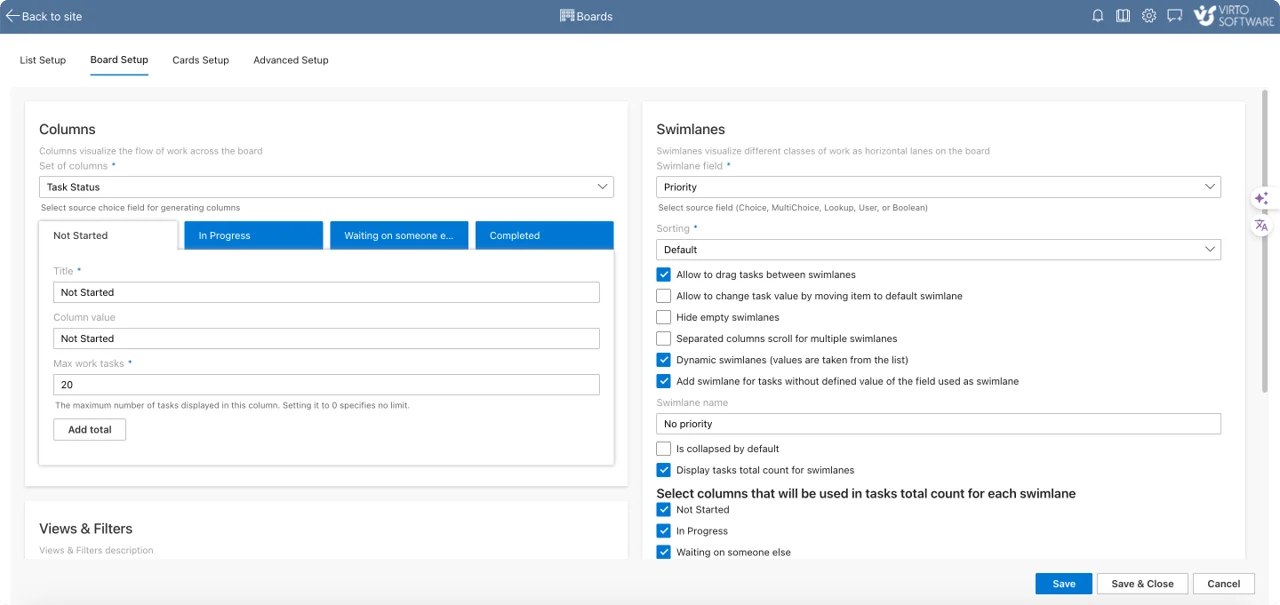
Pic. 9. Board Setup overview.
- Card Setup: control what each card shows, its size, colors, labels, and style rules.
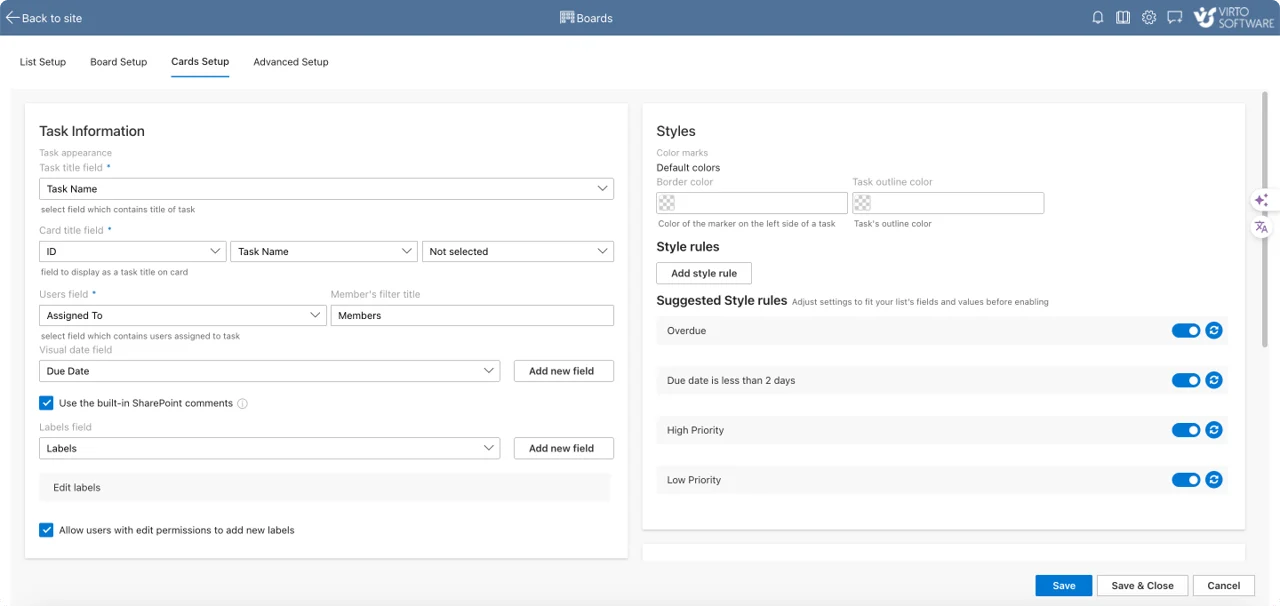
Pic. 10. Card Setup overview.
- Advanced Setup: filters, permissions, and chart selections (lead time, completion, member).
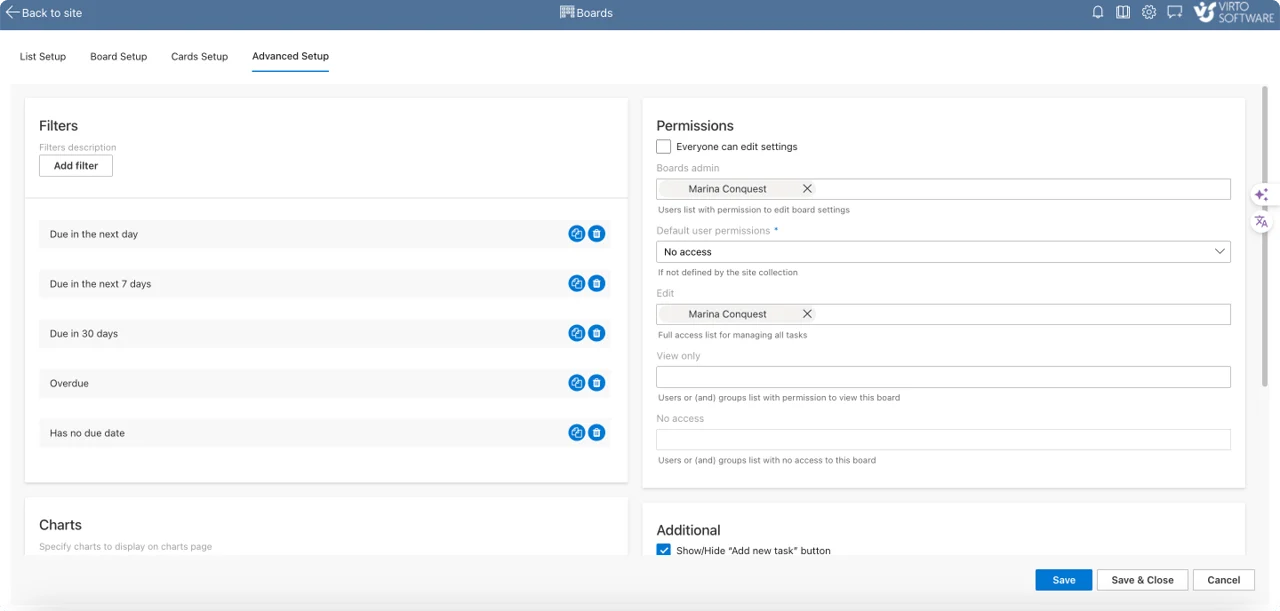
Pic. 11. Advanced Setup overview.
For step-by-step configuration, see the Virto Kanban Board learning center. A finished board looks like this:
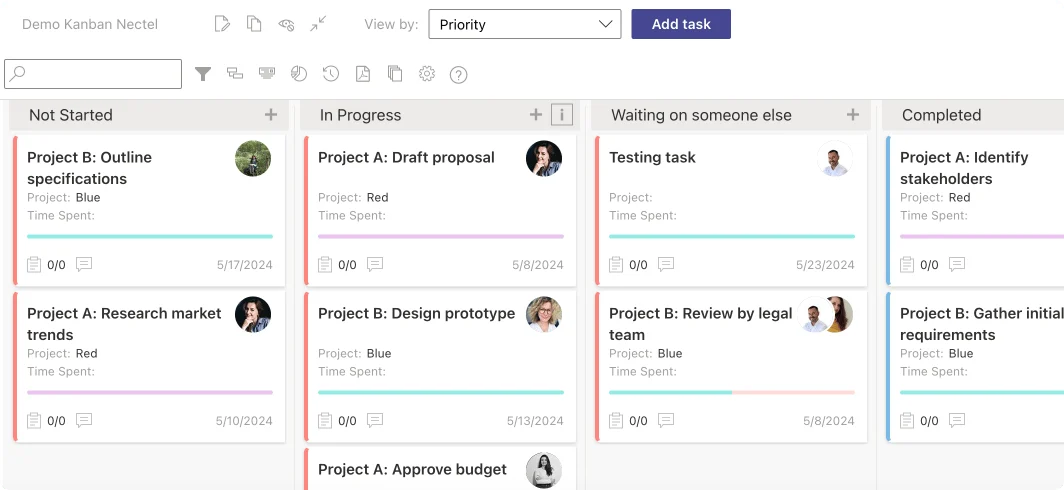
Pic. 12. Example of a working Virto Kanban Board.
Virto Kanban Board App: overview and pricing
Because it integrates natively with SharePoint and Microsoft 365, Virto Kanban Board is a strong fit for teams embedded in the Microsoft ecosystem. Key strengths include agile task management, highly customizable boards (swimlanes, color-coding, subtasks), native Microsoft 365 integration, cross-platform licensing, Quick Board setup, and built-in charts for workflow analysis.
Pricing:
- From $2/user/mo — Starter (up to 30 users).
- $3/user/mo — Pro (31–200 users).
- Enterprise — on request.
Billed yearly. One license spans SharePoint, Teams, and Azure. Includes a 30-day free trial, with 15% off for education and non-profits.
Schedule a quick demo call to see how it fits your workflow.
FAQ
What is a digital Kanban board?
A software version of a Kanban board where work items are cards that move across columns (To Do → In Progress → Done), with WIP limits, swimlanes, and automatic metrics.
What’s the difference between a digital, online, and physical Kanban board?
“Digital” and “online” describe the same thing — a board you run in software and access from a browser or app. A physical board uses sticky notes on a wall. The digital/online version adds remote access, search and history, automation, and built-in metrics.
Is there a free digital Kanban board?
Yes — several tools offer free tiers or open-source options. For a current comparison of the best ones, see our online Kanban boards guide.
How do I make a digital Kanban board in Microsoft 365 or Teams?
Install the Virto Kanban Board App, point it at a SharePoint list (or generate a Quick Board), customize columns and cards, then add it as a tab in Teams. Full steps are in the build section above.
Conclusion
A digital Kanban board gives teams a clear, shared, always-current view of their work — visualizing tasks, enabling real-time collaboration, and surfacing the metrics that keep flow healthy. The right tool turns that visibility into faster, more predictable delivery.
If your team works in Microsoft 365, try the Virto Kanban Board App to turn a SharePoint list into a drag-and-drop board — in SharePoint, Teams, or Azure under a single license.
Related reading:
- Online Kanban Boards: Guide and Best Tools
- Kanban Metrics: Velocity, Cycle Time & Reports
- Kanban Board Examples
- SharePoint Kanban Board
- Top 10 Kanban Board Apps for Microsoft Teams