Quick answer: how to get a Gantt chart in Microsoft Teams
Microsoft Teams has no Gantt chart of its own, and the Planner app bundled with Microsoft 365 gives you Grid, Board, Schedule and Charts views — but no timeline. There are two working routes to a real Gantt inside Teams:
- Upgrade Planner. Planner Plan 1 ($10/user/month, billed yearly) unlocks the Timeline view, which Microsoft itself describes as “a Gantt chart format”. Pin Planner as a channel tab and the Gantt lives inside Teams.
- Add a third-party app as a tab. monday.com, Wrike, Smartsheet and Trello all render a timeline inside a Teams tab. Asana, GanttPRO and Aha! integrate with Teams too, but only push notifications — the Gantt itself stays in the browser.
One thing to rule out first: Project for the web, the Project app for Teams and Roadmap were all retired in August 2025. If a guide tells you to add Project for the web as a Teams tab, it is out of date.
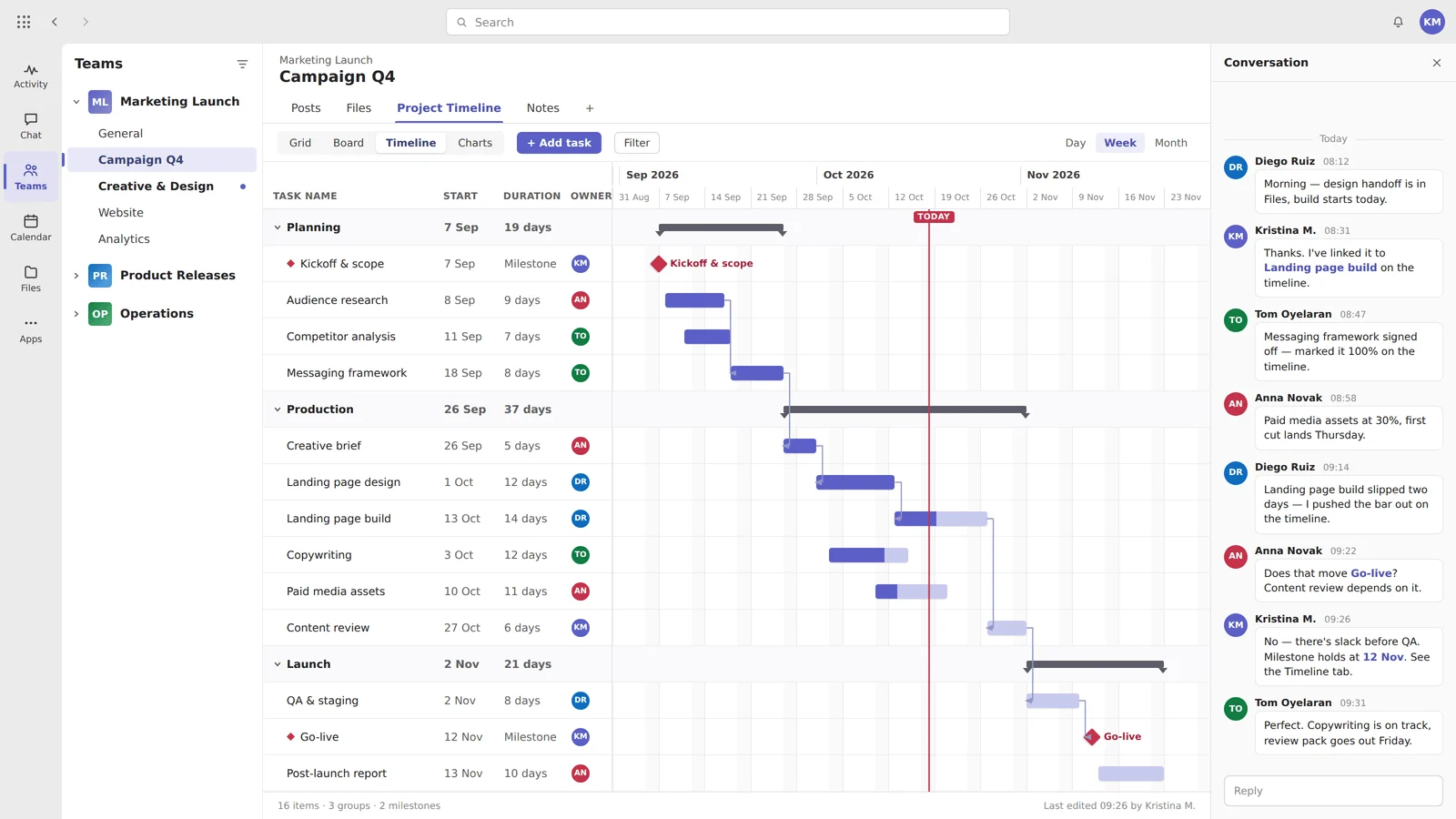
Pic.1. A Gantt chart pinned as a tab in a Microsoft Teams channel — the schedule, dependencies and milestones live next to the conversation.
A Gantt chart is still the clearest way to answer the two questions every project stakeholder asks: what happens when, and what is blocking what. Microsoft Teams is where most of that conversation now happens — so it makes sense to want the timeline in the same window as the chat, the files and the meetings.
This guide covers what Microsoft gives you natively in 2026 (which has changed substantially), the third-party apps worth considering with re-verified pricing, the genuinely free options, and how to pin a Gantt to a Teams channel. If you are weighing a timeline against a card wall, our comparison of a Gantt chart vs a Kanban board covers that choice, and Microsoft Planner vs Project explains the licensing side in more depth.
What changed for Gantt charts in Microsoft 365 in 2026
If you last looked at this in 2023 or 2024, most of the advice you remember is now wrong. Here is the short version.
| Change | Status in 2026 |
|---|---|
| Project for the web | Retired 1 August 2025. Users are redirected to Planner for the web. |
| Project app and Roadmap app for Teams | Retired alongside Project for the web. Microsoft’s guidance was to re-pin work as Planner tabs and migrate Roadmaps into Portfolios. |
| Licence names | Project Plan 1 became Planner Plan 1 (April 2024); Project Plan 3 and 5 became Planner and Project Plan 3 / Plan 5 (September 2024). |
| Project Online | End of sale for new customers was 1 October 2025; the service retired on 30 September 2026. |
| SharePoint Gantt view | Still classic-only. Microsoft’s own modern-view compatibility check lists a Gantt view as a blocking condition, and its recommendation is to submit feedback. |
| Planner tabs in shared and private channels | Rolling out from late August 2026 — but basic plans only at launch, so the Timeline view is not available there yet. |
| Planner Agent | The Project Manager agent was renamed Planner Agent in spring 2026 and extended to basic plans. It still requires a Microsoft 365 Copilot licence. |
The practical upshot: Planner is now the single native destination. Project desktop still exists for schedulers who need baselines and critical path offline, but the browser-based, Teams-friendly Microsoft Gantt is Planner’s Timeline view — and it is a paid feature.
Does Microsoft offer a native Gantt chart tool?
Partly. Microsoft ships a Gantt, but not in the tier most Teams users already have.
Planner in Microsoft 365 — no timeline
The Planner app that comes with an eligible Microsoft 365 subscription (the app that replaced “Tasks by Planner and To Do” in April 2024) offers Grid, Board, Schedule and Charts views, plus My Day, My Tasks and My Plans. Schedule is a calendar, not a timeline: it shows when tasks are due, not how long they run or what depends on what.
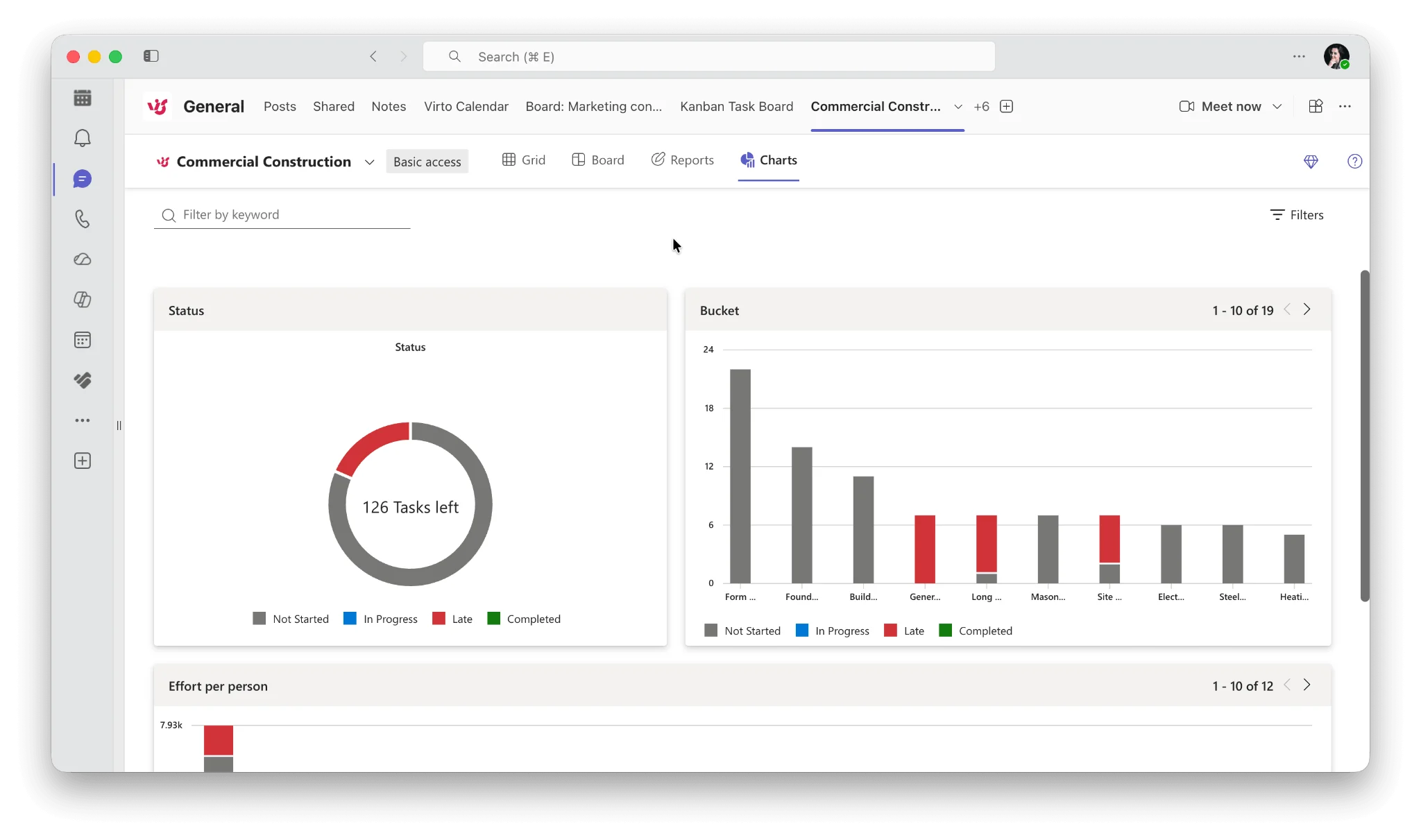
Pic.2. Microsoft Planner in Teams on the included Microsoft 365 tier — Grid, Board, Schedule and Charts, with no Timeline option.
Basic dependencies exist, but there is no bar chart to read them on. For a lot of teams that is enough; for anyone tracking a delivery date across a dozen linked tasks it is not. Our Microsoft Planner guide and the Teams Planner setup walkthrough cover the free tier in detail.
Planner premium — the native Gantt (Timeline view)
Upgrade to a premium Planner licence and you get the Timeline view. Microsoft’s documentation is unambiguous about what it is: “View your tasks in a Gantt chart format using the Timeline view. Timeline visualizes all your tasks and dependencies so you can see how the project schedule is laid out.”
Premium also adds People, Goals, Sprints and Assignments views, dependencies, sprints, custom fields, team workload and goal management.
| Planner tier | Price | Timeline (Gantt)? |
|---|---|---|
| Planner in Microsoft 365 | Included with eligible subscriptions | No |
| Planner Plan 1 | $10.00/user/month, paid yearly | Yes |
| Planner and Project Plan 3 | $30.00/user/month, paid yearly | Yes, plus baselines, critical path, Project desktop and Project Online |
| Planner and Project Plan 5 | Contact Microsoft | Yes |
Two gotchas that trip up new buyers, and neither is obvious from the pricing page:
- The licence alone is not enough. Timeline appears only on plans that were created or upgraded as premium plans. Assigning Planner Plan 1 to a user does not retro-fit a Timeline onto an existing basic plan — you have to upgrade the plan itself.
- The “Project for Office” service plan must be enabled on the user’s licence in the Microsoft 365 admin centre. It can be switched off by default, and the symptom is a correctly licensed user who still cannot see the Timeline tab.
If you want to test before you buy, Microsoft offers a 30-day trial of Planner’s premium features, which you can self-start from “Try Project” in Teams or at planner.cloud.microsoft.
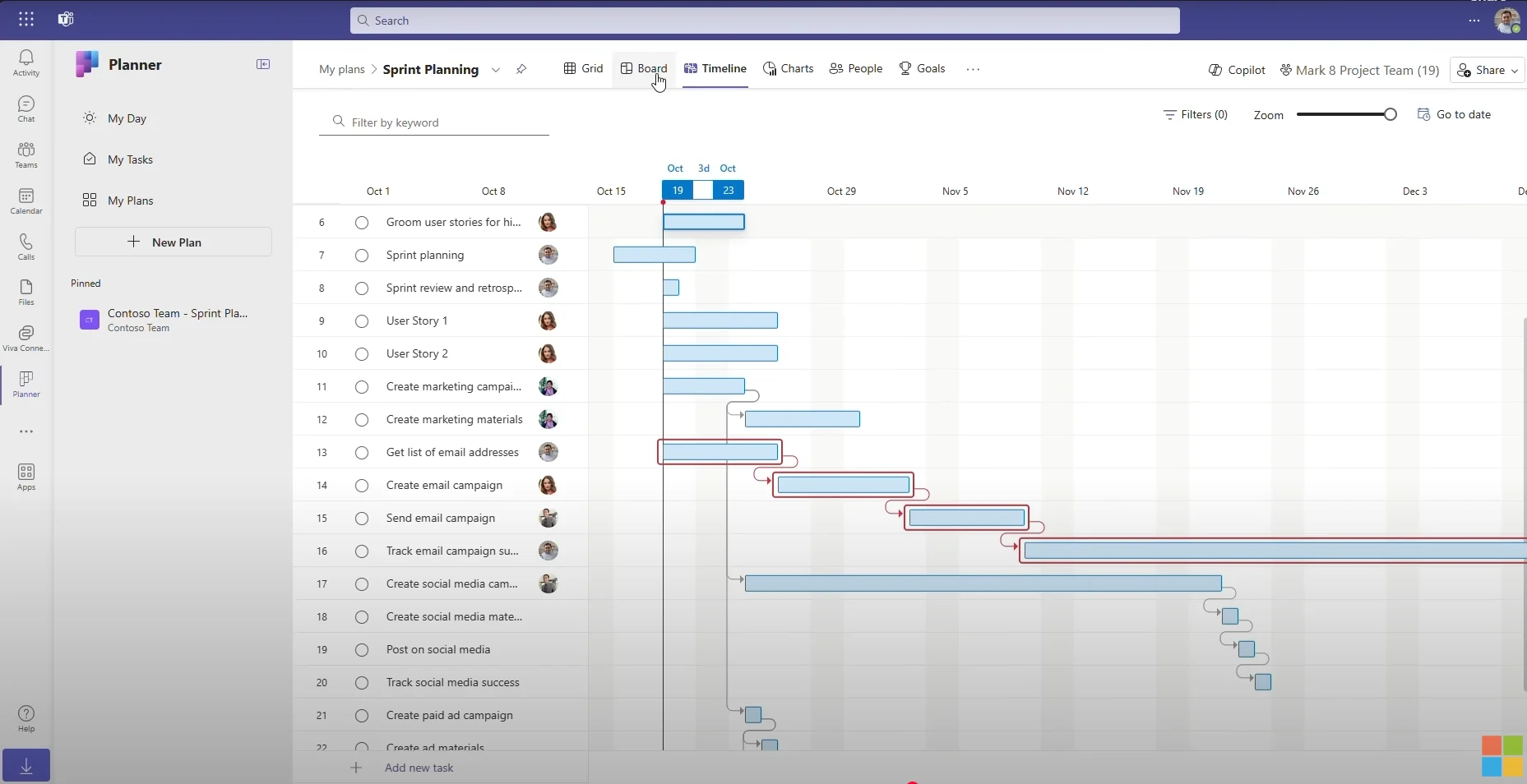
Pic.3. The Planner Timeline view — Microsoft’s native Gantt chart, available on Planner Plan 1 and above. Source
Microsoft Project desktop
Project Professional 2024 ($1,129.99 one-time) and Project Standard 2024 ($679.99 one-time) both include a full Gantt Chart view with dependencies and milestones. This is the right tool for a dedicated scheduler working with baselines and critical path — but it is a desktop application, it does not pin to a Teams channel, and Planner cannot import an .mpp file, so it is a poor fit for collaborative, Teams-first project work.
Microsoft Loop
No timeline, no Gantt. Loop’s task surface is a lightweight Task list component that syncs with Planner, and it is deliberately thin: you can add or change task titles, assignees and due dates, and for anything beyond that Microsoft’s own documentation tells you to choose “Open in Planner”. Loop is excellent for the narrative around a project — the brief, the notes, the decisions — and it will not give you a bar chart. See our Microsoft Loop overview for what it does do well.
SharePoint list Gantt view
Classic SharePoint lists had a Gantt view type, and technically they still do. It is not modern-compatible: Microsoft’s SharePoint modern-view compatibility checklist explicitly names “the View is either a Calendar or Gantt type” as a condition that blocks the modern experience, and the recommended action is to submit product feedback. Creating a Gantt view drops the list back into classic, which then does not render properly inside a modern page or a Teams tab. Treat it as legacy. The current list of modern view types is List, Compact list, Tiles, Calendar, Gallery and Grid — Gantt is absent.
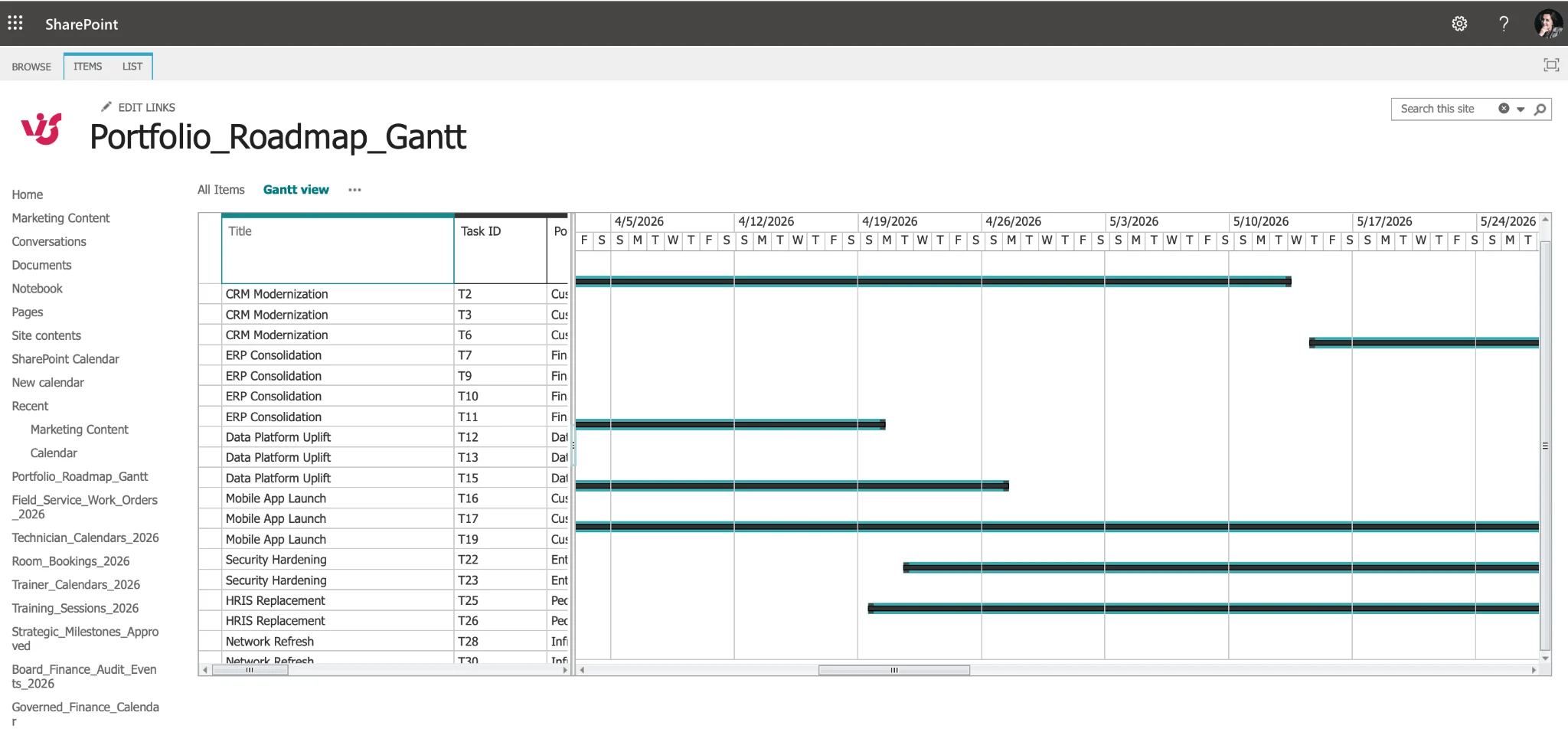
Pic.4. A classic SharePoint Gantt view — still creatable, but it forces the list into the classic experience and does not render in modern pages or Teams tabs.
Best Gantt chart apps for Microsoft Teams [2026]
All prices below were re-verified against each vendor’s own pricing page in August 2026. The distinction that matters most is not price — it is whether you can actually see the Gantt inside Teams, or whether the “Teams integration” is really just a notification bot.
Microsoft Planner (premium)
The default answer if you are already all-in on Microsoft 365. Timeline renders inside the Teams tab, permissions follow your existing groups, and there is no extra vendor to onboard or pay separately.
- Price: $10/user/month (Planner Plan 1, paid yearly)
- In Teams: yes — full Timeline inside a channel tab on standard channels
- Watch out for: premium plans only; shared and private channels do not support Timeline yet
monday.com
The strongest non-Microsoft option for actually working with a timeline inside Teams. Boards embed in Teams tabs and can be created from within Teams, so a Standard-tier board with a Gantt view is fully usable without leaving the client.
- Price: Basic $9, Standard $12, Pro $19 per seat/month billed annually. Timeline and Gantt views start at Standard, not Pro. Paid plans have a 3-seat minimum.
- Free plan: up to 2 seats, 3 boards, no Gantt
- In Teams: yes — boards embedded in tabs, plus a bot for notifications and item creation
- Rating: 4.7 on G2 (~16,700 reviews). Note the branding has shifted toward “monday work management” within a wider platform.
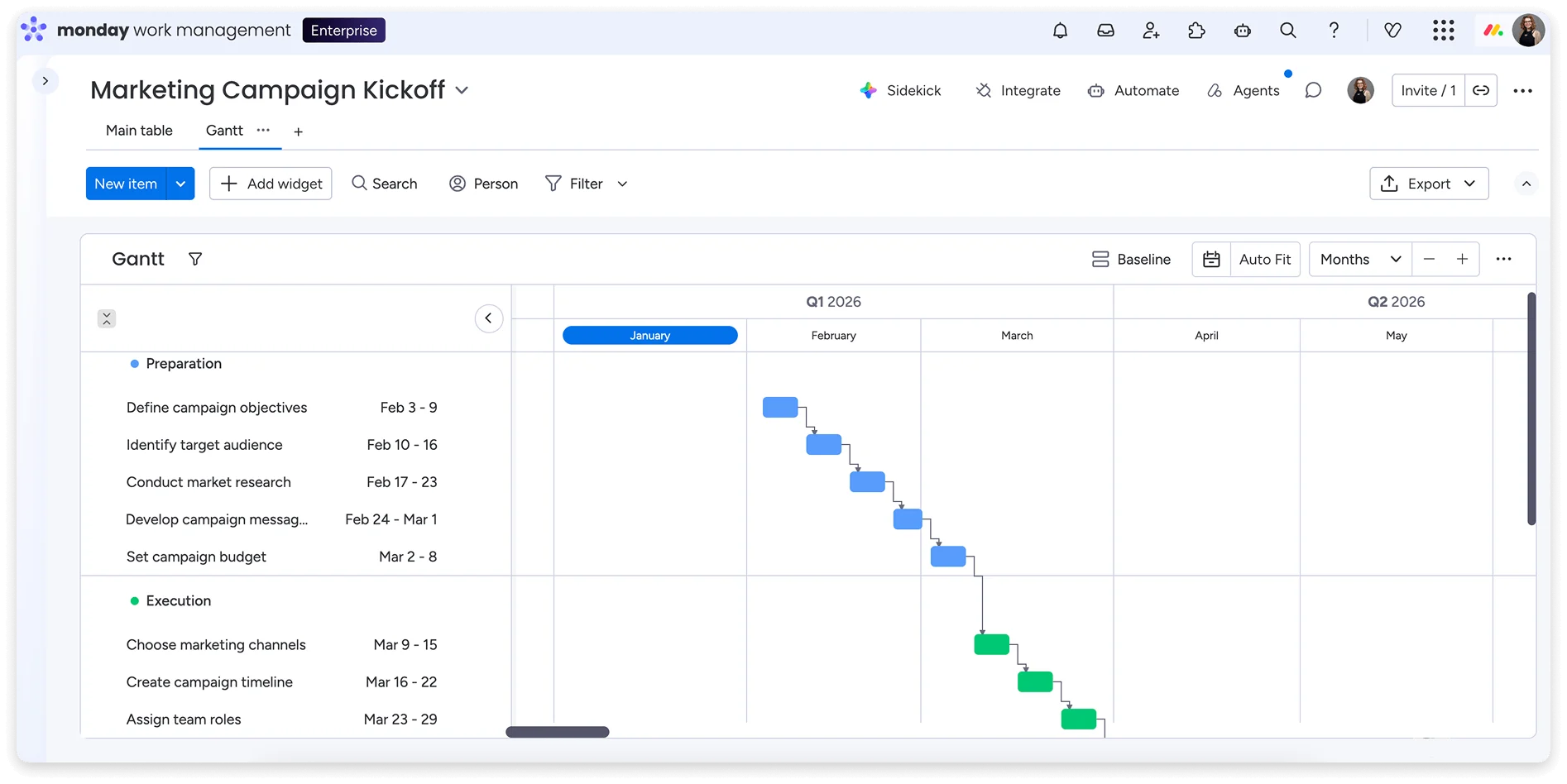
Pic.5. A monday.com Gantt view. Source
Wrike
Wrike has the deepest Teams integration of the traditional PM suites: folders, projects and spaces pin as Teams tabs, and the Gantt chart is viewable in-tab — though read-only, so you cannot drag a bar to reschedule from inside Teams.
- Price: Team $10/user/month, Business $25/user/month, both billed annually. Business and above are annual-only.
- Free plan: yes, but board and table views only — no Gantt
- In Teams: yes, view-only Gantt in a tab, plus task creation, editing and comments
- Rating: 4.2 on G2 (~4,450 reviews)
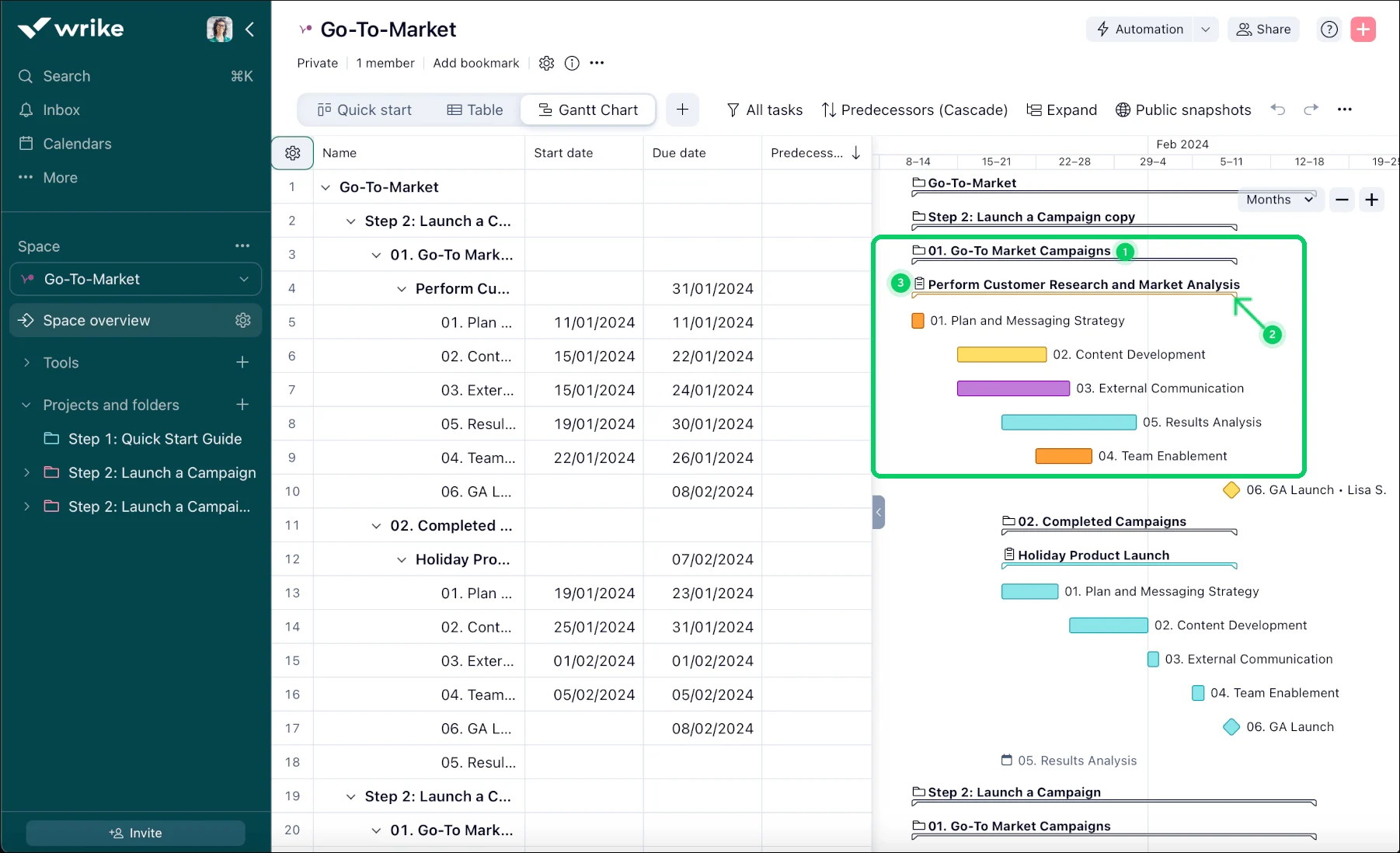
Pic.6. Wrike’s Gantt chart. Source
Smartsheet
A spreadsheet-shaped planner with strong dependency and milestone handling, and a native Teams app that lets you pin individual sheets as channel tabs.
- Price: Pro $9/member/month billed yearly ($12 monthly, 1–10 members); Business $19 billed yearly ($24 monthly, 3-member minimum); Enterprise on request.
- Free plan: none. Older roundups that mention a Smartsheet free plan — including the previous version of this article — are out of date. There is a trial only.
- In Teams: yes — sheets as tabs, plus notifications and permission requests. Sync is one-way: Teams activity does not flow back into Smartsheet.
- Rating: 4.4 on G2 (~22,300 reviews)
- Also worth knowing: Smartsheet was taken private by Blackstone and Vista Equity in a $8.4bn deal that closed in January 2025.
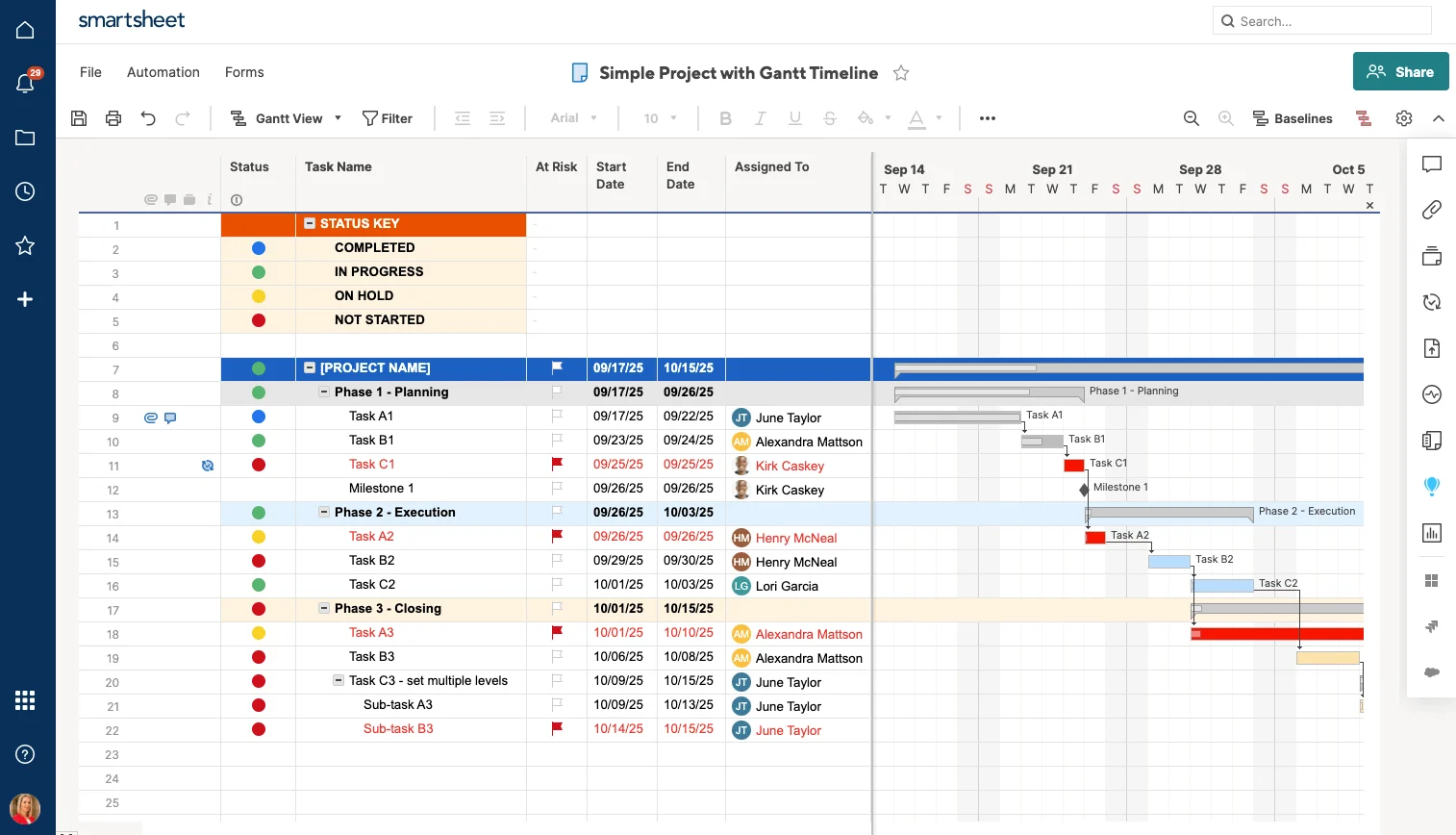
Pic.7. Smartsheet’s Gantt view. Source
Trello
Trello no longer needs a Power-Up for a timeline — Timeline view is built in from the Premium tier. This is the biggest change since our last update, and it makes Trello considerably simpler to recommend.
- Price: Standard $5, Premium $10, Enterprise $17.50 per user/month billed annually (Standard $6 and Premium $12.50 billed monthly). Timeline requires Premium.
- Free plan: yes — 10 boards and 10 collaborators per Workspace, unlimited cards, no Timeline
- In Teams: yes — boards pin as channel tabs and are fully interactive, plus card creation and notifications
- Power-Up notes: BigPicture for Trello has been discontinued and is no longer in the Power-Up directory. “Dashboards by Placker” is now “Reports (by Placker)”, and Placker ships a separate dedicated Gantt Chart Power-Up. Planyway is the other current Gantt Power-Up.
- Rating: 4.5 on Capterra (~23,600 reviews)
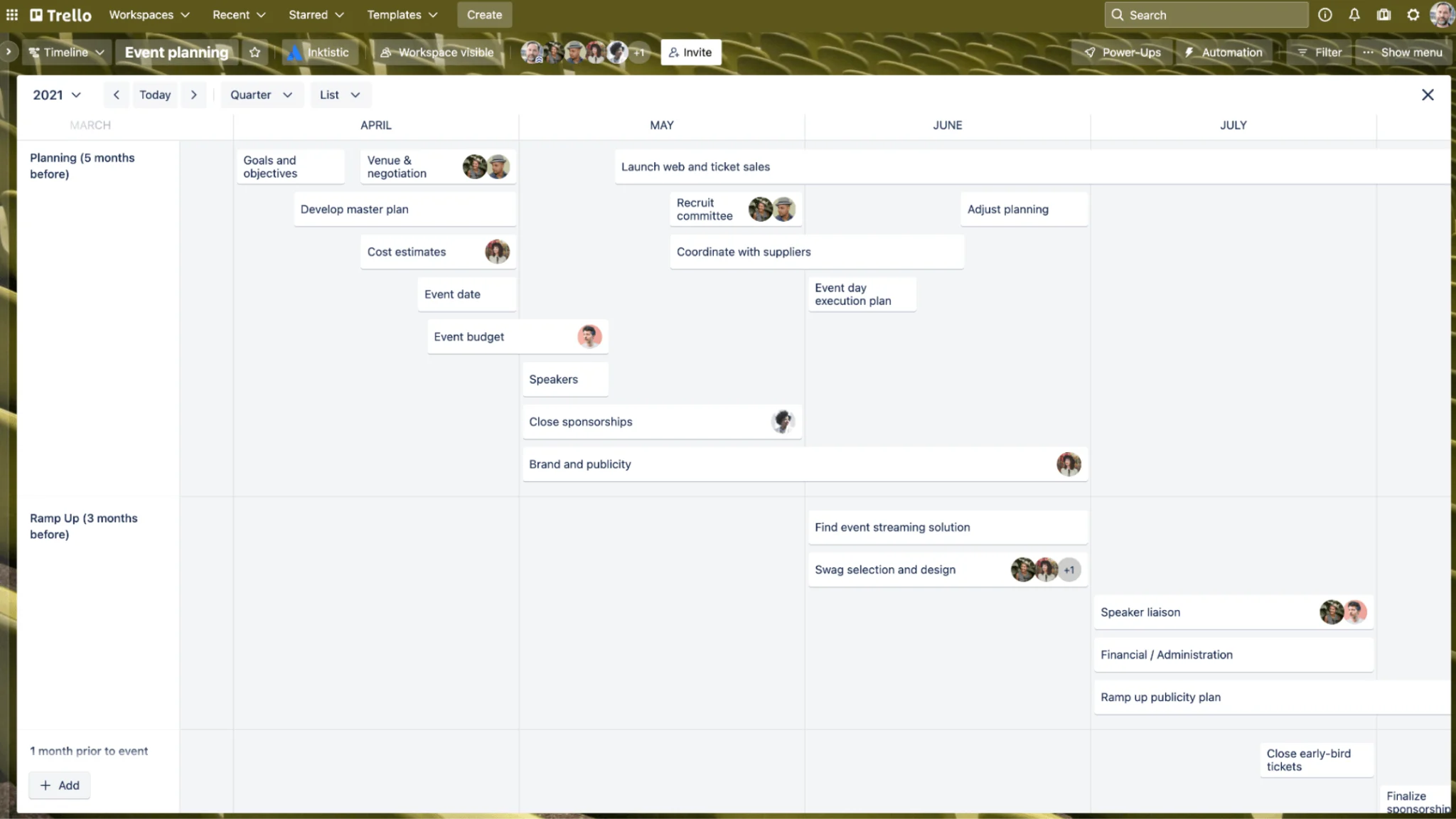
Pic.8. Trello’s native Timeline view (Premium tier). Source
Asana
Asana now has native Timeline and Gantt views included from its entry paid tier, so the old Instagantt workaround is no longer necessary for basic Gantt work. The catch for Teams users is the integration: Asana’s Teams app is task-centric — convert messages to tasks, search Asana, unfurl links, receive notifications, run Rules automations, and pin an Asana tab in Teams meetings. There is no evidence of a Timeline or Gantt rendering inside a Teams channel tab.
- Price: Starter $10.99/user/month billed annually ($13.49 monthly); Advanced $24.99 annually ($30.49 monthly); Enterprise and Enterprise+ on request. Note that “Premium” and “Business” are retired tier names — they are now Starter and Advanced.
- Free plan: Personal, up to 2 users (not 10 or 15, as older comparisons state), no Timeline
- In Teams: partial — tasks, notifications and meeting tabs, but no Gantt view in Teams
- Rating: 4.4 on G2 (~13,300 reviews)
If you specifically want Instagantt’s snapshots and public sharing on top of Asana, it is still operating as an Asana partner: Individual $10/month billed annually ($12 monthly), Teams $20/month billed annually ($24 monthly, 3 collaborators included, +$8/month per extra user), with a free tier limited to 3 connected Asana projects. It has no native Microsoft Teams app.
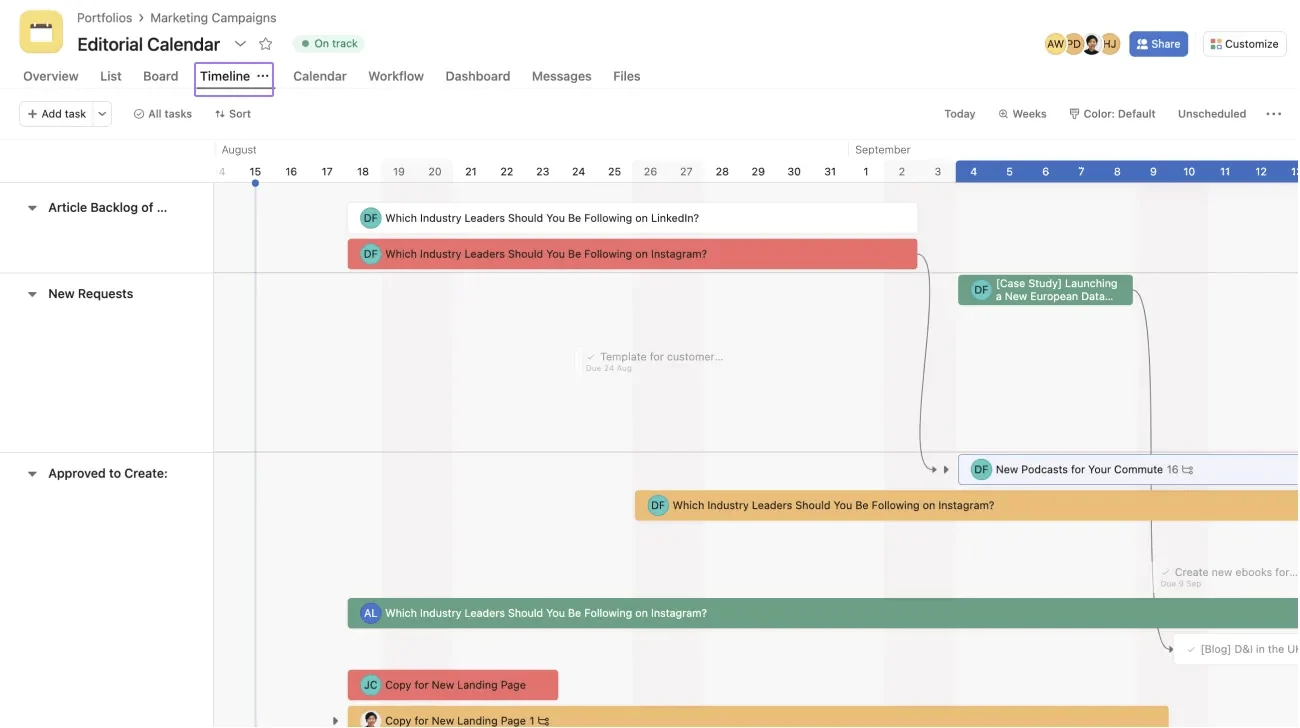
Pic.9. Asana’s native Timeline view — available from the Starter tier, but not viewable inside a Teams channel tab. Source
GanttPRO
A dedicated Gantt tool rather than a general PM suite, and the interface reflects that: task hierarchies, dependencies, resource management and collaborative editing, all built around the timeline. Its Teams integration is honestly described as a bot — inbound notifications for task creation, assignee and status changes, plus commands to create tasks and add comments. There is no Teams tab and no Gantt chart inside Teams.
- Price: billed annually — Core $7, Advanced $10, Business $17, Enterprise $25 per user/month. Monthly: Core $9.99, Advanced $14.99, Business $24.99.
- Free plan: none — 14-day trial, no card required
- In Teams: notifications and commands only
- Rating: 4.8 on Capterra (~554 reviews)
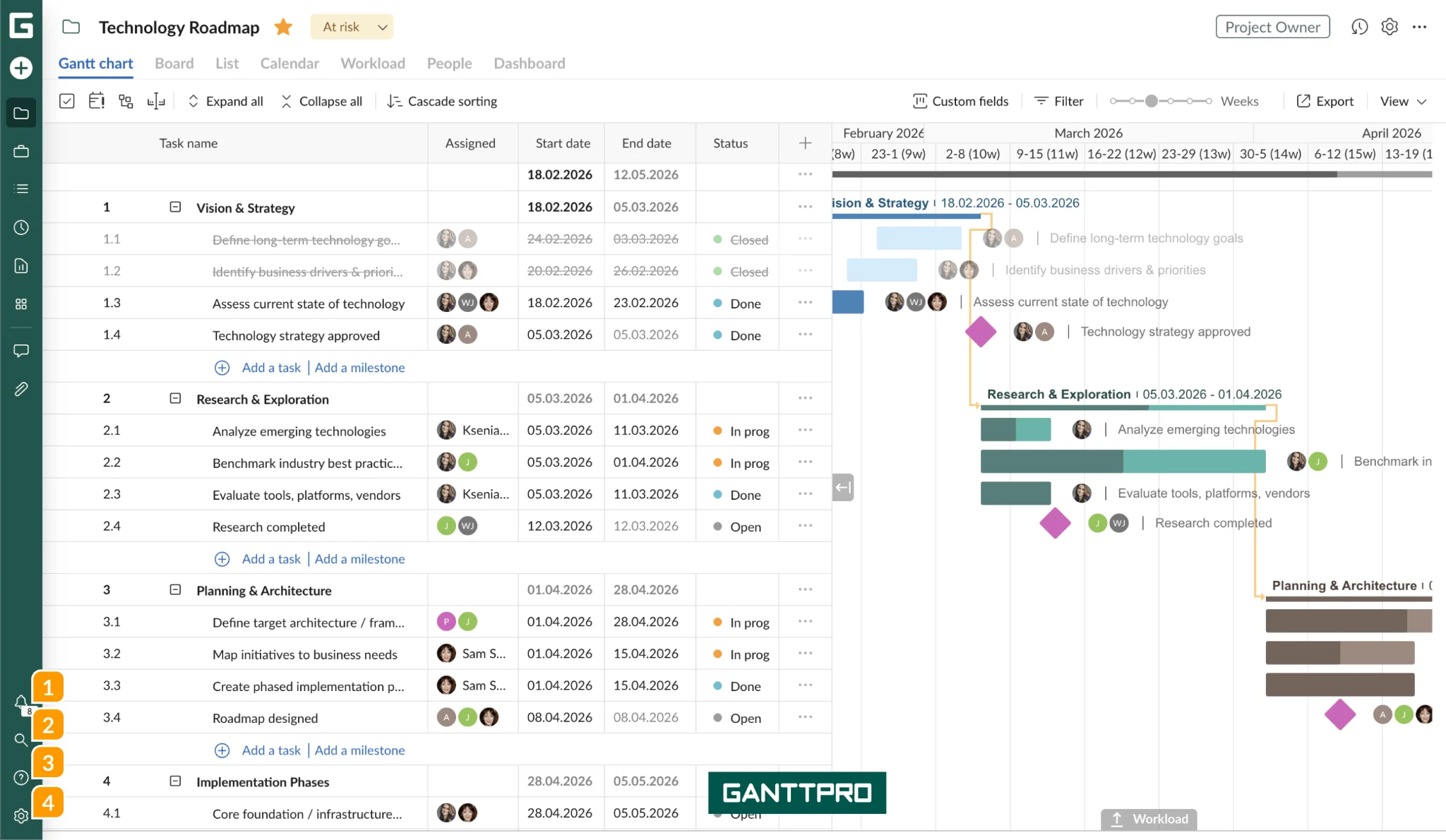
Pic.10. GanttPRO’s Gantt chart interface. Source
Aha!
Aha! Roadmaps is a product-management platform with strong release planning and timeline views, priced accordingly. Its Teams integration is a one-way webhook that broadcasts Aha! updates into a channel as cards linking back to the web app — there is no Aha! app in the Teams store and no roadmap viewing inside Teams.
- Price: Aha! Roadmaps Premium $59/user/month billed annually ($74.59 billed monthly); Enterprise $124.99 monthly; Enterprise+ $149 annual-only. Cheaper Aha! products (Whiteboards, Develop, Teamwork at $9/user/month) do not include roadmapping.
- Free plan: none — 30-day trial
- In Teams: notifications only
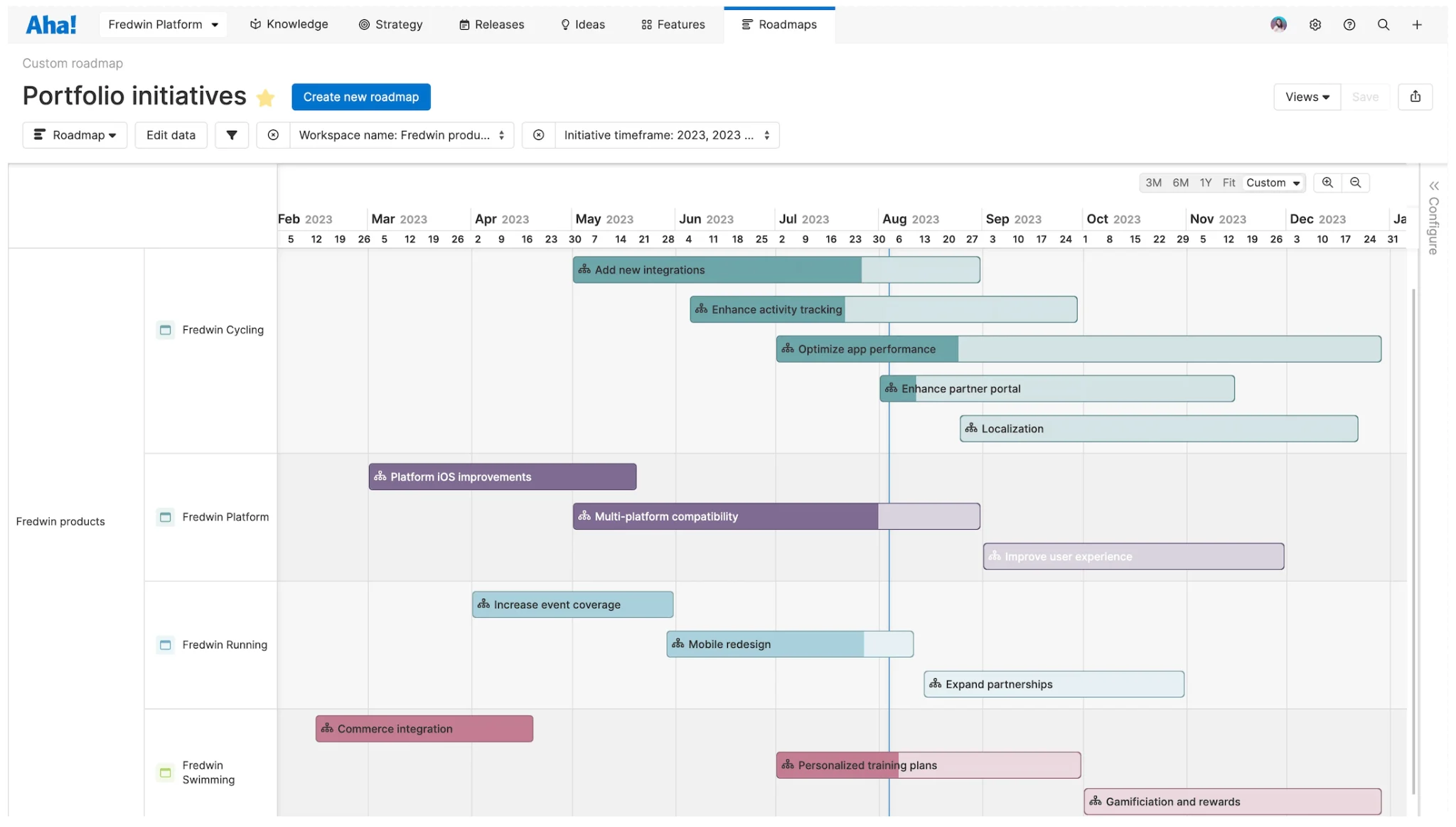
Pic.11. Aha! roadmap and timeline planning. Source
TeamGantt
Worth flagging because its pricing model changed completely: TeamGantt is no longer per-manager seats but flat, project-count-based plans — Basic from $24/month (1 manager, up to 10 collaborators, 2 projects), Business from $120/month (unlimited managers and collaborators, 5 projects), Builder Edition from $199/month (10 projects), with 20% off annual billing. Any “$19 per manager” figure you find in an older comparison is stale. There is a genuinely useful Forever Free tier: 1 manager, 2 collaborators, 1 project, 60 tasks.
- In Teams: no native Teams app — only third-party connectors such as Zapier
- Rating: 4.8 on G2
Apps4.Pro Planner Gantt
A niche but relevant option if you want to stay on free Planner: this add-on layers a Gantt view over existing Microsoft Planner plans, so you get a timeline without buying Planner Plan 1 for everyone. The marketplace listing is still live and the vendor page was updated in July 2026, with a 15-day trial. Check the current price and the exact hosting surface on the listing before committing — the details have moved around.
Gantt chart tool comparison table for Microsoft Teams
| Tool | Entry price for Gantt | Free plan | Gantt visible inside Teams? | Rating |
|---|---|---|---|---|
| Microsoft Planner (premium) | $10/user/mo, yearly (Plan 1) | Included tier has no Timeline | Yes — full Timeline in a channel tab | n/a |
| monday.com | $12/seat/mo, yearly (Standard) | 2 seats, no Gantt | Yes — boards embed in tabs | 4.7 (G2) |
| Wrike | $10/user/mo, yearly (Team) | Yes, no Gantt | Yes, read-only in a tab | 4.2 (G2) |
| Smartsheet | $9/member/mo, yearly (Pro) | No free plan | Yes — sheets as tabs, one-way sync | 4.4 (G2) |
| Trello | $10/user/mo, yearly (Premium) | 10 boards, no Timeline | Yes — boards as interactive tabs | 4.5 (Capterra) |
| Asana | $10.99/user/mo, yearly (Starter) | 2 users, no Timeline | No — tasks and notifications only | 4.4 (G2) |
| GanttPRO | $7/user/mo, yearly (Core) | No free plan | No — bot notifications only | 4.8 (Capterra) |
| Aha! Roadmaps | $59/user/mo, yearly (Premium) | No free plan | No — webhook cards only | n/a |
| TeamGantt | From $24/mo flat (Basic) | 1 project, 60 tasks | No native Teams app | 4.8 (G2) |
| Apps4.Pro Planner Gantt | See marketplace listing | 15-day trial | Adds a Gantt over existing Planner plans | n/a |
Free Gantt chart options for Microsoft Teams
There is no free native Gantt in Teams — every route below involves a trade-off. Ranked by how usable they actually are:
- The Planner premium 30-day trial. The cleanest way to get a real Gantt in Teams at zero cost, and the fastest way to find out whether the Timeline view is worth $10/user/month to your team. Self-start it from “Try Project” in Teams.
- Trello’s free plan plus a Gantt Power-Up. The free Workspace tier (10 boards, 10 collaborators) does not include Timeline view, but a free-tier Gantt Power-Up such as Placker’s or Planyway’s can add a basic timeline, and the board itself pins to a Teams tab.
- TeamGantt Forever Free. A real, unrestricted Gantt chart — capped at 1 manager, 2 collaborators, 1 project and 60 tasks. Good for a single small project; no Teams app, so you will be linking out to it.
- Wrike’s free plan. Unlimited users, but board and table views only. Useful as a shared task list inside Teams; not a Gantt.
- Excel or a Gantt template. Still a legitimate answer for a small, stable plan: build the chart in Excel, store the file in the channel’s SharePoint library, and pin it as a tab. It updates manually and has no dependency logic, but everyone in the channel can see and edit it, and it costs nothing extra.
- A classic SharePoint list Gantt view. Free, but for the reasons above it does not render in modern pages or Teams tabs. Only worth it on a tenant already living in classic.
How to add a Gantt chart to a Microsoft Teams channel
The path for Planner, which is the native option:
- In Teams, select Teams and open the channel you want the timeline in.
- Select Add a tab (the + at the top of the channel), then Apps.
- Choose Planner, then Save.
- Either Create a new plan — where you can start a basic or premium plan, or use a template — or Add an existing plan already shared with the channel or its group.
- Open the plan’s Timeline tab. If it is missing, the plan is a basic plan: upgrade the plan itself to premium, and check that the “Project for Office” service plan is enabled on your licence.
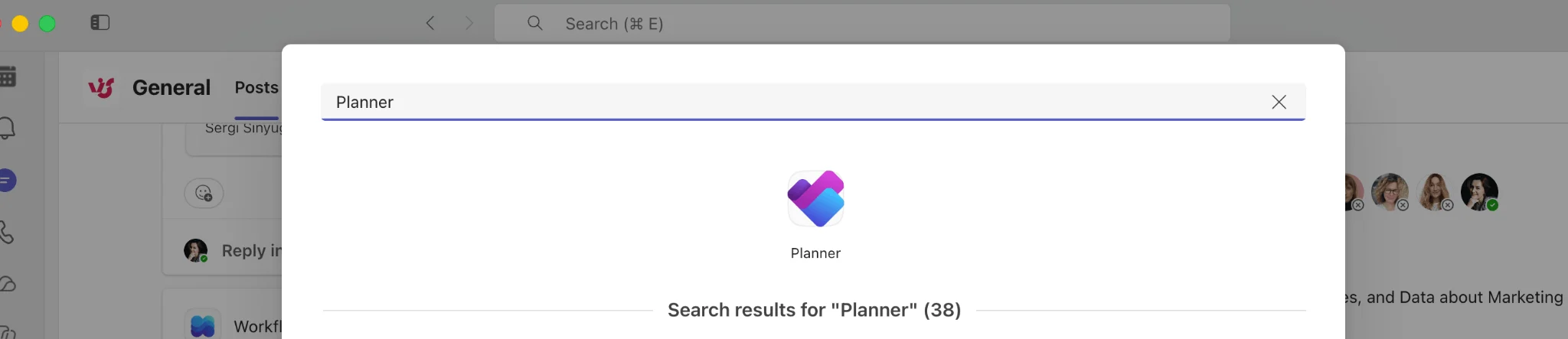
Pic.12. Adding a Planner tab to a Microsoft Teams channel via Add a tab ▸ Apps ▸ Planner.
Third-party apps follow the same pattern: Add a tab ▸ Apps, search for the vendor’s app, sign in, then pick the board, sheet, project or space to pin. Two current limitations worth planning around:
- Teams mobile shows only plans that have been added as a channel tab, with reduced functionality.
- Shared and private channels are only receiving Planner tab support from late August 2026, and basic plans only at launch — so no Timeline there yet. Portfolios still cannot be pinned as tabs at all.
How to choose
A quick decision path that holds up in practice:
- Already paying for Microsoft 365 and want the least friction? Planner Plan 1. The Gantt lives in Teams, permissions already work, and there is no new vendor.
- Need to edit the timeline from inside Teams? monday.com Standard or Trello Premium — both give you a fully interactive board in the tab. Wrike is in-tab but read-only.
- Spreadsheet-minded team with complex dependencies? Smartsheet Pro.
- The Gantt is the whole job, and you do not need it in Teams? GanttPRO at $7/user/month is the cheapest serious dedicated tool.
- Product roadmapping rather than project scheduling? Aha! Roadmaps, at a very different price point.
- One small project, no budget? TeamGantt Forever Free, or an Excel template in the channel’s files.
Whichever you pick, sanity-check the Teams integration claim on the vendor’s own documentation before you buy seats. “Microsoft Teams integration” in a feature matrix means anything from a fully embedded, editable Gantt to a bot that posts “task status changed”.
Reporting on your schedule inside Teams
A Gantt chart answers what happens when. It is much weaker at how are we actually doing — throughput, workload distribution, cycle times, whether the burn-down is tracking. That reporting layer is usually the thing teams end up rebuilding in a spreadsheet.
If your tasks live in SharePoint lists, the Virto Charts & Data Visualization App for Microsoft Teams turns them into dashboards inside Teams: status and completion charts, per-member breakdowns, lead times and burndown charts, so progress reporting sits in the same channel as the schedule and the conversation. It pairs with a Gantt rather than replacing one — the timeline for the plan, the charts for the reality.
It is one of Virto’s apps for Microsoft Teams, alongside the Virto Kanban Board App for teams who want a card wall instead of a timeline — see our roundup of the best Kanban board apps for Microsoft Teams for that side of the comparison. Virto Kanban Board App starts at $2/user/month (Starter, up to 30 users) and $3/user/month (Pro, 31–200 users), billed yearly, with Enterprise pricing on request and a 30-day free trial.
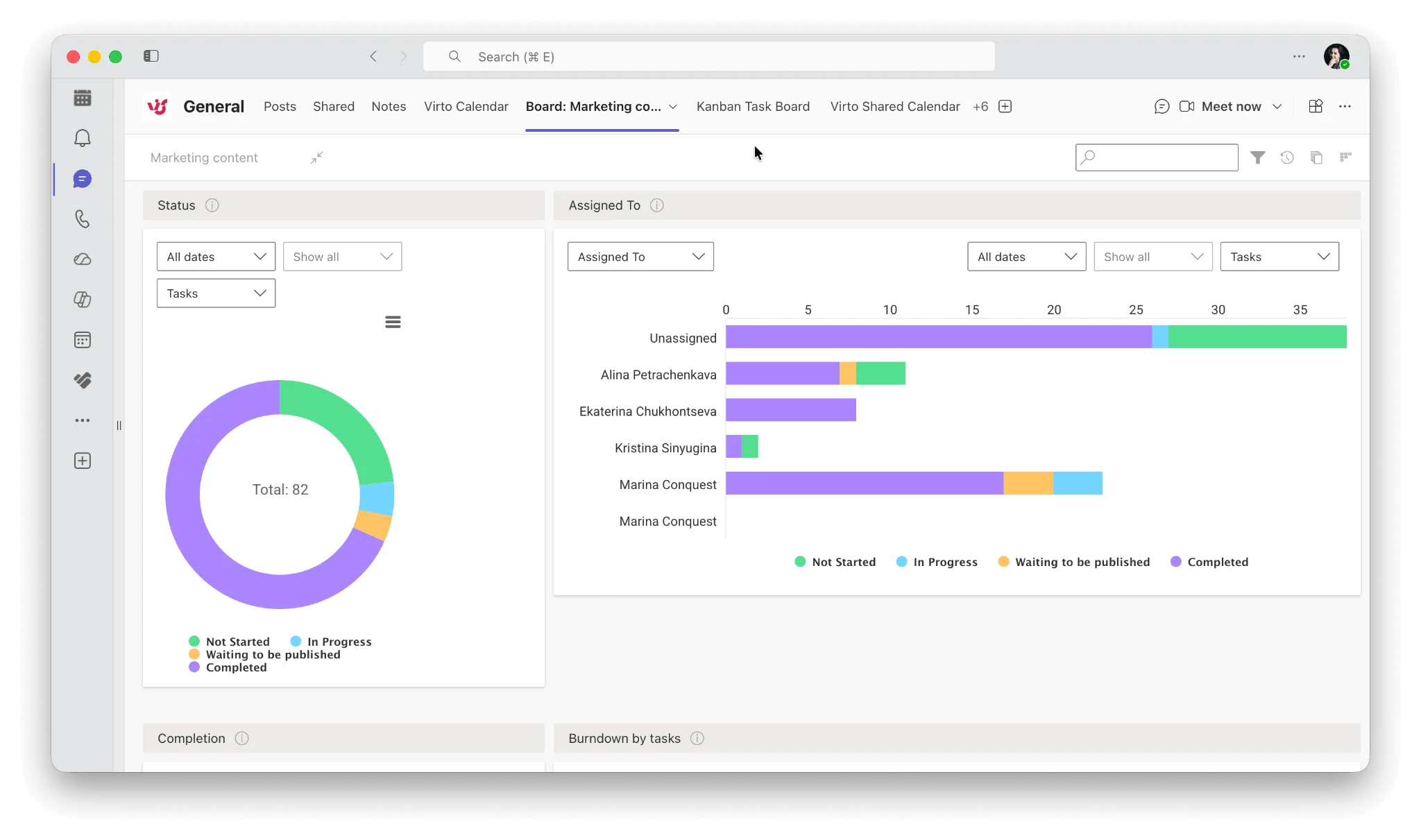
Pic.13. Virto Kanban Board charts, displayed inside a Microsoft Teams channel.
FAQ
Does Microsoft Teams have a Gantt chart?
Not a native one at the included Microsoft 365 tier. The bundled Planner app offers Grid, Board, Schedule and Charts views only. You get a real Gantt either by upgrading to a premium Planner licence — Planner Plan 1 at $10/user/month unlocks the Timeline view, which Microsoft describes as a Gantt chart format — or by adding a third-party Gantt app as a tab in a Teams channel.
How do I add a Gantt chart to Microsoft Teams?
Open the channel, select Add a tab (the + at the top), choose Apps, and pick a Gantt-capable app — Planner for the native route, or monday.com, Wrike, Smartsheet or Trello. Then connect the plan, board, sheet or project you want to display. For Planner, open the Timeline tab once the plan is pinned.
Is there a free Gantt chart for Microsoft Teams?
There is no permanently free native Gantt. The closest options are Microsoft’s 30-day trial of Planner’s premium features, TeamGantt’s Forever Free plan (1 project, 60 tasks), a free Gantt Power-Up on a free Trello board, or an Excel Gantt template stored in the channel’s SharePoint library and pinned as a tab.
Can I still use Project for the web in Teams?
No. Project for the web retired on 1 August 2025, and the Project and Roadmap apps for Teams retired with it. Microsoft redirects users to Planner for the web, and its guidance was to re-pin work as Planner tabs and migrate Roadmaps into Portfolios. Project Online retired too, on 30 September 2026.
Does Microsoft Planner have a Gantt chart view?
Yes, on premium tiers, where it is called Timeline. Two conditions have to be met: the plan must have been created or upgraded as a premium plan (a Planner Plan 1 licence alone does not add a Timeline to an existing basic plan), and the “Project for Office” service plan must be enabled on the user’s licence in the Microsoft 365 admin centre.
Does SharePoint have a Gantt chart view?
Only in the classic experience. Modern SharePoint lists support List, Compact list, Tiles, Calendar, Gallery and Grid views — Gantt is not among them, and Microsoft’s modern-view compatibility check treats a Gantt view as a blocking condition. Creating one forces the list into classic, where it will not render inside a modern page or a Teams tab.
Does Microsoft Loop have a timeline or Gantt view?
No. Loop offers a lightweight Task list component that syncs with Planner, limited to task titles, assignees and due dates. Microsoft’s documentation directs users to “Open in Planner” for anything more, including timelines.
Which Gantt app has the best Microsoft Teams integration?
For a fully native experience, Planner premium — the Timeline renders inside a channel tab and permissions follow your existing Microsoft 365 groups. Among third-party tools, monday.com and Trello give you an interactive timeline in a tab, and Wrike gives you a read-only one. Asana, GanttPRO and Aha! integrate with Teams for notifications and task actions but do not display a Gantt inside Teams.
Do I need Microsoft Project to get a Gantt chart in Teams?
No, and Project desktop cannot be pinned to a Teams channel anyway. Planner Plan 1 at $10/user/month is the cheapest native route to a Gantt inside Teams. Project Professional 2024 ($1,129.99 one-time) remains relevant for dedicated schedulers who need baselines and critical path, but it is a desktop tool, and Planner cannot import .mpp files.
Conclusion
In 2026 the honest answer to “what is the best Gantt chart for Microsoft Teams” starts with a licensing decision rather than a feature comparison. Microsoft does have a native Gantt — Planner’s Timeline view — but it sits behind Planner Plan 1 at $10/user/month, and the older workarounds have all closed: Project for the web and its Teams app are gone, Project Online retired in September 2026, and SharePoint’s Gantt view remains stuck in classic.
If you want to stay native, Planner premium is the path of least resistance, and the 30-day trial makes it easy to test. If you want more scheduling power or a lower price, monday.com Standard and Trello Premium give you an editable timeline inside a Teams tab, Smartsheet suits dependency-heavy spreadsheet work, and GanttPRO is the cheapest dedicated Gantt tool if you accept opening it in a browser. Just verify what “Teams integration” means for the tool you choose before you buy seats.
And once the schedule is settled, keep the reporting in the same place as the work: Virto’s apps for Microsoft Teams add dashboards and Kanban views on top of your SharePoint data, with a 30-day free trial and pricing from $2/user/month. For wider context on running projects in the Microsoft stack, see our guides to Microsoft Teams project management, Office 365 project management and SharePoint project management.