Plan in weeks? Now the Month view numbers them too, the way Outlook does.
The latest update of Virto Calendar App and Virto Shared Calendar is live for every customer. Week numbers are now a setting you turn on for each calendar, and they reach the Month view. Virto Calendar App gathers all view settings on one tab, and Virto Shared Calendar opens a demo calendar you can edit before you sign in.
Show week numbers, now in the Month view too
With Show week numbers on, the Month view shows the number of each week at the start of its row, as Outlook does. In the Day, Week and Work week views the number stands next to the date range in the toolbar and is printed in the header of the printout.
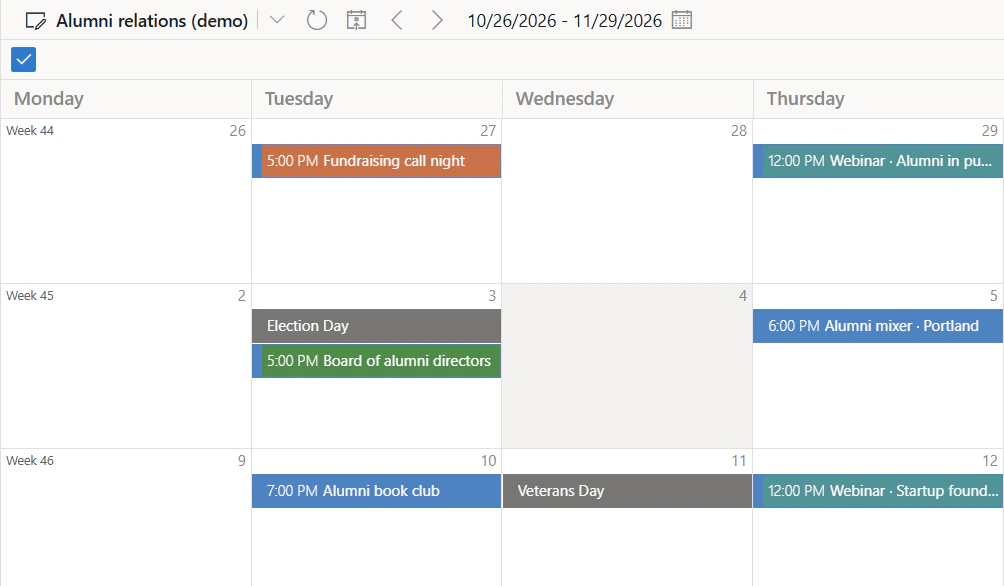
Pic. 1. Virto Calendar App, Month view with Show week numbers on: Week 44, 45 and 46 at the start of the rows
The setting is off by default. It belongs to the calendar, so everyone who opens that calendar sees the same numbers. Whoever manages the calendar turns it on:
- Click the pencil next to the calendar’s name to open Edit calendar.
- Go to the Calendar tab.
- Tick Show week numbers, right under Week start day, and save.
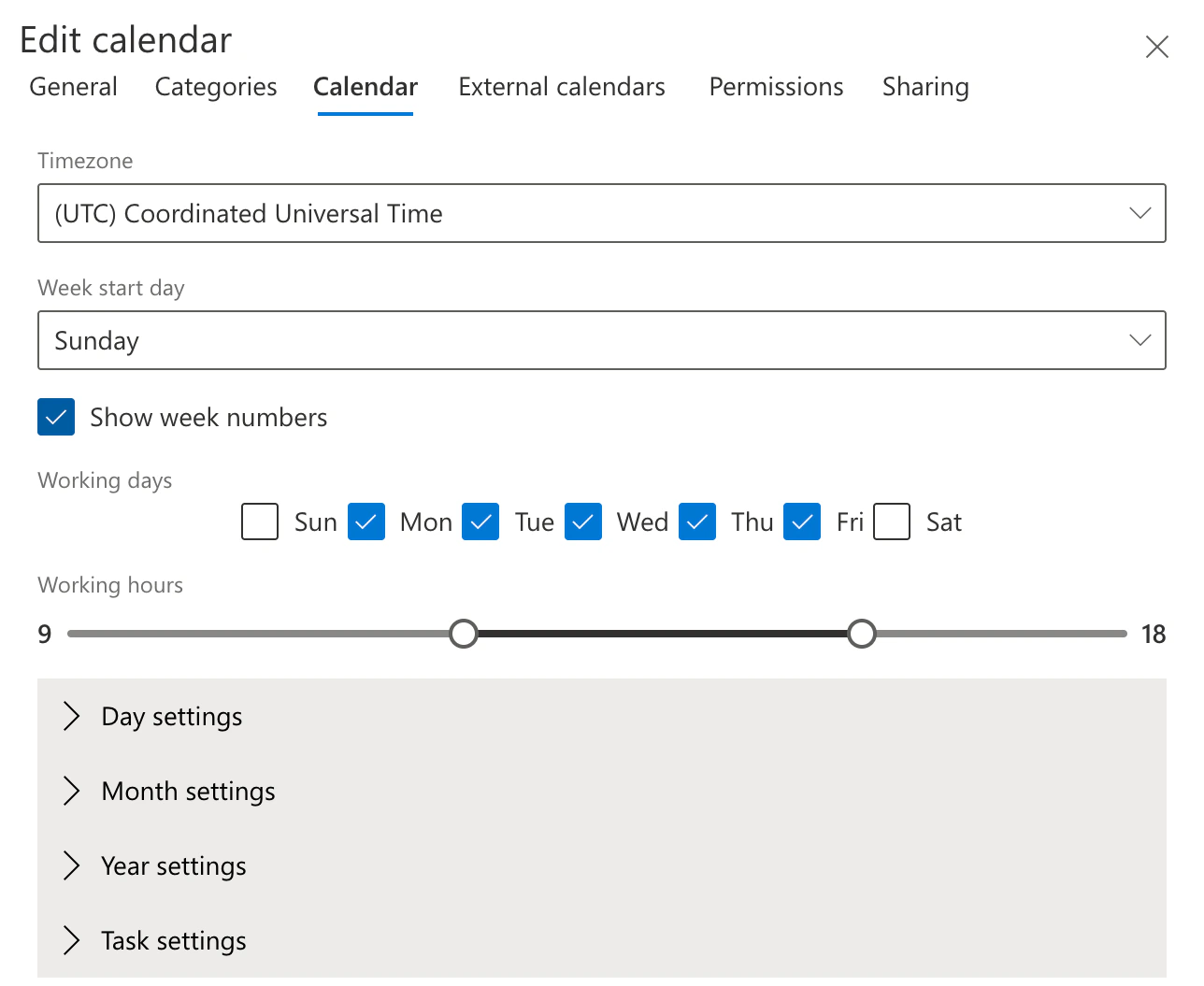
Pic. 2. Virto Shared Calendar, Edit calendar, Calendar tab: Show week numbers under Week start day
The numbering follows the first day of the week set for the calendar. With Monday it is ISO 8601: week 1 is the week with the first Thursday of the year. With Sunday, week 1 is the week that contains January 1.
A change since the October 26 update: the Week and Work week views showed the week number all the time. Now it appears only when Show week numbers is on. If your team got used to it, turn the setting on once for each calendar.
Virto Calendar App: every view setting on the Calendar tab
The settings of the views used to sit on tabs of their own: Multiday, Month, Year and Task. They are now collapsible sections on the Calendar tab, below the settings that apply to every view: week start day, week numbers, working days and working hours. Each section keeps its help link. Everything about how a calendar looks is on one tab now: open the section you need, and the others stay folded.
Virto Shared Calendar: a demo calendar you can try
Open teams-calendar.app without signing in, and Virto Shared Calendar shows a demo calendar with sample events around the current week: stand-ups, a project kickoff, a vacation, a birthday, an office closure, each in its category color. It is not a picture. Open an event and change it, drag it to another day, delete it, or add your own.
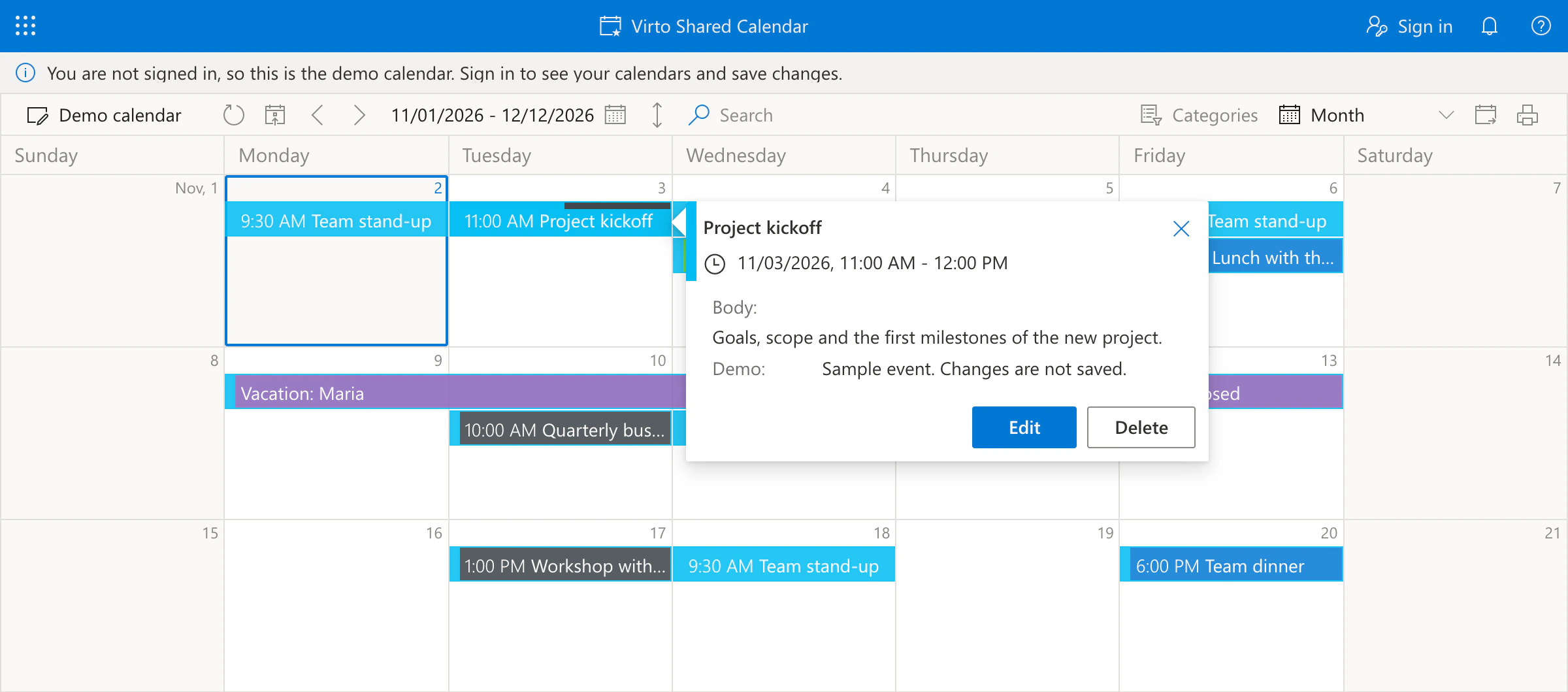
Pic. 3. The demo calendar in Virto Shared Calendar: a sample event open, with Edit and Delete
- Nothing leaves your browser. Changes to the demo are not sent to our servers, and they disappear when you reload the page.
- Two things are not simulated: recurring events and Teams meetings. Sign in to try them.
- Sign in to keep your work. A bar above the calendar says you are looking at the demo. Sign in, at the top right, opens your own calendars and saves your changes.
Smaller fixes
- Month settings that stay put. In Virto Shared Calendar, “Hide event start time on the event card” and “Show all events in cell” are now saved with the calendar. Before, both were off again after a reload.
- Task view hours in your time format. In Virto Calendar App, the hour headers of the Task view follow the calendar’s task time format, such as “10:00 pm”, instead of a fixed 24-hour clock. A header that does not fit shows in full as a tooltip.
Do I need to do anything?
Only if you want week numbers: turn on Show week numbers for the calendar. Both apps run as cloud services, so the update is already there. If a calendar tab has been open since before the update, reload it once.
If either app runs in your own Azure tenant, update the server and the app scripts together: the new setting and its label come from the server. Contact our support for the new build.
Try it: open the demo calendar of Virto Shared Calendar, no sign-in needed; its free plan keeps up to 15 entries per calendar. Virto Calendar App is on Microsoft Marketplace with a 30-day free trial.