Add it once. Launch your team calendar from wherever you already work.
Virto Calendar App is now available as an app across three Microsoft 365 surfaces: Microsoft Teams, Outlook, and the Microsoft 365 app. Same calendar, same data, same permissions — just three more doors into it.
Naming tip: the product is Virto Calendar App, but inside Teams, Outlook, and the Microsoft 365 app you should search for Virto Calendar Pro — that is the app title you will see in the app bar.
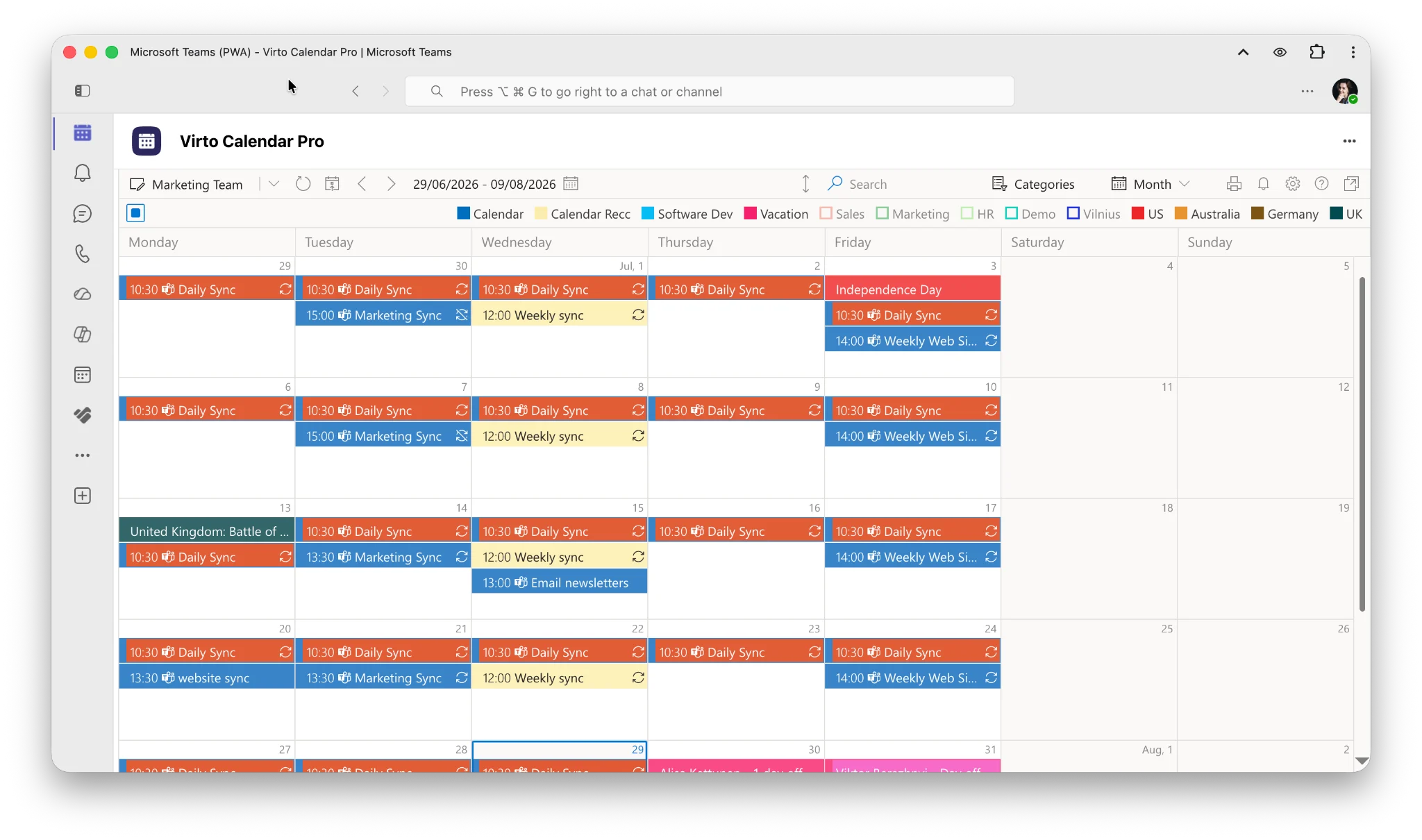
Virto Calendar Pro in Microsoft Teams
It opens to your calendar, not to a setup screen
By default, the app opens your project calendar from the root collection right away. No site to navigate to, no “pick a calendar” step. Your recurring syncs, holidays, vacations and color-coded sources are on screen the moment it loads — along with everything else you expect: month, week and day views, category filters, overlaid calendars from multiple sources, search, and print.
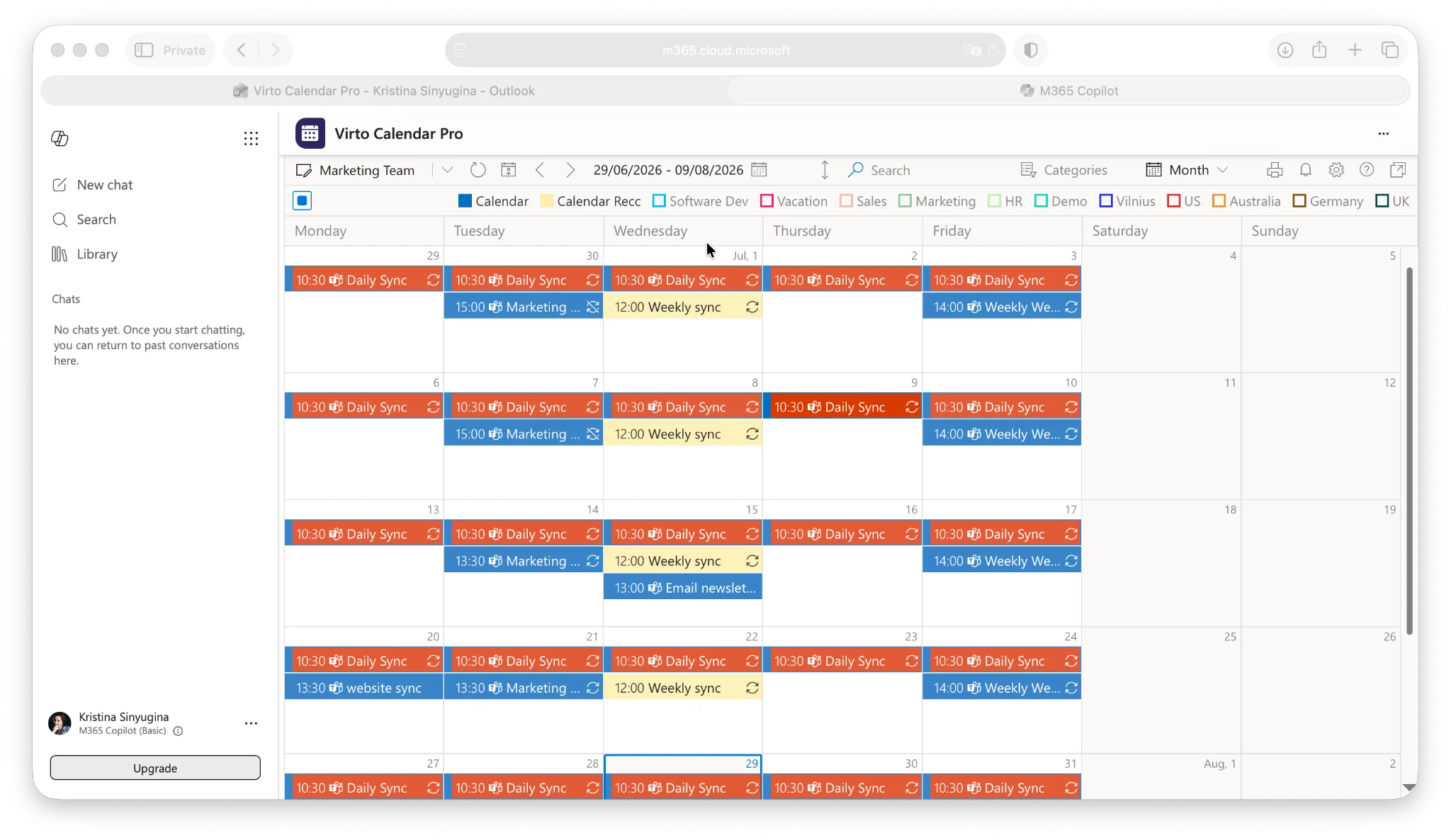
Virto Calendar Pro in M365
Why this is a genuinely useful change
- No context switching. Outlook people check the team calendar without leaving their mailbox. Teams people check it without leaving chat. Nobody has to remember which SharePoint site it lives on.
- No second sign-in. The app runs inside your existing Microsoft 365 session. Microsoft’s own guidance for apps extended across Microsoft 365 is that users reach them “without leaving the experience or signing in again.”
- One click, every day. Adoption of a shared calendar rises and falls on how fast people can open it. Moving it from three clicks deep into the app bar is a small change that compounds.
- One app, three hosts. This is Microsoft’s unified app model at work: a single app package and manifest that runs in all three Microsoft 365 hub applications — Teams, Outlook, and Microsoft 365 Copilot — rather than three separate installations.
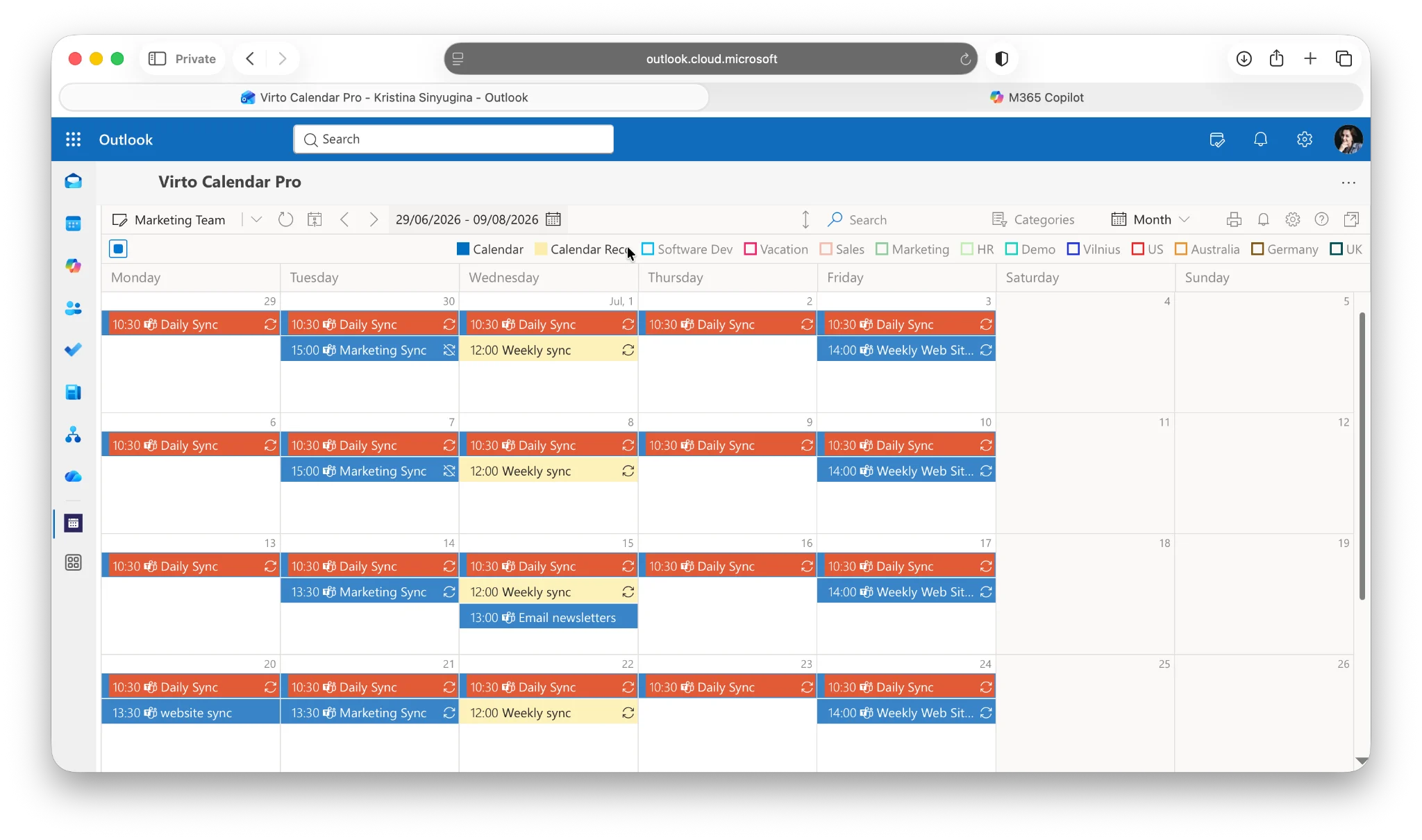
Virto Calendar Pro in Outlook
Where to find it
Rollout is a two-step affair, and both steps are quick. First, an administrator opens Teams apps → Manage apps in the Microsoft Teams admin center, finds Virto Calendar Pro, and picks the users or groups that get access on the Users and groups tab. After that, each person adds the app themselves from the store — no ticket, no waiting. (Admins who prefer it can install the app for people directly, so it just shows up.)
Once you have access, open the Apps section in the sidebar, look for Virto Calendar Pro, add it, and pin it:
- Outlook on the web and the Microsoft 365 app: sidebar → Apps
- Outlook on Windows: sidebar → More apps
- Teams: Apps → find Virto Calendar Pro → right-click the icon → Pin
- On a phone: use the Teams mobile app — the calendar travels with you. Outlook and Microsoft 365 on mobile are not supported yet; there, stick to web or desktop.
One thing worth knowing: each host keeps its own app bar, so pinning the app in Teams does not pin it in Outlook or the Microsoft 365 app. Pin it separately in each place you work — it takes about ten seconds.
Try it: Virto Calendar App is available on Microsoft Marketplace — start a free trial, add it to Teams and Outlook, and see how much faster your team actually checks the schedule.