Who is out this week, who asked for time off, and how many days are left, in the team calendar you already use.
The latest update of Virto Calendar App is live for every customer. It adds Team absences: a view of who is out and why, time-off requests that are approved in the calendar, and an annual allowance for each person. The absences live in a SharePoint list on your own site, and the calendar shows them next to your holidays and to your colleagues’ Out of office from Outlook.
See who is out at a glance
Team absences is a new view of the calendar. People are in rows and four weeks are in columns, with a morning and an afternoon half for each day. Each absence has the color of its category: Vacation, Away, Business trip or Training. A request that waits for approval has a dashed outline, and public holidays are shaded for the whole team.
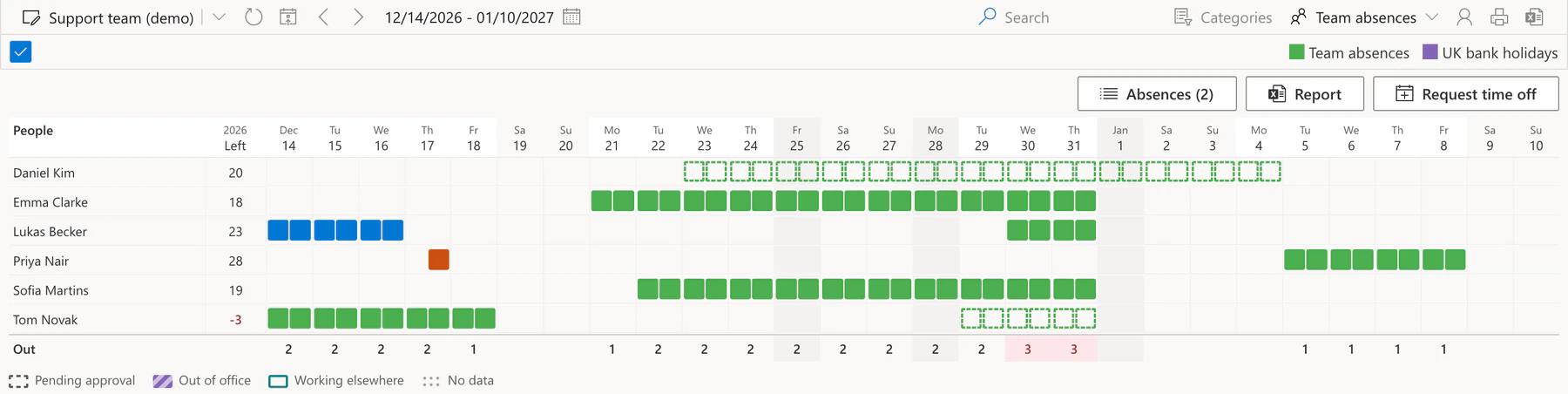
Pic. 1. The Team absences view: who is out each day, and the days left in the allowance
- The Out row at the bottom counts the people away each day.
- Out today above the grid names who is away today and why.
- People added from Outlook show their Out of office time, striped, without subjects or any other meeting details.
Set it up in a few minutes
An administrator turns the view on in the new Team absences tab of the calendar settings. The tab goes step by step: the view, the absence list, people from Outlook, emails, a limit of people out, holidays, the annual allowance and a summary.
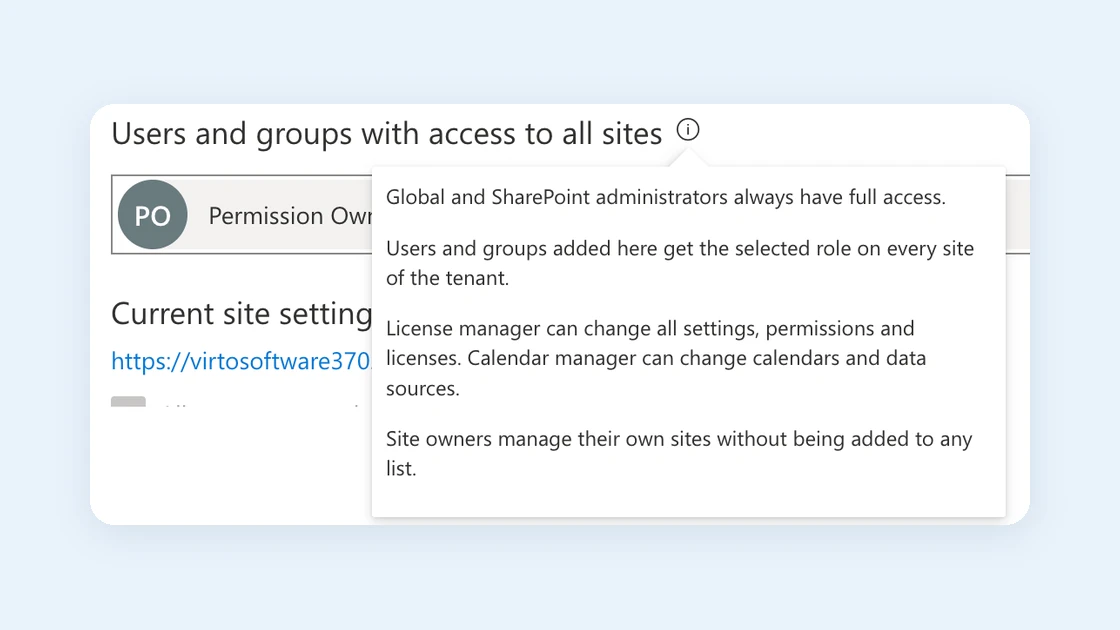
You don’t need to build the list yourself. Create an absence list makes a SharePoint list on the site you choose, with the columns for the employee, the dates, half days and the category, content approval switched on, and the right permissions: everybody sees the approved absences, a pending request is seen only by its author and the approvers, and people edit only their own requests. A calendar that already has an absence list can use it instead.
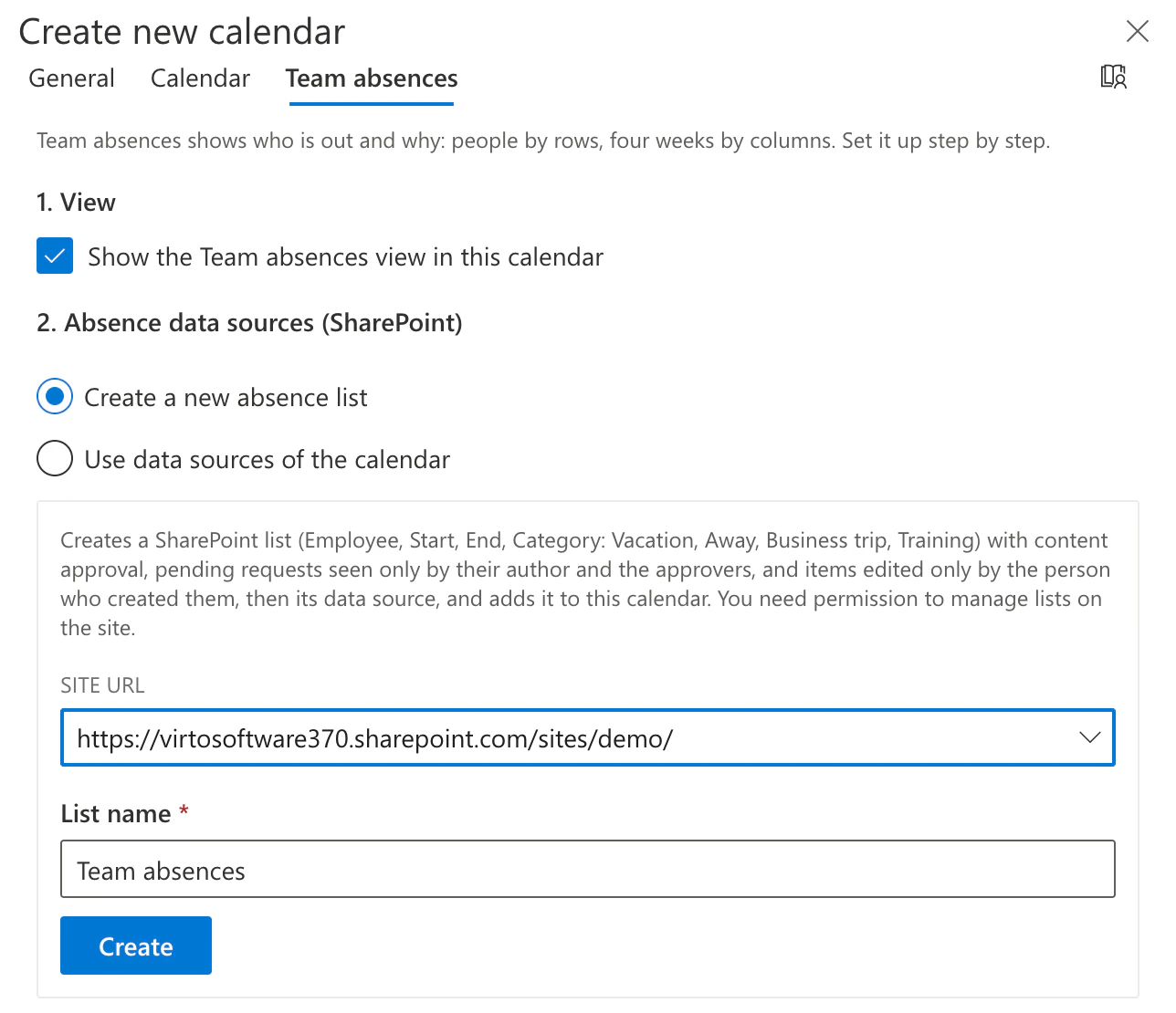
Pic. 2. Creating the absence list from the Team absences tab
Request time off and approve it in the calendar
Employees select Request time off above the view. The form opens with their name and today’s date; they pick the days, a category and, if needed, a half first or last day. With an annual allowance, the form shows right under the dates how many days are used, how many wait for approval and how many will be left after this request.
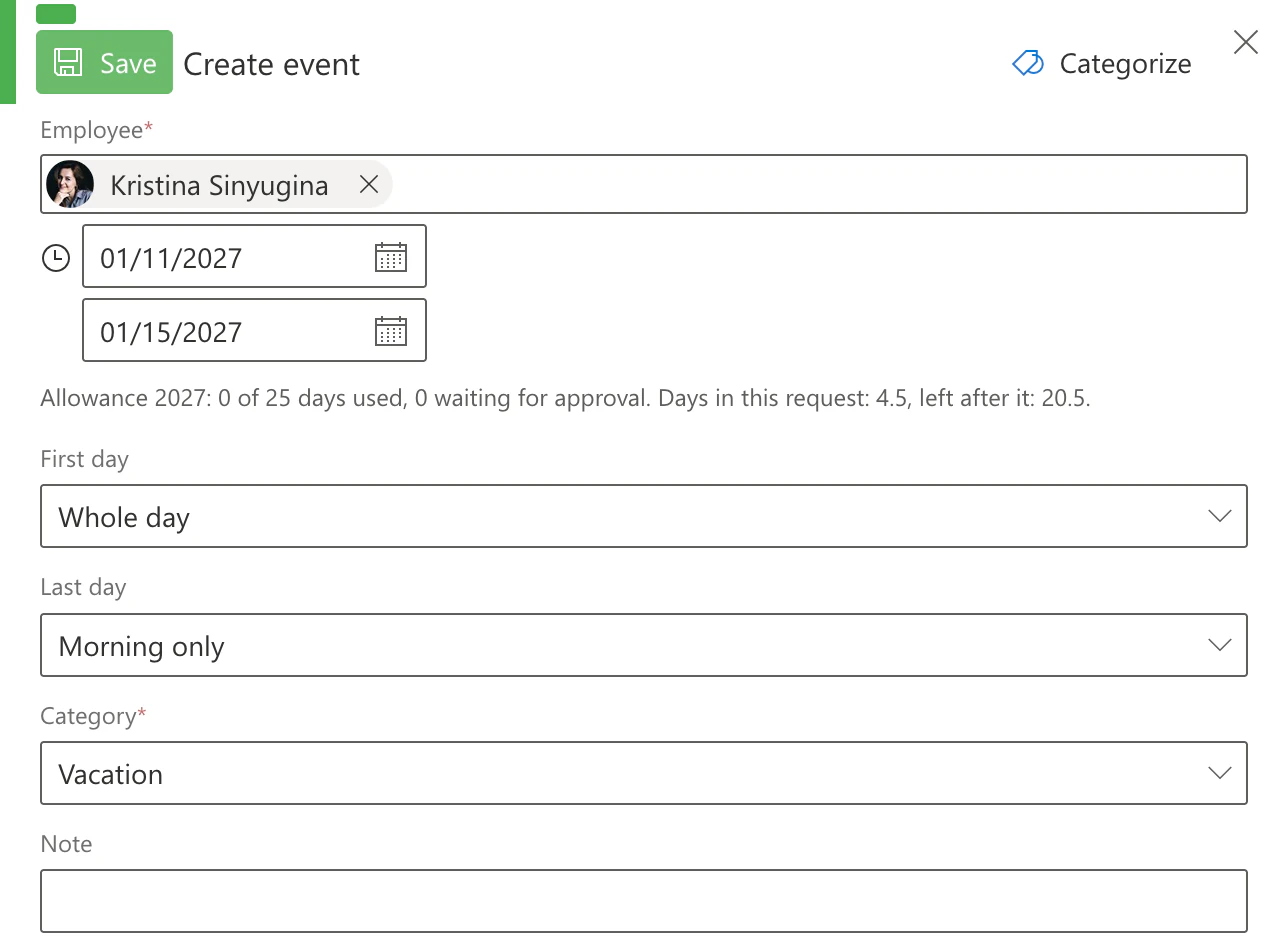
Pic. 3. A time-off request with the allowance under the dates
Approvers find the requests under Absences, with a number on the button. To approve shows, for each request, how many people are already out on those days and how many days the person has left after approval. Approve is one click. Reject asks for a comment for the employee. Nobody decides on their own request: another approver does.
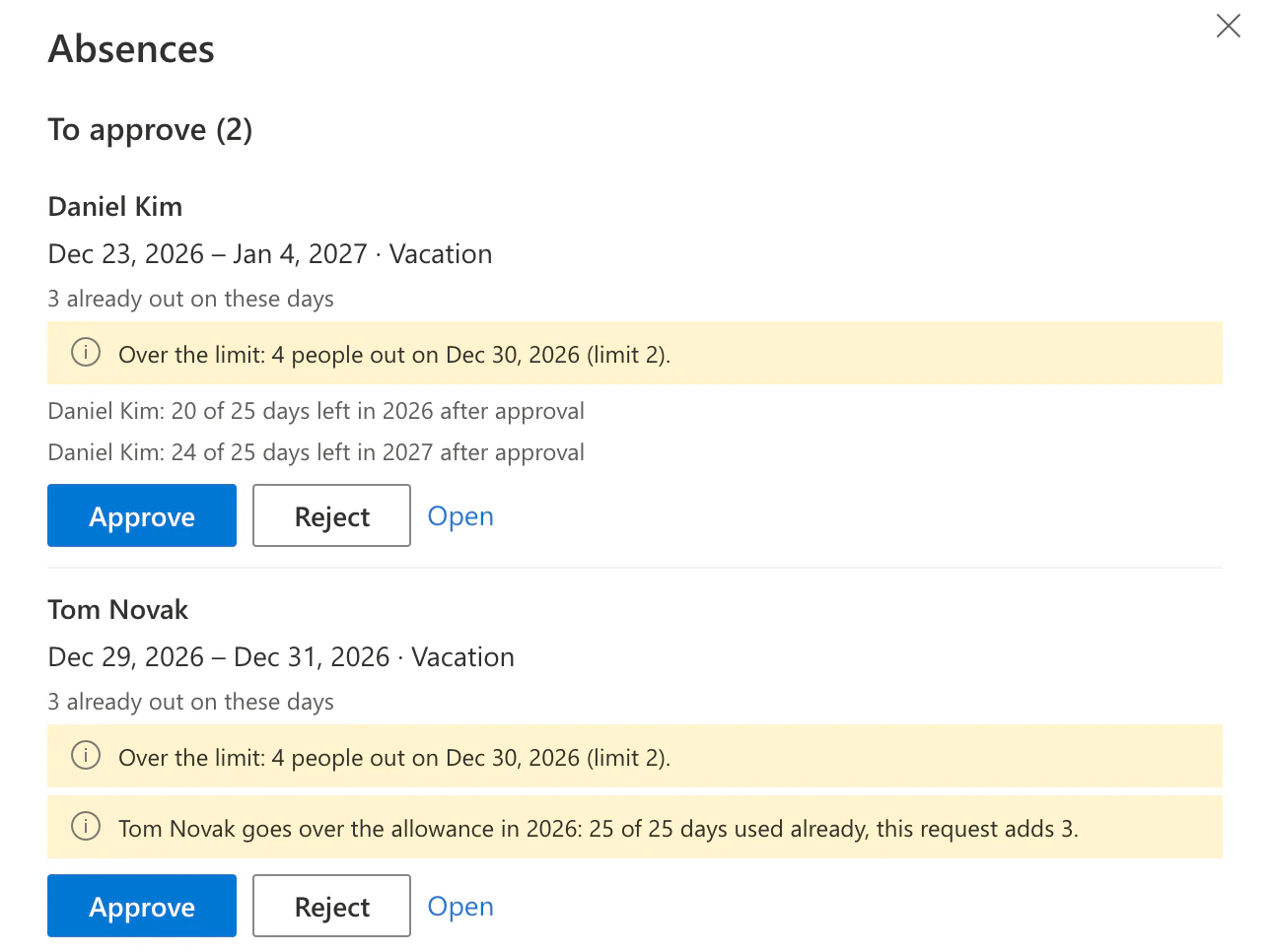
Pic. 4. To approve, with the warnings an approver sees before deciding
Employees follow their own requests under My requests and can withdraw one while it is pending. Approvers get an email about new and changed requests, and employees get one about each decision, with a link that opens the panel.
Limits that warn instead of block
Two settings help keep the team staffed and the days fair:
- Most people out at the same time. Days over the limit are highlighted in the Out row, and an approver sees a warning before approving a request that would go over it.
- Annual allowance. Set the working days per year, the categories that count and people with their own number of days, and how many unused days carry over to next year. Only working days of the calendar’s work week count, holidays don’t, and a half day counts as half. A Left column in the view shows the days left for each person.
Both only inform. The approver still decides, so a well-founded exception doesn’t need a workaround.
Out of office in Outlook, kept in step
Once a request is approved, the view offers to add it to the employee’s own Outlook calendar as Out of office, so Teams and the Scheduler in Outlook (formerly the Scheduling Assistant) show them as away. When an absence is changed or deleted later, Update Outlook brings the Outlook events in line. Only events made from the absence list are touched.
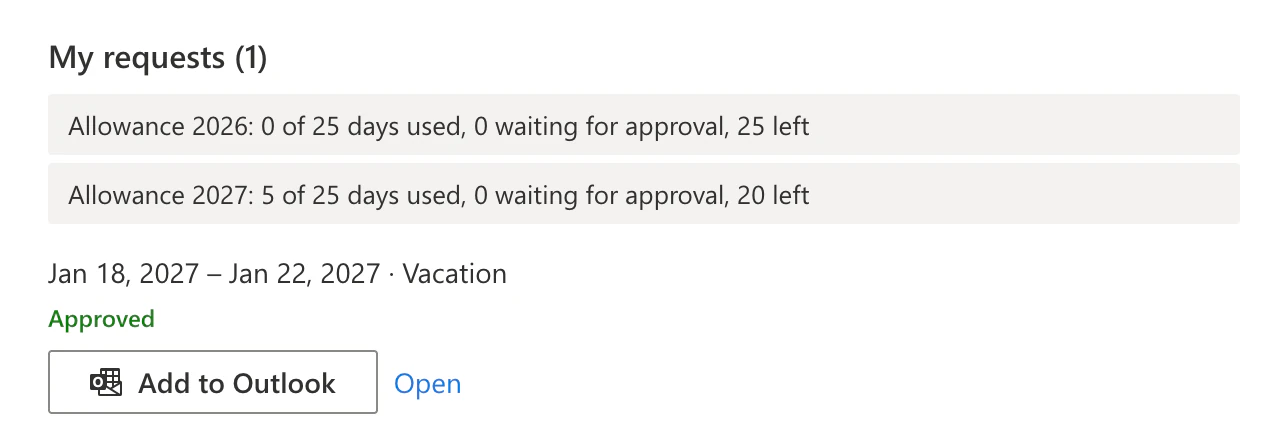
Pic. 5. Approved absences go into Outlook as Out of office with one click
A report for HR
Approvers get a Report button. It downloads an Excel file for last year, this year or next year, with one row per person: approved working days per category, days waiting for approval, and, with an allowance, the days carried over, counted and left. The file is built in the browser.
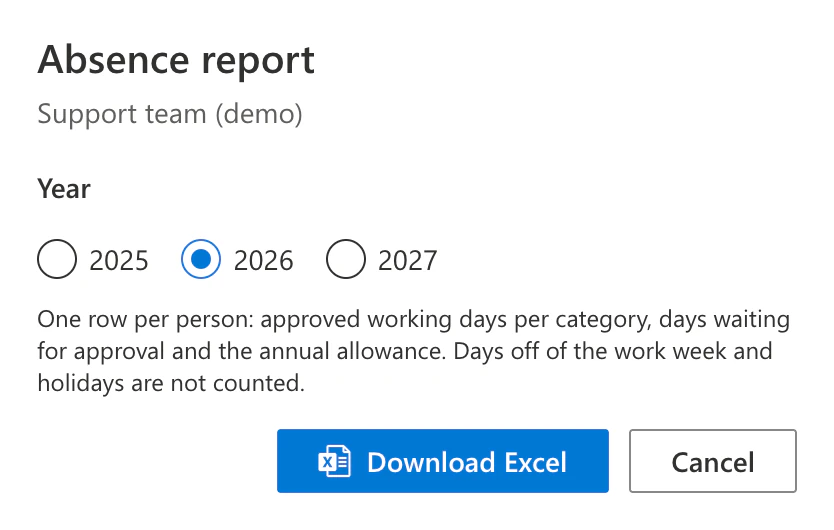
Pic. 6. The absence report for HR, one Excel file per year
Do I need to do anything?
The update is already there, since Virto Calendar App runs as a cloud service. Team absences is off until an administrator or a calendar manager turns it on for a calendar in the Team absences tab. To create the absence list, they need permission to manage lists on the SharePoint site. No new admin consent is needed.
If the app runs in your own Azure tenant, update the server and the app scripts together. Contact our support for the new build.
The documentation covers it step by step: Team absences, Set up Team absences, Request and approve time off and Annual allowance and absence report.
Try it: Virto Calendar App is on Microsoft Marketplace with a 30-day free trial.