Who is free at three? Who may change the settings? The calendar now answers both.
The November update of Virto Calendar App is live for every customer. The event form gets a scheduling assistant, Outlook charms show on your events, and the personal app reopens the calendar you used last. A Google account you connect stays yours unless you share it. The settings tab that decides who manages the app is now called Administration and says plainly who has which rights. You can also choose the region where the app keeps your settings.
Find a meeting time without leaving the event form
For a meeting with a start and an end time, the event form now has a Scheduling assistant button next to the required attendees. It shows one day of free/busy and working hours for the organizer, the required and optional attendees and the room, in your time zone, for up to 20 addresses.
- Who is busy. A line under the grid names the people who are busy at the time you picked.
- Suggested times. The assistant offers up to eight start times on that day when every required attendee and the room are free, within their common working hours (8:00 to 18:00 when none are published). Past times are never offered. Times that also suit the optional attendees come first; the others have a dashed outline. Click a time and the meeting moves there.
- No free/busy information. An attendee whose availability you can’t see is marked so, and the assistant does not guess.
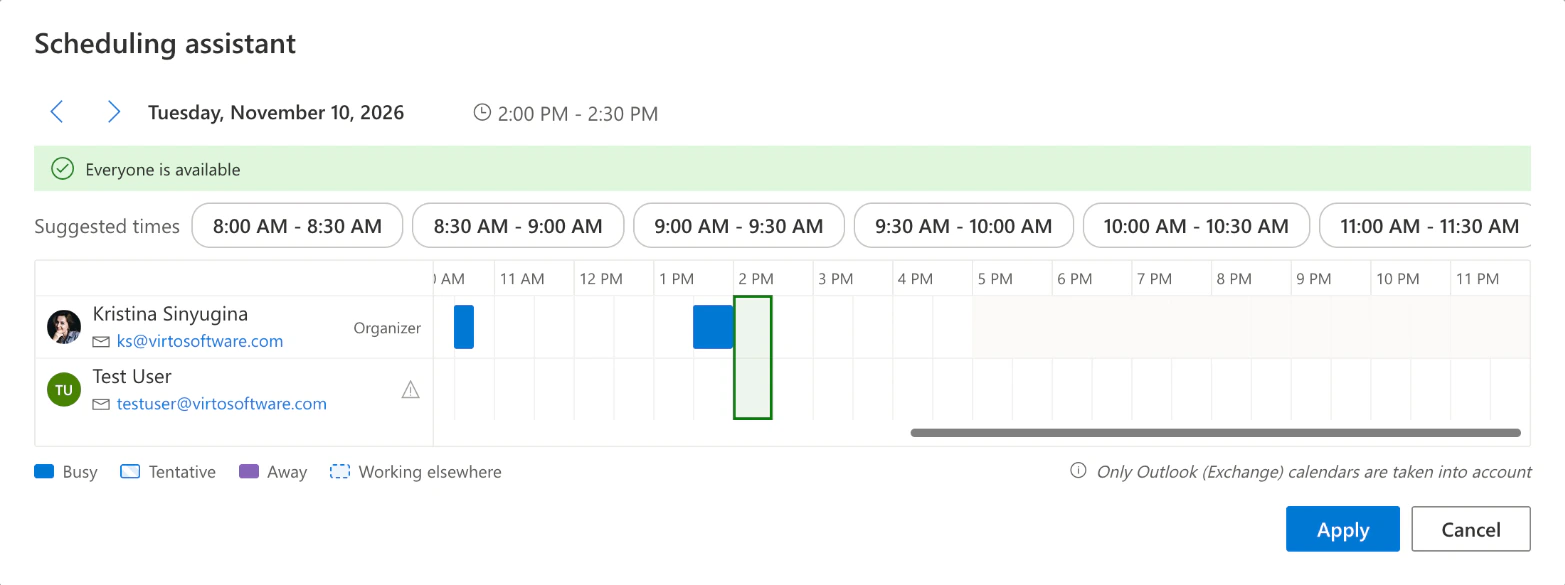
Pic. 1. The Scheduling assistant for a 2 PM meeting: the organizer is free, the second attendee has no free/busy information, and the suggested times start in the morning
The assistant reads Outlook (Exchange) calendars. In a calendar built on a SharePoint list, the button appears next to the person field chosen for attendees in the data source settings, and everyone in that field counts as a required attendee.
Outlook charms on your events
Outlook can put a small icon, a charm, in front of an event’s title: a plane for a trip, a cake for a birthday. Virto Calendar App now shows charms on Outlook events read through Microsoft Graph, which covers your own calendar, shared mailboxes and Microsoft 365 group calendars. You see them in the calendar views, the agenda, the “more events” list and the event tooltip.
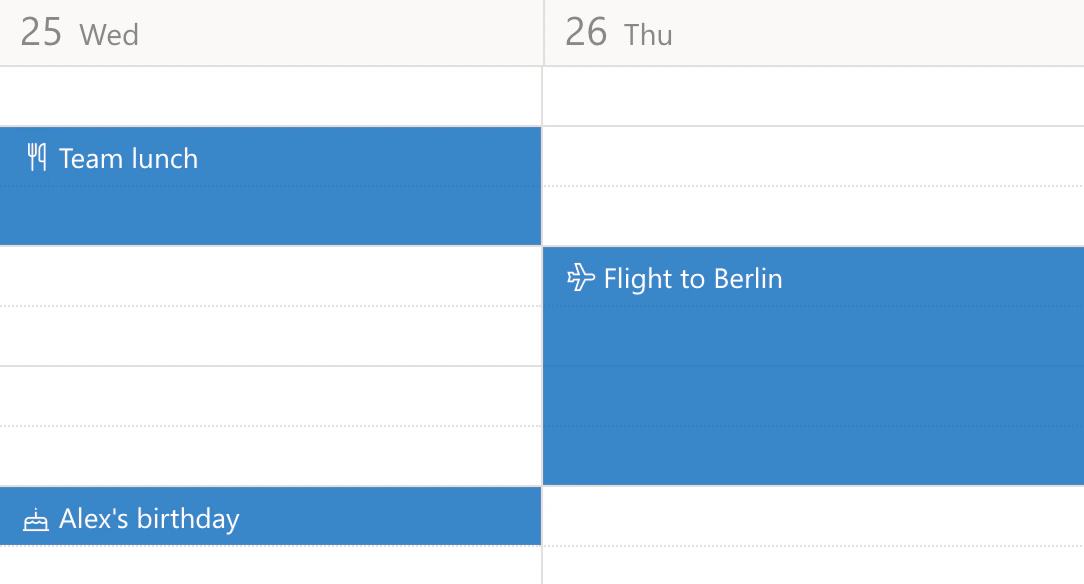
Pic. 2. Outlook charms in front of the titles of three Outlook events in the Work week view
The event form has a charm picker in front of the title, with a No charm choice. Microsoft Graph has names for only part of Outlook’s charms. A charm without a Graph name is not shown, and it stays as it is when you save the event.
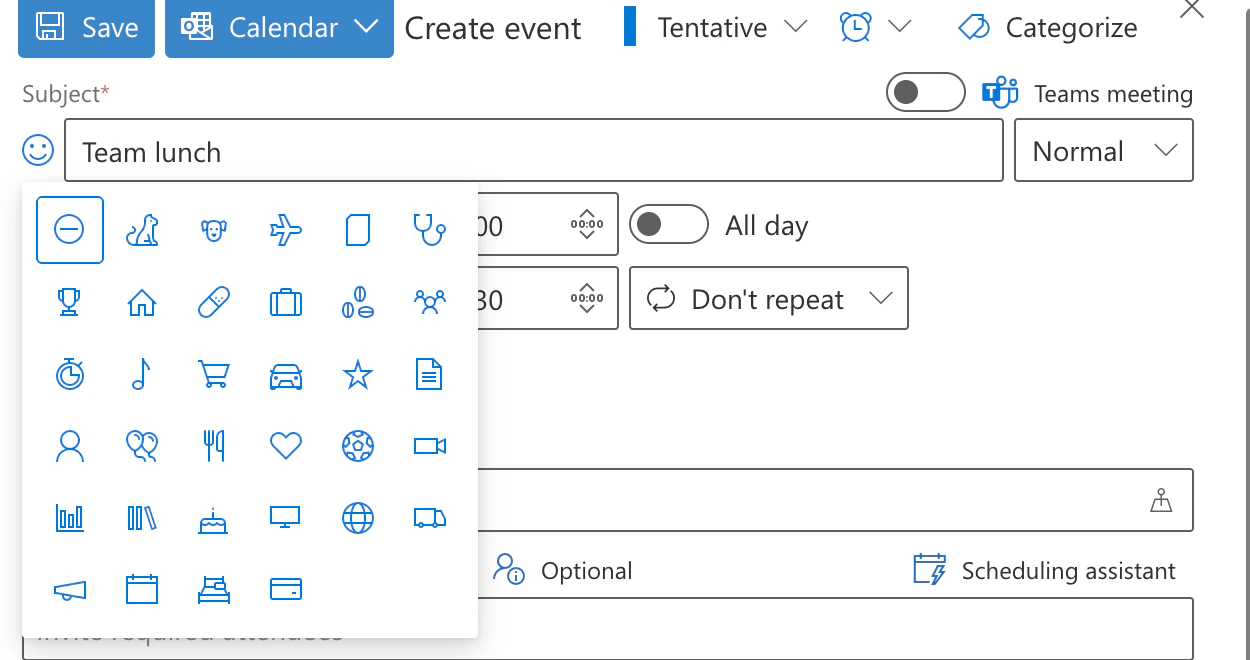
Pic. 3. The charm picker in the event form, opened from the icon in front of the subject
The personal app reopens your last calendar
In Teams, Outlook and the Microsoft 365 app, the personal Virto Calendar app now opens the calendar you used there last, on any device. If that calendar can’t be loaded, the default calendar opens. A tab in a channel, a chat or a meeting still shows the calendar chosen for that tab.
Google accounts stay with the person who connects them
A Google account connected in the settings now belongs to the user who connected it, and only that user sees its calendars and events. To share it, the owner opens Share with your organization next to the account and picks Only me, Read only or Can edit. With read-only access, colleagues see the events but can’t create, change or delete them. Before this update, any connected Google account was open to everyone in the tenant.
Administration: who can change what
The settings tab that used to be called Permission is now Administration. Its two lists have clearer names, and an info tooltip next to each says what it does.
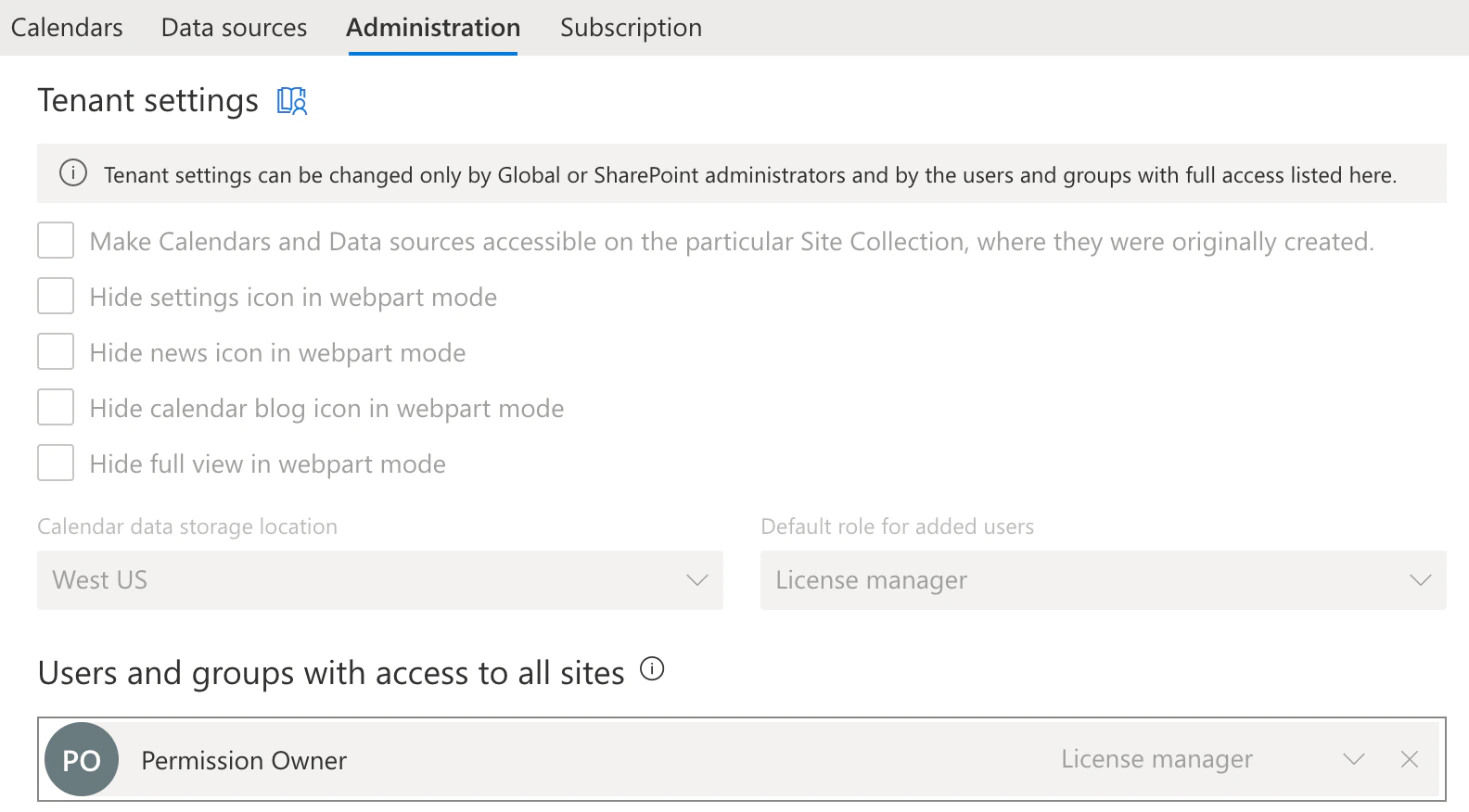
Pic. 4. The Administration tab as a site owner sees it: tenant settings are read-only, with a note that says who may change them
- Global and SharePoint administrators of your tenant have full access on every site, without being added anywhere. A role that is only eligible in Privileged Identity Management counts once it is activated.
- Site owners have full access on their own site.
- Everyone else gets a role from one of two lists: Users and groups with access to all sites covers the whole tenant, Users with access to this site one site. A License manager changes settings, permissions and licenses; a Calendar manager changes calendars and data sources.
- Tenant settings, such as the web part options, the default role and the storage location, can be changed only by Global and SharePoint administrators and by License managers on the all-sites list. Everyone else sees them read-only.
- Rights take effect at once. A role is checked on every action, so someone you remove from a list loses the right immediately.
- The first setup works from Teams. The first person to open the app on a SharePoint address that has no app administrator yet becomes its administrator. Guests never do.
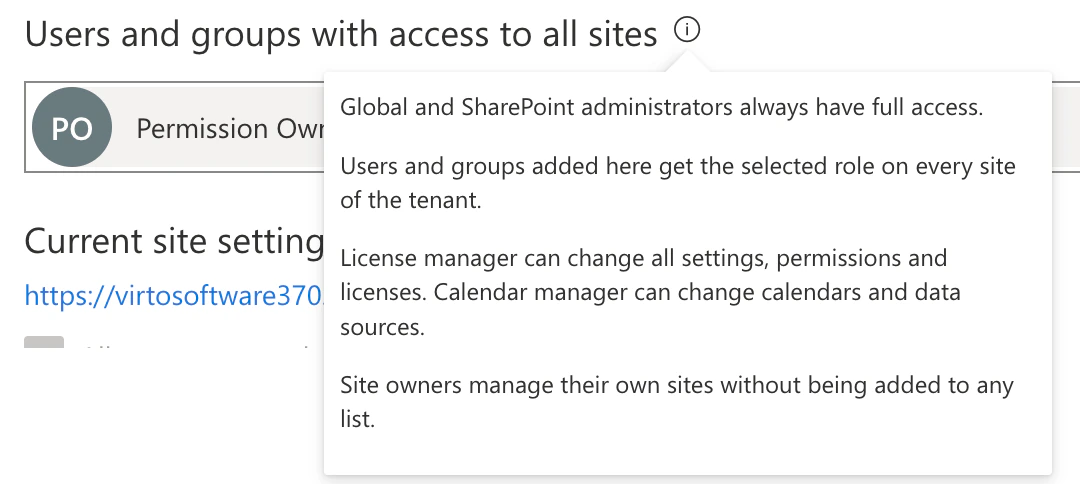
Pic. 5. The tooltip of Users and groups with access to all sites
The documentation page Who can edit Virto Calendar App settings walks through the tab, field by field.
Choose where your settings are stored
Calendar data storage location has moved to the Administration tab, and you can change it yourself: West US, West Europe or Australia Central. The region holds the app’s settings for your tenant, meaning your calendars and data sources, site settings and the list of licensed users. Events are not stored there; they stay in Outlook, SharePoint and Planner.
The move asks for a confirmation and usually takes a few seconds. While it runs, every site of your tenant shows a notice: calendars can be viewed, but no changes can be saved. The subscription record and connected Google accounts stay in the US. The IT brief has the details for your security review.
One license for all SharePoint addresses of your tenant
A tenant often has more than one SharePoint address: the -my address of OneDrive, the addresses of a Multi-Geo tenant, a new address after a tenant rename. All of them now use the license of your tenant’s main address, and a person counts once, whichever address they open the calendar from. An address that already has its own paid license keeps it.
Admin consent, one link away
In organizations where users may not consent to apps themselves, the sign-in error page now has a section for your Microsoft 365 administrator, with a short link and a Copy link button. Send it to your administrator: it opens the Microsoft Entra admin consent page for the app, and a confirmation page then tells your users to reload the calendar.
Settings that are easier to scan
- The settings tabs are now simply Calendars and Data sources.
- The calendar list has one Other sources column, with an icon for each source a calendar uses, public folders and Google calendars included. The default calendar carries a Default badge, and clicking a calendar’s name opens it.
- The name column of the calendar and data source lists sorts A to Z or Z to A and has a Filter by name box, as in a SharePoint list.
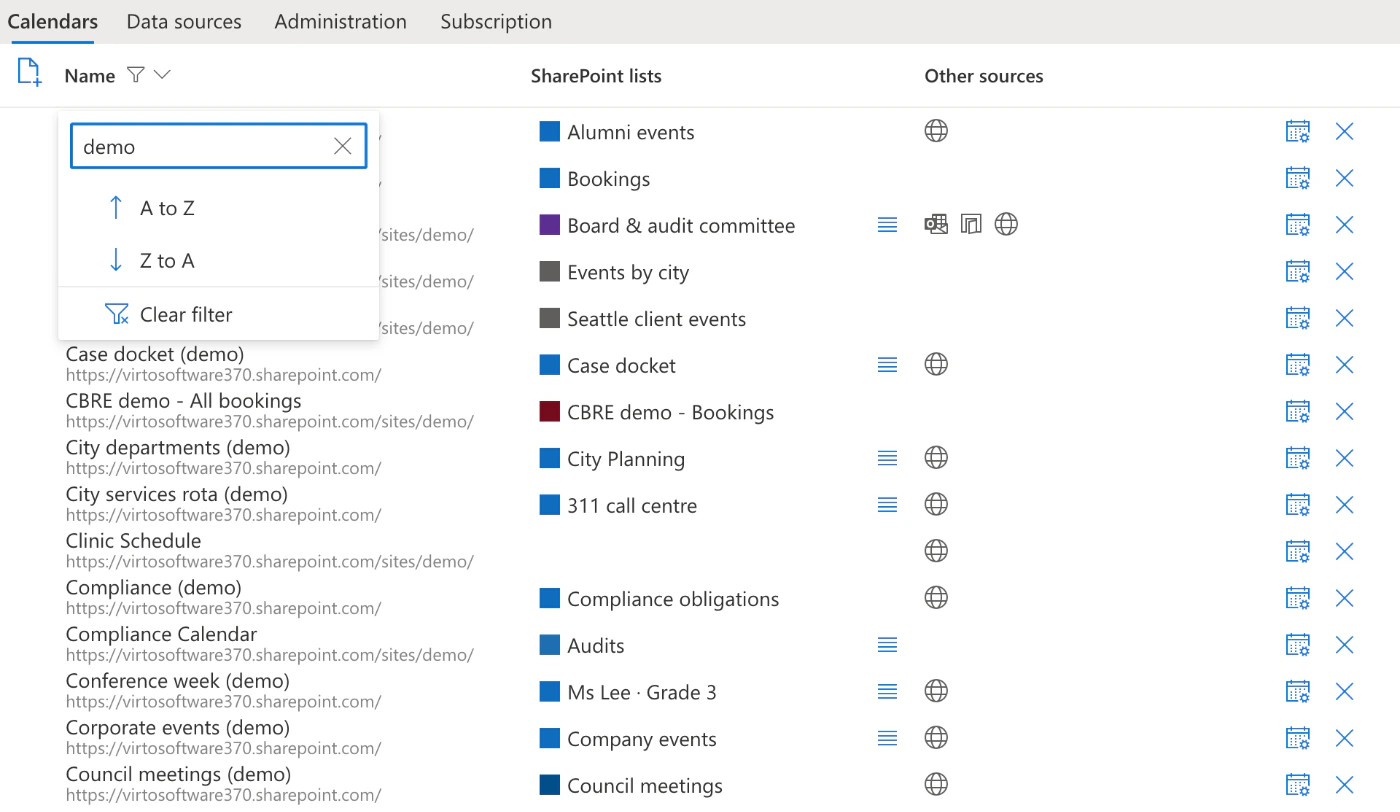
Pic. 6. The calendar list filtered by name, with the SharePoint lists and Other sources columns
Smaller fixes
- SharePoint lists in your time zone. Events from SharePoint lists now show in your time zone, like events from the other sources. Recurring series, date-only fields and all-day events still follow the data source’s time zone.
- New categories are no longer hidden. A category added after your last visit used to stay unticked in the category filter. After the update, everyone sees all categories once, and the Select/Unselect all checkbox shows whether everything is selected.
- Data source legend. When the legend is turned off for a calendar, the legend bar disappears, and data sources hidden in it earlier come back.
- Large SharePoint lists. In lists with more than 5,000 items, new events appear at once instead of up to an hour later.
- Yearly events. A yearly event on a day of the month that ends by a date shows each occurrence once; before, it could appear up to 12 times.
- Google calendars load faster and load every page of events. One failing data source no longer empties the whole calendar.
- No Welcome page by mistake. After a server restart, the calendar signs you in again in the background. If a calendar can’t be loaded, you see an error with a Refresh button.
- Web part settings. The settings pane of the Virto Calendar and Virto Mini Calendar web parts loads the calendar list through the web part. If you haven’t signed in there yet, it asks you to sign in in the web part first.
- Admin consent no longer signs out other users.
Security
- The list of calendars is shown only to signed-in users of the site’s tenant.
- Events are served only to users with a license seat and a valid license. The server checks this too, not only the app. Settings and the Subscription tab stay available, so administrators can still buy or assign seats.
Do I need to do anything?
Most likely not: Virto Calendar App runs as a cloud service, so the update is already there. If a calendar tab has been open since before the update, reload it once.
- Shared Google account? Accounts connected before this update have no owner yet and stay open to everyone in your tenant. Whoever reconnects such an account becomes its owner; to keep it shared, the owner then picks Read only or Can edit.
- Data in Europe or Australia? Open Administration and change Calendar data storage location.
- Own deployment? If the app runs in your own Azure tenant, update the server and the app scripts together. Contact our support for the new build.
Try it: Virto Calendar App is on Microsoft Marketplace with a 30-day free trial.