Your colleagues’ working hours, right next to yours.
The October release of Virto Calendar App is live for every customer. Its headline feature is for teams spread across the globe: the calendar can now show up to two extra time zones next to your own. The release also finishes translating the interface, applies one time zone rule everywhere, and improves Google Calendar support.
Up to two extra time zones next to your own
Every view with an hour grid — Day, Week, Work week, Live view and Multisource — can show up to two additional time columns beside the main one. When a sprint review starts at 8:00 in Madrid, the same row tells you it is 2:00 in New York and 11:30 in Kolkata. No mental arithmetic, no world clock in another tab.
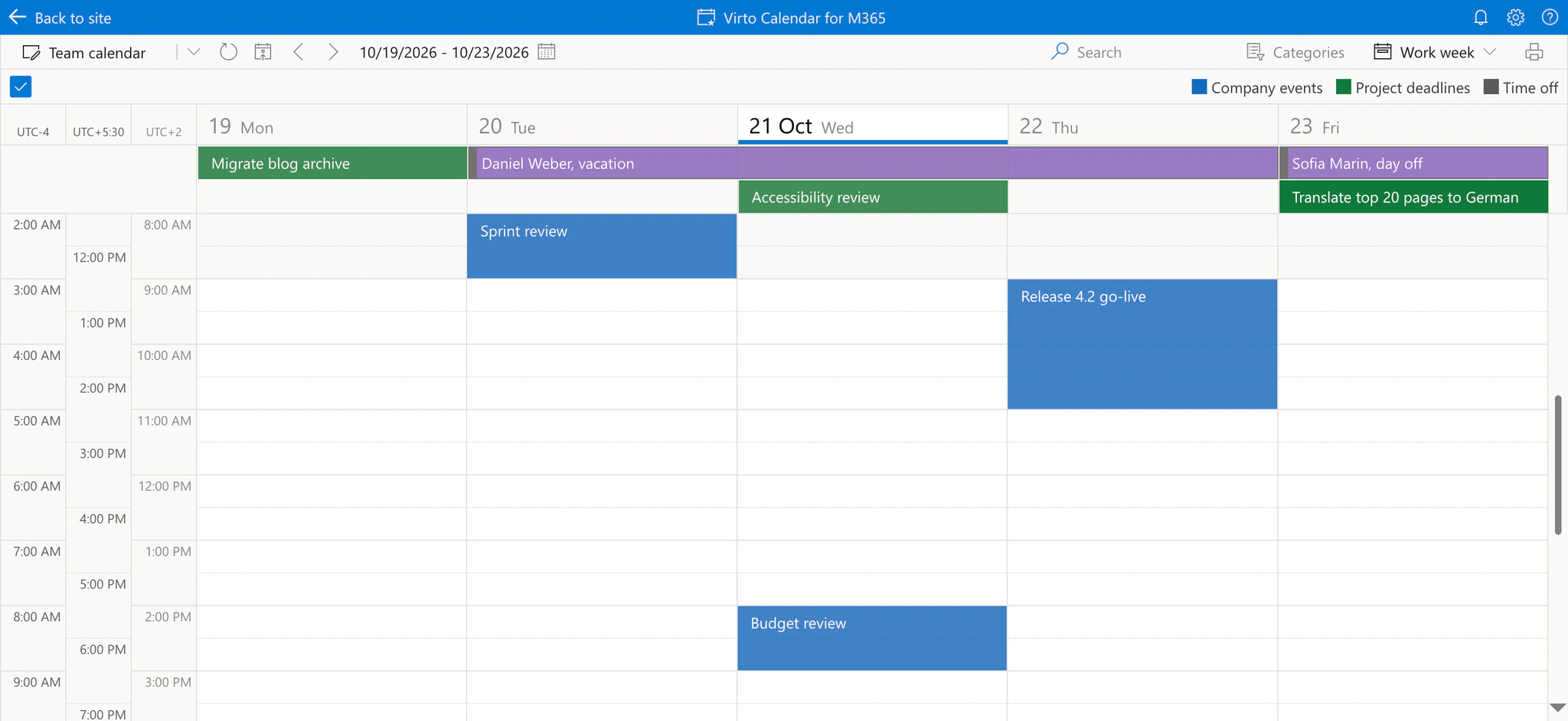
Pic. 1. Work week view with New York (UTC-4) and Kolkata (UTC+5:30) next to the primary Madrid time zone (UTC+2)
To set it up, click the time zone cell in the top-left corner of the grid. The Time zones panel shows your primary time zone; type a city or zone name into Add time zone and pick it from the list. To remove a zone, click the cross next to it.
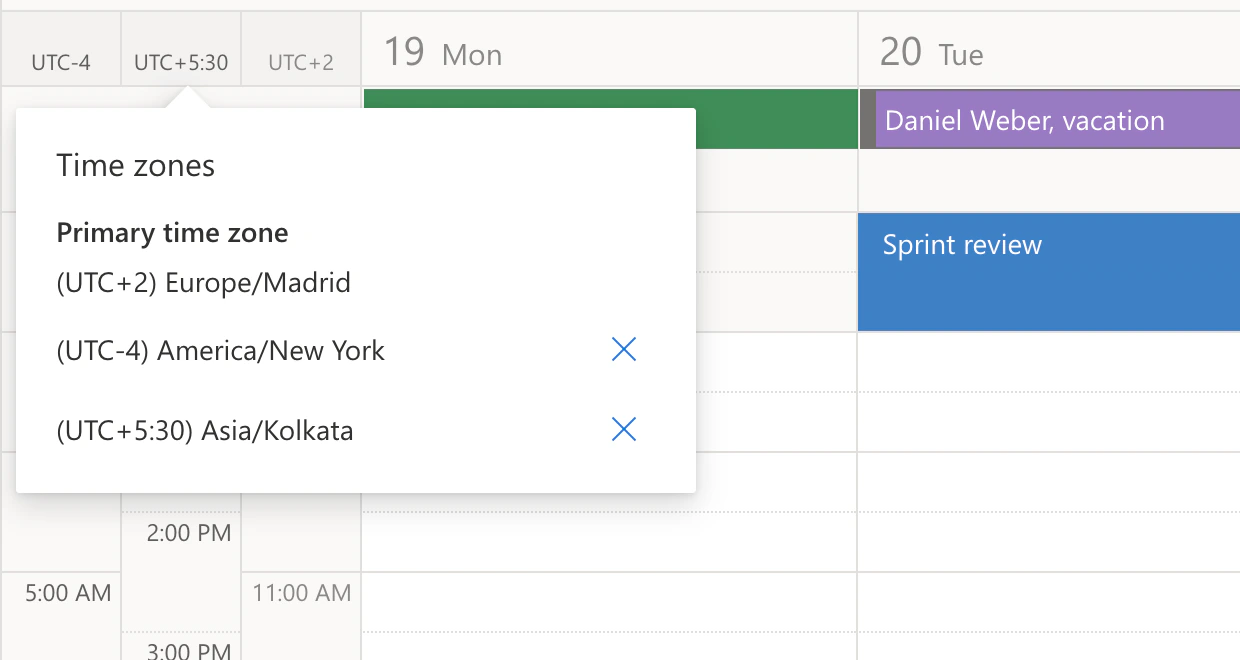
Pic. 2. The Time zones panel with the primary zone and two extra ones
Two details worth knowing:
- Half-hour zones are labelled correctly. India (UTC+5:30) and other zones with a half-hour offset show their own whole hours, placed exactly where they fall in your grid.
- The setup is personal. Your choice is saved for you and for that calendar in your browser. Colleagues keep their own zones, and on another browser or device you add yours once more.
One time zone rule everywhere
The calendar grid always uses your browser’s time zone. Event dates, event details, editing, iCal export and the location availability search now follow the same rule: they use your device’s time zone and fall back to the SharePoint site time zone only when the device does not report one. The red “now” line in day views sits at the right place in the grid.
For administrators, that is one setting less: the per-calendar checkbox Use client time zone to view events in the Exchange settings is gone, because the client time zone is now always used.
The whole interface in your language
Texts that used to stay in English in the German, Spanish, Finnish, French, Italian and Dutch versions are now translated: common buttons and confirmations, error and access-denied pages, the feedback form, the welcome page and calendar templates, the first-run wizard, the event form, approval dialogs, the print dialog, people and file pickers, the rich-text editor, data source and settings forms, Google and internet calendars, Planner, licensing and permissions.
Better Google Calendar support
- Free or Busy. Google events know only these two statuses, so the event form now offers exactly Free and Busy (Busy by default) instead of the Outlook list, and the tooltip shows the status in your language.
- Google Meet for Google events. Adding attendees to an event in a Google calendar now switches on Google Meet, not Teams.
- Clearer sign-in. Connecting a Google account always shows Google’s consent screen, and a cancelled or expired attempt tells you why.
Also new in October
- Hour-grid views refresh on their own. Before, only Live view did.
- Calendar changes arrive without a reload. An open calendar checks every 15 minutes for changes to its settings, legends, names, colors and categories, and applies them on the spot.
- Exchange tiles show the fields you chose. In day views, Exchange events display the title fields set for the calendar, such as status, importance, attendees or categories, instead of always location and organizer.
- Stable colors. A data source keeps the same automatic color from one load to the next.
- More iCal feeds load. Feeds with a custom time zone, such as Outlook’s “Customized Time Zone”, or with an unrecognized time zone ID no longer fail.
- Tighter security. The app opens only inside SharePoint Online, Teams, Outlook and Microsoft 365; read-only users can no longer change calendars or data sources; Google sign-in tokens are stored encrypted.
Do I need to do anything?
No. Virto Calendar App runs as a cloud service, so the update is already in your calendar. If a calendar tab has been open since before the update, reload it once.
If Virto Calendar App runs in your own Azure tenant, the October build needs the server and the app scripts deployed together, because the new translations live on the server. Contact our support if you would like help with it.
Try it: Virto Calendar App is available on Microsoft Marketplace — start a 30-day free trial, open a day or week view and add the time zones your team works in.