The team calendar, now also in your Outlook, in a spreadsheet and in the view you like.
The latest update of Virto Calendar App is live for every customer. It brings three new things: a way to put a shared event into your own Outlook calendar, an export of a whole period to Excel, and My view, which opens each calendar the way you like to see it.
Add an event or a whole series to your Outlook calendar
The add-event icon at the bottom left of an event’s tooltip used to download an .ics file. It now opens the Add to my calendar menu:
- This event copies the event, or this one occurrence of a recurring event, into your own Outlook calendar.
- The whole series copies a recurring event with its recurrence pattern. It is offered for recurring events of SharePoint calendars and of Outlook calendars.
- Download .ics file saves the event as a file, as before.
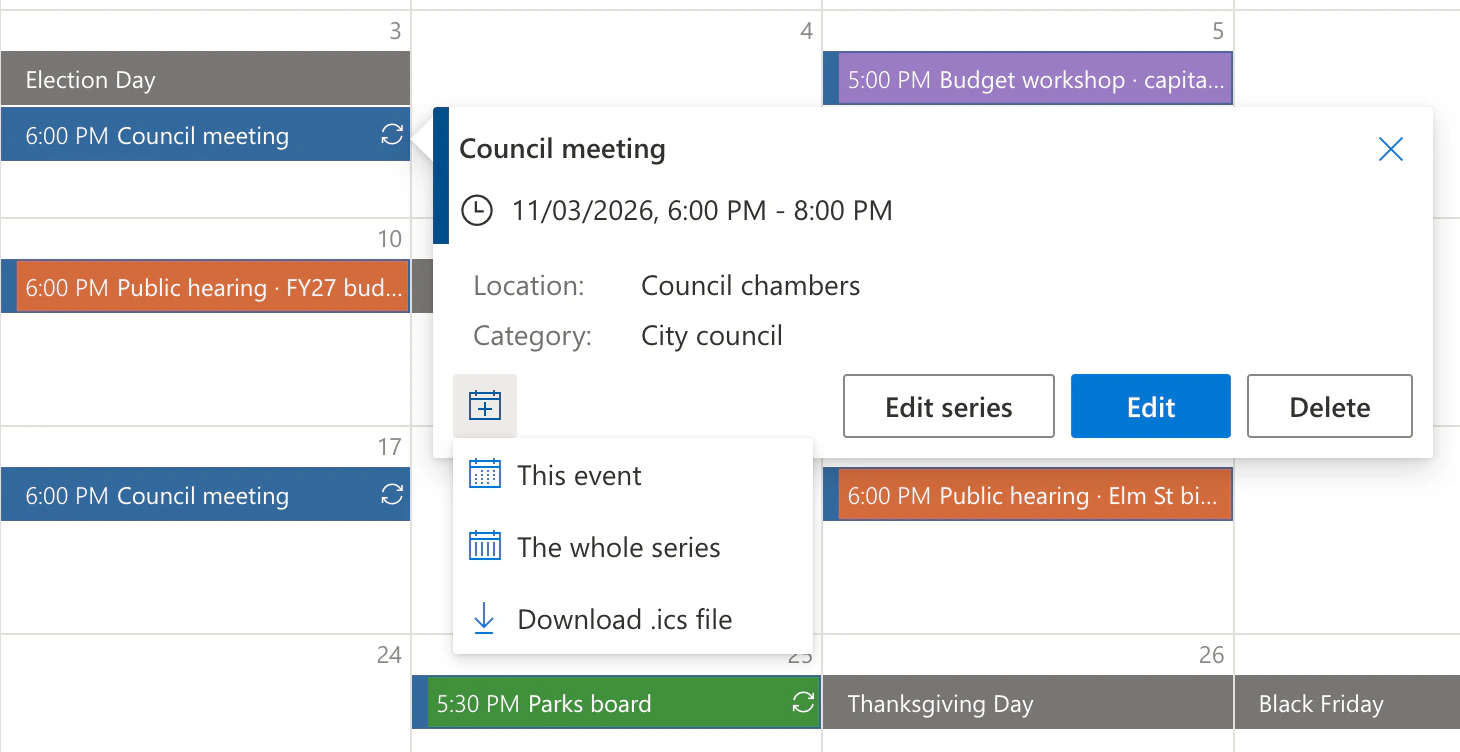
Pic. 1. The Add to my calendar menu in the tooltip of a recurring council meeting
The tooltip then confirms Added to your Outlook calendar. and offers Open in Outlook. Add the same event again, and it answers Already in your Outlook calendar. instead of making a second copy.
The copy has the title, the time, the location and the description, but no attendees: nobody receives an invitation, and the organizer does not see you as an attendee. It is a copy, not a link, so a later change to the original does not reach it. If your own Outlook calendar is also shown in the Virto calendar, the copy is hidden there, so the event does not appear twice. This works for events from SharePoint lists, Outlook and Exchange calendars, Microsoft 365 group calendars, public folders and Microsoft Planner.
Export a period to Excel
The calendar toolbar has a new Export to Excel icon. Choose the days, up to 366 of them, and select Export: you get an .xlsx file named after the calendar and the dates, ready for a report or a planning meeting.
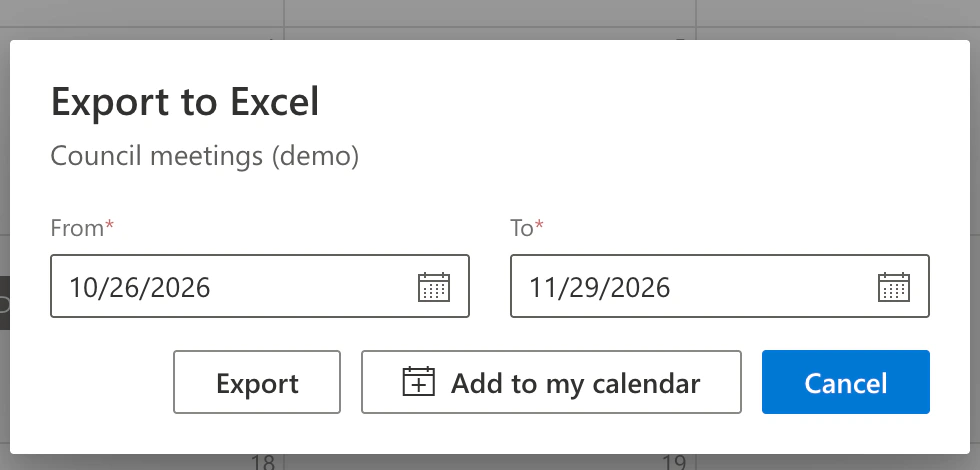
Pic. 2. The Export to Excel window opens with the days of the current view
- What you see is what you export. The sources switched on in the legend, the category filter and the search text apply to the file.
- One row per event. A recurring event gets a row for each of its occurrences. The columns are title, start, end, all day, calendar (the source as the legend names it), details, categories and description.
- Made in your browser. The file is built on your computer and downloaded from there.
The same window has a second button, Add to my calendar. It copies every event of the chosen days into your own Outlook calendar, up to 200 at a time, and then tells you how many were added, were already there or could not be added. Each occurrence of a series becomes its own event.
My view: open each calendar your way
A shared calendar opens the way its manager set it up. With the new My view icon, a person in the toolbar, you keep your own version of it: the view, the sources you switched off in the legend, and the categories you filtered out. Select Save as my view, and the calendar opens that way for you on every device, in SharePoint, in Teams and in the browser. Your colleagues keep seeing the calendar as it is.
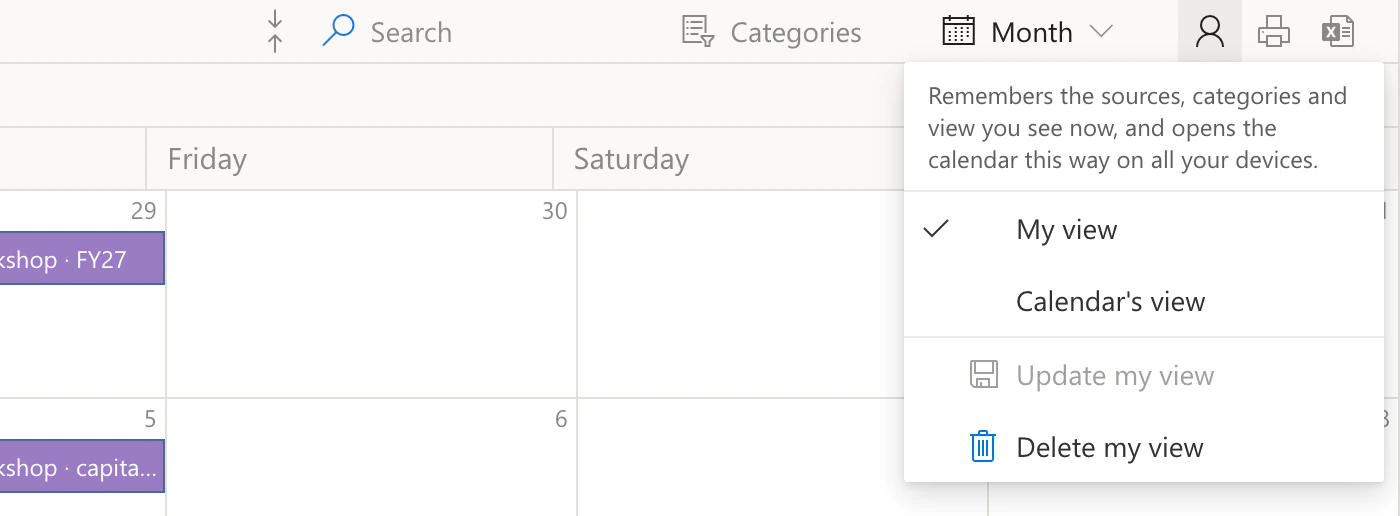
Pic. 3. The My view menu after a view has been saved
- Calendar’s view shows the calendar as everyone sees it, without deleting your view. The next time, your view opens again.
- Update my view saves a change, and Delete my view goes back to the calendar’s view for good.
- Sources and categories added to the calendar later show up in your view. My view does not store a date, so the calendar still opens on the current period.
Smaller fixes
- Printing follows the legend. Sources that are hidden by default no longer appear in a printout.
- Meeting rooms without an email address no longer stop the whole calendar from loading.
- No long waits when Exchange Web Services doesn’t answer. Outlook, group and room calendars used to wait up to 10 minutes for it. Now the extras it supplies, such as category colours, are given up after 15 seconds, and the calendar loads without them.
- SharePoint lists use the list’s time zone again. Events from SharePoint lists are shown, edited and saved in the data source’s time zone, as before November 7. The other sources stay in your time zone.
Do I need to do anything?
No. Virto Calendar App runs as a cloud service, so the update is already there. If a calendar tab has been open since before the update, reload it once. Add to my calendar uses the access to your calendar that you granted when you first signed in, so no new admin consent is needed.
If the app runs in your own Azure tenant, update the server and the app scripts together. Contact our support for the new build.
The documentation covers each feature step by step: Add events to your Outlook calendar, Export calendar events to Excel and Save your own view of a calendar.
Try it: Virto Calendar App is on Microsoft Marketplace with a 30-day free trial.