A new workflow brings AI-generated schedules straight into Microsoft 365, Teams, and SharePoint — with one small trick that unlocks per-category color-coding.
Free AI tools like ChatGPT, Claude, Microsoft Copilot, and Gemini are now able to generate full schedules from plain-language constraints — a department course schedule, a nursing shift roster, a high-school timetable, a project rotation. The bottleneck has moved: it is no longer building the schedule, but publishing it where staff, students, or team members already work.
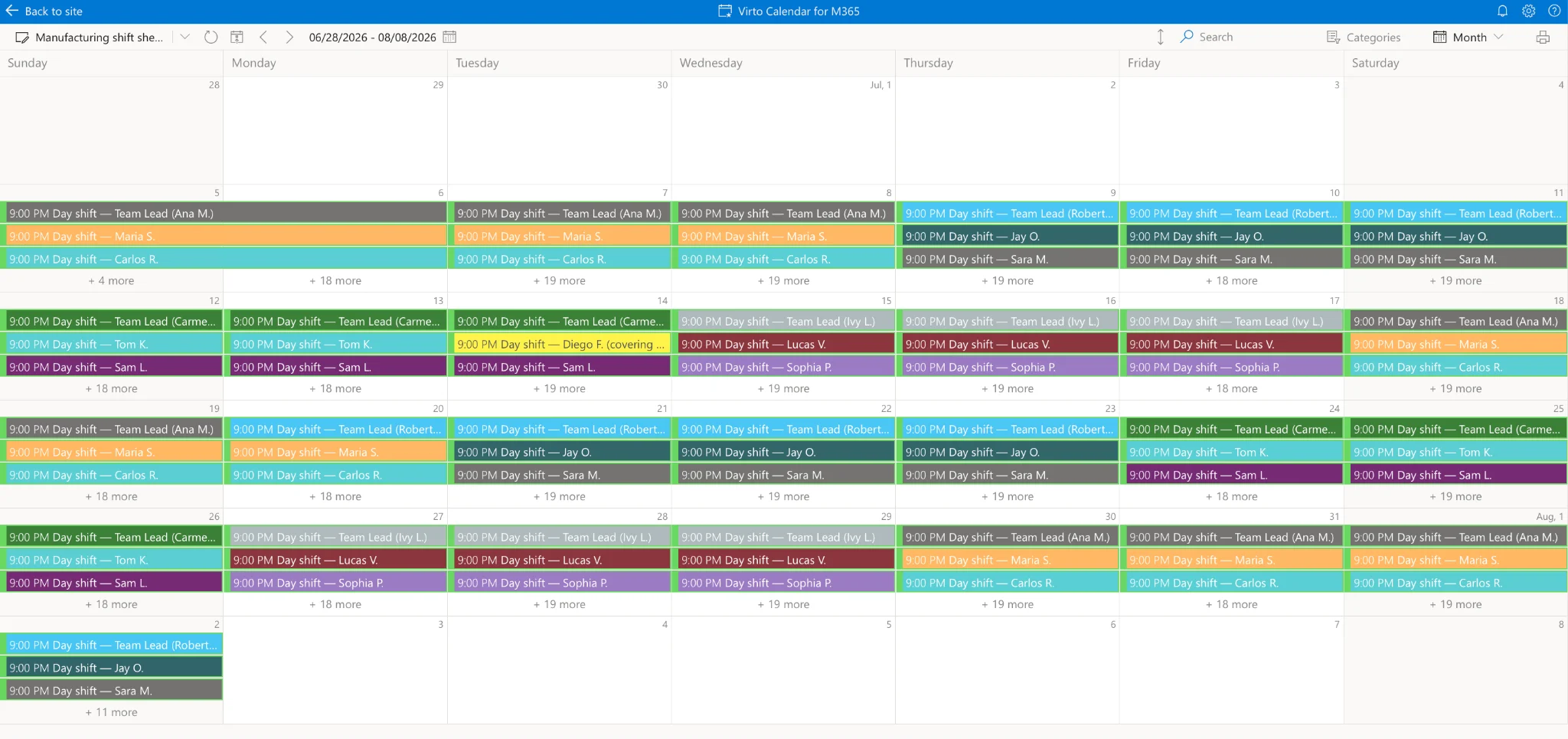
The Virto Calendar App closes that gap. Any AI-generated schedule can become a live, color-coded calendar inside Microsoft 365, Teams, and SharePoint in three short stages — and color-coding by category is essentially automatic once one detail is set up correctly.
The workflow, in three stages
Stage 1 — Ask the AI to export the schedule as a downloadable .xlsx file with the columns Title, StartDate, EndDate, Subject (or Employee for a staff roster, plus any domain-specific extras such as Teacher, Room, Department, or Shift). StartDate and EndDate must be real Excel datetime values (not text), and Subject/Employee, etc. should be a short, repeated category — Maths, Biology, Night Shift, Computer Science, Employee name — rather than a free-form description.
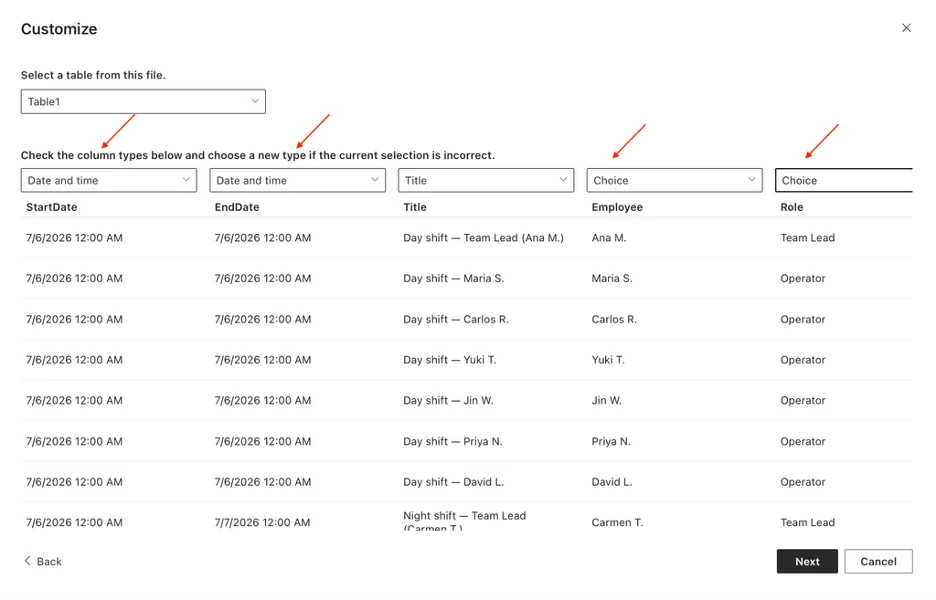
Stage 2 — In SharePoint, use New → List → From Excel and upload the workbook. On the column-mapping screen, set StartDate and EndDate as Date and Time, and — this is the important one — set the category column (Subject or Employee) as a Choice column with its repeated values as the choices.
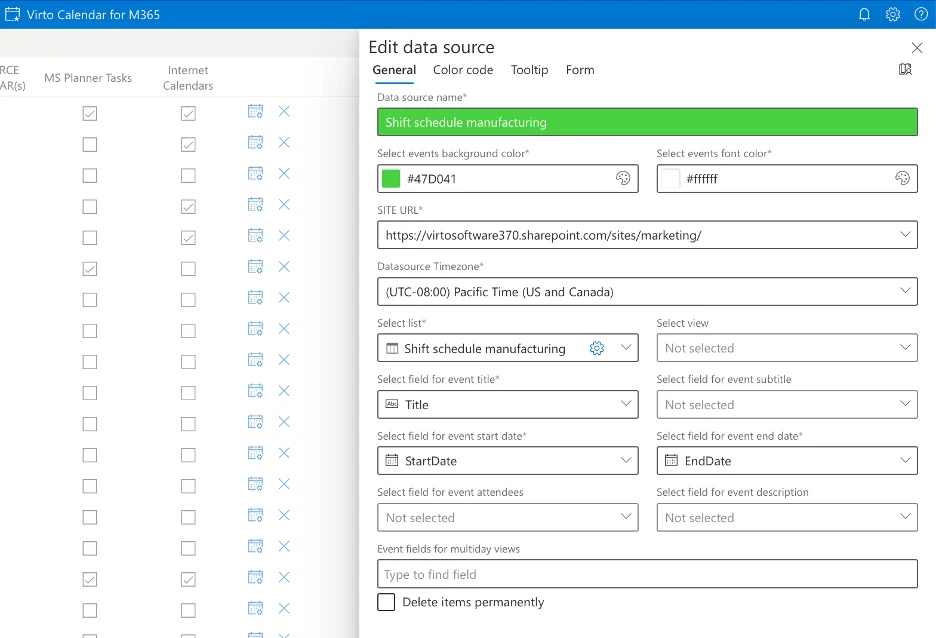
Stage 3 — Open the Virto Calendar App, create a new SharePoint list as a data source, and map the fields: Title → Title, Start → StartDate, End → EndDate
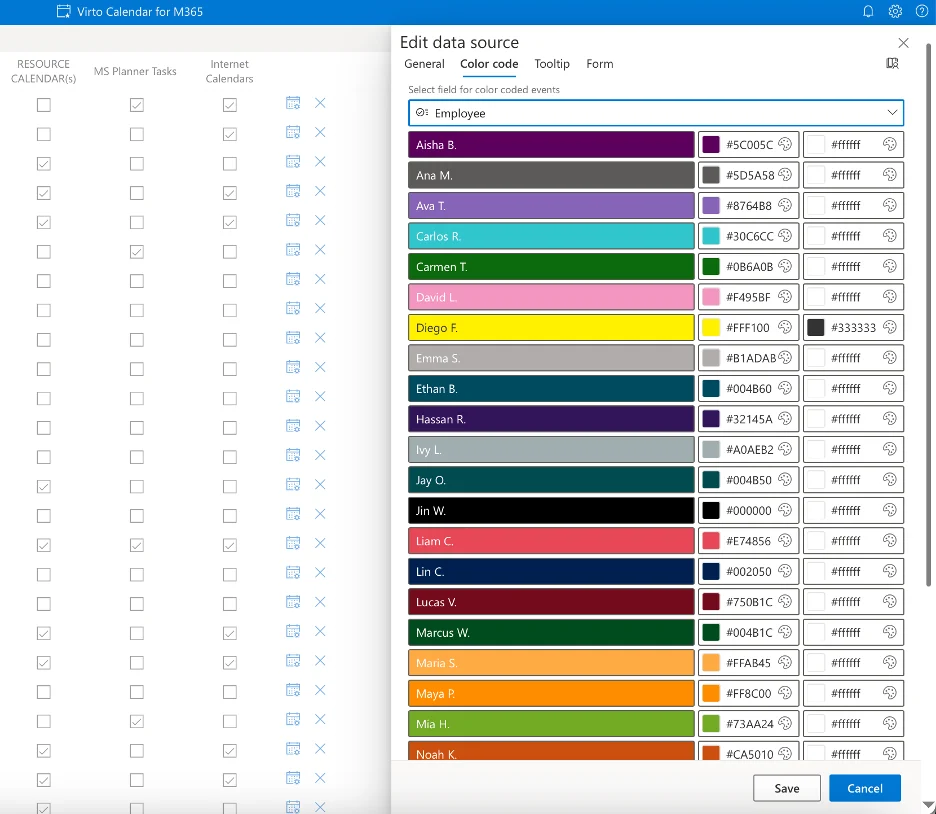
and in the second Tab: Color Code → Subject (or Employee). The schedule renders as a calendar inside SharePoint, Outlook, and Teams.
Deeper guides by scheduling domain
The same workflow works across every scheduling scenario VirtoSoftware customers run. For full step-by-step instructions, sample AI prompts, and domain-specific tips, see the dedicated guides:
- AI shift schedule maker — operational shift rosters across teams, locations, and 24/7 coverage.
- AI nurse schedule maker — clinical rotations, fairness rules, on-call coverage.
- AI college schedule maker — department-wide course schedules with prerequisites, rooms, and faculty constraints.
- AI school timetable maker — K-12 timetables with electives, breaks, and teacher availability.
Try it
For organizations on Microsoft 365 and Teams, the Virto Calendar App is available with a free 30-day trial. Individual teachers, tutors, and small teams who do not have SharePoint can use the Virto Shared Calendar, which is free for up to 15 entries and supports anonymous-link sharing — so participants do not need an account to view the schedule.
VirtoSoftware builds calendar and scheduling solutions for Microsoft 365, Teams, and SharePoint. Our apps can be self-deployed entirely within your own tenant, keeping your data under your control — and security is built in: VirtoSoftware products have passed NATO security testing.