Quick answer: how do you track team absences in Microsoft 365? Microsoft 365 has no absence tracker for an office team, so teams combine what they have. Out of office in Outlook and Teams tells you who is away right now. A shared Outlook calendar shows who is away this month. A SharePoint list with content approval handles requests that need a yes. Shifts takes time-off requests for frontline teams on a shift schedule. Each one answers one question. None of them counts the days a person has left in the year or warns when too many people would be out on the same day.
| Method | What it answers | Where it stops |
|---|---|---|
| Out of office in Outlook and Teams | Is this person away now? | One person at a time; set by the person, no approval |
| A shared Outlook calendar | Who is away this month? | No approval, no count of days, anyone with edit access can change any entry |
| A SharePoint list with content approval | Who asked for time off, and was it approved? | No count of days or limit; notifications and Outlook status need extra work |
| Time off in Shifts | Who is off on this shift schedule? | Built for frontline teams; time off applies to one team only |
| Work hours and location | Where does this person work today? | Office or remote, not absence |
| An app on top of Microsoft 365 | All of the above in one view, plus days left and a limit of people out | Another app to set up and license |
Next question: how do you see who is out, approve requests and count the days in one place? Each tool above answers one part, and somebody has to put the parts together. To see who is out in a people-by-days view, approve time-off requests in the calendar and keep each person’s annual allowance, add Virto Calendar App.
This guide is for the people who keep absences for a team in Microsoft 365: team leads, office managers, HR and the admins who set it up. It goes through what a team needs to know about absences, what each Microsoft 365 tool answers, and where each one stops. For a single person’s time off, see how to add PTO to your Outlook calendar; for the etiquette of asking, see how to request time off.
What tracking absences means for a team
An absence is personal; tracking absences is a team job. A team that tracks them well can answer six questions at any time:
- Who is out today? Before a meeting, a handover or a customer call. Teams shows it one person at a time; here is how to see who is out today in Microsoft Teams.
- Who will be out in the next weeks, and is the team still staffed? Before approving one more vacation in the same week.
- Who asked for time off, and who decides? A request needs a clear yes or no, and the employee needs to know which.
- How many days does each person have left? Against the annual allowance, without a spreadsheet next to the calendar.
- Do Outlook and Teams show the person as away? Otherwise colleagues book meetings with them anyway.
- What does HR need at the end of the year? The days taken per person and per type of absence.
Microsoft 365 answers each of these somewhere. The work is in putting the answers together.
Out of office in Outlook and Teams: who is away right now
Out of office is the signal colleagues already see in Teams and Outlook. Teams shows a person as Out of Office when they have an automatic reply on, or when their calendar has an event set to show as Out of Office. Colleagues see it next to the person’s name in Teams, and an Out of office event also shows when they look for a meeting time in the Scheduler in Outlook (formerly the Scheduling Assistant).
That makes it the right answer to “is this person away now?”. Our guides show how to set Out of office in Teams and how to show it in your Outlook calendar.
Where it stops:
- One person at a time. You see it when you look at somebody. Nothing lists everyone who is out this week.
- Set by the person. Nobody approves it, and it is only as reliable as each colleague’s habit of setting it.
- Two separate settings. An Out of office event in the calendar and an automatic reply are set separately, and one can be on without the other.
A shared calendar: who is away this month
The usual next step is a calendar the whole team can see, where each person adds an all-day event for their days off. In Outlook it is either a calendar shared from one mailbox, a Microsoft 365 group calendar, or the calendar of a shared mailbox. Microsoft suggests a shared mailbox for a calendar everyone in a group can open and edit; the people who can open it can also read the mail that arrives in that mailbox. Our vacation calendar guide shows how to set one up.
A shared calendar answers “who is away this month?” well enough for a small team. Where it stops:
- No approval. An event is in the calendar the moment it is saved.
- Anyone who can edit can change any entry. Edit access to the calendar is edit access to everybody’s absences.
- No count. It does not add up the days a person has taken, and nothing warns when half the team picks the same week.
- It doesn’t change the person’s own status. An event in a shared calendar is not in the person’s own calendar, so Teams and the Scheduler don’t show them as away. People add their absence twice, or forget the second one.
- Events, not people. In a month view, thirty vacations of a 40-person team are thirty bars of text. Finding who is out on a given Tuesday means reading them all.
A SharePoint list with approval: requests that need a yes
When requests need a yes, teams move absences into a SharePoint list: one item per absence, with columns for the employee, the first and last day and the type of absence. Two settings turn the list into a request process:
- Content approval. In the list settings, under Versioning settings, set Require content approval for submitted items to Yes. A new item then waits as Pending, and items pending approval are not visible to other readers until they are approved.
- A calendar view. A view that places items on a calendar by their start and end dates shows the approved absences month by month.
Our SharePoint PTO tracker guide builds such a list step by step, and our leave request form guide adds the form.
Where it stops:
- Telling the approver is extra work. Content approval doesn’t send the request to anyone by itself. Microsoft’s advice is a Power Automate flow that sends it out for approval, and somebody has to build and keep that flow.
- No count and no limit. The list stores the dates; it does not count working days, compare them with an allowance or warn when too many people are out at once.
- No Outlook status. An approved item doesn’t put Out of office in the person’s calendar. They still set it themselves.
- Holidays are separate. Public holidays live somewhere else, so a count of days off has to subtract them by hand.
The Teams Approvals app gives the same yes or no in a chat, with templates that team owners can create. An approval there is a record of the decision. Putting the absence on a calendar after the yes takes a flow of your own.
Time off in Shifts: for teams on a shift schedule
Teams that work in shifts have a built-in request process: the Shifts app in Teams. Frontline workers request time off in Shifts, and team owners or schedule owners approve or deny it. Managers choose the time-off reasons for their team and whether workers can see each other’s time off.
Where it stops:
- Built around a shift schedule. Shifts is made for frontline teams. An office team without shifts would keep a schedule only for time off.
- One team at a time. After approval, the time off applies only to the team in which the worker requested it, so a person who works in two teams is off in one of them only.
Work hours and location: where people work, not whether they’re off
Outlook and Teams also let people set a recurring work plan with their work hours and whether they work from the office or remotely, shared with colleagues in the organization. It answers “who is in the office on Thursday?”, which is a different question. It is not a place to record leave.
Where Microsoft 365 stops
Put together, the built-in tools leave five gaps:
- No single view of who is out. Out of office, the shared calendar, the SharePoint list and Shifts each show their own part.
- No days left. Nothing in Outlook, Teams or SharePoint counts the days a person has taken against an annual allowance.
- No limit. Nothing warns the approver that the team will be short on the days of a request.
- Approval and Outlook status are separate steps. After the yes, the employee still sets Out of office by hand.
- The year-end count is manual. HR exports the list to Excel and counts working days, minus weekends and holidays.
Microsoft’s own leave plans, accruals and balances belong to a different product: Dynamics 365 Human Resources, Microsoft’s HR system, which also has a Teams app for requesting leave and seeing balances. If your organization keeps leave in an HR system, balances and payroll belong there. What is left for Microsoft 365 is showing the team who is out and letting people ask for time off where they already work.
Team absences in Virto Calendar App
Virto Calendar App shows calendars from Outlook, SharePoint lists, Planner and internet calendars in one view, on a SharePoint page, in a Teams tab or in the browser. Its Team absences view answers all six questions in one place, and the vacation tracker for Microsoft 365 use case shows how a team sets it up. Walk through it in the interactive tour:
See who is out
People are in rows and four weeks are in columns, with a morning and an afternoon half for each day. Each absence has the color of its category: Vacation, Away, Business trip or Training. A request that waits for approval has a dashed outline, and public holidays from the holiday calendars you choose, such as your country’s holiday feed, are shaded for the whole team.
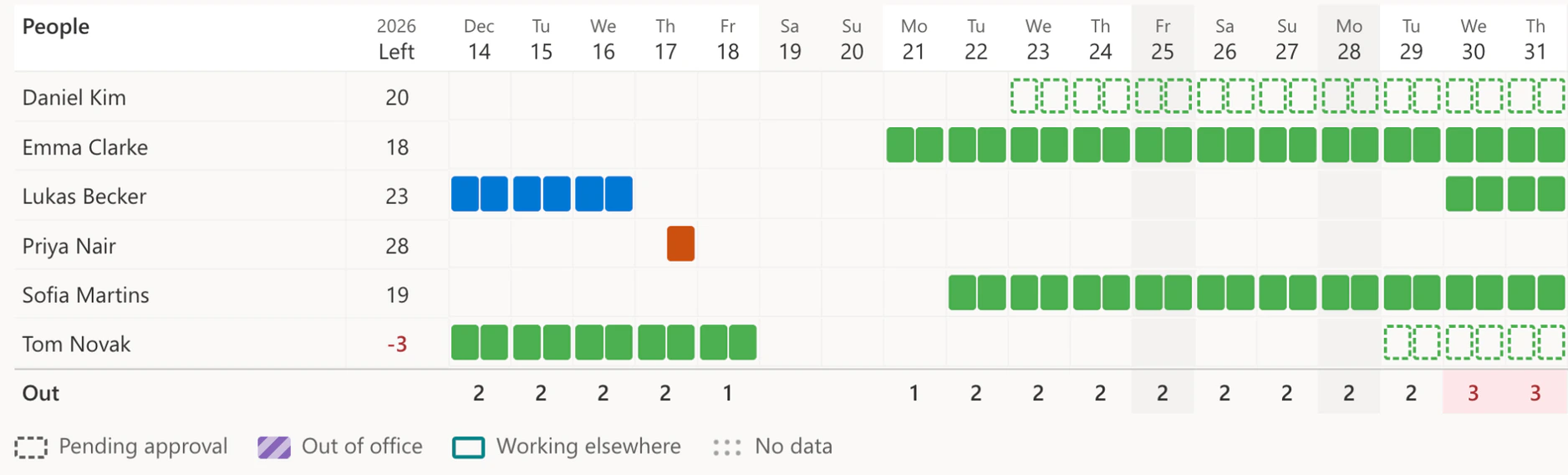
Pic. 1. The Team absences view: who is out each day, the days each person has left, and the days over the limit
- The Out row counts the people away each day. Days over your limit turn red.
- Out today above the grid names who is away today and why.
- Colleagues who never use the request form can be added from Outlook. Only their Out of office and Working elsewhere times appear, without subjects or other meeting details.
Request time off and approve it in the calendar
Employees select Request time off above the view, pick the days and a category, and, if needed, a half first or last day. With an annual allowance, the form shows right under the dates how many days are used, how many wait for approval and how many will be left after this request.
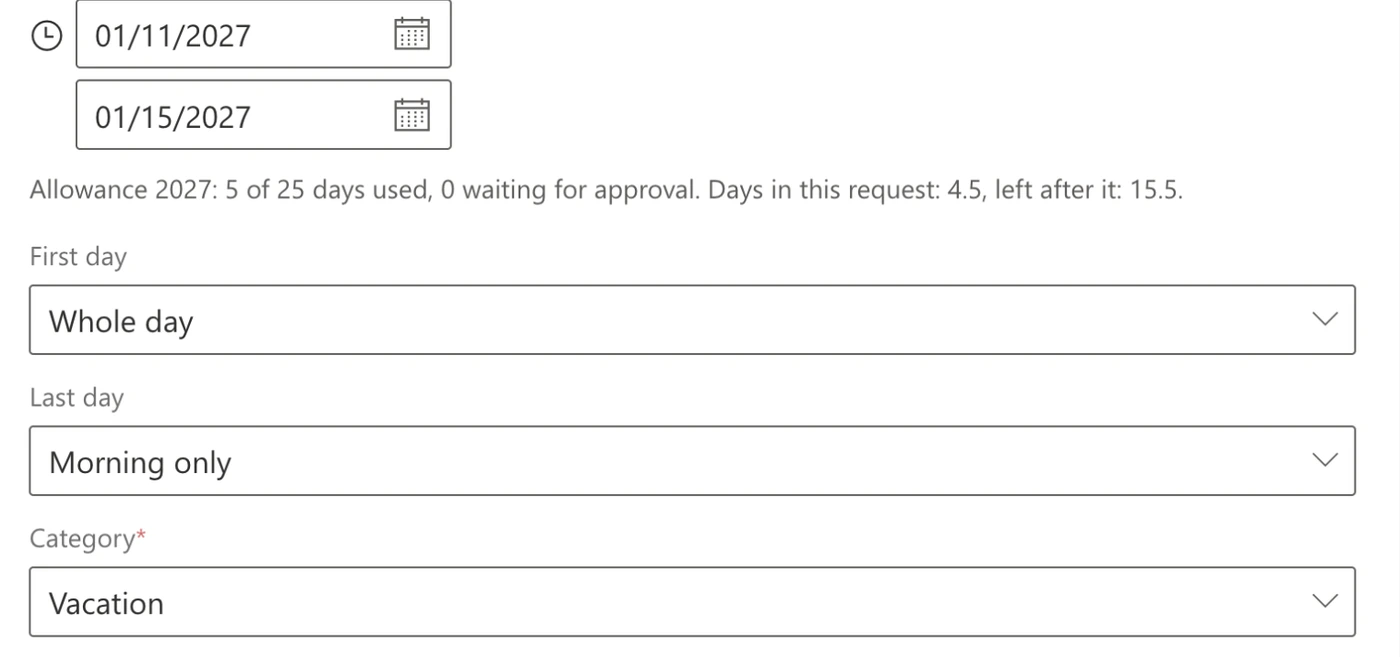
Pic. 2. A request with a half last day and the allowance under the dates
Until it is approved, a request is seen only by its author and the approvers. Approvers find it under Absences, in To approve, with what they need to decide: how many people are already out on those days, a warning when the team would go over the limit, and the days the person has left after approval. Approve is one click. Reject asks for a comment for the employee. Nobody decides on their own request: another approver does.
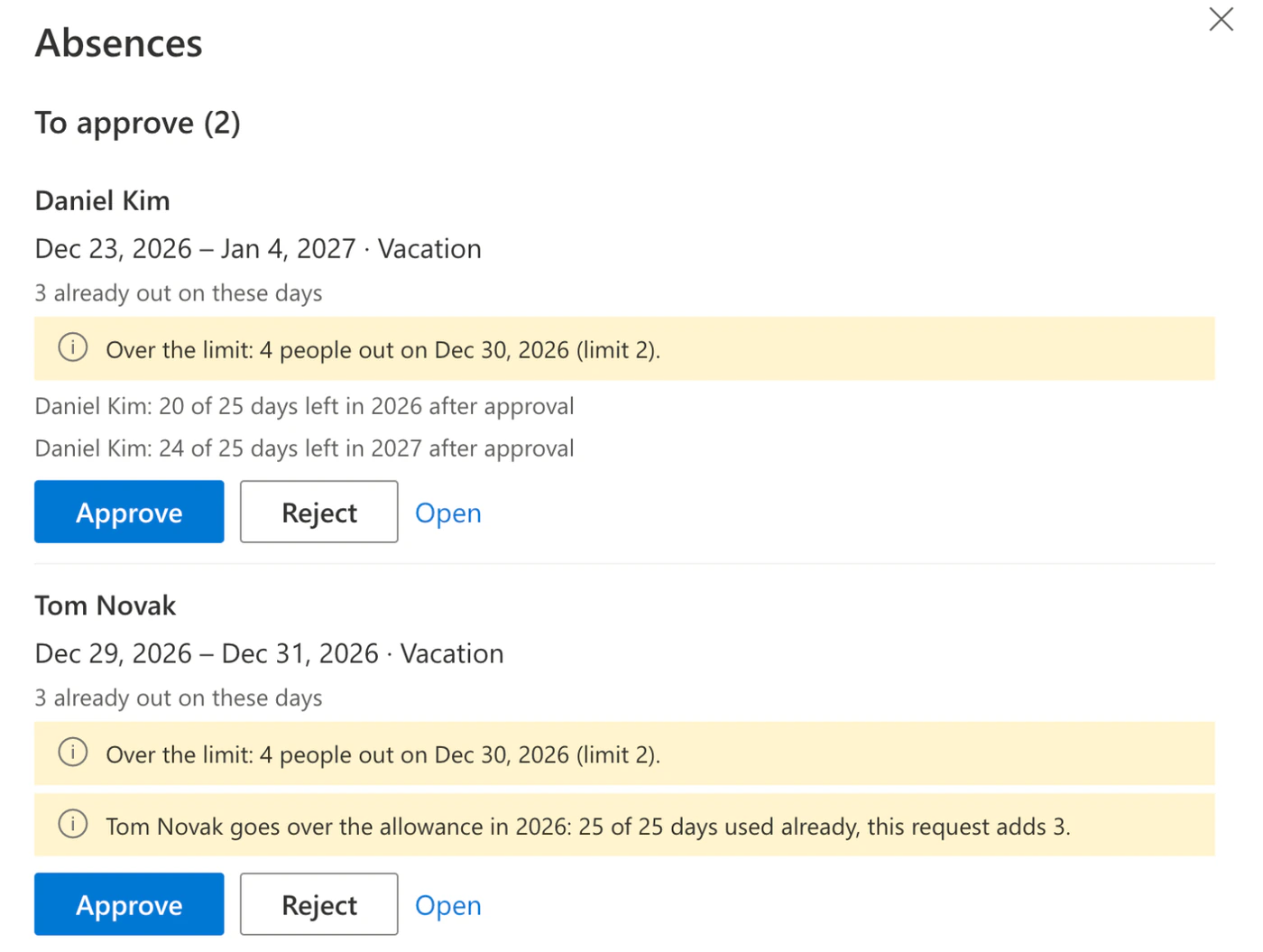
Pic. 3. To approve: the coverage and allowance warnings an approver sees before deciding
Limits that warn instead of block
- Most people out at the same time. Days over the limit turn red in the Out row, and the approver sees a warning before approving a request that would go over it.
- Annual allowance. Working days per year for everyone, the categories that count, and people with their own number of days. Only working days of the calendar’s work week count, holidays don’t, and a half day counts as half. The Left column shows what each person has left.
Both only inform. The approver still decides, so a well-founded exception needs no workaround.
Out of office in Outlook after the yes
Once a request is approved, the employee adds it to their own Outlook calendar as Out of office with one click, so Teams and the Scheduler in Outlook show them as away. When an absence changes or is deleted later, Update Outlook brings the Outlook events in line. Only events made from the absence list are touched.
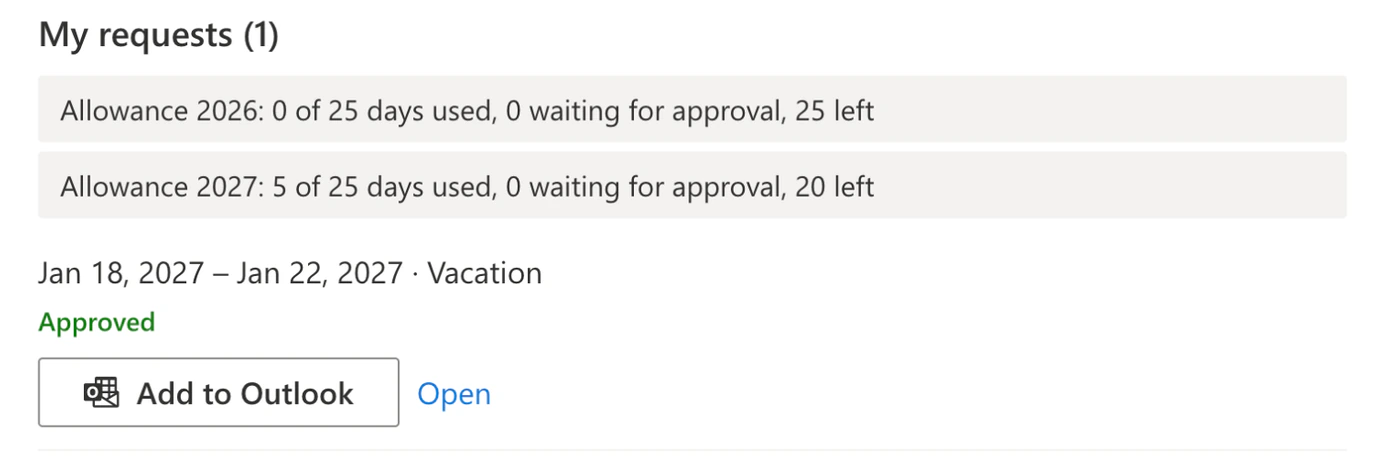
Pic. 4. An approved absence goes into Outlook as Out of office with one click
The year-end count for HR
Approvers download an Excel report for last year, this year or next year, with one row per person: approved working days per category, days waiting for approval and, with an allowance, the days counted and left. Days off of the work week and holidays are not counted.
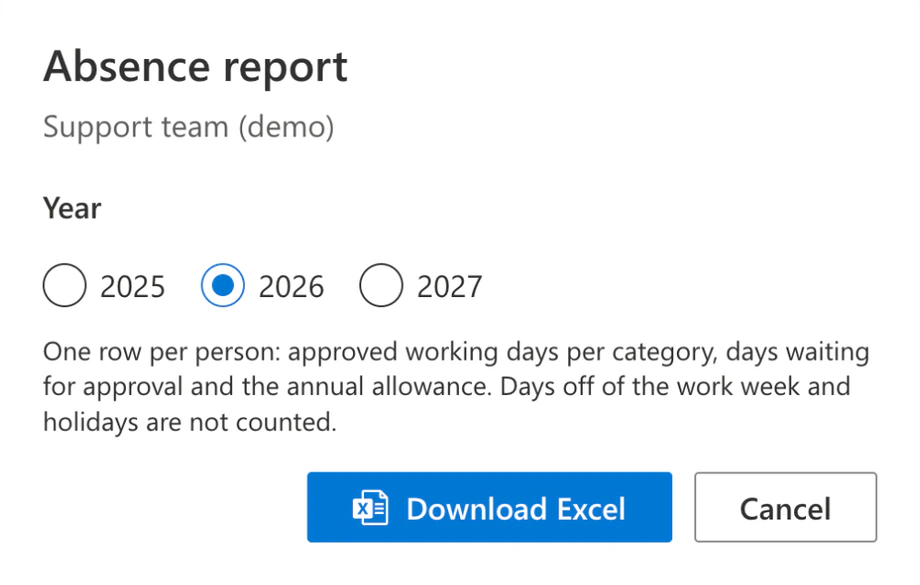
Pic. 5. The absence report for HR, one Excel file per year
Set up in the calendar settings
An administrator or calendar manager turns the view on in the Team absences tab of the calendar settings. Create a new absence list makes the SharePoint list on the site you choose, with content approval on and the permissions set: everybody sees the approved absences, and each person edits only their own requests. Creating it needs permission to manage lists on that site. A calendar that already keeps absences in a SharePoint list can use that list instead.
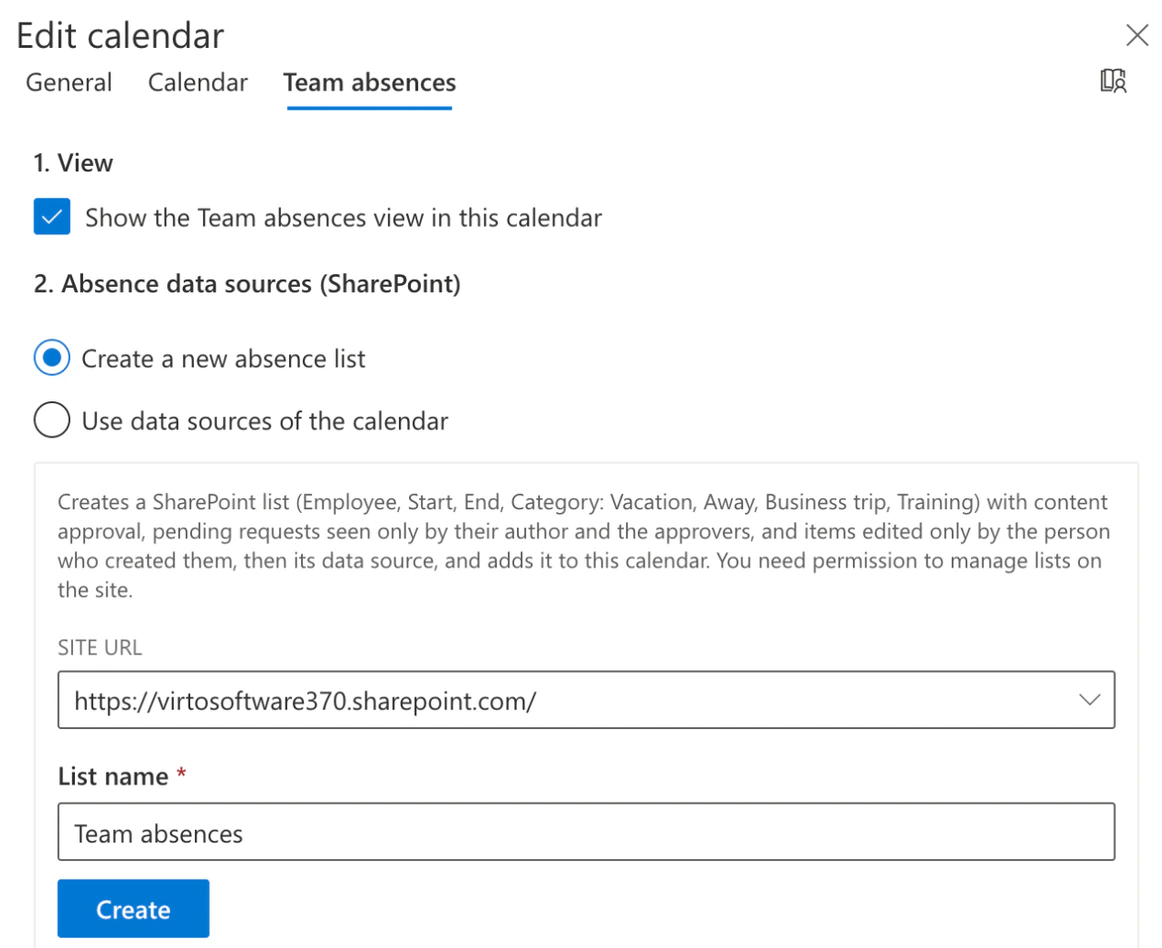
Pic. 6. The absence list is created from the Team absences tab
The absences are kept in a SharePoint list on your own site. Emails to approvers and employees about requests are on by default and can be turned off.
What it doesn’t do
- One level of approval. Several approvers in a row, deputies and escalations are not supported.
- Days, not hours. It counts whole and half days; hours, overtime and time off in lieu are not tracked.
- No accrual or payout. The allowance is a fixed number of working days a year, not leave earned month by month.
- No payroll export. The report is an Excel file. Virto Calendar App shows and approves absences; it is not an HR system.
- Calendar App only. Team absences is part of Virto Calendar App. Virto Shared Calendar, our calendar for small teams, doesn’t have it.
The Team absences documentation covers the setup step by step. Virto Calendar App has a 30-day free trial.
Explore the Vacation Tracker Use Case
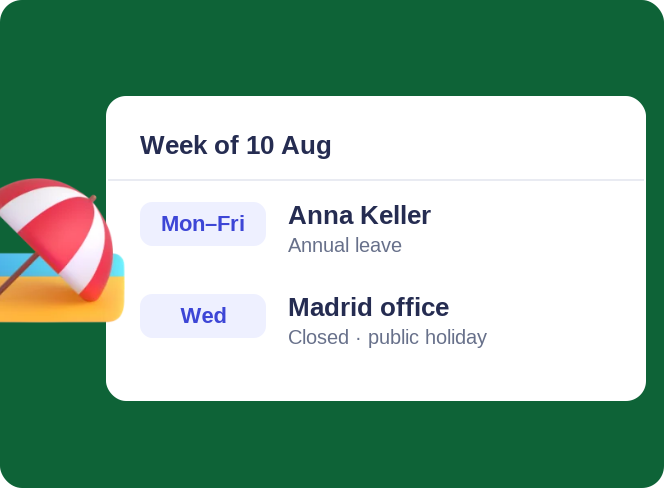
Employee Vacation Tracker
Team absences in Virto Calendar App: who is out each day, time-off requests approved in the calendar, warnings when too many people are away, and each person's annual allowance, in a SharePoint list on your site.
Learn more about Employee Vacation TrackerFAQ
Does Microsoft 365 have a leave management system?
Not for an office team. Outlook, Teams and SharePoint show and store absences, but nothing in them counts the days a person has left. Shifts handles time-off requests for frontline teams on a shift schedule. Microsoft’s leave plans, accruals and balances are part of Dynamics 365 Human Resources, a separate HR product.
Is there a vacation tracker in Microsoft Teams?
Teams shows a person as Out of Office when they have an automatic reply on or an Outlook event set to show as Out of Office, and the Shifts app takes time-off requests for teams that work in shifts. Teams has no view of the whole team’s absences. For that, add a shared calendar or a SharePoint list as a tab, or an app built for absences.
How do I approve time-off requests in SharePoint?
Turn on content approval for the list: List settings, Versioning settings, Require content approval for submitted items. A new request then waits as Pending and is hidden from other readers until an approver approves it. Content approval itself doesn’t notify the approver; Microsoft suggests a Power Automate flow for that.
Can Outlook show how many vacation days I have left?
No. An Outlook calendar shows the days you are away, not a balance. The days left are counted in an HR system, a spreadsheet or an app that keeps an annual allowance for each person.
Does an approved time-off request change my status in Teams?
Only when something puts Out of Office into your Outlook calendar or turns on your automatic replies. Approving an item in a SharePoint list or an approval in the Teams Approvals app changes neither, so people usually add the Out of office event themselves after the approval.
Conclusion
Microsoft 365 has every piece of absence tracking, spread over four tools: Out of office for right now, a shared calendar for the month ahead, a SharePoint list with content approval for requests, and Shifts for shift teams. For a small team, a shared calendar and the habit of setting Out of office may be enough. Once requests need approval, and someone asks how many days are left or whether the team is still staffed in the last week of December, the pieces need one place. That place can be an HR system, a spreadsheet next to the calendar, or an app on top of Microsoft 365 that shows who is out, takes requests in the calendar and keeps Outlook in step.