Quick answer. In Microsoft 365, meeting rooms and desks are booked in one app: Microsoft Places, from the Outlook and Teams calendars. Meeting rooms and desk pools are included in any plan with Outlook and Teams. A specific desk needs a space licence on that desk, about $2 per desk per month with the free Single Space licences and $8 without them. What Places does not do: it has no parking, it does not show equipment, and a desk, a parking space and a monitor cannot go into one booking. For that you need an app built on top of Places.
Next question: which app adds parking and equipment? Virto Desk & Room Booking App is built on top of Microsoft Places and Exchange Online: people book desks, parking spaces, meeting rooms and equipment in SharePoint, Teams and Outlook, and every booking lands in their Outlook calendar.
“One app for desks and meeting rooms” is usually asked as one question: what software handles both, in Microsoft 365? The honest answer starts with what Microsoft 365 already has, because most of it is there and much of it costs nothing extra. This guide walks through an office day, what Microsoft Places covers on its own, where it stops, and what to check in an app that adds the rest. It does not rank vendors. For every way to book desks, see our comparison of desk booking options in Microsoft 365; for meeting rooms, our guide to room booking software.
What “one app” means in practice
Take one employee’s office day. Before it, they:
- say which days of the week they will be in the office;
- book a desk for those days, with a parking space and a monitor;
- find a meeting room for the team meeting at ten;
- see which colleagues are coming in;
- check in on arrival, so the desk is not released.
“One app” means all five happen in one place, and the bookings land where the rest of the organisation looks: in the Outlook calendar. Here is how far Microsoft Places gets.
| What the employee needs | In Microsoft Places? | Licence | What is missing |
|---|---|---|---|
| Plan office days for the week | Yes: work plans in Outlook and Teams | Included | No check against an office-days policy |
| See who is coming in | Yes: the Places card in the calendar | Included | — |
| Any free seat in a zone | Yes: desk pools | Included | No named seat |
| A specific desk | Yes: individual desks | Space licence on the desk: about $2 a month, or $8 without the free licences | A desk without a licence appears as unavailable |
| A meeting room | Yes: Places finder | Included | — |
| A parking space | No object type for parking | — | Only building services and partner apps |
| A monitor or other equipment | No: Exchange equipment mailboxes don’t appear in Places | — | A list to book equipment from |
| Desk and meeting room on the same day | Yes, as two separate bookings | Room included; desk as above | One booking for both |
| Desk, parking and equipment together | No | — | One booking for all three |
| Check in on arrival | Yes, for desks and rooms | Included | — |
| Release a booking nobody checked in to | Yes: auto-release | Space licence on the desk or room | — |
| Floor map | Yes, optional | Included | IMDF files only |
Fig. 1. One office day, need by need: what Microsoft Places covers and what is missing
What Microsoft Places does on its own
Microsoft Places is the hybrid office app built into Microsoft 365. For desks and rooms together, five things matter:
- Places finder books meeting rooms and desks in the same Outlook and Teams calendar. People browse by building and floor and see each space’s photo, capacity and equipment.
- Desk pools and individual desks. A pool is a zone with a number of seats, and people take any free one; an individual desk is one named seat. Pools are included; an individual desk needs a space licence, which our Places licensing guide prices in detail.
- Work plans and “who is in”. Each person sets which days they will be in the office, and the Places card shows who else is coming that day.
- Check-in and auto-release. Check-in is included. Auto-release, which frees a room or desk nobody checked in to, needs a space licence on that room or desk.
- Floor maps. Optional; with them, people see the rooms and desks around them.
There is no separate booking database. Meeting rooms, desk pools and desks are Exchange Online mailboxes, and every booking is an event in their calendars and in the employee’s own. The work is in the setup: buildings, floors and sections first, then desks. Our step-by-step guide to desk booking in Places covers it.
Where Microsoft Places stops
- Parking. Places has no object type for parking. Microsoft leaves it to building services and partners; an admin can put a link to a parking service on the building’s Explore tab.
- Equipment. Exchange still has equipment mailboxes for projectors, pool cars and loan laptops, but Places does not show them. Booking one means adding it to a meeting like an attendee, with no list to choose from and no map.
- One booking for a desk, parking and equipment. Not possible. A desk and a meeting room on the same day are two separate events in the calendar, and parking and equipment are not in Places at all.
- Visitors. Places has no visitor registration; that is partner territory too. Since August 2026 a visitor can reserve a desk on the touch screen of a Teams desk hub, and that is as far as it goes.
- Exchange Online only. Users with an on-premises mailbox cannot use Places.
- Maps in IMDF only. Georeferenced, one building per package; Microsoft suggests a conversion partner to prepare them.
Three ways to get rooms and desks in one place
- Built in. Places in Outlook and Teams books rooms and desks, as above, and nothing else.
- An app on top of Places and Exchange. It adds what Places leaves out, such as parking and equipment, while bookings stay in the Microsoft 365 calendars.
- A separate platform. It brings its own floor plans, visitor services and door panels, and keeps bookings in its own system, synced with Exchange.
Our guide to meeting room booking software compares the three side by side in its table Three ways to book rooms in Microsoft 365: where the booking lives, which licences it needs and who it fits.
What to check in an app for desks and meeting rooms
Our desk booking options guide lists eight questions for any desk booking app. These six are about desks and rooms together:
- Desk, parking and equipment in one booking? Ask the vendor to show one booking that holds all three, and what happens to the parking space when the desk is cancelled.
- Where does a meeting room booking live? In the room’s Exchange mailbox, so it shows in Outlook and the room accepts or declines it, or in the vendor’s database, synced back.
- Buildings, floors and the map from Places, or drawn again? If you have set up Places, an app that reads its buildings, floors and map spares you a second floor plan to keep up to date.
- A week plan and an office-days rule. Can people plan office and remote days, does the app compare them with a rule such as three days a week, and does the plan lead straight to a desk booking?
- One check-in for desk and room? Check that checking in works the same way for both, and what releases each one when nobody turns up.
- Which Microsoft licences you still need. A space licence on every desk booked individually through Places, and a Teams Rooms Pro or Teams Shared Space licence for each Teams panel at a room door.
Virto Desk & Room Booking App
We built an app for exactly this combination. Virto Desk & Room Booking App runs on top of Microsoft Places and Exchange Online, in SharePoint Online, Microsoft Teams, Outlook and the Microsoft 365 app:
- Desks, rooms and parking. Book a desk on the floor plan from Places, in 3D or from a list, add parking and equipment to the same booking, find and book a free meeting room for the hours you need, and check in on the day; bookings nobody confirms are released after a set time.
- The week and who is in. Office, Remote or Away for each day in My week, a minimum number of office days set by your administrators, and who is in today and where they sit.
- Where it keeps what. Buildings, desks and rooms come from Microsoft Places, and every booking is a calendar entry in Outlook with the place invited; for a meeting room or an equipment item that entry is the whole booking. Desk and parking bookings, day statuses, booking rules and audit are also kept on VirtoSoftware’s servers on Microsoft Azure, one store per organisation, with people only as their Microsoft Entra ID.
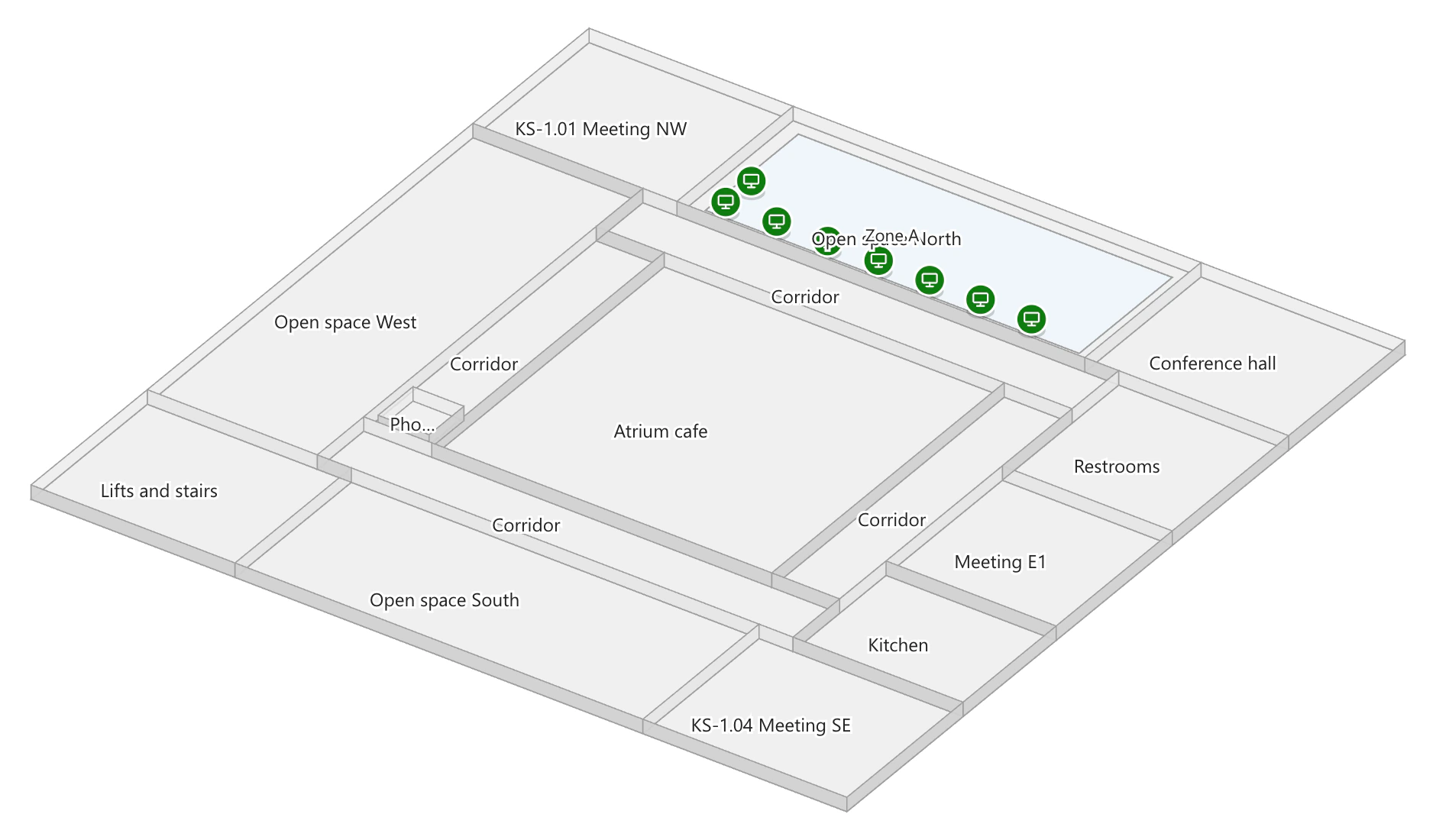
Pic. 1. Virto Desk & Room Booking App: one floor from Microsoft Places with desks and meeting rooms, test office
Good to know: it needs Microsoft Places and Exchange Online, works with SharePoint Online, not SharePoint Server, and its screens are in English. Each desk booked individually still needs its Places space licence. Administrators get booking rules, analytics and an audit with CSV export. The first visit from your tenant starts a trial.
FAQ
Can one app book both desks and meeting rooms in Microsoft 365?
Yes. Microsoft Places books meeting rooms and desks in the same Outlook and Teams calendar, and it is included in any Microsoft 365 plan with Outlook and Teams. It does not cover parking or equipment; to add those to the same booking, you need an app built on top of Places.
Can Microsoft Places book parking?
No. Places has no object type for parking. Microsoft leaves parking to building services and partner apps; an admin can link a parking service on the building’s Explore tab in Places.
Can you book equipment in Microsoft Places?
No. Exchange equipment mailboxes for projectors, pool cars or loan laptops still work, and people book them by adding them to a meeting like an attendee, but Places does not show them.
Do you need a licence to book a desk in Microsoft Places?
Not for a desk pool, which is included in any plan with Outlook and Teams. Booking a specific desk needs a space licence on that desk: Teams Shared Space at $8 a month, which comes with three free Single Space licences, so about $2 per desk per month. A desk set up for booking without a licence appears as unavailable.
Can a desk and a meeting room be booked in one booking?
Not in Microsoft Places. A desk and a meeting room for the same day are two separate bookings, two events in the Outlook or Teams calendar, and each is accepted or declined by its own mailbox.
Conclusion
If the question is only desks and meeting rooms, Microsoft 365 already has the one app: Microsoft Places, included for rooms and desk pools, and about $2 a month for each named desk. The gap is everything around the desk: the parking space, the monitor, one booking for all of it, and a rule for office days. That is where an app on top of Places earns its place. Before you choose one, check where it keeps the bookings and which Microsoft licences you still need.
Virto Desk & Room Booking App is our answer to that gap: built on Microsoft Places, with every booking a calendar entry in Outlook, and desk and parking bookings, day statuses and audit also kept on VirtoSoftware’s servers on Microsoft Azure, where people appear only by their Microsoft Entra ID. See what it does and how to try it.