


Quick answer. Office 365 connectors (later renamed Microsoft 365 connectors) pushed updates from external services such as Trello, Jira, GitHub or an RSS feed into Microsoft Teams channels and Microsoft 365 Group inboxes. Microsoft has retired them: connectors for Groups in Outlook stopped on August 5, 2024, and connectors in Teams, including the Incoming Webhook, were switched off between May 18 and May 22, 2026. The replacement is the Workflows app in Teams, which runs on Power Automate.
If a channel in your tenant went quiet in late May 2026, this is almost certainly why. This guide explains what connectors did, how the retirement unfolded, which replacement fits which scenario, and how to rebuild a notification in Workflows step by step. It also clears up a frequent confusion: an Office 365 connector is not the same thing as an Outlook connector, an Exchange mail flow connector, or a Power Automate connector.
What Office 365 connectors were
An Office 365 connector was a lightweight subscription attached to one Teams channel or one Microsoft 365 Group. You picked a service from a gallery, signed in, chose what you wanted to hear about, and from then on the service posted a card each time something happened: a new Trello card, a Jira issue moving to “In progress”, a GitHub pull request, a new item in an RSS feed.
The most widely used connector was the Incoming Webhook. It gave a channel a unique URL, and any script, monitoring tool or CI pipeline could send a JSON payload to that URL to post a message. Thousands of alerting setups were built on it because it needed no code on the Teams side and no licence beyond Teams itself.
Connectors had clear limits. They could only post. They had no conditions, no approvals, no run history, and no owner that an admin could look up. A connector was tied to the channel where it was set up, so nobody had a tenant-wide view of what was sending data where. Those gaps are the reason Microsoft gave for moving everything to Power Automate.
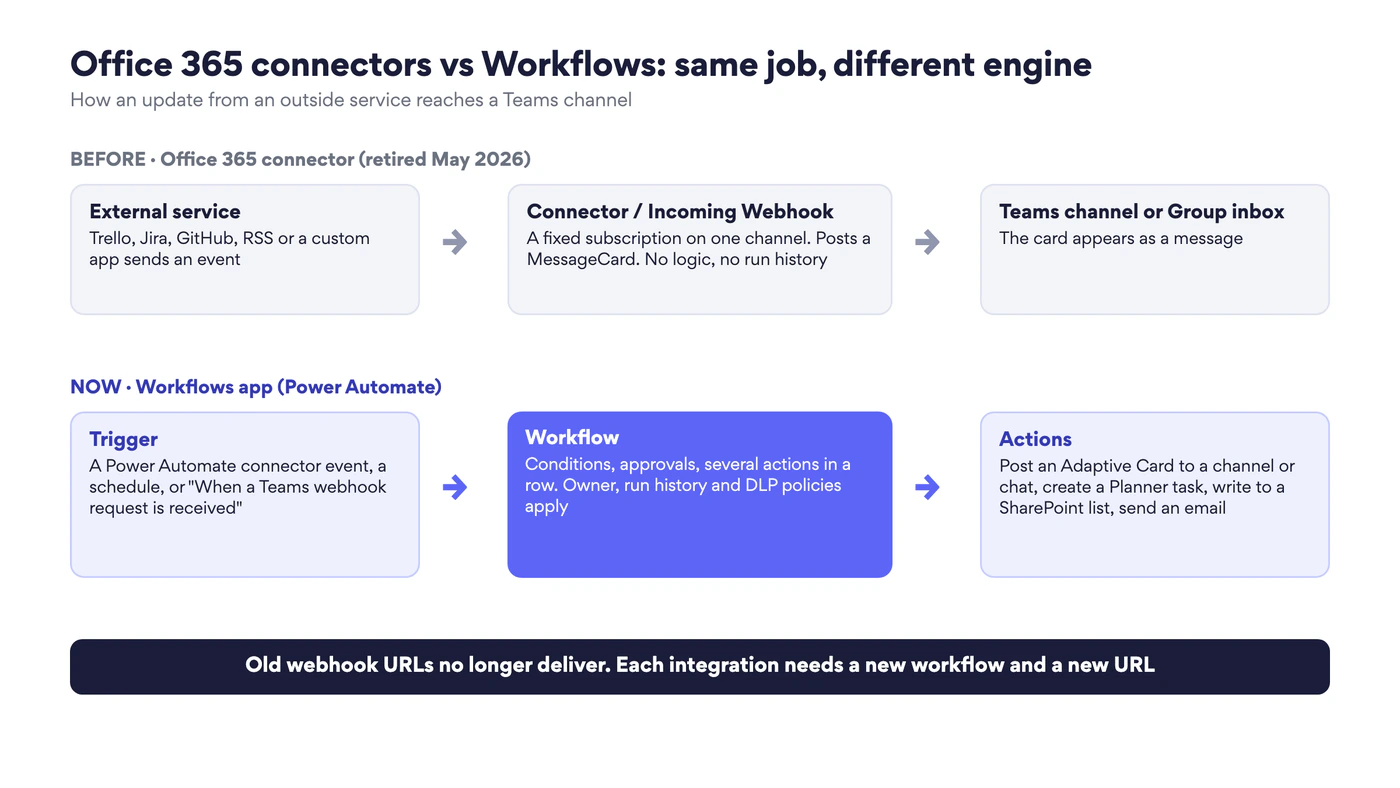
Fig. 1. How a notification reached a Teams channel through an Office 365 connector, and how it gets there through Workflows today
Four different things called “connector”
The word is overloaded in Microsoft 365, and search results mix all four meanings. Only the first one has been retired.
| Term | What it is | Status in 2026 |
|---|---|---|
| Office 365 / Microsoft 365 connectors | Subscriptions that posted cards into Teams channels and Group inboxes, including the Incoming Webhook | Retired. Outlook Groups: August 5, 2024. Teams: May 18 to 22, 2026 |
| Power Automate connectors | The catalogue of more than a thousand triggers and actions that flows use to talk to Microsoft 365 and third-party services | Current. This is what Workflows runs on |
| Outlook connector | An add-in or integration that links Outlook mail and calendars with another system such as a CRM | Current. See our Outlook connector guide |
| Exchange Online connectors | Mail flow settings that route email between Exchange Online and on-premises servers or partner domains | Current. An admin topic, described in Microsoft Learn |
The retirement: what happened and when
Microsoft announced the retirement of Office 365 connectors in Teams in July 2024. The first schedule was aggressive: block new connectors in August 2024 and stop all of them by October 2024. After strong pushback from admins, the deadline moved several times.
| Date | What changed | Impact |
|---|---|---|
| July 2024 | Retirement of Office 365 connectors in Teams announced | Workflows named as the replacement |
| August 5, 2024 | Connectors for Microsoft 365 Groups in Outlook retired | The Connectors option disappeared from Outlook. Existing setups stopped delivering to Group inboxes |
| January 31, 2025 | Deadline to update existing Teams webhook URLs to the new format | Webhooks with the old URL structure stopped posting |
| October 2025 | Teams deadline moved to March 31, 2026 | More time to migrate |
| February 2026 | Workflows started accepting MessageCard payloads. Deadline moved to April 30, 2026 | Senders no longer had to be rewritten for Adaptive Cards before migrating |
| April 2026 | Private channels became selectable for webhook workflows. Final schedule published | The last functional gap closed |
| May 18 to 22, 2026 | Final switch-off rolled out | Office 365 connectors in Teams no longer function |
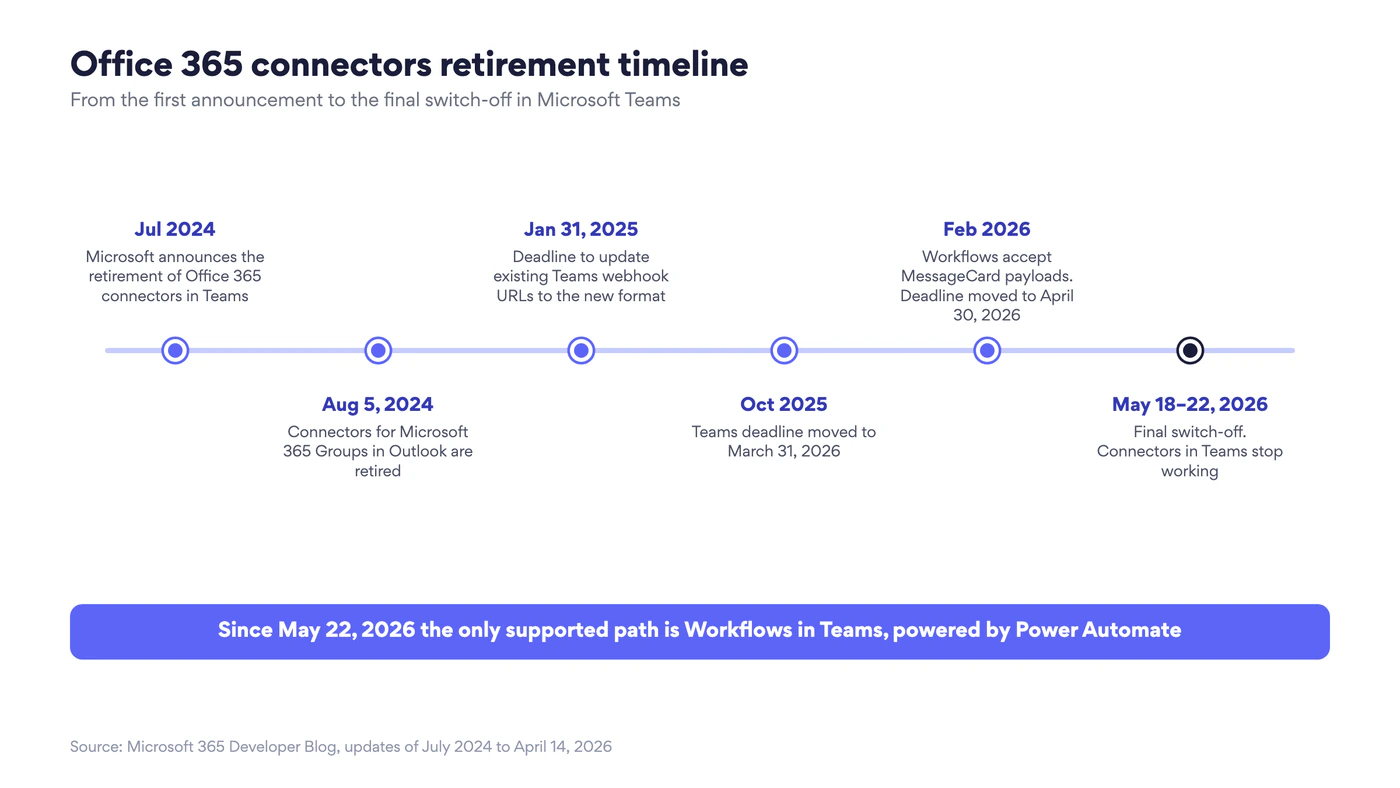
Fig. 2. Retirement timeline of Office 365 connectors in Outlook Groups and Microsoft Teams
The authoritative source is the Microsoft 365 Developer Blog post Retirement of Office 365 connectors within Microsoft Teams, which Microsoft updated with every change, most recently on April 14, 2026. The Outlook side is covered by the support notice Connectors for Groups in Outlook are no longer available.
Where are connectors in Office 365 now?
Nowhere. The Connectors entry is gone from Group settings in Outlook, and in Teams the channel menu now offers Workflows instead. Old webhook URLs cannot be reactivated or redirected. Anything that still has to reach a channel needs a new workflow and a new URL.
What to use instead
There is no single replacement, because connectors covered several jobs. Pick the lightest option that does yours.
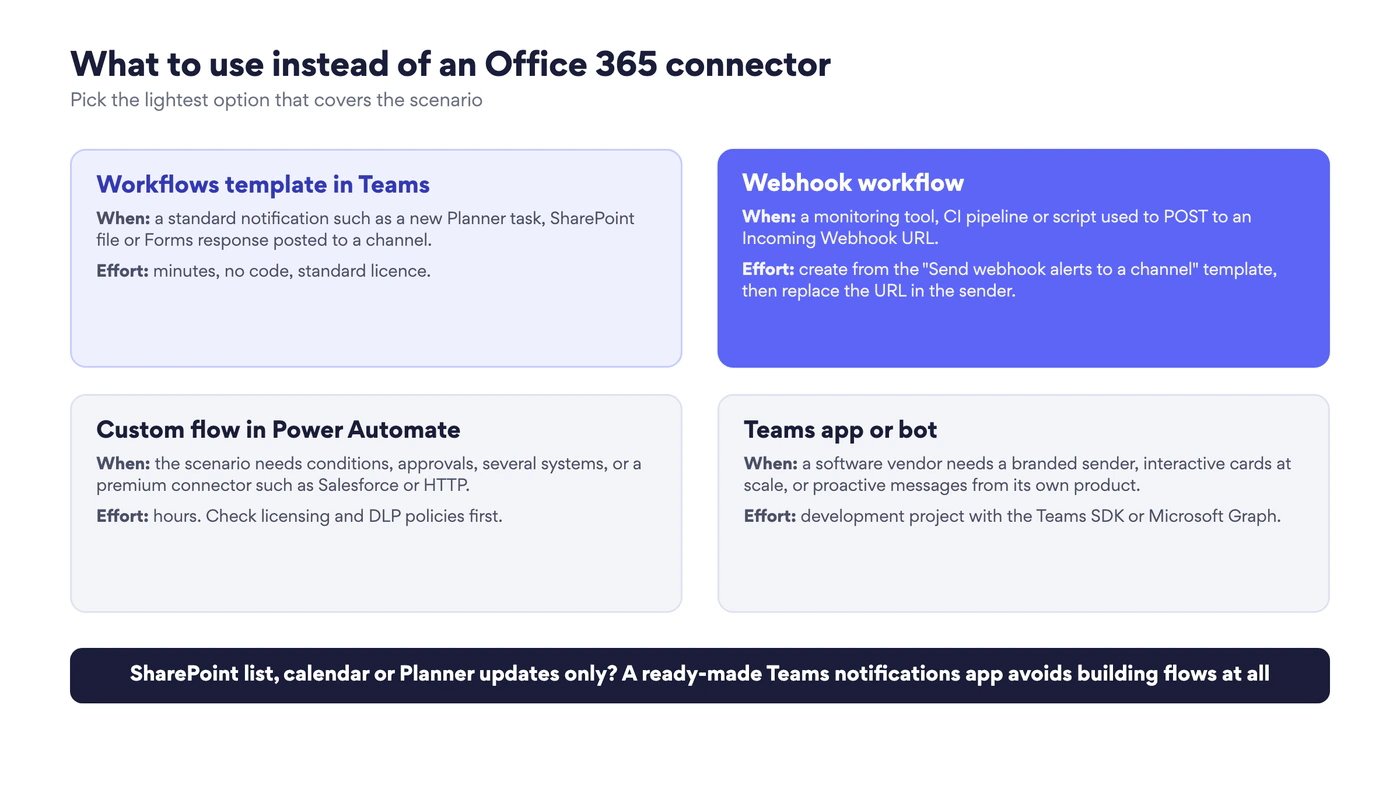
Fig. 3. Four ways to replace an Office 365 connector, from the simplest to the most involved
| Dimension | Legacy Office 365 connectors | Workflows (Power Automate) in Teams |
|---|---|---|
| Where it lives | Channel or Group settings | The Workflows app in Teams, and make.powerautomate.com for editing |
| Status | Retired | Current and recommended by Microsoft |
| What it can do | Post a card | Trigger plus any number of actions: post, create tasks, write to lists, send approvals, email |
| Card format | MessageCard | Adaptive Cards, plus MessageCard without buttons |
| Ownership | Attached to the channel, no named owner | Owned by a user account. Co-owners can be added |
| Governance | Minimal | Per-app availability in Teams (app centric management), data loss prevention policies in Power Platform, run history |
| Licensing | Included with Teams | Standard connectors and the Teams webhook trigger are included with Microsoft 365. Premium connectors need a Power Automate licence |
For a broader view of what can be plugged into Teams, see our guide to Microsoft Teams integrations. For automation that starts from SharePoint lists and libraries, see SharePoint automation and workflows.
How to set up a workflow in Teams
The steps below replace a typical connector with a Workflows template. Most setups take a few minutes and need no code. If the Workflows app is missing, a Teams admin has to allow it first (see the governance section).
Step 1. Open the Workflows app
In Teams, select the three dots (View more apps) in the left rail and search for Workflows. You can also open it from a channel: select the three dots next to the channel name and choose Workflows.
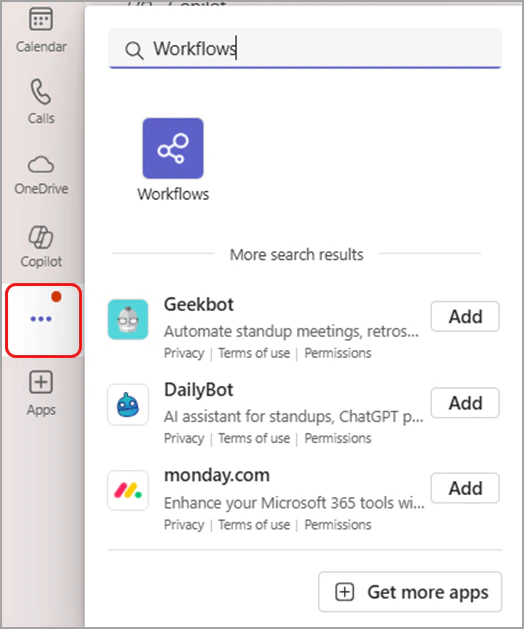
Pic. 1. Finding the Workflows app in Microsoft Teams. Source: Microsoft Support
Step 2. Pick a template or build from scratch
The Templates tab lists ready-made scenarios, for example “Notify a channel when SharePoint file or items change” or “Notify a channel when a new Planner task is completed”. Filter by category, or describe what you want to automate in the search box. Build from scratch opens an empty flow for custom logic.
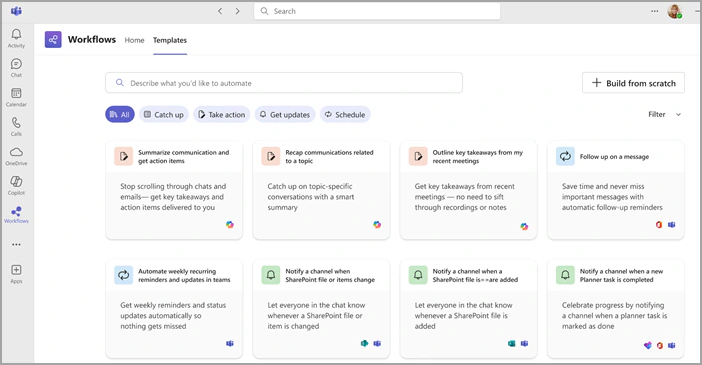
Pic. 2. Templates in the Workflows app. Source: Microsoft Support
Step 3. Connect the services and choose the channel
Sign in to each service the template uses, then choose the team and channel that should receive the posts. Narrow the trigger as far as you can: one plan, one list, one library. A channel that gets every change in a busy site is muted within a week.
Step 4. Save, test and check the run history
Save the workflow, trigger the event once, and confirm that the post arrives. The workflow’s details page shows each run with its status, which is the first place to look when a notification goes missing.
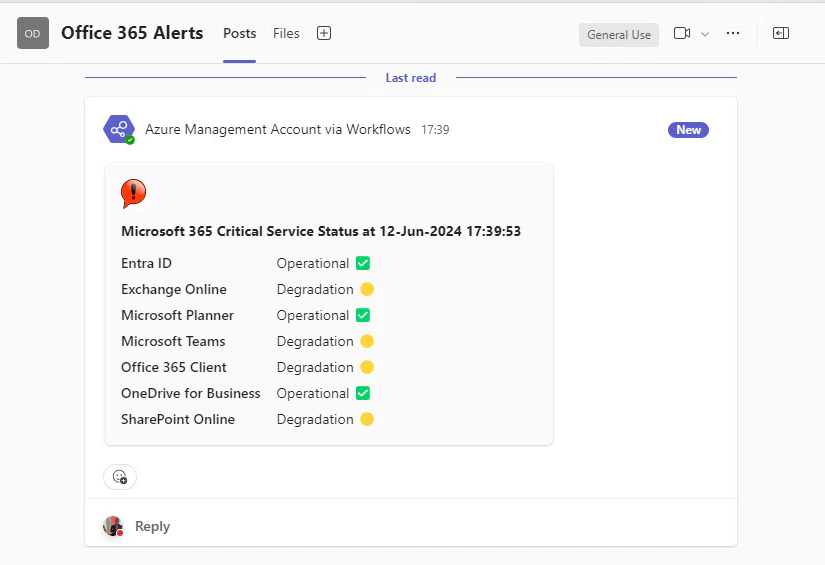
Pic. 3. A notification posted to a Teams channel by a workflow
How to replace an Incoming Webhook
Scripts, monitoring tools and CI pipelines that used an Incoming Webhook URL need a webhook workflow. Microsoft provides templates for it, and they do not require a premium licence.
Open Workflows and search the templates for “webhook”. Choose Send webhook alerts to a channel (or the chat version). Each template has a different authentication type: anyone with the URL, specific people, or people in your organisation.
Select the team and the channel, then select Save.
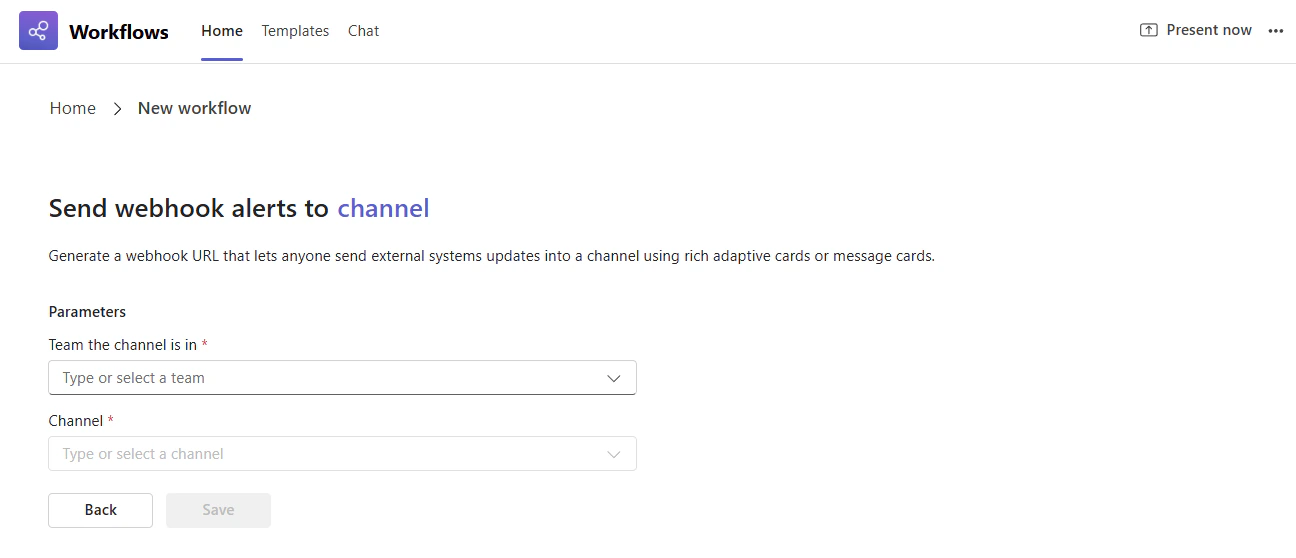
Pic. 4. The “Send webhook alerts to a channel” template. Source: Microsoft Support
- On the workflow’s details page, select Copy webhook link and paste the new URL into the system that sends the alerts.
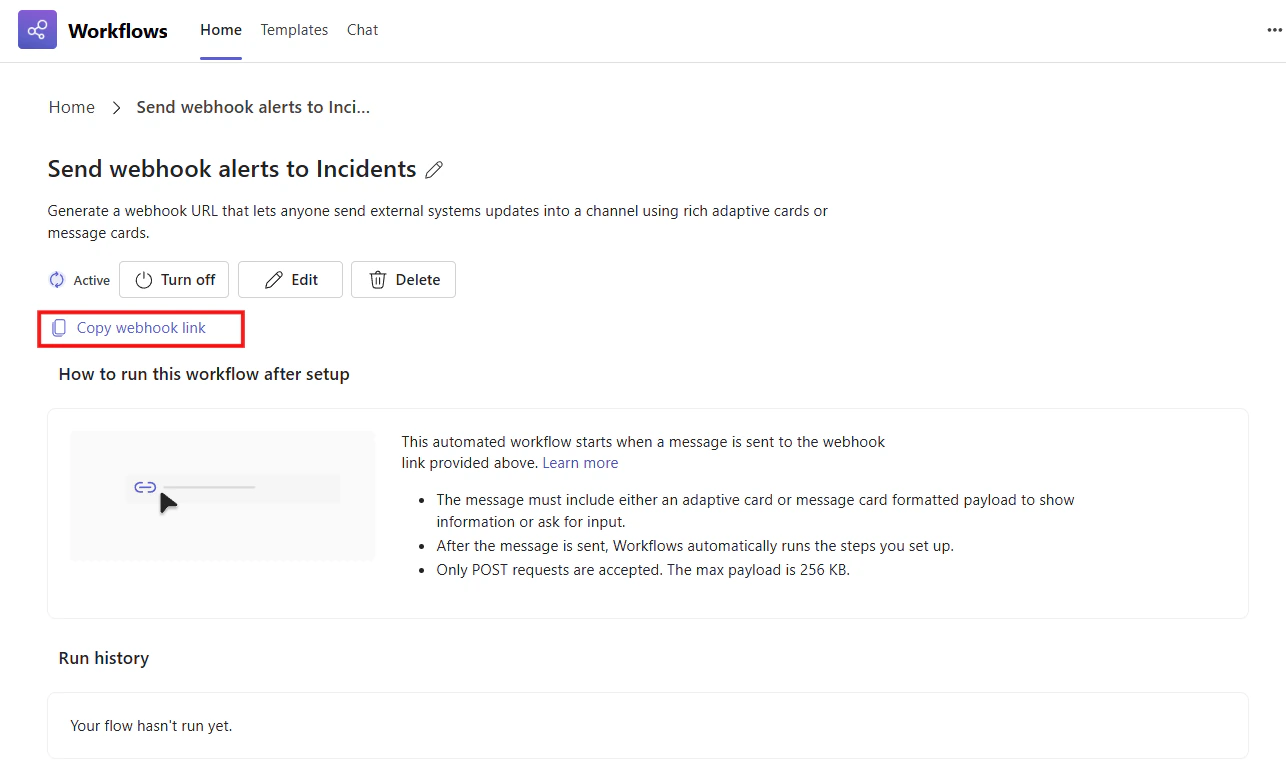
Pic. 5. Copying the new webhook URL from the workflow details page. Source: Microsoft Support
- Send a test POST request and check the channel and the run history.
Microsoft’s instructions are in Send messages in Teams using incoming webhooks and, for developers, in Create Incoming Webhooks.
What behaves differently from the old webhook
- The sender name and icon cannot be customised. Posts arrive from the Workflows bot or on behalf of the workflow’s owner.
- MessageCard buttons are not rendered. The text of a MessageCard still posts, but interactive buttons need an Adaptive Card.
- The workflow belongs to a person. If the owner leaves the company, the flow can stop. Add a co-owner, or create business-critical flows under a service account.
- Only POST requests are accepted, and the URL is longer and contains a signature. Treat it as a secret.
- Software vendors whose product used to ship an Office 365 connector are expected to publish a Power Automate connector or send proactive messages from a Teams app.
Migration checklist
The switch-off has already happened, so migration in late 2026 is mostly recovery: finding what silently stopped and rebuilding it. Work through one channel at a time.
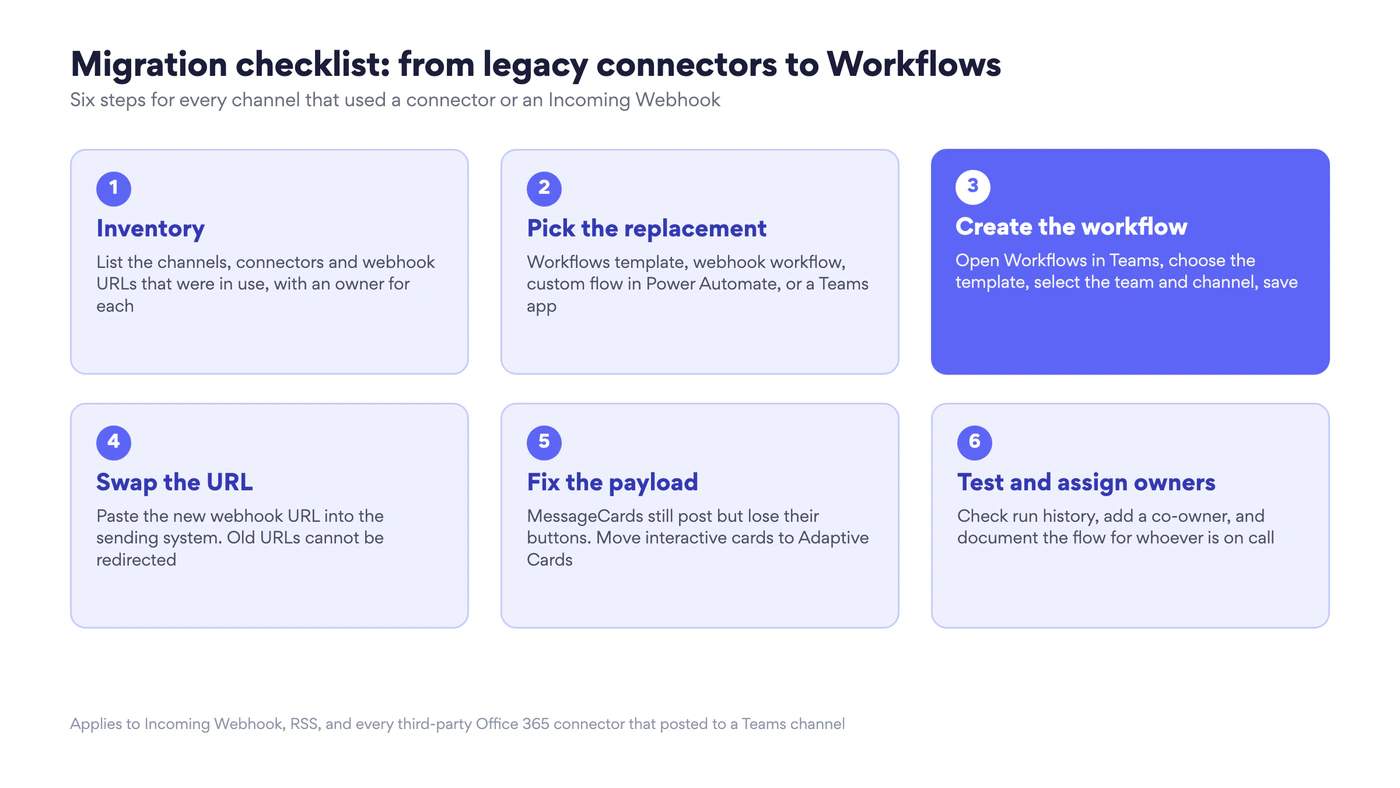
Fig. 4. Migration checklist: from legacy connectors to Workflows
| Step | What to do | Tip |
|---|---|---|
| 1. Inventory | List the channels that used connectors and the systems that posted to them | Ask channel owners which alerts they stopped seeing after May 2026. Search CI and monitoring configs for “webhook.office.com” |
| 2. Pick the replacement | Template, webhook workflow, custom flow, or a Teams app | Do not rebuild notifications nobody read |
| 3. Create the workflow | Workflows app, choose the template, select the team and channel | Name it after the source and the channel |
| 4. Swap the URL | Replace the old webhook URL in the sending system | Store it in a secret manager, not in code |
| 5. Fix the payload | Move interactive MessageCards to Adaptive Cards | Plain MessageCards can stay as they are |
| 6. Test and assign owners | Check run history, add a co-owner, document the flow | Review owners when people change roles |
To review what already exists, open Workflows and look at the list of your workflows. It shows which ones are active, when they last ran, and lets you edit, turn off or delete each one. See Browse and add workflows in Microsoft Teams.
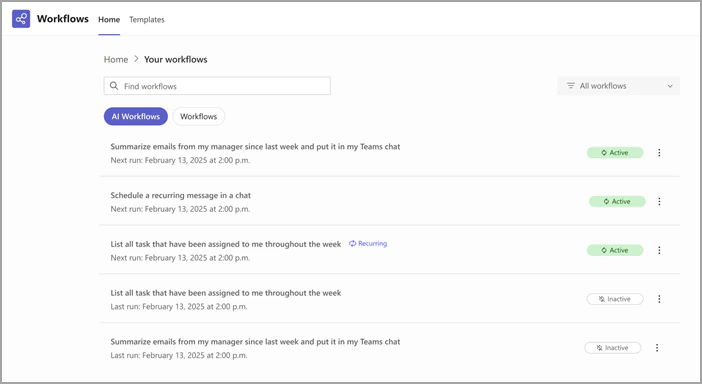
Pic. 6. The list of your workflows with their status. Source: Microsoft Support
Governance, security and licensing
Connectors were easy to add and hard to oversee. Workflows reverse that, which means a few settings have to be right before users can build anything.
- Allow the app. Workflows is a Teams app. Whether users can open it is controlled in the Teams admin center through app management: under Teams apps > Manage apps, app centric management sets per app who it is available to.
- Set data loss prevention policies. Power Platform DLP policies decide which connectors can be combined in one flow, so that a flow cannot read from SharePoint and post to a consumer service.
- Check licensing before rollout. Standard connectors (Teams, SharePoint, Planner, Outlook, Forms) are covered by Microsoft 365 licences. Premium connectors, custom connectors and the HTTP action need a Power Automate Premium licence. Microsoft lists the options in Types of Power Automate licenses, and the full catalogue is in the connector reference.
- Use least privilege. When a flow signs in to Trello, Jira or another service, review the requested scopes and connect with an account that sees only what the flow needs.
- Keep external data in the channels that need it. A webhook template that accepts requests from anyone with the URL belongs in an alerts channel, not in a leadership channel.
Common scenarios rebuilt with Workflows
| Old connector | Rebuild with | Notes |
|---|---|---|
| Incoming Webhook (monitoring, CI/CD, scripts) | “Send webhook alerts to a channel” template | New URL required. No premium licence |
| RSS | Flow with the RSS trigger “When a feed item is published” and a Teams post action | Standard connector |
| Planner | Template “Notify a channel when a new Planner task is completed”, or a custom flow on task creation | See also the new Microsoft Planner guide |
| SharePoint news, lists and files | Template “Notify a channel when SharePoint file or items change” | Filter to one list or library |
| Microsoft Forms | Template that posts each new response to a channel | Add a SharePoint “Create item” action to keep a record |
| Trello, Jira, GitHub, Azure DevOps | Custom flow with the vendor’s Power Automate connector, or the vendor’s own Teams app | Many vendors now ship a Teams app that replaces their connector |
A multi-step example shows what connectors could never do. A CRM sends a webhook when a new opportunity is created. The flow creates a Planner task for presales, posts the deal details to the sales channel, adds a kickoff event to the team calendar, and, if the deal value is above a threshold, sends an approval to a manager. One trigger, four actions, a full run history.
Where Virto apps fit
Workflows move data. They do not give a team a place to look at it. Two gaps remain after migration, and they are the ones Virto apps for Microsoft 365 and Teams cover.
Channel notifications without building flows
If the updates you need come from SharePoint lists, calendars, Planner or a Kanban board, the Virto Notifications & Reminders App for Microsoft Teams posts them to a channel from a settings screen. There is no flow to maintain and nothing that breaks when its owner changes roles. For email alerts and date-based reminders on SharePoint Online lists, the Virto Alerts & Reminder App does the same job outside Teams, with HTML templates and scheduling by user or group.
One calendar for everything the flows create
Connectors posted messages. They never offered a shared schedule. The Virto Calendar App overlays SharePoint lists, Exchange and Outlook calendars, Microsoft 365 group calendars and internet calendars such as Google or iCloud in one colour-coded view, in SharePoint Online or as a tab in Microsoft Teams. Because the app reads from those sources, an event or list item that a flow creates shows up in the calendar without extra steps.
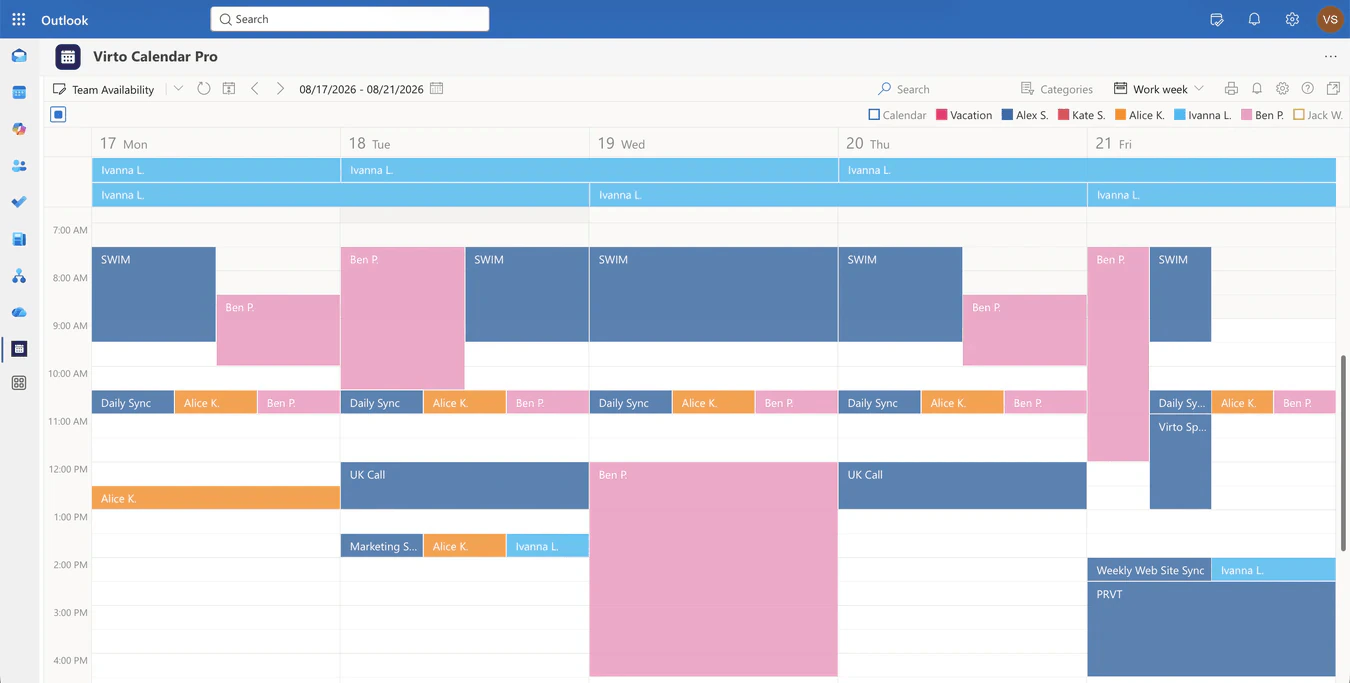
Pic. 7. Virto Calendar App with several sources in one view
Typical combinations:
- Shared vacation calendar. Time-off requests live in a SharePoint list. A flow handles the approval and posts to the channel. Virto Calendar App shows approved absences next to team meetings.
- Project deadlines. Milestones live in a SharePoint list. A flow reminds the channel a week ahead. The calendar shows milestones alongside room bookings. Task boards for the same project can run in the Virto Kanban Board App.
- Department schedules. Rooms, team calendars and external iCal feeds in one view for operations planning.
All Virto apps for Microsoft 365 and Teams come with a free 30-day trial with full functionality. Plans are listed on the pricing page, and real setups are collected in use cases.
Best practices for Workflows that replace connectors
- Start from templates, then extend. A template that works today beats a custom flow that ships next month.
- Filter at the trigger. Limit to a plan, a bucket, a list or a label. Add conditions so only high-signal events reach the channel.
- Prefer Adaptive Cards for anything a person has to act on. Approvals and acknowledgements stay in one message.
- Name and document. Put the source, the channel and the owner in the flow name and description.
- Plan for ownership changes. Add co-owners. For critical alerts use a service account.
- Pilot in a private team before posting to a channel with two hundred members.
- Watch the run history for the first week, then set a failure notification for the owner.
FAQ
Are Office 365 connectors still available?
No. Connectors for Microsoft 365 Groups in Outlook were retired on August 5, 2024. Office 365 connectors in Microsoft Teams, including the Incoming Webhook, stopped working during the final rollout of May 18 to 22, 2026.
What replaced Office 365 connectors in Teams?
The Workflows app, which is built on Power Automate. It offers templates for common notifications, a webhook trigger for external systems, and custom flows with conditions and approvals.
Do I need a Power Automate licence to replace an Incoming Webhook?
No. According to Microsoft, the webhook templates and the Teams webhook trigger do not require a premium licence. A licence is needed only when the flow uses premium connectors or the HTTP action.
Can I keep my old webhook URL?
No. URLs on webhook.office.com no longer deliver. Create a webhook workflow, copy its URL and update the sending system.
Do MessageCards still work?
Yes, since February 2026 Workflows accept MessageCard payloads, but buttons in them are not rendered. Interactive messages need Adaptive Cards.
Is an Office 365 connector the same as an Outlook connector?
No. An Office 365 connector posted third-party updates into Teams channels and Group inboxes and is retired. An Outlook connector links Outlook with another system such as a CRM and is a separate, current topic covered in our Outlook connector guide.
Conclusion
Office 365 connectors set the pattern for bringing outside updates into Microsoft 365, and that pattern outlived them. Since May 2026 the work is done by Workflows and the Power Automate connector catalogue, with owners, run history and admin policies that connectors never had. Rebuild what people actually read, start from templates, give every flow a second owner, and pair the automation with a shared view of dates so the updates lead somewhere. For that last part, try the Virto Calendar App or the Virto Notifications & Reminders App free for 30 days.
Official Microsoft resources
- Retirement of Office 365 connectors within Microsoft Teams (Microsoft 365 Developer Blog)
- Connectors for Groups in Outlook are no longer available
- Get started with the Workflows app in Microsoft Teams
- Browse and add workflows in Microsoft Teams
- Send messages in Teams using incoming webhooks
- Microsoft Teams connector reference, including the webhook trigger
- Manage Microsoft 365 connectors and custom connectors (admin view of the retirement)