


Quick answer. The new Microsoft Planner is the 2024 app that unifies the old Planner, Project for the Web and Microsoft To Do into one place in Microsoft Teams and on the web. Your existing plans and tasks carry over unchanged. Basic plans are included with Microsoft 365; premium plans (the former Project for the Web, with Timeline, dependencies and goals) need a Planner Plan 1 or Planner and Project Plan 3 licence.
If you opened Planner in Teams one morning in 2024 and found a different app, you were not imagining it. Microsoft replaced three separate tools with one, kept the Planner name, and has been adding to it ever since. This guide explains what the new Microsoft Planner actually is, what changed and when, which features arrived with it, how to use it day to day, and where the paid premium tier begins. For the basics of boards, buckets and tasks, start with our Microsoft Planner guide; this page covers what is new.
What the new Microsoft Planner is
Before 2024, Microsoft 365 had three overlapping ways to manage work. Microsoft To Do held personal tasks. Planner held team plans on Kanban-style boards. Project for the Web held scheduled projects with timelines and dependencies. Each had its own app, its own task list and its own idea of “my tasks”.
The new Microsoft Planner folds all three into a single app. The same plan can be a lightweight board or a scheduled project, personal and assigned tasks from every source appear in one list, and the whole thing runs inside Microsoft Teams and in a web app at planner.cloud.microsoft. Microsoft describes it as bringing together “the simplicity of To Do, the collaboration of Planner, the power of Project for the web, and the intelligence of Microsoft 365 Copilot”.
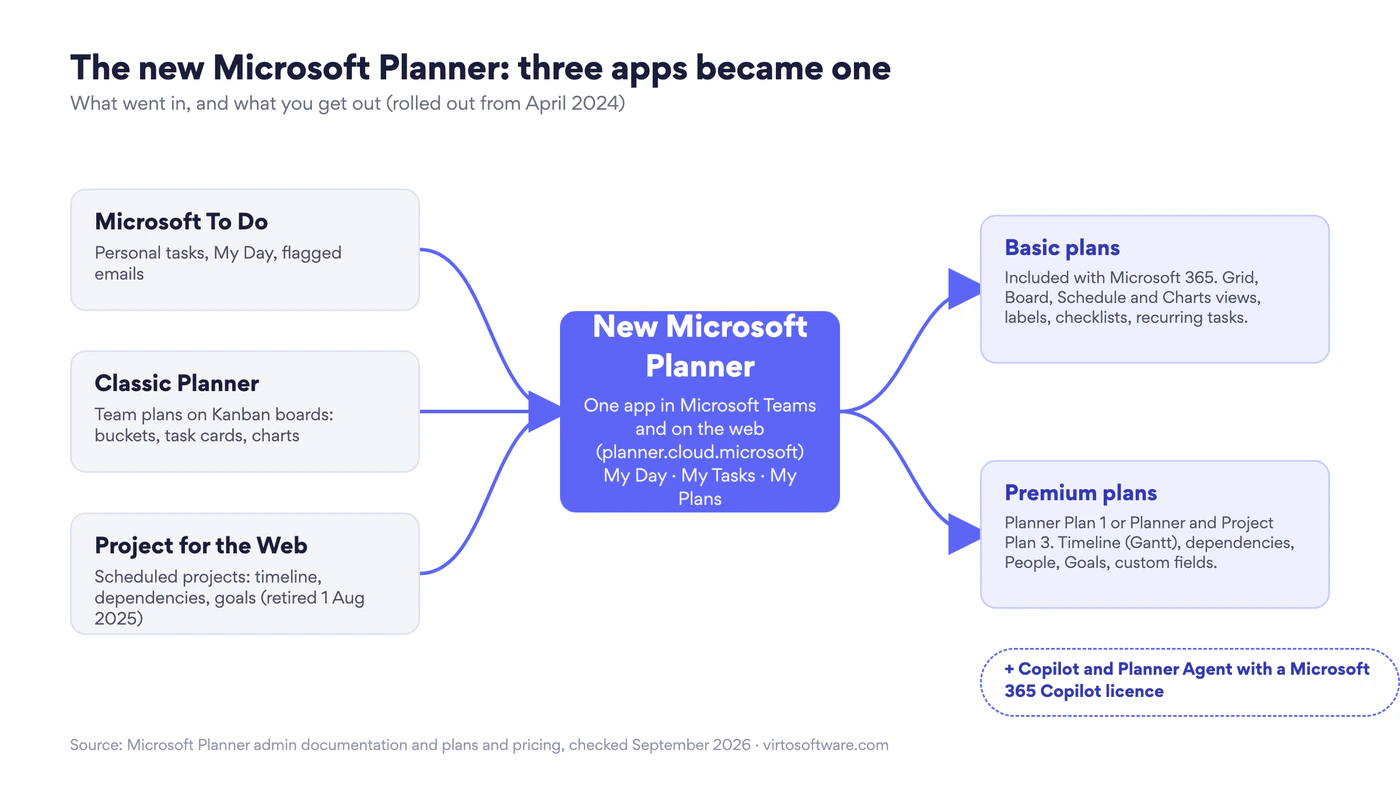
Fig. 1. The new Microsoft Planner unifies To Do, classic Planner and Project for the Web into one app with basic and premium plans
Two things did not change. First, nothing was deleted: every plan, bucket and task you had in classic Planner is still there, and Project for the Web projects became premium plans in the same app. Second, the licensing line stayed where it was. Basic plans come with the Microsoft 365 subscriptions that included Planner before; the project-management features that used to be Project for the Web still need a paid licence. They are now simply called premium plans.
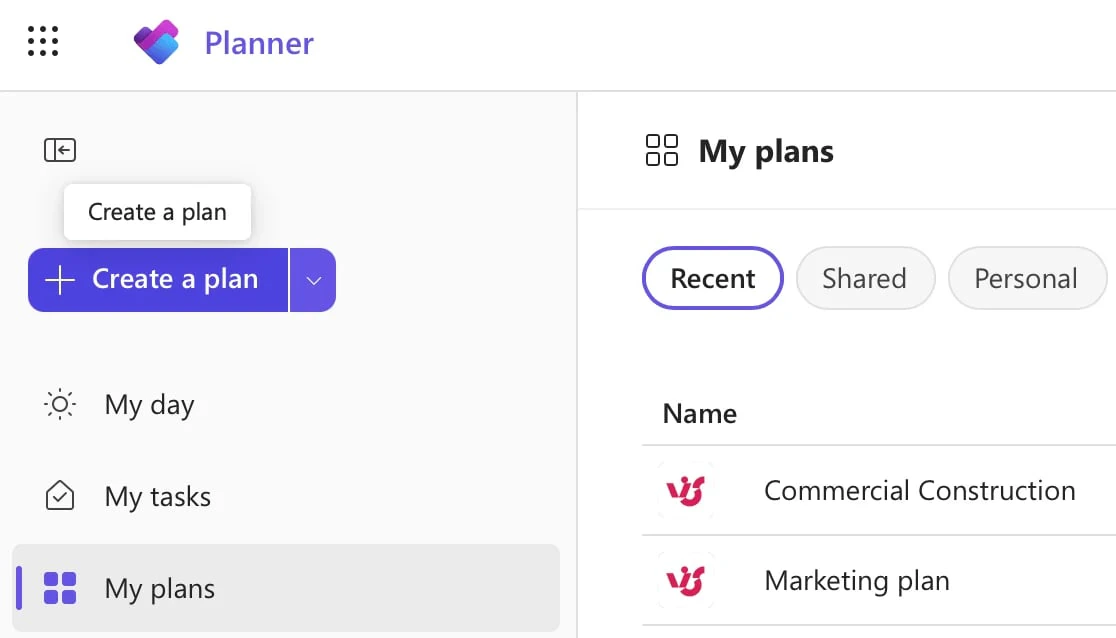
Pic. 1. The new Planner home: My day, My tasks and My plans in one place
What changed, and when
The rename happened in stages, which is why so many how-to articles still use the old names. Here is the sequence.
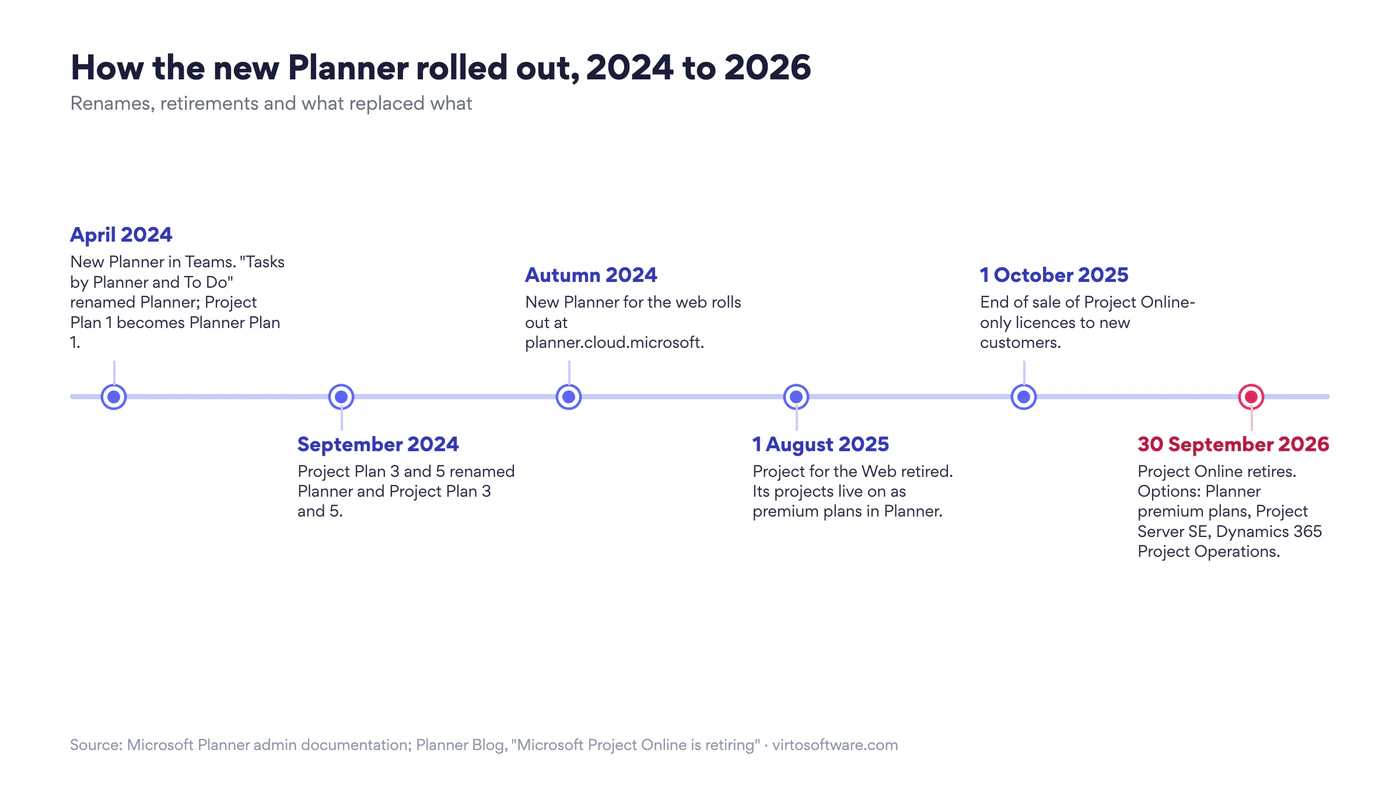
Fig. 2. How the new Planner rolled out, from the Teams app in April 2024 to the Project Online retirement in September 2026
- April 2024. The “Tasks by Planner and To Do” app in Teams was renamed Planner and received the new experience. At the same time the Project Plan 1 licence was renamed Planner Plan 1.
- September 2024. Project Plan 3 and Project Plan 5 became Planner and Project Plan 3 and Planner and Project Plan 5, to reflect that they now unlock premium plans in Planner as well as Project desktop.
- Autumn 2024. The new Planner for the web rolled out, so the web app at planner.cloud.microsoft matches the Teams app.
- 1 August 2025. Project for the Web was retired as a separate app. Its projects live on as premium plans in Planner.
- 1 October 2025. End of sale for Project Online-only licences to new customers.
- 30 September 2026. Project Online retires. Microsoft names Planner premium plans, Project Server Subscription Edition and Dynamics 365 Project Operations as the transition options; see our guide to Microsoft Project alternatives if you are planning that move.
So, is Microsoft getting rid of Planner? No. Planner is the app Microsoft is consolidating into. It is Project for the Web and Project Online that are going away, and their capabilities are being carried into Planner’s premium tier.
Key features of the new Planner
One task list across everything
My Day is a daily focus list you build by hand. My Tasks gathers everything assigned to you from any source: Planner plans, To Do lists, flagged Outlook emails, Microsoft Loop components and Teams meeting notes. My Plans lists every plan you belong to, with recent and pinned plans first. Private tasks created in To Do or in Copilot land here as well, so the app is now the single place to check what is on your plate.
Basic and premium plans in the same app
When you create a plan you choose Basic or Premium. A basic plan is the classic Planner board. A premium plan is a scheduled project with the former Project for the Web engine behind it. Team members with an ordinary Microsoft 365 licence can open and update tasks in a premium plan; the premium licence is needed to create one and to use the premium views. You can also convert a basic plan into a premium one later, unless your admin has switched that off.
Views: Grid, Board, Calendar, Charts, and more on premium
Every basic plan has four views: Grid (a task list), Board (buckets as columns), Calendar (due dates on a calendar; Microsoft’s documentation still calls it Schedule) and Charts (status, bucket, priority and member breakdowns). Premium plans add Timeline, which is a Gantt chart, People for workload balancing, Goals, and on Plan 3 an Assignments view for effort per person. If you only see Grid and Board, you are either in My Tasks rather than a plan, or in a premium plan without a premium licence.
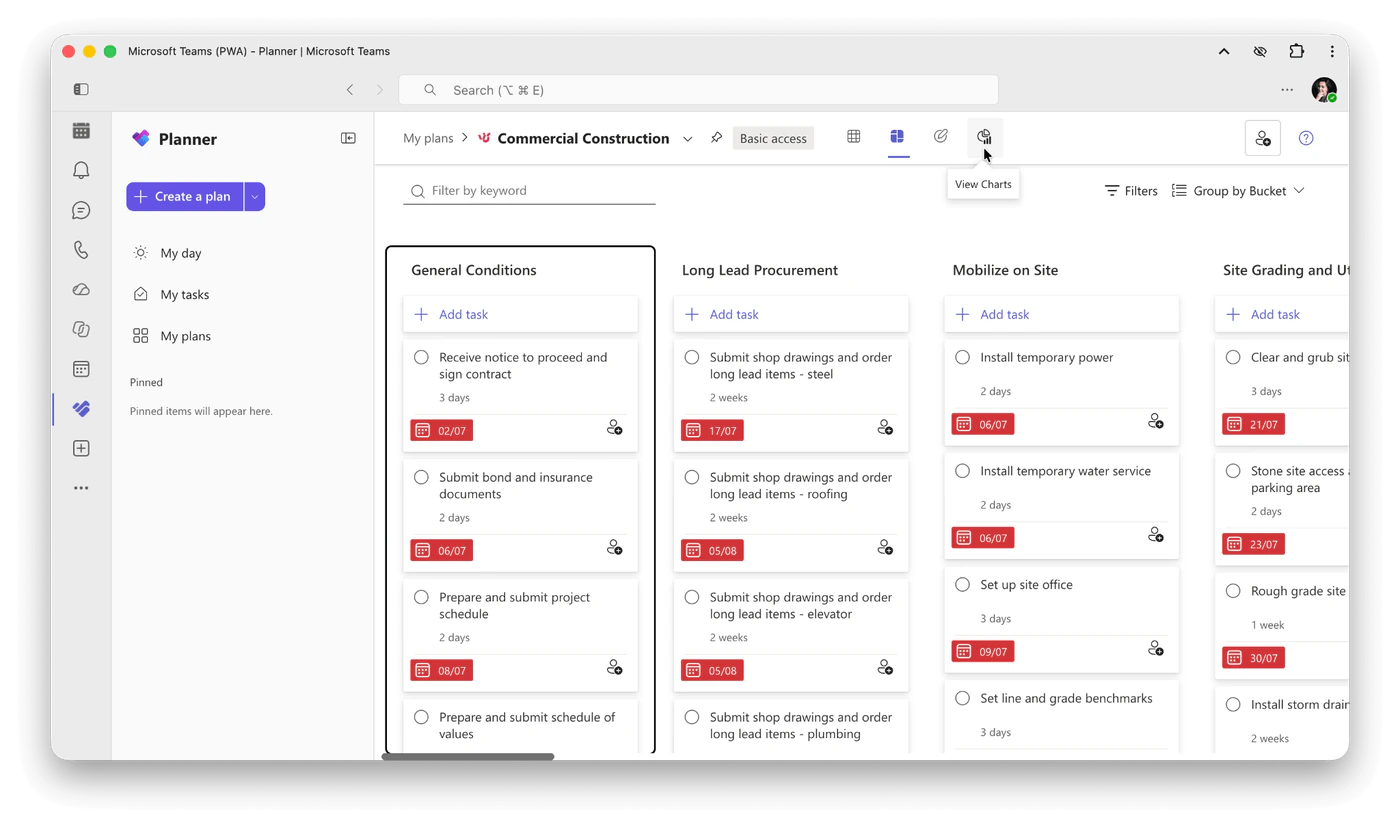
Pic. 2. Board view of a plan in the new Planner, with the view switcher at the top
Richer task cards
Task details now hold rich-text notes, checklists, attachments, up to 25 colour labels, priority, start and due dates, and a comment thread. Premium plans add custom fields (up to ten per plan), subtasks, dependencies, milestones and task history. Recurring tasks, a long-standing request, are available on basic plans.
Templates
New plans can start from a template: project management, software development, employee onboarding, event planning and others. Premium plans add premium templates such as sprint retrospectives and goals and objectives, and let you publish your own plan as a custom template for your organisation.
Copilot and the Planner Agent
With a Microsoft 365 Copilot licence, Copilot in Planner can generate a plan from a prompt, suggest tasks and goals, answer questions about a plan and produce status reports. The Planner Agent (announced as the Project Manager agent) goes a step further and executes routine tasks you assign to it. Copilot is an add-on licence at $30 per user per month, on top of the premium licence for premium plans.
Integrations that come with it
- Microsoft Teams: Planner is a Teams app and a channel tab; task conversations open as Teams posts.
- Microsoft To Do: the same task store, so a task assigned in Planner appears in To Do and vice versa.
- Outlook: flagged emails appear in My Tasks, and basic plans can be added to an Outlook calendar.
- Microsoft Loop and OneNote: tasks created in Loop components or meeting notes show up in My Tasks.
- SharePoint: a Planner web part embeds a basic plan on a page.
- Power Automate: flows for task creation, updates and notifications.
How to use the new Planner
1. Open it
In Teams, select Apps, search for Planner and open it; right-click the icon and choose Pin so it stays in the left rail. On the web, go to planner.cloud.microsoft and sign in with your work account.
2. Create a plan
Select Create a plan, choose Basic plan or Premium plan, then pick a template or start from scratch. Give the plan a name and decide whether to add it to an existing Microsoft 365 group. Adding it to a group is what makes it appear in a Teams channel and shares it with the group’s members.
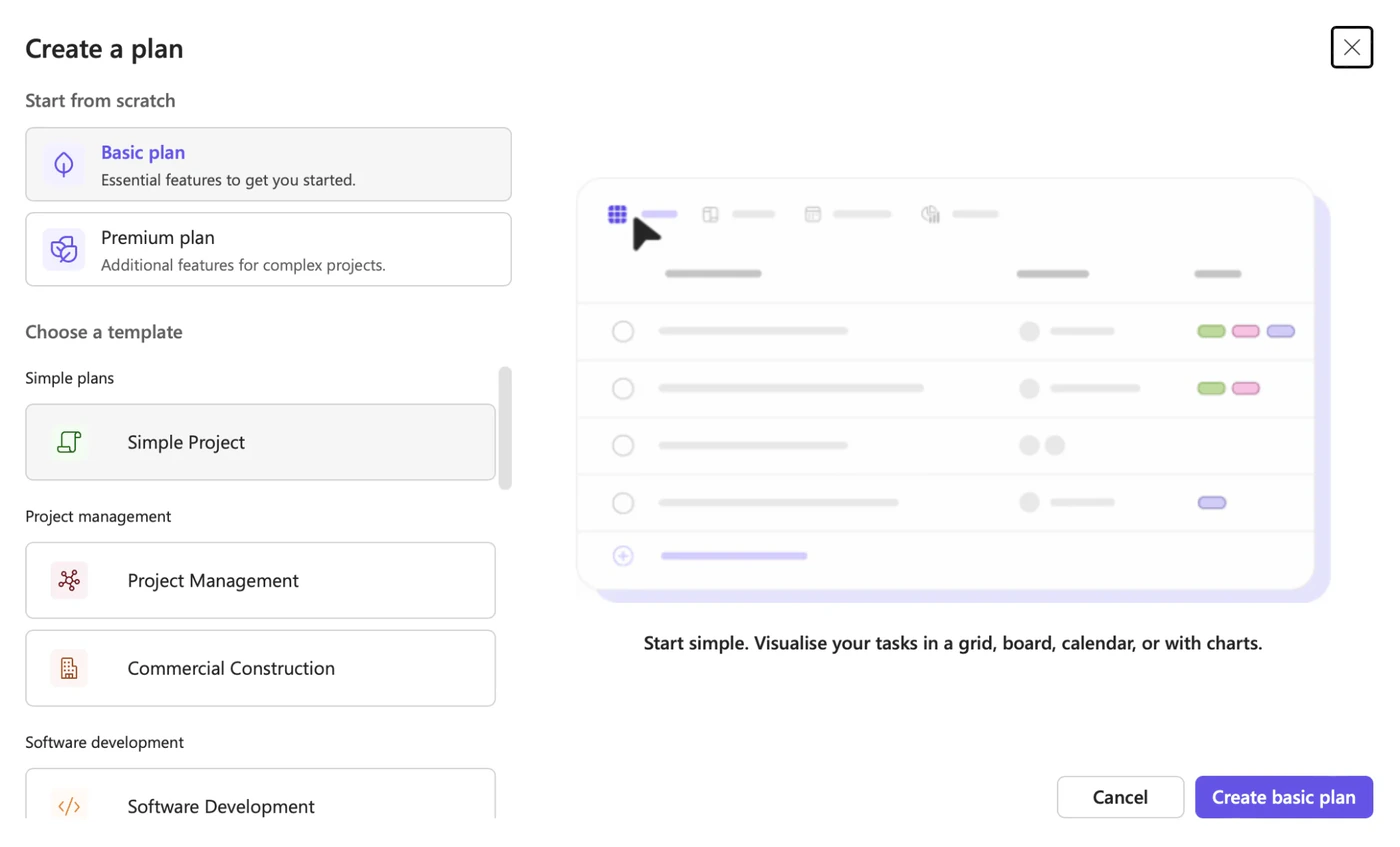
Pic. 3. Creating a plan in the new Planner: choose Basic or Premium, then a template
3. Add buckets and tasks
In Board view, add buckets for your phases or workstreams, then Add task in each. Open a task to set the assignee, priority, start and due dates, labels, a checklist and notes. Drag tasks between buckets as they progress, or change the progress field to Not started, In progress or Completed.
4. Pin the plan where the team works
In a Teams channel, select the plus sign on the tab bar, choose Planner and pick the plan. The board becomes a tab next to Posts and Shared, which is where most teams actually look at it. Our guides to Planner in Microsoft Teams and Teams channels cover the setup in detail.
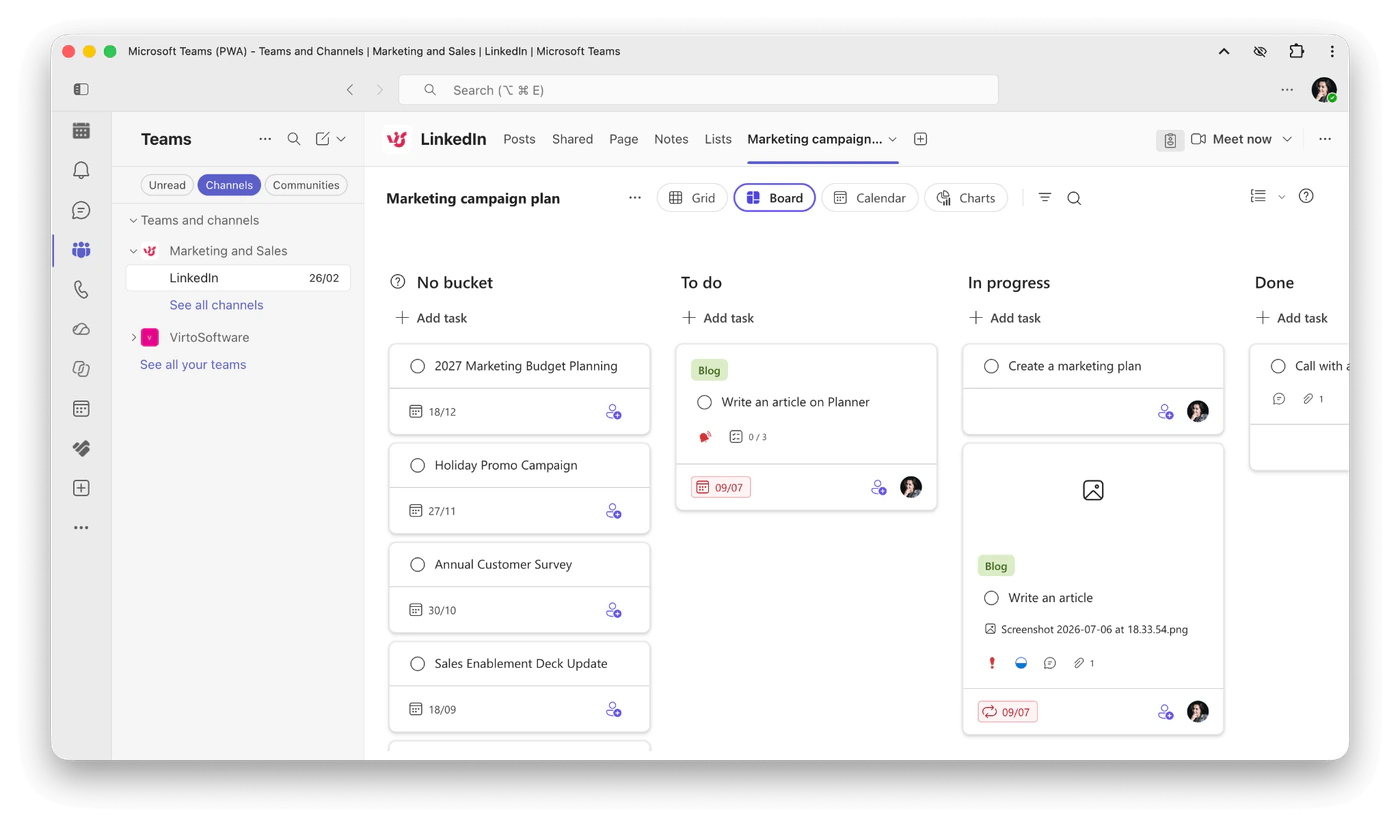
Pic. 4. A plan pinned as a tab in a Microsoft Teams channel
5. Track progress
Switch to Charts for the status breakdown, filter the board by assignee, label or due date, and use Group by to see the same tasks by person, priority or progress. Each morning, open My Day and pull in the tasks you intend to finish.
Tips. Use labels for workstreams and buckets for phases, not the other way round; keep checklists for sub-steps inside a task rather than creating many tiny tasks; and if you need to see tasks as calendar events with times rather than just due dates, see how to show Planner tasks in a calendar view.
Explore Our Use Cases for Project Planning

Project Management
Leverage Virto's advanced tools to masterfully manage projects—breaking down complexities, optimizing timelines, and empowering agile methodology.
Learn more about Project Management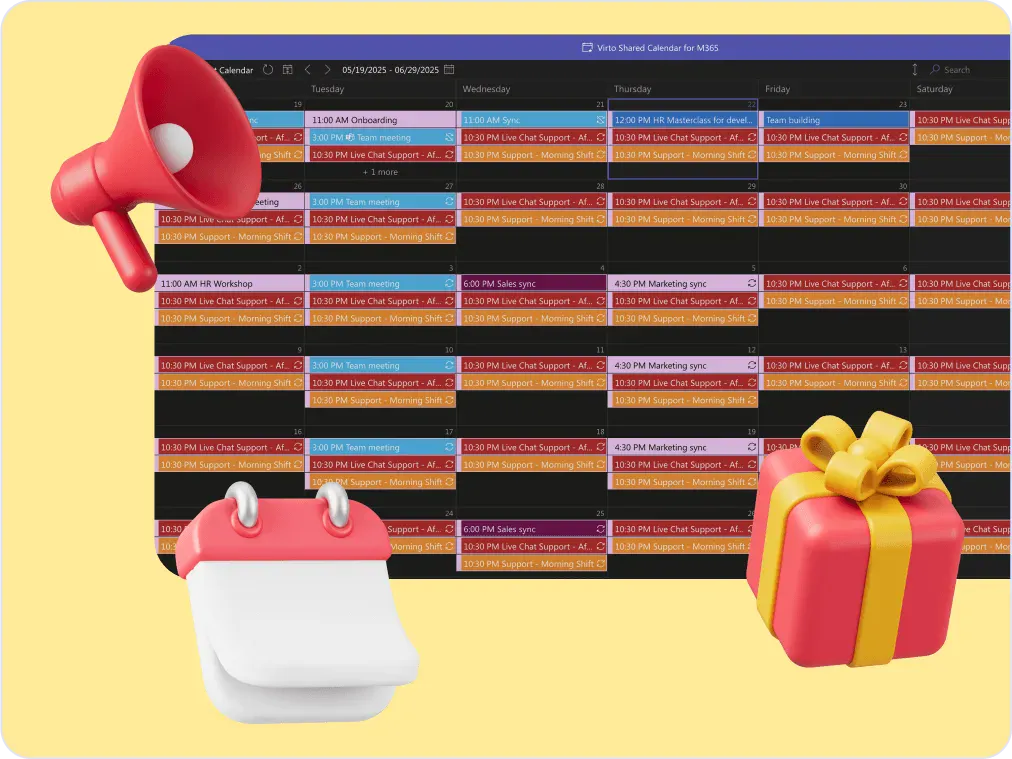
Marketing Calendar Solution
Virto Calendar App draws the Planner campaign plan and the campaign group calendar on one timeline: the work, next to the date it was promised for.
Learn more about Marketing Calendar Solution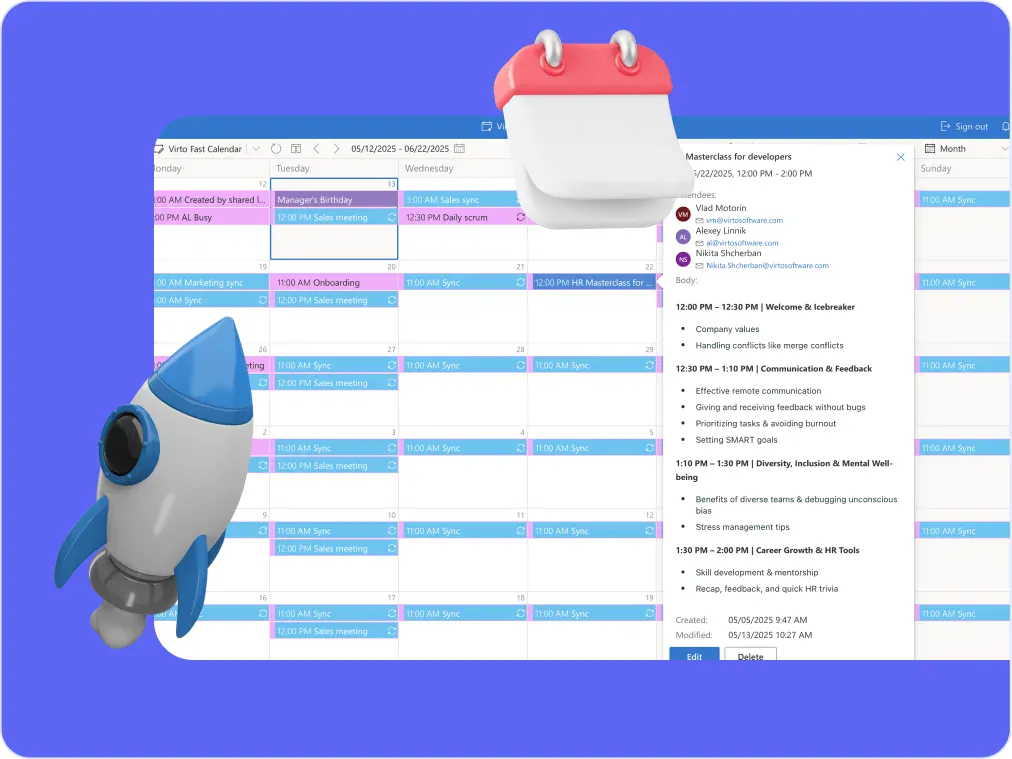
Sprint Calendar
Stay in sync and sprint with style: planning, stand-ups, reviews and retros in one shared sprint calendar, color-coded, in a browser or in Microsoft Teams, and shared by link with the whole team.
Learn more about Sprint CalendarBasic vs premium in the new Planner, briefly
The new Planner ships one app with two kinds of plan. Here is the short version; the full feature comparison, pricing and how to start a trial are in our guide to Microsoft Planner Premium.
| Question | Basic plans | Premium plans |
|---|---|---|
| Licence | Included with Microsoft 365 subscriptions that have Planner | Planner Plan 1 ($10 per user per month) or Planner and Project Plan 3 ($30), paid yearly |
| Views | Grid, Board, Calendar, Charts | Grid, Board, Charts, plus Timeline (Gantt), People, Goals; Assignments on Plan 3 |
| Scheduling | Start and due dates | Dependencies, milestones, critical path, effort and duration |
| Custom fields | No | Up to ten per plan, with conditional colouring |
| Copilot | No | Yes, with a Microsoft 365 Copilot licence |
| Trial | Not needed | 30 days, started from inside Planner |
Fig. 3. Basic and premium plans in the new Microsoft Planner at a glance
When Planner is not enough: Virto Kanban Board App
The new Planner is a big step up from the old one, but a basic plan is still a fixed board: one set of buckets, no swimlanes, no work-in-progress limits, and every plan lives in its own Microsoft 365 group. Teams that manage several projects on one board, work from SharePoint lists, or need automation rules usually hit those walls first.
The Virto Kanban Board App for Microsoft 365 and Microsoft Teams keeps the Kanban feel and removes those limits. Boards are built on SharePoint lists, so several teams can share one board with their own swimlanes and colour rules; cards carry subtasks, checklists and custom columns; WIP limits and filters keep large boards readable; and Power Automate handles the routine updates. It sits alongside Planner rather than replacing it, which is why many customers run both.
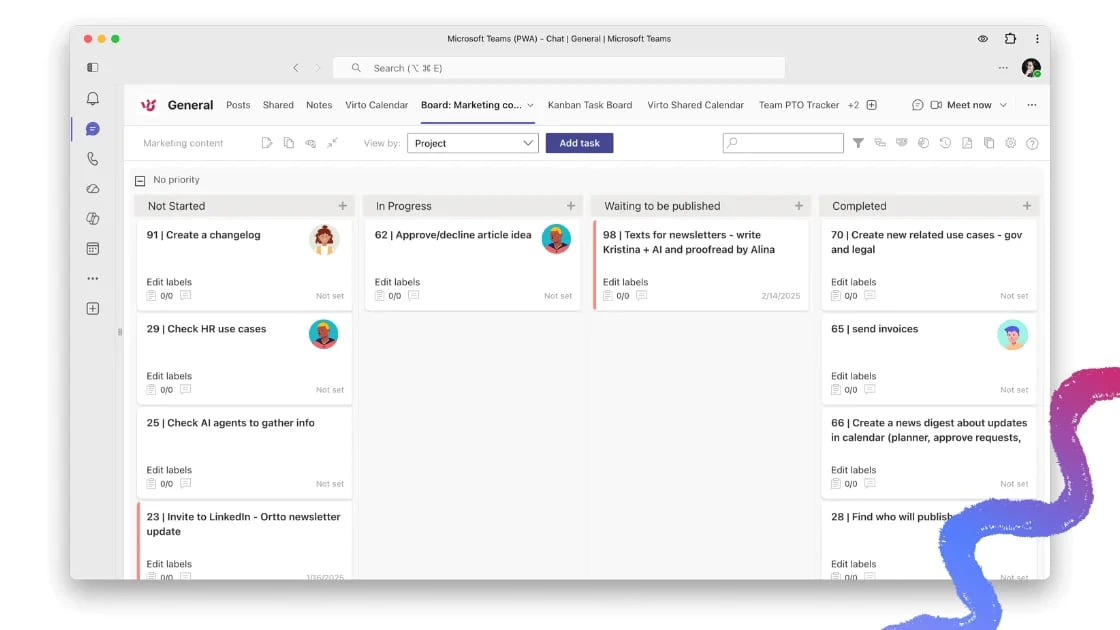
Pic. 5. Virto Kanban Board App in Microsoft Teams
Pricing starts at $2 per user per month for the Starter plan (up to 30 users) and $3 per user per month for Pro (31 to 200 users), with Enterprise pricing on request. Every plan comes with a 30-day free trial, no credit card required. If you are weighing up the wider market, our comparison of Microsoft Planner alternatives and the Planner vs Project guide cover the options.
Improve Your Planning in Microsoft 365 with Virto Apps


FAQ
What is the new Microsoft Planner?
The 2024 app that unifies the old Planner, Project for the Web and To Do into one place in Teams and on the web. It keeps your existing plans and tasks and adds a premium tier for project scheduling.
Is the new Microsoft Planner free?
Basic plans are included with Microsoft 365 subscriptions that include Planner, such as Business Basic, Business Standard, E3 and E5. Premium plans need a Planner Plan 1 or Planner and Project Plan 3 licence.
What happened to Project for the Web and To Do?
Project for the Web was retired on 1 August 2025 and its projects became premium plans in Planner. To Do still exists as an app, but it shares the same task store, so personal tasks appear in Planner’s My Tasks and My Day.
Do I lose my existing plans?
No. Plans, buckets, tasks, attachments and comments carried over as they were. Only the app around them changed.
How do I get the new Planner?
It replaced the old Planner app in Teams automatically. On the web, sign in at planner.cloud.microsoft. If your Teams still shows “Tasks by Planner and To Do”, update the Teams client.
What is the difference between the new Planner and Planner Premium?
The new Planner is the app. Planner Premium is the paid tier inside it: premium plans with Timeline, dependencies, goals and custom fields, unlocked by a Planner Plan 1 or Plan 3 licence. Our Planner Premium guide has the full comparison.
Conclusion
The new Microsoft Planner ended a long-running confusion by putting personal tasks, team boards and scheduled projects in one app, without taking anything away from existing users. For most teams the basic plan is all they need, and the premium tier is there when a project needs a real schedule. When a board has to serve several teams, run on SharePoint data or automate itself, the Virto Kanban Board App is the natural next step, and the 30-day trial is the quickest way to see whether it fits.