


Quick answer. Microsoft Planner Premium (Plan 1) is the paid tier of the new Planner. It adds project-management features such as timelines, goals and dependencies (the former Project for the Web) on top of the free basic plans. Planner Plan 1 costs $10 per user per month and Planner and Project Plan 3 costs $30, both paid yearly, and a 30-day trial can be started from inside Planner.
Most people meet Planner Premium as a diamond icon next to a plan name, or as a “Try premium” prompt when they open Timeline view. This guide explains what is actually behind it: which features are premium, how Plan 1 differs from Plan 3, what each costs, how to get a licence or a trial, and what Premium means for teams leaving Project Online before it retires in September 2026. If you are new to Planner itself, start with our Microsoft Planner guide; if you want to know what changed in the 2024 app, see the new Microsoft Planner.
What Microsoft Planner Premium is
The new Microsoft Planner has two kinds of plan in one app. A basic plan is the classic Planner board: buckets, task cards, Grid, Board, Calendar and Charts views. A premium plan is a scheduled project, built on the engine that used to be Project for the Web and stored in Dataverse. Premium plans have a Timeline (Gantt) view, task dependencies, milestones, goals, custom fields and workload views.
“Planner Premium” is the everyday name for two things at once: the premium plans themselves, and the licences that unlock them. Microsoft sells two of those licences today.
- Planner Plan 1 unlocks premium plans: creating them, plus Timeline, People and Goals views, dependencies, milestones, sprints, custom fields and subtasks. This is the tier most people mean by “Planner Premium”.
- Planner and Project Plan 3 includes everything in Plan 1 and adds task history, the Assignments view, creating portfolios, baselines and critical path, lead and lag on dependencies, and the Project desktop application.
A third licence, Planner and Project Plan 5, exists for current customers who bought it for Project Online portfolio management. It is no longer listed on Microsoft’s public Planner pricing page.
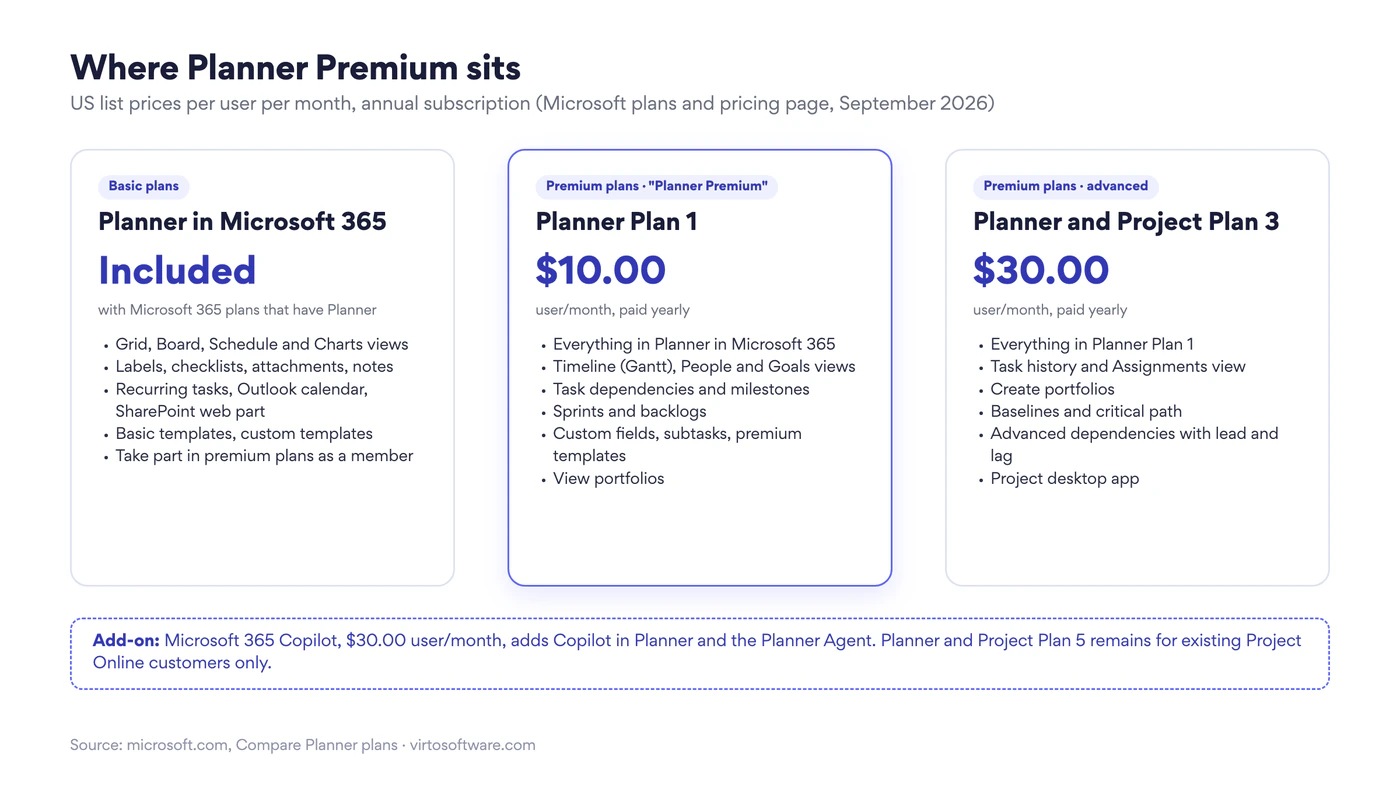
Fig. 1. Where Planner Premium sits: Planner in Microsoft 365, Planner Plan 1 and Planner and Project Plan 3, with the Copilot add-on alongside
One point the licensing pages bury: you only need a premium licence to create premium plans and to use the premium views. Colleagues with an ordinary Microsoft 365 licence can open a premium plan, update their tasks and tick them off. That keeps the cost to the people who plan, not to everyone who executes.
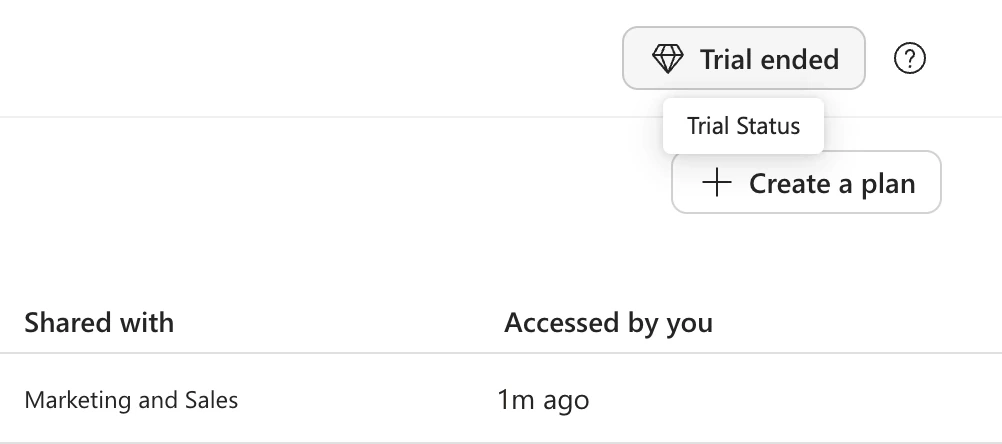
Pic. 1. The premium trial status, marked with the diamond icon in the upper right corner of Planner
Basic vs Premium: the feature comparison
The table follows Microsoft’s own comparison of basic and premium plans. Read the bottom rows carefully: a few things work only on basic plans, which matters if you plan to convert a board to premium.
| Feature | Basic plan | Premium plan |
|---|---|---|
| Grid, Board and Charts views | Yes | Yes |
| Filter and group tasks; labels, checklists, attachments | Yes | Yes |
| Copy plan; export to Excel | Yes | Yes |
| Tasks appear in My Tasks and Microsoft To Do | Yes | Yes, for plan members |
| Timeline (Gantt) view | No | Yes |
| Task dependencies, milestones, critical path | No | Yes |
| People view (workload balancing) | No | Yes |
| Goals | No | Yes |
| Custom fields with conditional colouring | No | Yes, up to ten per plan |
| Subtasks, task history, coloured buckets | No | Yes |
| Backlogs and sprints | No | Yes |
| Custom calendars | No | Yes |
| Copilot in Planner, Planner Agent | No | Yes, with a Microsoft 365 Copilot licence |
| Calendar view (Schedule in Microsoft’s docs) | Yes | No |
| Add plan to Outlook calendar | Yes | No |
| SharePoint Planner web part | Yes | No |
| Recurring tasks | Yes | No |
| Add plan to Microsoft Loop | Yes | No |
| Task limit per plan | 9,000 | 3,000 |
Fig. 2. Basic vs premium plans in Microsoft Planner, following Microsoft’s published comparison (checked September 2026)
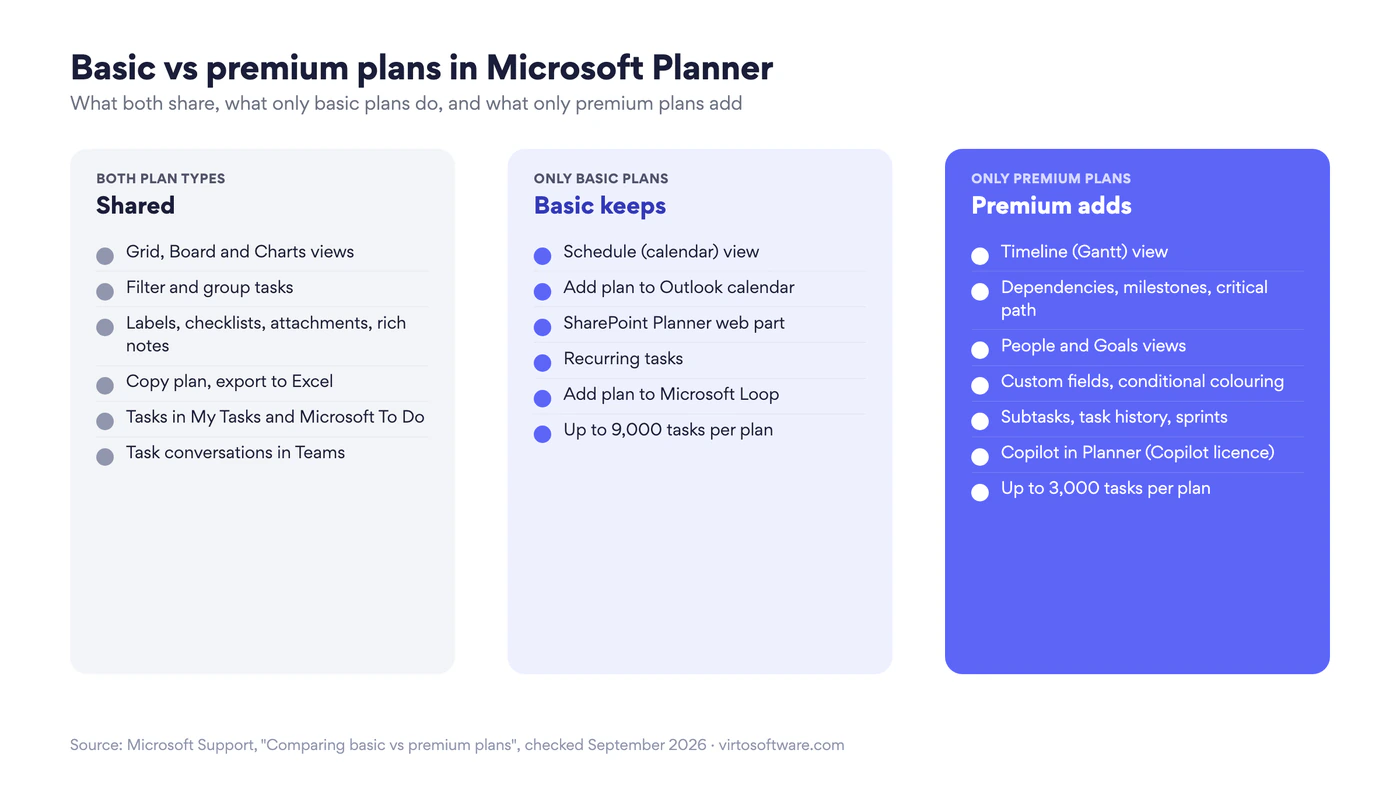
Fig. 3. What both plan types share, what only basic plans do, and what only premium plans add
Premium features in detail
Timeline (Gantt) view
Tasks appear as bars on a date axis, grouped by bucket, with dependency lines and milestones. Drag a bar to reschedule; linked tasks move with it. This is the view that turns a board into a schedule, and the reason most Plan 1 licences get bought.
Dependencies, milestones and critical path
Plan 1 supports finish-to-start dependencies: task B cannot start until task A finishes. Plan 3 adds all four dependency types with lead and lag time. Milestones mark deliverables, and the critical path highlights the chain of tasks that decides the end date.
People and Assignments views
People view shows who is over- or under-allocated across the plan, and lets you drag work between them. The Assignments view on Plan 3 adds effort per person per task, which is what you need for anything resembling capacity planning.
Goals
Goals are outcomes you link tasks to, with their own status and owner. They roll progress up from the tasks, so a stakeholder can read the Goals view without touching the board.
Custom fields, subtasks and task history
Add up to ten custom fields per plan (text, number, date, choice), then colour tasks conditionally on their values. Subtasks break a task down without cluttering the board. Task history (Plan 3) records who changed what and when.
Sprints and backlogs
Premium plans can be run as sprints: a backlog, a sprint length, and a board per sprint. It is a lightweight agile setup rather than a full Azure DevOps replacement, but enough for most business teams.
Portfolios and baselines (Plan 3)
Portfolios group related plans and roll up milestones and status; Plan 1 users can view them, Plan 3 users create them. Baselines snapshot a schedule so you can compare plan against actual later.
Copilot in Planner and the Planner Agent
With a Microsoft 365 Copilot licence, Copilot can generate a premium plan from a description, add tasks and goals, and write status reports. The Planner Agent takes assigned routine tasks and executes them, reporting back in the task. Both require the Copilot add-on in addition to a premium licence.
Pricing and how to get Planner Premium
| Licence | Price (US, per user per month, paid yearly) | What it unlocks |
|---|---|---|
| Planner in Microsoft 365 | Included in Microsoft 365 plans with Planner | Basic plans; participation in premium plans |
| Planner Plan 1 | $10.00 | Premium plans: Timeline, People, Goals, dependencies, milestones, sprints, custom fields, subtasks, premium templates, view portfolios |
| Planner and Project Plan 3 | $30.00 | Everything in Plan 1 plus task history, Assignments view, create portfolios, baselines and critical path, lead and lag, Project desktop, Project Online until 30 September 2026 |
| Microsoft 365 Copilot (add-on) | $30.00 | Copilot in Planner and the Planner Agent |
Fig. 4. Microsoft Planner Premium pricing as published on Microsoft’s plans and pricing page, September 2026. Prices vary by region and agreement
A correction to something you will read on older pages, including the previous version of this article: Planner Premium is not included in Microsoft 365 Business Standard, E3 or E5. Those subscriptions include basic Planner. Premium is always a separate licence, whether bought on its own or bundled by an agreement.
Start with the 30-day trial
Open Planner in Teams or on the web and choose Create a plan, then Premium plan, or open Timeline view on an existing plan. Planner offers a 30-day trial of Planner and Project Plan 3 at no cost. Everything you build in the trial stays after it ends; you simply lose the premium views until a licence is assigned. Admins can see and approve these trial requests in the Microsoft 365 admin centre, and can turn self-service trials off.
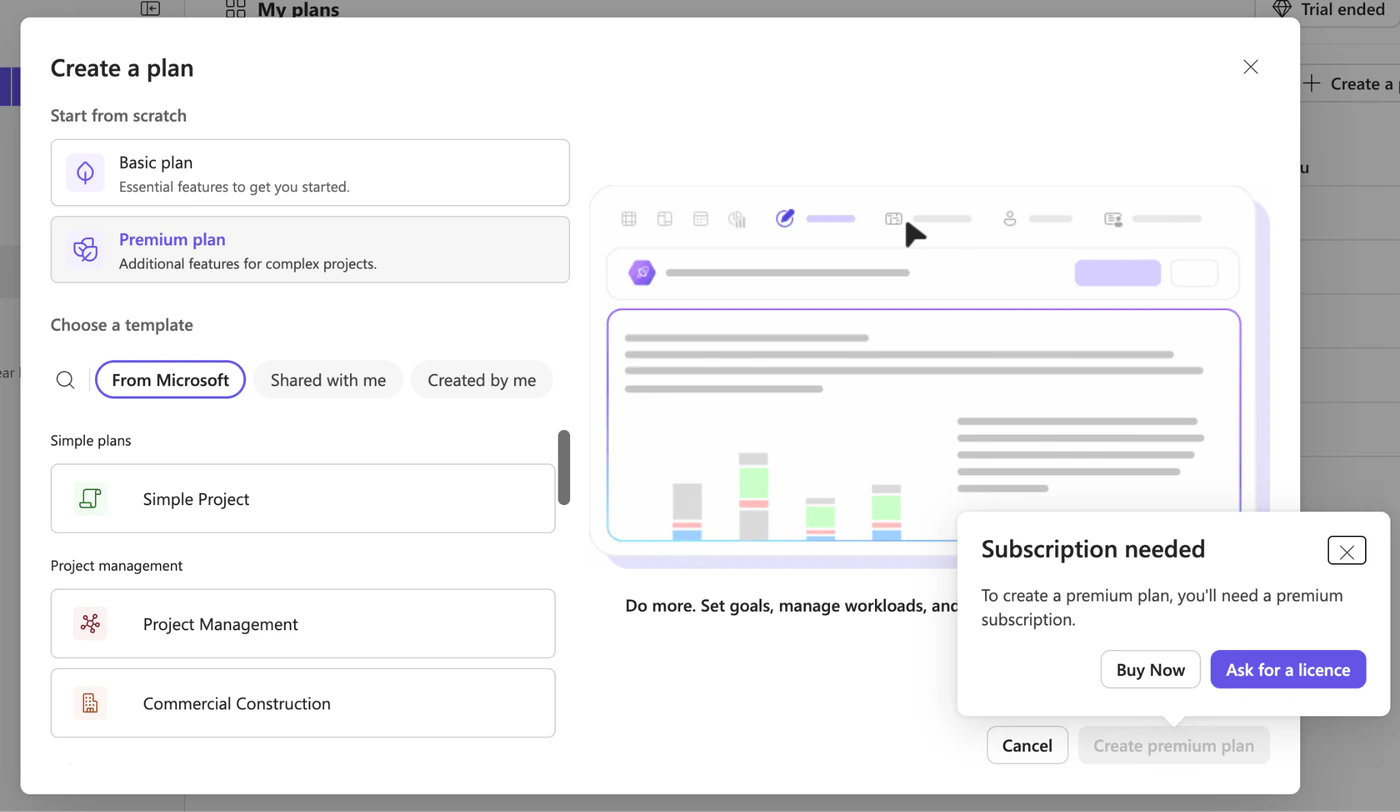
Pic. 2. Planner offers a 30-day trial, and when it ends you can buy premium or ask your admin for a licence inside the app
Buy and assign licences
An admin buys Planner Plan 1 or Planner and Project Plan 3 in the Microsoft 365 admin centre under Billing, then assigns it to the people who will create and schedule plans. Plan 1 and Plan 3 can be mixed in one tenant.
Create a premium plan, or convert a basic one
Licensed users see the Premium plan option in the Create a plan dialog. An existing basic plan can be converted to premium from its settings; the whole team keeps working while the premium views switch on. Check the basic-only rows in the comparison table first: Calendar view, the Outlook calendar link, the SharePoint web part and recurring tasks do not survive the conversion. Admins can disable conversion tenant-wide with the Planner PowerShell configuration.
Planning the kickoff itself still happens in Outlook: Planner schedules tasks, not meetings. The Outlook Scheduling Assistant is the quickest way to find a slot for the people on the plan, and pinning the plan to a Teams channel keeps the schedule next to the conversation.
Planner Premium for teams leaving Project Online
Project Online retires on 30 September 2026. Microsoft stopped selling Project Online-only licences to new customers on 1 October 2025 and stopped creating new tenants for existing customers on 1 April 2026. After the retirement date the service and its data are no longer accessible, so any team still on it needs to have moved by then.
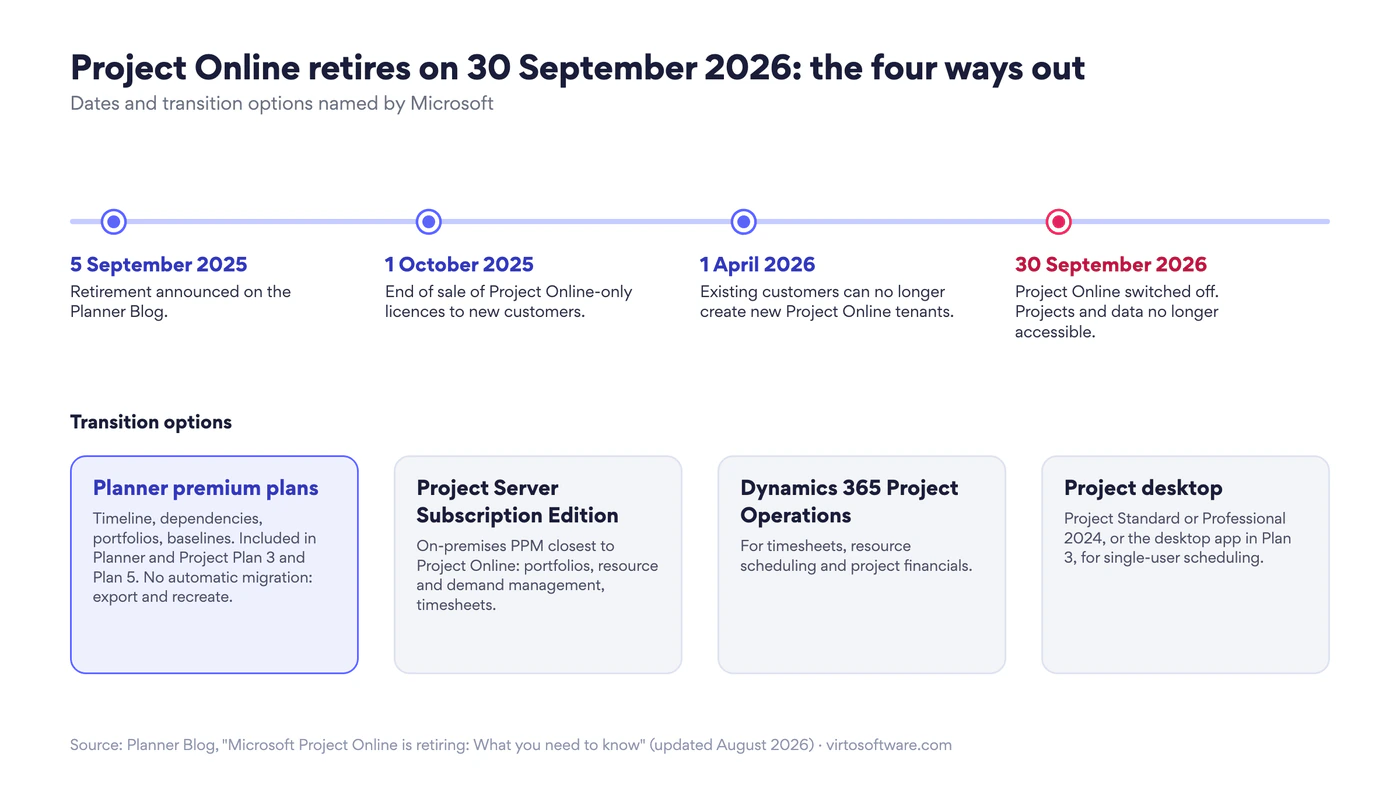
Fig. 5. The Project Online retirement timeline and the four transition options Microsoft names
Microsoft names four destinations: Planner premium plans, Project Server Subscription Edition, Dynamics 365 Project Operations and Project desktop. For most Project Online teams that used it for schedules, dependencies and portfolio roll-ups, Planner Premium on Plan 3 is the closest fit, and Plan 3 and Plan 5 holders already have the licence. Three things to know before you commit:
- There is no automatic migration. Project Online stores projects in SharePoint; premium plans live in Dataverse. Projects are exported and recreated, and Microsoft’s guidance is to back up data before the retirement date.
- Some Project Online concepts do not exist in Planner. Enterprise resource pools, timesheets, cost rates and Project Web App customisations have no equivalent. Teams that depend on them are the ones Microsoft points at Project Server Subscription Edition or Dynamics 365 Project Operations.
- Reporting is different. Plan 3 gives prebuilt and custom dashboards, and premium plan data is reachable from Power BI through Dataverse, but there are no Microsoft-built Power BI templates for Planner Premium.
Our guide to Microsoft Project alternatives compares these options with the third-party tools Project Online customers are evaluating, and Planner vs Project covers when Planner Premium is enough and when it is not.
An alternative for board-first teams: Virto Kanban Board App
Planner Premium solves the schedule problem. It does not change the board: buckets are still the only grouping, there are no swimlanes or work-in-progress limits, and each plan still belongs to one Microsoft 365 group. If your team’s pain is the board rather than the Gantt chart, a premium licence will not fix it.
The Virto Kanban Board App for Microsoft 365 and Microsoft Teams is built for that case. Boards run on SharePoint lists, so one board can carry several teams or projects with swimlanes, colour rules and WIP limits; cards have subtasks, checklists and custom columns; and Power Automate handles assignments and notifications. It lives in Teams and SharePoint next to Planner, and many customers keep Planner Premium for schedules and Virto for the day-to-day board.
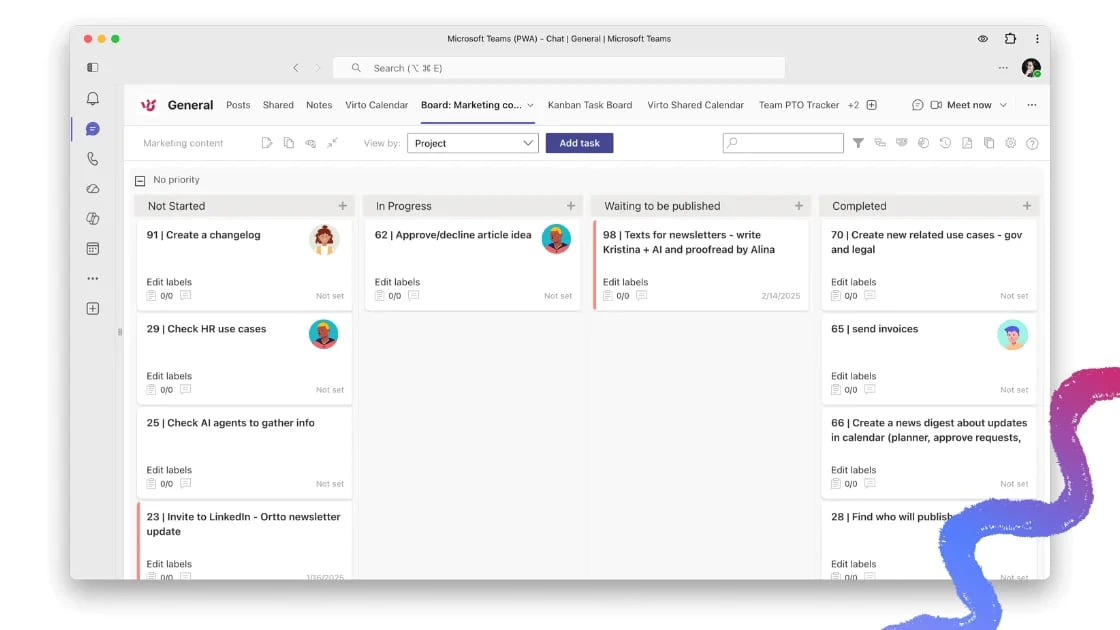
Pic. 3. Virto Kanban Board App in Microsoft Teams: one board, several projects, colour rules
Pricing starts at $2 per user per month for Starter (up to 30 users) and $3 per user per month for Pro (31 to 200 users), with Enterprise pricing on request, and every plan includes a 30-day free trial with no credit card. For the wider market, see our round-up of Microsoft Planner alternatives.
FAQ
What is Microsoft Planner Premium?
The paid tier (Plan 1) of the new Planner, adding project-management features like timelines, goals and dependencies on top of the free basic plan. Planner and Project Plan 3 is the higher tier with portfolios, baselines and Project desktop.
How much does Planner Premium cost?
Planner Plan 1 is $10 per user per month and Planner and Project Plan 3 is $30 per user per month, both on an annual subscription, at US list prices in September 2026.
Is Planner Premium included in Microsoft 365 Business Standard or E3?
No. Those plans include basic Planner. Premium plans need a separate Planner Plan 1 or Plan 3 licence.
Is there a free trial?
Yes. A 30-day trial of Planner and Project Plan 3 can be started from inside Planner, and Plan 1 trials are also available. Your plans stay after the trial; only the premium views switch off until a licence is assigned.
Can people without a premium licence work in a premium plan?
Yes. Members with a Microsoft 365 licence can open the plan, edit and complete their tasks. They cannot create premium plans or use Timeline, People and Goals views.
Does Planner Premium replace Project Online?
It is Microsoft’s recommended destination for most Project Online teams, but there is no automatic migration and no equivalent for timesheets, cost rates or resource pools. Teams that need those are pointed at Project Server Subscription Edition or Dynamics 365 Project Operations.
Conclusion
Planner Premium is worth its $10 the moment a plan needs dates that depend on each other. Plan 3 earns its $30 when you manage a portfolio, need baselines, or are replacing Project Online. Start with the 30-day trial on a real project, check the basic-only features you would give up, and license only the people who build schedules. And if the limitation you keep hitting is the board rather than the timeline, try the Virto Kanban Board App alongside it; its own 30-day trial makes the comparison cheap.