Quick answer. Microsoft Places is the Microsoft 365 app for the hybrid office. Employees plan which days they will be in the office, see who else is coming in, and book meeting rooms and desks from the Teams and Outlook calendars; facilities teams get floor maps, a management portal and occupancy analytics. Since 1 April 2026 nearly all of it is included in the Microsoft 365 Business, E, A and F plans and in the Teams plans. Three things need a licence on the room or desk itself, which Microsoft puts at about $2 per desk per month: booking a specific desk, auto-release of unused bookings, and occupancy reports. Copilot room booking needs a Copilot licence.
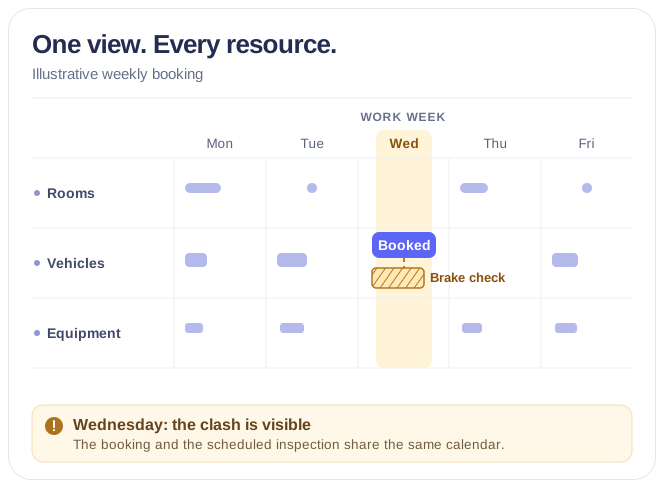
Next question: what about the things Places cannot book? Places models buildings, floors, sections, meeting rooms and desks, and has no object type for vehicles or equipment. To see rooms, offices, vehicles and equipment, and when each one is free, in one calendar, add Virto Calendar App to Microsoft 365 or Teams.
In a hybrid work environment the hard questions are practical. Who is in on Tuesday? Is there a free desk near the team? Is the big meeting room actually used? Microsoft Places is Microsoft’s answer inside Microsoft 365. It reached general availability in November 2024, with its premium features sold in Teams Premium, and on 1 April 2026 Microsoft moved almost all of it into the standard plans, so many guides still describe a licensing model that no longer exists. This page covers what Places does, where people open it, what is free, how an admin switches it on, and where it stops.
What is Microsoft Places?
Microsoft describes Places as “an AI-powered workplace app that supports flexible work”. In practice it is two things: a directory of your offices (buildings, floors, sections, meeting rooms, desk pools and desks, in a strict hierarchy) and a set of features built on that directory inside the Teams and Outlook calendars, the Places app and Teams devices.
There is no separate booking database. Meeting rooms, desk pools and bookable desks are Exchange Online mailboxes, and availability and booking rules live in their calendars, as before. Places adds the location structure around them, and that structure is the part to plan: without buildings and floors, people can only set their location to “in the office” or “remote”.
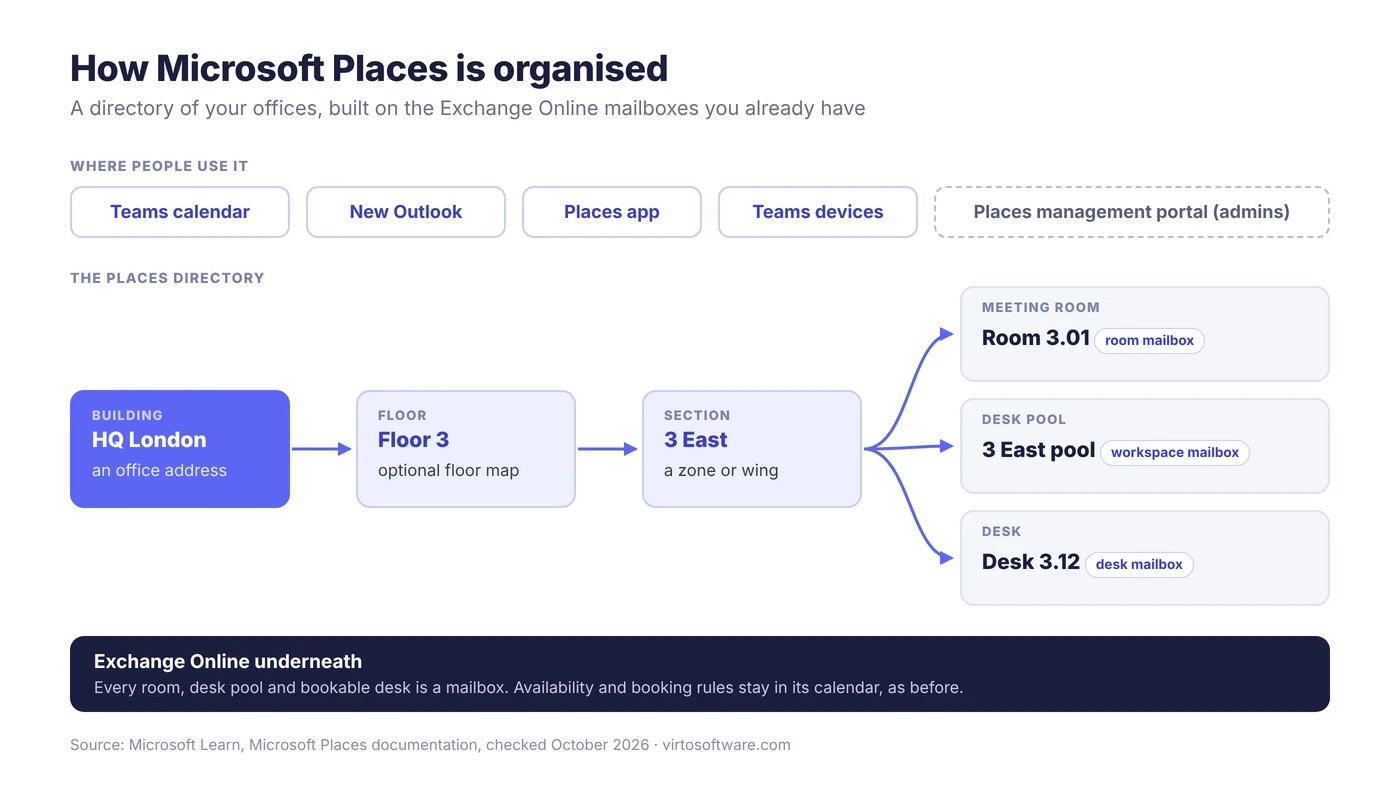
Fig. 1. Microsoft Places arranges Exchange Online rooms, desk pools and desks into buildings, floors and sections
What Microsoft Places does
Work plans and workplace presence
Each person sets a recurring work plan in Outlook or Teams settings (office on Tuesday and Thursday, remote otherwise) and can change a single day in the calendar. With buildings configured, the plan names the building, and the Places card shows who is coming in that day. Organisers can also mark a meeting as in-person, and invitees answer in person or online.
The actual location can also update itself: if an admin turns this on, the Teams desktop app on Windows and macOS sets it to the office or a specific building when someone plugs into a configured desk peripheral such as a monitor (generally available) or joins the corporate Wi-Fi (in preview). It clears at the end of working hours, and no location history is kept.
Places finder: booking rooms and desks
Places finder is the room and desk picker in the Teams and Outlook calendars. People browse by country, city, building and floor and see each space’s photo, capacity, equipment and accessibility, starting from the building in their work plan. Places finder answers “where”; the Outlook Scheduling Assistant answers “when”, by lining up attendees’ free and busy times.
Places finder lists the meeting rooms and workspaces that already exist in Exchange Online, the same data Room finder uses. If your rooms are not yet room mailboxes, our guide on how to create and display a meeting room calendar in Microsoft 365 covers that first step. Individual desks are booked through Places finder too, so users must be enabled for it.
Places explorer and floor maps
Places explorer, in the Places app, shows the people, spaces and services of one office on a single screen. Admins can attach building services, as web links or Teams apps (a tech-support page, for example), to the building’s Explore tab.
Floor maps are optional. With them, people see the building layout, points of interest and the rooms and desks nearby. Places accepts maps only in IMDF (Indoor Mapping Data Format), georeferenced, correlated with your buildings and floors, one building per package. Microsoft suggests a conversion partner for the preparation.
Check-in and auto-release
Checking in to a building, a room or a desk needs no extra licence. For a room, any attendee can check in on a Teams panel, the Teams Rooms console or in the Teams meeting chat; for meetings without a Teams chat, the organiser gets an email. For a desk, people plug their laptop into a linked peripheral or answer an email reminder sent 15 minutes before release.
Check-in matters because of auto-release: if nobody checks in within the configured time (10 minutes by default), the room or desk is released for others. Auto-release needs a space licence on that room or desk.
Desk booking and desk assignment
Places offers desks in two ways, which can sit side by side:
- Desk pools, called workspaces in Exchange Online: people reserve a place in a zone or team neighbourhood with a set capacity and choose the seat on arrival.
- Individual desks: people pick a specific desk in the Outlook or Teams calendar or in the Places app.
Each desk has one of four modes: Reservable (booked in advance or on the spot), Drop-in (first come, first served), Assigned (linked to one person) or Unavailable (for example, under maintenance). Pools use the same modes except Assigned. Desk pools and desk assignment are core features; booking an individual desk needs a space licence on that desk.
Places analytics
Places analytics compares intent with reality: how many people planned to come in against how many did, for buildings, rooms, desk pools and desks. Building occupancy relies on badge-access data; desk usage can come from peripheral connections. Results are aggregates only, and desk pools with fewer than 10 desks are excluded for privacy. Analytics is off by default and is switched on for chosen users. Occupancy reports need a space licence; the other reports do not.
Copilot features
Quick book (recommends rooms and adds them to meetings that have none) and Copilot room booking (recommends rooms and rebooks them when a meeting changes) need a Microsoft Copilot licence. Quick book used to come with Teams Premium.
Where Microsoft Places opens
Places is not a separate program to install:
| Where | What people do there |
|---|---|
| Calendar in Microsoft Teams (Windows, macOS, web) | Work plans, the Places card, in-person events, Places finder, desk booking |
| Calendar in the new Outlook (Windows and web) | The same; Places finder also works in classic Outlook on Windows |
| Places app | At aka.ms/places, and as a connected app inside Outlook, Teams and the Microsoft 365 app on desktop and mobile: Places explorer, maps, analytics |
| Places management portal | For admins: buildings, floors, sections, rooms and desks, desk modes, reservation settings, Space Analytics |
The management portal, at places.cloud.microsoft/places/admin, arrived in August 2025. It is meant for day-to-day changes: it creates places one at a time, has no batch upload and does not run on mobile. For large set-ups, Microsoft still recommends PowerShell.
What is free in Microsoft Places and what needs a licence
Since 1 April 2026 Places is licensed in three tiers. The core tier comes with any of these plans: Microsoft 365 Business Basic, Standard and Premium; Microsoft 365 or Office 365 E1, E3 and E5; A1, A3 and A5; F1 and F3; Teams Enterprise, Teams Essentials and Teams standalone.
| Tier | Features | What you need |
|---|---|---|
| Core | Work plans and presence, the Places card, automatic work location, in-person events, booking rooms and desk pools, desk assignment, Places finder, Places explorer, the management portal, analytics except occupancy reports | Any of the plans above |
| Space licence | Booking an individual desk, auto-release of rooms and desks, occupancy reports | A licence on each space: Teams Rooms, Teams Shared Space or Single Space for rooms; Teams Shared Space or Single Space for desks |
| Copilot | Quick book, Copilot room booking | A Microsoft Copilot licence |
Fig. 2. Microsoft Places features by licence tier since 1 April 2026
Places finder, Places explorer, analytics, individual desk booking, auto-release and Quick book all used to need Teams Premium. The space licence is bought per room or desk, not per person. For desks, each paid Teams Shared Space licence comes with three free Single Space licences, and Microsoft puts the effective rate at about $2 per desk per month. The free licences are not added automatically, and a desk set up for individual booking without a licence appears as unavailable to users. Prices, how to claim the free licences and a worked example are in our guide to Microsoft Places licensing. Organisations that bought Teams Premium before 1 April 2026 keep the premium Places features until renewal.
How to switch on Microsoft Places
Each step depends on the one before. Here is the short version; our step-by-step guide to setting up desk booking in Microsoft Places covers every step with the commands and portal screens.
- Check the prerequisites. Users and rooms need Exchange Online mailboxes. The admin needs PowerShell 7.4 or later (not Windows PowerShell), the MicrosoftPlaces, Exchange Online and Microsoft Teams modules, and the Exchange Online roles TenantPlacesManagement and MailRecipient, or the Exchange Administrator role.
- Assign the Places roles. Places Administrator (full control) is assigned in the Microsoft 365 admin center or Microsoft Entra. Places Building Administrator and Places Desk Administrator, narrower roles for facilities staff, are assigned with Exchange Online PowerShell.
- Build the hierarchy. If your rooms are grouped in Room Lists,
Initialize-Placesexports a suggested mapping of rooms to buildings and floors as a CSV file, which you correct and import back. Since 28 July 2026, a tenant with no hierarchy gets one generated from the building and floor properties on its room mailboxes. A small office can also build it by hand in the portal. - Make buildings visible. In tenants onboarded before 1 August 2026, this is off until you turn it on.
- Turn on Places finder. Existing tenants with Room Lists keep Room finder until you enable Places finder, ideally for a pilot group first. Tenants onboarded since 1 August 2026 have buildings and Places finder on by default.
- Add desks and extras. Create desk pools or desks under sections, set modes, license individual desks, then add maps, auto-release and analytics as needed.
The core of steps 3 to 5 in PowerShell:
Install-Module -Name MicrosoftPlaces -Force
Connect-MicrosoftPlaces
Initialize-Places
Set-PlacesSettings -EnableBuildings 'Default:true'
Set-PlacesSettings -PlacesFinderEnabled 'Default:true'
New buildings, floors and sections appear right away, but changes to rooms and desk pools can take up to 24 hours, and auto-release settings up to 48 hours.
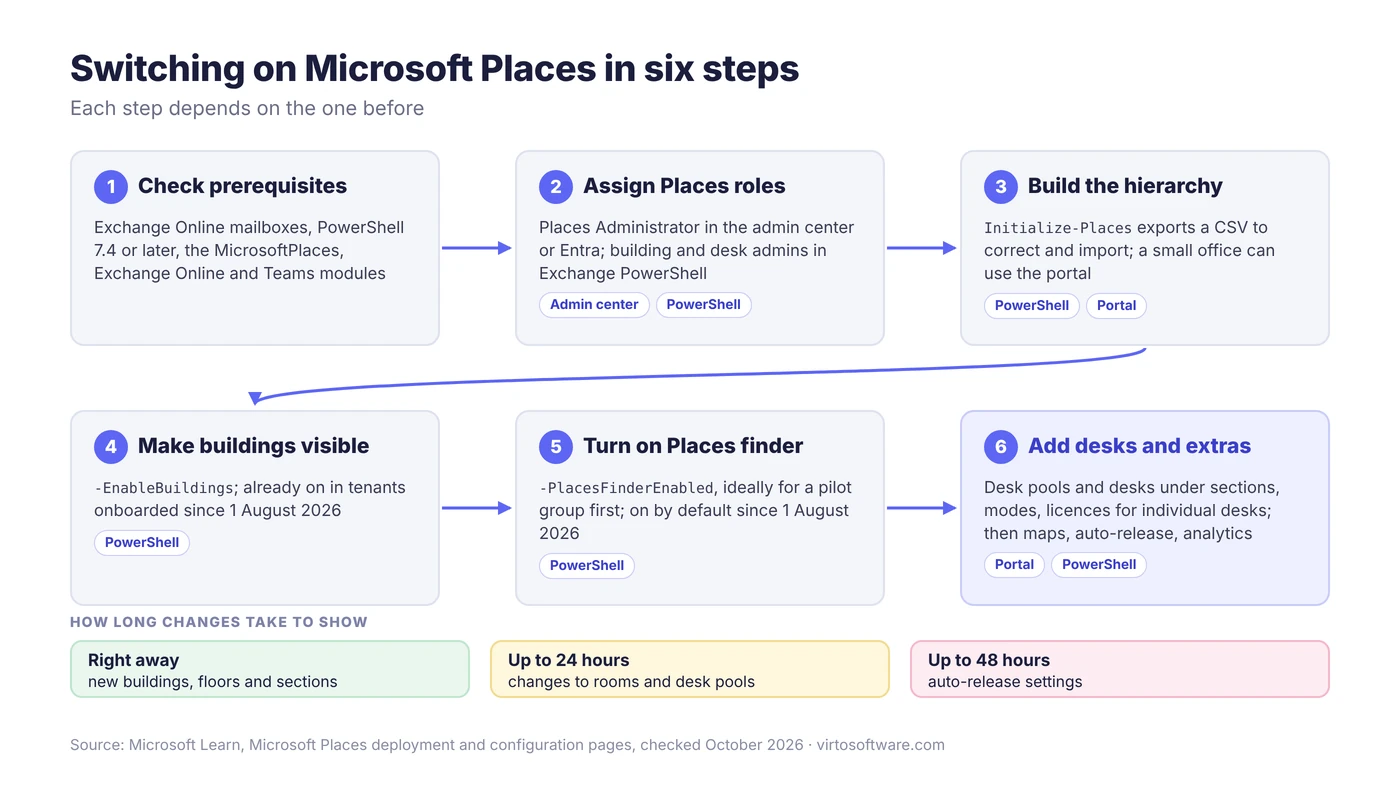
Fig. 3. The order of steps to switch on Microsoft Places
Limitations of Microsoft Places
Places does a lot at no extra cost, but it has firm edges:
| Limitation | What it means in practice |
|---|---|
| Exchange Online only | Users with an on-premises mailbox cannot use the Places app, Places finder or work plans; check-in and auto-release need Exchange Online resource mailboxes |
| Hierarchy first | Without buildings and floors, people can only say “in the office” or “remote”; desk pools must sit in a section |
| The portal is for small changes | One place at a time, no batch upload; bulk set-up and maps need PowerShell |
| Maps are IMDF only | Georeferenced, one building per package, uploaded with PowerShell or Microsoft Graph; changing a map in PowerShell means removing and re-uploading it |
| Analytics has privacy limits | Aggregates only; desk pools under 10 desks excluded; building occupancy needs badge data |
| Rooms and desks only | No object types for equipment, vehicles, parking or visitors; Microsoft leaves these to partners and building services |
| Government clouds | Full Places in GCC is a Microsoft 365 Roadmap target for October 2026 (item 495465) |
Microsoft Places timeline
Places has changed more since launch than before it, which is why older articles disagree.
| Date | What happened |
|---|---|
| October 2022 | Microsoft announces Places |
| 19 November 2024 | General availability; premium features in Teams Premium, per user |
| August 2025 | Web management portal |
| 1 April 2026 | Core features in all supported plans; individual desks, auto-release and occupancy reports move to a per-space licence; Quick book to Copilot |
| 28 July 2026 | Hierarchy generated automatically from room mailbox properties for tenants without one |
| 1 August 2026 | Buildings and Places finder on by default for new tenants |
| August 2026 | Teams desk hubs such as Logi Dock Flex updated for bookable desks; people outside the tenant can reserve on the touch screen |
| October 2026 (target) | Places in the GCC government cloud |
Fig. 4. Microsoft Places from announcement to the 2026 licensing change
So is Microsoft Places still in preview? No; what keeps changing is the licensing and the defaults.
Rooms, vehicles and equipment next to Places: Virto Calendar App
Places handles desks and meeting rooms inside your buildings. It has no object type for company vehicles or shared equipment, and it does not show the maintenance and blackout periods that take them out of use.
Virto Calendar App puts meeting rooms, offices, vehicles and equipment side by side in one calendar in Microsoft 365 or Microsoft Teams, each in its own colour, so coordinators see who has booked what and what is free, with maintenance jobs and blackout periods next to the bookings they interrupt. It draws on the Exchange calendars and SharePoint lists the organisation already uses. The Rooms, Equipment, and Availability in One Calendar use case shows the set-up.
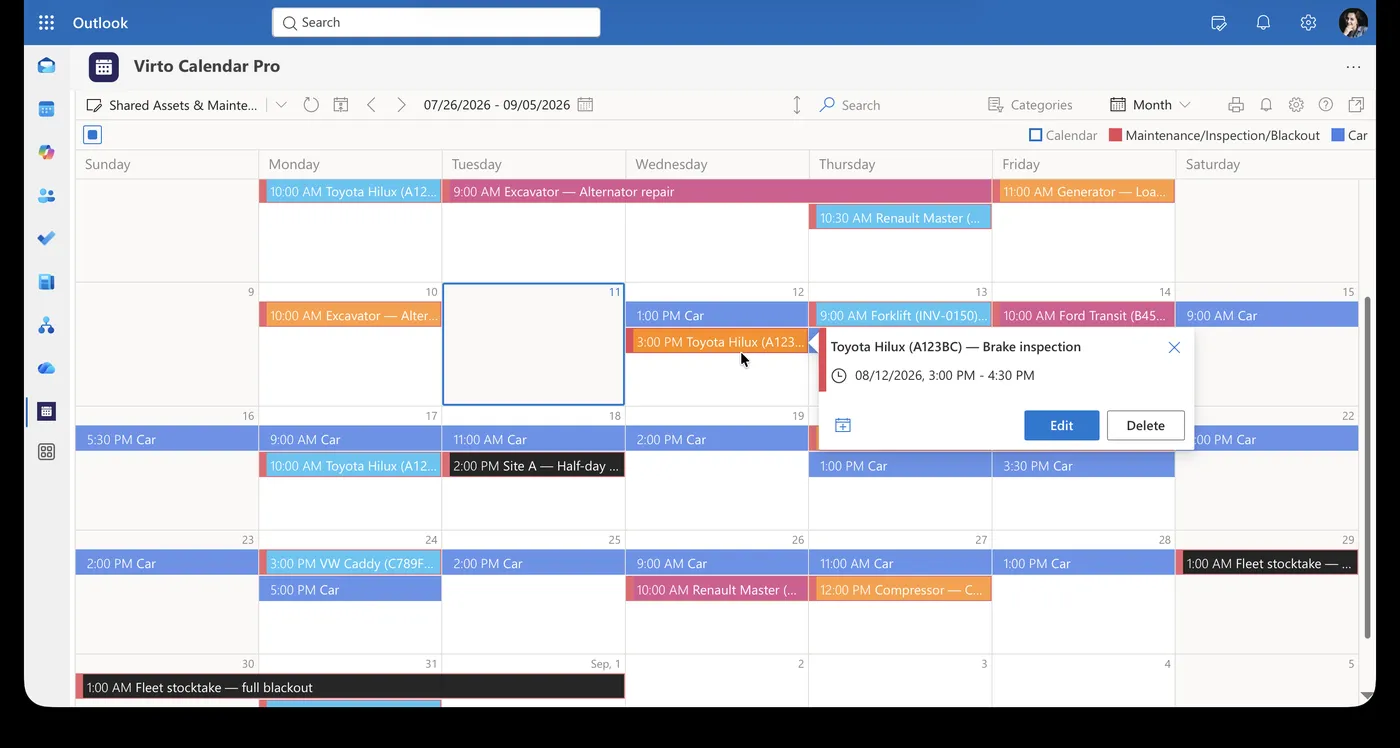
Pic. 1. Virto Calendar App: vehicles and equipment, their inspections, repairs and blackout days in one month view
Virto Calendar App comes with a 30-day free trial.
See Rooms, Vehicles and Equipment in One Calendar

Rooms & Equipment Calendar
Combine rooms, offices, vehicles and equipment in one Microsoft 365 calendar, with the maintenance jobs and blackout periods that make them unavailable.
Learn more about Rooms & Equipment CalendarFAQ
Is Microsoft Places free?
Mostly. Since 1 April 2026 work plans, room and desk pool booking, Places finder, Places explorer, maps and most analytics are included in the Microsoft 365 Business, E, A and F plans and in Teams Enterprise, Essentials and standalone. Booking an individual desk, auto-release and occupancy reports need a space licence (about $2 per desk per month, by Microsoft’s figure); Copilot room booking needs a Copilot licence.
Does Microsoft Places need Teams Premium?
No, not since 1 April 2026. What used to need Teams Premium is now either core (Places finder, Places explorer, analytics) or licensed per space (individual desks, auto-release, occupancy reports). Customers who bought Teams Premium before 1 April 2026 keep the premium Places features until renewal.
What is the difference between Places finder and Room finder?
Both show the same rooms and workspaces from Exchange Online. Room finder browses by Room List; Places finder browses by building and floor, shows photos, and is the only way to book individual desks. Each user sees one or the other. Tenants onboarded since 1 August 2026 get Places finder by default; older tenants with Room Lists keep Room finder until an admin enables Places finder. As of October 2026 Room finder has not been retired, but Microsoft says it is “evaluating deprecation of the Room finder experiences” and recommends moving to Places finder now to reduce future migration costs.
Does Microsoft Places work with Exchange on-premises?
No. Places works only for users whose mailbox is in Exchange Online. In an Exchange hybrid set-up, users with an on-premises mailbox cannot use the Places app, Places finder or work plans; they keep Room Finder in Outlook, and any work location they set is visible only to themselves. Check-in and auto-release likewise need Exchange Online resource mailboxes. Microsoft recommends migrating the mailboxes.
Conclusion
Microsoft Places turns the rooms and desks you already have in Exchange Online into a map of your offices that people can plan around, and since April 2026 most of it comes with the plan you already pay for. The work is in the set-up: a clean hierarchy, the right roles, Places finder switched on, and a licence on every desk booked individually. If you are still deciding, our comparison of every way to book desks in Microsoft 365 sets Places beside the other options.
Places stops at rooms and desks. For the vehicles and equipment it has no place for, Virto Calendar App shows rooms, vehicles and equipment, with their maintenance and blackout periods, in one calendar in Microsoft 365 or Teams; the 30-day free trial is the quickest way to see it on your own calendars and lists.