Quick answer. Our free desk booking template comes in two forms. The Excel workbook has a Desks tab, a Bookings tab that turns double bookings red, a two-week Grid that shows who sits where, and a Utilisation tab that measures how often each desk is booked. A PnP PowerShell script builds the same structure as two SharePoint lists, with a calendar view and a rule against past dates. It suits an office of up to a few dozen desks with one person who looks after the bookings. It can’t lock a desk while someone books it, check people in or release no-shows; when that matters, a booking system such as Microsoft Places takes over.
Next question: what about the meeting rooms and equipment next to the desks? A desk template stops at desks. To see meeting rooms, vehicles and equipment, with their maintenance and blackout periods, in one Microsoft 365 calendar, add Virto Calendar App.
Most desk booking templates in search results come from vendors and lead to their own app. This one is a workbook and a script, free, with no form to fill in first. It is for the office manager or IT admin who needs bookings working this week inside Microsoft 365. If you are still choosing an approach, our overview of every way to book desks in Microsoft 365 compares the options; this page is the do-it-yourself end of that range.
Download the desk booking template
- Excel workbook (desk-booking-template.xlsx): tabs How to use, Desks, Bookings, Grid and Utilisation, with sample data. No macros and no dynamic-array functions, so it is built for Excel 2016 and later, Excel for the web and Excel for Mac.
- SharePoint lists script (desk-booking-sharepoint-list.ps1): PnP PowerShell that creates the Desks and Desk Bookings lists on a site you choose.
- Column guide (desk-booking-sharepoint-list.md): every column, its type and settings, for building the two lists by hand without the script.
The workbook is prepared for 40 desks and 1,000 bookings. It fits best when one person owns it, people book a day or a week ahead, and a clash found the same morning is an inconvenience rather than an incident. For hundreds of desks, check-in or automatic release, read where a template stops working first.
The Excel desk booking template, tab by tab
You type in the white cells on Desks and Bookings and the yellow cells on Grid and Utilisation; grey cells hold formulas. The sample has 12 desks on two floors and 26 bookings from 2 to 13 November 2026, with two deliberate double bookings, one booking of a desk that is out of service and one cancellation, so you can watch every check fire before you delete it.
Desks
One row per desk: Desk ID (such as F1-03), Floor, Zone, Features (dual monitor, standing desk, near window) and Status (Active or Out of service). It is an Excel table, so a desk typed underneath appears in the dropdowns, the Grid and Utilisation. Set a broken desk to Out of service rather than deleting it.
Bookings and the double-booking check
One row per booking: Booking ID, Date, Desk ID (a dropdown fed by Desks), Employee, Period (Full day, AM or PM), Status (Booked or Cancelled), Booked on and Notes. The Conflict column compares every row with all the others:
| This booking | Clashes with, on the same desk and date | Doesn’t clash with |
|---|---|---|
| Full day | Full day, AM or PM | — |
| AM | AM or Full day | PM |
| PM | PM or Full day | AM |
Fig. 1. When two bookings of the same desk on the same date clash
Both rows of a clash turn red. A booking of an out-of-service or unknown desk, an incomplete row or a weekend date turns amber. A cancelled booking is struck through and ignored. Counters at the top show how many rows need attention.
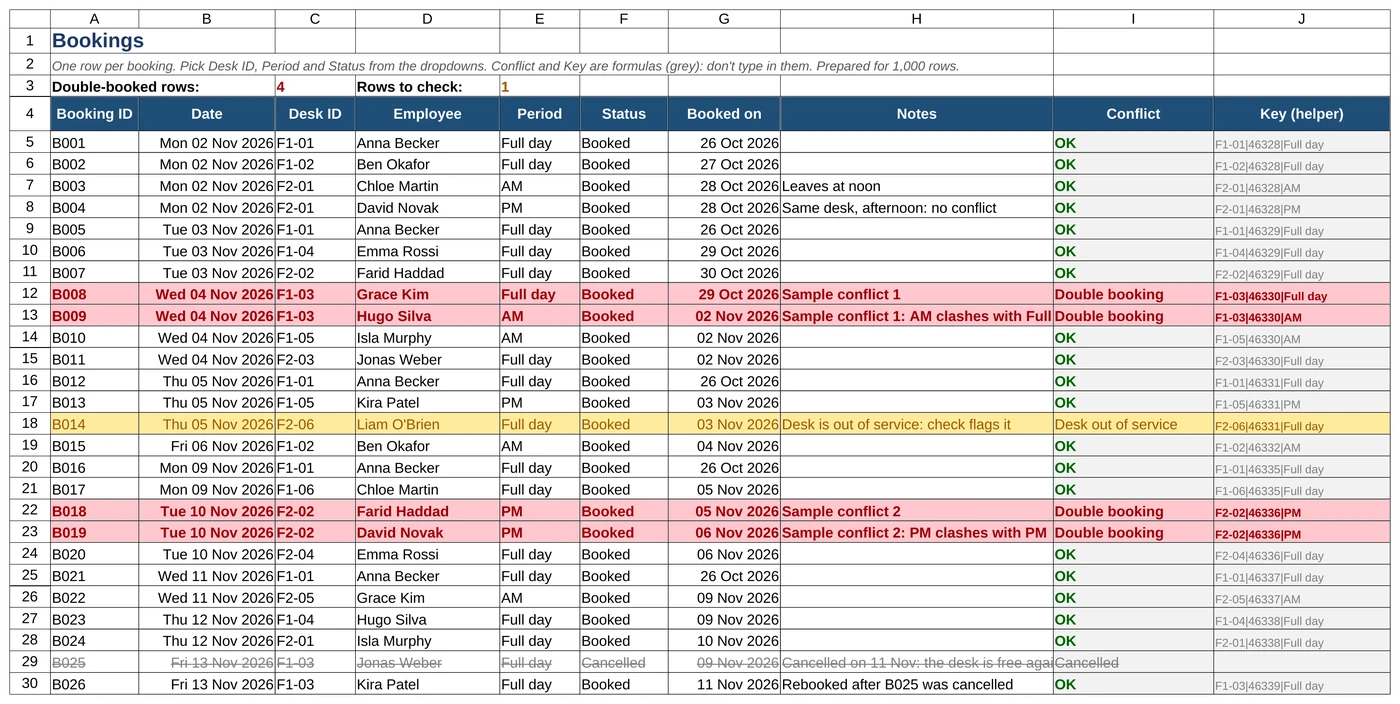
Pic. 1. The Bookings tab: both rows of each clash turn red
If you want to know how to create a desk booking system in Excel yourself, the trick is a helper Key column that joins desk, date and period, such as F1-03|46330|AM. The date appears as its serial number, so the formula doesn’t depend on your date format or language. Counting keys finds the clashes:
Full day:   COUNTIF(Key, Desk & "|" & Date & "|*") > 1
AM or PM:   COUNTIF(Key, own key) + COUNTIF(Key, Desk & "|" & Date & "|Full day") > 1
The workbook uses COUNTIF, INDEX and MATCH rather than FILTER or TEXTJOIN, which is why it doesn’t need Excel for Microsoft 365.
The two-week grid
Type a start date and the Grid shows the next 10 working days, one row per desk. Each cell shows the employee for a full day, “AM: name” and “PM: name” for half days, or “CONFLICT (2)”. Green is free, light blue half-booked, blue booked, red a conflict and grey out of service. The bottom row counts desks free all day.
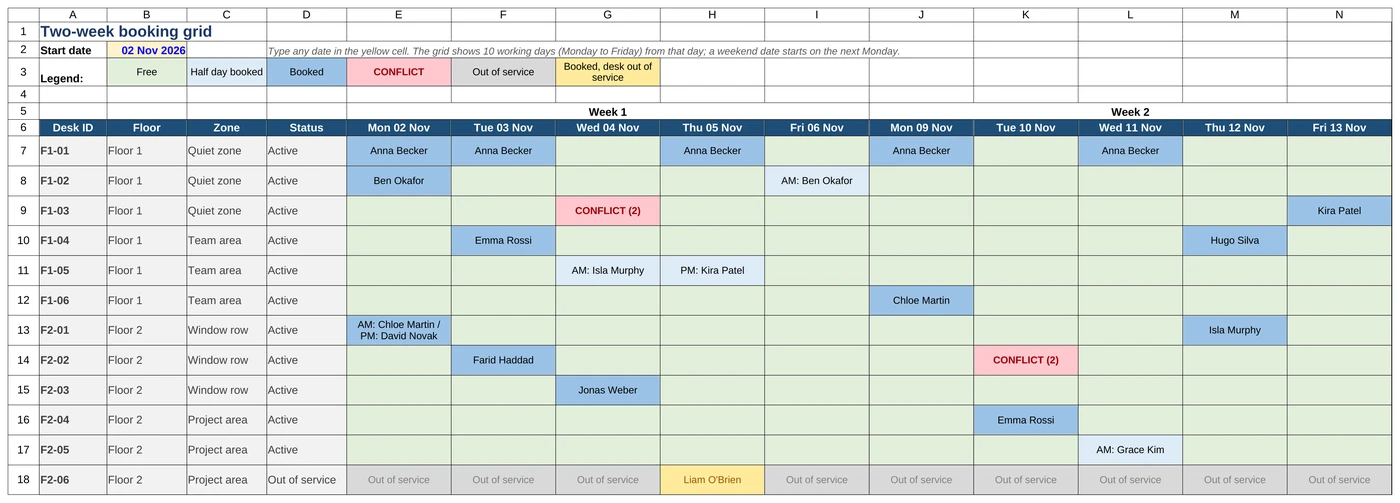
Pic. 2. The Grid tab: two weeks of desks at a glance
Utilisation
Each desk’s booked days are divided by the working days in the period; a half-day booking counts as half a day. A second table gives occupancy per day against active desks, and a summary shows overall occupancy and the busiest day. In the sample, overall occupancy is 18% and desk F1-01 is booked half the time.
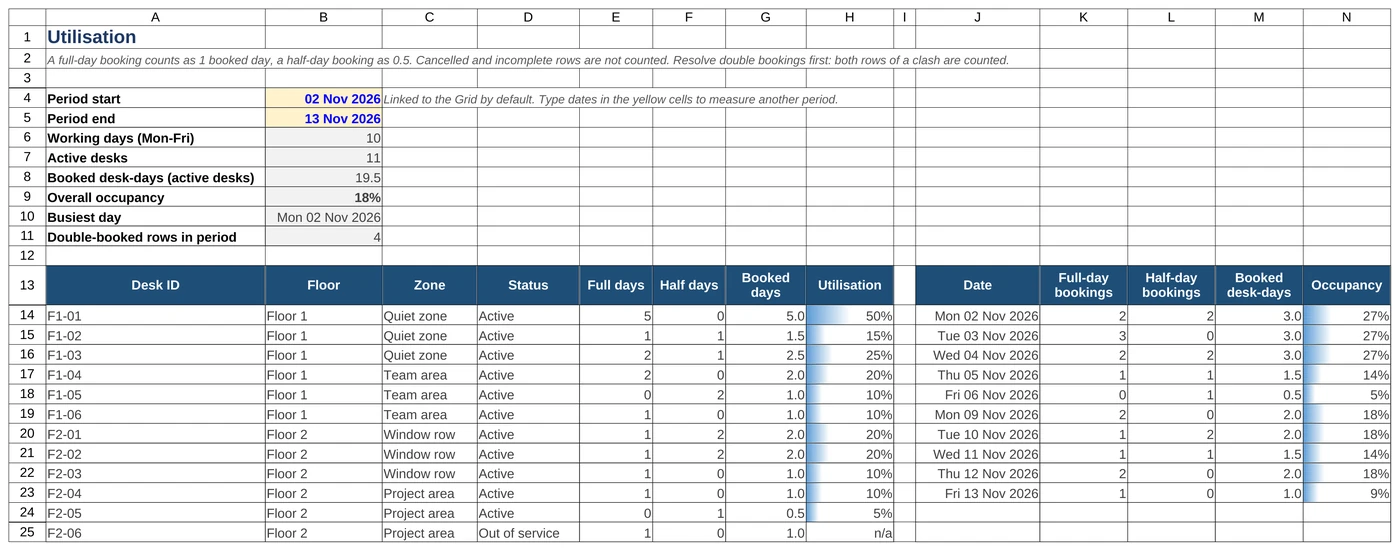
Pic. 3. The Utilisation tab: per desk, per day and overall
The same template as SharePoint lists
A workbook is one file everyone edits. A SharePoint list has permissions and version history, opens in Microsoft Lists, in a Teams tab and on a phone, and Power Automate can react to each new booking. The structure stays the same.
| List | Column | Type and settings |
|---|---|---|
| Desks | Desk ID (Title, renamed) | Text; required, indexed, unique |
| Desks | Floor | Choice: Floor 1, Floor 2 |
| Desks | Zone | Text |
| Desks | Features | Choice, multiple selections |
| Desks | Status | Choice: Active, Out of service |
| Desk Bookings | Title | Text; what the calendar shows, such as “F1-03 Anna Becker AM” |
| Desk Bookings | Desk | Lookup to Desks; a desk with bookings can’t be deleted |
| Desk Bookings | BookingDate | Date only; required, indexed |
| Desk Bookings | Period | Choice: Full day, AM, PM |
| Desk Bookings | Employee | Person; one person |
| Desk Bookings | Notes | Multiple lines of text |
| Desk Bookings | DeskDateKey | Text; indexed, unique, hidden from the default forms |
Fig. 2. The columns of the two SharePoint lists
Run the script
You need PowerShell 7.4 or later, the PnP.PowerShell module and ownership of the target site. Since 9 September 2024, Connect-PnPOnline -Interactive needs the ID of your own Entra ID app registration as -ClientId; Register-PnPEntraIDAppForInteractiveLogin creates one.
Install-Module PnP.PowerShell -Scope CurrentUser
./desk-booking-sharepoint-list.ps1 -SiteUrl https://contoso.sharepoint.com/sites/office `
    -ClientId <your-app-id> -AddSampleDesks
The script creates both lists, an Upcoming view, a calendar view and the date rule, and adds the 12 sample desks if asked. Run it on a test site first, or build the lists by hand from the table above.
Date validation and double bookings
The date rule is a list validation formula, =[BookingDate]>=TODAY() (List settings > Validation settings). It runs on every save, so a booking whose date has passed can be deleted but no longer edited.
Double bookings are harder. A list can’t prevent them on its own: Enforce unique values covers one column, and a calculated column joining desk and date can’t be unique. The template therefore adds a unique text column, DeskDateKey, that a flow or a Power Apps form fills with F1-03|2026-11-04|AM. SharePoint then refuses a second booking of the same desk, date and period. It compares only keys that are filled in, so a booking without one isn’t checked: a form writes the key as the booking is saved, a flow only after it has run. A Full day booking next to an AM booking still gets through, because the keys differ, so the flow or form must check that case. Until something writes the key, the list prevents nothing.
Calendar view
Add-PnPView has no option for the modern calendar view, so the script creates it through the SharePoint REST API, following a PnP script sample. By hand: view menu > Create new view > Calendar, with BookingDate as both start and end date.
The booking form, a conflict flow and a reminder
The default list form works. To write DeskDateKey and refuse a Full day clash at the moment of saving, customise it through Integrate > Power Apps > Customize forms (Microsoft’s walkthrough). For the layout itself, our equipment request form use case shows one approach on a SharePoint list: a short New form for employees and a Handover tab for IT on one list item, with a layout for each, built with Virto Forms Designer App. A form shapes what people fill in; it doesn’t compare bookings, so the key or a flow is still needed.
Neither flow ships with the template; both use the SharePoint connector, and the email comes from the Office 365 Outlook connector:
- Conflict check. When an item is created, then Get items for the same desk and date. If another booking exists and either is Full day, or Update item fails because the key is taken, run Delete item and Send an email (V2) to the employee. Until the flow runs, the new booking has no key, so nothing blocks it and both bookings are visible.
- Reminder. A scheduled cloud flow (Recurrence, daily) uses Get items for tomorrow’s bookings and sends each employee Send an email (V2).
How to run a desk booking template day to day
- Name one admin, usually the office manager, to keep desks current, clear conflicts each morning and archive old bookings monthly.
- Decide how people book: their own rows, or through the admin. Self-service is faster; the admin route keeps data clean.
- Keep one copy in SharePoint or OneDrive, opened by everyone in Excel for the web or the desktop app.
- Cancel in one step: delete the row or set Status to Cancelled in Excel; delete the item in SharePoint.
- Take desks out with Out of service; in Excel their bookings turn amber, so the admin can move people.
- Measure monthly: look for desks nobody books, days when free desks run low, and how many conflicts needed solving. The template counts bookings, not people who turned up.
Where a template stops working
First, two people can book the same desk at the same moment; the workbook flags the clash only afterwards, and someone has to sort it out. In SharePoint the key closes part of that gap and a flow you maintain covers the rest. The other limits are features a template doesn’t have:
| Need | Excel or SharePoint template | Microsoft Places |
|---|---|---|
| Check-in | No | Included in plans with Outlook and Teams |
| Release of unused desks | No | Auto-release, with a space licence on the desk |
| Floor map | No | Optional maps in IMDF format |
| Booking from Outlook and Teams | Only if a flow creates the event | Yes |
| Parking and equipment in the same booking | No | No object types for equipment, vehicles or parking |
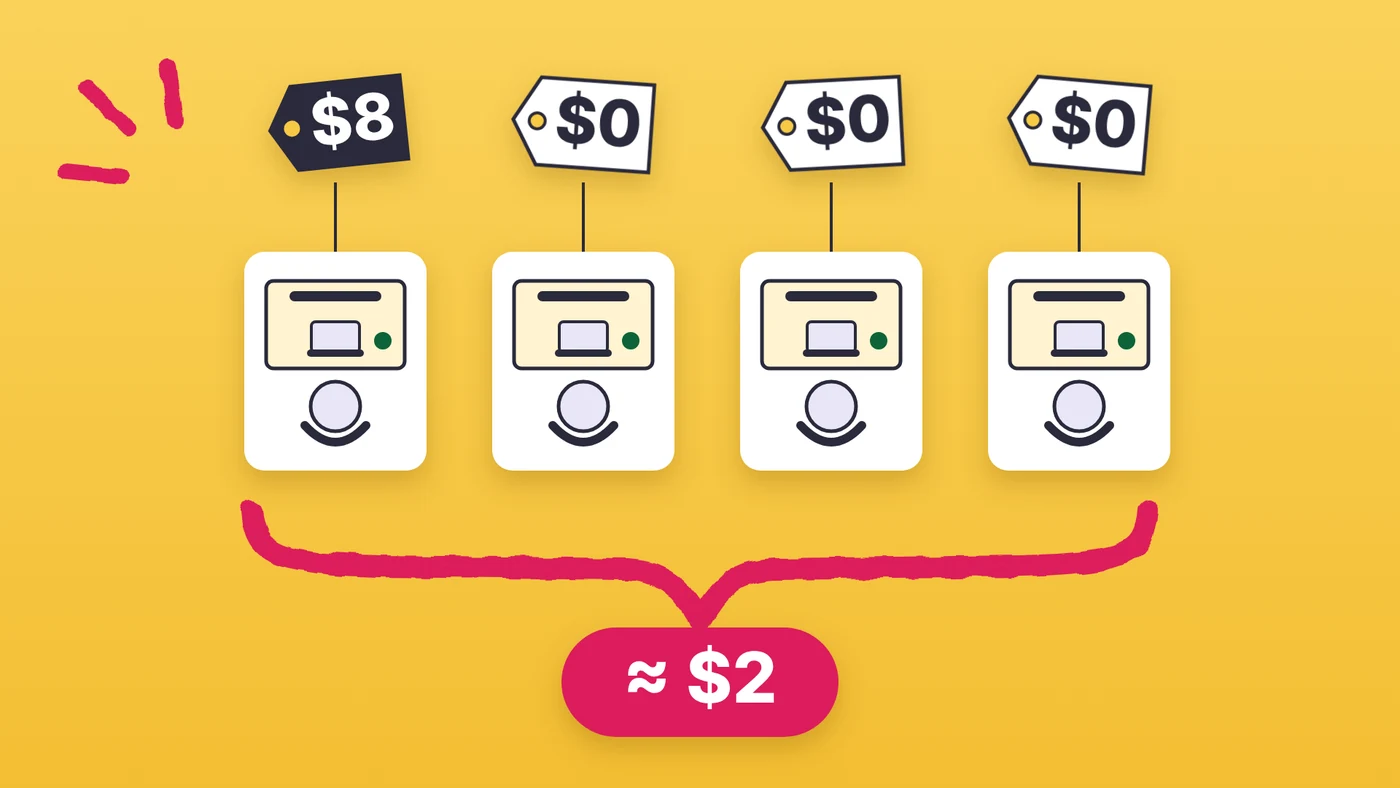
| Cost | Free | Desk pools included; an individual desk about $2 per month with the free Single Space licences, $8 without |
Fig. 3. What the template does and what a booking system adds
Inside Microsoft 365, the next step is Microsoft Places. Since 1 April 2026, booking rooms and desk pools and checking in are included in any plan with Outlook and Teams; booking an individual desk and auto-release need a space licence. Places works only with Exchange Online mailboxes. Our guide to Microsoft Places explains what it includes, and the step-by-step guide to desk booking in Places covers the setup. Your template’s desk list is a ready inventory for it.
Rooms, vehicles and equipment are a separate question, since Places has no object type for vehicles or equipment. When a template is not enough for those either, see how to show rooms, equipment and their availability in one calendar.
Rooms, vehicles and equipment next to the desks: Virto Calendar App
A desk template, like Places, deals with desks. Virto Calendar App covers the meeting rooms, offices, vehicles and equipment the same office shares. It shows them in one calendar in Microsoft 365 and Teams: who has booked what, what is free, and the maintenance and blackout periods that take a resource out of use. It reads the Exchange calendars and SharePoint lists your organisation already uses, so nothing moves into a new database. It doesn’t book desks and doesn’t replace Places. The rooms, equipment and availability use case shows typical setups, and the app has a 30-day free trial.
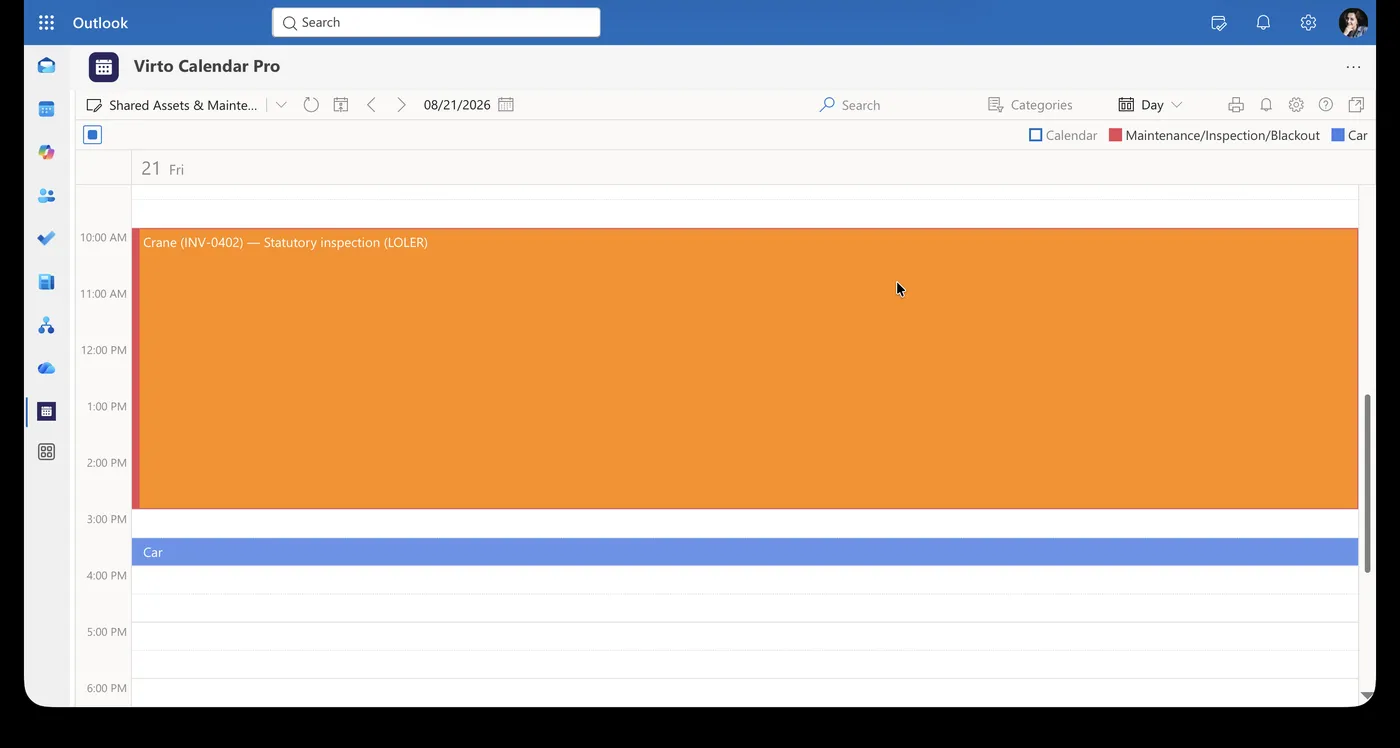
Pic. 4. Virto Calendar App: an equipment inspection and a car booking in one day view
See Rooms and Equipment Next to Your Desks

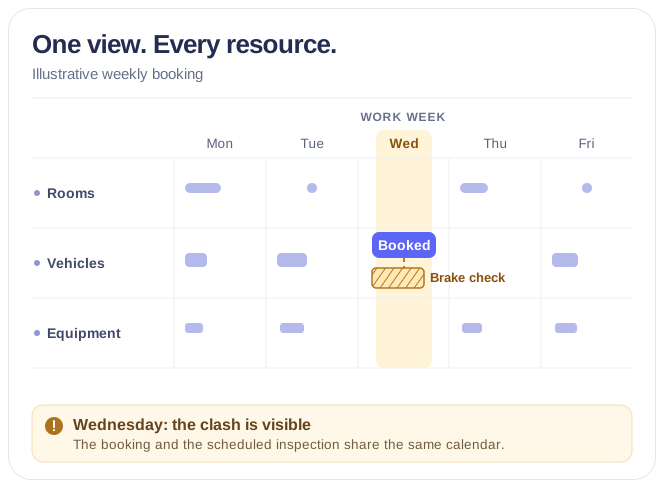
Rooms & Equipment Calendar
Combine rooms, offices, vehicles and equipment in one Microsoft 365 calendar, with the maintenance jobs and blackout periods that make them unavailable.
Learn more about Rooms & Equipment CalendarFAQ
Is there a free desk booking template for Excel?
Yes. The workbook on this page is free, with no sign-up and no macros. It has Desks, Bookings, Grid and Utilisation tabs and flags double bookings in red.
How do I create a desk booking system in Excel?
Keep desks and bookings in two tables, give each booking a key of desk, date and period, and count matching keys with COUNTIF to find clashes. A grid that looks up each desk and day shows who sits where. The template does this; copy its formulas or use it as it is.
Can a SharePoint list prevent double booking?
Not on its own. The template’s unique DeskDateKey column, filled by a flow or form, blocks identical bookings; a Full day booking next to a half day still has to be caught by that flow or form.
Can I use the template for hot desking?
Yes, for a small team: people book any free desk, and the Grid shows how many are free each day. It can’t check people in or release desks they don’t use.
Conclusion
A desk booking template takes a small office from “who sits where?” to an answer in an afternoon: a desk list, a booking log that turns clashes red, a two-week grid and a utilisation figure. The SharePoint version adds shared editing, a calendar and a partial guard against double booking. Neither checks people in, releases empty desks or books parking and equipment with the desk; when those matter, Microsoft Places is the next step.
For the meeting rooms, vehicles and equipment around those desks, Virto Calendar App shows their availability, maintenance and blackout periods in one Microsoft 365 calendar, and the 30-day trial is the quickest way to see it with your own resources.