Quick answer. Desk booking in Microsoft 365 has six built-in routes: Microsoft Places (desk pools included in any plan with Outlook and Teams, individual desks with a space licence of about $2 per desk per month), Exchange workspace mailboxes booked through Room Finder in Outlook, a room mailbox for each desk, Microsoft Bookings (built for appointments, so only a workaround for desks), a SharePoint list with a form, and a custom Power Apps app. Third-party apps from Microsoft Marketplace add what these leave out, such as parking, equipment and visitors in the same booking. For a handful of desks a SharePoint list is enough; for a hot desking office on Exchange Online, start with Places.
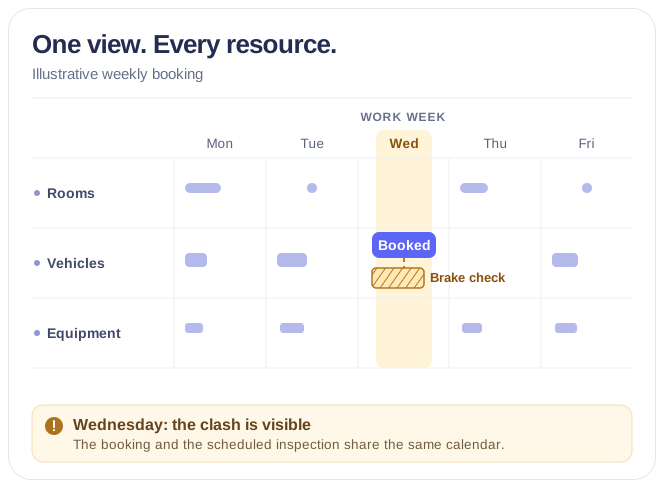
Next question: what about the meeting rooms, vehicles and equipment next to the desks? Places has no object type for vehicles or equipment. To see rooms, vehicles and equipment, with their maintenance and blackout periods, in one Microsoft 365 calendar, add Virto Calendar App.
Search for a hot desk booking system for Office 365 and the first results are mostly vendors leading to their own product. This guide is the neutral version: every route Microsoft itself provides, what the employee sees, what it costs, who sets it up and where it stops. Third-party apps get a checklist, not a ranking. If you need meeting room booking rather than desks, our guide to meeting room booking software covers that side.
Hot desk booking in Office 365: the options at a glance
| Option | Where the employee books | Floor map | Specific desk or pool | Cost | Who sets it up | Main limits |
|---|---|---|---|---|---|---|
| Microsoft Places | Outlook and Teams calendar; Places app | Optional, IMDF files only | Both: pools, and individual desks with a space licence | Core features included; individual desk about $2 per month | Places or Exchange admin, with PowerShell and the Places portal | Exchange Online only; hierarchy required; no parking, equipment or visitor types |
| Workspace mailboxes | Room Finder in Outlook and the Teams calendar | No | Pool only, with a capacity | Included; no licence needed | Exchange admin, with PowerShell | No named desk; changes take up to 48 hours |
| A room mailbox per desk | Room Finder in Outlook and the Teams calendar | No | Specific desk, listed as a one-person room | Included; no licence needed | Exchange admin, with PowerShell | Desks appear as rooms; no auto-release or desk analytics; up to 50 per room list |
| Microsoft Bookings | A booking page; Bookings app in Teams and Outlook | No | Each desk set up as a “staff member” | Included in most business and enterprise plans | Bookings admin | Not designed for desks; 100 staff per page; edited only in Bookings |
| SharePoint list with a form | SharePoint, Lists or a Teams tab | A picture at most | Specific desk | Included | Site owner or office manager | No double-booking check without extra work; not in Outlook calendars |
| Power Apps (custom app) | Teams, browser or mobile | Only if you build one | As you design it | Included with standard connectors; premium with Dataverse | A Power Apps maker | No Microsoft desk template; you maintain it |
| Third-party app | Depends on the app | Depends on the app | Depends on the app | Vendor subscription | Admin installs and consents | Extra cost; data and permissions review |
Fig. 1. Desk booking options in Microsoft 365 compared
1. Microsoft Places: the desk booking system built into Microsoft 365
Microsoft Places is Microsoft’s own hot desk booking system: a directory of buildings, floors, sections and desks on top of Exchange Online, with booking screens in Outlook, Teams and the Places app. Our guide to Microsoft Places covers the whole product; here is what matters for desks.
Two kinds of desk. A desk pool is a zone with a set number of seats; the employee reserves a seat in the zone and sits wherever is free. An individual desk is one named seat, in one of four modes: reservable, drop-in, assigned or unavailable. Both can coexist in one office.
Where people book. In new Outlook and the Teams calendar on Windows and the web, and through the Places app in classic Outlook, Outlook mobile and Teams mobile. With bookable desks in Teams, plugging a laptop into a linked monitor reserves the desk automatically.
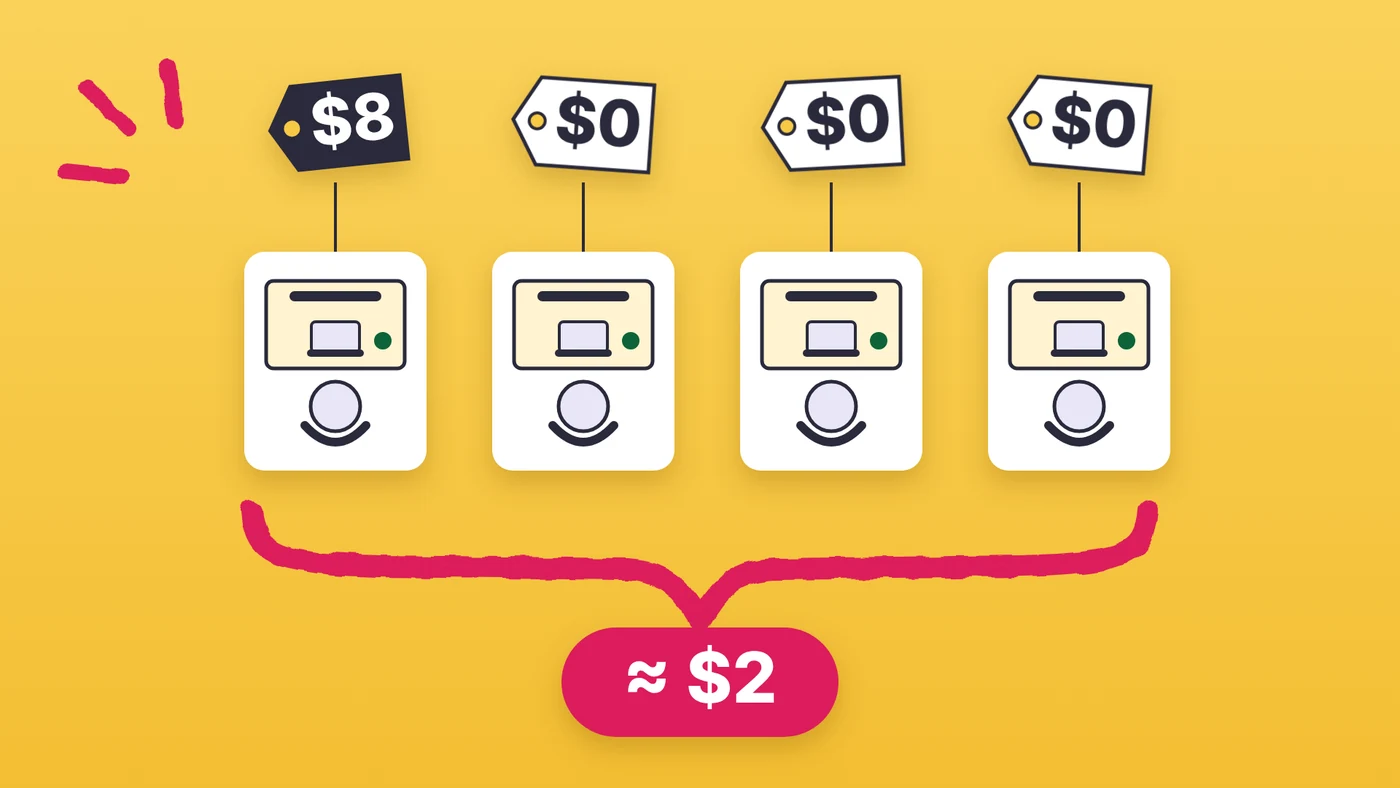
What it costs. Since 1 April 2026, booking rooms and desk pools, Places finder, maps, assigned desks and check-in are included in any plan with Outlook and Teams, from Business Basic to E5. Booking an individual desk, auto-release and occupancy reports need a space licence on the desk: a Teams Shared Space licence at $8 per month, which comes with three free Single Space licences, so about $2 per desk per month. The admin has to acquire the free licences, and a desk without a licence appears as unavailable. Our guide to Microsoft Places licensing has the details.
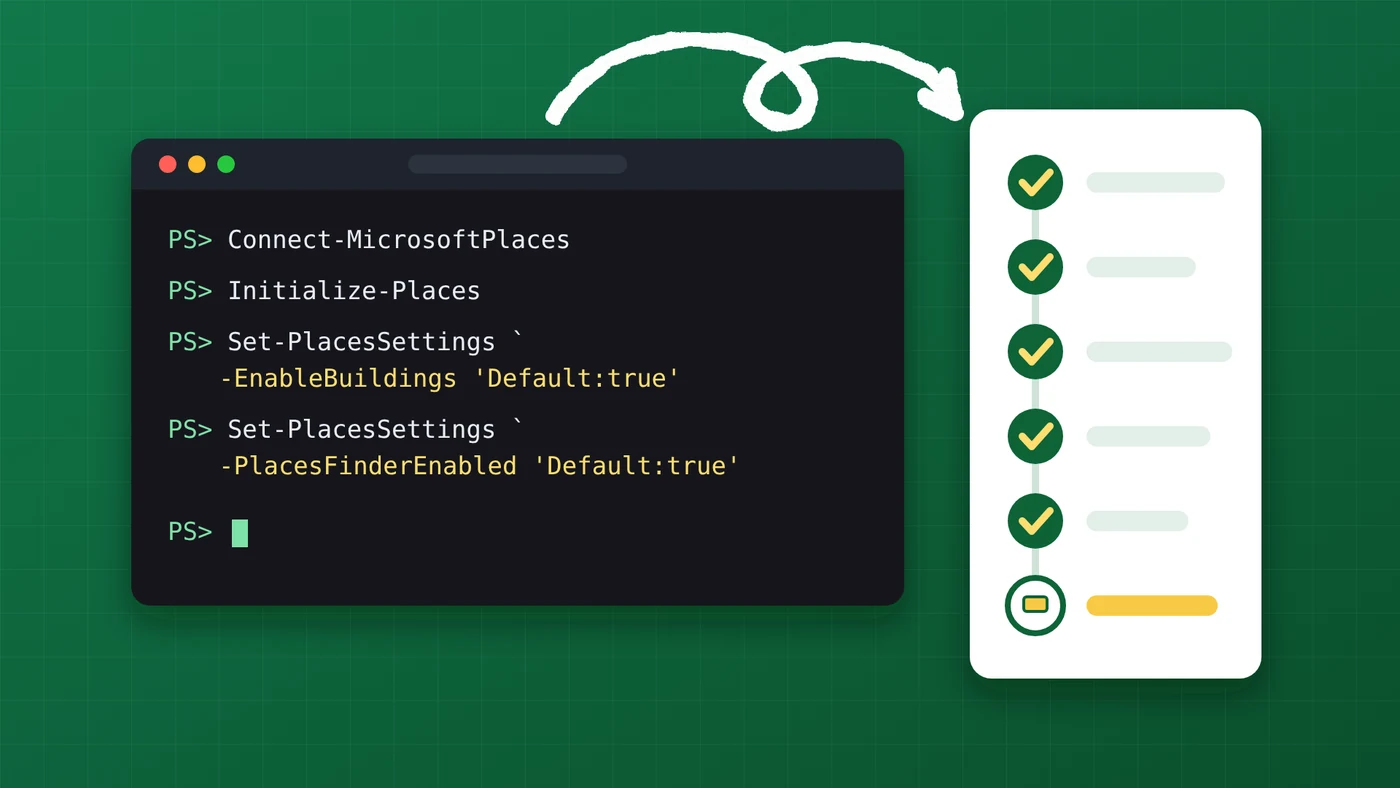
What setup involves. The hierarchy building, floor, section, then desk or pool; without it, users can only say “in the office” or “remote”. The portal creates places one at a time, so bulk setup means PowerShell, and changes take up to 24 hours to show. Our step-by-step guide to desk booking setup in Places walks through it.
Where it stops. Exchange Online only: users with an on-premises mailbox can’t use Places. Floor maps are optional and must be IMDF files. There are no object types for parking, equipment or visitors.
2. Outlook and Exchange workspace mailboxes (desk pools)
Before Places, Exchange Online already had a way to book shared desks: the workspace mailbox. It is a resource mailbox like a meeting room, but of type Workspace, and Places calls the same object a desk pool. It is the route behind searches for “desk booking using Microsoft resource mailboxes”.
How capacity works. The workspace has a capacity, the number of seats in the zone, and several people can book it for the same time until the seats run out. Microsoft’s example: with a capacity of 2, two users book the pool from 8am to 5pm and a third can’t. The EnforceCapacity setting of Set-CalendarProcessing applies that limit; it is off by default.
How the employee books. They create an event for the day in Outlook or the Teams calendar and add the workspace through Room Finder, as they would a meeting room. The booking is an ordinary event in their own calendar, so they move or cancel it there. Room Finder works in Outlook for Windows, the web, Mac, iOS and Android.
How to set it up. An Exchange admin creates the mailbox, sets City, Floor and Capacity (the properties Room Finder needs), switches on capacity enforcement and adds the workspace to the building’s room list:
Connect-ExchangeOnline

# Create the desk pool as a workspace mailbox
New-Mailbox -Room -Alias floor3-zoneA -Name "Floor 3 Zone A desks" | Set-Mailbox -Type Workspace

# Location and capacity for Room Finder
Set-Place floor3-zoneA@contoso.com -CountryOrRegion "GB" -City "London" -Floor 3 -Capacity 12

# Accept bookings only up to the capacity
Set-CalendarProcessing -Identity floor3-zoneA@contoso.com -EnforceCapacity $true

# Room list for the building (create it once)
New-DistributionGroup -Name "London HQ" -RoomList
Add-DistributionGroupMember -Identity "London HQ" -Member floor3-zoneA@contoso.com
Set-CalendarProcessing also sets the booking rules: -BookingWindowInDays limits how far ahead people can book (default 180 days), -MaximumDurationInMinutes caps one booking (default 1,440), and -BookInPolicy with -AllBookInPolicy $false reserves the pool for one team’s group. Allow 24 to 48 hours for changes to appear in Room Finder, and keep each room list to 50 rooms and workspaces at most, as Microsoft recommends.
What it costs. Nothing extra. Resource mailboxes need no licence, and the Places FAQ confirms that booking workspaces needs no space licence.
Where it stops. A workspace is a pool, so nobody can pick a specific desk; for that, see the next option. Room Finder has no floor map and filters workspaces only by capacity, wheelchair access and custom tags. Places finder over the same workspaces adds photos and floor details, but still no named seat; that needs Places individual desks and their licence.
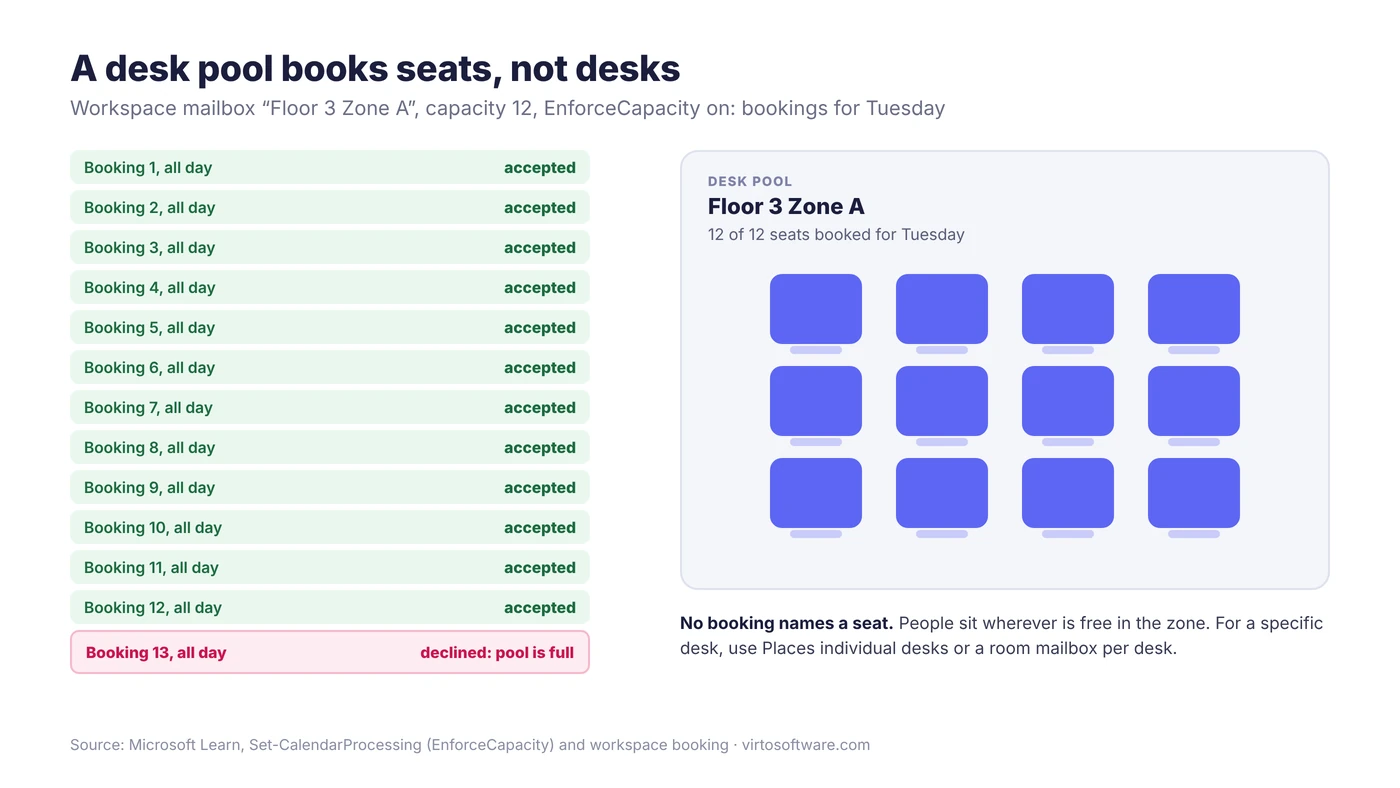
Fig. 2. A workspace mailbox is a pool: bookings are accepted until its capacity is reached, but no seat is named
3. One room mailbox per desk: a named desk in Outlook
If people must book one specific desk and Places is not an option, Exchange can do it with what it already has: a room mailbox for each desk. “Desk 3.12” becomes a resource mailbox with a capacity of one, the employee adds it to an all-day event through Room Finder, and the mailbox accepts the first booking and declines any overlapping one. This is the route behind searches for “desk booking Outlook” and “desk booking using Microsoft resource mailboxes” when a pool is not enough.
What it does well. Unlike a SharePoint list, it stops double bookings by itself: the desk’s calendar decides, as it does for a meeting room. The booking is an ordinary event in the employee’s Outlook calendar, so they move or cancel it there. Room and equipment mailboxes need no licence, and Room Finder works in Outlook for Windows, the web, Mac, iOS and Android. Microsoft also documents how to set up room mailboxes and room lists in a hybrid Exchange organisation, which Places does not serve.
How to set it up. Create the mailbox, give it location and a capacity of one, make sure it declines conflicts, and put the floor’s desks in their own room list so they don’t mix with meeting rooms:
Connect-ExchangeOnline

# One mailbox per desk
New-Mailbox -Room -Alias desk-3-12 -Name "Desk 3.12 (London, floor 3)"
Set-Place desk-3-12@contoso.com -CountryOrRegion "GB" -City "London" -Floor 3 -Capacity 1 -Tags "Standing desk","Dual monitor"

# Accept the first booking, decline overlaps, book at most two weeks ahead
Set-CalendarProcessing -Identity desk-3-12@contoso.com -AutomateProcessing AutoAccept -AllowConflicts $false -BookingWindowInDays 14

# A room list for the desks on this floor (create it once)
New-DistributionGroup -Name "London HQ - Floor 3 desks" -RoomList
Add-DistributionGroupMember -Identity "London HQ - Floor 3 desks" -Member desk-3-12@contoso.com
Microsoft recommends at most 50 rooms and workspaces in one room list, and Room Finder returns at most 100 in a search, so a floor with more desks needs several lists, by zone or wing. Put the desk number and what matters about it in the name, because that is what people see first. Allow 24 to 48 hours for changes to appear in Room Finder.
Where it stops.
- Desks look like rooms. Room Finder and the Scheduling Assistant list them as tiny meeting rooms. There is no floor map, no desk mode (assigned, drop-in, unavailable) and no view of which desks are free across a floor, only a room-by-room check.
- No auto-release, no desk analytics. In Places, auto-release and occupancy reports need a space licence on the room or desk, and desk analytics belong to Places desks.
- It is not Places desk booking. If you turn on Places, these mailboxes come across as rooms, not desks: Places reads the hierarchy, and a room mailbox is a room. Plan to recreate them as Places desks if you move. Microsoft licenses booking an individual desk in Places per space, so if desks-as-rooms is meant to stand in for that at scale, check the arrangement with your Microsoft licensing partner.
- Admin work grows with every desk. Each desk is a mailbox to create, name, list and retire.
It suits a small office with a handful of named desks, or an organisation still on Exchange hybrid. For dozens of desks across floors, Places individual desks do the same job with the desk features on top.
4. Microsoft Bookings: built for appointments, not desks
“Microsoft Bookings for desk booking” is a common search, because the name sounds right and Bookings is included in Business Basic to Business Premium, E1 to E5, F1, F3 and Teams Essentials. But Microsoft describes it as a tool for appointments with customers, clients or colleagues. A booking page has services (what can be booked) and staff members (who provides them); the person booking picks a service, a time and perhaps a staff member, and gets confirmation and reminder emails. The documentation has no desk, room or resource type and describes no desk use.
The workaround in community answers is to set up each desk as a staff member with its own mailbox. It works, within limits:
- Up to 100 staff members per booking page, so 100 desks at most.
- No editing in Outlook. Microsoft’s FAQ says appointments can only be edited in the Bookings web app.
- No combined view across Bookings calendars.
- The wrong vocabulary. Employees book “a service with a staff member” who is Desk 14, with no floor, zone, map or check-in.
In fairness, Bookings stops two people taking the same slot. It suits a few things offered as timed slots on a booking page. It is not a hot desking system.
5. A SharePoint list with a form
The cheapest route is a list: one for desks (number, zone, monitor, standing or not) and one for bookings (desk, date, who). Employees book through the list’s form in SharePoint, Microsoft Lists or a Teams tab, and a calendar view shows the week. It costs nothing extra, an office manager can build it in an afternoon, and it works wherever your mailboxes live.
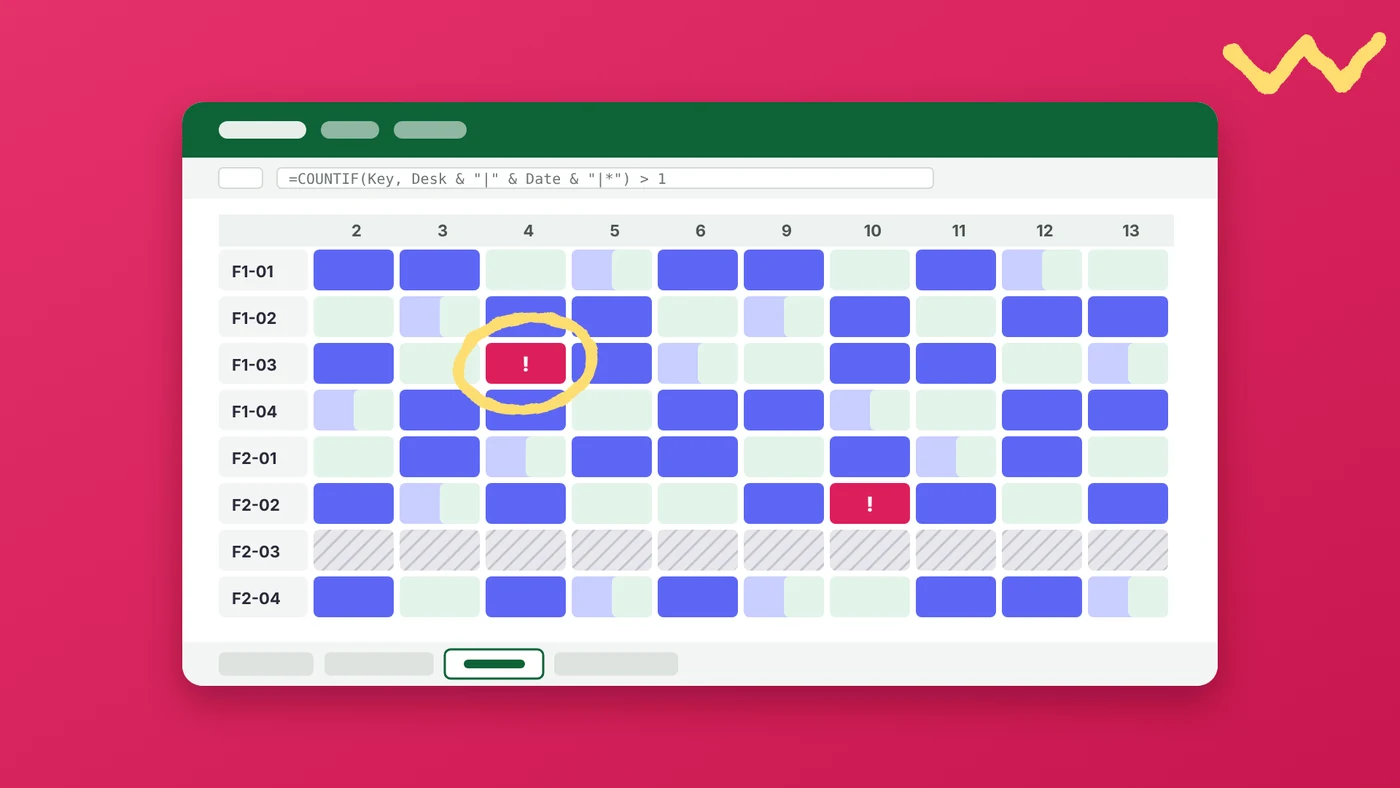
The catch is double booking. Validation formulas check the item being saved and can’t compare it with the bookings already in the list, so two people can book Desk 12 for the same Tuesday. Closing the gap takes extra work: a unique-value column filled with desk plus date, a Power Automate flow that checks for clashes, or a Power Apps form. Bookings don’t reach Outlook calendars unless a flow creates the event, and there is no check-in or auto-release.
If a list is enough, start from our free desk booking template for Excel and SharePoint lists, which includes the double-booking check.
6. Power Apps: a custom canvas app
Searches for “desk booking power app” often assume Microsoft ships a template. As of 16 October 2026, Microsoft Learn lists none for desks:
- The sample app templates for Teams (Boards, Bulletins, Employee ideas, Inspection, Issue reporting, Milestones and others) include no booking app.
- The Power Platform enterprise templates include Appointment Booking, Meeting Room Services and Parking Reservation, but nothing for desks. Parking Reservation is the closest pattern (buildings, floors, spots, booking and cancellation policies), but it needs Power Apps Premium or per-app licences plus Power BI Pro, and it is published as is.
So desk booking in Power Apps means a custom canvas app. The quickest start is the bookings list in Microsoft Lists: Integrate > Power Apps > Create an app generates a one-screen app. A maker then adds the desk picker, the clash check and an Outlook invitation per booking, and pins the app in Teams.
Stay with standard connectors such as SharePoint and Office 365 Outlook, and the app runs under the Power Apps rights in Microsoft 365. Dataverse or a premium connector makes it a premium app, and every user needs a Power Apps Premium or per-app licence.
The real cost is maintenance: someone owns the formulas, flows and permissions and keeps them working as the list grows. When that person leaves, the app stays.
7. Third-party desk booking apps from Microsoft Marketplace: what to look for
Microsoft Marketplace, which absorbed AppSource, lists many desk booking apps for Teams and Outlook. We don’t rank them. These are the questions that separate a good fit from a second system nobody uses:
- Real Teams and Outlook integration. A booking made in Teams should appear in the employee’s Outlook calendar and be editable there, with the change flowing back. Test it in the trial.
- Where bookings live. In Exchange resource mailboxes, so Outlook and Places see the same bookings, or only in the vendor’s database.
- Floor map. Who draws it, from what (PDF, CAD, IMDF), and how a moved desk is updated.
- Check-in and no-shows. How people confirm arrival, and when an unclaimed desk is released.
- Parking and equipment in the same booking. The main gap in Places: check that a desk, a parking space and a monitor fit into one booking.
- Security. Publisher Attestation or Microsoft 365 Certification in the Teams admin center, the permissions requested, and where data is stored.
- Pricing. Per user or per desk, plus any Microsoft licences still needed, such as Teams Rooms Pro or Teams Shared Space for each Teams panel.
- Admin effort. Bulk import of desks, Entra ID groups for team zones, and a mobile app.
Can one app manage both desk booking and meeting room reservations?
Yes, and in Microsoft 365 that app is Microsoft Places. Places finder books meeting rooms and desks in the same Outlook and Teams calendar, and work plans, where people say which days they will be in, sit there too. That covers “workweek planning with desk and room reservations” too. Without Places, Room Finder still lists rooms and workspaces side by side, and most third-party desk booking apps cover rooms as well.
What no single built-in app covers is vehicles, equipment and parking. Exchange equipment mailboxes are booked like a meeting attendee, with no catalogue or map, and Places doesn’t show them. To see who has booked which room, van or projector in one calendar, see our rooms, equipment and availability calendar use case; it covers rooms and equipment, not desks. For planning people and shared resources against projects, see our guide to resource scheduling.
How to choose: a decision tree by number of desks
Answer these in order. The desk counts are our rule of thumb, not Microsoft limits.
- Are your mailboxes in Exchange Online? If not, Places isn’t available. Use a SharePoint list, or a third-party app that supports your Exchange setup.
- Do people need a specific, named desk? If yes (fixed monitors, standing desks, accessibility), use Places individual desks: about $2 per desk per month with the free Single Space licences, $8 without. Without Places, a room mailbox per desk gives a handful of named desks in Room Finder. If any seat in a zone will do, desk pools are included.
- How many desks?
- Up to about 15, one team: a SharePoint list or the template, or a room mailbox per desk if the bookings must be in Outlook.
- About 15 to 200, in zones: workspace mailboxes with Places finder switched on. Keep pools at 10 desks or more if you want Places analytics; smaller pools aren’t analysed.
- Several floors or buildings: the full Places hierarchy, with individual desks only where a named seat matters.
- Parking, equipment or visitors in the same booking, or a floor plan without IMDF files? Shortlist third-party apps with the checklist above.
- Unusual approval rules, and someone to maintain Power Apps? Build a canvas app on SharePoint lists.
- Really a few timed slots on a booking page? That is the one case for Bookings.
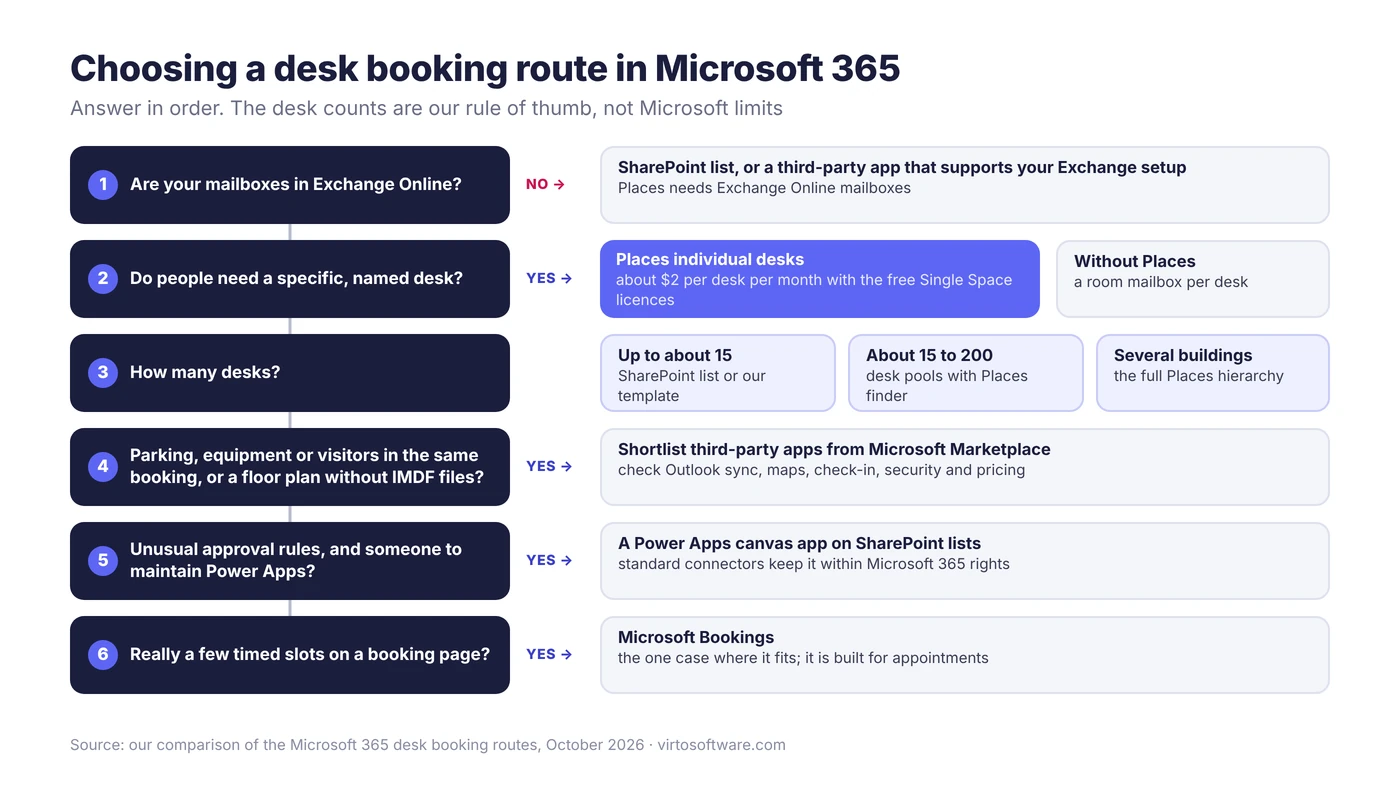
Fig. 3. Choosing a desk booking route in Microsoft 365
Rooms, vehicles and equipment next to the desks: Virto Calendar App
Places takes care of desks. For the vehicles and equipment it has no object type for, and the meeting rooms around them, there is Virto Calendar App.
It shows meeting rooms, offices, vehicles and equipment in one calendar in Microsoft 365 and Teams: who has booked what, what is free, and the maintenance and blackout periods that take a resource out of use. It draws them from the Exchange calendars and SharePoint lists your organisation already uses, so nothing moves into a new database. It does not book desks and does not replace Places; it sits beside it for the facilities and operations teams. The rooms, equipment and availability use case shows typical setups, and the app has a 30-day free trial.
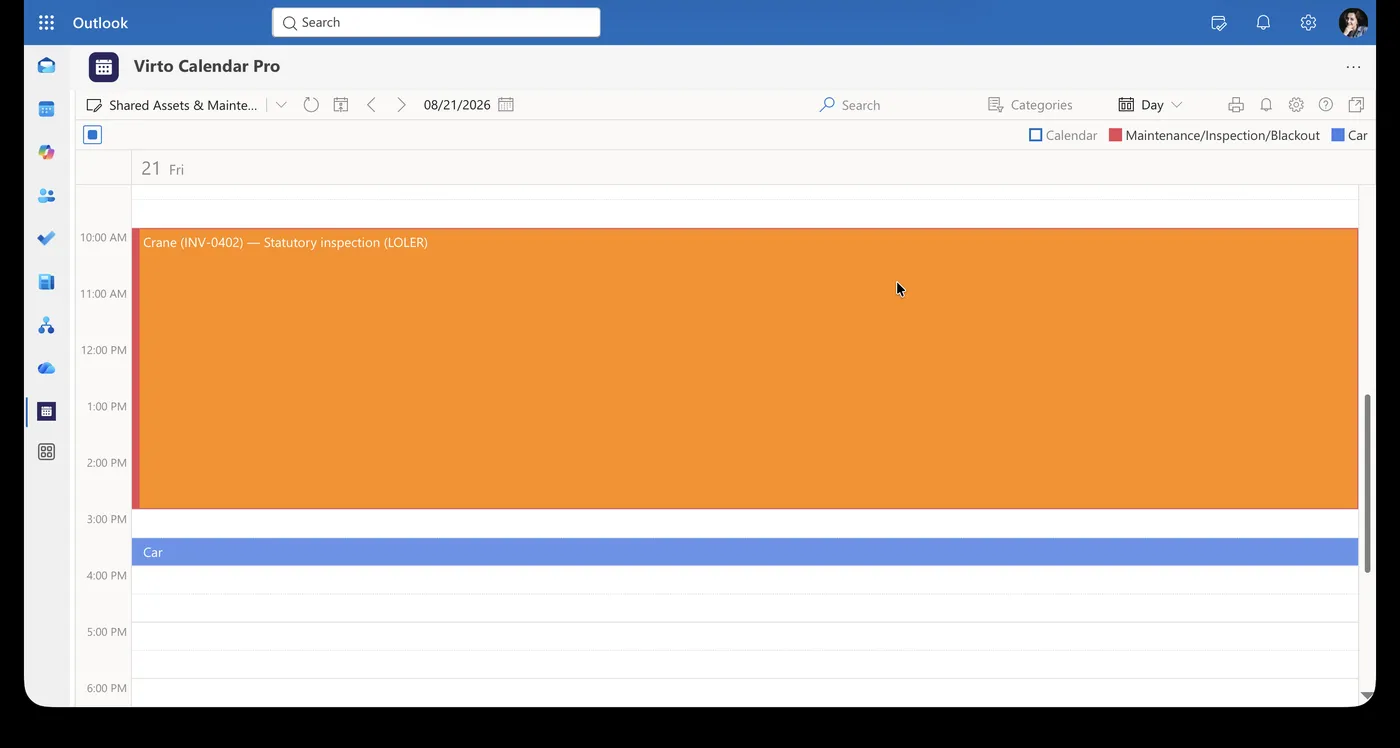
Pic. 1. Virto Calendar App: an equipment inspection and a car booking in one day view
See Rooms and Equipment Next to Your Desks

Rooms & Equipment Calendar
Combine rooms, offices, vehicles and equipment in one Microsoft 365 calendar, with the maintenance jobs and blackout periods that make them unavailable.
Learn more about Rooms & Equipment CalendarFAQ
Is there a hot desk booking system in Office 365?
Yes. Microsoft Places is the hot desk booking system built into Microsoft 365, formerly Office 365. Desk pools are included in any plan with Outlook and Teams; a specific desk needs a Teams Shared Space licence.
Can you book a desk in Outlook?
Yes: with Places in new Outlook and Outlook on the web (classic Outlook through the Places app), or through Room Finder, by adding a workspace mailbox (a desk pool) or a desk’s own room mailbox to an event.
Can Microsoft Teams be used for desk booking?
Yes. The Teams calendar has the same Places desk booking as new Outlook, and bookable desks in Teams reserve a desk when someone plugs into its linked monitor.
Is desk booking in Microsoft 365 free?
Mostly. Desk pools, rooms, Places finder and check-in are included. Individual desks, auto-release and occupancy reports need a space licence: about $2 per desk per month with the free Single Space licences, $8 without.
Can Microsoft Bookings be used for desk booking?
Only as a workaround: each desk becomes a “staff member”, a page holds up to 100, and bookings can’t be edited from Outlook.
Is there a Power Apps desk booking template?
Not from Microsoft at the time of writing. The nearest is the Parking Reservation template, which needs premium licences, so most organisations build a canvas app on SharePoint lists.
Does desk booking work with on-premises Exchange?
Places doesn’t: users with an on-premises mailbox keep Room Finder but can’t use Places. A SharePoint list works anywhere.
Conclusion
Microsoft 365 already includes a hot desk booking system, and since April 2026 most of it costs nothing extra. Desk pools in Places or plain workspace mailboxes cover a typical hybrid office, a space licence of about $2 per desk adds named desks and auto-release, and a room mailbox per desk or a SharePoint list is a fair start for a small team. Bookings and Power Apps can be bent to the job, at the price of workarounds and maintenance. A third-party app earns its place when parking and equipment must share the booking.
For the meeting rooms, vehicles and equipment around those desks, Virto Calendar App shows their availability, maintenance and blackout periods in one Microsoft 365 calendar, and the 30-day trial is the quickest way to see it with your own resources.