⚠️ Educational, Not Legal Advice
This article is educational, not legal advice. Always verify computed deadlines against the applicable court rules, local procedure, and any standing orders. AI tools assist with calculation but do not replace attorney judgment.
Quick Answer: How do I calculate court deadlines with AI?
To calculate court deadlines with AI in under 30 minutes:
- Choose a free AI tool (ChatGPT, Claude, Microsoft Copilot, or Gemini).
- Identify the triggering event (filing, service, judgment) and the applicable rule (FRCP Rule 6, CCP Section 12, or state-specific).
- Write a prompt that includes the triggering date, deadline type, jurisdiction, service method, and exclusions (weekends, federal holidays, court holidays).
- Review the AI output — verify against rule text and confirm the holiday list is correct for 2026.
- Export as an Excel (.xlsx) workbook with real datetime values, then import into your firm calendar (Microsoft 365 + Virto Calendar App for firms; Virto Shared Calendar for solo attorneys).
Best free AI tools for legal deadline calculation in 2026: Claude (best for nuanced FRCP and state-rule interpretation), ChatGPT (most familiar UI), Microsoft Copilot (included with most M365 licenses). For dedicated legal calendaring software with built-in court rules: LawToolBox, Clio, CompuLaw, and Aderant Milana.
⚠️ Important
AI calculations are starting points, not authoritative. Always cross-check against the rule text, local rules, and any standing orders. Calendar attorneys retain final responsibility.
Looking for a product instead of a workflow? See our Court Calendar Calculator use-case page for the integrated Virto offering.
Why attorneys are turning to AI for deadline calculation
Missing a court deadline can mean malpractice liability, case dismissal, or sanctions. Yet a surprising share of attorneys still calculate deadlines by hand — counting days on a wall calendar, scanning a PDF holiday list, and hoping nothing was missed. AI tools won’t replace your judgment, but they will draft a deadline plan in seconds, flag the service add-ons you might forget, and produce an Excel (.xlsx) workbook you can drop straight into your firm’s calendar.
This guide walks through the foundations of court deadline computation, four copy-paste prompts for common scenarios, an honest comparison of AI tools and calendaring software, and the import workflow that takes your AI output into Microsoft 365 and onto every attorney’s screen.
How court deadline calculation works (foundations)
Before you prompt anything, you need to know the four mechanics every court calendaring system depends on. AI tools handle these well only when you spell them out:
Calendar days vs. business days
Under FRCP Rule 6(a), every day counts — weekends and holidays included — except when the period is shorter than 7 days, in which case intermediate Saturdays, Sundays, and legal holidays are excluded. State systems vary: California computes most periods in calendar days but excludes court holidays from the last day. Always confirm whether your jurisdiction’s clock is calendar or business days before you start counting.
FRCP Rule 6 — the federal default
FRCP Rule 6 is the master rule for federal civil deadlines. Four principles:
- Exclude the day of the event that triggers the period.
- Count every intervening day, including weekends and legal holidays.
- Include the last day of the period — but if it falls on a Saturday, Sunday, or legal holiday, roll forward to the next day that is not one of those.
- Add 3 days if service was by mail or other non-electronic methods listed in Rule 6(d). Electronic service under Rule 5(b)(2)(E) does NOT add 3 days.
Service method add-ons
The single most common AI deadline error is forgetting the service-method extension. Personal service usually has no add-on; mail typically adds 3 days; e-service rules vary by court. State analogues exist (for example California CCP Section 1010.6 governs electronic service extensions). When you write your prompt, name the service method explicitly.
Holiday exclusions
Federal courts observe the 11 OPM holidays. Many state courts add their own (Cesar Chavez Day in California, for instance). Local courts may close for additional days. Feed the AI the right list, or it will quietly assume the wrong one.
How to calculate court deadlines with AI (step-by-step)
⚠️ Reminder — verify against rule text
Every prompt below produces a draft. Verify each computed date against FRCP, state code, local rules, and standing orders before relying on it. AI assists; it does not replace attorney judgment.
Step 1 — Gather your inputs (checklist)
Before prompting, collect:
- Triggering date (filing, service, judgment, motion granted).
- Jurisdiction (federal, state, county — each has different rules).
- Type of case (civil, criminal, family, administrative).
- Service method (personal, mail, e-service — affects added days).
- Applicable rule (FRCP Rule 6, CCP Section 12, TRCP 4, etc.).
- Local court rules and standing orders (these often modify the default).
- Holiday list for the applicable jurisdiction (federal + state + court-specific).
Step 2 — Four copy-paste prompts
Each prompt below is intentionally explicit. Paste it into your preferred AI, replace the bracketed values, and review the output line by line.
Prompt 1 — Federal civil response deadlines (FRCP)
“I filed a federal civil complaint on [DATE]. Calculate the following FRCP deadlines, excluding weekends and federal holidays observed in 2026 (New Year’s, MLK Day, Presidents’ Day, Memorial Day, Juneteenth, July 4th, Labor Day, Columbus Day, Veterans Day, Thanksgiving, Christmas):
- Defendant’s answer deadline (21 days from service per FRCP 12(a)(1)(A))
- Initial disclosures (14 days after Rule 26(f) conference)
- Discovery cutoff (assume scheduling order sets it at 270 days from filing)
For each deadline: state the rule citation, the computation method (calendar vs business days), and the final date. If service was electronic per FRCP 5(b)(2)(E), do NOT add the 3-day mailing extension. Output as a markdown table.”
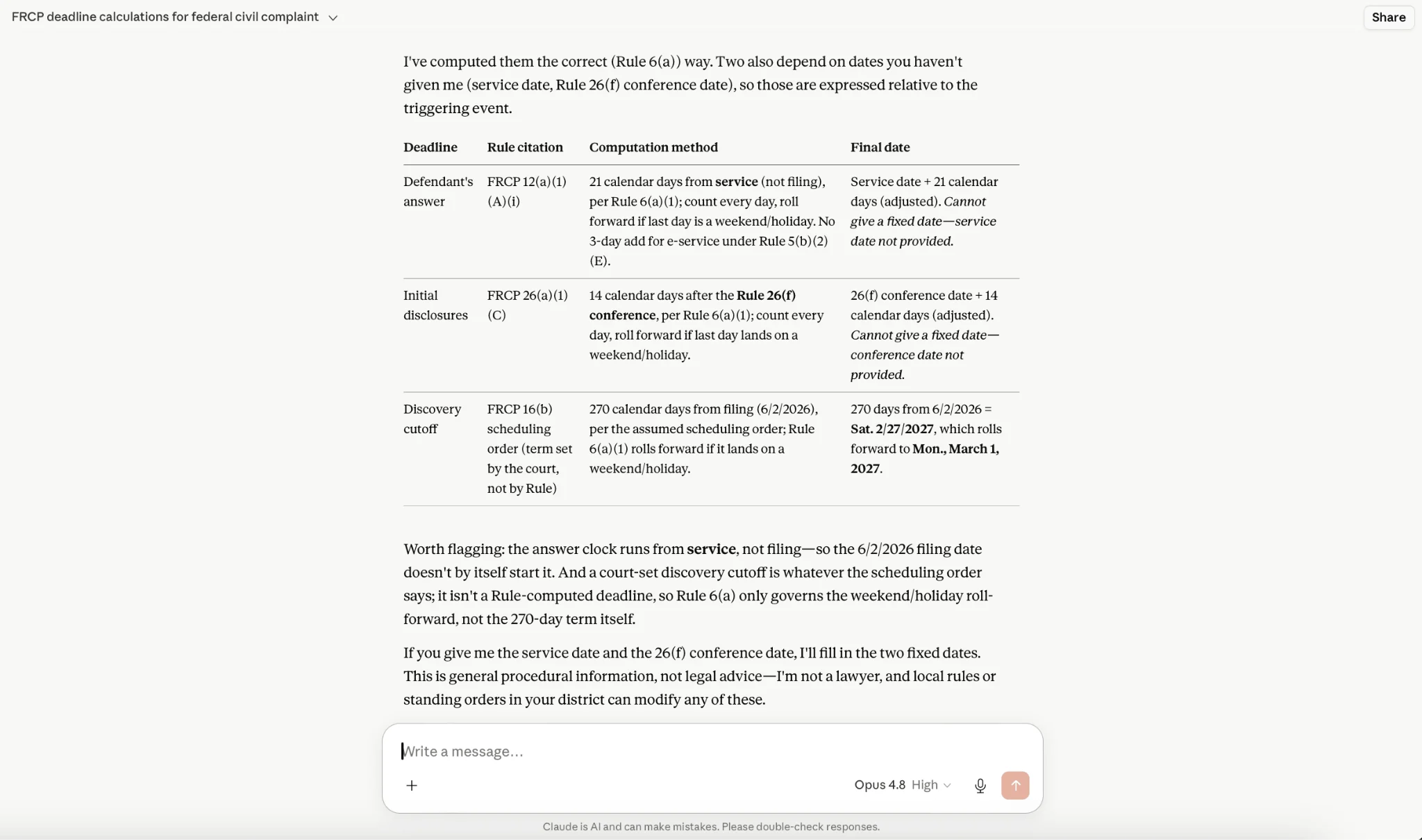
Screenshot — Prompt 1 pasted into Claude, returning FRCP deadlines as a markdown table
Prompt 2 — California state civil deadlines (CCP)
“I filed a California civil complaint in Los Angeles Superior Court on [DATE]. Calculate the following deadlines per CCP Section 12 and CRC Rule 1.10. Exclude weekends, California court holidays (use the 2026 California Judicial Council list), and apply the CCP Section 1010.6(a)(4)(B) extension if service was electronic:
- Defendant’s response deadline (30 days from service per CCP 412.20)
- Demurrer response (CCP Section 472d)
- Summary judgment motion (75 days before hearing per CCP 437c(a)(2))
If [TRIAL DATE] is set, calculate backwards to determine the latest filing date for summary judgment. Output as a markdown table with rule citation, computation method, and date.”
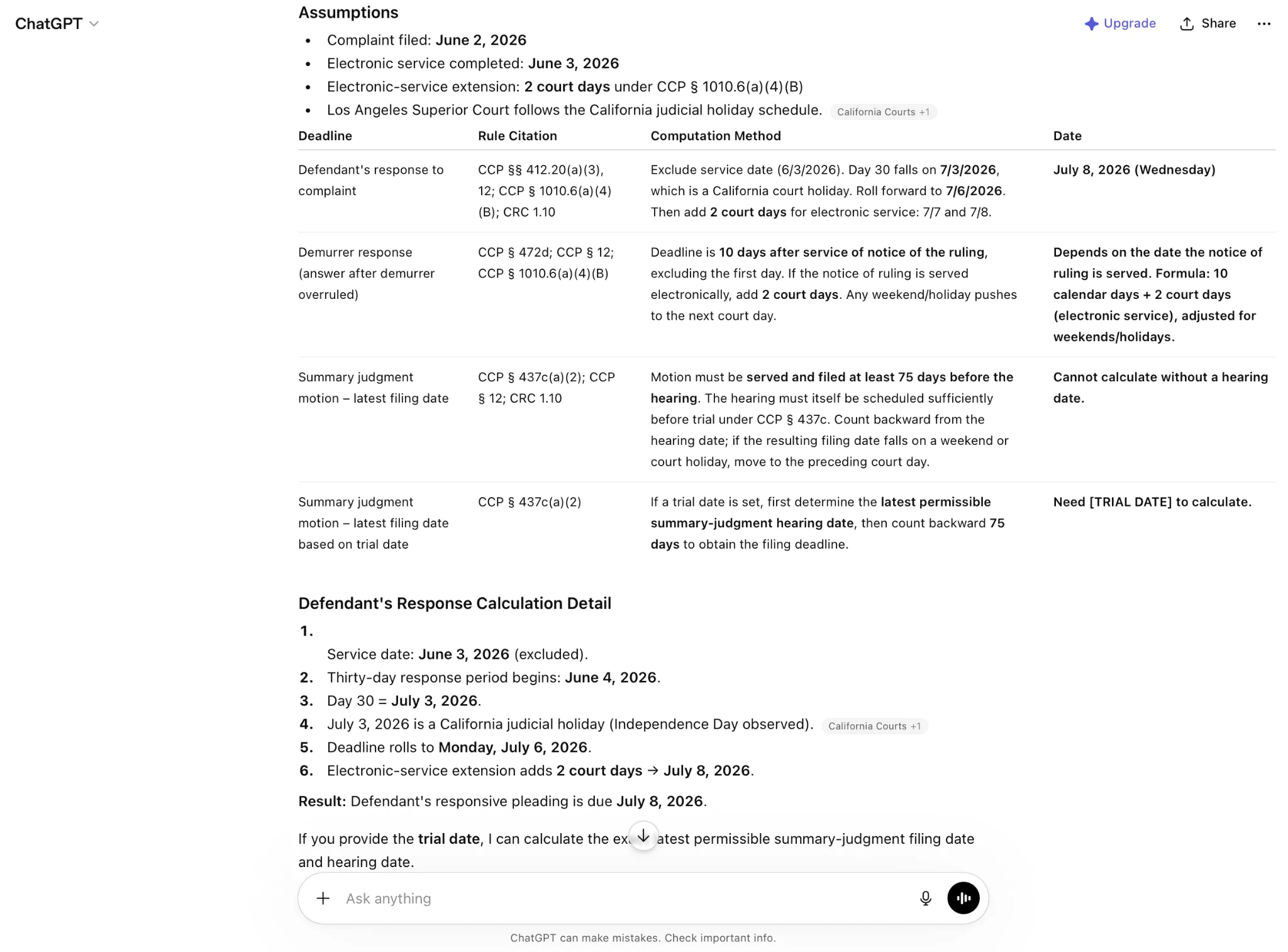
Screenshot — ChatGPT output for Prompt 2 with CA-specific rule citations
Prompt 3 — Texas family law (custody response)
“In a Texas family law custody case, my client was served with a petition on [DATE]. Calculate Texas Rule of Civil Procedure 99(b) answer deadline (Monday following the expiration of 20 days from service — NOT a simple 20-day count). Also calculate the deadlines for:
- Discovery request response (30 days per TRCP 197/198/199)
- Mediation deadline if mediation order is signed today
- Pre-trial conference (assume 30 days before trial)
Exclude weekends and Texas state court holidays for 2026. Note that Texas does NOT exclude holidays from the answer deadline counting per TRCP 4. Output as a markdown table.”
Prompt 4 — Appeal deadlines (multi-step)
“My client lost a federal civil judgment on [DATE]. Calculate the appeal-related deadlines, citing the applicable rule for each:
- Notice of appeal deadline (FRAP 4)
- If a motion under FRCP 50(b), 52(b), 54, 59, or 60 was filed, when does the appeal clock restart?
- Cross-appeal deadline
- Briefing schedule milestones (assume circuit issues standard order)
Exclude weekends and federal holidays. For each: rule citation, computation method, final date. Output as a markdown table.”
Step 3 — Verify and refine
AI output is a draft. Run these follow-up checks every time:
- Check the holiday list — prompt: “List every federal holiday between [START] and [END] that you excluded from this calculation.”
- Check service add-ons — prompt: “If service was by mail, add the 3-day extension under FRCP Rule 6(d). Recalculate.”
- Check the roll-forward rule — prompt: “If any computed deadline falls on a weekend or federal holiday, roll forward to the next business day per FRCP 6(a)(1)(C).”
- Manually verify at least one critical deadline. AI errors on legal calculations are not acceptable.
Step 4 — Export as Excel (.xlsx)
Once the deadlines look right, ask the AI to convert the markdown table into a downloadable .xlsx workbook you can import. The exact instruction that works for ChatGPT and Claude:
“Export this deadline calendar as a downloadable .xlsx file with columns: Title, DueDate, RuleCitation, Jurisdiction, ServiceMethod, LeadTimeDays, Priority. DueDate must be a real Excel datetime value (not text). Priority should be a short category (Critical / Important / Administrative) so it can be used as a Choice field for color-coding in SharePoint.”
All four mainstream tools handle this directly: ChatGPT (Advanced Data Analysis), Microsoft Copilot in M365, Claude (file artifacts), and Gemini all return a downloadable .xlsx with proper datetime cells. If a tool only renders the table inline, copy it into Excel and format DueDate as Date & Time before saving. That workbook is the bridge to the rest of the workflow — Microsoft 365, SharePoint, and the Virto Calendar App for shared firm-wide visibility.
Best AI tools for legal deadline calculation (2026)
Not every AI handles legal deadline computation equally well. A practical comparison for attorney and paralegal use:
| Tool | Best for | Free tier | Strength | Weakness |
|---|---|---|---|---|
| Claude | Complex multi-step deadline calculation | Yes | Best nuance for FRCP / state rule interaction | Free tier has session caps |
| ChatGPT | Familiar workflow, quick lookups | Yes (GPT-4o mini) | Most accessible, fast | Can hallucinate rule citations |
| Microsoft Copilot | Firms already on M365 | Free in M365 | Outlook and SharePoint tie-in | Less powerful on nuanced legal prompts |
| Gemini | Google Workspace firms | Yes | Calendar integration | Less precise on legal-specific prompts |
Recommendation
Use Claude for the initial calculation, then verify the same scenario in ChatGPT or Copilot as a sanity check. Never rely on a single AI output for a critical deadline — always cross-check against the rule text.
⚠️ AI hallucination warning
All four tools can occasionally invent rule citations or numbers. If a prompt returns a citation you don’t recognize (e.g., ‘FRCP Rule 6.5’), look it up before relying on it.
Best court calendar software (free vs. paid in 2026)
Pick the right category before you pick the product. Firm size, jurisdiction coverage, and budget are the three deciding factors:
| Tool | Type | Best for | Pricing | Key feature |
|---|---|---|---|---|
| AI + Virto Calendar App | AI workflow + M365 integration | Firms on M365 wanting low cost | Free 30-day trial; then per-user | Native M365 + flexible AI prompts |
| LawToolBox | Dedicated legal SaaS | M365 firms wanting a rule library | Paid (per attorney) | Pre-built court rule library |
| Clio | Full practice management | Mid-size firms wanting all-in-one | Paid | Practice mgmt + calendaring |
| CompuLaw / Aderant | Enterprise docketing | Big-law firms | Paid (enterprise) | 2,500+ jurisdictions, malpractice-grade |
| Free web calculators | Single-purpose tool | Solos, one-off lookups | Free | No install, instant use |
Positioning the Virto option: for firms already on Microsoft 365, the combination of AI tools (free) plus the Virto Calendar App (free 30-day trial) creates a deadline workflow that competes with paid dedicated tools. It does not include a pre-built court-rule library — that is the tradeoff. For firms that prefer AI prompts (full control + jurisdiction flexibility) over a pre-built rule library (faster but locked to vendor coverage), this combination wins.
Try the Virto Calendar App for SharePoint (free 30-day trial) or see the Virto Shared Calendar for Teams.
How to import your deadline calendar into Microsoft 365
Once your AI has produced an .xlsx workbook of deadlines, the next step is making it visible to every attorney, paralegal, and assistant on the matter. For Microsoft 365 firms, the workflow is Excel (.xlsx) → SharePoint list → Virto Calendar App.
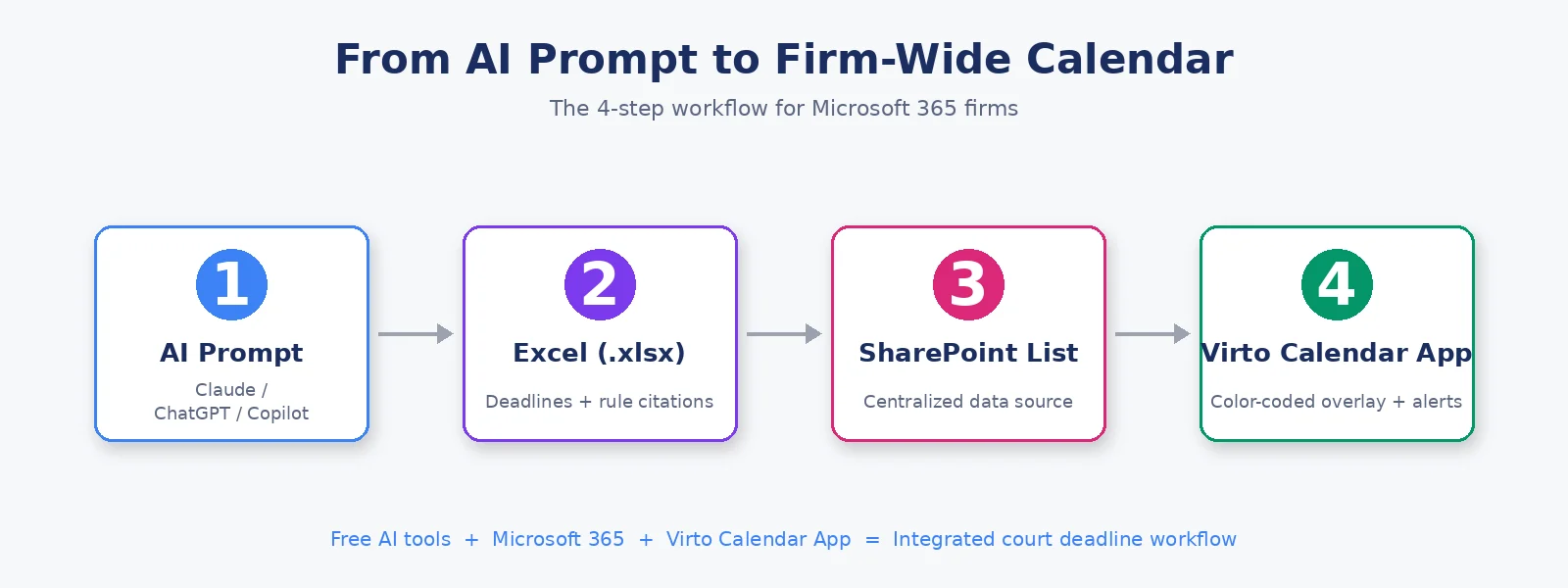
Figure: The 4-step workflow: AI Prompt → Excel (.xlsx) → SharePoint → Virto Calendar App
Step 1 — Prepare your .xlsx file
Before uploading, sanity-check the workbook in Excel:
- Confirm DueDate cells are formatted as Excel Date & Time values (not text).
- Confirm Priority has a small set of repeated values (Critical / Important / Administrative) — this is what lets SharePoint treat it as a Choice field and unlocks color-coding in the Virto Calendar App.
- Confirm Title and RuleCitation are plain text and free of stray formatting.
Step 2 — Import the .xlsx file as a SharePoint list
- Open your firm’s SharePoint site.
- Click + New → List → From Excel.
- Upload the .xlsx file — the DueDate cells carry their Date & Time formatting from Excel straight into SharePoint.
- Set column types: Title (Title), DueDate (Date and Time), RuleCitation (Text), Jurisdiction (Text), ServiceMethod (Text), LeadTimeDays (Number), Priority (Choice).
- Name the list (e.g., “Smith v. Jones Deadlines”) and create.
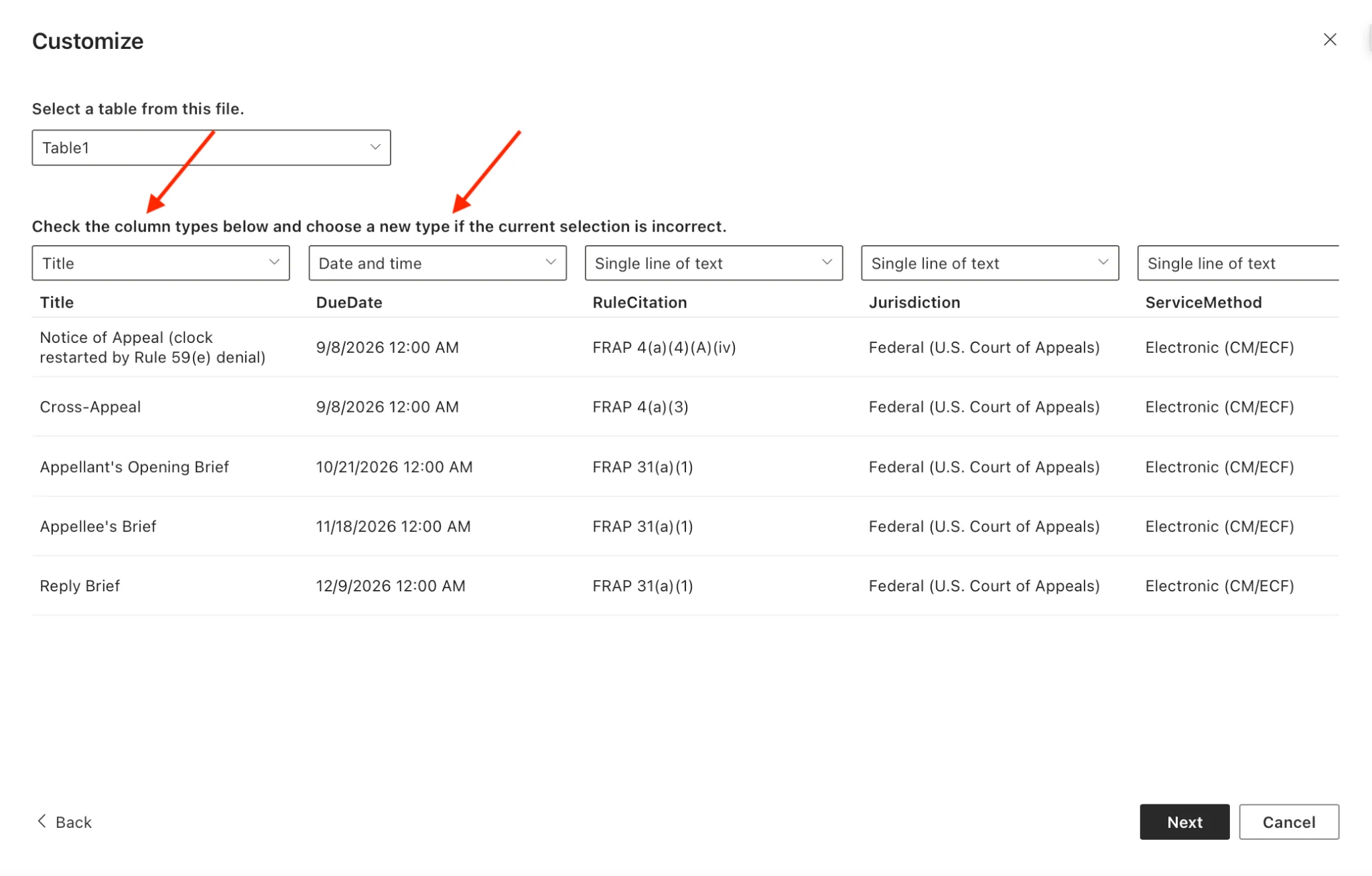
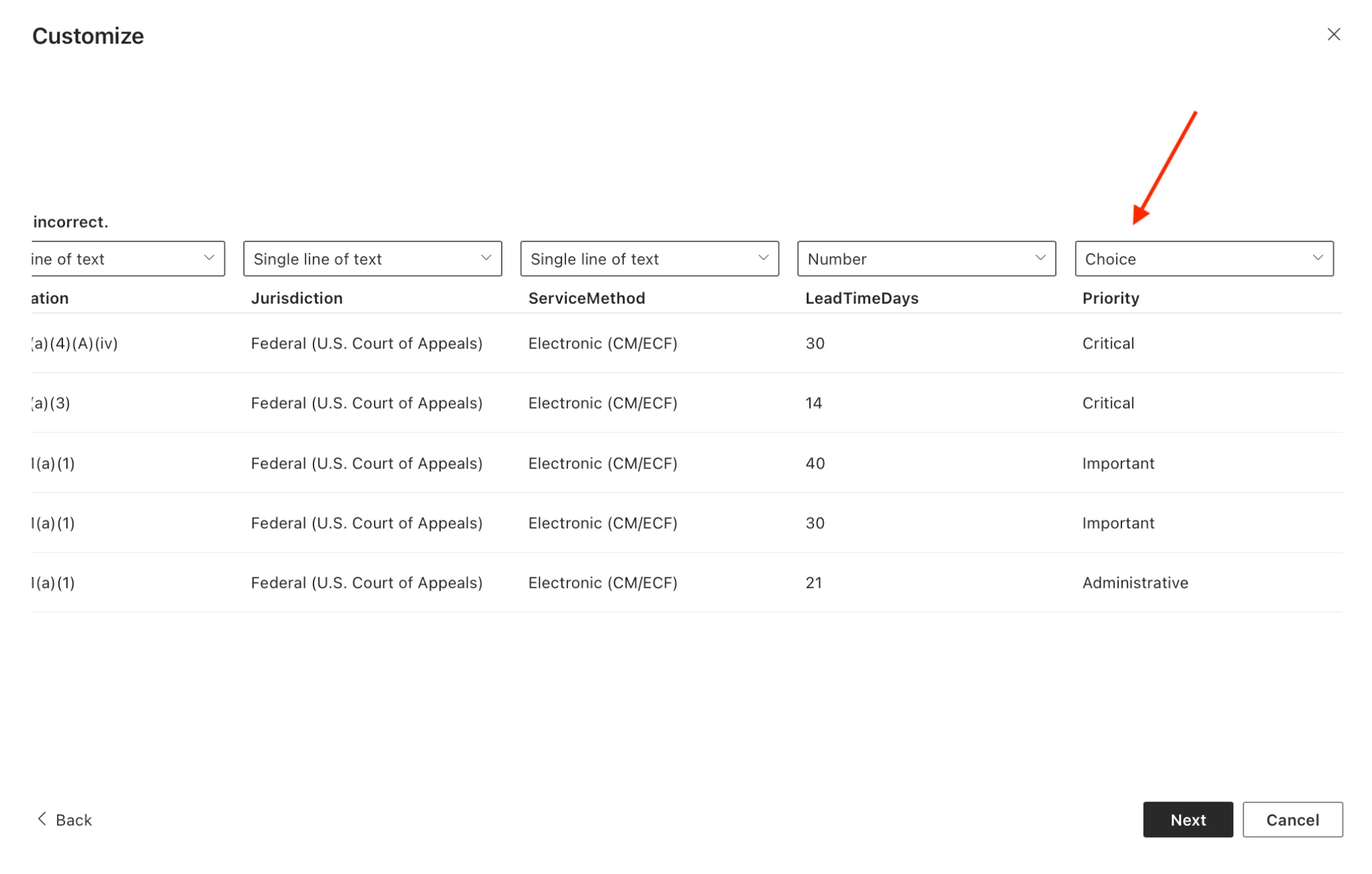
Screenshots — Setting column types on the SharePoint From Excel import: DueDate as Date and Time, Priority as Choice
Step 3 — Add the list to the Virto Calendar App
- In the Virto Calendar App, click Add new calendar icon.
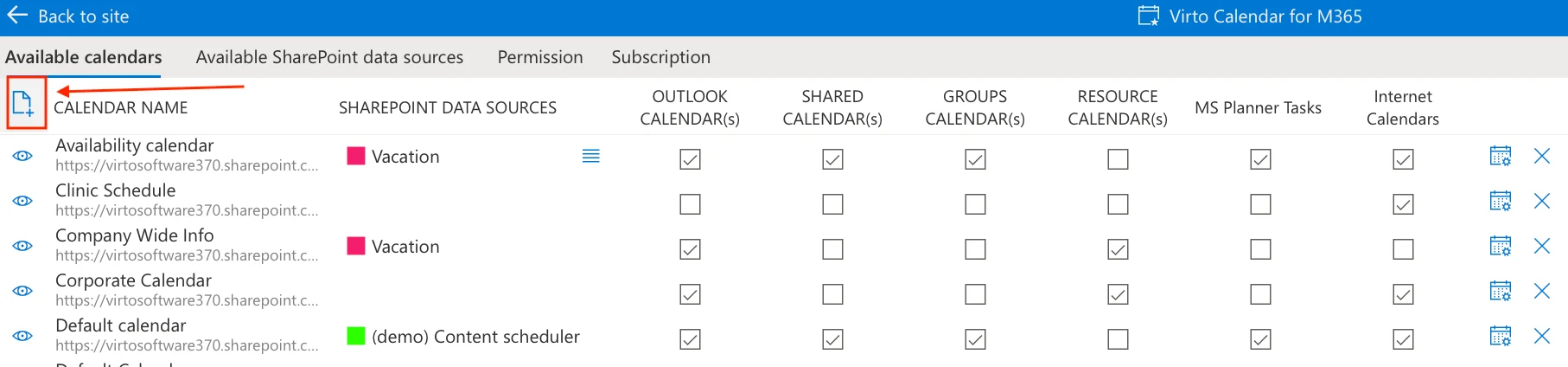
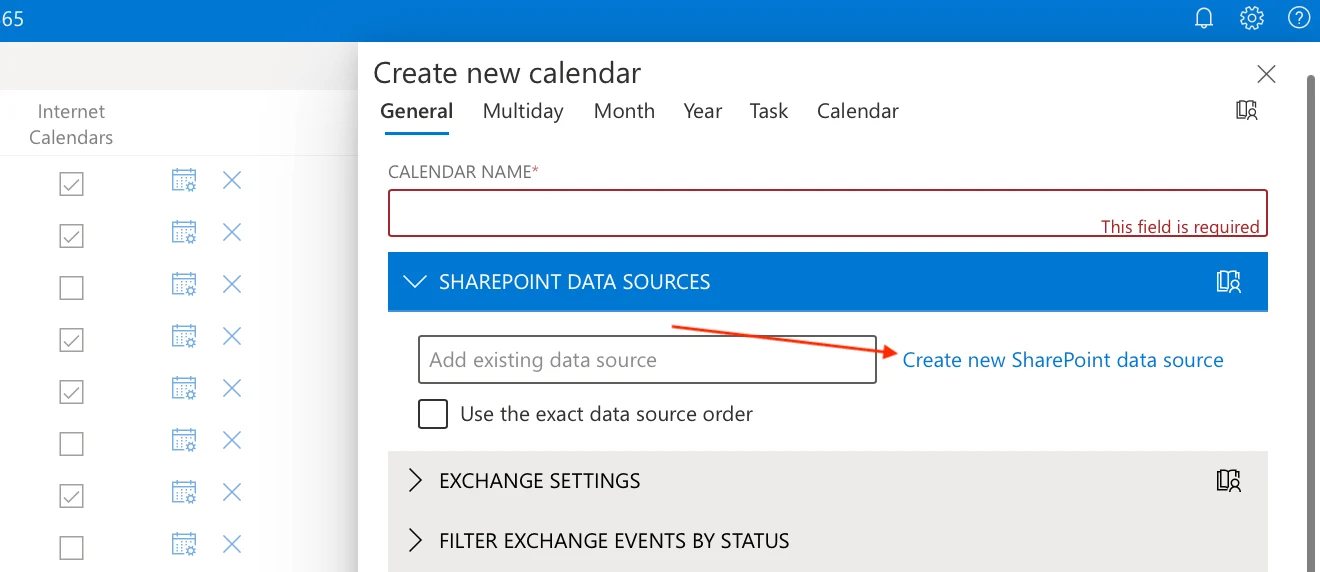
- In the Available calendars tab, choose Create new SharePoint data source.
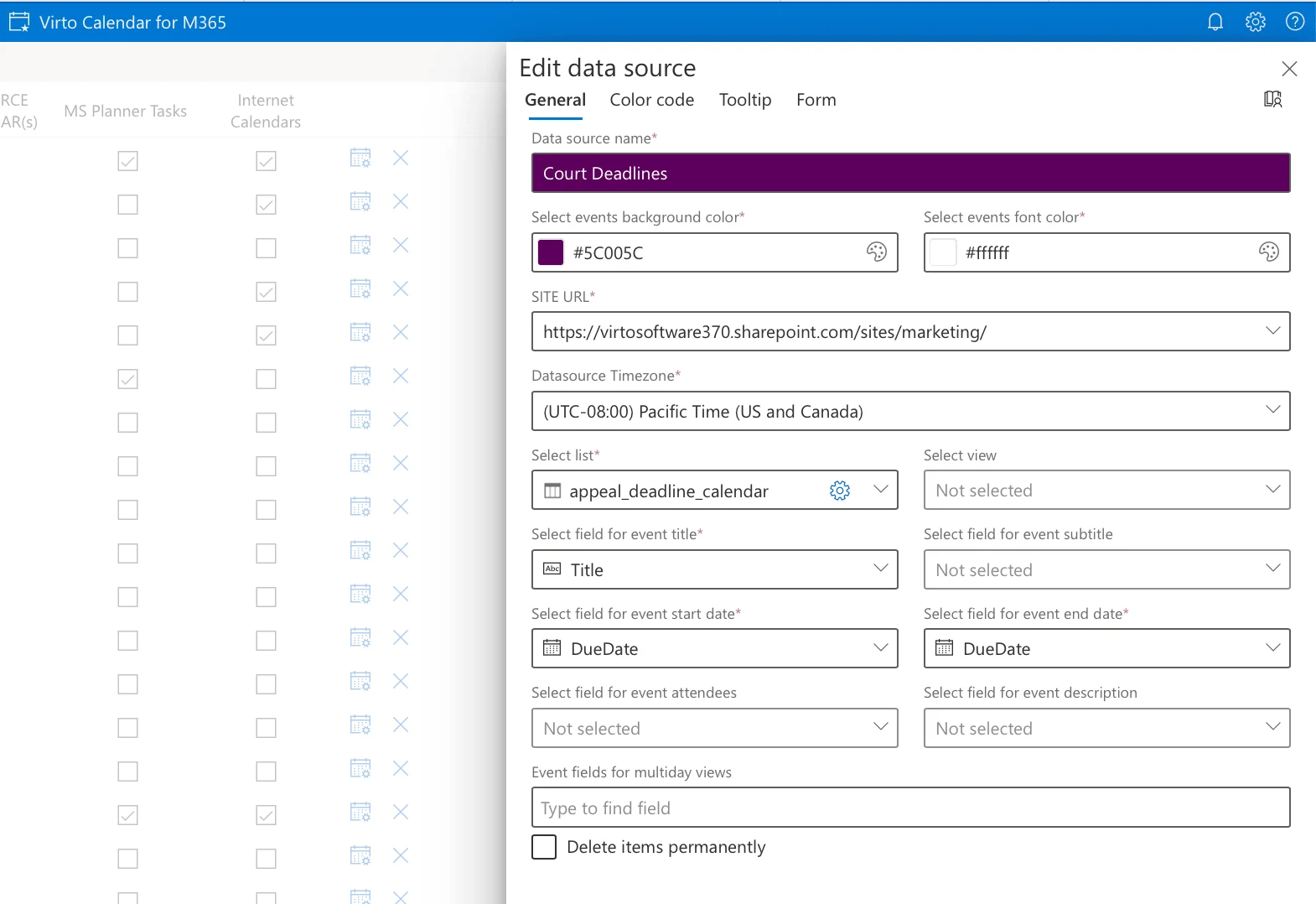
- Select your newly created SharePoint list and fill in Name, Site URL, and Time Zone.
- Map fields: Title (Title + RuleCitation), Start date and End date (DueDate), Color (Priority).
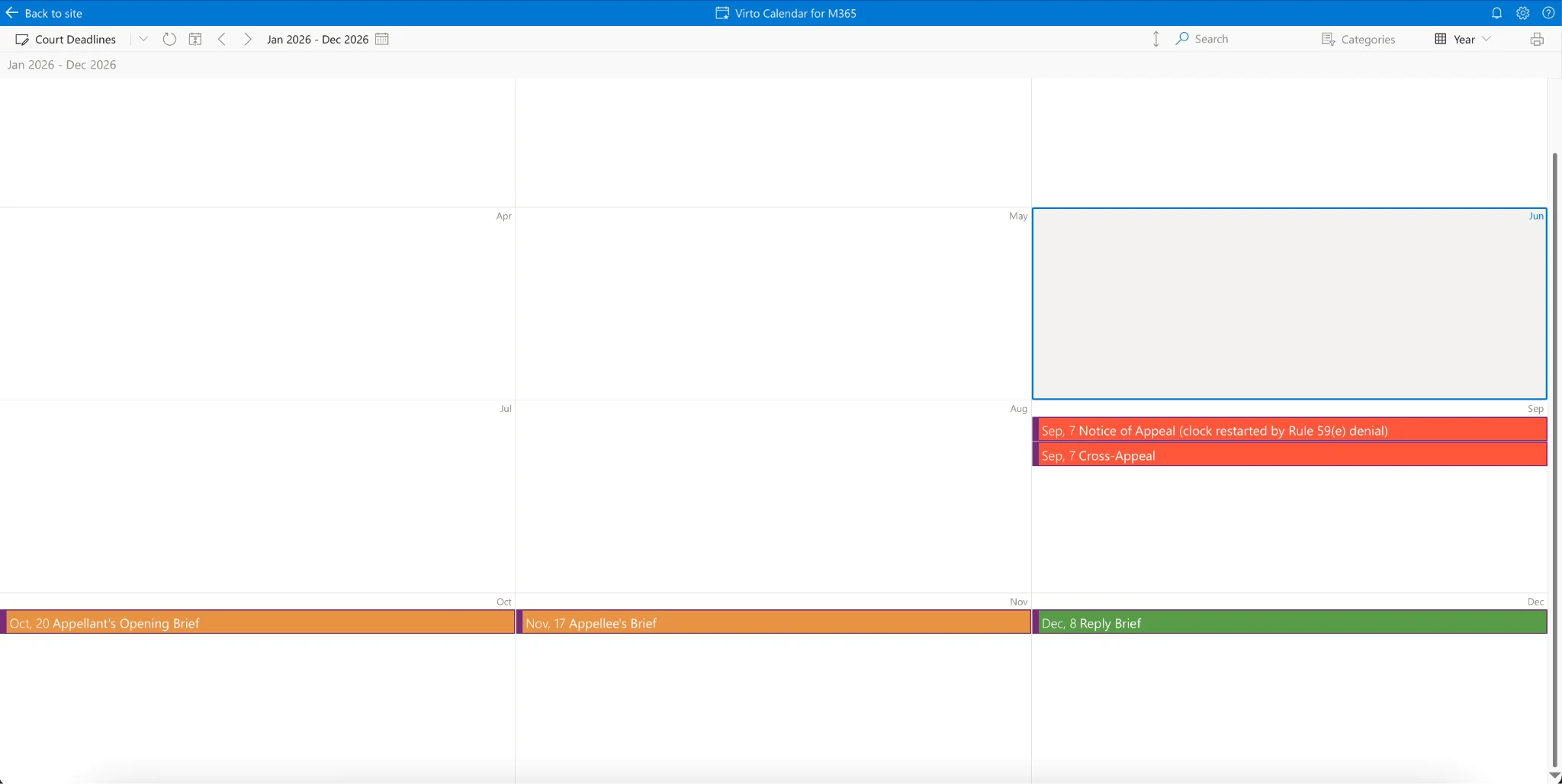
- Color code: red = Critical (jurisdictional), orange = Important (procedural), green = Administrative.
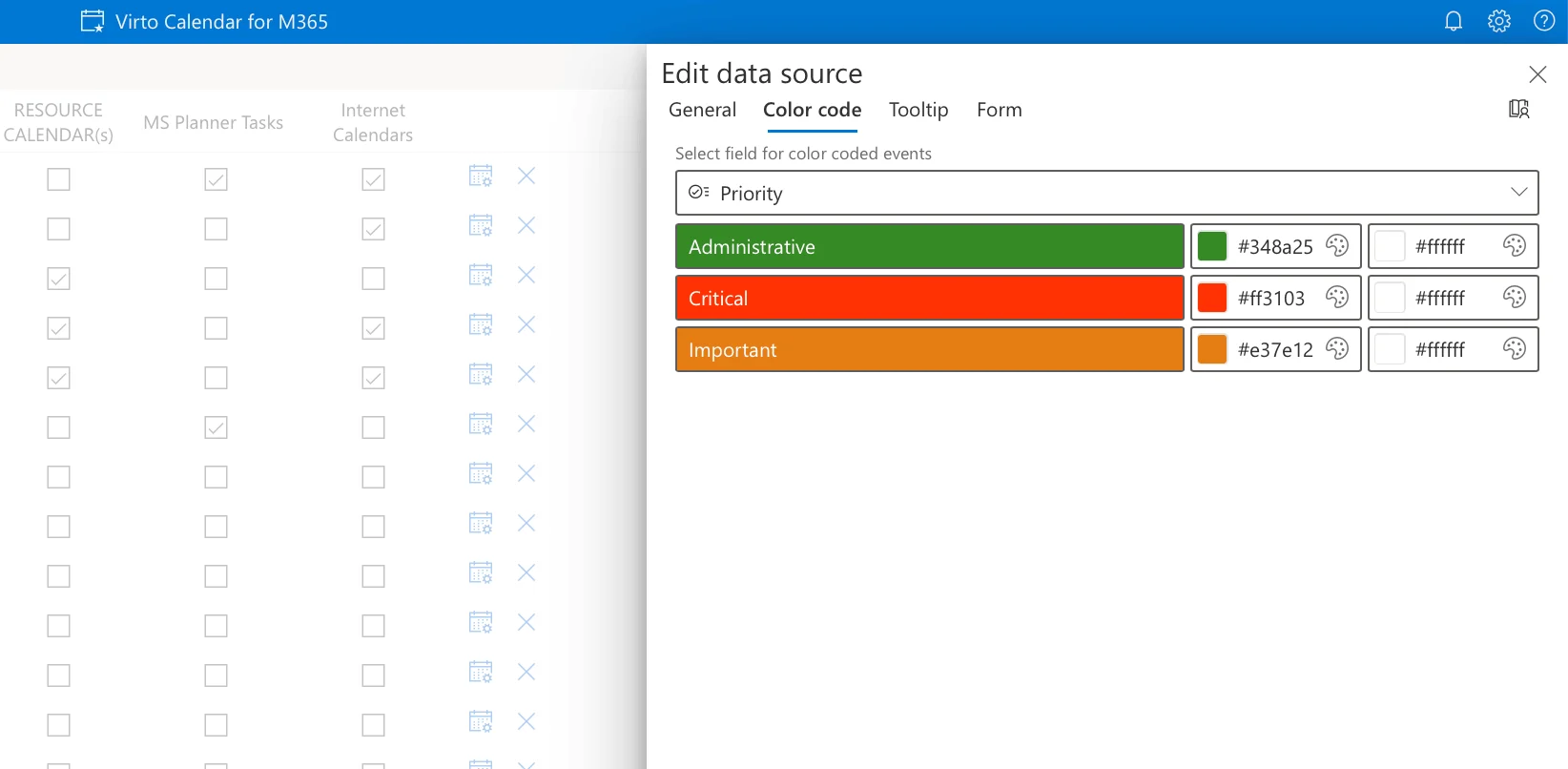
- Click Save — the deadlines render as a visual calendar accessible in SharePoint pages, Outlook, and Microsoft Teams.
Step 4 — Set lead-time reminders
This is where the Virto Calendar App + Virto Alerts & Reminders combination earns its keep for legal use:
- 30-day reminder for major deadlines (motion deadlines).
- 14-day reminder for response deadlines.
- 7-day reminder for filing deadlines.
- Day-of reminder via Teams notification and email.
Step 5 — Share with co-counsel
- Share the calendar view with co-counsel (read-only or edit).
- Embed it as a Teams tab for case-level visibility.
- Overlay multiple cases in one view, each case its own color.
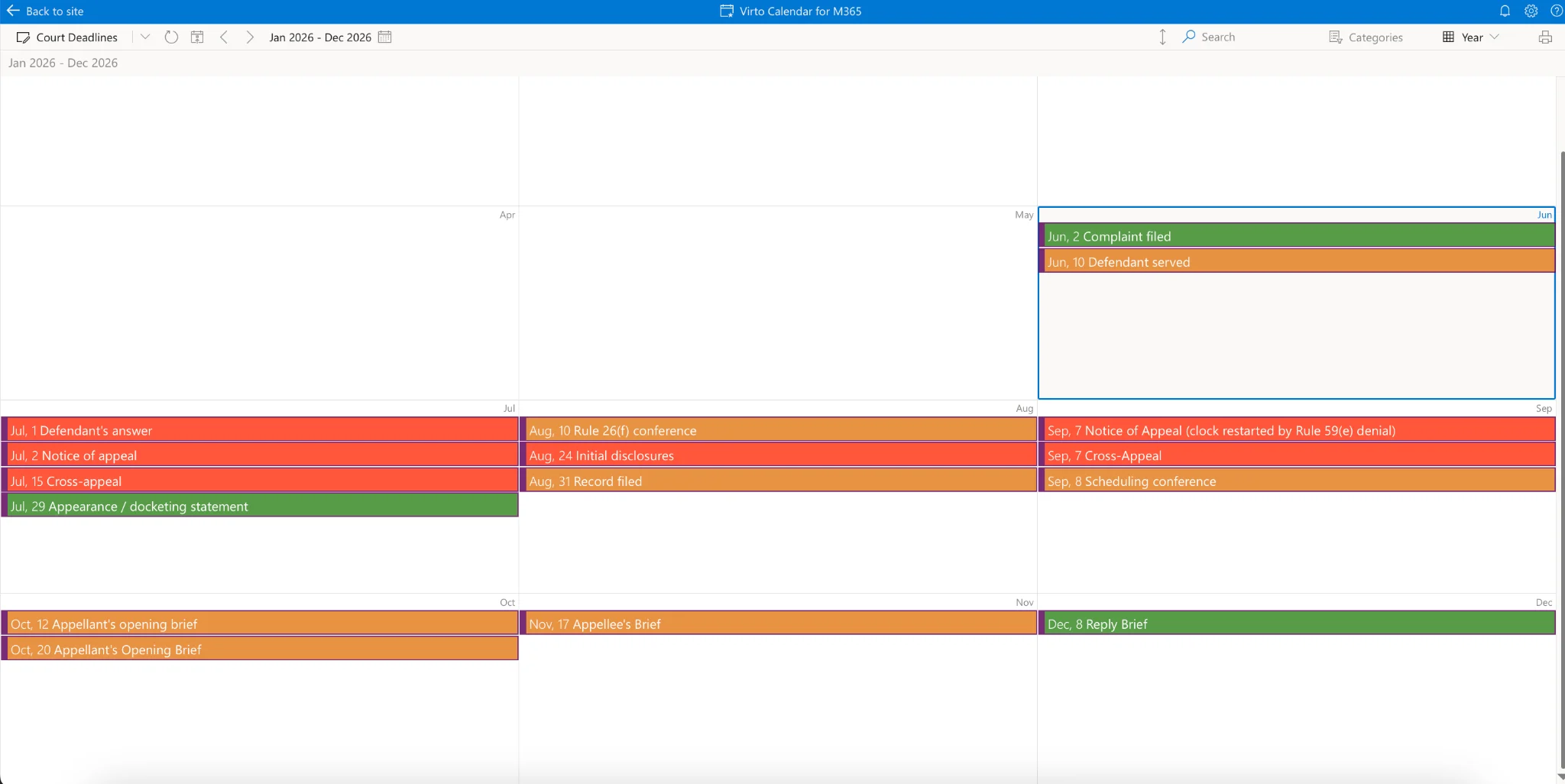
Screenshot — Multiple case calendars overlaid in a single Virto Calendar App view
Try the Virto Calendar App for SharePoint with a free 30-day trial. For a quick product reference, see our Court Calendar Calculator product page.
Deadline management for solo attorneys (no firm budget)
Solo practitioners face a unique problem: they need the same deadline accuracy as a 50-attorney firm but without the budget for CompuLaw or Aderant. Three options work.
Option 1 — Free AI + Google Calendar (lowest cost)
- Use ChatGPT, Claude, Copilot, or Gemini to calculate deadlines (prompts above).
- Ask the AI to export as an .xlsx workbook with DueDate formatted as Excel Date & Time.
- Import into Google Calendar (Settings → Import & Export — Google Calendar will read the .xlsx after a one-click Save As .ics, or paste the table directly).
- Set reminders on each event.
Cost: $0. Limitation: no easy sharing with co-counsel or staff.
Option 2 — Virto Shared Calendar (best for sharing)
If you need to share deadlines with a paralegal, co-counsel, or a client, Virto Shared Calendar is the cleanest free option:
- Free for up to 15 calendar entries per calendar (unlimited calendars).
- Anonymous-share link — your client can view without a Microsoft account.
- Color tags by case or deadline type.
- Works in Outlook, Teams, or as a standalone web app.
- Real-time sync across all your devices.
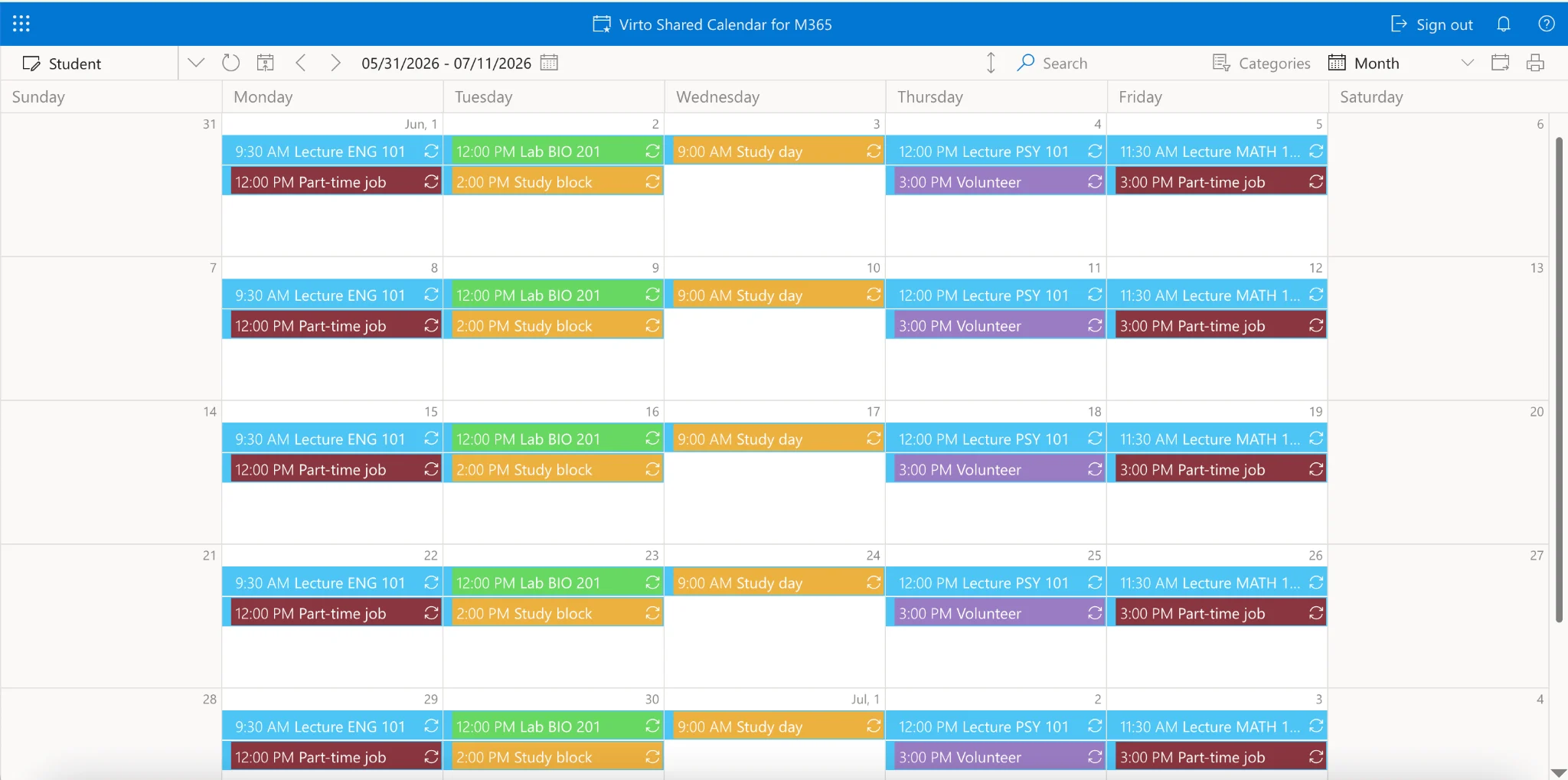
Screenshot — Virto Shared Calendar showing timetables and deadlines
Try Virto Shared Calendar (free — 15 entries).
Option 3 — Free third-party deadline calculators (verification)
For one-off deadline lookups, free calculators work well:
- terms.law FRCP calculator.
- courtdeadlines.com (Texas + federal).
- deadlinecalculator.com (general).
Use these to cross-check AI-generated deadlines. Never rely on a single source for a critical deadline.
Common court deadline mistakes (and how AI helps avoid them)
Five recurring deadline errors — and the AI prompt that catches each one before you do.
Mistake 1 — Counting the triggering day
FRCP Rule 6(a)(1)(A) excludes the day of the event. State rules usually mirror this, but it is the single most common counting error. Fix: “Confirm you excluded the triggering day from the count under FRCP Rule 6(a)(1)(A) and restate the result.”
Mistake 2 — Forgetting the service-method extension
Mail service adds 3 days under FRCP Rule 6(d); e-service does not. State analogues exist (CCP 1010.6 in California). Fix: “State the service method I named. If it requires an extension under FRCP 6(d) or the state analogue, add it and recompute.”
Mistake 3 — Wrong holiday list
Federal courts observe 11 OPM holidays; state and local courts add more. Fix: “Print the holiday list you applied. Confirm each holiday’s official observed date for the year in question.”
Mistake 4 — Missing the weekend roll-forward
If the last day falls on a Saturday, Sunday, or holiday, roll forward. Fix: “For each computed deadline, state the day of the week and roll forward to the next business day if needed per FRCP 6(a)(1)(C).”
Mistake 5 — Ignoring local rules and standing orders
Default federal and state rules are the floor, not the ceiling. Many courts impose tighter deadlines. Fix: paste the local rule or scheduling order text into the prompt and ask the AI to reconcile it with the default.
Frequently asked questions
Can AI calculate court deadlines accurately?
AI tools (ChatGPT, Claude, Copilot, Gemini) can calculate court deadlines with high accuracy when given clear prompts that specify the rule (FRCP Rule 6, CCP Section 12, state-specific), holiday exclusions, and service method. However, AI is not authoritative — it can occasionally hallucinate rule citations or miscount days. Always verify against rule text and local rules. AI assists; attorney judgment remains responsible.
What is the best free court deadline calculator?
For one-off calculations: terms.law and courtdeadlines.com are reliable free web calculators. For ongoing case management: Claude or ChatGPT + Microsoft 365 + Virto Calendar App gives you an integrated calendar of all your deadlines (the Virto Calendar App offers a free 30-day trial). Paid options like LawToolBox and CompuLaw add pre-built court-rule libraries at significant per-attorney cost.
How do I calculate FRCP deadlines?
Federal civil deadlines are governed by FRCP Rule 6. Five principles: (1) Exclude the day of the triggering event. (2) Count every calendar day, including weekends and holidays. (3) If the last day falls on a weekend or federal holiday, roll forward to the next business day. (4) Service by mail adds 3 days under FRCP 6(d). (5) Electronic service under FRCP 5(b)(2)(E) does NOT add 3 days. For complex multi-deadline cases, use Prompt 1 above.
How do California court deadlines differ from federal?
California civil deadlines are governed by CCP Section 12 and CRC Rules 1.10–1.11. Key differences from FRCP: (1) California excludes its own court holidays, not just federal holidays. (2) California has its own service-extension rules (CCP Section 1010.6 for electronic service). (3) Summary judgment timing is significantly different (75 days before hearing per CCP 437c). Always cite the California-specific rule, not the federal one. Prompt 2 above handles California specifically.
How can a solo attorney manage court deadlines without expensive software?
Three free options work for solos: (1) Free AI tools (ChatGPT, Claude) for calculation + Google Calendar for tracking. (2) Virto Shared Calendar (free — 15 entries per calendar, unlimited calendars) for sharing schedules with co-counsel and clients. (3) Free web calculators (terms.law, courtdeadlines.com) for one-off verification. For the lowest-cost integrated workflow: AI tool + Virto Shared Calendar + Google Calendar combined.
Does Microsoft 365 have a court deadline calculator?
Microsoft 365 does not ship with a court deadline calculator out of the box, but you can build one using: (1) Microsoft Copilot (free in M365) for AI-based calculation, (2) SharePoint lists for organizing case deadlines, (3) Virto Calendar App to visualize and overlay multiple case calendars, (4) Virto Alerts & Reminders App for automatic lead-time notifications. This combination delivers a workflow comparable to LawToolBox or Clio. The Virto Calendar App offers a free 30-day trial.
Where to go next
AI makes deadline calculation faster, but it does not change the standard of care. Build a workflow that drafts in AI, verifies against the rule, and stores in a calendar your whole team can see. Match the products to the firm:
| Audience | Recommended next step |
|---|---|
| Big-law firms (50+ attorneys) | Virto Calendar App for SharePoint — multi-attorney visibility, SharePoint-native compliance, free 30-day trial. |
| Mid-size firms (10–50 attorneys) | Virto Calendar App for Teams — Teams-native, easier rollout for distributed firms. |
| Solo attorneys and 2–5 person firms | Virto Shared Calendar — free for 15 entries per calendar, with anonymous client-share links. |
Ready to evaluate the integrated product? Visit our Court Calendar Calculator use-case page or read about legal workflow automation across the firm.
Final reminder
AI assists with calculation but does not replace attorney judgment. Always verify computed deadlines against the applicable court rules and local procedure. This article is educational, not legal advice.