
You set out of office, and colleagues still message you as if you were at your desk. Or you’re back, and Teams keeps showing you in purple. Both problems start in the same place: Teams doesn’t own your out-of-office status. It reads it from your Exchange mailbox. This guide matches each symptom to its cause and its fix, in the order that solves most cases fastest.
Quick answer: why is my out of office not showing in Teams? Teams shows Out of Office only while automatic replies are on, set in Teams or in Outlook, or while your calendar has an event set to Show as Out of Office. Check three things first: automatic replies are on, the dates include today, and the message box isn’t empty, because Teams needs a message to set the status. If your mailbox sits on your company’s own Exchange server, the status can take up to an hour to appear.
Quick answer: why is Teams stuck on Out of Office? Something in your mailbox still says you’re away: automatic replies that are still on, or an Out of Office event on your calendar. Turn the replies off in Outlook on the web, delete or change the event, then sign out of Teams and back in. If the status stays for days and your mailbox is on Exchange Server, it’s a job for your admin: Teams can’t reach the server.
Next question: who else is out this week? Your status tells people about you, one chat at a time. To see the whole team’s leave on one color-coded calendar in a Teams tab, add Virto Calendar App.
Find your symptom
| What you see | Most likely cause | Where to look |
|---|---|---|
| Colleagues get no out-of-office note when they message you | Automatic replies are off, have expired or have no message, a status message hides the note, or you only blocked your calendar | Colleagues don’t see your message |
| A contact in another company sees no note | People who reach you through external access never see it | The person is in another organization |
| Your status shows Available although out of office is scheduled | The period hasn’t started, you’re using Teams during it, or the mailbox is on Exchange Server | Your status shows Available |
| The purple status stays after you’re back | Automatic replies still on, or an Out of Office event on your calendar | Teams is stuck on Out of Office |
| Teams says you’re out of office, but you never set it | An event shown as Out of Office, or replies turned on by an admin | Teams is stuck on Out of Office |
| Outlook shows Away or Offline, Teams shows Out of Office | A known Microsoft issue | Outlook and Teams show different statuses |
| “We were not able to schedule out of office” when you select Save | Your mailbox is on Exchange Server | The save error |
How Teams decides you’re out of office
Teams sets Out of Office from two sources, and both live in your Exchange mailbox (Microsoft Learn: User presence in Teams):
- Automatic replies. You turn them on in Teams (Schedule out of office), in Outlook, in Outlook on the web or in the Teams mobile app. It’s one setting under different names: turn it on in Teams and Outlook shows automatic replies on, and the other way round. An admin can also turn it on for your mailbox.
- A calendar event set to Show as Out of Office. Teams shows you as out of office for as long as the event runs.
Only automatic replies carry a message (Microsoft Learn: outOfOfficeSettings). A calendar event turns your status purple, but a colleague who starts a chat with you sees no note. That single difference explains most “it’s not showing” cases.
What colleagues see in Teams:
- a purple circle with an arrow next to your name;
- Available, Out of Office, an open green check, when you’re out of office but still using Teams. Teams shows your live presence together with the out-of-office indicator, so this one is by design;
- your message, when they chat with you or open your profile card.
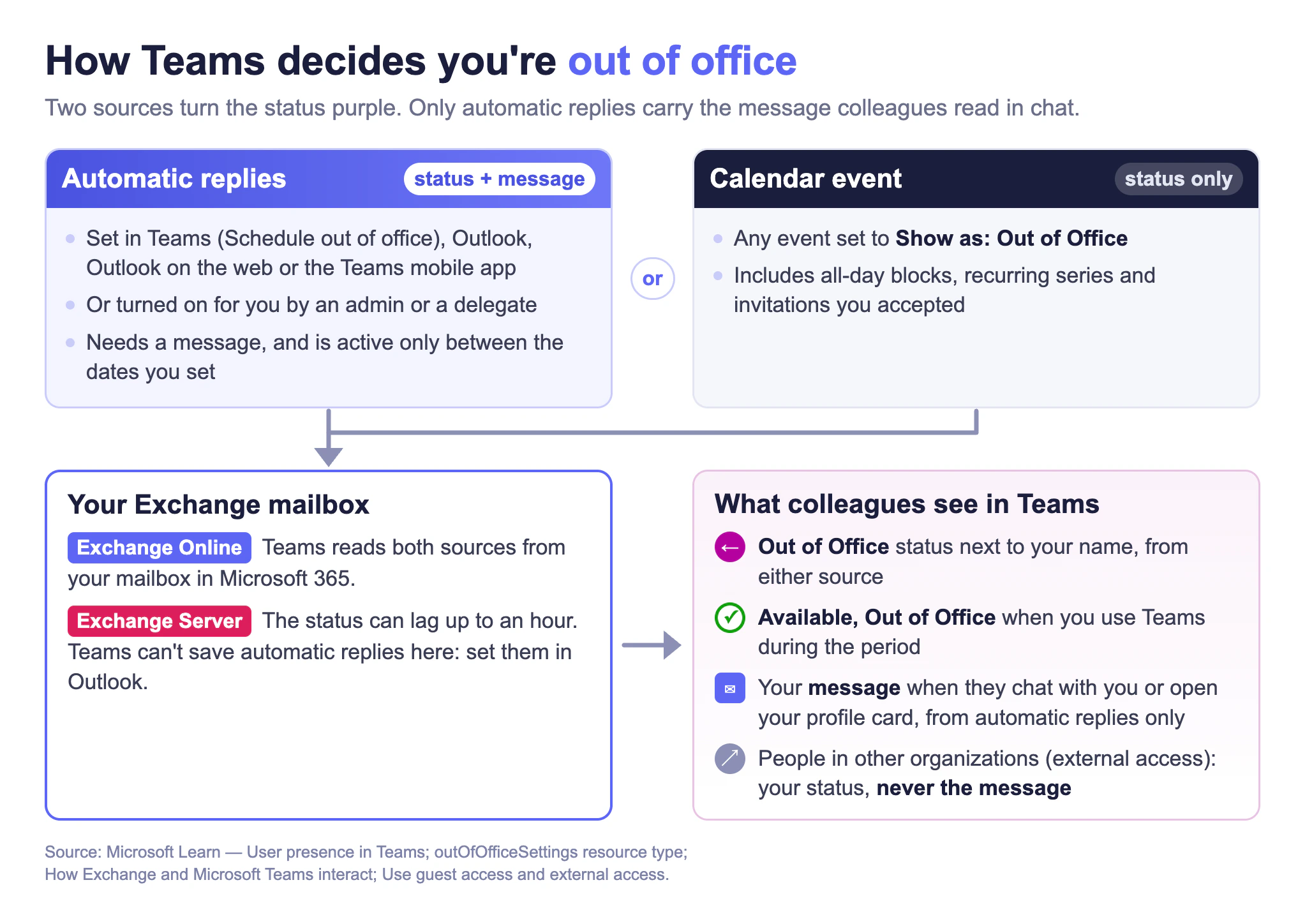
Fig. 1. How Teams decides you’re out of office, and what colleagues see
Colleagues don’t see your out-of-office message in chat
This is the “out of office pop-up” people search for: the note Teams shows when someone starts a chat with you. If it doesn’t appear, go through these causes in order.
Automatic replies are off, or the dates have passed
In Teams, select your profile picture > Set status message > Schedule out of office, or Settings and more (…) > Settings > General > Out of office > Schedule. Check that Turn on automatic replies is on. If Send replies only during a time period is checked, the note shows only between those dates and times: a period that starts tomorrow shows nothing today, and one that ended yesterday has switched itself off.
The message box is empty
Microsoft states that a message is required to set your status and sync it with Outlook (Microsoft Support: Schedule an out of office status in Microsoft Teams). A toggle that’s on above an empty box isn’t enough. Type a line, even a short one, and select Save.
You blocked your calendar, or a status message is set
An Out of Office event in your calendar turns the status purple but carries no message. A status message (Set status message) is a separate note and doesn’t set Out of Office at all. It also hides your note: while a status message is set, Teams doesn’t show your automatic out-of-office reply (Microsoft Support: Set your status message in Microsoft Teams). Clear the status message, keep automatic replies on, and your note appears again.
The person is in another organization
Teams has two ways to work with people outside your company, and they behave differently here. A guest in your organization sees your out-of-office message. A contact from another company who chats with you through external access doesn’t: Microsoft lists “see the out-of-office message of someone in another organization” as unavailable for external access (Microsoft Learn: Use guest access and external access). That contact may still see your status, unless your admin limits presence sharing. For people outside, the reliable channel is email: in the out-of-office dialog, select Send replies outside my organization.
Only one colleague doesn’t see it
If everyone else sees your note and one person doesn’t, look on their side. Ask them to sign out of Teams and back in, which makes Teams reload the information it has cached about other people.
Your status shows Available while out of office is scheduled
The period hasn’t started yet
A scheduled out of office starts at the time you set, not when you save it. Check the start date and time. If you travel, check that the time zone in Outlook matches where you are, so the period starts when you expect.
You’re using Teams during the period
Available, Out of Office is what Teams shows when you’re out of office and active in Teams at the same moment. Colleagues see both your presence and the out-of-office indicator, and your message still appears when they chat with you. Nothing is broken.
Your mailbox is on Exchange Server
If your company keeps mailboxes on its own Exchange servers, an on-premises or hybrid setup, Microsoft says a delay of up to an hour is expected before Teams shows the change. Wait that hour before you try anything else. Such mailboxes also can’t schedule out of office from Teams at all: see the section on the “We were not able to schedule” error below.
Teams is stuck on Out of Office after you’re back
Work through these steps in order, and check your status after each one.
- Turn off automatic replies in Outlook on the web. Go to outlook.office.com > Settings > Account > Automatic replies, turn the toggle off and save. Automatic replies are a rule stored in your mailbox, not in an app (Microsoft Learn: Understanding and troubleshooting OOF replies), so switching them off here changes the one setting every app reads. In classic Outlook the same setting is File > Automatic Replies > Do not send automatic replies.
- Find the Out of Office event. Open your calendar on today’s date. An all-day event, a recurring series or an invitation you accepted may be set to Show as: Out of Office. Delete it, or change it to Busy or Free.
- Sign out of Teams and back in. Teams then fetches your status again.
- Clear the Teams cache. Microsoft treats this as a targeted step for problems in the local app, not a first step for everything (Microsoft Learn: Clear the Teams client cache). In new Teams for Windows: Settings > Apps > Installed apps > Microsoft Teams > More options (…) > Advanced options > Reset. The full steps for Windows and Mac are in Fix 1 of our guide to “Teams is unable to access your calendar”. The first start afterwards takes longer.
- If you never set it yourself. An admin can turn on automatic replies for your mailbox from the Microsoft 365 admin center (Microsoft Learn: How to set automatic replies on a user’s mailbox). If step 1 shows replies you didn’t write, ask your IT team who set them and whether they can go.
When the mailbox is on Exchange Server
Microsoft documents this exact case: automatic replies are off in Outlook, yet Teams shows Out of Office to everyone in the organization, sometimes for days (Microsoft Learn: Resolve interaction issues between Teams and Exchange Server). For these mailboxes Teams reads presence through the Exchange REST API, and it doesn’t fall back to Exchange Web Services (EWS) when that API can’t be reached. What your admin checks:
- that the server’s REST API is published to the internet: the EWS address with
/apiin place of/EWS/Exchange.asmxshould answer 401 from outside the company network; - that EWS isn’t turned off for the organization or for your mailbox (
EwsEnabledisn’t set to False); - that, if the organization uses an EWS allow list,
*Microsoft.Skype.Presence.App/*is on it.
Outlook and Teams show different statuses
Microsoft lists these as known issues, so there’s nothing to repair on your computer (Microsoft Learn: User presence status issues in Outlook):
- When you set automatic replies in Outlook, colleagues see you as Away or Offline in Outlook and as Out of Office in Teams.
- The 32-bit version of Outlook doesn’t show the out-of-office presence icons at all.
- Outlook shows Status unknown for Teams contacts from other organizations.
So when the two apps disagree, check Teams. If your status is wrong in Teams itself, go back to the sections above.
“We were not able to schedule out of office” when you save in Teams
The full message reads: “We were not able to schedule out of office, try again by clicking save.” The usual cause is where your mailbox lives. Microsoft says that setting out of office from the Teams app isn’t supported for users whose mailboxes are hosted on-premises; they set it in Outlook instead (Microsoft Learn: How Exchange and Microsoft Teams interact). So:
- Set automatic replies in Outlook or in Outlook on the web.
- Give Teams time: it shows the status once Exchange passes it on, which can take up to an hour for these mailboxes.
Not sure where your mailbox lives? Your IT team knows. If it’s in Exchange Online and the error still appears, set the replies in Outlook on the web for now and try Teams on the web at teams.microsoft.com. If the web app saves and the desktop app doesn’t, sign out and clear the cache as in step 4 above. If neither saves, ask your admin to run the Teams Exchange Integration test below.
Still not fixed: tests your admin can run
Microsoft offers free tests for exactly these problems. They change nothing in your tenant; they report what fails and link to the fix.
| Test | Who can run it | What it checks |
|---|---|---|
| Teams Presence Based on Calendar Events (Microsoft Remote Connectivity Analyzer) | Anyone, signed in as the affected user | Whether Teams can update presence from Outlook calendar events |
| Teams Exchange Integration (same tool) | Anyone, signed in as the affected user | Whether Teams can work with the mailbox. In a hybrid setup, run it once for a cloud mailbox and once for an on-premises one |
| Teams Presence diagnostic (Microsoft 365 admin center) | Admins | Whether the user’s presence can be displayed correctly |
The Remote Connectivity Analyzer isn’t available in the GCC and GCC High government clouds, and the admin center diagnostics aren’t available in some government clouds or in Microsoft 365 operated by 21Vianet (Microsoft Learn: Self-help diagnostics for Teams administrators). If the tests pass and the status is still wrong, open a request with Microsoft Support and include the user’s sign-in address, the time in UTC when the problem happened and the Teams debug logs.
Who else is out this week?
Your out-of-office status answers one question about one person: are you here? Planning a team needs other answers: who is away next week, whose vacations overlap, who covers for whom. Nobody plans that by hovering over avatars.
Virto Calendar App for Microsoft Teams puts those answers on one calendar in a Teams channel tab. Keep leave in a SharePoint list or a shared calendar, and the app shows it next to the team’s Outlook and group calendars, each source in its own color. Events stay in their sources in your Microsoft 365 tenant, and a change made in the calendar goes back to Outlook or SharePoint. For a ready setup, see the employee vacation tracker: approved leave next to the public holidays of every country your team works in.
What it doesn’t do, so you know before you try it:
- It doesn’t set anyone’s Teams status and doesn’t send automatic replies. Keep using out of office for that.
- There’s no separate mobile app: on a phone, the calendar opens in the Teams mobile app or in a browser.
- There’s no free plan. You get a 30-day free trial from Microsoft Marketplace.
Start the 30-day trial on Microsoft Marketplace or book a demo.
Use cases: see who is out at a glance
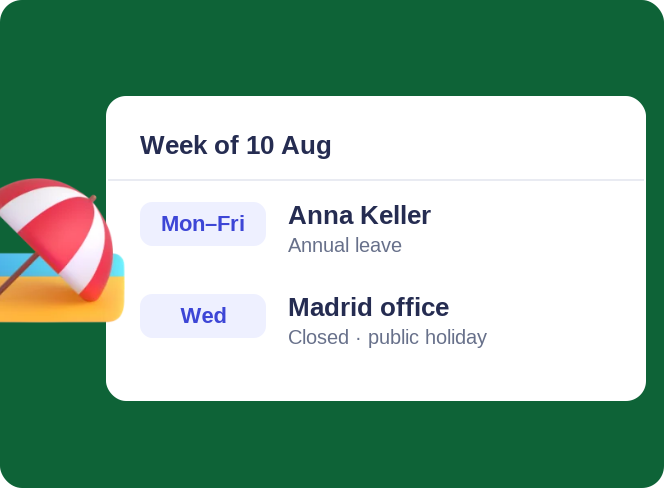
Employee Vacation Tracker
Team absences in Virto Calendar App: who is out each day, time-off requests approved in the calendar, warnings when too many people are away, and each person's annual allowance, in a SharePoint list on your site.
Learn more about Employee Vacation Tracker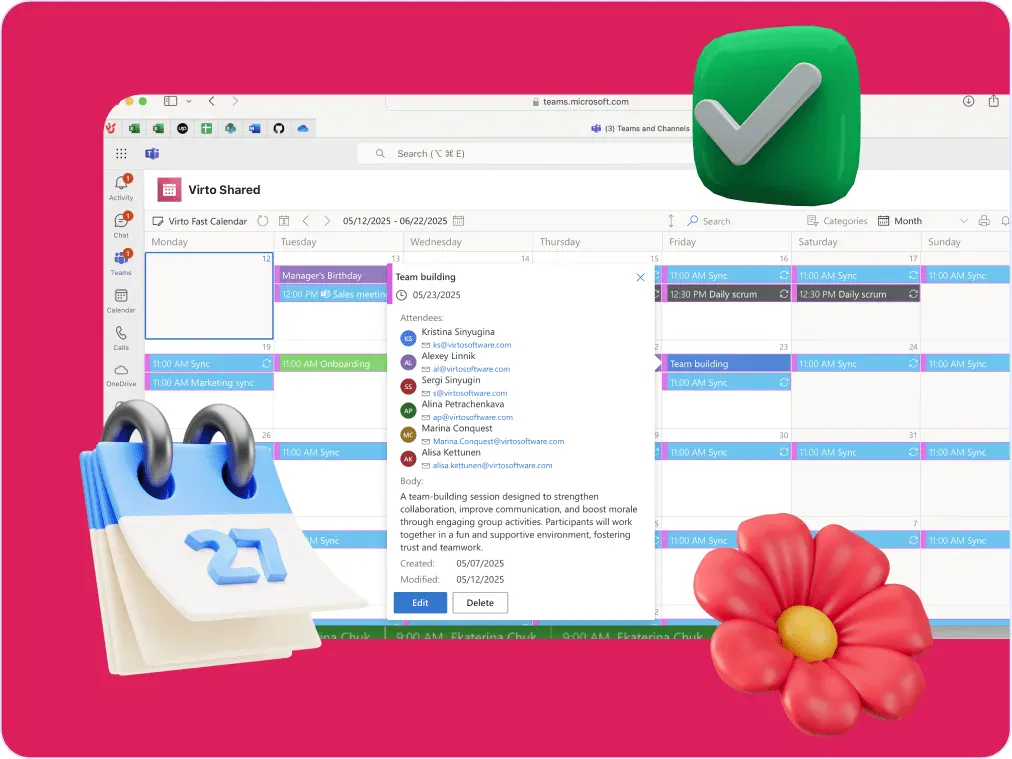
Attendance Management Software
See who is in and who is away: Virto Calendar App puts shifts, leave and absences from every department on one Microsoft 365 calendar. Attendance itself is recorded in your HR or time system.
Learn more about Attendance Management Software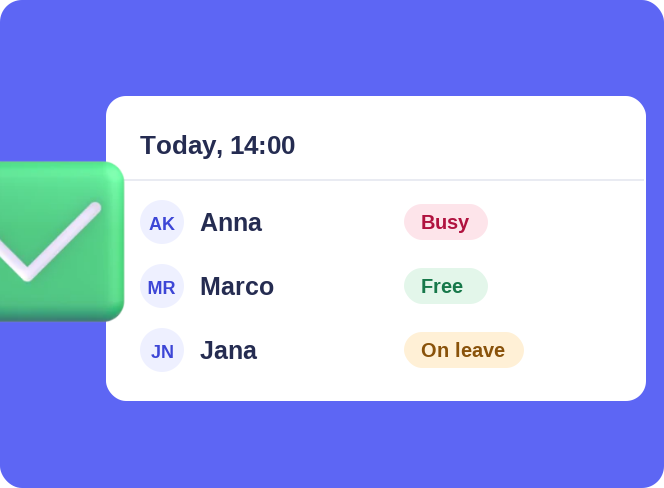
Availability Calendar
Virto Calendar App draws every team member's calendar in one Outlook view — busy time, vacations and shared meetings, under the permissions each source already has.
Learn more about Availability CalendarFAQ
Why does Teams show me out of office when I’m not?
Something in your mailbox says you are: automatic replies that are still on (set in Outlook, in Teams or by an admin), or a calendar event set to Show as Out of Office that covers the current time, including an invitation you accepted. Turn the replies off in Outlook on the web, change or delete the event, then sign out of Teams and back in.
Why do I show out of office on Teams but not Outlook?
It’s a known Microsoft issue: when automatic replies are set in Outlook, colleagues see you as Away or Offline in Outlook and as Out of Office in Teams. The 32-bit version of Outlook doesn’t show out-of-office icons at all. Your status in Teams is the one to check.
How long does it take for out of office to show in Teams?
For mailboxes on Exchange Server, Microsoft says a delay of up to an hour is expected. For Exchange Online mailboxes, Microsoft gives no figure. If nothing has changed after an hour, check that automatic replies are on, that the dates include now and that the message isn’t empty.
Can people outside my organization see my out of office in Teams?
Guests in your organization can. People from other companies who chat with you through external access can see your status, unless your admin limits presence sharing, but never your out-of-office message. To reach them, select Send replies outside my organization: they get your reply by email.
How do I turn off out of office in Teams if the toggle doesn’t work?
Turn off automatic replies in Outlook on the web (Settings > Account > Automatic replies), delete or change any Out of Office event that covers today, then sign out of Teams and back in. If your mailbox is on Exchange Server, use Outlook: Teams can’t change out of office for those mailboxes.
Conclusion
Teams shows out of office only when your mailbox says so: automatic replies with a message and current dates, or a calendar event shown as Out of Office. When the status is missing, check those things first, and clear any status message that hides your note. When it won’t go away, turn the replies off in Outlook on the web and remove the event. A mailbox on Exchange Server explains the hour-long delay, the stuck status and the save error, and the fixes there belong to your admin.
For the setup steps themselves, see how to set out of office in Microsoft Teams and how to set out of office in Outlook. If the Teams calendar itself doesn’t match Outlook, see Outlook and Teams calendars not syncing.