



Quick answer: A Teams channel calendar is a dedicated calendar tab you add to any Teams channel. It is separate from your personal Outlook calendar and only visible to channel members. To add one: click + in the channel → search “Channel Calendar” → name it and save. Events created here appear in the associated Microsoft 365 Group calendar in Outlook (one-way sync, Teams → Outlook).
Microsoft Teams blends communication, file sharing, and scheduling into one workspace, and the channel calendar is the tool that keeps project-specific events visible to exactly the people who need them. A channel calendar lives inside a single channel, is visible only to that channel’s members, and is distinct from both your personal Outlook calendar and the wider Microsoft 365 Group calendar. (For a broader explanation of how channels themselves work, see our dedicated Teams channels guide.)
This guide covers what a channel calendar is, how to add one, how to connect it to Outlook, how to get a monthly overview of events (and why there is no native month view), how it differs from a group calendar, its limitations, and when a third-party app such as Virto Calendar is the better fit. It reflects the January 2025 “new Teams calendar” experience — a unified Teams/Outlook interface with multi-day view, multi-time-zone support, and Copilot scheduling — and the current 2026 interface.
What is a Teams channel calendar?
A native channel calendar is a dedicated calendar tab added directly to a Teams channel. Events created in it post to the channel’s activity feed, support recurring meetings and RSVP tracking, and benefit from the new Teams calendar experience (multi-day view, multi-time-zone support, Copilot). Note that it offers Day, Work week, and Week views only — there is no native month view.
It differs from the two other calendars you encounter in Teams:
- Personal calendar — your own Outlook-synced calendar, visible only to you.
- Group (Microsoft 365 Group) calendar — broader, managed through Outlook, with full two-way sync, suited to all-hands or department-wide events.
- Channel calendar — scoped to one channel, visible only to channel members, managed inside Teams, with one-way sync to Outlook.
👉 Channel calendars are not enabled by default — you must add the Channel Calendar app to each channel.
How to add a channel calendar in Microsoft Teams
TL;DR: Open the channel, click the + tab, search for the Channel Calendar app, give it a name, and Save. Access follows channel membership automatically.
Follow these steps to create and configure a calendar in a Teams channel:
Navigate to the channel. Open Microsoft Teams and go to the team and channel where you want the calendar.
Add the “Channel Calendar” tab. Click the “+” (plus sign) at the top of the channel to add a new tab.
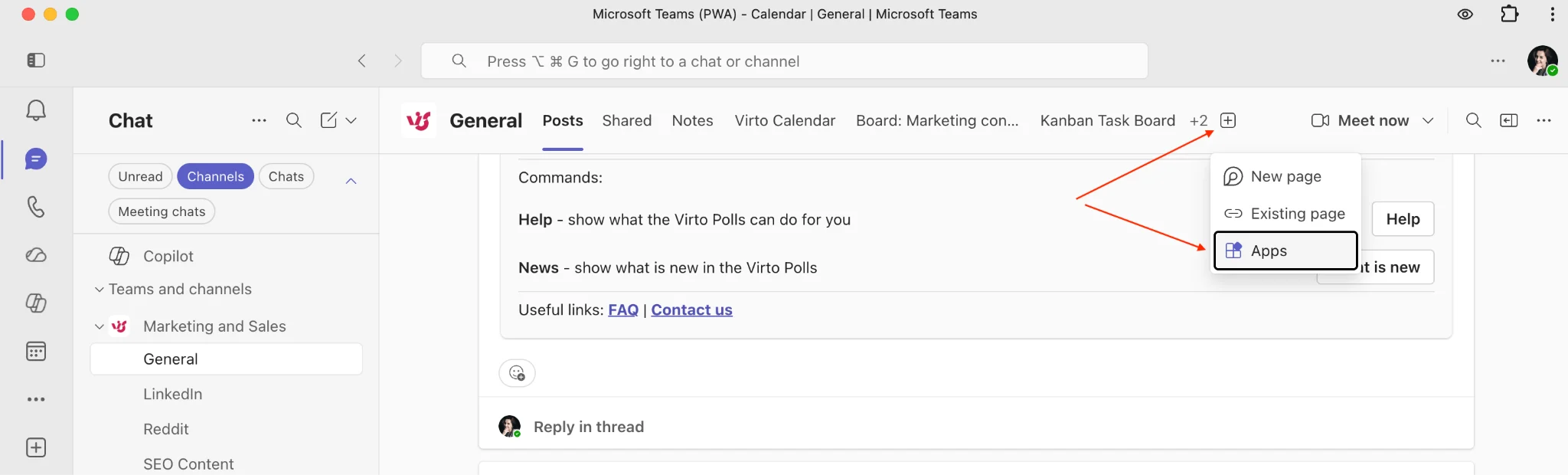
Pic. 1. Navigating to the “+” tab in your Teams channel.
- Select “Channel Calendar.” Search for and choose the Channel Calendar app.
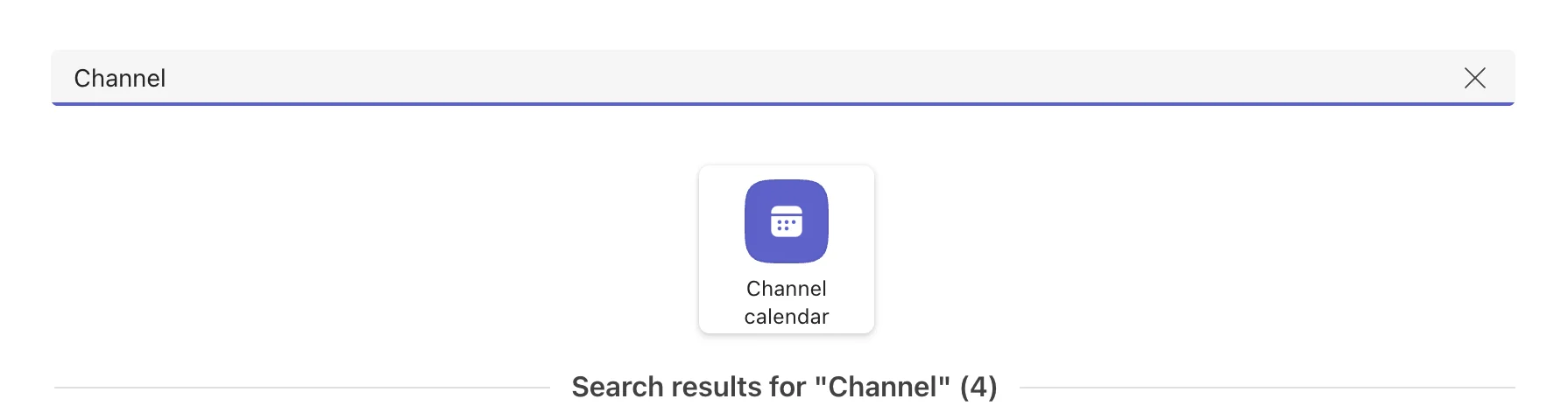
Pic. 2. Locating the “Channel Calendar” app.
- Name and save. Give the calendar a clear, descriptive name (e.g. “Marketing Calendar”) and click “Save.”
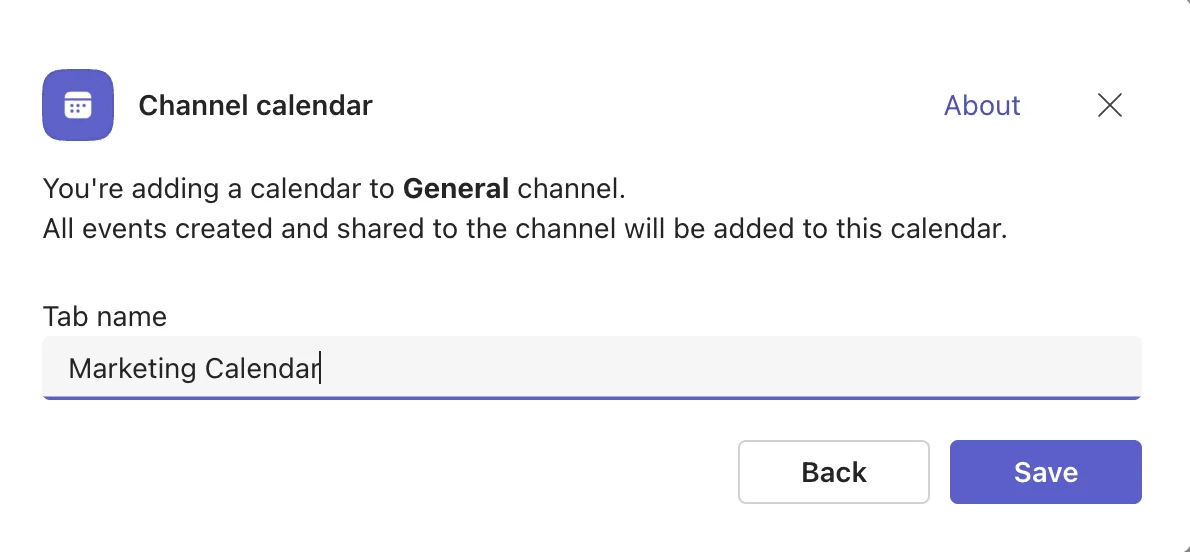
Pic. 3. Naming your channel calendar.
Permissions and storage
Access is tied to channel membership — there are no separate calendar permissions in the admin center. Standard channels are open to all team members; private and shared channels are limited to their respective members. The calendar itself is stored in the group mailbox of the Microsoft 365 Group behind the team; all channel meetings live in one calendar folder, and the app filters the view per channel.
👉 Private channels lack a group mailbox, so native channel calendars are not supported there. Workaround: create a calendar on the connected SharePoint site, then embed its URL via a “Website” tab in the private channel.
How to connect a Teams channel calendar to Outlook
TL;DR: A channel calendar syncs to Outlook through its Microsoft 365 Group — one-way only (Teams → Outlook). An admin must first unhide the group mailbox with PowerShell; users then add the group calendar in Outlook via Add Calendar → From Directory.
Events created in a Teams channel calendar appear in the associated Microsoft 365 Group calendar in Outlook. This is a one-way sync: changes made in Outlook do not flow back to Teams. All channel calendars in a single team aggregate into one Group calendar — you cannot maintain separate Outlook calendars per channel.
Step 1 — Admin: unhide the group mailbox (PowerShell)
Teams group mailboxes are hidden from Outlook by default. An administrator runs the following command, replacing “Group Name” with the actual Microsoft 365 Group name:
Set-UnifiedGroup -Identity "Group Name" -HiddenFromExchangeClientsEnabled:$False
Step 2 — User: add the calendar in Outlook
- In Outlook, go to Calendar → Add Calendar → From Directory.
- Locate and select the Microsoft 365 Group associated with your Team.
- The group calendar now appears alongside your other calendars and reflects channel events.
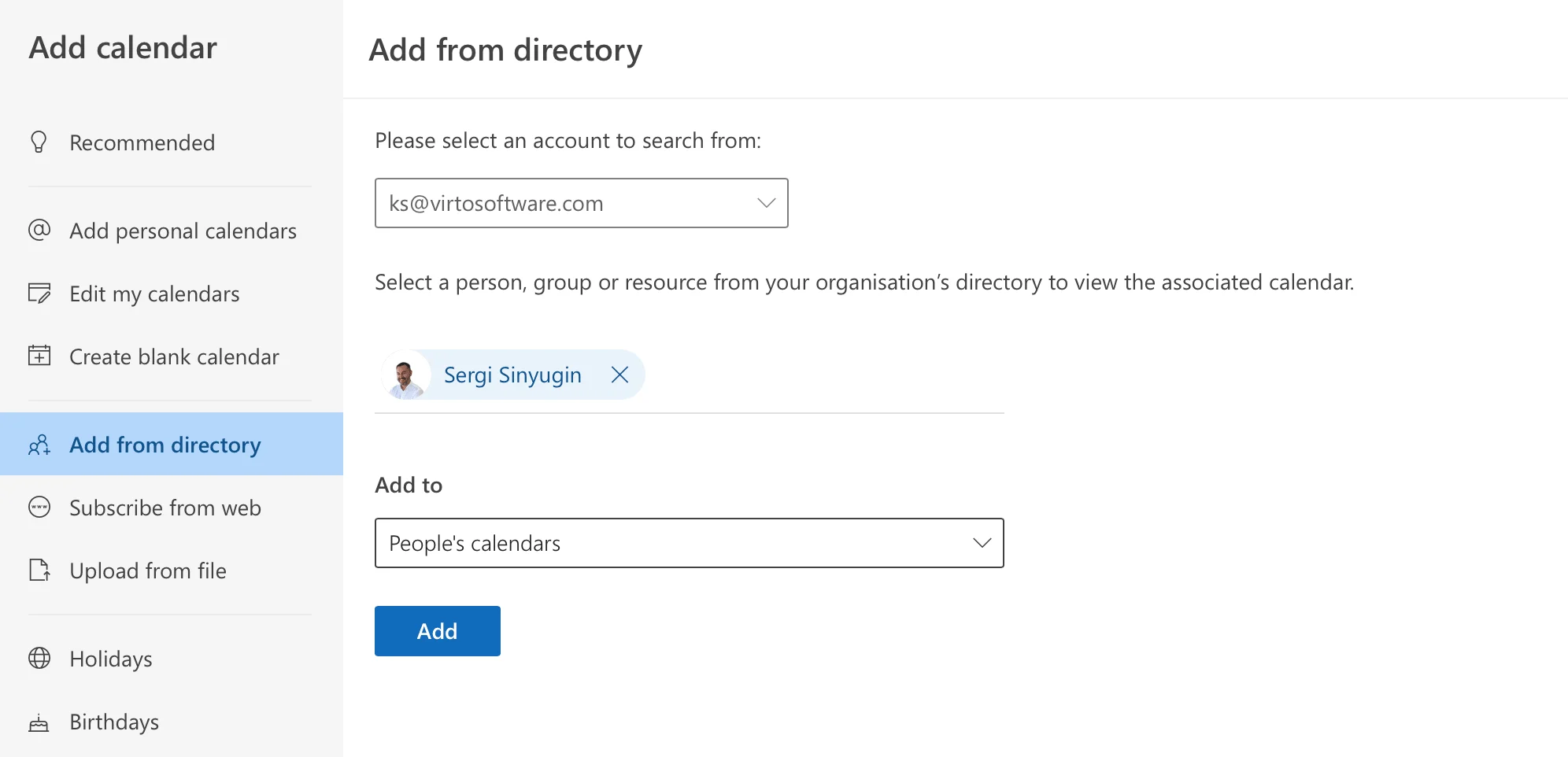
Pic. 4. Adding a Microsoft 365 Group calendar from the directory in Outlook.
Sync limitations
- One-way only: Outlook reflects Teams events, but edits in Outlook do not sync back to Teams.
- Aggregated: all channel calendars in a team map to a single Group calendar in Outlook.
- No native two-way sync: for true two-way sync, color-coding, or external calendars, a third-party app such as Virto Calendar is required.
Is there a month view in the Teams channel calendar?
Short answer: No. As of June 2026, the native Teams channel calendar does not have a month view. The view selector only offers Day, Work week, and Week. Month view remains one of the most-requested features and is still on Microsoft’s backlog — so if you came here looking for a “Month” button, you are not missing a setting; it does not exist yet.
If you need to see channel events laid out by month, use one of these workarounds:
- Outlook: connect the channel calendar to Outlook through its Microsoft 365 Group (see the section above), then use Outlook’s month view to see all channel events at a glance.
- Planner tab: add a Planner tab to the channel for a schedule/month-style overview of tasks and deadlines.
- Virto Calendar App: add a Virto Calendar tab to get a true Month view (plus Year, Flat Year, Task, and multi-source views) directly inside the channel — no switching to Outlook required.
👉 Tip: you can upvote month view on Microsoft’s feedback portal, but there is no confirmed release date. For now, the workarounds above are the only way to get a monthly overview of channel events.
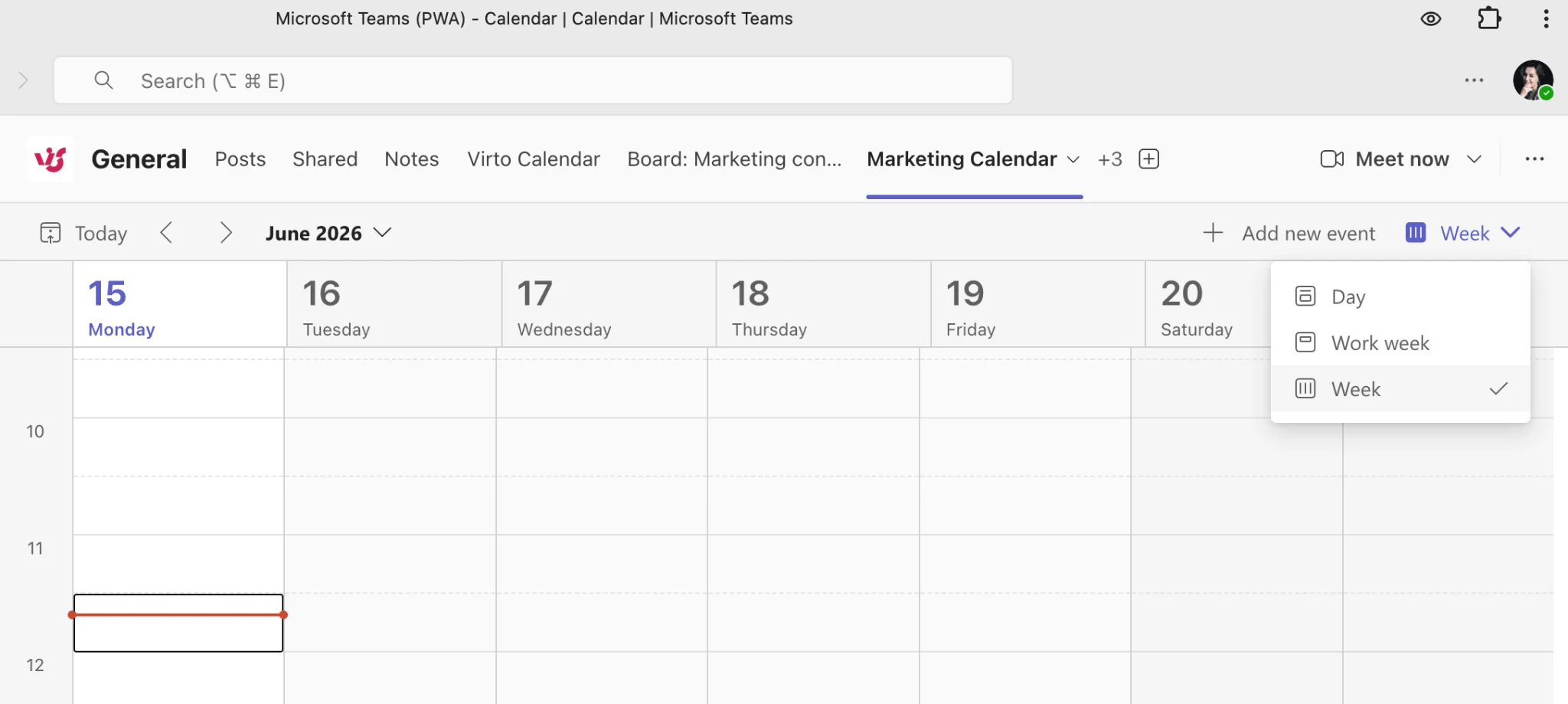
Pic. 5. Teams channel calendar view selector with Day, Work week, and Week only — no month view.
Channel calendar vs group calendar: what’s the difference?
Both manage events, but they differ in scope, access, and Outlook integration. A channel calendar is project- or topic-specific, visible only to channel members, and managed inside Teams with one-way Outlook sync. A group calendar belongs to the Microsoft 365 Group, is accessible to all group members regardless of team membership, is managed primarily through Outlook, and offers full two-way sync. Use a channel calendar for events relevant to one channel; use a group calendar for events that affect the whole Microsoft 365 Group.
| Feature | Native Channel Calendar | Integrated Outlook/Group Calendar |
|---|---|---|
| Event creation | Directly within the Teams channel | Requires the external calendar application |
| Visibility | Limited to channel members | Determined by the external calendar’s permissions |
| Outlook sync | One-way (Teams → Outlook) | Full two-way |
| Primary use case | Channel-specific scheduling | Broader team/department schedules |
Fig. 1. Differences between native channel calendars and Outlook group calendars.
Channel calendar limitations
Channel calendars are convenient and well integrated, but they carry meaningful constraints. The main advantages — focused, channel-scoped organization, access controlled by membership, native Teams integration, and easy event creation — come with these limitations:
- Limited customization: no in-Teams color-coding (only as a non-syncing workaround in Outlook).
- No external calendar integration: no direct sync with Google or Apple Calendar — a major drawback for multi-platform teams.
- One-way Outlook sync only: edits in Outlook never propagate back to Teams.
- Limited analytics and reporting: basic reporting compared with dedicated tools.
- No advanced project management: no task dependencies or Gantt charts.
- Teams-only access: not available to non-Teams users; mobile support for channel calendars remains limited.
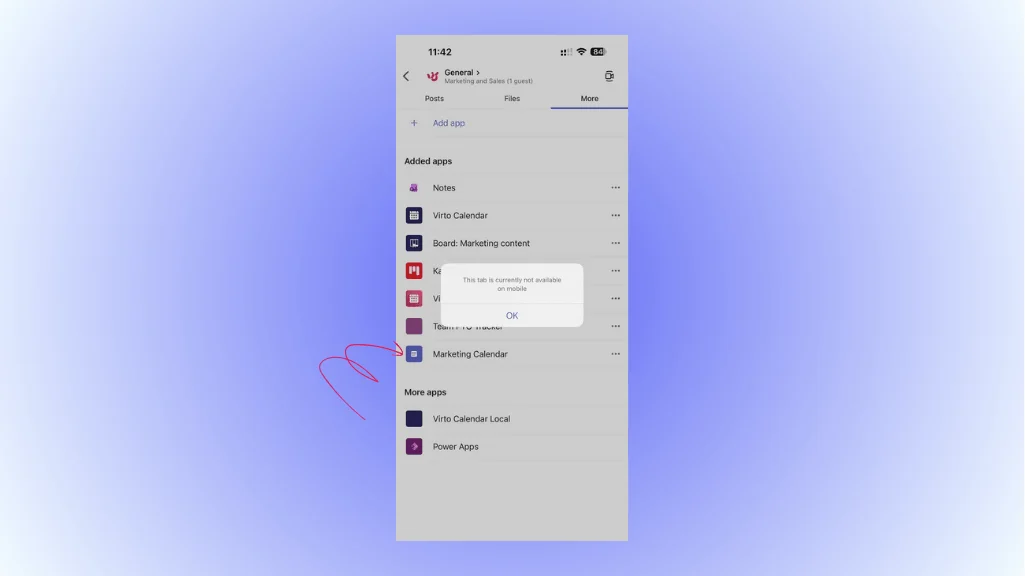
Pic. 6. Limited mobile functionality (verify against current Teams mobile app).
If color-coding or viewing colleagues’ schedules matters, see our guide on how to view someone’s calendar in Teams for workarounds.
Common channel calendar use cases
- Project management: track milestones, sprint deadlines, and reviews in a project channel.
- Sales: schedule client meetings and renewals in client- or region-specific channels.
- Marketing: coordinate campaign launches and content deadlines per campaign channel.
- Education: organize lectures, office hours, and study sessions in course channels.
- Human resources: manage onboarding and interviews within private HR channels.
Virto Calendar for Teams: advanced channel calendars
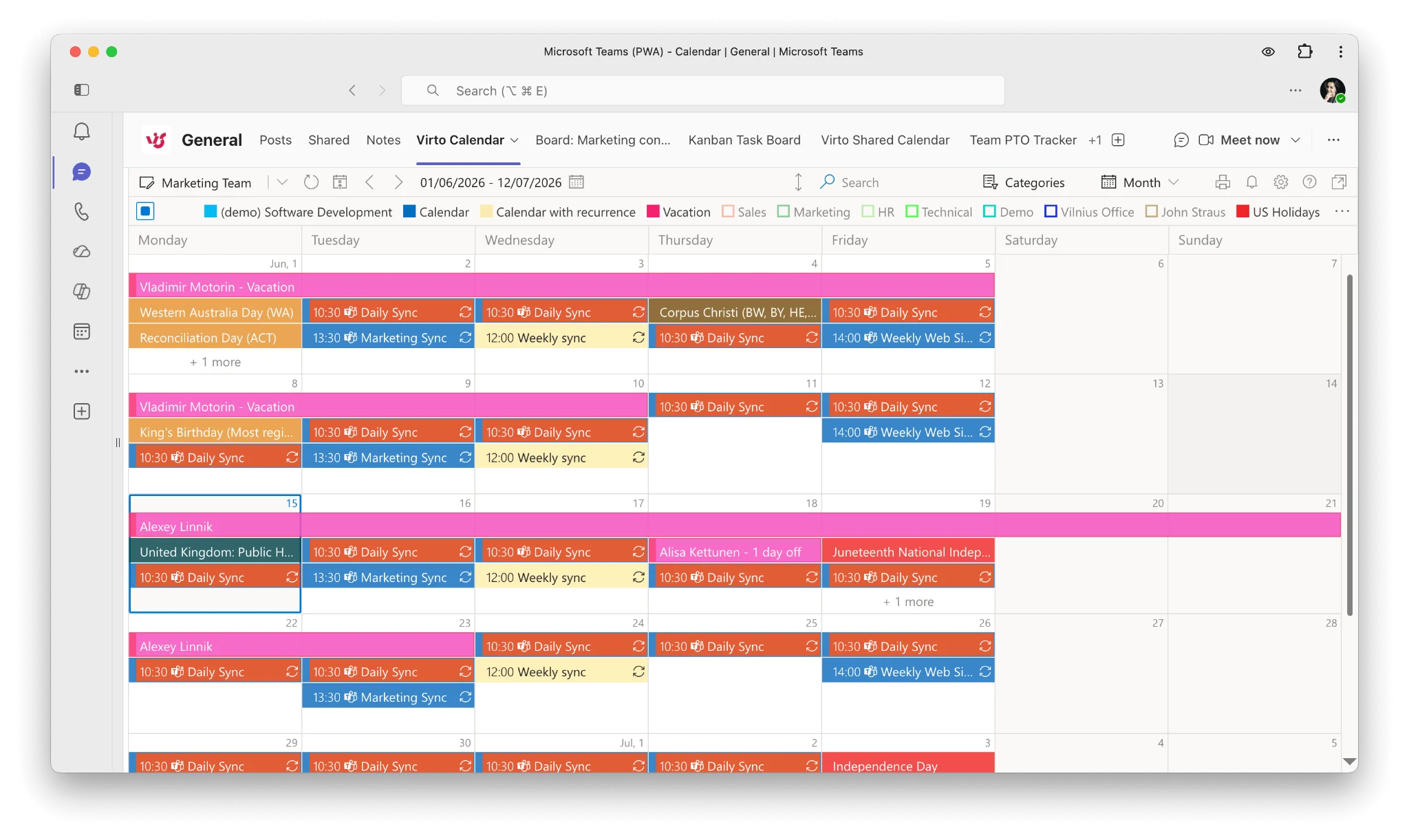
Pic. 7. Sample color-coded monthly view of the Virto Calendar App within Microsoft Teams.
When native channel calendars fall short, the Virto Calendar App for Microsoft Teams addresses the gaps. It overlays multiple calendars — SharePoint lists, Outlook, and external services such as Google Calendar via iCal — into one unified view inside Teams. It adds color-coded categories, advanced filtering, and flexible views (Day, Week, Month, Year, Flat Year, Task, and multi-source), giving teams the two-way control and customization the native calendar lacks. The app is Microsoft-vetted, mobile-friendly, and built with enterprise-grade security, making it suitable for organizations juggling multiple departments, projects, and client schedules.
| Feature | MS Teams Channel Calendar | Virto Calendar App |
|---|---|---|
| Multi-calendar overlay | No | Yes |
| SharePoint & Outlook integration | Limited | Full |
| Google / external sources | Not supported | Supported via iCal |
| Customization (color, filters) | No | Yes |
| Advanced views | No | Yes |
| Two-way sync | No (one-way) | Yes |
Fig. 2. Virto Calendar App vs. native Teams channel calendars.
FAQ
How do I add a Teams channel calendar to Outlook?
An admin first unhides the Microsoft 365 Group mailbox using the PowerShell command Set-UnifiedGroup -Identity "Group Name" -HiddenFromExchangeClientsEnabled:$False. In Outlook, go to Calendar → Add Calendar → From Directory and select the group. Sync is one-way (Teams → Outlook).
Why is my Teams channel calendar not showing in Outlook?
By default the Microsoft 365 Group mailbox is hidden from Outlook clients. An administrator must unhide it with PowerShell before it appears under Add Calendar → From Directory. See our guide on Teams calendar not showing for more troubleshooting.
Does a Teams channel calendar sync with Outlook two ways?
No. Sync is one-way only: events created in Teams appear in the Outlook group calendar, but edits made in Outlook do not sync back to Teams. Two-way sync requires a third-party app such as Virto Calendar.
Can guests access a Teams channel calendar?
Only if they are added as members of the channel. Access is controlled entirely by channel membership; guests who are not channel members cannot view the calendar.
How do I view the channel calendar in month view?
There is no native month view in the Teams channel calendar — the view selector only offers Day, Work week, and Week. To see channel events by month, connect the calendar to Outlook (via its Microsoft 365 Group) and use Outlook’s month view, add a Planner tab, or use the Virto Calendar App, which provides a true month view inside the channel.
Conclusion
Channel calendars keep project- and team-specific scheduling localized and visible to the right members, and the 2025–2026 Teams calendar experience unified the Teams and Outlook interface with multi-day view and Copilot scheduling. Their constraints — one-way Outlook sync, no native month view, no external calendar integration, limited customization — still matter for many teams. If your needs are simple and channel-scoped, the native calendar is enough; for cross-team visibility, two-way sync, a true month view, and color-coding, the Virto Calendar App is the stronger option. Testing both against your workflow is the best way to decide.