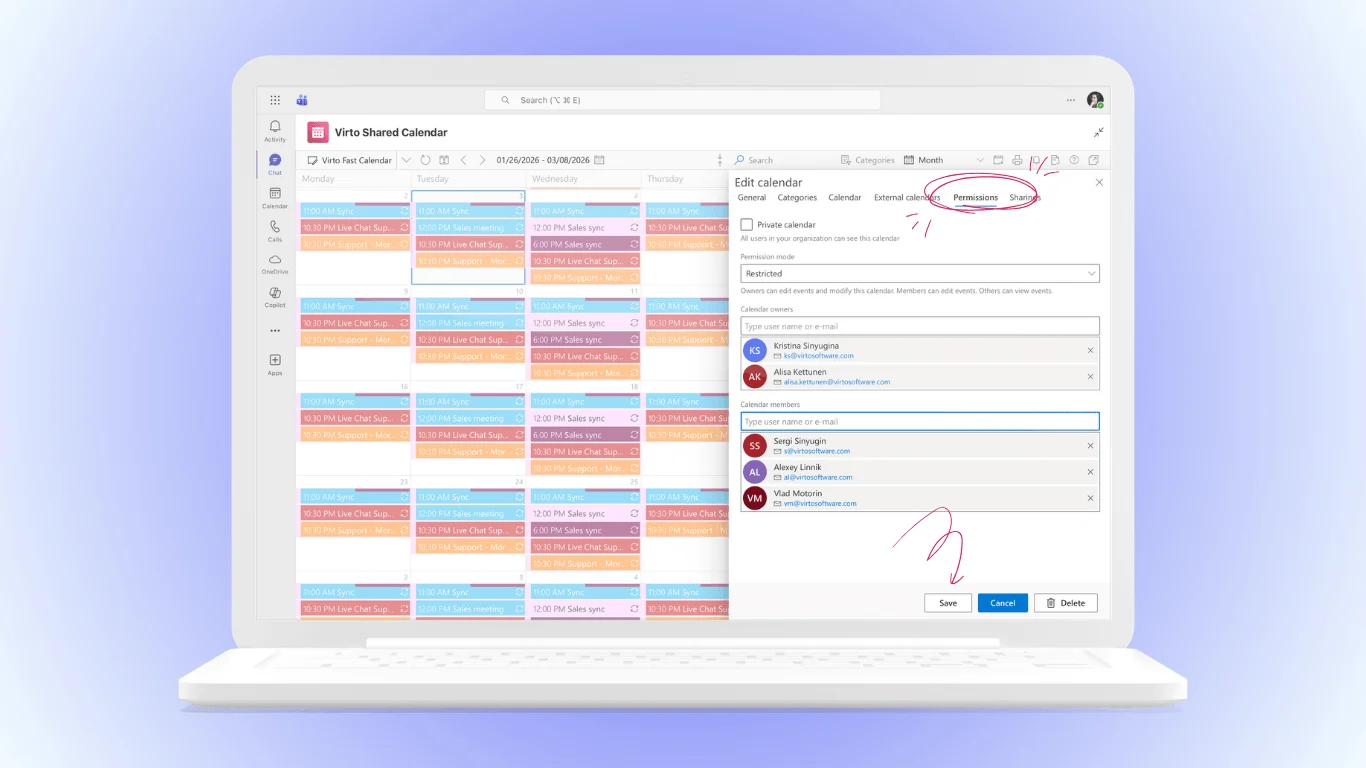
Missed meetings, double-booked slots, and a schedule that never quite lines up — when your Microsoft Teams calendar isn’t syncing with Outlook, the whole workday feels off. Because Teams reads directly from your Exchange Online (Outlook) calendar, the two should mirror each other automatically. When they don’t, the cause is almost always a small, fixable mismatch rather than a broken product.
This 2026 guide walks through why Teams meetings stop showing in Outlook (and vice versa), the fastest fixes, and how to keep both calendars unified for good with Virto Calendar.
Quick answer: why your Teams calendar isn’t syncing with Outlook
Teams displays your Outlook/Exchange calendar, so a sync failure almost always comes from one of these causes:
- You’re signed into different Microsoft 365 accounts in Teams and Outlook.
- The Teams Meeting add-in in Outlook is disabled.
- An outdated Teams or Outlook build is causing a compatibility gap.
- A cache or connectivity issue is stalling the sync.
Fastest fix: confirm both apps use the same Microsoft 365 account, enable the Teams Meeting add-in in Outlook, update both apps, then restart. Below we cover each cause and fix in detail.
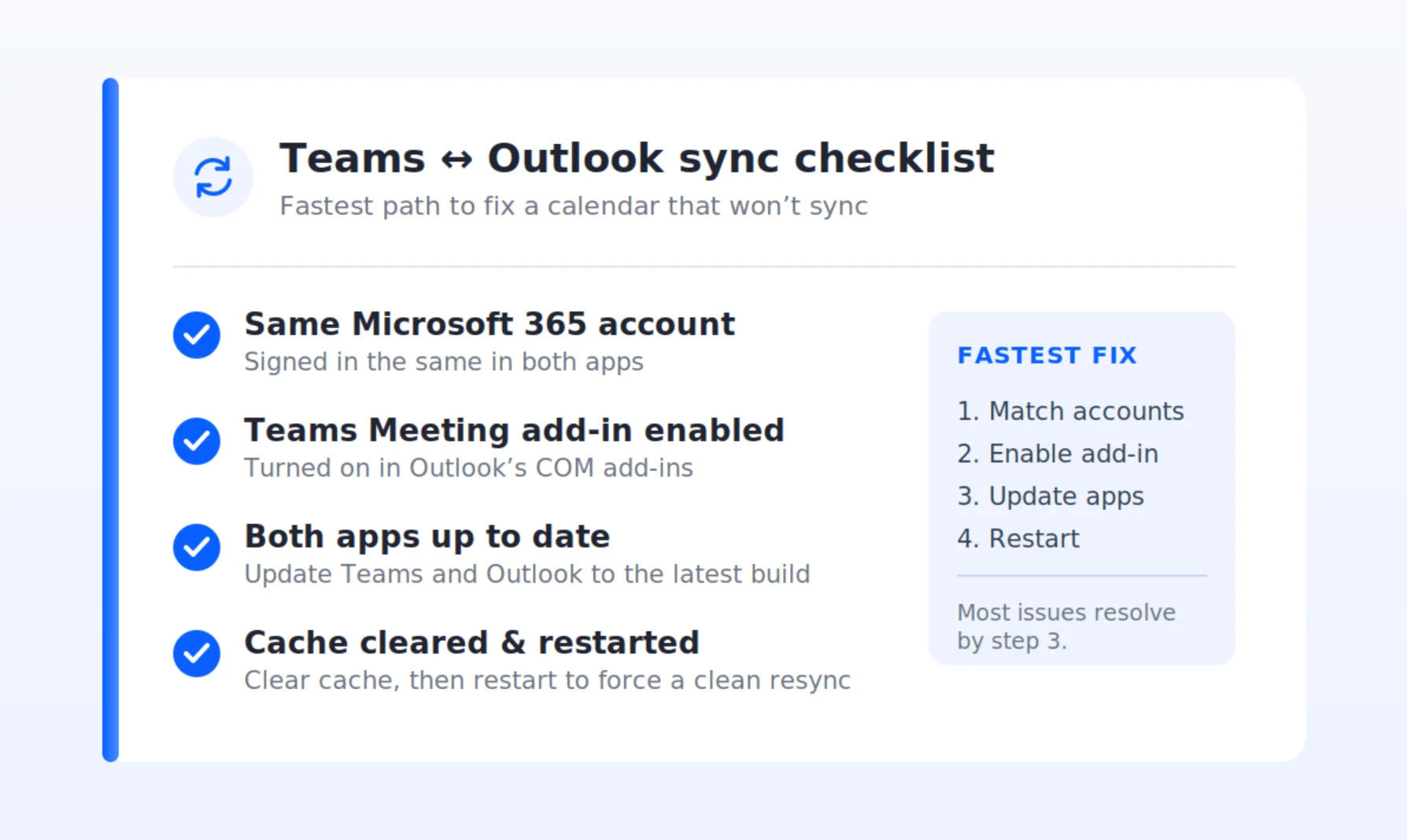
Pic. 1. Teams - Outlook sync checklist
Why Teams meetings don’t show in Outlook (and vice versa)
Teams doesn’t keep a separate calendar — it surfaces the same Exchange Online calendar Outlook uses. When an event appears in one app but not the other, the sync relationship between them has broken somewhere. The usual culprits:
- Account discrepancies: personal and work accounts mixed on the same device, or different tenants in each app.
- Permissions: missing owner/editor rights on the calendar you’re trying to view.
- Add-in state: the Teams Meeting add-in disabled in Outlook, so Teams events never post back.
- Software glitches: temporary bugs, an outdated client, or a corrupted cache.
- Connectivity: intermittent network drops that interrupt the sync cycle.
👉 Why is my Teams calendar not syncing with Outlook? Teams shows the Outlook/Exchange calendar, so sync breaks come from account or sign-in mismatches, an outdated client, cache issues, or the Teams Meeting add-in being disabled.
Step-by-step fixes for 2026
Work through these in order — most sync issues resolve by step 3. Steps have been re-verified against the current Outlook (new Outlook and classic) and the new Microsoft Teams client for 2026.
1. Verify you’re using the same Microsoft 365 account
Mismatched accounts are the single most common cause. Confirm the same account is active everywhere:
- Outlook (Windows): File > Office Account — check the signed-in identity.
- Outlook (Mac): Outlook > Settings > Accounts.
- Outlook on the web: profile picture (top right) > My account.
- Teams (desktop/web): profile picture > Settings > Accounts, or the account switcher at the top.
2. Enable the Teams Meeting add-in in Outlook
If Teams meetings won’t appear in Outlook, the Teams Meeting add-in is usually disabled:
- In classic Outlook for Windows, go to File > Options > Add-ins.
- In the Manage dropdown at the bottom, choose COM Add-ins and click Go.
- Make sure Microsoft Teams Meeting Add-in for Microsoft Office is checked, then click OK.
- Restart Outlook. In new Outlook and Outlook on the web, the Teams option is built in — no add-in step is required.
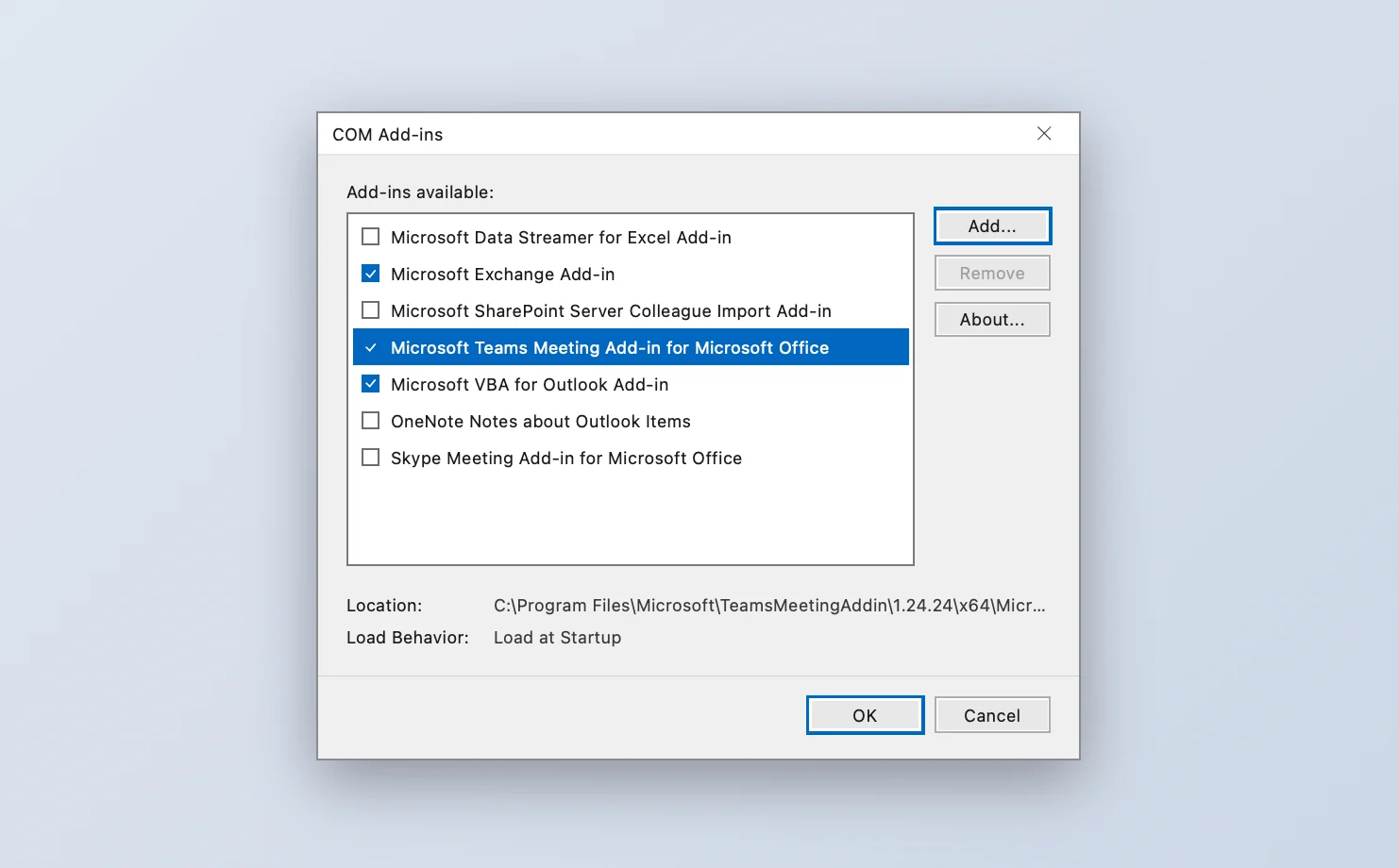
Pic. 2. Enabling the Teams Meeting add-in in Outlook for Windows.
3. Update both apps
An outdated build is a frequent, easily missed cause. Bring both apps current:
- Outlook (Windows): File > Office Account > Update Options > Update Now.
- Outlook (Mac): open Microsoft AutoUpdate and click Check for Updates.
- Teams: click the … next to your profile picture and choose Check for updates; the new Teams updates automatically and restarts to apply.
- Web versions: update automatically — just refresh the page.
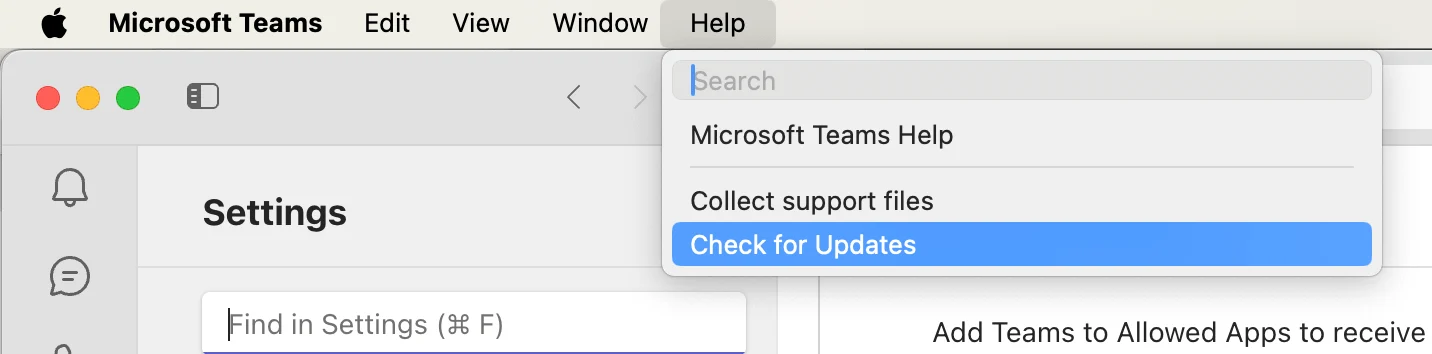
Pic. 3. Checking the Microsoft Teams for updates on Mac.
4. Clear the cache and restart
A corrupted cache can quietly block syncing. Clearing it forces both apps to rebuild clean data:
- Teams (Windows): quit Teams, press Win+R, enter
%appdata%\Microsoft\Teams, delete the folder contents, then restart. (Paths differ slightly for new Teams — follow Microsoft’s current cache guidance.) - Teams (Mac): quit Teams and clear
~/Library/Application Support/Microsoft/Teams, then restart. - Outlook (Windows): close Outlook, press Win+R, run
outlook.exe /cleanviews, then reopen. - Web: clear browser cache and cookies, or use a private window.
After clearing caches, restart the computer before relaunching so the changes take effect.
5. Force a manual sync and confirm
Nudge the calendars to reconcile, then verify:
- Outlook (Windows): Send/Receive tab > Update Folder.
- Outlook (Mac): Tools > Sync.
- Teams: open Calendar and refresh; allow a few minutes for events to appear.
To confirm sync is working, create a test meeting in Teams and check that it shows in Outlook within a few minutes. If it does, you’re done.

Pic. 4. Forcing a manual calendar sync in Outlook.
6. Still stuck? Advanced steps
- Repair the account: Outlook (Windows) File > Account Settings > Account Settings > select account > Repair; on Mac, remove and re-add the account.
- Start Outlook in safe mode (Win+R >
outlook.exe /safe) to rule out a problematic add-in. - Run built-in diagnostics: Outlook Windows has File > Options > Advanced > Troubleshooting; new Teams has a health check under profile picture > About.
- Check organizational policy: if sync is managed by IT, confirm your tenant allows Teams–Outlook calendar sync and that your account has the right permissions.
Prevent future sync issues
A little hygiene keeps Teams and Outlook aligned:
- Enable automatic updates for Office apps and the OS so you’re never on a stale build.
- Use one account consistently across Teams, Outlook, and mobile.
- Review sync settings periodically after major updates or account changes.
- Train users on the correct account and meeting workflow to cut down on user-induced errors.
- Monitor proactively in larger orgs — spot-check events across both apps and encourage quick reporting of discrepancies.

Pic. 5. Turning on automatic updates on Mac to prevent future sync issues.
Keep Teams & Outlook unified with Virto Calendar
If you keep fighting sync errors — missing appointments, inconsistent views across devices — a purpose-built overlay removes the problem instead of patching it. The Virto Calendar App for Microsoft Teams is a Microsoft-approved native app that brings a unified Teams calendar view together in one place.
Instead of relying on a single sync path, Virto Calendar overlays multiple sources — Exchange Online calendars, SharePoint lists, meeting rooms, and external calendars via iCal — in one view directly inside Teams. Key benefits:
- Combine events from many sources into a single, always-current view.
- Create Teams meetings directly from calendar events.
- Color-code events and categories; flexible day/week/month/year timescales.
- Advanced access-rights management that respects existing SharePoint and Exchange permissions.
- Fully compliant with Microsoft security standards; data stays in your Microsoft 365 environment.
Adding it takes a moment: open the target Teams channel, click + to add a tab, select Virto Calendar, then choose the calendars to display and grant permissions.
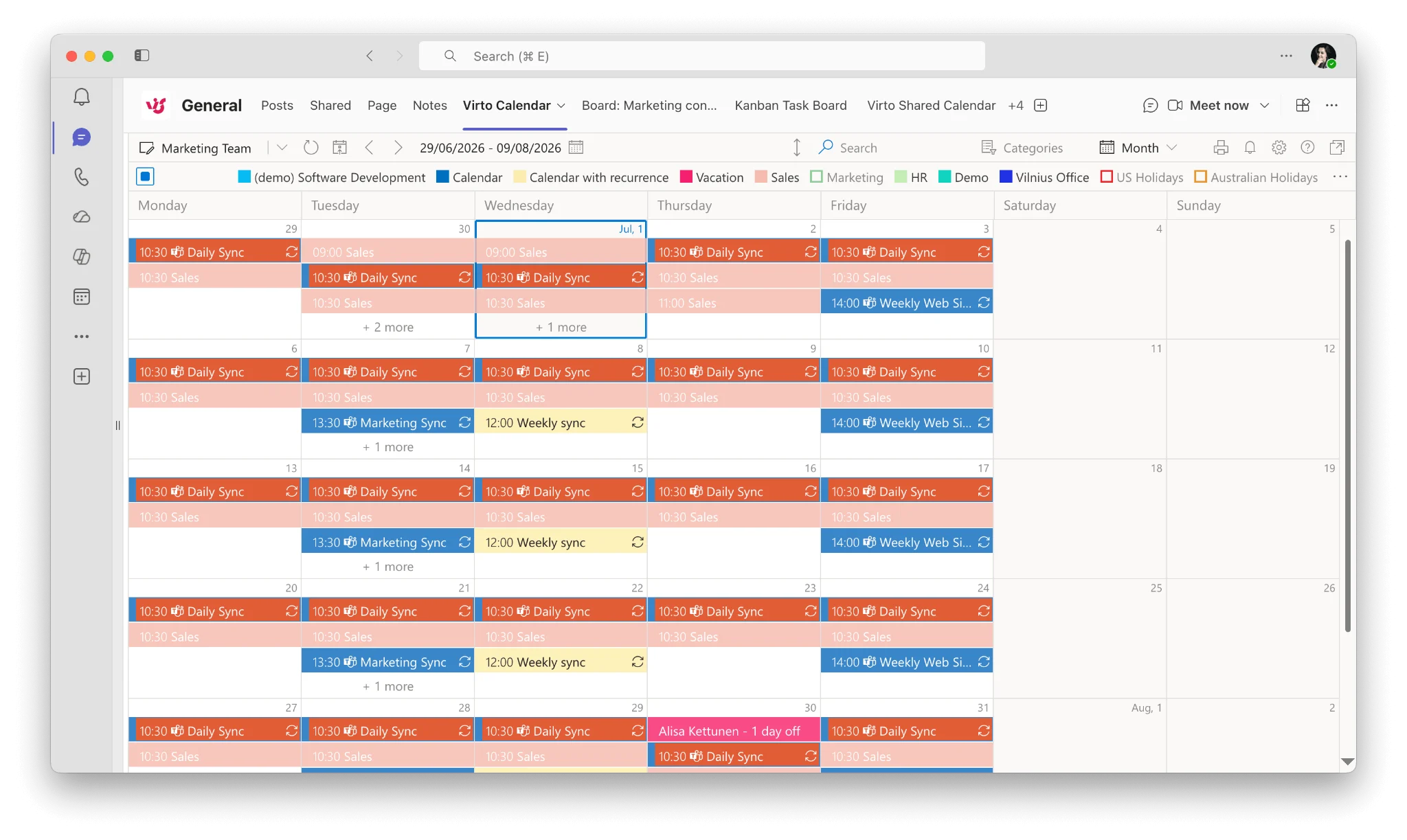
Pic. 6. Setting up the Virto Calendar App for a unified view in Microsoft Teams.
Virto Calendar App costs $2,412 per 100 users per year with a 3-year agreement (100 users and up), with a 30-day free trial; smaller teams can use Virto Shared Calendar, which has a free plan. Start a free trial or book a quick demo.
FAQ
Why won’t my Teams calendar sync with Outlook?
Because Teams reads your Outlook/Exchange calendar, sync breaks come from an account mismatch, a disabled Teams Meeting add-in, an outdated app, or a cache issue. Confirm both apps use the same Microsoft 365 account first.
How do I sync my Teams calendar with Outlook?
Sync is automatic once set up correctly. Make sure both apps are signed into the same account, enable the Teams Meeting add-in in Outlook, update both apps, then create a test meeting in Teams and confirm it appears in Outlook within a few minutes.
Why don’t my Teams meetings show in Outlook?
Usually the Teams Meeting add-in is disabled or you’re signed into different accounts. Enable the add-in in Outlook and confirm both apps use the same Microsoft 365 account.