



Microsoft Teams relies on an integrated calendar to schedule meetings and manage appointments, so when it suddenly disappears, won’t load, or stops syncing with Outlook, your whole workflow stalls. This guide pinpoints the eight most common causes and walks you through each fix, fastest-first, so you can get your calendar back in minutes.
New to the issue? Start with the 30-second diagnostic table below, jump straight to the fix that matches your symptom, and see our companion guides on how to view someone’s calendar in Teams and Outlook shared calendar not showing — or browse the full Outlook & Teams calendar troubleshooting hub.
30-second diagnostic: find your fix
Match your symptom to the most likely cause, then jump to the numbered fix.
| Symptom | Most likely cause | Go to |
|---|---|---|
| Calendar tab not visible in left sidebar | Calendar unpinned or App setup policy | Fix 1 |
| Calendar visible but won’t load | Cache issue or network | Fix 2 |
| Calendar missing after org/account change | Exchange Online license not assigned | Fix 3 |
| Calendar present but not in available apps | Calendar missing from App setup policy | Fix 4 |
| Calendar shows but meetings missing | Outlook sync failure | Fix 5 |
| Calendar not syncing with Outlook | Outlook config or Exchange cache | Fix 5 |
| Calendar missing on mobile only | App permissions or mobile sync settings | Fix 6 |
| Calendar disappeared after a Teams update | Cache corruption — clear and restart | Fix 2 |
| IT-managed device, calendar never appeared | App setup policy or group membership | Fix 7–8 |
Fix 1: Calendar tab is unpinned — re-pin it
TL;DR: The fastest fix. If the Calendar icon vanished from the left sidebar, it’s usually just been unpinned — right-click it from the (…) menu and pin it back. Takes about 30 seconds.
If the calendar is unpinned from the Teams app list, it disappears from the side app bar even though everything else is configured correctly. To restore it:
- In the Teams desktop app, click the more options button (…) in the left sidebar.
- Check whether the Calendar option appears in the list.
- If it’s there, right-click it and select “Pin” so it stays in the sidebar.
If Calendar doesn’t appear in the (…) menu at all, it may not be included in your account’s App setup policy — see Fix 4.
Fix 2: Clear the Teams cache and restart
TL;DR: If the calendar is visible but won’t load, disappeared after an update, or behaves erratically, a corrupted cache is the usual cause. Clearing it resolves a wide range of display issues.
Accumulated temporary files in Teams can become corrupted, causing missing features including the calendar. Clearing the cache forces Teams to rebuild it cleanly.
Windows
- Close Teams completely and make sure it isn’t running in the background.
- Press Windows + R, type
%appdata%\Microsoft\Teams, and press Enter. - Delete the contents of the folder (keep the “meeting-addin” folder if present).
- Restart Teams and sign in again.
Mac
- Quit Teams.
- Go to
~/Library/Application Support/Microsoft/Teams/. - Delete the contents of the folder (except the “meeting-addin” folder).
- Restart Teams.
Detailed walkthroughs: Clearing Cache in “New” Teams for Windows and for Mac.
Still stuck? Before deeper fixes, confirm the problem isn’t on Microsoft’s side: visit the Microsoft 365 Service Health page and look for any active Teams or Exchange Online incidents.
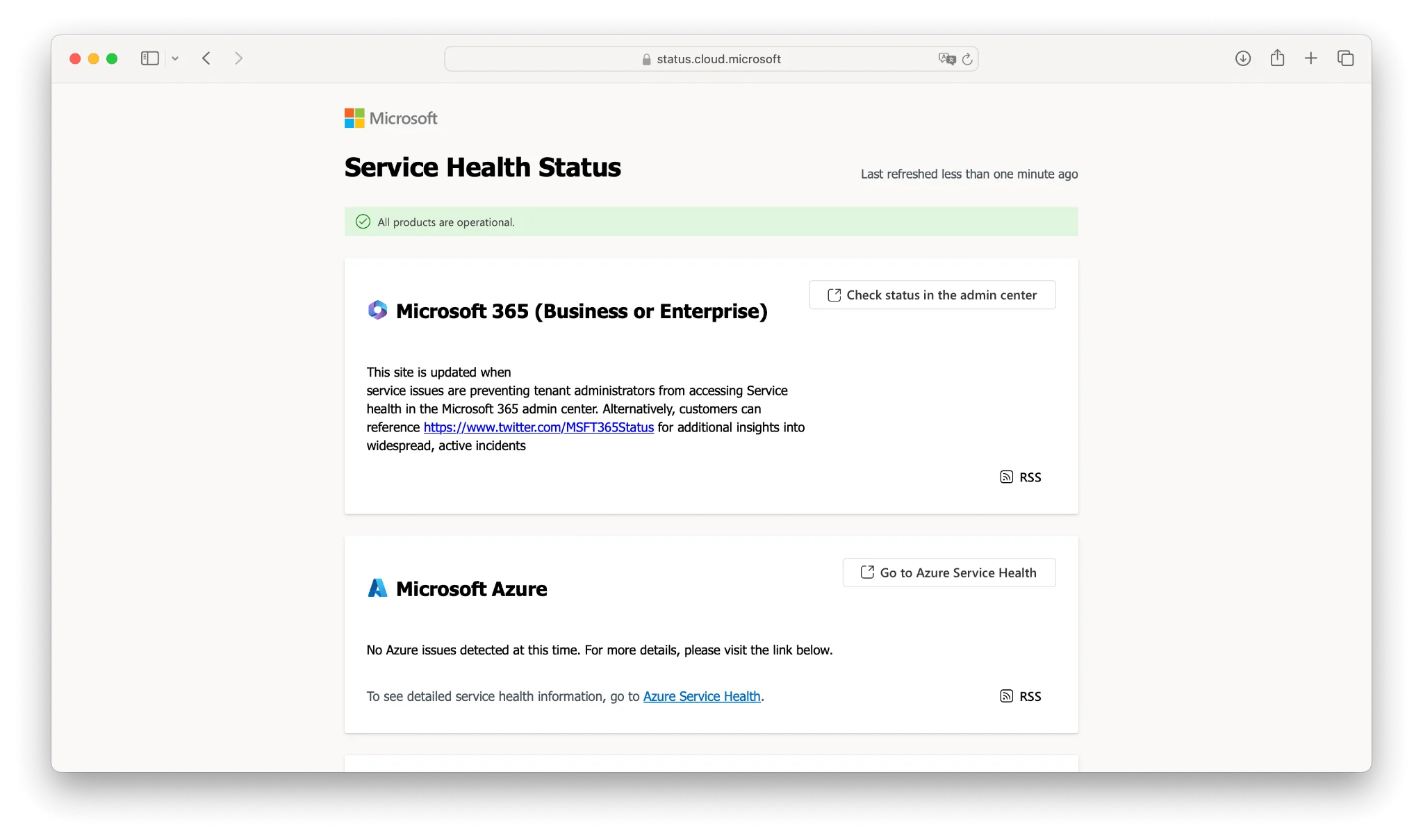
Pic. 1 — Microsoft 365 Service Health status page
Fix 3: Exchange Online license not assigned
TL;DR: For enterprise users, a missing Exchange Online license is the single most common root cause. Teams calendar functionality depends on it — without it, the calendar simply won’t appear.
Teams calendar runs on Exchange Online. If a user’s account doesn’t have an Exchange Online license assigned, the calendar won’t show regardless of other settings. To check and assign it:
- Go to the Microsoft 365 Admin Center (admin.microsoft.com) > “Users” > “Active users”.
- Select the affected user, then open the “Licenses and apps” tab.
- Under “Apps”, confirm “Exchange Online” is checked. If not, enable it and save.
To avoid this for future users, set Exchange Online to be enabled by default: in the Microsoft 365 Admin Center, go to “Settings” > “Org settings” > “Services” > “User owned apps and services” and ensure Exchange Online is checked.
A few notes: license changes can take up to 24 hours to fully propagate, some Microsoft 365 plans include Exchange Online while others require a separate license, and hybrid-Exchange users must have their mailbox migrated to Exchange Online. Restart Teams after making changes.
If the calendar still won’t load after the license is confirmed, see our guide on the “Teams unable to access your calendar” issue.
Fix 4: Calendar app missing from the App setup policy
TL;DR: An IT-admin fix. If the Calendar app isn’t pinned in your organization’s App setup policy, users never see it. Add Calendar to the policy in the Teams Admin Center.
App setup policies, managed by Teams admins, control which apps are pinned and available to users. If Calendar isn’t in the assigned policy, it won’t appear for affected accounts.
- Go to the Teams Admin Center (admin.teams.microsoft.com) and sign in with admin credentials.
- Open “Teams apps” > “Setup policies”.
- Select the policy applied to the user (often “Global (Org-wide default)”).
- Under “Pinned apps”, check whether “Calendar” is listed. If not, click “Add apps”, search for “Calendar”, add it, and save.
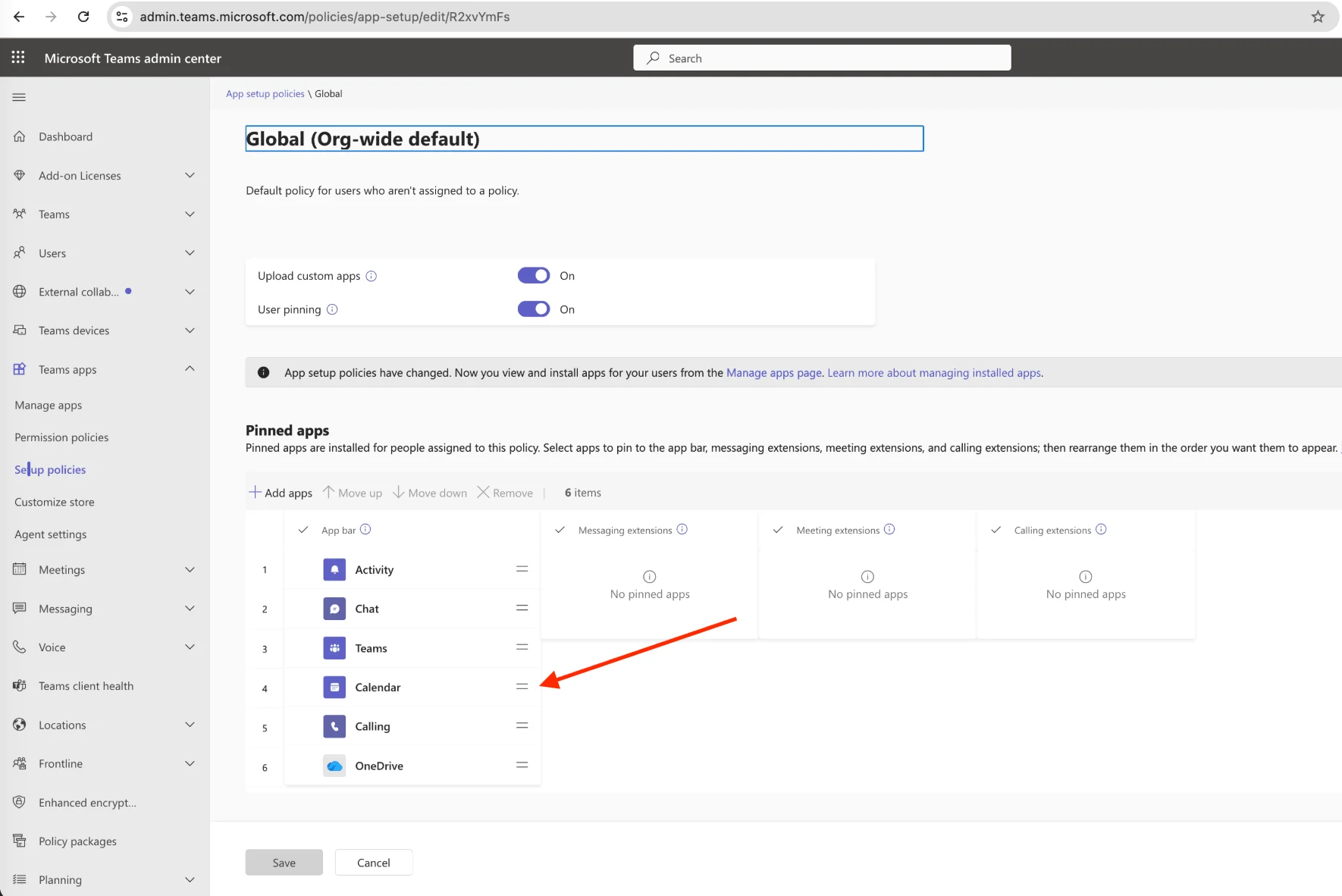
Pic. 2 — Pinning the Calendar app in an App setup policy
Then confirm the user is assigned the correct policy: in “Users”, select the account, open the “Policies” tab, and verify the “App setup policy” includes Calendar.
Microsoft’s official reference: Use app setup policies to pin and install apps for users.
Teams calendar not syncing with Outlook — causes and fixes
TL;DR: Teams calendar sync relies on Exchange Online. The most common causes are mismatched accounts, cached credentials, or Outlook sync-mode settings. (This is Fix 5.)
Microsoft Teams depends on a working connection to Exchange Online (cloud) or Exchange Server (on-premises) to display your Outlook calendar. When that sync fails, the calendar may appear empty, lag, or refuse to load. The most frequent culprits are an improperly configured Outlook desktop profile, network or VPN interference, incorrect sync settings, Exchange Online service interruptions, or conflicting Outlook add-ins.
Troubleshooting steps
- Confirm Teams and Outlook are signed in with the same Microsoft 365 account.
- Verify the calendar is visible in Outlook itself (desktop or web) and isn’t set to private.
- In Outlook for Windows, go to File > Account Settings > Account Settings, select your account, click “Change”, ensure “Use Cached Exchange Mode” is checked, and set the sync slider to include all calendar items.
- Test your network: try without a VPN, and temporarily disable firewall/security software to rule out blocking.
- Disable conflicting add-ins via File > Options > Add-Ins > COM Add-ins > Go, then uncheck all and restart.
- Rebuild the Outlook cache: close Outlook, go to
%localappdata%\Microsoft\Outlook, rename the .ost file (add _old), and restart Outlook to rebuild it.
Still not syncing? Confirm an Exchange Online license is assigned (Fix 3), that you’re using a primary mailbox rather than a shared or resource mailbox, and that recent password or account changes have fully propagated.
For deeper, step-by-step sync guidance, see Outlook and Teams Calendars Syncing: A Troubleshooting Guide, How to Seamlessly Sync MS Teams and Outlook Calendars, and How to Fix Shared Outlook Calendar Not Showing Up.
Fix 6: Microsoft 365 account connection error
TL;DR: If the calendar vanished after a password change or account switch, Teams is likely using stale credentials. Sign out fully, update your password in Teams, and clear the cache.
The link between your Microsoft 365 account and Teams can break due to temporary server issues, mismatched account settings, recent password changes, multiple-account conflicts, or expired authentication tokens.
- Check Microsoft 365 service status at status.cloud.microsoft for known incidents (Pic. 1).
- Confirm you’re signed into Teams with the correct account, and that it matches your Outlook account.
- Sign out of Teams completely and sign back in; if you recently changed your password, update it in Teams.
- Clear the Teams cache (see Fix 2), then restart and sign in again.
- If problems persist, reinstall Teams, or use the web version at teams.microsoft.com as a temporary workaround.
Best practice: keep Teams updated, update passwords across all devices immediately when changed, and use separate browser profiles if you juggle multiple Microsoft accounts.
Fix 7: Group membership (the “all@…” group)
TL;DR: A niche but high-value IT fix. If a user was dropped from the org-wide “all@…” group, Teams and Exchange may stop provisioning their calendar. Re-add them and clear the cache.
The “all@…” group (e.g., all@yourcompany.com) is created automatically with a Microsoft 365 tenant and ties to default permissions across Teams and Exchange. Users inadvertently removed from it — often during offboarding or bulk user management — can lose calendar visibility.
- Go to the Microsoft 365 Admin Center > “Teams & Groups” > “Active teams & groups”.
- Find the group starting with “all@” (or your org’s equivalent) and open the “Members” tab.
- Check whether the affected user is listed; if not, click “Add members” and add them. (You can also do this via the Exchange Admin Center under Recipients > Groups.)
- Have the user sign out of Teams on all devices, clear the Teams cache (Fix 2), and sign back in.
Allow up to 24 hours for membership changes to propagate. This approach is discussed on the Microsoft community forum: My Teams Calendar App has disappeared.
Fix 8: Calendar not showing on mobile
TL;DR: If the calendar is missing only on your phone, the cause is usually app permissions, an outdated app, or mobile sync settings. Update Teams, grant calendar permissions, and clear app data.
When the Teams calendar is missing only on mobile, work through these steps (they apply to both iOS and Android).
- Update the Teams app and your device OS — outdated software is a frequent cause of mobile-only issues.
- Clear app data: on Android, Settings > Apps > Microsoft Teams > Storage > Clear cache then Clear data; on iOS, uninstall and reinstall the app (iOS doesn’t allow clearing data directly).
- Reinstall Teams, restart the device, then sign in and reconfigure your work or school account.
- Check app permissions: on iOS, Settings > Teams (enable Notifications, Background App Refresh); on Android, Settings > Apps > Teams > Permissions (grant Calendar and Storage).
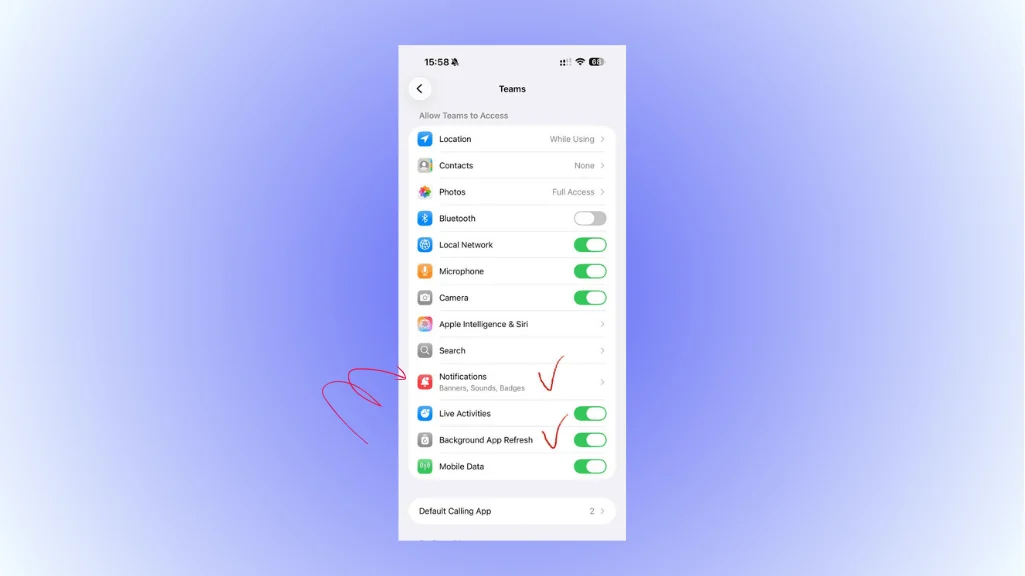
Pic. 3 — Checking permissions for the Teams mobile app
- Rule out network and storage problems — try a different Wi-Fi network or mobile data, disable any VPN, and free up device storage if it’s low.
After any change, fully close Teams (remove it from recent apps), reopen it, and allow time for the calendar to sync.
Other common Teams calendar issues
Meetings not showing in the Teams calendar
If the calendar loads but specific meetings are missing, the cause is usually a sync delay, incorrect permissions, a meeting organized from a different account, or an outdated app.
- Force a sync: in Outlook for Windows, Send/Receive > Send/Receive All Folders; in Outlook for Mac, Tools > Sync.
Pic. 4 — Syncing accounts and checking sharing permissions in Outlook for Mac
- Check calendar permissions — your account needs at least “Reviewer” access.
- Verify you’re signed into Teams with the same account that received the invite, and update both Teams and Outlook to their latest versions.
- Clear the cache (Fix 2) and allow up to 15 minutes for new meetings to appear in Outlook.
Events display incorrectly or not at all
Time-zone mismatches, calendar view settings, categorization/filtering, or corrupted calendar data can all cause events to appear wrong or vanish.
- Check your time zone in Teams (Profile > Settings > General > Time zone) and in Outlook.
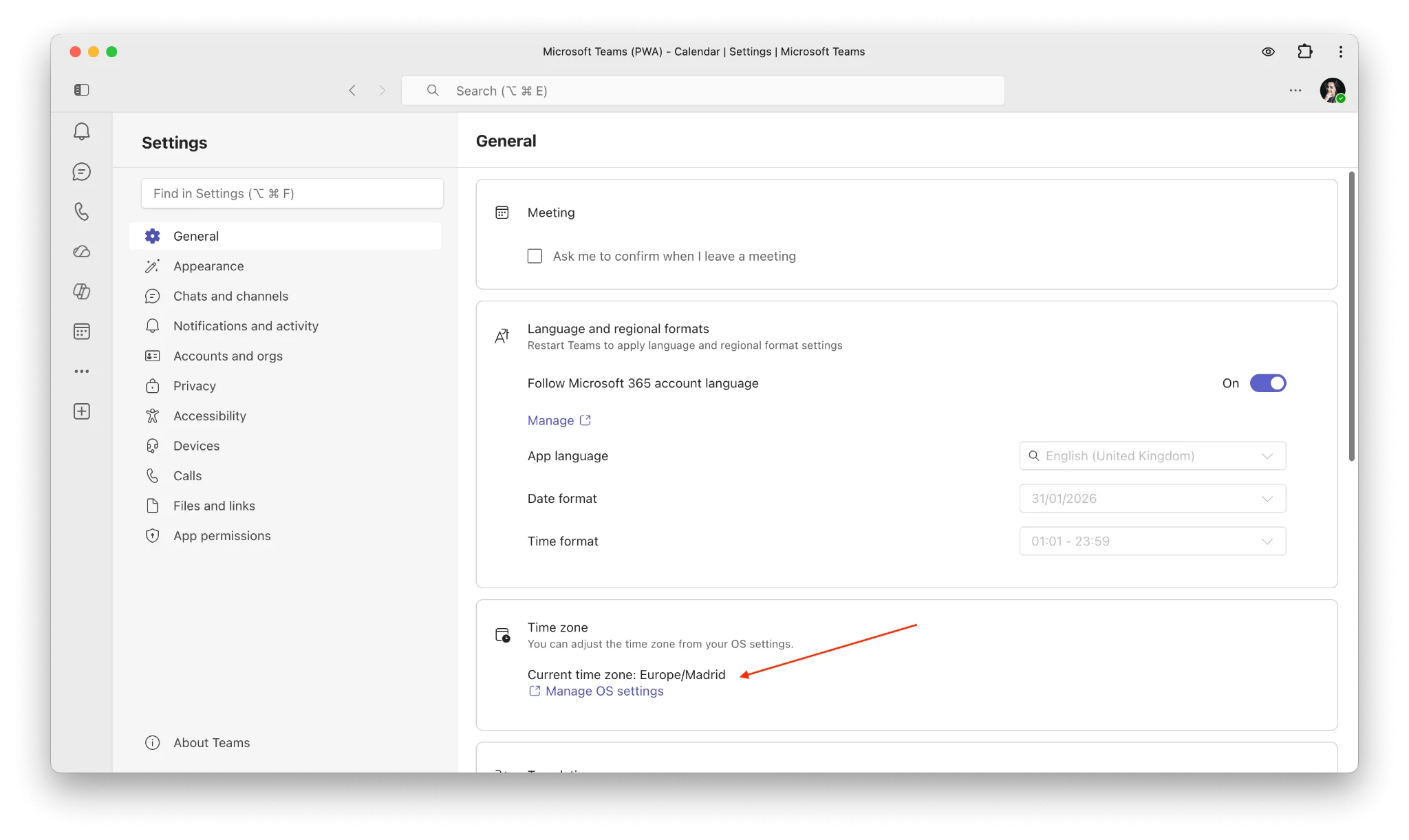
Pic. 5 — Checking time zone in Teams
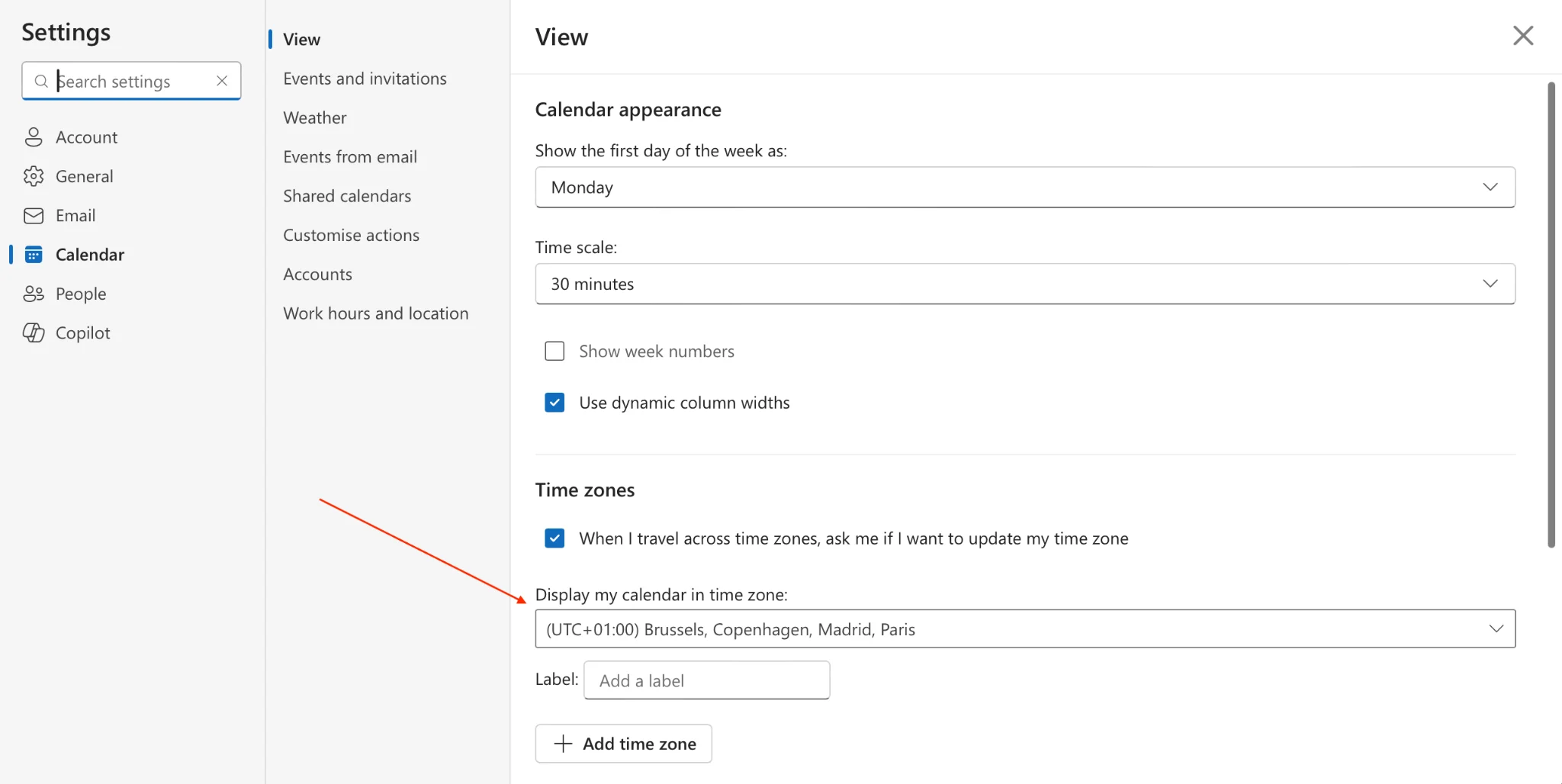
Pic. 6 — Checking time zone in Outlook
- Adjust the calendar view (day/week/work-week) and clear any active filters or hidden calendars.
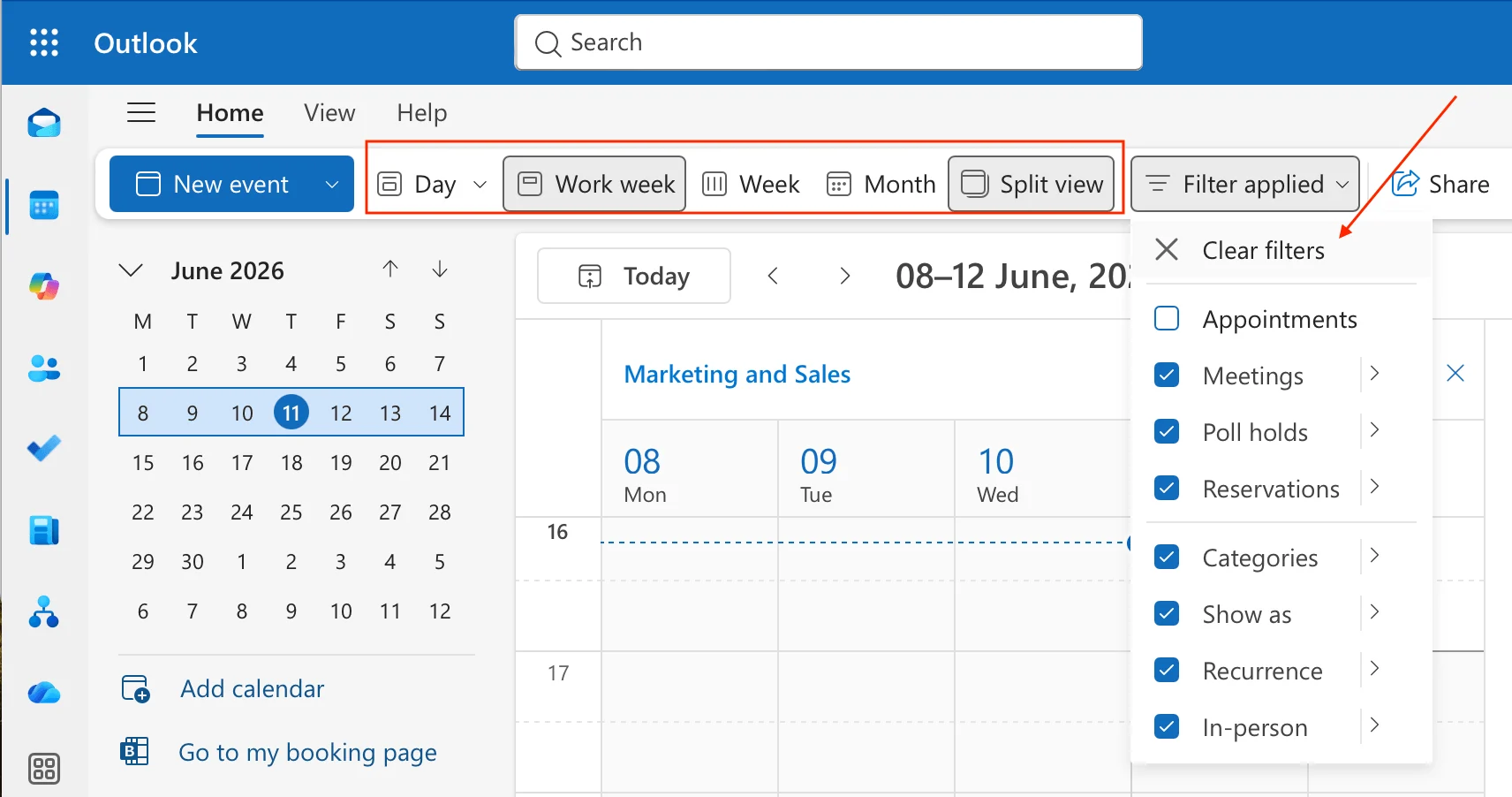
Pic. 7 — Switching calendar views in Outlook for Mac
- Rebuild the calendar cache (Fix 2).
Meeting invites not received
Missing invitations are usually caused by email routing, spam filtering, incorrect permissions, or Outlook rules misfiling invites.
- Check spam/junk folders and confirm the organizer is using your correct email address.
- Review Outlook rules for any that move, delete, or categorize messages — add an exception for meeting requests (in OWA, choose “The message type is” > “A meeting invitation or update”).
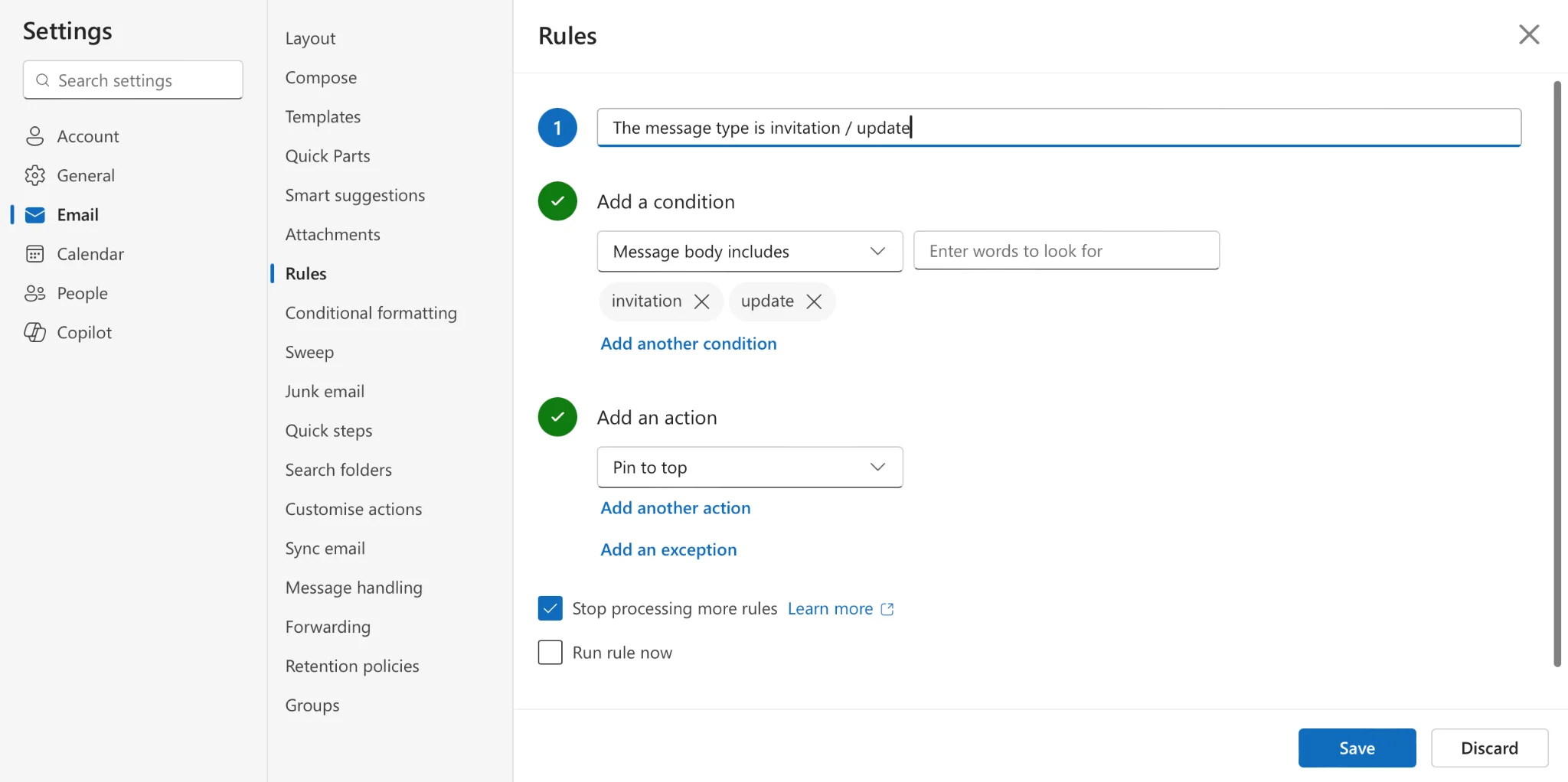
Pic. 8 — Navigating to the rules section in OWA
- If you know about a meeting but never got the invite, add it manually or ask the organizer to resend it.
Advanced: repair tools when nothing else works
Outlook profile repair
When Teams calendar problems coincide with Outlook problems, repairing the Outlook profile often fixes both. On Windows: close Outlook, open Control Panel > Mail > Show Profiles, select your profile > Properties > Email Accounts, select your account and click “Repair”, then follow the wizard and restart Outlook. If repair isn’t available or doesn’t help, create a new Outlook profile. macOS has no direct repair option — you recreate or reset the relevant components instead.
Microsoft Support and Recovery Assistant (SaRA)
SaRA is a free Microsoft diagnostic tool that can detect and automatically fix many Teams and Outlook issues, including calendar problems. Download it from Microsoft, run it, choose the affected app (Outlook or Teams) and the specific issue, sign in, and let it run its checks. Restart afterward and confirm whether the calendar reappears. SaRA requires administrator privileges and may not resolve every complex, organization-specific problem. Reference: About the Microsoft Support and Recovery Assistant.
When native fixes aren’t enough: Virto Calendar App for Teams
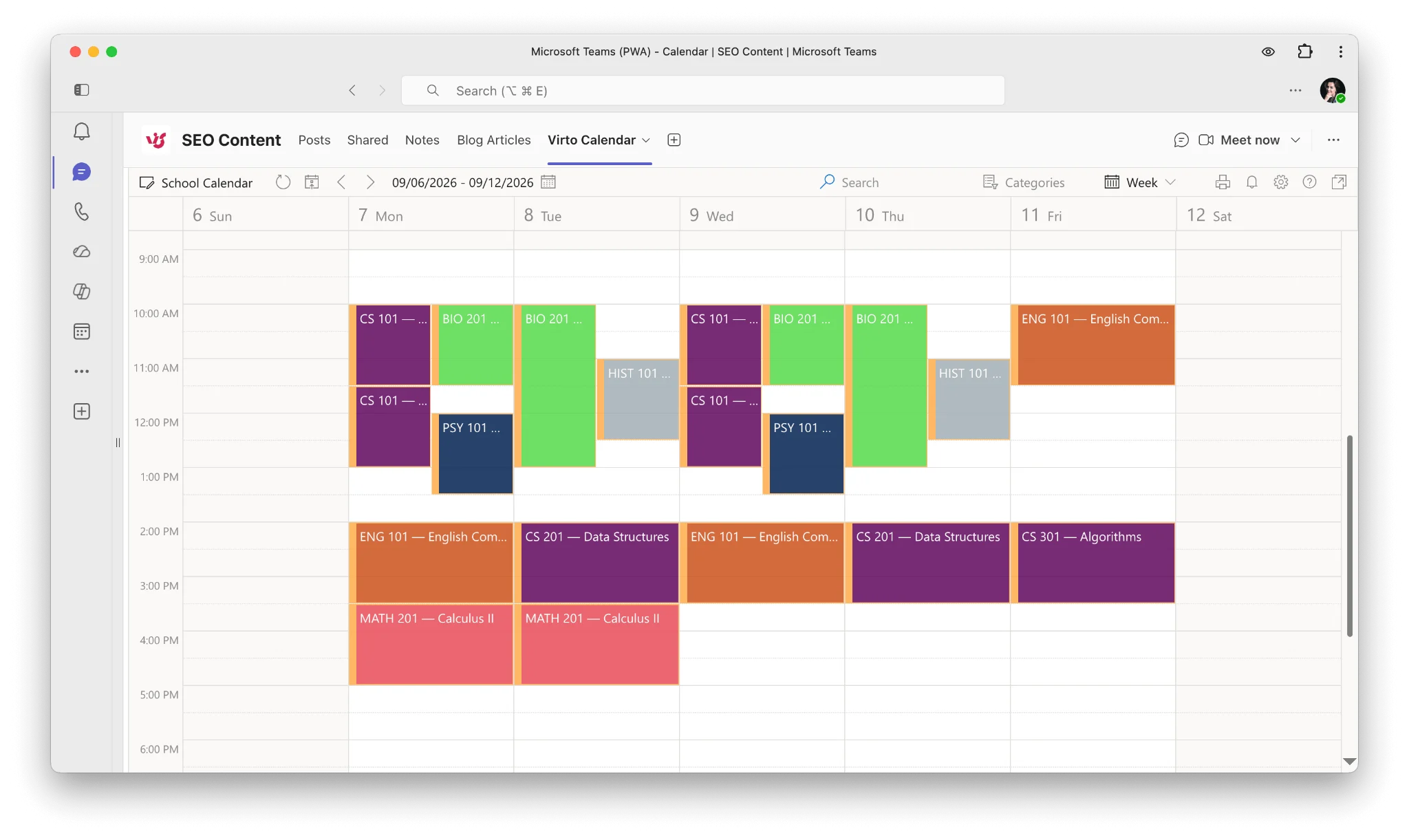
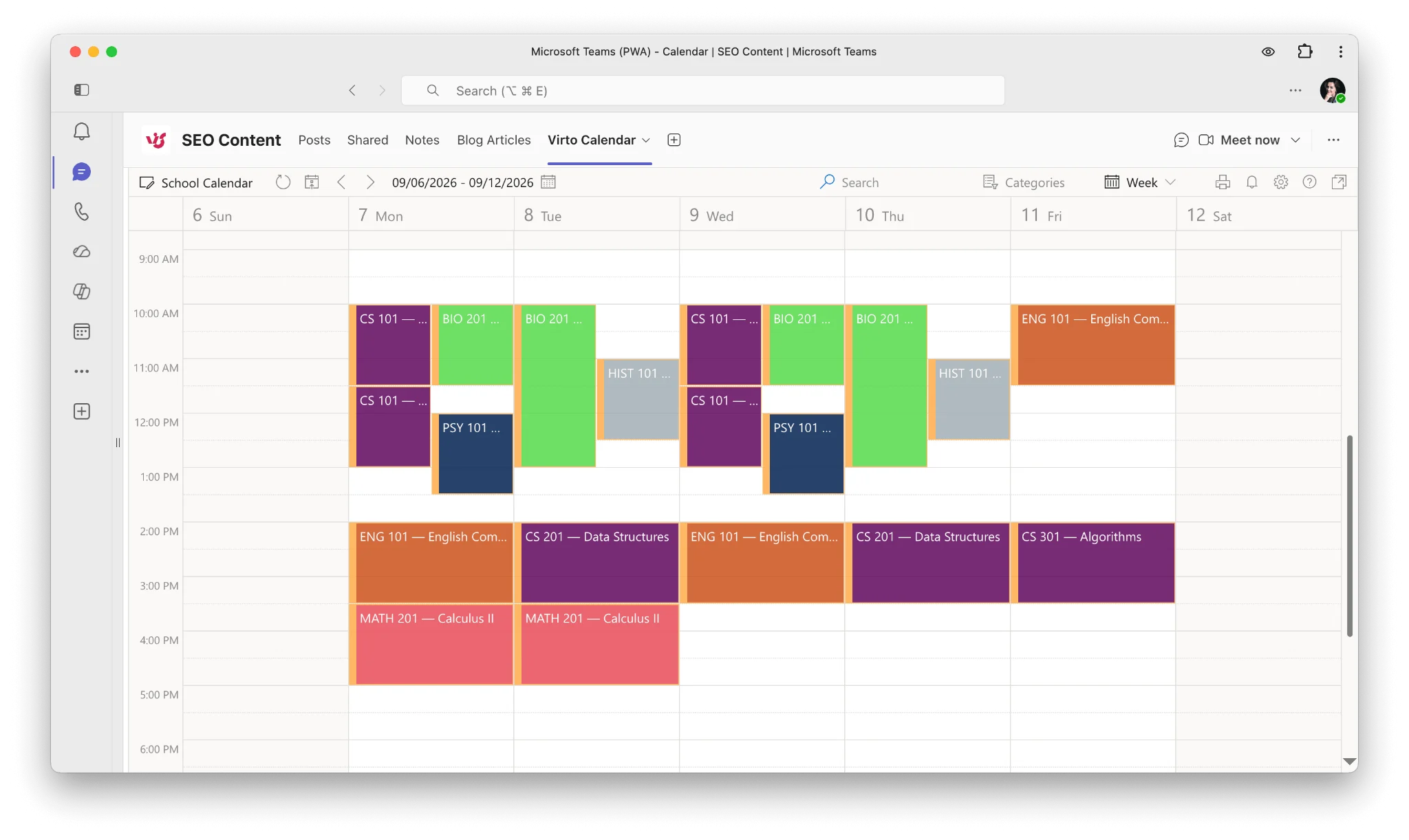
Pic. 11 — Viewing Virto Calendar within Microsoft Teams
If your calendar issues stem from needing to overlay multiple sources — SharePoint, Exchange, Planner, external calendars — inside Teams, the Virto Calendar App for Microsoft Teams is built for exactly this. It sidesteps many native-calendar limitations with a dedicated sync engine and a single combined view.
- Multi-source overlay: combine SharePoint lists, Outlook, Planner, Google, and iCal calendars into one Teams view.
- Independent sync engine: reliable bi-directional sync that doesn’t depend on the native Teams refresh cycle.
- Teams-native and secure: runs inside Teams with enterprise-grade security and your data kept in your own cloud.
Try Virto Calendar App free for 30 days · Schedule a demo
Frequently asked questions
Why is there no calendar in Teams?
Most often it’s an App setup policy that doesn’t include Calendar, or a missing Exchange Online license. Confirm the license is assigned (Fix 3) and that Calendar is pinned in your App setup policy (Fix 4); if both are fine, sign out, clear the cache, and sign back in.
Teams calendar not showing after an update?
Updates can corrupt the local cache. Clear the Teams cache and restart (Fix 2) — this resolves most post-update disappearances.
Teams calendar not syncing with Outlook?
Sync depends on Exchange Online and matching accounts. Work through the dedicated sync section (Fix 5): confirm the same account in both apps, enable Cached Exchange Mode, and rebuild the Outlook cache if needed.
Why is my Teams calendar not showing on mobile?
Mobile-only issues are usually app permissions, an outdated app, or mobile sync settings. See Fix 8 — update Teams, grant calendar permissions, and clear app data.
Calendar disappeared from the Teams sidebar?
It’s most likely just been unpinned. Re-pin it from the (…) menu in the left sidebar — see Fix 1.
Conclusion
Most Teams calendar problems trace back to a handful of causes: an unpinned tab, a corrupted cache, a missing Exchange Online license, an incomplete App setup policy, or a broken Outlook sync. Working through the eight fixes above — fastest first — resolves the overwhelming majority of cases. Keep your apps updated, review permissions periodically, and confirm sync is healthy across platforms to prevent recurrences.
If you regularly need to combine multiple calendar sources inside Teams, Virto Calendar App offers a more robust alternative to the native calendar. For related reading, see how to view someone’s calendar in Teams and the Microsoft Teams resource hub.