If your work life runs on Microsoft Teams and your personal life runs on Google Calendar, switching between them all day is a recipe for double-booked slots and missed events. The good news: you can connect the two so Teams events show up in Google Calendar (and vice versa), and you can even view both side by side inside Teams. This 2026 guide gives you the fastest method first, then full step-by-step setup in both directions, the limitations to know about, fixes for the most common problems, and how the Virto Calendar App gives you a true overlay of both calendars in one Teams view.
Quick answer: how to sync your Teams calendar with Google
Microsoft Teams uses your Outlook / Microsoft 365 calendar under the hood, so you sync it to Google by sharing that calendar as an ICS link:
- In Outlook on the web, open Settings → Calendar → Shared calendars and Publish the calendar you want to share.
- Copy the ICS link (it ends in .ics).
- In Google Calendar, click + next to “Other calendars” → From URL, paste the link, and click Add calendar.
- To see both calendars together inside Teams, add them to the Virto Calendar App overlay.
This ICS method is one-way (Teams → Google) and refreshes on Google’s schedule. For two-way or near-real-time syncing, use a connector or the Virto overlay described below.
Step-by-step setup (both directions)
There are two directions you may want, and they use different methods. Below we cover both, plus how to bring everything into Teams.
Direction 1: Teams / Outlook calendar → Google Calendar (ICS)
Step 1 — Publish your Microsoft Teams (Outlook) calendar
Open Outlook on the web, click the gear / Settings icon in the top-right corner, then go to Calendar → Shared calendars. Choose the calendar you want to publish, pick the permission level (how much detail Google should see — for personal use, full details is fine), and click Publish.
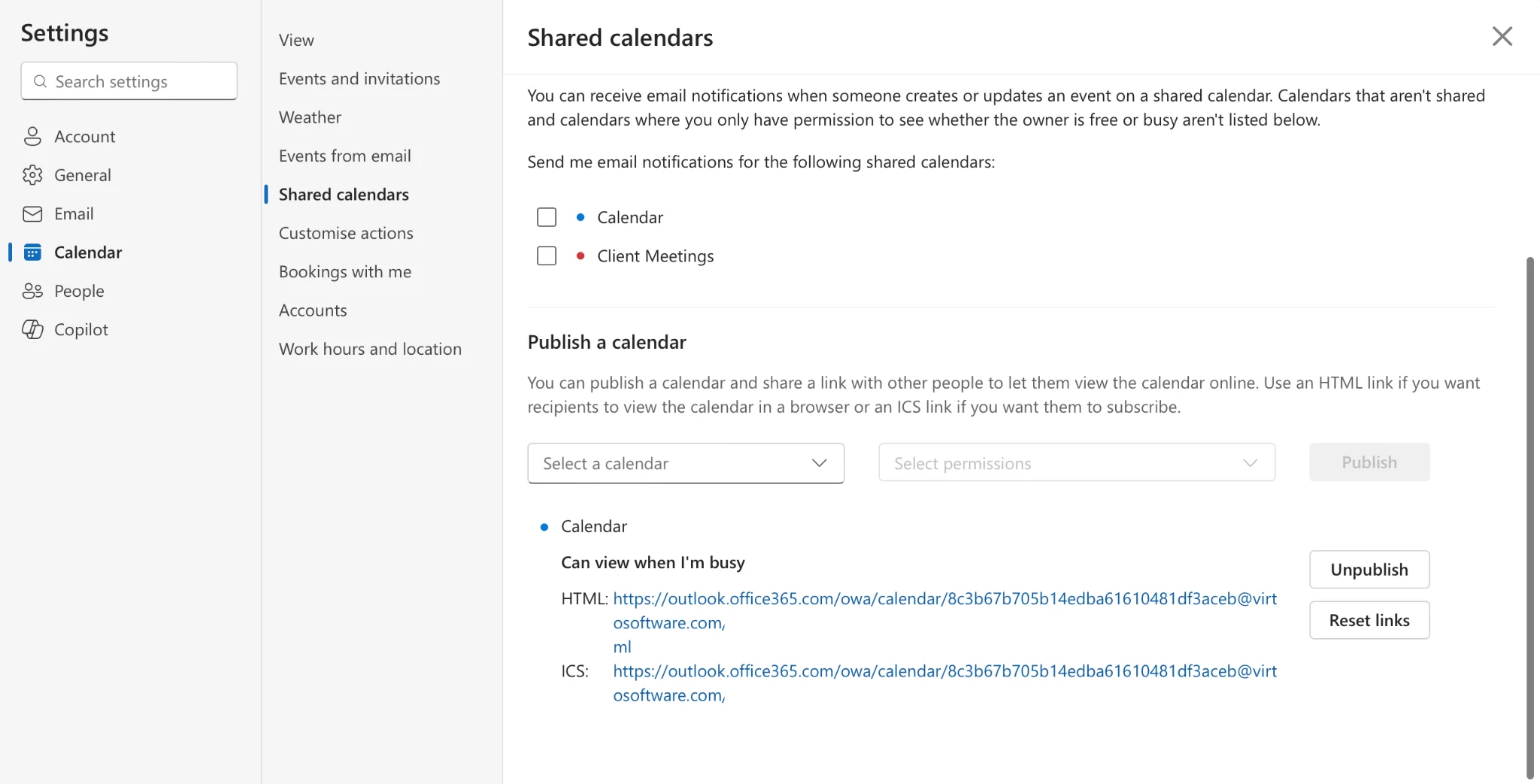
Pic. 1 — Outlook web Settings → Calendar → Shared calendars, Publish dialog
After publishing, Outlook shows two links. Click the .ics link and choose Copy link.
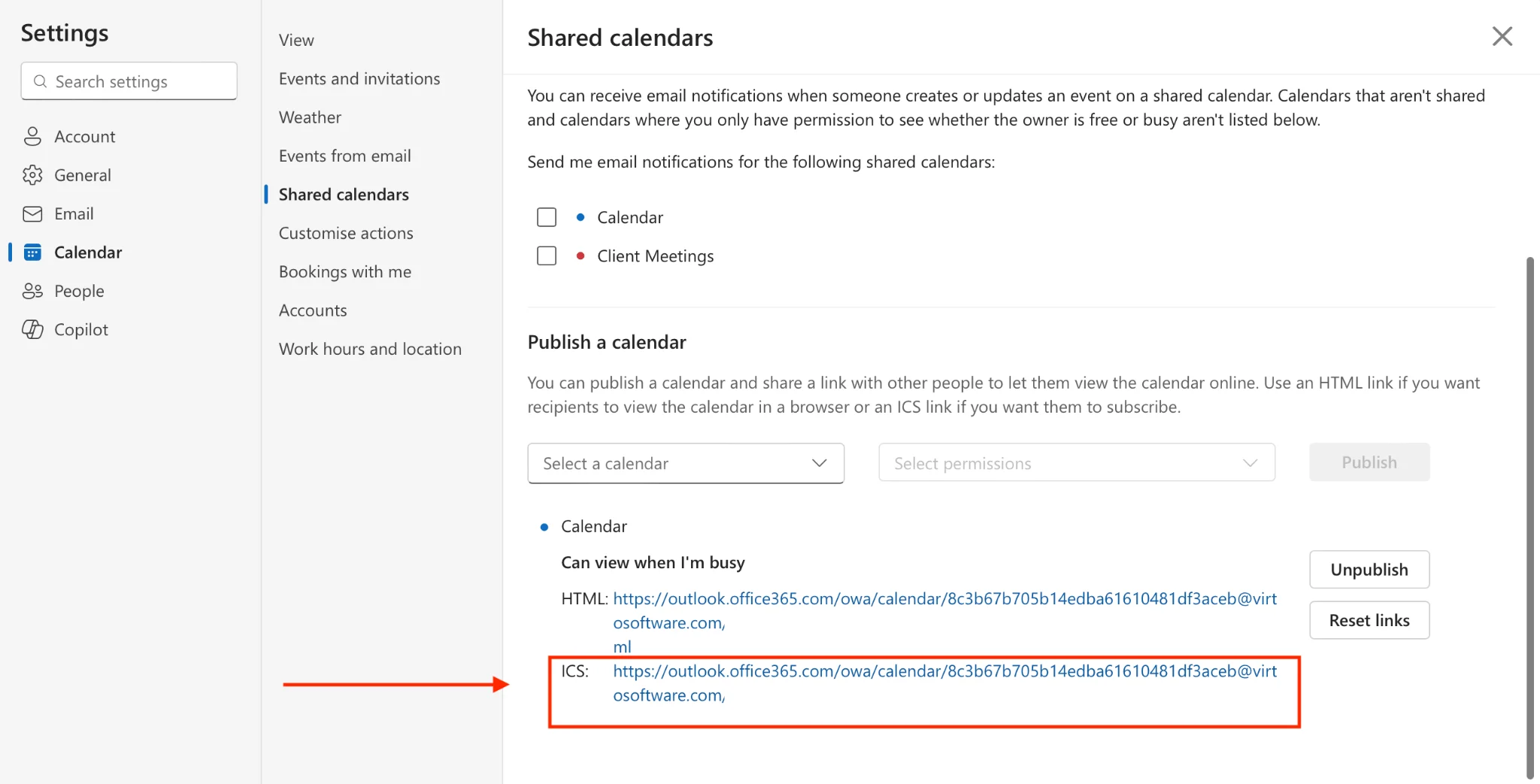
Pic. 2 — Outlook ICS link with “Copy link” highlighted
Step 2 — Subscribe to it in Google Calendar
Open Google Calendar, find Other calendars in the left panel, click the +, and choose From URL.
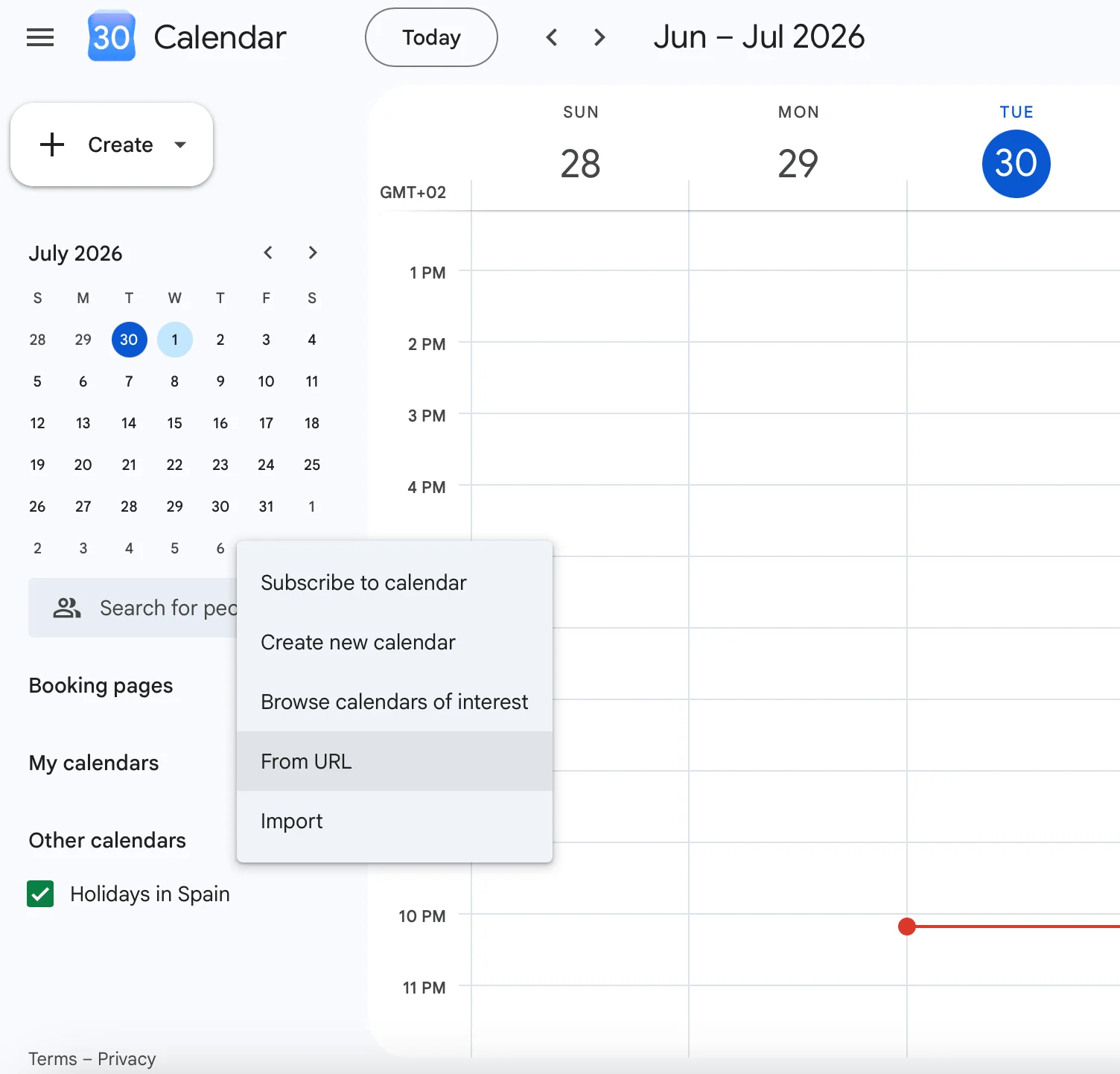
Pic. 3 — Google Calendar “+ → From URL” menu
Paste the ICS link you copied and click Add calendar. Your Teams/Outlook events now appear in Google Calendar. You can rename it, color-code it, and set notifications from its settings.
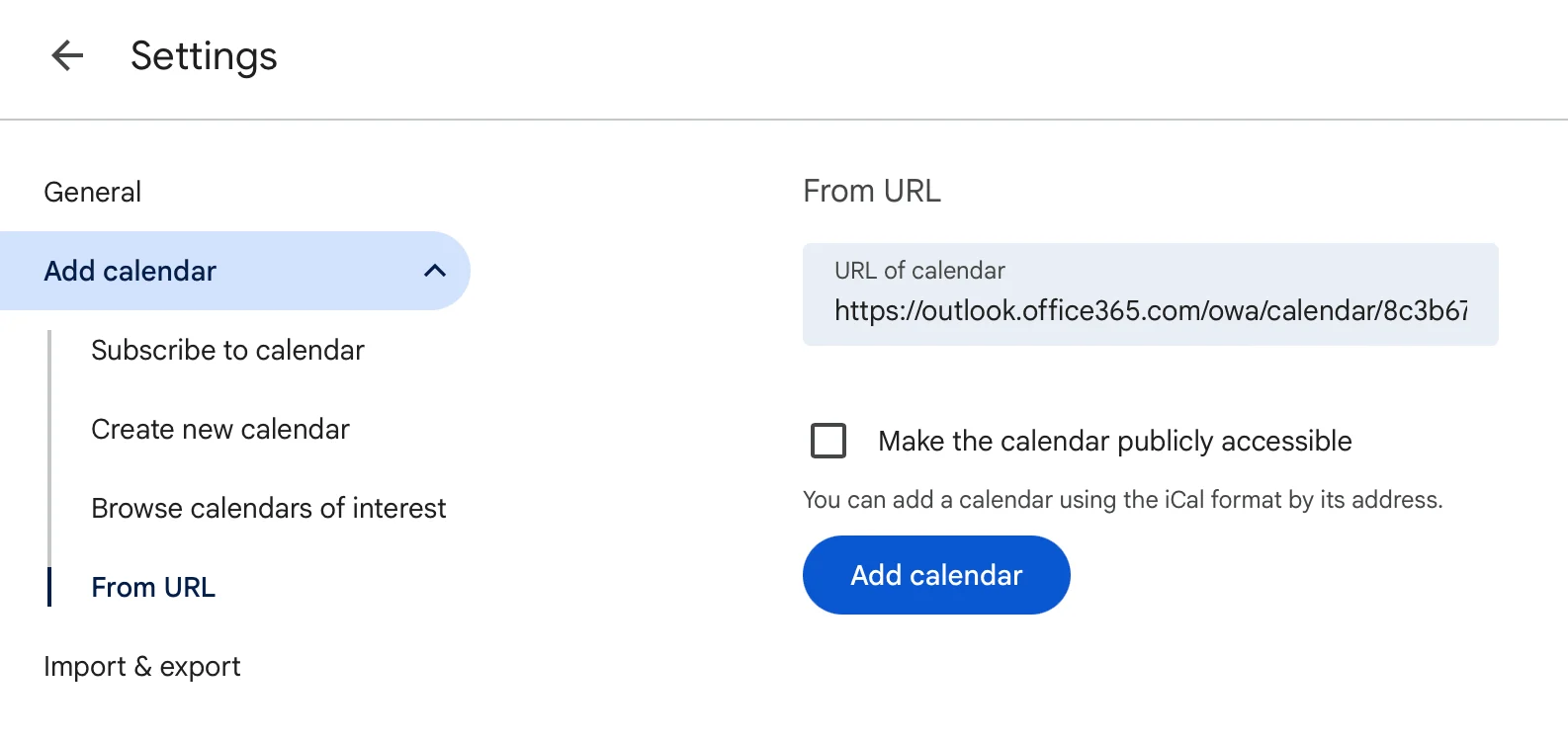
Pic. 4 — Google Calendar “Add calendar from URL” field with ICS link pasted
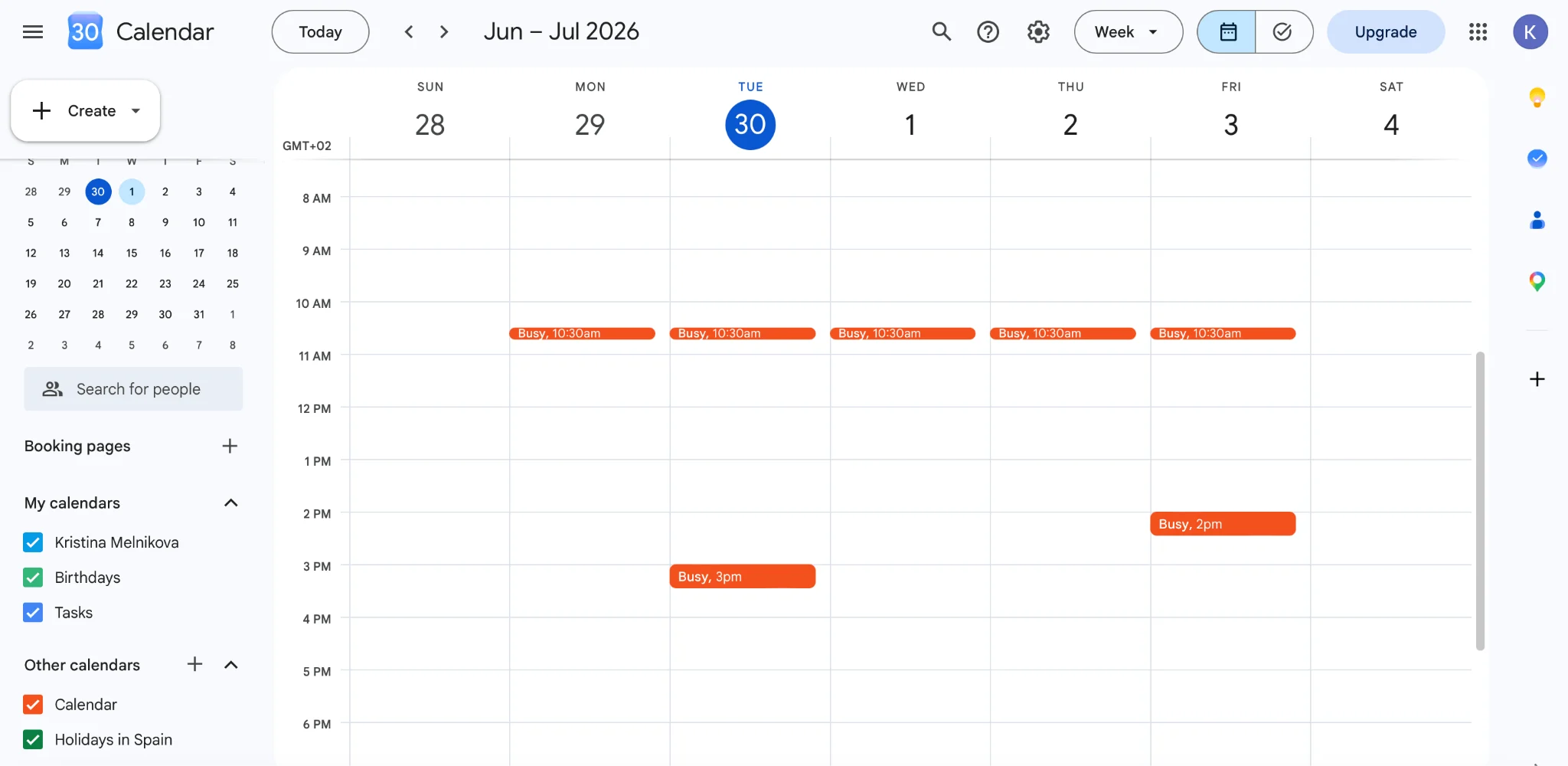
Pic. 5 — Teams/Outlook events overlaid in Google Calendar
Direction 2: Google Calendar → Teams / Outlook (ICS)
Open the Google Calendar you want to share, go to its Settings and sharing, and under Access permissions decide on visibility (making it public exposes it via a link — share only what you’re comfortable with).
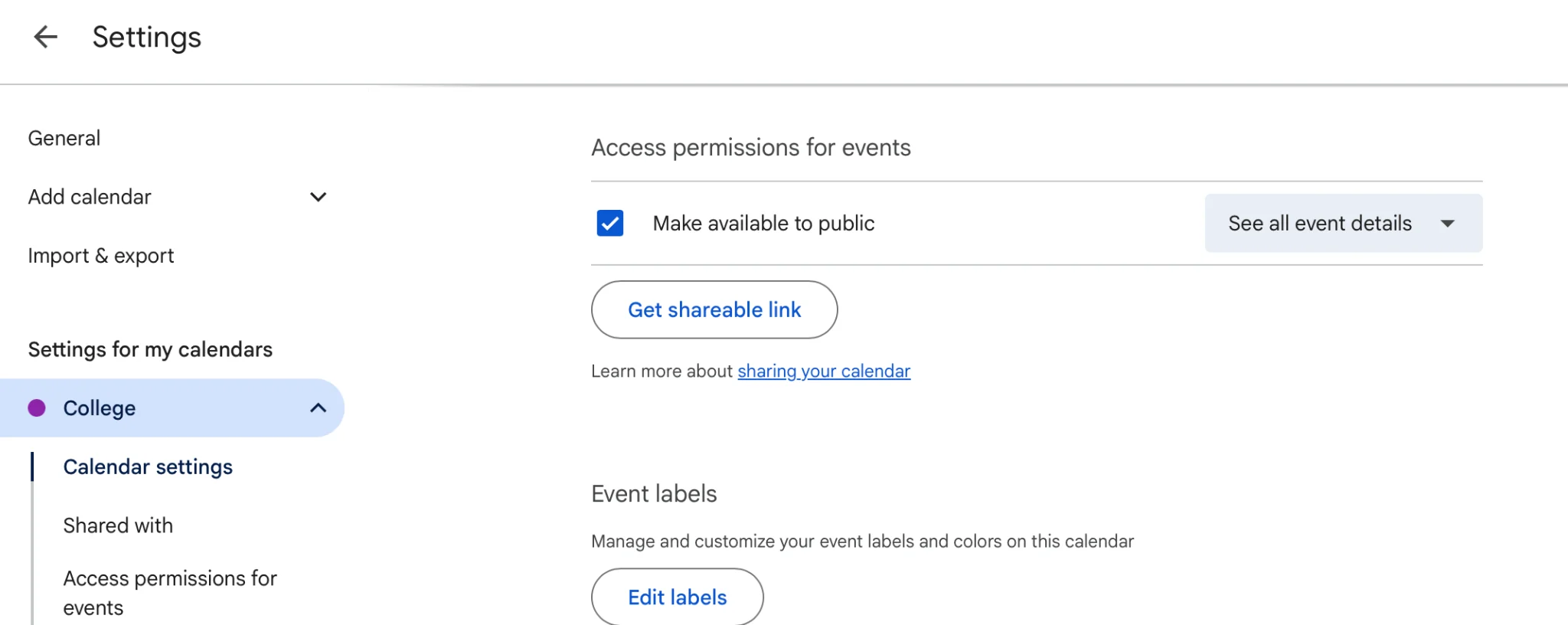
Pic. 6 — Google Calendar “Settings and sharing” → Access permissions
Scroll to Integrate calendar and copy the link under Public address in iCal format.
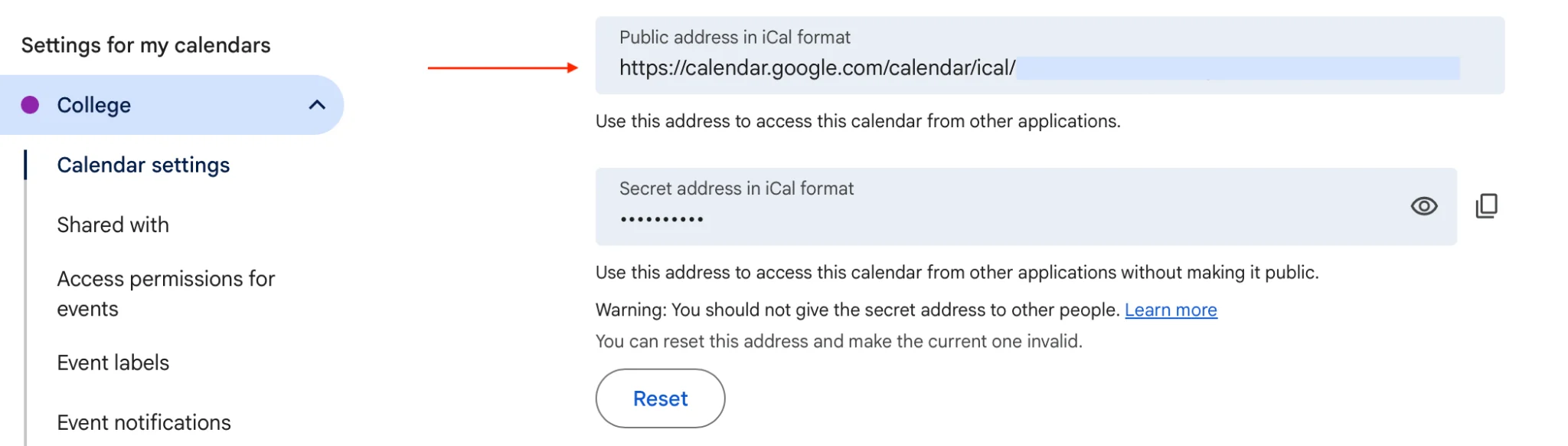
Pic. 7 — Google Calendar “Integrate calendar” → Public address in iCal format
In Outlook, add this as a web calendar subscription:
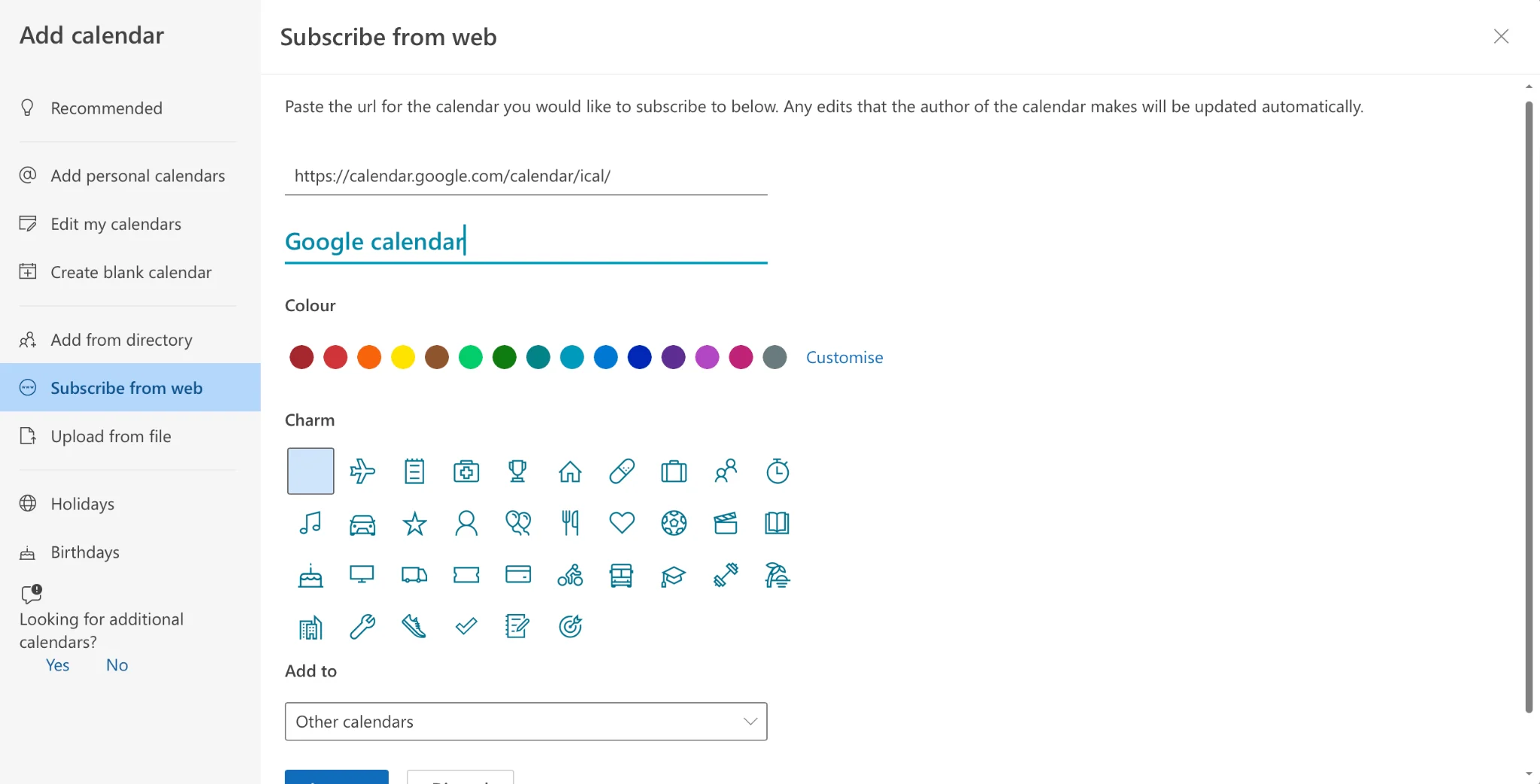
Pic. 8 — “Subscribe from web” in Outlook
Note the important limitation below: a Google calendar added this way into Outlook will not appear inside Microsoft Teams on its own — to see it in Teams you need the Virto overlay (next section).
See both calendars inside Microsoft Teams (Virto overlay)
Native ICS subscriptions let each app read the other’s events, but Teams won’t show a Google calendar in a single combined view by itself. The Virto Calendar App solves this by overlaying multiple calendars in one space inside Teams.
Open your Virto Calendar, click the settings icon next to the calendar name, and in General settings tick Display events from user’s Exchange Online Calendar(s) to bring in Teams/Outlook events.
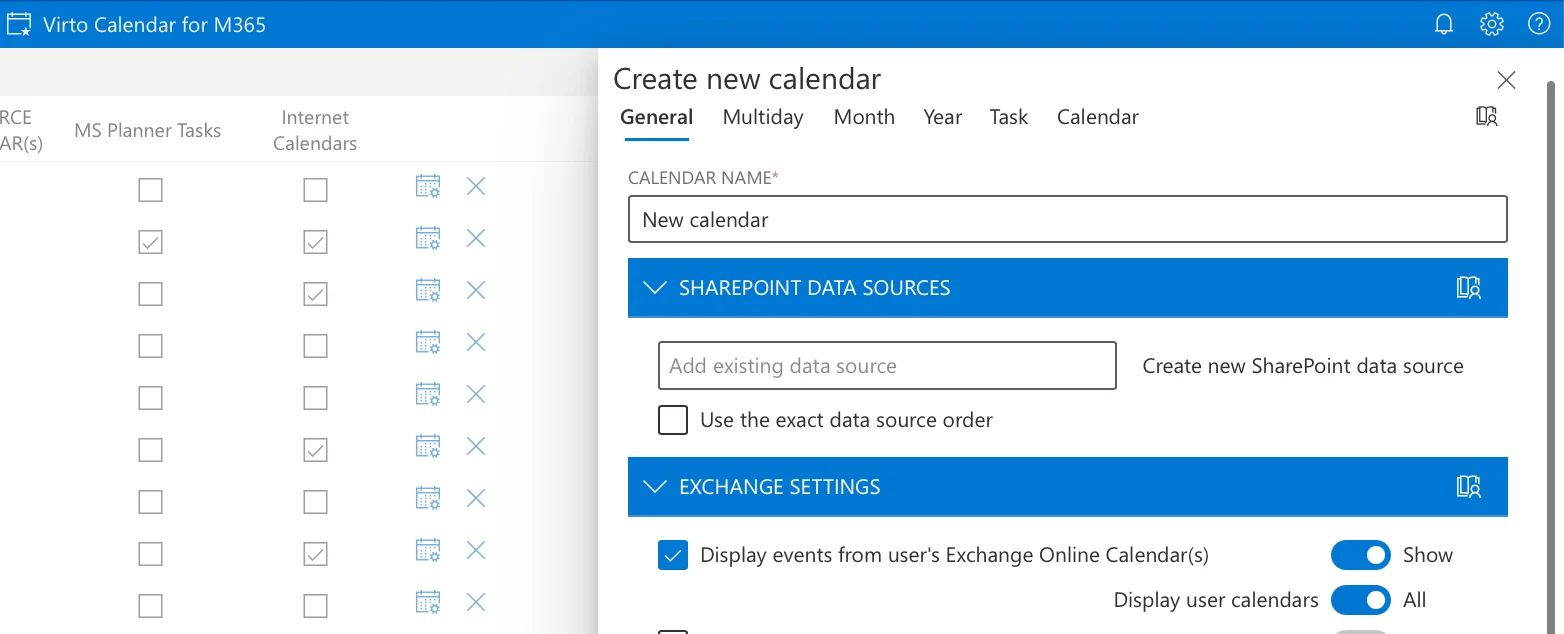
Pic. 9 — Virto Calendar General settings — Exchange Online calendars checkbox
Scroll to the Google Calendars section and click Add Google Calendar. Type your Google e-mail in the field and click Bind, then follow the prompt to authorize access. Once connected, click Save and open. Outlook events appear in one color and Google events in another.
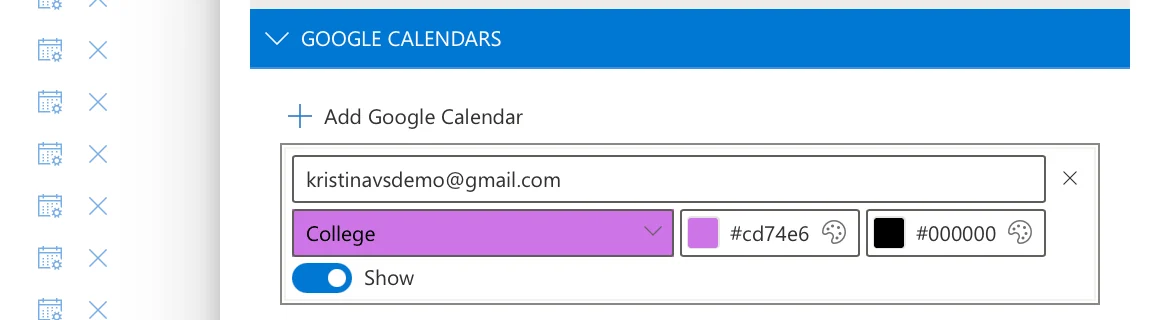
Pic. 10 — Virto Calendar — Adding Google Calendar
Finally, in Teams open the channel, click + on the tab ribbon, search for Virto Calendar, select your overlay calendar, and Save. Now both calendars live in one Teams tab. Changes in Google appear automatically; Google events open in view-only mode on Teams/Outlook/Virto for security reasons.
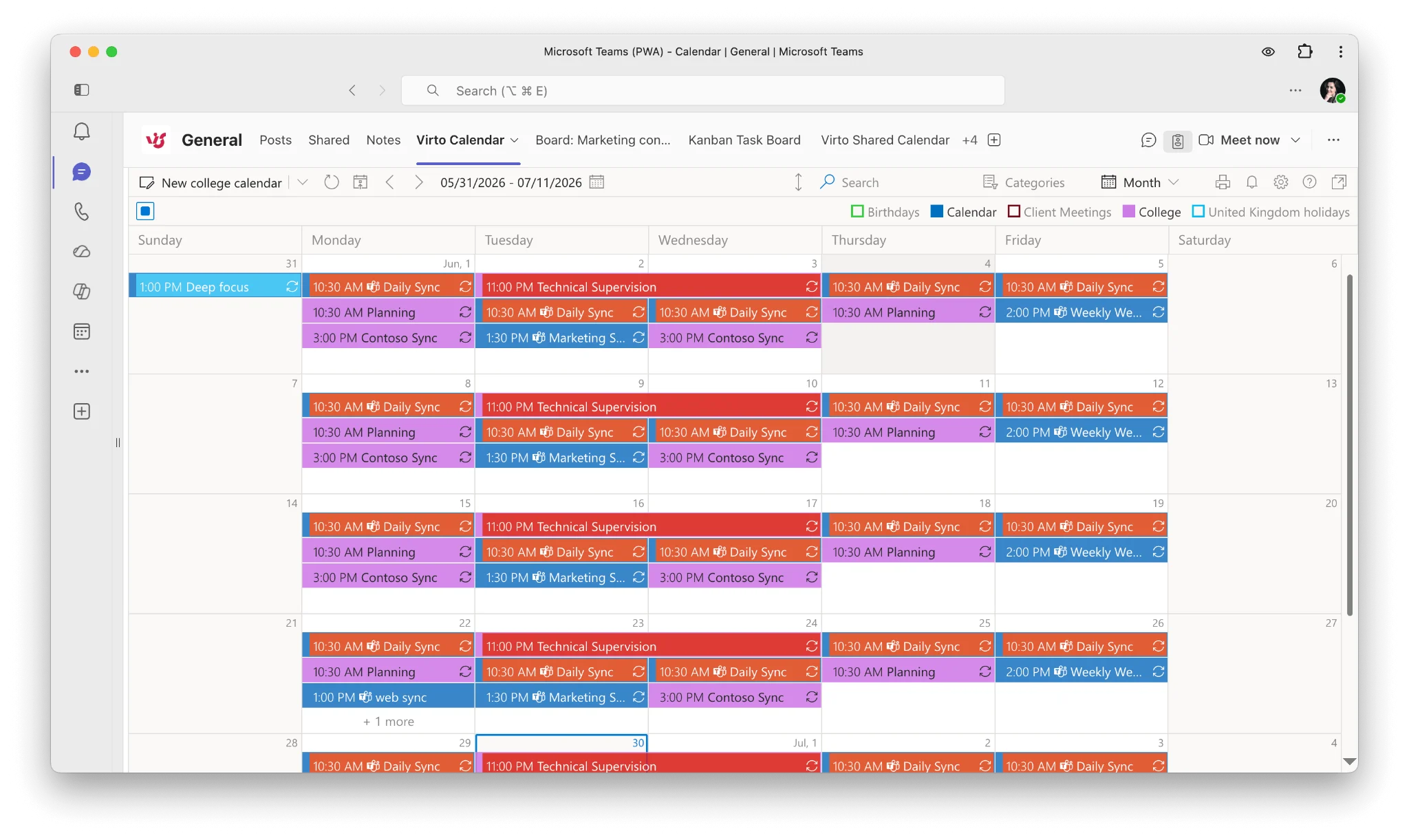
Pic. 11 — Virto Calendar overlay shown inside a Microsoft Teams channel tab
Get started with Virto Calendar — overlay your Teams and Google calendars in about 5 minutes. Try Virto Calendar for free.
Options & limitations
- One-way vs two-way: the ICS subscribe method is one-way per link. Publish from Outlook to push Teams events into Google; publish from Google to pull Google events into Outlook. Set up both directions if you want each side to see the other.
- Refresh delay: ICS subscriptions are not instant. Google and Outlook refresh subscribed calendars on their own schedule (often several hours), so a new event may take time to appear. The Virto overlay refreshes the combined view more responsively.
- View-only events: subscribed events from the other platform are read-only — you can see them but can’t edit or delete them from the receiving app.
- What won’t sync: attendee changes, attachments, and certain recurring-event edits made on someone else’s calendar may not carry across, and calendars shared into you from a third party generally won’t re-sync onward.
- Two-way / automation: for true two-way sync you can use a connector or automation tool (for example a Zapier-style connector), or use the Virto overlay to see everything together in Teams without juggling multiple subscriptions.
Troubleshooting
Sync isn’t updating / not working
Confirm both calendars are linked with the correct permissions and that the link you pasted is a true ICS URL ending in .ics. Remember the refresh delay — if the event is recent, give the subscription time to update.
Duplicate events
Check whether a calendar was imported more than once or whether multiple overlapping calendars were synced. In Virto Calendar Overlay for SharePoint, adding the same internet calendar twice causes neither copy to display — remove the duplicate.
Incorrect time zones
Time zones usually sync fine. If they drift, check the time-zone setting in Outlook calendar settings and in Google Calendar settings, and confirm the Language and Time Zones of your SharePoint site match across all Microsoft 365 calendars.
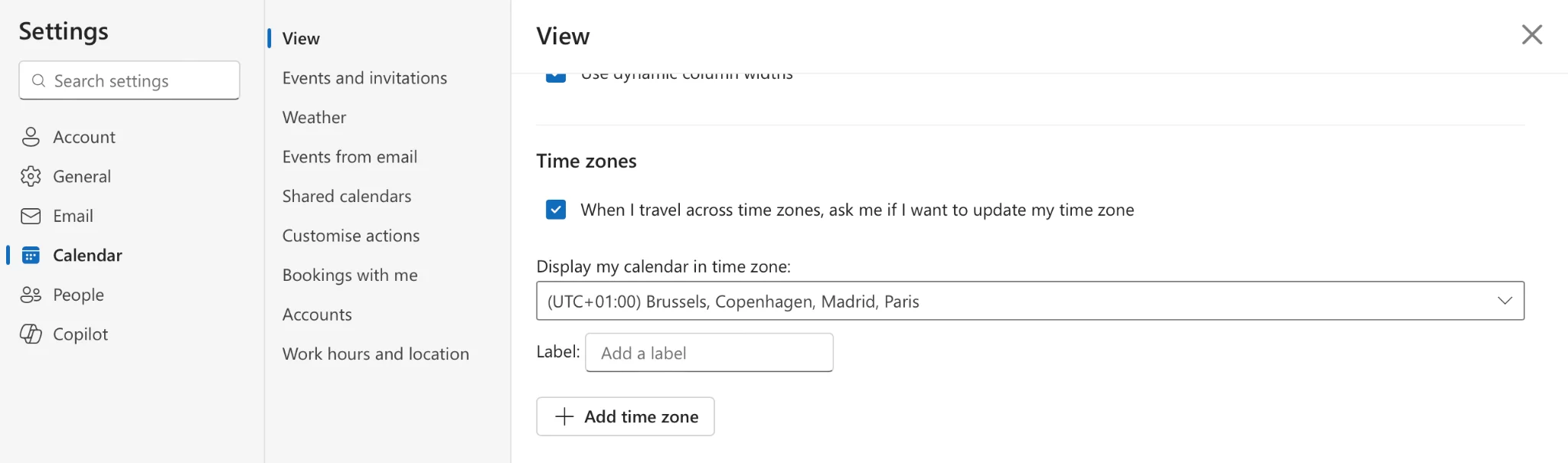
Pic. 12 — Time-zone settings in Outlook
Syncing the wrong calendar
Pick the correct calendar to sync. To undo: Remove it in Outlook, Unsubscribe in Google Calendar, click the X next to it in Virto Calendar Overlay, or Remove the tab in Teams.
Missing events
Verify events were imported correctly. Events that originate from someone else’s shared calendar generally won’t re-sync onward to a third app for security reasons — this is expected behavior, not a bug.
Recurring-event issues
Recurring events shown from another person’s calendar may not carry into a third app for the same security reason. If recurring events misbehave in the overlay, contact Virto support.
Privacy and permissions
Whenever you share a calendar — Outlook, Google, or otherwise — the app asks exactly what to expose, and you can change this later in calendar settings. If a teammate can’t see a calendar in Teams, ask your administrator to check that user’s permissions and the tab’s access. In Virto Calendar Overlay you manage access from the Permissions tab in calendar settings.
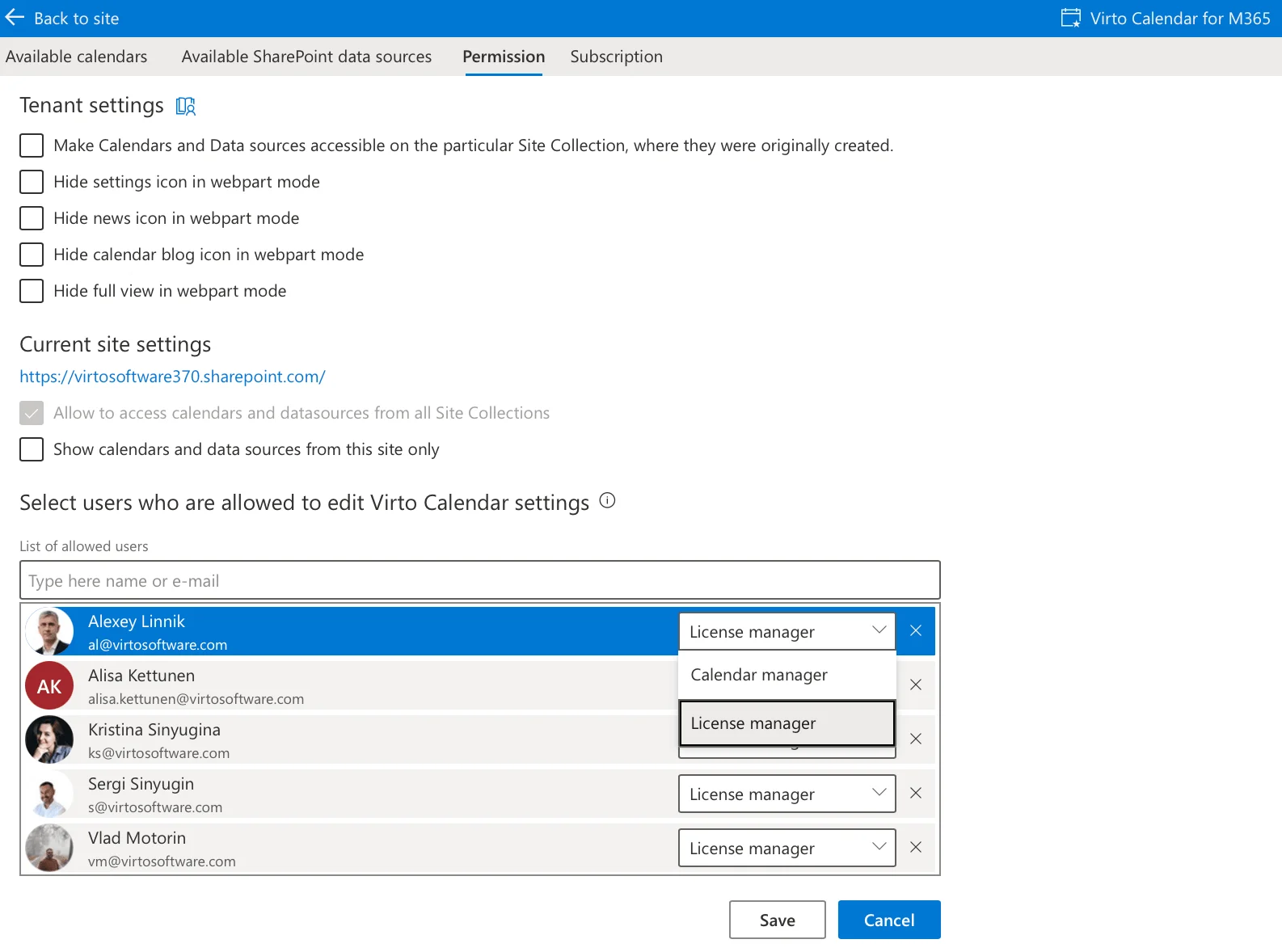
Pic. 13 — Virto Permissions tab
Unify Teams & Google with Virto
Native syncing is great for pushing events between apps, but it can’t give you a single combined calendar inside Teams. The Virto Calendar App overlays Exchange/Outlook and Google calendars (plus SharePoint lists and other ICS feeds) in one color-coded view, so your whole team sees every commitment in one Teams tab — no toggling, no missed events.
Virto Calendar App costs $2,412 per 100 users per year with a 3-year agreement (100 users and up), with a 30-day free trial; smaller teams can use Virto Shared Calendar, which has a free plan. Explore Virto Calendar »>
Related sync guides
- Outlook calendar not syncing — full sync hub
- Teams calendar not syncing with Outlook
- Google Calendar not syncing with Outlook
- Microsoft Teams shared calendar guide
FAQ
Can Microsoft Teams sync with Google Calendar?
Yes. Teams uses your Outlook / Microsoft 365 calendar, which you can share to Google via an ICS subscription (one-way) or a two-way connector. To view both calendars together inside Teams, use the Virto Calendar overlay.
Is the sync two-way?
The basic ICS subscribe method is one-way per link, so set up both directions for mutual visibility, or use a connector / the Virto overlay for a combined, more responsive view.
How do I show Google events inside Microsoft Teams?
Add your Google iCal link to a Virto Calendar overlay, enable your Exchange Online calendar in the same overlay, then add that Virto Calendar as a tab in your Teams channel. Google events appear (view-only) alongside your Teams events. Start a free trial.