



Introduction
Effective team planning in SharePoint is almost impossible without a shared visual space where everyone can see upcoming meetings, deadlines, and team events at a glance. In a SharePoint On-Premises environment, just like in the cloud, the group calendar fills this role by providing a central schedule that the whole team can access and update.
At the same time, SharePoint On-Premises works differently from SharePoint Online in Microsoft 365, which is why many users are unsure how group calendars work, how they differ from classic SharePoint calendars, and what limitations they need to keep in mind. The result is a lot of practical questions: How to create a group calendar in SharePoint On-Premises? Does SharePoint On-Premises have a shared calendar? Can a SharePoint site have multiple calendars?
✍Note: Terminology like 'Calendar list,' 'Calendar web part,' and 'Events web part' varies slightly between SharePoint versions (2013/2016/2019), but the core concepts remain consistent.
The goal of this article is to give a clear, step-by-step explanation of what a SharePoint On-Premises group calendar is, how to create it, configure it, and use it in day-to-day work, as well as which limits you should be aware of before you roll it out to your team. You will also see typical use cases such as team scheduling, department planning, resource coordination, and internal process tracking so you can quickly map the calendar to your own scenarios.
SharePoint Online and Microsoft 365 group calendars (including the modern Group calendar web part) are covered in a separate Microsoft 365–focused article, so this guide will concentrate specifically on the classic, On-Premises implementation of group calendars in SharePoint. Here you will not only learn about the standard features available out of the box, but also how to integrate the calendar with Outlook and which alternative tools and configuration options you can use to extend its functionality beyond the default experience.
👉 Best shared calendars for Microsoft 365/Teams.
Section 1. What is a group calendar in SharePoint On-Premises and what is its purpose?
A group calendar in SharePoint On-Premises is a centralized tool for tracking team events, booking resources, and managing shared schedules in one place. It gives everyone in a department, project team, or workgroup a single, shared view of what is happening and when, instead of relying on individual calendars scattered across different tools.
In practical terms, a group calendar is a shared calendar list accessible to a defined group of users within a SharePoint site. Permissions on the site and on the calendar list determine who can view, add, edit, or delete events, which makes it suitable for both open team calendars and more controlled department schedules. By default, events stored in the calendar belong to the site, not to a single user, so the calendar remains available even when people join or leave the team.
This is the key difference from an individual employee’s personal calendar (for example, in Outlook or My Site/Exchange), which is tied to a single user account and is primarily intended for that person’s own schedule. A personal calendar can be shared with others, but it remains owned and controlled by the individual. A SharePoint group calendar, on the other hand, is owned by the site and is designed from the start as a shared asset for the team, with a neutral, team-centric view of events rather than a person-centric one.
The approach to group calendars differs between SharePoint On-Premises and SharePoint Online. In SharePoint Online (Microsoft 365), the group calendar experience is often built around Microsoft 365 Groups or Teams, where the group’s mailbox and calendar live in Exchange Online and are surfaced in Outlook and SharePoint through modern web parts and integrations. In SharePoint On-Premises, the group calendar is more often implemented as a classic calendar list on a site, optionally connected to Outlook, but not automatically backed by Microsoft 365 Groups or the cloud-based group mailbox model.
Within a SharePoint On-Premises site, a group calendar fits into the structure as a standard list that can be added to any team site, project site, or departmental workspace. It can be used as a standalone element, for example as a dedicated “Team Calendar” page, or embedded as part of a broader team workspace alongside document libraries, task lists, discussion boards, and dashboards. You can place it on the home page using the Calendar web part (Events web part in classic mode), or keep it on its own page and link to it from the site navigation, depending on how prominent you want it to be in daily work.
A calendar in SharePoint On-Premises can serve different roles depending on how you configure and present it. As a standalone element, it can act as the primary planning hub for a team, where users go specifically to check dates and events. As part of a larger workspace, it complements documents, tasks, and lists, so that people can see key deadlines while they are working with related project content, making the site a single point of reference for both information and timelines.
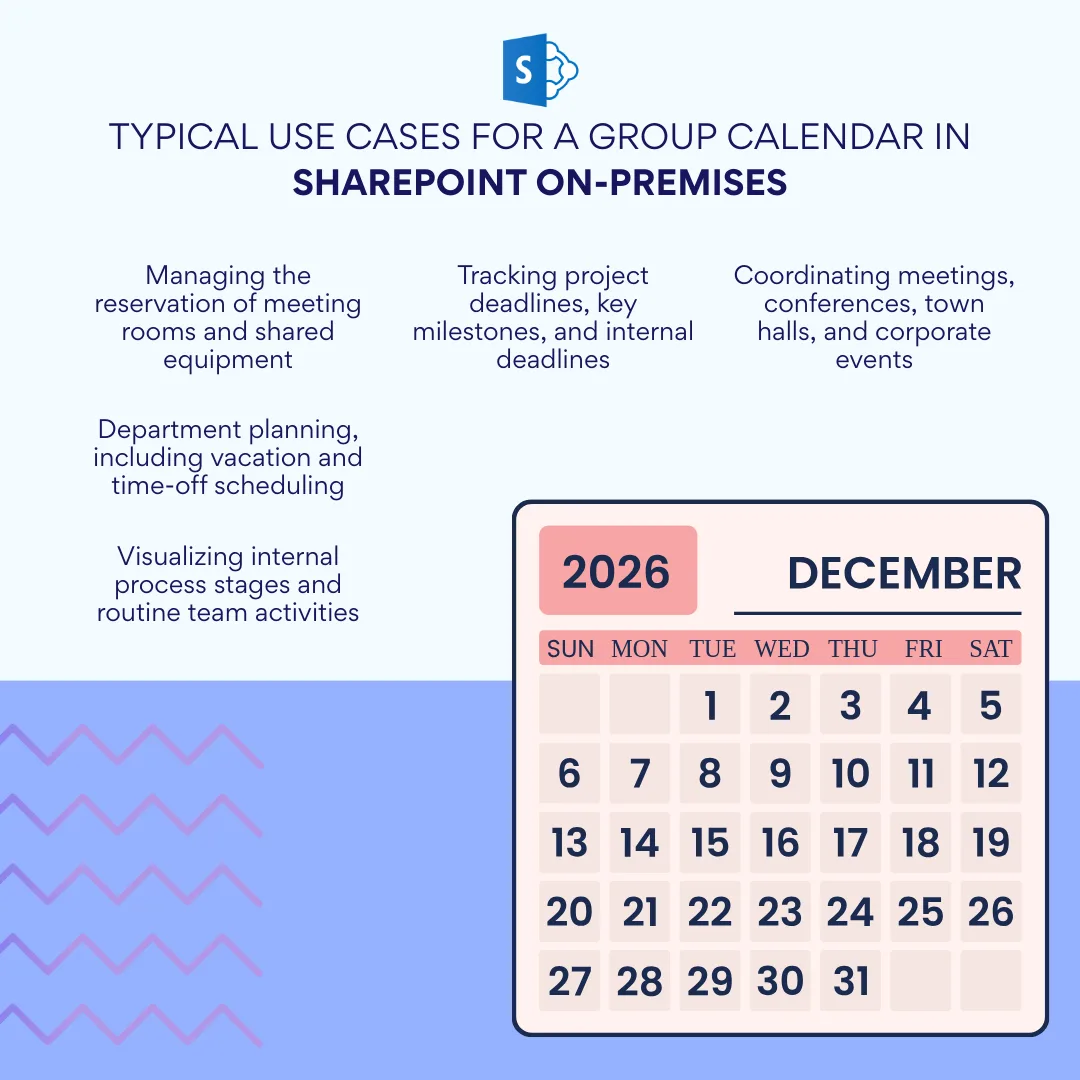
Typical use cases for a group calendar in SharePoint On-Premises include:
- Department planning, including vacation and time-off scheduling, so managers and colleagues can see when team members are away.
- Tracking project deadlines, key milestones, and internal deadlines, providing a shared timeline that aligns with project documents and task lists.
- Coordinating general meetings, conferences, town halls, and corporate events, ensuring that invitations and logistics are visible to everyone who needs them.
- Managing the reservation of meeting rooms and shared equipment (such as rooms, projectors, laptops, and other resources) by treating each booking as a calendar event and, where appropriate, using additional columns to capture room or asset details.
- Visualizing internal business process stages and regular team activities, such as recurring reporting cycles, maintenance windows, sprint schedules, or compliance checks, so that process timing is always clearly visible.
Does SharePoint On-Premises have a shared calendar?
Yes, SharePoint On-Premises has a shared calendar capability built in. It uses the standard “Calendar” list type, which you can add to any site and then grant access to the relevant users or SharePoint groups so that everyone can view and manage events together.
When you create a calendar list on a team or department site and configure permissions for multiple users, it effectively becomes a shared group calendar for that workspace. This allows the calendar to live with the site content, remain independent of any single user’s personal mailbox, and continue to function even as team membership changes.
👉 See Microsoft's guide to using a group calendar.
2. SharePoint On-Premises Group Calendar Features and Options
A SharePoint On-Premises group calendar comes with several built-in features that make it easier for teams to plan, coordinate, and visualize their schedules in one place. Before you start configuring views or permissions, it helps to understand which tools SharePoint gives you for displaying and working with the calendar on your site pages.
2.1 SharePoint Calendar Web Part: Purpose and Role
The SharePoint calendar web part is a configurable block you can place on a page to display a calendar list via the Calendar web part (Events web part in classic mode). Instead of opening the calendar list separately, users can see upcoming events, meetings, and deadlines right where they work, such as on a team site home page or project dashboard.
A web part in SharePoint is a reusable component that adds functionality to a page, for example calendars, task lists, document rollups, or charts. By adding the calendar web part to a page, you embed the group calendar into the site’s user interface so that people don’t have to navigate through site contents or list views to find it. This reduces clicks and helps keep planning information visible alongside documents, tasks, and other key content.
Using the calendar web part allows users to view the calendar directly from the site page in familiar layouts such as day, week, or month. They can usually click events to open details, use navigation to move between periods, and, depending on permissions, add or edit events from the same page. This turns the page into a central planning hub where the calendar is part of the everyday workspace rather than a separate destination.
👉Microsoft's Group Calendar Web Part overview.
2.2 Key Features and Options of the SharePoint Group Calendar
A SharePoint On-Premises group calendar provides several core features that support team and department planning:
- Creating, editing, and deleting events: Users with the appropriate permissions can add new events (such as meetings, deadlines, and bookings), change existing ones, or remove items that are no longer needed. Events can include start and end times, locations, descriptions, and additional columns you configure (for example, department, project code, or resource name).
- Day, week, and month views: The calendar supports multiple views so users can switch between a detailed daily schedule, a weekly overview, or a high-level monthly picture. This flexibility helps different roles—such as managers versus individual contributors—see the level of detail they need.
- Configurable access rights: Permissions control who can view, add, edit, and delete items in the calendar. You can allow everyone on the site to see events but restrict editing to a smaller group, or create more granular rules for specific users or SharePoint groups, which is important for sensitive schedules like management meetings or HR timelines.
- Multiple calendars on a single site: A SharePoint site is not limited to a single calendar. You can create different calendar lists for different purposes, such as team events, room bookings, and project milestones, and place each one where it makes the most sense in the site structure.
The native SharePoint On-Premises group calendar works well for basic team schedules, single-site planning, and simple overlays in small teams. However, native Calendar list has some limitations:
- Overlay capped at 10 calendars—colors blend and navigation gets clunky beyond that.
- List-level permissions only—no granular controls like "edit own events."
- Outlook desktop dependency for full sync and overlays—no web or mobile support.
- Scaling issues with dense events or large teams—basic views slow down and lack modern layouts like timelines. It’s important to plan ahead for growth!
Can a SharePoint site have multiple calendars?
Yes, a SharePoint site can host multiple calendar lists at the same time. This allows you to separate calendars by team, department, project, or function—for example, one for the IT helpdesk on-call schedule, another for company-wide events, and a third for a specific project’s milestones. Each calendar can have its own permissions, views, and columns, so you can tailor them to the needs of each audience.
SharePoint On-Premises also provides a feature called Calendar Overlay, which allows you to combine multiple calendars into a single, color-coded view. With Calendar Overlay, you can overlay up to 10 calendars (including other SharePoint calendars or, in some configurations, Exchange calendars) so that events from each source appear together but remain visually distinct, typically by assigning a different color to each calendar. This is useful when you want a consolidated view—for example, merging several team calendars into one schedule—without losing the underlying separation of data.
3. How to Create and Configure a Group Calendar in SharePoint On-Premises
Creating a group calendar in SharePoint On-Premises is straightforward and builds on the platform’s classic list functionality, tying the schedule directly to your site’s structure and permissions. This section walks you through the process from initial setup to making the calendar visible and usable on team pages, so everyone can access it without extra steps.
How to create a group calendar in SharePoint On-Premises?
A group calendar in SharePoint On-Premises is created as a standard Calendar list directly within a team or department site, making it immediately available to site members. This approach keeps the calendar tied to the site’s permissions and content structure, so it functions as a shared team resource from the start.
3.1 Creating a Calendar on a Team Site
A group calendar in SharePoint On-Premises starts as a Calendar list added to a specific team site, project site, or department workspace. This list type provides the built-in fields and views needed for events, such as title, start/end times, recurrence, and categories, all optimized for scheduling. Once created, the calendar inherits the site’s permissions by default, so team members who already have access to the site can immediately start using it.
Here is the step-by-step process to create it:
- Navigate to the SharePoint On-Premises site where you want the group calendar (for example, a team site or subsite).
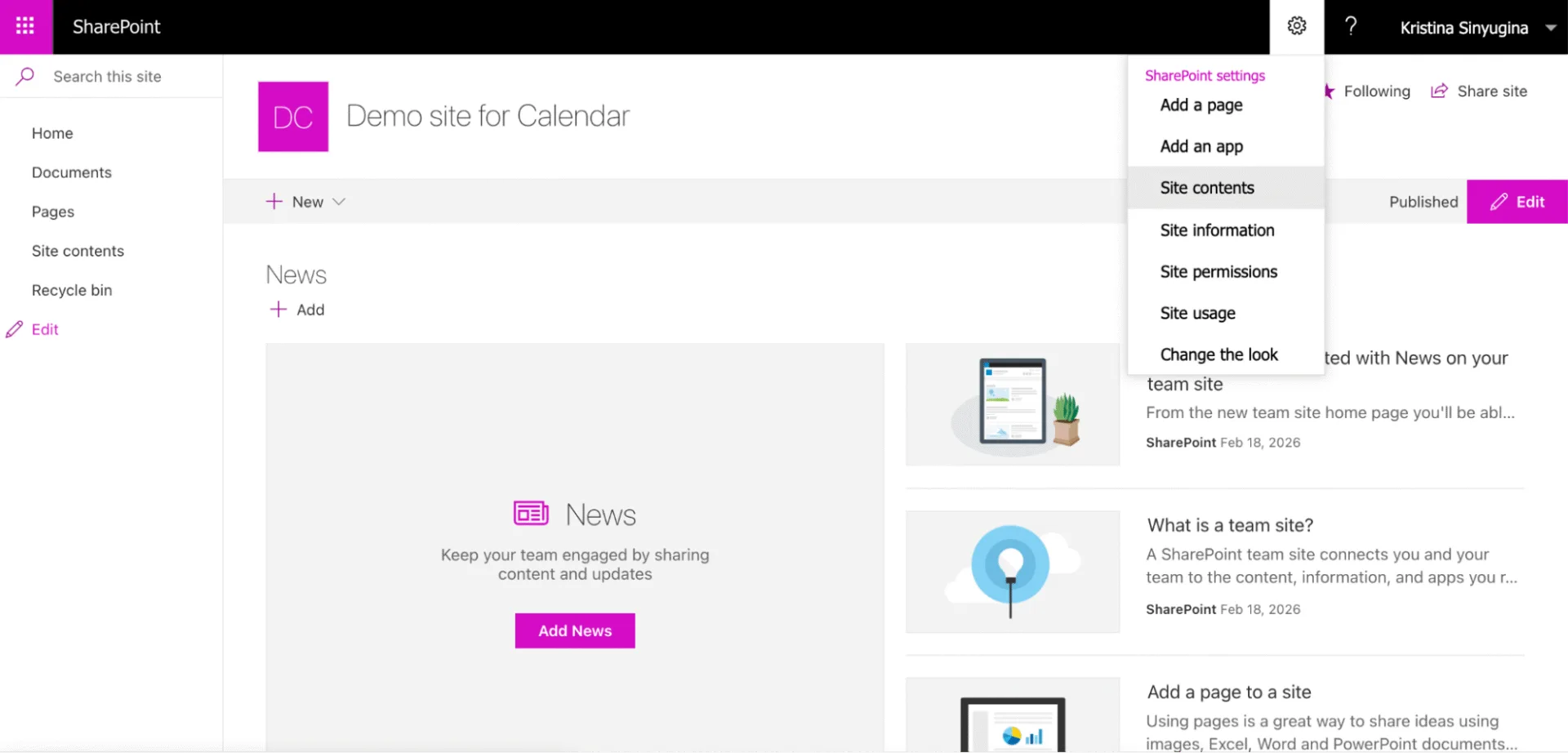
- Click Settings (gear icon) > Site contents to open the list of existing lists, libraries, and apps.
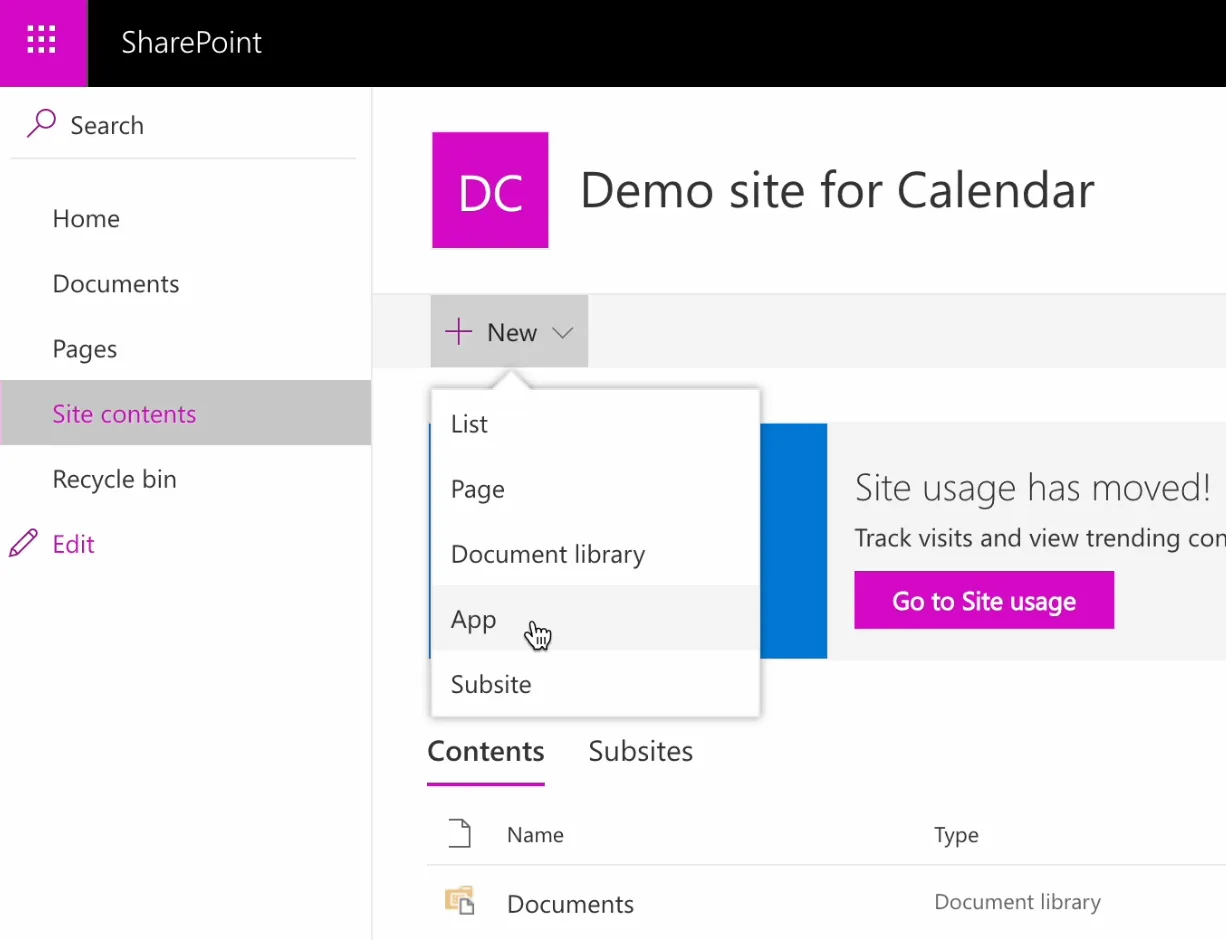
- Click + New > App (or Add an App in some versions) to see the app catalog.
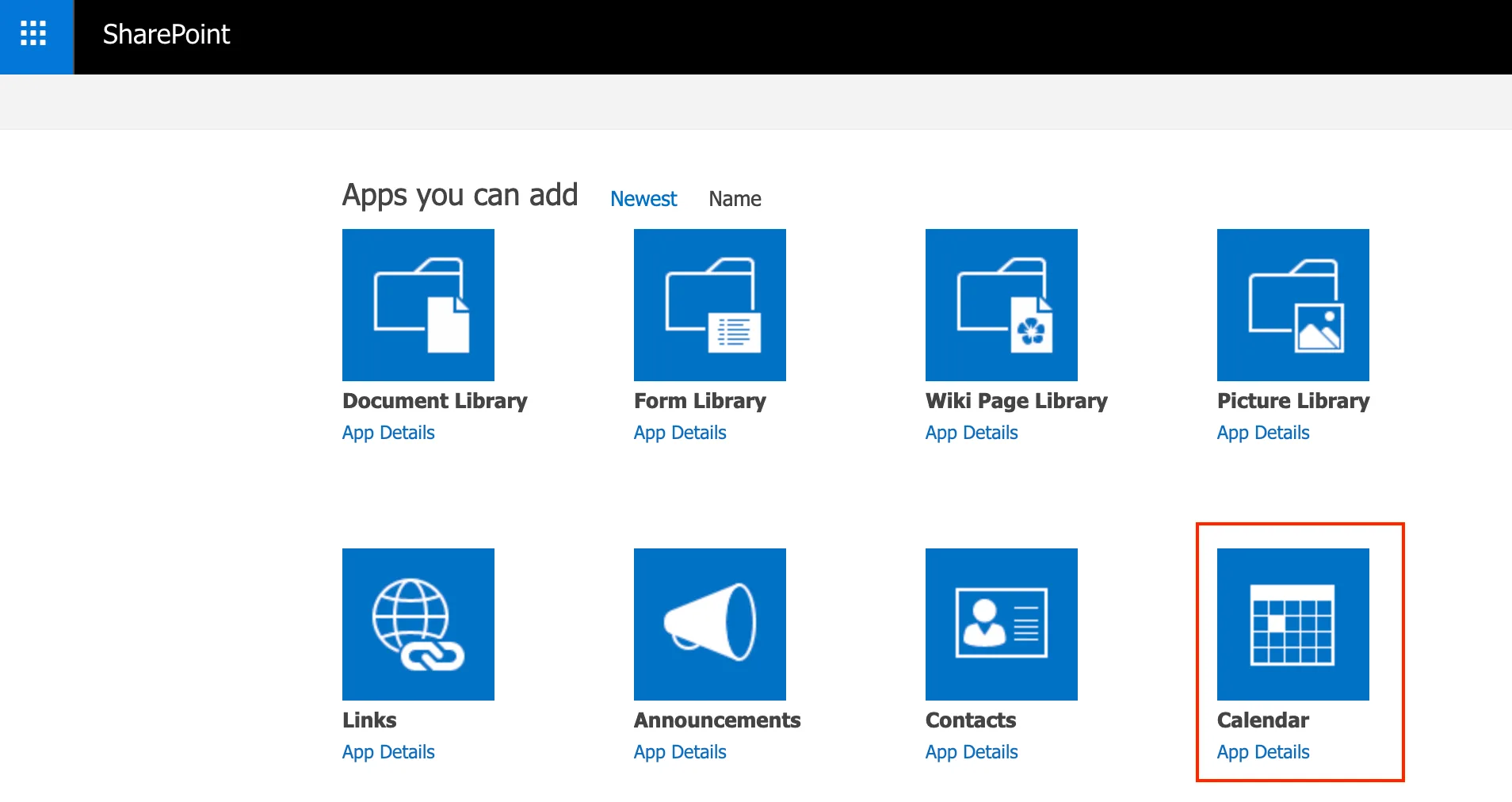
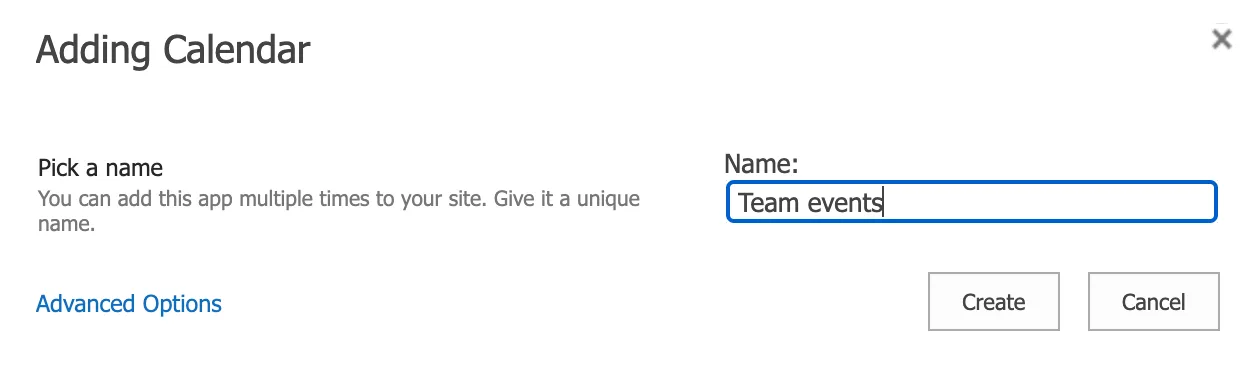
- Search for or scroll to Calendar, select it, enter a name like “Team Events” or “Department Schedule,” and click Create. Watch Microsoft's video: Create your own SharePoint calendar.
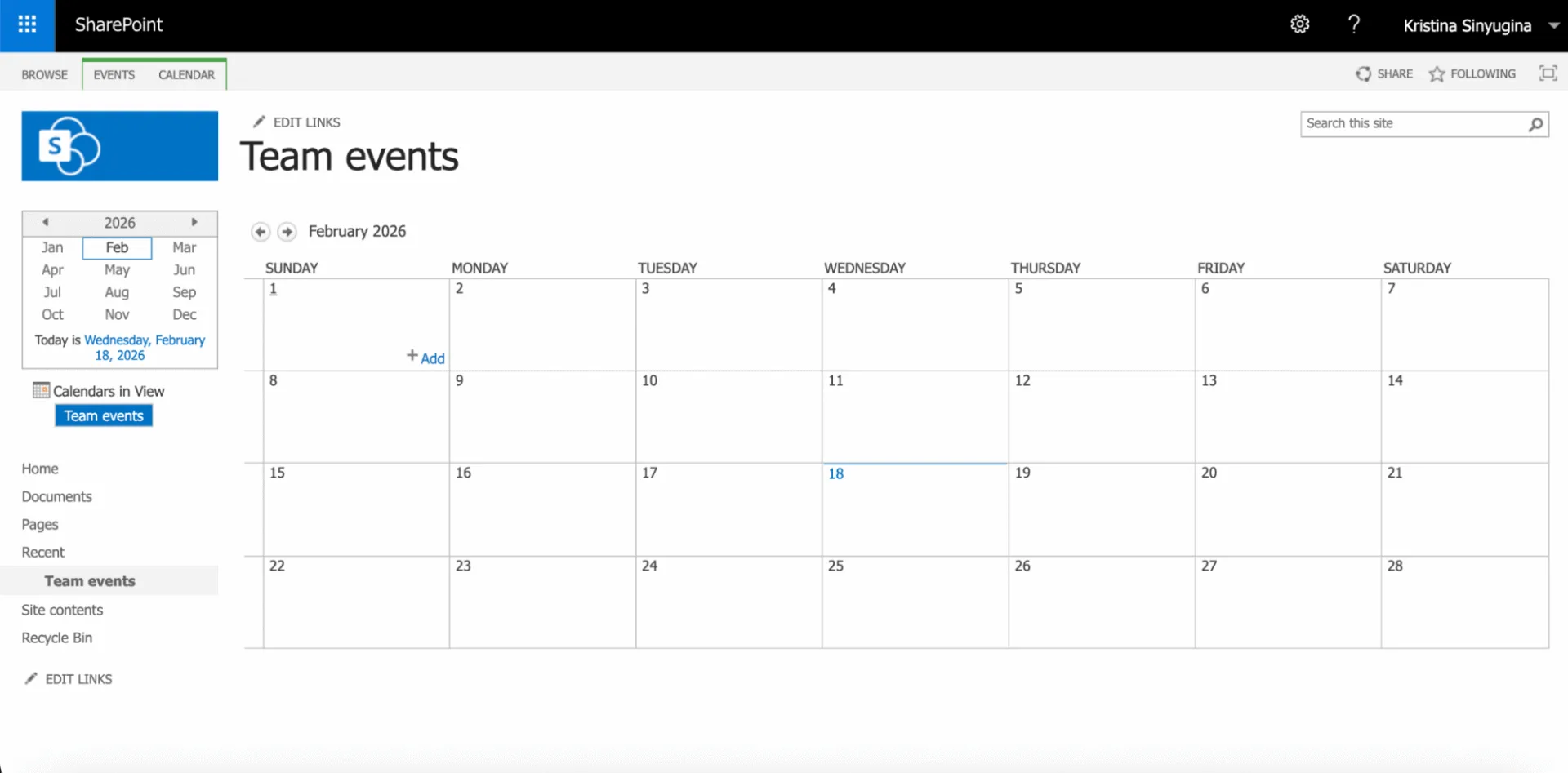
The new calendar now appears in Site Contents and is ready for events. However, for everyday team use, you should display it on a site page next to other content—this makes it visible without extra navigation and turns the page into a true planning dashboard.
3.2 Adding a Calendar to a Site Page via the SharePoint Calendar Web Part
Adding the calendar to a site page is essential because it keeps the schedule always visible in context with documents, tasks, or announcements. Users won’t need to dig through Site Contents or Quick Launch links; instead, they see events right on the team homepage or project page where they already work.
Follow these steps to add a calendar web part to a SharePoint page:
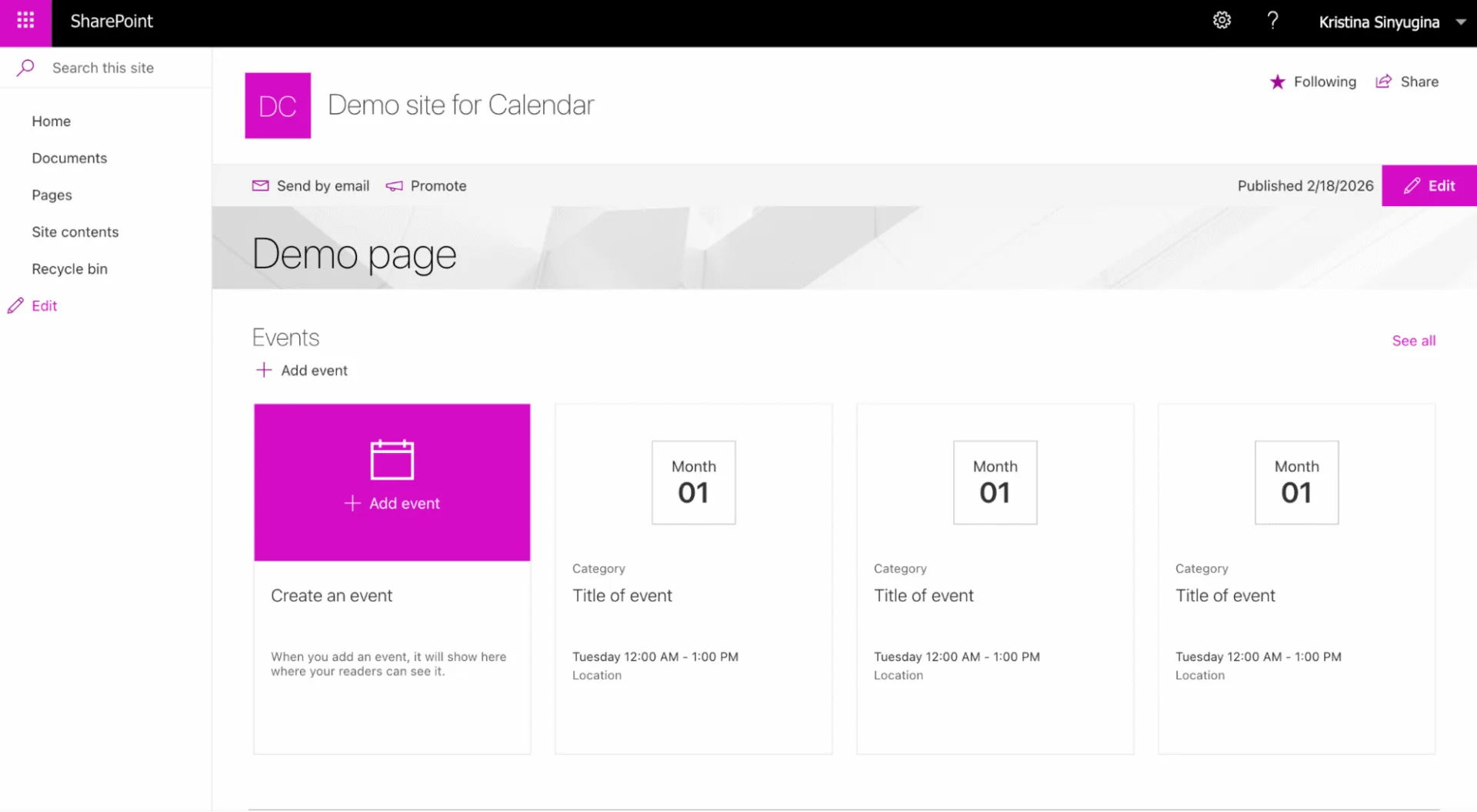
- Go to the home page, a dedicated calendar page, or any internal page on your site, and click Edit in the top right to enter edit mode.
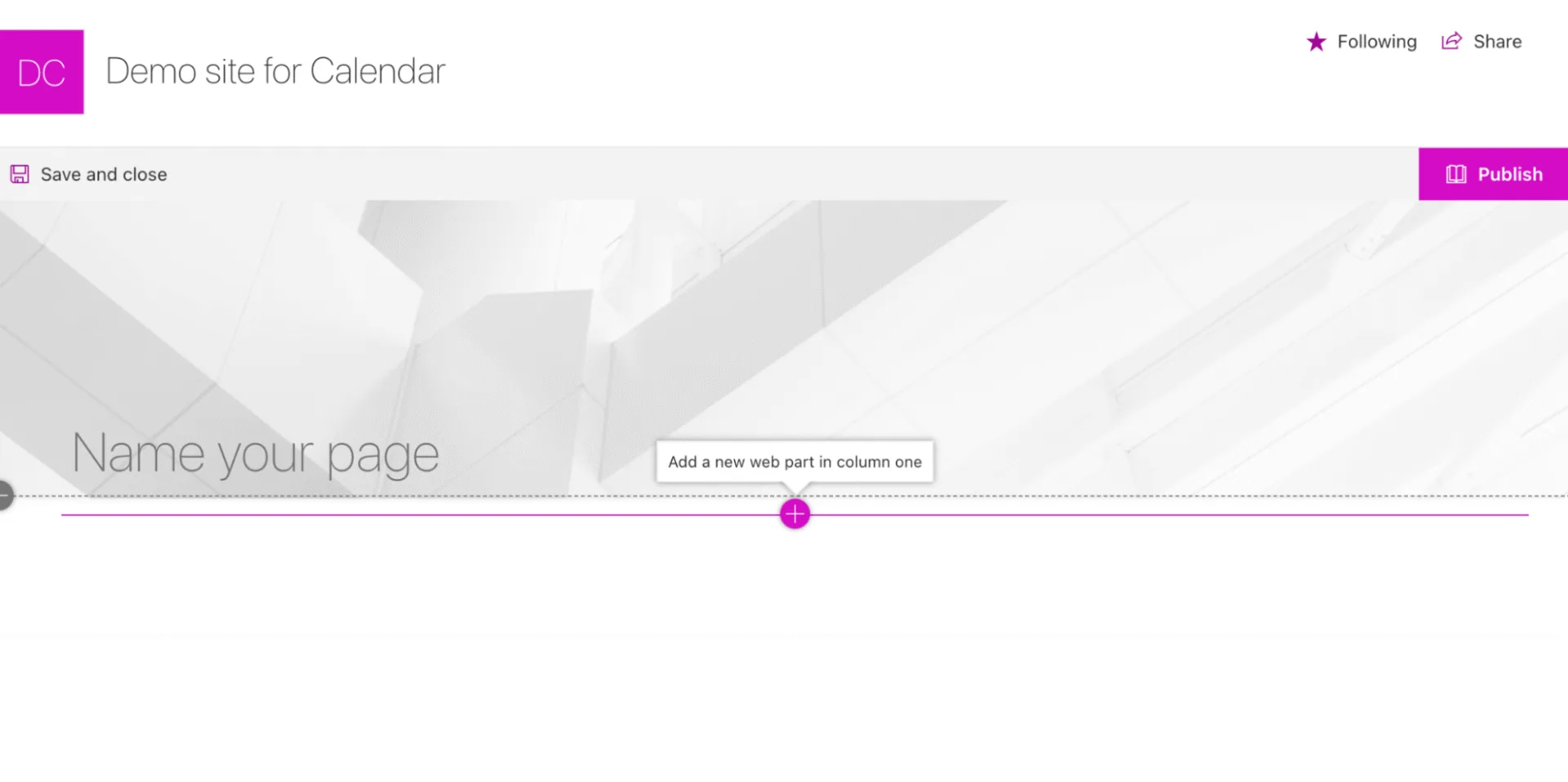
- Hover over the zone or section where you want the calendar (such as below a hero web part or news section), and click the + (Add Web Part) circled icon that appears.
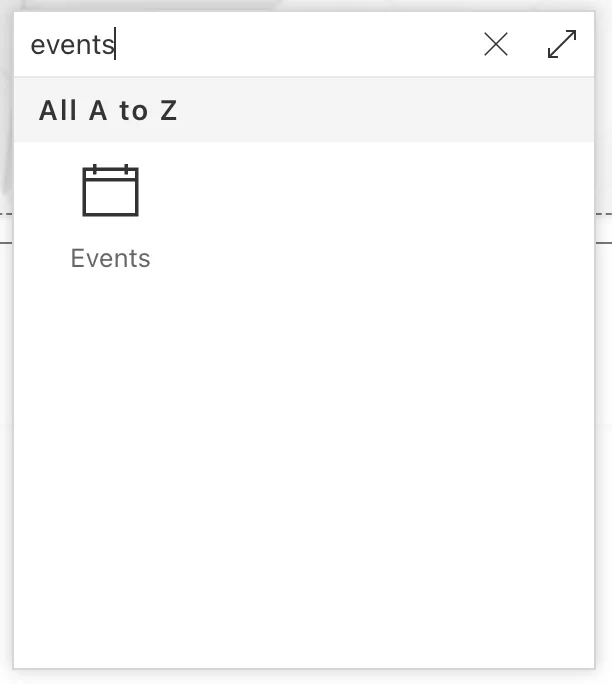
- In the web part picker, scroll to Apps or Lists, or search for “Calendar” or “Events.” Select the Calendar web part (Events web part in classic mode) or the specific calendar list web part.
- With the web part added, click the web part’s dropdown or Edit web part pencil icon to configure it: choose your newly created calendar list as the source, set the view (Day/Week/Month), and adjust the number of events to show. Don’t forget to type in a title of the calendar.
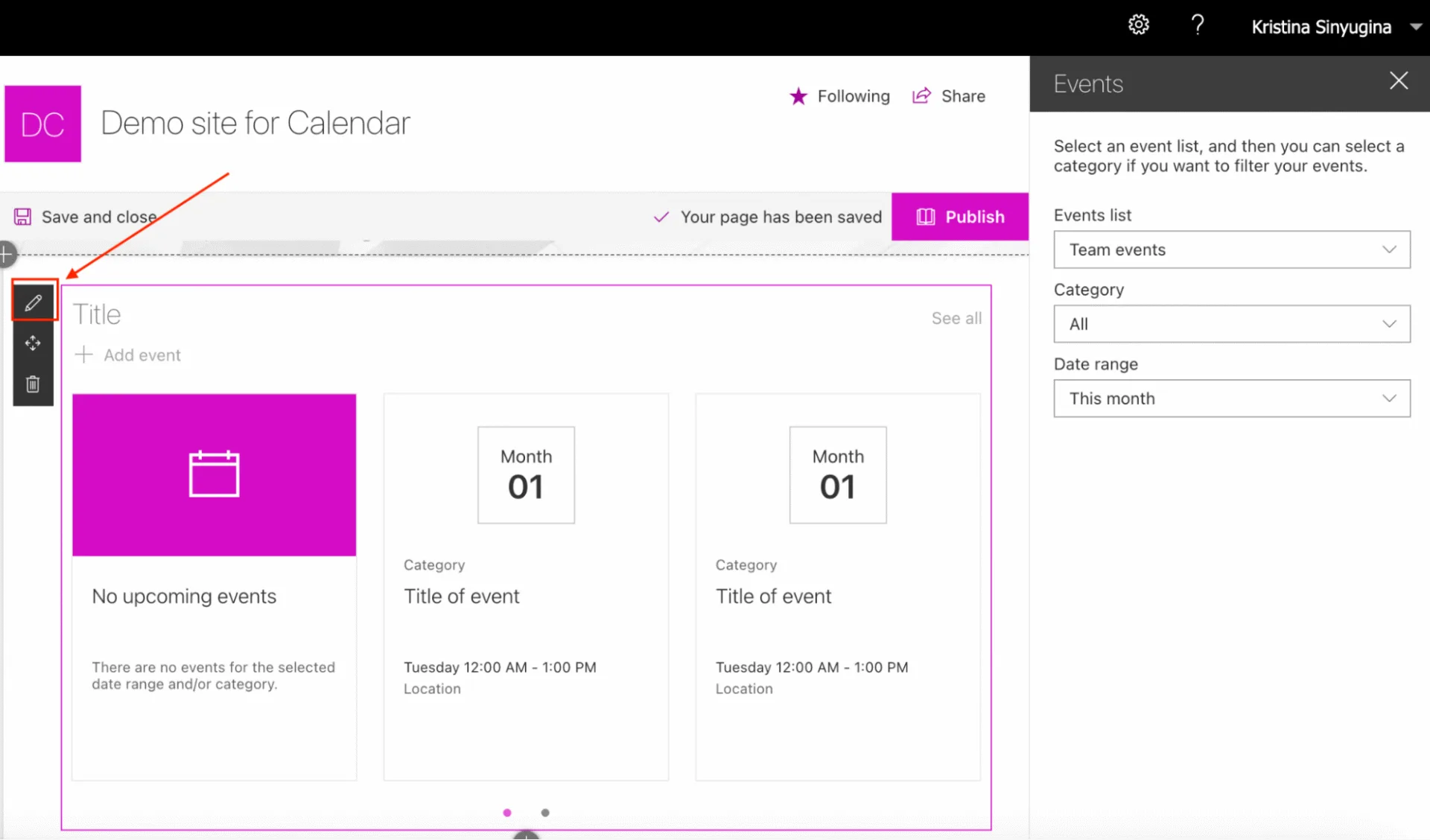
- Click OK or Apply, then Save or Publish the page to make it live for all users.
The calendar can now live on your site’s main homepage for broad visibility, or on specific team/project pages (like a “Sales Team” subsite) for targeted audiences. Once placed, users can interact with it directly—clicking events for details, adding new ones via the “New Event” link, or switching views—all without leaving the page.
3.3 Setting Up Basic Settings and Access
A "group" calendar only becomes a true group practice when access rights and usage rules are properly configured, ensuring that the right people can view or edit events without creating confusion or security gaps. Without clear permissions and guidelines, even the best calendar setup risks becoming cluttered or underused, so this step is critical right after creation.
To create a calendar in the first place, the user needs Design or Full Control permissions on the site, which allows access to the app catalog and list creation options. Site admins or members with elevated rights typically handle this, while regular users focus on adding events once it’s live.
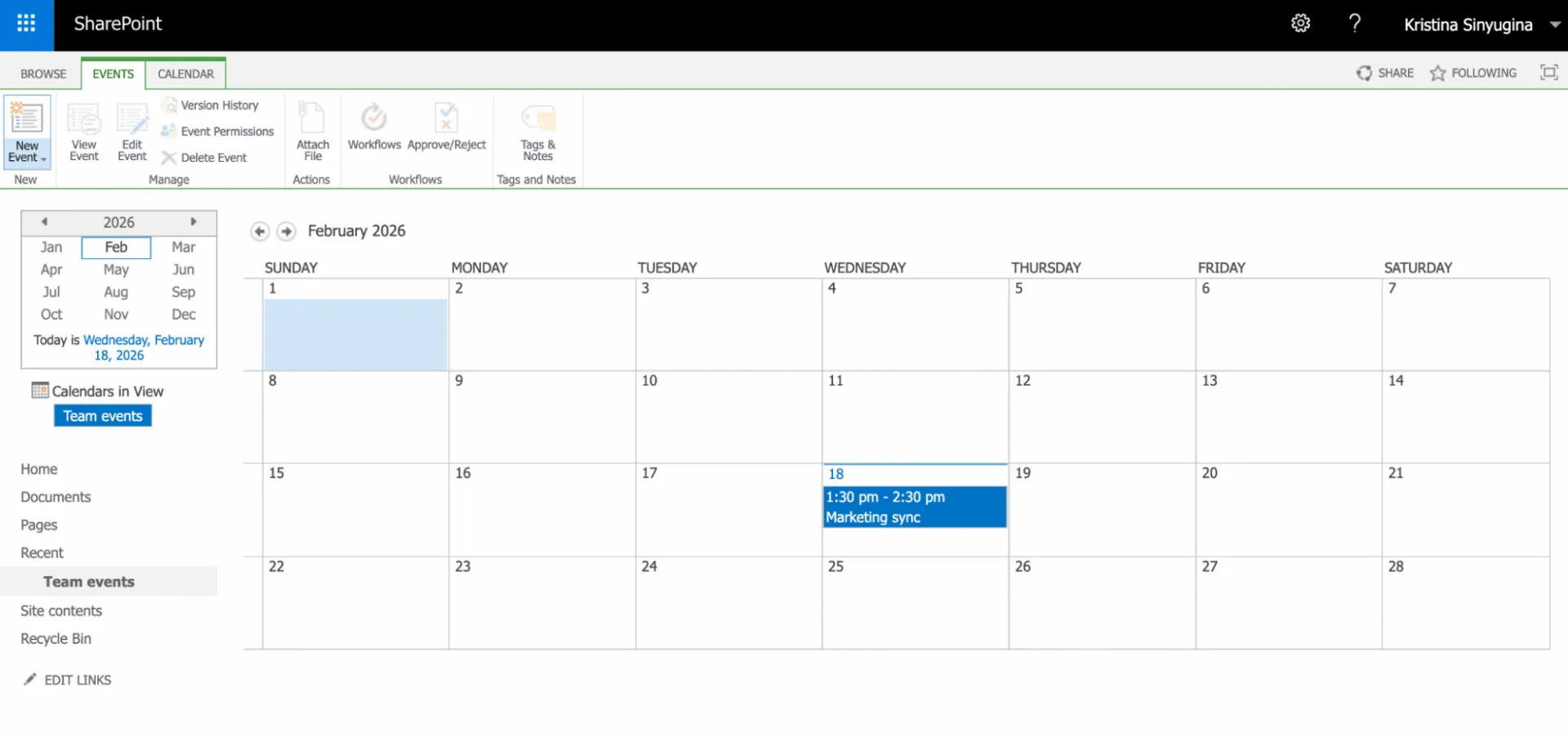
Start by configuring access rights to define who can only view events versus who can create and edit them. In SharePoint On-Premises, go to the Site contents in the left-hand menu > find your group calendar list (“Team events” in your case), click the three dots and follow to Settings.
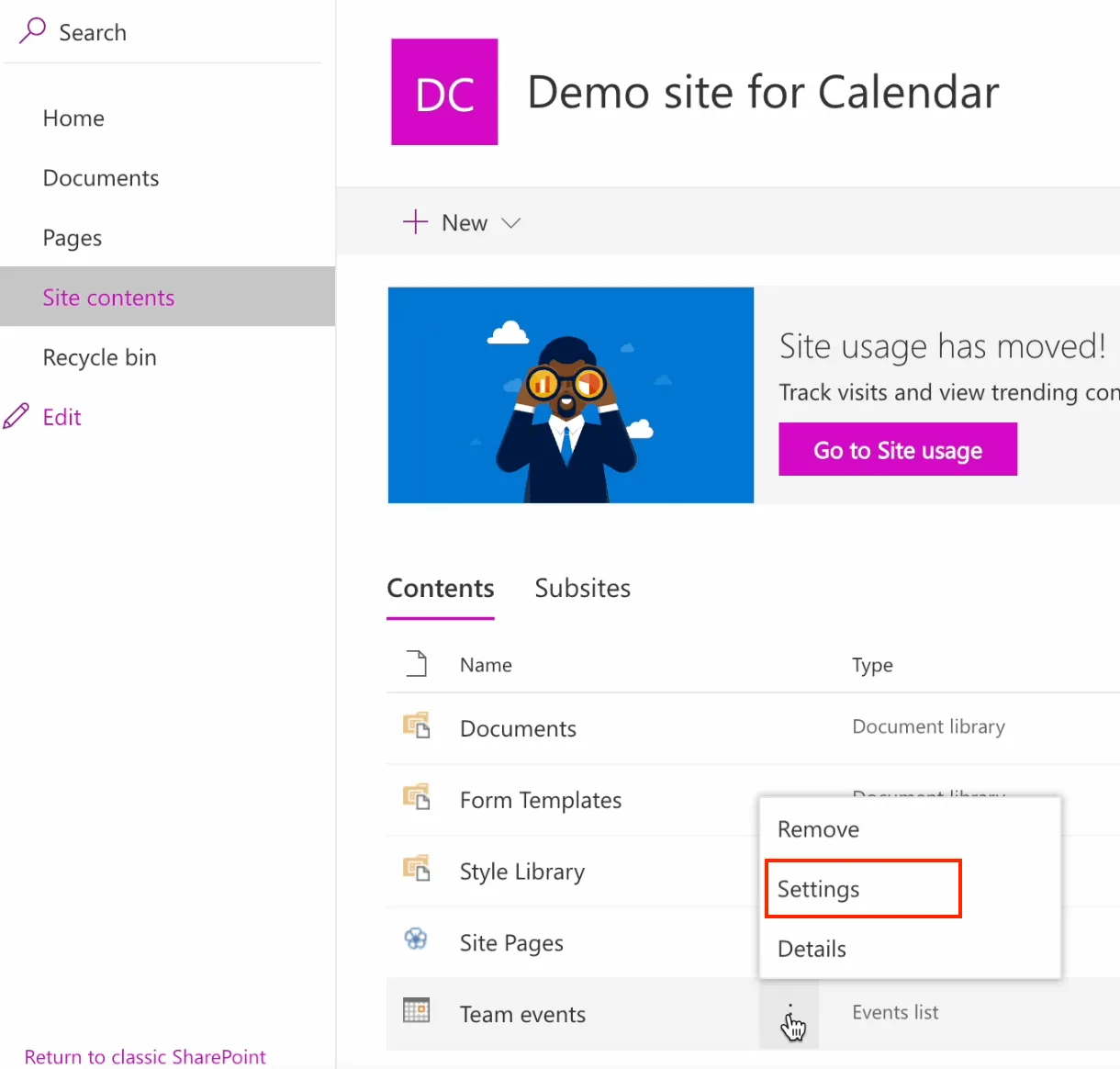
Click it and then find Permissions for this list.
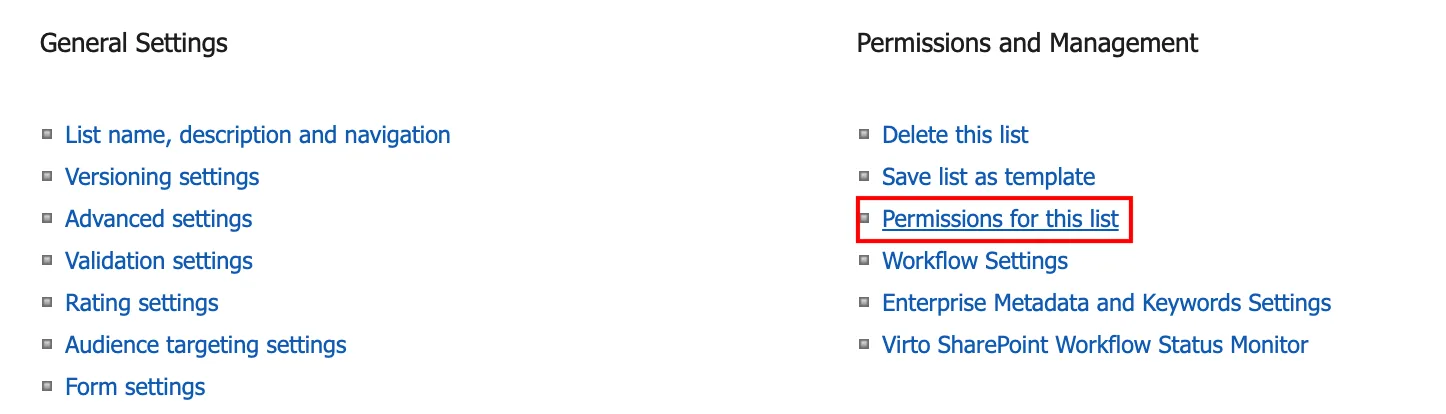
By default, the calendar inherits the site’s permissions, but click Stop Inheriting Permissions to customize.
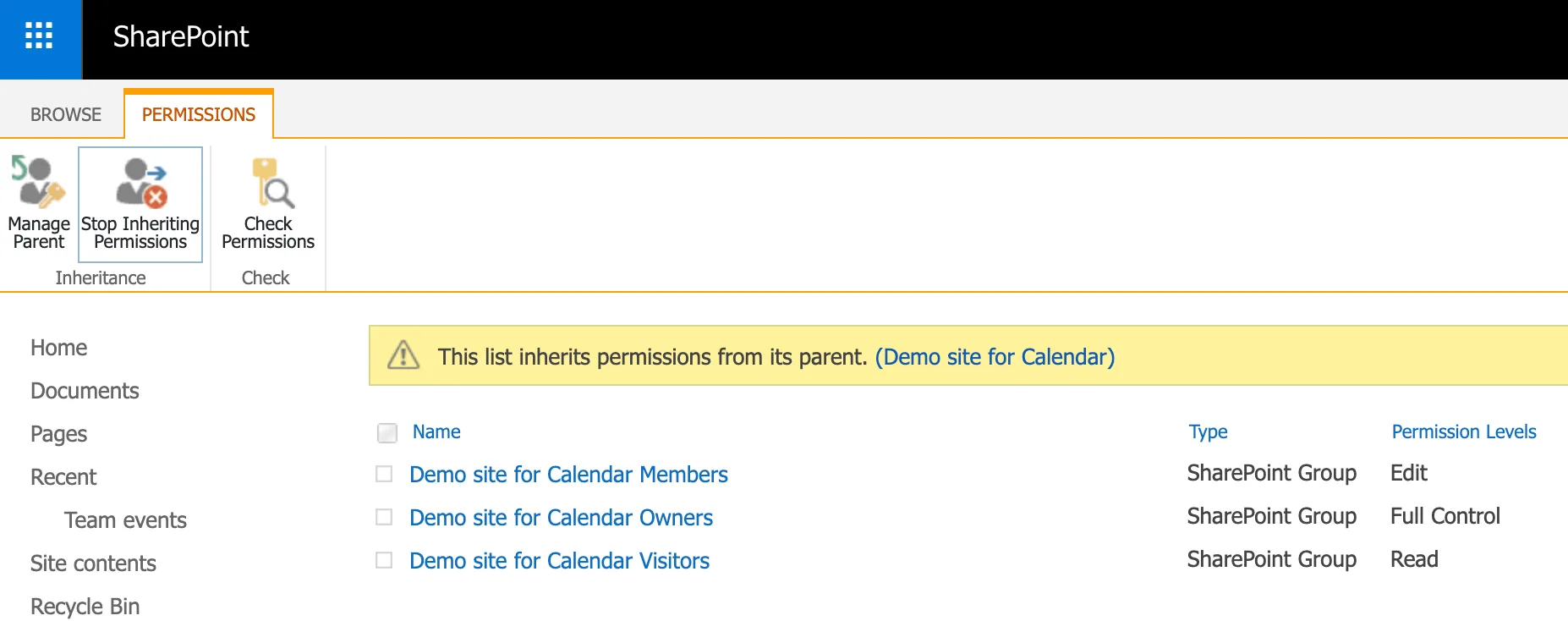
Grant Read to viewers (like the whole team), Contribute (add/edit own events) or Edit (full edit) to active users, and Full Control to managers.
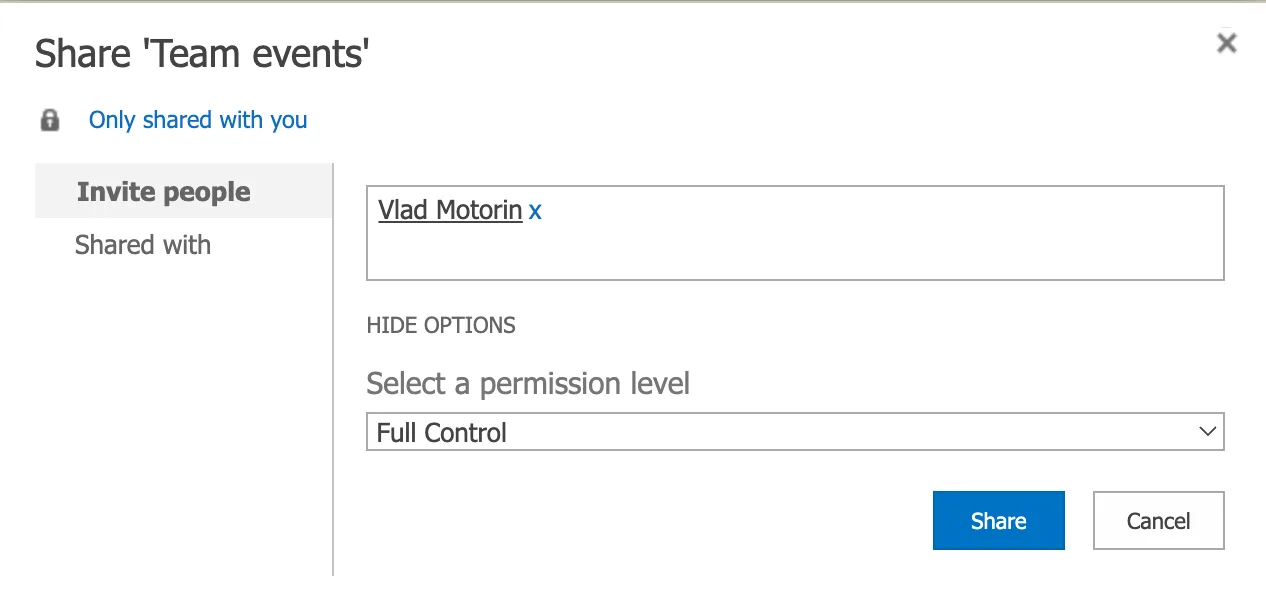
Align these with the calendar’s purpose—for example, on a vacation calendar, HR or managers get Edit rights while the team gets Read-only to see time-off without changing entries.
To avoid chaos in a shared calendar, assign one person (like a team lead or admin) as responsible for the structure—such as standardizing event titles, required fields (e.g., “Category” or “Location”), and rules like “Always include end time” or “Tag recurring events.” Share these guidelines via a pinned announcement or custom column instructions, and consider enabling Content Approval (under List Settings > Versioning Settings) so events need review before going live, keeping the schedule clean and reliable.

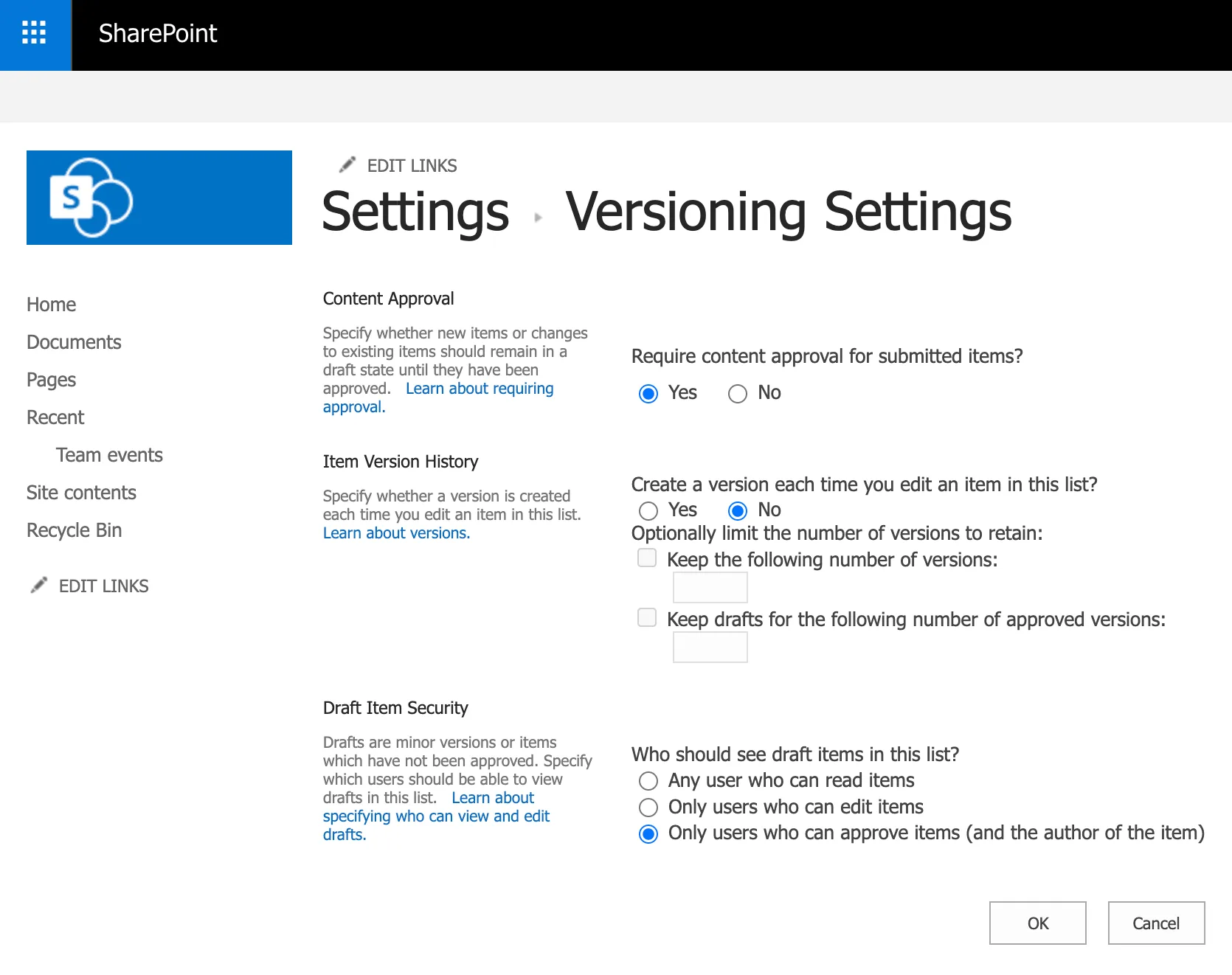
3.4 Basic Calendar Event Management in SharePoint
Adding and managing events is the core of daily use for a SharePoint On-Premises group calendar, turning it from a static list into a living team schedule. Users interact with events through simple forms and views, with permissions controlling who can make changes to keep everything organized and conflict-free.
How to add a new event to a group calendar: Click New > Event (or New Item in list view), fill out the form, and Save. The new event appears immediately in the calendar view for all authorized users, with optional notifications if workflows are configured.
Basic event parameters include:
- Event name: A clear, descriptive title like “Q1 Team Review” or “Conference Room A – 2pm,” which shows in all views.
- Date and time: Start and end times, with duration auto-calculated, ensuring accurate scheduling without overlaps.
- Recurrence: Options for daily, weekly, monthly, or yearly patterns (e.g., “Weekly standup every Monday”), reducing manual entry for ongoing events.
- Description and additional information: Free-text notes, attachments, or custom columns (like “Owner,” “Department,” or “Status”) for context like agendas or links to documents.
These parameters help organize information and avoid confusion by standardizing entries—clear names prevent guesswork, recurrence handles routines automatically, and custom fields capture specifics, so everyone reads the same structured details in a shared space.
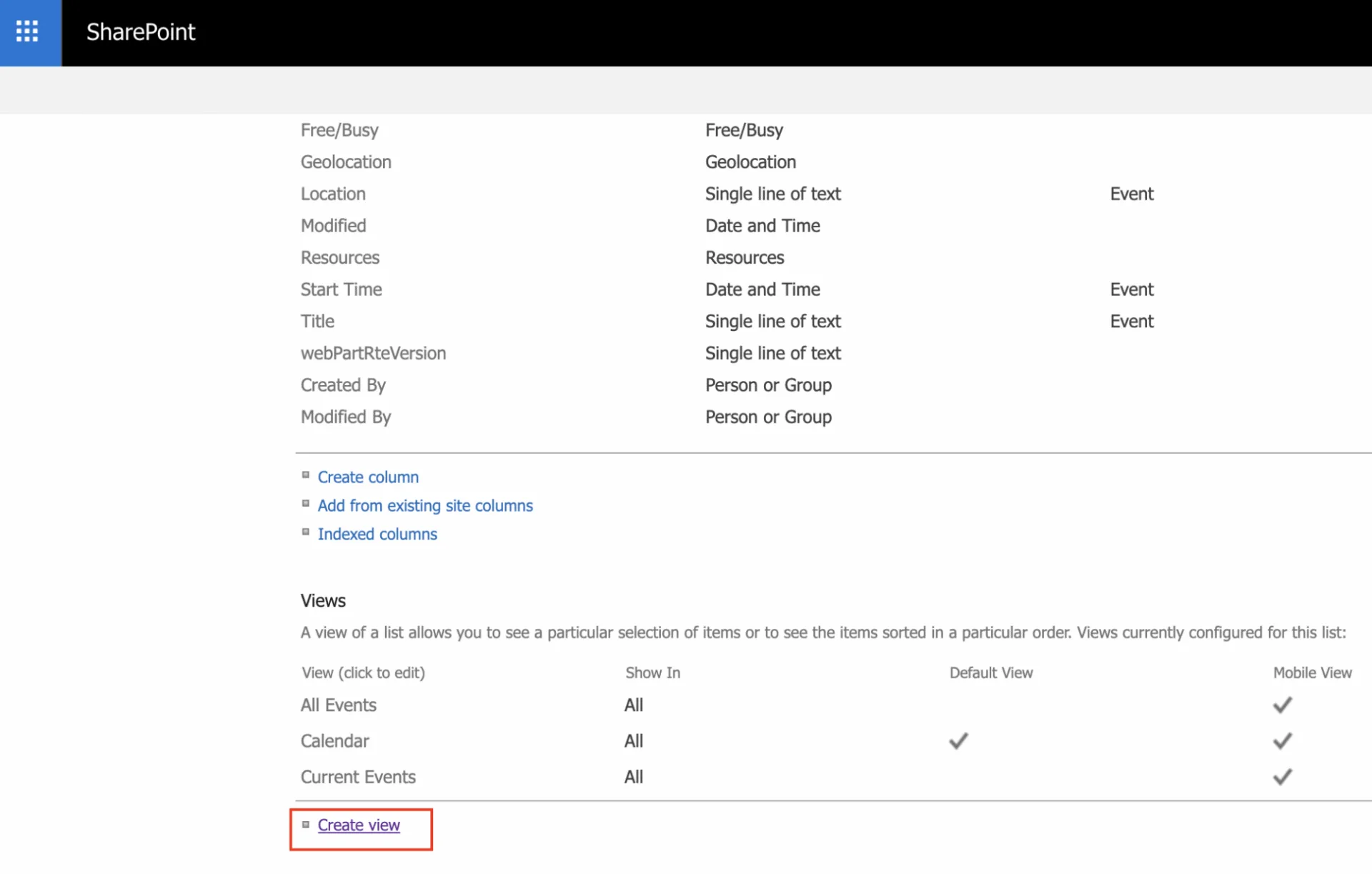
Calendar views let you customize how events display, and users often overlook creating filtered ones like “Just My Events” (showing only items where they’re in a custom “Assigned To” column) or “This Month’s Events” (filtered by date range). From the List Settings > Create View, pick Calendar View, set filters (e.g., “Category = Projects”), choose Day/Week/Month, and save—it appears in the view dropdown for quick access.
In daily work, users view upcoming events by scanning Calendar web part; open an event by clicking it for full details; add new events via the New Event button if they have Contribute permissions; and edit events by selecting Edit (important: follow unified rules like “Managers approve changes to team events” to avoid conflicts, using versioning or approvals for oversight). This workflow keeps the calendar reliable as a single source of truth.
3.5 Pitfalls and Typical Implementation Mistakes
Even with a technically correct setup, group calendars in SharePoint On-Premises often run into issues that affect usability, and synchronization with other tools like Outlook. Below are common pitfalls and how to avoid them:
- Permission inheritance not properly reviewed.
Many admins forget that new calendars automatically inherit the site’s permissions. As a result, sensitive or team-specific event data might be shared too broadly—or hidden from the right people. Always review and, if needed, break permission inheritance immediately after calendar creation. - Missing or incorrect calendar ownership.
Without a defined calendar owner or responsible person, no one monitors event standards, approvals, or duplicate entries. Assign ownership explicitly (e.g., “Team Lead” or “Department Coordinator”) and document it in the calendar description or site governance notes. - Outlook overlay and sync issues.
Overlaying SharePoint calendars in Outlook can fail due to browser settings, outdated ActiveX controls, or URL mismatches (HTTP vs. HTTPS). Always verify the calendar URL uses the correct protocol, confirm site trust settings in Internet Explorer/Edge Compatibility mode, and test overlays from multiple user profiles. - Broken calendar links or corrupted list URLs.
Moving the calendar between subsites or renaming it can break existing Outlook connections. Encourage users to re-add the overlay after significant structural changes, and avoid renaming the base list once it’s connected to Outlook. - Over-customization or missing default views.
Modifying or deleting the default “Calendar” view can break user access via the web part or in Outlook overlay mode. Keep a backup of the default view before applying custom filters or formats. - Inconsistent event entry practices.
Users often skip required fields or input events with vague titles, causing confusion in team visibility. Always standardize required metadata (like Category or Owner), use content approval for key business calendars, and train team members to follow event naming guidelines.
3.6 How to create a SharePoint group calendar in SharePoint Online
This article focuses on SharePoint On-Premises. In Microsoft 365/SharePoint Online, group calendars work differently—they connect via the modern Group calendar web part to a Microsoft 365 group.
👉 Read the full M365 guide here: Microsoft 365 Group Calendar.
4. Using a Group Calendar in Work: Scenarios and Practical Examples
SharePoint On-Premises group calendars shine in real-world team coordination, providing a simple, visual way to align schedules without relying on external tools. These scenarios show how different departments leverage the calendar for planning, resource management, and operations right within the corporate intranet.
4.1 Use Cases for Different Tasks
For planning team and department work
Companies use SharePoint On-Premises group calendars for daily team planning by centralizing schedules in a familiar interface accessible to all site members. Regular team meetings like weekly status updates, standups, and retrospectives go on as recurring events, ensuring no one misses them. Key project deadlines appear as milestones with links to documents, giving everyone a common overview, while high-activity periods show team workload at a glance to spot bottlenecks early. This works especially well in on-premises setups, where the calendar stays within the corporate network—no cloud logins or subscriptions needed.
In HR processes and absence management
HR departments use group calendars to transparently manage employee absences, keeping teams informed without oversharing details. A departmental vacation calendar lists approved time-off with start/end dates and employee names, while sick leave entries use generic titles like “Out – Personal” for privacy. Managers check it before scheduling, and teams see availability gaps—all from one source. In SharePoint On-Premises, these calendars live securely on the intranet, avoiding data transfer to external cloud services.
For resource and infrastructure coordination
Teams book shared resources via the calendar to prevent overlaps and track usage clearly. Meeting rooms and conference spaces get reserved as all-day or timed events with categories like “Room A – 10 people,” while equipment such as projectors, laptops, or demo stands uses custom columns for details like “Serial #123.” Technical maintenance schedules ensure IT work doesn’t clash with peak hours. The calendar’s color-coding and overlays make conflicts visible instantly, boosting transparency and utilization.
In project and operations activities
Project and operations teams treat the group calendar as a lightweight alternative to heavy tools like MS Project, visualizing timelines right alongside documents. Key stages like “Design Review Due” or “Testing Complete” mark milestones, internal approvals show as gated events, and launches/releases get planned with reminders. This fits perfectly in companies where SharePoint On-Premises is already the go-to platform—no extra systems to learn or integrate.
4.2 Using a Group Calendar in Different Industries and Fields
Group calendars in SharePoint On-Premises adapt easily across industries, handling diverse scheduling needs with the same simple list structure. Their built-in views, permissions, and overlays make them versatile without needing custom development or third-party add-ons.
- In manufacturing companies: Shift planning tracks worker rotations and overtime, equipment maintenance schedules downtime to avoid production halts, and internal audits set recurring compliance checks—all visible on a shop floor team site.
- In IT and digital teams: Sprint planning marks two-week cycles, release schedules align deployments, and technical planning coordinates on-call rotations or server maintenance, often overlaid with multiple team calendars.
- In educational institutions: Class schedules, internal faculty events, and exam timetables keep students and staff aligned, with custom categories for departments or semesters.
- In government and corporate organizations: Meeting planning for policy reviews, internal events like training sessions, and regulatory processes (e.g., annual filings) ensure deadlines stay on track across departments.
This flexibility turns the group calendar into a go-to tool for any task requiring visual coordination, regardless of industry, with minimal setup.
4.3 Organizing Responsibility and Rules for Calendar Use
Companies make group calendars reliable by setting clear rules and responsibilities, paired with precise permission configurations, so the tool supports real work instead of becoming outdated or chaotic. Access rights get fine-tuned at the list level—Read for viewers, Contribute for event creators, Edit for approvers—to match roles without site-wide changes.
Practical recommendations include:
- Assign one person, like a team coordinator or admin, responsible for keeping the calendar up-to-date, reviewing entries weekly, and archiving old events.
- Separate calendars by task—one for vacations, another for projects, a third for resources—so each stays focused and uncluttered.
- Establish simple rules like “Use standard titles (e.g., ‘Room Booking – Team X’), always set end times, tag with categories, and notify changes via email.”
Separate viewing from editing roles to prevent accidental overwrites: for example, the whole department views a vacation calendar (Read), but HR edits it (Edit). In practice, a project manager might own the milestone calendar, enforcing “No events without linked documents,” while a facilities lead handles room bookings with approval workflows.
Clear rules build trust, turning the calendar into a dependable hub everyone relies on rather than a neglected formality.
5. Integrating a SharePoint On-Premises Group Calendar with Outlook
Outlook integration brings the SharePoint group calendar into users' daily email workflow, making team schedules as easy to check as personal appointments. This bridge between SharePoint and Outlook ensures planning stays consistent across tools without forcing extra logins or switches.
5.1 Why Use Outlook Integration
Seeing SharePoint group calendar events in the familiar Outlook interface keeps users in their primary app, where most already manage personal schedules and emails. Integration lets them work with the team calendar directly from Outlook—no need to open a browser and navigate to the SharePoint site every time. This cuts missed meetings, deadlines, and events, as reminders and overlays appear alongside private items.
Many employees treat Outlook as their main planning hub, checking it multiple times a day. The integration solves key tasks like displaying SharePoint events next to personal calendars for a full picture; providing a unified view of work and team commitments; and boosting adherence to shared deadlines through native reminders and drag-and-drop rescheduling.
5.2 Features and Limitations of Integration in SharePoint On-Premises
In SharePoint On-Premises, Outlook integration relies on the local server setup and Active Directory authentication, syncing data securely within the corporate network. Key features include two-way synchronization for permitted users—add or edit an event in Outlook, and it updates in SharePoint, or vice versa—while requiring the Outlook desktop app (not web or mobile) for full functionality.
To connect: Open the SharePoint calendar list, go to the Calendar tab in the top ribbon, and click Connect to Outlook. A prompt appears—allow the connection, and the calendar overlays into Outlook under Other Calendars as a separate, color-coded layer. Users can then view events, create new ones (if permissions allow), or drag to reschedule, with changes syncing back automatically.
Data stays protected by on-premises security protocols, never leaving the company network, which suits regulated environments. However, limitations exist: integration behaves differently from SharePoint Online's seamless cloud sync, and access depends on server configurations, user rights, or policies blocking overlays—test in your environment first, as firewalls or expired credentials can disrupt it.
👉 Read more on Outlook group calendars.
5.3 When Outlook Integration Is Really Necessary and When It Isn't
Integrating the SharePoint On-Premises group calendar with Outlook isn't always the best fit—it depends on team habits and how the calendar supports daily workflows. Sometimes the site-embedded calendar handles everything smoothly, while Outlook sync adds real value by embedding team events into personal routines.
Use Outlook integration if:
- Employees spend most of their day in Outlook, treating it as their main planning tool.
- Seeing team events overlaid with personal meetings and tasks is crucial for avoiding conflicts.
- The team juggles many meetings, deadlines, and recurring events that need constant visibility.
- Managers need a single view of their workload alongside direct reports' schedules.
- There's a high risk of missed events because staff rarely visits the SharePoint site.
Examples include office teams with packed meeting agendas, management/admin departments tracking executive calendars, or project groups needing frequent cross-syncs between individual and shared items.
Skip Outlook integration if:
- The calendar acts mainly as a reference, not an active planning tool.
- One person updates events centrally, with infrequent changes.
- It's for static info like vacations, company events, or process milestones that don't tie to personal schedules.
- Users stick to browser-based SharePoint and skip desktop Outlook.
Examples: a read-only departmental vacation calendar, corporate event listings, or audit/regulatory timelines that just need occasional checks on the site.
Practical recommendation: Evaluate how often staff lives in Outlook, whether the calendar blends into personal schedules, and if two-way editing matters. Outlook integration is a convenience booster for heavy Outlook users, not a must-have for every SharePoint On-Premises group calendar setup.
6. Virto Calendar Web Part for SharePoint On-Premises as an Alternative
Standard SharePoint On-Premises group calendars handle basic team scheduling effectively, but they fall short when needs outgrow simple lists. These gaps push teams toward enhanced solutions like the Virto Calendar Web Part, which overlays advanced visuals and management on the same platform.
6.1 Limitations of Group Calendars in SharePoint On-Premises
The built-in group calendar works fine for small teams with straightforward events, but limitations emerge as teams scale, multiple calendars stack up, and processes get complex. Basic functionality no longer cuts it when visualization, comparisons, or fine controls become daily must-haves.
Key limitations include:
- Limited visualization: Only basic day/week/month views, no modern layouts like timelines or heatmaps, so dense schedules are hard to scan.
- Overlays capped at 10: You can overlay up to 10 calendars; beyond that, colors blend, overlap increases, and navigation becomes clunky.
- Rigid permissions: Access rights stay at list level; granular rules like “edit only own events” or role‑based views need error‑prone workarounds.
- Outlook dependency: Advanced features (reminders, drag‑and‑drop, personal overlays) depend on desktop Outlook, reducing usability for browser‑only users.
- Scalability issues: Large volumes of events or users slow group calendar down, making it feel like a heavy list instead of a quick visual tool.
- Limited planning features: No native color‑coded categories, drag scheduling, recurring exceptions, or resource conflict checks for complex multi‑team scenarios.
These pain points drive most teams to alternatives, as the native calendar stops scaling with real-world demands like cross-department visibility or executive dashboards.
6.2 How the Virto Calendar Web Part Improves Group Calendaring
The Virto Calendar Web Part for SharePoint On-Premises offers a professional upgrade for teams outgrowing the standard group calendar, directly tackling the limitations outlined earlier like clunky overlays and rigid visuals. Designed specifically for on-premises infrastructure, it integrates seamlessly without cloud dependencies, making it ideal for corporate networks prioritizing data control.
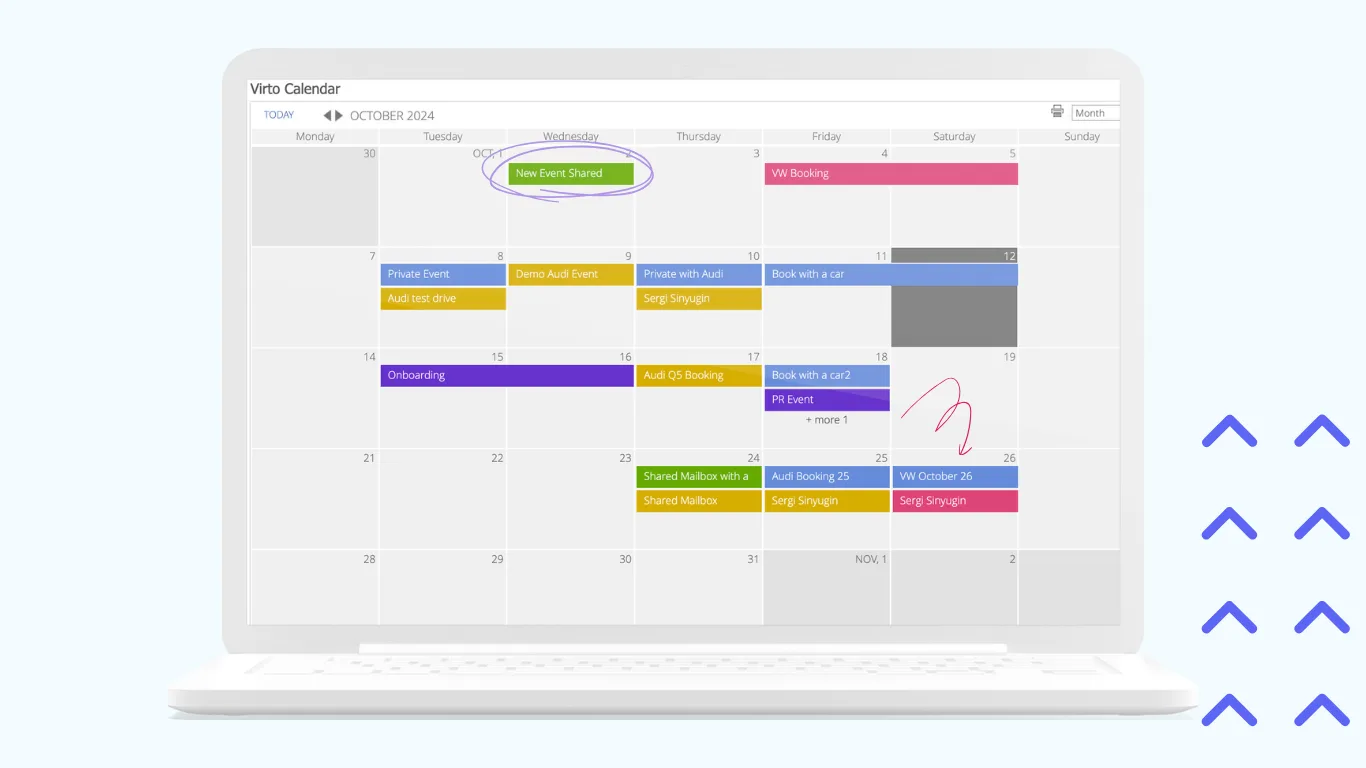
Virto Calendar solves everyday headaches such as juggling multiple calendars across pages, unclear event visuals for teams/projects/resources, and basic scheduling that can't handle growth. It delivers a single-pane view where admins and users manage everything intuitively, scaling from small departments to enterprise-wide planning.
Key benefits include:
- Combining unlimited calendars and sources—like SharePoint lists, tasks, and Outlook—into one window, far beyond the standard overlay's 10-calendar/10-color cap.
- A modern, Outlook/Google Calendar-style interface with drag-and-drop for quick rescheduling and real-time updates.
- Advanced color coding to separate projects, departments, or types at a glance, replacing confusing overlaps.
- Overlaying personal calendars with shared team/department ones for a complete workload view.
- Granular permissions so you control visibility and edits per calendar or user role, without list-level hacks.
Installed as a simple web part on existing pages, Virto requires no site rebuilds—admins drop it in, configure sources, and go live fast. End users need zero training; the familiar design means instant productivity. It often replaces Outlook sync entirely, giving a unified interface for all events right in SharePoint, which is perfect for browser-first teams avoiding desktop dependencies.
Choose Virto Calendar when you need enterprise-grade capabilities: more than 10 merged calendars, browser-only access across the organization, granular role-based permissions, or multi-team/department planning that native tools can't scale.
For Microsoft 365, try Virto Calendar App >>>
Conclusion
A SharePoint On-Premises group calendar starts simple: create it as a built-in Calendar list, add it to a page via the web part, and your team has a shared visual for basic planning like meetings or deadlines. This native setup handles straightforward scenarios without extra cost or complexity.
However, the standard calendar hits limits fast—struggling with multiple overlays, dated visuals, and clunky Outlook sync for anything beyond small teams. Complex workflows turn frustrating as calendars pile up and events blur together.
For advanced needs like seamless multi-calendar views, modern drag-and-drop interfaces, and efficient management across projects or departments, a specialized web part like Virto Calendar for SharePoint On-Premises delivers the upgrade. It turns limitations into strengths without rebuilding your sites.
Final recommendation: Match the tool to your tasks. Stick with the built-in calendar for single, basic schedules. Choose an advanced solution like Virto for powerful, scalable planning across teams or the company.