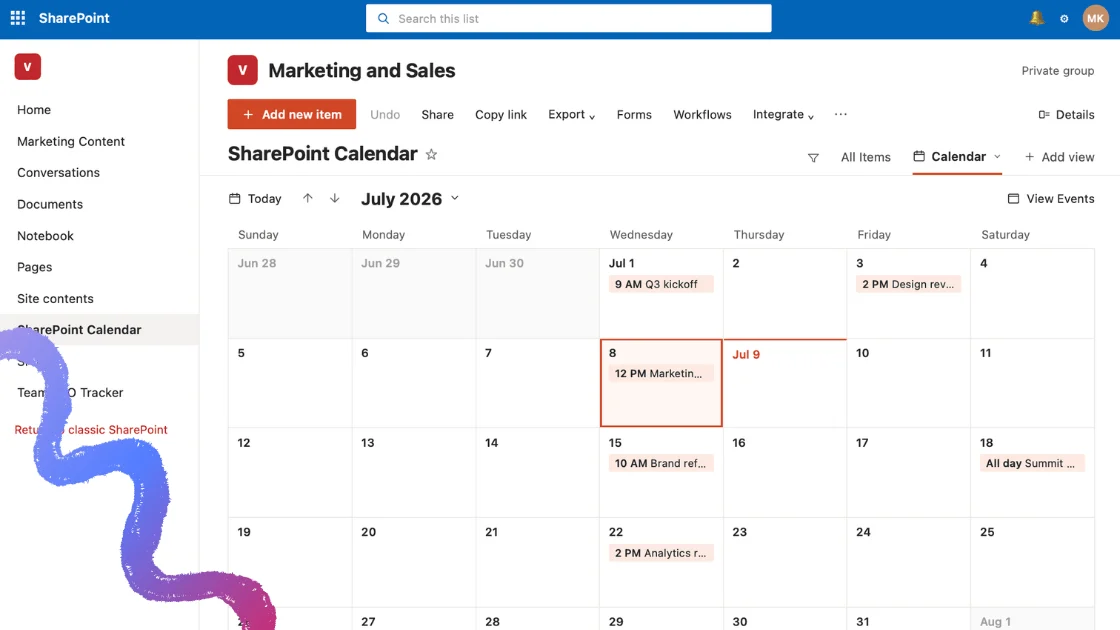
Whether you are brand new to SharePoint Online or looking to sharpen your skills, this guide walks you through everything you need to know about the SharePoint calendar in 2026 — what it is, how it works in modern SharePoint, and how to create and add one step by step. Because the classic Calendar app is now deprecated, we focus on the modern approach: a list with a Calendar view, plus the Events web part.
Quick answer: how to create a calendar in SharePoint
In modern SharePoint, you create a calendar by making a list and switching it to the Calendar view, or by adding the Events web part to a page. The classic standalone Calendar app has been deprecated, so these two methods are the current, supported way to add a calendar to a SharePoint Online site.
What if the schedule lives in more than one list? A Calendar view shows the items of one list. To overlay several SharePoint calendars with Outlook and Planner in one color-coded view on the same page, add Virto Calendar App.
What is a SharePoint calendar (modern vs classic)
A SharePoint calendar is a way to store and display date-based items — events, meetings, deadlines, and appointments — directly inside a SharePoint site so a whole team can see and manage them in one place. It centralizes schedules, makes availability visible, and keeps project timelines clear, which cuts down on the confusion of scattered notifications and one-off invites.
Historically, SharePoint shipped a dedicated Calendar app that you could add like any other app. That classic Calendar app is now deprecated — modern SharePoint sites no longer include it as a standalone app. Instead, calendar functionality lives in two places:
- A list with a Calendar view — any SharePoint list that has date columns can be displayed as a monthly calendar.
- The Events web part — a page component that surfaces upcoming events from a list in a clean, visual format.
Everything below uses these modern methods. We include a short note on the classic app at the end for anyone still working in a legacy environment.
How to create a calendar in SharePoint Online (step-by-step)
Before you start, make sure you have the right permission level on the SharePoint site. If you are building a team calendar, the site should be one your teammates can access (for example, a team site) so everyone can view and add events.
Method 1: Create a list and switch to the Calendar view
This is the most flexible modern approach — you get a real list you control, displayed as a calendar.
- From your SharePoint site, open Site contents, then click + New and choose List.
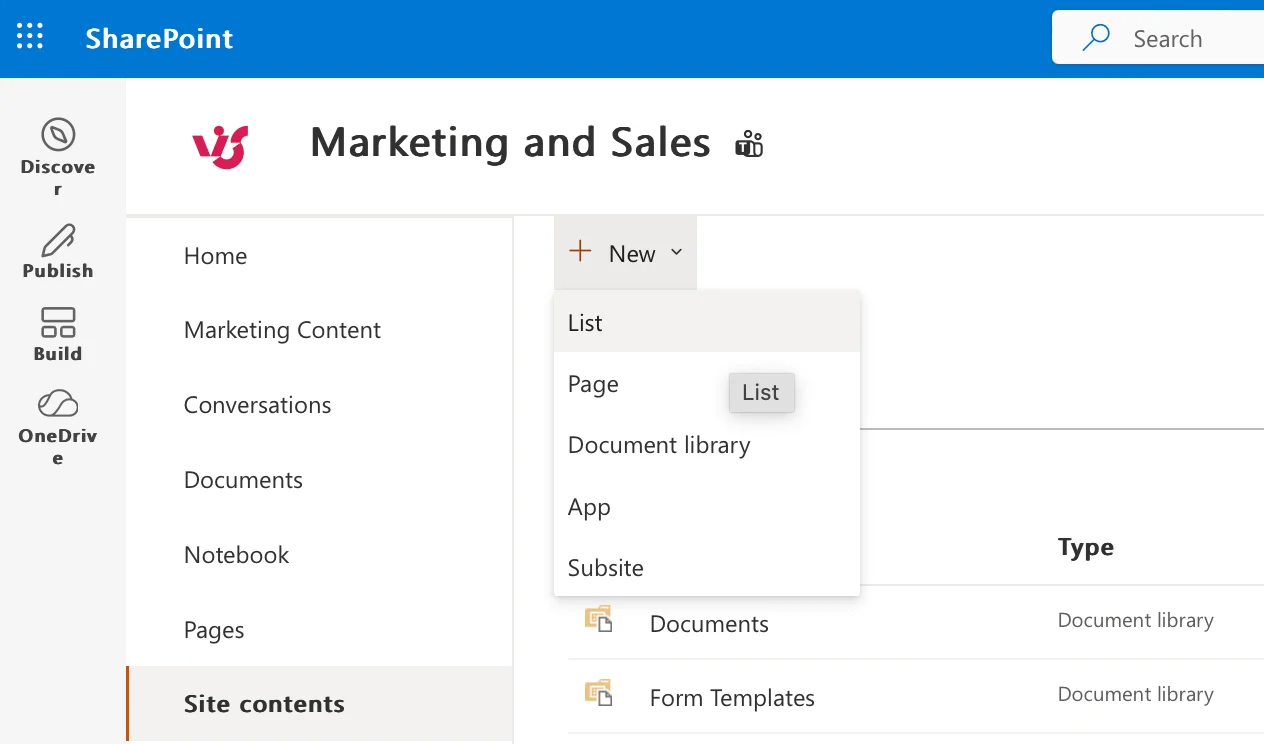
Pic. 1. Site contents → + New → List
Create a blank list (or start from an existing list that has date columns), give it a name, and click Create.
Add the columns you need — at minimum a Start date and, ideally, an End date, plus a Title.
In the view switcher (top-right of the list), click + Add view and choose Calendar.
Name the view, select Calendar as the view type, map your Start and End date columns, and click Create.
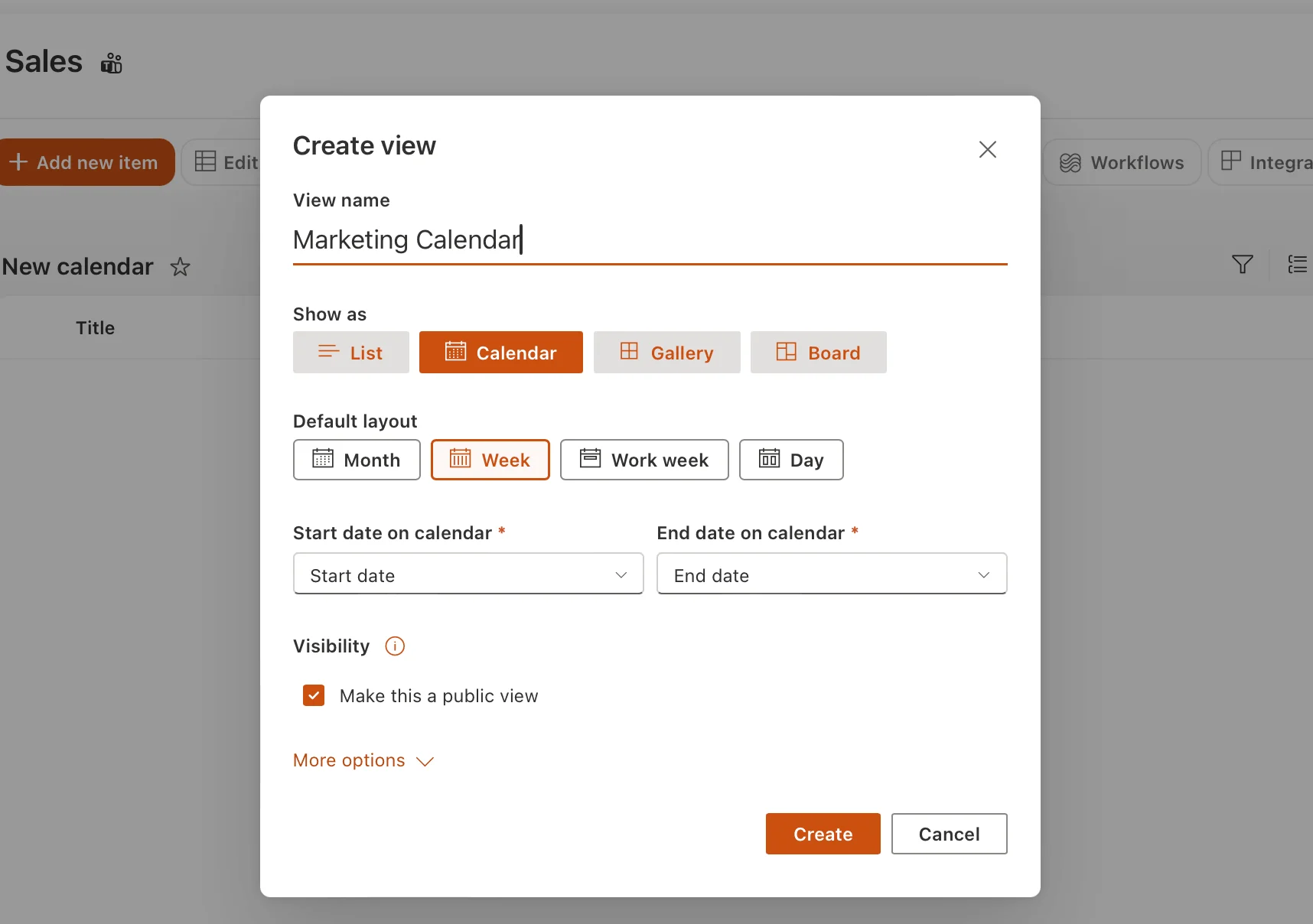
Pic. 2. Create new view dialog with Calendar view type selected
- Your list now displays as a monthly calendar. Any item you add to the list appears automatically on the calendar.
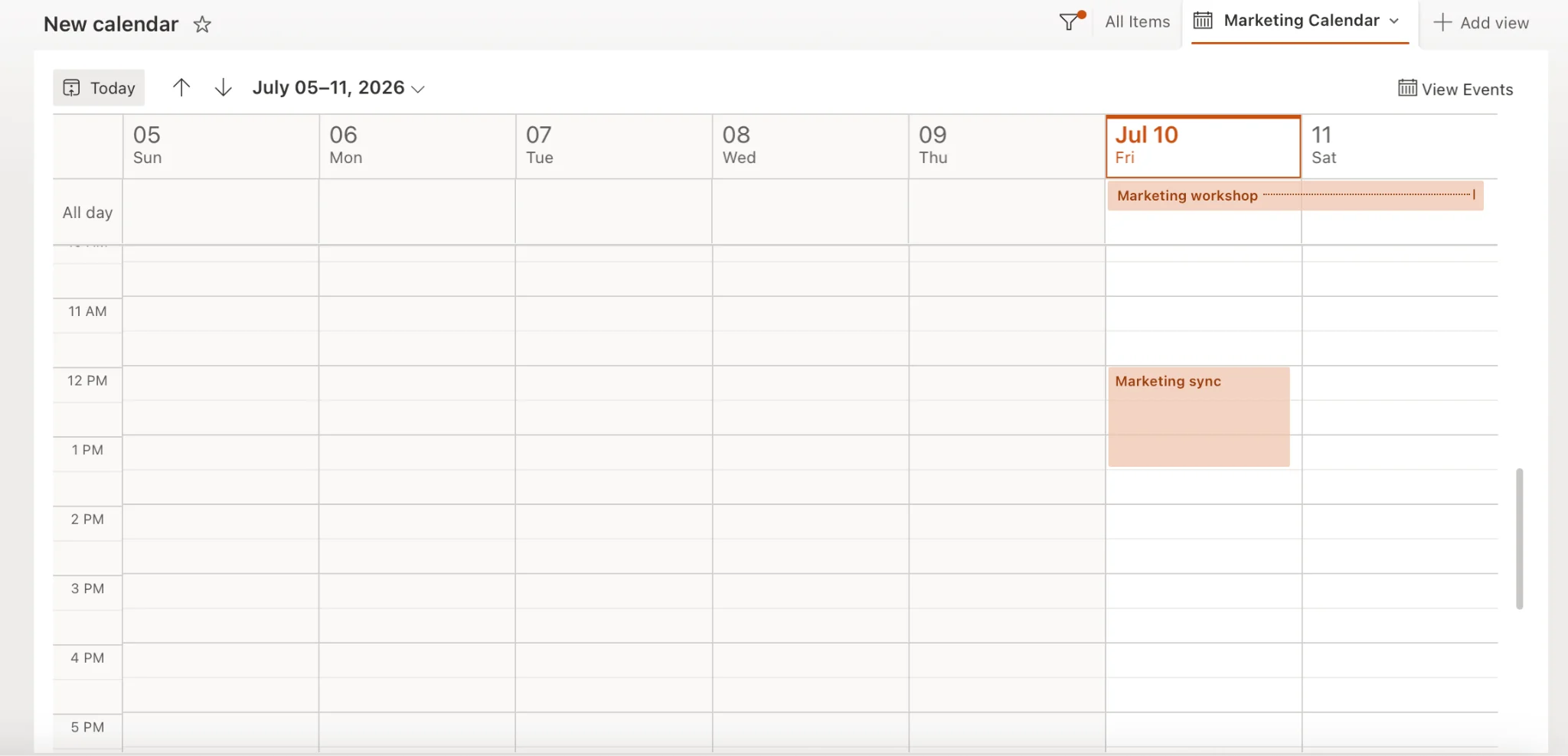
Pic. 3. The finished list displayed in Calendar view
Method 2: Add the Events web part to a page
Use this when you want upcoming events to appear directly on a site page for everyone to see.
Open the page where you want the calendar and click Edit (top-right).
Click the + (add a web part) where you want it placed.
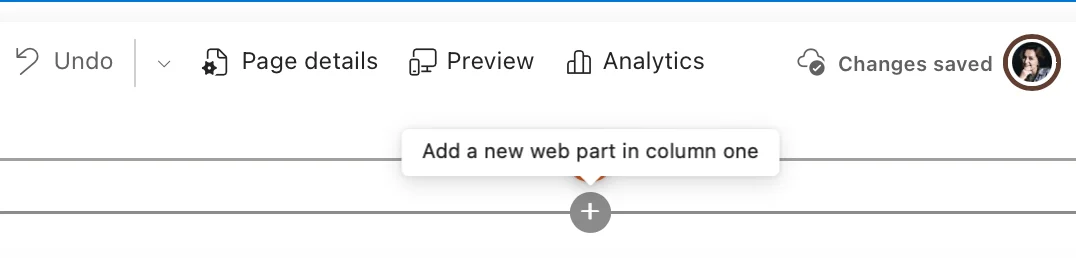
Pic. 4. Page in Edit mode with the + add web part control
- Search for Events and add the Events web part to the page.
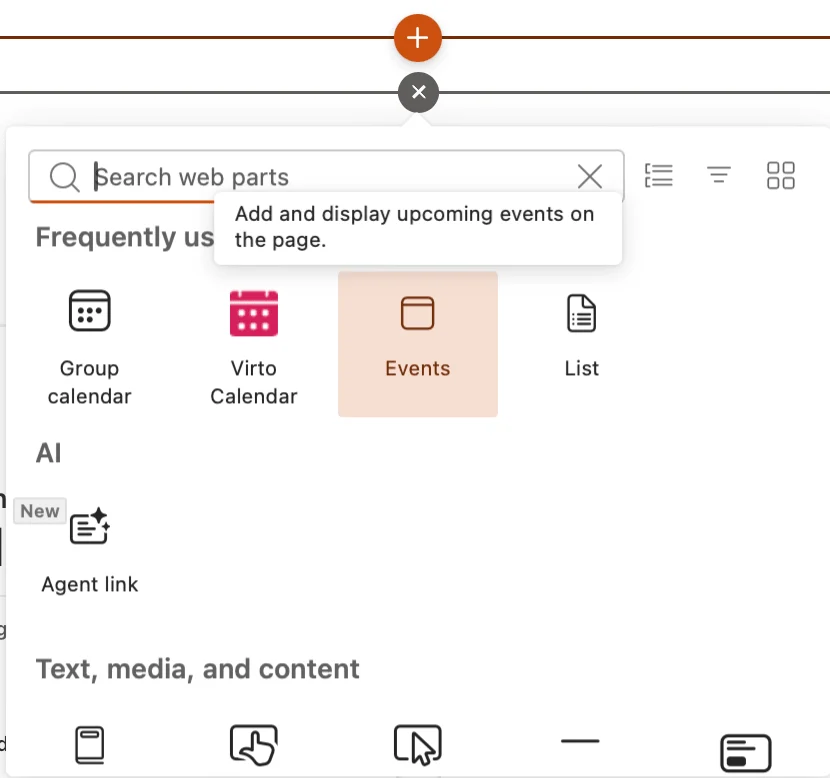
Pic. 5. Searching for and adding the Events web part
Click the pencil / Edit icon on the web part to open its settings.
In the Source drop-down, select the list your events should be pulled from, then choose the layout, category, and number of events to show.
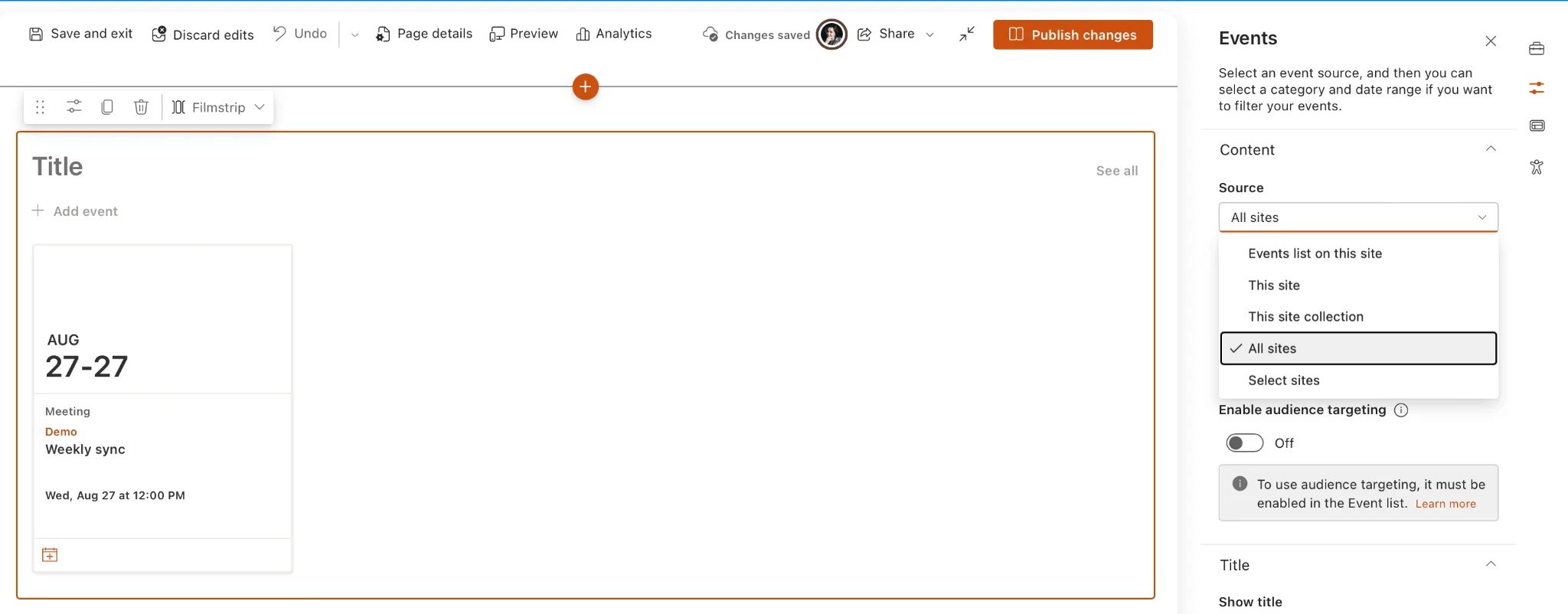
Pic. 6. Events web part Source drop-down selecting a list
- Click Publish (or Republish) to make the calendar visible to others.
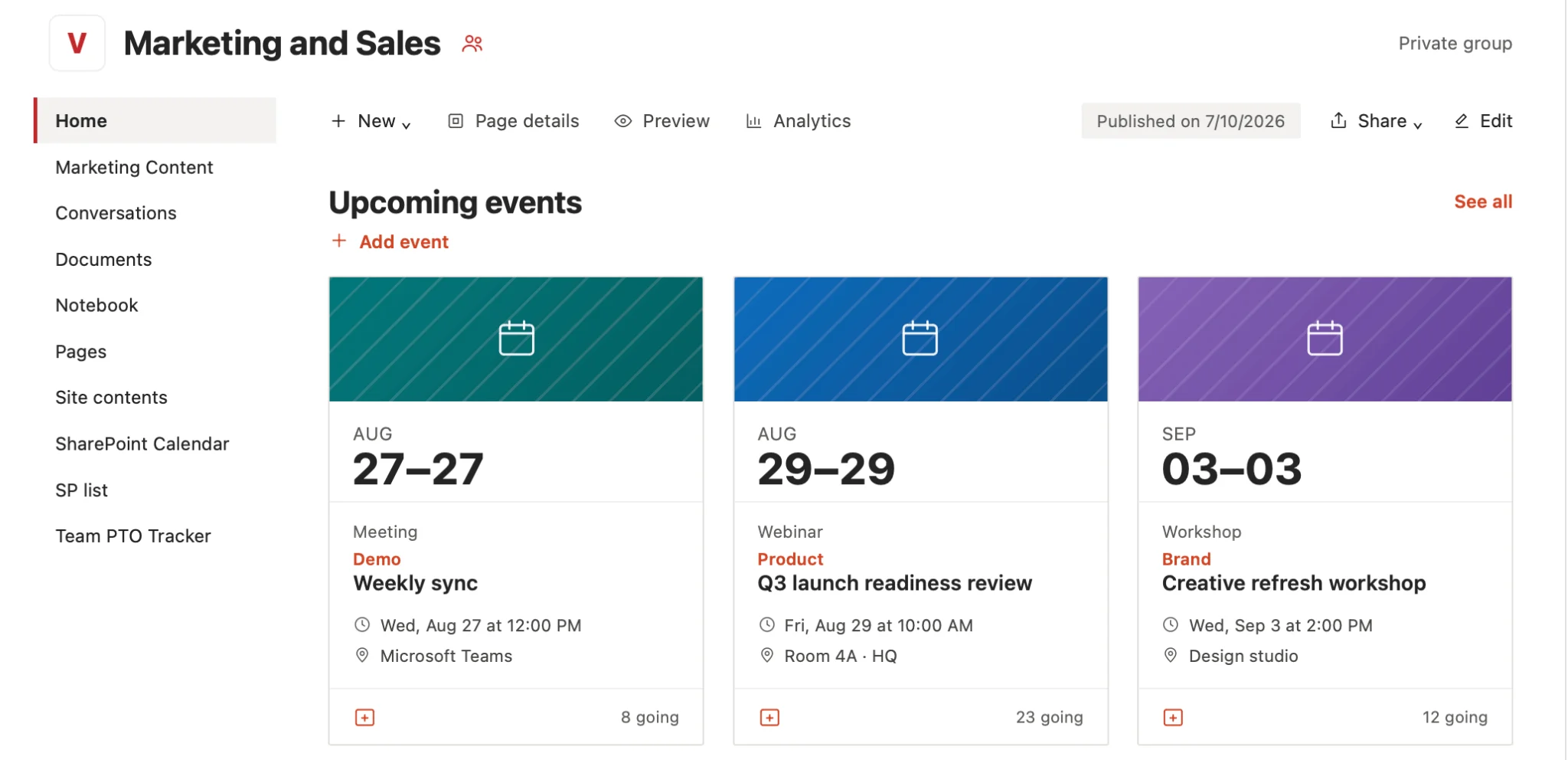
Pic. 7. Published page showing upcoming events
Legacy note: the classic Calendar app
If you are still on an older, classic environment, you may see the standalone Calendar app under Site contents → Add an app. Microsoft has deprecated this app for modern sites, so we recommend the list-plus-Calendar-view method above for anything new — it is supported going forward and works consistently across modern SharePoint Online.
Running SharePoint Server rather than SharePoint Online? Virto Calendar App works with SharePoint Online. On SharePoint Server 2016, 2019 and Subscription Edition, overlay SharePoint lists, Outlook calendars and Google Calendar with Virto Calendar Web Part instead.
Add an existing or team calendar to a page
Already have a calendar list you want to surface on a site page? You do not need to rebuild it. Edit the page, add the Events web part (as in Method 2 above), and point its Source at the existing list. For a team calendar, make sure the underlying list lives on a site your team can access and that everyone has permission to view — and, where needed, add — events.
SharePoint calendar views
A Calendar view is one of several views a list can carry, and a list can have more than one of them. What you can set on each:
- A single date or a span. Map the same date column to both Start date and End date and every item sits on one day. Map two columns (for example, a project start and a project end) and each item stretches across the days in between.
- The label on each item. Under More options you choose which column is shown on the calendar. Title is the default.
- The default view. Open the view name in the view switcher and select Set current view as default. From then on the list opens as a calendar for everyone, and people can view and create items right in it.
- Several views side by side. Keep the grid view for bulk editing and add one calendar view per purpose, each with its own name and date columns. The view switcher moves between them without changing the data.
A view always shows the items of its own list. It cannot pull in a second list, an Outlook calendar or a Planner plan; that is what an overlay does (see below).
Views, color-coding, sharing, Outlook — where to go next
Once your calendar is up, here is where to go for the most common next steps:
- Color-coding events by category: How to Color-Code SharePoint Calendars.
- Comparing shared-calendar tools: Top Shared Calendars for SharePoint Online.
- Syncing with Outlook / fixing sync issues: Outlook Calendar Not Syncing.
- Building a shared Microsoft 365 calendar: How to Create an Office 365 Shared Calendar.
- Working across several calendars: Managing Multiple Microsoft 365 Calendars.
A better SharePoint calendar with Virto
The built-in list Calendar view and Events web part cover the basics well. But if your team juggles several calendars — across sites, Exchange, Microsoft Planner, or external iCal feeds — you will quickly want a single, richer view. That is what the Virto Calendar App for Microsoft 365 and SharePoint is built for.
- Overlay multiple calendars into one consolidated view.
- Color-code events by category, source, or team so the calendar is readable at a glance.
- Pull from multiple sources — SharePoint lists, Exchange, Microsoft Planner tasks, and external calendars — in a single place.
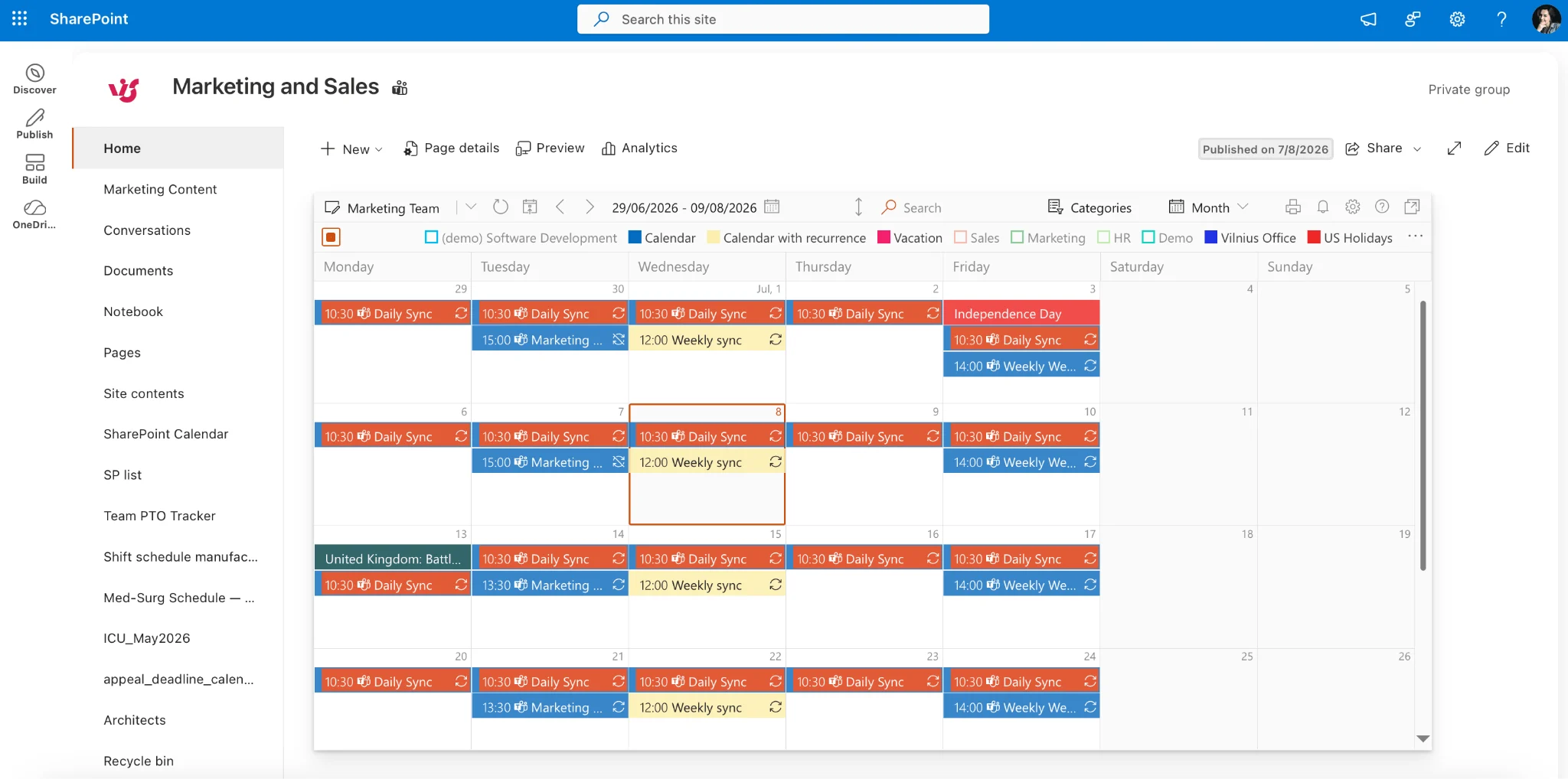
Pic. 8. Virto Calendar App
Virto Calendar App costs $2,412 per 100 users per year with a 3-year agreement (100 users and up); smaller teams can use Virto Shared Calendar, which has a free plan. A 30-day free trial is available »>
FAQ
How do I create a calendar in SharePoint?
In modern SharePoint, create a list and switch it to the Calendar view, or add the Events web part to a page. The classic standalone Calendar app is deprecated. For richer scheduling, add the Virto Calendar App.
Does modern SharePoint have a calendar?
Yes — through a list Calendar view or the Events web part. There is no standalone classic Calendar app in modern sites, but apps like Virto Calendar add overlay and color-coding on top.
How do I add a team calendar?
Create the calendar as a list with a Calendar view on a site your team can access (such as a team site), then surface it on a page with the Events web part. Make sure all team members have permission to view and add events so everyone can keep it up to date.